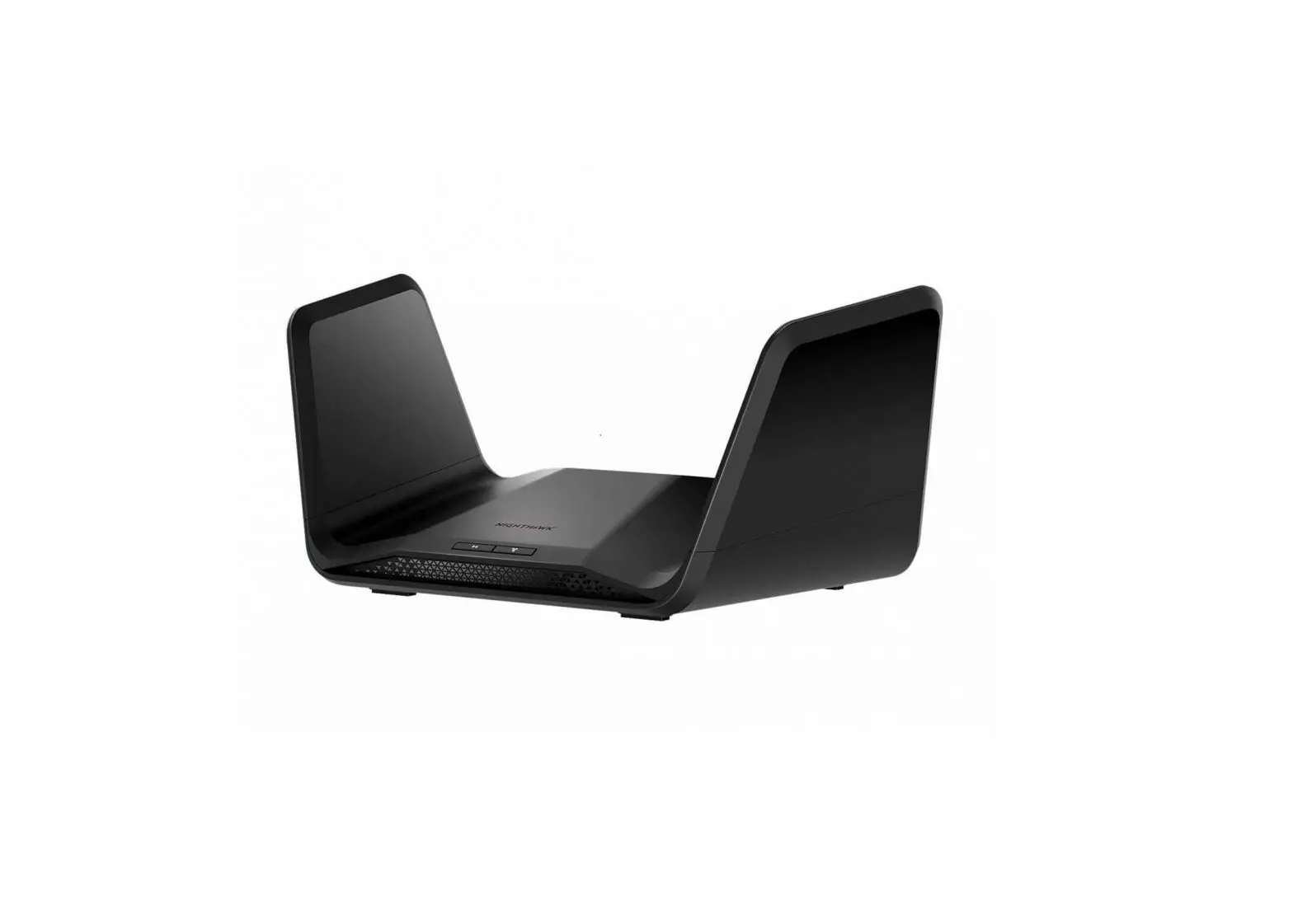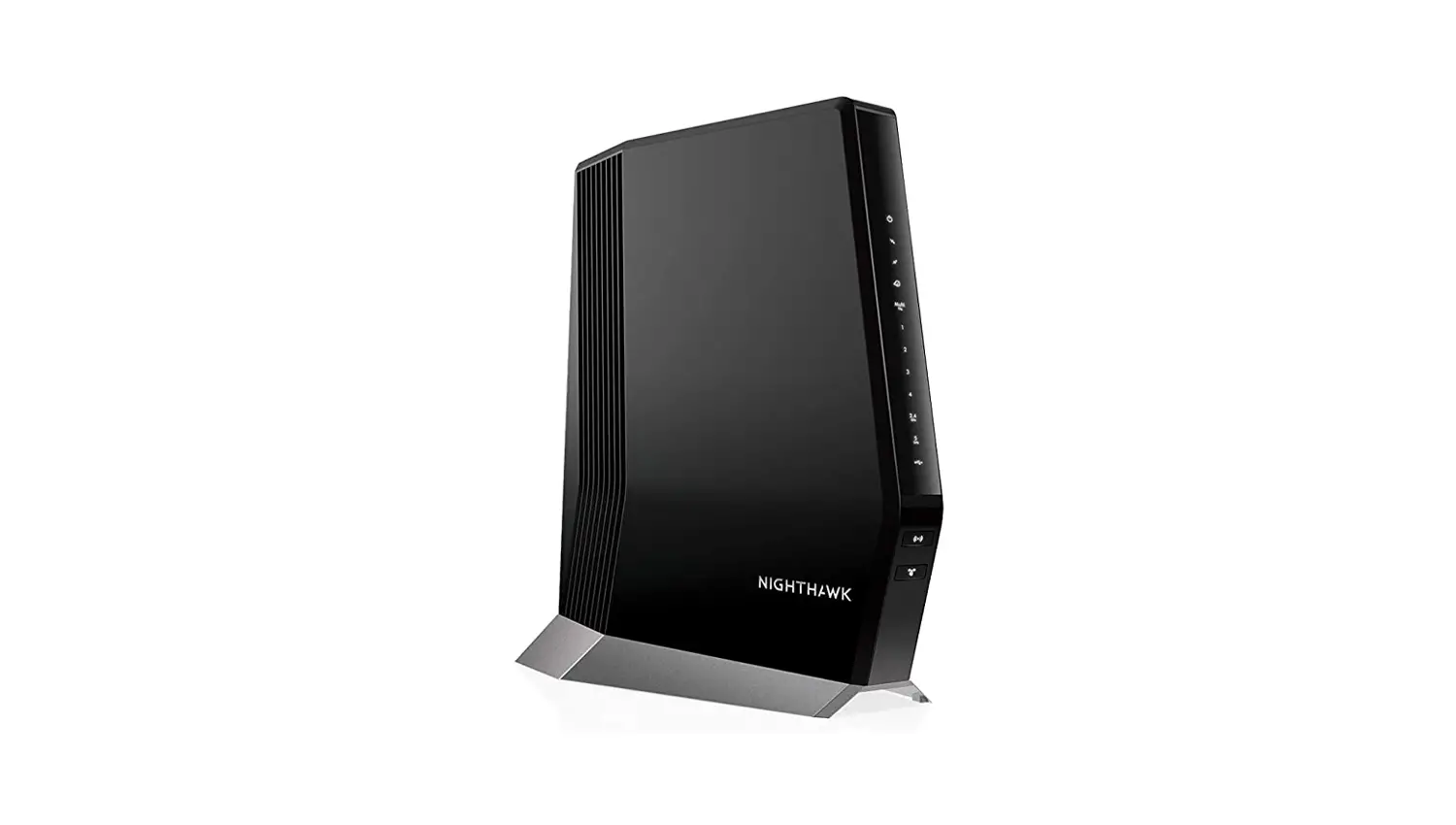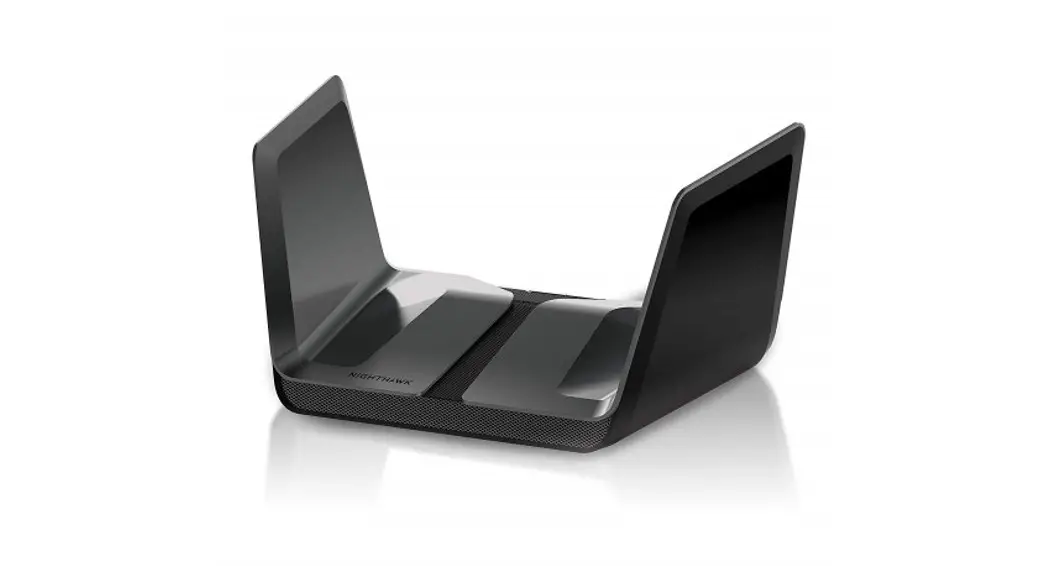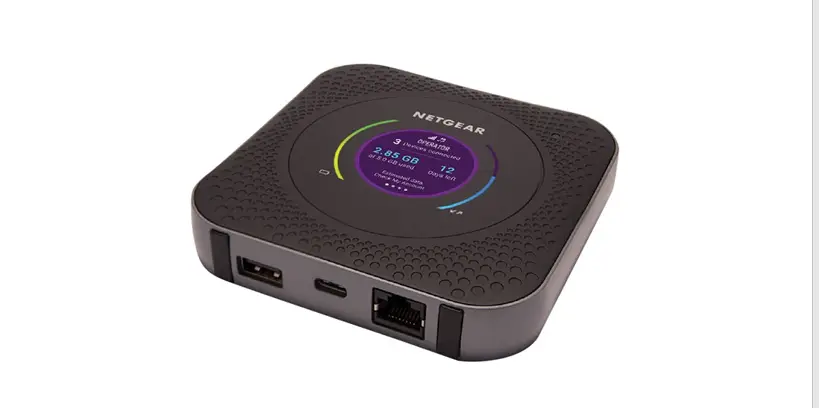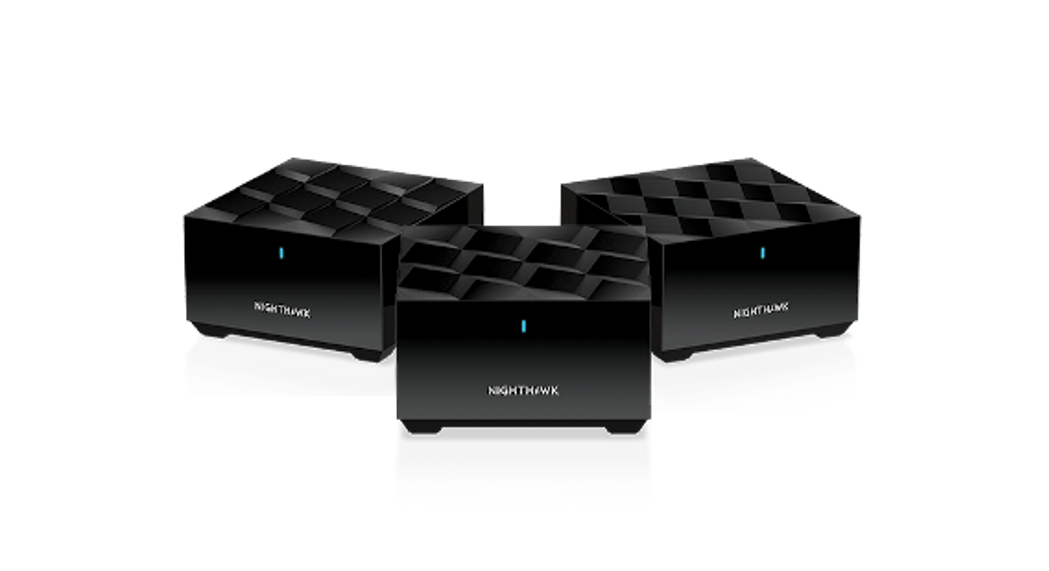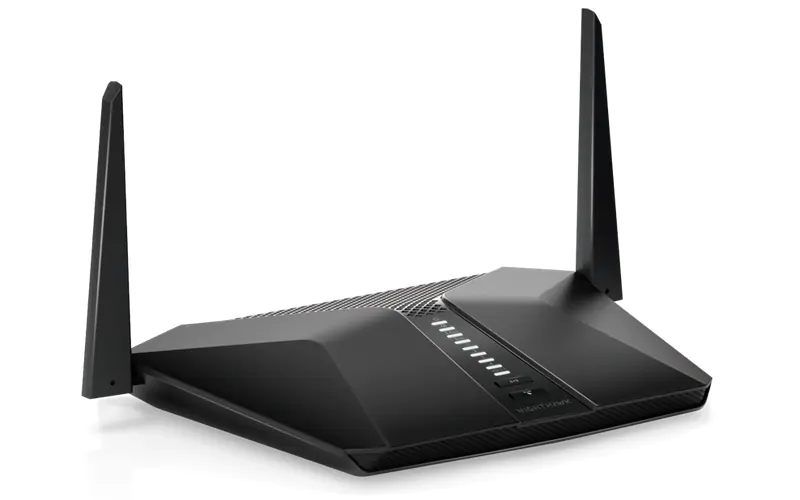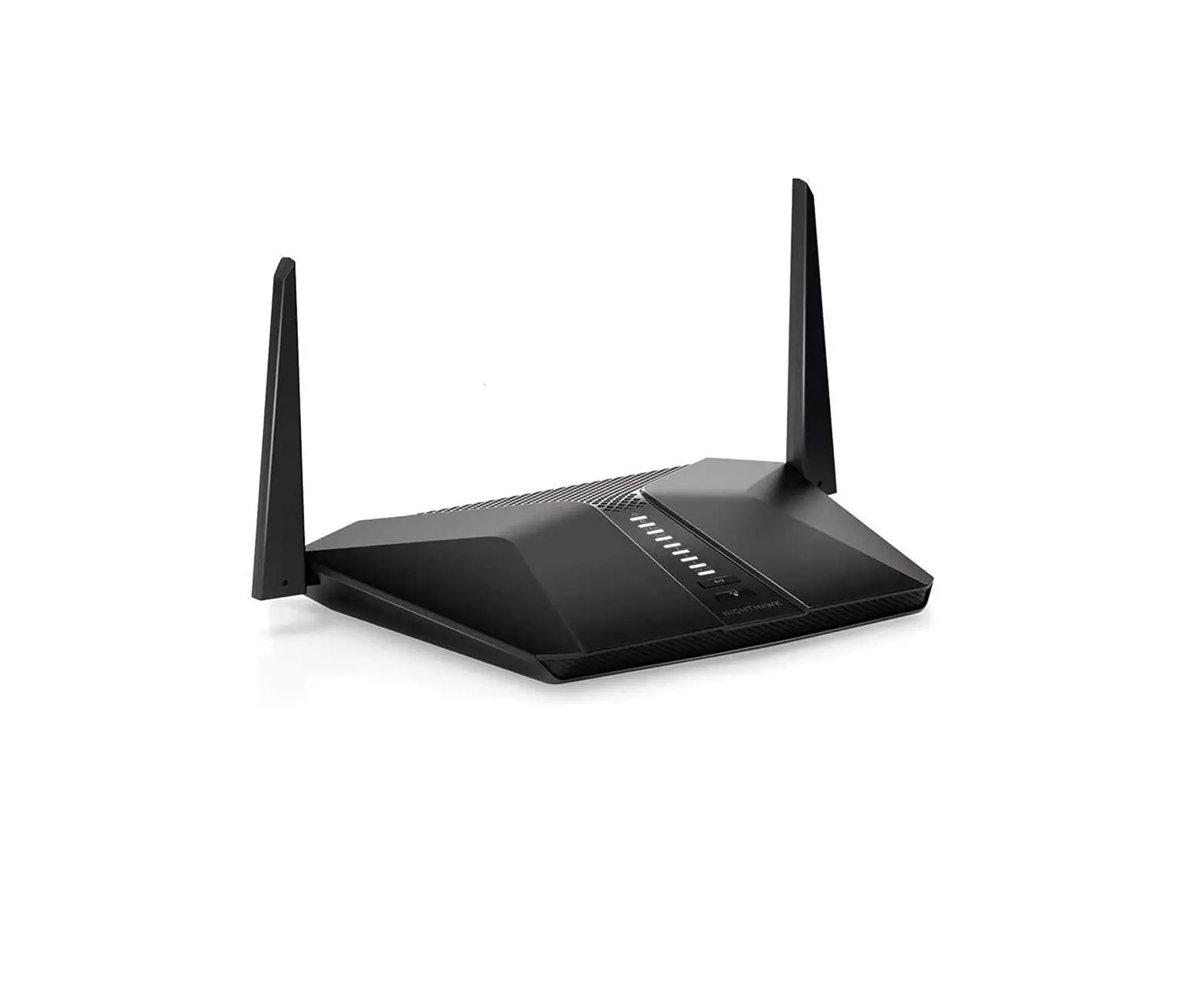
NETGEAR Nighthawk App User Guide
Quick Start
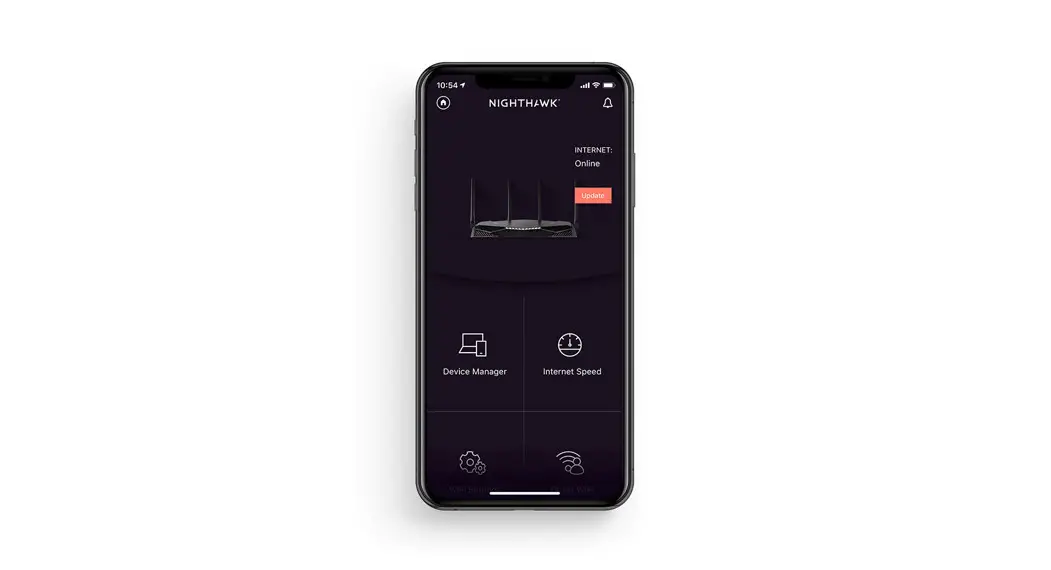
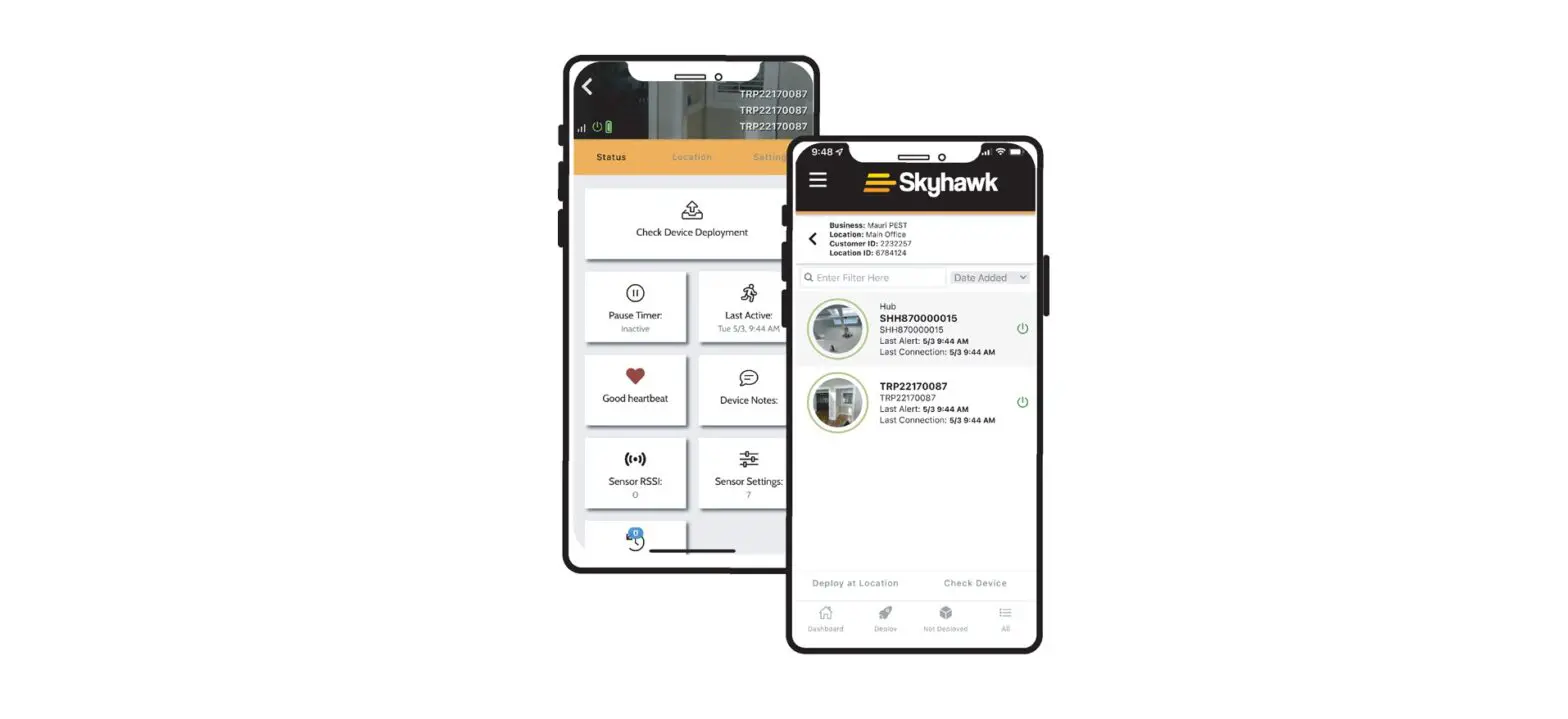
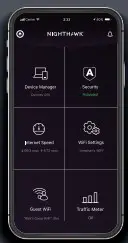
- Download the Nighthawk app to install your router On your mobile phone, download the Nighthawk app and follow the setup instructions.

- Secure your devices with NETGEAR Armor
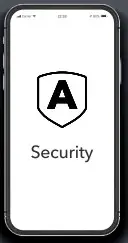
Tap the Security icon in your Nighthawk app to verify that NETGEAR Armor is activated.
Your Nighthawk comes with NETGEAR Armor cybersecurity. Armor blocks online threats likehackers and phishing attempts on your devices. - Do more with the app
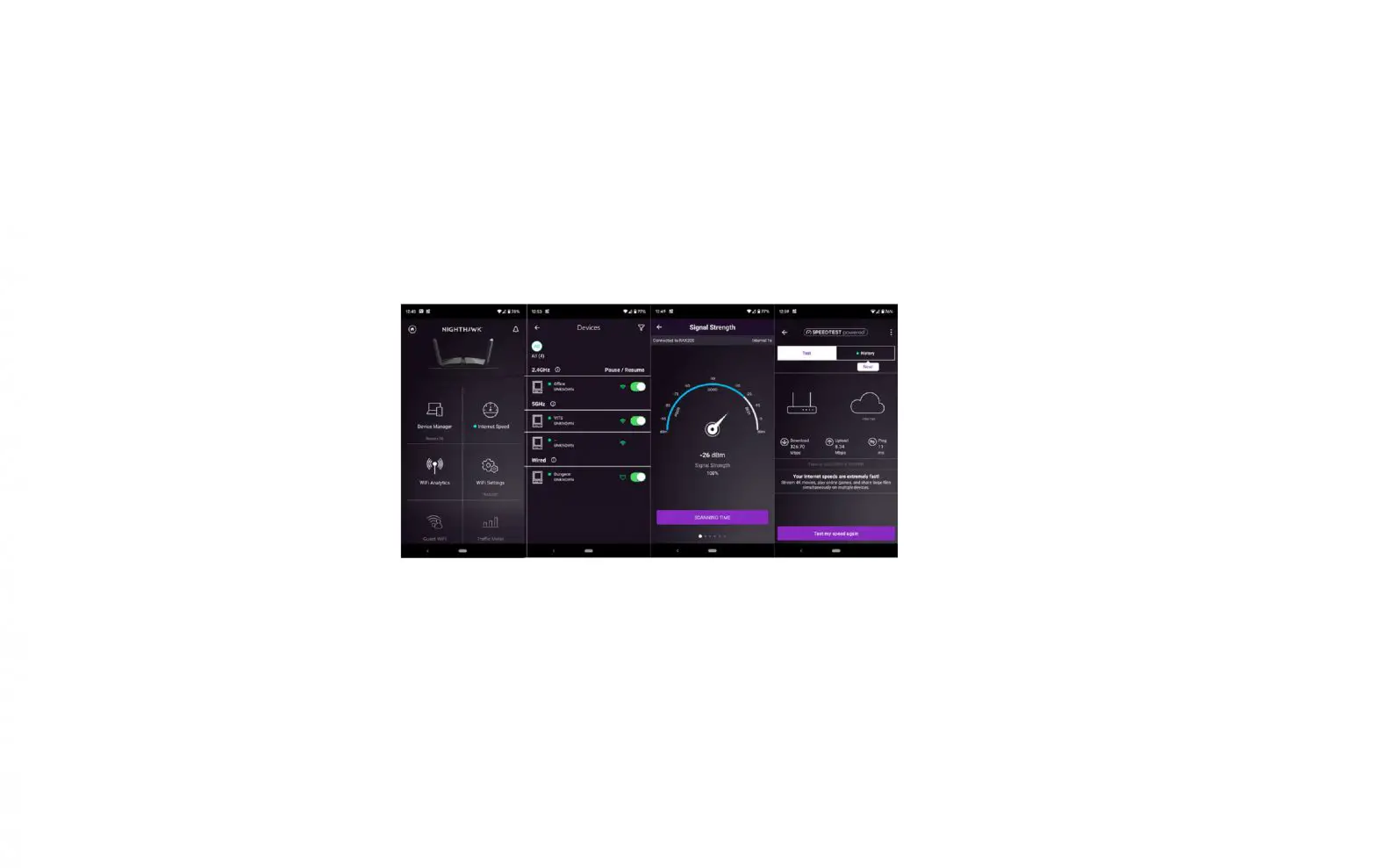
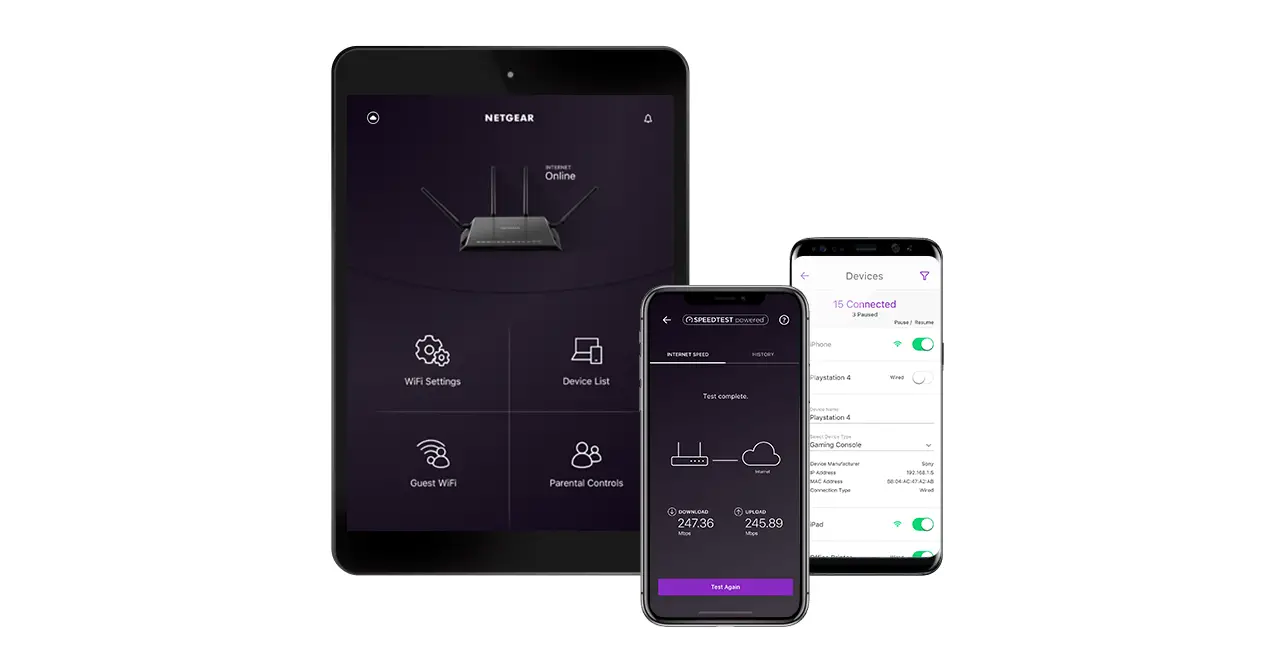
check out everything you can do on the Nighthawk app! Run a speed test, pause the internet see all the connected devices and more.
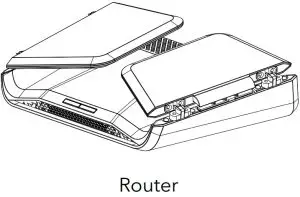
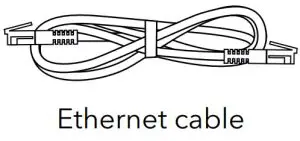
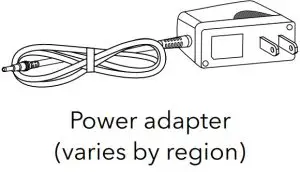
Contents
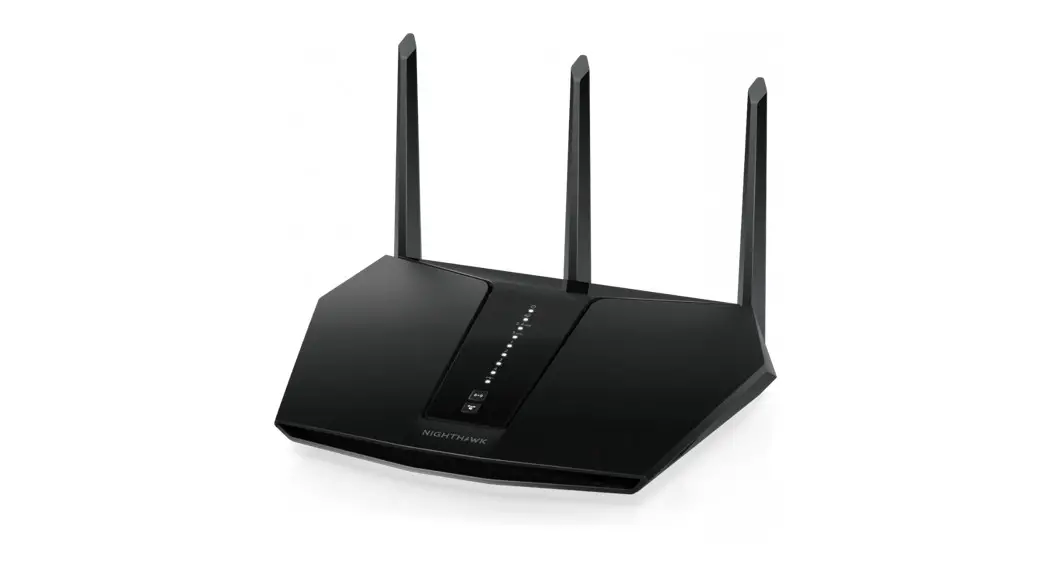
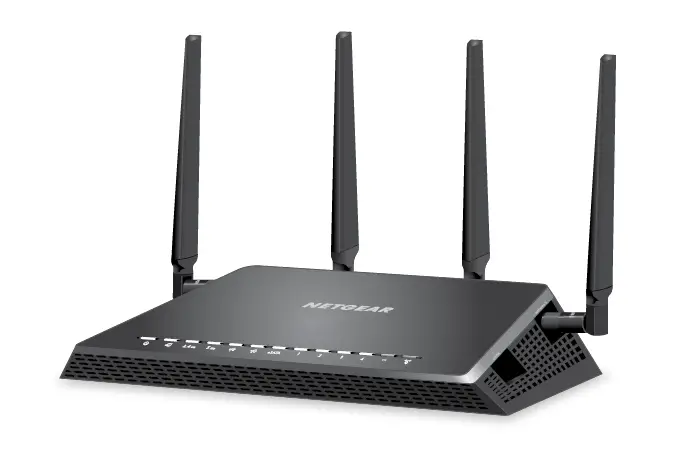
- Power LED
- Internet LED
- 2.4 GHz WiFi LED
- 5 GHz 1 WiFi LED
- 5 GHz 2 WiFi LED
- Ethernet Ports 1–4 LEDs
- USB 3.0 LED
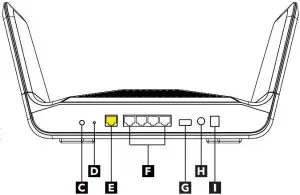
A WiFi On/Off button with LED
B WPS button with LED
C LED On/Off button
D Reset button
E Internet port
F Ethernet ports 1–4
G USB 3.0 port
H Power On/Off button
I Power connector
Troubleshooting
If you’re having problems with the installation, try one of the following:
- Turn off your modem and router and disconnect them. Restart your modem. Reconnect your router to your modem, and try installing with the
Nighthawk app again. - If you’re still unable to install your router using the Nighthawk app, manually install it using the router web interface.
Visit http://www.routerlogin.net to access the router web interface.
For more information, visit netgear.com/routerhelp.
Support and Community
Visit netgear.com/support to get your questions answered and access the latest
downloads. You can also check out our NETGEAR Community for helpful advice at
Regulatory and Legal
(If this product is sold in Canada, you can access this document in Canadian French at https://www.netgear.com/support/download/.)
For regulatory compliance information including the EU Declaration of Conformity,
visit https://www.netgear.com/about/regulatory/.
See the regulatory compliance document before connecting the power supply.
For NETGEAR’s Privacy Policy, visit https://www.netgear.com/about/privacy-policy.
By using this device, you are agreeing to NETGEAR’s Terms and Conditions at https://www.netgear.com/about/terms-and conditions. If you do not agree, return the device to your place of purchase within your return period.
NETGEAR, Inc.
350 East Plumeria Drive
San Jose, CA 95134, USA
NETGEAR INTERNATIONAL LTD
Floor 1, Building 3,
University Technology Centre
Curraheen Road, Cork,
July 2020 T12EF21, Ireland
NETGEAR
© NETGEAR, Inc., NETGEAR and the NETGEAR Logo are trademarks of NETGEAR, Inc. Any non‑NETGEAR trademarks are used for reference purposes only.
References
 English - NETGEAR Communities
-
I’m having trouble installing my NETGEAR router; what do I do? | Answer | NETGEAR Support
-
NETGEAR Support | NETGEAR
-
Router Login & Setup | NETGEAR
-
NETGEAR Privacy Policy | NETGEAR
-
Regulatory | NETGEAR
-
NETGEAR Terms and Conditions | NETGEAR
-
Download Center | Downloads and Documentation | NETGEAR
 English - NETGEAR Communities
 I’m having trouble installing my NETGEAR router; what do I do? | Answer | NETGEAR Support
 Router Login & Setup | NETGEAR
 NETGEAR Privacy Policy | NETGEAR