Quanzhou Juhui Electronics
JH-DOOR538
Remote Control
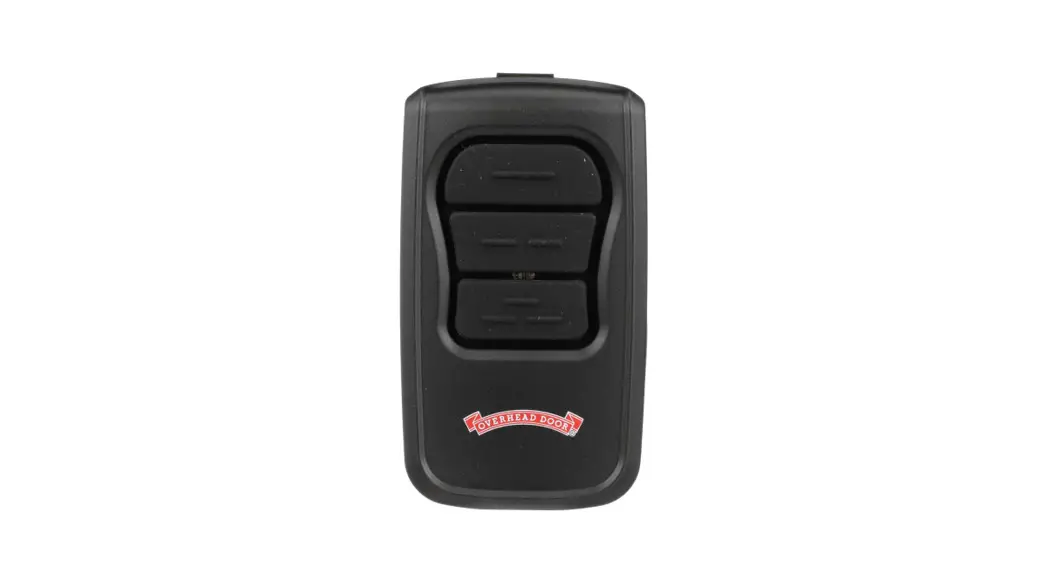
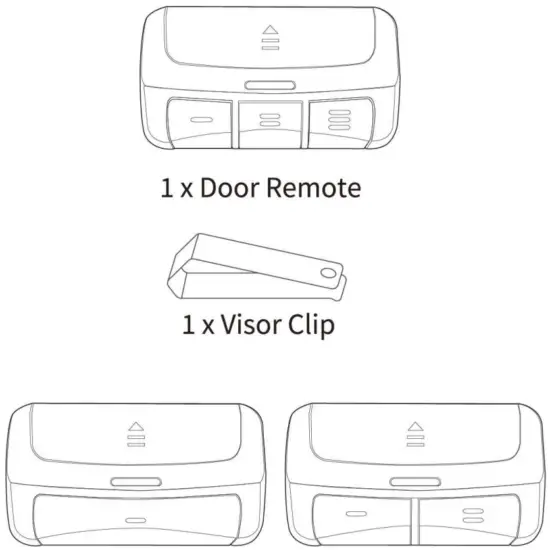
Package Content
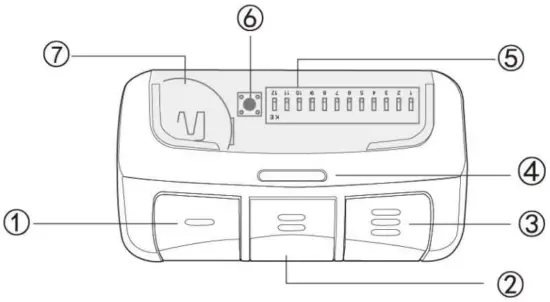
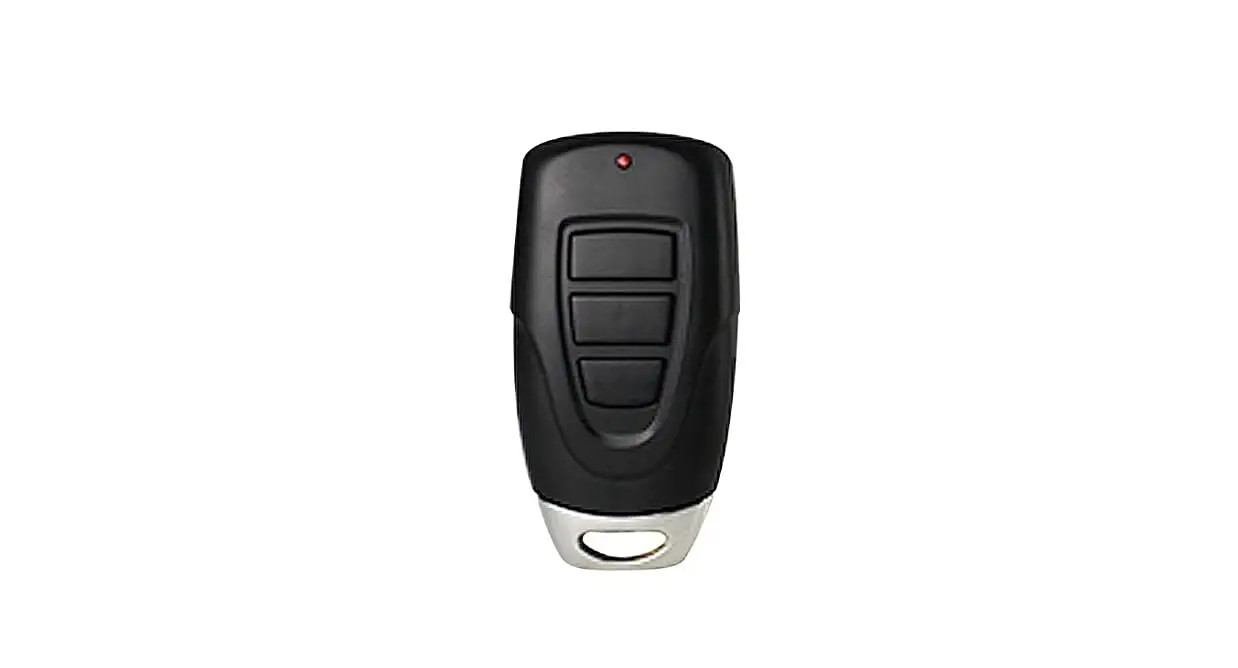
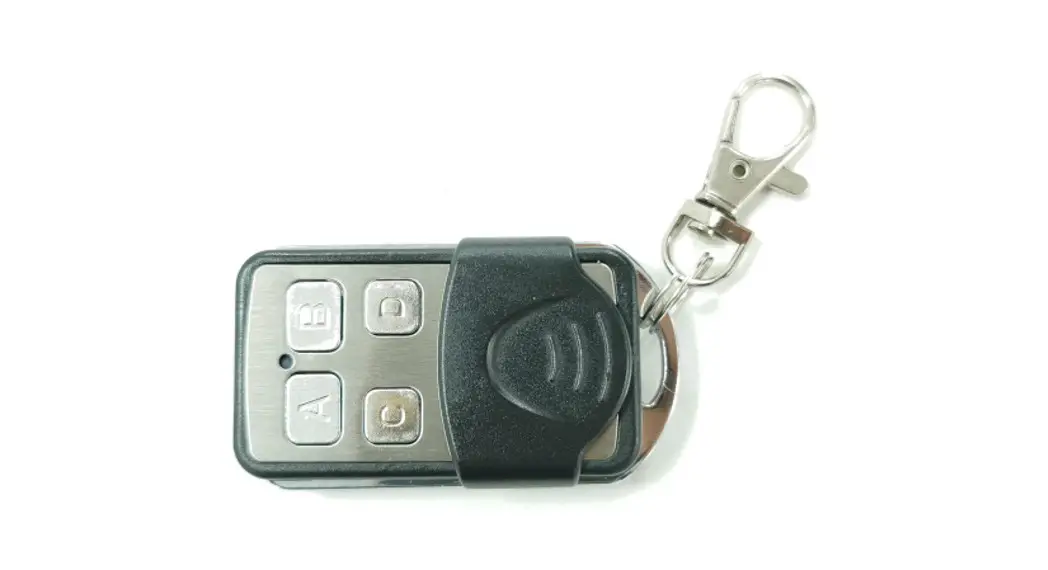
| 1. Button 1 | 5. DIP switches |
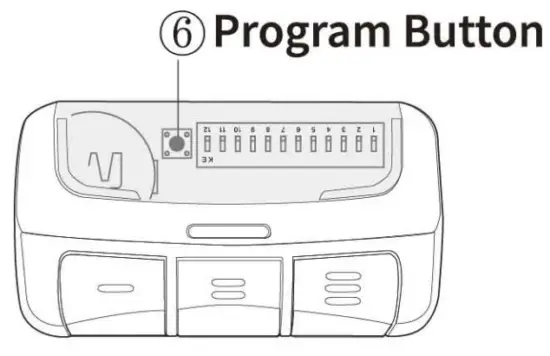
| 2. Button 2 | 6. program Button |
| 3. Button 3 | 7. Battery |
| 4. Status LED |
NOTE: If your opener uses DIP switches to add a remote, please
- Start with the door closed
- Match the same on/off positions as the working remote or radio receiver
- Press and hold the program button until the status
LED lights are solid red. Then following below 4-5 steps to finish the configuration.
Configuration Guide
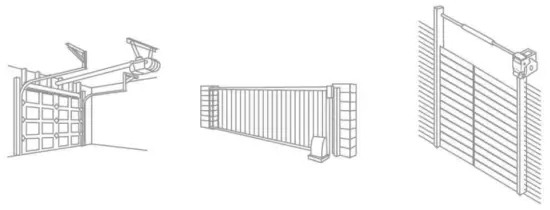
- Start with your garage door, villa door, or commercial door closed.

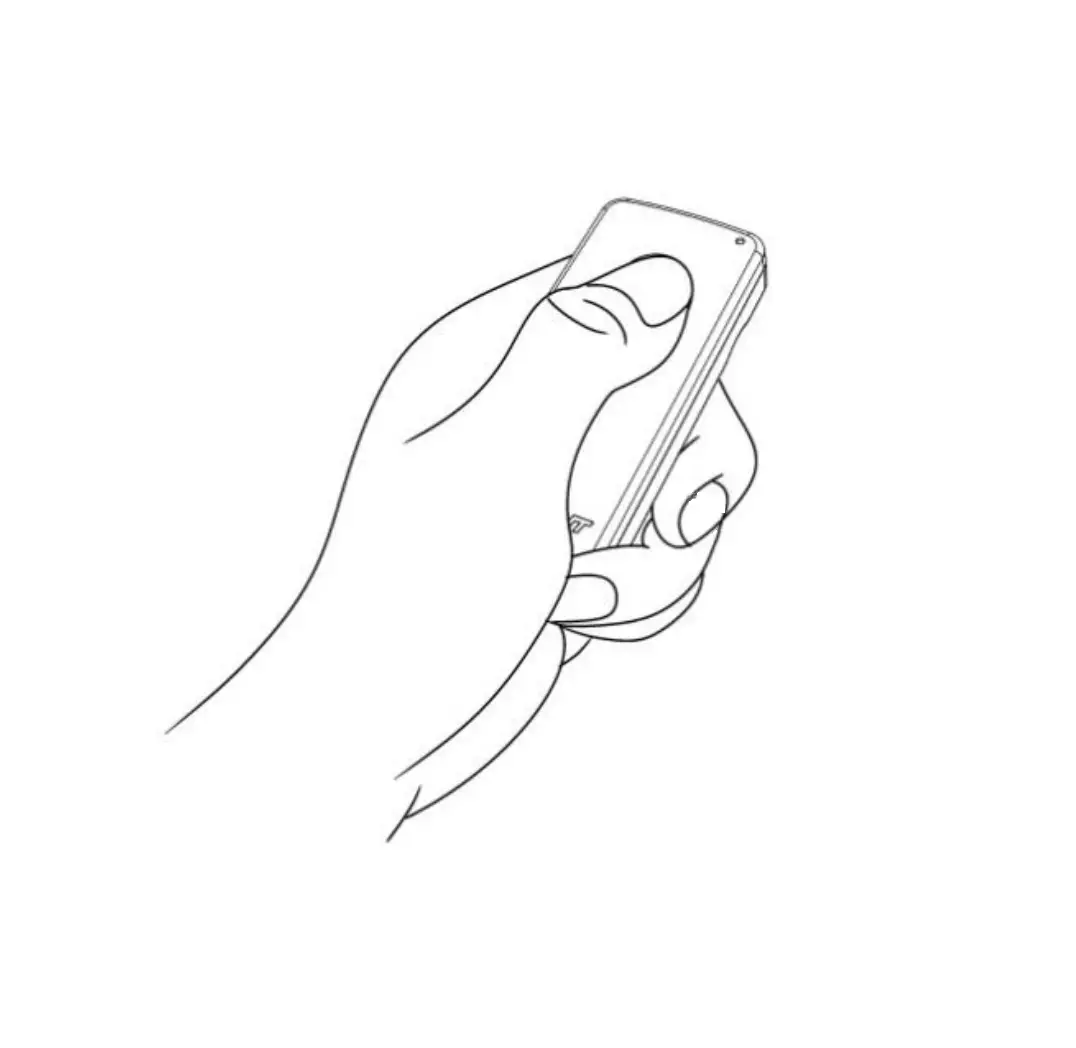
- Remove the battery cover, press, and hold the program button until the status LED lights solid red to enter into configuration mode. This mode will last 1 min.

- Press Button 1 or Button 2 or Button 3 to adjust to the required code. The red light will flash once for each press. Press several times to set the button as the code type.
- Press the program button to finish programming the indicator light will turn off, and the button will save the set code type automatically.
Note 1: Only one button can be set at a time. To set another, you must program again.
Note 2: The program time limit is 60 seconds. If the program button is not pressed again 60 seconds after entering the program. the red light will turn off and the programming will exit automatically. This program item is invalid.
Note 3: In the programming, you must keep pressing the same button. otherwise, the red light will turn off and exit the program immediately. For example, to enter the program. press button 1 twice, press button 2 again, and then exit the program immediately, and the program item does not change.
Note 4: The remote control supports at most 16 kinds of wireless codes. If you press it more than 16 times, the red light will turn off and exit the program. The key type does not change.
Note 5: Dip Switch is used to set the data code for the fixed code. Different dip switch numbers are used according to different code positions. This dip switch supports programming with a battery, which can be programmed at any time, and no need to reprogram.
The required times of button presses vary by different door brands/types.Number of Button presses Needed Brand Type/Color of Smart/Learn 1 time Linear MegaCode 1997-Current 318MHz 2 times Chamberlain Orange+red Button 1997-2005 390MHz 3 times Chamberlain Purple Button 1999-2009 315MHz 4 times Billion Code Green Button 1993-1996 390MHz 5 times Genie Overhead Door IntellIcode 2005-Current 315MHz 6 times Genie Overhead Door Intellicode 2005-Current 390MHz 7 times Chamberlain Yellow Button 2011-Current 310/315/390MHz 8 times Chamberlain 9-Code 9 Code Switch 1990-1992 390MHz 9 times Chamberlain 9-Code 9 Code Switch 1990-1992 31SMHz 10 times Genie 12-Code 12 Code SvAtch 1985 390Mhz 11 times Linear Multi-code /Ez Codel0 Code Switch 300Mhz 12 times Chamberlain 8-Code 8 Code Switch 390Mhz 13 times Stanley 10 Code Switch 310Mhz 14 times Genie 9-Code 9 Code Switch 390MHz 15 times Linear Moor-O-Matic 8 Code Switch 310Mhz 16 times Chamberlain 7-Code 7 Code Switch 390Mhz 17 times Wayne Dalton Wayne Dalton Rolling code 372.5MHz I993-Current NOTE: Access Master, Do-It, Gatheron, LiftMaster, Link Control, Master Mechanic, Raynor, Sears Craftsman, Steel Craft, and True Value are all compatible with Chamberlain technology. Please refer to the relevant learn button.
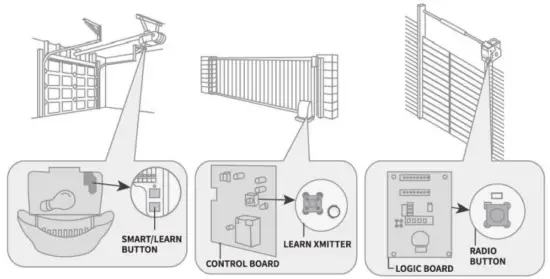
- Press the SMART/LEARN button on your existing door opener.

- Then press the programmed remote control to learn on your receiver now.
You can use the configured button to control your door now. If your door does not respond, please reconfigure the button once more. If it still fails, please contact us for further help.
FCC Statement:
Any changes or modifications not expressly approved by the party responsible for compliance could void the user’s authority to operate the equipment. This device complies with part 15 of the FCC Rules.
Operation is subject to the following two conditions:
- This device may not cause harmful interference, and
- This device must accept any interference received, including interference that may cause undesired operation.
Note: This equipment has been tested and found to comply with the limits for a Class B digital device, pursuant to part 15 of the FCC Rules. These limits are designed to provide reasonable protection against harmful interference in a residential installation. This equipment generates, uses, and can radiate radio frequency energy and, if not installed and used in accordance with the instructions, may cause harmful interference to radio communications. However, there is no guarantee that interference will not occur in a particular installation. If this equipment does cause harmful interference to radio or television reception, which can be determined by turning the equipment off and on, the user is encouraged to try to correct the interference by one or more of the following measures:
- Reorient or relocate the receiving antenna.
- Increase the separation between the equipment and receiver.
- Connect the equipment into an outlet on a circuit different from that to which the receiver is connected.
- Consult the dealer or an experienced radio/TV technician for help.
RF warning for Portable devices:
The device has been evaluated to meet general RF exposure requirements. The device can be used in portable exposure conditions without restriction.