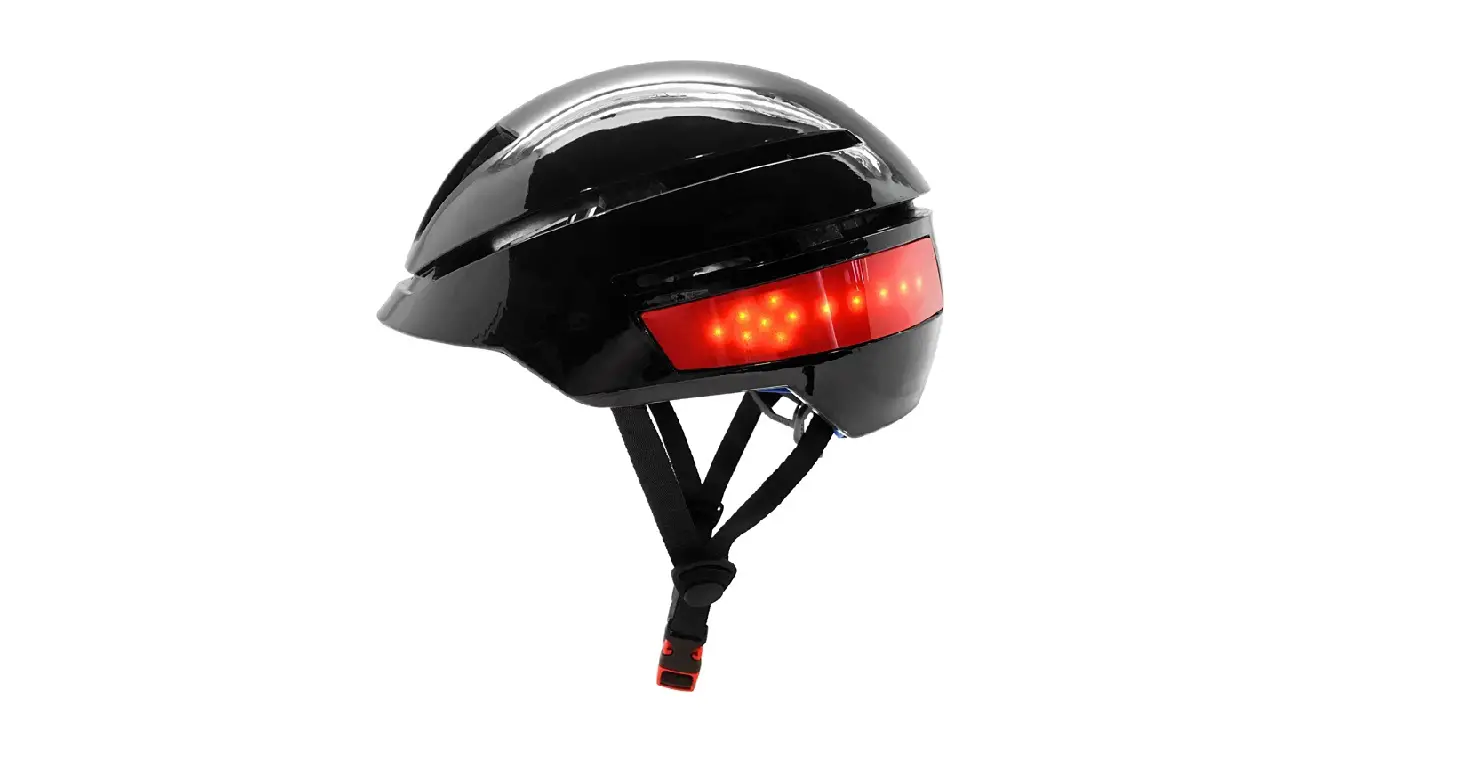
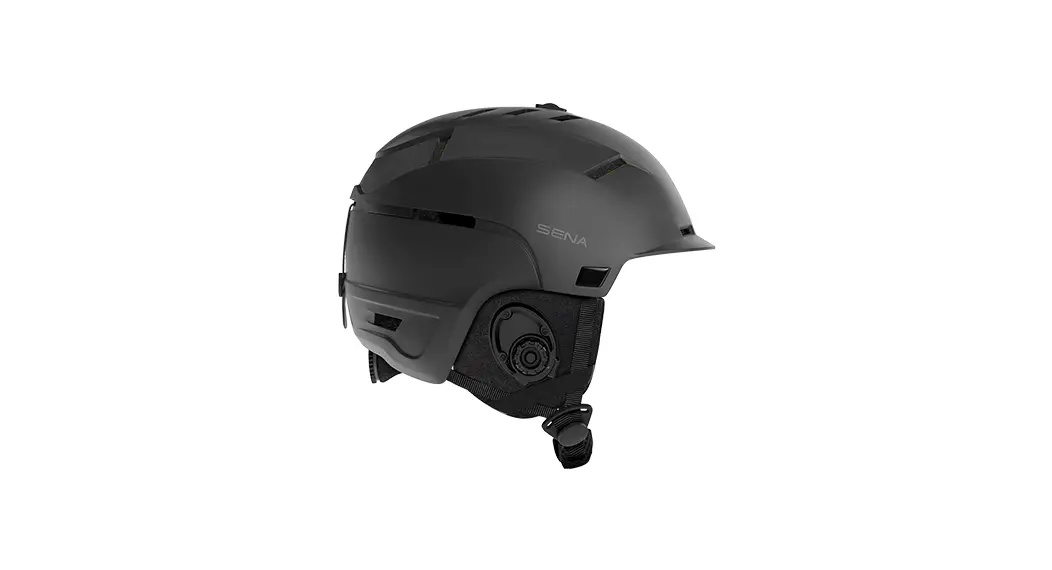
JYFY-002 Multifunctional Smart Helmet
User’s Manual of Multifunctional Smart Helmet (JYFY-002)
Thank you for choosing the Multifunctional Smart Helmet. Please
read the manual and precautions carefully before use.
Schematic Diagram of the Helmet (1)
The helmet has a removable and replaceable top casing that can
be disassembled and replaced with other colors. Only the casings
matching the helmet are applicable. The helmet has a camera (2) and
a headlight (2), but only one of them can be selected.
Schematic Diagram of the Helmet (2)
The helmet has a TYPE-C charging port (4) with a waterproof
silicone cover that can be lifted. It also has a rear warning light
(3), a power button (6) with a work indicator, and a light control
button (5).
Schematic Diagram of the Helmet (3)
The helmet has a reset hole (10), a speaker of sport digital
camera (9), a TF memory card slot (8), a microphone of sport
digital camera (7), a WIFI/photograph and video recording button
(11), a digital camera work indicator (12), a video recording
ON/OFF button of digital camera (13), and a Bluetooth microphone
Bluetooth (left) (15) and speaker (16) on the right.
Schematic Diagram of Remote Control
The remote control has a headlight control button (17), a charge
indicator (18), a left turn light control button (19), a right turn
light control button (20), a rear warning light control button
(21), and a voice assistant wake-up button (22). It also has a
TYPE-C charging port (23).
Detailed Explanation of Functions
- The removable and replaceable top casing (1) can be
disassembled and replaced with other colors that match the
helmet. - The helmet has a camera (2) and a headlight (2), but only one
of them can be selected. The [Digital Camera Version] only has a
camera and has no headlight, while the [Headlight Version] only has
a headlight and has no camera. - The rear warning light (3) can be controlled through the three
rear warning light control buttons (L R M) on the remote control
(18). - The TYPE-C charging port (4) has a waterproof silicone cover
that can be lifted. A 5V, 2AH charger is needed to charge the
helmet. - The lamp control button (5) can be pressed short or long.
Pressing it short once turns on/off the stop light. Pressing it
short twice in a row turns on/off the left turn light. Pressing it
three times in a row turns on/off the right turn light. Pressing it
four times in a row turns on/off the running lights. Long pressing
it (for the [Headlight Version]) for the first time for 3 seconds
makes the headlight bright lightly. Long pressing it for the second
time for 3 seconds makes the headlight highlighted. Long pressing
it for the third time for 3 seconds turns off the headlight. - Pressing and holding the power button (6) for 2 seconds turns
on or off the smart device of the helmet. Pressing it short
pauses/plays music (while music is playing). - The pickup microphone of the sport digital camera (7) can
collect and input external sound into video synchronously after
opening video recording function (you can control it to open/close
on mobile APP). - The TF memory card slot (8) can be accessed by lifting the
silicone waterproof cover and inserting or pulling out the TF
memory card. - The speaker of sport digital camera (9) can broadcast the
working state of the recorder through voice when switching the use
function of the recorder. - The WIFI/photograph and video recording button (11), digital
camera work indicator (12), video recording ON/OFF button of
digital camera (13), Bluetooth microphone Bluetooth (left) (15),
and speaker (16) on the right can be used to control the camera and
record videos and photos.
Product Usage Instructions
- Read the manual and precautions carefully before using the
Multifunctional Smart Helmet. - Charge the helmet using a 5V, 2AH charger through the TYPE-C
charging port (4) with a waterproof silicone cover that can be
lifted. - The helmet has a camera (2) and a headlight (2), but only one
of them can be selected. Choose the appropriate version depending
on your needs. - The lamp control button (5) can be used to turn on/off the stop
light, left turn light, right turn light, and running lights. Long
press it for 3 seconds to adjust the brightness of the headlight or
turn it off. - Press and hold the power button (6) for 2 seconds to turn on or
off the smart device of the helmet. Press it short to pause/play
music while music is playing. - The pickup microphone of the sport digital camera (7) can
collect and input external sound into video synchronously after
opening video recording function using the mobile app. - The TF memory card slot (8) can be accessed by lifting the
silicone waterproof cover and inserting or pulling out the TF
memory card. - The speaker of sport digital camera (9) can broadcast the
working state of the recorder through voice when switching the use
function of the recorder. - The WIFI/photograph and video recording button (11), digital
camera work indicator (12), video recording ON/OFF button of
digital camera (13), Bluetooth microphone Bluetooth (left) (15),
and speaker (16) on the right can be used to control the camera and
record videos and photos. - The rear warning light (3) can be controlled through the three
rear warning light control buttons (L R M) on the remote control
(18).
User’s Manual of Multifunctional Smart Helmet (JYFY-002)
Respect customers: Please read the Manual and precautions of this smart helmet carefully before
use
Schematic diagram of the helmet (1)
Page 1 of 18
Removable and replaceable top casing (1)
Camera (2) Headlight (2) (Only one of camera and headlight can be selected)
Schematic diagram of the helmet (2)
Page 2 of 18
(4) TYPE-C charging port Lift the waterproof silicone cover
(3) Rear warning light
(6) Power button
(With work indicator)
(5) Light control button
Schematic diagram of the helmet (3)
Page 3 of 18
Reset hole (10)
Speaker of sport digital camera (9)
TF memory card slot (8)
Microphone of sport digital camera (7)
(11) WIFI/photograph and video recording button
(12) Digital camera work indicator
(13) Video recording ON/OFF button of digital camera
(14) Bluetooth microphone
Bluetooth (left) (15)
speaker
(16) Bluetooth speaker (right)
Schematic diagram of remote control
Page 4 of 18
(17) Headlight control button (18) Charge indicator
(19) Left turn light control button
Right turn light control button (20)
(21) Rear warning light control button
Voice assistant wake-up button (22)
(23) Type-C charging port
Detailed explanation of functions
(1)
Removable and replaceable The top casing of the helmet can be disassembled and replaced to
top casing (1)
other colors. Only the casings matching the helmet are applicable
(2)
Camera
Camera and lighting can not be selected at the same time, and one
of them has been fixed when leaving the factory. [Digital Camera
(2)
Headlight
Version] only has camera and has no headlight, and [Headlight
Version] only has headlight and has no camera
Page 5 of 18
(3)
Rear warning light
Control the switch through [Three Rear Warning Light Control Buttons (L R M)] on the remote control(18)
(4)
Type-C charging port
Type-C interface is provided for helmet charging, the 5V, 2AH charger is needed to charge the helmet
1. Press it short: short press once to turn on/off the stop light;
press it short twice in a row to turn on/off the left turn light; press 3
times in a row to turn on/off the right turn light; press 4 times in a
row to turn on/off the running lights.
(5)
Lamp control button 2. Press it long (for the [Headlight Version]): for the first time,
press it for 3 seconds, and the headlight is bright lightly; press it
for 3 seconds for the second time, and the headlight will be
highlighted; press it for 3 seconds for the third time, and the
headlight is turned off
On/off button of the device Press it long for 2 seconds: turn on or off the smart device of the
(6)
power supply
helmet Press it short: pause/play music (while music is playing)
The pickup microphone of the sport digital camera can collect and
Microphone of sport digital input external sound into video synchronously after opening video
(7)
camera
recording function (you can control it to open/close on mobile
APP)
Lift the silicone waterproof cover and insert or pull out the TF
(8)
TF memory card slot
memory card
(9)
Speaker of sport digital camera
Recorder broadcast speaker can broadcast the working state of the recorder through voice when switching the use function of the
recorder.
(10)
Reset hole
Use the reset needle to press it short, to reset the device to the factory state
(11)
WIFI/video recording ON/OFF button
Press it short for 1 second to turn on/off the video recording function; press for 3 seconds to turn on/off WiFi signal
(12)
Digital camera work indicator
Indicate operation status of digital camera
(13)
Video recording ON/OFF button of digital camera
Press it long for 2 seconds to turn on/off digital camera (only used in power saving state)
(14)
Bluetooth microphone
Communicate with the pickup microphone after connection to Bluetooth
(15) Bluetooth speaker (left) Bluetooth player speaker
(16) Bluetooth speaker (right) Bluetooth player speaker
[Headlight Version] Press the headlights low for the first time,highlight for the second time, and turn off the
(17)
Headlight control button
headlights for the third time [Digital Camera Version] Press it short: take pictures
Press it long: when press it long for the first time, the device will
start video recording, when press it long for the
Page 6 of 18
second time, video recording will stop
(18)
Charge indicator
During charging, the indicator is red, after charging is completed, it turns to blue.
Turn left light control button, press it short to turn on/off left turn
(19)
L button
indicator
(20)
R button
Right turn light control button, press it short to turn on/off right turn indicator
Rear warning light control button. Press it short to turn on/off the
(21)
M button
stop light(in any light mode); press it long for 3 seconds, to enter the multi-color running light mode; and press it for 3 seconds
again to turn off the multi-color running light mode
(22)
Voice assistant wake-up button
Press it short to wake up/turn off the mobile phone voice assistant
Type-C Charge port
It is a Type-C interface for charging of the remote control, use
(23)
(remote control)
universal charger for charging through the charge port
When wearing the helmet during skateboarding or
Strap and handlebar tie mountaineering, the wrist strap shall be used for the remote
fixing position
control, and when wearing the helmet during bicycling, the tie
shall be used for the remote control.
Check the contents of the packing box
Packing list:
Smart helmet
One
Remote control
One
User’s Manual
One
Note:
The charger of the helmet is optional, it is not a standard accessory
Product charging way
(13) Connect the charger to the charging port
During charging, the red light is on
After charge is completed, the blue light is on
Wearing method
Note:
Please use Type-c interface for the helmet or the remote control, the charger with helmet current above 2A. There is no current limit for the remote control. If the original charger configured for some mobile phones cannot charge the helmet due to protocol problems, please use other chargers suitable for this product. Or buy the chargers that have been verified by the helmet manufacturer.
Page 7 of 18
1. The helmet shall be correctly worn on the head, the front of the helmet is lower than the forehead. Adjust the rear adjuster to make the tightness appropriate and make the head comfortable
2. Place the center of the helmet side strap below your ears, and make sure that the tightness of the strap makes both ears comfortable
4. Tighten or loose the strap, so as to
3. Fasten the buckle and adjust the
make your head comfortable when wearing the the helmet. Fix the
length of the strap
helmet safely, and ensure that the
5. To conduct proper adjustment, you can tighten or
helmet will not shake forward or loose the strap
backward greatly
Precautions during use of the helmet
In order to wear the helmet comfortably and maximize the protective effect of helmet, please 1
choose the helmet that match the size of your head. When wearing the helmet, please fasten the strap buckle, adjust the tightness of the strap to make 2 your head comfortable, and adjust the head circumference adjuster. Please keep the helmet properly. It is forbidden to scrub the helmet with corrosive solvent. 3 Chemical composition may cause damage to the surface or material of the helmet. It is forbidden to soak the helmet in water. The helmet has undergone waterproof treatment (including rain prevention and water splashing), but it should not be soaked in water for a long 4 time. In case of long-term soaking of gap between ABS and EPS, it will damage the performance of electronic device of this product, affect its service life or it will cause that the product fails. It is forbidden for non-maintenance technicians to replace or remove any original accessories of 5 the helmet. 6 It is forbidden to continue to use helmets that have had accidents or been hit by heavy force. 7 Wearing the helmet correctly can greatly reduce the accident injury during riding, but it cannot completely avoid injury. In case of abnormal phenomena during operation of the product, please refer to the solution in 8 “Common Troubleshooting” in this manual first. If no related solution is found, please press (10) [Reset Hole] with thimble to reset the product to the factory state. 9 Illustrations in this manual is to explain how to operate the product more clearly, so the display
Page 8 of 18
interface in the illustrations may be slightly different from the actual product, and the actual object
shall prevail.
You should save or format the memory card of helmet regularly, to prevent data loss and reduce
digital camera failure. To ensure that the sport digital camera function of the helmet is used 10
normally, the memory card needs to be formatted every 15-20 days. Please make backup of the
data in the memory card before formatting.
11 When using the product for the first time, please remove the protective film of the camera (2), so as not to affect the video clarity and transmittance.
Before using this recorder function of the helmet, in order to improve the compatibility between
12 the card and this product, please format the card on a computer or connect the mobile APP with
the sport digital camera through WiFi, then you can format the memory card.
If the memory card cannot be used normally on the product, it means that the card cannot
13
meet the requirements of the high-speed card of the product. You shall use the genuine card from the memory card brand manufacturer or purchase Class 10 and above 8GB-128GB TF
memory card from our company.
It is strictly forbidden to store and keep this helmet for a long time at high temperature 14
above +60 or below-20, so as not to affect its service life and function.
It is strictly forbidden to wear the helmet during engineering operation. This helmet shall be used
for riding, it meets the quality and safety standards of riding helmets, but is applicable to special
operators of engineering operation, etc. Please wear the helmet correctly before riding. It can
protect the head and reduce the injury by absorbing and dispersing the impact force. But avoiding
15 injury completely by exceeding the quality standard of riding helmet is infeasible. If the product is
not used in accordance with the requirements of this manual or the users violate relevant traffic
regulations, it may cause personal injury or property loss to users or third parties. The company
will not be responsible for any personal injury or property loss unrelated to the quality of the
product. The company only bears the responsibility caused by the quality of the product.
Cleaning of the product: You can use a soft cloth dipped with water to clean and wipe the helmet
16 casing and accessories; please wipe the lens gently with the lens cloth to avoid scratch on the lens, which will affect the image quality and clarity; the lining is pasted by velcro tape, it can be
removed for washing.
Storage of the product: the helmet should be stored in a dry and ventilated indoor environment. If
17 it will not be used for a long time, it needs to be fully charged and shut down. It is recommended to
charge it periodically every two months.
Due to the different configurations of the smart helmets ***001A/B/C, the functions may be 18
slightly different from those in the manual.
19 Service life of the helmet: 3 years
Operation method of sport digital camera and mobile APP
1. The iPhone mobile phone users should search the APP store (search “AI Helmet” for the domestic and the foreign; please distinguish uppercase and lowercase letters, and note a blank space after AI) for download
Page 9 of 18
and installation of the App; Android mobile phone users should search local APP markets or Baidu and other web pages (search “AI Helmet” for the domestic and the foreign) for download and installation of the App. (When using the App for the helmet at home or abroad for the first use time, there is no need to register)
Mobile APP Icon of sport digital camera Android System Client Apple iOS System Client 2. Press the power button (6) long (on the top rear of the smart helmet) for 2 seconds, and there will be a voice prompt: “Bluetooth is turned on and waiting for connection” (if Bluetooth is connected, it will give a voice prompt that Bluetooth has been connected), at this time, Bluetooth and sport digital camera are both powered on for standby.
3. Video recording operation: Press the WiFi button (11) for 1 second to start video recording, and press it short again to close video recording. There will be the voice prompt: “Video recording has been turned on” or “Video recording has been turned off”. After connecting to WiFi, press the Video Recording button on the APP, you can also turn on or off the video recording; after the remote control is paired, press the headlight button, then you can start video recording.
4. WiFi operation: WiFi will be turned on after the power button is turned on. After 3 minutes, if the product is not connected to WiFi, WiFi connection is turned off automatically. You need to manually press the WiFi button for 3 seconds to turn on or turn off WiFi. There will be a voice prompt: “WiFi is on” or “WiFi is off”.
5. Operation on APP for mobile phone connection with WiFi: turn on mobile phone positioning in mobile phone settings (for some Android phones, if positioning function is not turned on, WiFi can’t work normally)—-click the “AI Helmet” APP corresponding to the helmet—-click the helmet icon on the homepage of AI Helmet APP—-automatically jump to WiFi settings in mobile phone settings to turn on WiFi—-find the name “JYFY_***_****** (random code)” corresponding to helmet WiFi, and enter the factory default password “12345678” (the name and password can be modified by yourself), connection with WiFi is completed. Note: after an Android phone connects with WiFi of the device, the text will appear; “The current WLAN is unavailable. Do you want to continue using this WLAN?” Please select “Use” or the connection will not be successful.
6. If connection with WiFi is successful, select the icon at the top left and return to AI Helmet APP, it will automatically enter the video real-time preview interface, which can be displayed horizontally. There are options of Photograph, Pause/Start Video Recording, Set Parameters, etc. at the bottom of the interface (To enter the interface for setting, you need to stop video recording).
Page 10 of 18
7. Click Back to the homepage of the APP. 7. At the bottom of the homepage, there are three columns: [Video Recording], [Files] and [Settings].
8. Click “Files” to enter the folder, then you can view, play, delete, download and share the files in the helmet memory card, the files downloaded in the local device and the locked files of emergencies (when there are too many locked files, you can adjust the sensitivity of gravity sensing in order to save memory)/and taken pictures.
9. Click [Settings], in the interface, you can modify the WIFI name and password, select the sensitivity of gravity sensing locking file, and the pixel resolution (due to the limitation of WiFi bandwidth, the mobile phone preview is 720p pixel preview in case of the highest smart version, it is different from the resolution of the actual shooting memory card, and the actual resolution may be 4K or 1080p). Enter the Settings interface of the device, and you can view the APP version.
Connection and operation method of voice assistant
1. Note: When using the voice assistant function, in case of Android phones, the users need to turn off WiFi connected to helmet device first (WiFi of Android phones occupies the network channel, and the phone is in the Network Unavailable state at this time, so the voice assistant function is invalid).
2. After the smart helmet is turned on by pressing the power button long, within 10 seconds, press the Left button of the remote control to connect to the helmet, and then press the Middle button of the remote control to wake up the mobile assistant. When connecting for the first time, find the Bluetooth name of the device in the Settings of your mobile phone: “JYFT_**** (Bluetooth name)”. Then conduct pairing. After connection is successful, there will be a prompt sound from the helmet: “Bluetooth is connected”
3. After the helmet is connected with the Bluetooth of smart phone, turn on the voice assistant (supported) in the Settings of the mobile phone:
4. No matter any brand of smart phones, the users needs to use the Voice Assistant Wake-up button of the
remote control to wake up the phone for operation.
Operation Press the Voice Assistant Wake-up button on the remote control, and after you hear the
demonstration “Dong” prompt sound, you can make the next command through voice
Navigation “Navigate to **********”, you must give an accurate address through voice, then the device can navigate directly
Make a phone “Call ***” (it must be the full name listed in your address list)
call
When there is an incoming call, you can say “Answer” or “Hang up” without waking up
When you say “Send a text message to ***”, the device replies: Please say the content,
Send a text you say “Have a dinner together tonight”(example),
message the device will broadcast the content to be sent again, ask if you confirm Sending, and
after you say “confirm”, it will send the message
Page 11 of 18
Send WeChat message
Adjust the volume
Play music Listen to
news Weather report
“Send WeChat message to ***”, the device replies: Please say the message content, you say “Have a dinner together tonight”(example), the device will broadcast the content to be sent once again, ask you if you confirm sending, and after you say “confirm”, it will send the message. When you say “Call XXX through WeChat”, the system will call XXX through WeChat in time, or when you say “Send WeChat location to XXX”, the system will send your location through WeChat to XXX in time. You can adjust the volume through voice: “Turn Up Volume”/”Turn Down Volume” “Percentage ** of Volume” “Turn on QQ Music (or names of other music APP) and play the songs of ***** (the song names or singer names)”; “Next”/”Previous”/”Stop Playing”
“I want to listen to sports news”, “I want to listen to financial news”,……
“Weather”
Other
“Tell a joke”, “Send WeChat location to ***”,……
Operation of warning light and remote control
The rear warning light and headlight (helmet headlight version) are controlled by the light control button on
the helmet and the buttons of the remote control. When the remote control is used for the first time, it needs to
be paired with the helmet. Pairing method: Press the Helmet Startup button, when the helmet is turned on and
broadcasts “Bluetooth is turned on, waiting for connection”, press the Left Turn Light control button (19) on
the remote control (about 3 seconds), and release the button after the four lights on the edge of the remote
control flash. After the four lights flash for 5 times and go out, the pairing is successful.
Press it short Headlight (2) is bright lightly, and there is voice prompt:
Headlight Control button
Headlight version
(No camera)
Camera version (No headlight)
once Press it short
twice Press it short for 3 times
Press it short
Press it long
“Headlight is bright lightly” Headlight (2) highlights, and there is a voice prompt:
“Headlight highlights” Turn headlight (2) off, and there is a voice prompt: “Headlight
is turned off” The digital camera takes photographs while in standby mode.
There is the “photographing sound” The digital camera starts video recording, there is a voice
prompt: “Start video recording”
Press it long Turn off video recording of digital camera, there is a voice
again
prompt: “video recording turned is off”
Left turn light
Control button
Press it short for the first time
Press it short for the second time
The yellow light on the left half of the rear warning light flashes, and there is a voice prompt: the left turn light is turned on
The yellow light on the left half of the rear warning light is turned off, there is a voice prompt: the left turn light is turned off
If it is not turned off after 40 seconds, it will be broadcast once every 10 seconds
Page 12 of 18
after that
Right turn light Control
button
Rear warning
light Control button
Voice Assistant Wake-up
button
Press it long
Pair with the helmet
Press it short for The yellow light on the right half of the rear warning light flashes, and there is a
the first time
voice prompt: the right turn light is turned on
The yellow light on the right half of the rear warning light is turned off, there is
Press it short for
a voice prompt: the right turn light is turned off
the second time If it is not turned off after 40 seconds, it will be broadcast once every 10 seconds
after that
Press it short for The red light of the whole rear warning light flashes, and there is a voice
the first time
prompt: the Stop Light is turned on
The red light of the whole rear warning light is turned off, and there is a voice
Press it short for
prompt: the Stop Light is turned off
the second time If it is not turned off after 90 seconds, it will be broadcast once every 10 seconds
after that
Press it long for The coloured light of whole rear warning light flashes circularly, and there is a
the first time
voice prompt: the Light Mode is turned on
Press it long for The coloured light of whole rear warning light is turned off, and there is a voice
the second time
prompt: the Light Mode is turned off
Under the Light Mode, after you press the control button short once, it will enter the Stop Light
mode, and after you press it short again, it will restore to the Light Mode; after press the control
button long, you can turn off the Light Mode
Through the button, you can wake up the voice assistant of the mobile phone, and after wake-up,
you can perform various voice operations on the mobile phone.
Matters needing attention; 1. The buttons on the remote control are turned on, an indicator light is on. If there is no operation of buttons after five minutes, the indicator light will go out. 2. The battery of the remote control is a rechargeable lithium battery. When the quantity of electricity of the battery is too low, there is a voice prompt: “The remote control power is low, please charge it”. 3. During the charging process of the remote control, the charging indicator light (18) turns to “red”, and the indicator light goes out after being fully charged.
Product specifications
Page 13 of 18
Storage/expansion
Camera
Built-in memory Internal cache
4MB NOR FLASH 512Mb DDR2
Video resolution
1920*1080P
External memory TF card (support 8GB-128GB) Highest pixel
2 million
Battery
Video format
MP4
Battery type
Lithium polymer battery
Photo format
JPG
Battery capacity
2700mAh3.7V
Front lens: 110°
Maximum power consumption
800mA
Viewing angle
If all functions are turned on,
the duration is about 4 hours
(maximum volume of music), if
Use duration
Bluetooth and light are turned on, the duration is about 6.5
Size
hours (maximum volume of
music), and under standby state,
the duration is half a year
Charging voltage
DV5V±0.25V
Free size (adjuster is used to Size
adjust size)
Voice control
Wake up the voice assistant of the mobile phone through the remote control for voice control
The WiFi function supports the device connection with iOS or Android mobile
WiFi recorder phones, the users can preview, play back, download, edit, share camera videos and
conduct setting of device parameters, etc.
Overall
dimensions of cm (Length x Width x Height) Product weight
product
Note: The company reserves the right to change the design and specifications of the product. Any
adjustment may be made without prior notice. If there is any difference, the physical object shall prevail.
Common troubleshooting
Page 14 of 18
1. Start-up fails: Please confirm whether the device has enough quantity of electricity. 2. The recorder cannot record or the video is lost or the recorder crashes: (1) Please connect to the APP before use, format the TFC card through the formatting function on the APP, and then make video recording. (2) Please confirm whether the card you use is a high-speed card above Class 10, if the speed of TF card can not meet the requirements, and the files in the helmet recorder will not be able to transmitted to the card in time for storage. (3) Press the Reset button with the reset needle. 3. The APP preview screen is not smooth or the download speed is slow (related to the running environment of the mobile phone): (1) Emptying unnecessary programs that are still running in the background will make the phone run faster. (2) If there is complex environment, the WiFi transmission function of helmet recorder will also be affected. 4. The recording display time is out of sync: connect to the helmet device frequently through APP. 5. After downloading the video to the mobile phone photo album, it can’t be watched or it is stuck: it occurs due to the compatibility problem of individual brands of Android mobile phones. The users can upgrade the players or play video through other players, or connect the memory card with a computer through a card reader for playing.
This mark is applicable to electronic and electrical products sold in China, SJ/T11364 “Requirements for Identification of Hazardous Substances in Electronic and Electrical Products”.
It indicates that the product can be reused after use. The figure represents environmental protection service life of product.
As long as the safety and use precautions related to this product are observed, from the manufacturing date, the product will not cause environmental pollution and influence on human body and property within the years indicated by the figure. For the method of scrapping after proper use of product, please comply with the relevant laws and regulations on the recycling and reuse of electronic and electrical products. Please consult the competent government departments at various levels for details.
Harmful substance
Name of parts
Lead (Pb)
Mercury (Hg)
Cadmium (Cd)
Hexavalent chromium
(Cr6+)
Polybrominated biphenyls (PBB)
Polybrominated diphenyl ethers
(PBDE)
Casing
o
o
o
o
o
o
EPS
o
o
o
o
o
o
Circuit board assembly
x
o
o
o
o
o
Accessories (Power cord,
x
o
o
o
o
o
Page 15 of 18
connecting line)
This table is prepared in accordance with SJ/T 11364. o: indicates that the content of the hazardous substance in all homogeneous materials of the component is below the limit specified in GB/T26572. x: indicates that the content of the harmful substance in at least one homogeneous material of the component exceeds the limit requirement specified in GB/T26572. Because there is no alternative substance under the existing technologies.
Warranty certificate of product
This warranty certificate is only applicable to China (excluding Hong Kong, Macao Special Administrative Region and Taiwan)
Warranty terms: 1. The warranty period of this product is one year from the factory date. During the warranty period, if this product breaks down, with this warranty certificate and invoice issued at the time of purchase, the users can take the product to the purchase place or call…., then it can enjoy the warranty treatment at the designated maintenance center. During the warranty period, due to product quality problems, repair (including part and labor fees) will be carried out free of charge in Chinese mainland according to this regulation. 2. The company will not provide free repair in the following cases: (1) Faults and damages caused by improper use. (2) Users make inappropriate repairs and modifications in the places other than the maintenance department designated by ** company. (3) Damage and failure caused by accidents after customers’ purchase. (4) Failure and damage caused by fire, earthquake, flood, lightning and other natural disasters, public hazards, transportation, abnormal voltage and chemical erosion. (5) Replacement of consumables (rubber components and batteries of various parts, etc.). (6) The products used by the users are fake and shoddy products not manufactured by the company. (7) Faults caused by use under harsh conditions (oil smoke, heat, dust, water, direct sunlight, etc.). (8) The users cannot show the warranty certificate and product purchase voucher; the content of warranty certificate and voucher is incomplete, and there are improper rewriting and deletion. (9) The number of the product is removed or changed. (10) The company will not be liable for any loss of property, human body, etc. directly or indirectly incurred as a result of device damage. (11) The company only undertakes the warranty service for the products sold in the Chinese mainland market.
Customer’s name
Contact tel
Page 16 of 18
Contact address
Product model
Date of purchase
Seller
Telephone
number of seller
Seal of seller
The repair record form
Repair time
Fault Cause of fault Replacement Signature of
phenome
component responsible
non
person
Producer: Shenzhen Jiuyu Fangyuan Technology Consulting Co., Ltd. Address: 1201-06, Block B, Country Garden Phoenix Intelligence Valley, No.48 Gongyeyuan Road, Baogonghe Community, Baoan District, Shenzhen Website: Code of product implementation standard: Publication date: April 2023 Tel: Zip code: Origin: Made in China
Page 17 of 18
FCC Statement
This equipment has been tested and found to comply with the limits for a Class B digital device, pursuant to part 15 of the FCC Rules. These limits are designed to provide reasonable protection against harmful interference in a residential installation. This equipment generates, uses and can radiate radio frequency energy and, if not installed and used in accordance with the instructions, may cause harmful interference to radio communications. However, there is no guarantee that interference will not occur in a particular installation. If this equipment does cause harm full interference to radio or television reception, which can be determined by turning the equipment off and on, the user is encouraged to try to correct the interference by one or more of the following measures: · Reorient or relocate the receiving antenna. · Increase the separation between the equipment and receiver. · Connect the equipment into an outlet on a circuit different from that to which the receiver is connected. · Consult the dealer or an experienced radio/TV technician for help. Caution: Any changes or modifications to this device not explicitly approved by manufacturer could void your authority to operate this equipment. This device complies with part 15 of the FCC Rules. Operation is subject to the following two conditions: (1)This device may not cause harmful interference, and (2) this device must accept any interference received, including interference that may cause undesired operation.
This equipment complies with FCC radiation exposure limits set forth for an uncontrolled environment. This equipment should be installed and operated with minimum distance 0cm between the radiator and your body.
Page 18 of 18