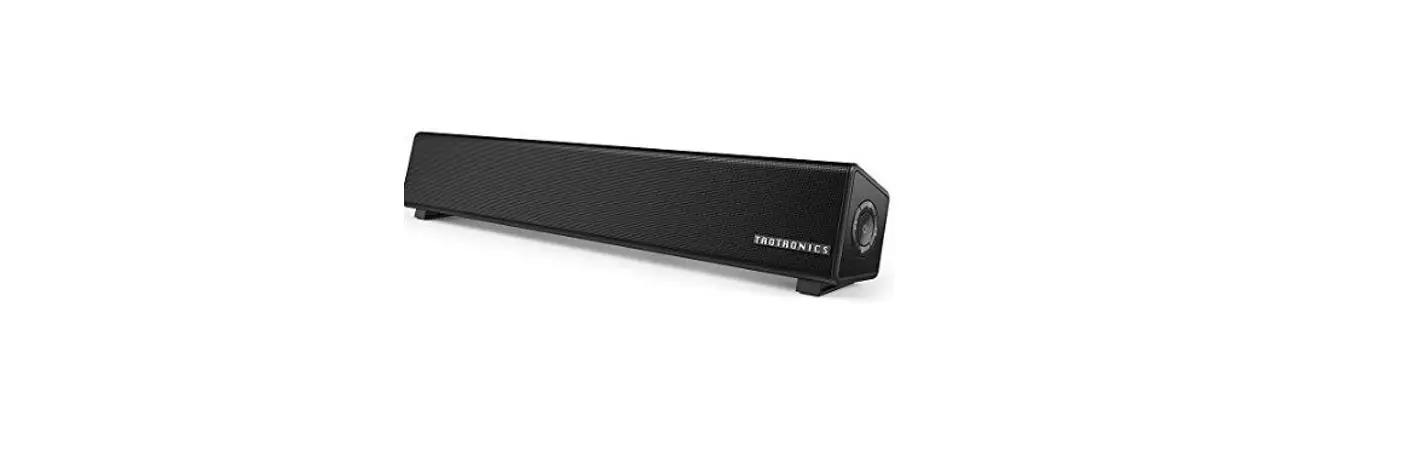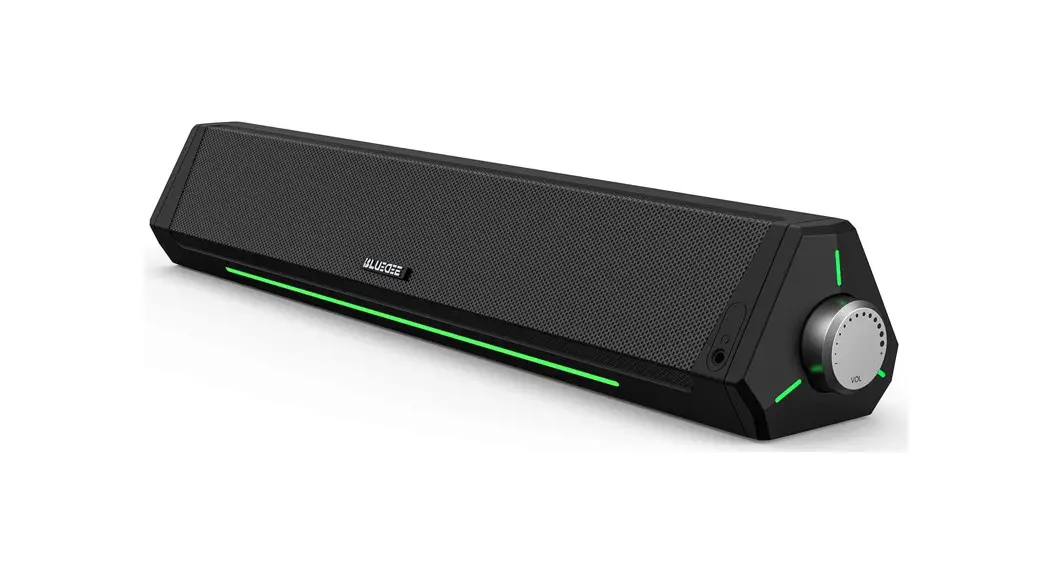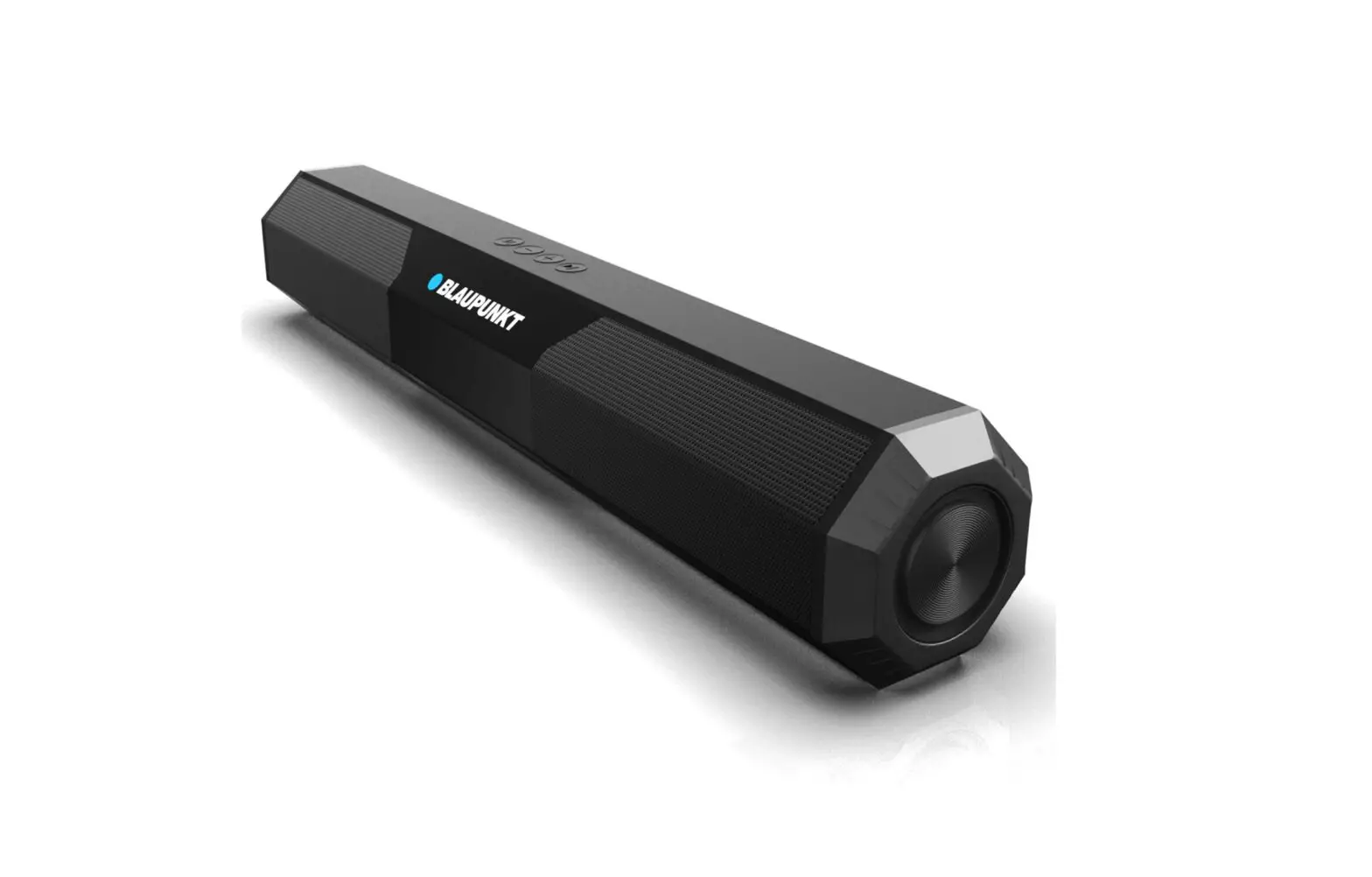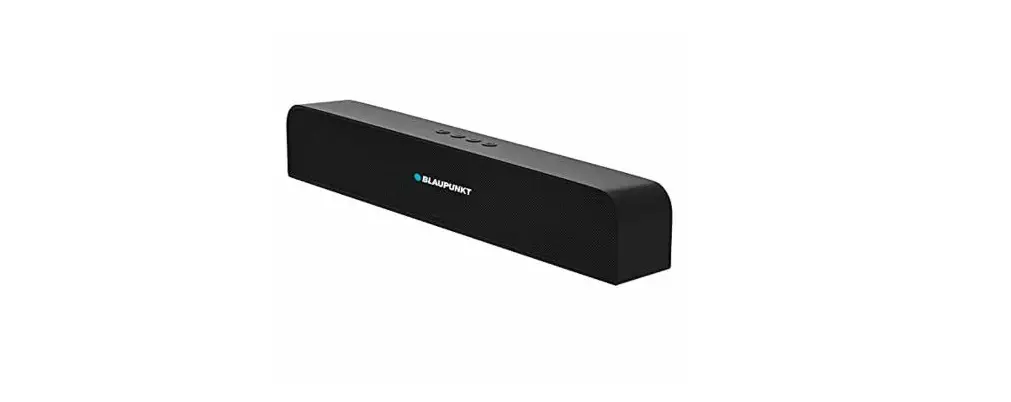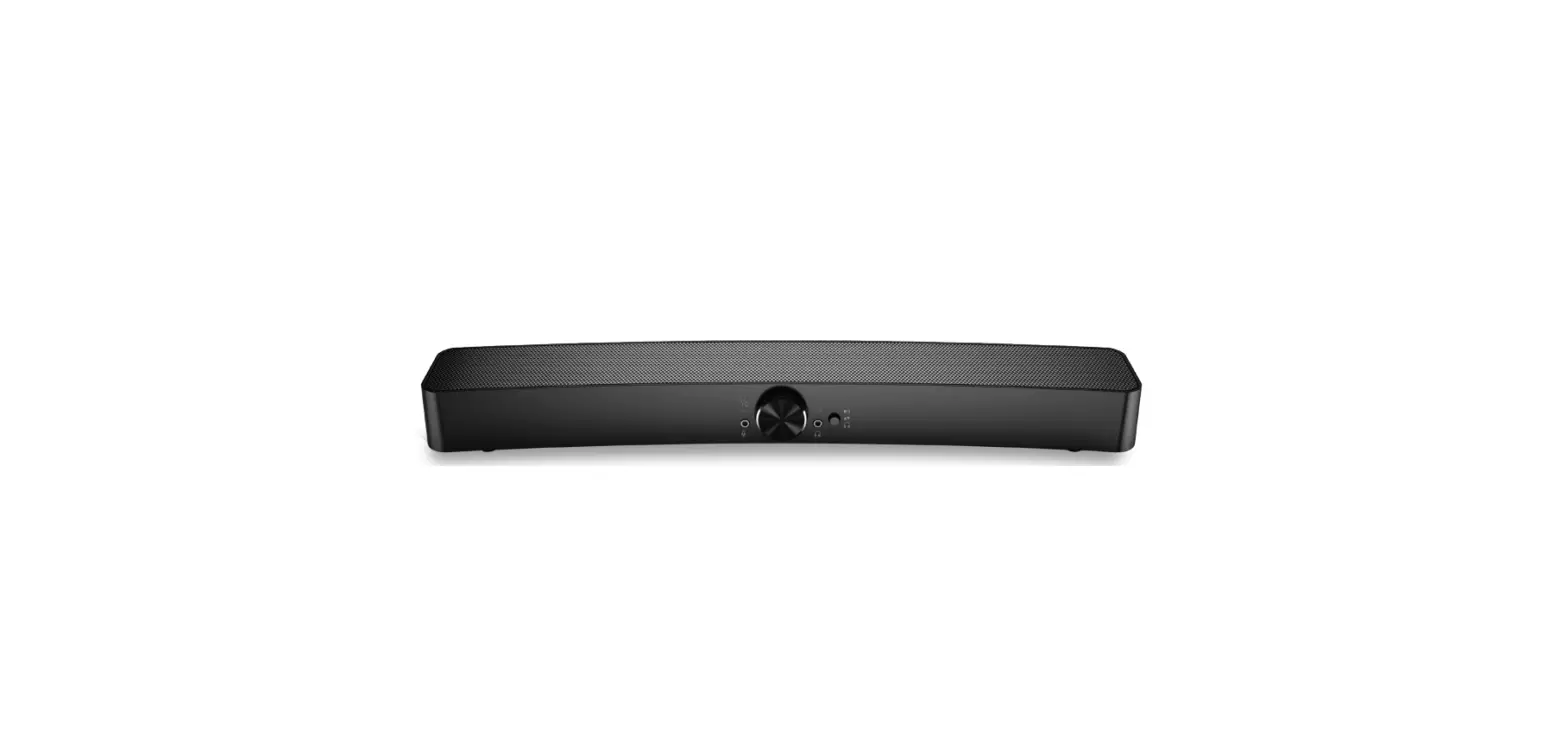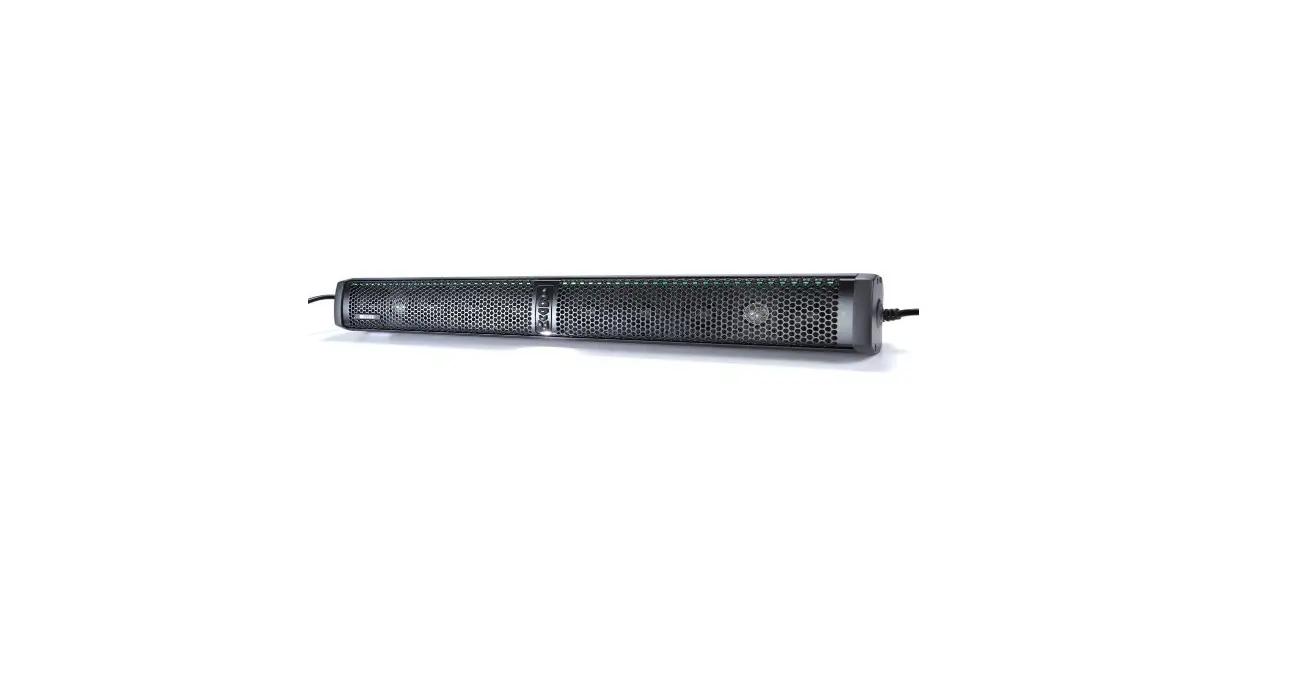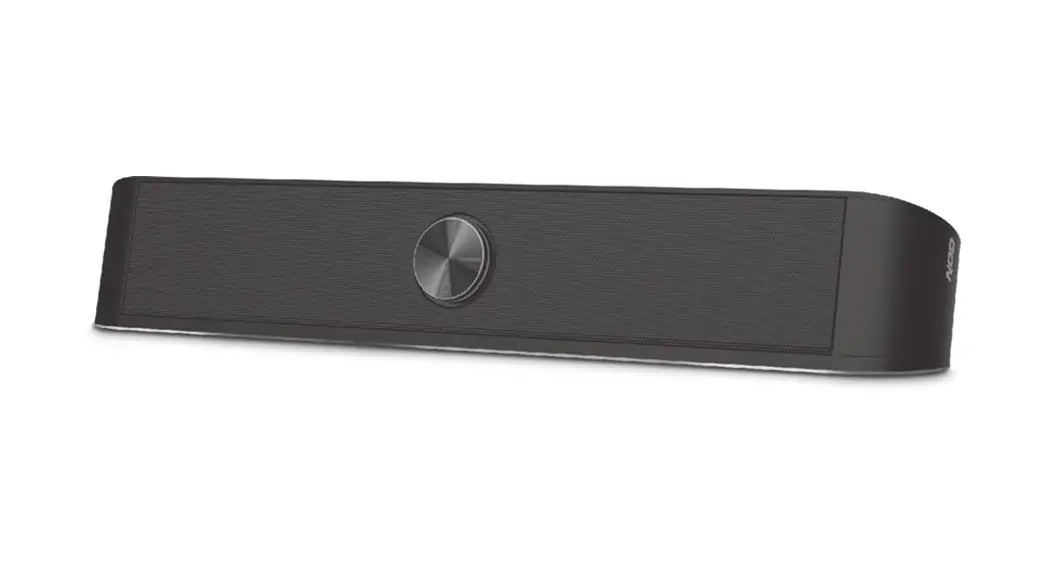
 Computer Soundbar
SK010
User Manual
Only for white SK010
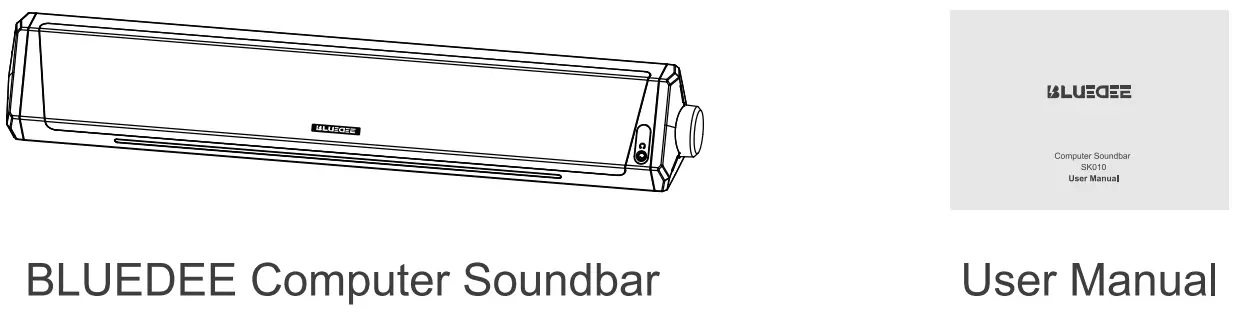
What’s Included
Specification
| Device Model | SK010 |
| Two Connection Options | Bluetooth 5.0 & 3.5 mm Audio Plug |
| Power Supply | USB Plug (no built-in battery) |
| Power Input | DC 5V-2A Max |
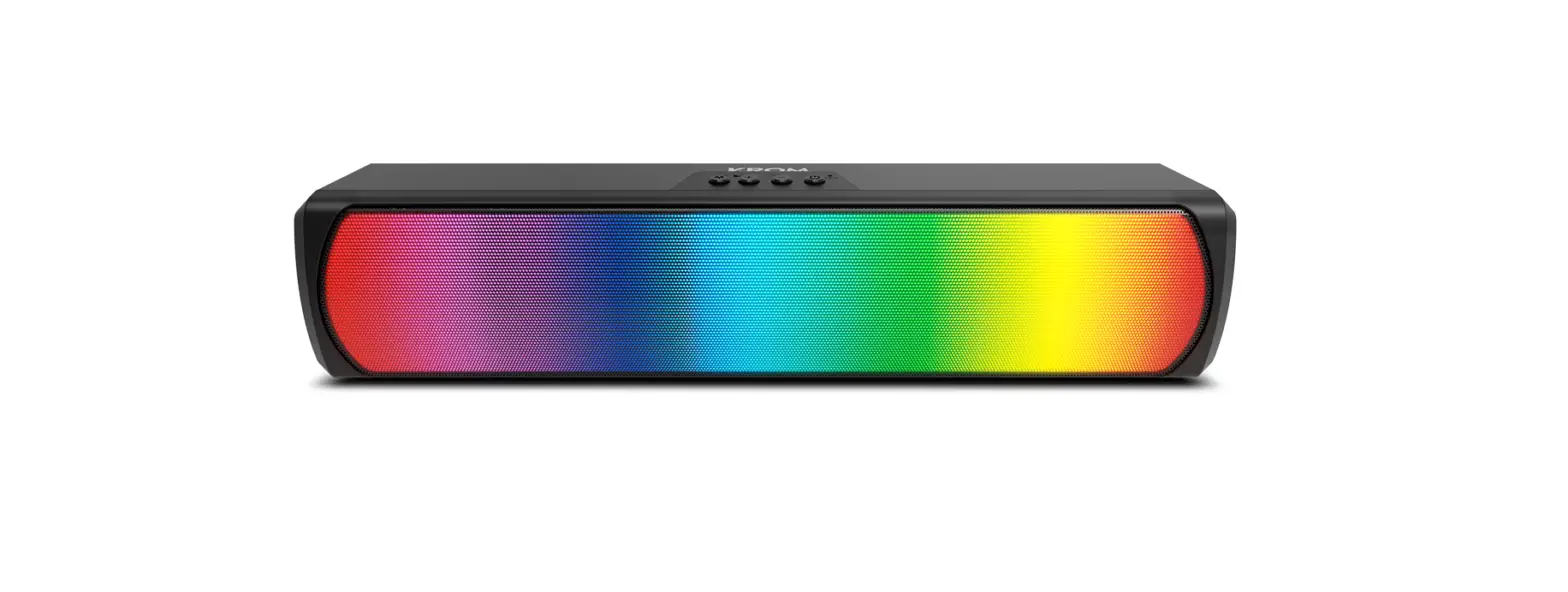
| Two Lighting Modes | Multicolor Breathing & Lights Off |
Product Diagram
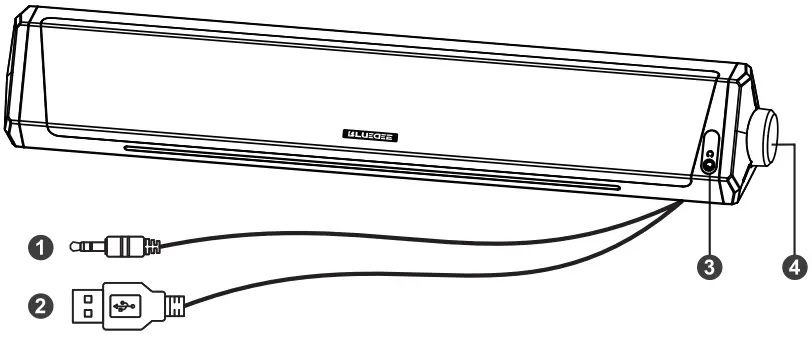
| 1. 3.5 mm Audio Plug 2. USB Power Plug | 3. 3.5 mm Earphone Jack 4. Multi-function Button |
- Volume Control: Clockwise to raise the volume, and counterclockwise to lower the volume.
- Pause/Play: Press once.
- Change lighting modes: Press twice quickly.
- Switch to Bluetooth/wired mode: Hold for 3 seconds.
- Clear the paired devices on the soundbar: Hold for 7 seconds in Bluetooth mode.
Wired Connection with 3.5 mm Plug
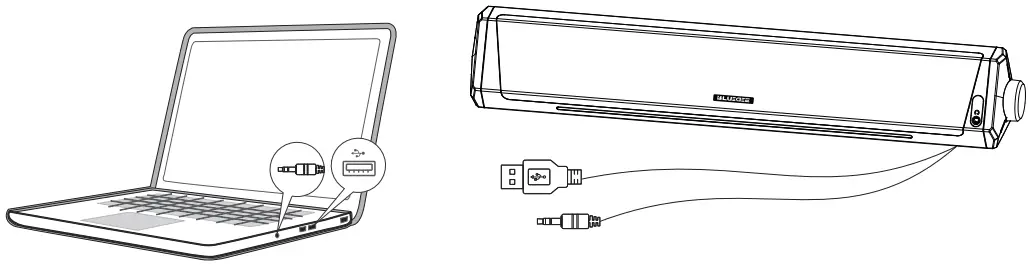
- Insert the USB Plug into a USB port of a desktop, laptop, tablet, power bank, etc.
- Insert the 3.5 mm Audio plug into the 3.5 mm jack of your device.
NOTE:
- Make sure the soundbar is not in Bluetooth mode.
- Extra driver or software installation is not needed, just plug and play.
Wireless Connection via Bluetooth
- Switch to Bluetooth mode
 1. Hold the button for 3 seconds then release it.
2. The Bluetooth mode is on when the light flashes blue/red.
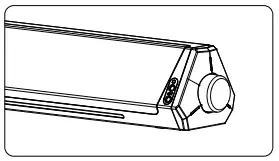 1. Hold the button for 3 seconds then release it.
2. Pair with your device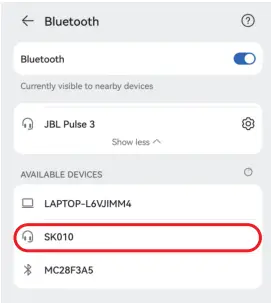 1. Turn on the Bluetooth of your device.
2. Find “SK010” in the search results and tap to connect.
NOTE:
How to switch to wired mode from Bluetooth mode:
Hold the button for 3 seconds then release it, you will hear a tone meaning the Bluetooth mode is off.
LED Light Mode
- Two lighting modes: multicolor breathing & lights off.
- Change lighting modes: Press the button twice quickly.
Troubleshooting of Sound
Configure the sound output device on your device (System> Sound > Output > Choose your output device).
> Raise the volume on your soundbar, device, or application.
> Press the button of the soundbar to resume.
> Reinsert the USB plug firmly into the USB power port.
Troubleshooting of Bluetooth Connection
> Make sure that the soundbar Bluetooth paring mode is on(LED light bar flashes blue/red).
> Make sure the Bluetooth of the soundbar is not connected by other devices.
> Clear the paired devices on the soundbar (hold the button for 7 seconds in Bluetooth mode), and delete the memorized “SK010” on your device, then reconnect the soundbar with your device
Worry-Free Service Guarantee
- 30 days free returns and exchanges.
- 18 months warranty.
- Lifetime friendly customer service.