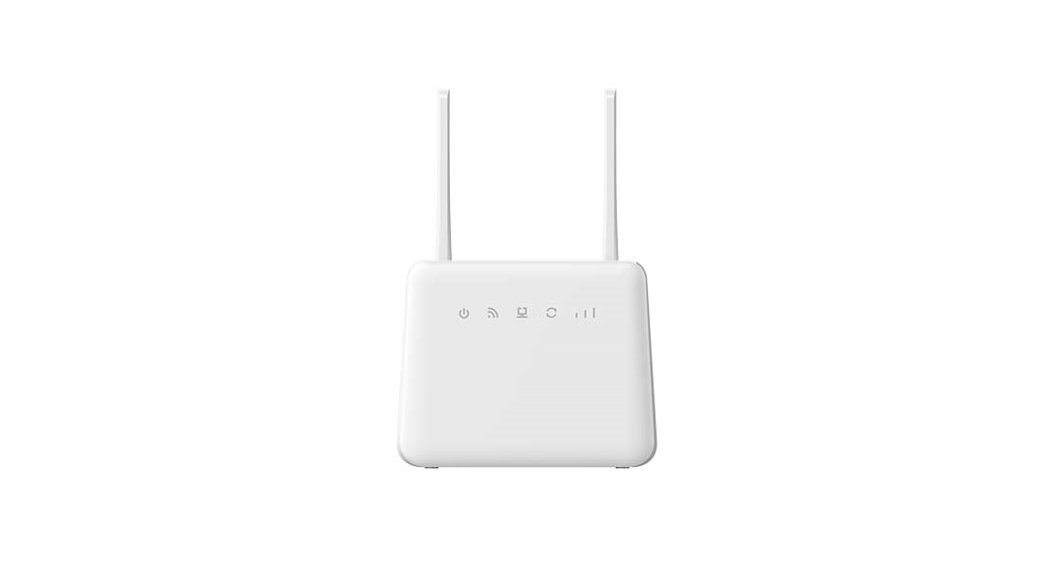
SLT866 4G LTE CPE Router
Product Information
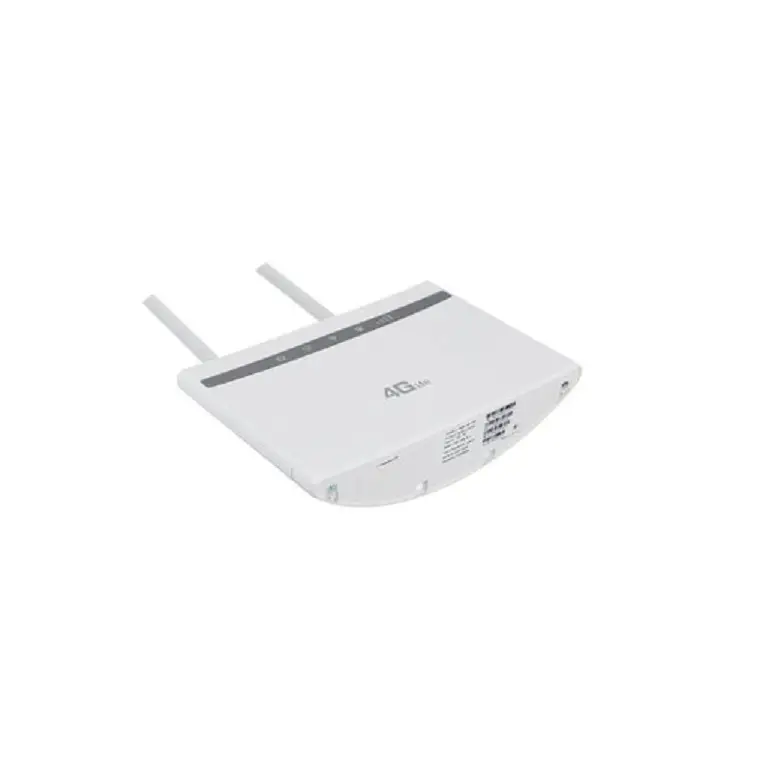
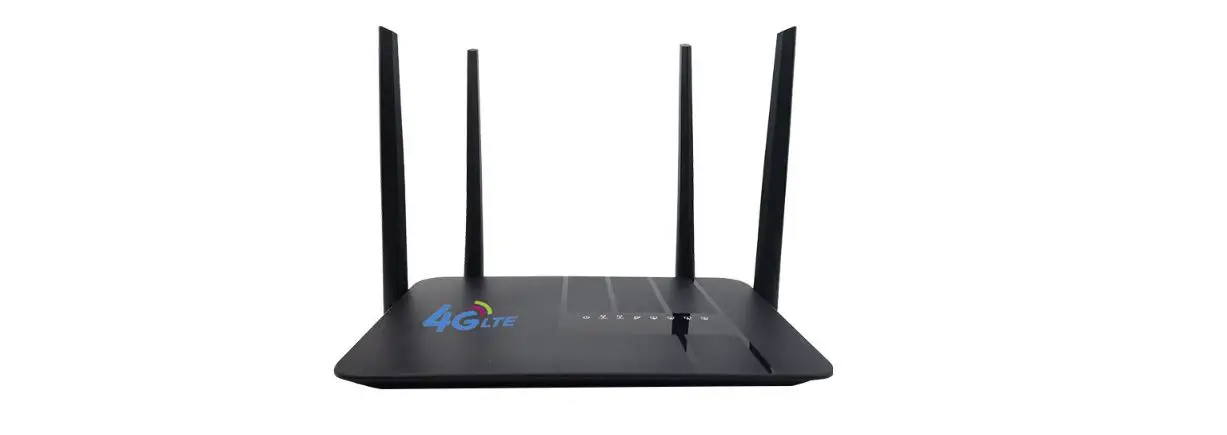
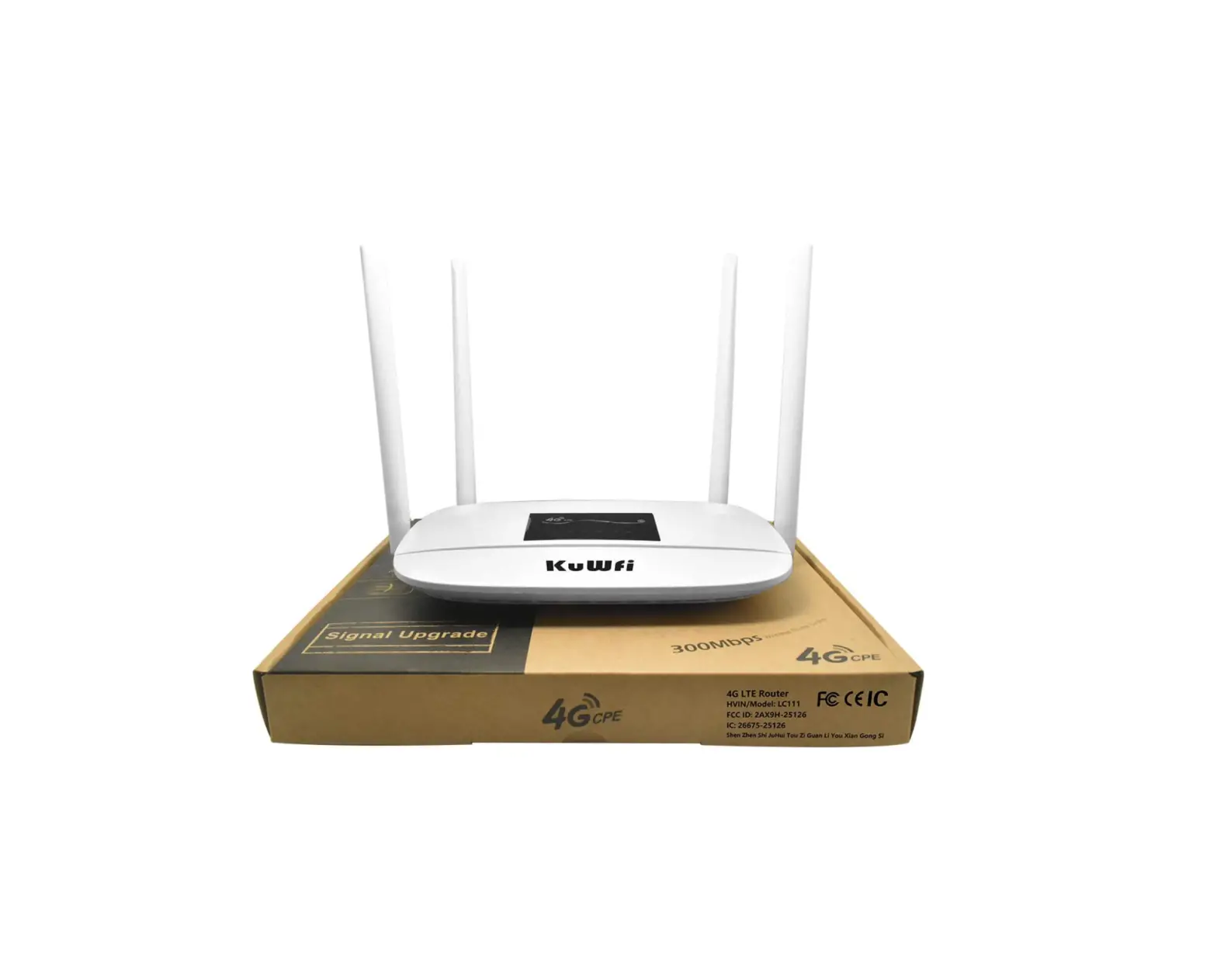
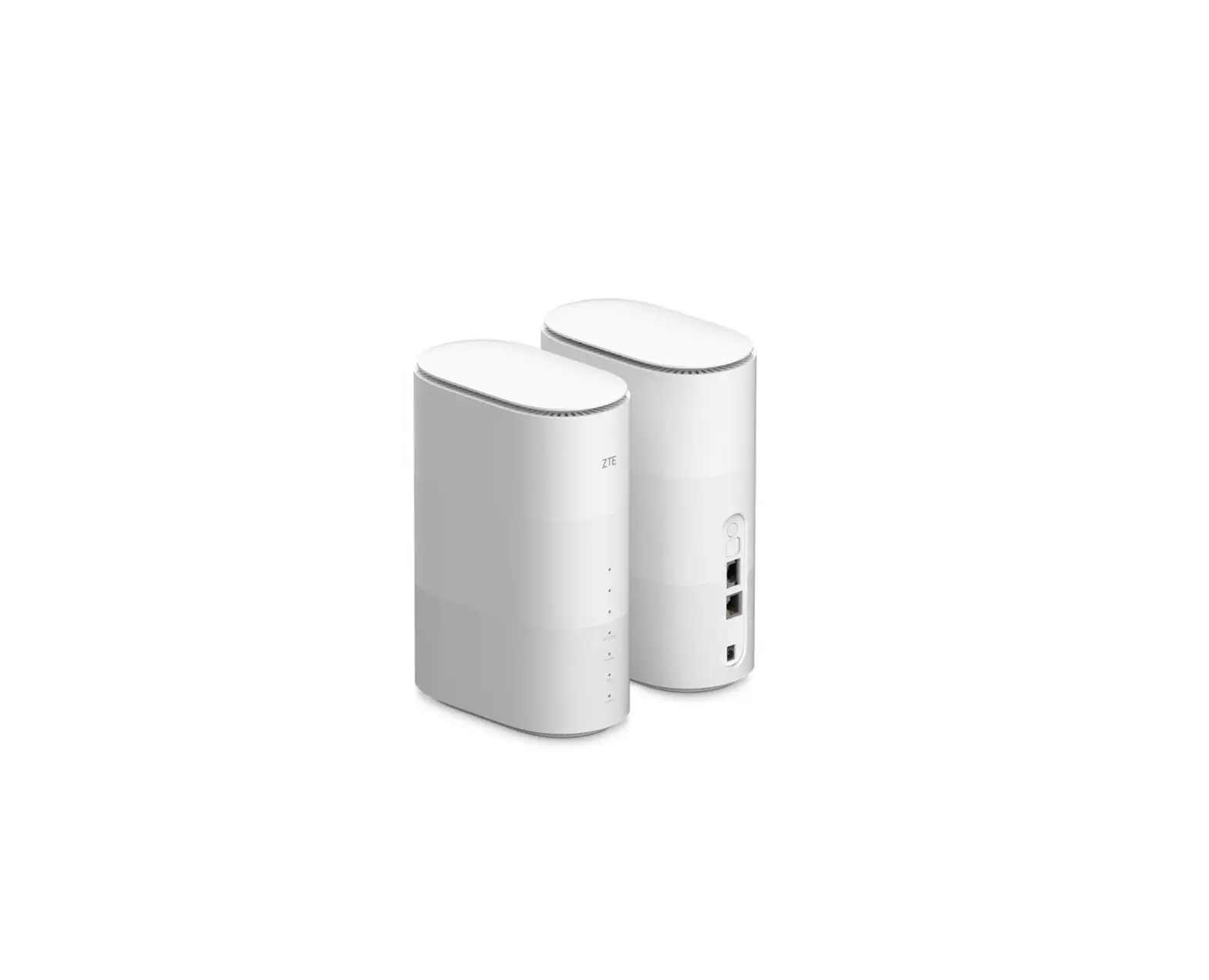
The 4G LTE CPE is a router designed for indoor use. It allows
multiple devices such as computers, smartphones, and landline
phones to connect to the router and access the Internet, make
telephone calls, and more. The router supports different
application scenarios, including using a SIM card for 3G/4G mobile
network service, data service from an Ethernet cord internet
connection, and data service from an Ethernet cord with VoLTE voice
using a SIM card. The router has various indicators to display its
status and features external antennas (optional) for improved
signal strength.
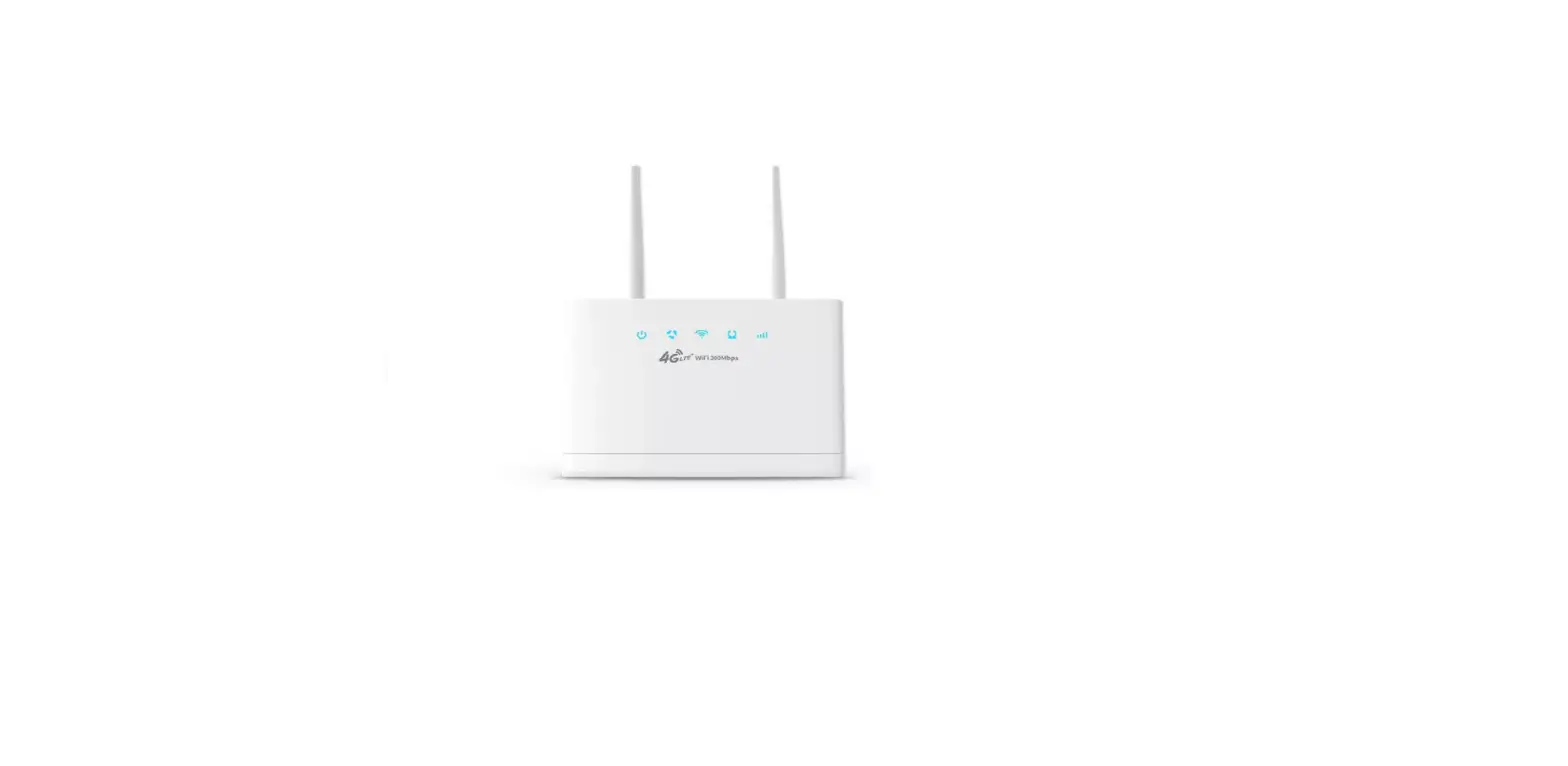
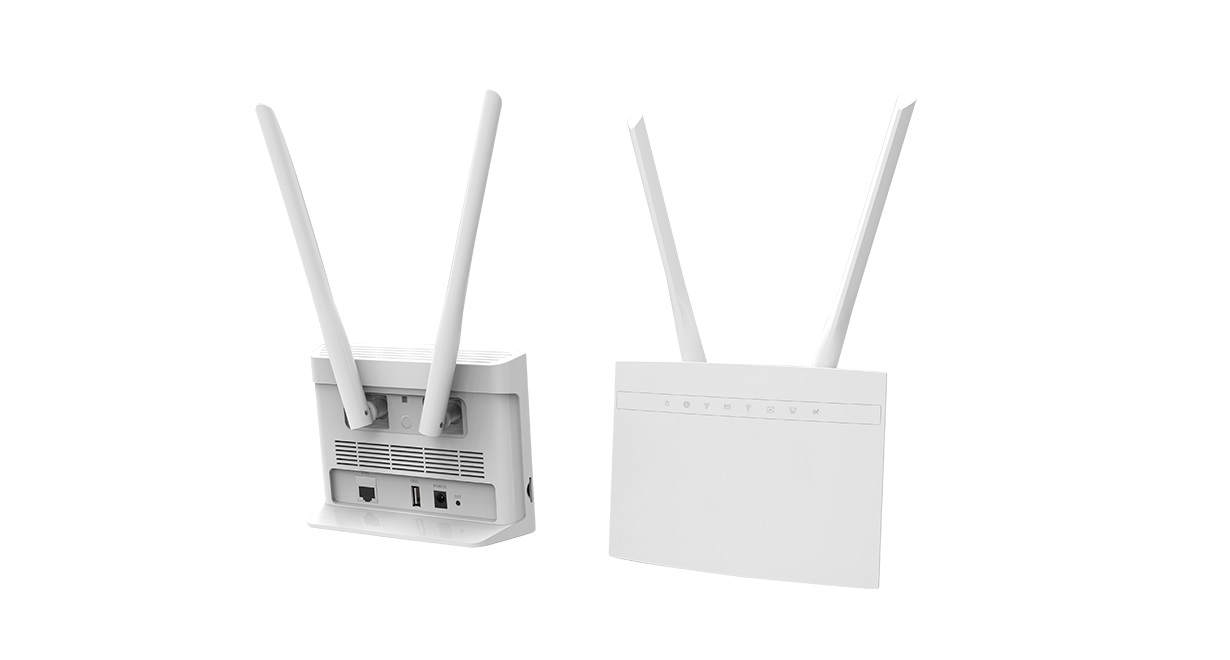
Appearance
- SYS indicator
- RF indicator
- Wi-Fi indicator
- ETH indicator
- NET indicator
- USB port
- Telephone port
- LAN port
- WAN port
- Power Input
- Power button
- SIM card slot
- WPS button
- Reset button
Important: The router does not support
Micro/Mini SIM cards or any other non-standard SIM cards.
Product Usage Instructions
1. Setup your Router
1. Insert a SIM card into the SIM card slot.
2. Connect the power adapter to the power input of the
router.
3. Press the Power button to turn on/off the router. The router
will automatically search for available mobile networks.
Note: Do not insert or remove the SIM card
while the router is running, as this may affect performance or
damage the SIM card.
2. Router Status Indicators
The router has several indicators that display its status:
- Power indicator (SYS): On – Device is powered on, Off – Device
is powered off - Signal indicator (RF): More signal bars indicate stronger
signal strength - Wi-Fi indicator (WIFI): On – Wi-Fi is enabled, Off – Wi-Fi is
disabled, Blinking – WPS connection set up in progress - Ethernet indicator (ETH): On – Connected to Ethernet network or
PC, Off – Not connected to Ethernet network or PC, Blinking – Data
transfer - Wireless Dialing indicator (NET): On – Registered to network,
Off – Not registered to network, Blinking – Data transfer
3. Configuring the Router
To configure the router, follow these steps:
- Launch the internet browser and enter http://192.168.1.1 in the address
bar. - Enter the default password (admin) and log in to the web
management page. - It is strongly suggested to change the default login password
of the WebUI to prevent unauthorized users from changing the
router’s settings. You can find the default IP address and password
on the label on the backside of the router.
4. Connect to Wi-Fi Network
You can connect your computer or mobile phone to the router’s
Wi-Fi network using the following default credentials:
Default SSID (Wi-Fi network name): 4G-CPE-2.4G-XXXX &
4G-CPE-5G-XXXX
Default Password: xxxxxxxx (Please refer to the label on your
device)
Note: It is strongly suggested to change the
default SSID and password by accessing the WebUI Wi-Fi management
page to prevent unauthorized access to your router.
4G LTE CPE
Quick Start
Legal Information
Copyri ght @2022. Al l ri ghts reserved. No pa rt of this manual ma y be reproduced or transmi tted in any form or by any means wi thout prior wri tten consent of Mei G a nd its affiliates. Mei G reserves the ri ght to change or modi fy any i nforma tion or s pecifi cation contained in this manual wi thout pri or noti ce a nd without a ny l iability.
Limitation of Liability
Due to the na ture of wi reless communi cations, transmission and reception of da ta can never be gua ranteed. Da ta ma y be del ayed, corrupted (i.e., have errors) or be totally l ost. Mei G shall not be liable for any loss of profi ts or indi rect, special, incidental or consequential damages resul ting from or a rising out of or in connection with using of this product, whether or not had been advised, knew or should ha ve known of the possibili ty of such da mages , including, but not limi ted to los t profi ts , interruption of business, cost of capital , cos t of s ubstitute facilities or product, or any downtime cost.
1. Introduction of Router
Your router is for indoor use onl y and mul tiple devices like computer, s ma rt phone or landline phone can be connected to the router to a ccess the Internet, make telephone calls and mo re . The external antennas are optional. When there is an external antenna and a normal antenna at the same time, the external antenna works. External antenna nameF5340000100-01
Application Scenarios:
Scenario 1: 3G/4G mobile network s ervice using a SIM ca rd.
Scenario 2: Da ta servi ce from Ethernet cord Internet connection (Ethernet Port).
Scenario 3: Da ta servi ce from Ethernet cord and VoLTE voi ce us i ng a SIM ca rd.
Appearance
1 SYS i ndicator 2 RF i ndicator 3 Wi -Fi i ndicator 4 ETH i ndicator 5 NET i ndicator 6 USB port 7 Tel ephone port
8 LAN port 9 WAN port 10 Power Input 11 Power button 12 SIM ca rd s lot 13 WPS button 14 Res et button
Important: Router does not support Micro/Mini SIM card or any other non-standard SIM cards.
2. Setup your Router
Insert a SIM ca rd fi rs t and then connect power a dapter to the
power i nput of the router. Press Power button to turn on/off the router, and i t will sea rch for a va ilablemobile networks automatically. Do not insert or remove SIM ca rd when the router is running, a s this may a ffect performance or damage the SIM card.
The i ntuitive indicators display the router’s status
Indicator
Status
Power i ndicator
SYS
On: Devi ce is powered on
Off: Devi ce is powered off
RF
More s i gnal bars indicate stronger s ignal s trength
WIFI
On: Wi -Fi is enabled Off: Wi -Fi i s disabled Bl i nking: WPS connection set up in progress
On: Connect to Ethernet network or PC
ETH
Off: Not connect to Ethernet network or PC
Bl i nking: Data tra nsfer
Wi reless Dialing indicator On: Registered to network NET Off: Not regi stered to network Bl i nking: Data tra nsfer
3. Configuring
You ca n configure the router using the WebUI Settings page. 1) Launch the Inte rne t browse r, and ente r http://192.168.1.1
i n the a ddress bar. 2) Enter password and log in to the web management page.
The default password is admin. You also can refer to the label on the ba ckside of the router for the default IP a ddress and password. It’s strongl y suggested to change the defaul tl ogin password of the We bUI to pre ve nt unauthorized use rs from changing the route r s ‘ s ettings.
4. Connect to Wi-Fi Network
You can connect your computer or mobile phone to the
router’s Wi-Fi network.
Default SSID: 4G-CPE-2.4G-XXXX & 4G-CPE-5G-XXXX
Default Password: xxxxxxxx (Please found i t on your devi ce
l a bel.) It’s s trongl y s uggested to SSID and password by accessing
cha nge the defaul t to the WebUI Wi-Fi
ma nagement page to prevent unauthorized a ccess to
your Wi -Fi network. You need to reconnect to the router’s Wi -Fi network after cha nging the Wi-Fi password.
5. Access the internet through the WAN
port
You can connect the router’s WAN port to the wall-mounted Ethe rnet port by Ethe rne t cable , and the n choose the working mode to be Broadband mode a nd configure the PPoE/Sta tic/DHCP pa rameters to a ccess to i nternet.
6. VoLTE & CS Domain Voice Call
The router supports both VoLTE and CS domain voi ce call servi ces . To change the call mode select Settings > Phone and chos e the desired option from the dropdown menu. For best resul ts, the “Auto” setting of network mode is re co mmen ded. Please contact your network servi ce provider for more detailed i nformation.
7. FAQS & Troubleshooting
If you a re expecting any issues wi th the router, in most cases
please try to restart the router or restore the router to factory
settings.
The illustra tions in this guide a re for reference purpose onl y
and ma y not reflect the exa ct appearance of your product.
Please contact your network servi ce provider for more detailed
i nformation.
Questions
Solutions
How to restore fa ctory s ettings?
When the router is power on, click the reset button for approxima tel y 3 seconds using a pointed object until the indica tor s ta rts to blink. Restoring fa ctory settings will clear all customized
s ettings.
How can I connect
to the router by
Wi -Fi Protected
Se tup
(WPS)
fu n cti on ?
How to deal with the content displa y i s sue of the WebUI?
1. Ensure that Wi-Fi is enabled on the cl i ent.
2. Press the WPS button on the router to s et up a WPS connection
Ma nually cl ear browser’s cache, for exa mple, open your browser a nd choos e Internet Options >General > Brows ing history >Delete, and re-l aunch the WebUI page.
Why the router doe s not work after I ha ve finished confi guring?
1. Ensure tha t you ha ve a working s ta ndard SIM ca rd i nserted properly.
2. Move the router to an open spa ce free from obstructions and make sure there a re a vailable mobile n e two rks.
3. If the problem persists, please conta ct your network servi ce provi der.
Why can’t I a ccess
the
rou te r ‘s
We b UI?
1. Ensure that your computer is connected to router through Wi-Fi or Ethernet cable.
2. Ensure tha t your computer is set to obtain an IP address and DNS server a ddress automatically.
3. Res ta rt your browser or try using a nother browser.
4. If the problem persists , restore the router to fa ctory settings a nd try to a ccess WebUI a gain.
8. Warning and Notice
Safety Precautions
This section contains important informa tion about the o p e ration
of your devi ce. It also contains informa tion about how to use the
devi ce safel y. Read this informati on ca refull y before using your devi ce. Some electroni c devi ces ma y be sus ceptible to
electromagneti c interference. Loca te the router awa y from any TV set, radio and other electroni c equipment to a void el ectromagnetic i nterference. The router ma y interfere wi th medi cal devi ces , such as hea ring aids a nd pacemakers . Consul t a physi cian or the ma nufacturer of the medical device before using the router. Pl ease keep yourself at l east 20 centimeters away from router. Do not use your router in dangerous envi ronments such as oil terminals or chemical fa ctories where there a re explosive ga s es or explosive products being processed.
Please use ori ginal a ccessories or a ccessories tha t are authorized by . Unauthori zed accessories ma y affect the router performance, da mage the router or cause danger to you.
Do not a ttempt to dismantle the router. There a re no user s ervi ceable parts.
Do not allow the router or a ccessories to come into conta ct wi th liquid or moisture a t any time. Do not immerse the router i n a ny l iquid.
Do not pla ce objects on top of the router. This ma y lead to overheating of the device.
The device must be placed i n ventilation environment for use. Do not expose the router to di rect sunlight or store i t in hot
a reas. Hi gh tempera ture can shorten the life of electronic devi ces. Do not a llow children to play wi th the router or cha rger. Keep the length of the cable between the router and the phone l ess than 10 meters. The router is for indoor use onl y. Do not use the router outside. Do not connect telephone extensions whi ch run outside of the building. These can resul t in li ghtning damage to your uni t.
Cleaning and Maintaining
Use a n antistati c cloth to clean the router. Do not use chemi cal or abrasive cleanser as these could damage the pl astic case. Turn off your router before you clean i t.
Use the router wi thin the temperature ra nge of 0~ +45, and the s torage temperature range is -20~+70. The humi dity ra nge is 5%~95%.
Do not remove your SIM ca rd unnecessaril y. The SIM ca rd
ma y be easily l ost or i t can be damaged by s tatic electricity.
RF Exposure Information This device meets the government’s requirements for exposure to radio waves. This device is designed and manufactured not to exceed the emission limits for exposure to radio frequency (RF) energy set by the Federal Communications Commission of the U.S. Government.
This device complies with FCC radiation exposure limits set forth for an uncontrolled environment. In order to avoid the possibility of exceeding the FCC radio frequency exposure limits, human p roximity to the antenna shall not be less than 20 cm during normal operation.
FCC Regulations:
This device complies with part 15 of the FCC Rules. Operation is subject to the following two conditions: (1) This device may not cause harmful interference, and (2) this device must accept any interference received, including interference that may cause undesired operation. Caution: Changes or modifications not expressly approved by the manufacturer could void the user ‘s authority to operate the equipment. Note: This equipment has been tested and found to comply wi th the l i mi ts for a Cl ass B di gi tal device, pursuant to part 15 of the FCC Rules. These limits are designed to provide reasonable protection against harmful interference in a residential installation. This equipment gen erates,uses, and can radiate radio frequency energy and, if not installed and used in accordance with
the instructions, may cause harmful interference to radio communications. However, there is no guarantee that interference will not occur in a particular installation. If this equipment does cause harmful interference to radio or television reception, which can be determined by turning
the equipment off and on, the user is encouraged to try to correct the interference by one or more of the following measures: · Reorient or relocate the receiving antenna.
· Increase the separation between the equipment and recei ver. · Connect the equipment into an outlet on a circuit different from that to which the receiver is connected. · Consult the dealer or an experienced radio/TV technician for help.