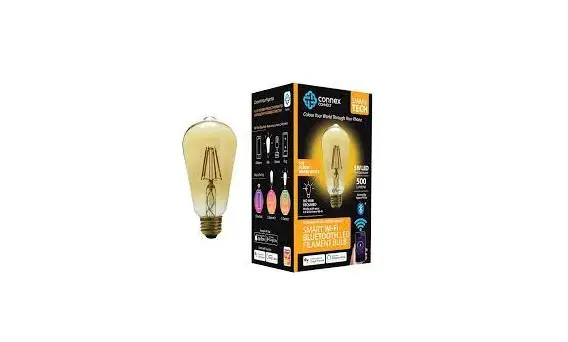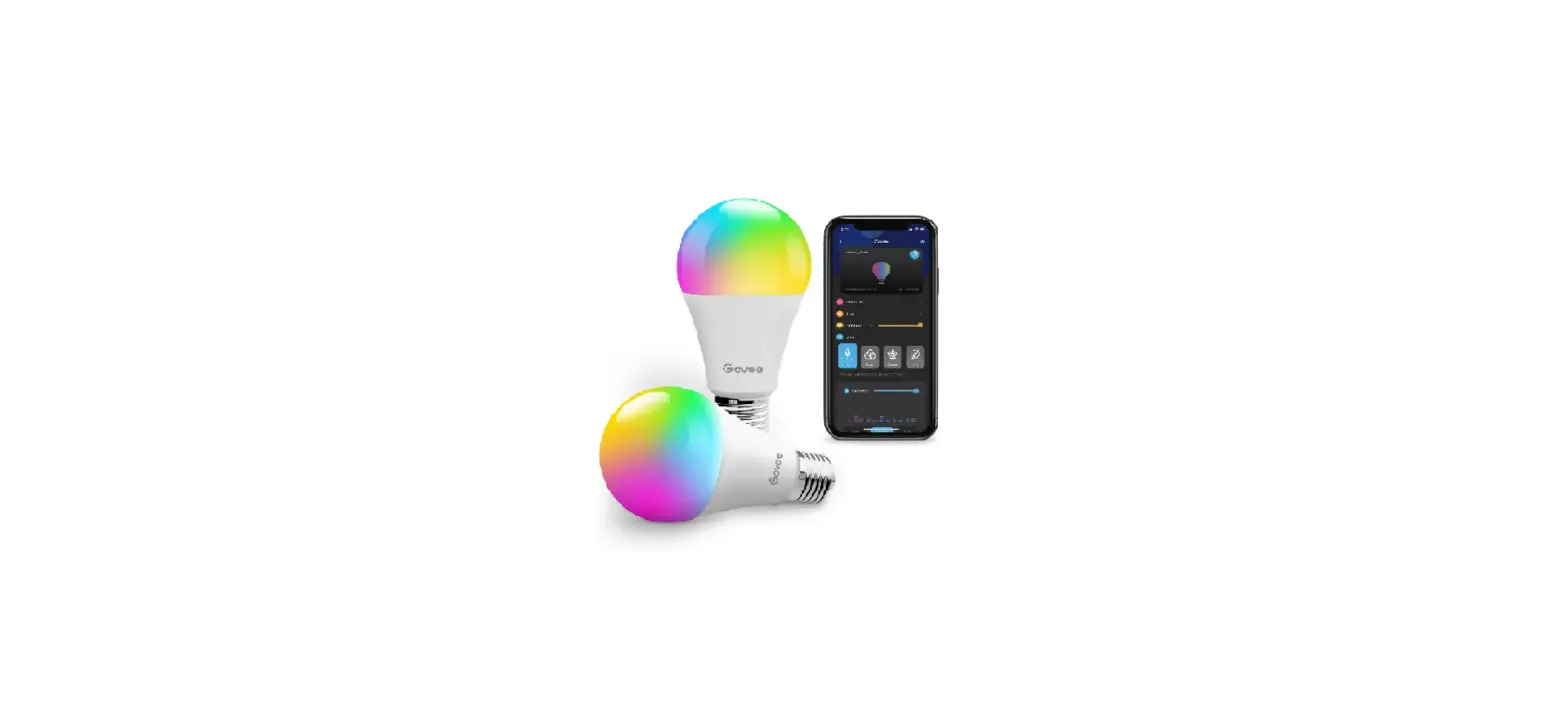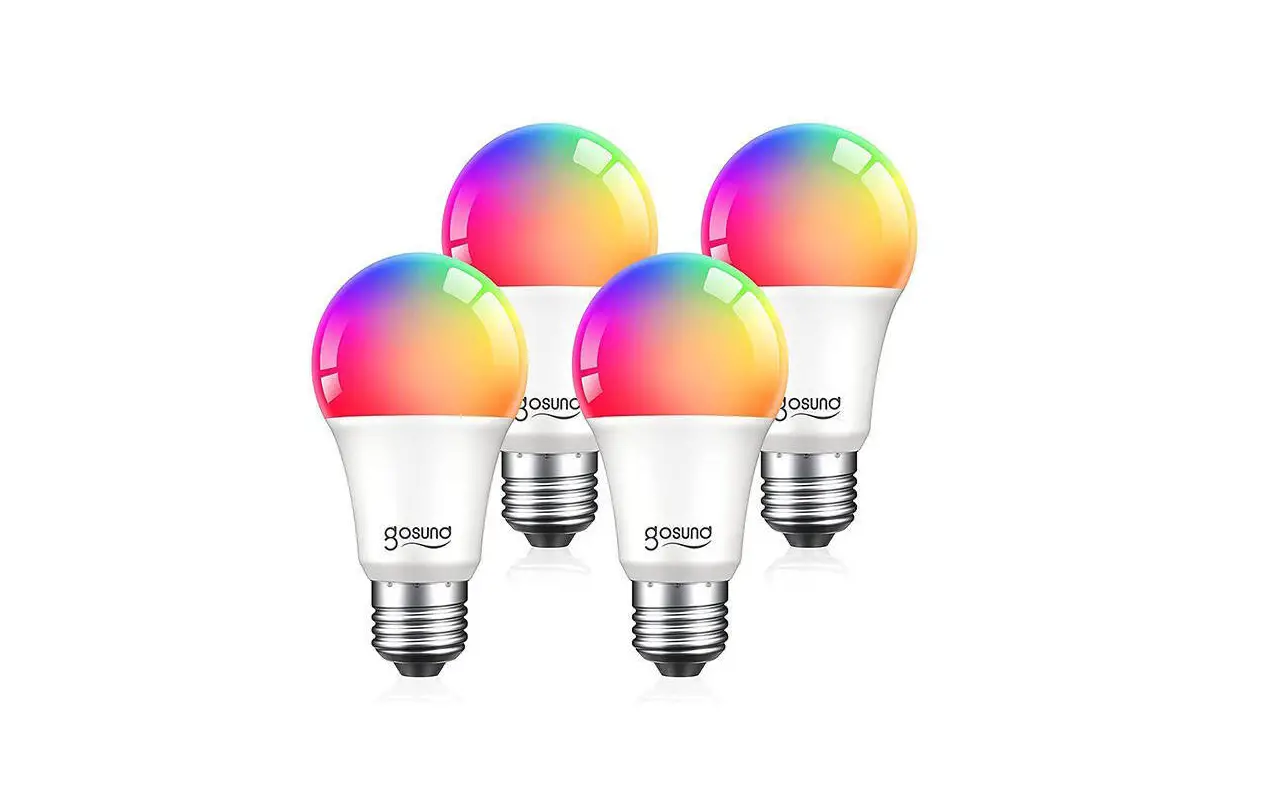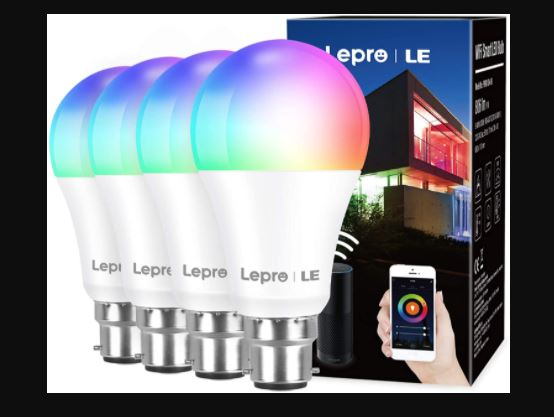

 FEATURES
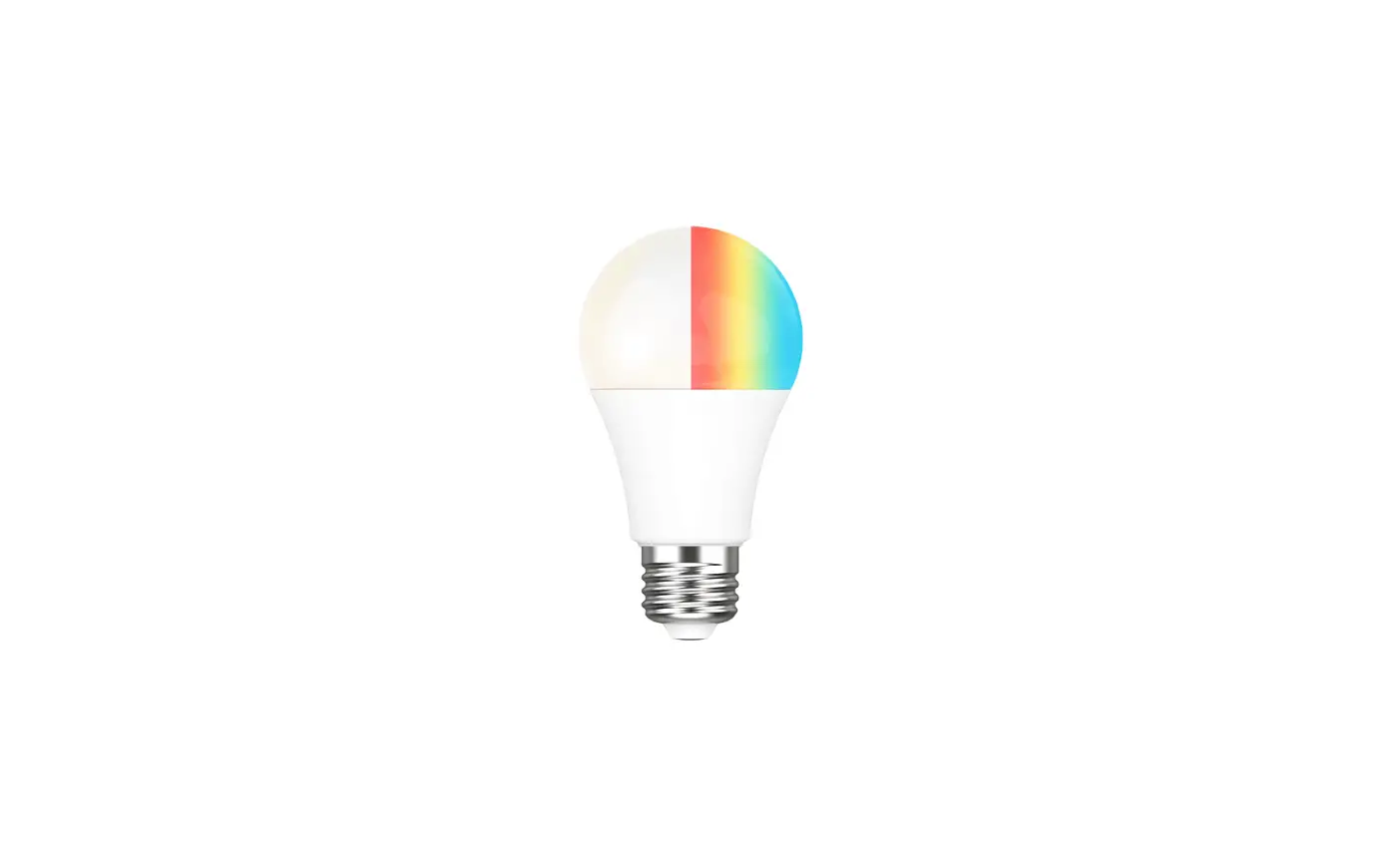
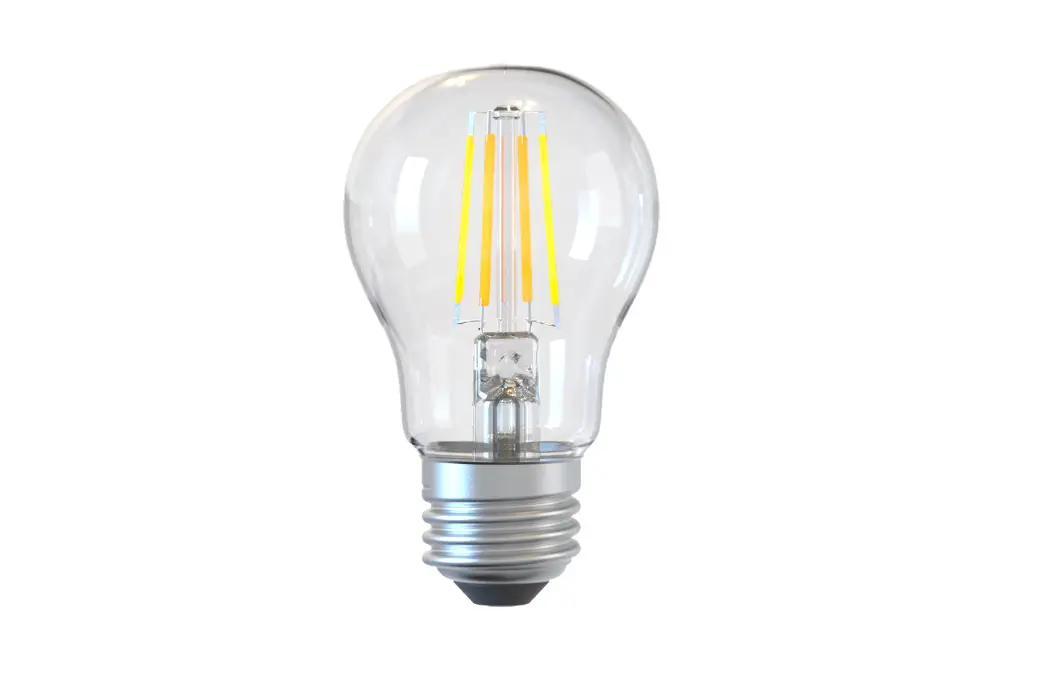
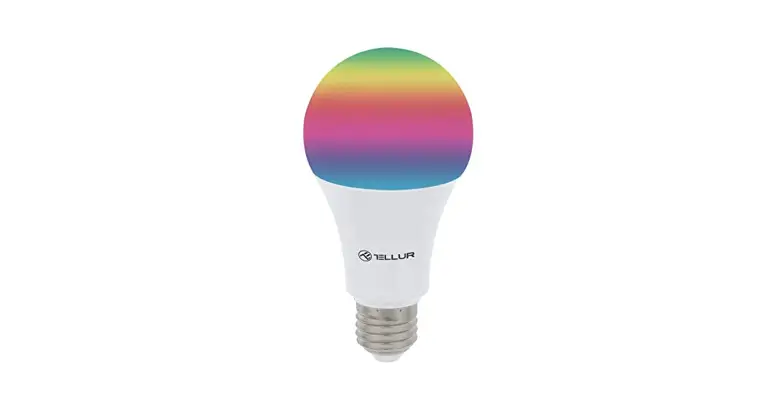
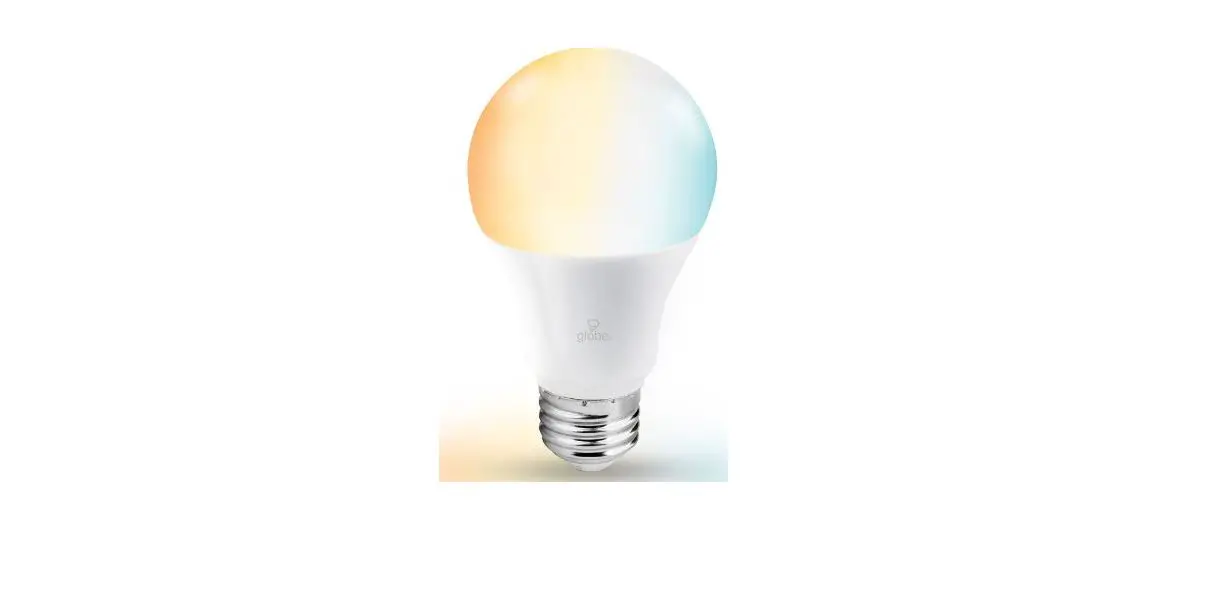
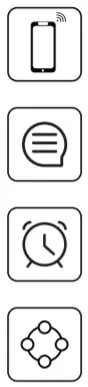 | Wi-Fi & Bluetooth connection |  | Full range of W / W+WW / RGBW / RGBWW available |
| Voice control | No Hub required | ||
| Timer switch | Remote control | ||
| Grouping | Sync with music |
PARAMETERS
| COLOR | INPUT VOLTAGE | Current(mA) | Base | Power(W) |
| EU | ||||
| C/W | 80 | E27 | 9 | |
| CCT | AC220-240V | 80 | 9 | |
| RGBW | 80 | 9 | ||
| RGB+CCT | 80 | 9 |
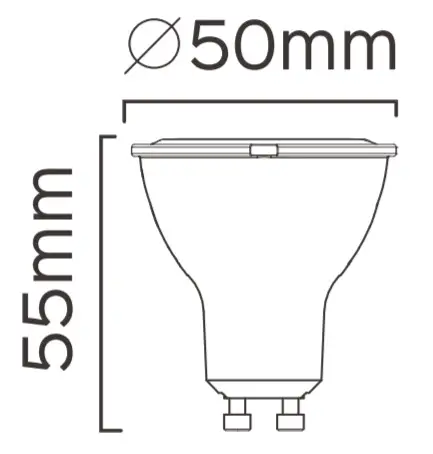
WIRING DIAGRAM
DOWNLOAD APP
- Search “Tuya Smart” from the App Store or Google Play.

- Scan the QR code from the label or user

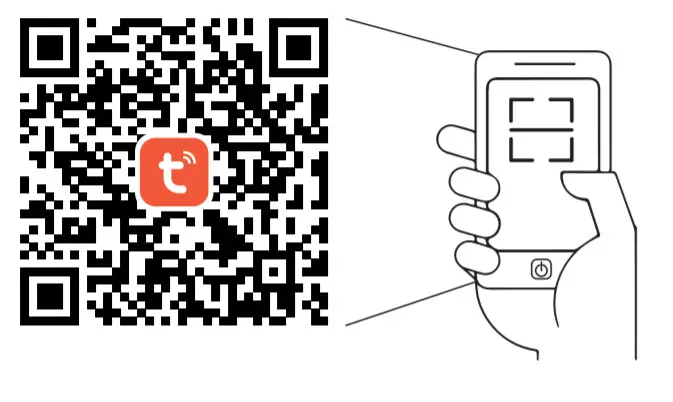 https://smartapp.tuya.com/tuyasmart
The APP is compatible with Android 4,0 and IOS8.1 and higher versions.

LOG IN / REGISTER ACCOUNT NUMBER
Open the Tuya Smart APP, sign up for a new account or log in with an existing account.
DEVICE PAIRING-EASY IN
- Turn on the Smart Bulb and enter the home of APP while ensuring Bluetooth is on and the WIFI signal is good and stable.
- Smart Bulb will flash when turn on the power supply. Stay at the home page and found the push notification, then click Go to add.
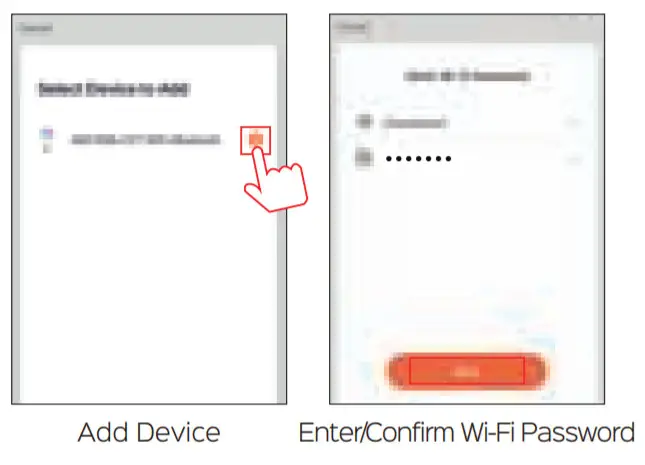
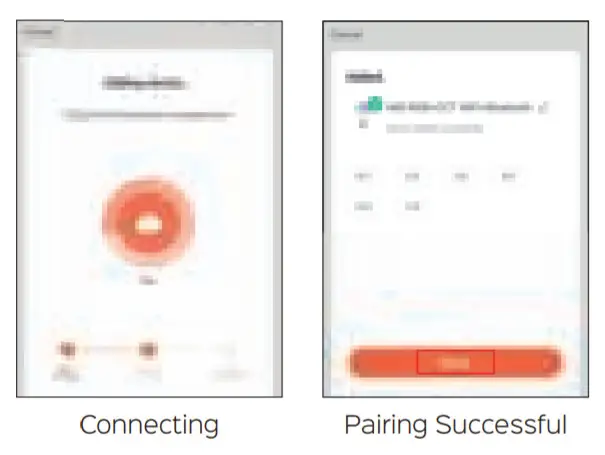
- Select the Wi-Fi connection to the smart device, input the Wi-Fi password, and then click “Next” to wait for the matching to succeed. (Make sure
smart devices share the same Wi-Fi)
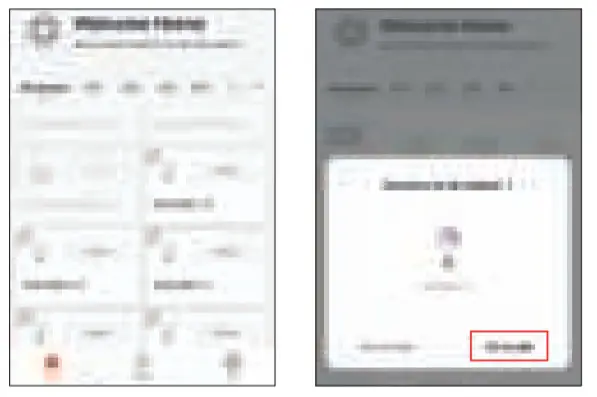
stay at the Home page Push Notification
 DEVICE PAIRING-AUTO SCAN
- Turn on the Smart Bulb and enter the home of APP while ensuring Bluetooth is on and the WIFI signal is good and stable.
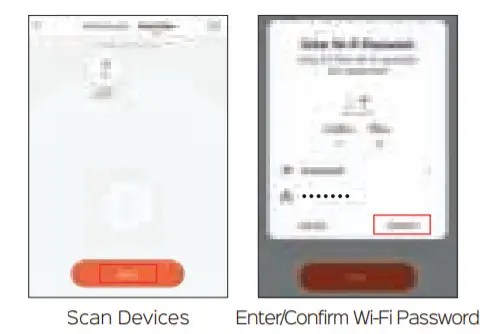
- Smart Bulb will flash when turn on the power supply. Stay at the home page and enter the APP adding device interface, click Auto Scan to find the device then click next.
- Select the Wi-Fi connection to the smart device, input the Wi-Fi password, and then click “Confirm” to wait for the matching to succeed.
 |  |
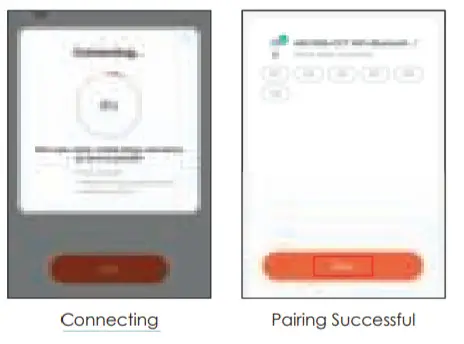
DEVICE PAIRING-BLUETOOTH MANUALLY
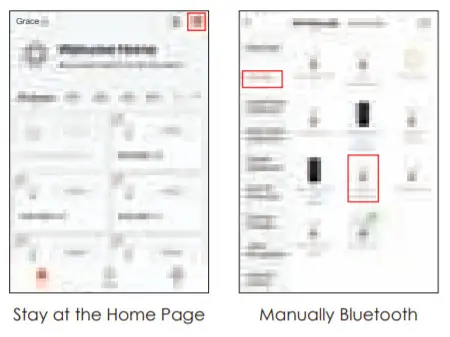
- Turn on the Smart Bulb and enter the home of APP while ensuring Bluetooth is on and the WIFI signal is good and stable.
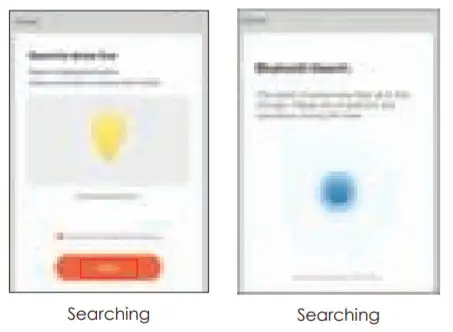
- Smart Bulb will flash when turn on the power supply. Stay at the home page and enter the APP adding lighting device interface, click “Lighting(Bluetooth)”.
- If the Smart Bulb is not flashing when turning on the power supply, long-press the Reset button for more than 6 seconds. While Smart Bulb flashing, select “confirm the light has flashed”,
- then click “Next”. Select the Wi-Fi connection to the smart device, input the Wi-Fi password, and then click “Next” to wait for the matching to succeed.
 |  |

DEVICE PAIRING-AP PAIRING
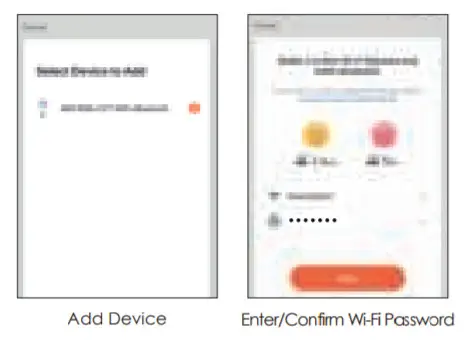
- Turn on the Smart Bulb and enter the home of APP while ensuring Bluetooth is on and the WIFI signal is good and stable.
- Smart Bulb will flash when turn on the power supply. Stay at the home page and enter the APP adding lighting device interface, click “Lighting(BLE+Wi-Fi)”.
- If the Smart Bulb is not flashing when turning on the power supply, long-press the Reset button for more than 6 seconds. While Smart Bulb flashing, select “confirm the light has flashed”, then click “Next”.
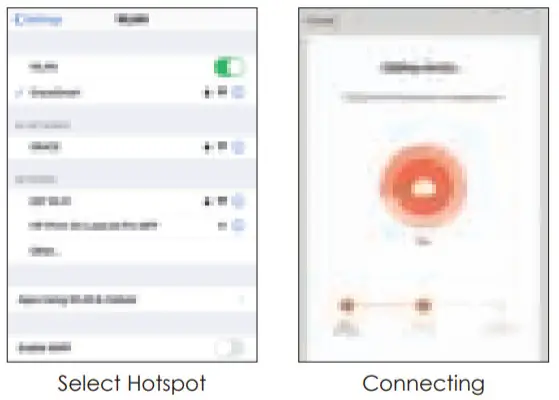
- Select the Hotspot connected to the smart device, input the Wi-Fi password, and then click “Next” to wait for the matching to succeed. (Make sure smart devices share the
same Wi-Fi)
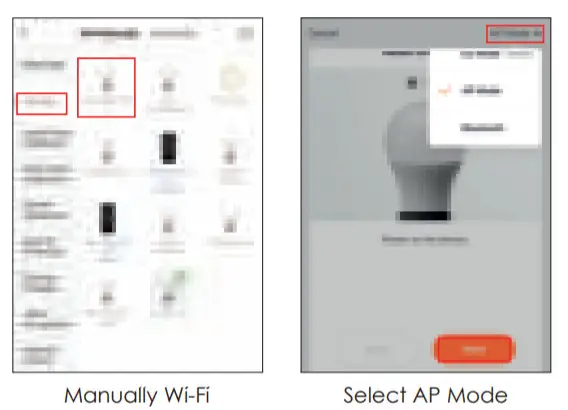 | 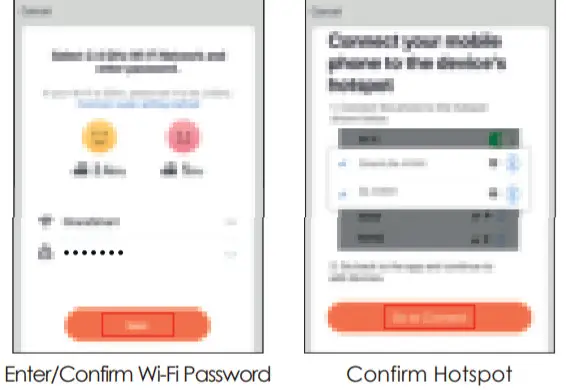 |
 CONTROL DEVICE
 CONTROL DEVICE
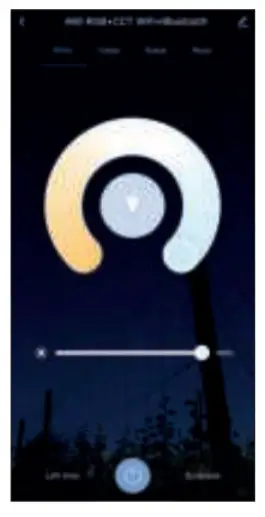
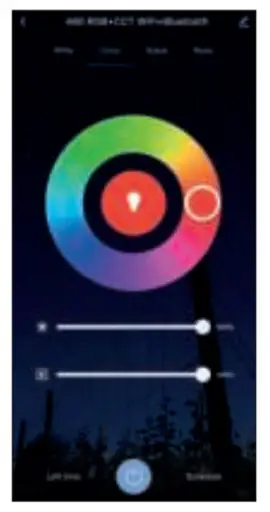
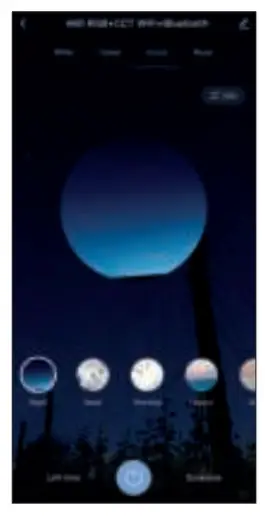
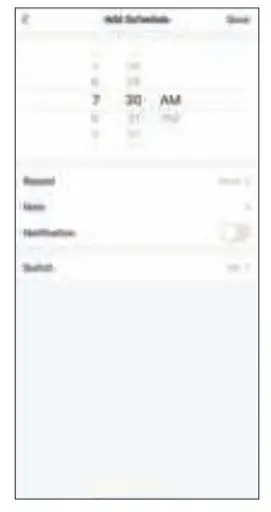
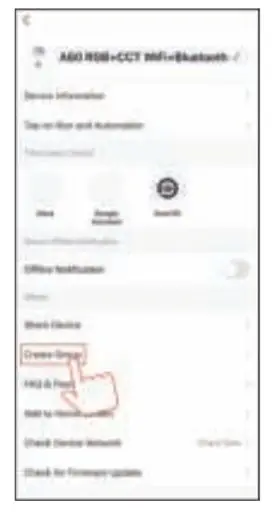
After the device is connected successfully, tap “Device” at the bottom. The device name of the smart lamp shows in the list. Tap it to enter the control panel of the smart lamp.
- White mode: Adjust brightness and color temperature of white light.

- Color mode: Adjust color, brightness, saturation

- Scene mode: Eight scenes modes (4 static & 4 dynamics).

- Schedule: This will keep the bulb in the ON/OFF position for a specific duration of time.

- Grouping: If you got two or more lights, please tap “…” at the upper right corner of the control panel and create a group. The smart lamp group will realize synchronous switch, color changes, scene mode selection, timer, etc.

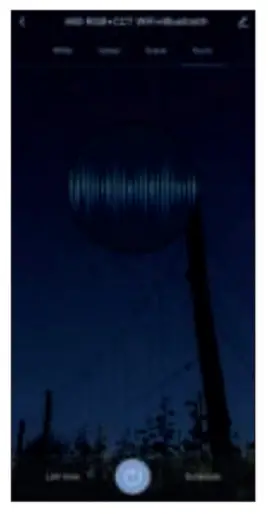
6. Music mode: You can minimize the Tramsmart App to play music from any source. Your Smart Bulb will automatically synchronize and change color to the music.
APP FUNCTION INTRODUCTION
Click the interface to control it according to the specific model of the specific Smart Bulb. The following is a public function introduction. Remote control: The Smart Bulb can be controlled anywhere after the smart device is successfully
 Timer function: Set the timer to turn on and turn off the Smart Bulb.
 Intelligent scene: The system sets a variety of intelligent scenes, and different scenes correspond to different
 Group: Group control is available(only for the same type of product). Family room management.
 Device Sharing: The device is shared with other user control devices in the home.
THIRD-PARTY CONTROL
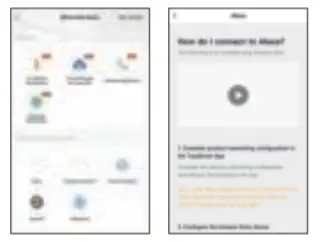
In the Tuya Smart APP: Find more services in the “Me” menu, click to enter “voice service” (Alexa/ Google Assistant) and other services, click on the service you need.
Connect to the third-party service device according to the operation guide.
For any product and APP updating, please contact customer service.
INSTRUCTION MANUAL

 |