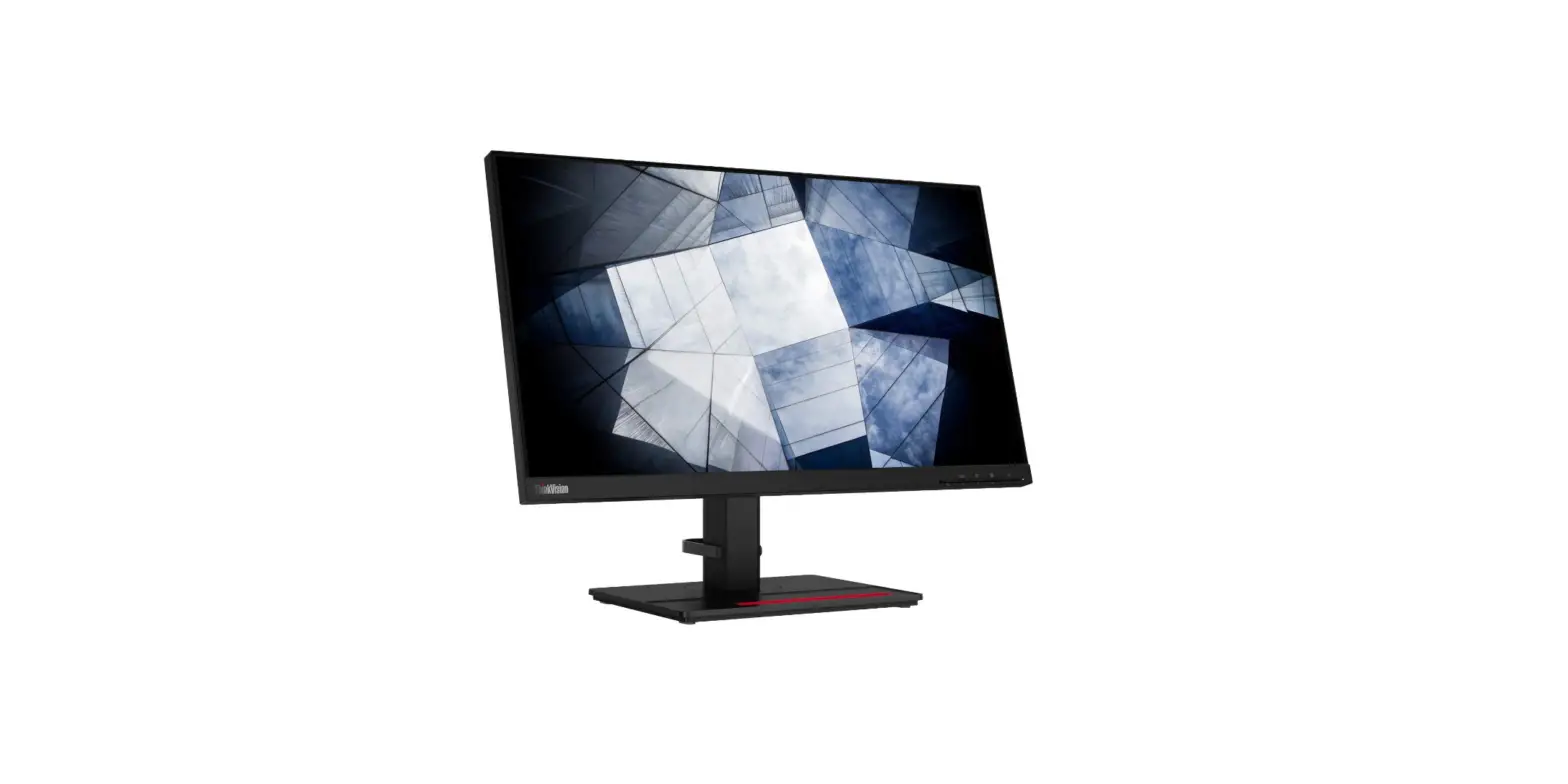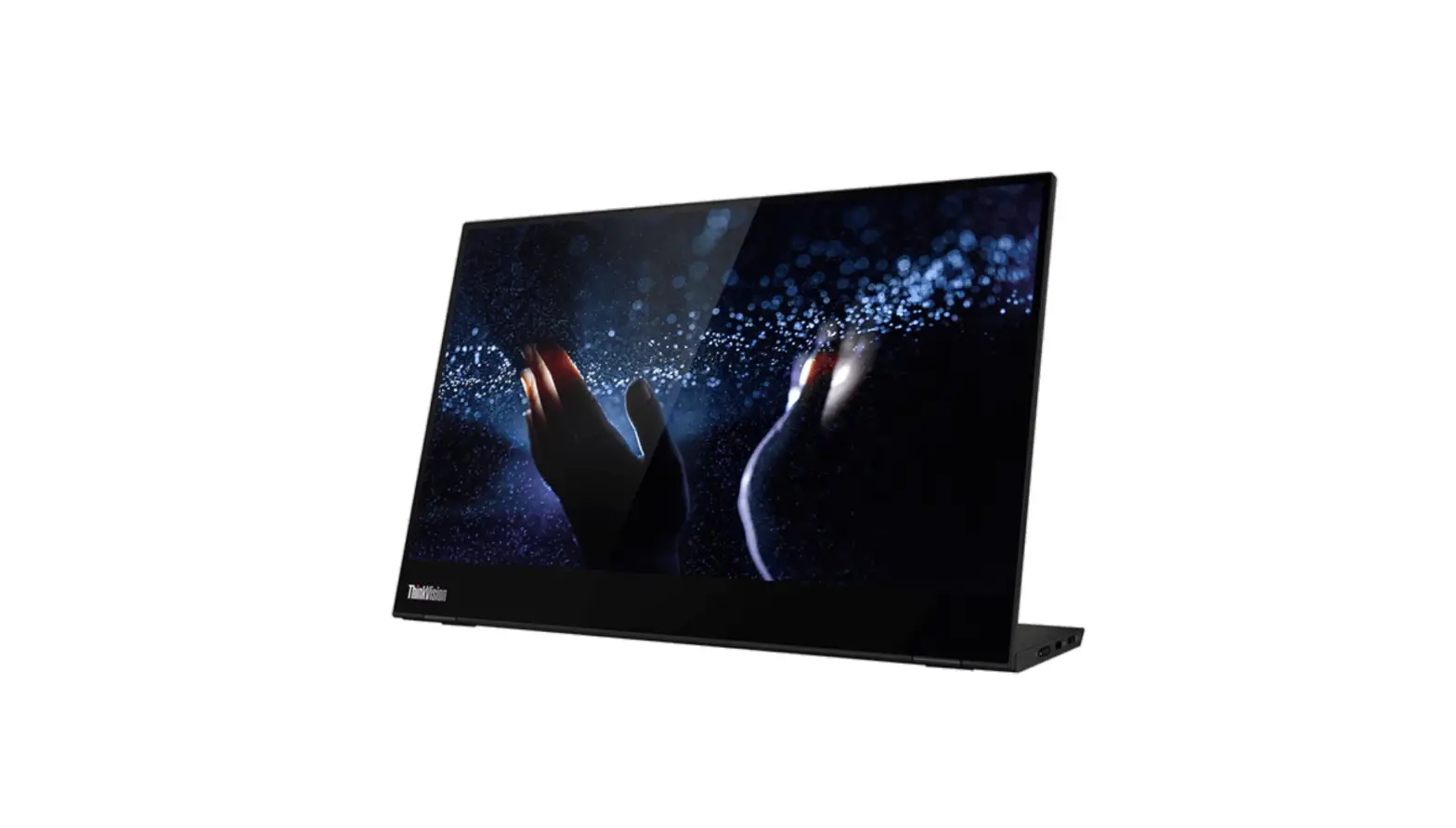
Lenovo ThinkVision M14t Mobile Monitor User Guide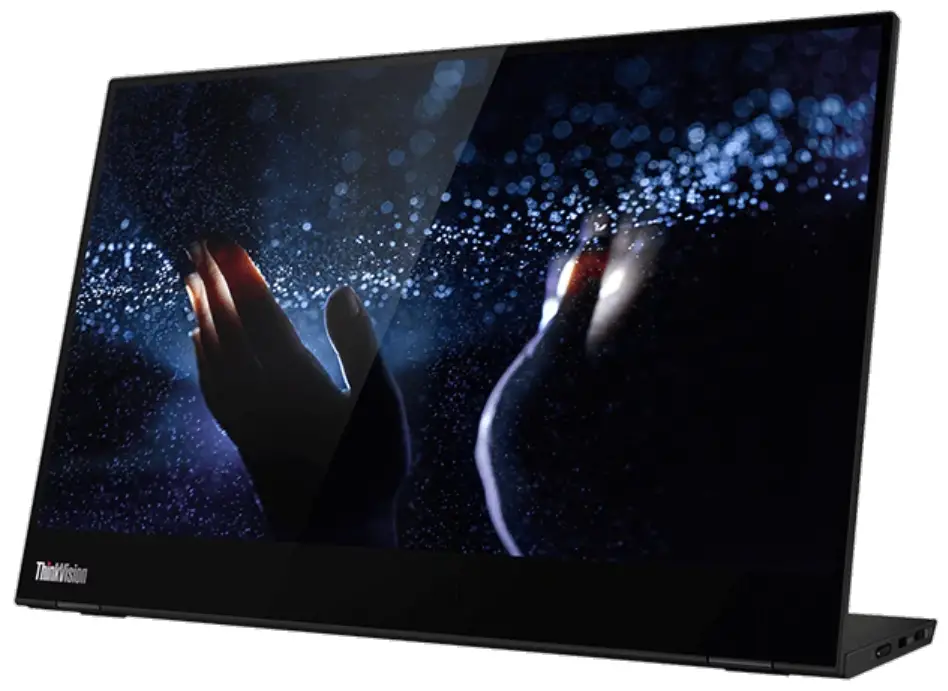
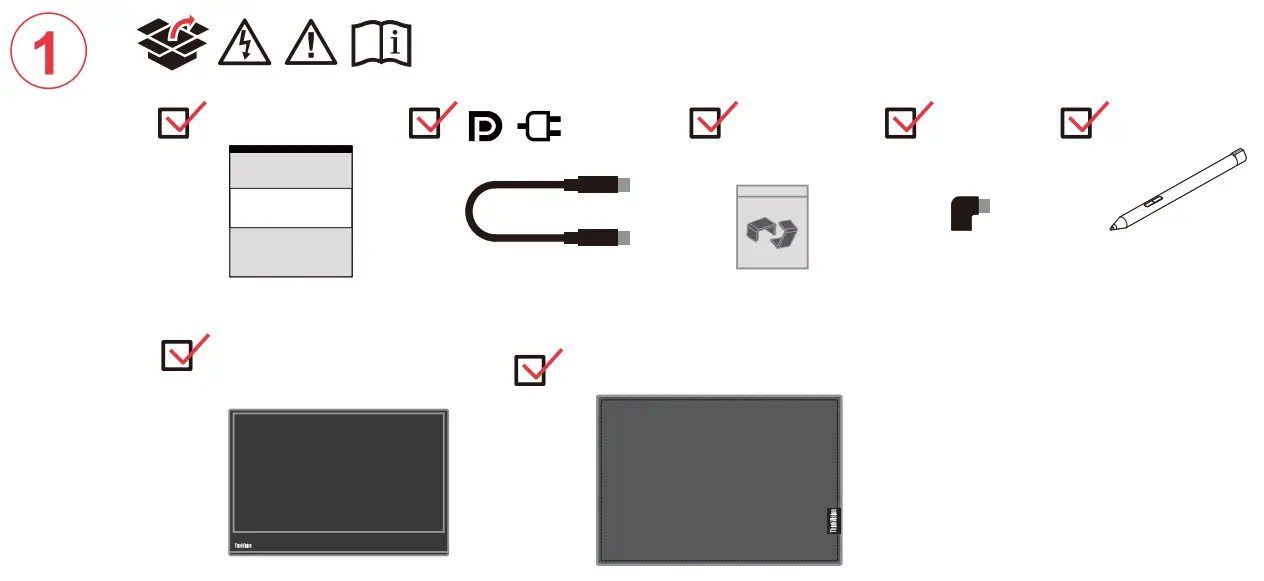
Box Contents
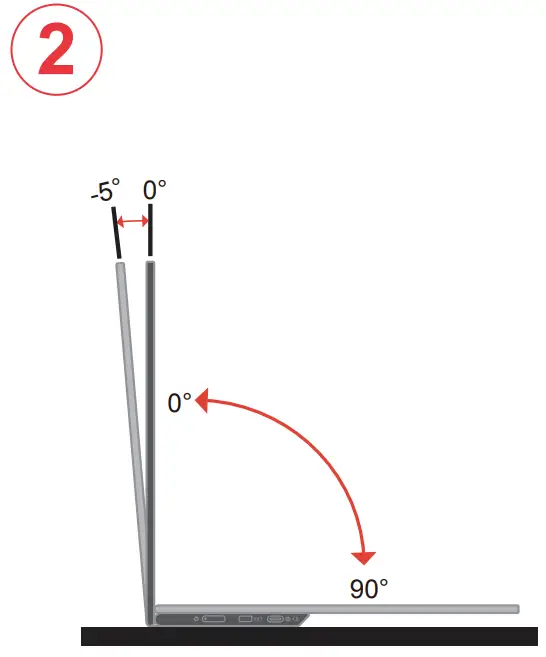
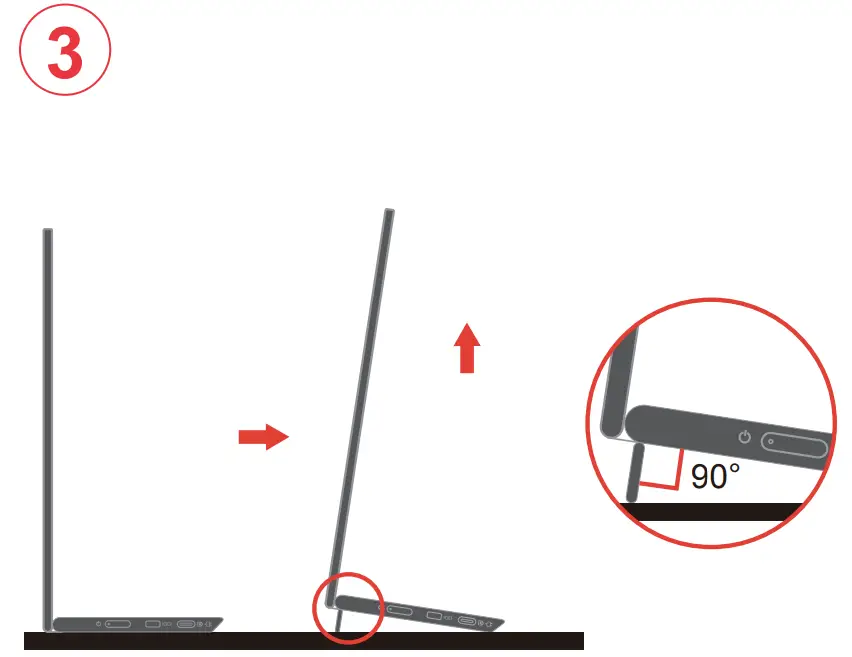
Connections
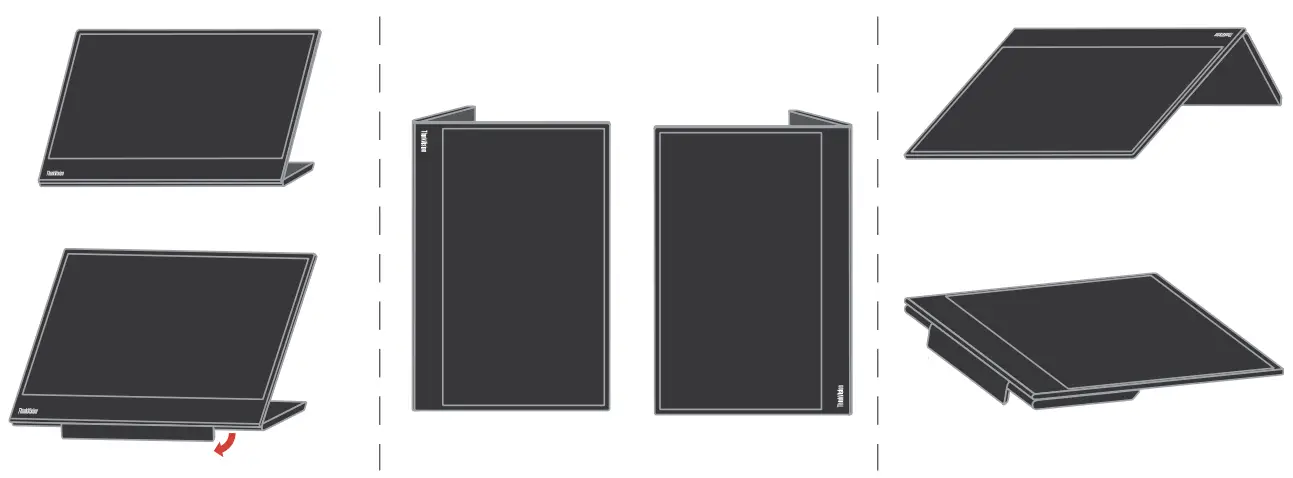
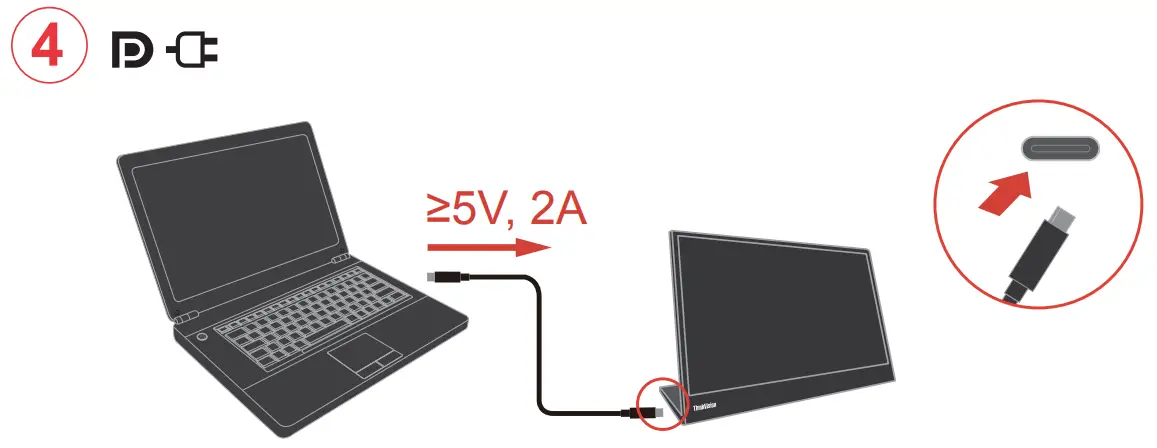
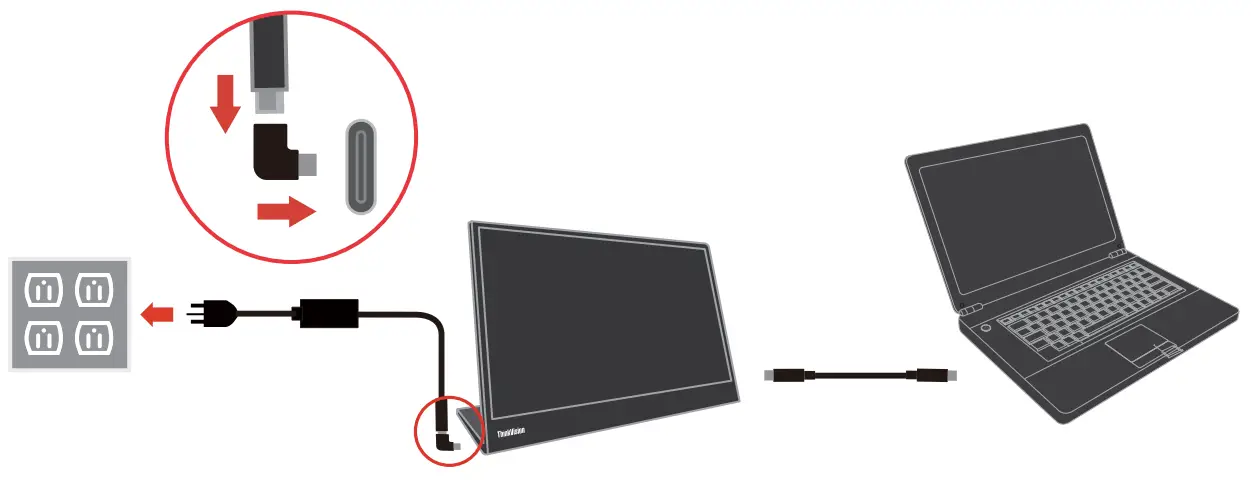
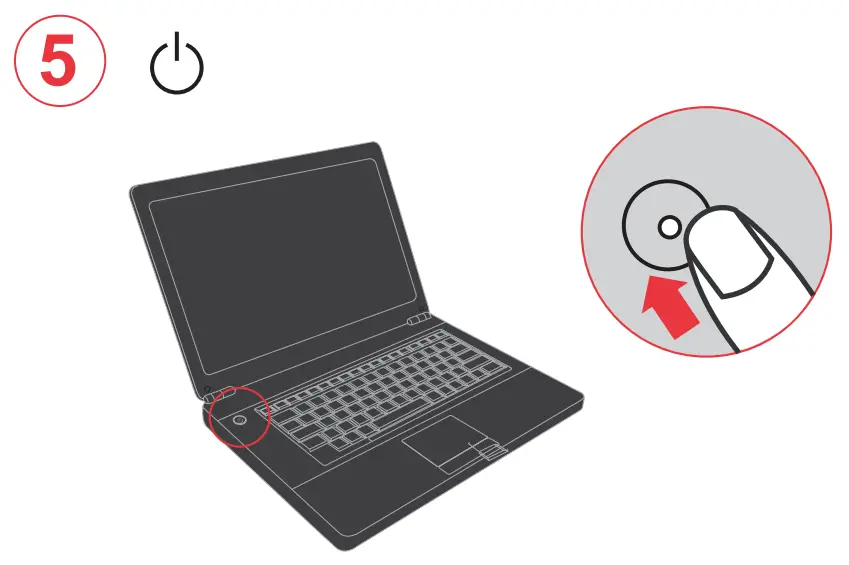
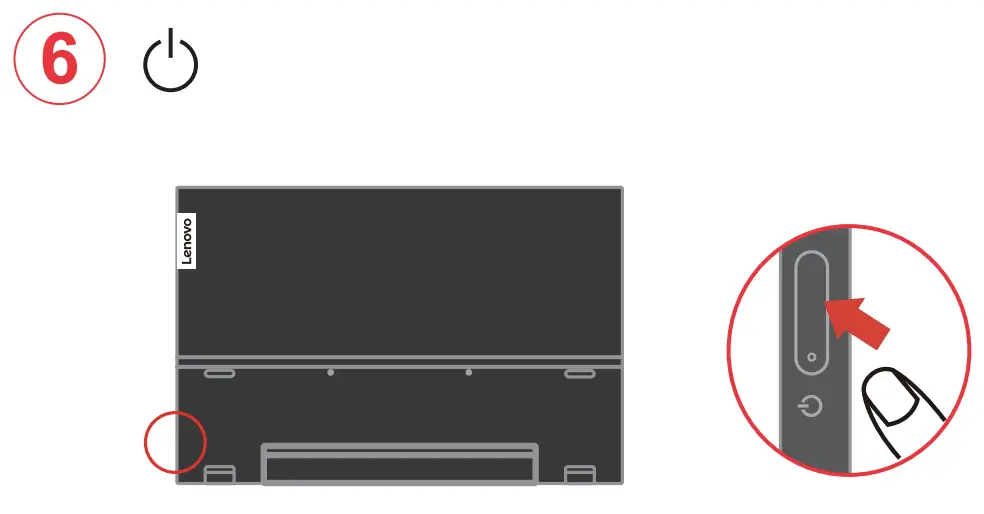
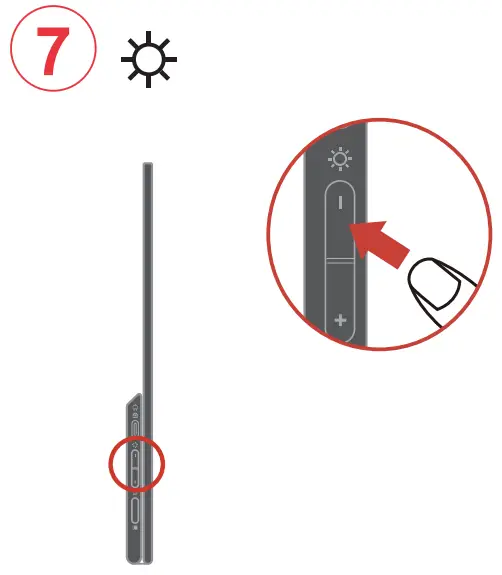
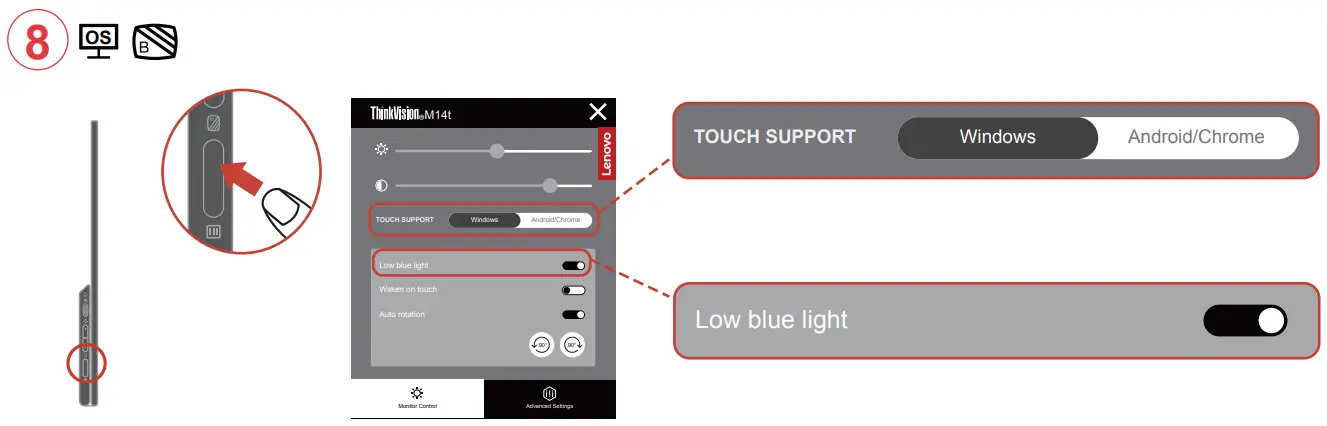
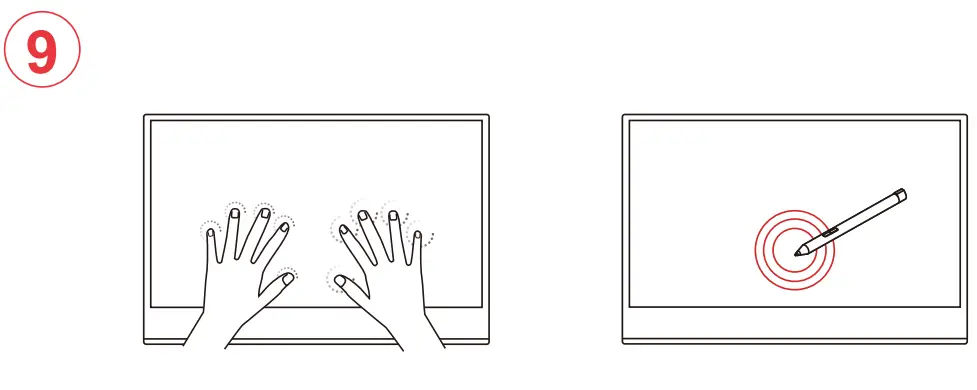
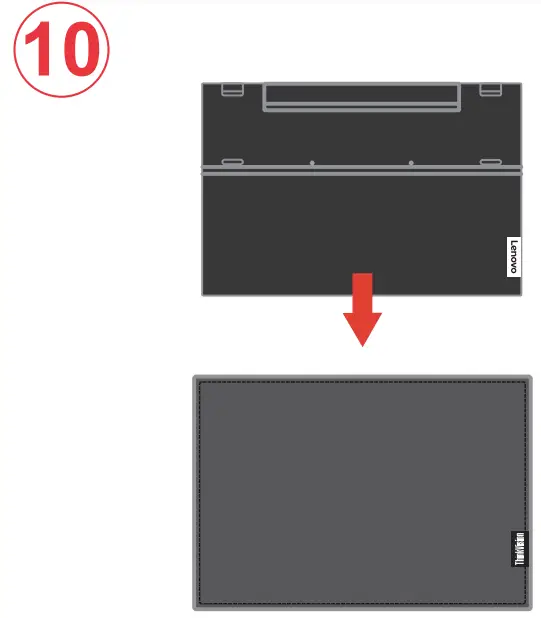
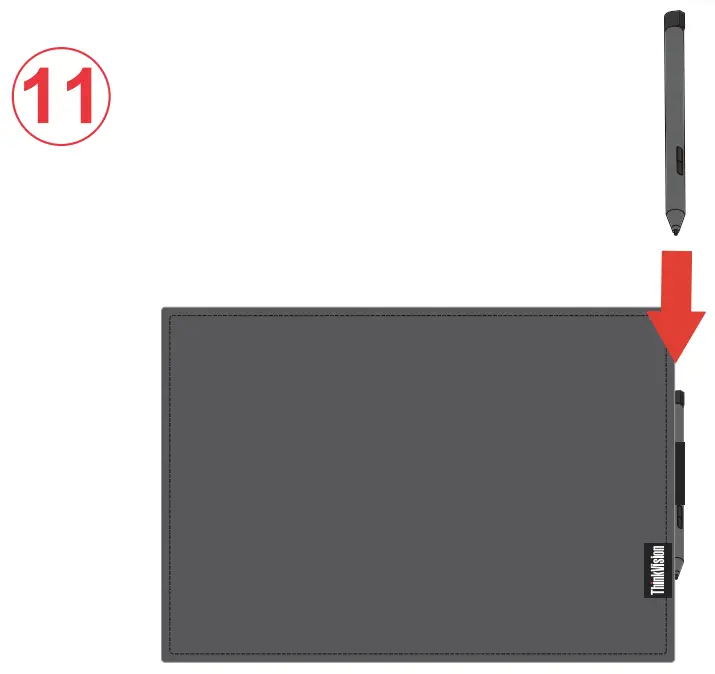
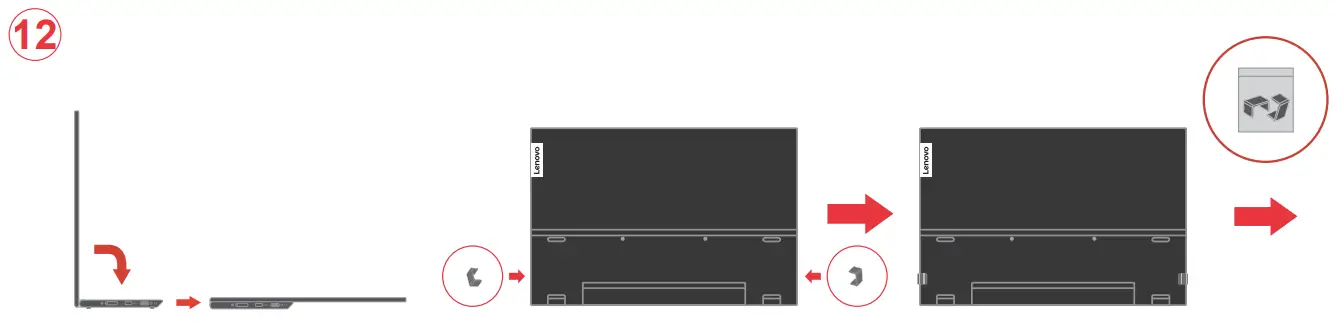
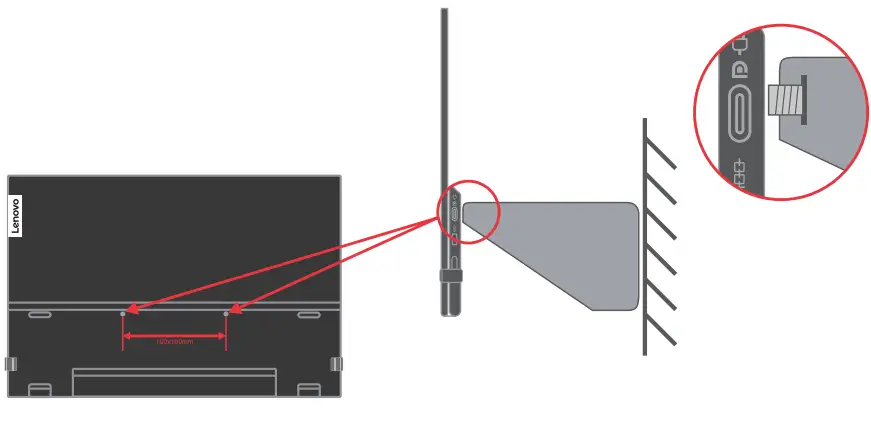
The drivers and files for this monitor can be downloaded from https://pcsupport.lenovo.com/solutions/m14t or scan QR code.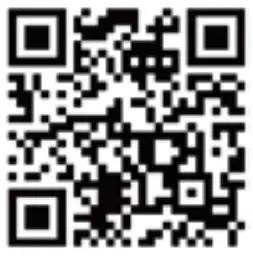
Safety information
 DANGER
To avoid shock hazard:
- Do not remove the covers.
- Do not operate this product unless the stand is attached.
- Do not connect or disconnect this product during an electrical storm.
- The power cord plug must be connected to a properly wired and grounded power outlet.
- Any equipment to which this product will be attached must also be connected to properly wired and grounded power outlets.
- To isolate the monitor from the electrical supply, you must remove the plug from the power outlet. The power outlet should be easily! accessible.
Handling:
If your monitor weighs more than 18 kg (39.68 lb), it is recommended that it be moved or lifted by two people.
Troubleshooting information
If you have a problem setting up or using your monitor, you might be able to solve it yourself. Before calling your dealer or Lenovo, try the suggested actions that are appropriate to your problem.
Table 2-1. Troubleshooting
| Problem | Possible cause | Suggested action |
| The power indicator is not lit and there is no image |
|
|
| The power indicator is white, but there is no image. | The video signal cable is loose or disconnected from the system or monitor. | Be sure the video signal is connected with the system properly. |
| The monitor brightness and contrast levels are at the lowest setting. | Adjust the brightness and contrast setting on the OSD (On Screen Display) menu. | |
| The image quality is unacceptable. | The video signal cable is not connected with the monitor or system completely. | Be sure the signal cable is firmly plugged into the system and monitor. |
| The color settings may be incorrect. | Select another color setting from the OSD menu. | |
| The automatic image setup function was not performed. | Perform automatic image setup. | |
| There is a screen message that reads “Out of range” or “HZ?”. There is no image and the power on indicator is flashing white. | The system is set to a display mode which is not supported by this monitor for your new monitor. |
|
For additional troubleshooting information, please refer to the User’s Guide.
Manufactured by:
Lenovo Centro Tecnologico S. de R.L. de C.V.
Apodaca Technology Park
Boulevar Escobedo #316
Apodaca, Nuevo Leon, Mexico
C.P. 66601
Marketing by:
Lenovo Mexico S. de R.L. de C.V.
Av. Santa Fe 505, Piso 15
Col. Cruz Manca
Cuajimalpa, D.F., Mexico
C.P. 05349
Tel. (55) 5000 8500
 This device complies with Part 15 of the FCC Rules. Operation is subject to the following two conditions:
- this device may not cause harmful interference, and
- this device must accept any interference received, including interference that may cause undesired operation.
Important Battery Recycling and WEEE information
Don’t dispose of your product or battery with your household waste.
Refer to the Compliance Guide that came with your product for further information. or go to https://www.lenovo.com/recycling
 Contact Us - PC, Data Center, Mobile, Smart | Lenovo Support US - Lenovo Support US
 ThinkVision M14t Flat Panel Monitor - Overview - Lenovo Support US