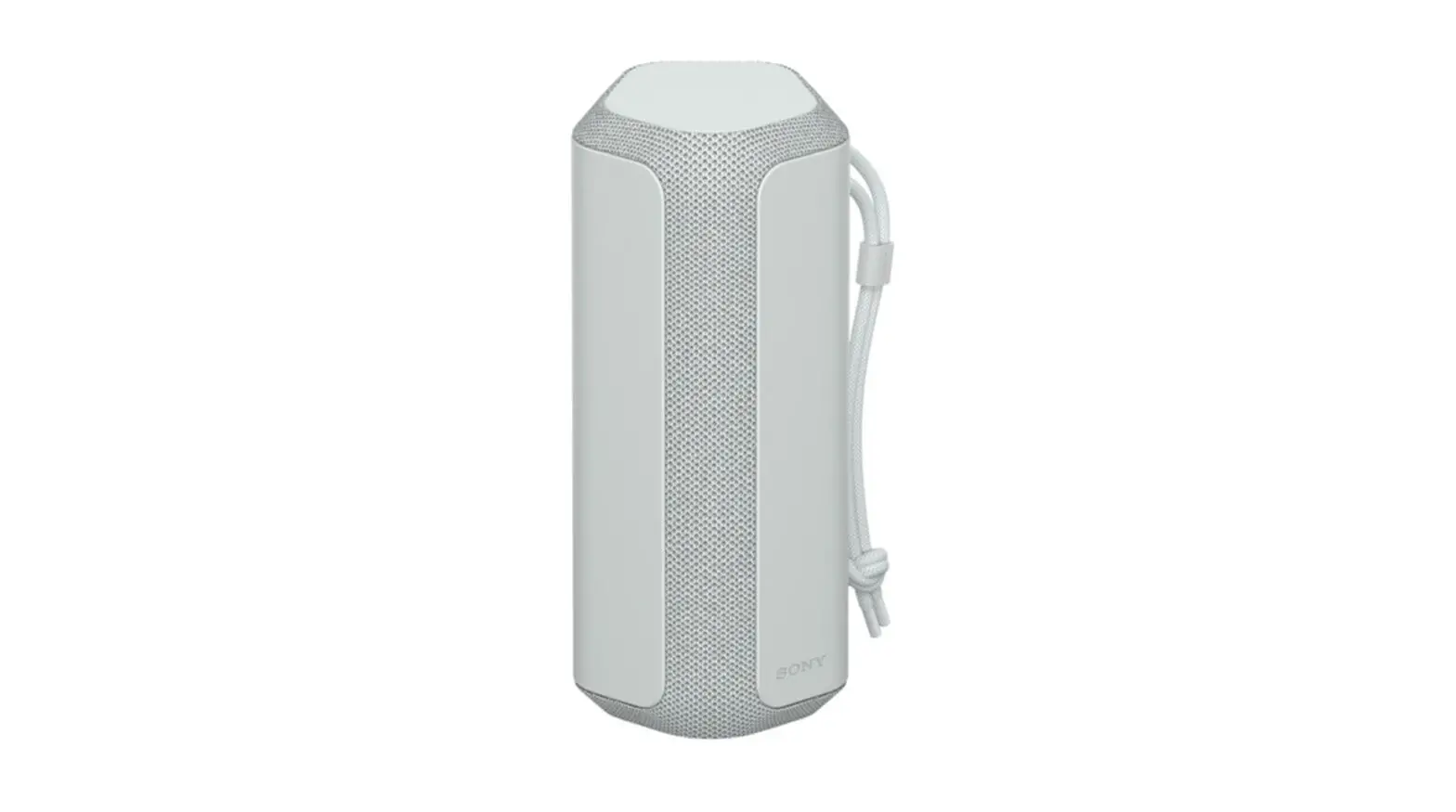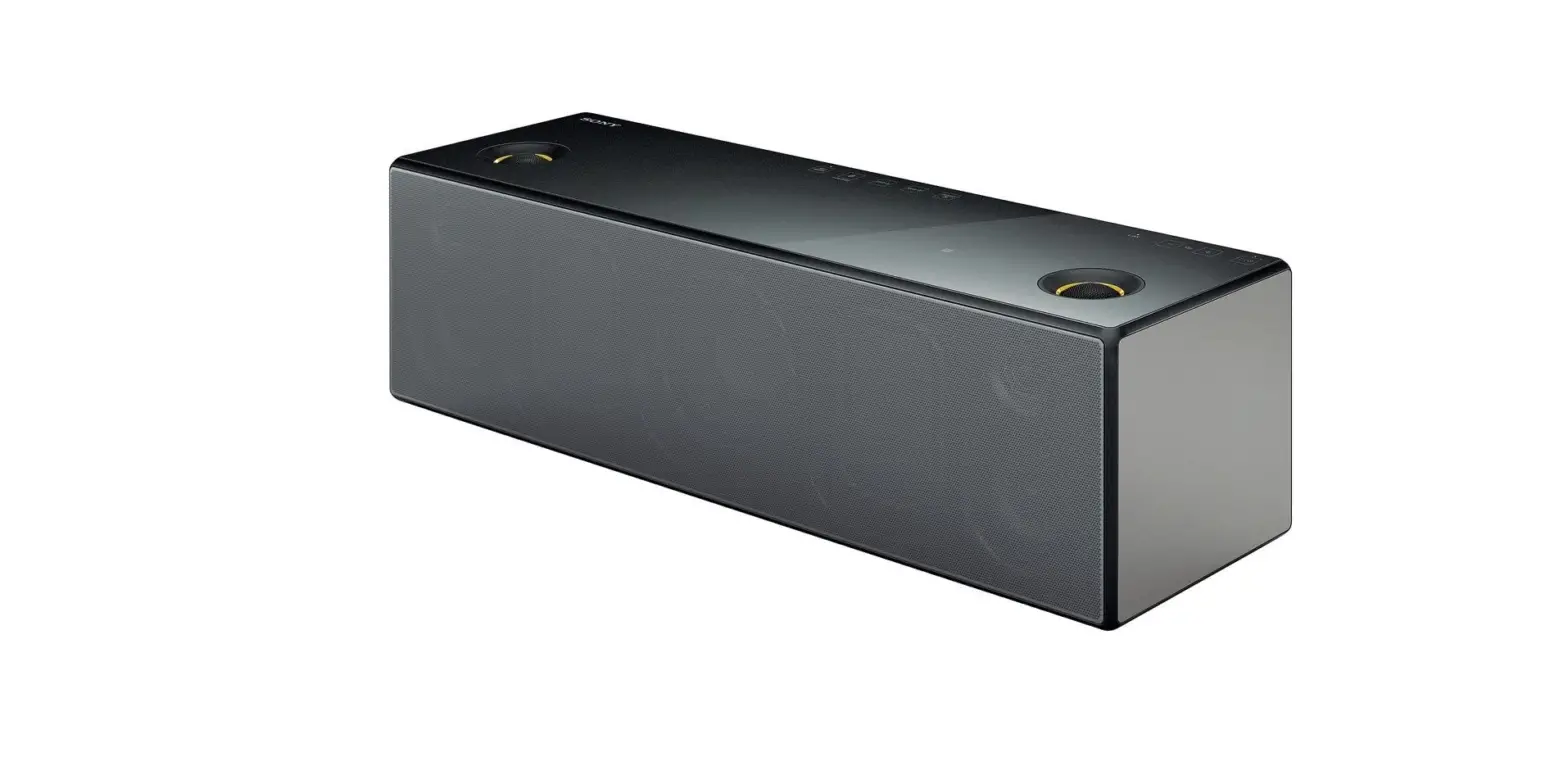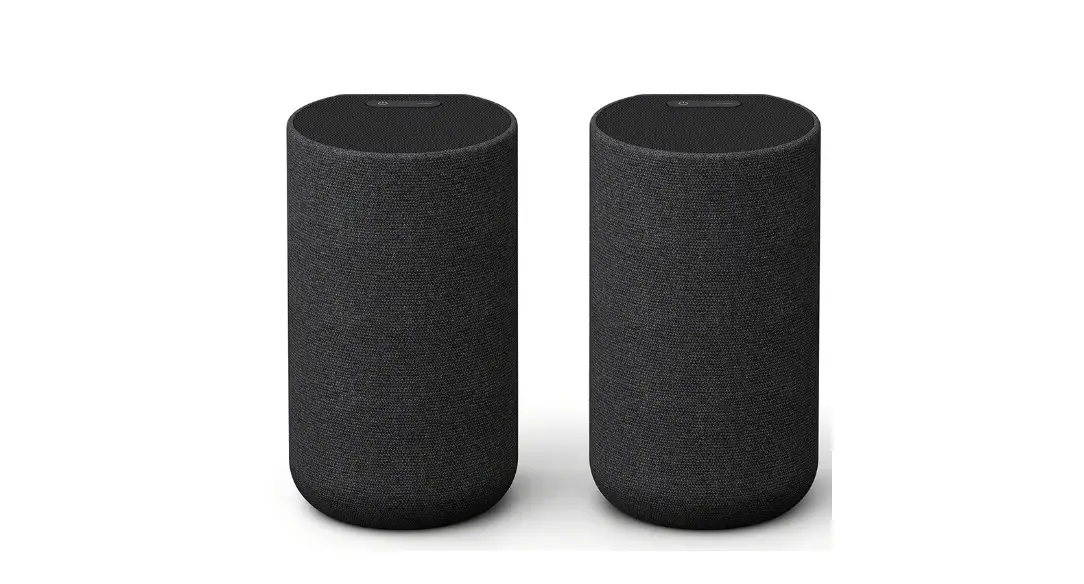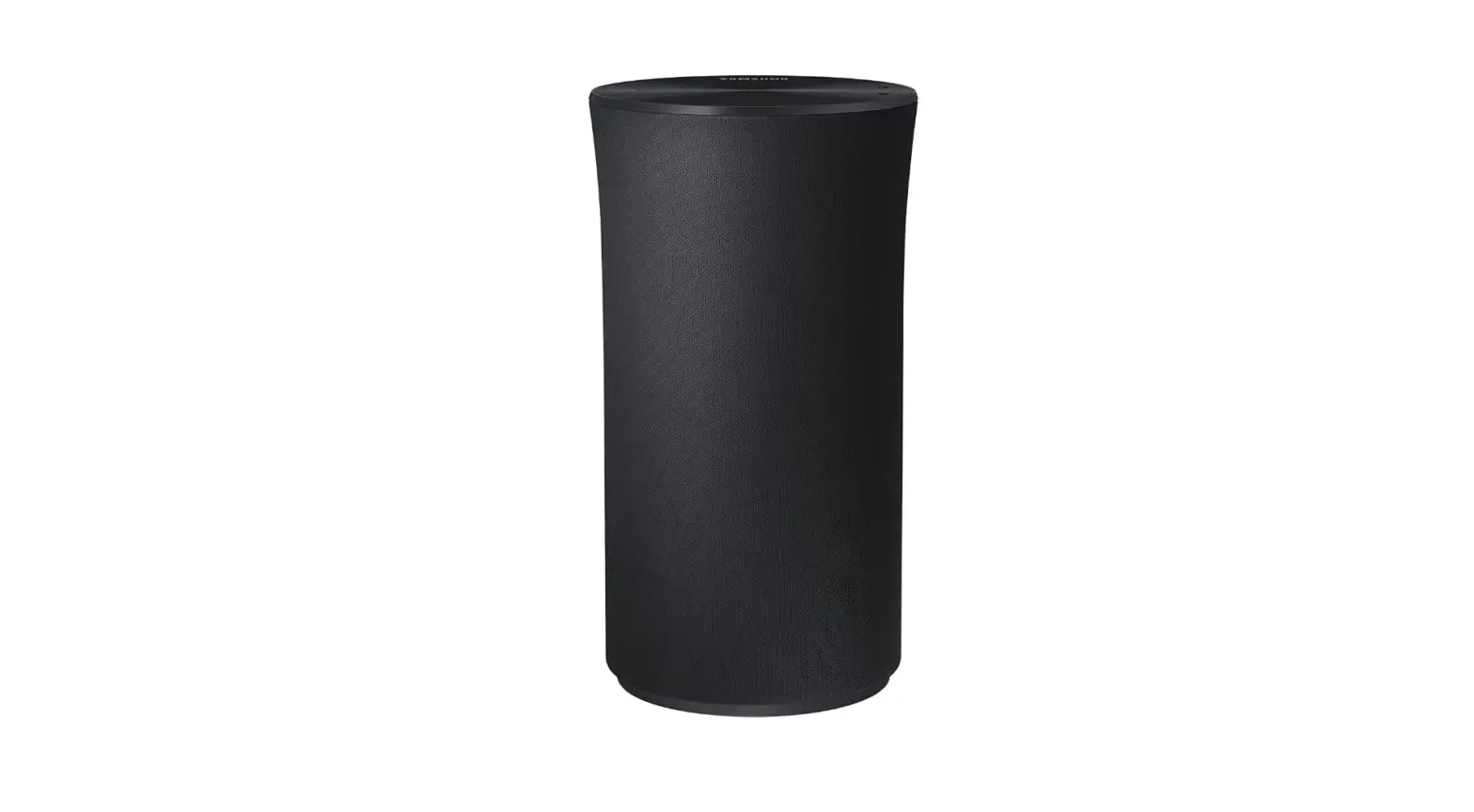

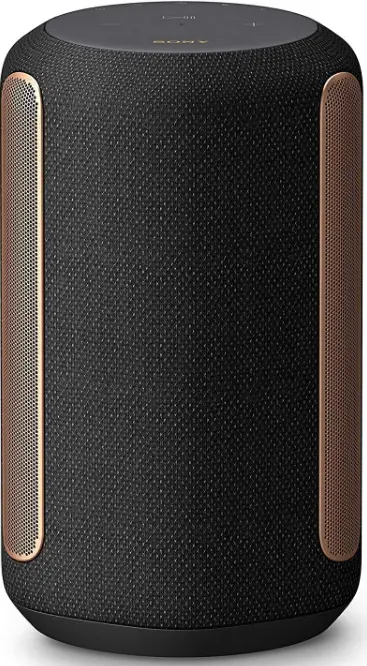
Sony SRS-RA3000 360 Reality Audio Wi-Fi Wireless Speaker
Help Guide
(Web document for a PC/smartphone) The “Help Guide” describes the features of the speaker, how to use the speaker in detail, and how to troubleshoot.
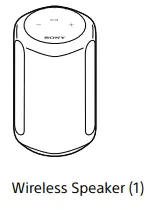
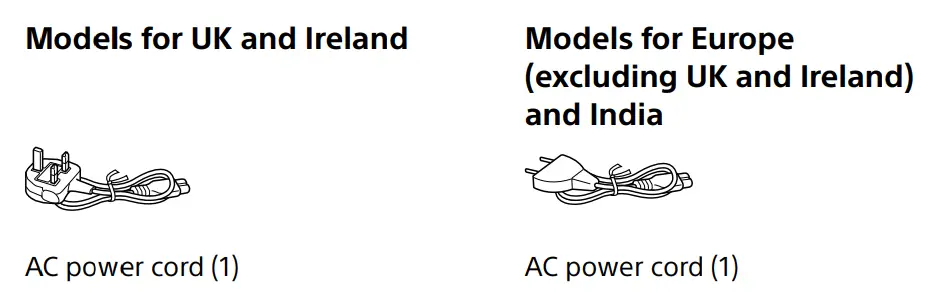
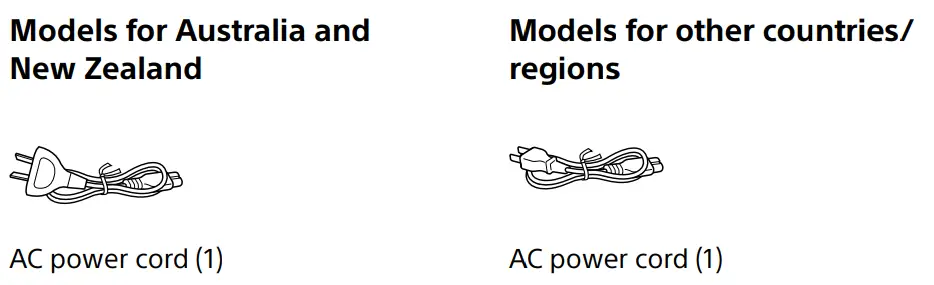
What’s in the box


Part names
FRONT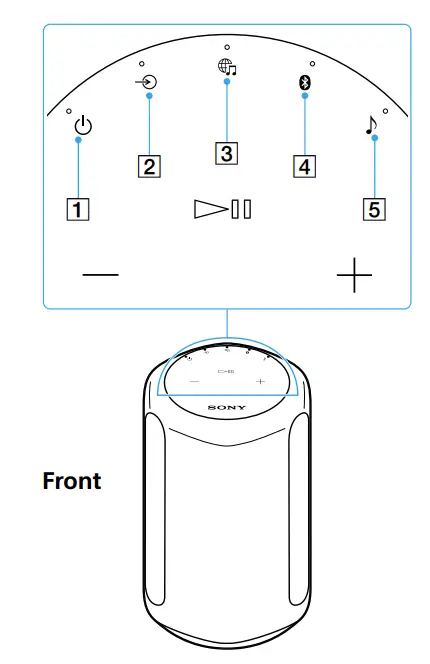
 (Power) button/indicator
- Touch to turn the power on/off.
 (Green): Power on
- (Amber): BLUETOOTH/Network Standby
- (Turns off):Power off
 (Red): The speaker is in protect mode. Refer to “Troubleshooting” in the Help Guide.
 (AUDIO IN) button/indicator
- Touch to select input from the device connected to the AUDIO IN jack.
- (White): Audio input is selected.
 (Music Service) button/ indicator
- Touch to select input from the Wi-Fi network.
- (White): Wi-Fi network input is selected.
- (Green): The speaker connects to a music service through input from the Wi-Fi network.
 (BLUETOOTH) button/indicator
- Touch to select BLUETOOTH input.
- Touch and hold for more than 2 seconds to enter the BLUETOOTH pairing mode.
- (Blue): BLUETOOTH input is selected.
- (Blue): The speaker is in BLUETOOTH pairing mode.
- (Sound Mode) button/indicator Touch to turn the Immersive Audio Enhancement on/off (page 19).
- (Cyan): 360 Reality Audio is being played back.
- (White): The Immersive Audio Enhancement is on.
- (Blinks slowly* in cyan): Executing the Sound Calibration (While 360 Reality Audio is being played back.)
- (Blinks slowly* in white): Executing the Sound Calibration (While normal audio is being played back.)
- (Turns off): The Immersive Audio Enhancement is off.
- The indicator slowly brightens and dims.
 (Play/Pause) button
- Touch 1 time to play or pause music.
- Touch 2 times to go to the next song.
- Touch 3 times to go back to the previous song.
- Touch and hold for more than 2 seconds to play back the 360 Reality
- Audio sample music. To stop playback, touch the button again.
 (Volume -/+) buttons
 (Power) button/indicator
 (Green): Power on
 (Red): The speaker is in protect mode. Refer to “Troubleshooting” in the Help Guide.
 (AUDIO IN) button/indicator
 (Music Service) button/ indicator
 (BLUETOOTH) button/indicator
 (Play/Pause) button
 (Volume -/+) buttons
Part names
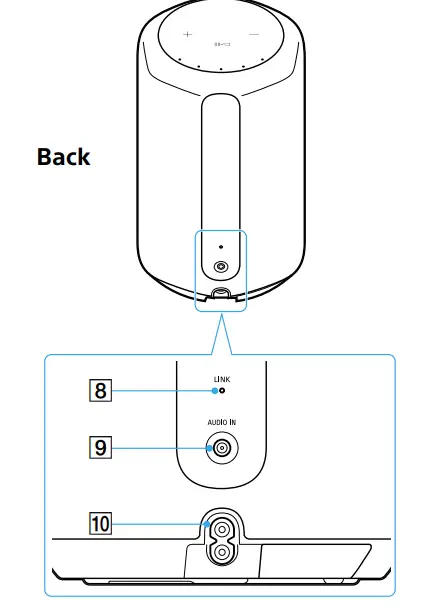
- LINK indicator
- (Amber): A Wi-Fi connection is established.
- AUDIO IN jack
- Use an analog audio cable to connect an audio device.
- AC IN jack (page 7)

Set up the speaker
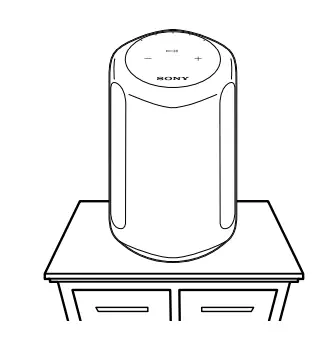
- Place the speaker where you are going to use it.

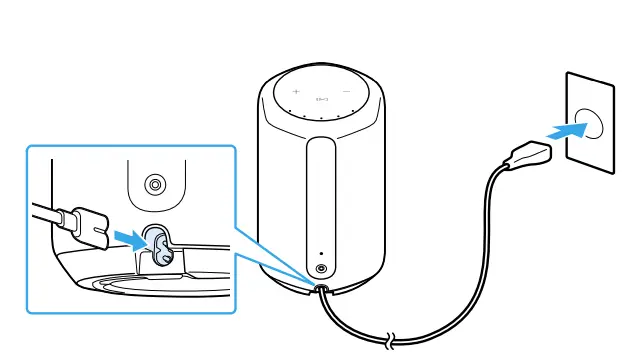
- Connect the AC power cord to the speaker, and then plug it into an outlet.

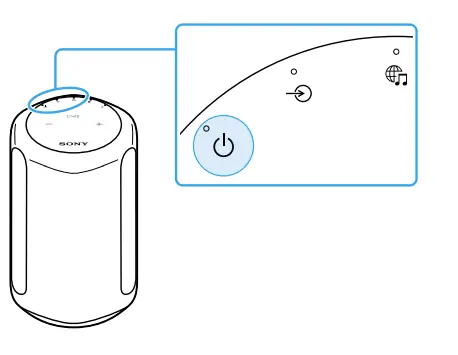
- Touch the (Power) button to turn on the speaker.

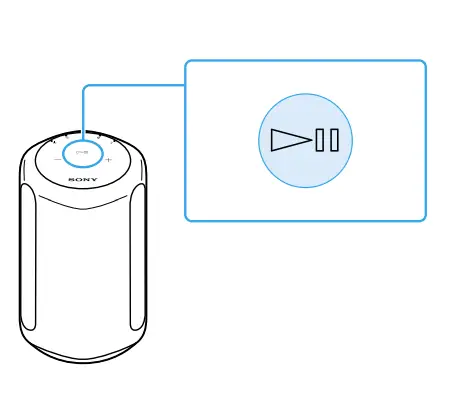
- Touch and hold the (Play/Pause) button for more than 2 seconds.

- The 360 Reality Audio sample music plays back.
About the Auto Sound Calibration
- Even if you change the location of the speaker, when you turn it on and play music, the speaker automatically calibrates the sound to suit the location.
- During the Sound Calibration, the (Sound Mode) indicator blinks slowly*.
- The efficacy of the Sound Calibration may vary, depending on the surrounding environment and music being played back.
- The indicator slowly brightens and dims.
Play music
Play music using a Chromecast-enabled app
This speaker comes with Chromecast built-in™*. By using a Chromecast-enabled app, you can stream music you select on your mobile device to the speaker. For more information about Chromecast-enabled apps, visit the support page for Google. Services may not be available, depending on your country or region.
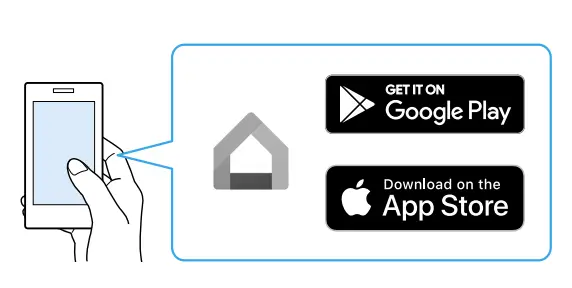
- Install the Google Home app on your smartphone.

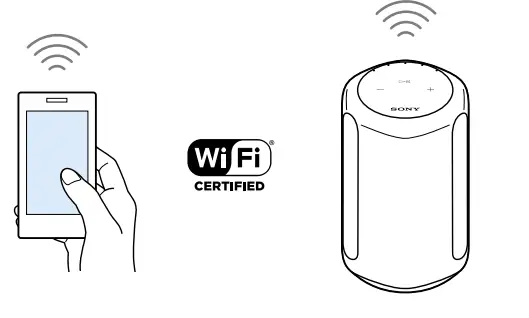
- Follow the Google Home app’s on-screen instructions to connect your speaker to the same Wi-Fi network as your smartphone.

- Tap
 (cast) in your favorite streaming service to start streaming music to the speaker.
- For playing back 360 Reality Audio music, see “Play 360 Reality Audio music” (page 15).
 (cast) in your favorite streaming service to start streaming music to the speaker.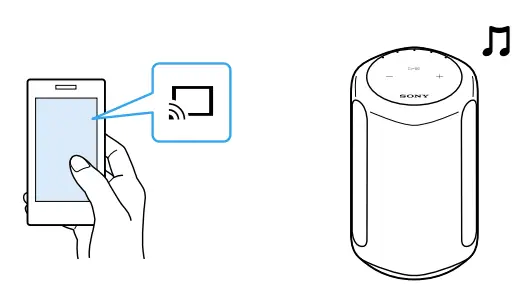
Play music by talking to an Alexa Built-in device
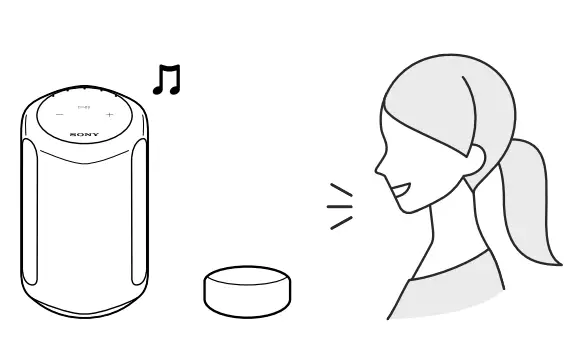
By talking to an Alexa Built-in device, you can stream music to the speaker from a streaming service that supports Alexa.
Note
- Before operating the speaker, connect the Alexa Built-in device to the same Wi-Fi network as your smartphone and complete the initial setup.
- Alexa Voice Service is not available in all languages and countries/regions.
- The design of the app may change without notice.
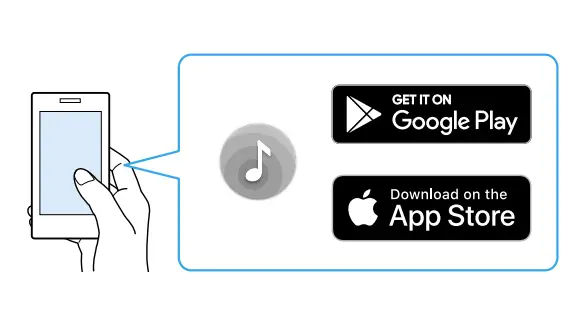
- Install “Sony | Music Center” on your smartphone.

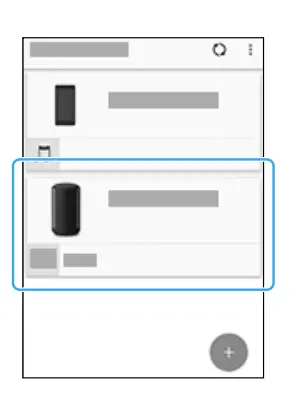
- Select your speaker on the screen in “Sony | Music Center.”

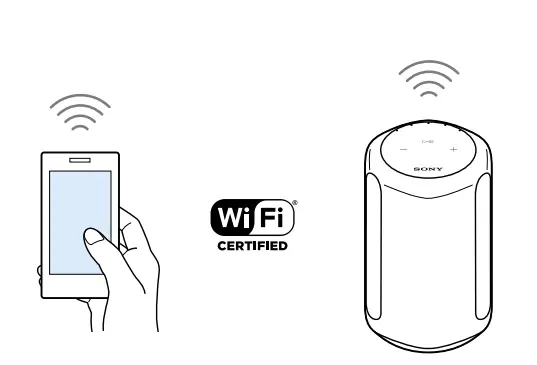
- Follow the on-screen instructions in “Sony | Music Center” to connect your speaker to the same Wi-Fi network as your smartphone.

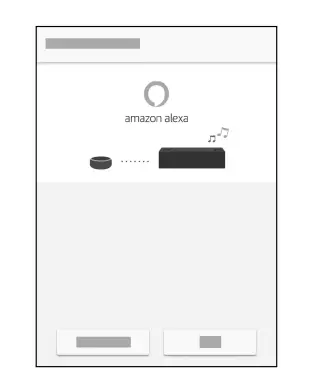
- Follow the on-screen instructions to do the settings for operating the speaker with Alexa.
- If the settings screen for Amazon Alexa does not appear, select [Settings] – [Amazon Alexa] – [Initial Setup] on the screen on which you selected the speaker.

- Talk to Alexa to play music.
- For playing back 360 Reality Audio music, see “Play 360 Reality Audio music” (page 15).

Play 360 Reality Audio music
- A Wi-Fi network connection is required to play 360 Reality Audio music. Music cannot be played back via a BLUETOOTH connection.
- Follow the procedure in “Play music using a Chromecast-enabled app” (pages 10 to 11) or “Play music by talking to an Alexa Built-in device” (pages 12 to 14) and connect the speaker to a Wi-Fi network to enable music playback.
- Install a streaming service app* that provides 360 Reality Audio on your smartphone.
- Use the app you installed in step 2 to cast (play) the music you want to play to the speaker.
- You can see the streaming services that provide 360 Reality Audio in “Sony | Music Center.” Services may not be available, depending on your country or region.
Play music via a BLUETOOTH® connection
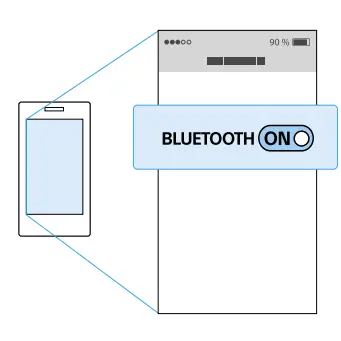
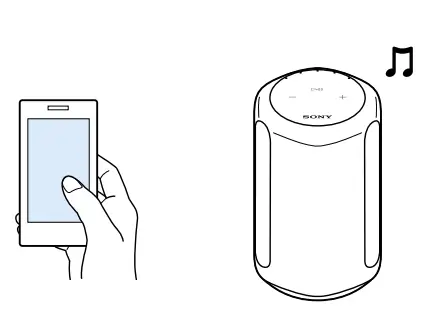
- Turn on your smartphone’s BLUETOOTH function.

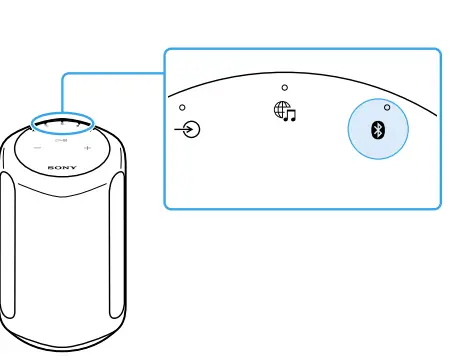
- Touch and hold the speaker’s BLUETOOTH button for more than 2 seconds to enter the BLUETOOTH pairing mode.

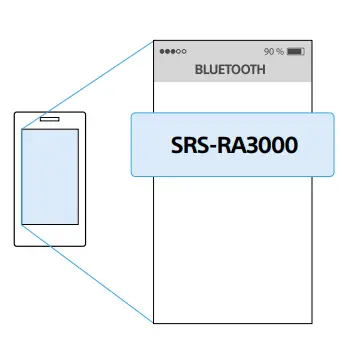
- The BLUETOOTH indicator flashes. Search for the speaker on your smartphone, and then tap either [SRS-RA3000] or the name you gave the speaker to connect to the Wi-Fi network.

- Wait until the BLUETOOTH indicator stops flashing and remains lit. 4 Play music using a music playback app on your smartphone.

Note
360 Reality Audio cannot be played back via a BLUETOOTH connection. See “Play 360 Reality Audio music” (page 15).
Others
You can change the functions’ settings by touching the various buttons on the speaker.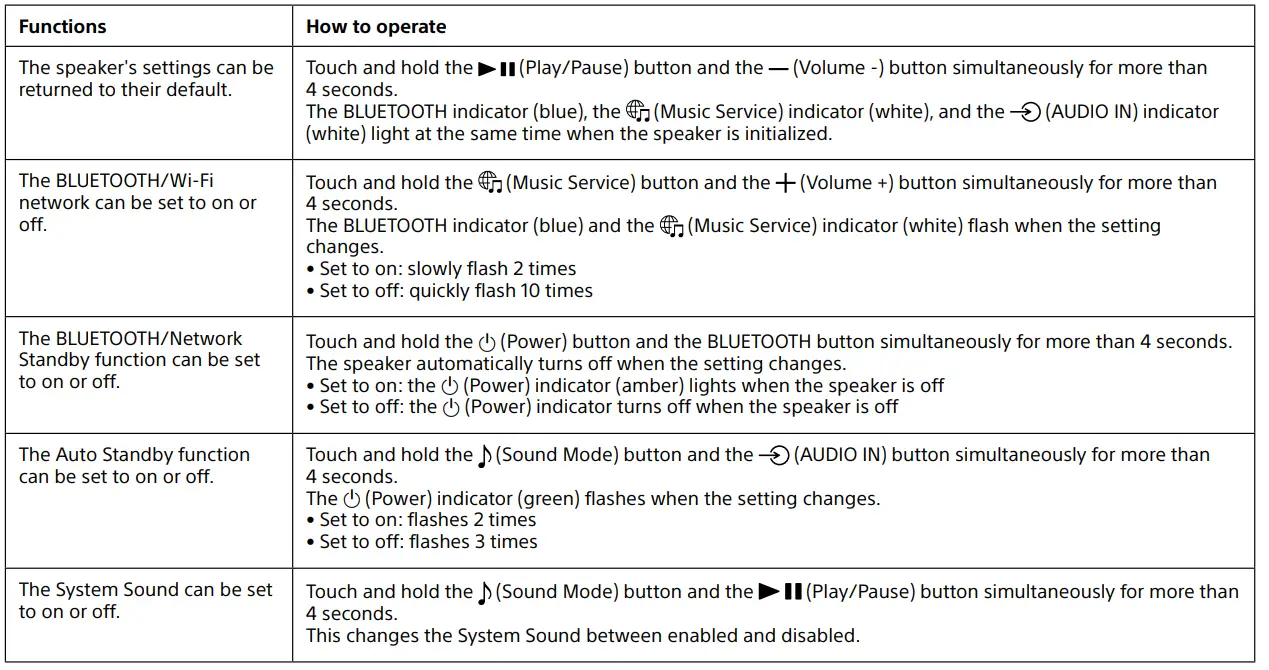
What is the Immersive Audio Enhancement?
The Immersive Audio Enhancement is a sound mode that allows you to experience the music of typical 2-channel playback in a three-dimensional sound field.
NEED HELP
Information about 360 Reality Audio
URL: www.sony.net/360RA/
FAQS
Turn the Speaker On. Press and hold the Pairing Button. Make Sure Your Chosen Device is Bluetooth Enabled. Pair the Speaker with Your Audio Source. Android Devices: iOS Devices (iPhone, iPad, MacBook, etc.):
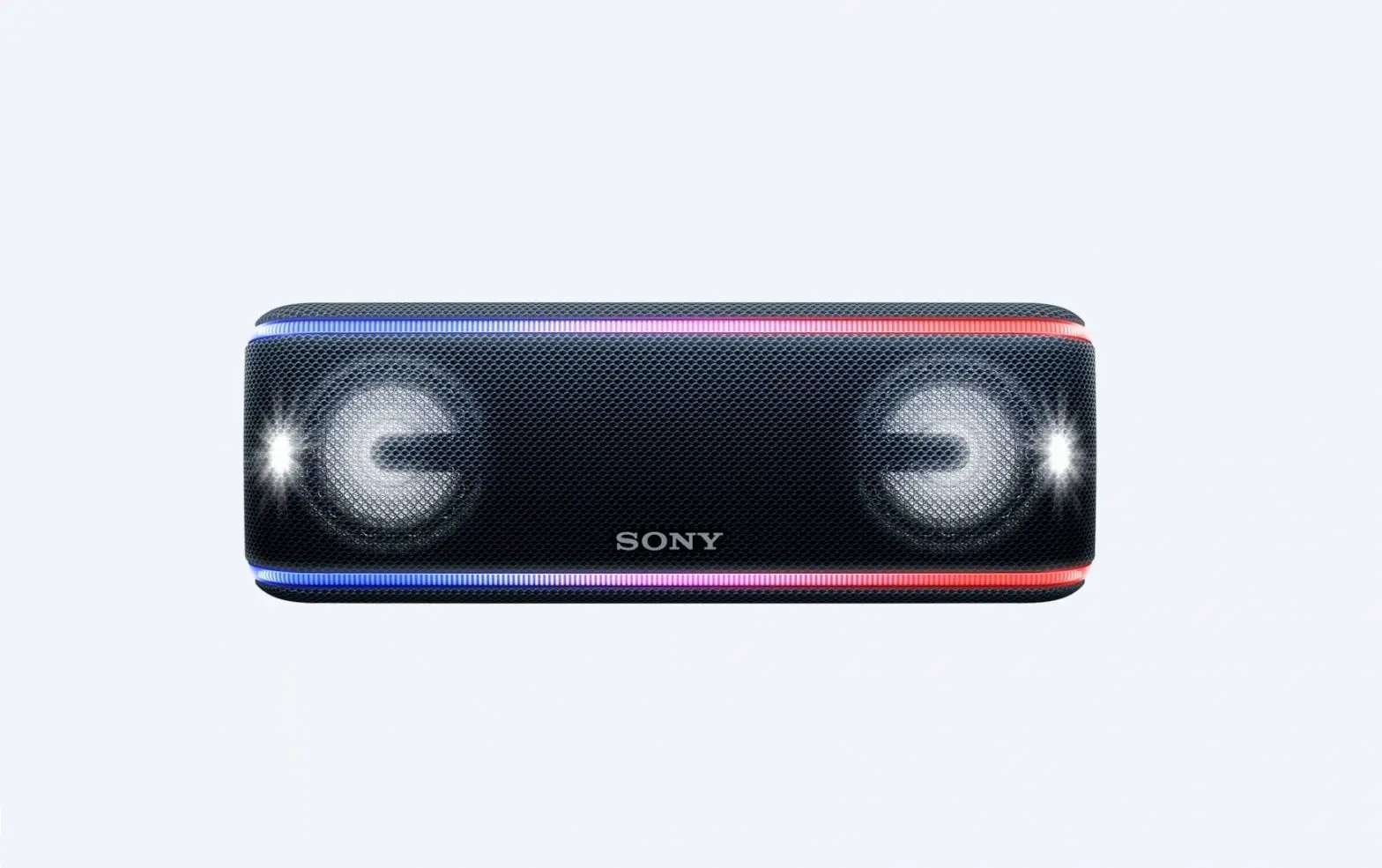
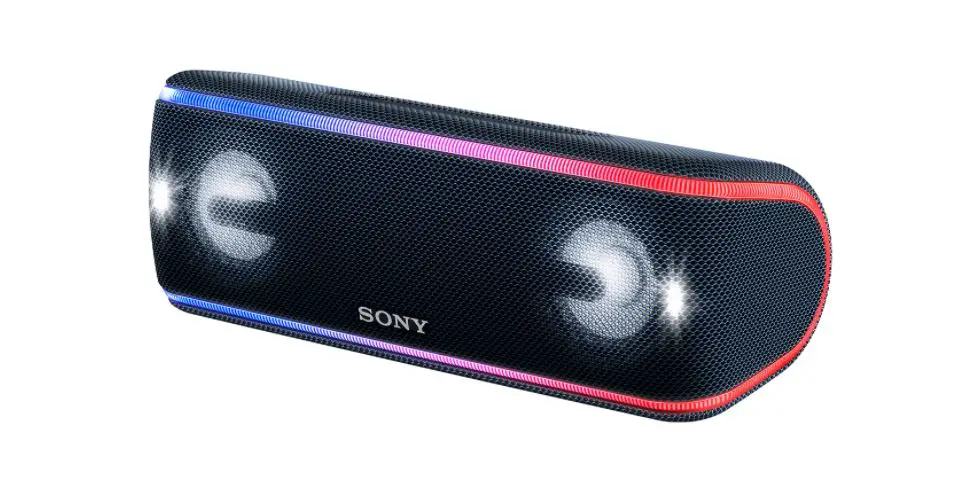
The Sony SRS-XB31 is a powerful portable wireless bluetooth speaker. It has nice music quality and volume (it can go really loud) as well as powerful bass. The “extra bass” feature can be used to enhance the low end.
Turn on your speaker. Set the NFC function of your mobile device or Walkman player to ON. Touch your mobile device or Walkman player to the NFC logo on your speaker. Follow the on-screen instructions to complete the connection.
If you’re really looking to go big on Bluetooth sound, then Sony’s unveiling of its largest and loudest Bluetooth speaker system yet with the introduction of the SRS-XV900 may be of interest
If the speaker device information is registered to your Bluetooth® source device, delete the information, and then perform the pairing procedure again. Delete the speaker information from your Bluetooth device. Connect the speaker to a Wi-Fi® network. button to set it to Bluetooth pairing mode.
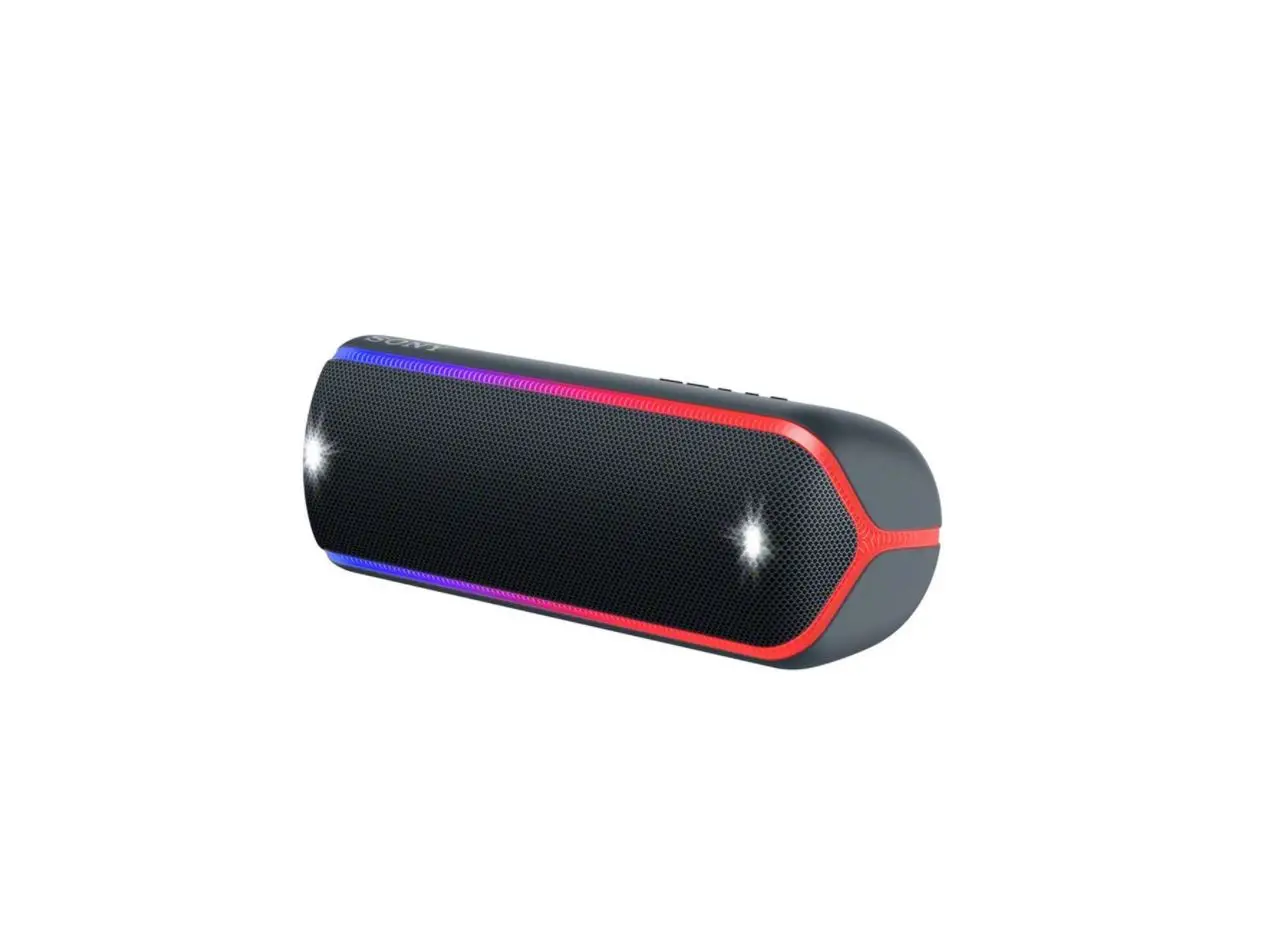
The Bose SoundLink Revolve is a better speaker out-of-the-box than the Sony SRS-XB23. The Bose is capable of reproducing more low-bass and has a more even treble range. Its battery lasts longer too.
The Sony sound quality is undeniably one of the best on the market, so no matter if you’re planning on throwing an incredible party, or you just need a set of reliable speakers, you are all set.
Tap [Settings] – [Sound] – [Sound Mode] – [Preset Mode] to select the Sound Mode: STANDARD. EXTRA BASS
WiFi speakers connect to your home network. Because most run on AC power, they usually require an outlet. Bluetooth speakers pair directly with a device such as a phone or laptop. They tend to be compact and battery-powered, which makes them more portable
The difference between Bluetooth and Wi-Fi speakers is that Bluetooth speakers tend to be better for smaller spaces and are very portable. Wi-Fi speakers have better range, sound quality, and are less likely to have their signal interrupted, but usually need to be connected to power at all times
A WiFi speaker connects wirelessly via your home network with your smartphone or tablet. This allows you to easily exit the room with your smartphone without stopping the music. You simply connect multiple speakers in different rooms to each other via WiFi and an app on your smartphone.
Otherwise, charge the battery of the speaker sufficiently. Once the speaker is initialized, an iPhone/iPad/iPod touch may not be able to connect to the speaker. In this case, delete pairing information on the iPhone/iPad/iPod touch then pair them again.
If your Bluetooth devices won’t connect, it’s likely because the devices are out of range, or aren’t in pairing mode. If you’re having persistent Bluetooth connection problems, try resetting your devices, or having your phone or tablet “forget” the connection
Is the Sony SRS XB23 good?
The Sony SRS-XB23 has an excellent Bluetooth performance. It can connect with up to two devices at a time, and it has an outstanding range. It also has low latency on iOS and Android, which is great if you watch videos. However, some apps and devices compensate for latency differently, so your experience may vary.
The light feature set ups on the XB41 and XB31 are very similar, but the XB41 has the additional back lit speakers in the center. The XB41 also connect’s to Sony’s fiestable app which is an eye sore, but you do get some customization options on the XB41 while the XB31 doesn’t connect to the fiestable app.