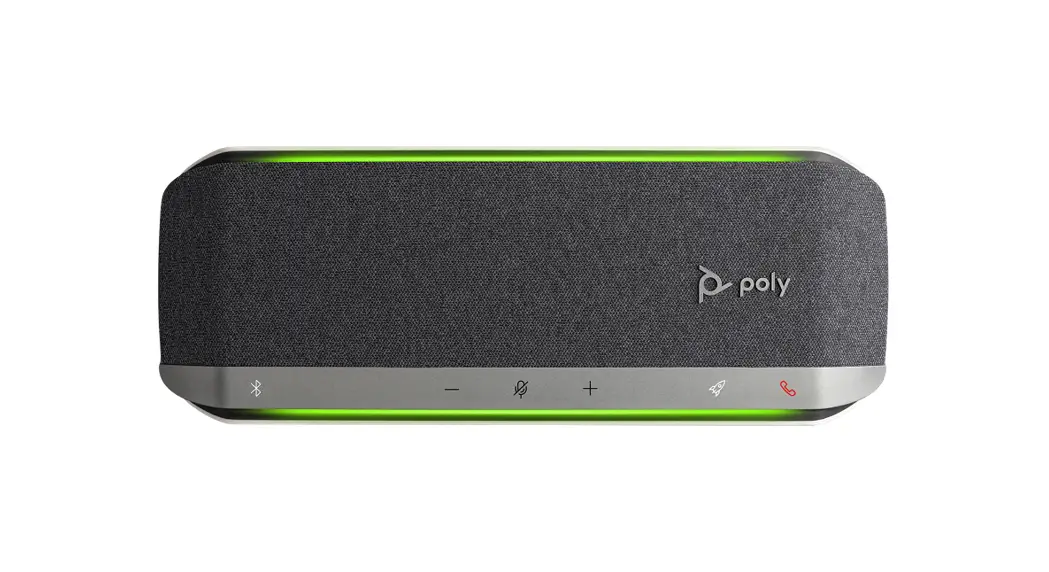

Poly Sync 40 Series
Bluetooth Speakerphone
User Guide
First-time setup
Important: Your speakerphone is shipped from the factory in a Deepsleep mode to conserve battery. Activate your speakerphone by connecting the USB cable to a power source before first use.
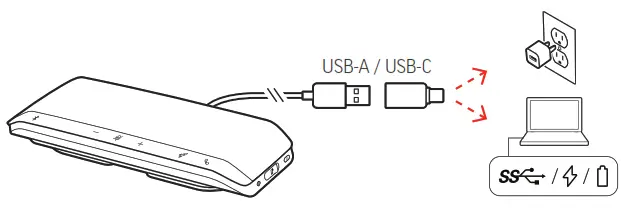
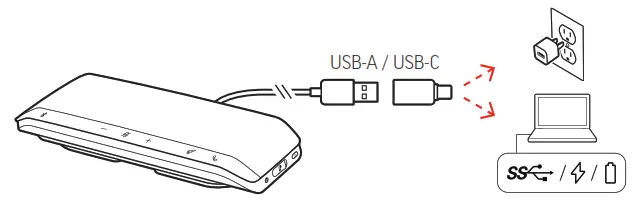
- Connect the speakerphone USB cable to a wall charger or computer. When your speakerphone is activated, the LED bar lights up.

- Connect or pair your speakerphone to take calls or stream media.
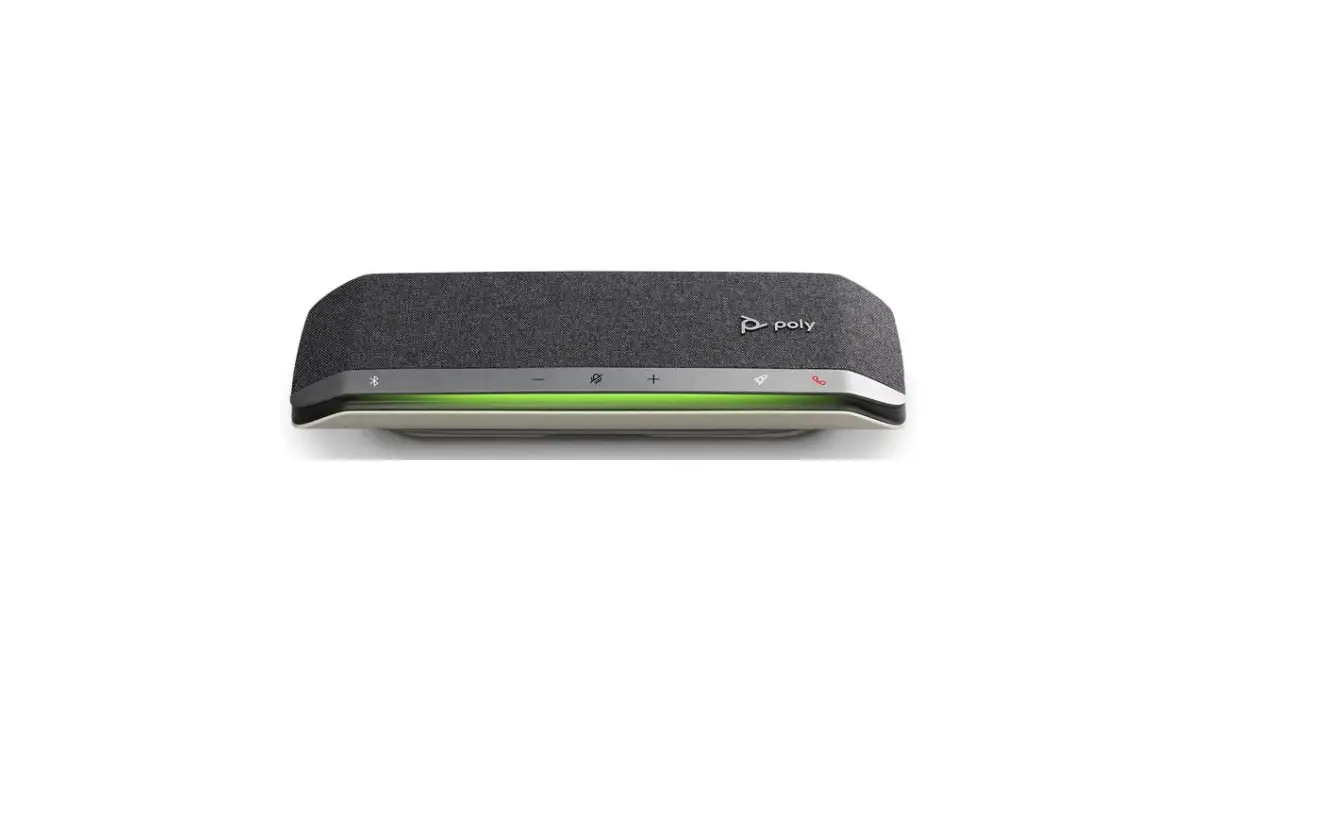
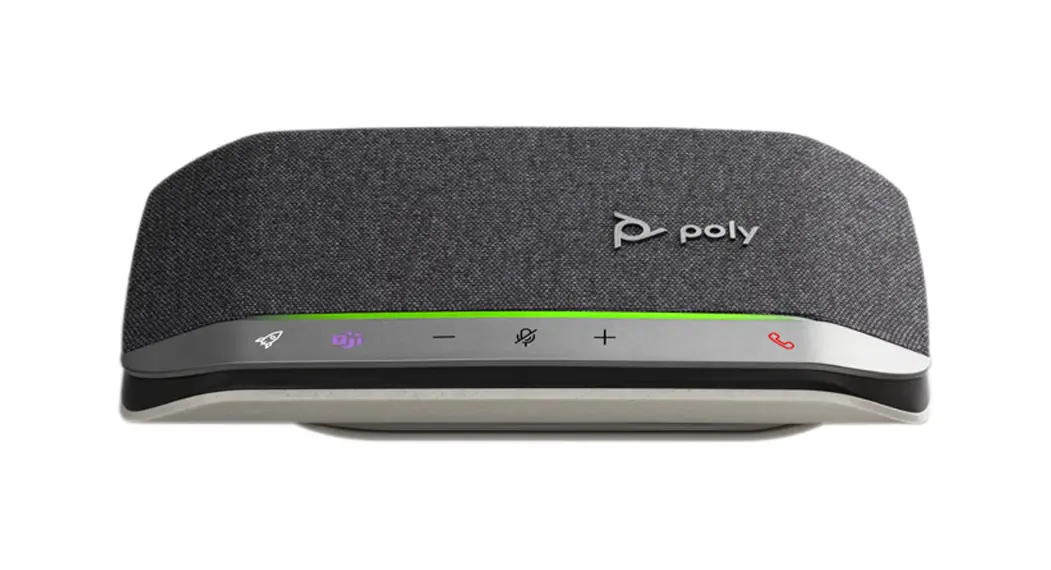
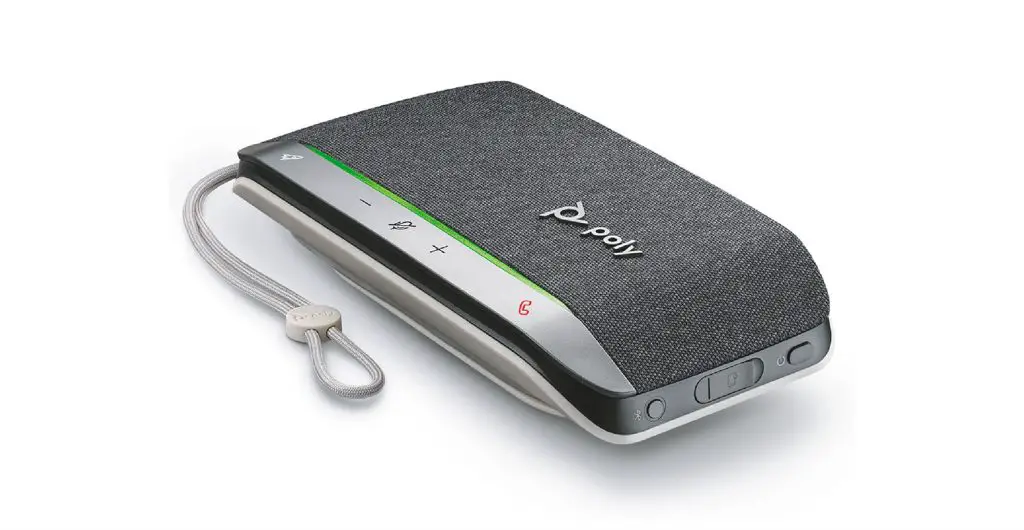
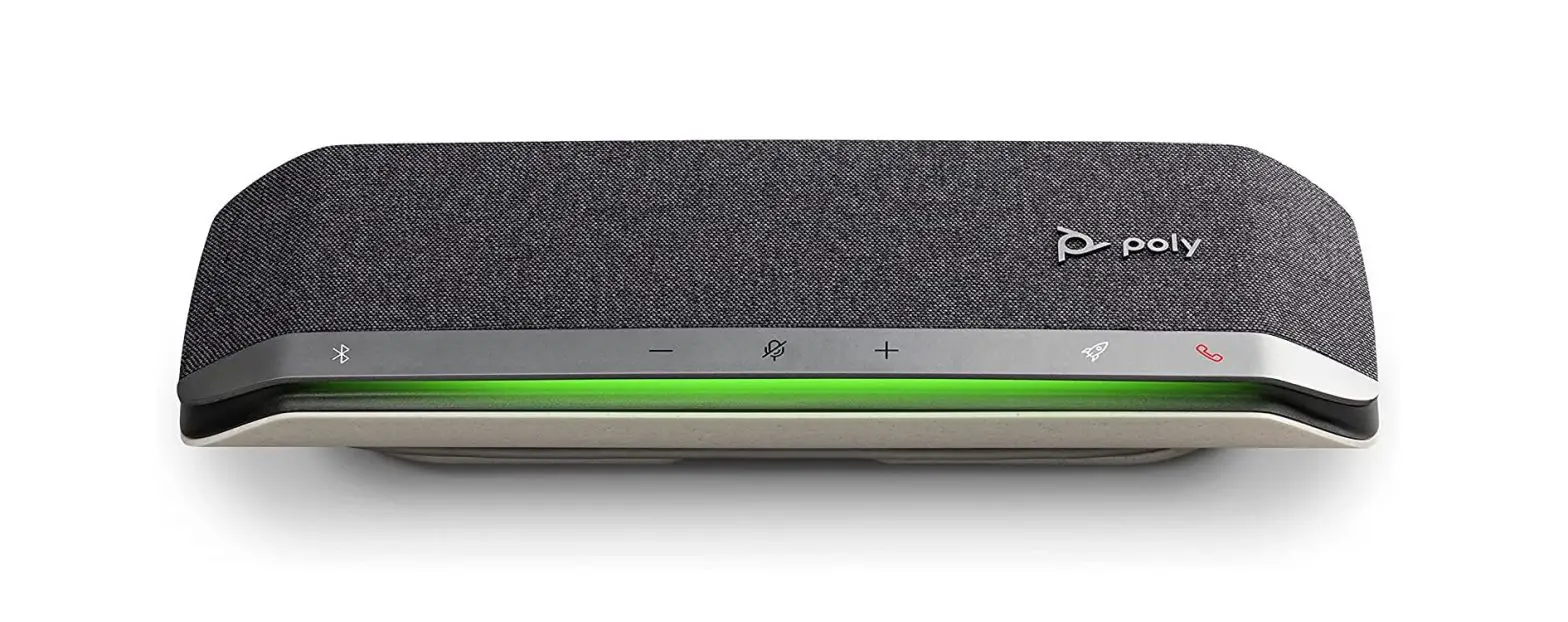
Controls
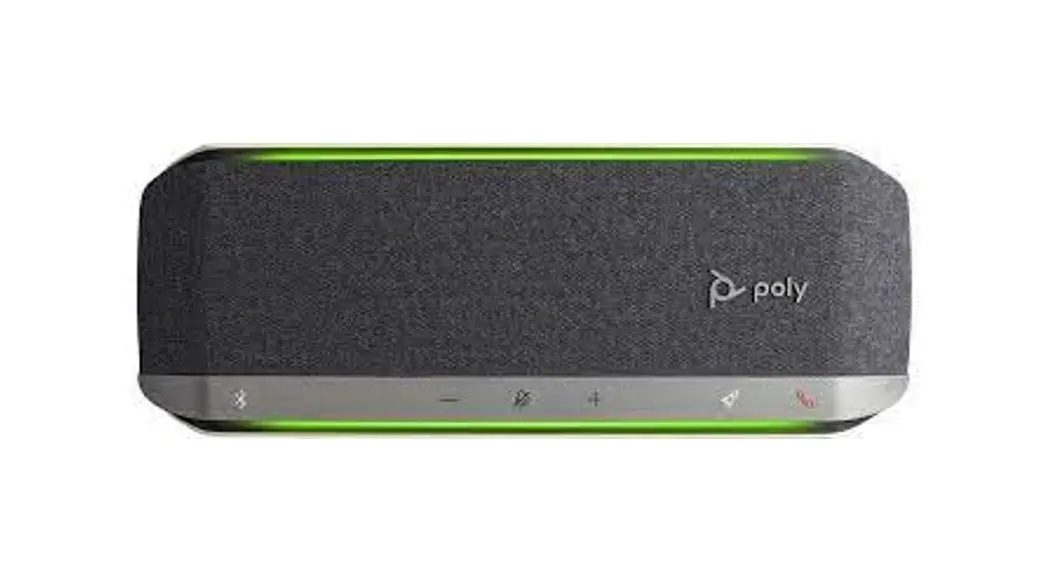
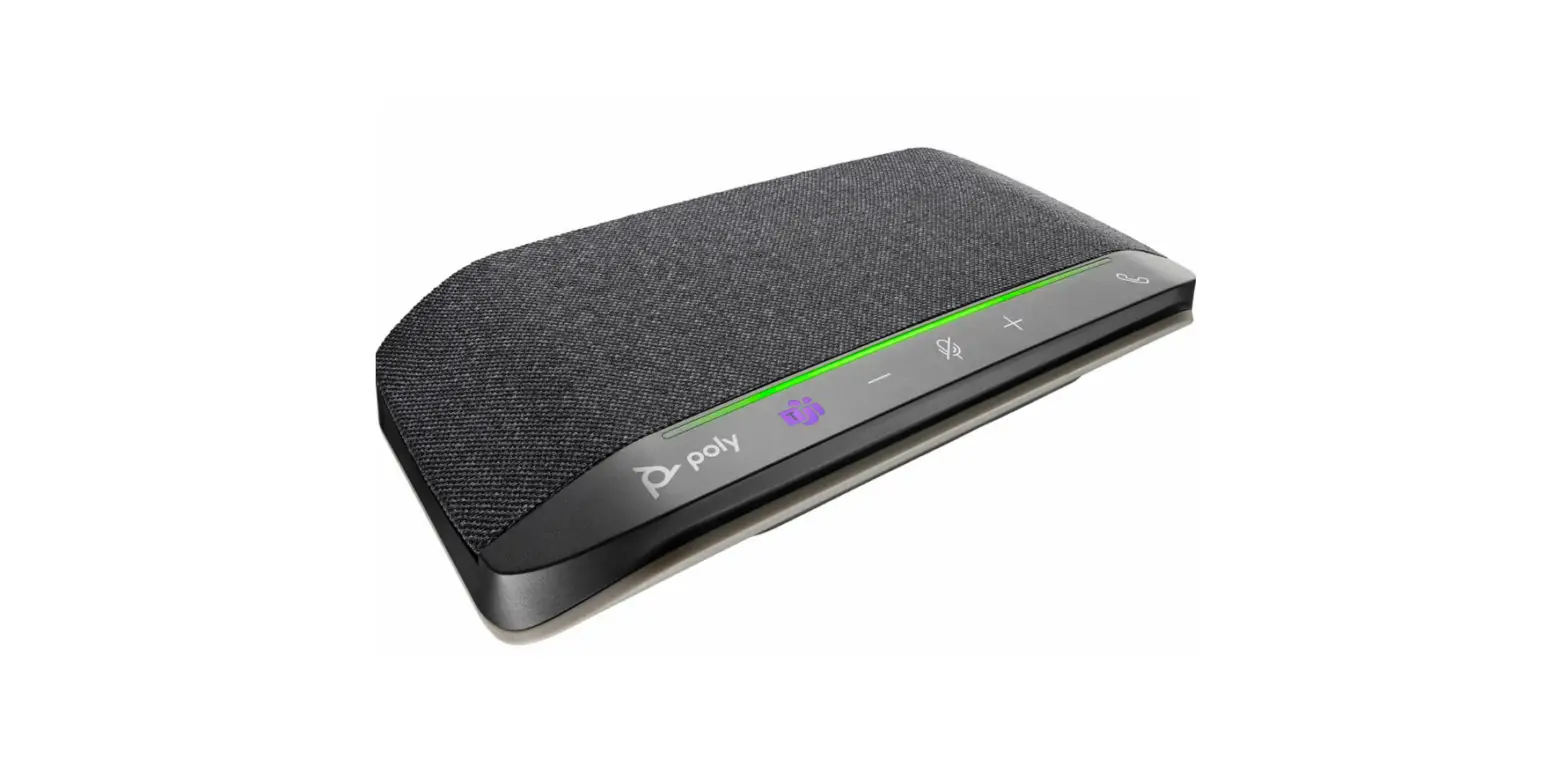
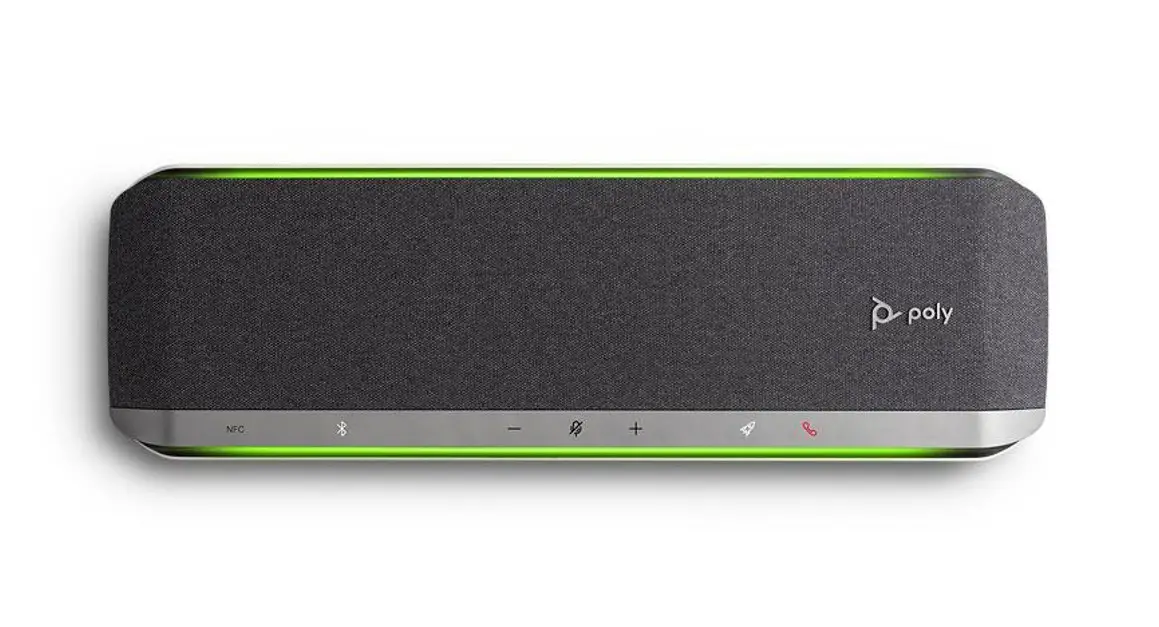
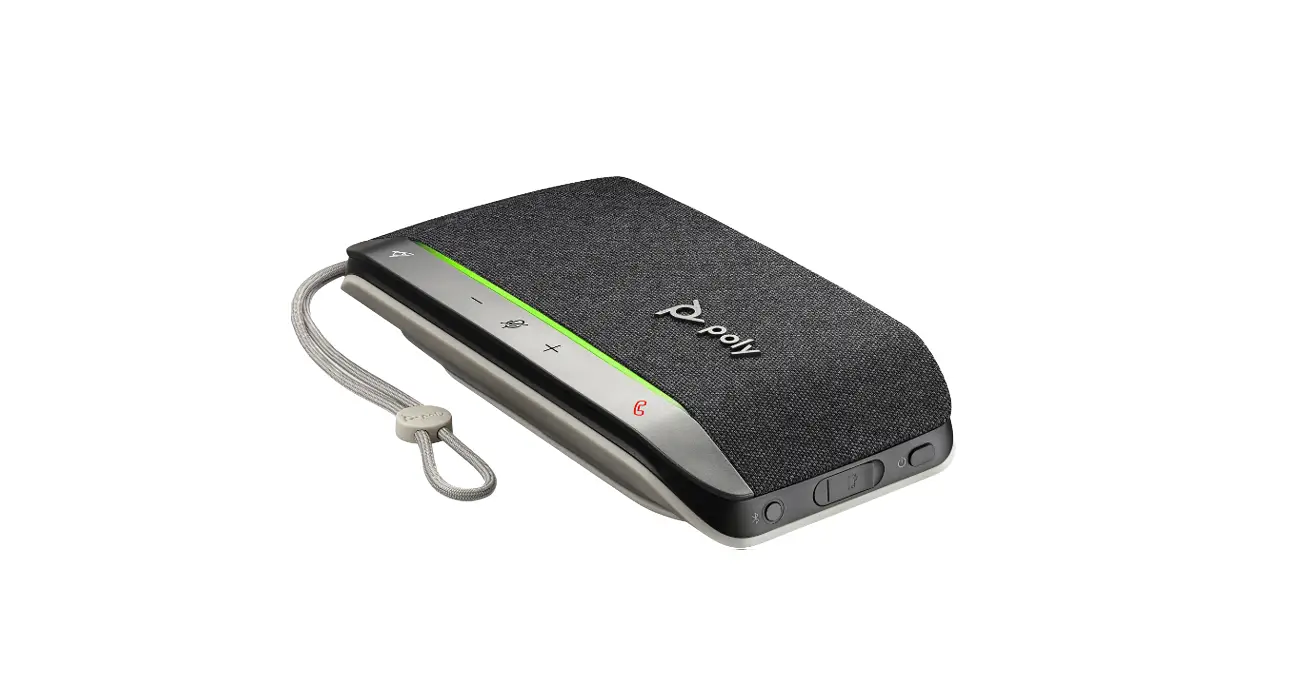
A portable speakerphone with mobile and corded connectivity.
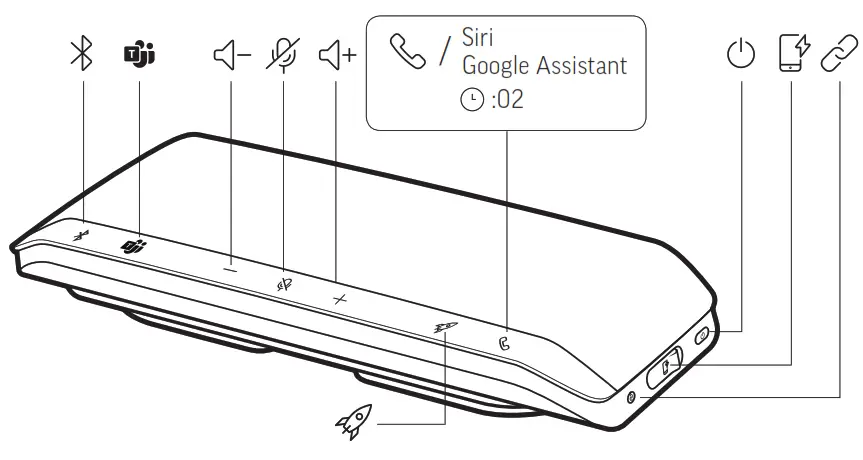
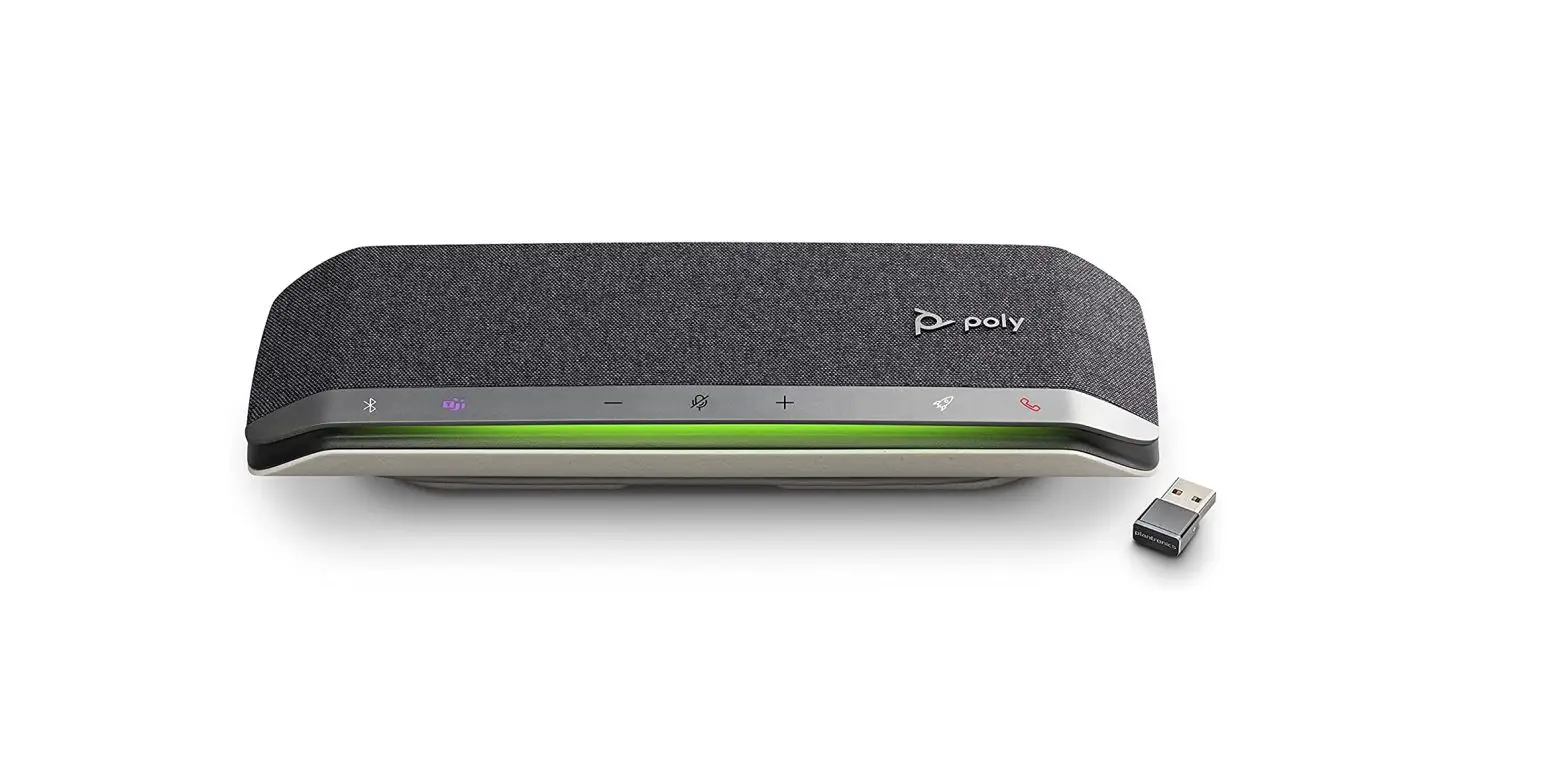
 | Bluetooth pairing |
 | Press to interact with Microsoft Teams (Teams model only, desktop application required) |
 | Volume down |
 | Mute/unmute |
 | Volume up |
 | Call |
| Siri, Google Assistant | Default voice assistant (mobile feature) |
 | Power on/off |
 | USB phone charge port |
 | Link 2 speakerphones (mobile feature) |
 | Play/pause media (default). Customize feature in Poly Lens Desktop App NOTE Play/pause feature may not function with web-based apps |
LEDs
| LED bar | What lights mean |
| Crossing blue pattern | Pairing mode |
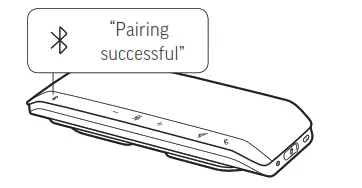
| Solid blue | Pairing successful (connected) |
| Flashing green | Incoming call |
| Solid green | In a call |
| Solid red | Mute active |
| Crossing white pattern | Linking mode (daisy chain audio) |
| 2 white blinks | Linking successful |
NOTE LEDs do not illuminate in standby mode.
Be safe
Please read the safety guide for important safety, charging, battery and regulatory information before using your new speakerphone.
USB Bluetooth adapter
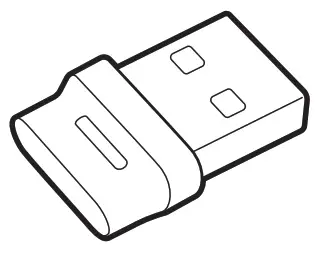
Your high-fidelity Bluetooth USB adapter comes pre-paired to your Poly device. Plug it into your computer to connect to high-fidelity computer audio.
NOTE Adapter’s USB connection and design may vary, but the function is the same.
Standard LEDs
| USB LEDs | What they mean |
| Flashing red and blue | Pairing |
| Solid blue | Device connected |
| Flashing blue | On a call |
| Solid red | Mute active |
| Flashing purple | Streaming media from a computer |
LEDs when Microsoft Teams* is detected
| USB LEDs | What they mean |
| Flashing red and blue | Pairing |
| Solid purple | Microsoft Teams connected |
| Flashing blue | On a call |
| Solid red | Mute active |
| Pulsing purple | Microsoft Teams notification |
NOTE *Requires Microsoft Teams desktop application.
Setup
Corded setup
Connect the USB cable from the speakerphone to the USB port on your computer.
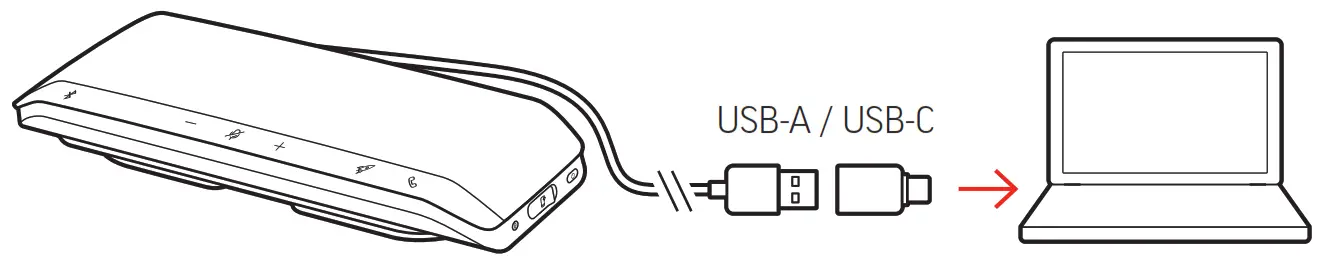
NOTE In corded mode, the speakerphone powers on without using the Power button.
Mobile setup
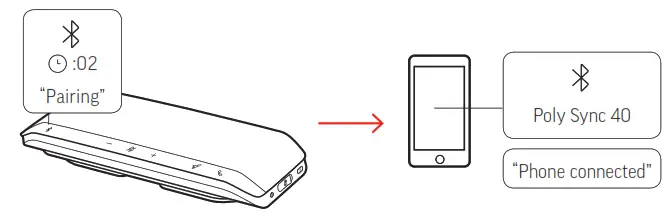
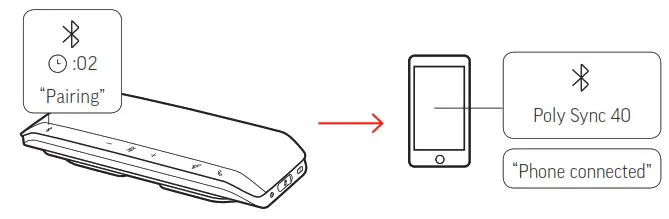
- With your speakerphone powered on, press the Bluetooth button for 2 seconds. You hear “pairing” and the LED flashes a crossing blue pattern.

- Activate Bluetooth on your mobile device and set it to search for new devices. Select “Poly Sync 40.”
- Pairing is successful when you hear “pairing successful” and the LED flashes blue.
Secure Connection (mobile)
The Secure Connection feature provides extra security for Bluetooth calls in a conference room.
When enabled, your paired device disconnects after each mobile call, ensuring that device audio does not play through the speakerphone when not intended. Manage in Poly Lens Desktop App.
NOTE Enabling Secure Connection disconnects previously paired devices.
- With your speakerphone powered on and Secure Connection enabled in Poly Lens Desktop App, press the Bluetooth
 button for 2 seconds. You hear “pairing” and the LED flashes a crossing blue pattern.
 - Activate Bluetooth on your device and set it to search for new devices. Select “Poly Sync 40.”
- Pairing is successful when you hear “pairing successful” and the LED flashes blue.

- Make or take a mobile call or play music via Bluetooth.
- After the end of a call, continue the mobile connection by pressing any button within 30 seconds. When no action is taken, the mobile connection ends and the Bluetooth button is no longer illuminated.
USB adapter setup (adapter models only)
Your Bluetooth USB adapter comes pre-paired to your speakerphone.
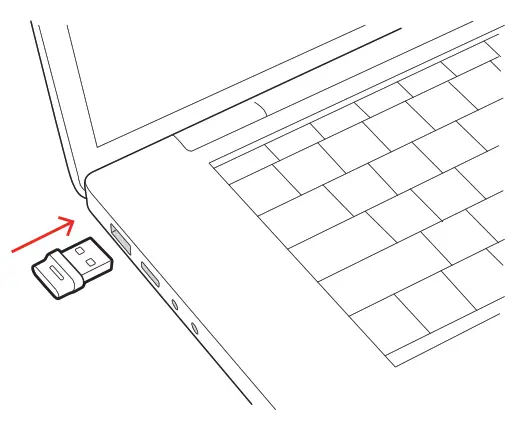
- Power on your speakerphone and insert the Bluetooth USB adapter into your computer.

- The USB adapter LED flashes and then turns solid to indicate the speakerphone is connected to the USB adapter. You hear “PC connected” to indicate the connection has
been established. When on a call, the LED on the USB adapter flashes blue. When not on a call the LED is solid.
NOTE Adapter design may vary. - Load Poly Lens Desktop App by visiting poly.com/lens. This allows you to customize your headset behavior through advanced settings and options.
Configure USB adapter
Your high-fidelity Bluetooth USB adapter comes ready to take calls. If you want to listen to music, you will need to configure your Bluetooth USB adapter.
Windows
- To configure your Bluetooth USB adapter to play music, go to the Start menu > Control Panel > Sound > Playback tab. Select Poly BT700 or Plantronics BT600, set it as the Default Device, and click OK.
- To pause music when you place or receive calls, go to the Start menu > Control Panel > Sound > Communications tab and select the desired parameter.
Mac
- To configure the Bluetooth USB adapter, go to the Apple menu > System Preferences > Sound. On both the Input and Output tabs, select Poly BT700 or Plantronics BT600.
Pair USB adapter again
Typically, your USB adapter is pre-paired to your Poly audio device. In the event that your adapter is disconnected or bought separately, you will need to pair the adapter to your Poly device. The adapter pairing method depends on which USB adapter you use.
Pair BT700 USB adapter again
Your USB adapter requires Poly Lens Desktop App to pair to a Poly audio device. Download: poly.com/lens.
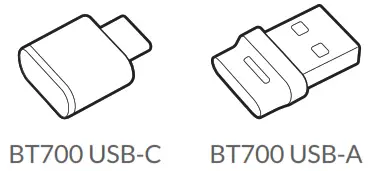
- Insert the high-fidelity Bluetooth USB adapter into your laptop or computer and wait for your computer to recognize it.
- Put your Poly audio device in pair mode.
- Launch Poly Lens Desktop App and navigate to Poly BT700.
- Put your Bluetooth USB adapter into pair mode by selecting “Pair new device” on the adapter’s main page or overflow menu. Your adapter flashes red and blue. Pairing is successful when you hear “pairing successful” and “PC connected” and The Bluetooth USB adapter LED is solid.
NOTE To pair again using Plantronics Hub Desktop App, navigate to the app’s Poly BT700 general settings and select “Pair.”
Pair BT600 USB adapter again
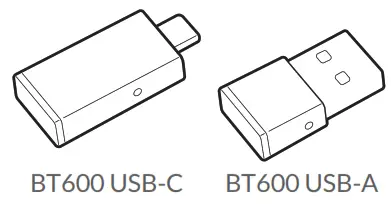
- Insert the high-fidelity Bluetooth USB adapter into your laptop or computer and wait for your computer to recognize it.
- Put your Poly audio device in pair mode.
- Put your Bluetooth USB adapter into pair mode by pressing and holding the recessed pair button with a pen or paperclip until the Bluetooth USB adapter flashes red and blue.
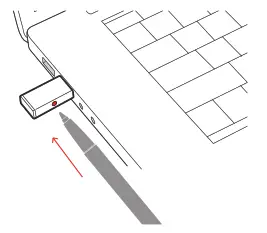
NOTE Adapter design varies by USB connection.
Pairing is successful when you hear “pairing successful” and “PC connected” and the Bluetooth USB adapter LED is solid.
Charge
Check battery status
To check battery status:
- With the speakerphone inactive, tap the Power button to hear the battery status
- With the speakerphone inactive, tap any button to view the LED bar
Battery status LEDs
| LED bar | Battery status |
| Solid white long bar | Battery full |
| Solid white medium bar | Battery high |
| Solid white short bar | Battery medium |
| Solid red | Battery low |
| Red flashes | Battery critical |
NOTE LEDs do not illuminate in standby mode.
Charge
Charge the speakerphone via USB using your computer or a wall charger (not provided). The LED bar pulses while charging and turns solid white when fully charged. Allow 5 hours for a full charge.
NOTE For faster charging, connect to a wall charger or to your computer’s quick-charge USB port, if available.
NOTE Your speakerphone has a combined USB-A and USB-C cable for easy connection to either type of port.
Charge your mobile phone
With the speakerphone powered on, charge your phone by connecting your phone’s charge cable to the speakerphone USB-A port (cable not provided).
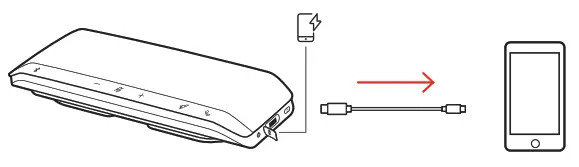
NOTE Speakerphone battery level must be medium or higher.
NOTE Connection provides power only.
Load software
Customize your device behavior through advanced settings and options with Poly Lens Desktop App. Some softphones require the installation of Poly software to enable device
call control (answer/end and mute) functionality. Download: poly.com/lens.
NOTE Device settings are also available in Plantronics Hub Desktop App.
Update your Poly device
Keep your firmware and software up-to-date to improve performance and add new features to your Poly device.
Update your device using Poly Lens App. Download at poly.com/lens.
Daily Use
Power
Press the Power button for 2 seconds to power on or off. The LED bar illuminates when powered on.
Answer or end a call
Press the Call button to answer or end a call.
Mute/Unmute
During an active call, press the Mute button to mute or unmute the microphones. Manage mute settings in Poly Lens Desktop App.
Volume
Press the Volume up (+) or down (-) buttons to increase or decrease volume.
Adjust the speakerphone microphone volume
Place a test softphone call and adjust softphone volume and PC sound volume accordingly.
Voice assistant (smartphone feature)
Siri, Google Assistant, or Cortana Press and hold the Call button for 2 seconds to activate your phone’s default voice assistant. Wait for the phone prompt to activate voice dialing, search, and other smartphone voice controls.
Launch Microsoft Teams (Teams model only)
Tap your headset Teams button to quickly open and use the Microsoft Teams desktop app.
- When not on a call, tap your Teams
 button to view Microsoft Teams app on your computer.
 - When your connected USB adapter LED pulses purple, tap your Teams button to view Teams notifications.
NOTE Teams model and Teams desktop application required. Teams mobile application is not supported.
Customize your speakerphone
Customize your Rocket button feature in Poly Lens Desktop App. Play/pause media is the default feature when you tap the Rocket button.
Choose from:
- Play/pause audio (default)
- Device status check
- Clear trusted device list
- Mobile calls only: Default voice assistant (Siri, Google Assistant)
- Redial
- Hold/resume call (varies by softphone)
Link speakerphones (daisy chain audio)
Use two Poly Sync speakerphones with your Bluetooth-paired mobile device.
IMPORTANT Linking mode is available with Bluetooth mobile device connection only. This feature is not available when your speakerphone is connected to a computer with a USB cable.
NOTE Linking mode can be entered when both speakerphones are inactive (not in a call or streaming media).
- Power on both speakerphones.
- Ensure that the speakerphones are unplugged from any computer.
- Wirelessly link by pressing both Link
 buttons for 2 seconds. You hear “connecting” and the LEDs pulse white.
Linking is successful when you hear “connection successful” and the LED flashes white on both speakerphones.
- Pair one speakerphone to your idle mobile device. You hear “phone connected” when successfully paired.
NOTE You may pair your mobile device before or after linking speakerphones. - Control the system from either speakerphone to play audio or make calls.
- End linking mode by pressing both Link buttons for 2 seconds. You hear “device disconnected.”
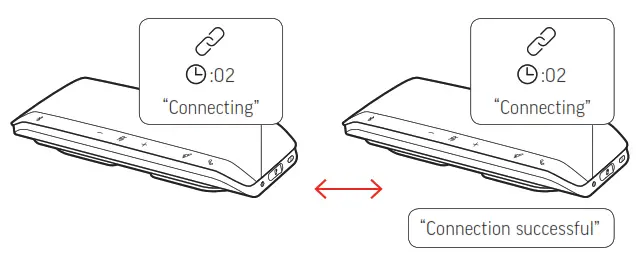
Linked speakerphone audio settings
Manage daisy chain audio settings in Poly Lens Desktop App.
Troubleshoot
| When I attempt to use my speakerphone for the first time, it does not power on. | Your speakerphone is shipped from the factory in a Deepsleep mode to conserve battery. Activate your speakerphone by connecting the USB cable to a power source before first use. |
| My speakerphone doesn’t charge as quickly as expected. | For faster charging, connect the USB cable to a wall charger or to your computer’s quick-charge USB port, if available. |
| (Teams model only) How do I interact with Microsoft Teams? | • Tap the Teams button to quickly open and use Microsoft Teams. • Teams model is compatible with the Microsoft Teams desktop app. Teams mobile app is not supported. |
| How do I use the Secure Connection feature with my mobile phone? | The Secure Connection feature provides extra security for Bluetooth calls in a conference room. • Activate feature in Poly Lens Desktop App. • Automatically disconnects speakerphone from the paired mobile device after a call. • Continue the mobile connection by pressing any button within 30 seconds after the end of a call. |
| How do I customize the Rocket button feature? | • Ensure Poly Lens Desktop App is loaded on your computer. • Customize your Rocket button feature in Poly Lens Desktop App.• Play/pause media feature is the default feature on your speakerphone. |
What’s in the box
Contents may vary by product.
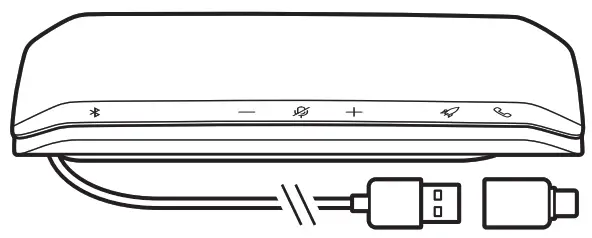
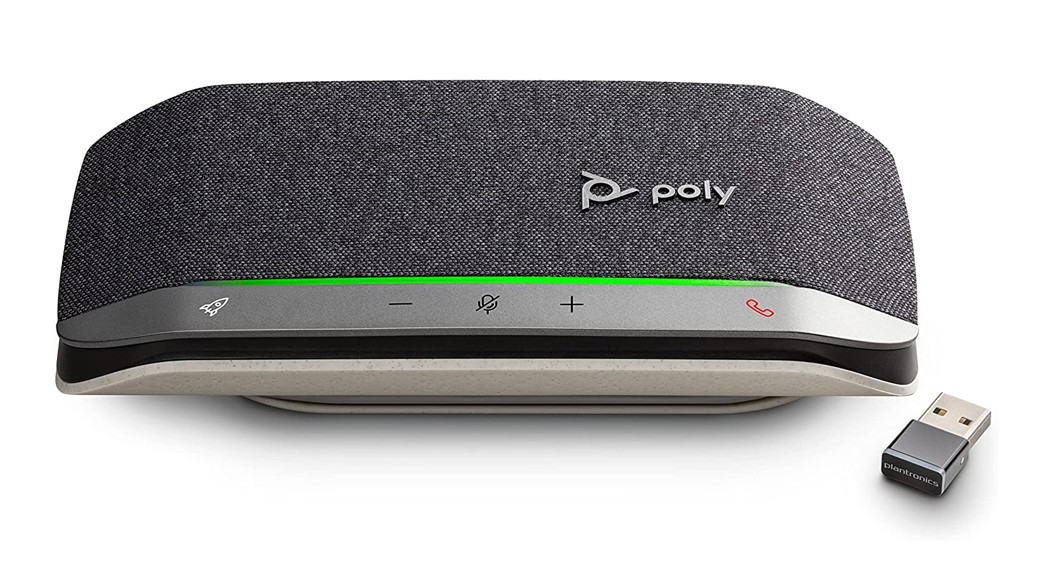
Speakerphone with combined USB-A and USB-C cable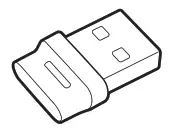 Bluetooth USB Adapter (Poly Sync 40+ only; Design may vary)
Support
NEED MORE HELP?
poly.com/support
| Manufacturer: Plantronics, Inc. 345 Encinal Street Santa Cruz, CA 95060 United States | Plantronics B.V. Scorpius 171 2132 LR Hoofddorp Netherlands | Plantronics Ltd. Building 4, Foundation Park Cannon Lane, Part 1st Floor Maidenhead, SL6 3UD United Kingdom |
© 2021 Poly. Bluetooth is a registered trademark of Bluetooth SIG, Inc. All trademarks are the property of their respective owners. Manufactured by Plantronics, Inc.
Model ID: SY40/SY40-M (may be followed by /BT600 or /BT700). System: Poly Sync 40
has an SY40/SY40-M speakerphone. Poly Sync 40+ has an SY40/SY40-M speakerphone and
a BT600 or BT700 adapter.
218940-06 12.21
 Poly Lens App - Make it your own | Poly, formerly Plantronics & Polycom
 Poly Lens App - Make it your own | Poly, formerly Plantronics & Polycom