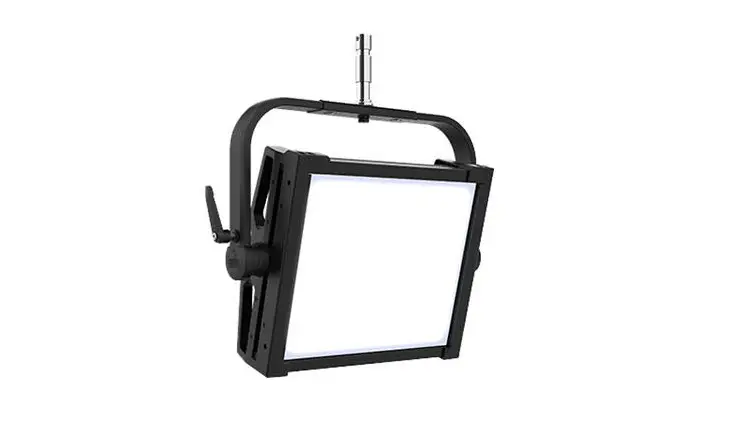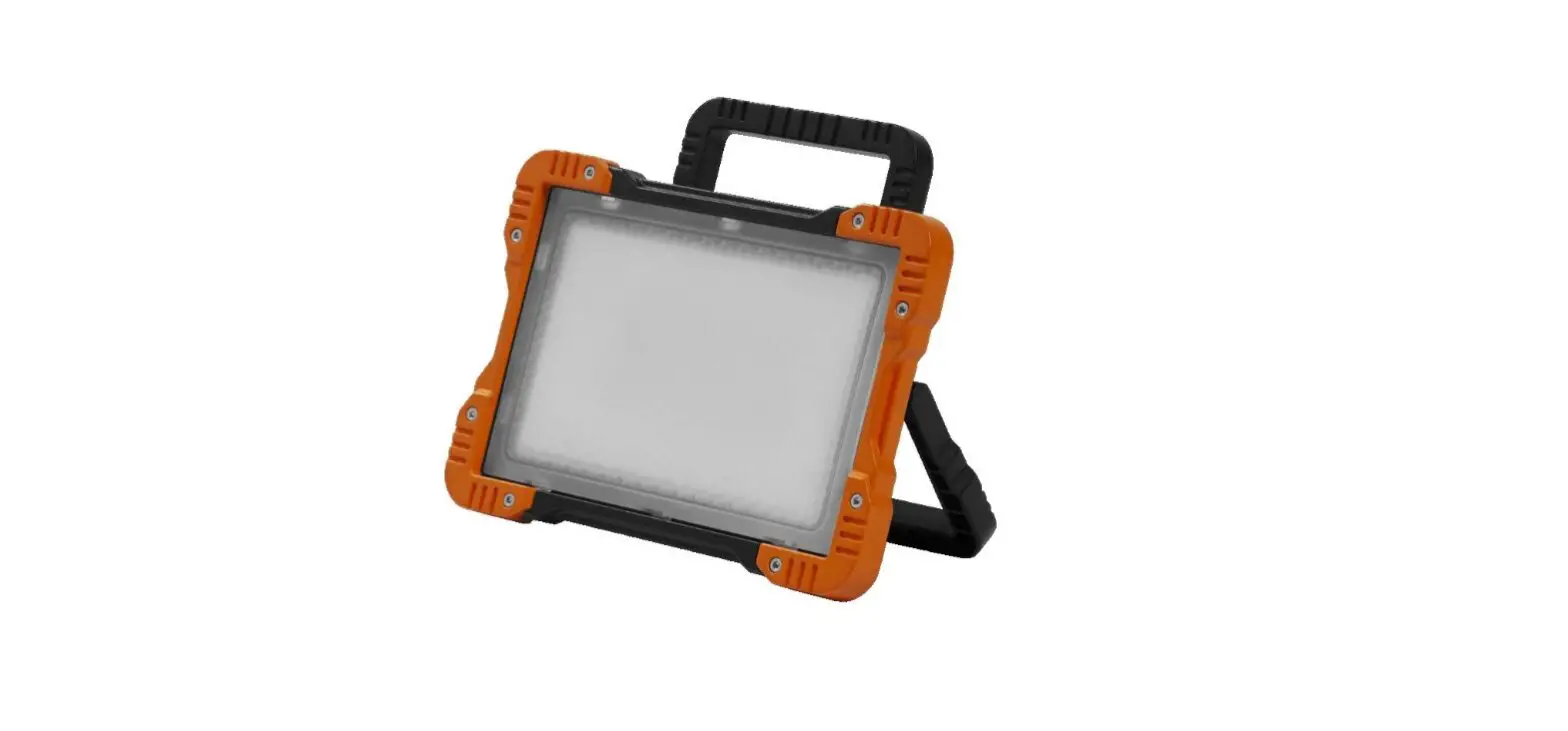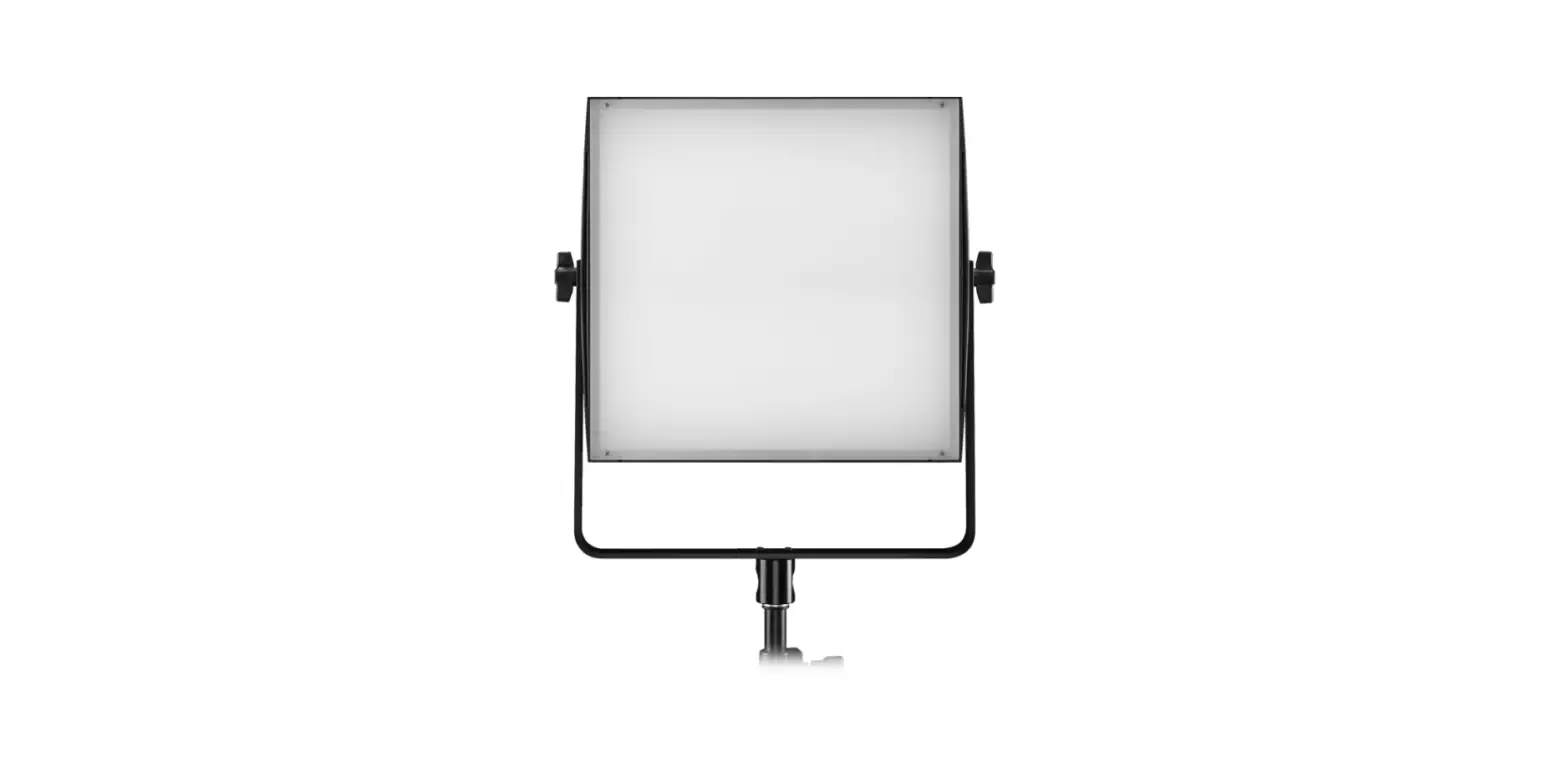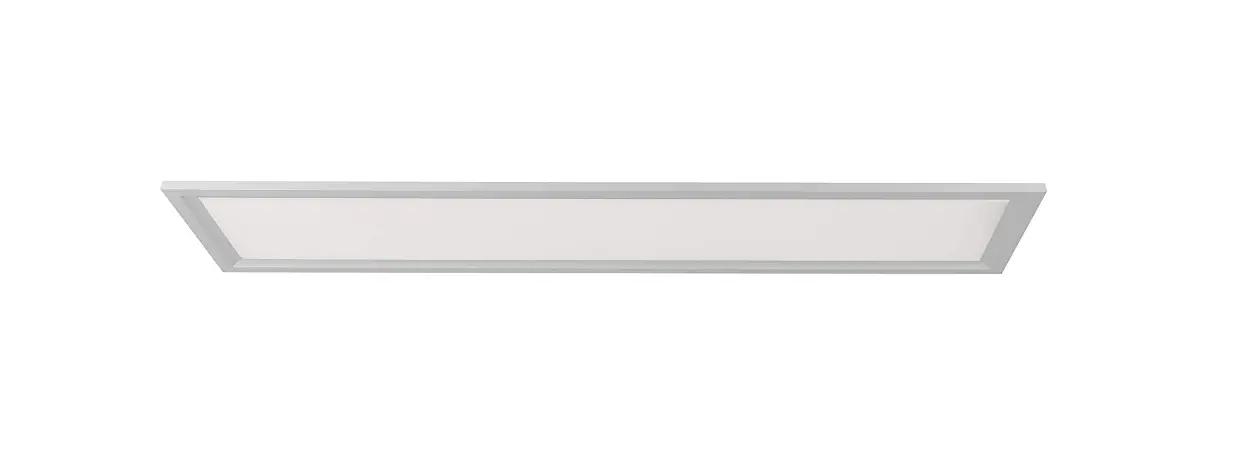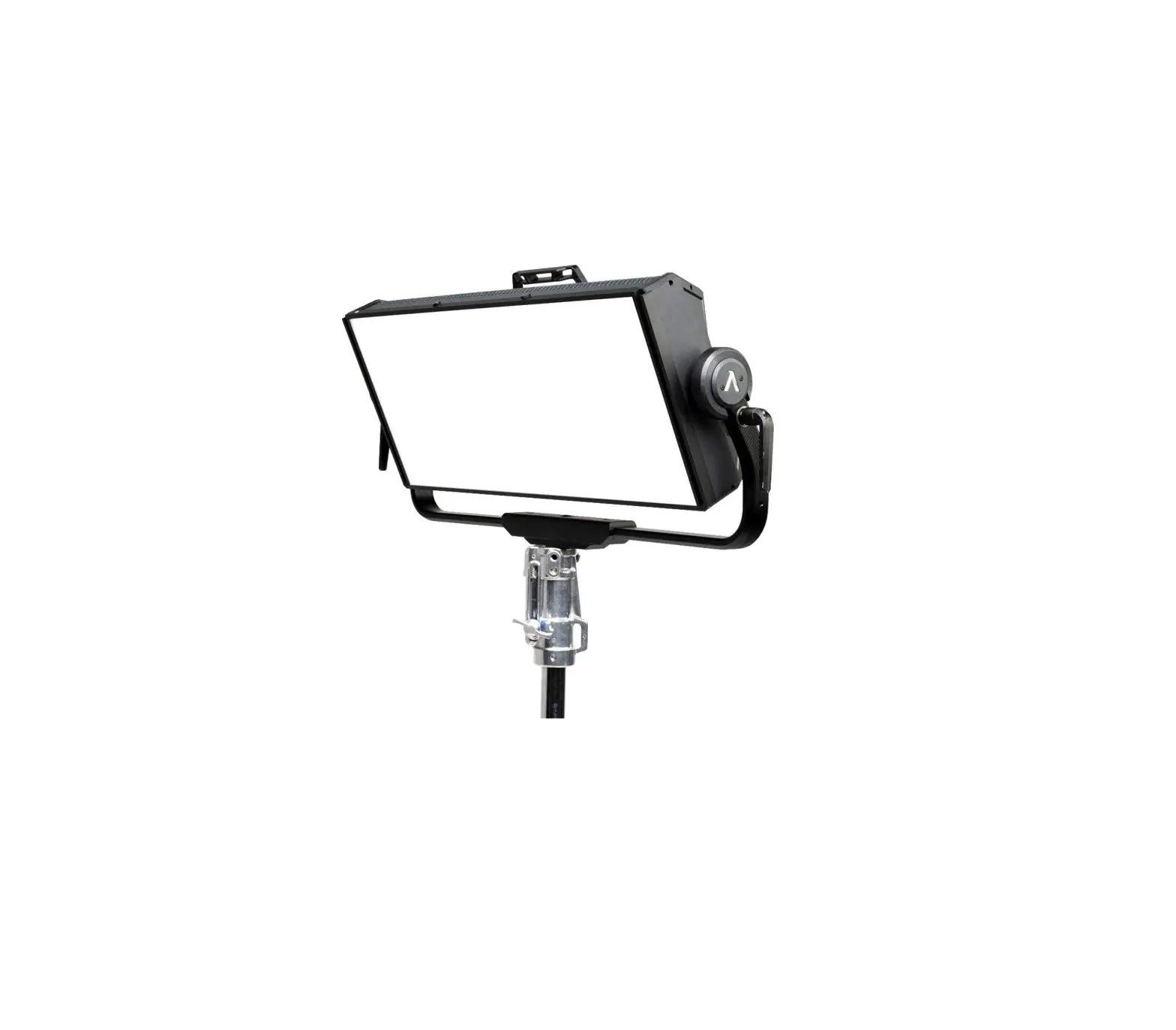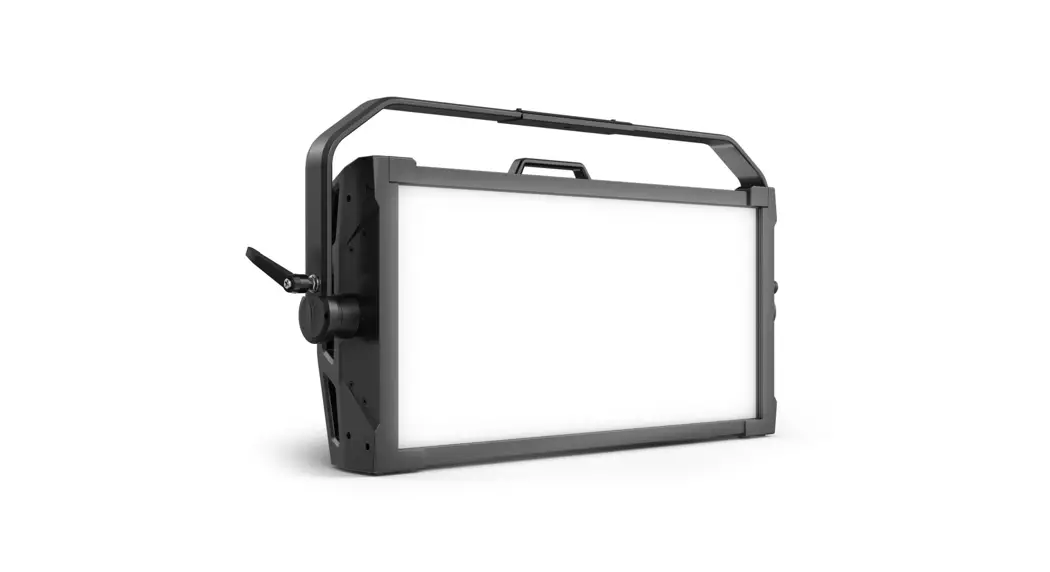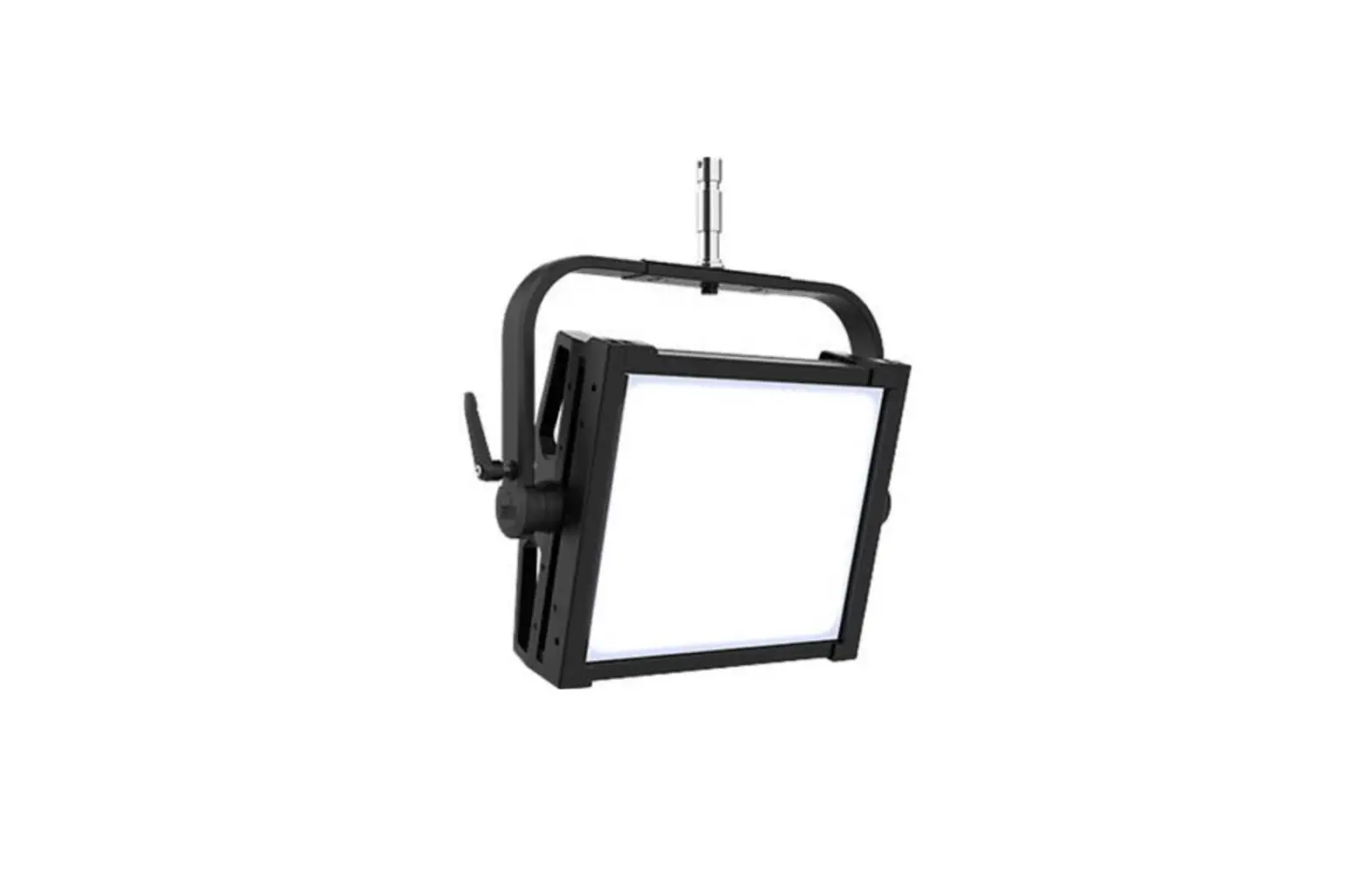
CHAUVET PROFESSIONAL ONAIRPANEL1IP Rugged IP65 Full-Spectrum LED Soft Light User Guide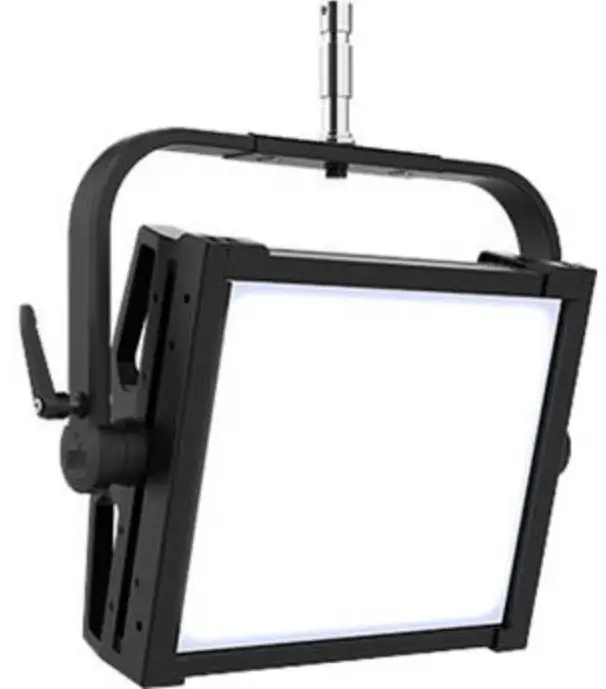
About This Guide
The onAir IP Panel 1 Quick Reference Guide (QRG) has basic product information such as mounting, menu options, and DMX values. Download the User Manual from www.chauvetprofessional.com for more details.
Disclaimer
The information and specifications contained in this QRG are subject to change without notice.
LIMITED WARRANTY
FOR WARRANTY REGISTRATION AND COMPLETE TERMS AND CONDITIONS PLEASE VISIT OUR WEBSITE.
For Customers in the United States and Mexico: www.chauvetlighting.com/warranty-registration.
For Customers in the United Kingdom, Republic of Ireland, Belgium, the Netherlands, Luxembourg, France, and
Germany: www.chauvetlighting.eu/warranty-registration.
Chauvet warrants that this product shall be free from defects in material and workmanship under normal use, for the period specified in, and subject to the exclusions and limitations set forth in the full limited warranty on our website. This warranty extends only to the original purchaser of the product and is not transferable. To exercise rights under this warranty, you must provide proof of purchase in the form of an original sales receipt from an authorized dealer that shows the product name and date of purchase. THERE ARE NO OTHER EXPRESS OR IMPLIED WARRANTIES. This warranty gives you specific legal rights. You may also have other rights that vary from state to state and country to country. This warranty is valid only in the United States, United Kingdom, Republic of Ireland, Belgium, the Netherlands, Luxembourg, France, Germany and Mexico. For warranty terms in other countries, please consult your local distributor.
Safety Notes
These Safety Notes include important information about installation, use, and maintenance.
- The luminaire should be positioned so that prolonged staring into the luminaire at a distance closer than 19.7 in (50 cm) is not expected.
- If the external flexible cable or cord of this luminaire is damaged, it shall be replaced by a special cord or cord exclusively available from the manufacturer or his service agent.
- The light source contained in this luminaire shall only be replaced by the manufacturer or his service agent or a similar qualified person.
- The luminaire is intended for professional use only.
- DO NOT open this product. It contains no user-serviceable parts.
- DO NOT look at the light source when the product is on.
- To eliminate unnecessary wear and improve its lifespan, during periods of non-use completely disconnect the product from power via breaker or by unplugging it.
- CAUTION: When transferring product from extreme temperature environments, (e.g. cold truck to warm humid ballroom) condensation may form on the internal electronics of the product. To avoid causing a failure, allow product to fully acclimate to the surrounding environment before connecting it to power.
- CAUTION: This product’s housing may be hot when lights are operating.
- Mount this product in a location with adequate ventilation, at least 20 in (50 cm) from adjacent surfaces.
- DO NOT leave any flammable material within 7.87 in (20 cm) of this product while operating or connected to power.
- USE a safety cable when mounting this product overhead.
- DO NOT submerge this product (IP65). Regular outdoor operation is fine.
- DO NOT operate this product if the housing, lenses, or cables appear damaged.
- DO NOT connect this product to a dimmer or rheostat.
- ONLY connect this product to a grounded and protected circuit.
- ONLY use the hanging/mounting bracket or the handles to carry this product.
- In the event of a serious operating problem, stop using immediately.
- The maximum ambient temperature is 113 °F (45 °C). Do not operate this product at higher temperatures.
- The minimum startup temperature is -4°F (-20°C). Do not start the product at lower temperatures.
- The minimum ambient temperature is -22°F (-30°C). Do not operate the product at lower temperatures.
FCC Compliance
This device complies with Part 15 Part B of the FCC Rules. Operation is subject to the following two conditions:
- This device may not cause harmful interference, and
- This device must accept any interference received, including interference that may cause undesired operation.
Any changes or modifications not expressly approved by the party responsible for compliance could void the user’s authority to operate the equipment.
RF Exposure Warning for North America, and Australia
Warning! This equipment complies with FCC radiation exposure limits set forth for an uncontrolled environment. This equipment should be installed and operated with a minimum distance of 20cm between the radiator and your body. This transmitter must not be co-located or operating in conjunction with any other antenna or transmitter.
Contact
Outside the U.S., U.K., Ireland, Benelux, France, Germany, or Mexico, contact your distributor to request support or return a product. Refer to Contact Us at the end of this QRG for contact information.
What is Included
- onAir IP Panel 1
- Seetronic Powerkon IP65 cable
- Omega bracket with mounting hardware
- Junior pin
- Quick Reference Guide
AC Power
This product has an auto-ranging power supply that can work with an input voltage range of 100–240 VAC, 50/60 Hz.
Power Linking
You can link up to 7 onAir IP Panel 1 products at 100 V, 8 products at 120 V, 15 products at 208 V, 16 products at 230 V, or 17 products at 240 V. Never exceed this number. Power linking cords can be purchased separately.
AC Plug
| Connection | Wire (U.S.) | Wire (Europe) | Screw Color |
| AC Live | Black | Brown | Yellow/Brass |
| AC Neutral | White | Blue | Silver |
| AC Ground | Green/Yellow | Green/Yellow | Green |
DC Power
This product has a 3-pin IP65 XLR power input port that can work with an input voltage of 28 V DC which is SELV voltage supplied by short-circuit-proof power supply. If AC power and DC power are input to the product at the same time, the product will automatically give priority to AC power input.
 To eliminate unnecessary wear and improve its lifespan, during periods of non use completely disconnect the product from power via breaker or by unplugging it.
Signal Connections
The onAir IP Panel 1 will work with a controller or controller software using a wired DMX connection, a wireless Lumenradio CRMX™ connection, or an Ethernet connection, If using other Art-Net™ or sACN-compatible products with the onAir IP Panel 1, each can be controlled individually on a single network. See the User Manual for information about how to connect and configure the product for these signals.
Control Personalities
The onAir IP Panel 1 uses DMX, CRMX™, Art-Net™, and sACN for its control personalities: 1Ch, 3Ch, 4Ch, 5Ch, 6Ch, 8Ch1, 8Ch2, 10Ch, 11Ch, 15Ch1, 15Ch2, 16Ch, XYBasic(6), and XYExtended(10).
DMX Connection
The onAir IP Panel 1 will work with a DMX controller using a 5-pin DMX data connection or a wireless CRMX™ connection. A DMX Primer is available from www.chauvetprofessional.com.
Art-Net™ Connection
Art-Net™ is an Ethernet protocol that uses TCP/IP which transfers a large amount of DMX512 data using an Neutrik® etherCON® RJ45 connection over a large network. An Art-Net™ protocol document is available from www.chauvetprofessional.com. Chauvet Professional recommends using unicast Art-Net™ for best results. Art-Net™ designed by and copyright Artistic Licence Holdings Ltd.
sACN Connection
Also known as ANSI E1.31, Streaming-ACN is an Ethernet protocol that uses the layering and formatting of Architecture for Control Networks to transport DMX512 data over IP or any other ACN compatible network.
RDM (Remote Device Management)
Remote Device Management, or RDM, is a standard for allowing DMX-enabled devices to communicate bi-directionally along existing DMX cabling. Check the DMX controller’s User Manual or with the manufacturer as not all DMX controllers have this capability. The onAir IP Panel 1 supports RDM protocol that allows feedback to make changes to menu map options. Download the User Manual from www.chauvetprofessional.com for more details.
USB Software Update
The onAir IP Panel 1 allows for software update through USB using the built-in USB port. To update the software using USB flash drive, do the following:
- Power on the fixture and plug the flash drive into the USB port.
- Once the flash drive has been detected, the message “Upgrade Firmware” will be displayed. Press <ENTER>.
- If a different message appears on the display, search for the updated software in the Main Menu (Update Firmware) and select from Only This Unit, Multiple Units, or Other Fixture Type. A list of the software update files will be displayed.
- Select the file that needs to be uploaded. The message “Are you sure?” will be displayed. Press <ENTER>.
- If the selected file is correct, the upgrade will be completed. Restart the fixture.
- If the selected file is incorrect, the upgrade will fail, and the display will go back to the main interface. Repeat steps 1-3 using the correct file.
The .chl format file needs to be placed in the ONAIR folder in the USB flash drive. The “Other Fixture Type” option can only be selected for connected products compatible with the Upload 03 (the first 2 digits of the item code must be 03).
Wireless Operation
In optimal conditions, the onAir IP Panel 1 can operate up to 300 m (900 ft) away from the CRMX™ transmitter, The CRMX™ receiver in the onAir IP Panel 1 must be paired with the CRMX™ transmitter for wireless operation.
Initial Setup
- Turn the CRMX™ transmitter on.
- Connect the CRMX™ transmitter to a DMX controller.
- Place the onAir IP Panel 1 within 300 m from the CRMX™ transmitter.
- Turn the onAir IP Panel 1 on.
Configuration
- From the onAir IP Panel 1’s control panel, go to DMX Address.
- Select the start address, as with any other DMX compatible product.
- Go to Wireless Setting > Receive On/Off.
- Select On. (The Signal Strength Indicator will show a ? in front of the bars)
- Press the reset button on the CRMX™ transmitter. (The Signal Strength Indicator on the onAir IP Panel 1 will show a ϟ in front of the bars for 3 seconds while a connection is established.)
Product Pairing
If the onAir IP Panel 1 has already been paired with the CRMX™ transmitter, the Signal Strength Indicator on top of the display will show the strength of the signal. In this case, the onAir IP Panel 1 is ready to work in Wireless mode.
Pairing the onAir IP Panel 1 and a New CRMX™ Transmitter
- From the onAir IP Panel 1 control panel, go to Wireless Setting > Receive Reset.
- Select Yes.
- From the CRMX™ transmitter, press <RESET>. The signal indicator on the transmitter will flash.
- Once the transmitter has found the onAir IP Panel 1, the signal indicator on the CRMX™ transmitter will illuminate solid.
- The display screen on the onAir IP Panel 1 will show the strength of the signal.
 CRMX™ operation can be interrupted or inhibited by people or liquid masses, including water or snow, between the transmitter and receive
Mounting
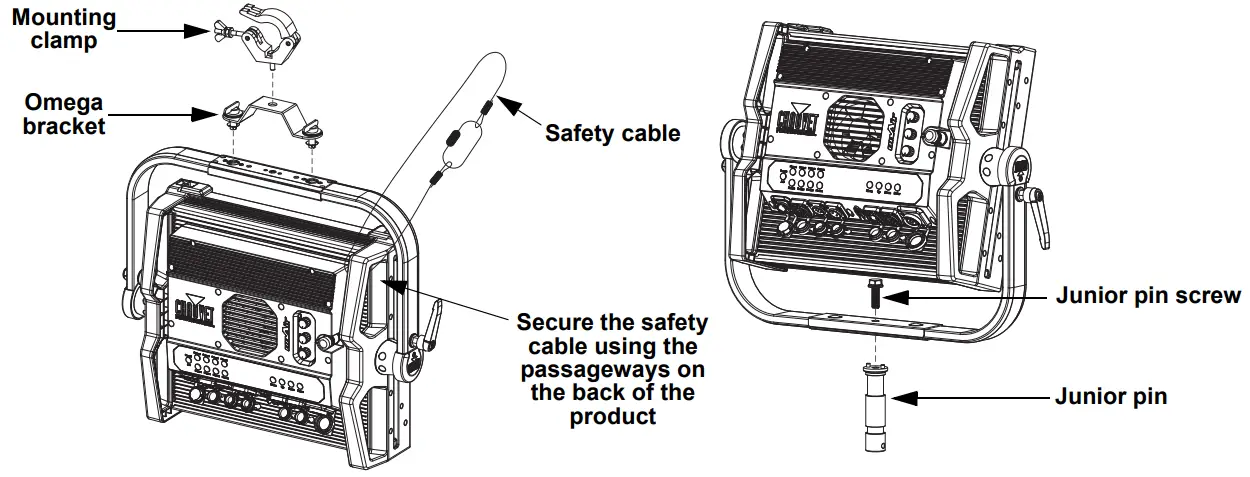
Before mounting this product, read the Safety Notes. Make sure the mounting clamps are capable of supporting the weight of the product. For our CHAUVET Professional line of mounting clamps, go to http://trusst.com/products.
Mounting Diagram
Accessory Slots
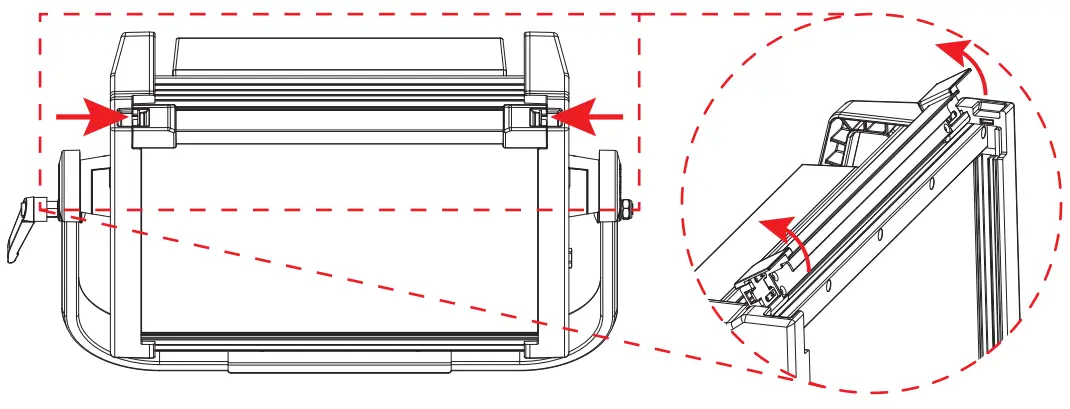
The onAir IP Panel 1 has 2 accessory slots that can be accessed by pressing the accessory slot tabs inward and opening the hinged accessory slot cover.
 Do not use when the diffuser is removed. The diffuser cannot be removed when the fixture is powered on.
- For fixed mounted luminaires, the risk group shall not exceed RG1 at the distance obtaining 500 lx.
- The back slot is for a diffuser or intensifier.
- The front slot is for accessories such as a honeycomb or barndoors.

Home Screen
The home screen of the onAir IP Panel 1 shows the current settings and status of the product.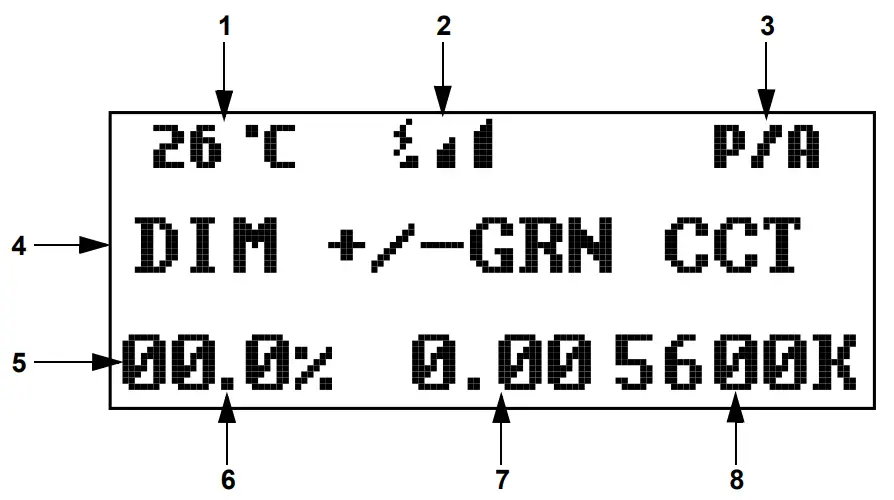
| Number | Description |
| 1 | Current product temperature |
| 2 | Current wireless signal status |
| 3 | Current preset or preset bank |
| 4 | Middle line shows current control mode. Shows DIM +/-GRN CCT in CCT mode, DIM HUE SAT in HSV mode, DIM X Y in XY Control mode, Master Mode in master mode, Slave Mode in slave mode, etc. |
| 5 | Bottom line shows details of the current control mode |
| 6 | Current dimmer or intensity value (00.0–100%) in CCT, HSV, or XY Control mode |
| 7 | Current +/- green value (-0.25–+0.25) in CCT mode, hue value (000–360°) in HSV mode, or X value (0.00–0.850) in XY Control mode |
| 8 | Current color temperature (2800–8000K) in CCT mode, saturation value (000–255) in HSV mode, or Y value (0.00–0.850) in XY Control mode |
Control Panel Description
| Button/Knob | Function |
| <MENU> | Exits from the current menu or function |
| <ENTER> | Enables the currently displayed menu or sets the currently selected value into the selected function |
| <UP> | Navigates upwards through the menu list or increases the numeric value when in a function |
| <DOWN> | Navigates downwards through the menu list or decreases the numeric value when in a function |
| <DIM/INTENSITY> | Increases or decreases the dimmer value or intensity |
| <HUE> | Increases or decreases the hue value or X value |
| <CCT/SATURATION> | Increases or decreases the color temperature, saturation, or Y value |
| <PRESET A/B> | Toggles between A presets (built-in) and B presets (custom) |
| <PRESET> (x8) | Selects a preset. Hold for 3 seconds to save the current look to the selected B preset. |
Refer to the onAir IP Panel 1 product page on www.chauvetprofessional.com for the latest menu map.
| Main Level | Programming Levels | Description | |||
| Protocol | DMX512 | Sets the control protocol | |||
| Artnet | |||||
| sACN | |||||
| DMX Address | 001–509* | Selects DMX address (*Highest channel restricted to personality chosen) | |||
| DMX Channel | 1Ch | Preset CCTs | Hue | <-25–25> | 1-channel: selects a preset CCT and hue |
| Manual Color Mixer | Red | <000–255> | 1-channel: combine red, green, blue, and white to make a custom color (0–100%) | ||
| Green | <000–255> | ||||
| Blue | <000–255> | ||||
| White | <000–255> | ||||
| 3Ch | 3-channel: dimmer, color temperature, hue | ||||
| 4Ch | 4-channel: RGBW | ||||
| 5Ch | 5-channel: 16-bit dimmer, color temperature, hue, strobe | ||||
| 6Ch | 6-channel: dimmer, RGBW, strobe | ||||
| 8Ch1 | 8-channel: RGBW 1 and 2 | ||||
| 8Ch2 | 8-channel: 16-bit RGBW | ||||
| 10Ch | 10-channel: dimmer, RGBW 1 and 2, strobe | ||||
| 11Ch | 11-channel: dimmer, RGBW, strobe, color temperature, hue, effect macros and speed, control | ||||
| 15Ch1 | 15-channel: 16-bit dimmer, 16-bit RGBW, strobe, color temperature, hue, effect macros and speed | ||||
| 15Ch2 | 15-channel: dimmer, RGBW 1 and 2, strobe, color temperature, hue, effect macros and speed, control | ||||
| 16Ch | 16-channel: 16-bit RGBW 1 and 2 | ||||
| XYBasic(6) | 6-channel: 16-bit dimmer, 16-bit X, 16-bit Y | ||||
| XYExtended(10) | 10-channel: 16-bit dimmer, 16-bit X, 16-bit Y, strobe, effect macros and speed, control | ||||
| Static | CCT Control | Correlated color temperature control | |||
| HSV Control | Hue, saturation, value control | ||||
| XY Control | X and Y coordinate control | ||||
| Preset CCTs | 2800K | Dimmer Hue | <000–255> <-25–25> | Selects preset color temperature, dimmer and hue | |
| 2900K | |||||
| 3000K | |||||
| 3100K | |||||
| 3200K | |||||
| 3300K | |||||
| 3400K | |||||
| Main Level | Programming Levels | Description | |||
| Static (cont.) | Preset CCTs (cont.) | 3500K | Dimmer Hue | <000–255> <-25–25> | Selects preset color temperature, dimmer and hue |
| 3600K | |||||
| 3700K | |||||
| 3800K | |||||
| 3900K | |||||
| 4000K | |||||
| 4100K | |||||
| 4200K | |||||
| 4300K | |||||
| 4400K | |||||
| 4500K | |||||
| 4600K | |||||
| 4700K | |||||
| 4800K | |||||
| 4900K | |||||
| 5000K | |||||
| 5100K | |||||
| 5200K | |||||
| 5300K | |||||
| 5400K | |||||
| 5500K | |||||
| 5600K | |||||
| 5700K | |||||
| 6000K | |||||
| 6500K | |||||
| 7000K | |||||
| 7500K | |||||
| 8000K | |||||
| Manual Color Mixer | Red | <000–255> | Combine red, green, blue, and white to make custom color (0–100%) | ||
| Green | |||||
| Blue | |||||
| White | |||||
| Effect Macros | Color Chase | <001–100> | Selects effect macro and speed | ||
| Police Car | |||||
| Firetruck | |||||
| Fire | |||||
| Clouds | |||||
| Fireworks | |||||
| Paparazzi | |||||
| Lightning | |||||
| Red Shift | On | Enables or disables red shift | |||
| Off | |||||
| Master/Slave | Master | Standalone mode | |||
| Slave | Slave mode | ||||
| DMX Loss | Hold Last | Holds last signal received | |||
| Stop DMX | Holds output | ||||
| Blackout | Blacks out the product | ||||
| Dimmer Curve | S Curve | Sets the dimmer curve | |||
| Linear | |||||
| Square | |||||
| Inverse Square | |||||
| Dimmer Mode | Off | Instantaneous dimmer | |||
| Dimmer 1–3 | Dimmer mode, fast (1) to slow (3) | ||||
| Main Level | Programming Levels | Description | ||
| Color Calibration | Off | Color calibration off | ||
| User Calibration | Red | <125–255> | Sets maximum red LED value Sets maximum green LED value Sets maximum blue LED value Sets maximum white LED value | |
| Green | ||||
| Blue | ||||
| White | ||||
| Factory Calibration | Color calibration set by factory | |||
| LED Frequency | 600Hz | Sets the Pulse Width Modulation frequency | ||
| 1200Hz | ||||
| 2000Hz | ||||
| 4000Hz | ||||
| 6000Hz | ||||
| 25KHz | ||||
| Fan Mode | Auto | Sets the fan to auto mode | ||
| On | Sets the fan to always on | |||
| Off | Sets the fan to always off | |||
| Silent | Sets the fan to silent | |||
| Wireless Setting | Receive On/ Off | Off | Enables/disables CRMX™ | |
| On | ||||
| Receive Reset | No | Resets wireless receiver | ||
| Yes | ||||
| Wireless To DMX | No | Enables/disables wireless to DMX | ||
| Yes | ||||
| Back Light | 10S | Turns off display after 10 seconds of inactivity | ||
| 30S | Turns off display after 30 seconds | |||
| 2Min | Turns off display after 2 minutes of | |||
| Always On | Display always on | |||
| Ethernet Setting | Universe | 000–255 (Art-net™) | Sets the Art-Net™ or sACN universe | |
| 001–256 (sACN) | ||||
| Start Channel | 001–512 | Sets the starting channel | ||
| IP Address | 2 | 000–255 . 000–255 . 000–255 | Sets the IP address | |
| 10 | ||||
| 239 | ||||
| Ethernet To DMX | No | Enables/disables Ethernet to DMX | ||
| Yes | ||||
| Information | Fixture Hours | <_______ H> | Shows total hours the product has been powered on | |
| LED Hours | <_______ H> | Shows total hours the LEDs have been powered on | ||
| Disp Version | <V_._ _> | Shows current display version | ||
| Drv Version | <V_._ _> | Shows current driver version | ||
| Net Version | <V_._ _> | Shows current net version | ||
| UID | 21A40139_ _ _ _ | Shows product UID | ||
| Upgrade Firmware | Only This Unit | _ _ _ _ _ _.CHL | Selects an update file for this product, or shows “No such file!” | |
| … | ||||
| Multiple Units | _ _ _ _ _ _.CHL | Selects an update file for this and connected onAir IP Panel 2 products, or shows “No such file!” | ||
| … | ||||
| Other Fixture Type | _ _ _ _ _ _.CHL | Selects an update file for other connected products, or shows “No such file!” | ||
| … | ||||
| Factory Reset | No | Resets the product to factory default settings | ||
| Yes | ||||
DMX Values
XYExtended(10)
| Channel | Function | Value | Percent/Setting |
| 1 | Dimmer | 000  255 255 | 0–100% |
| 2 | Fine dimmer | 000 255 | 0–100% |
| 3 | X coordinate | 000 255 | 0–100% |
| 4 | Fine X coordinate | 000 255 | 0–100% |
| 5 | Y coordinate | 000 255 | 0–100% |
| 6 | Fine Y coordinate | 000 255 | 0–100% |
| 7 | Strobe | 000 010 011 255 | No function Strobe, slow to fast |
| 000 010 | No function | ||
| 011 039 | Color chase | ||
| 040 068 | Police car | ||
| 069 096 | Firetruck | ||
| 8 | Effect macros | 097 125 126 154 | Fire Clouds |
| 155 182 | Fireworks | ||
| 183 211 | Paparazzi | ||
| 212 240 | Lightning | ||
| 241 255 | No function | ||
| 9 | Effect macro speed | 000 255 | Speed, slow to fast |
| 10 | Control | 000 255 | See the Control Chart |
XYBasic(6)
| Channel | Function | Value | Percent/Setting |
| 1 | Dimmer | 000 255 | 0–100% |
| 2 | Fine dimmer | 000 255 | 0–100% |
| 3 | X coordinate | 000 255 | 0–100% |
| 4 | Fine X coordinate | 000 255 | 0–100% |
| 5 | Y coordinate | 000 255 | 0–100% |
| 6 | Fine Y coordinate | 000 255 | 0–100% |
16Ch
| Channel | Function | Value | Percent/Setting |
| 1 | Red 1 | 000 255 | 0–100% |
| 2 | Fine red 1 | 000 255 | 0–100% |
| 3 | Green 1 | 000 255 | 0–100% |
| 4 | Fine green 1 | 000 255 | 0–100% |
| 5 | Blue 1 | 000 255 | 0–100% |
| 6 | Fine blue 1 | 000 255 | 0–100% |
| 7 | White 1 | 000 255 | 0–100% |
| 8 | Fine white 1 | 000 255 | 0–100% |
| 9 | Red 2 | 000 255 | 0–100% |
| 10 | Fine red 2 | 000 255 | 0–100% |
| 11 | Green 2 | 000 255 | 0–100% |
| 12 | Fine green 2 | 000 255 | 0–100% |
| 13 | Blue 2 | 000 255 | 0–100% |
| 14 | Fine blue 2 | 000 255 | 0–100% |
| 15 | White 2 | 000 255 | 0–100% |
| 16 | Fine white 2 | 000 255 | 0–100% |
15Ch2
| Channel | Function | Value | Percent/Setting |
| 1 | Dimmer | 000 255 | 0–100% |
| 2 | Red 1 | 000 255 | 0–100% |
| 3 | Green 1 | 000 255 | 0–100% |
| 4 | Blue 1 | 000 255 | 0–100% |
| 5 | White 1 | 000 255 | 0–100% |
| 6 | Red 2 | 000 255 | 0–100% |
| 7 | Green 2 | 000 255 | 0–100% |
| 8 | Blue 2 | 000 255 | 0–100% |
| 9 | White 2 | 000 255 | 0–100% |
| 10 | Strobe | 000 010 011 | No function Strobe, slow to fast |
| 11 | Color temperature | 000 255 | See the Color Temperature Chart |
| 12 | Hue | 000 001 002 | 0 -25–+25 |
|
13 |
Effect macros | 000 010 011 040 069 097 126 155 183 212 241 | No function Color chase Police car Firetruck Fire Clouds Fireworks Paparazzi Lightning No function |
| 14 | Effect macro speed | 000 255 | Speed, slow to fast |
| 15 | Control | 000 255 | See the Control Chart |
15Ch1
| Channel | Function | Value | Percent/Setting |
| 1 | Dimmer | 000 255 | 0–100% |
| 2 | Fine dimmer | 000 255 | 0–100% |
| 3 | Red | 000 255 | 0–100% |
| 4 | Fine red | 000 255 | 0–100% |
| 5 | Green | 000 255 | 0–100% |
| 6 | Fine green | 000 255 | 0–100% |
| 7 | Blue | 000 255 | 0–100% |
| 8 | Fine blue | 000 255 | 0–100% |
| 9 | White | 000 255 | 0–100% |
| 10 | Fine white | 000 255 | 0–100% |
| 11 | Strobe | 000 010 011 255 | No function Strobe, slow to fast |
| 12 | Color temperature | 000 255 | See the Color Temperature Chart |
| 13 | Hue | 000 001 002 255 | 0 -25–+25 |
| Channel | Function | Value | Percent/Setting |
| 14 | Effect macros | 000 010 | No function |
| 011 039 | Color chase | ||
| 040 068 | Police car | ||
| 069 096 | Firetruck | ||
| 097 125 126 | Fire Clouds | ||
| 155 182 | Fireworks | ||
| 183 211 | Paparazzi | ||
| 212 240 | Lightning | ||
| 241 255 | No function | ||
| 15 | Effect macro speed | 000 255 | Speed, slow to fast |
11Ch
| Channel | Function | Value | Percent/Setting |
| 1 | Dimmer | 000 255 | 0–100% |
| 2 | Red | 000 255 | 0–100% |
| 3 | Green | 000 255 | 0–100% |
| 4 | Blue | 000 255 | 0–100% |
| 5 | White | 000 255 | 0–100% |
| 6 | Strobe | 000 010 011 | No function Strobe, slow to fast |
| 7 | Color temperature | 000 255 | See the Color Temperature Chart |
| 8 | Hue | 000 001 002 255 | 0 -25–+25 |
| 9 | Effect macros | 000 010 011 039040 069 097 126 155 183 212 241 | No function Color chase Police car Firetruck Fire Clouds Fireworks Paparazzi Lightning No function |
| 10 | Effect macro speed | 000 255 | Speed, slow to fast |
| 11 | Control | 000 255 | See the Control Chart |
10Ch
| Channel | Function | Value | Percent/Setting |
| 1 | Dimmer | 000 255 | 0–100% |
| 2 | Red 1 | 000 255 | 0–100% |
| 3 | Green 1 | 000 255 | 0–100% |
| 4 | Blue 1 | 000 255 | 0–100% |
| 5 | White 1 | 000 255 | 0–100% |
| 6 | Red 2 | 000 255 | 0–100% |
| 7 | Green 2 | 000 255 | 0–100% |
| 8 | Blue 2 | 000 255 | 0–100% |
| 9 | White 2 | 000 255 | 0–100% |
| 10 | Strobe | 000 010 011 | No function Strobe, slow to fast |
8Ch2
| Channel | Function | Value | Percent/Setting |
| 1 | Red | 000 255 | 0–100% |
| 2 | Fine red | 000 255 | 0–100% |
| 3 | Green | 000 255 | 0–100% |
| 4 | Fine green | 000 255 | 0–100% |
| 5 | Blue | 000 255 | 0–100% |
| 6 | Fine blue | 000 255 | 0–100% |
| 7 | White | 000 255 | 0–100% |
| 8 | Fine white | 000 255 | 0–100% |
8Ch1
| Channel | Function | Value | Percent/Setting |
| 1 | Red 1 | 000 255 | 0–100% |
| 2 | Green 1 | 000 255 | 0–100% |
| 3 | Blue 1 | 000 255 | 0–100% |
| 4 | White 1 | 000 255 | 0–100% |
| 5 | Red 2 | 000 255 | 0–100% |
| 6 | Green 2 | 000 255 | 0–100% |
| 7 | Blue 2 | 000 255 | 0–100% |
| 8 | White 2 | 000 255 | 0–100% |
8Ch1
| Channel | Function | Value | Percent/Setting |
| 1 | Red 1 | 000 255 | 0–100% |
| 2 | Green 1 | 000 255 | 0–100% |
| 3 | Blue 1 | 000 255 | 0–100% |
| 4 | White 1 | 000 255 | 0–100% |
| 5 | Red 2 | 000 255 | 0–100% |
| 6 | Green 2 | 000 255 | 0–100% |
| 7 | Blue 2 | 000 255 | 0–100% |
| 8 | White 2 | 000 255 | 0–100% |
6Ch
| Channel | Function | Value | Percent/Setting |
| 1 | Dimmer | 000 255 | 0–100% |
| 2 | Red | 000 255 | 0–100% |
| 3 | Green | 000 255 | 0–100% |
| 4 | Blue | 000 255 | 0–100% |
| 5 | White | 000 255 | 0–100% |
| 6 | Strobe | 000 010 011 | No function Strobe, slow to fast |
5Ch
| Channel | Function | Value | Percent/Setting |
| 1 | Dimmer | 000 255 | 0–100% |
| 2 | Fine dimmer | 000 255 | 0–100% |
| 3 | Color temperature | 000 255 | See the Color Temperature Chart |
| 4 | Hue | 000 001 002 | 0 -25–+25 |
| 5 | Strobe | 000 010 011 | No function Strobe, slow to fast |
4Ch
| Channel | Function | Value | Percent/Setting |
| 1 | Red | 000 255 | 0–100% |
| 2 | Green | 000 255 | 0–100% |
| 3 | Blue | 000 255 | 0–100% |
| 4 | White | 000 255 | 0–100% |
3Ch
| Channel | Function | Value | Percent/Setting |
| 1 | Dimmer | 000 255 | 0–100% |
| 2 | Color temperature | 000 255 | See the Color Temperature Chart |
| 3 | Hue | 000 001 002 | 0 -25–+25 |
1Ch
| Channel | Function | Value | Percent/Setting |
| 1 | Dimmer | 000 255 | 0–100% (color set through display menu) |
Control Chart
| Value | Percent/Setting | Value | Percent/Setting |
| 000 ó 007 | No function | 072 079 | Dimmer mode 1 (fast) |
| 008 ó 015 | Reset dimmer | 080 087 | Dimmer mode 2 |
| 016 ó 023 | Red shift on | 088 095 | Dimmer mode 3 (slow) |
| 024 ó 031 | Red shift off | 096 103 | Fan mode auto |
| 032 ó 039 | S-curve dimmer | 104 111 | Fan mode on |
| 040 ó 047 | Linear dimmer | 112 119 | Fan mode off |
| 048 ó 055 | Square dimmer | 120 127 | Fan mode silent |
| 056 ó 063 | Inverse square dimmer | 128 255 | Reserved for future use |
| 064 ó 071 | Dimmer mode off |
Color Temperature Chart
| Value | Percent/Setting | Value | Percent/Setting |
| 000 ó 005 | No function | 125 131 | 4500K |
| 006 ó 012 | 2800K | 132 138 | 4600K |
| 013 ó 019 | 2900K | 139 145 | 4700K |
| 020 ó 026 | 3000K | 146 152 | 4800K |
| 027 ó 033 | 3100K | 153 159 | 4900K |
| 034 ó 040 | 3200K | 160 166 | 5000K |
| 041 ó 047 | 3300K | 167 173 | 5100K |
| 048 ó 054 | 3400K | 174 180 | 5200K |
| 055 ó 061 | 3500K | 181 187 | 5300K |
| 062 ó 068 | 3600K | 188 194 | 5400K |
| 069 ó 075 | 3700K | 195 201 | 5500K |
| 076 ó 082 | 3800K | 202 208 | 5600K |
| 083 ó 089 | 3900K | 209 215 | 5700K |
| 090 ó 096 | 4000K | 216 222 | 6000K |
| 097 ó 103 | 4100K | 223 229 | 6500K |
| 104 ó 110 | 4200K | 230 236 | 7000K |
| 111 ó 117 | 4300K | 237 243 | 7500K |
| 118 ó 124 | 4400K | 244 255 | 8000K |
Contact Us
| General Information | Technical Support |
| Chauvet World Headquarters | |
| Address: 5200 NW 108th Ave. Sunrise, FL 33351 Voice: (954) 577-4455 Fax: (954) 929-5560 Toll Free: (800) 762-1084 | Voice: (844) 393-7575 Fax: (954) 756.8015 Email: chauvetcsalchauvetlinhtino.com |
| Website: www.AtchauvetprofessionaLcom | |
| Chauvet Europe Ltd. | |
| Address: Unit 1C Brookhill Road Industrial Estate Pinxton, Nottingham, UK NG16 6NT Voice: +44 (0) 1773 511115 Fax: +44 (0)1773 511110 | Email: [email protected] |
| Website: www.chauvetprofessional.eu | |
| Chauvet Europe BVBA | |
| Address: Stokstraat 18 9770 Kruishoutem Belgium Voice: +32 9 388 93 97 | Email: [email protected] |
| Website: mwd.diauvetprofessionaLeu | |
| Chauvet France | |
| Address: 3. Rue Ampere 91380 Chilly-Mazarin France Voice: +33 1 78 85 33 59 | Email: [email protected] |
| Website: www.chauvetorofessional.eu | |
| Chauvet Germany | |
| Address: Bruno-Burgel-Str. 11 28759 Bremen Germany Voice: +49 421 62 60 20 | Emad: [email protected] |
| Website: www.chauvetprofessional.eu | |
| Chauvet Mexico | |
| Address: Av. de las Parbdas 34 – 3B (Entrance by Calle 2) Zona Industrial Lerma Lerma, Edo. de Mexico, CP 52000 Voice: +52 (728) 690-2010 | Emad: [email protected] |
| Website: www.chauvetprofessional.mx | |
Visit the applicable website above to verify our contact information and instructions to request support. Outside the U.S., U. K., Ireland, Mexico, France, Germany, or Benelux, contact the dealer of record.