RTK Infrastructure in the AIoT Era
Product Information
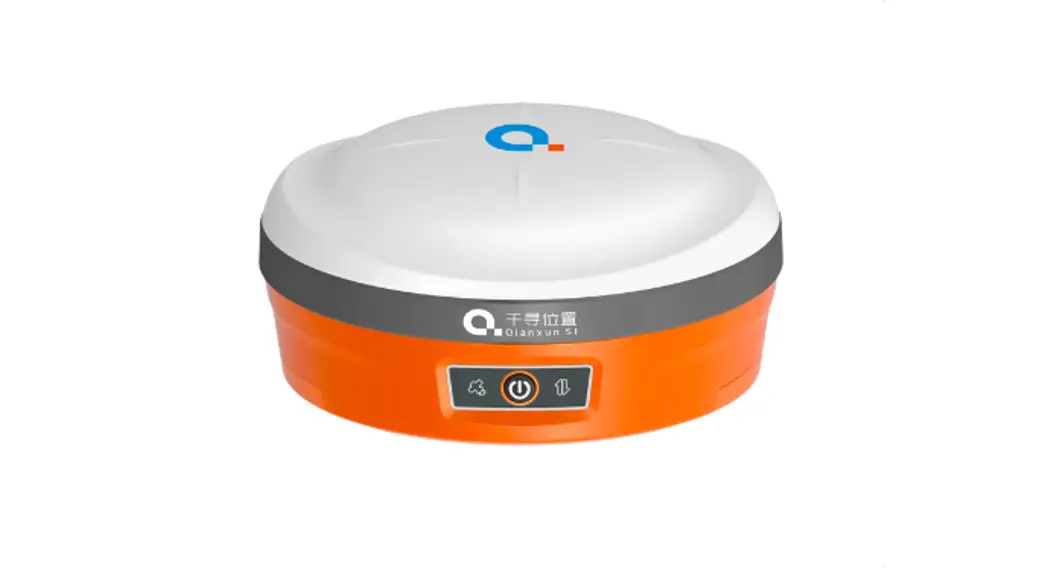
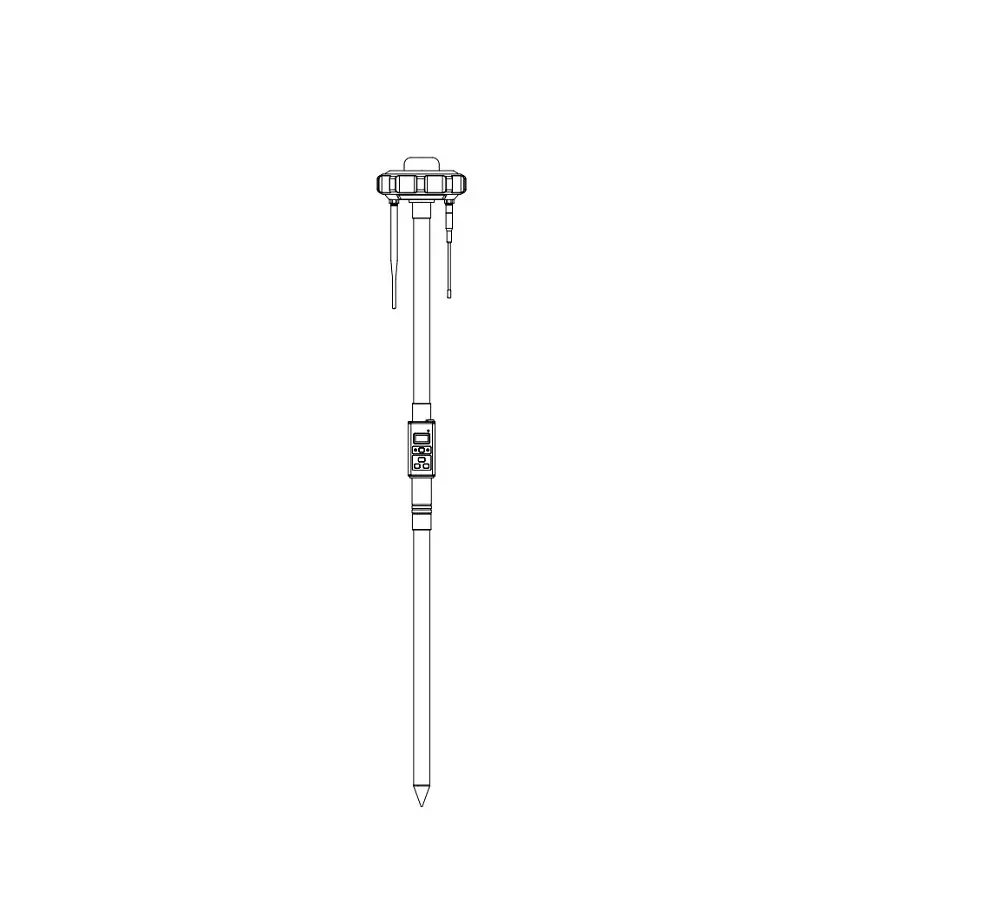
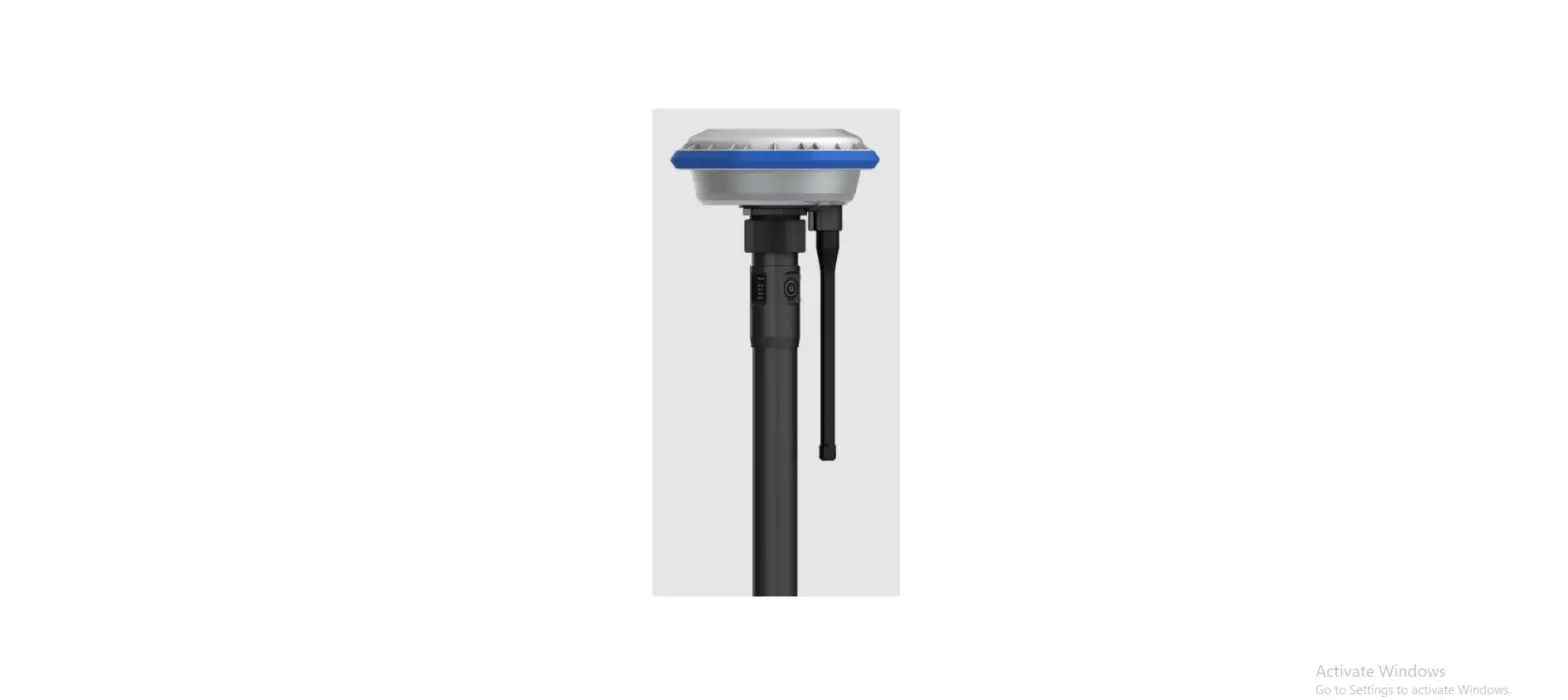
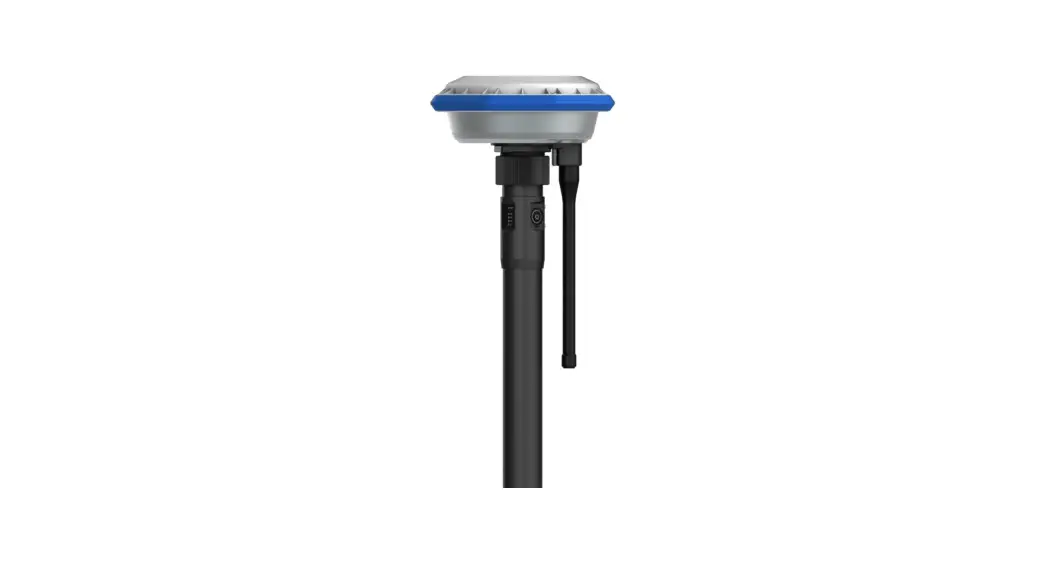
The product is an RTK (Real-Time Kinematic) surveying system
that allows users to perform precise measurements on a given site.
The system has several modes, including static station mode for
control network deployment and control point encryption, and point
measurement mode for measuring specific points on the site. The
system also has a data export feature, an RTK web application for
remote configuration, and a firmware/software upgrade feature for
bug fixes and new features.
Static Station Mode
Static station mode is used for control network deployment and
control point encryption. To configure this mode, click the
“Create” button and select “Static” for the type. Configure the
relevant parameters to complete the configuration. The default
sample interval is 10 seconds, and the default file format is
RINEX3.02.
Point Measurement Mode
In point measurement mode, you can select the first
configuration button in the right toolbar of the interface to
configure the required measurement parameters. You can switch the
type of measurement points (Control Point, Continuous Point, Rapid
Point, Topographic Point, Eccentric Point), enter the required
measurement parameters, and select other options like CRS
(Coordinate Reference System) and Station Shift. You can enter the
site shift selection interface to select the coordinates of known
points in the measurement area and the coordinates of latitude and
longitude of the corresponding measurement points to find out the
translation amount. Click “OK” to apply the current translation
parameters to the corresponding base station of the currently
selected measurement point and update all the mobile stations
measured under the base station synchronously.
Data Export
You can export the current measurement results by selecting the
desired point location, export file type, and file format in the
point library. The exported data is stored in the
Survey-Mate/RTK/project name/report directory by default, and you
can choose the export directory by yourself.
RTK Web Application
You can use the RTK Web application in PAD system or cell phone
webpage to enter the 1.1.1.1 host webpage interface to configure
the equipment when you work separately from your teammates and need
to change the base station configuration without PAD. Some models
of cell phones need to turn off the 4G network and use Wi-Fi to
connect to the receiver.
Upgrade
The RTK product suite is available for free lifetime
firmware/software upgrades to support new features and fix bugs.
You can contact technical support staff to obtain the latest
version of the installation package, using USB offline upgrade.
When upgrading, connect the RTK host computer through the standard
Type-C cable, put the upgrade installation package into the RTK
memory, APP upgrade package into the PAD memory, restart the
receiver/click the APP installation package in the PAD to
upgrade.
Caution
The lithium battery should be charged with 50%-80% of power for
a long time without use, removed from the instrument, and stored in
a dry and cool environment. Charge once every three months to avoid
irreversible capacity loss.
Technical Support
If you have any technical questions, you can send an email to
[email protected] for technical support.
Static station mode is used for control network deployment and control point encryption
Click the (Create] button, select (Static] for[Type], and configure the relevant parameters to complete
– the configuration. The default sample interval is 10s
and the default file format is RINEX3.02, as shown in Figure-9.
11111
ConfOrat;on
T
‘m
Srn·Na
3Y
v.th3 C,rm o o?`..”
Ao…9,
CUIl.
Figure-9
Q Survey
Menu bar on the left [Survey], the main
interface switches to point measurement mode.
In the point measurement mode, you can select
the first configuration button in the right toolbar of
the interface to configure the required measurement
parameters, as shown in Figure-10.
In the main interface, you can switch the type of
measuement points { Control Point, Continuous
Point, Rapid Point, Topographic Point, Eccentric
Point), points
enter the and other
rpeaqraumireedternsu, manbdethoefnocbliscekrv[.<S3.ttiaornt
survey] to collect the required type of points, as
shown in Figure-11
IIIll-II,II ur.fon
·
…d C-..
$s
m,k”
-··*’…’d·t Figure-10
II..
2·
,·
F
0
.y.
I)p1-
Figure-11
9Parameter Calculation
The first time you go to a survey area, you need to
do point correction if you want the measured point to
match the known point coordinates. If you are using
Qianxun SI network operation mode and your project
coordinates matche CGCS2000 coordinates broad
sted by Q1anxun SI, you can skip this step
The left menu bar–+ [CRS]–+[Site Calib], you can
enter the point correction parametelculation interface,
as in Figure-12.
Select the plane coordinates of known points in N
pairs of survey area and the latitude and longitude
coordinates under the ellipsoid corresponding to
known points, click [Calculate] to solve the plane
– correction and elevation fitting parameters, and click
[Apply] to apply the calculation results to the current project coordinate system parameters and update all the measurement results, as in Figure-13
<
Pa””. ce c –
$e1e
,.,.,·”‘`-·
D”‘Fom3i
I ,_.,…Jp.
“..,. ” “·”
Figure-12
‘:’
Figure-13
Site panning is required when a base station 1s moved or a reboot of a base station started at an unknown point. If you are using Qianxun SI FindCM service, you can skip this step, and you can directly turn on the power to measure every day
Menu bar on the left >[CRS]'[Station Shift], you can enter the site shift selection interface
Select the coordinates of known points in the measurement area and the coordinates of latitude and longitude of the corresponding measurement points to find out the translation amount, and click[OK] to apply
– the current translation parameters to the correspond
ing base station of the currently selected measurement point and update all the mobile stations measured under the base station synchronously, as in Figure 14
on1,
e :3 Figure-14
Q Data Export
The left menu bar [Data] [Export] to export the current measurement results.
In the point library, select the desired point location, export file type, and file format to export
The exported data is stored in the Survey
– Mate/RTK/project name/report directory by default
and you can choose the export directory by yourself, as in Figure-15
<
Ft) e
EI H.h
f”‘naI
JA1(t`
P,11, X·2022-12-0i 10.s·”1
Q Host Web
When you work separately from your teammates and need to change the base station configuration without PAD, you can use the “RTK Web” application in PAD system or cell phone webpage to enter the 1.1.1.1 host webpage interface to configure the equipment. Some models of cell phones need to turn
off the 4G network and use Wi-Fi to connect to the
receiver, as shown in Figure-16
0
r4
n `° a .4
C..R
,.,,,
Figure-15
Figure-16
Q Update
The RTK product suite 1s available for free lifetime firmware/software upgrades to support new features and fix bugs. upgrades include RTK host firmware, PAD system, and App software. Upgrade method
You can contact our technical support staff to obtain the latest version of the installation package, using USB offline upgrade. When upgrading, connect the RTK host computer through the standard Type-C cable, put the upgrade installation package into the RTK memoy, APP upgrade package into the PAD memory, restart the receiver / click the APP installa tion package in the PAD to upgrade
Q Caution
Charging: The battery holder charge is used in an environment of 0-40°C. It is recommended to be used in a well-ventilated, non-direct sunlight environment.
Maintenance: The lithium battery should be charged with 50%-80% of power for a long time without use, and removed from the instrument and stored in a dry and cool environment, and charged once every three months to avo irreversible capacity loss.
Q Technical Support
If you have any technical questions, you can send an email to [email protected] for technical support
Any Changes or modifications not expressly approved by the party
responsible for compliance could void the user’s authority to
operate the equipment.
This device complies with part 15 of the FCC Rules. Operation is
subject to the following two conditions:
(1)
This device may not cause harmful interference, and
(2)
This device must accept any interference received,
including interference that may cause undesired operation.
RF Exposure Statement:
This equipment complies with FCC radiation exposure limits set
forth for an uncontrolled environment .This equipment should be
installed and operated with minimum distance 30cm between the
radiator& your body.
Note: This equipment has been tested and found to comply with
the limits for a Class B digital device, pursuant to part 15 of the
FCC Rules. These limits are designed to provide reasonable
protection against harmful interference in a residential installation.
This equipment generates,uses and can radiate radio frequency
energy and, if not installed and used in accordance with the
instructions, may cause harmful interference to radio
communications. However, there is no guarantee that interference
will not occur in a particular installation. If this equipment does
cause harmful interference to radio or television reception, which
can be determined by turning the equipment off and on, the user is
encouraged to try to correct the interference by one or more of the
following measures:
–Reorient or relocate the receiving antenna.
–Increase the separation between the equipment and receiver. —
Connect the equipment into an outlet on a circuit different from that
to which the receiver is connected.
–Consult the dealer or an experienced radio/TV technician for
help.
Qianxun SI RTK Quick Start
0.
 Everything You Need to Know to Start and Grow Your Business