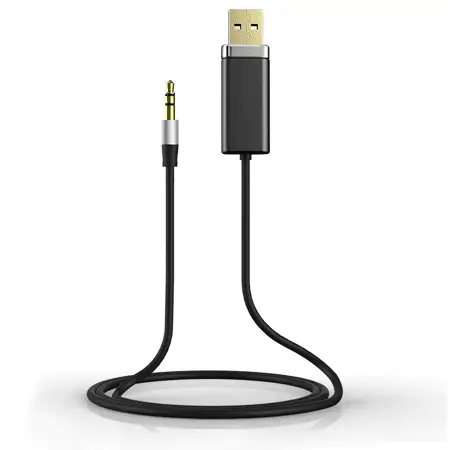
BTS-500BT BlueSwitch
Product Information
The BTS-500BT BlueSwitch is an electronic device that can be
used to control access to a door. It can be connected to a locking
device or an access control system. The device operates using
Bluetooth technology and can be unlocked using a smartphone. The
device comes with a pair of output contacts that can be connected
in parallel or series with access control systems. The device has a
relock time of 1-1800 seconds which can be adjusted using the
BlueSwitch app. The device has an auto proximity range of 0-20
meters which can also be adjusted using the app. The device has a
warranty period of 1 year from the date of sale to the original
customer.
Product Usage Instructions
- Make sure that the power input and relay rating output (5A
250VAC/5A 30VDC) are correct. - Make sure that the + and – wires are connected correctly.
- The door strike or relay must have a varistor or a diode across
the door strike terminals to suppress the back EMF of the strike.
Failure to do so will damage the relay contacts and electronic
components, or even burn the controller. - Connect the BTS-500BT to the locking device or access control
system using the wiring diagram provided in the manual. - Download the BlueSwitch app from the Google or Apple app store
depending on your smartphone. - Login to the app as an administrator or user using the provided
ID and passcode. - To unlock the door, use the smartphone to connect to the
BTS-500BT using Bluetooth technology. - The device has an auto proximity range of 0-20 meters which can
be adjusted using the app. - The relock time of the device can also be adjusted using the
app. - When connecting BTS-500BT to the access control system, set the
PSM-28T timer to 0 second and adjust time settings on the BTS-500BT
app.
4 1/2″(114 mm)
BTS-500BT BlueSwitch
Operation Instructions
2 3/4″(69.5 mm)
1 3/16″(30 mm)
3/16″(5 mm)
Features
· 1 Administrator & 1000 Users · Provides Bluetooth smartphone or push button unlocking · Anti-tailgate · LED & Audible indicator · User Management
1. Add/Delete/View user data 2. Grant user access for specific dates or time periods 3. Change user passcode 4. Up to 1,000 audit trails · 3 Locking options: Door Relock Time, Door Always Unlocked, Door Always Locked
Speci cations
Operating Voltage Current Draw Relay Contacts Contact Rating Relock Time Indicator Light Temperature Bluetooth Module Auto Proximity Range
12~24VDC
40mA/12VDC; 20mA/24VDC
NC/COM/NO
5A/30VDC ; 5A/250VAC 1~1800 seconds (adjustable on APP) Standby : Solid Red Active : Solid Green
-20~+70°C
BLE 4.2
0~20 meters (adjustable)
Wiring Diagram
The BTS-500BT includes one pair of NO and NC output contacts, which can directly connect to a locking device or connect in parallel or series with access control systems.
* Reed Switch: Door closed status: NO contact Door open status: NC contact
Installation Diagram
Indicator Light
Phillips Flat Head Screws x2
Button
Note: 1. Make sure that the power input and relay
rating output (5A 250VAC/5A 30VDC) are correct. 2. Make sure that the “+” and “-” wires are connected correctly. 3. The door strike or relay must have a varistor or a diode across the door strike terminals to suppress the back EMF of the strike. Failure to do so will damage the relay contacts and electronic components, or even burn the controller.
RESET
Using Reset Jumper
P1 P2 P3
P1+P2 (Default)
P1 P2 P3
P2+P3 (Reset)
Relay
BTS-500BT
(INSIDE)
–
SW
S-W-
DS DS
N.C. COM N.O.
REED
—
Power Supply
–
–
–
–
–
Electromagnetic Lock
–
(Fail-Safe)
–
Electric Strike
–
(Fail-Secure)
COM
–N.O.
DG-760 Digital Keypad (OUTSIDE)
Application
INPUT
L
100~240VAC
N
PSM-28T Power Supply
P.B. GND Output2 DC Output1 E-Lock Charge Battery
N.C.
Timer 0~45S
N.O.
–
(INSIDE) BTS-500BT BlueSwitch
N.O.
C-O-M
Smart Phone
(use Bluetooth to unlock the door)
(OUTSIDE) DG-760 Digital Keypad
–
N.O.
C-O-M
GEM-600M Electromagnetic Lock
12VDC Battery
N.C. (Fail-Safe)/N.O.(Fail-Secure) Switchable
* When connecting BTS-500BT to the access control system as shown above, set the PSM-28T timer to 0 second and adjust time settings on the BTS-500BT App.
—
—
–
–
GK300M Electric Strike
EB270M Electric Dropbolt
Warranty
The product is warranted against defects in material and workmanship while used in normal service for a period of 1 year from the date of sale to the original customer. The policy is one of continual development and improvement; therefore reserves the right to change specifications without notice.
App Guide
1. Download BlueSwitch App to Open Your Doors with Your Smartphone
EXIT
Download BlueSwitch App from Google or Apple App Store depending on what kind of smartphone you use. Smartphone compatibility : Android 5.0 and up, iOS 9.0 and up.
2. App Main Page Introduction
1 Login
AdministratorjEnter Admin ID and Passcode to login. Admin IDjADMIN Default Admin Passcodej12345 (Passcodej4~8 digits)
UserjEnter User ID and User Passcode to login. User ID and User Passcode are given by the Administrator.
[Note] 1.) Administrator ID “ADMIN” can not be changed. Please change
Admin’s default passcode “12345” right after you login as the Admin. Go to setting page, press Admin Passcode to Edit Admin Passcode.
2 BTS-500BT
1
3
4
5
2.) Login Success / Login Failure indications will be shown as followingj Login Successj
You Have Successfully Logged In. You May Now Unlock A Door. Login Failurej
Login Failed. Please Verify Your Login Information Or Contact Your
Administrator.
6 7
2 Device name Tap and Choose which device you want to unlock by pulling down the Device name listing.
3 Device distance The distance between you and the Bluetooth BlueSwitch Push Button. The distance range is between 0 to 20 upon Bluetooth signal strength and different circumstances.
4 Settings Tap “Settings” to view or change setting functions.
5 ENTRY Press
button or the door icon
to unlock the door.
6 Auto
Tap “Auto” to enable Auto unlock function to access.
Make sure to disable “Auto” before pressing
if you want to enter Settings page.
7 Auto Proximity Range
Adjust Auto Proximity Range in Settings page. The range is between 0 to maximum 20 and it may have different results under different circumstances upon Bluetooth signal strength.
App Guide
3. Administrator ” Settings” Page Introduction Tap “Settings” to view or change setting functions.
1 Usersj(See Figure 1 and 2 below) a. Add / Delete / Edit user information. b. ID (Up to 16 characters) c. Passcode (4~8 digits)
1
2
BTS-500BT
BTS-500BT
3
4
BTS-500BT
Figure 1
Figure 2
Figure 3
Figure 4
Figure 5
2 Audit Trailj(See Figure 3 and 4) a. Audit Trail is tracking last 1000 event logs. b. Enter a user ID to search events for a user. c. Tap to export all events to excel file. d. Tap to refresh all events.
2 Backup Dataj(See Figure 5) Backup Data is to backup Users, Admin Passcode, Lock Action, and Door Re-lock Time to Administrator’s phone and can be restored except Device Name, Auto Proximity Range, and Audit Trail logs. Step 1jPress “Backup Data”, the App will showj Backup all data now? Step 2jPress Confirm, the App will showj Backup Status Backup Completed!
3 Restore Backupj(See Figure 5) Restore the last backup data by Admin’s phone to another BlueSwitch Push Button. Step 1jPress “Restore Backup”, the App will showj Restore all data now? Step 2jPress Confirm, the App will showj Restore Status Restore Completed!
App Guide
Administrator ” Settings” Page Introduction Continuedj (See the Figure) · Device NamejEdit Device Name (Up to 16 characters) · Admin PasscodejEdit Admin Passcode (4~8 digits) · Lock Actionj(3 options)
Choose Door Re-lock Time, Door Always Unlocked, and Door Always Locked. · Door Re-lock Timej6 seconds by default. You can modify Door Re-lock Time
from 1 to 1800 seconds. · Auto Proximity RangejAdjust Auto Proximity Range here. The range is between
0 to maximum 20 and it may have different results under different circumstances. · Device TimejMake sure the Device Time is precisely synced with your current
time zone to have correct and precise access data and information. · About usjView Device Model, App version, Website and E-Mail information. · Firmware versionjSee Firmware version of your Bluetooth BlueSwitch Push Button.
BTS-500BT
4. User’s ” Settings” Page Introduction Tap “Settings” to view or change setting functions. (See Figure 6 below) · Device NamejUser can only view the Device Name. (See Figure 7 below) · Auto Proximity RangejUser can adjust Auto proximity range between 0 to maximum 20 to access. May have different results under different circumstances. (See Figure 8 below) · About UsjView Device Model, App version, Website and E-mail information. (See Figure 9 below)
BTS-500BT
BTS-500BT
BTS-500BT
Figure 6
Figure 7
Figure 8
Figure 9
Copyright © All rights reserved. P-MU-BTS-500BT Published 2022.12.19