Charging Dock for Quest 2
Product Information: Charging Dock for Quest 2
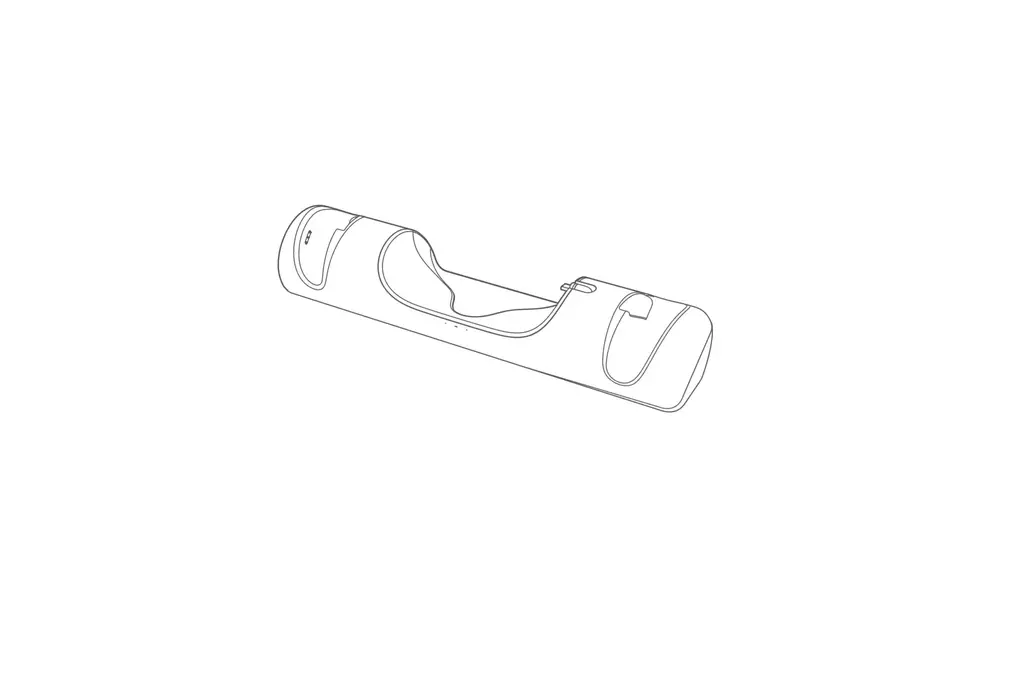
The Charging Dock for Quest 2 is a device designed for charging
the Quest 2 headset and controllers. The dock comes with a headset
display stand, a head strap support stand, a Type-C cable, and AA
rechargeable batteries. The charging dock has a digital display
that shows the charging status of the controllers and a LED ambient
light in the headset display holder that turns off after 2 seconds
to save energy and increase the life of the dock.
Installation Steps:
- Connect the charging dock to the headset display stand with the
Type-C cable. - Insert the headset display stand into the fixing rod of the
charging dock. - Insert the headset head strap support stand into the fixing rod
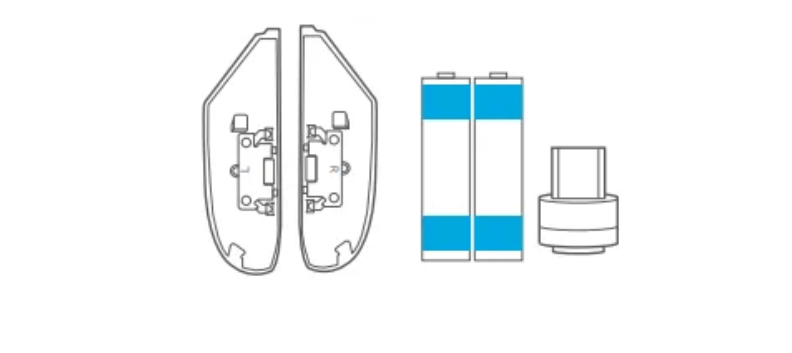
of the charging dock. - Remove the original battery cover of the controller and replace
it with Ni-MH AA Rechargeable Batteries. Ensure that the metal
contacts on the battery (in gray) face upwards for charging. - Install the included battery cover of the controller with
magnetic induction. There is an R or an L on the back of the
battery cover. - Adjust the controller leather knuckle straps to fit your hand
size. - Fix the battery cover with the fixed clasp to charge stably and
prevent the batteries from falling off. - Put the headset and controllers on the corresponding charging
dock positions, then turn on the power.
Product Usage:
Once you have completed the installation steps, you can use the
Charging Dock for Quest 2 to charge your headset and controllers.
To charge, put the headset and controllers on the corresponding
charging dock positions and turn on the power. The digital display
will show the charging status of the handle (red means charging,
green means charging is complete), and the LED indicator ambient
light in the headset display holder stylish will have a 2-second
dream color lighting when the headset is just being charged.
Some Notes About Charging:
- About Controllers Charging: The Quest may display the
controller batteries at % or lower even when they are fully
charged. This is normal as the charging dock keeps the controllers
slightly below % to prevent overcharge and increase battery life
and charging stability. - About Headset Charging: When the headset charging indicator
shows a steady green light but the headset display shows about % of
the power, and the headset’s own indicator shows that it is still
charging, this is normal. The charging dock will continue to charge
the Quest headset with a very small charging current (steady green
light) to maximize battery life and health. - About LED Ambient Light: The LED indicator ambient light in the
headset display holder stylish will turn off after 2 seconds to
save energy and increase the life of the dock.
Questions & Answers:
- Why are my controller batteries not charging?
Please make sure the batteries are positioned correctly in the
controllers. There are metal contacts on the battery (in gray) that
have to face upwards for charging. - How many times can I charge the batteries?
The battery can be recharged completely for 500 charge/discharge
cycles (0% – 100%).
CHARGING DOCK for QUEST 2
USER MANUAL
INSTALLATION STEPS
Connect the charging dock to the headset display stand with Type-C cable.
Insert the headset display stand into the fixing rod of the charging dock.
Insert the headset head strap support stand into the fixing rod of the charging dock.
Remove the original battery cover of the controller, and replace it with Ni-MH AA Rechargeable Batteries. (Note: There are metal contacts on the battery (in gray) that have to face upwards for charging. If it still can’t be charged, please tell us and we will make sure to give you a satisfactory solution in time.)
PRODUCTS INCLUDED
Made in China
Headset Head Strap Support Stand
× Controllers Adjustable Leather Knuckle Straps
× Ni-MH (Nickel-Metal Hydride)
AA Rechargeable Batteries
Have ensured the metal contacts on the battery (in gray) face upwards, and install the included battery cover of the controller (There is an “R” or an “L” on the back of the battery cover) with magnetic induction.
Charging Dock for Meta Oculus Quest
Headset Display Stand with Type-C Cable
× Controllers Battery Covers
× Controllers Battery Covers Fixed Clasp
Adjust the controller leather knuckle straps to fit your hand size.
Fix the battery cover with the fixed clasp to charge stably and prevent the batteries from falling off.
Put the headset and controllers on the corresponding charging dock positions, then turn on the power. The digital display will show the charging status of the handle (red means charging, green means charging is complete), and the led indicator ambient light in the headset display holder stylish will have a -second dream color lighting when the headset is just being charged.
SOME NOTES ABOUT CHARGING
( )About Controllers Charging Usually, the batteries are fully charged, but the Quest may still display
it at % or lower. Don’t worry, this is completely normal. To prevent overcharge and increase both battery life and charging stability, your charging dock will keep the Quest controllers slightly below %, so the battery display may show that the batteries are not fully charged.
( )About Headset Charging When the headset charging indicator shows a steady green light, but
the headset display shows about % of the power, and the headset’s own indicator shows that it is still charging. This is normal and nothing to worry about. When the headset is charged at about %, your charging dock will continue to charge the Quest headset with a very small charging current (steady green light), and the headset can be charged to % in about . hours, to maximize battery life and health.
( )About Led Ambient Light The led indicator ambient light in the headset display holder stylish
will have a -second dream color lighting when the headset is just being charged. In order not to disturb sleep, save energy and increase the charging dock life, the led indicator ambient light will be turned off after seconds, and the charging dock will continue to work normally.
QUESTIONS & ANSWERS
( ) Why are my controller batteries not charging? Please make sure the batteries are positioned correctly in the controllers. There are metal contacts on the battery (in gray) that have to face upwards for charging.
( ) How many times can I charge the batteries? The battery can be recharged COMPLETE charge/discharge cycles ( % –
%, % – % ).
( ) Why do the controllers feel warm when charging? Unlike Li-ion batteries, it is normal for NiMH rechargeable batteries to heat up while charging. There is no need to worry about this temperature increase, as the built-in temperature protection prevents overheating.
( ) What should I do if temperature protection is triggered? Built-in temperature protection automatically stops charging when the battery temperature rises above the trigger point. When charging stops, remove the controllers from the charging cradle and let them cool for minutes.
( )Does it charge for the elite strap with battery? Yes, It is compatible with the elite strap with battery.
Continuously providing high-quality product is always our mission. If you have any issues about the Quest Charging Dock, you can contact
with us through amazon messages directly, and we will provide satisfactory service for you.