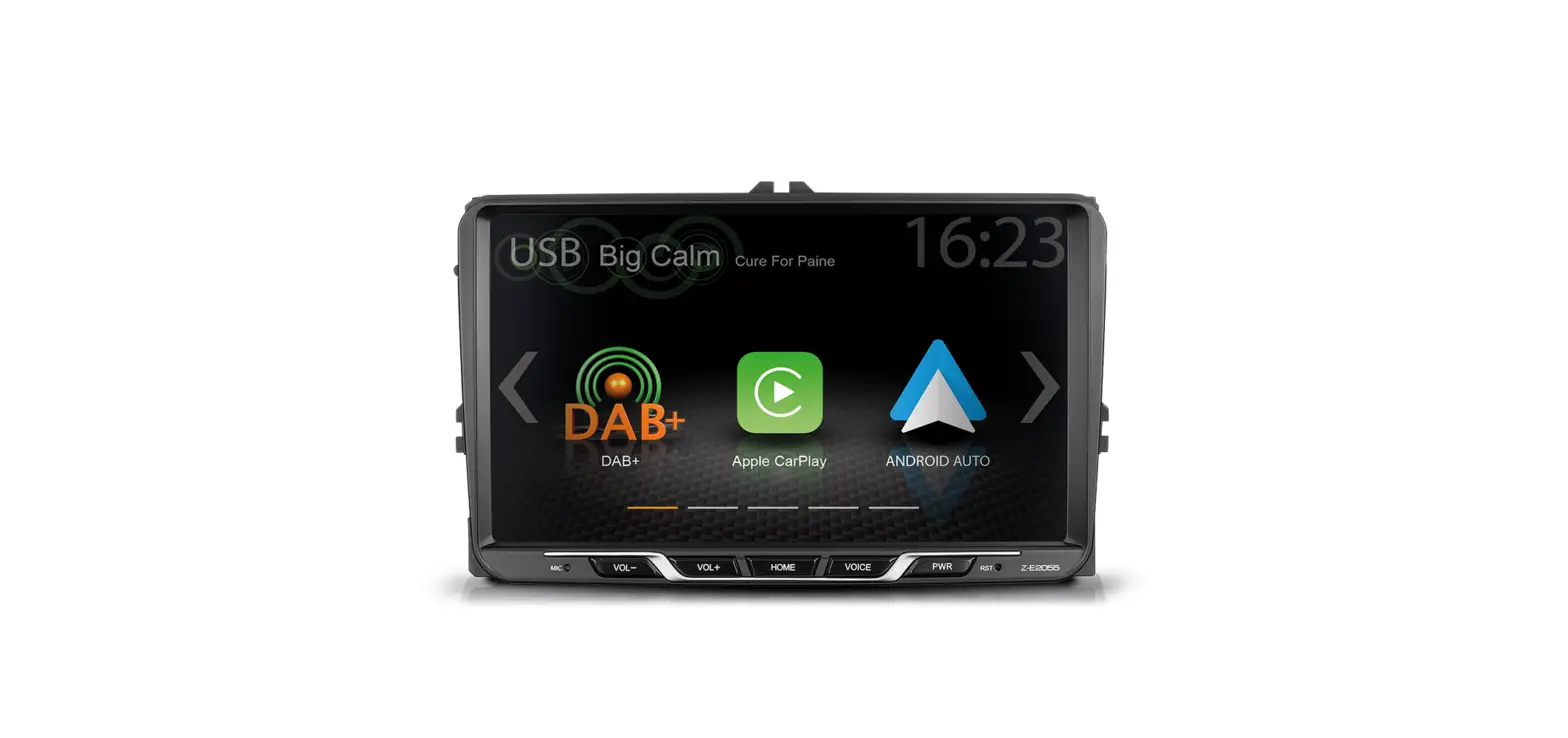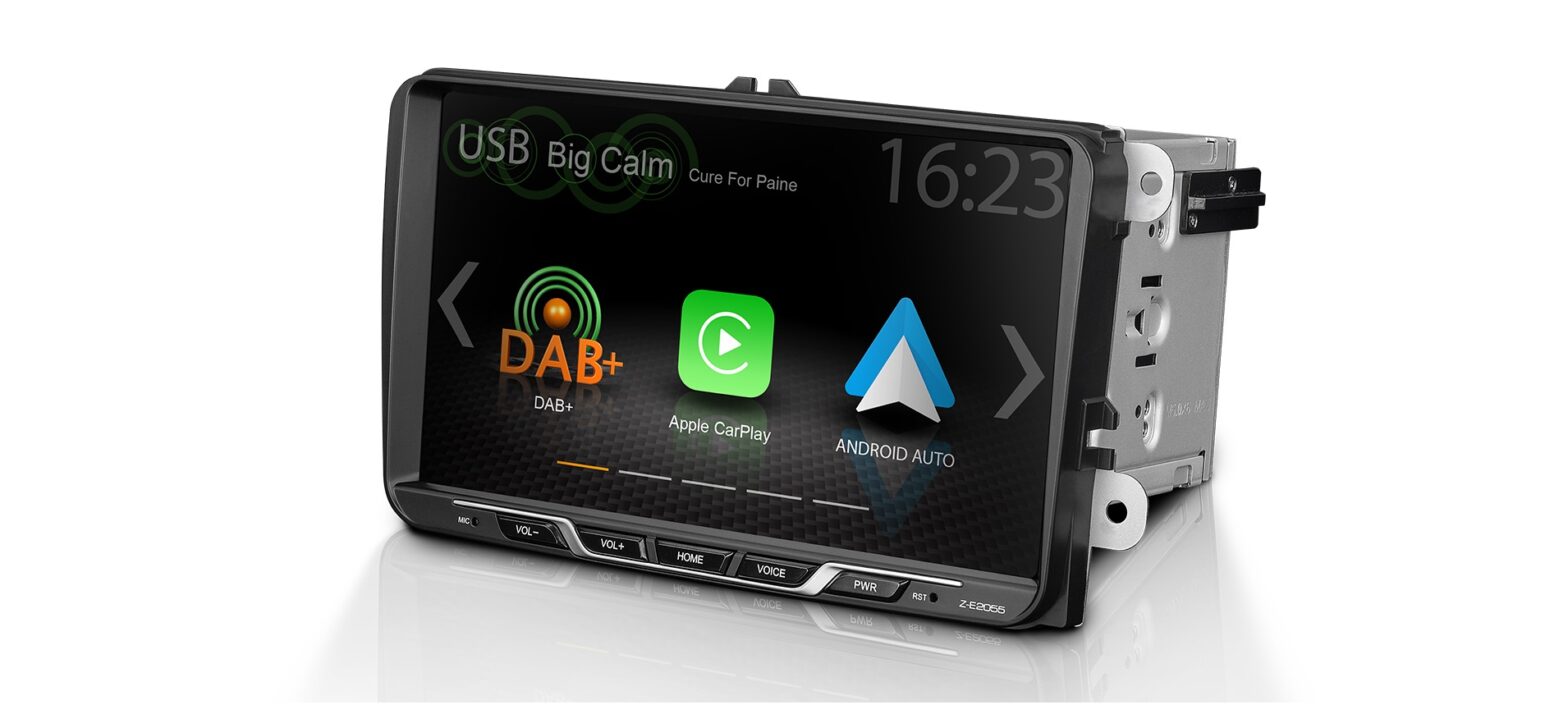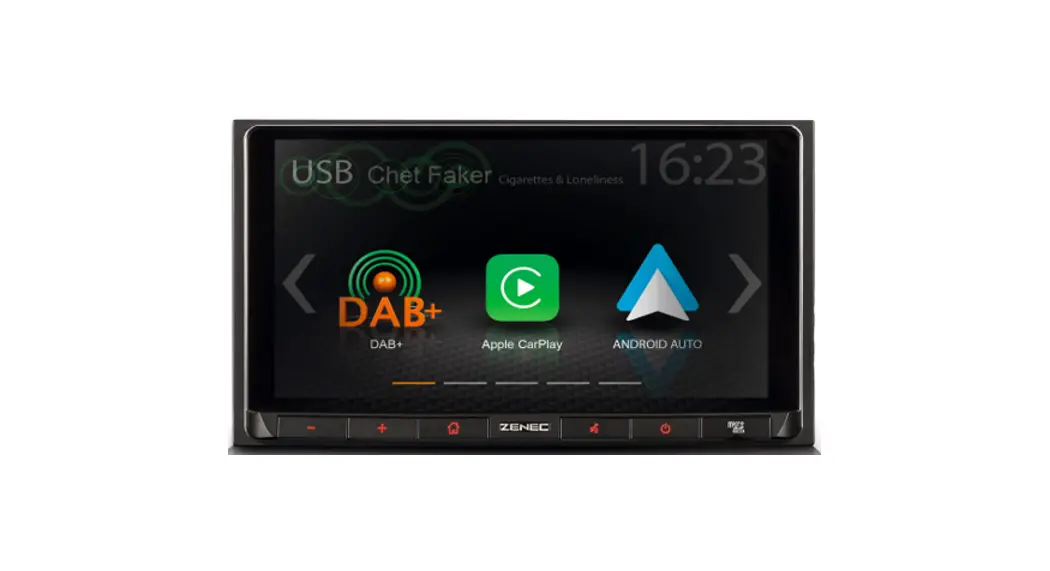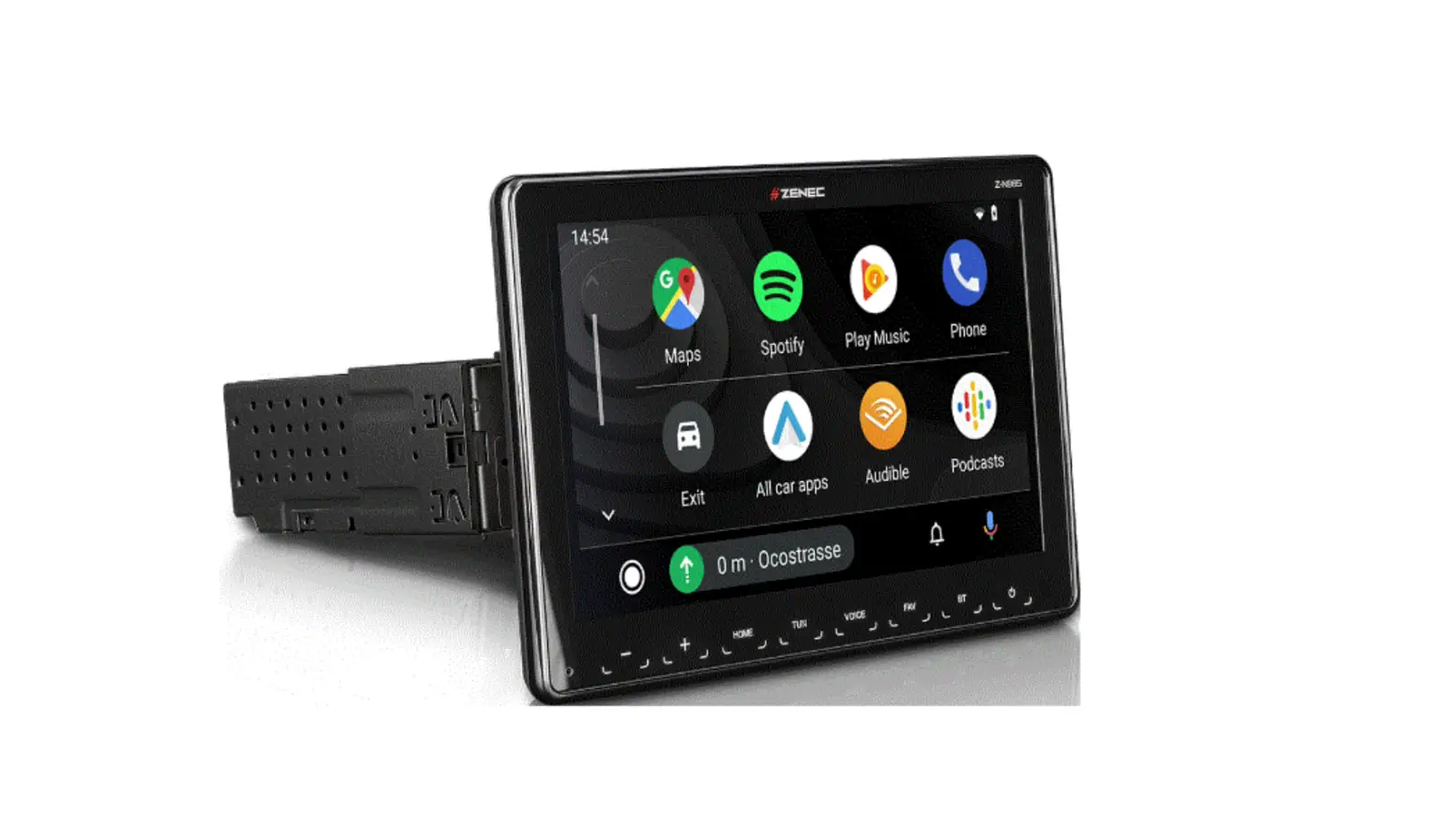
 Z-E2055 Update
Instructions Main System
Requirements
The update consists of a complete Main System software update, which must be run from USB data carrier. You will need:
> USB removable storage device (USB stick) with at least 2 GB storage capacity.
> A PC or notebook with Windows operating system.
Please note: Before you start, the USB stick must be formatted with FAT 32. (Right-click on USB memory device in Windows Explorer. Select “Format” > FAT 32 > Start.
(!) The ZENEC Z-E2055 restarts several times during the software update and stays off, among other things, for a few seconds (black screen for approx. 3 ~ 5 sec.) before the device restarts. Please do not operate or switch off the device during the update process. After successful installation the tuner source will come up.
Installation of the Main System software update via USB:
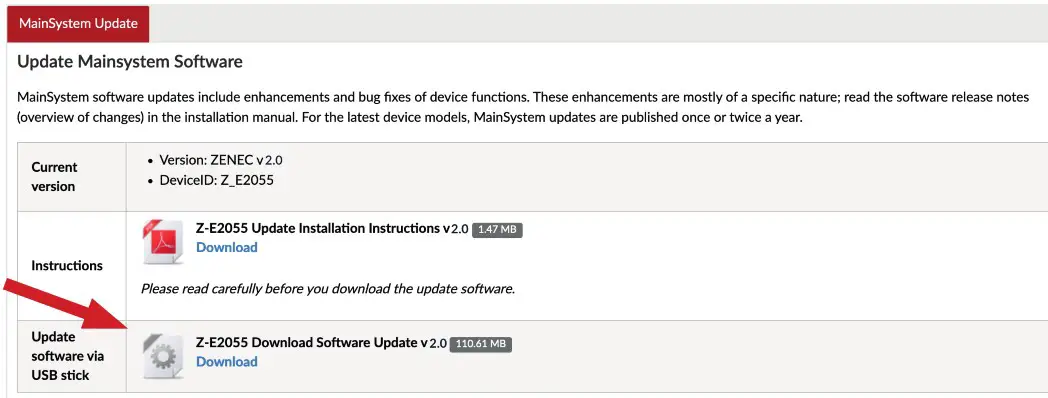
The Main System software can be found at: www.zenec.com > Support > Software Updates > Z-E2055
Link: http://www.zenec.com/support/software-updates/z-e2055/?lang=en
- Download the Software Update “Z-E2055_SW_v2.0.exe”.

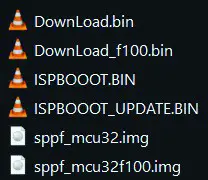
- The software package is a self-unzipping executable. Start extraction with a double-click and select your USB stick as target for the uncompressed files.
- You obtain four files called ,,Down Load.bin” / ,,DownLoad_f100.bin” / “ISPBOOOT.bin” / “ISPBOOOT_UPDATE.bin ” / “sppf_mcu32.img” and ,,sppf_mcu32f100.img” in the root directory of the USB stick.

- Connect the USB stick to the Z-E2055 USB-1 connection cable.
- Go to the device menu:
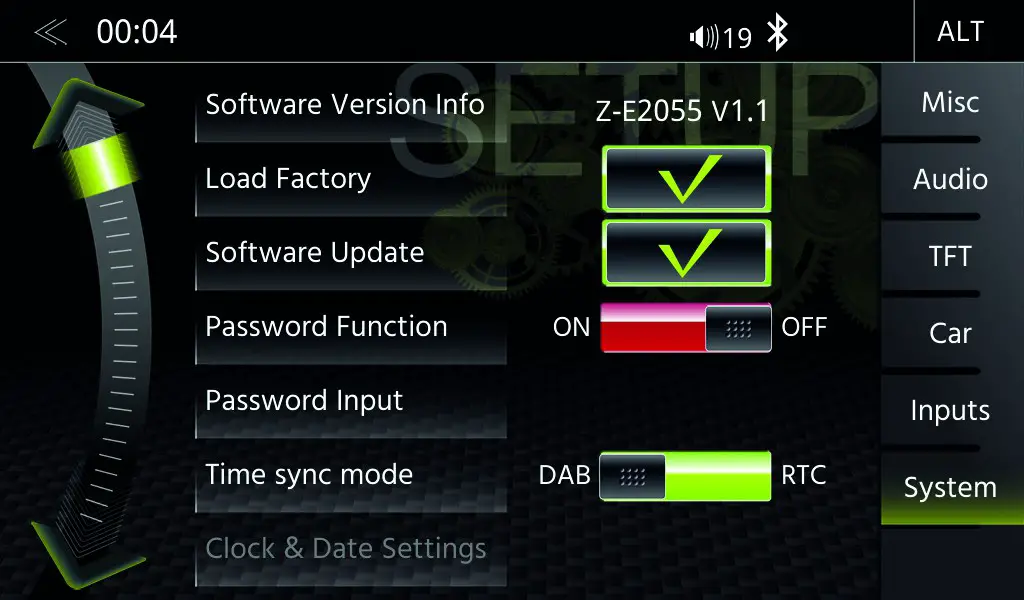
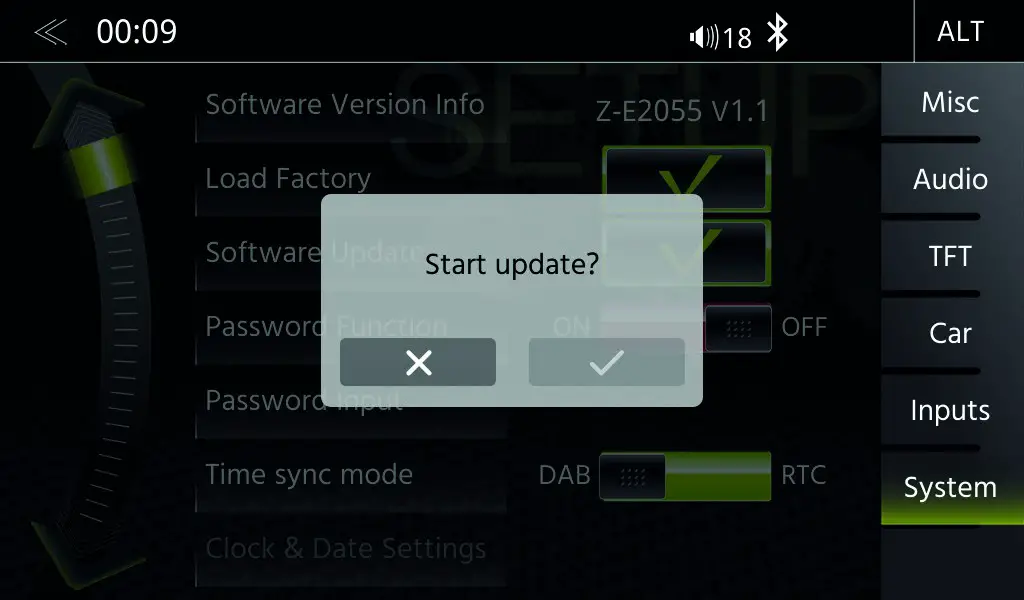
Settings > System > Software Update and confirm by tapping on the green hook checkbox.
- Tap on the white hook button at the grey checkbox to start the update process.
- The update installs sequentially and the lower part of the display screen informs about the progress. The software installation takes about 2~3 minutes. (The OS will be updated first after than the MCU)
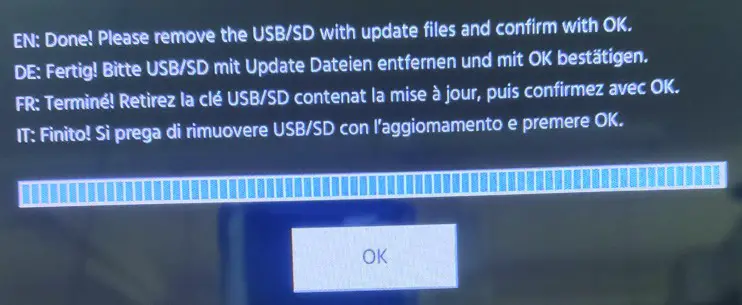
- After successful software installation, the device reboots and then a text pop-up “…Done!…” with an OK button will show up.

- Remove the USB stick and confirm by tapping on the OK button
- The device reboots and then the TUNER page will show up.
- Load factory
Setup > System > Load Factory and confirm by tapping the green hook checkbox.
Tap on green hook of the LoadFactory window.
Please do not operate or switch off the device during the restart process (duration approx. 3 minutes). After restart, the Tuner page will show up.
Note: After the loading factory defaults, some personal settings must be set again (such as camera grid lines, audio settings etc.). - Version control After installing the software update a version check needs to be carried out. In the device menu: Settings > System > Software Version Info. Version: v2.0

If the version differs from the target version, install the update anew.

Improvements + Bugfixes:
MAINSYSTEM
- Improved system stability and performance
AUDIO
- Bugfixes for Sub gain and slope issue
CARPLAY & ANDROID AUTO
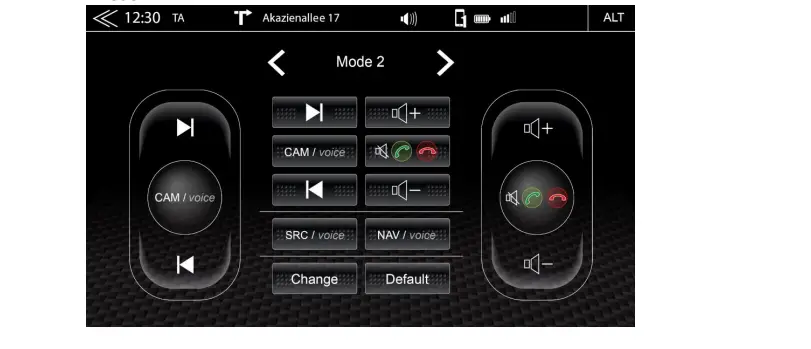
- Added the SWC mute setting for Carp lay & Android Auto voice control
TUNER
- Bugfix for Tuner OSFB setting value can`t set to ON after ACC off-on
 Auto Navigation Multimedia Kommunikation Integration - Auto Navi Multimedia Car Integration