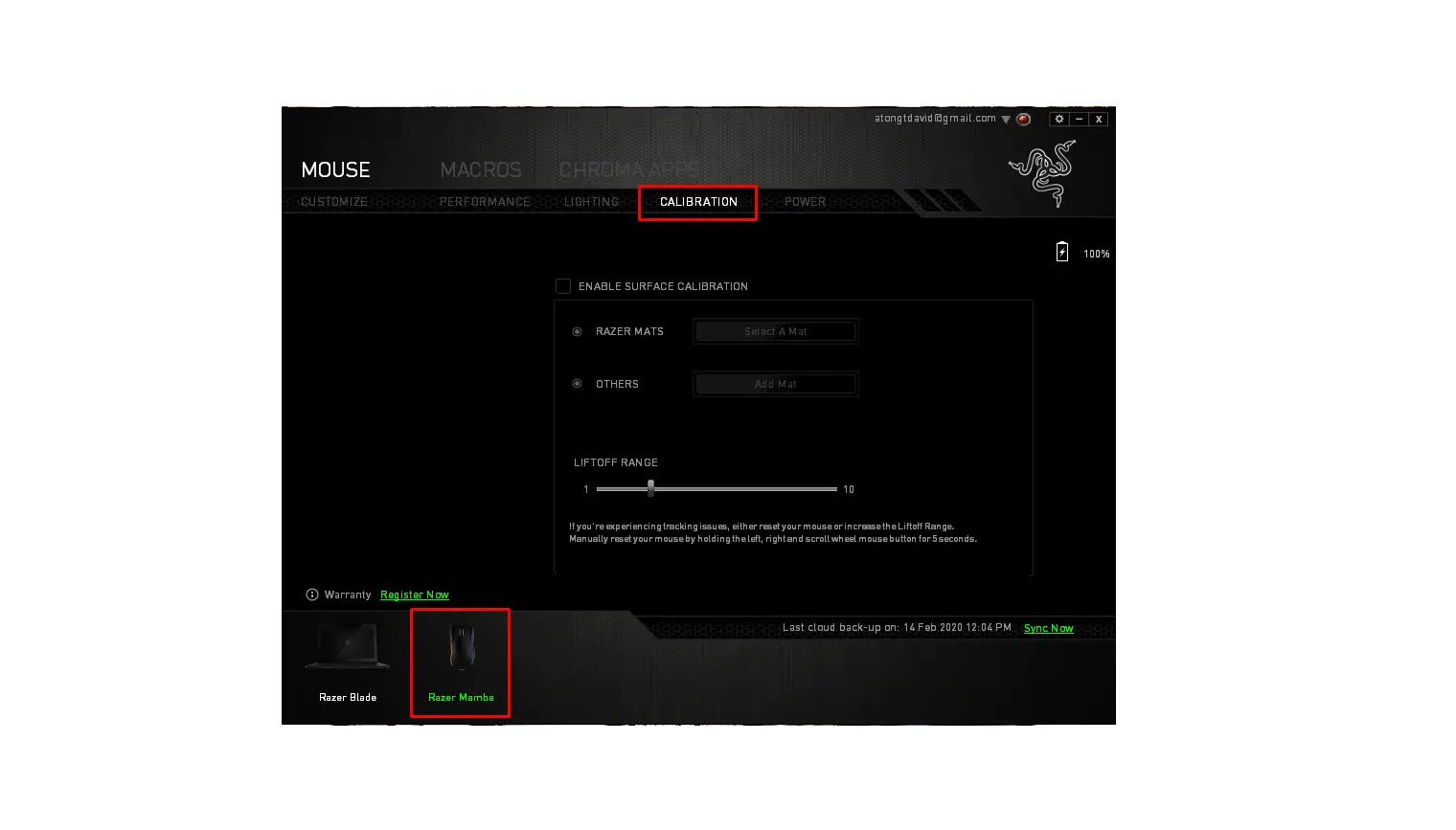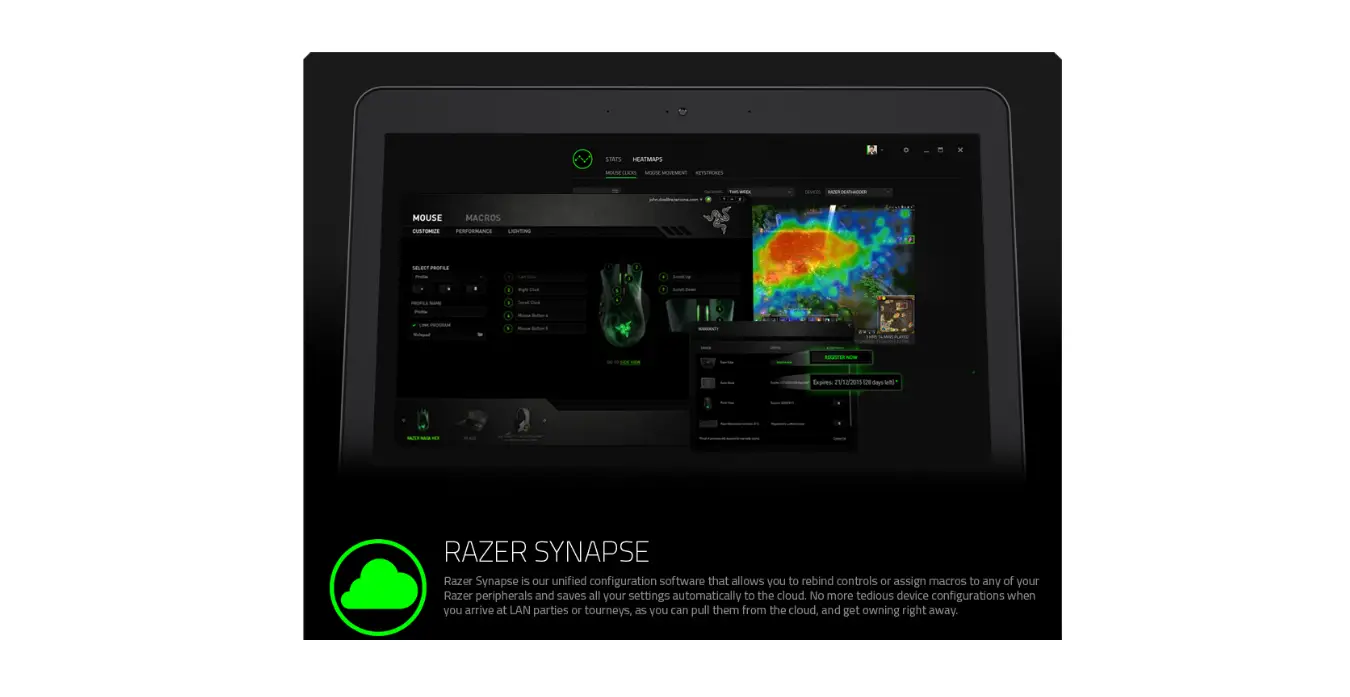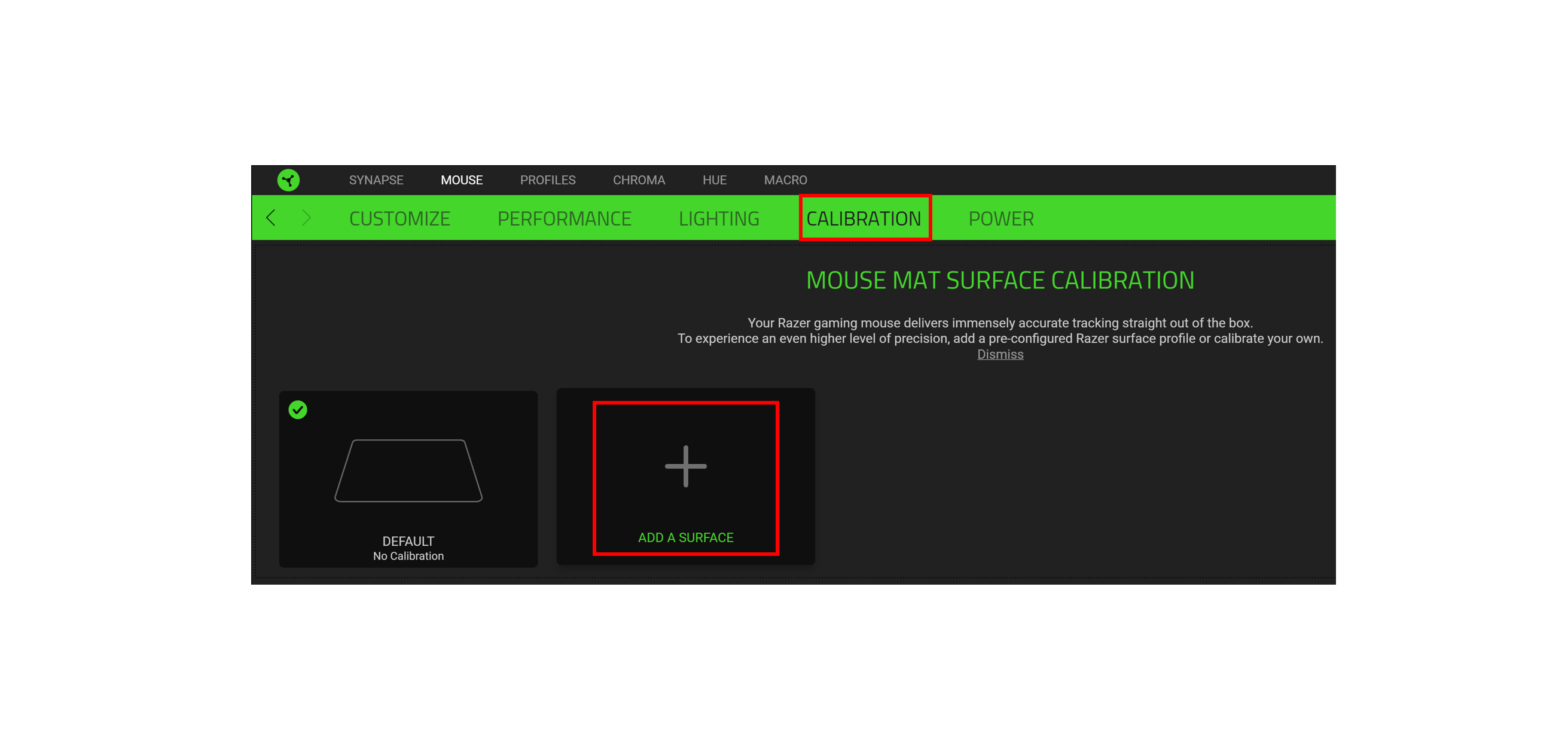
Surface Calibration allows you to optimize the Razer Precision Sensor to any surface for better tracking. You can configure all Razer and third-party mouse mats with this feature.
To calibrate your Synapse 3 Razer mouse, refer to the following steps below:
- Ensure that your mouse is supported by Synapse 3.Note: All Synapse 3 supported Razer Mice feature surface calibration.For more details, see What products are supported by Razer Synapse 3?
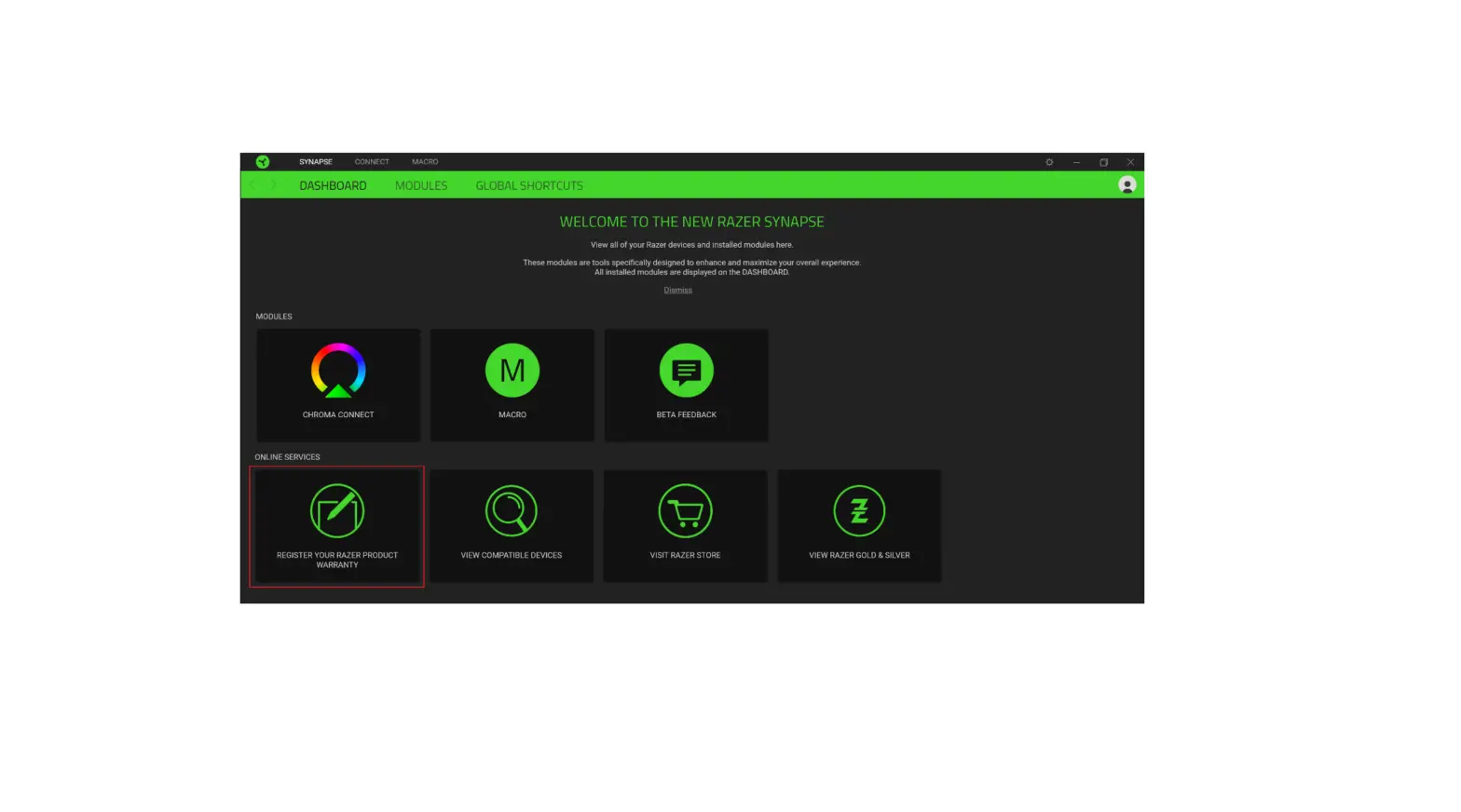
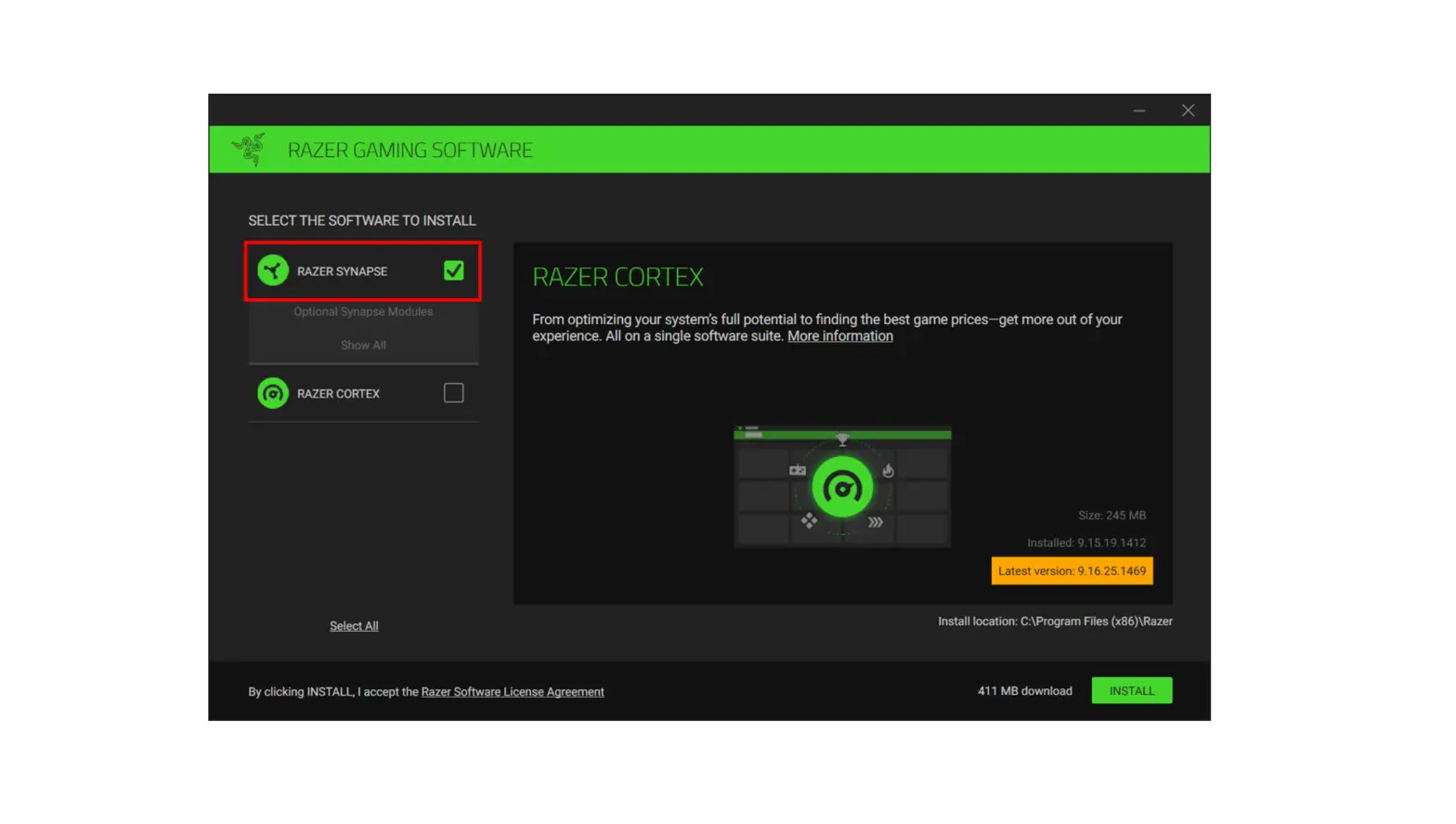
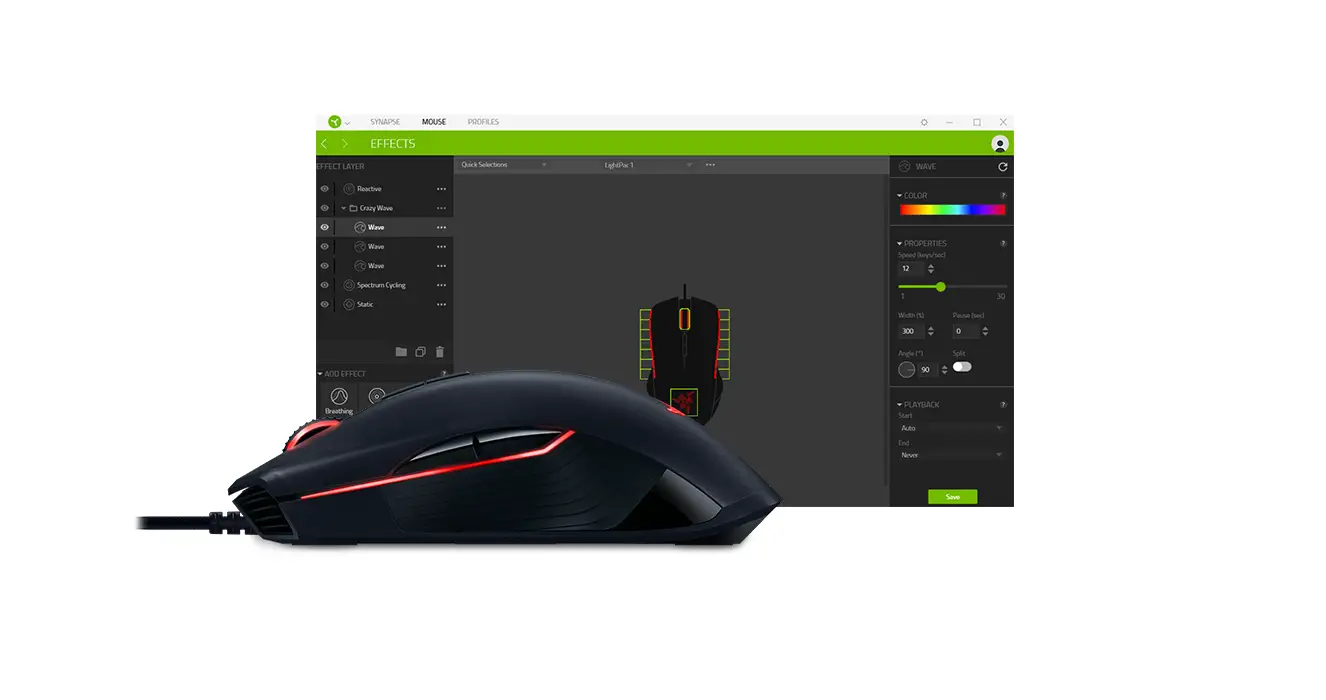
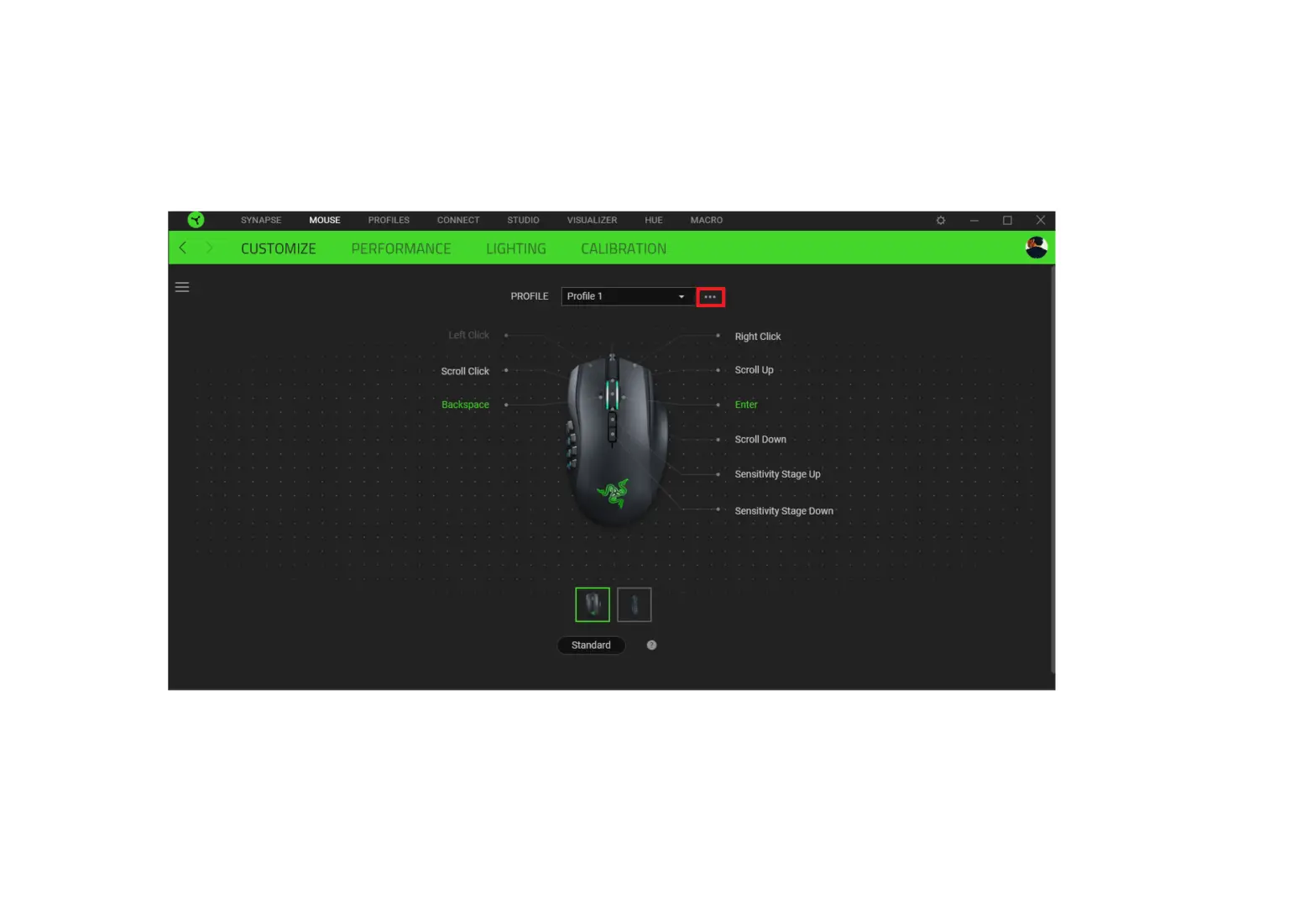
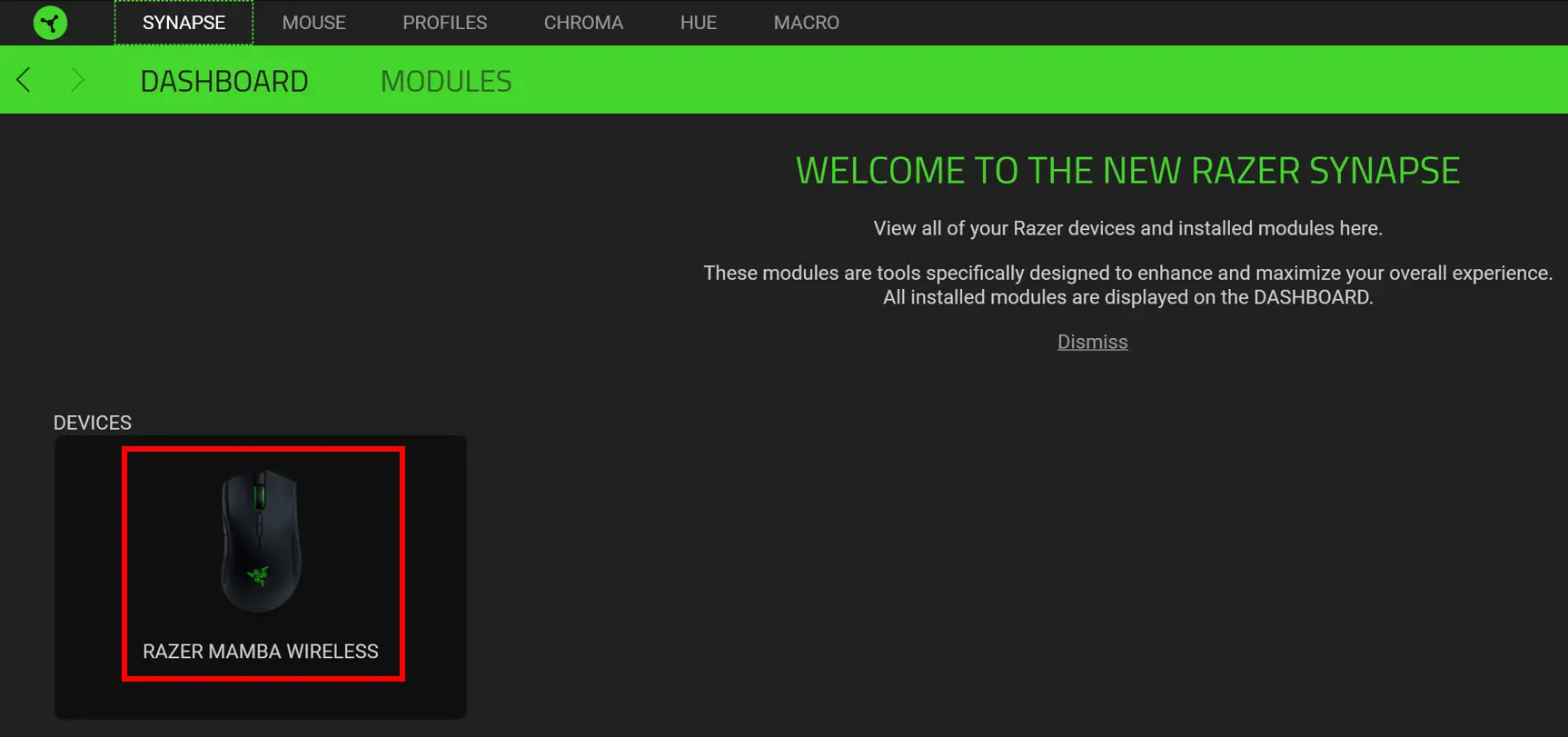
- Open Synapse 3.
- Select the mouse you want to calibrate.
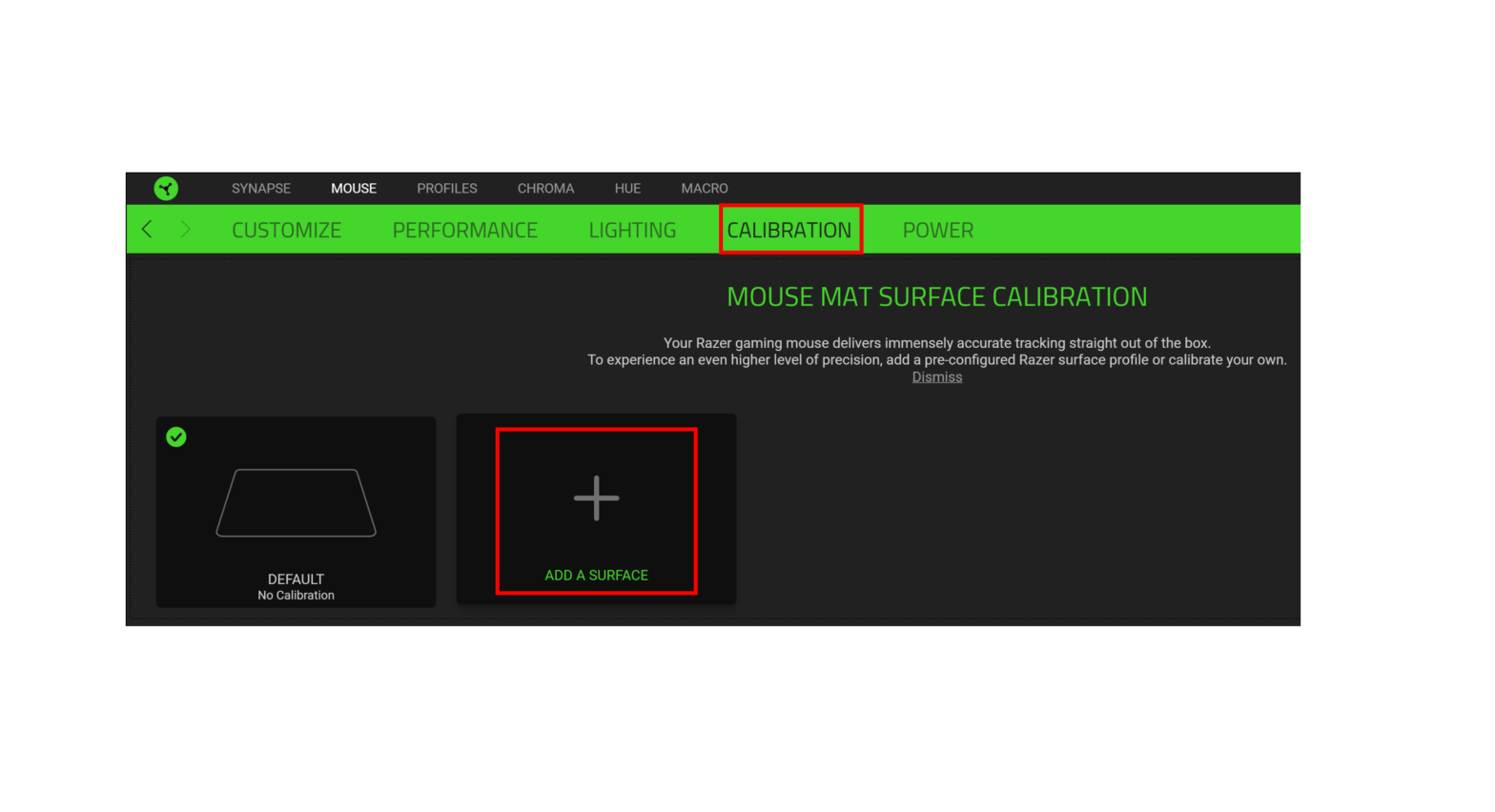
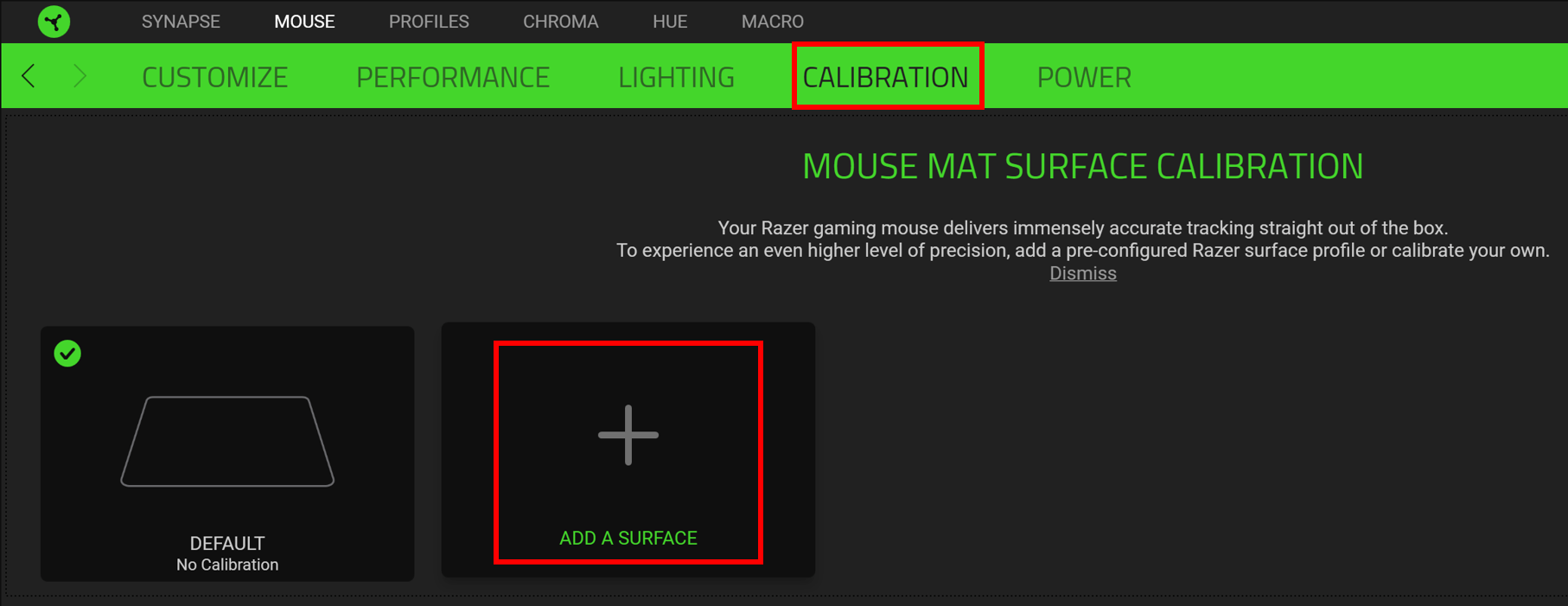
- Click on “CALIBRATION” and select “ADD A SURFACE”.
- If you are using a Razer mouse mat, select the correct Razer mouse mat and click “CALIBRATE” to use the pre-calibrated mouse mat data.
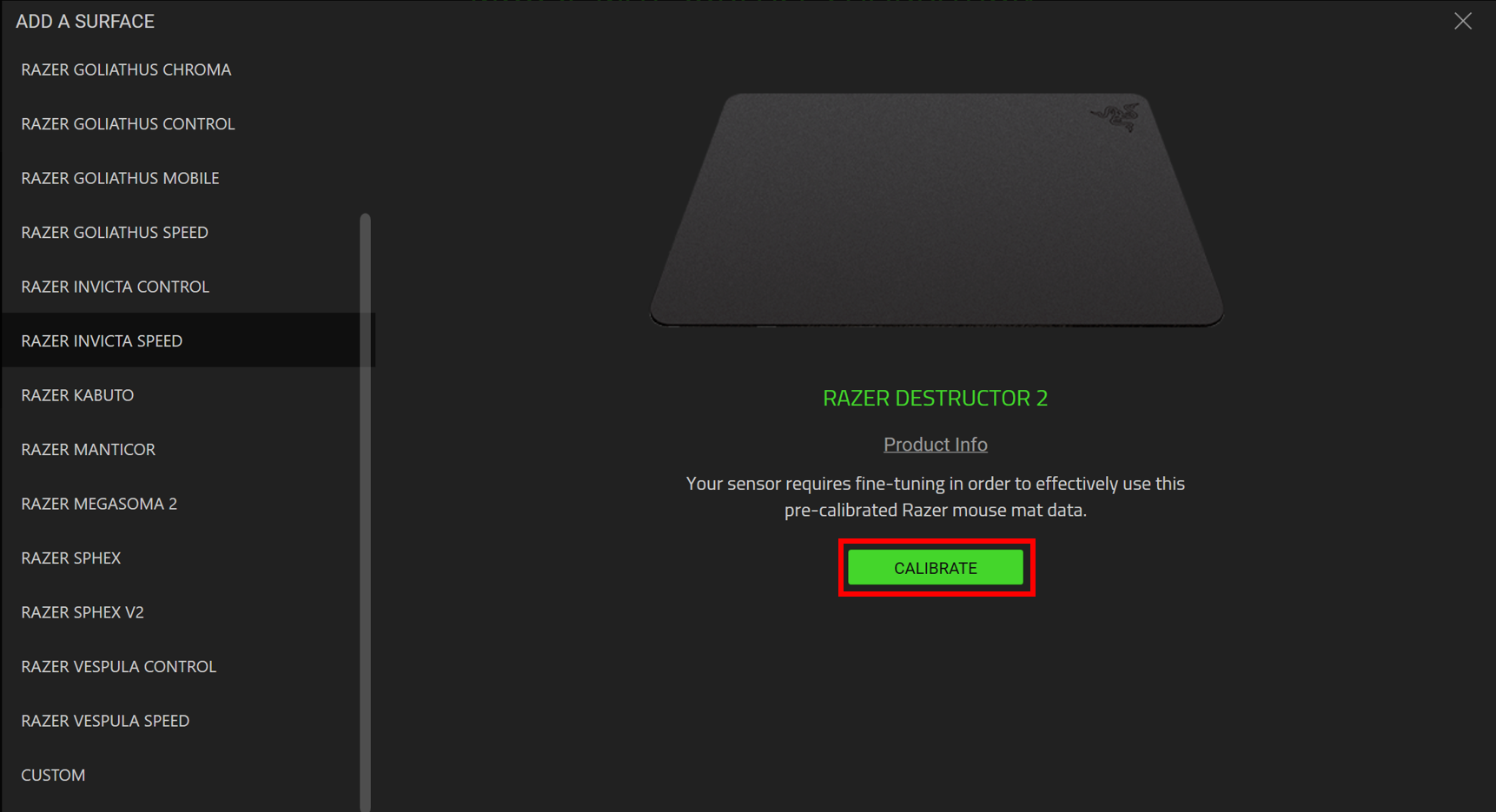
- If you are using a Non-Razer mouse mat or surface, select “CUSTOM” and click “START”.
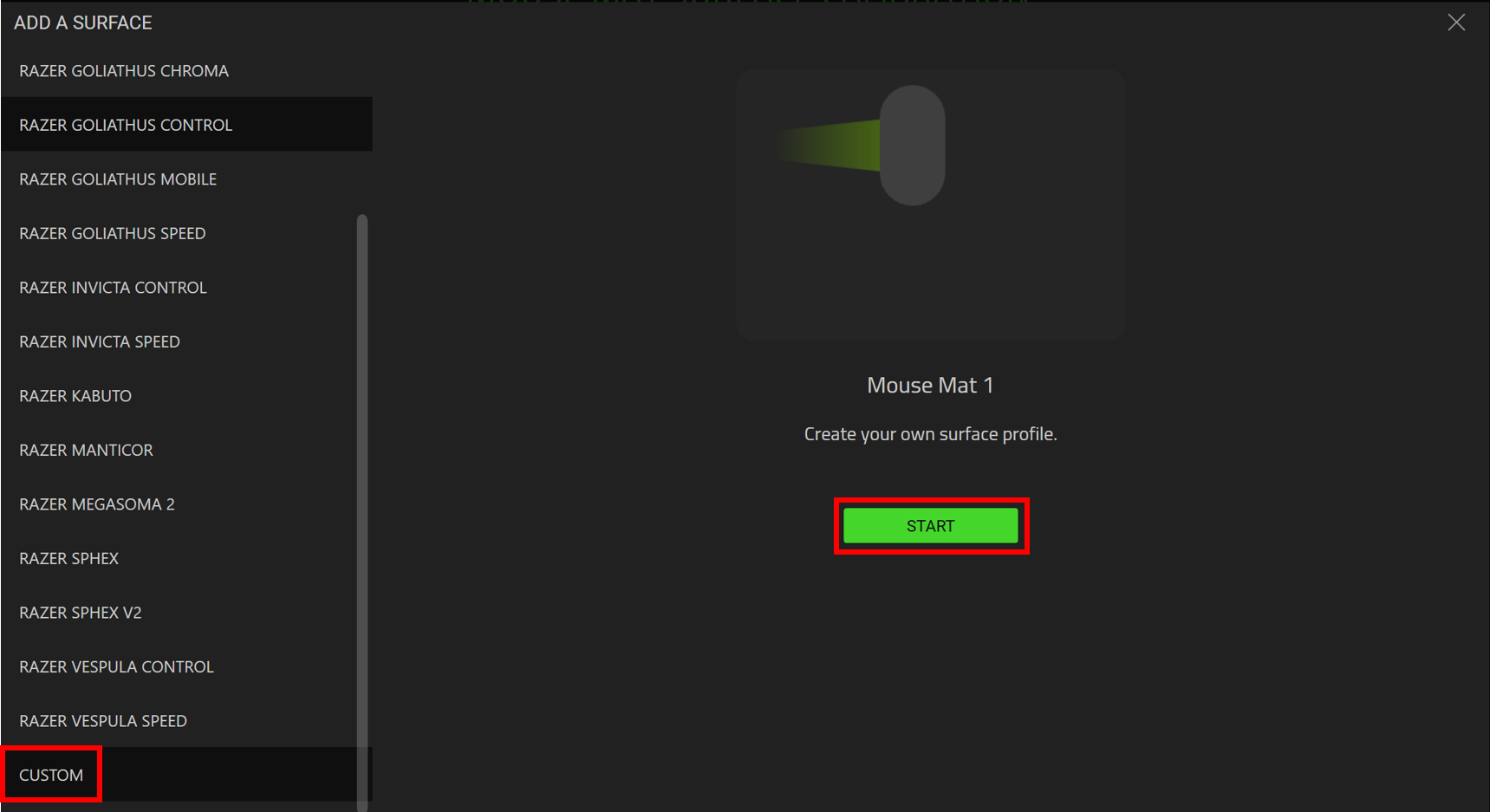
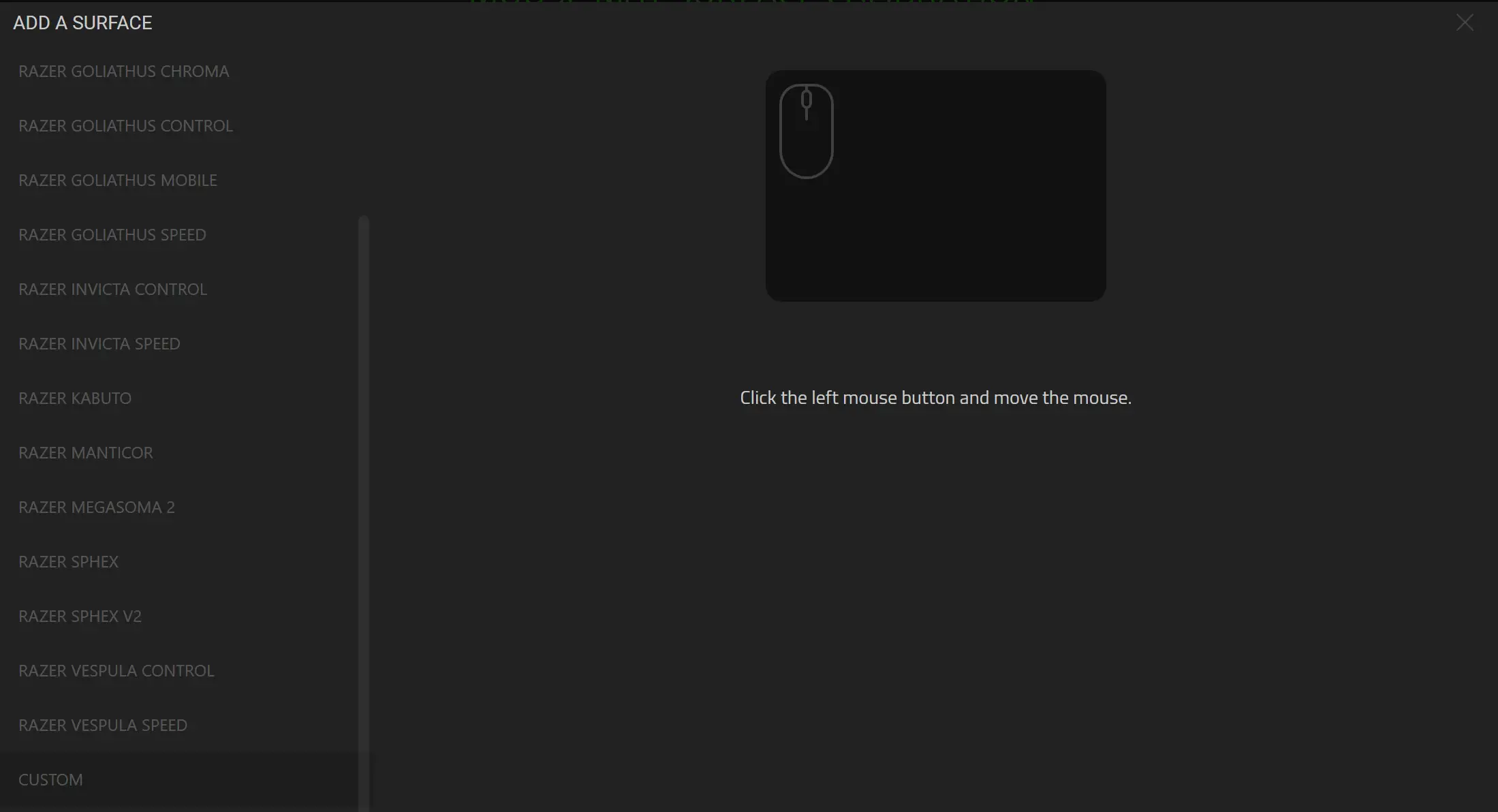
- Click on the “left mouse button” and move the mouse (we recommend to follow the mouse movement displayed on the screen to properly calibrate your mouse).
- Click on the “left mouse button” again to end the mouse calibration.
- After you have successfully calibrated your mouse, the calibration profile will be automatically be saved.