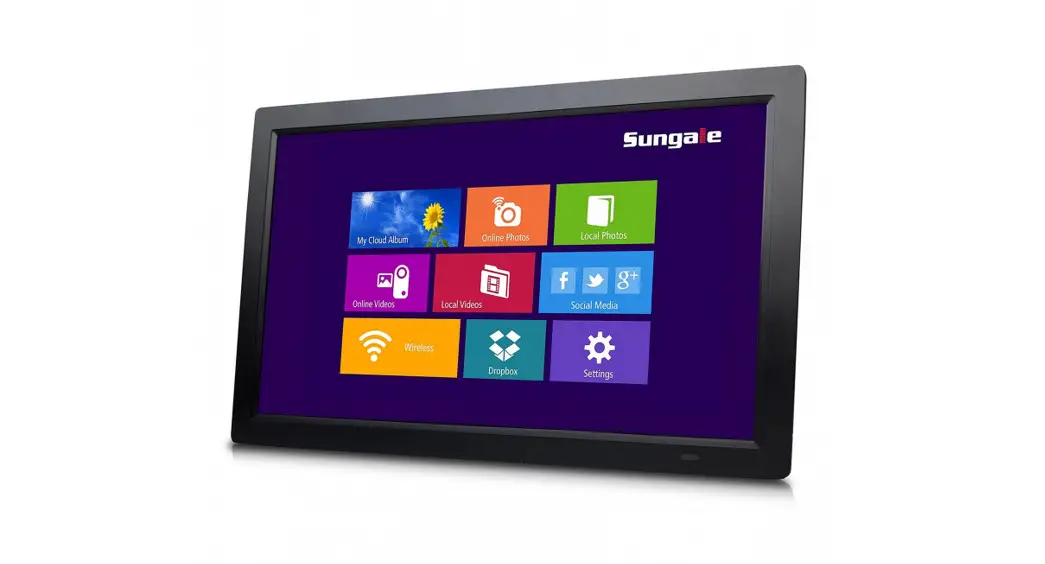
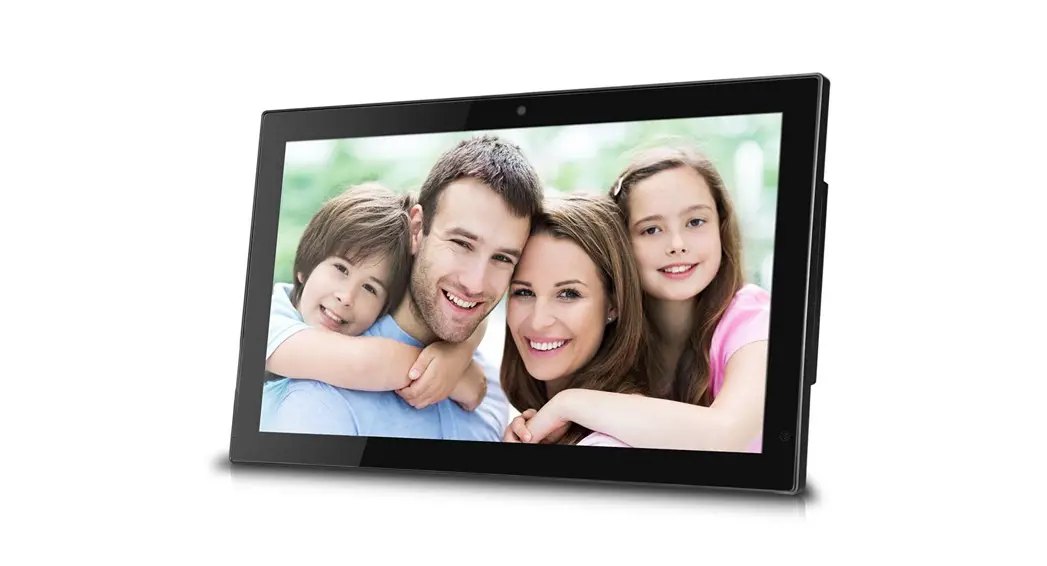
PF1501+ Digital Photo Frame
QUICK START GUIDE
Model: PF1501+
Thank you for your purchasing of Sungale digital photo frame. This quick start guide will help you setup and start using the player as quickly as possible.
Getting Started Remove the protective film covering the LCD. Remove the plastic insulator from the battery on the remote control.
Frame Close-Up
3.5mm earphone jack USB Host Port
SD / SDHC Card Slot
POWER ENTER
UP DOWN
LEFT RIGHT
EXIT
Power Adapter Port
Mini USB Port
1
Speakers Frame Stand
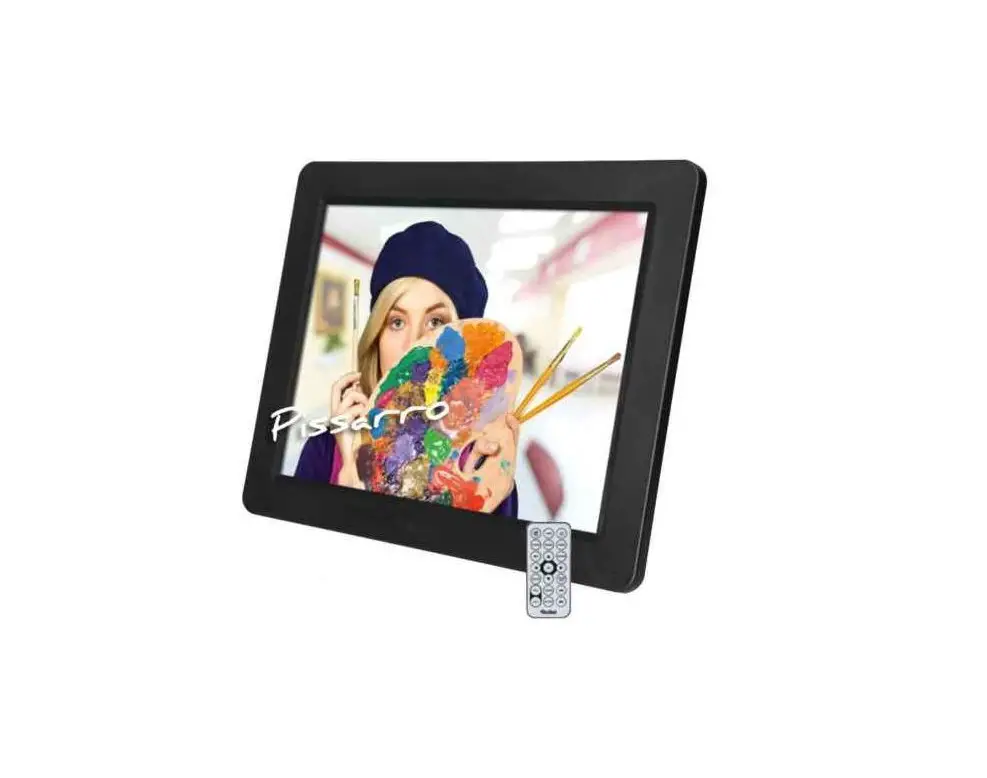
Remote Control
1. Power On / Off
2. SlideShow
3. Enter
1
4. Up, Down, Left, Right Arrows –
Use arrow keys to navigate your way
2
throught various menus
3
5. Exit – Returns to the previous menu
4
6. Zoom
7. OSD – On Screen Display
5
8. View
9. Aspect Ratio – 16:9 / 4:3
6
10. Music
7
11. StepShow – Advance to next photo
8
12. Rotate
13. Volume + / Volume –
14. Menu – Takes you to the main menu
9
16:9/4:3 MUSIC
10
SLIDE SHOW
STEP
11
SHOW
ENTER
EXIT
ROTATE
12
OSD
13
VIEW
MENU
14
Power Connection
Insert the AC Adaptor to the frame, then connect the adaptor power cord to a standard wall outlet.
2
Turn on the Frame
Turn the power switch on, the frame will slide show pictures, press “Menu” button to enter into the main menu interface as below:
Insert the memory card or USB removable storage device
Insert the memory card or USB removable storage device to the digital photo frame. Select the appropriate function / root menu.
SD/SDHC
Photo
Photo
Music
Video
Calendar
File
Setting
Connect to PC
Connect the device to computer with the USB cable. Copy and paste the files to the storage of unit. After the file transferring, please safely remove hardware from the PC. Then directly unplug the USB connection. Then find and enjoy the files from the Memory menu.
Note: For the first time you connect this device to your computer, you might be asked to install driver of your device so that it can be recognized by your computer. Please follow the installation guide or contact your computer service provider for help.
3
Setting
Press LEFT/RIGHT button to move cursor to Setting and press Enter to enter the setting interface. There will be 5 icons, they are Photo Setup, Calendar Setup, Video Setup, Music Setup and System Setup respectively. You may press Up button or Down button to select one of the icons, and press Enter to enter the detailed setup options (press Exit to return), then press Up/Down to choose what you want to set, and press Left/Right to change the setting. Press Exit after finish the setting.
Support
1. Visit the support site. For manual download and FAQs: www.sungale.com
2. Contact Sungale Support team Toll Free Call in the USA: 800-473-5156 Service email: [email protected]
4
 Premium Consumer Electronics and Digital Products For Business and Personal Use | Sungale