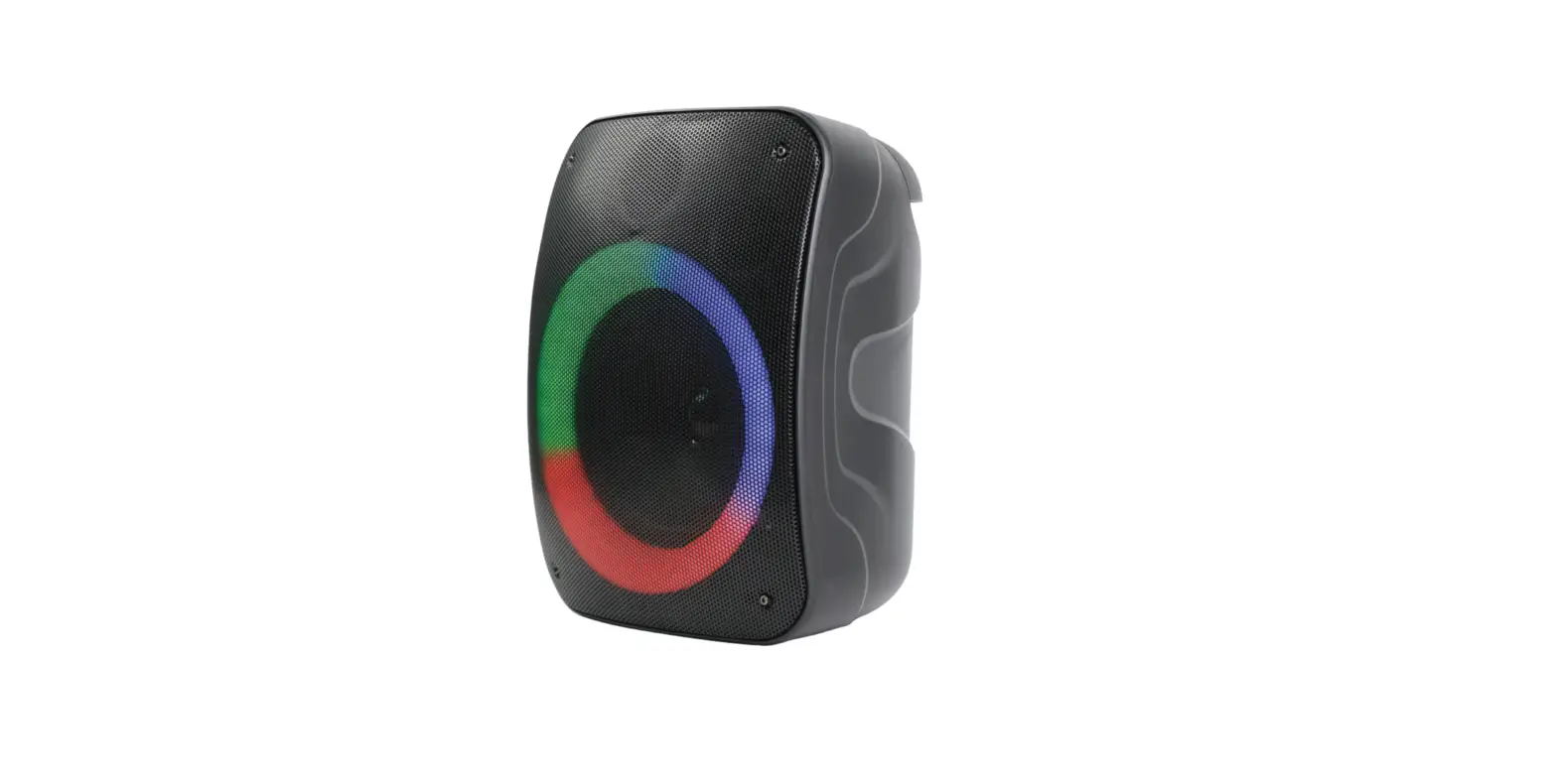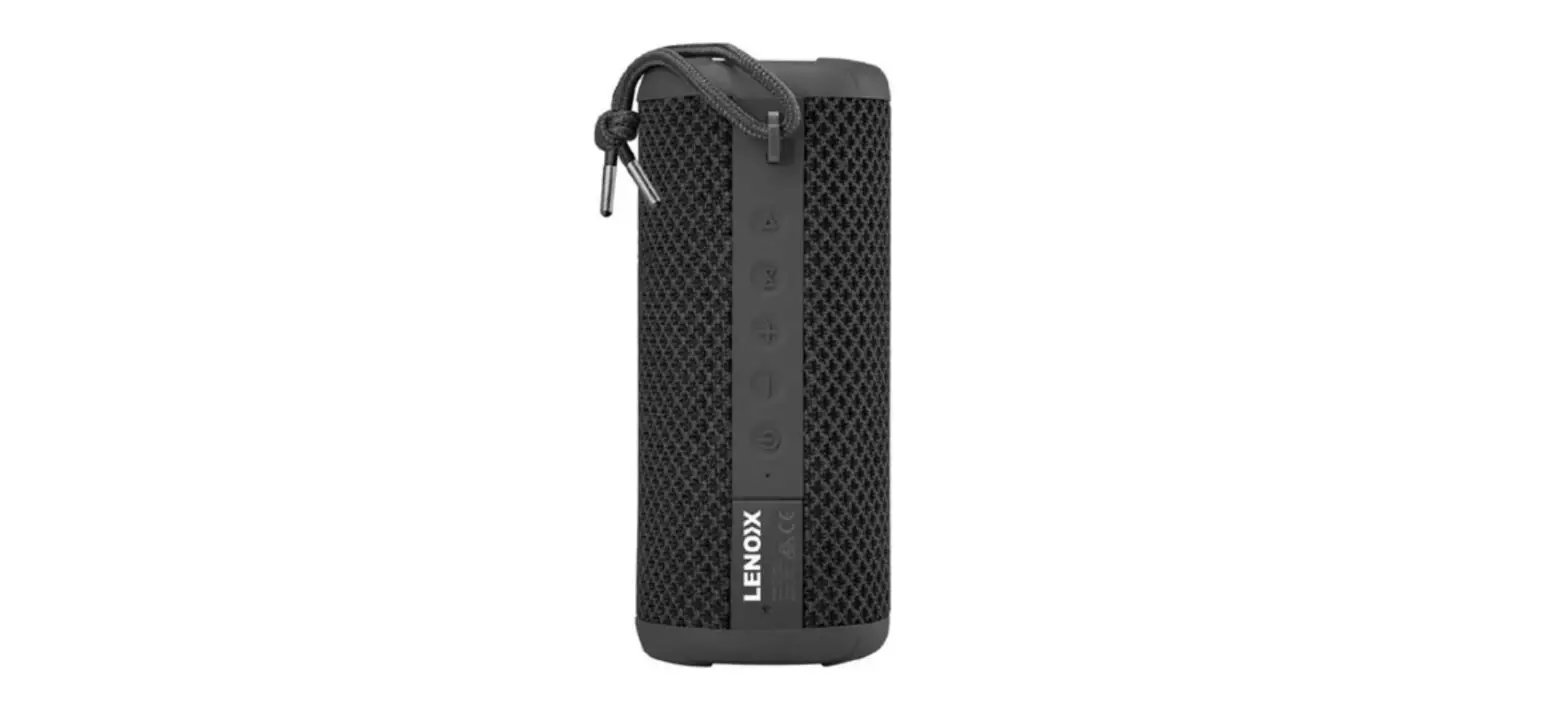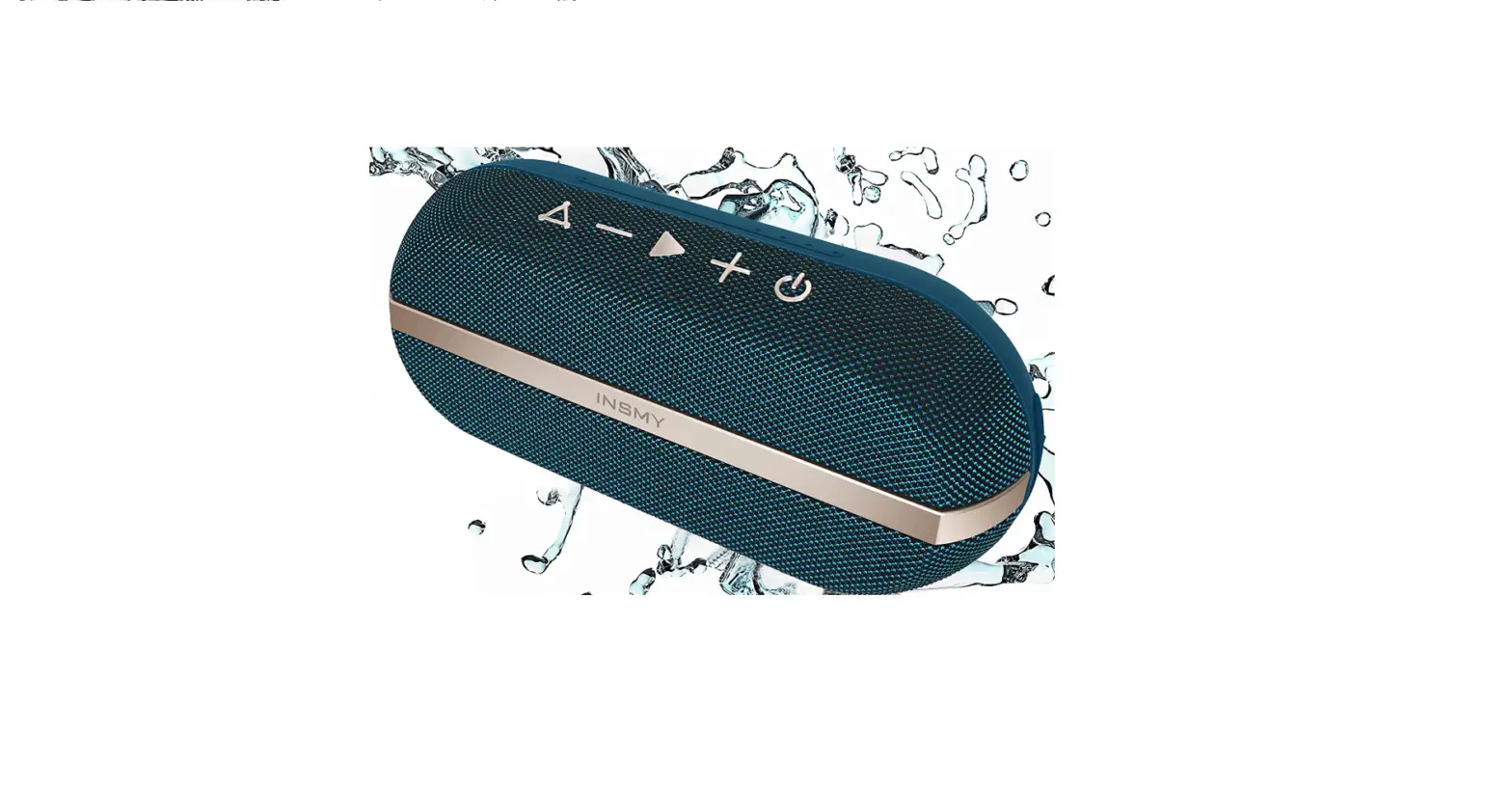

QFX BT-ZX1 10+ Watt TWS Bluetooth IPX7 Waterproof Certified Rechargeable
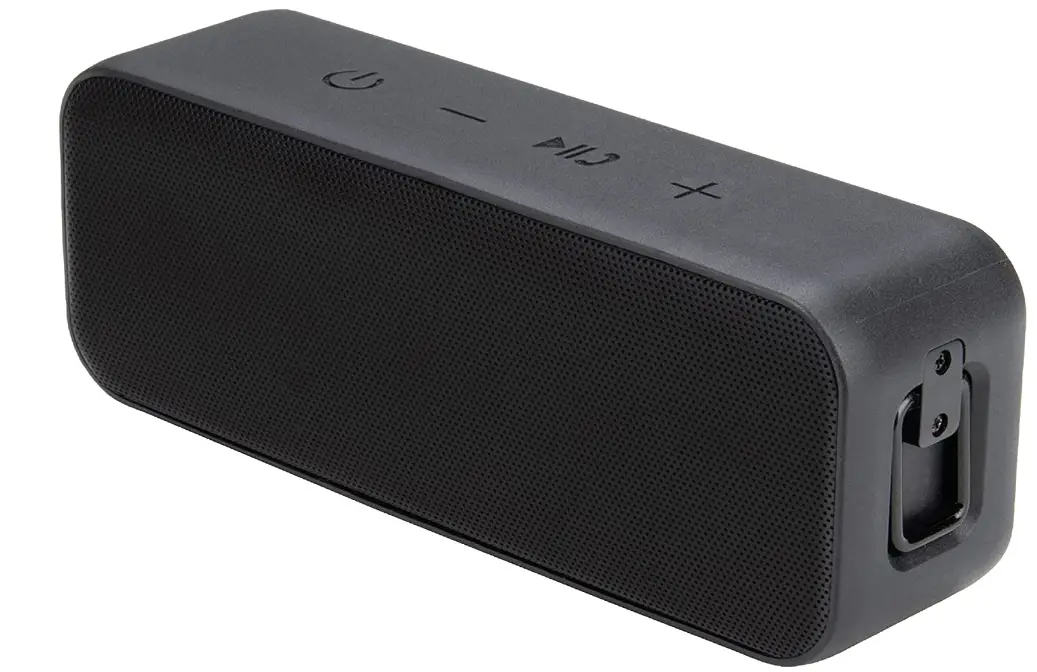
Introduction
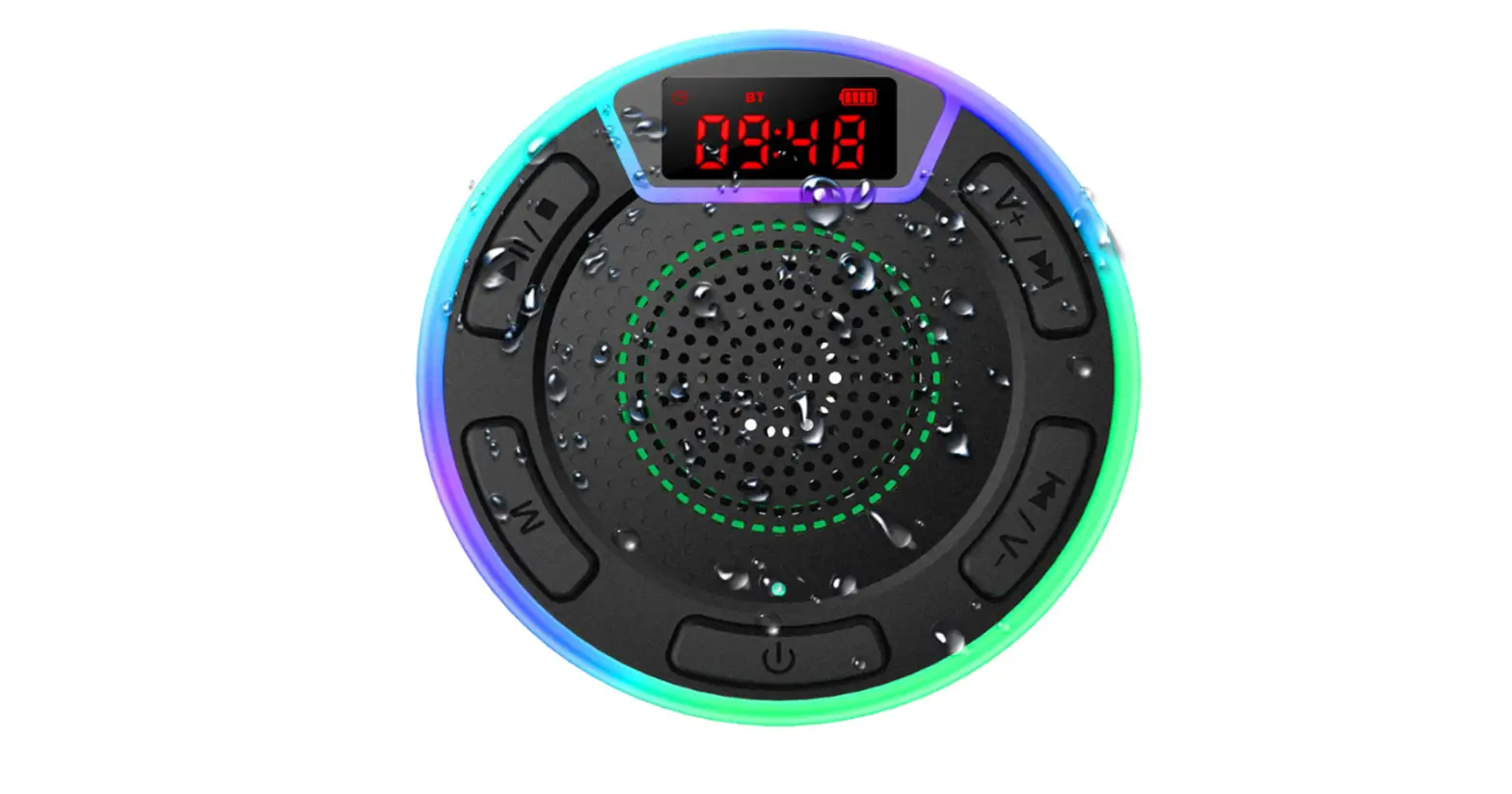
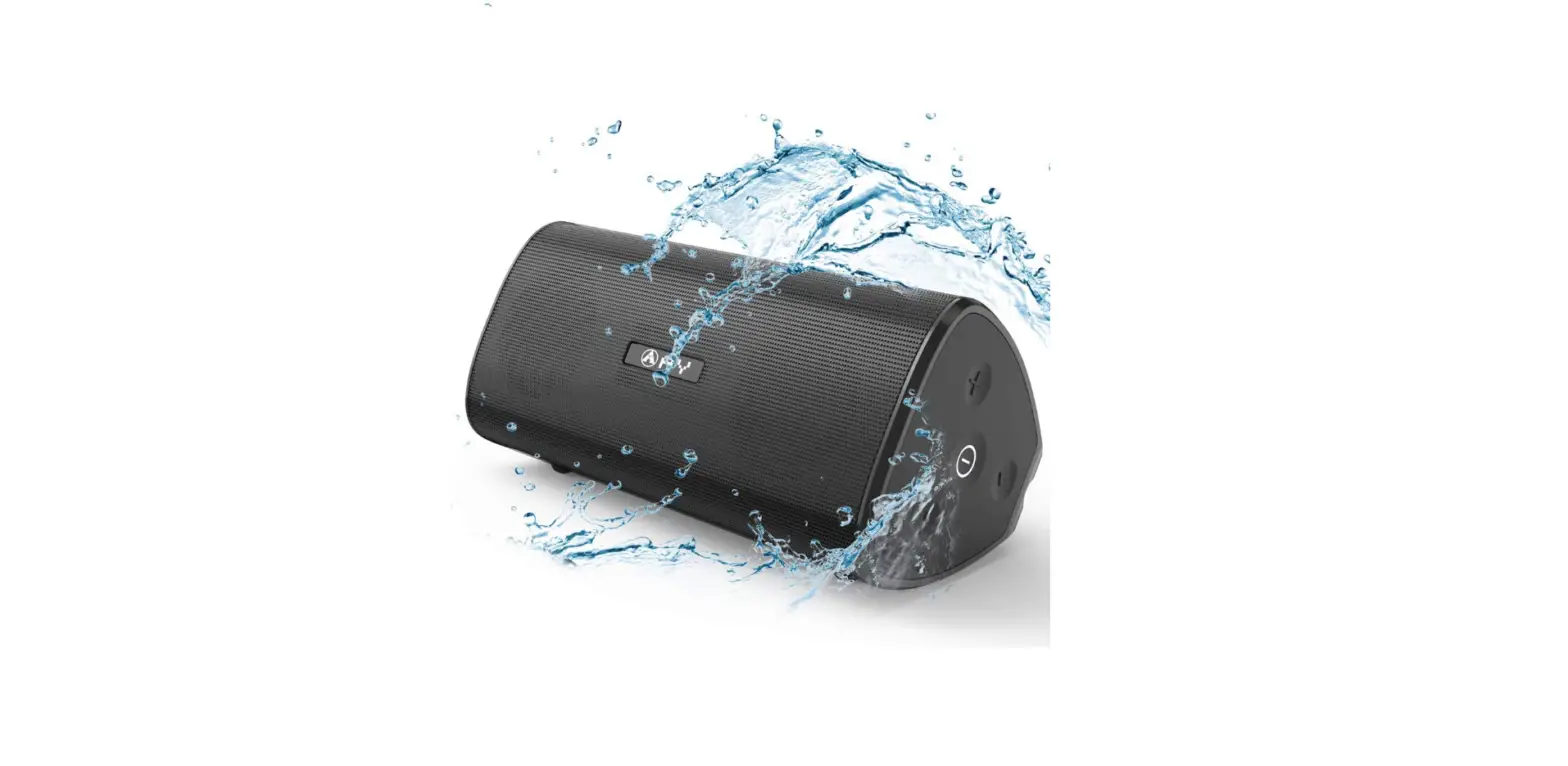
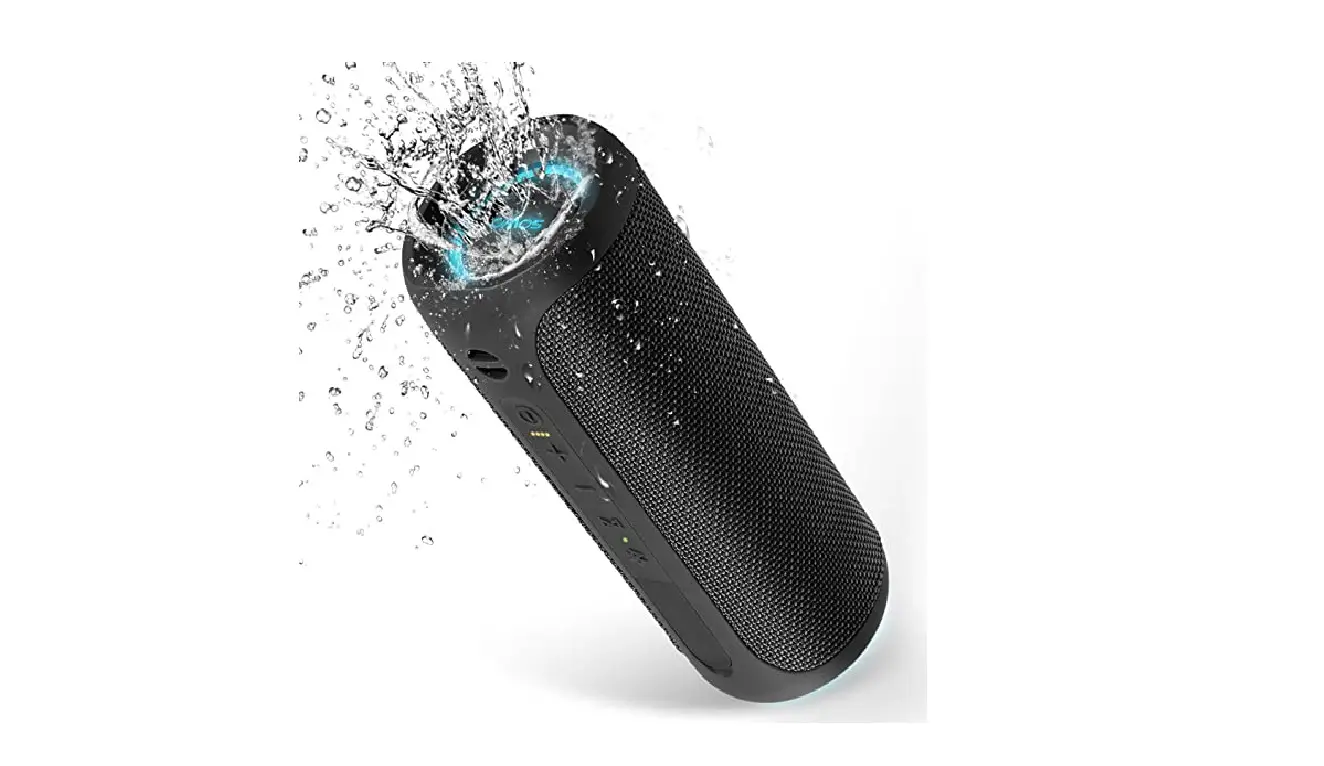
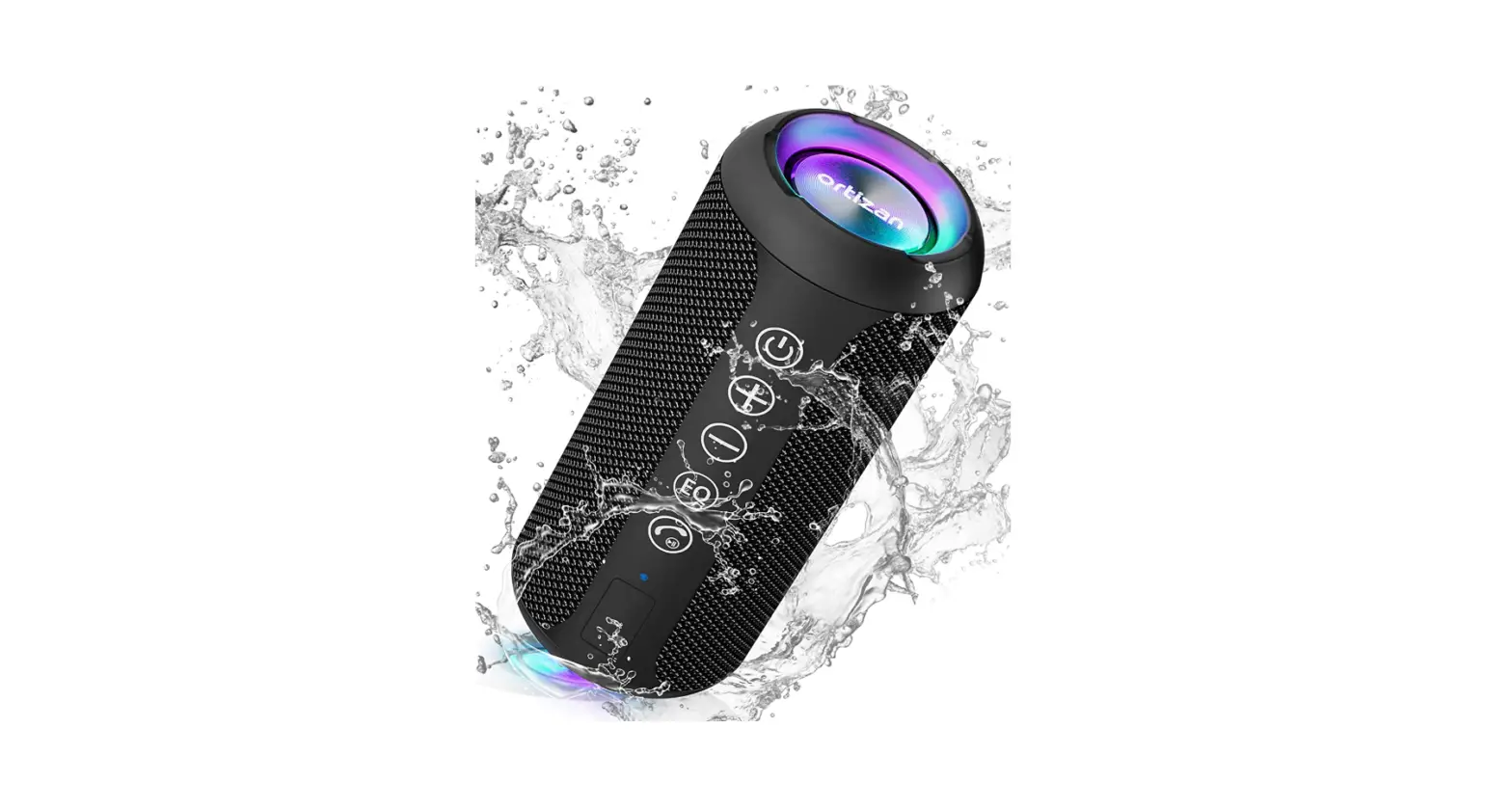
Take part in a memorable listening experience right now. The newest technology in this 10+ watt speaker exceeds other top sellers by producing music with zero distortion for maximum clarity, a wide dynamic range that brilliantly catches highs, mids, and lows, as well as a Passive Radiator that generates a snappy, booming bass. High-level protection against all liquids is ensured by the waterproof case, which is IPX7 certified. This safeguard guarantees that your speaker is totally waterproof against rain, splashes, and spray, making it the ideal shower speaker. A speaker with an IPX7 waterproof certification can be submerged in water for up to 30 minutes at a depth of 1 meter. Bring your speaker with you with confidence wherever your next adventure leads you, whether it is to the beach, on a stroll, in a kayak, etc.
Utilizing the most recent Bluetooth V5.0 technology, you may securely stream music from your Apple, Android, or other devices up to 800 feet away from obstructions. You can connect two speaker systems of the same brand and model using TWS Bluetooth’s special feature, allowing them to play your music simultaneously. To get the best surround sound, purchase two of these wireless speakers. To receive notifications for incoming calls and texts, alarms, and calendar changes, use the hands-free calling feature.
You can transport your music without sacrificing style thanks to the svelte, contemporary design and effortless portability. Show off your playlist wherever you go. Play your music for up to 24 hours straight without interruption. Simply insert the provided USB-C to USB-A cable into the USB-C charging port to finish charging the strong lithium-ion rechargeable battery. USB cord, audio cable, and user instructions are included.
Thank you for purchasing the BT-ZX1 Wireless Speaker. Please read this user manual carefully and keep it for future reference.
PACKAGE CONTENTS
- Wireless Speaker
- USB-A to Type-C Cable 3.5mm Audio Cable User Manual
- Warranty Card
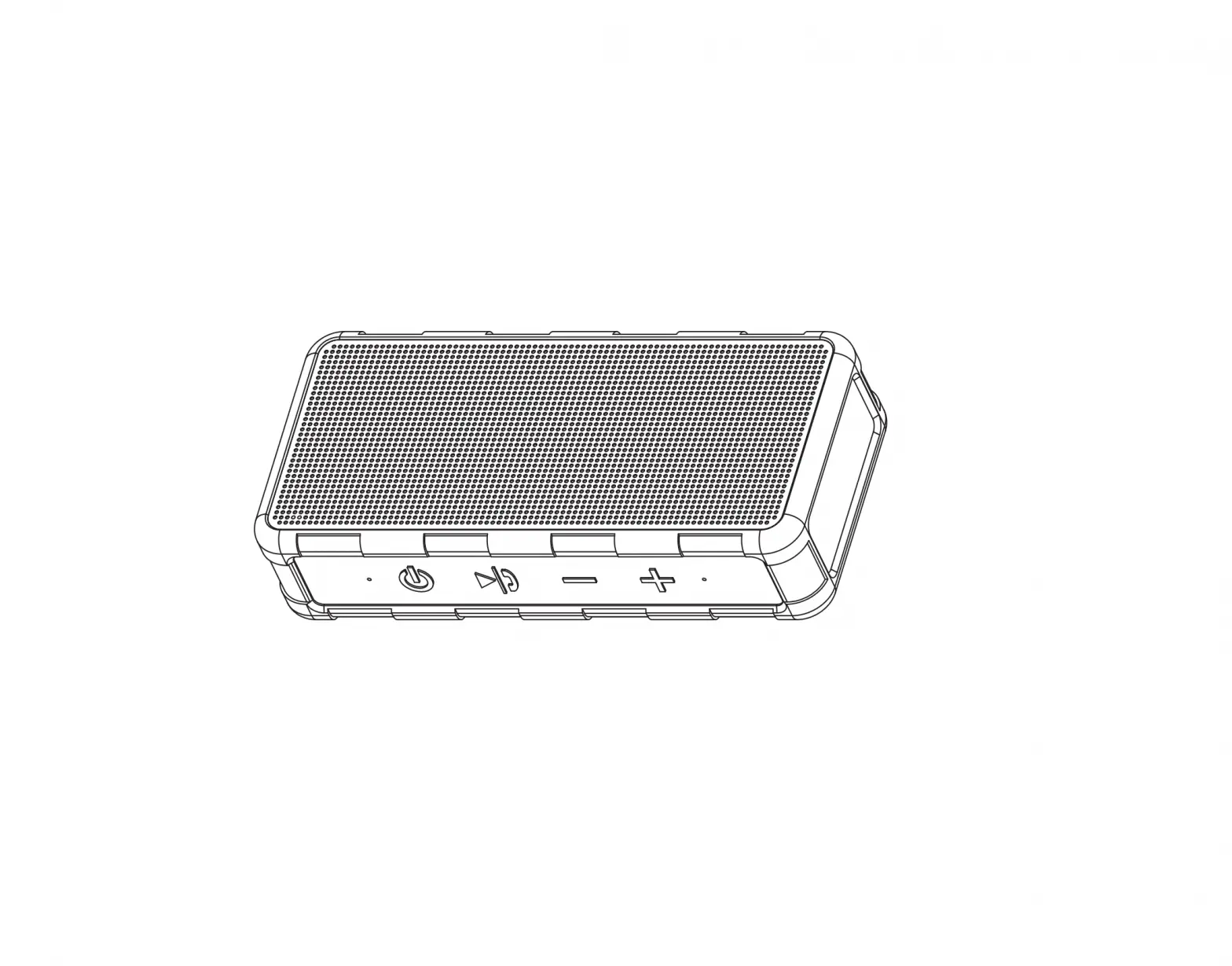
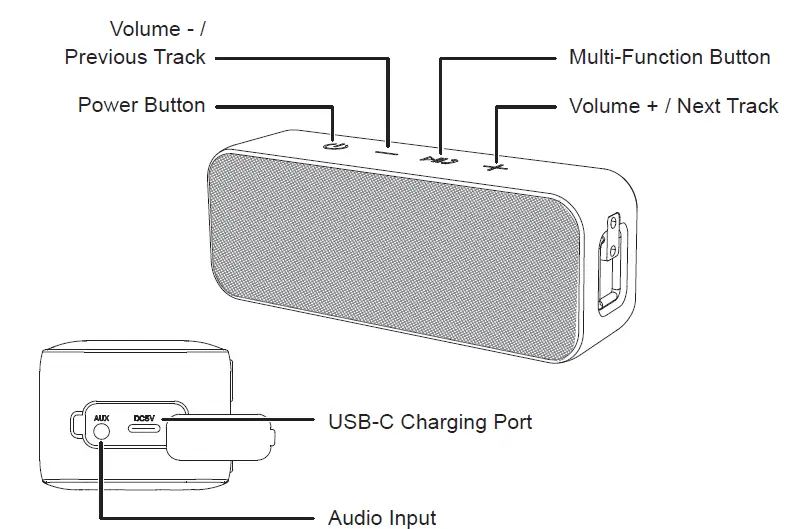
PRODUCT DIAGRAM
SPECIFICATIONS
| Model | BT-ZX1 |
| Technology | A2DP V1.3, AVRCP V1.6, GAVDP V1.3,
HFP V1.7, HID V1.1, IOPT, SPP V1.2 |
| Audio Output Power | 2 × 5W |
| Frequency Response | 80Hz – 20KHz |
| Signal-to-Noise Ratio | ≥ 65dB |
| Input | DC 5V |
| Charging Time | 3 hours |
| Battery Life | Up to 24 hours |
| Battery Type | Li-ion Rechargeable (2200mAh) |
| Operating Range | Up to 33ft / 10m |
| Dimensions | L 175mm × W 50mm × H 67mm |
| Weight | 360±20g |
GETTING STARTED
CHARGING THE SPEAKER
Fully charge the speaker before the first use. Supply the BT-ZX1 with power using the provided USB-type C cable. The LED indicator will turn solid red while charging and turn off when fully charged. A full charge takes about 3 hours.
CONTROLS & LED INDICATOR
AUX MODE
| Functions | Instructions |
| Turn speaker on / off | Press and hold the power button for 2 seconds |
| Adjust volume | Short-press volume + / – (synchronized with
the volume of the iPhone, not Android) |
| Play or pause | Press the multi-function button |
BT MODE
| Functions | Instructions |
| Turn speaker on / off | Press and hold the power button for 2 seconds |
| Switch mode | Short-press the power button (between BT and AUX mode) |
| Enter or exit TWS mode | Double-click the power button |
| Play or pause | Short-press the multi-function button |
| Adjust volume | Short-press volume + / – (synchronized with the volume of the iPhone, not Android) |
| Skip to next/previous track | Press and hold volume + / – for 2 seconds |
| Answer or end the call | Short-press the multi-function button |
| Reject an incoming call | Press and hold the multi-function button for 2 seconds |
| Redial last-outgoing-called number | Double-click the multi-function button in stand-by |
| Disconnect BT | Long-press the multi-function button |
TWS MODE
| Functions | Instructions |
| Turn speaker on | Press and hold the power button of both speakers for 2 seconds |
| Turn speaker off | Press and hold the power button of any speaker for 2 seconds |
| Enter or exit TWS mode | Double-click the power button of the home speaker |
| Play or pause | Short-press the multi-function button of any of the two speakers |
| Adjust volume | Short-press the volume + / – of any of the two speakers (synchronized with the volume of the iPhone, not Android) |
| Skip to next/previous track | Press and hold volume + / – of any of the two speakers |
| Answer or end the call | Short-press the multi-function button of the home speaker |
| Reject an incoming call | Press and hold the multi-function button of the home speaker for 2 seconds |
| Redial last-outgoing-called number | Double-click the multi-function button of the home speaker in stand-by |
| Disconnect BT | Press and hold the multi-function button of any of the two speakers for 2 seconds |
POWER ON / OFF
- Press and hold the power button for 2 seconds to turn on/off the speaker
PAIRING
- When you turn on the speaker, it will automatically enter pairing mode.
- Activate the pairing function on your phone and select “QFX BT-ZX1”.
- If a code or pin is required for pairing, enter”0000” as the default code.
- When successfully paired, you will hear a beep.
NOTE
- If you want to use another device to connect to the BT-ZX1, please press and hold the multi-function button “Play/Pause” for 2 seconds to disconnect BT-ZX1 from the current device. Then repeat the “pairing” steps.
- When you turn the speaker on, it will automatically reconnect to the last-paired device. You can also enter pairing mode if no device is found.
- When the speaker is paused, or there is no Bluetooth connection, the speaker will automatically shut down after 10 minutes
- If the speaker or connected device exceeds the operating range, the speaker will disconnect. The connection to the last successfully connected device will be re-established once you re-enter the wireless range within 10 minutes.
PLAYING AUDIO VIA AUDIO INPUT CONNECTION
Connect the BT-ZX1 to your PC, laptop, or other devices with the audio output port using the included 3.5mm audio cable.
NOTE
- The speaker will disconnect from your phone or other paired devices when an audio cable is plugged into the audio input jack. Press the power button to switch back to BT mode
- When playing audio using the audio input jack, press the volume + / – to adjust the volume and short-press the multi-function “Play/Pause” button to pause or resume. Next/previous track control on the speaker is disabled in audio input mode
- For some computers, you may need to access the audio control panel to manually set the speaker as the default audio device
TWS MODE
- Turn on two BT-ZX1 speakers at the same time, double-click the power button of one of the speakers to automatically enter the TWS pairing mode, a tone will be heard every three seconds.
- During the TWS pairing process, double-click the power button to cancel the TWS pairing. If the TWS pairing exceeds 60 seconds and the TWS pairing is not successful, it will automatically return to the normal BT mode.
- After the TWS pairing is successful, one of the speakers LED light will turn on (this is the satellite) and the other will begin flashing (this is the home). You will hear the BT beep sound after.
- Activate the pairing function on your phone or other compatible device and select “BT-ZX1”
- If a code or pin is required for pairing, enter “0000”
- When successfully paired, you will hear a beep.
NOTE
- When the phone is connected to the Bluetooth of one of the speakers first, you need to double-click the power button of the speaker connected to the phone to enter the TWS pairing mode
- After the TWS pairing is successful, double-click the power button on one of the speakers to automatically exit the TWS pairing mode. The BT connection between the home speaker and phone will not disconnect.
Frequently Asked Questions
Press the “Power On” button on each speaker repeatedly until you hear the confirmation, “Power on, your speaker is ready to pair.” Any of the speakers’ “Mode” buttons should be long-pressed until you hear “Connected successfully.” The TWS mode of your speakers is currently established.
For playing, plug in the microphone directly. Directly insert a USB card to start playing. To enter FM mode, lightly touch the MODE/LIGHT button. To automatically search for and save radio stations, hit the PLAY/PAUSE button on the control panel. You can select a radio station by pressing PREVIOUS or NEXT.
Android users must go to Bluetooth Settings and pair each Bluetooth speaker or set of headphones individually. After connecting, click on Advanced Settings by tapping the three-dot icon on the right. If the “dual audio” option is not already selected, switch it on. Users should be able to connect to two devices at once thanks to this.
Bluetooth signals are used in True Wireless Stereo (TWS) to transmit sound instead of wires or cables. TWS is distinct from wireless accessories that do not rely on physical connections to media sources but still require such connections to make sure that various components of a device can work together.
You may enjoy full stereo sound quality without the necessity of cables or wires thanks to a special Bluetooth function known as True Wireless Stereo (TWS). This is how TWS operates: You connect your favorite Bluetooth music source to a primary Bluetooth speaker.
Installing software updates, replacing the battery, purchasing a new cable, repairing a fractured solder joint, replacing the charging port, and replacing the charging circuit are all necessary fixes for a Bluetooth speaker that won’t charge.
Go to the settings tab on your Android or iOS smartphone to access the Bluetooth options. Scroll down in the Bluetooth settings to find the additional devices section. Make sure the discoverability mode on your phone is enabled as well. Under “other devices,” choose the speaker you want to pair (otherwise you’ll get a prompt).
Choose Bluetooth options from the settings menu on your phone (both Android and iOS). Under Bluetooth settings, navigate to the other devices area. Ensure that discoverable mode is selected on your phone. Choose the speaker you want to pair by clicking on it under “other devices.”
Please turn it off so you can replenish the speaker’s battery. Utilize the included Micro USB cable to connect to a USB port on a compatible 5V charger, PC, or laptop. (10) A solid red light indicates that the battery is charging.
A more intense, immersive listening experience is nearly usually associated with larger dynamic drivers, especially in the bass frequency region. A dynamic driver with a 14.2mm diameter outperforms the vast majority of TWS versions currently available.