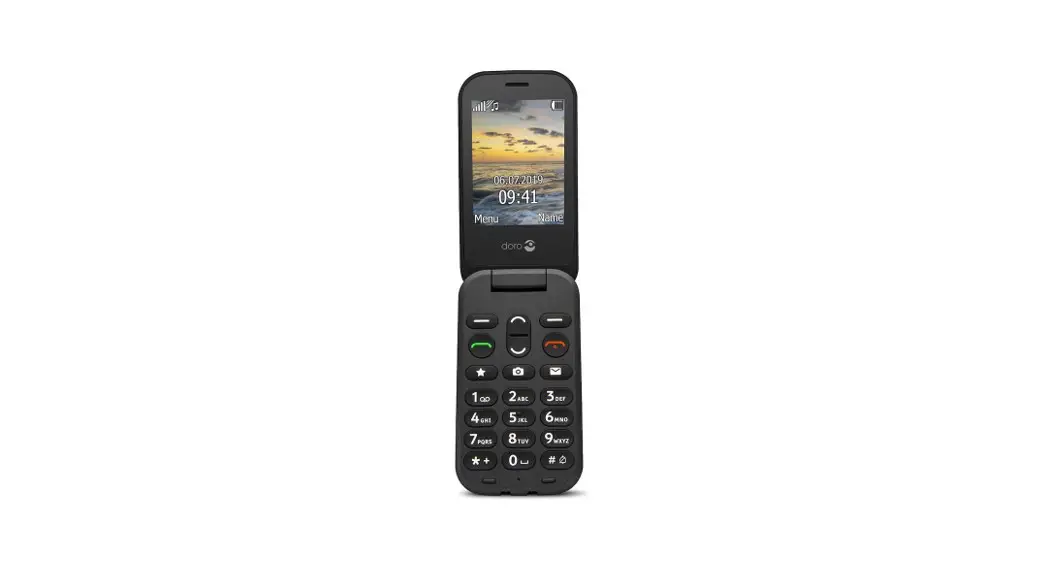
 Doro 6040
Quick Start Guide
www.doro.com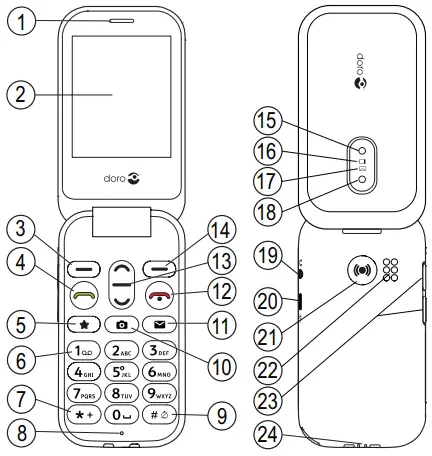
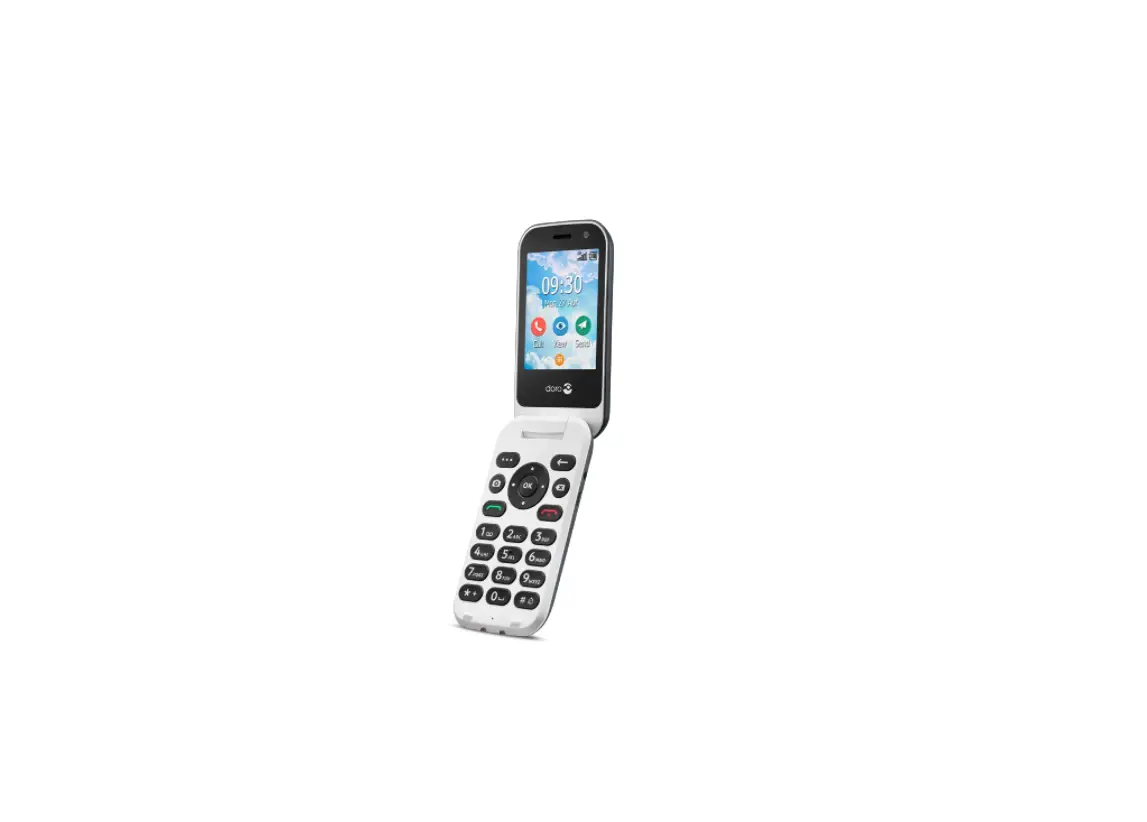
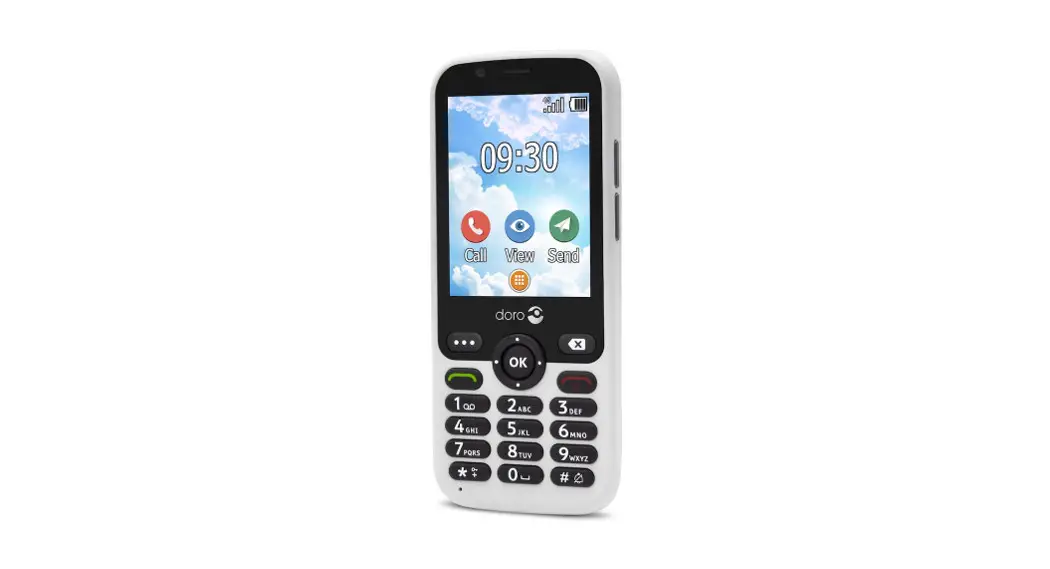
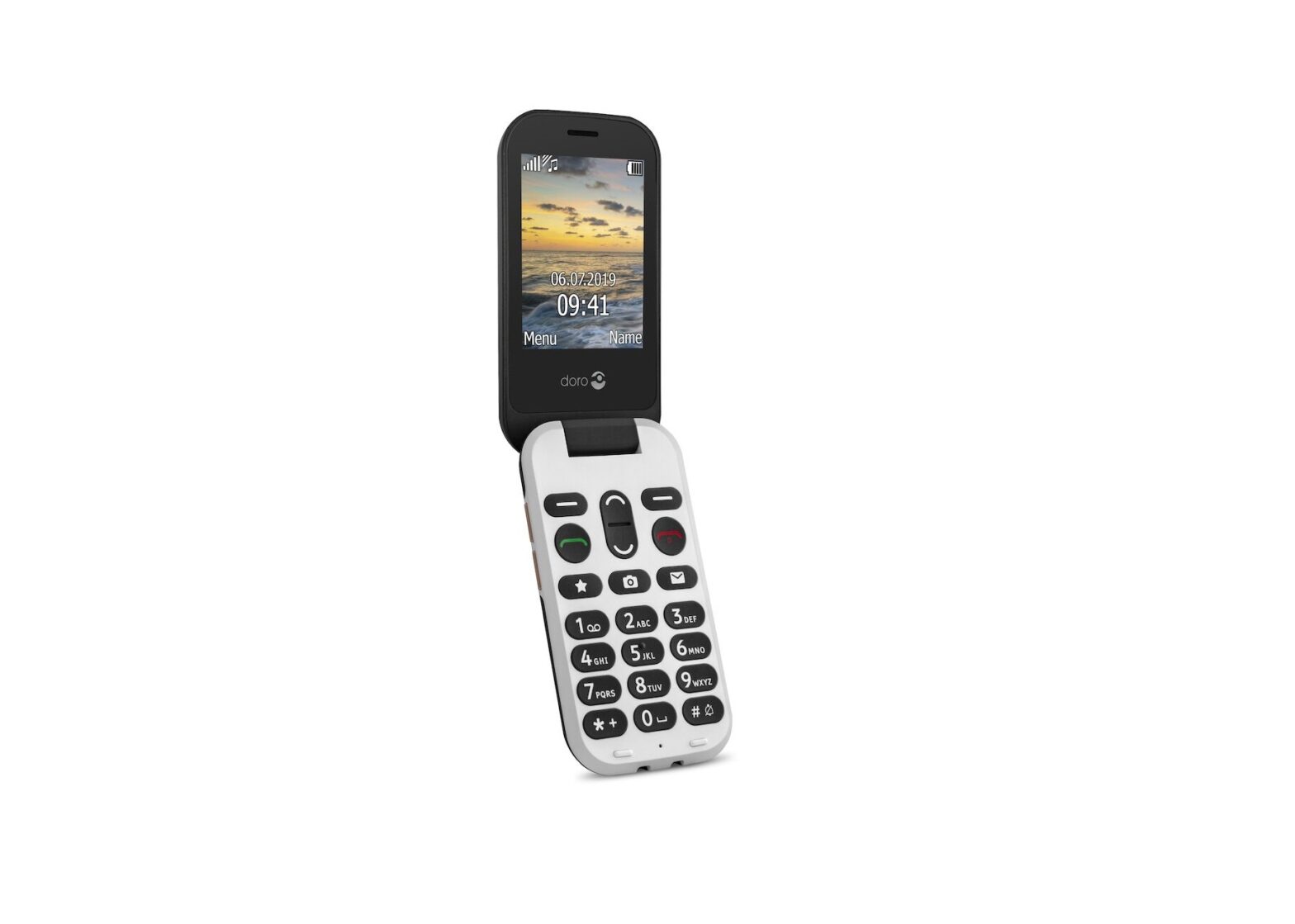
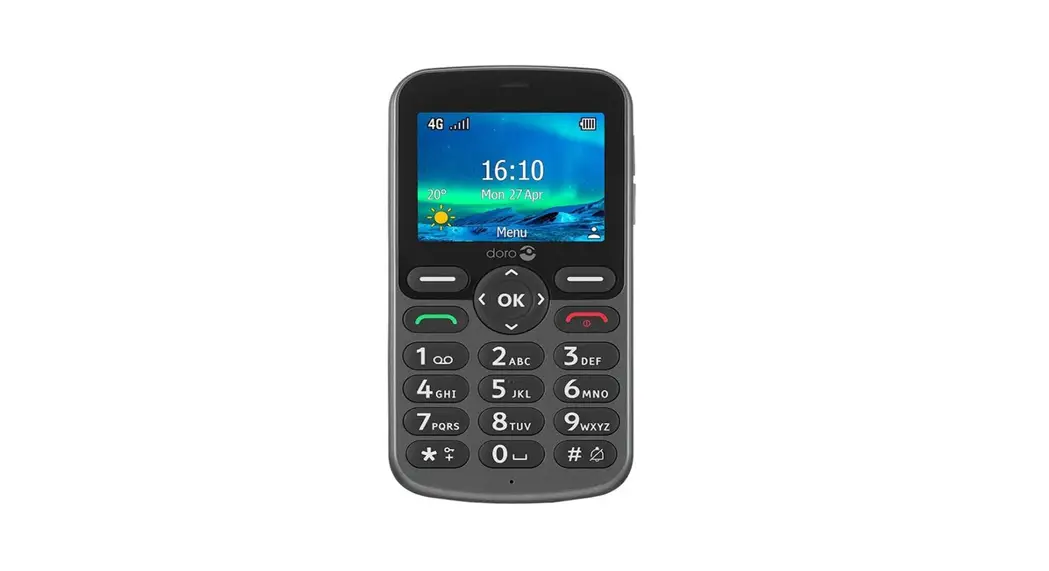
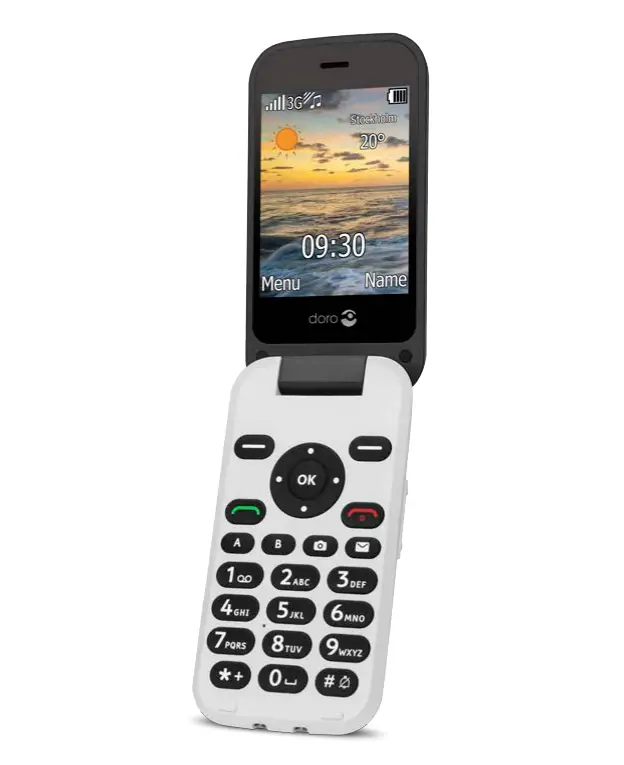
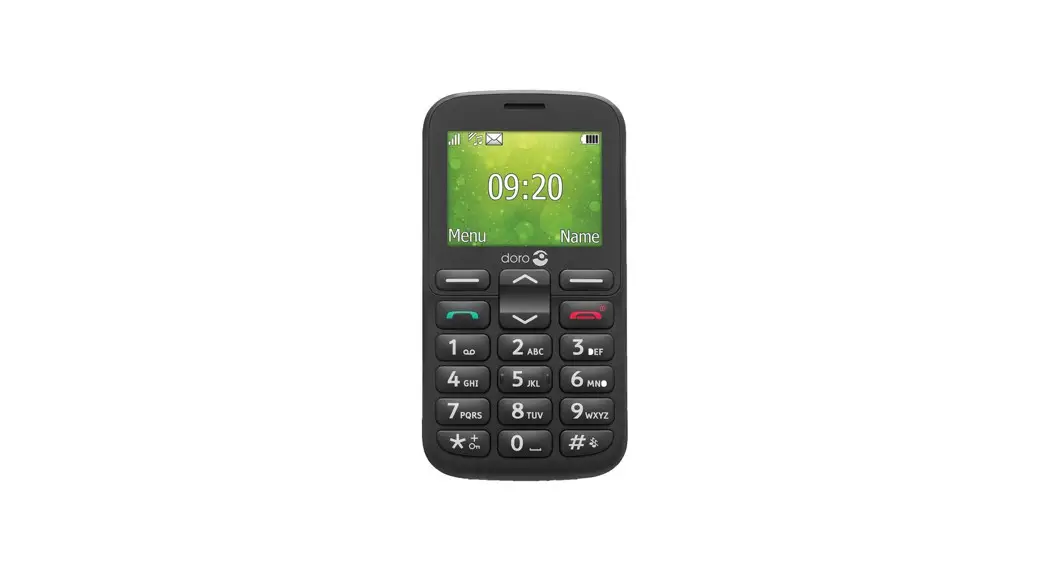
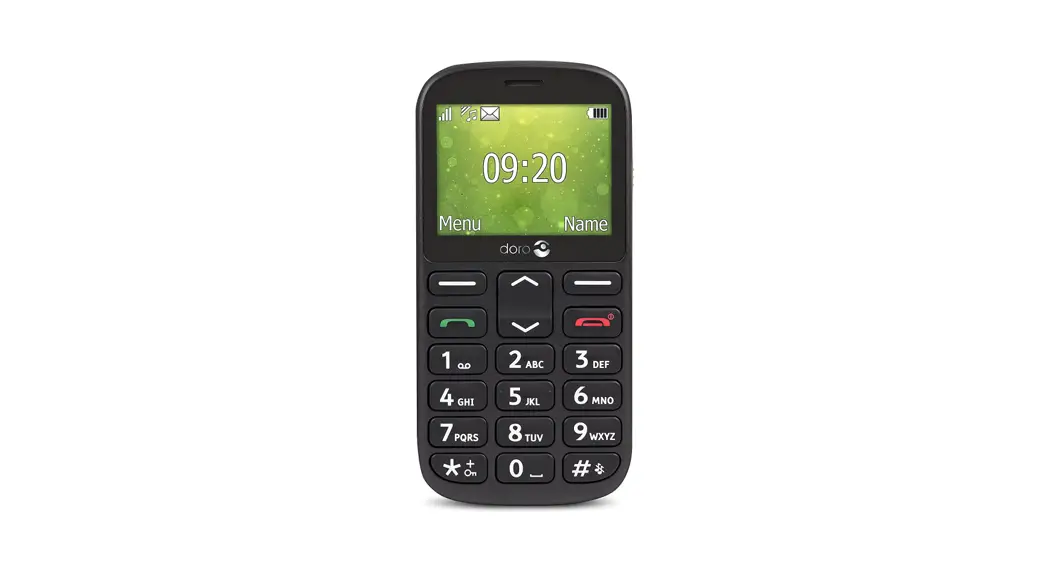
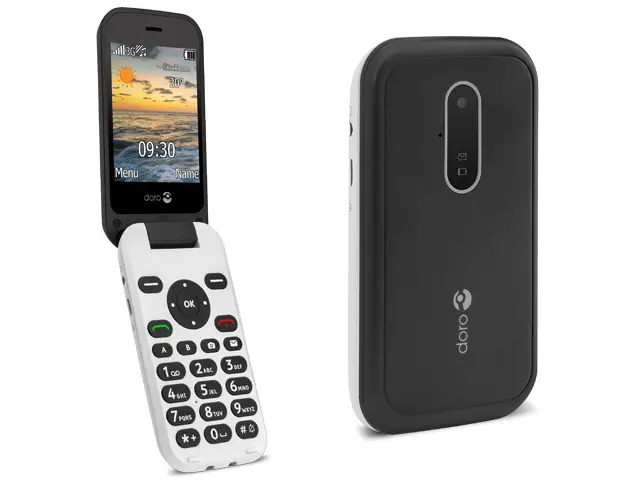
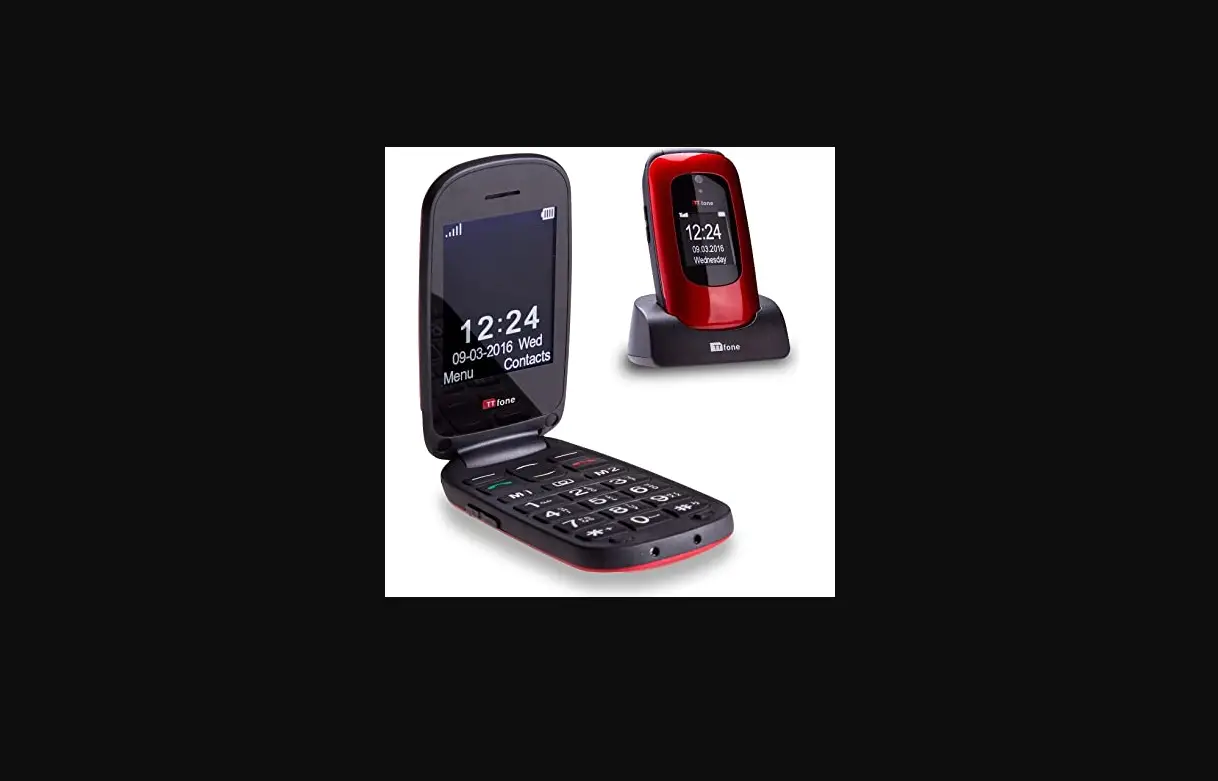
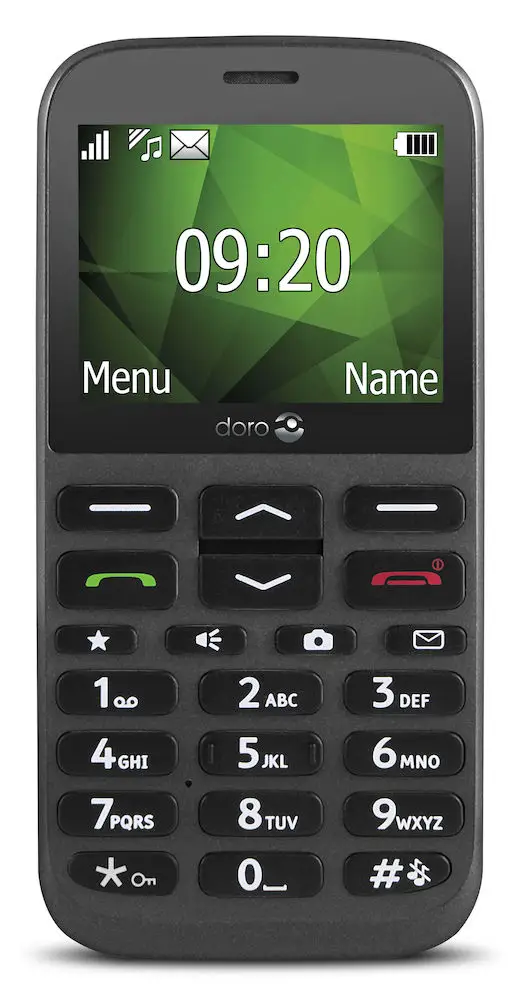
| 1. Earpiece 2. Display 3. Left selection button 4. Call button 5. Top 10 shortcut 6. Voice mail 7. * International prefix/Symbols 8. Microphone 9. # Input method/ Silent 10. Camera shortcut 11. Message shortcut 12. End call / Power on/off | 13. Arrow buttons 14. Right selection button 15. Camera flash/torch 16. Red light = Battery level low/Charging 17. Green light = New message/Missed call 18. Camera lens 19. Headset socket 20. Charging socket 21. Assistance button 22. Loudspeaker 23. Volume control 24. Lanyard hold (lanyard optional) 25. Charging stand (optional) |
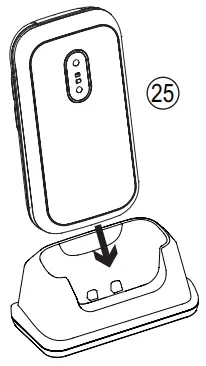
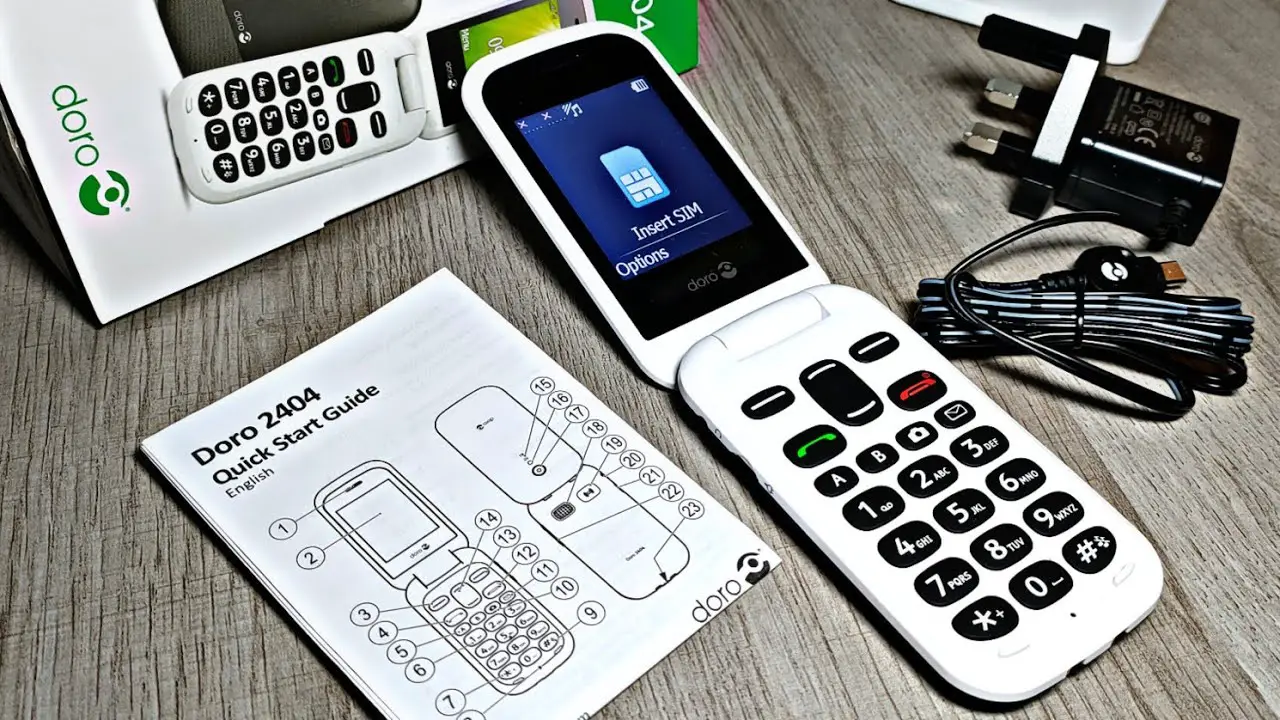
Note! All illustrations are for illustrative purposes only and may not accurately depict the actual device. The items supplied with your phone might vary depending on the software and accessories available in your region or offer by your service provider. You can obtain additional accessories from your local Doro dealer. The supplied accessories provide the best performance with your phone.
Full user manual
For the full user manual, useful links, and more information please visit www.doro.com/support/ or contact our Helpline.
IMPORTANT!
Your device may use data services and you may incur additional charges for data services, such as messaging or using location services depending on your data plan. We recommend that you check your data rates for your subscription with your service provider.
GET STARTED
SIM card, memory card, and battery Remove the battery cover.
Be careful not to damage your fingernails when you remove the battery cover. Do not bend or twist the battery cover excessively as it may
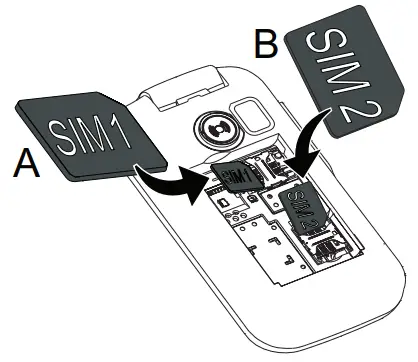
be damaged.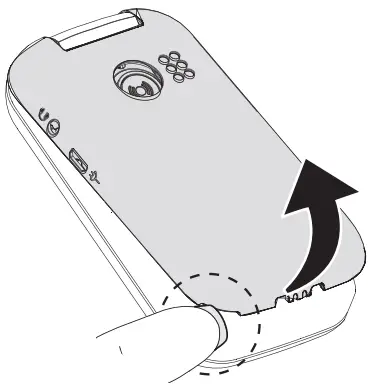 Insert the SIM cards (required)
Remove the battery if it is already installed.
A. Insert the first SIM card by gently sliding it into the SIM1 card slot.
B. Insert the second SIM card by gently sliding it into the SIM2 card slot.
Note! If you are using only one SIM card, we recommend using the SIM1 card slot. This device accepts micro SIM or 3FF SIM cards.
 Insert the SD card (optional)
Locate the SD card holder and gently slide the card in the holder. The device works with r without an SD card installed. Compatible card type: microSD, microSDHC.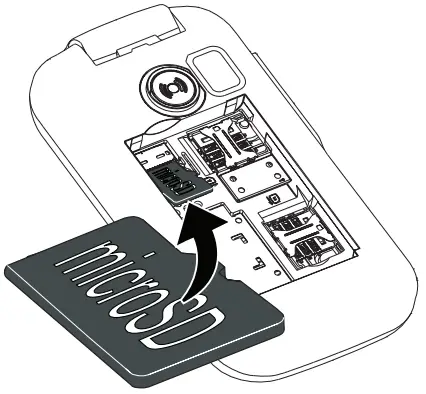 Insert the battery and replace the cover
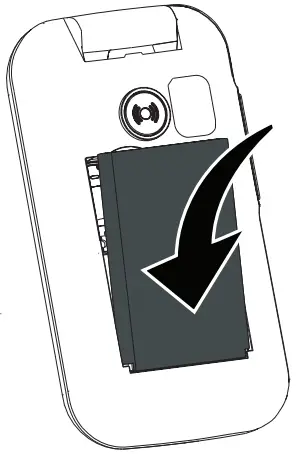
Insert the battery by sliding it into the battery compartment with the contacts facing downwards to the right. replace the battery cover.
 Charge the phone
 CAUTION
Only use batteries, chargers, and accessories that have been approved or use with this particular model. Connecting other accessories may be dangerous and may invalidate the phone’s type approval and guarantee.
When the battery is running low,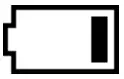 is displayed and a warning signal is heard.
- Connect the mains adapter to the wall socket and to the charging socket
 .
.
Tip: It is recommended to remove the protective plastic film from the display to enhance visibility.
 .
.GET TO KNOW YOUR PHONE
Turn the phone on and off
1. Press and hold the red button  on the phone to turn it on/off. Confirm with Yes to power off.
2. If the SIM card is valid but protected with a PIN code (Personal Identification Number), The PIN is displayed. Enter the PIN code and press OK. Delete with Clear.
Note! If PIN and PUK codes were not provided with your SIM card, please contact your service provider.
Attempts: # shows the number of PIN attempts left. When no more attempts remain, PIN blocked is displayed. The SIM card must now
be unlocked with the PUK code (Personal Unblocking Key).
- Enter the PUK code and confirm with OK.
- Enter a new PIN code and confirm with OK.
- Re-enter the new PIN code and confirm with OK.
Start-up wizard
When starting the telephone for the first time, you can use the start-up wizard to set some basic settings.
Tip: You can run the start-up wizard later if you want.
Step-by-step instructions
The arrow ( ) indicates the next action in step-by-step instructions. To confirm an action, press OK. To select an item, scroll or highlight the item using
  and then press OK.
Enter text
- Press a numerical key repeatedly until the desired character is shown. Wait a few seconds before entering the next character.
- Press * for a list of special characters. Select the desired character with
 and press OK to enter it.
 - Use +/- orto move the cursor within the text.
- Press # to cycle upper case, lower case, and numerals.
- Press and hold # to change writing language.
Predictive text
In some languages, you can use the input method which uses a dictionary to suggest words.
- Press Menu
 Settings Messages Predictive text.
 - Select On to enable, or Off to disable.
- Press OK to confirm.
Change language, time, and date
The default language is determined by the SIM card.
CALLS
Make a call
- Enter the phone number including the area code. Delete with Clear.
- Press
 to dial. Press Abort to cancel the call.
 - Press
 to end the call.
Note! For international calls, always use + before the country code for best operation. Press * twice for the international prefix +.
Call from the phonebook
- Press Name to open the phonebook.
- Use /to scroll through the phonebook, or quick search by pressing the key corresponding to the first letter of the
name. - Press Options Call, alternatively, press to dial the selected entry, or press Back to return to standby.
Receive a call
- Open the flip and press to answer.
Alternatively press Silent to switch off the ring signal or press /close the flip to reject directly (busy signal). - Press to end the call.
Volume control
Use +/- to adjust the sound volume during a call. The volume level is indicated on the display.
Silent
Silent is a fixed profile with Keypad tone, message tone, and ring tone disabled, while vibration, tasks, and alarm are unchanged.
- Press and hold # to activate and to deactivate silent.
Call options
During a call, the soft keys ( ) give access to additional functions.
Speed dial
Use 0 and 2–9 to speed dial an entry from standby.
- Press and hold the corresponding button to dial.
Add speed dial numbers
- Press Menu Settings PhonebookSpeed dial.
- Select 0 Add and select an entry from the phonebook.
- Press OK to confirm.
- Repeat to add speed dial entries for buttons 2–9.
SOS calls
As long as the phone is switched on, it is always possible to place an SOS call by entering the main local emergency number for your present location followed by .
.
Call log
Received, missed and dialed calls are saved in a combined call log. 20 calls of each type can be stored in the log. For multiple calls related to the same number, only the most recent call is saved.
- Press.
- Useto scroll through the call log.
 = Received call
 = Dialled call
 = Missed call
 - Pressto dial, or Options.
 = Received call
 = Dialled call
 = Missed call
PHONEBOOK
The Phonebook can store 500 entries with 3 phone numbers in each entry.
Add contact
- Press Menu Phonebook -New contact- Add.
- Enter a
 Name for the contact, see Enter text. Delete with Clear.
 - Use to select
 Mobile,
 Home or
 Office, and enter the phone number(s) including the area code.
 - When done, press Save.
 Name for the contact, see Enter text. Delete with Clear.
 Mobile,
 Home or
 Office, and enter the phone number(s) including the area code.
ICE (In Case of Emergency)
In the event of a trauma, it is critical to have this information as early as possible to increase the chances of survival. Add ICE contact to improve your own safety. First responders can access additional information such as medication and next of kin from your phone in case of an emergency. All fields are optional, but the more information provided the better.
Press Menu Phonebook ICE.
- Use to scroll the list of entries.
- Press Edit to add or edit information in each entry. Delete with Clear.
- Press Save when done.
The assistance button allows easy access to contact your predefined help numbers should you need help. Make sure that the assistance function is activated before use. See the full manual on how to activate, how to enter recipients in the numbers list, and how to edit the text message.
Make an assistance call
- When help is needed, press and hold the assistance button for 3 seconds, or press it twice within 1 second.
The assistance call begins after a delay of 5 seconds. In this time you can prevent a possible false alarm by pressing. - An assistance text message (SMS) is sent to all recipients. The first recipient in the list is dialed. If the call is not answered within 25 seconds, the next number is dialed. Dialing is repeated 3 times or until the call is answered, or untilis pressed.
CAUTION
When an assistance call is activated the phone is pre-set to handsfree mode. Do not hold the device near your ear when the handsfree mode is in use, because the volume may be extremely loud.
Settings
- Press Menu Settings Assistance.
MESSAGES
Create and send text messages
- Press the shortcut button
 , or press Menu Messages Create new SMS.
 - Write your message, see Enter text, then press To.
- Select a recipient from Phonebook.
Alternatively, select Enter number to add recipient manually and press Done. - Select Add to add more recipients.
You can modify the recipients by selecting one and press OptionsEdit/Delete/Delete all. - When done, press Send.
 , or press Menu
 Create and send picture messages
Both you and the recipient must have subscriptions that support the picture messages. The settings for picture messages are supplied by your service provider and an be ent to you automatically via ext message.
- Press the shortcut button ,or press MenuMessages Create new MMS.
- Write your message, see Enter text.
- Press Options Add a picture:
- My pictures to select a file.
- Take pictures to use the camera to take a picture.
Note! To keep the best picture quality, send only one picture per message.
You can also add sound, Add video, and Preview MMS using the Options menu.
- Press Options Add subject and enter your subject, then press done.
- Press Options To and select recipient from Phonebook.
Alternatively, select Enter number to add recipient manually and press Done. - Press Add to add more recipients.
- Press Send to send.
Settings
- Press Menu Settings Messages.
CAMERA (TAKE PHOTOS)
- Press the shortcut button
 .
.
Alternatively, press MenuCamera. - Pressto takes the photo.
- Press Options or press Back to take a new photo (if you do not make any selection the picture is saved).
 .
.Settings
• Press Menu Settings Camera.
BLUETOOTH®
You can connect wirelessly to other Bluetooth® compatible devices such as headsets or other phones.
Important!
When you are not using Bluetooth connectivity, turn off Activation or Visibility. Do not pair with an unknown device.
Activate Bluetooth®
- Press MenuSettingsBluetoothActivationOn.
- Press OK to confirm.
Search device
- Press Menu SettingsBluetooth Search device.
- Select a device from the list and press Bond to connect. If Bluetooth® is not enabled, press Yes to activate.
- Press OK to confirm.
ADDITIONAL FUNCTIONS
Alarm
- Press MenuAlarm On.
- Enter the alarm time using the keypad and press OK to confirm.
• Select Single, for a single occurrence,
• Select Repeated, for a repeated alarm.
Scroll through the list of days and press On
or Off to enable or to disable the alarm for
each day. - When done, press Save.
- When the alarm goes off a signal will sound.
Press Stop to turn off the alarm or press Snooze to repeat the alarm after 9 minutes.
Note! The alarm will work even when the phone is switched off. Do not power on if wireless phone use is prohibited or when it may cause interference or danger.
Reset settings
- Press Menu SettingsSecurity.
- Select Reset settings to reset the phone settings. All the changes that you have made to the phone settings will be reset to default settings.
- Enter the phone code and press OK to reset.
Tip: The default phone code is 1234.
Reset all
- Press Menu Settings Security.
- Select Reset all to delete phone settings and content such as contacts, number lists, and messages (SIM memory is not affected).
- Enter the phone code and press OK to reset.
Tip: The default phone code is 1234.
TROUBLESHOOTING
| The phone cannot be switched on | |
| Battery charge low | Connect the power adapter and charge the battery. |
| Battery incorrectly installed | Check the installation of the battery. |
| Failure to charge the battery | |
| Battery or charger damaged | Check the battery and charger. |
| Battery recharged in temperatures < 0°C or > 40°C | Improve the charging environment. |
| Failure to charge the battery | |
| Charger incorrectly connected to phone or power socket | Check the charger connections. |
| PIN code not accepted | |
| Wrong PIN code entered too many times | Enter the PUK code to change the PIN code, or contact the service provider. |
| SIM card error | |
| SIM card damaged | Check the condition of the SIM card. If it is damaged, contact the service provider. |
| SIM card incorrectly installed | Check the installation of the SIM card. Remove the card and reinstall it. |
| SIM card dirty or damp | Wipe the contact surfaces of the SIM card with a clean cloth. |
| Failure to connect to the network | |
| SIM card invalid | Contact the service provider. |
| No coverage of GSM service | Contact the service provider. |
| Failure to add a contact | |
| Phonebook memory full | Delete contacts to free up memory. |
| Failure to set a function | |
| Function not supported or subscribed from network | Contact the service provider. |
SAFETY INSTRUCTIONS
WARNING
The unit and the accessories can contain small parts. Keep all of the equipment out of the reach of small children. The mains adapter is the disconnect device between the product and mains power. The mains socket outlet must be close to the equipment and easily accessible.
Network services and costs
Your device is approved for use on the GSM 900/1800/1900 MHz networks. To use the device, you need a subscription with a service provider.
Using network services may result in traffic costs. Some product features require support from the network, and you may need to subscribe to them.
Operating environment
Follow the rules and laws that apply wherever you are, and always turn off the unit whenever its use is prohibited or can cause interference or hazards. Only use the unit in its normal use position.
Parts of the unit are magnetic. The unit can attract metal objects. Do not keep credit cards or other magnetic media near the unit. There is a risk that information stored on them can be erased.
Medical units
The use of equipment that transmits radio signals, for example, mobile phones, can interfere with insufficiently protected medical equipment. Consult a doctor or the manufacturer of the equipment to determine if it has adequate protection against external radio signals, or if you have any questions. If notices have been put up at health care facilities instructing you to turn off the unit while you are there, you should comply. Hospitals and other health care facilities sometimes use equipment that can be sensitive to external radio signals.
Implanted medical devices
To avoid potential interference, manufacturers of implanted medical devices recommend a minimum separation of 15 cm between a wireless device and the medical device. Persons who have such devices should:
- Always keep the wireless device more than 15 cm from the medical device.
- Not carry the wireless device in a breast pocket.
- Hold the wireless device to the ear opposite the medical device.
If you have any reason to suspect that interference is taking place, turn the phone off immediately. If you have any questions about using your wireless device with an implanted medical device, consult your health care provider.
Areas with explosion risk
Always turn off the unit when you are in an area where there is a risk of explosion. Follow all signs and instructions. There is a risk of explosion in places that include areas where you are normally requested to turn off your car engine. In these areas, sparks can cause explosions or fire which can lead to personal injury or even death.
Turn off the unit at filling stations, and any other place that has fuel pumps and auto repair facilities.
Follow the restrictions that apply to the use of radio equipment near places where fuel is stored and sold, chemical factories, and places where blasting is in progress. Areas with risk for the explosion are often – but not always – clearly marked. This also applies to below decks on ships; the transport or storage of chemicals; vehicles that use liquid fuel (such as propane or butane); areas where the air contains chemicals or particles, such as grain, dust, or metal powder.
Li-ion battery
This product contains a Li-ion battery. There is a risk of fire and burns if the battery pack is handled improperly.
WARNING
The danger of explosion if the battery is incorrectly replaced. To reduce the risk of fire or burns, do not disassemble, crush, puncture, short external contacts, expose to temperature above 60° C (140° F), or dispose of in fire or water. Recycle or dispose of used batteries according to the local regulations or reference guide supplied with your product.
Protect your hearing
 WARNING
Excessive exposure to loud sounds can cause hearing damage.
Exposure to loud sounds while driving may distract your attention and cause an accident.
Listen to a headset at a moderate level, and do not hold the device near your ear when the loudspeaker is in use.
Emergency calls
Important!
Mobile phones use radio signals, the mobile phone network, the terrestrial network, and user-programmed functions. This means that connection cannot be guaranteed in all circumstances. Therefore, never rely on only on a mobile phone for very important calls such as
medical emergencies.
Vehicles
Radio signals can affect electronic systems in motor vehicles (for example, electronic fuel injection, ABS brakes, automatic cruise control, airbag systems) that have been incorrectly installed or are inadequately protected. Contact the manual- user or its representative for more information about your vehicle or any additional equipment.
Do not keep or transport flammable liquids, gases, or explosives together with the unit or its accessories.
For vehicles equipped with airbags: Remember that airbags fill with air with considerable force. Do not place objects, including fixed or portable radio equipment in the area above the airbag or the area where it might expand. Serious injuries may be caused if the mobile phone equipment is incorrectly installed and the airbag fills with air.
It is prohibited to use the unit in flight. Turn off the unit before you board a plane. Using wireless telecom units inside a plane can pose risks to air safety and interfere with telecommunications. It may also be illegal.
CARE AND MAINTENANCE
Your unit is a technically advanced product and should be treated with the greatest care. Negligence may void the warranty.
- Protect the unit from moisture. Rain/snowfall, moisture and all types of liquid can contain substances that corrode the electronic circuits. If the unit gets wet, you should remove the battery and allow the unit to dry completely before you replace it.
- Do not use or keep the unit in dusty, dirty environments. The unit’s moving parts and electronic components can be damaged.
- Do not keep the unit in warm places. High temperatures can reduce the lifespan for electronic equipment, damage batteries and distort or melt certain plastics.
- Do not keep the unit in cold places. When the unit warms up to normal temperature, condensation can form on the inside which can damage the electronic circuits.
- Do not try to open the unit in any other way than that which is indicated here.
- Do not drop the unit. Do not knock or shake it either. If it is treated roughly the circuits and precision mechanics can be broken.
- Do not use strong chemicals to clean the unit.
The advice above applies to the unit, battery, mains adapter, and other accessories. If the phone is not working as it should, please contact the place of purchase for service. Don’t forget the receipt or a copy of the invoice.
WARRANTY
This product is guaranteed for a period of 24 months from the date of purchase. In the unlikely event of a fault occurring during this period, please contact the place of purchase. Proof of purchase is required for any service or support needed during the guarantee period.
This guarantee will not apply to a fault caused by an accident or a similar incident or damage, liquid ingress, negligence, abnormal usage, non-maintenance or any other circumstances on the user’s part. Furthermore, this guarantee will not apply to any fault caused by a thunderstorm or any other voltage fluctuations.
As a matter of precaution, we recommend disconnecting the charger during a thunderstorm.
Batteries are consumables and are not included in any guarantee.
This guarantee does not apply if batteries other than DORO original batteries are used.
COPYRIGHT AND OTHER NOTICES
Bluetooth® is a registered trademark of Bluetooth SIG, inc.
eZiType™ is a trademark of Zi Corporation.
vCard is a trademark of the Internet Mail Consortium.
microSD is a trademark of SD Card Association.
The contents of this document are provided “as is”. Except as required by applicable law, no warranties of any kind, either express or implied, including, but not limited to, the implied warranties of merchantability and fitness for a particular purpose, are made in relation to the accuracy, reliability or contents of this document. Doro reserves the right to revise this document or withdraw it at any time without prior notice.
Other product and company names mentioned herein may be the trademarks of their respective owners.
Any rights not expressly granted herein are reserved. All other trademarks are property of their respective owners.To the maximum extent permitted by applicable law, under no circumstances shall oro or any of its licensors be responsible for any loss of data or income or any special, incidental, consequential or indirect damages howsoever caused.
Doro does not provide a warranty for or take any responsibility for the functionality, content, or end-user support of third-party apps provided with your device. By using an app, you acknowledge that the app is provided as-is. Doro does not make any representations,
provide a warranty, or take any responsibility for the functionality, content, or end-user support of third-party apps provided with your device.
Content copyright
The unauthorized copying of copyrighted materials is contrary to the provisions of the Copyright Laws of the United States and other countries. This device is intended solely for copying non-copyrighted materials, materials in which you own the copyright or materials which you are authorized or legally permitted to copy. If you are uncertain about your right to copy any material, please contact your legal advisor.
TECHNICAL DATA
Specifications
| Network bands (MHz) [maximum radio-frequency power/dBm]: 2G GSM | 900 [33], 1800 [30], 1900 [30] |
| Bluetooth (MHz) [maximum radio-frequency power/ dBm]: | 3.0 (2402 – 2480) [8.62] |
| Dimensions: | 107 mm x 57 mm x 20 mm |
| Weight: | 124 g (including battery) |
| Battery: | 3.7V/1000 mAh Li-ion battery |
| Operating ambient temperature: | Min: 0°C (32°F) Max: 40°C (104°F) |
| Charging ambient temperature: | Min: 0°C (32°F) Max: 40°C (104°F) |
| Storage temperature: | Min: -20°C (-4°F) Max: 60°C (140°F) |
Hearing aid
This device should work with most hearing aid equipment in the market. However, full compatibility with all equipment can not be promised.
Specific Absorption Rate (SAR)
This device meets applicable international safety requirements for exposure to radio waves. Your mobile device is a radio transmitter and receiver. It is designed not to exceed the limits for exposure to radio waves (radiofrequency electromagnetic fields) recommended by international guidelines from the independent scientific organization ICNIRP (International Commission of Non-Ionizing Radiation Protection).
The radio wave exposure guidelines use a unit of measurement known as the Specific Absorption Rate or SAR. The SAR limit for mobile devices is 2 W/kg averaged over 10 grams of tissue and includes a substantial safety margin designed to assure the safety of all persons, regardless of age and health.
Tests for SAR are conducted using standard operating positions with the device transmitting at its highest certified power level in all tested frequency bands. The highest SAR values under the ICNIRP guidelines for this device model are:
Head SAR: 0.600 W/kg
Body SAR: 1.432 W/kg
During normal use, the SAR values for this device are usually well below the values stated above. This is because, for purposes of system efficiency and to minimize interference on the network, the output power of your mobile device is automatically decreased when full power is not needed for the call. The lower the power output of the device, the lower its SAR value.
This device meets RF exposure guidelines when used against the head or when positioned at least 0.5 cm away from the body. When a carry case, belt clip or another form of device holder is used for body-worn operation, it should not contain metal and should provide at least the above-stated separation distance from the body.
The World Health Organization (WHO) has stated that current scientific information does not indicate the need for any special precautions when using mobile devices. If you are interested in reducing your exposure, they recommend you reduce your usage or use a hands-free accessory to keep the device away from your head and body.
Correct disposal of this product
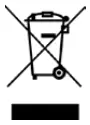 Waste Electrical & Electronic Equipment)
(Applicable in countries with separate collection systems)
This marking on the product, accessories or manual indicates that the product and its electronic accessories (e.g. charger, headset, USB cable) should not be disposed of with other household waste. To prevent possible harm to the environment or human health from uncontrolled waste disposal, please separate these items from other types of waste and recycle them responsibly to promote the sustainable reuse of material resources.
Household users should contact either the retailer where they purchased this product, or their local government office, for details of where and how they can take these items for environmentally safe recycling. Business users should contact their suppliers and check the terms and conditions of the purchase contract. This product and its electronic accessories should not be mixed with other commercial wastes for disposal. This product is RoHS compliant.
Correct disposal of batteries in this product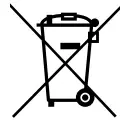 (Applicable in countries with separate collection systems)
The marking on the battery, manual or packaging indicates that the battery in this product should not be disposed of with other household waste. Where marked, the chemical symbols Hg, Cd or Pb indicate that the battery contains mercury, cadmium or lead above the reference levels in EC Directive 2006/66. If batteries are not properly disposed of, these substances can cause harm to human health or the environment. To protect natural resources and to promote material reuse, please separate batteries from other types of waste and recycle them through your local, free battery return system.
EU Declaration of Conformity
Hereby, Doro declares that the radio equipment type DFC-0240 (Doro 6040) is in compliance with Directives: 2014/53/EU and 2011/65/EU including delegated Directive (EU) 2015/863 amending Annex II.
The full text of the EU declaration of conformity is available at the following internet address: www.doro.com/dofc
Ecodesign declaration,
energy efficiency for external power supply
Hereby, Doro declares the external power supply for this device is in compliance with Commission Regulation (EU) 2019/1782 regarding ecodesign requirements for external power supplies pursuant to Directive 2009/125/EC.
The full information regarding the ecodesign requirements is available at the following internet address: www.doro.com/ecodesign
© 2019 Doro AB. All rights reserved.
Model: DFC-0240
Doro 6040 (3021,3051)
QSG
English
QSG_Doro_6040_en_A3-A7_v30_3021_3051