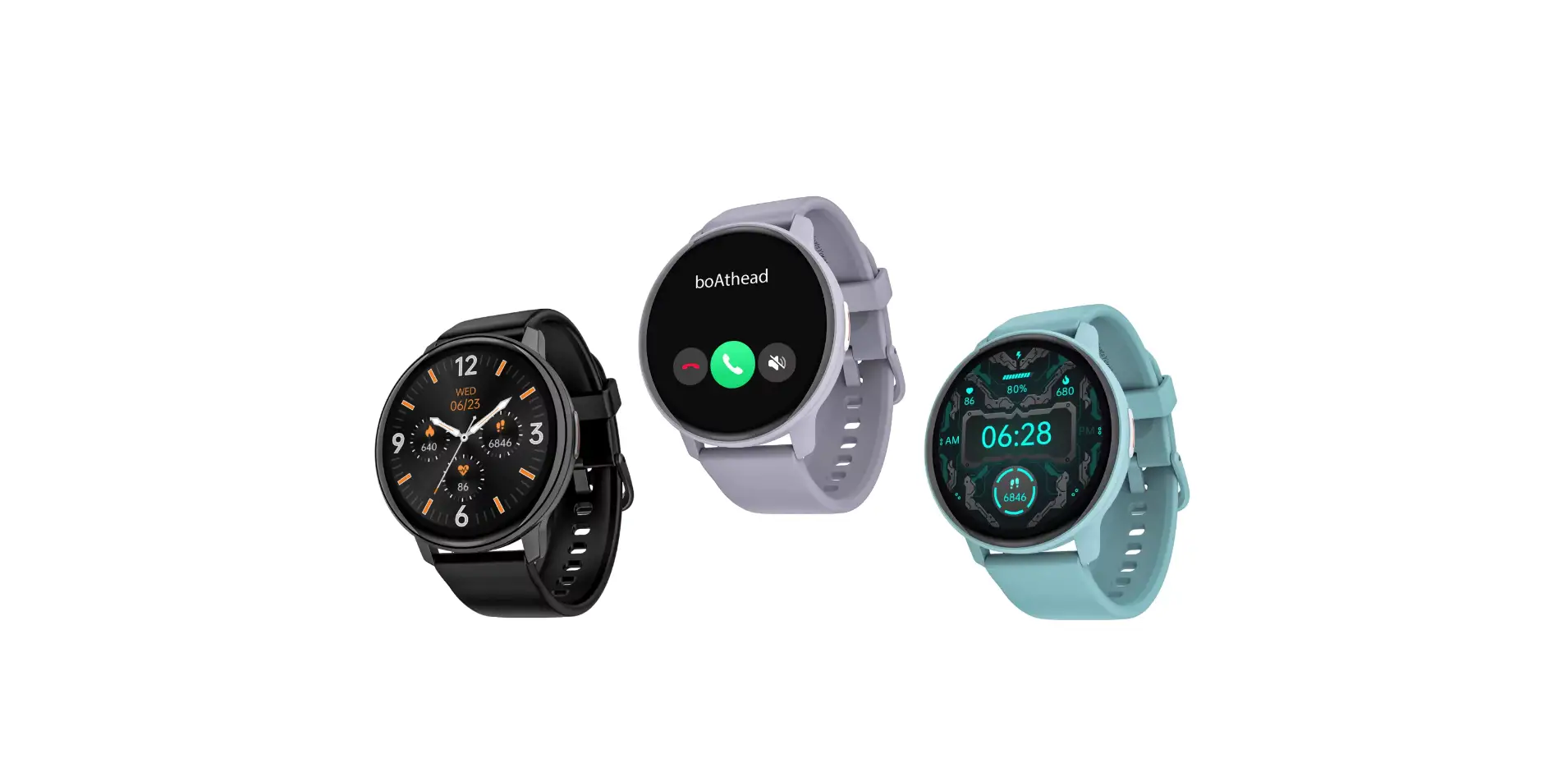
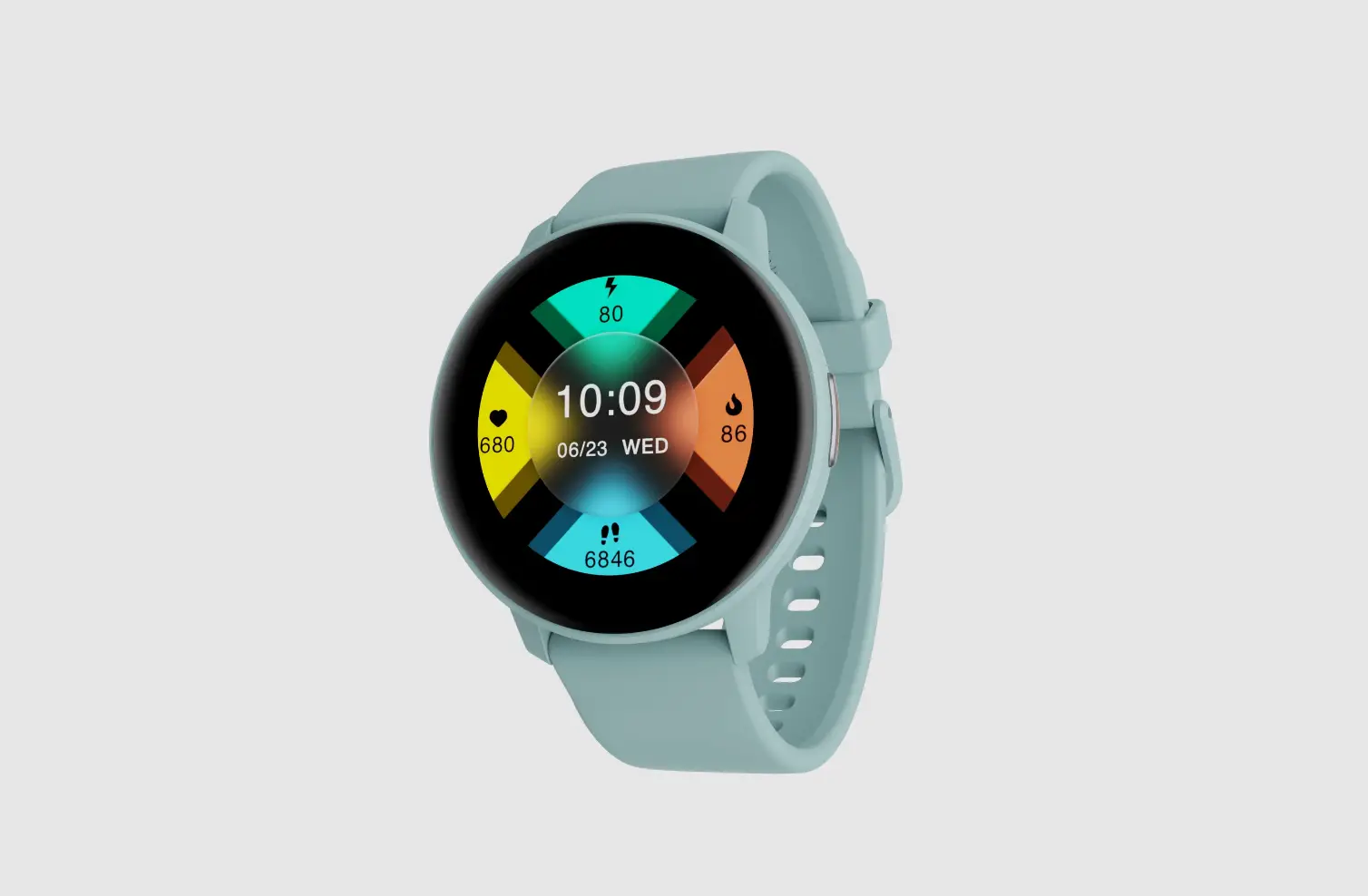
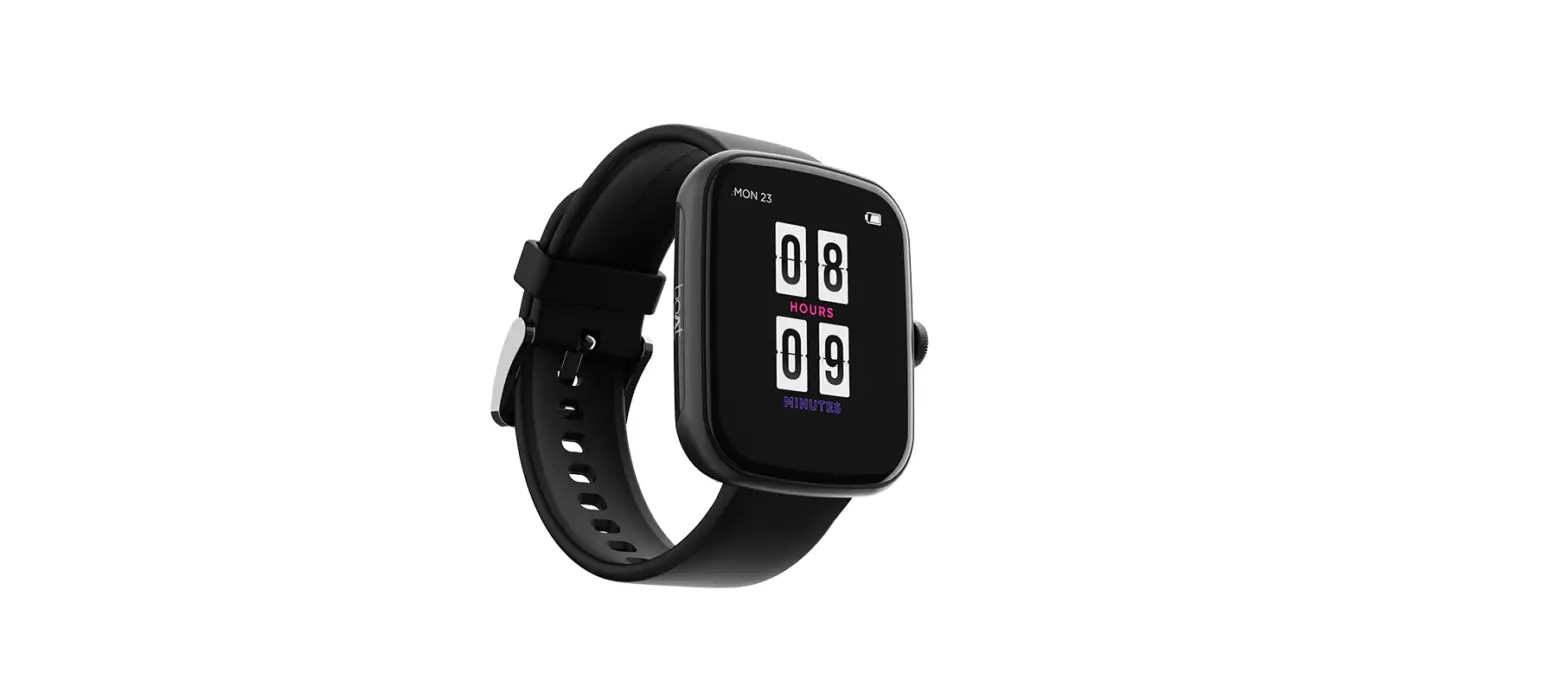
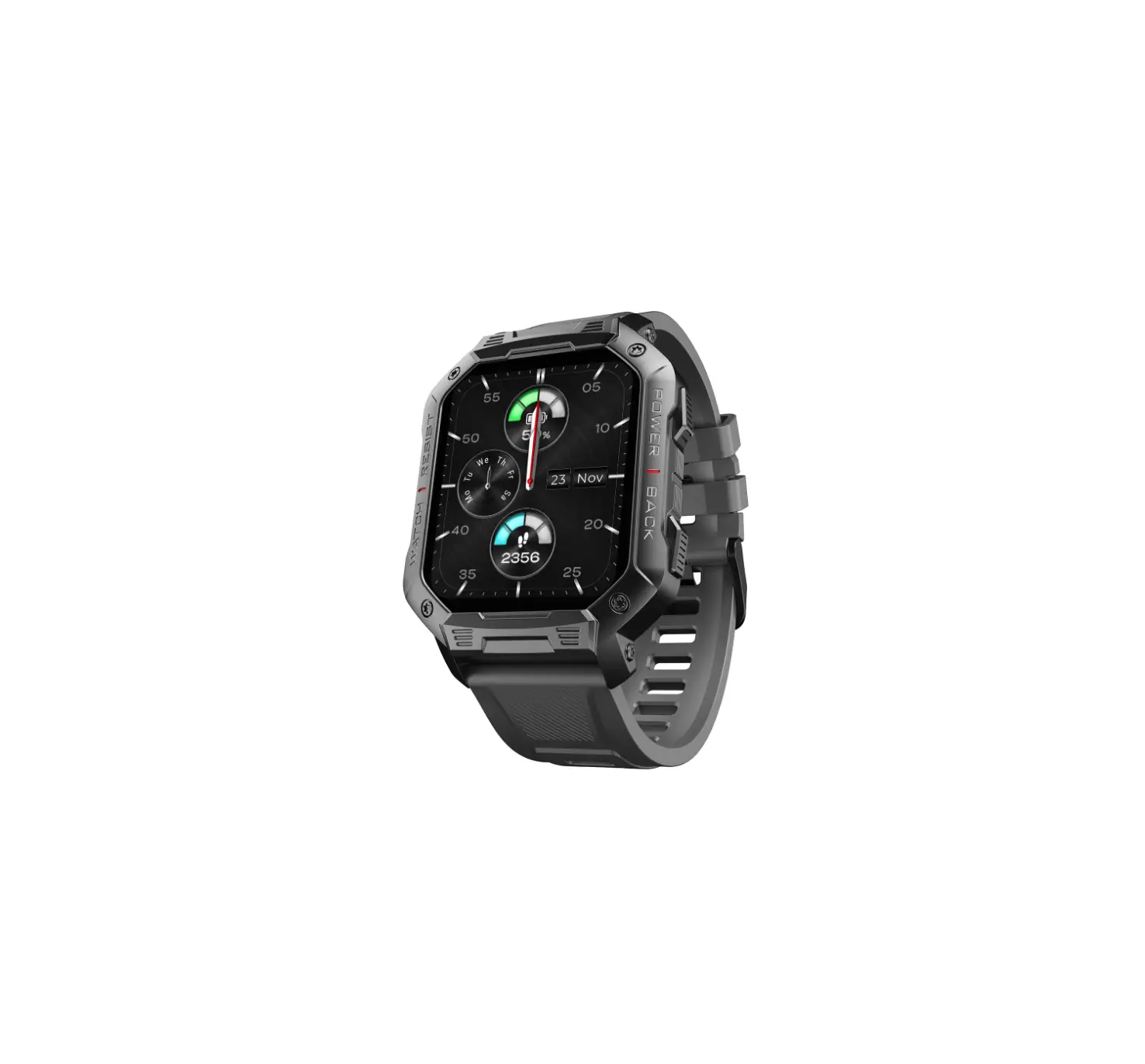
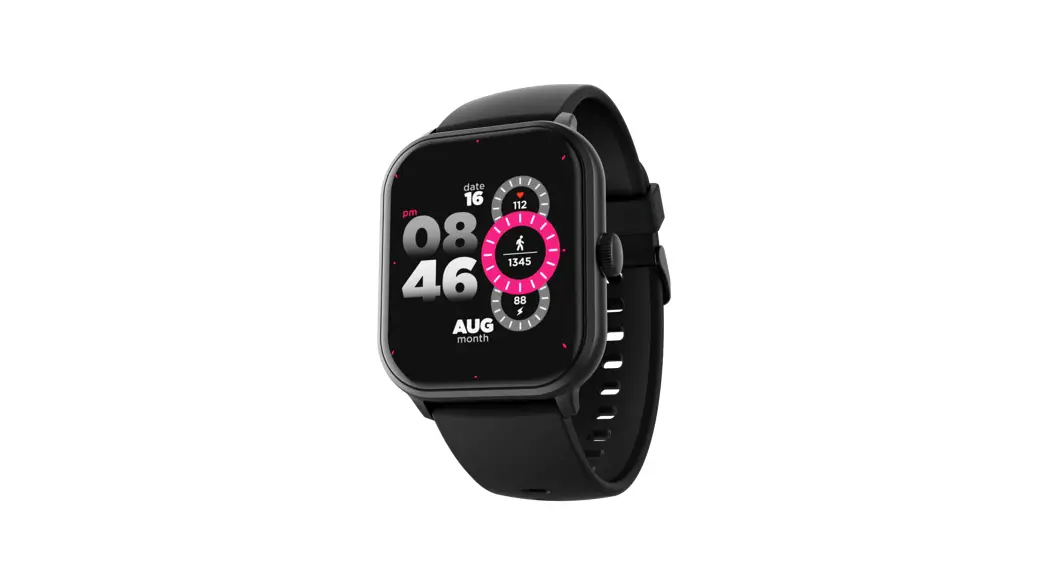
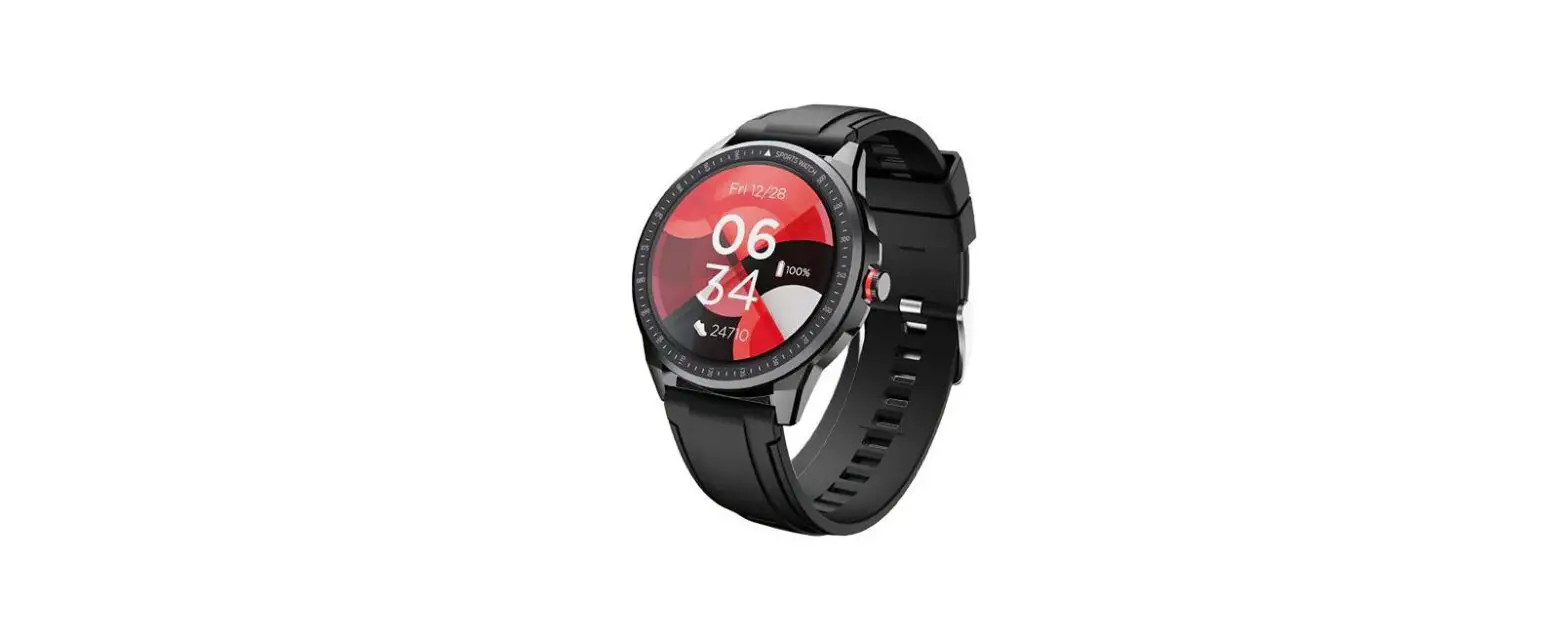
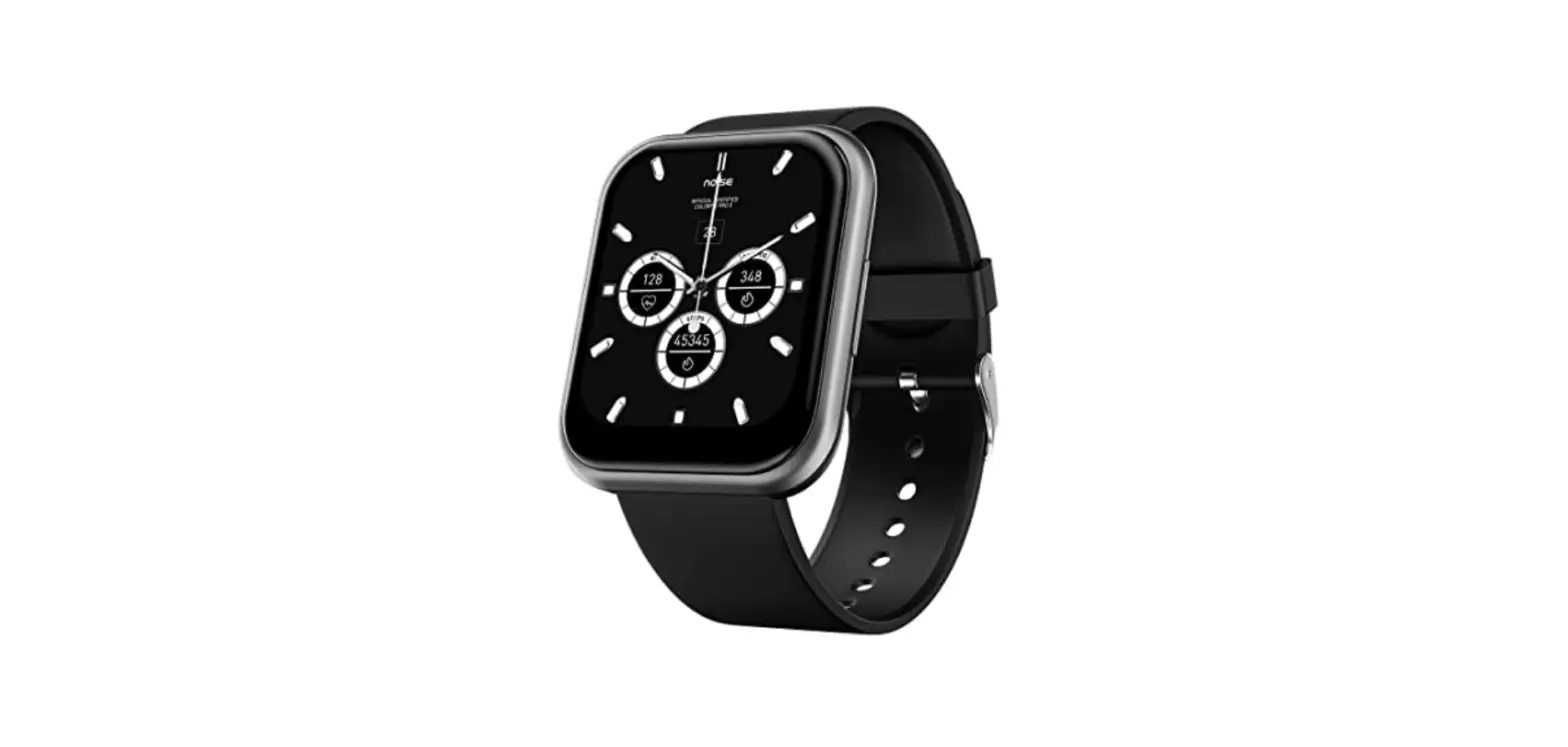
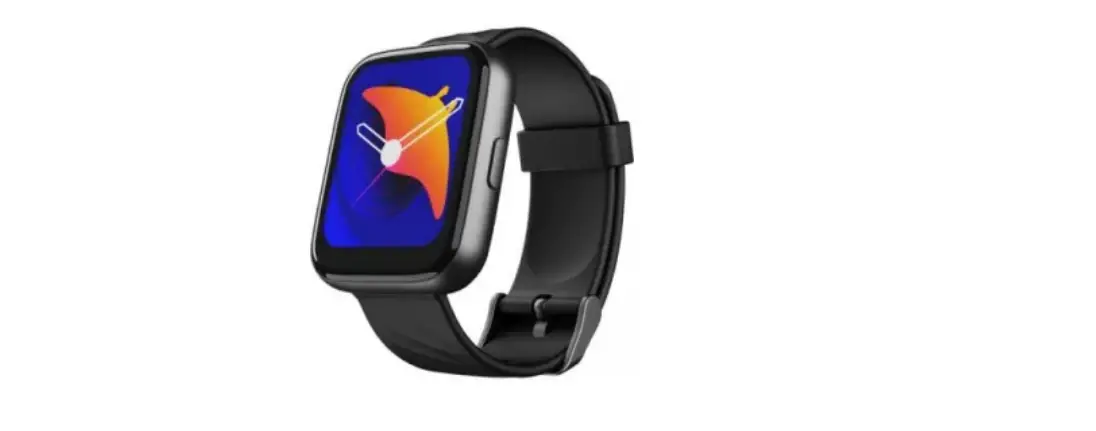
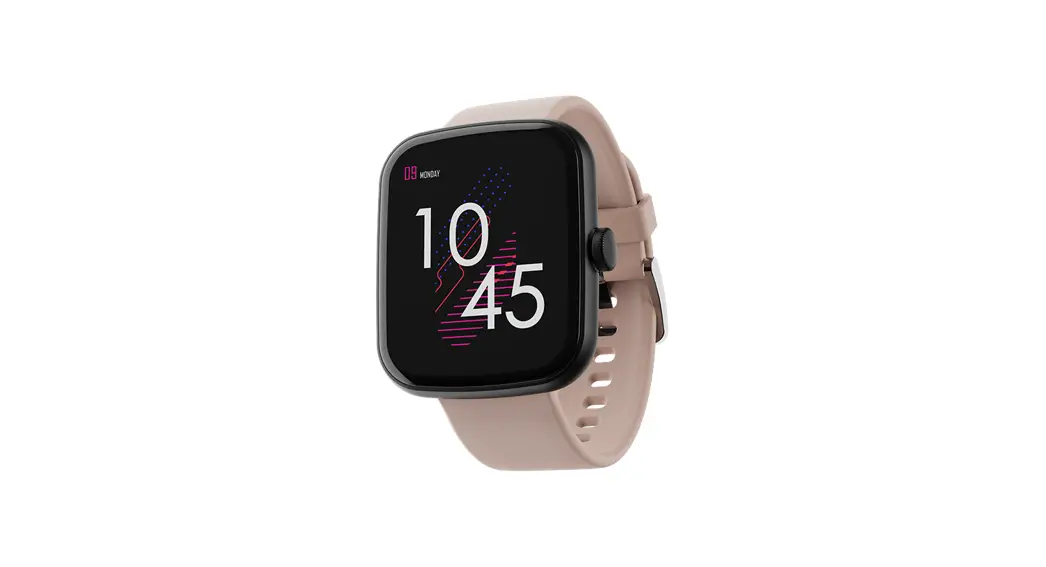
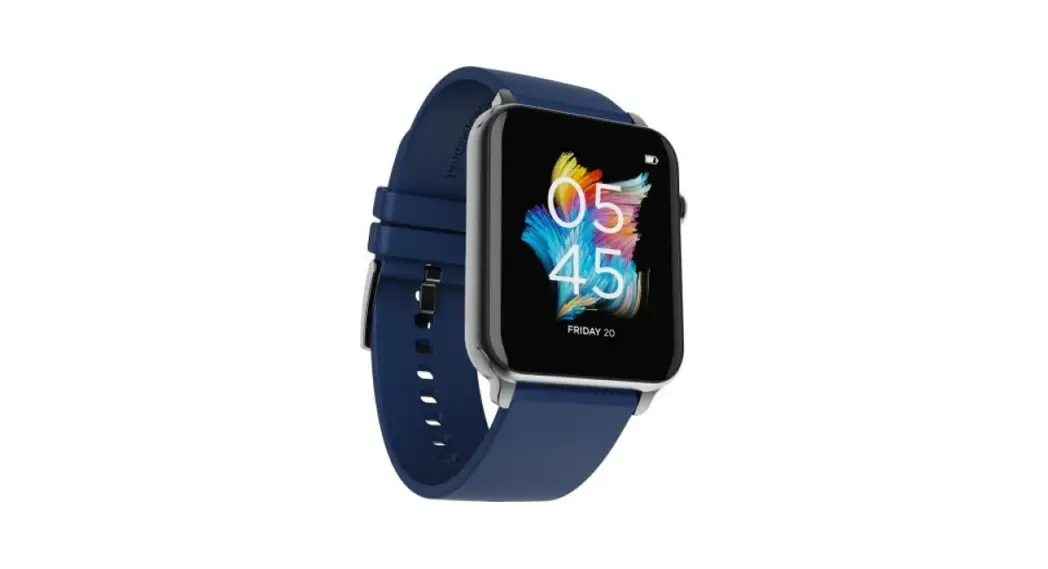
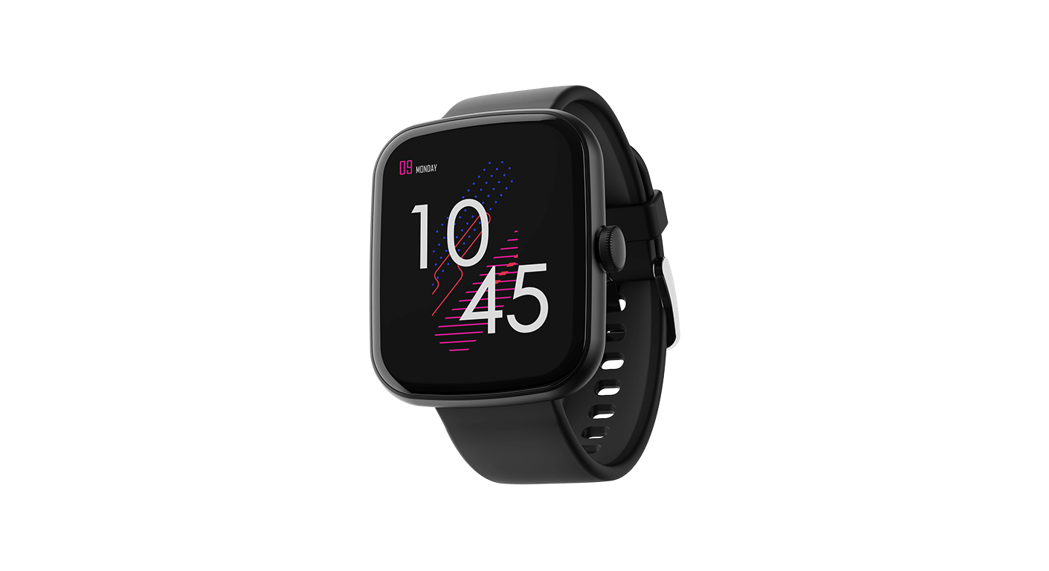
Lunar Connect Pro Smartwatch
Product Information
The boAt Lunar Connect Pro is a smartwatch designed to be your
fitness transformation companion. It comes with various features
and functionalities to help you track and monitor your fitness
activities.
Package Contents:
- boAt Lunar Connect Pro x1
- USB magnetic charging cable x1
- User Manual x1
- Warranty Card x1
Charging the Watch
The smartwatch needs to be charged before initial use. It takes
approximately 30 minutes to be fully charged. Please follow the
steps below:
- Connect the USB magnetic charging cable to the watch.
- Connect the other end of the charging cable to a 5V/2A
adapter. - Refer to the image in the manual for the correct
orientation.
Turning the Watch On/Off
To turn on or off the watch, long-press the side button for 3-5
seconds. The screen can be woken up by lifting your wrist.
Connecting to the App
- Download the boAt Crest app on your phone. It is available on
both the App Store (iOS 13.0 and above) and Google Play Store
(Android 7.0 and above). Alternatively, you can scan the QR code
available on the watch. - Ensure that your phone’s Bluetooth and GPS functionalities are
turned on. - Select “Wave Lunar Connect Pro” on the app’s home screen and
click “Pair” to connect. - If you want to receive or make calls from the watch, you will
receive an alert to connect with “LCONNECTBT”. Click “Pair” to
establish the connection. - To use all the features of Lunar Connect Pro seamlessly, grant
access to the app when prompted for connection and access
permissions. - Disable battery optimization for the app to ensure continuous
connectivity.
Syncing Your Smartwatch to the App
Data synchronization between the smartwatch and the app is
important to avoid data loss. Follow these steps:
- Open the boAt Crest app on your phone.
- Make sure your Lunar Connect Pro is connected to the app.
- Synchronization will start automatically once you enter the app
interface.
To access various functions on the smartwatch, use the bottom
side button for navigation. Here are some key functions:
- Call: Use this option to make calls via
Bluetooth. Ensure that your watch is connected to the boAt Crest
app and “LCONNECTBT” in your phone’s Bluetooth settings. - Dialer: Use the dialer on the watch to dial
any number. - Phone Book: Add up to 20 contacts from the
boAt Crest app. You can directly dial any contact from the
watch. - Call History: View recently received, missed,
and outgoing call logs on the watch. - Activities: Select various sports modes for
tracking activities such as walking, running, cycling, yoga, and
more. You can also choose from 700+ active modes from the app. - Activity Records: The watch records the
duration of your activities. Press any side button or swipe right
to pause or stop the activity. Activities shorter than 3 minutes
will not be recorded.
User Manual
Thank you for choosing the boAt Lunar Connect Pro as your fitness transformation companion.
Allow this manual to guide you through the functioning of your smartwatch. Please read it thoroughly before using it for a smooth sail. You may refer to these instructions for later use as well.
Package contents boAt Lunar Connect Pro x1 USB magnetic charging cable x1 User Manual x1 Warranty Card x1
CHARGING THE WATCH
The smartwatch must be charged before initial use. It takes up to 30 minutes to be fully charged. Connect and charge the watch with the image below as a reference, using a 5V/2A adapter.
TURNING THE WATCH ON/OFF
To restart or turn the watch on/off, long-press the side button for 3-5 seconds. You can wake up the screen by lifting your wrist.
CONNECTING TO THE APP
1. Download the boAt Crest app on your phone.
Available on both App Store (iOS 13.0 and above) and Google Play Store (Android 7.0 and above)
OR
Scan [QR CODE] (Also available on the watch)
2. Connect the device with the boAt Crest app; ensure that the phone’s Bluetooth, as well as the GPS functionalities, are turned on
3. Select Wave Lunar Connect Pro on the app’s home screen and click pair to connect.
4. Once connected, you will get an alert to connect with LCONNECTBT, click pair if need to receive or make calls from the watch
5. To use all your Lunar Connect Pro features seamlessly, tap on `yes’ to the `connection’ and `grant access’ system prompt. 6. Disable battery optimization Note: To ensure connectivity throughout your journey, make sure the app is allowed to always run in the background of your phone.
SYNCING YOUR SMARTWATCH TO THE APP
Data Synchronization Open the app on your phone. Make sure your Lunar Connect Pro is connected to the app. Synchronization will start automatically once you enter the app interface.
Note: Synchronize data at least once every day to avoid data loss in the watch.
NAVIGATING THROUGH THE FUNCTIONS Short Press the bottom side button for the Main Menu
Call
Click on this option to use the BT calling feature. To ensure this feature function’s properly please make sure your watch is connected with boAt Crest app and LCONNECTBT in the phone’s Bluetooth setting.
Dialer
Use the dialer to dial any number from the watch.
Phone Book
Add up to 20 contacts from boAt Crest app. You can select any contact to directly dial from the watch.
Call History
You can find recently received, missed, and outgoing call logs in the recent calls of the watch.
Activities
Tap on this icon to select any activity. Choose from multiple sports modes like walking, treadmill, running, badminton, football, basketball, tennis, yoga, dancing, cycling, indoor cycling, boxing, calisthenics, karate, table tennis, pilates, skipping, hiking, hockey, kabaddi, bowling.
You can also select the 700+ active modes from the app. Go to 700+ Active modes from the home screen and select any activity of your choice.
Tap on any sport mode to start the activity, click the go button, and the watch will start recording the duration of the activity. Press any side button or swipe right to pause or stop the activity. The activity will not be recorded if it is less than 3 mins. Activity Records
Check your daily workout records here.
SensAI
SensAI feature help to improve your cricket game and analyze the crucial in-game stats. You can select batting or bowling once you enter the menu.
Batting
Click on this icon if you are a batsman and select right-handed or left-handed as per your requirement. If you are a right-handed batsman, wear the watch in your left hand and vice-versa. You can set time and shots goals also. Once started, you can record your hands’ speed, no. of shots, and hit/miss. Swipe left to stop/pause the activity.
Bowling.
Select right-handed or left-handed. Once you are in select the bowl type, spin, medium, fast. You can set time and shots goals also. You can record your arms speed, no. of balls, and total step count. Swipe left to stop/pause the activity.
Activity
Click on this to check your daily activity data like step count, calories, and distance covered.
SensAI Records
Check your SensAI records from here.
Heart Rate Monitor
Wear the watch on your wrist, slide twice towards left on the screen, and then click on the icon to start measurements. You can also view the data on the app. Swipe up to check the more detailed view of the heart rate record. Note: Measurements are for reference only and not for medical purposes SpO2 monitoring Wear the watch on your wrist, press the side button and then click on the icon to start measurements. You can also view the data on the app. Swipe up to check the more detailed view of the SpO2 record. Note: Measurements are for reference only and not for medical purposes. Stress monitoring Click this option to start the stress monitoring. Make sure you wear your watch on your wrist properly to get accurate results. Analysis of the measurement is Relax: 1-29 Normal: 30-59 Medium: 60-79 High: 80-100 Note: Measurements are for reference only and not for medical purposes.
Sleep Monitor Tap on the icon to review the sleep data of the previous night. Once the asleep criteria are met, your smartwatch will start recording from 8 pm at night to 10 am in the morning the next day. Once you lie down and watch detects no movement for 30 minutes, it will start recording, and will stop recording if it detects excessive movement. You can check the data on the app only after the awake criteria is met. You can also track sleep scores on the boAt Crest app. Note: *For accurate sleep data recording, the asleep criteria have to be met which includes limited movement, wrist positions and angles, and more. *The awake criteria will be met only after it records some noticeable movement
Breathe exercises Click on the breath exercises icon to regulate your breathing with the instructions to relax. Camera Control Mode Tap on the remote camera icon on your smartwatch to click a photo from your phone. *Note: Turn the camera on from your phone to use this feature.
Music Control Tap on the remote music control icon on your watch to play music from your phone. *Note: Some apps with different protocols might not work. Weather Connect with the boAt crest app to get daily weather updates on the watch
Alarm Tap on this to set an alarm on your watch.
Notifications You can check all the notifications from here. Stopwatch Click on this to start the stopwatch on your watch. Timer Tap on this to turn on the timer. Flashlight Tap on this to turn your dial into a flashlight. Find My Phone Tap on this icon to find your phone. Once enabled, your phone will start ringing and vibrating. Tap again to stop it. Note: Your smartwatch should be connected to your phone via Bluetooth and within its range for this feature to work. Watch Faces
Select and change the watch face from here. Alternatively, you can long-press the home screen to switch between the watch faces. Screen Sleep Tap on this and adjust the screen sleep time. Always on Display Set your current watch face or select from analog or digital watch face option to set Always on display mode on your watch.
Ringtone Tap on this to choose the ringtone and put the watch on silent mode. Wake Gesture Tap on this to enable wake gesture. Vibration Tap on this to adjust vibration levels from strong, soft and none. Do Not Disturb Tap on this to turn on the Do Not Disturb mode. Battery Saver Mode
Enable this feature to save your battery. Select from different modes as per your requirement. Once enabled, brightness will reduce to minimum, and as per the mode selected other features will be disabled. Download App Tap on this and scan the bar code from mobile to connect the smartwatch.
Settings Power off Tap on this to switch your watch off.
Reset Tap on this to reset watch data. *Note: All data will be erased if watch is reset Restart Tap on this to restart your watch About Shows the device details.
Swipe down for the shortcut menu You can access DND, Ambient Light mode, Always on display, Power saving mode and Brightness from here. Swipe left or right to access all data. You can access daily activity, SpO2, heart rate, stress, sleep, music, weather, BT calling and notifications. Swipe up to access the live score. You can check the cricket live scores from here. Short Press the side button for Back Short press the side button to go to the previous tab.
Product Parameters Model: boAt Lunar Connect Pro Screen type: 1.39″ AMOLED Display Battery capacity: 260mAh Net weight: 68g Bluetooth version: Bluetooth 5.0 + BT3.0 Working temperature: -20°C-60°C Charging time: 30 minutes
Working time: 10 days in normal mode
Up to 2 days in BT calling
Frequency band: 2402- 2480 Mhz
Maintenance: Regularly clean your wrist and the strap of the smartwatch, especially after sweating during exercise or being exposed to substances such as soap or detergent, which may get stuck on the other end of the product. Do not wash the strap with a household cleanser. Please use soap less detergent, rinse thoroughly and wipe with a piece of soft towel or napkin. For spots or stains that are not easy to remove, scrub the area with rubbing alcohol and then follow the above procedure.
FAQ Search for the app to connect keeps failing. 1. Keep the boAt Crest app updated to the latest version
2. Close all the programs on the watch Stop and restart Bluetooth and GPS Connect again
3. Check and enable the notification functions of your phone and keep the phone and watch in close contact. Note: Make sure your phone system meets Android 7.0 and above and iOS 13.0 and above. My Watch Lunar Connect Pro is receiving no alerts, texts, or phone calls. Make sure smart reminders on the app are on and synced to Lunar Connect Pro Also, make sure the notification centre of the phone is displaying messages. Only then will your smartwatch also display those notifications. Make sure app is running in the background and the battery optimization feature on the phone is disabled. My Bluetooth keeps getting disconnected.
1. Make sure there is not more than 7m distance between Bluetooth on the phone and the watch.
2. There is no obstacle between the watch and the phone. 3. Make sure the app is running in the background. Which functions of Lunar Connect Pro need Bluetooth to work?
Call & Text Notifications, Find My Phone, music control, camera control, weather forecast, cloud and custom watch faces and Bluetooth calling need Bluetooth connectivity to work.
Will it be okay to take a bath wearing Lunar Connect Pro? The IP68 water resistance will only work under the following conditions:
(1) Maximum depth of water: 1.5m (2) Maximum time for exposure to water: 10 minutes
The watch isn’t suitable for hot baths, hot springs, saunas, snorkelling, diving, water skiing and other wading or deep-water activities with high-speed water flow.
SAFETY & PRODUCT INFORMATION Battery
Do not disassemble, bore or damage the battery. Do not disassemble the built-in batteries of non-replaceable battery devices. Do not use sharp objects to remove the battery.
Health Warning
If you are wearing a pacemaker or other implanted electronic devices, please consult your doctor before using the heart rate monitor of the watch.
The optical heart rate sensor will glow green. If you suffer from epilepsy or are sensitive to blinking light sources, please consult your physician before wearing this device.
The device tracks your daily activities through sensors. This data is intended to tell you about your daily activities such as steps, sleep, distance, heart rate and calories, but may not be completely accurate.
The device accessories, heart rate sensor, oxygen level monitor, and other relevant data is designed for fitness and not for medical purposes. They are not applicable to the diagnosis, monitoring, treatment or prevention of any diseases or symptoms. The heart rate and blood pressure data are for reference only. We’re not responsible for any deviation in data.
Avoid wearing the watch too tightly. Make sure you keep your skin dry – the area that comes in contact with the watch. If symptoms such as redness or swelling appear on your skin, immediately stop using the watch and consult the doctor.
Things to keep in mind
Sync data everyday days to avoid data loss.
Water Resistance will not work for seawater, acidic and alkaline solutions, chemical reagents and other corrosive liquid. The damage or defects caused by misuse or improper use are not covered by the warranty.
Sports modes support up to 6 hours of exercise at a time. Avoid wearing the watch too tight in daily use. Keep the parts of skin touching the watch
dry. Keep your arm still while measuring data for accurate measurement.
Disclaimer: This product is an electronic monitoring product and is not intended as a medical reference. We reserve the right to modify or improve any of the functions described in this manual without any prior notice. At the same time, we hold the right to continuously update the product content.
CAUTION RISK OF EXPLOSION IF BATTERY IS REPLACED BY AN INCORRECT SUBSTITUTE. DISPOSE OF USED BATTERIES ACCORDING TO THE INSTRUCTIONS.
Old electrical appliances must not be disposed of together with the residual waste but have to be disposed of separately. The disposal at the communal collecting point via private persons is for free. The owner of old appliances is responsible to bring the appliances to these collecting points or to similar collection points. With this little personal effort, you contribute to recycling valuable raw materials and treatment of toxic substances.
Charger info Please use common USB Cable or original charger, Otherwise, It may result to danger. When you use a charger for charging, adapter shall be installed near the equipment and shall be easily accessible. Manufacturer of Power Charger: Wise Zone Technology Development Limited. Parameters of charger , input : 5V, 500mA MAX. Output : 5V, 500mA MAX
Declaration Of Conformity Hereby, boAt Declares that this Lunar Connect Pro is in compliance with the essential requirements and other relevant provisions of directive 1995/5/EC
FCC Caution: This device complies with part 15 of the FCC Rules. Operation is subject to the following two conditions: (1) This device may not cause harmful interference, and (2) this device must accept any interference received, including interference that may cause undesired operation.
Any changes or modifications not expressly approved by the party responsible for compliance could void the user’s authority to operate the equipment.
NOTE: This equipment has been tested and found to comply with the limits for a Class B digital device, pursuant to Part 15 of the FCC Rules. These limits are designed to provide reasonable protection against harmful interference in a residential installation. This equipment generates, uses and can radiate radio frequency energy and, if not installed and used in accordance with the instructions, may cause harmful interference to radio communications. However, there is no guarantee that interference will not occur in a particular installation.
If this equipment does cause harmful interference to radio or television reception,
which can be determined by turning the equipment off and on, the user is encouraged to try to correct the interference by one or more of the following measures:
— Reorient or relocate the receiving antenna.
— Increase the separation between the equipment and receiver.
— Connect the equipment into an outlet on a circuit different
from that to which the receiver is connected.
— Consult the dealer or an experienced radio/TV technician for help.
The device has been evaluated to meet general RF exposure requirement. The device can be used in portable exposure condition without restriction.