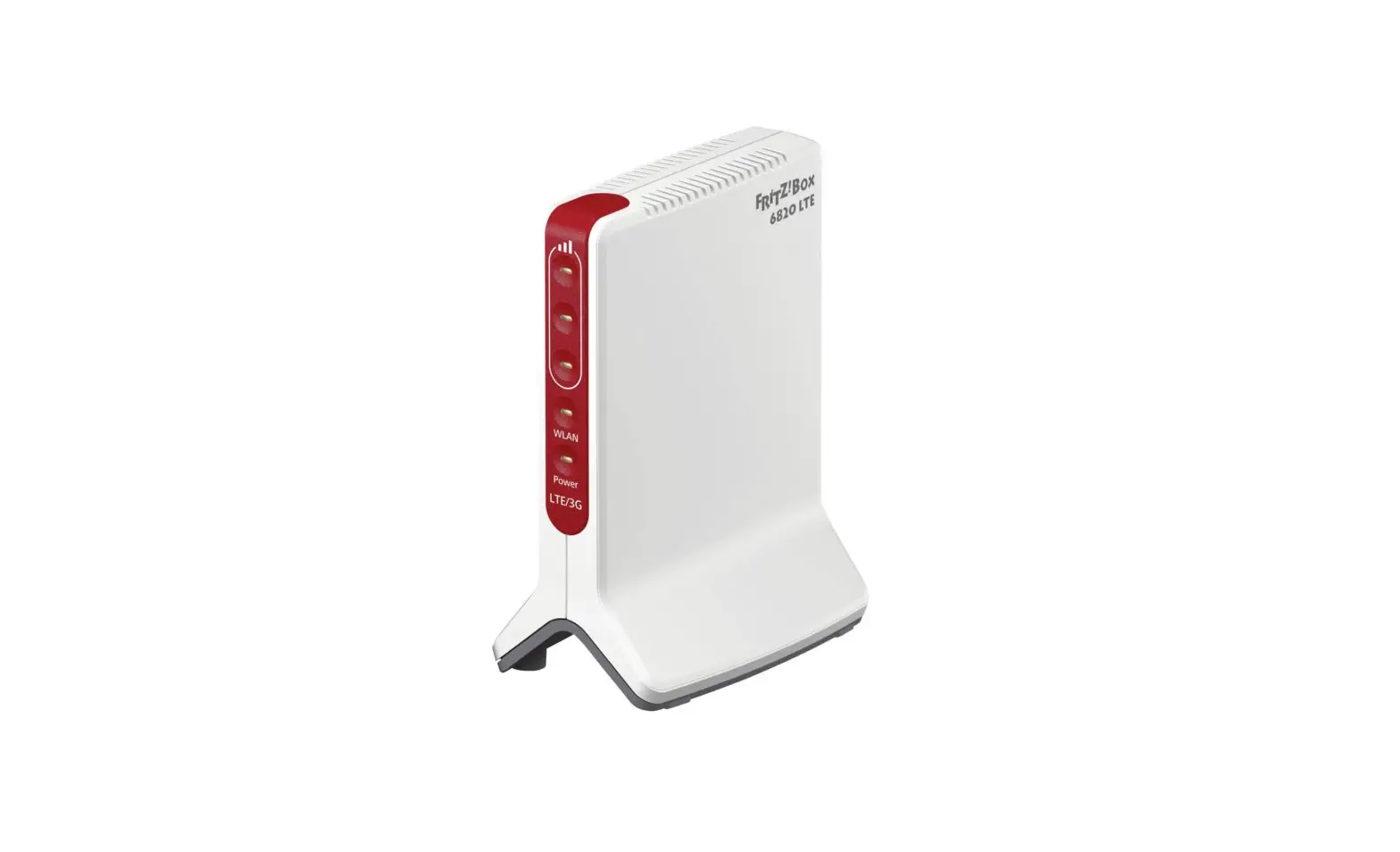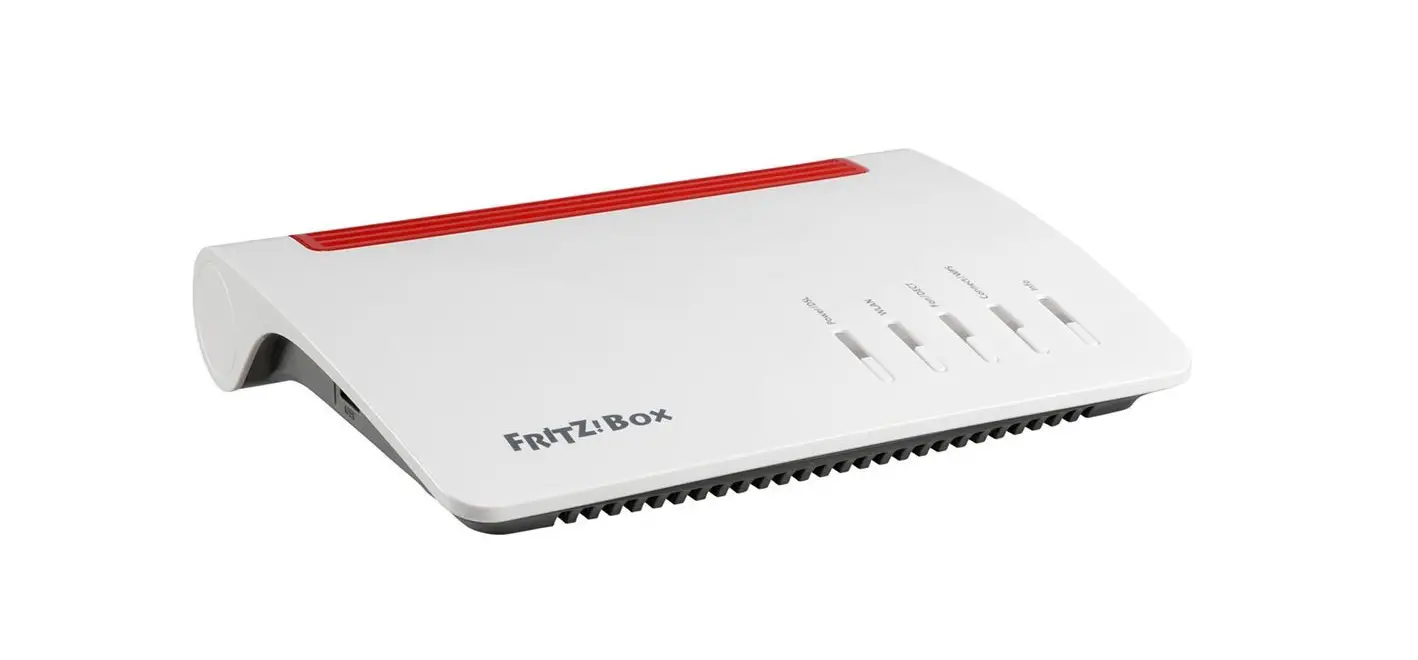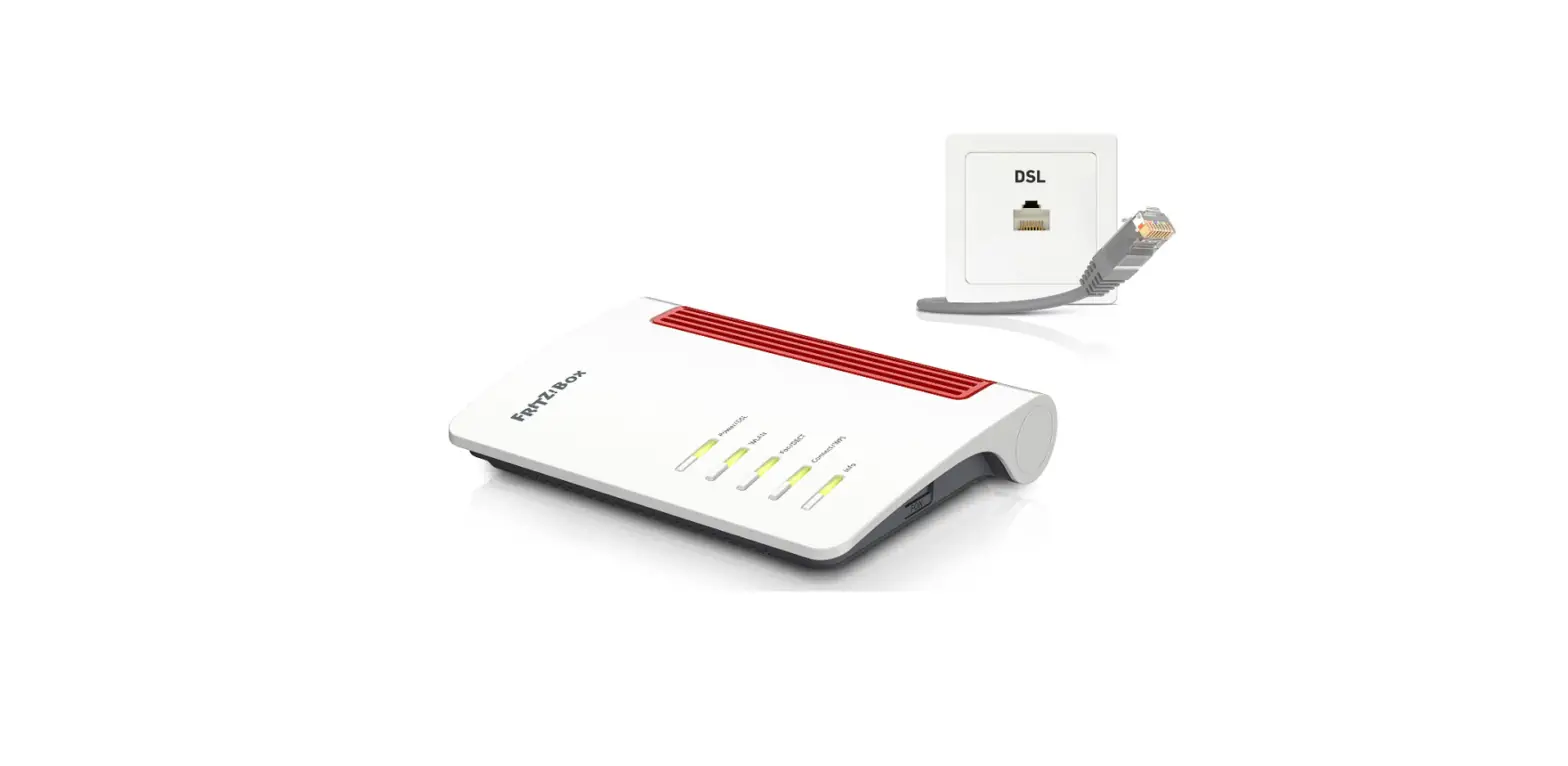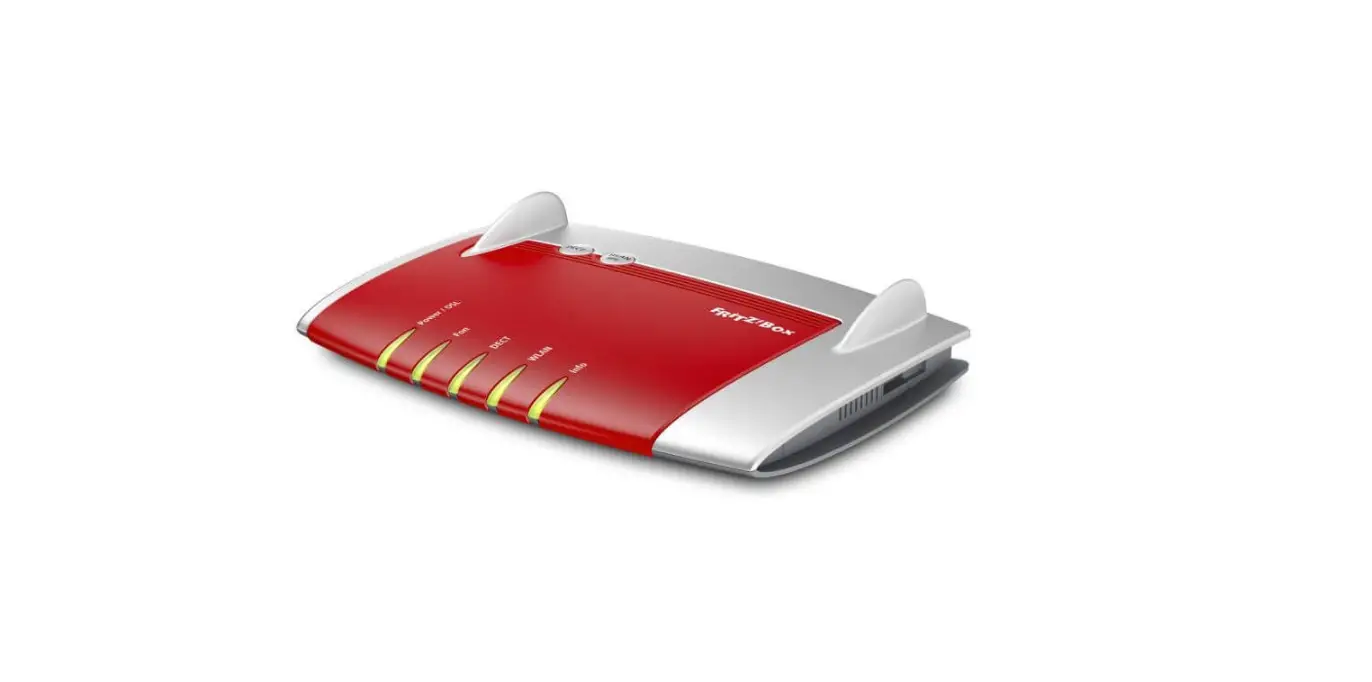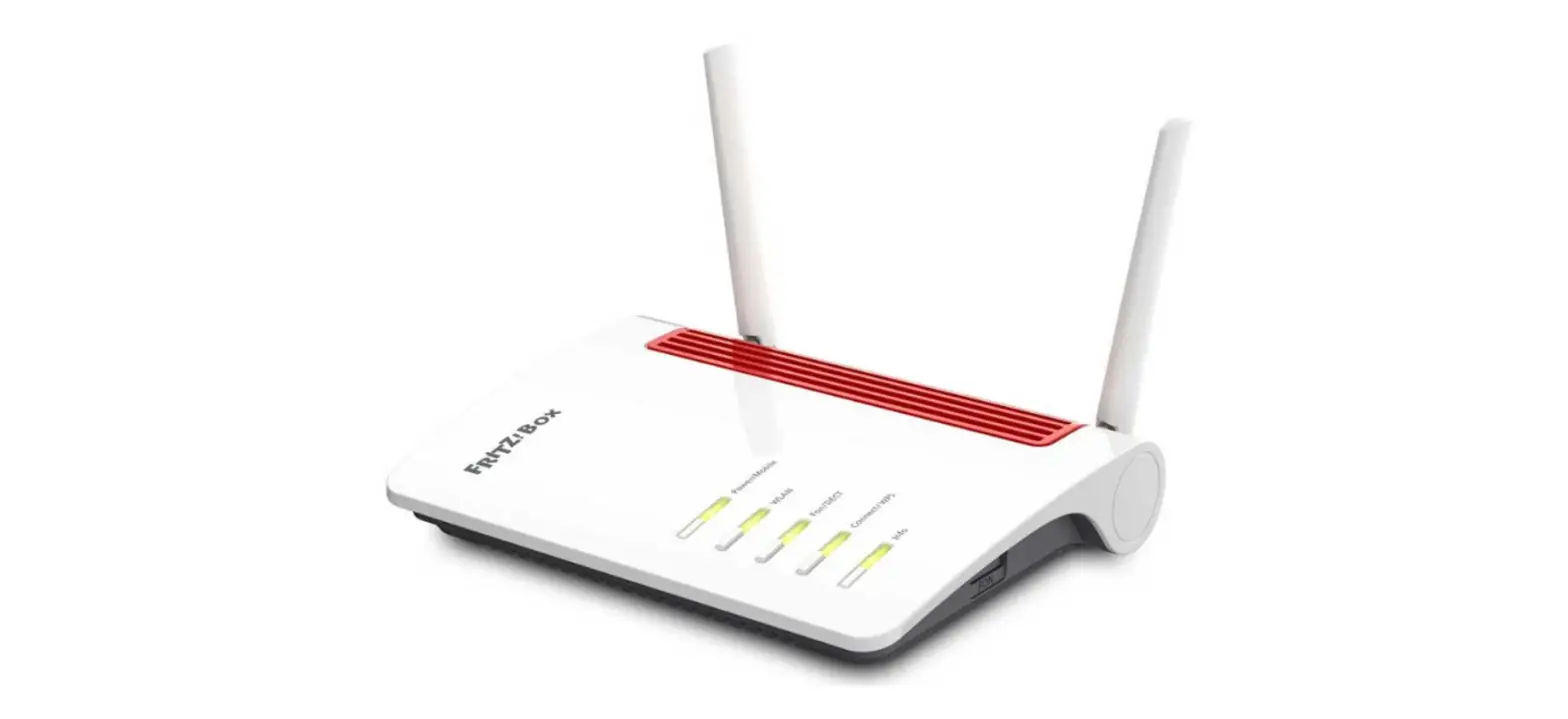

FRITZ 6850 LTE Wireless Router 3G-4G
Insert the Mini SIM Card
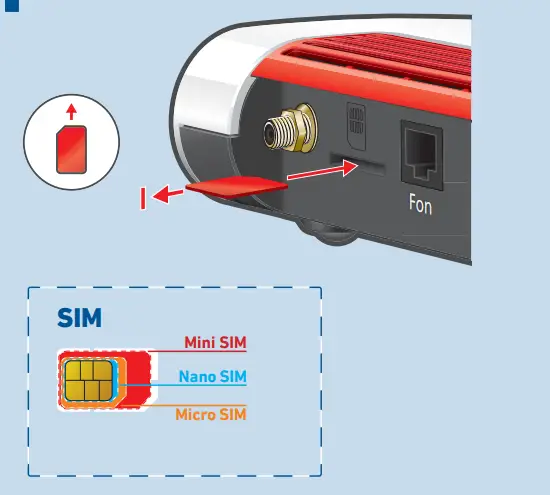
Push an original mini-SIM card for a mobile network into the SIM card slot until it clicks into place.
- Break the mini-SIM card out of the SIM card in one piece.
- Do not use any cut-out micro or nano SIM cards in mini SIM card holders.
- Card holders and adapters can get damage the SIM slot.
Connect to Electrical Power
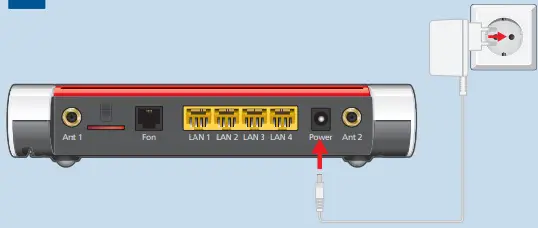
Safety Instructions
- Do not install the FRITZ!Box during an electrical storm.
- During a storm, disconnect the FRITZ!Box from the power supply and from the internet.
- The ventilation slits of the FRITZ!Box must never be obstructed.
- Do not place the FRITZ!Box on overly heat-sensitive surfaces.
- Connect the FRITZ!Box to an easily accessible outlet.
- The FRITZ!Box is intended only for indoor operation.
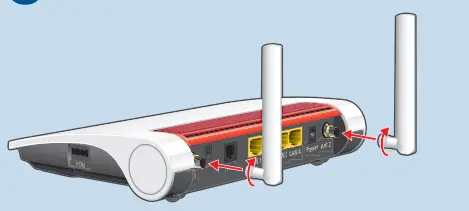
Connect the antennas
Establish a Wi-Fi Connection (Smartphone)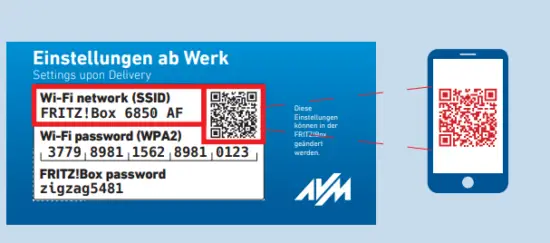
- Scan the QR code and establish the Wi-Fi connection directly.
or - Open the Wi-Fi settings of your smartphone, select the Wi-Fi network of your FRITZ!Box 6850 LTE and establish the connection with the Wi-Fi password.
Establish a Wi-Fi Connection
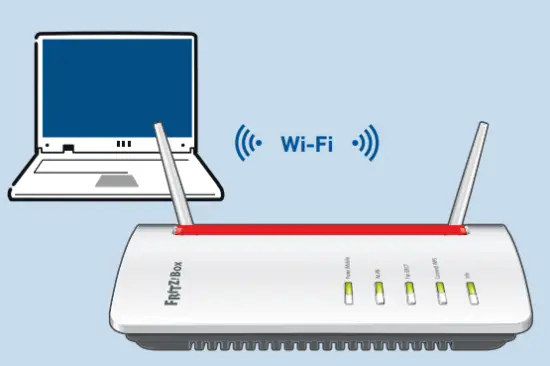
- Click the Wi-Fi icon on your computer screen.
 in the task bar on Windows computers.
 or in the menu bar on Apple computers.
 - Select the Wi-Fi network of your FRITZ!Box, and use the Wi-Fi network key to establish a Wi-Fi connection
 in the task bar on Windows computers.
 or in the menu bar on Apple computers.
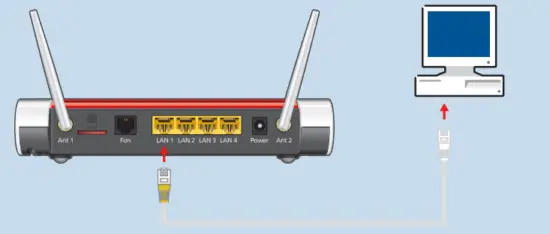
Connect a Computer Using a Network Cable
Confi gure Internet Access
- Enter http://fritz.box in a web browser. The user interface of the FRITZ!Box appears.
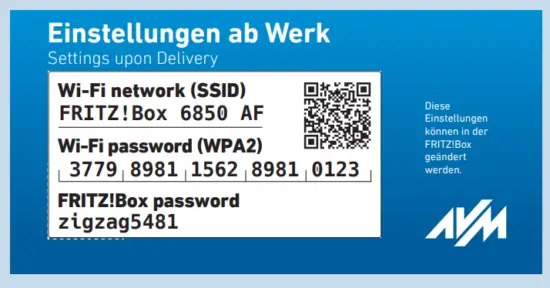
- Enter the FRITZ!Box password when prompted to do so, and then follow the instructions until confi guration has been completed.
The internet connection is confi gured and you can surf the web with the connected devices
Register a Cordless Telephone
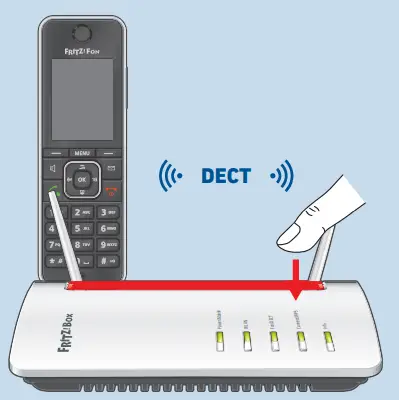
- Turn on your telephone and start the registration process.
- Enter the PIN of the FRITZ!Box (the preset value PIN 0000).
- Push the Connect/WPS button on the FRITZ!Box until the
Connect/WPS LED starts fl ashing. The telephone is registered.
Frequencies
| 1 | 2110 MHz – 2170 MHz | 1920 MHz – 1980 MHz | 200 mW |
| 3 | 1805 MHz – 1880 MHz | 1710 MHz – 1785 MHz | 200 mW |
| 5 | 869 MHz – 894 MHz | 824 MHz – 849 MHz | 200 mW |
| 7 | 2620 MHz – 2690 MHz | 2500 MHz – 2570 MHz | 200 mW |
| 8 | 925 MHz – 960 MHz | 880 MHz – 915 MHz | 200 mW |
| 20 | 791 MHz – 821 MHz | 832 MHz – 862 MHz | 200 mW |
| 28 | 758 MHz – 803 MHz | 703 MHz – 748 MHz | 200 mW |
| 38 | 2570 MHz – 2620 MHz | 2570 MHz – 2620 MHz | 200 mW |
| 40 | 2300 MHz – 2400 MHz | 2300 MHz – 2400 MHz | 200 mW |
| 41 | 2496 MHz – 2690 MHz | 2496 MHz – 2690 MHz | 200 mW |
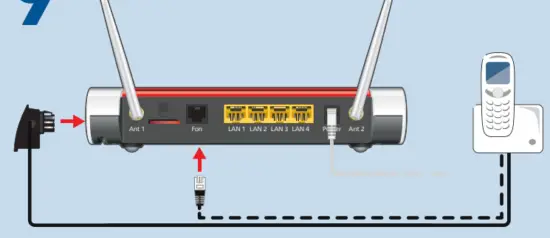
Connect Telephones by Cable
Diagnostics
To improve the product and ensure safe operation on your connection, AVM uses diagnostic data where needed. This setting can be changed in the user interface under Internet / Account Information / AVM Services.
CE
AVM declares herewith that the device is compliant with the requirements and the rules in directives 2014/53/EU, 2009/125/EC and 2011/65/EU. The long version of the declaration of CE conformity is available at http://en.avm.de/ce.
Service
Legal information and the valid licensing conditions are presented in the user interface under / Legal Notice / Legal Notice.
More information is available on our website en.avm.de/service.
en.avm.de/service/manuals
en.avm.de/guide
en.avm.de/nc/service/downloads
en.avm.de/service/support-request
 Service | AVM Deutschland
 Service | AVM België
 Declarations for FRITZ!Box | AVM International
 Assistenza | AVM Italia
 Service | AVM Nederland
 Serwis | AVM Polska