Cellcom Samsung – How to Install Software Updates
- Before beginning, ensure that your device is connected to WiFi. A WiFi connection is required to download software updates. From the home screen, swipe up from the bottom of the screen to access the app drawer.

- Tap on Settings.

- Scroll down and tap on Software Update.

- Tap on Download and Install. The device will check for available software updates.

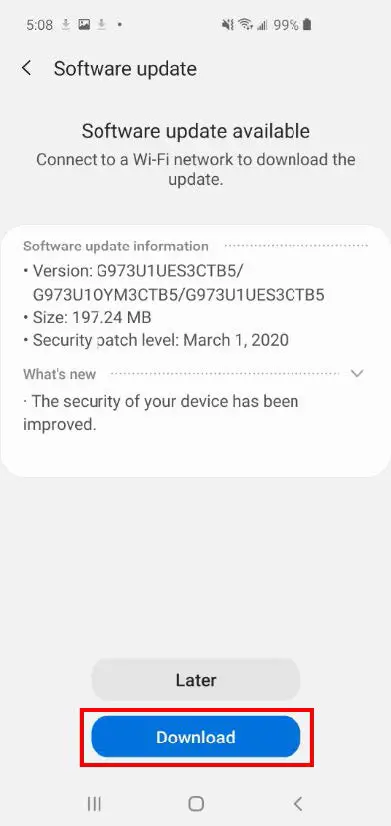
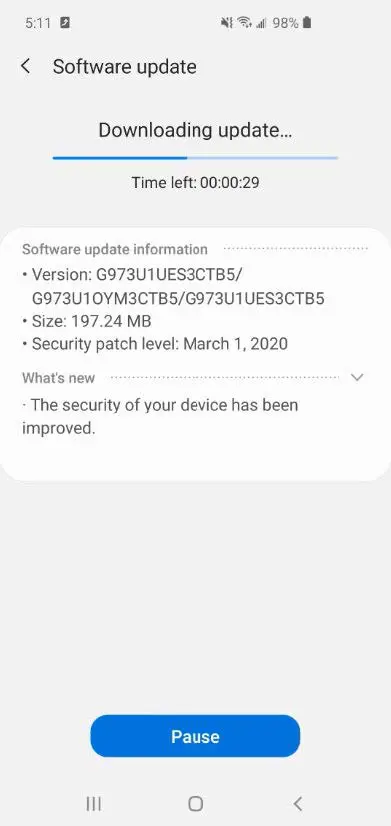
- If an update is available, it will begin to download automatically. If the update does not download automatically, tap on Download.

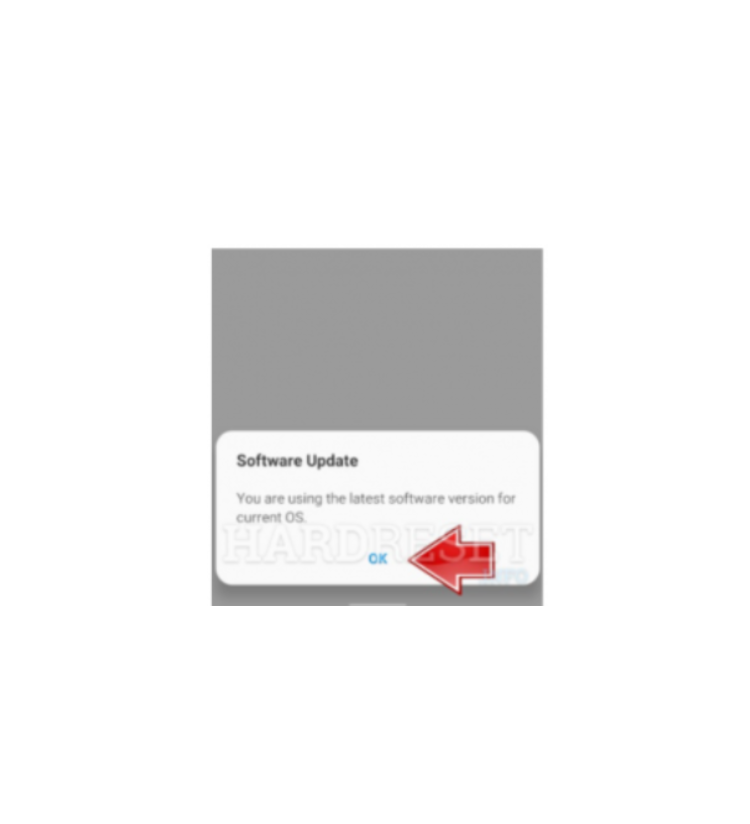
- Once the download is complete, tap Install Now. You may also schedule the download and install at a later time.

- The device may reboot during the update process. Once the update is complete, the device will return to the lock screen.