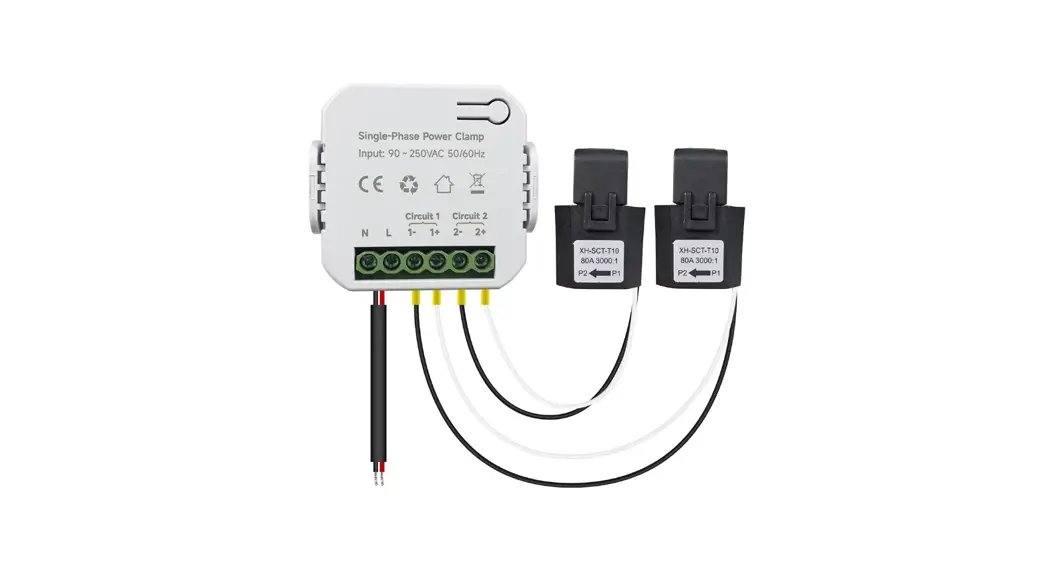

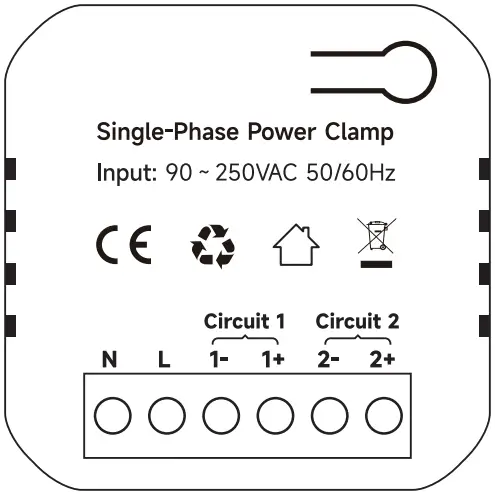
PC311-TY
Single-Phase Power Clamp
Quick Start Guide
PC311-TY Single Phase Power Clamp
Smart Life Apphttps://smartapp.tuya.com/smartlife
Safety Handling
WARNING: Failure to follow these safety notices could result in fire, electric shock, other injuries, or damage to the Power Clamp and other property. Read all the safety notices below before using the Power Clamp.
- Avoid high humidity or extreme temperatures.
- Avoid long exposure to direct sunlight or strong ultraviolet light.
- Do not drop or expose the unit to intense vibration.
- Do not disassemble or try to repair the unit on your own.
- Do not expose the unit or its accessories to flammable liquids, gases or other explosives.
Technical Specifications
Wireless Connectivity
| Wi-Fi | • 802.11 B/G/N20/[email protected] |
| BLE | • Bluetooth 4.2 Low Energy |
| RF Characteristics | • Operating frequency: 2.4GHz • Internal antenna |
Physical Specifications
| Operating Voltage | • 90~250 Vac 50/60 Hz |
| Calibrated Metering Accuracy | • ≤ 100W ( Within ±2W ) • >100W ( Within ±2% ) |
| Reporting Cycle | • Every 15 seconds |
| Operating environment | • Temperature: -20 ℃~ +55 ℃ • Humidity: ≤ 90% non-condensing |
| Dimension | • 51.6(L) x 23.3(W) x 46(H) mm |
Welcome
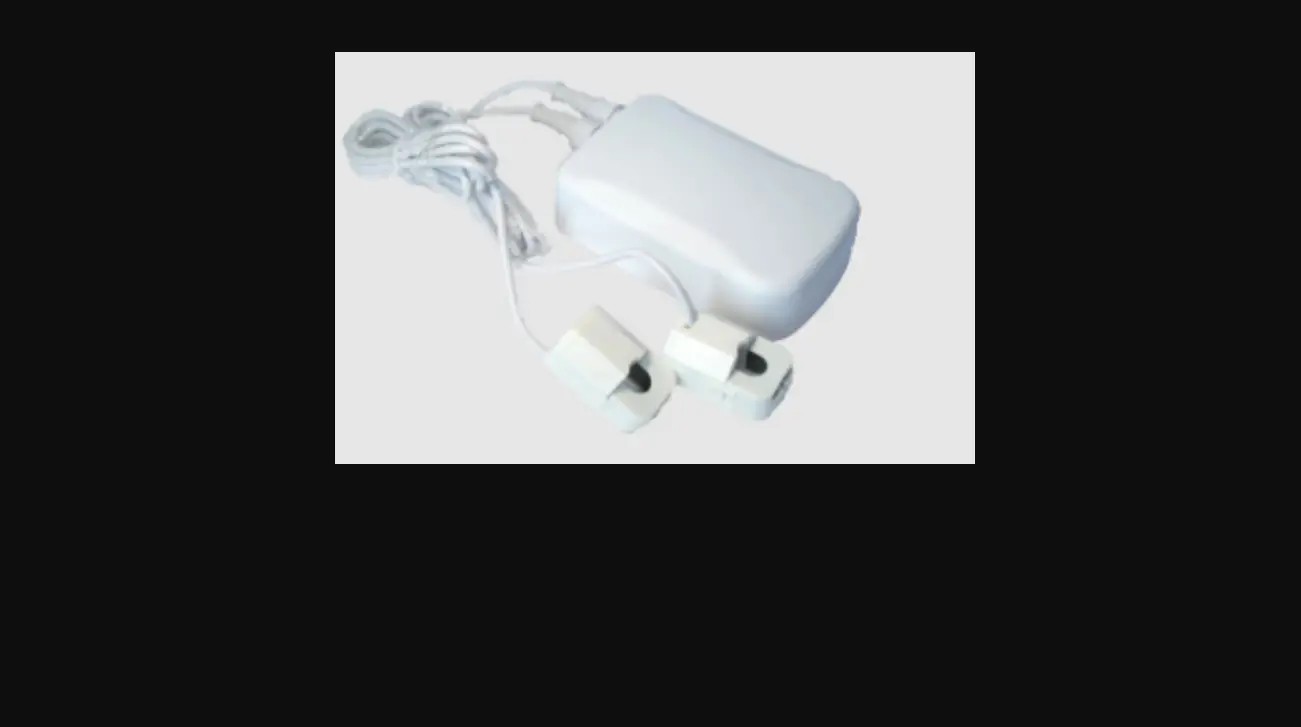
PC311-TY Power Clamp helps you monitor the amount of electricity usage in your facility by connecting the clamp on to the power cable. It can also measure Voltage, Current, PowerFactor, ActivePower.
This guide will provide you with an overview of the product and help you get through the initial setup to installation.
Features:
- Tuya compliant
- Support automation with other Tuya device
- Single phase electricity compatible
- Measures real-time Energy Usage, Voltage, Current, PowerFactor, Active Power and frequency.
- Support Energy Production measurement
- Usage trends by day, week, month
Get to know your device
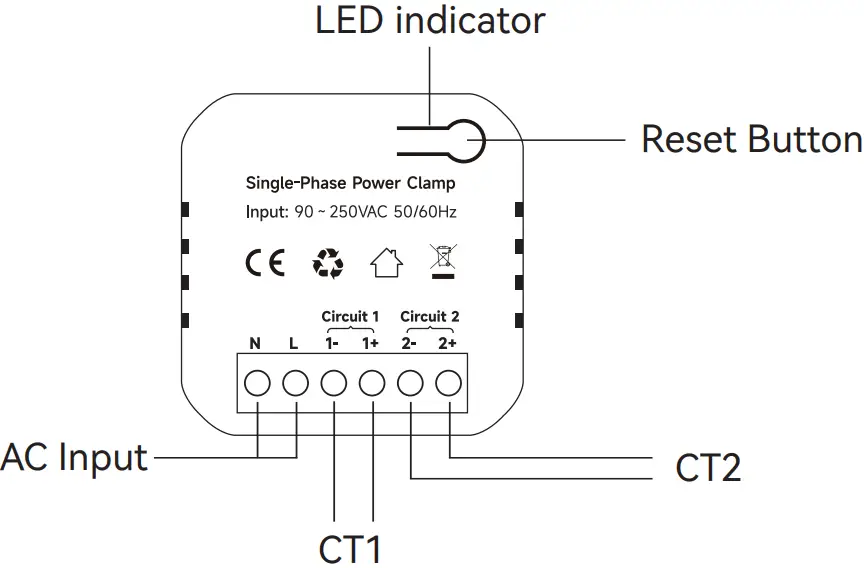
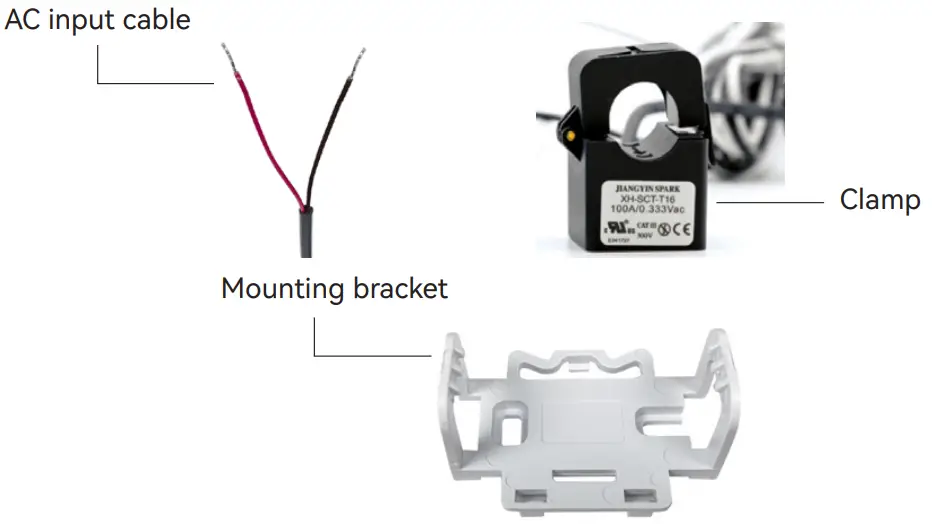
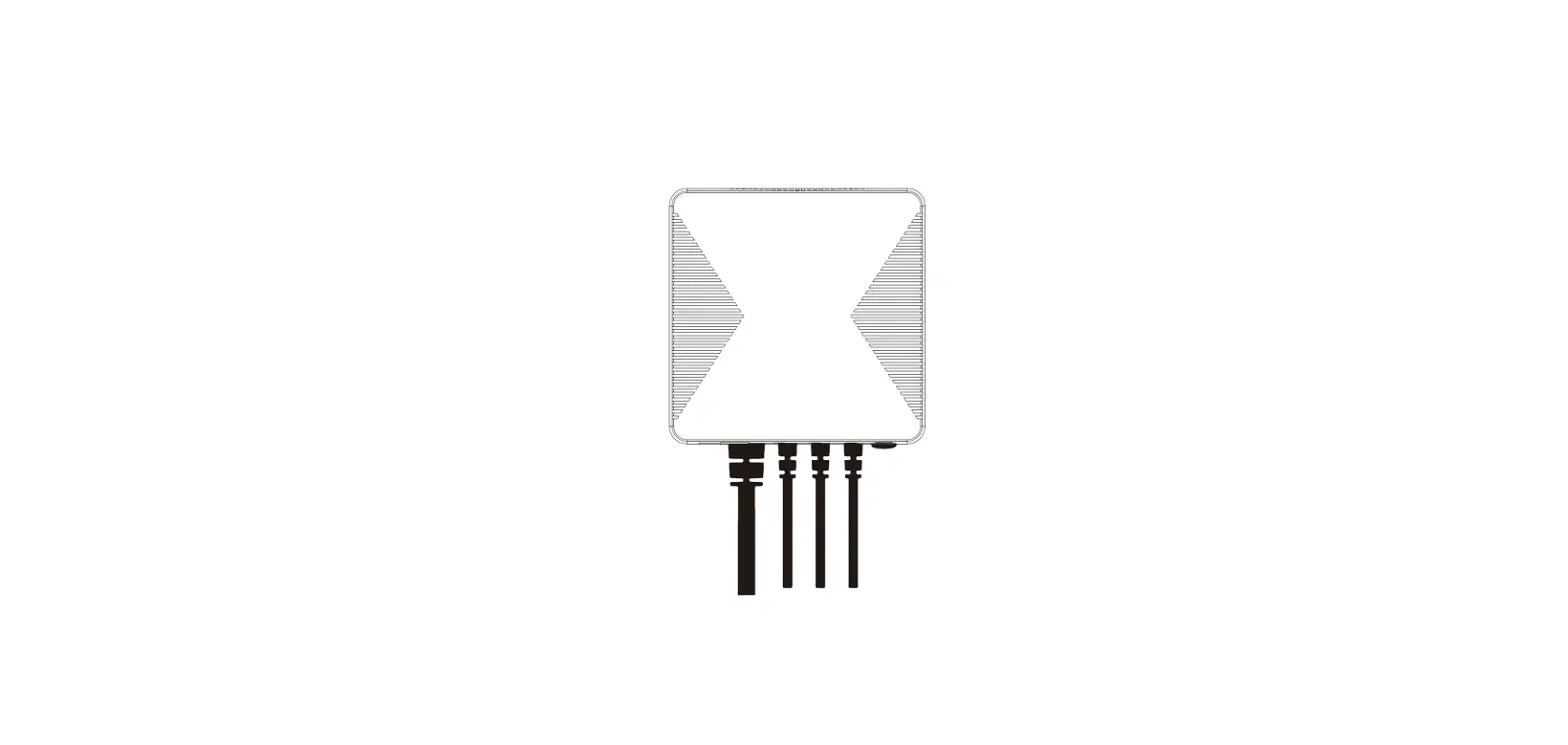
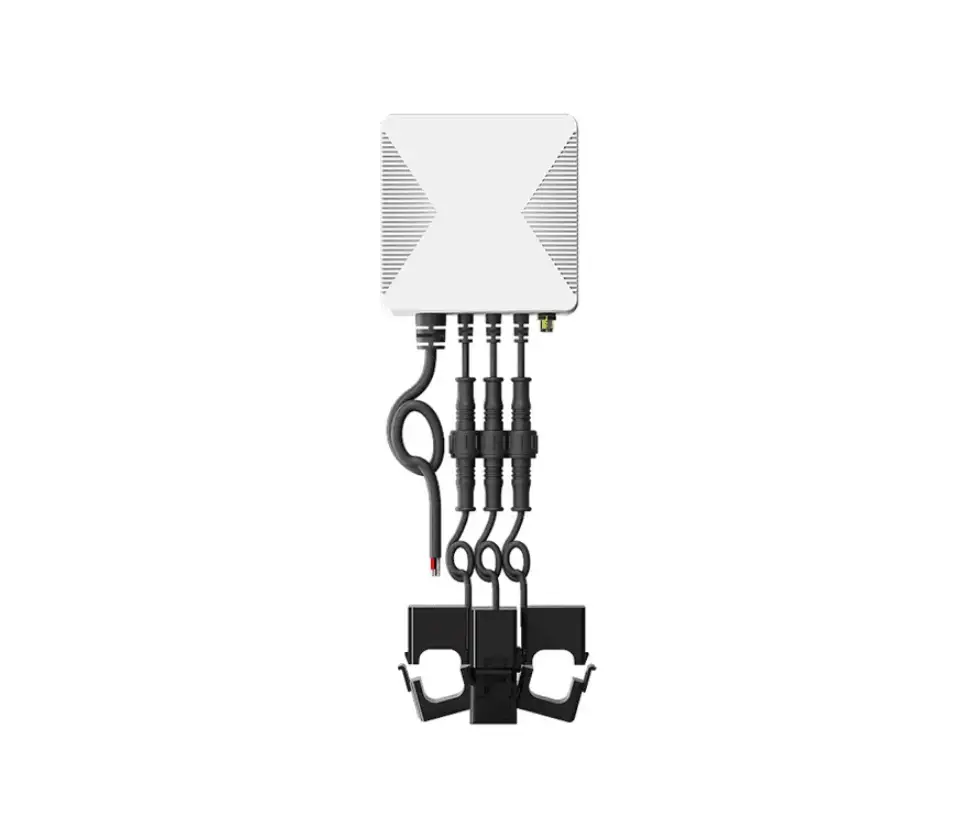
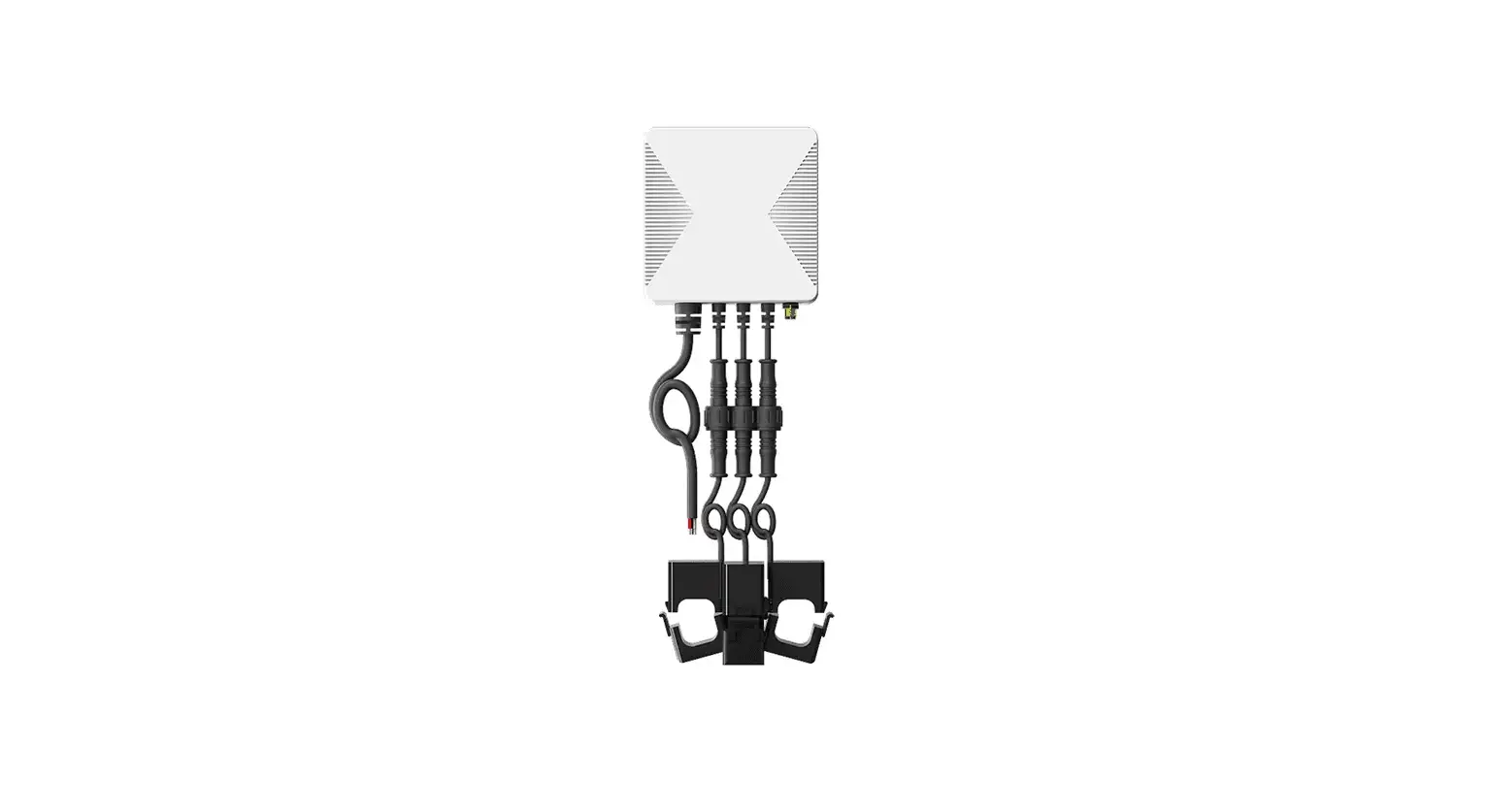
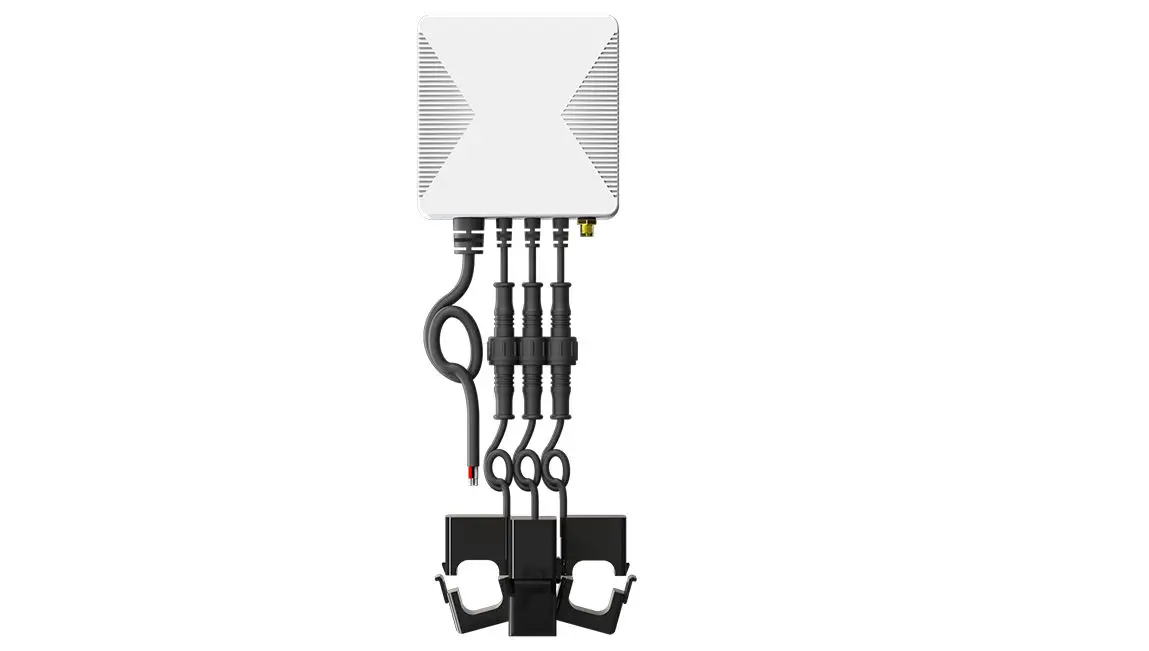
CT: Current TransformerReset Button
• Reset. Press and hold the reset button for 5 seconds until the LED indicator flashes Red 3 times quikly to clear the Wi-Fi information (energy data will not be cleared). After that, the LED indicator will blink Green and wait for pairing.
Note: If you want to clear the energy data, please delete the device and wipe data on the app then add it again.
LED indicator
The LED status gives the following information of the power clamp:LED Status What it means Green LED blinking Wait for pairing Green LED solid on Device has connected with cloud. Red LED solid on Device is connected to the router, but cannot connect to the cloud.
Installaion
Important safety information!
- The power clamp must be installed and serviced only by a qualified electrical personnel.
- Do not touch the terminals of the device during testing.
- Turn off all the power supply for this equipment before installing.
- Make sure that the power supply is off before connecting or disconnecting it to an auxiliary device.
- Always use a properly rated voltage sensing device to confirm power is off.
- Replace all devices, doors and covers before applying power to the equipment.
Failure to follow these instructions will result in death or serious injury.
Get started:
Please make sure the main power in your facility is off before installing
- Open the clamp to see the arrow (P1→P2) or (K→L) or you can find it on the sticker on the outside of the clamp. This is the direction of CT. The CT support bi-directional sensing. If the direction of the CT is opposite to the direction of the current, the power will be negative.

- Apply the CT on the electric cable and ensure the direction of CT is correct when installing in different scenarios:
• To measure energy consumption
The arrow on the clamp should face to the correct direction of the electricity current flows like CT1 in the wiring diagram. In this case, the power will be positive, and the energy consumption will be accumulated.
• To measure energy generation
The arrow on the clamp should face to inverter like CT2 in the wiring diagram. In this case, the direction of the current is opposite to that of the CT. The power will be negative, and the energy generation will be accumulated. • To measure ‘From Grid’ or ‘To Grid’
To monitor how much energy is pulling from and sending back from the grid, install the CT on the leads coming from your mains like the CT1 below. For CT1:
If the measured current direction is K → L, the energy consumption is accumulated as ‘From Grid’ energy.
If the measured current direction is L → K, the energy generation is accumulated as ‘To Grid’ energy. - Connect AC Input cable to a socket near the Electrical Box to power on the Power Clamp according to the wiring diagram.

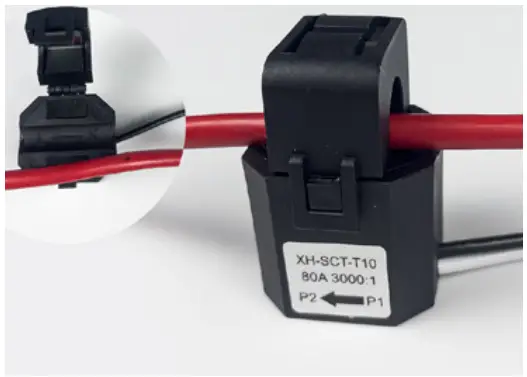
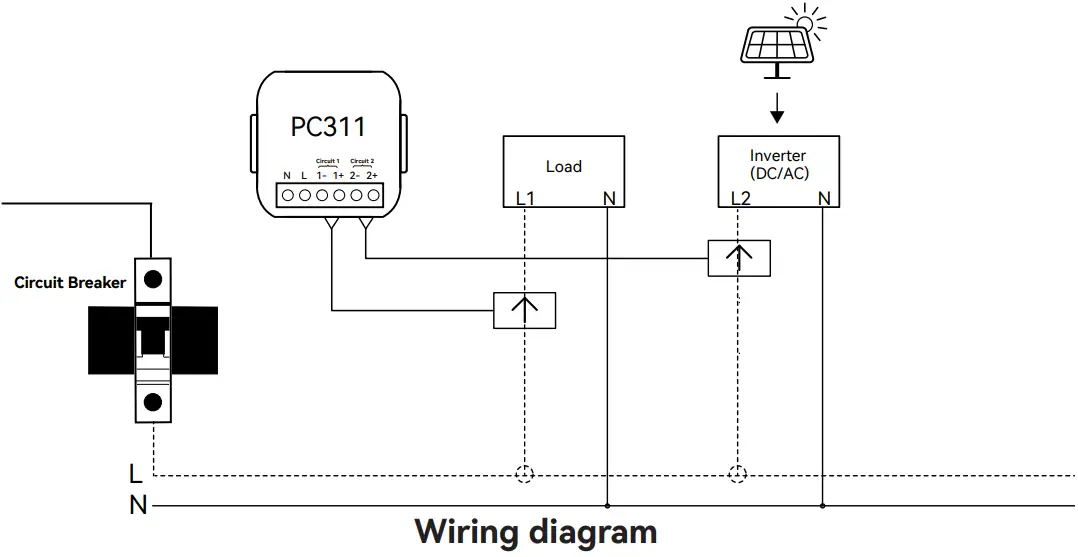 • To measure ‘From Grid’ or ‘To Grid’
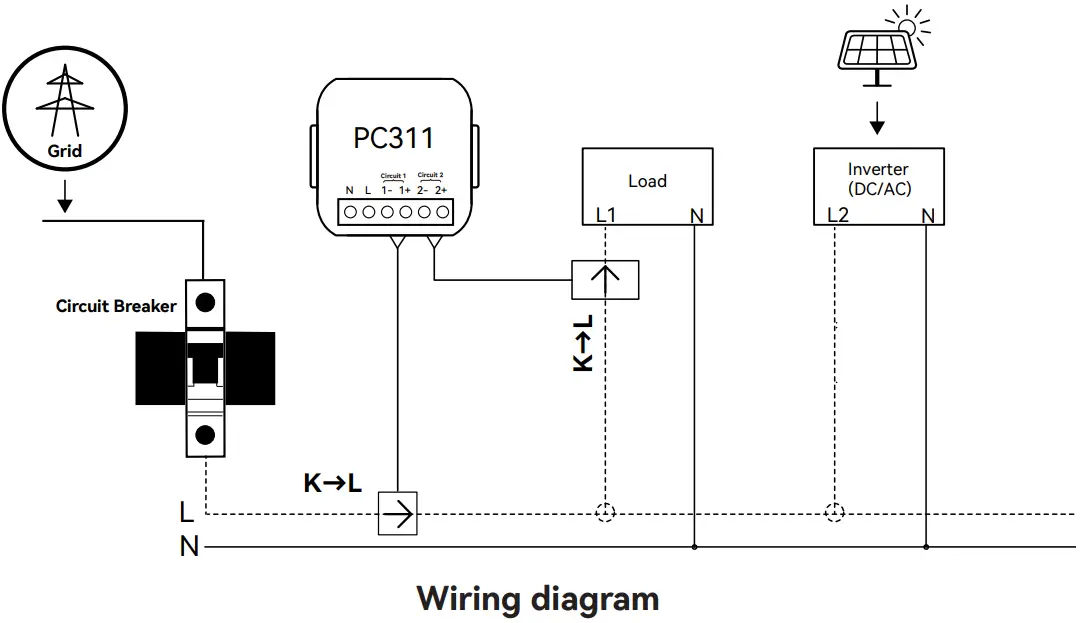 For CT1: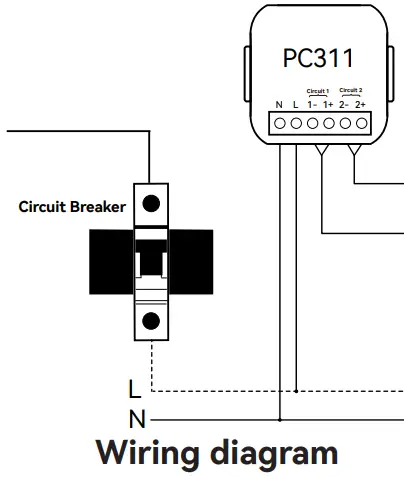
Mounting
The Power Clamp has a mounting bracket for mounting purposes. You can choose the following two mounting methods:
- Use the mounting bracket as template to mark the two holes on the wall for installing screws. Screw the mounting bracket onto the wall according to marked location. Install wall plugs if necessary.
- Sliding the mounting bracket through one end of the Din-Rail if you want to fix on the Din-Rail.
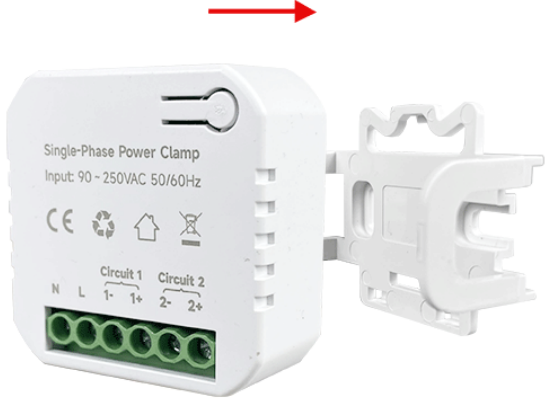
After the bracket is installed, snap the Power Clamp onto the bracket.
Configure Network
Download App
Please download the application: Smart Life from App Store or App Market. Also you can scan below QR code to download and install.
Method 1:
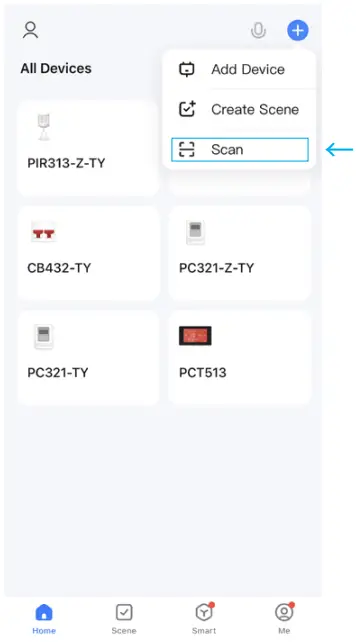
- Open Smart Life app and click the ‘Scan’ button in the upper right corner of the App Home page.

- Scan the following QR code to configure the network.
 https://smartapp.tuya.com/s/p?p=vfwxetkavqrvg02u&v=1.0
Method 2:
- Power on the power clamp.
- Make sure the LED indicator is flashing green. If not, please reset it.
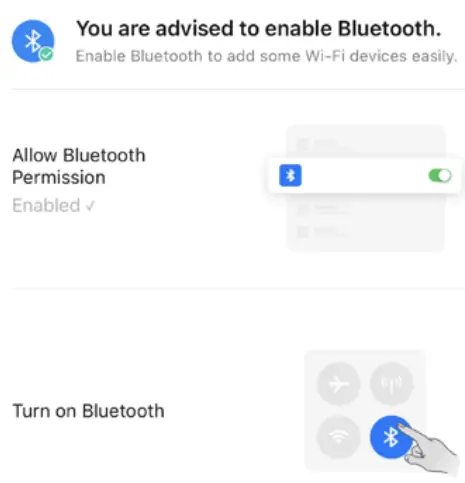
- Open Smart Life app and turn on Bluetooth on your phone.

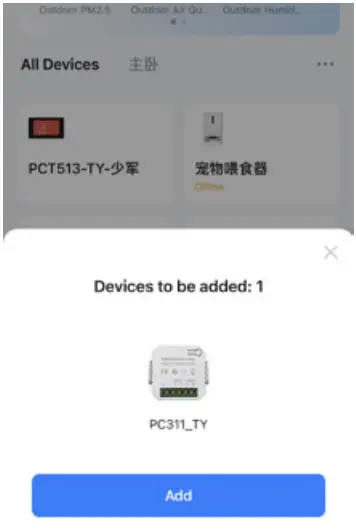
- Open the app and the scanned devices will pop up automatically.

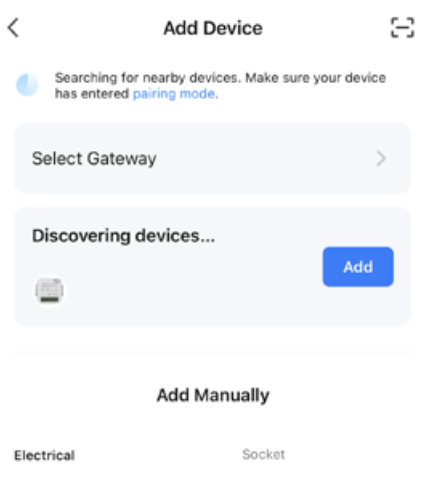
- If no prompt box pops up automatically, please click the ‘+’ on the top right of the home page to add device. It will search nearby devices.

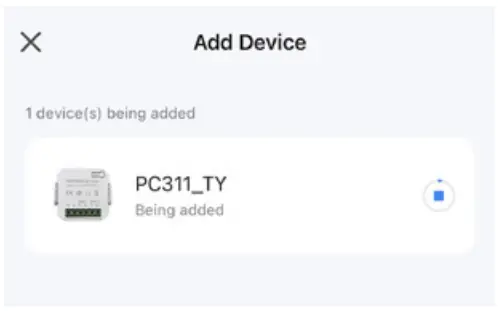
- After clicking ‘Add’, enter your home Wi-Fi account and password (Only support 2.4Ghz Wi-Fi) and wait for it to be added. If it fails, please refer to the FAQ.

FAQ
– Confirm the entered router password is correct.
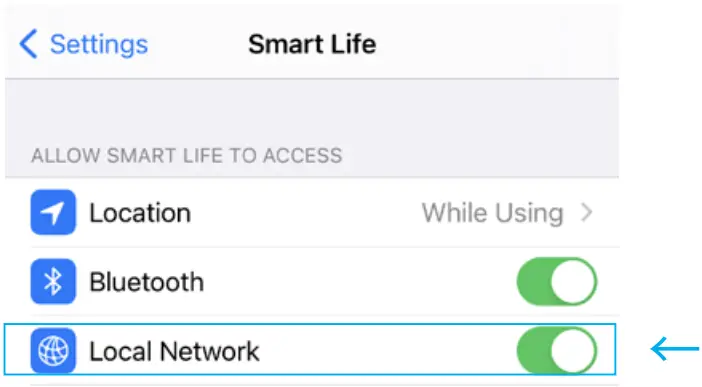
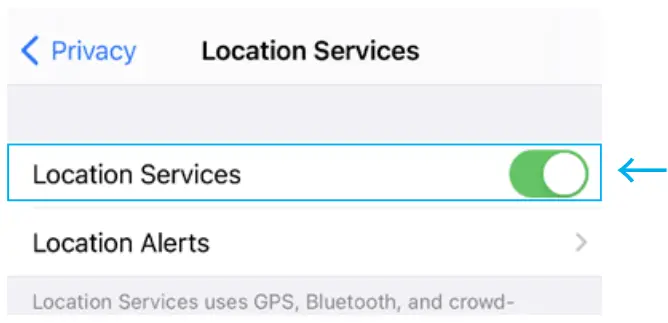
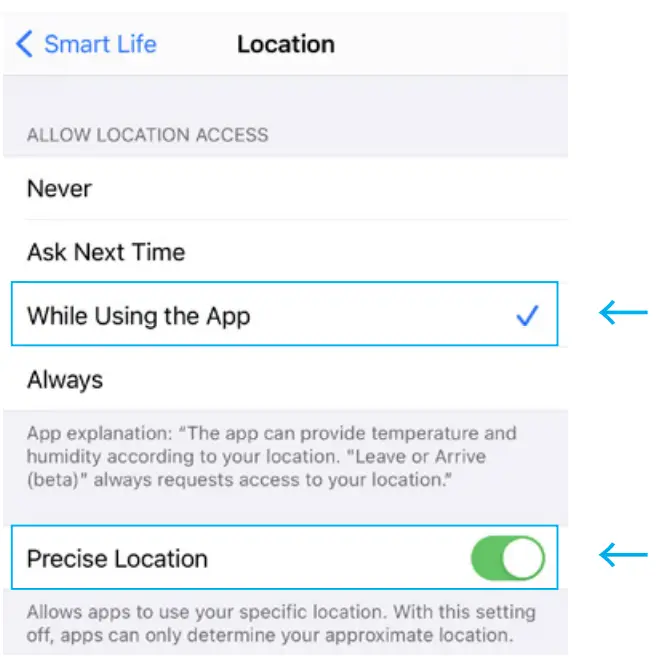
– If you have already upgrate the iOS system to 14, you need to enable the “Local network” of Smart Life App. – Confirm that both the location permission of phone system and Smart Life App are enabled.
– Phone systemSmart Life – Ensure that the DHCP service is enabled for the router. If not, the IP address will be occupied.
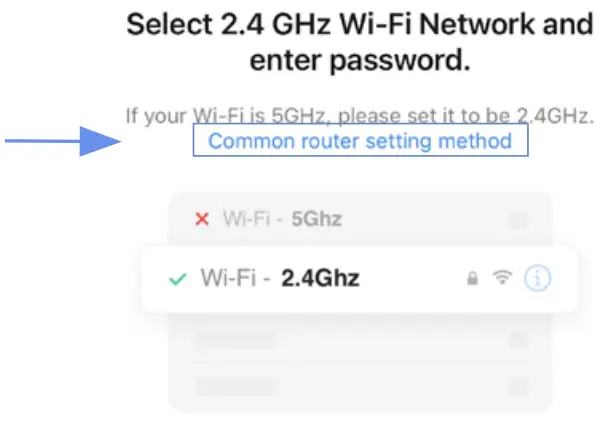
– If your router supports both 2.4Ghz and 5Ghz, please enable the 2.4Ghz channel and add device under 2.4G Wi-Fi channel. You can follow the following step on the App to configure the router. – If it still does not work, it is recommended to change the router and try again.
– Confirm whether the Power Clamp is powered on.
– Please confirm whether the home Wi-Fi network is normal, or whether the Wi-Fi name and password has been modified:
– Put the phone besides your device and make sure they are in the same network environment, try to open a website to judge if the network can be used.
– If there still have problems after the above checking, it is recommended to remove the device or change the router to add it again.