ECU MS365 OneDrive
Product Information: OneDrive
Microsoft OneDrive is a cloud storage service that allows users
to store and share files and folders securely. It is FIPPA
compliant, which means it meets the privacy requirements of the
British Columbia Freedom of Information and Protection of Privacy
Act. OneDrive is integrated with ECU MS365 accounts, which means
users can log in with their ECU credentials.
Creating a folder and uploading files
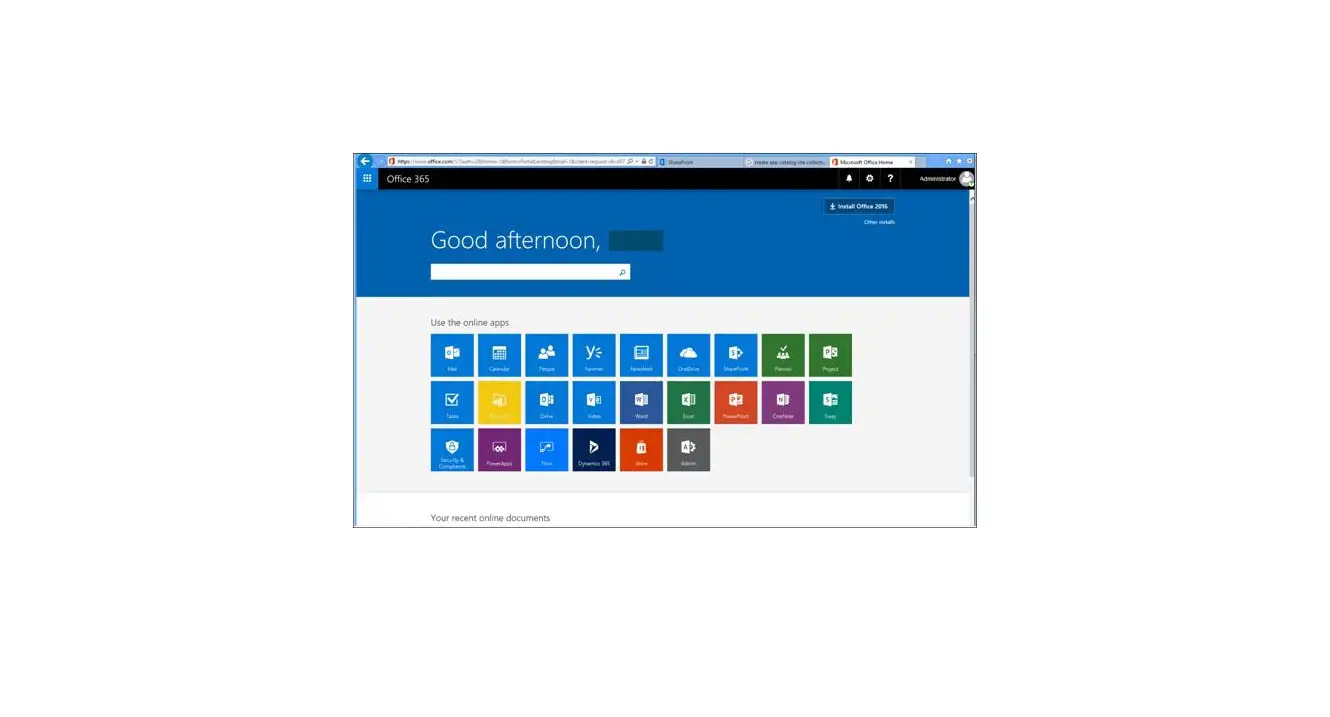
- Log into OneDrive using your ECU MS365 account from
https://emilycarru-my.sharepoint.com/ or onedrive.live.com. - If you want to share multiple files, create a folder to hold
them. Click “New” from your My Files dashboard and choose
“Folder”. - Give your folder a name and click “Create”. You will find it in
your list of items. - To add files to the folder, navigate to it. With your folder
open, you can either drag and drop files into it or select “Upload”
from the top menu and select the file or folder to add.
- From your My Files list, locate the file or folder you want to
share. Hover over the item to reveal the share icon. - Click the share icon, and you should see the menu below.
Specify file access by clicking the top selection to open the link
settings menu. - Note that files can only be shared with ECU MS365 account
holders. If you want to share a file with someone outside of the
ECU community, you will have to use another file sharing
service. - Once you are happy with your settings, click “Apply”. In the
next window, click “Copy” and you will be given a shareable link to
the file or folder. Copy the link and share it, for example as a
hyperlink on your Moodle course.
Sharing files and folders using OneDrive
Microsoft OneDrive is a secure and FIPPA compliant way of sharing large files and course materials with your students. Creating a folder and uploading files
1. Use your ECU MS365 account to log into OneDrive from: https://emilycarru-my.sharepoint.com/ or you can log in from the top right corner of onedrive.live.com
2. If you are sharing multiple files, create a folder to hold your files. From your My Files dashboard, click New and choose Folder:
3. Give your folder a name and click Create. You will find it in your list of items. 4. To add files to the folder, navigate to it. With your folder open you can either drag and
drop files into it or select Upload from the top menu and select the file or folder to add:
Sharing files and folders 1. From your My Files list locate the file or folder you want to share. Hovering over the item
will reveal the share icon:
2. Click the share icon, and you should see the menu below. Specify file access by clicking the top selection to open the link settings menu:
3. In the link settings menu, set file access to your liking. a. If you are sharing an item with a large group or course, set it to the selection outlined below. The item will be viewable by anyone with the link that has an ECU MS365 account. b. To restrict access to specific people, select `Specific people’ and input their name or emails. They will be sent an email notification with a link to the item. c. Be sure to uncheck the `Allow editing’ box if you do not want people to be able to edit your files.
Note: files can only be shared with ECU MS365 account holders. If you want to share a file with someone outside of the ECU community, you will have to use another file sharing service 4. Once you are happy with your settings click Apply. In the next window click Copy and you will be given a shareable link to the file or folder. Copy the link and share it, for example as a hyperlink on your Moodle course.
 Microsoft OneDrive - Access files anywhere. Create docs with free Office Online.
 Sign in to your account