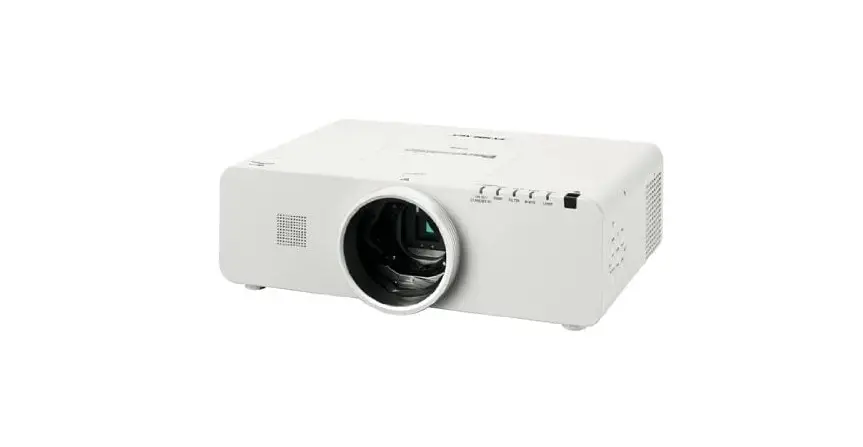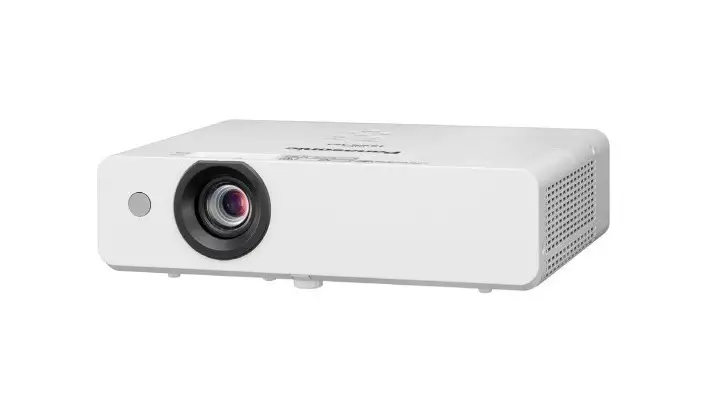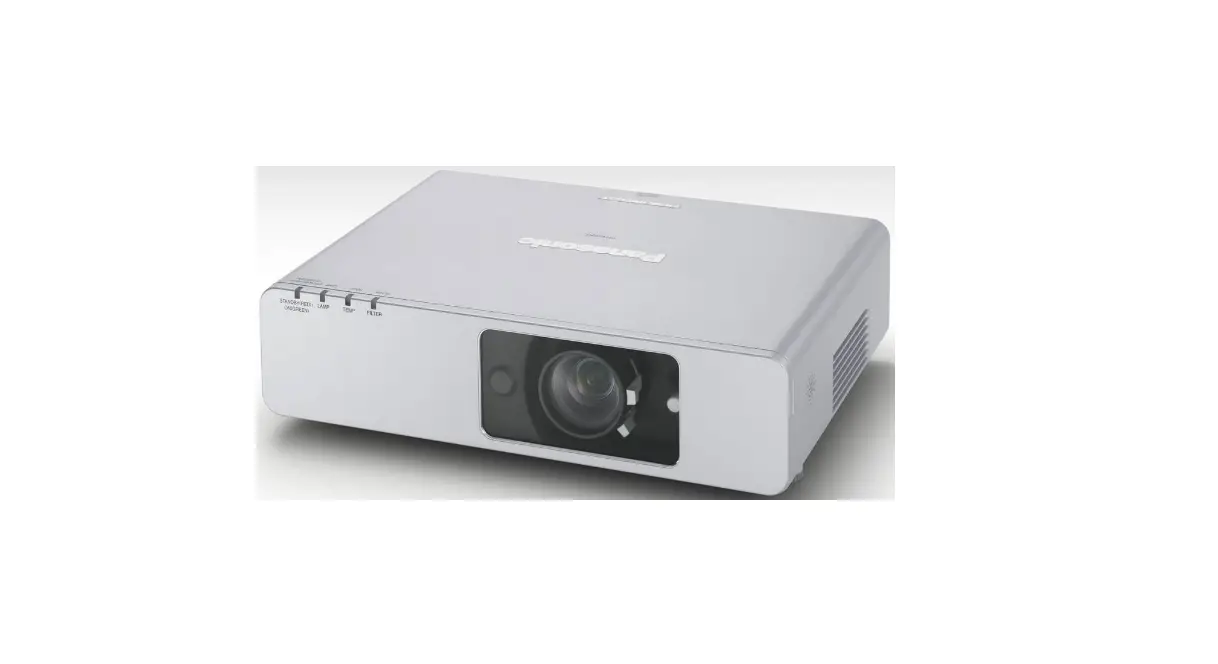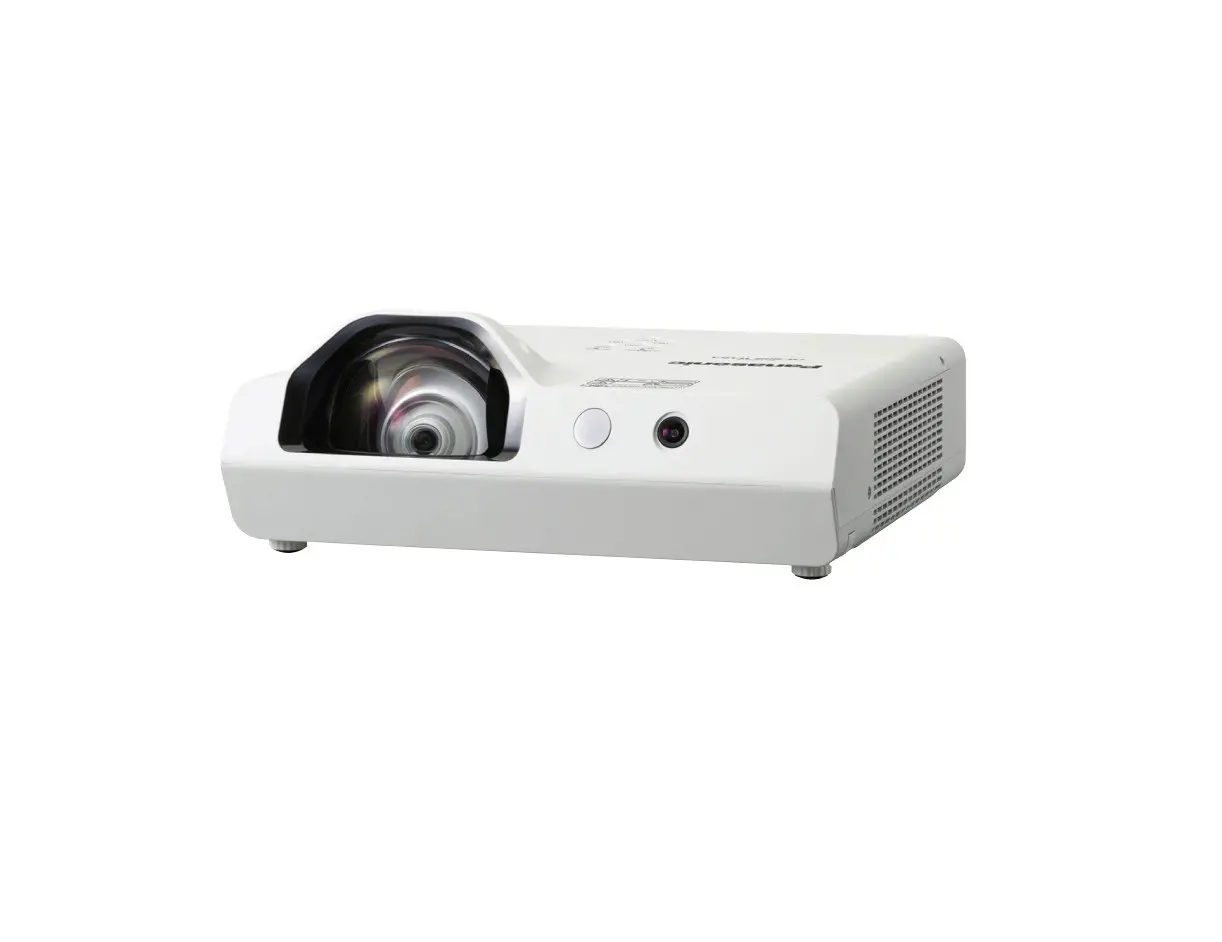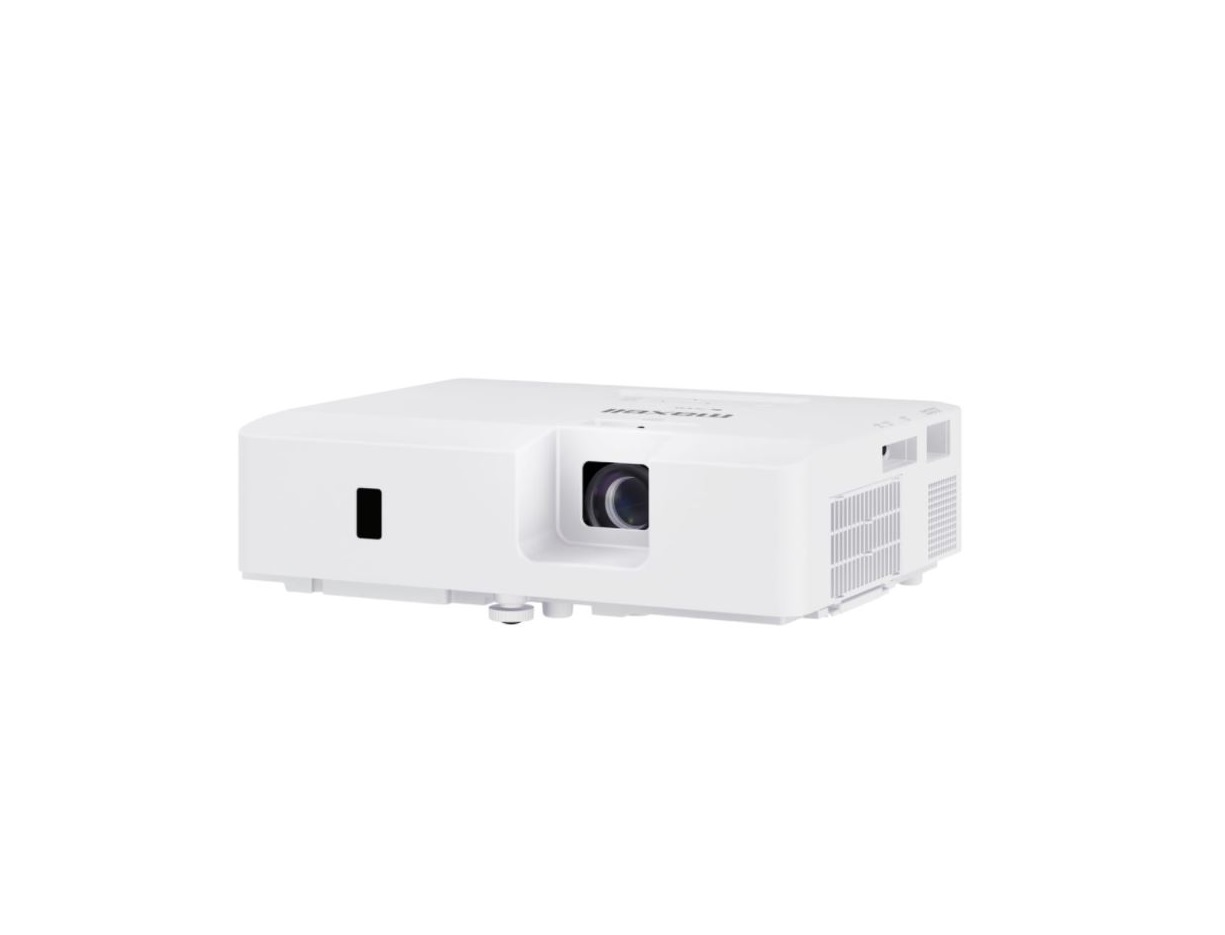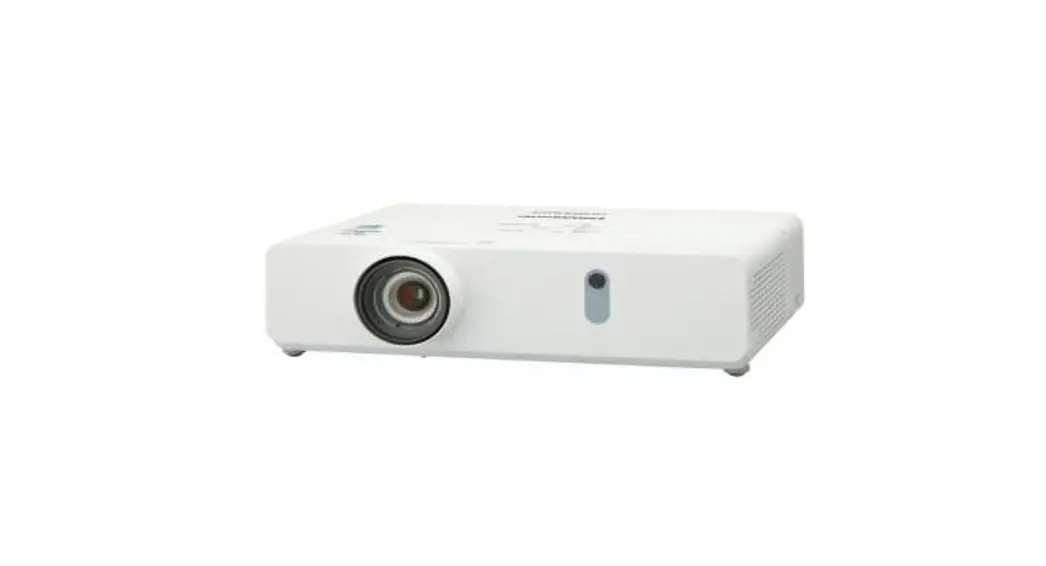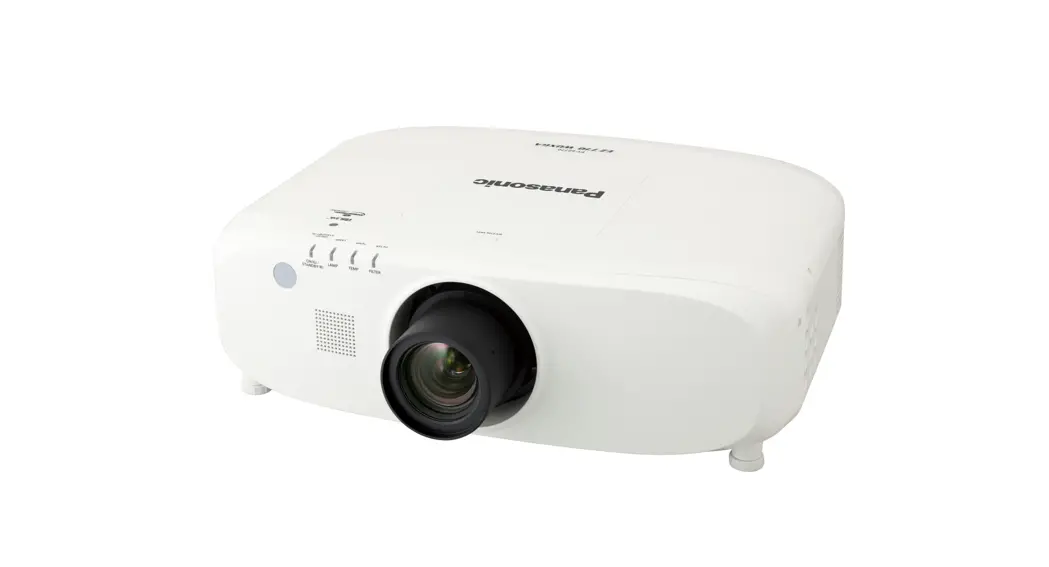
PT-EZ770 Series LCD Projector
Product Information
The PT-EZ770T, PT-EW730T, and PT-EX800T are commercial use LCD
projectors manufactured by Panasonic. These projectors are equipped
with a three-pin grounding-type power plug and comply with Class A
of CISPR32. The projectors emit strong light from the lens and
heated air from the air exhaust port during operation.
Product Usage Instructions
Before using the projector, read the instructions carefully and
save the manual for future reference. Follow the attached
installation instructions to assure continued compliance. Use the
provided power cord and shielded interface cables when connecting
to computer or peripheral devices. Unauthorized changes or
modifications to the equipment could void the user’s authority to
operate this device.
When setting up the projector, make sure to install the wall
outlet or circuit breaker near the equipment and in an easily
accessible location in case of any problems. If any problems occur,
cut off the power supply immediately to prevent fire or electric
shock.
Do not cover the air intake/exhaust ports during operation as
this can cause the projector to overheat and result in fire or
damage to the projector. Avoid placing the projector in narrow,
badly ventilated places or on cloth or papers that could be drawn
into the air intake port. Provide at least 1 m (40) of space
between any walls or objects and the exhaust port, and at least 50
cm (20) of space between any walls or objects and the intake port.
Keep your hands or other objects away from the air exhaust port to
avoid burns or damage.
Do not look at or place your skin into the light emitted from
the lens while the projector is being used as this can cause burns
or loss of sight. The projector emits strong light from the lens,
so be especially careful not to let young children look into the
lens. Turn off the power and unplug the projector before cleaning
or replacing the lamp to avoid electric shock.
Operating Instructions
Functional Manual
LCD Projector Commercial Use
Model No. PT-EZ770T PT-EW730T PT-EX800T
Thank you for purchasing this Panasonic product. Before operating this product, please read the instructions carefully and save this manual
for future use. Before using this product, be sure to read “Read this first!” (x pages 2 to 7).
ENGLISH TQBJ0667-4
Read this first!
Read this first!
WARNING: This equipment is compliant with Class A of CISPR32. In a residential environment this equipment may cause radio interference.
WARNING: TO REDUCE THE RISK OF FIRE OR ELECTRIC SHOCK, DO NOT EXPOSE THIS PRODUCT TO RAIN OR MOISTURE.
The lightning flash with arrowhead symbol, within an equilateral triangle, is intended to alert the user to the presence of uninsulated “dangerous voltage” within the product’s enclosure that may be of sufficient magnitude to constitute a risk of electric shock to persons.
The exclamation point within an equilateral triangle is intended to alert the user to the presence of important operating and maintenance (servicing) instructions in the literature accompanying the product.
CAUTION:
This equipment is equipped with a three-pin grounding-type power plug. Do not remove the grounding pin on the power plug. This plug
will only fit a grounding-type power outlet. This is a safety feature. If you are unable to insert the plug into the outlet, contact an electrician. Do not defeat the purpose of the grounding plug.
Do not remove
CAUTION:
To assure continued compliance, follow the attached installation instructions. This includes using the provided power cord and shielded interface cables when connecting to computer or peripheral
devices. Also, any unauthorized changes or modifications to this equipment could void the user’s authority to operate this device.
2 – ENGLISH
Read this first!
WARNING:
r POWER The wall outlet or the circuit breaker shall be installed near the equipment and shall be easily accessible when problems occur. If the following problems occur, cut off the power supply immediately. Continued use of the projector in these conditions will result in fire or electric shock.
f If foreign objects or water get inside the projector, cut off the power supply. f If the projector is dropped or the cabinet is broken, cut off the power supply. f If you notice smoke, strange smells or noise coming from the projector, cut off the power supply. Please contact an Authorized Service Center for repairs, and do not attempt to repair the projector yourself. During a thunderstorm, do not touch the projector or the cable. Electric shocks can result. Do not do anything that might damage the power cord or the power plug. If the power cord is used while damaged, electric shocks, short-circuits or fire will result. f Do not damage the power cord, make any modifications to it, place it near any hot objects, bend it
excessively, twist it, pull it, place heavy objects on top of it or wrap it into a bundle. Ask an Authorized Service Center to carry out any repairs to the power cord that might be necessary. Completely insert the power plug into the wall outlet and the power connector into the projector terminal. If the plug is not inserted correctly, electric shocks or overheating will result. f Do not use plugs which are damaged or wall outlets which are coming loose from the wall. Do not use anything other than the provided power cord. Failure to observe this will result in fire or electric shocks. Please note that if you do not use the provided power cord to ground the device on the side of the outlet, this may result in electric shocks. Clean the power plug regularly to prevent it from becoming covered in dust. Failure to observe this will cause a fire. f If dust builds up on the power plug, the resulting humidity can damage the insulation. f If not using the projector for an extended period of time, pull the power plug out from the wall outlet. Pull the power plug out from the wall outlet and wipe it with a dry cloth regularly. Do not handle the power plug and power connector with wet hands. Failure to observe this will result in electric shocks. Do not overload the wall outlet. If the power supply is overloaded (ex., by using too many adapters), overheating may occur and fire will result.
r ON USE/INSTALLATION Do not place the projector on soft materials such as carpets or sponge mats. Doing so will cause the projector to overheat, which can cause burns, fire or damage to the projector. Do not set up the projector in humid or dusty places or in places where the projector may come into contact with oily smoke or steam, ex. a bathroom. Using the projector under such conditions will result in fire, electric shocks or deterioration of components. Deterioration of components (such as ceiling mount brackets) may cause the projector which is mounted on the ceiling to fall down. Do not install this projector in a place which is not strong enough to take the full weight of the projector or on top of a surface which is sloped or unstable. Failure to observe this will cause projector to fall down or tip over the projector, and severe injury or damage could result.
ENGLISH – 3
Read this first!
WARNING:
Do not cover the air intake/exhaust ports. Doing so will cause the projector to overheat, which can cause fire or damage to the projector.
f Do not place the projector in narrow, badly ventilated places. f Do not place the projector on cloth or papers, as these materials could be drawn into the air intake port. f Provide at least 1 m (40″) of space between any walls or objects and the exhaust port, and at least 50 cm (20″)
of space between any walls or objects and the intake port. Do not place your hands or other objects close to the air exhaust port. Doing so will cause burns or damage your hands or other objects.
f Heated air comes out of the air exhaust port. Do not place your hands or face, or objects which cannot withstand heat close to this port.
Do not look at or place your skin into the light emitted from the lens while the projector is being used. Doing so can cause burns or loss of sight.
f Strong light is emitted from the projector’s lens. Do not look at or place your hands directly into this light. f Be especially careful not to let young children look into the lens. In addition, turn off the power and
disconnect the power plug when you are away from the projector. Never attempt to remodel or disassemble the projector. High voltages can cause fire or electric shocks.
f For any inspection, adjustment and repair work, please contact an Authorized Service Center. Do not project an image with the lens cover attached. Doing so can cause fire. Do not allow metal objects, flammable objects, or liquids to enter inside of the projector. Do not allow the projector to get wet. Doing so may cause short circuits or overheating, and result in fire, electric shock, or malfunction of the projector.
f Do not place containers of liquid or metal objects near the projector. f If liquid enters inside of the projector, consult your dealer. f Particular attention must be paid to children. Use the ceiling mount bracket specified by Panasonic Connect Co., Ltd. Using the ceiling mount bracket other than the specified one will result in falling accidents. f Attach the supplied safety cable to the ceiling mount bracket to prevent the projector from falling down. Installation work (such as ceiling mount bracket) should only be carried out by a qualified technician. If installation is not carried out and secured correctly, it can cause injury or accidents, such as electric shocks. f Be sure to use the wire provided with the ceiling mount bracket as an extra safety measure to prevent the
projector from falling down. (Install in a different location to the ceiling mount bracket.)
4 – ENGLISH
Read this first!
WARNING:
r ACCESSORIES Do not use or handle the batteries improperly, and refer to the following. Failure to observe this will cause burns, batteries to leak, overheat, explode or catch fire.
f Use AAA/R03/LR03 batteries. f Do not use unspecified batteries. f Do not use chargeable batteries. f Do not disassemble dry cell batteries. f Do not heat the batteries or place them into water or fire. f Do not allow the + and terminals of the batteries to come into contact with metallic objects such as
necklaces or hairpins. f Do not store or carry batteries together with metallic objects. f Store the batteries in a plastic bag and keep them away from metallic objects. f Make sure the polarities (+ and ) are correct when inserting the batteries. f Do not use a new battery together with an old battery or mix different types of batteries. f Do not use batteries with the outer cover peeling away or removed. If the battery fluid leaks, do not touch it with bare hands, and take the following measures if necessary. f Battery fluid on your skin or clothing could result in skin inflammation or injury.
Rinse with clean water and seek medical advice immediately. f Battery fluid coming in contact with your eyes could result in loss of sight.
In this case, do not rub your eyes. Rinse with clean water and seek medical advice immediately. Do not remove unspecified screws during the lamp unit replacement. Doing so can cause electric shocks, burns, or injury. Do not disassemble the lamp unit. If the lamp breaks, it could cause injury. Lamp replacement The lamp has high internal pressure. If improperly handled, an explosion and severe injury or accidents will result.
f The lamp can easily explode if struck against hard objects or dropped. f Before replacing the lamp unit, be sure to turn the power off and to disconnect the power plug from the wall
outlet. Electric shocks or explosions can result if this is not done. f When replacing the lamp unit, turn the power off and allow the lamp to cool for at least one hour before handling it otherwise it can cause burns. Do not use the supplied power cord with devices other than this projector. f Using the supplied power cord with devices other than this projector may cause short circuits or overheating, and result in electric shock or fire. Do not allow children to reach the batteries (AAA/R03/LR03). Accidentally swallowing them can cause physical harm. f If swallowed, seek medical advice immediately. Remove the depleted batteries from the remote control promptly. f Leaving them in the unit may result in fluid leakage, overheating, or explosion of the batteries.
ENGLISH – 5
Read this first!
CAUTION:
r POWER When disconnecting the power cord, be sure to hold the power plug and power connector. If the power cord itself is pulled, the lead will become damaged, and fire, short-circuits or serious electric shocks will result. When not using the projector for an extended period of time, disconnect the power plug from the wall outlet. Failure to do so may result in fire or electric shock. Disconnect the power plug from the wall outlet before carrying out any cleaning and replacing the unit. Failure to do so may result in electric shock.
r ON USE/INSTALLATION Do not place heavy objects on top of the projector. Failure to observe this will cause the projector to become unbalanced and fall, which could result in damage or injury. The projector will be damaged or deformed. Do not put your weight on this projector. You could fall or the projector could break, and injury will result.
f Be especially careful not to let young children stand or sit on the projector. Do not place the projector in extremely hot locations. Doing so will cause the outer casing or internal components to deteriorate, or result in fire.
f Take particular care in locations exposed to direct sunlight or near stoves. Do not place your hands in the openings beside the optical lens, while shifting the lens. Failure to observe this could cause injury. Do not stand in front of the lens while the projector is being used. Doing so can cause damage and burns to clothing.
f Extremely strong light is emitted from the projector’s lens. Do not place objects in front of the lens while the projector is being used. Doing so can cause damage to the object and can cause the set to malfunction.
f Extremely strong light is emitted from the projector’s lens. Always disconnect all cables before moving the projector. Moving the projector with cables still attached can damage the cables, which will cause fire or electric shocks to occur. When mounting the projector on the ceiling, keep mounting screws and power cord from contact with metal parts inside the ceiling. Contact with metal parts inside the ceiling can cause electric shocks.
r ACCESSORIES Do not use the old lamp unit. If used it could cause lamp explosion. If the lamp has broken, ventilate the room immediately. Do not touch or bring your face close to the broken pieces. Failure to observe this will cause the user to absorb the gas which was released when the lamp broke and which contains nearly the same amount of mercury as fluorescent lamps, and the broken pieces will cause injury.
f If you believe that you have absorbed the gas or that the gas has got into your eyes or mouth, seek medical advice immediately.
f Ask your dealer about replacing the lamp unit and check the inside of the projector. When not using the projector for an extended period of time, remove the batteries from the remote control. Failure to observe this will cause the batteries to leak, overheat, catch fire or explode, which may result in fire or contamination of surrounding area.
6 – ENGLISH
Read this first!
CAUTION: r MAINTENANCE
Do not attach the air filter unit while it is wet. Doing so may result in electric shock or malfunctions.
f After you clean the air filter units, dry them thoroughly before reattaching them. Ask your dealer about cleaning inside the projector once a year. Continuous use while dust is accumulated inside the projector may result in fire.
f For cleaning fee, ask your dealer.
ENGLISH – 7
r Trademarks
f Windows, Windows Vista, and Internet Explorer are registered trademarks or trademarks of Microsoft Corporation in the United States and other countries.
f Macintosh and Mac, macOS, OS X, and Safari are trademarks of Apple Inc., registered in the United States and other countries.
f PJLinkTM is a registered trademark or pending trademark in Japan, the United States, and other countries and regions. f The terms HDMI and HDMI High-Definition Multimedia Interface, and the HDMI Logo are trademarks or registered
trademarks of HDMI Licensing Administrator, Inc. in the United States and other countries. f VESA and DisplayPort are trademarks or registered trademarks of the Video Electronics Standards Association. f Crestron Connected, the Crestron Connected logo, Crestron Fusion, Crestron RoomView, and RoomView are either
trademarks or registered trademarks of Crestron Electronics, Inc. in the United States and/or other countries. f Adobe, Acrobat, Flash Player, and Reader are either registered trademarks or trademarks of Adobe Systems Incorporated in
the United States and/or other countries. f Some of the fonts used in the on-screen menu are Ricoh bitmap fonts, which are manufactured and sold by Ricoh Company,
Ltd. f All other names, company names, and product names mentioned in this manual are trademarks or registered trademarks of
their respective owners. Please note that the ® and TM symbols are not specified in this manual.
rIllustrations in this manual
f Illustrations of the projector, screen, and other parts may vary from the actual product.
rReference pages
f Reference pages in this manual are indicated as (x page 00).
r Term
f In this manual, the “Wireless/wired remote control unit” accessory is referred to as “Remote control”.
8 – ENGLISH
Features of the Projector
Quick Steps
High luminance and high contrast
A high luminance of 7 500 lm*1 and a high contrast of 5 000:1 are achieved by means of a unique optical system and lamp drive system.
*1 For PT-EX800T 7 000 lm for PT-EW730T, and 6 500 lm for the PT-EZ770T
Easy and highly flexible setup
For details, refer to the corresponding pages.
1. Set up the projector. (x page 29)
2. Attach the Projection Lens. (x page 37)
3. Connect with external devices. (x page 38)
Easy and highly flexible setup is achieved by DIGITAL LINK compatibility, an electric
lens shift function, and a lineup of various
optional lenses.
4. Connect the power cord. (x page 43)
Reduced maintenance costs
Maintenance costs are reduced by use of an extended-life filter and a recommended lamp replacement interval of 4 500 H*1.
*1 When [LAMP POWER] is set to [ECO2] This time is only the target for replacement and not the warranty time.
Energy conservation achieved through the ECO function
Lamp power is optimized according to the input image.*1 Power consumption is also reduced by optimizing the lamp power according to the brightness of the setup installation location, state of the input signals and state of the video mute.*2
*1 When [LAMP POWER] is set to [AUTO] *2 When [ECO MANAGEMENT] is set to [ON]
5. Switch on the projector. (x page 44)
6. Make initial settings. (x page 20)
f Take this step when you switch on the power for the first time after purchasing the projector.
7. Select the input signal. (x page 47)
8. Adjust the image. (x page 47)
ENGLISH – 9
Contents
Read this first!
Chapter 1 Preparation
Precautions for use Cautions when transporting Cautions when installing Security DIGITAL LINK Cautions on use Disposal Accessories Optional accessories
Start-up display Focus adjustment Initial setting (display language) Initial setting (installation setting) Initial setting (standby mode) Initial setting (screen setting)
About your projector Remote control Projector body
Using the remote control Inserting and removing the batteries Setting the ID number of the remote control Connecting to the projector with a cable
Chapter 2 Getting Started
Setting up Installation mode Parts for ceiling mount (optional) Projected image size and throw distance Adjusting adjustable feet
Removing/attaching the Projection Lens Removing the Projection Lens Attaching the Projection Lens
Connecting Before connecting Connecting example: AV equipment Connecting example: Computers Connecting example: Twisted-pair-cable transmitter
Contents
Be sure to read “Read this first!” from page 2.
2 Chapter 3 Basic Operations
Switching on/off the projector
43
Connecting the power cord
43
14
Power indicator
43
14
Switching on the projector
44
14
Making adjustments and selections
44
16
Switching off the projector
45
16
Direct power off function
46
16 Projecting
47
17
Selecting the input signal
47
18
Adjusting the focus, zoom, and shift
47
19
Moving the lens to the home position
48
20
Adjustment range by the lens position shift (optical shift)
48
20
20
Operating with the remote control Switching the input
49 49
20
Using the shutter function
49
21
Using the mute function
21
Adjusting the volume
50 50
22
Using the freeze function
50
22
Using the on-screen display function
23
Using the presentation timer function
50 51
26
Using the automatic setup function
51
26
Using the keystone distortion correction
26
function
51
27
Using the digital zoom function
52
Switching the aspect ratio of the image
52
Using the P IN P function
52
29
Using the function button
53
29
Using the status function
53
29
Using the ECO management function
53
30
36 Chapter 4 Settings
37 Menu navigation
55
37
Navigating through the menu
55
37
Main menu
56
38
Sub-menu
57
38
39
40
41
10 – ENGLISH
Contents
[PICTURE] menu
60
[PICTURE MODE]
60
[CONTRAST]
60
[BRIGHTNESS]
61
[COLOR]
61
[TINT]
61
[COLOR TEMPERATURE]
61
[GAMMA]
63
[SHARPNESS]
63
[NOISE REDUCTION]
63
[IRIS]
63
[DAYLIGHT VIEW]
64
[SYSTEM SELECTOR]
64
sRGB-compliant video
65
[POSITION] menu
66
[SHIFT]
66
[ASPECT]
66
[ZOOM]
67
[CLOCK PHASE]
68
[KEYSTONE]
68
[ADVANCED MENU] menu
70
[DIGITAL CINEMA REALITY]
70
[BLANKING]
70
[INPUT RESOLUTION]
71
[CLAMP POSITION]
71
[RASTER POSITION]
71
[DISPLAY LANGUAGE] menu
72
Changing the display language
72
[DISPLAY OPTION] menu
73
[COLOR ADJUSTMENT]
73
[COLOR CORRECTION]
73
[SCREEN SETTING]
74
[AUTO SIGNAL]
74
[AUTO SETUP]
74
[RGB IN]
75
[DVI-D IN]
76
[HDMI IN]
76
[DIGITAL LINK IN]
77
[DisplayPort IN]
77
[ON-SCREEN DISPLAY]
77
[CLOSED CAPTION SETTING] (NTSC or 480i
YCBCR signal input only)
79
[BACK COLOR]
80
[STARTUP LOGO]
80
[SHUTTER SETTING]
80
[P-TIMER]
81
[FREEZE]
82
[DIGITAL ZOOM]
82
[PROJECTOR SETUP] menu
84
[PROJECTOR ID]
84
[PROJECTION METHOD]
84
[ECO MANAGEMENT]
85
[SCHEDULE]
86
[STARTUP INPUT SELECT]
88
[RS-232C]
88
[REMOTE2 MODE]
90
[FUNCTION BUTTON]
90
[AUDIO SETTING]
90
[STATUS]
92
[DATE AND TIME]
93
[SAVE ALL USER DATA]
94
[LOAD ALL USER DATA]
94
[INITIALIZE]
94
[SERVICE PASSWORD]
95
[P IN P] menu
96
Using P IN P function
96
[TEST PATTERN] menu
98
[TEST PATTERN]
98
[SIGNAL LIST] menu
99
Registering new signals
99
Renaming the registered signal
99
Expanding signal lock-in range
99
Protecting the registered signal
100
Deleting the registered signal
100
Sub memory
101
[SECURITY] menu
102
[SECURITY PASSWORD]
102
[SECURITY PASSWORD CHANGE]
102
[DISPLAY SETTING]
103
[TEXT CHANGE]
103
[MENU LOCK]
103
[MENU LOCK PASSWORD]
103
[CONTROL DEVICE SETUP]
104
[NETWORK] menu
105
[DIGITAL LINK MODE]
105
[DIGITAL LINK SETUP]
105
[DIGITAL LINK STATUS]
106
[NETWORK SETUP]
106
[NETWORK CONTROL]
107
[NETWORK STATUS]
107
[DIGITAL INTERFACE BOX]
107
Network connections
107
Connecting to a twisted-pair-cable transmitter 108
Accessing from the web browser
109
Chapter 5 Maintenance
Lamp/temperature/filter indicators
125
When an indicator lights up
125
ENGLISH – 11
Contents
Maintenance/replacement
127
Before performing maintenance/replacement 127
Maintenance
127
Replacing the unit
129
Troubleshooting
132
Chapter 6 Appendix
Technical information
135
PJLink protocol
135
Control commands via LAN
136
<SERIAL IN> terminal
138
<REMOTE 2 IN> terminal
141
Two-window display combination list
142
[MENU LOCK PASSWORD] operations
143
List of compatible signals
144
Specifications
147
Dimensions
150
Precautions for Ceiling Mount Bracket
151
Index
152
12 – ENGLISH
Chapter 1 Preparation
This chapter describes things you need to know or check before using the projector.
ENGLISH – 13
Chapter 1Preparation — Precautions for use
Precautions for use
Cautions when transporting
f If you purchased the projector with the standard zoom lens, remove the lens cushion before use, and store it for the future use. When transporting the projector, move the lens to the home position and attach the lens cushion and the lens cover. For the steps to move the lens to the home position, refer to “Moving the lens to the home position” (x page 48).
Lens cushion f When transporting the projector, hold it securely by its bottom and avoid excessive vibration and impacts. They may damage
the internal components and result in malfunctions. f Do not transport the projector with the adjustable feet extended. Doing so may damage the adjustable feet.
Cautions when installing
rDo not set up the projector outdoors.
The projector is designed for indoor use only.
rDo not set up the projector in the following locations.
f Places where vibration and impacts occur such as in a car or vehicle: Doing so may cause damage to internal components or malfunction.
f Near the exhaust of an air conditioner: Depending on the conditions of use, the screen may fluctuate in rare cases due to the heated air from the air exhaust port or the hot or cooled air. Make sure that the exhaust from the projector or other equipment, or the air from the air conditioner does not blow toward the front of the projector.
f Places with sharp temperature fluctuations such as near lights (studio lamps): Doing so may shorten the life of the lamp, or result in deformation of the outer case due to heat, which may cause malfunctions. The operating environment temperature of the projector should be between 0 °C (32 °F) and 45 °C (113 °F) when using it at elevations lower than 1 400 m (4 593′) above sea level, and between 0 °C (32 °F) and 40 °C (104 °F) when using it at high altitudes (between 1 400 m (4 593′) and 2 700 m (8 858′) above sea level).
f Near high-voltage power lines or near motors: Doing so may interfere with the operation of the projector.
rBe sure to ask a specialized technician or your dealer when installing the projector on a ceiling.
The optional Ceiling Mount Bracket is required. Model No.: ET-PKE200H (for High Ceilings), ET-PKE200S (for Low Ceilings), ET-PKE200B (Projector Mount Base)
rAsk a qualified technician or your dealer to install the cable wiring for DIGITAL LINK connection.
Image and sound may be disrupted if cable transmission characteristics cannot be obtained due to inadequate installation.
rThe projector may not work properly due to strong radio wave from the broadcast station or the radio.
If there is any facility or equipment, which outputs strong radio wave, near the installation location, install the projector at a location sufficiently far from the source of the radio wave. Or, wrap the LAN cable connected to the <DIGITAL LINK/LAN> terminal by using a piece of metal foil or a metal pipe, of which is grounded at both ends.
rProjection Lens
Be sure to use the standard zoom lens supplied with the projector (PT-EZ770T, PT-EW730T, PT-EX800T only) or the specified Projection Lens (optional). The standard zoom lens supplied with PT-EZ570U, PT-EW630U, PT-EW530U, PT-EX600U, PT-EX500U is different from the lens of this projector. Using it may result in malfunction or damage. Do not use it.
14 – ENGLISH
Chapter 1Preparation — Precautions for use
rFocus adjustment
The projection lens is thermally affected by the light from the light source, making the focus unstable in the period just after switching on the power. Before adjusting the lens focus, wait at least 30 minutes with the image projected.
rDo not install the projector at elevations of 2 700 m (8 858′) or higher above sea level.
Doing so may shorten the life of the components and result in malfunctions.
rDo not use the projector tilted to the right or left.
Using the projector at a vertical angle that exceeds 15° may reduce product life or result in malfunction.
rCautions when setting up the projector
f When installing and using the projector with a method other than the floor standing installation using the adjustable feet, fix the projector using the four screw holes for ceiling mount (as shown in the figure). (Screw diameter: M6, tapping depth inside the set: 12 mm (15/32″), torque: 4 ± 0.5 N·m) Prevent a gap forming between the setting surface and the screw holes for ceiling mount on the projector bottom, for example, by inserting spacers (metallic) between them. Screw holes for ceiling mount (M6)
Adjustable feet
The positions of screw holes for ceiling mount and adjustable feet f Use the adjustable feet only for the floor standing installation and for adjusting the angle. Using them for other purposes may
damage the projector. f Do not stack projectors on top of each other. f Do not use the projector supporting it by the top. f Do not use the projector tilted at an angle that exceeds ±15° from the horizontal plane. f Do not block the ventilation ports (intake and exhaust) of the projector.
ENGLISH – 15
Chapter 1Preparation — Precautions for use
f Prevent hot and cool air from the air conditioning system to blow directly to the ventilation ports (intake and exhaust) of the projector.
500 mm (20″) or longer
1 000 mm (40″) or longer
+15° -15°
1 000 mm (40″) or longer
100 mm (4″) or longer
f Do not install the projector in a confined space. When installing the projector in a confined space, provide air conditioning or ventilation separately. Exhaust heat may accumulate when the ventilation is not enough, triggering the protection circuit of the projector.
Security
When using this product, take safety measures against the following incidents. f Personal information being leaked via this product f Unauthorized operation of this product by a malicious third party f Interfering or stopping of this product by a malicious third party Take sufficient security measures. (x pages 102, 119) f Make your password difficult to guess as much as possible. f Change your password periodically. f Panasonic Connect Co., Ltd. or its affiliate companies will never ask for your password directly. Do not divulge your
password in case you receive such inquiries. f The connecting network must be secured by a firewall, etc. f Set a password for the web control and restrict the users who can log in.
DIGITAL LINK
“DIGITAL LINK” is a technology that uses a twisted-pair-cable to transmit video, audio, Ethernet, and serial control signals. The projector supports the optional Digital Interface Box (Model No.: ET-YFB100G) and the “XTP transmitter” of Extron Electronics. For twisted-pair-cable transmitters of other manufacturers of which the operation has been verified with the projector, visit the website (https://panasonic.net/cns/projector/). Note that the verification for devices of other manufacturers has been made for the items set by Panasonic Connect Co., Ltd., and not all the operations have been verified. For operation or performance problems caused by the devices of other manufacturers, contact the respective manufacturers.
Cautions on use
rTo get a good picture quality
f In order to view a beautiful image in higher contrast, prepare an appropriate environment. Draw curtains or blinds over windows and turn off any lights near the screen to prevent outside light or light from indoor lamps from shining onto the screen.
rDo not touch the surface of the Projection Lens with your bare hands.
If the surface of the Projection Lens becomes dirty from fingerprints or anything else, this will be magnified and projected onto the screen. Attach the lens cover supplied with the projector or the optional Projection Lens when you do not use the projector.
16 – ENGLISH
Chapter 1Preparation — Precautions for use
rLCD panel
f The LCD panel is precision-made. Note that in rare cases, pixels of high precision could be missing or always lit. Note that such phenomena do not indicate malfunction. If still images are projected for a long time, a residual image may remain on the LCD panel. Note that the residual image may not disappear.
rOptical parts
When the operating environment temperature is high or in environments where lots of dust, cigarette smoke, etc. is present, the replacement cycle of the LCD panel, deflection panel and other optical parts may be shorter even if used for less than one year. Consult your dealer for details.
rDo not move the projector or subject it to vibration or impact while it is operating.
Doing so may shorten the life of the built-in motor.
r Lamp
The light source of the projector is a high-pressure mercury lamp. A high-pressure mercury lamp has the following characteristics. f The luminance of the lamp will decrease by duration of usage. f The lamp may burst with a loud sound or have its service life shortened because of shock, chipping, or degradation due to
cumulative runtime. f The lamp life varies greatly depending on individual differences and usage conditions. In particular, continuous use for 12
hours or more and frequent off/on switching of the power greatly deteriorate the lamp and affects the lamp life. f In rare cases, the lamps burst shortly after projection starts. f The risk of bursting increases when the lamp is used beyond its replacement cycle. Make sure to replace the lamp unit
regularly. (“When to replace the lamp unit” (x page 129), “How to replace the lamp unit” (x page 129)) f If the lamp bursts, gas contained inside of the lamp is released in the form of smoke. f It is recommended that you store the Replacement Lamp Unit as a contingency.
rComputer and external device connections
f When connecting a computer or an external device, read this manual carefully regarding the use of power cords and shielded cables as well.
Disposal
To dispose of the product, ask your local authorities or dealer for correct methods of disposal. The lamp contains mercury. When disposing of used lamp units, contact your local authorities or dealer for correct methods of disposal.
ENGLISH – 17
Chapter 1Preparation — Precautions for use
Accessories
Make sure that the following accessories are provided with your projector. Numbers enclosed in < > show the number of accessories.
Wireless/wired remote control unit <1> (N2QAYA000105)
Lens cover <1> (6103626291)
Power cord <1> (TXFMX011WET)
CD-ROM <1> (TXFQB02VLM8)
AAA/R03 or AAA/LR03 battery <2> (For remote control unit)
Attention
f After unpacking the projector, discard the power cord cap and packaging material properly. f Do not use the supplied power cord for devices other than this projector. f For missing accessories, consult your dealer. f Store small parts in an appropriate manner, and keep them away from small children.
Note f The model numbers of accessories are subject to change without prior notice.
Contents of the supplied CD-ROM
The contents of the supplied CD-ROM are as follows.
Instruction/list (PDF) Software
Operating Instructions Functional Manual
Multi Projector Monitoring & Control Software Operating Instructions
Logo Transfer Software Operating Instructions
List of Compatible Projector This is a list of projectors that are compatible with the software
Models
contained in the CD-ROM and their restrictions.
Multi Projector Monitoring & This software allows you to monitor and control multiple Control Software (Windows) projectors connected to the LAN.
Logo Transfer Software (Windows)
This software allows you to transfer original images, such as company logos to be displayed when projection starts, to the projector.
18 – ENGLISH
Chapter 1Preparation — Precautions for use
Optional accessories
Optional accessories (product name)
Projection Lens
Ceiling Mount Bracket Replacement Lamp Unit Replacement Filter Unit Digital Interface Box
Model No.
Zoom lens
ET-ELW20, ET-ELT20, ET-ELT21
Fixed-focus lens
ET-ELW21
ET-PKE200H (for High Ceilings), ET-PKE200S (for Low Ceilings), ET-PKE200B (Projector Mount Base)
ET-LAE300
ET-RFE300
ET-YFB100G
Note f The model numbers of optional accessories are subject to change without prior notice.
ENGLISH – 19
Chapter 1Preparation — Start-up display
Start-up display
When the projector is switched on for the first time after purchase as well as when [ALL USER DATA] in the [PROJECTOR SETUP] menu [INITIALIZE] is executed, the focus adjustment screen is displayed after projection starts, then the initial setting screen is displayed. Set them in accordance with circumstances. In other occasions, you can change the settings by menu operations.
Focus adjustment
Adjust the focus to display the menu screen clearly. You may also need to adjust the zoom and shift. Refer to “Adjusting the focus, zoom, and shift” (x page 47) for details.
1) Press asqw to adjust the focus.
LENS FOCUS
ADJUST
2) Press the <MENU> button to proceed to the initial setting.
Initial setting (display language)
Select the language to show on the screen. After completed the initial setting, you can change the display language from the [DISPLAY LANGUAGE] menu.
1) Press as to select the display language.
INITIAL SETTING
1/4
Please select DISPLAY LANGUAGE.
SELECT ENTER SET
2) Press the <ENTER> button to proceed to the initial setting.
Initial setting (installation setting)
Set [PROJECTION METHOD] depending on the installation mode. Refer to “Installation mode” (x page 29) for details. After completed the initial setting, you can change the setting from the [PROJECTOR SETUP] menu [PROJECTION METHOD].
1) Press qw to switch the setting.
INITIAL SETTING
2/4
PROJECTION METHOD
FRONT/FLOOR
Change the projection method if the screen display is upside down or inverted.
CHANGE ENTER SET
2) Press the <ENTER> button to proceed to the initial setting.
20 – ENGLISH
Chapter 1Preparation — Start-up display
Initial setting (standby mode)
Set the operation mode during standby. The default setting is [ECO] that keeps power consumption low during standby. When the network function is used during standby, set to [NORMAL]. After completed the initial setting, you can change the setting from the [PROJECTOR SETUP] menu [ECO MANAGEMENT] [STANDBY MODE].
1) Press qw to switch the setting.
INITIAL SETTING
3/4
STANDBY MODE
ECO
If STANDBY MODE is set to ECO, you cannot use network functions when the projector is standing by. Also, you cannot use some RS-232C protocol commands.
CHANGE ENTER SET
2) Press the <ENTER> button to proceed to the initial setting.
Note
f The above initial setting screen is the one displayed when the projector is switched on for the first time after purchase. When [ALL USER DATA] in the [PROJECTOR SETUP] menu [INITIALIZE] is executed, the setting of [STANDBY MODE] before execution is displayed.
Initial setting (screen setting)
Set the screen format (aspect ratio) and display position of the image. After completed the initial setting, you can change the settings of each item from the [DISPLAY OPTION] menu [SCREEN SETTING].
1) Press as to select an item.
2) Press qw to switch the setting.
INITIAL SETTING
4/4
SCREEN FORMAT
16:10
SCREEN POSITION
Set as necessary for the screen in use.
MENU SELECT ENTER SET
CHANGE
3) Press the <ENTER> button.
f Confirm the setting value and complete the initial setting.
Note
f If you press the <MENU> button on the initial setting screen, you can go back to the previous screen. f To continue operations after completed the initial settings, refer to “Selecting the input signal” (x page 47). f By default, the time zone of the projector is set to +09:00 (Japan and Korean Standard Time). Change the setting in the [PROJECTOR
SETUP] menu [DATE AND TIME] [TIME ZONE] to the time zone of the region where you use the projector.
ENGLISH – 21
Chapter 1Preparation — About your projector
About your projector
Remote control
Front
1
2 3 4
5
12
6
6
7
13
Top
25
8
15
20
Bottom
9
16 21
17
22
26
18
23
24
10
14
19
11
1 Power standby <v> button Sets the projector to the state where the projector is switched off (standby mode) when the <MAIN POWER> switch on the projector is set to <ON> and in the projection mode.
2 Power on <b> button Starts projection when the <MAIN POWER> switch on the projector is set to <ON> when the power is switched off (standby mode).
3 Remote control indicator Flashes if any button in the remote control is pressed.
4 Lens (<FOCUS>, <ZOOM>, <SHIFT>) buttons Adjusts the Projection Lens. (x page 47)
5 <MENU> button/<ENTER> button/asqw button Used to navigate through the menu screen. (x page 55)
6 <VOL-> button/<VOL+> button Adjusts the volume of the built-in speaker or audio output. (x page 50)
7 <ON SCREEN> button Switches on (display)/off (hide) the on-screen display function. (x page 50)
8 Input selection (<RGB1/2>, <DIGITAL LINK>, <DVI-D>, <VIDEO>, <DisplayPort>, <HDMI>) buttons Switches the input signal to project. (x page 49)
9 Number (<0> – <9>) buttons Used when the system uses multiple projectors. Used to input ID numbers or passwords.
10 <ID ALL> button Used to simultaneously control all the projectors with a single remote control when using multiple projectors. (x page 26)
11 <ECO> button Displays the setting screen relating to ECO management. (x pages 53, 85)
12 <SHUTTER> button Used when temporarily turning off the image and audio. (x page 49)
Attention
f Do not drop the remote control.
22 – ENGLISH
13 <AUTO SETUP> button Automatically adjusts the image display position while the image is projected. [PROGRESS] is displayed on the screen while adjusting automatically. (x page 51)
14 <ID SET> button Sets the ID number of the remote control to use for a system using multiple projectors. (x page 26)
15 <KEYSTONE> button Displays the [KEYSTONE] menu. (x pages 51, 68)
16 <FUNCTION> button Assigns a frequently used operation as a shortcut button. (x page 53)
17 <FREEZE> button Used when pausing the image and turning off the audio. (x page 50)
18 <P-TIMER> button Operates the presentation timer function. (x page 51)
19 <STATUS> button Displays the status of the projector. (x pages 53, 92)
20 <DEFAULT> button Resets the content of the sub-menu to the factory default. (x page 56)
21 <D.ZOOM> button Displays the [DIGITAL ZOOM] menu. (x pages 52, 82)
22 <MUTE> button Used when temporarily turning off the audio. (x page 50)
23 <ASPECT> button Switches the aspect ratio of the image. (x page 52)
24 <P IN P> button Switches the [P IN P] setting. (x page 52)
25 Remote control signal transmitter
26 Remote control wired terminal This is the terminal to connect to the projector by a cable when used as a wired remote control. (x page 27)
Chapter 1Preparation — About your projector
f Avoid contact with liquids or moisture. f Do not attempt to modify or disassemble the remote control.
Note
f When operating the remote control by directly pointing the remote control signal receiver of the projector, operate the remote control at a distance approx. 30 m (98’5″) or shorter from the remote control signal receiver. The remote control can control at angles of up to ±30° vertically and horizontally, but the effective control range may be reduced.
f If there are any obstacles between the remote control and the remote control signal receiver, the remote control may not operate properly. f The signal will be reflected off the screen. However, the operating range may be limited from light reflection loss due to the screen material. f If the remote control signal receiver directly receives strong light, such as fluorescent light, the remote control may not operate properly. Use
it in a place distant from the light source. f The power indicator <ON (G)/STANDBY (R)> will flash if the projector receives a remote control signal.
Projector body
Front
Side
1 2 345
6
7
8
6
Rear
16
15
9 10 11 12 13 14
15
Projection direction
WARNING
Keep your hands and other objects away from the air exhaust port. f Keep your hands and face away. f Do not insert your fingers. f Keep heat-sensitive objects away. Heated air from the air exhaust port can cause burns, injury, or deformations.
1 Remote control signal receiver (front) 2 Power indicator <ON (G)/STANDBY (R)>
Displays the status of the power. 3 Lamp indicator <LAMP>
You can display the status of the lamp. 4 Temperature indicator <TEMP>
Displays the status of the internal temperature. 5 Filter indicator <FILTER>
Displays the status of the air filter unit.
17
9
6 Adjustable feet Adjusts the projection angle.
7 Speaker
8 Projection Lens
9 Air exhaust port
10 Remote control signal receiver (rear)
11 <MAIN POWER> switch Turns off/on the main power.
12 <AC IN> terminal Connect the supplied power cord.
13 Connecting terminals (x page 25)
14 Security slot This security slot is compatible with the Kensington security cables.
15 Air intake port
16 Air filter cover The air filter unit is inside.
17 Control panel (x page 24)
ENGLISH – 23
Bottom
Chapter 1Preparation — About your projector
Top
19
18 Projection direction
20
21
18 Burglar hook port Attaches a burglar prevention cable, etc.
19 Luminance sensor (x page 64)
20 Lens release button
21 Lamp cover The lamp unit is inside.
Attention
f Do not block the ventilation ports (intake and exhaust) of the projector.
r Control panel
1
2
3
4
1 Power standby <v/b> button Sets the projector to the state where the projector is switched off (standby mode) when the <MAIN POWER> switch on the projector is set to <ON> and in the projection mode. Also starts projection when the power is switched off (standby mode).
2 <MENU> button Displays or hides the main menu. (x page 55) Returns to the previous menu when a sub-menu is displayed. If you press the <MENU> button on the control panel for at least three seconds while the on-screen display is off (hidden), the on-screen display is turned on.
3 <VOL-> button/<VOL+> button Adjusts the volume of audio output. (x page 50)
5 6
3
7
8
4 <SHUTTER> button Used when temporarily turning off the image and audio. (x page 49)
5 <INPUT> button Switches the input signal to project. (x page 49)
6 <ENTER> button Determines and executes an item in the menu screen.
7 <LENS> button Adjusts the focus, zoom, and shift (position) of the lens.
8 asqw buttons Used to select items in the menu screen, change settings, and adjust levels. Also used to enter a password in [SECURITY] or enter characters.
24 – ENGLISH
Chapter 1Preparation — About your projector
r Connecting terminals
1
2 34
5
6
7
8
9 10 11 12
13
1 <DIGITAL LINK/LAN> terminal This is the LAN terminal to connect to the network. This is also used when connecting a device for transmitting video and audio signals via the LAN terminal.
2 <HDMI IN> terminal This is the terminal to input HDMI signals.
3 <REMOTE 1 IN> terminal This is the terminal to connect to the remote control by cable when controlling the projector by wired remote control.
4 <MONITOR OUT> terminal This is the terminal to output analog RGB signals and YCBCR/ YPBPR signals that were input to the <RGB 1 IN> or <RGB 2 IN> terminal to an external device. When the input is switched to RGB1 or RGB2, the corresponding signals are output.
5 <RGB 1 IN> terminal This is the terminal to input RGB signals or YCBCR/YPBPR signals.
6 <RGB 2 IN> (<R/PR>, <VIDEO/G/Y>, <B/PB/C>, <SYNC/HD>, <VD>) terminal This is the terminal to input RGB signals or YCBCR/YPBPR signals, Y/C signals, and video signals.
7 <DVI-D IN> terminal This is the terminal to input DVI-D signals.
8 <DisplayPort IN> terminal This is the terminal to input DisplayPort signals.
9 <VIDEO IN> terminal This is the terminal to input video signals.
10 <AUDIO IN 1> terminal /<AUDIO IN 2> terminal/<AUDIO IN 3> terminal This is the terminal to input audio. Left input <L> and right input <R> are provided for the <AUDIO IN 3> terminal.
11 <VARIABLE AUDIO OUT> terminal This is the terminal to output the input audio signal to the projector.
12 <SERIAL IN> terminal This is the RS-232C compatible terminal to externally control the projector by connecting a computer.
13 <REMOTE 2 IN> terminal This is the terminal to remotely control the projector using the external control circuit.
Attention
f When a LAN cable is directly connected to the projector, the network connection must be made indoors.
ENGLISH – 25
Chapter 1Preparation — Using the remote control
Using the remote control
Inserting and removing the batteries
(ii) (i)
Fig. 1
Fig. 2
1) Open the cover. (Fig. 1)
2) Insert the batteries and close the cover (insert the m side first). (Fig. 2)
f When removing the batteries, perform the steps in reverse order.
Setting the ID number of the remote control
When you use the system with multiple projectors, you can operate all the projectors simultaneously or each projector individually using single remote control, if a unique ID number is assigned to each projector. After setting the ID number of the projector, set same ID number on the remote control. The factory default ID number of the projector is set to [ALL]. When using a single projector, press the <ID ALL> button on the remote control. Also, you can control a projector by pressing the <ID ALL> button on the remote control even if you do not know the projector ID.
How to set
1) Press the <ID SET> button on the remote control.
2) Within five seconds, press the two-digit ID number set on the projector using the number (<0> – <9>) buttons.
f If you press the <ID ALL> button, you can control the projectors regardless of the ID number setting of the projector.
Attention
f Since the ID number of the remote control can be set without the projector, do not press the <ID SET> button on the remote control carelessly. If the <ID SET> button is pressed and no number (<0> – <9>) buttons are pressed within five seconds, the ID number returns to its original value before the <ID SET> button was pressed.
f The ID number set on the remote control will be stored unless it is set again. However, it will be erased if the remote control is left with dead batteries. Set the same ID number again when the batteries are replaced.
Note
f Set the ID number of the projector from the [PROJECTOR SETUP] menu [PROJECTOR ID].
26 – ENGLISH
Chapter 1Preparation — Using the remote control
Connecting to the projector with a cable
When controlling the projector by wired remote control, connect the <REMOTE 1 IN> terminal on the projector to the remote control wired terminal on the remote control by a commercial M3 stereo mini jack cable. The remote control is effective even in places where an obstacle stands in the light path or where devices are susceptible to outside light.
Remote control
Connecting to the remote control wired terminal
M3 stereo mini jack cable (commercially available)
Connecting terminals
Attention
f Use a cable that is 15 m (49’3″) or shorter, with dual core shielded. The remote control may not operate when the length of the cable exceeds 15 m (49’3″) or when the shielding of the cable is inadequate.
ENGLISH – 27
Chapter 2 Getting Started
This chapter describes things you need to do before using the projector such as the setup and connections.
28 – ENGLISH
Setting up
Chapter 2Getting Started — Setting up
Installation mode
There are four ways to set up the projector. Set the [PROJECTOR SETUP] menu [PROJECTION METHOD] (x page 84) depending on the installation method.
Mounting on the ceiling and projecting forward
Setting on a desk/floor and projecting from rear (Using the translucent screen)
Menu item [PROJECTION METHOD]
Method [FRONT/CEILING]
Mounting on the ceiling and projecting from rear (Using the translucent screen)
Menu item [PROJECTION METHOD]
Method [REAR/FLOOR]
Setting on a desk/floor and projecting forward
Menu item [PROJECTION METHOD]
Method [REAR/CEILING]
Menu item [PROJECTION METHOD]
Method [FRONT/FLOOR]
Parts for ceiling mount (optional)
You can install the projector on the ceiling using the optional Ceiling Mount Bracket (Model No.: ET-PKE200H (for High Ceilings), ET-PKE200S (for Low Ceilings), and ET-PKE200B (Projector Mount Base)). f Be sure to use the Ceiling Mount Bracket specified for this projector. f Refer to the Installation Instructions supplied with the Ceiling Mount Bracket when installing the projector with the bracket.
Attention
f To ensure projector performance and security, installation of the Ceiling Mount Bracket must be carried out by your dealer or a qualified technician.
ENGLISH – 29
Chapter 2Getting Started — Setting up
Projected image size and throw distance
Refer to the projected image size and projection distance shown below to install the projector. The image size and image position can be adjusted in accordance with the screen size and screen position.
Projected image
SH
SD
Screen
L1
SH
L (LW/LT)
H
SW L1
L (LW/LT)
Screen
SW
Note
f This illustration is prepared on the assumption that the projected image size and position have been aligned to fit full inside the screen. (Unit: m)
L (LW/LT)*1 L1 SH SW H SD
Projection distance Lens protrusion dimension Image height Image width Distance from the lens center to the lower edge of the projected image Projected image size
*1 LW: Minimum projection distance when the Zoom Lens is used LT: Maximum projection distance when the Zoom Lens is used
(Unit: m)
Projection Lens Model No. Standard zoom lens ET-ELW21 ET-ELW20 ET-ELT20 ET-ELT21
L1 dimension (approximate value) 0.059 0.050 0.080 0.081 0.080
Attention
f Before setting up, read “Precautions for use” (x page 14).
30 – ENGLISH
Chapter 2Getting Started — Setting up
Projection distance by Projection Lens
A ±5 % error in listed projection distances may occur. In addition, when [KEYSTONE] is used, distance is corrected to become smaller than the specified screen size.
For PT-EZ770T
r When the screen aspect ratio is 16:10
(Unit: m)
Lens type
Projection Lens Model No.
Throw ratio*1
Projected image size
Diagonal (SD)
Height Width (SH) (SW)
1.02 (40″)
0.538 0.862
1.27 (50″)
0.673 1.077
1.52 (60″)
0.808 1.292
1.78 (70″)
0.942 1.506
2.03 (80″)
1.077 1.723
2.29 (90″)
1.212 1.939
2.54 (100″)
1.346 2.154
3.05 (120″) 1.615 2.585
3.81 (150″)
2.019 3.231
5.08 (200″)
2.692 4.308
6.35 (250″) 3.365 5.385
7.62 (300″)
4.039 6.462
8.89 (350″)
4.712 7.539
10.16 (400″) 5.385 8.616
Optional lens
Standard zoom lens
Fixedfocus lens
Short focus zoom lens
Long focus zoom lens
—
ET-ELW21 ET-ELW20
ET-ELT20
1.7-2.8:1
0.8:1
1.3-1.7:1
2.8-4.6:1
Projection distance (L)
Min. Max. (LW) (LT)
Fixed
Min. Max. Min. Max. (LW) (LT) (LW) (LT)
1.36 2.35 0.63 1.02 1.41 2.29 3.81
1.71 2.95 0.80 1.29 1.77 2.89 4.79
2.06 3.55 0.97 1.55 2.14 3.49 5.77 2.42 4.15 1.14 1.82 2.50 4.09 6.75 2.77 4.76 1.32 2.09 2.87 4.69 7.73
3.12 5.36 1.49 2.36 3.23 5.30 8.71
3.48 5.96 1.66 2.63 3.60 5.90 9.69 4.18 7.16 2.00 3.16 4.32 7.10 11.65 5.24 8.96 2.52 3.96 5.42 8.90 14.59
7.01 11.96 3.38 5.31 7.25 11.91 19.49
8.77 14.96 4.24
10.54 17.97 5.10 12.30 20.97 5.95
6.65 9.07 14.91 24.39 7.99 10.9 17.92 29.29
9.33 12.73 20.92 34.19
14.07 23.97 6.81 10.67 14.55 23.93 39.09
Ultra long focus zoom
lens ET-ELT21 4.6-7.2:1
Min.
(LW) 3.72 4.70 5.68 6.66 7.64 8.63 9.61 11.57 14.52 19.43 24.34 29.25 34.16 39.07
Max.
(LT) 6.03
7.59 9.15 10.71 12.27 13.83
15.39 18.51 23.19 30.99 38.79
46.59 54.39 62.19
Height position (H)*2
Standard zoom lens/ET-ELW20/ ET-ELW21
ET-ELT20/ (Fixed) ET-ELT21
-0.05 – 0.59
0.27
-0.07 – 0.74 0.34
-0.08 – 0.89 0.40
-0.09 – 1.04 0.47
-0.11 – 1.18
0.54
-0.12 – 1.33 0.61
-0.13 – 1.48 0.67
-0.16 – 1.78 0.81
-0.20 – 2.22 1.01
-0.27 – 2.96
1.35
-0.34 – 3.70 1.68
-0.40 – 4.44 2.02
-0.47 – 5.18
2.36
-0.54 – 5.92
2.69
*1 The throw ratio is based on the value during projection with the projected image size of 2.03 m (80″). *2 When the fixed-focus lens (Model No.: ET-ELW21) is attached, the lens shift is not possible. The height position (H) becomes SH/2.
r When the screen aspect ratio is 16:9
(Unit: m)
Lens type
Projection Lens Model No.
Throw ratio*1
Projected image size
Diagonal (SD)
Height Width (SH) (SW)
1.02 (40″)
0.498 0.886
1.27 (50″)
0.623 1.107
1.52 (60″)
0.747 1.328
1.78 (70″)
0.872 1.550
2.03 (80″)
0.996 1.771
2.29 (90″)
1.121 1.992
2.54 (100″)
1.245 2.214
3.05 (120″)
1.494 2.657
3.81 (150″)
1.868 3.321
5.08 (200″)
2.491 4.428
6.35 (250″)
3.113 5.535
7.62 (300″)
3.736 6.641
8.89 (350″)
4.358 7.748
10.16 (400″) 4.981 8.855
Optional lens
Standard zoom lens
Fixedfocus lens
Short focus zoom lens
Long focus zoom lens
—
ET-ELW21 ET-ELW20
ET-ELT20
1.7-2.8:1
0.8:1
1.3-1.7:1
2.8-4.6:1
Projection distance (L)
Min. Max. (LW) (LT)
Fixed
Min. Max. Min. Max. (LW) (LT) (LW) (LT)
1.40 2.42 0.65 1.05 1.45 2.36 3.92
1.76 3.04 0.83 1.32 1.82 2.97 4.92
2.12 3.65 1.00 1.60 2.20 3.59 5.93 2.49 4.27 1.18 1.87 2.57 4.21 6.94 2.85 4.89 1.35 2.15 2.95 4.83 7.95
3.21 5.51 1.53 2.43 3.32 5.45 8.95
3.57 6.12 1.71 2.70 3.70 6.06 9.96 4.30 7.36 2.06 3.25 4.45 7.30 11.97 5.39 9.21 2.59 4.08 5.58 9.15 15.00
7.20 12.29 3.47 5.46 7.45 12.24 20.03
9.02 15.38 4.36 10.83 18.47 5.24 12.65 21.55 6.12
6.83 9.33 15.33 25.07 8.21 11.20 18.42 30.10
9.59 13.08 21.51 35.14
14.46 24.64 7.00 10.97 14.96 24.60 40.18
Ultra long focus zoom
lens ET-ELT21 4.6-7.2:1
Min.
(LW) 3.83 4.83 5.84 6.85 7.86 8.87 9.88 11.90 14.93 19.98 25.02 30.07 35.12 40.17
Max.
(LT) 6.20 7.81 9.41 11.01 12.62 14.22 15.82 19.03 23.84 31.86 39.87 47.89 55.91 63.92
Height position (H)*2
Standard zoom lens/ET-ELW20/ ET-ELW21
ET-ELT20/ (Fixed) ET-ELT21
-0.05 – 0.55
0.25
-0.06 – 0.68 0.31
-0.07 – 0.82 0.37
-0.09 – 0.96 0.44
-0.10 – 1.10
0.50
-0.11 – 1.23
0.56
-0.12 – 1.37 0.62
-0.15 – 1.64
0.75
-0.19 – 2.05
0.93
-0.25 – 2.74
1.25
-0.31 – 3.42
1.56
-0.37 – 4.11
1.87
-0.44 – 4.79 2.18
-0.50 – 5.48
2.49
*1 The throw ratio is based on the value during projection with the projected image size of 2.03 m (80″). *2 When the fixed-focus lens (Model No.: ET-ELW21) is attached, the lens shift is not possible. The height position (H) becomes SH/2.
ENGLISH – 31
Chapter 2Getting Started — Setting up
r When the screen aspect ratio is 4:3
(Unit: m)
Lens type
Projection Lens Model No.
Throw ratio*1
Projected image size
Diagonal (SD)
Height Width (SH) (SW)
1.02 (40″)
0.610 0.813
1.27 (50″)
0.762 1.016
1.52 (60″)
0.914 1.219
1.78 (70″)
1.067 1.422
2.03 (80″)
1.219 1.626
2.29 (90″)
1.372 1.829
2.54 (100″)
1.524 2.032
3.05 (120″)
1.829 2.438
3.81 (150″)
2.286 3.048
5.08 (200″)
3.048 4.064
6.35 (250″)
3.810 5.080
7.62 (300″)
4.572 6.096
8.89 (350″)
5.334 7.112
10.16 (400″) 6.096 8.128
Optional lens
Standard zoom lens
Fixedfocus lens
Short focus zoom lens
Long focus zoom lens
—
ET-ELW21 ET-ELW20
ET-ELT20
1.9-3.3:1
0.9:1
1.5-2.0:1
3.3-5.4:1
Projection distance (L)
Min. Max. (LW) (LT)
Fixed
Min. Max. Min. Max. (LW) (LT) (LW) (LT)
1.54 2.67 0.72 1.16 1.60 2.61 4.33
1.94 3.35 0.91 1.46 2.01 3.29 5.43
2.34 4.03 1.11 1.77 2.43 3.97 6.54
2.74 4.71 1.30 2.07 2.84 4.65 7.65
3.14 5.39 1.50 2.37 3.25 5.33 8.76
3.54 6.07 1.69 2.68 3.67 6.01 9.87
3.94 6.75 1.89 2.98 4.08 6.69 10.98
4.74 8.11 2.28 3.59 4.91 8.05 13.20
5.94 10.15 2.86 4.50 6.15 10.09 16.53
7.94 13.55 3.83 6.02 8.21 13.49 22.08
9.94 16.95 4.81 7.53 10.28 16.90 27.62
11.94 20.34 5.78 9.05 12.35 20.30 33.17
13.93 23.74 6.75 10.57 14.41 23.70 38.72
15.93 27.14 7.72 12.09 16.48 27.10 44.27
Ultra long focus zoom
lens ET-ELT21 5.4-8.6:1
Min.
(LW) 4.24 5.35 6.46 7.57 8.68 9.79 10.91 13.13 16.47 22.03 27.58 33.14 38.70 44.26
Max.
(LT)
6.85 8.62 10.39
12.15 13.92
15.68 17.45 20.98 26.28
35.11 43.94
52.77 61.60 70.43
Height position (H)*2
Standard zoom lens/ET-ELW20/ ET-ELW21
ET-ELT20/ (Fixed) ET-ELT21
-0.06 – 0.67 0.30
-0.08 – 0.84 0.38
-0.09 – 1.01 0.46
-0.11 – 1.17
0.53
-0.12 – 1.34 0.61
-0.14 – 1.51
0.69
-0.15 – 1.68
0.76
-0.18 – 2.01 0.91
-0.23 – 2.51
1.14
-0.30 – 3.35
1.52
-0.38 – 4.19 1.91
-0.46 – 5.03
2.29
-0.53 – 5.87
2.67
-0.61 – 6.71
3.05
*1 The throw ratio is based on the value during projection with the projected image size of 2.03 m (80″). *2 When the fixed-focus lens (Model No.: ET-ELW21) is attached, the lens shift is not possible. The height position (H) becomes SH/2.
For PT-EW730T
r When the screen aspect ratio is 16:10
(Unit: m)
Lens type
Projection Lens Model No.
Throw ratio*1
Projected image size
Diagonal (SD)
Height Width (SH) (SW)
1.02 (40″)
0.538 0.862
1.27 (50″)
0.673 1.077
1.52 (60″)
0.808 1.292
1.78 (70″)
0.942 1.506
2.03 (80″)
1.077 1.723
2.29 (90″)
1.212 1.939
2.54 (100″)
1.346 2.154
3.05 (120″) 1.615 2.585
3.81 (150″)
2.019 3.231
5.08 (200″)
2.692 4.308
6.35 (250″) 3.365 5.385
7.62 (300″)
4.039 6.462
8.89 (350″)
4.712 7.539
10.16 (400″) 5.385 8.616
Optional lens
Standard zoom lens
Fixedfocus lens
Short focus zoom lens
Long focus zoom lens
—
ET-ELW21 ET-ELW20
ET-ELT20
1.7-2.8:1
0.8:1
1.3-1.7:1
2.8-4.6:1
Projection distance (L)
Min. Max. (LW) (LT)
Fixed
Min. Max. Min. Max. (LW) (LT) (LW) (LT)
1.38 2.38 0.64 1.03 1.42 2.32 3.85
1.74 2.99 0.81 1.30 1.79 2.93 4.85
2.09 3.60 0.99 1.57 2.16 3.54 5.84 2.45 4.21 1.16 1.85 2.53 4.15 6.83 2.81 4.82 1.33 2.12 2.90 4.75 7.82
3.16 5.42 1.51 2.39 3.27 5.36 8.81
3.52 6.03 1.68 2.66 3.64 5.97 9.80 4.24 7.25 2.03 3.21 4.38 7.19 11.79 5.31 9.07 2.55 4.02 5.48 9.01 14.76
7.09 12.11 3.42 5.38 7.33 12.05 19.72
8.88 15.16 4.29 10.67 18.20 5.16 12.45 21.24 6.03
6.74 9.17 15.10 24.68 8.10 11.02 18.14 29.64
9.46 12.86 21.18 34.59
14.24 24.28 6.89 10.82 14.71 24.22 39.55
Ultra long focus zoom
lens ET-ELT21 4.6-7.2:1
Min.
(LW) 3.76 4.76 5.75 6.75 7.74 8.73 9.73 11.72 14.70 19.67 24.64 29.61 34.58 39.55
Max.
(LT) 6.10 7.68 9.26 10.84 12.42 14.00 15.58 18.73 23.47 31.36 39.26 47.15 55.04 62.94
Height position (H)*2
Standard zoom lens/ET-ELW20/ ET-ELW21
ET-ELT20/ (Fixed) ET-ELT21
-0.05 – 0.59
0.27
-0.07 – 0.74 0.34
-0.08 – 0.89 0.40
-0.09 – 1.04 0.47
-0.11 – 1.18
0.54
-0.12 – 1.33 0.61
-0.13 – 1.48 0.67
-0.16 – 1.78 0.81
-0.20 – 2.22 1.01
-0.27 – 2.96
1.35
-0.34 – 3.70 1.68
-0.40 – 4.44 2.02
-0.47 – 5.18
2.36
-0.54 – 5.92
2.69
*1 The throw ratio is based on the value during projection with the projected image size of 2.03 m (80″). *2 When the fixed-focus lens (Model No.: ET-ELW21) is attached, the lens shift is not possible. The height position (H) becomes SH/2.
32 – ENGLISH
Chapter 2Getting Started — Setting up
r When the screen aspect ratio is 16:9
(Unit: m)
Lens type
Projection Lens Model No.
Throw ratio*1
Projected image size
Diagonal (SD)
Height Width (SH) (SW)
1.02 (40″)
0.498 0.886
1.27 (50″)
0.623 1.107
1.52 (60″)
0.747 1.328
1.78 (70″)
0.872 1.550
2.03 (80″)
0.996 1.771
2.29 (90″)
1.121 1.992
2.54 (100″)
1.245 2.214
3.05 (120″)
1.494 2.657
3.81 (150″)
1.868 3.321
5.08 (200″)
2.491 4.428
6.35 (250″)
3.113 5.535
7.62 (300″)
3.736 6.641
8.89 (350″)
4.358 7.748
10.16 (400″) 4.981 8.855
Optional lens
Standard zoom lens
Fixedfocus lens
Short focus zoom lens
Long focus zoom lens
—
ET-ELW21 ET-ELW20
ET-ELT20
1.7-2.8:1
0.8:1
1.3-1.7:1
2.8-4.6:1
Projection distance (L)
Min. Max. (LW) (LT)
Fixed
Min. Max. Min. Max. (LW) (LT) (LW) (LT)
1.42 2.45 0.66 1.06 1.46 2.39 3.96
1.79 3.08 0.84 1.34 1.84 3.01 4.98
2.15 3.70 1.01 1.62 2.22 3.64 6.00
2.52 4.33 1.19 1.90 2.60 4.26 7.02
2.89 4.95 1.37 2.18 2.98 4.89 8.04
3.25 5.58 1.55 2.46 3.36 5.51 9.06
3.62 6.20 1.73 2.74 3.74 6.14 10.08
4.35 7.45 2.09 3.30 4.50 7.39 12.12
5.46 9.33 2.62 4.14 5.64 9.27 15.18
7.29 12.45 3.52 5.53 7.53 12.39 20.27
9.13 15.58 4.41 6.93 9.43 15.52 25.37
10.96 18.70 5.30 8.33 11.33 18.64 30.46
12.80 21.83 6.19 9.72 13.22 21.77 35.56
14.63 24.95 7.09 11.12 15.12 24.90 40.66
Ultra long focus zoom
lens ET-ELT21 4.6-7.2:1
Min.
(LW) 3.87 4.90
5.92 6.94 7.96 8.98 10.00
12.05 15.11 20.22
25.33 30.44
35.55 40.66
Max.
(LT) 6.28 7.90 9.52 11.15 12.77 14.39 16.01 19.26 24.13 32.24 40.35 48.47 56.58 64.69
Height position (H)*2
Standard zoom lens/ET-ELW20/ ET-ELW21
ET-ELT20/ (Fixed) ET-ELT21
-0.05 – 0.55
0.25
-0.06 – 0.68 0.31
-0.07 – 0.82 0.37
-0.09 – 0.96 0.44
-0.10 – 1.10
0.50
-0.11 – 1.23
0.56
-0.12 – 1.37 0.62
-0.15 – 1.64
0.75
-0.19 – 2.05
0.93
-0.25 – 2.74
1.25
-0.31 – 3.42
1.56
-0.37 – 4.11
1.87
-0.44 – 4.79 2.18
-0.50 – 5.48
2.49
*1 The throw ratio is based on the value during projection with the projected image size of 2.03 m (80″). *2 When the fixed-focus lens (Model No.: ET-ELW21) is attached, the lens shift is not possible. The height position (H) becomes SH/2.
r When the screen aspect ratio is 4:3
(Unit: m)
Lens type
Projection Lens Model No.
Throw ratio*1
Projected image size
Diagonal (SD)
Height Width (SH) (SW)
1.02 (40″)
0.610 0.813
1.27 (50″)
0.762 1.016
1.52 (60″)
0.914 1.219
1.78 (70″)
1.067 1.422
2.03 (80″)
1.219 1.626
2.29 (90″)
1.372 1.829
2.54 (100″)
1.524 2.032
3.05 (120″)
1.829 2.438
3.81 (150″)
2.286 3.048
5.08 (200″)
3.048 4.064
6.35 (250″)
3.810 5.080
7.62 (300″)
4.572 6.096
8.89 (350″)
5.334 7.112
10.16 (400″) 6.096 8.128
Optional lens
Standard zoom lens
Fixedfocus lens
Short focus zoom lens
Long focus zoom lens
—
ET-ELW21 ET-ELW20
ET-ELT20
2.0-3.4:1
0.9:1
1.5-2.0:1
3.3-5.5:1
Projection distance (L)
Min. Max. (LW) (LT)
Fixed
Min. Max. Min. Max. (LW) (LT) (LW) (LT)
1.57 2.70 0.73 1.18 1.62 2.64 4.38
1.97 3.39 0.93 1.48 2.04 3.33 5.50
2.38 4.08 1.12 1.79 2.45 4.02 6.62
2.78 4.77 1.32 2.10 2.87 4.71 7.75
3.18 5.46 1.52 2.41 3.29 5.40 8.87
3.59 6.15 1.71 2.71 3.71 6.08 9.99
3.99 6.84 1.91 3.02 4.12 6.77 11.11
4.80 8.21 2.30 3.64 4.96 8.15 13.36
6.01 10.28 2.89 4.56 6.21 10.22 16.73
8.04 13.72 3.88 6.10 8.30 13.66 22.34
10.06 17.16 4.86 7.64 10.39 17.10 27.95
12.08 20.61 5.85 9.18 12.48 20.55 33.57
14.10 24.05 6.83 10.72 14.57 23.99 39.18
16.12 27.49 7.81 12.25 16.66 27.43 44.79
Ultra long focus zoom
lens ET-ELT21 5.4-8.7:1
Min.
(LW) 4.29 5.41 6.54 7.67 8.79 9.92 11.04 13.29 16.67 22.30 27.92 33.55 39.18 44.80
Max.
(LT) 6.94 8.73 10.51 12.30 14.09 15.87 17.66 21.24 26.60 35.53 44.47 53.40 62.34 71.28
Height position (H)*2
Standard zoom lens/ET-ELW20/ ET-ELW21
ET-ELT20/ (Fixed) ET-ELT21
0.06 – 0.67 0.08 – 0.84 0.09 – 1.01 0.11 – 1.17 0.12 – 1.34
0.14 – 1.51 0.15 – 1.68 0.18 – 2.01
0.23 – 2.51 0.30 – 3.35 0.38 – 4.19
0.46 – 5.03 0.53 – 5.87 0.61 – 6.71
0.30 0.38 0.46 0.53 0.61 0.69 0.76 0.91 1.14 1.52 1.91 2.29 2.67 3.05
*1 The throw ratio is based on the value during projection with the projected image size of 2.03 m (80″). *2 When the fixed-focus lens (Model No.: ET-ELW21) is attached, the lens shift is not possible. The height position (H) becomes SH/2.
ENGLISH – 33
Chapter 2Getting Started — Setting up
For PT-EX800T
r When the screen aspect ratio is 4:3
(Unit: m)
Lens type
Projection Lens Model No.
Throw ratio*1
Projected image size
Diagonal (SD)
Height Width (SH) (SW)
1.02 (40″)
0.610 0.813
1.27 (50″)
0.762 1.016
1.52 (60″)
0.914 1.219
1.78 (70″)
1.067 1.422
2.03 (80″)
1.219 1.626
2.29 (90″)
1.372 1.829
2.54 (100″)
1.524 2.032
3.05 (120″)
1.829 2.438
3.81 (150″)
2.286 3.048
5.08 (200″)
3.048 4.064
6.35 (250″)
3.810 5.080
7.62 (300″)
4.572 6.096
8.89 (350″)
5.334 7.112
10.16 (400″) 6.096 8.128
Optional lens
Standard zoom lens
Fixedfocus lens
Short focus zoom lens
Long focus zoom lens
—
ET-ELW21 ET-ELW20
ET-ELT20
1.7-2.8:1
0.8:1
1.3-1.7:1
2.8-4.6:1
Projection distance (L)
Min. Max. (LW) (LT)
Fixed
Min. Max. Min. Max. (LW) (LT) (LW) (LT)
1.30 2.26 0.60 0.97 1.35 2.19 3.65
1.64 2.83 0.77 1.23 1.70 2.77 4.59
1.98 3.41 0.93 1.49 2.05 3.34 5.53 2.32 3.98 1.10 1.74 2.40 3.92 6.47
2.66 4.56 1.26 2.00 2.75 4.50 7.41
3.00 5.14 1.43 2.26 3.10 5.07 8.35
3.33 5.71 4.01 6.86
1.59 1.92
2.51 3.45 5.65 9.29 3.03 4.15 6.80 11.17
5.03 8.59 2.42 3.80 5.20 8.53 14.00
6.72 11.47 3.24 5.08 6.95 11.41 18.70
8.42 14.35 4.07 10.11 17.23 4.89
6.37 8.70 14.30 23.40 7.65 10.45 17.18 28.11
11.81 20.11 5.72 8.94 12.20 20.06 32.81
13.50 22.99 6.54 10.22 13.95 22.94 37.51
Ultra long focus zoom
lens ET-ELT21 4.6-7.2:1
Min.
(LW) 3.56 4.50 5.44 6.38 7.32 8.27 9.21 11.09 13.92 18.63 23.34 28.05 32.76 37.47
Max.
(LT) 5.78 7.27 8.77 10.27 11.77 13.26 14.76 17.75 22.24 29.73 37.21 44.70 52.18 59.67
Height position (H)*2
Standard zoom lens/ET-ELW20/ ET-ELW21
ET-ELT20/ (Fixed) ET-ELT21
0.00 – 0.61 0.00 – 0.76 0.00 – 0.91 0.00 – 1.07 0.00 – 1.22 0.00 – 1.37
0.00 – 1.52 0.00 – 1.83 0.00 – 2.29
0.00 – 3.05 0.00 – 3.81
0.00 – 4.57 0.00 – 5.33 0.00 – 6.10
0.30 0.38 0.46 0.53 0.61 0.69 0.76 0.91 1.14 1.52 1.91 2.29 2.67 3.05
*1 The throw ratio is based on the value during projection with the projected image size of 2.03 m (80″). *2 When the fixed-focus lens (Model No.: ET-ELW21) is attached, the lens shift is not possible. The height position (H) becomes SH/2.
r When the screen aspect ratio is 16:9
(Unit: m)
Lens type
Projection Lens Model No.
Throw ratio*1
Projected image size
Diagonal (SD)
Height Width (SH) (SW)
1.02 (40″)
0.498 0.886
1.27 (50″)
0.623 1.107
1.52 (60″)
0.747 1.328
1.78 (70″)
0.872 1.550
2.03 (80″)
0.996 1.771
2.29 (90″)
1.121 1.992
2.54 (100″)
1.245 2.214
3.05 (120″)
1.494 2.657
3.81 (150″)
1.868 3.321
5.08 (200″)
2.491 4.428
6.35 (250″)
3.113 5.535
7.62 (300″)
3.736 6.641
8.89 (350″)
4.358 7.748
10.16 (400″) 4.981 8.855
Optional lens
Standard zoom lens
Fixedfocus lens
Short focus zoom lens
Long focus zoom lens
—
ET-ELW21 ET-ELW20
ET-ELT20
1.7-2.8:1
0.8:1
1.3-1.7:1
2.8-4.6:1
Projection distance (L)
Min. Max. (LW) (LT)
Fixed
Min. Max. Min. Max. (LW) (LT) (LW) (LT)
1.42 2.46 0.66 1.06 1.47 2.40 3.99
1.79 3.09 0.84 1.40 1.85 3.03 5.01 2.16 3.72 1.02 1.68 2.23 3.65 6.04 2.53 4.34 1.20 1.96 2.62 4.28 7.06
2.90 4.97 1.38 2.24 3.00 4.91 8.09
3.27 5.60 1.56 2.52 3.38 5.54 9.11 3.64 6.23 1.74 2.80 3.76 6.17 10.13
4.38 7.48 2.10 3.36 4.52 7.42 12.18
5.48 9.37 2.64 4.20 5.67 9.31 15.26
7.33 12.5 3.54 9.18 15.64 4.44 11.02 18.78 5.33
5.60 7.57 12.45 20.38 7.00 9.48 15.59 25.51 8.40 11.39 18.73 30.63
12.87 21.92 6.23 9.80 13.29 21.87 35.75
14.72 25.05 7.13 11.20 15.20 25.01 40.88
Ultra long focus zoom
lens ET-ELT21 4.6-7.2:1
Min.
(LW) 3.89 4.92
5.95 6.97 8.00 9.02
10.05 12.1
15.18 20.32
25.45 30.58 35.71 40.84
Max.
(LT) 6.31 7.94 9.57 11.21 12.84 14.47 16.10 19.36 24.25 32.41 40.56 48.72 56.87 65.03
Height position (H)*2
Standard zoom lens/ET-ELW20/ ET-ELW21
ET-ELT20/ (Fixed) ET-ELT21
-0.08 – 0.58
0.25
-0.10 – 0.73 0.31
-0.12 – 0.87 0.37
-0.15 – 1.02
0.44
-0.17 – 1.16
0.50
-0.19 – 1.31
0.56
-0.21 – 1.45
0.62
-0.25 – 1.74
0.75
-0.31 – 2.18 0.93
-0.41 – 2.91
1.25
-0.52 – 3.63
1.56
-0.62 – 4.36 1.87
-0.73 – 5.08
2.18
-0.83 – 5.81
2.49
*1 The throw ratio is based on the value during projection with the projected image size of 2.03 m (80″). *2 When the fixed-focus lens (Model No.: ET-ELW21) is attached, the lens shift is not possible. The height position (H) becomes SH/2.
34 – ENGLISH
Chapter 2Getting Started — Setting up Formula to calculate projection distance per Projection Lens
To use a screen size not listed in this manual, check the screen size SD (m) and use the respective formula to calculate projection distance. The unit of all the formulae is m. (Values obtained by the following calculation formulae contain a slight error.)
For PT-EZ770T
Lens type Standard zoom lens
Fixed-focus lens Short focus zoom lens Long focus zoom lens Ultra long focus zoom lens
Projection Lens Model No. — ET-ELW21 ET-ELW20
ET-ELT20
ET-ELT21
Aspect ratio
16:10 16:9 4:3 16:10 16:9 4:3 16:10 16:9 4:3 16:10 16:9 4:3 16:10 16:9 4:3
Min. (LW) Max. (LT) Min. (LW) Max. (LT) Min. (LW) Max. (LT)
— — — Min. (LW) Max. (LT) Min. (LW) Max. (LT) Min. (LW) Max. (LT) Min. (LW) Max. (LT) Min. (LW) Max. (LT) Min. (LW) Max. (LT) Min. (LW) Max. (LT) Min. (LW) Max. (LT) Min. (LW) Max. (LT)
Projection distance (L) formula
L = 1.3900 x SD – 0.0549 L = 2.3640 x SD – 0.0482 L = 1.4286 x SD – 0.0549 L = 2.4297 x SD – 0.0482 L = 1.5736 x SD – 0.0549 L = 2.6763 x SD – 0.0482 L = 0.6763 x SD – 0.0577 L = 0.6951 x SD – 0.0577 L = 0.7656 x SD – 0.0577 L = 1.0557 x SD – 0.0555 L = 1.4374 x SD – 0.0534 L = 1.0851 x SD – 0.0555 L = 1.4774 x SD – 0.0534 L = 1.1952 x SD – 0.0555 L = 1.6273 x SD – 0.0534 L = 2.3662 x SD – 0.1140 L = 3.8583 x SD – 0.1129 L = 2.4320 x SD – 0.1140 L = 3.9656 x SD – 0.1129 L = 2.6788 x SD – 0.1140 L = 4.3680 x SD – 0.1129 L = 3.8667 x SD – 0.2123 L = 6.1416 x SD – 0.2108 L = 3.9742 x SD – 0.2123 L = 6.3123 x SD – 0.2108 L = 4.3775 x SD – 0.2123 L = 6.9529 x SD – 0.2108
For PT-EW730T
Lens type Standard zoom lens
Fixed-focus lens Short focus zoom lens
Projection Lens Model No. —
ET-ELW21
ET-ELW20
Aspect ratio
16:10
16:9
4:3 16:10 16:9
4:3 16:10
16:9
4:3
Min. (LW) Max. (LT) Min. (LW) Max. (LT) Min. (LW) Max. (LT)
— — — Min. (LW) Max. (LT) Min. (LW) Max. (LT) Min. (LW) Max. (LT)
Projection distance (L) formula
L = 1.4062 x SD – 0.0504 L = 2.3944 x SD – 0.0497 L = 1.4452 x SD – 0.0504 L = 2.4609 x SD – 0.0497 L = 1.5919 x SD – 0.0504 L = 2.7106 x SD – 0.0497 L = 0.6842 x SD – 0.0572 L = 0.7032 x SD – 0.0572 L = 0.7746 x SD – 0.0572 L = 1.0702 x SD – 0.0554 L = 1.4530 x SD – 0.0534 L = 1.1000 x SD – 0.0554 L = 1.4934 x SD – 0.0534 L = 1.2116 x SD – 0.0554 L = 1.6449 x SD – 0.0534
ENGLISH – 35
Lens type Long focus zoom lens Ultra long focus zoom lens
Chapter 2Getting Started — Setting up
Projection Lens Model No. ET-ELT20
ET-ELT21
Aspect ratio
16:10 16:9 4:3 16:10 16:9 4:3
Min. (LW) Max. (LT) Min. (LW) Max. (LT) Min. (LW) Max. (LT) Min. (LW) Max. (LT) Min. (LW) Max. (LT) Min. (LW) Max. (LT)
Projection distance (L) formula
L = 2.3952 x SD – 0.1139 L = 3.9041 x SD – 0.1128 L = 2.4617 x SD – 0.1139 L = 4.0126 x SD – 0.1128 L = 2.7115 x SD – 0.1139 L = 4.4197 x SD – 0.1128 L = 3.9138 x SD – 0.2127 L = 6.2152 x SD – 0.2107 L = 4.0226 x SD – 0.2127 L = 6.3880 x SD – 0.2107 L = 4.4307 x SD – 0.2127 L = 7.0361 x SD – 0.2107
For PT-EX800T
Lens type Standard zoom lens
Fixed-focus lens Short focus zoom lens Long focus zoom lens Ultra long focus zoom lens
Projection Lens Model No. — ET-ELW21 ET-ELW20
ET-ELT20
ET-ELT21
Aspect ratio
Min. (LW)
4:3
Max. (LT)
16:9
Min. (LW)
Max. (LT)
4:3
—
16:9
—
Min. (LW)
4:3
Max. (LT)
16:9
Min. (LW)
Max. (LT)
Min. (LW) 4:3
Max. (LT)
Min. (LW)
16:9
Max. (LT)
4:3
Min. (LW)
Max. (LT)
Min. (LW) 16:9
Max. (LT)
Projection distance (L) formula
L = 1.3346 x SD – 0.0553 L = 2.2677 x SD – 0.0480 L = 1.4541 x SD – 0.0553 L = 2.4707 x SD – 0.0480 L = 0.6496 x SD – 0.0585 L = 0.7078 x SD – 0.0585 L = 1.0118 x SD – 0.0558 L = 1.3780 x SD – 0.0540 L = 1.1024 x SD – 0.0558 L = 1.5013 x SD – 0.0540 L = 2.2693 x SD – 0.1142 L = 3.7031 x SD – 0.1129 L = 2.4724 x SD – 0.1142 L = 4.0346 x SD – 0.1129 L = 3.7091 x SD – 0.2132 L = 5.8937 x SD – 0.2109 L = 4.0339 x SD – 0.2132 L = 6.4212 x SD – 0.2109
Adjusting adjustable feet
Install the projector on a flat surface so that the front of the projector is parallel to the screen surface and the projected image is rectangular. If the screen is tilted downward, the projected image can be adjusted to be rectangular by adjusting the front adjustable feet. The adjustable feet can also be used to adjust the projector to be level when it is tilted in the horizontal direction. Extend the adjustable feet by rotating in the direction shown in the figure and retract by rotating in the opposite direction.
Adjustable amount Front adjustable feet: Approx. 25 mm (31/32″)
Attention
f Heated air is expelled from the air exhaust port while the lamp is lit. Do not touch the air exhaust port directly when adjusting the adjustable feet. (x page 23)
36 – ENGLISH
Chapter 2Getting Started — Removing/attaching the Projection Lens
Removing/attaching the Projection Lens
Removing and attaching procedures of the Projection Lens are same for both standard zoom lens and optional lens. Move the lens to the home position before replacing or removing the Projection Lens. (x page 48)
Attention
f Replace the Projection Lens after turning off the power of the projector. f Do not touch the electrical contact of the Projection Lens. Dust or dirt may cause defective contact. f Do not touch the surface of the Projection Lens with your bare hands.
Removing the Projection Lens
Remove the Projection Lens with the following procedure.
(i) Lens release button
(iii)
(ii)
Projection Lens
1) With the lens release button held down, turn the Projection Lens counterclockwise to the end and remove the Projection Lens.
Attention
f Store the removed Projection Lens where it will be free from vibration and impact.
Attaching the Projection Lens
Attach the Projection Lens with the following procedure. Projection Lens
Fig. 1
Fig. 2
1) Align the red mark on the Projection Lens with the red mark on the projector, and insert the Projection Lens as far as possible. (Fig. 1)
2) Turn clockwise to the end. (Fig. 2)
Attention
f Turn the Projection Lens counterclockwise to confirm that it does not come out.
ENGLISH – 37
Connecting
Chapter 2Getting Started — Connecting
Before connecting
f Before connecting, carefully read the operating instructions for the external device to be connected. f Turn off the power of all devices before connecting cables. f Take note of the following points before connecting the cables. Failure to do so may result in malfunctions.
g When connecting a cable to a device connected to the projector or the projector itself, touch any nearby metallic objects to eliminate static electricity from your body before performing work.
g Do not use unnecessarily long cables to connect to a device connected to the projector or to the projector body. The longer the cable, the more it is susceptible to noise. Since using a cable while it is wound makes it act like an antenna, it is more susceptible to noise.
g When connecting cables, connect GND first, then insert the connecting terminal of the connecting device in a straight manner. f Acquire any connection cable necessary to connect the external device to the system that is neither supplied with the device nor available
as an option. f If video signals from video equipment contain too much jitter, the images on the screen may wobble. In this case, a time base corrector
(TBC) must be connected. f The projector accepts video signals, Y/C signals, YCBCR/YPBPR signals, analog RGB signals (synchronization signals are TTL level), and
digital signals. f Some computer models or graphics cards are not compatible with the projector. f Use a cable compensator when you connect devices to the projector using long cables. Otherwise the image may not display properly. f Refer to “List of compatible signals” (x page 144) for the types of video signals that can be used with the projector.
<RGB 1 IN> terminal pin assignments and signal names
Outside view
(11)
(15)
(6)
(10)
(1)
(5)
Pin No. (1) (2) (3) (4) (5) (6) (7) (8)
Signal name R/PR G/Y B/PB GND GND GND GND
Pin No. (9) (10) (11) (12) (13) (14) (15)
Signal name
GND GND DDC data SYNC/HD VD DDC clock
<MONITOR OUT> terminal pin assignments and signal names
Outside view
(11)
(15)
(6)
(10)
(1)
(5)
Pin No. (1) (2) (3) (4) (5) (6) (7) (8)
Signal name R/PR G/Y B/PB GND GND GND GND
Pin No. (9) (10) (11) (12) (13) (14) (15)
Signal name
GND GND
SYNC/HD
VD
<HDMI IN> terminal pin assignments and signal names
Outside view
Even-numbered pins of (2) to (18)
(2)
(18)
(1)
(19)
Odd-numbered pins of (1) to (19)
38 – ENGLISH
Pin No. (1) (2) (3) (4) (5) (6)
(7)
(8) (9) (10)
Signal name T.M.D.S data 2+ T.M.D.S data 2 shield T.M.D.S data 2T.M.D.S data 1+ T.M.D.S data 1 shield T.M.D.S data 1-
T.M.D.S data 0+
T.M.D.S data 0 shield T.M.D.S data 0T.M.D.S clock+
Pin No. (11) (12) (13) (14) (15) (16)
(17)
(18) (19)
Signal name T.M.D.S clock shield
T.M.D.S clockCEC — SCL SDA
DDC/CEC GND +5 V
Hot plug detection
Chapter 2Getting Started — Connecting <DisplayPort IN> terminal pin assignments and signal names
Outside view
Even-numbered pins of (2) to (20)
(2)
(20)
(1)
(19)
Odd-numbered pins of (1) to (19)
Pin No. (1) (2) (3) (4) (5) (6) (7) (8) (9) (10)
Signal name MainLane-3
GND MainLane+3 MainLane-2
GND MainLane+2 MainLane-1
GND MainLane+1 MainLane-0
*1 Supplies power of +3.3 V/0.5 A Max. Use at the rated power or less.
<DVI-D IN> terminal pin assignments and signal names
Pin No. (11) (12) (13) (14) (15) (16) (17) (18) (19) (20)
Outside view
(24) (16)
(8)
(17) (9)
(1)
Pin No. (1) (2) (3) (4) (5) (6) (7) (8) (9) (10) (11) (12)
Signal name T.M.D.S data 2T.M.D.S data 2+ T.M.D.S data 2/4 shield
— — DDC clock DDC data — T.M.D.S data 1T.M.D.S clock1+ T.M.D.S data 1/3 shield —
Connecting example: AV equipment
Pin No. (13) (14) (15) (16) (17) (18) (19) (20) (21) (22) (23) (24)
Signal name GND
MainLane+0 GND GND Aux+ GND Aux-
Hot plug detection GND
DP_PWR *1
Signal name —
+5 V GND Hot plug detection T.M.D.S data 0T.M.D.S data 0+ T.M.D.S data 0/5 shield
— — T.M.D.S clock shield T.M.D.S clock+ T.M.D.S clock-
Blu-ray disc player
VCR (with built-in TBC)
Audio device
DVD player with HDMI terminal (HDCP)
Attention
f Always use one of the following when connecting a VCR. g A VCR with built-in time base corrector (TBC) g A time base corrector (TBC) between the projector and the VCR
f If nonstandard burst signals are connected, the image may be distorted. In such case, connect the time base corrector (TBC) between the projector and the external devices.
ENGLISH – 39
Chapter 2Getting Started — Connecting
Note
f When entering DVI-D, some external devices to be connected may require switching the setting using the [DISPLAY OPTION] menu [DVI-D IN] [EDID].
f The <DVI-D IN> terminal can be connected to HDMI- or DVI-D-compliant devices. However, images may not appear or may not be displayed properly on some devices.
f For an HDMI cable, use an HDMI High Speed cable that conforms to HDMI standards. If a cable that does not conform to HDMI standards is used, images may be interrupted or may not be displayed.
f The <HDMI IN> terminal of the projector can be connected to an external device with a DVI-D terminal by using an HDMI/DVI conversion cable, but some devices may not project the image properly or function properly.
f The projector does not support VIERA Link (HDMI).
Connecting example: Computers
Control computer
Computer
Control computer
Computer
Computer
Computer
Attention
f When connecting the projector to a computer or an external device, use the power cord supplied with each device and commercially available shielded cables.
Note
f When entering DVI-D, some external devices to be connected may require switching the setting using the [DISPLAY OPTION] menu [DVI-D IN] [EDID].
f For an HDMI cable, use an HDMI High Speed cable that conforms to HDMI standards. If a cable that does not conform to HDMI standards is used, images may be interrupted or may not be displayed.
f The <HDMI IN> terminal of the projector can be connected to an external device with a DVI-D terminal by using an HDMI/DVI conversion cable, but some devices may not project the image properly or function properly.
f The <DVI-D IN> terminal supports single links only. f For the DisplayPort cable, use a DisplayPort cable that conforms to DisplayPort standards. If a cable that does not conform to DisplayPort
standards is used, the image may be interrupted or may not be displayed. f When entering the SYNC ON GREEN signal, do not enter sync signals to the <SYNC/HD> terminal or the <VD> terminal. f If you operate the projector using the computer with the resume feature (last memory), you may have to reset the resume feature to operate
the projector.
40 – ENGLISH
Chapter 2Getting Started — Connecting
Connecting example: Twisted-pair-cable transmitter
Twisted-pair-cable transmitters such as the optional Digital Interface Box (Model No.: ET-YFB100G) use twisted-pair-cables to transmit input images, audio, Ethernet, and serial control signals, and the projector can input those digital signals to the <DIGITAL LINK/LAN> terminal.
Computer
Projector connecting terminals
Example of twisted-pair-cable transmitter
Computer cable (commercially available)
HDMI cable (commercially available)
Hub
Control computer
VCR (with built-in TBC)
Blu-ray disc player
Attention
f Always use one of the following when connecting a VCR. g A VCR with built-in time base corrector (TBC) g A time base corrector (TBC) between the projector and the VCR
f If nonstandard burst signals are connected, the image may be distorted. In such case, connect the time base corrector (TBC) between the projector and the external devices.
f Ask a qualified technician or your dealer to install the cable wiring for a twisted-pair-cable transmitter and the projector. Image and sound may be disrupted if cable transmission characteristics cannot be obtained due to inadequate installation.
f For the LAN cable between a twisted-pair-cable transmitter and the projector, use a cable that meets the following criteria: g Compatible with CAT5e or higher g Shielded type (including connectors) g Straight-through g Single wire
f When laying cables between a twisted-pair-cable transmitter and the projector, check that cable characteristics are compatible with CAT5e or higher using tools such as a cable tester or cable analyzer. When using a relay connector midway, include it in the measurement.
f Do not use a hub between a twisted-pair-cable transmitter and the projector. f When connecting to the projector using a twisted-pair-cable transmitter (receiver) of other manufacturer, do not place another twisted-pair-
cable transmitter between the twisted-pair-cable transmitter of other manufacturer and the projector. This may cause image and sound to be disrupted. f Do not pull cables forcefully. Also, do not bend or fold cables unnecessarily. f To reduce the effects of noise as much as possible, stretch out the cables between the twisted-pair-cable transmitter and the projector without any loops. f Lay the cables between a twisted-pair-cable transmitter and the projector away from other cables, particularly power cables. f When installing multiple cables, run them side by side along the shortest distance possible without bundling them together. f After laying the cables, confirm that the value of [SIGNAL QUALITY] in the [NETWORK] menu [DIGITAL LINK STATUS] is displayed in green (indicates normal quality). (x page 106)
Note
f For an HDMI cable, use an HDMI High Speed cable that conforms to HDMI standards. If a cable that does not conform to HDMI standards is used, images may be interrupted or may not be displayed.
f The projector does not support VIERA Link (HDMI). f The maximum transmission distance between the twisted-pair-cable transmitter and the projector is 100 m (328’1″). If this distance is
exceeded, image and sound may be disrupted and may cause a malfunction in LAN communication. Please note that we do not support the use of the projector outside the maximum transmission distance. f For twisted-pair-cable transmitters of other manufacturers of which the operation has been verified with the projector, visit the website (https://panasonic.net/cns/projector/). Note that the verification for devices of other manufacturers has been made for the items set by Panasonic Connect Co., Ltd., and not all the operations have been verified. For operation or performance problems caused by the devices of other manufacturers, contact the respective manufacturers.
ENGLISH – 41
Chapter 3 Basic Operations
This chapter describes basic operations to start with.
42 – ENGLISH
Chapter 3Basic Operations — Switching on/off the projector
Switching on/off the projector
Connecting the power cord
Make sure that the supplied power cord is securely fixed to the projector body to prevent it from being removed easily. Confirm that the <MAIN POWER> switch is on the <OFF> side before connecting the power cord. For details of power cord handling, refer to “Read this first!” (x page 2).
Attaching the power cord
1) Check the shapes of the <AC IN> terminal on the rear of the projector body and the power cord connector, and insert the plug completely in the correct direction (until you hear the side tabs click in place).
Removing the power cord
1) Confirm that the <MAIN POWER> switch on the rear of the projector body is on the <OFF> side, and remove the power plug from the outlet.
2) Remove the power cord connector from the <AC IN> terminal of the projector body while pressing the side tabs.
Power indicator
Displays the status of the power. Check the <ON (G)/STANDBY (R)> status of the power indicator before operating the projector. Power indicator <ON (G)/STANDBY (R)>
Indicator status Off
Red
Green Orange
Projector status
The main power is switched off.
The power is switched off (in standby mode).
Lit
Projection will start when the power on <b> button is pressed. f The projector may not operate when the lamp indicator <LAMP> or temperature
indicator <TEMP> is flashing. (x page 125)
Lit
Projecting.
Lit
The projector is preparing to switch off the projector. The power is switched off after a while. (Changes to the standby mode.)
ENGLISH – 43
Chapter 3Basic Operations — Switching on/off the projector
Note
f While the power indicator <ON (G)/STANDBY (R)> is lit in orange, the fan is running to cool the projector. f For about 75 seconds after the projector is switched off and the luminous lamp cooling is started, the lamp indicators do not light up even if
the power is switched on. After the power indicator <ON (G)/STANDBY (R)> lights in red, turn on the power again. f The projector consumes power even in standby mode (power indicator <ON (G)/STANDBY (R)> lit in red). Refer to “Power consumption”
(x page 147) for the power consumption. f The power indicator <ON (G)/STANDBY (R)> will flash if the projector receives a remote control signal. f The power indicator <ON (G)/STANDBY (R)> will flash slowly in green while the shutter is closed. f If the power indicator <ON (G)/STANDBY (R)> is flashing in red, consult your dealer.
Switching on the projector
When using the optional Projection Lens, attach the Projection Lens before switching on the projector. Remove the lens cover first.
4) 4)
3)
2)
1)
1) Connect the power cord to the projector body.
2) Connect the power plug to an outlet.
f (AC 110 V, 60 Hz)
3) Press the <ON> side of the <MAIN POWER> switch to turn on the power.
f After a short while, the power indicator <ON (G)/STANDBY (R)> will light in red, and the projector will enter the standby mode.
4) Press the power <v/b> button on the control panel or the power on <b> button on the remote control.
f The power indicator <ON (G)/STANDBY (R)> lights in green and the image is soon projected on the screen.
Note
f If the [PROJECTOR SETUP] menu [ECO MANAGEMENT] [STANDBY MODE] is set to [ECO], it may take approx. 10 seconds longer before the projector starts projecting after the power is turned on, compared with when [NORMAL] is set.
f If the <MAIN POWER> switch was set to <OFF> during projection to end the projection using the direct power off function last time, and the <MAIN POWER> switch is set to <ON> with the power plug connected to the outlet, the power indicator <ON (G)/STANDBY (R)> will light in green and the image will soon be projected on the screen.
Making adjustments and selections
It is recommended that images be projected continuously for at least 30 minutes before the focus is adjusted.
2)
3)
1) 8) 2)
5) 7) 9)
6)
3)
4)
4)
1) Press the <FOCUS> button to roughly adjust the focus of the image. (x page 47)
44 – ENGLISH
Chapter 3Basic Operations — Switching on/off the projector
2) Change the setting of [PROJECTOR SETUP] menu [PROJECTION METHOD] depending on the installation mode. (x page 29)
f Refer to “Navigating through the menu” (x page 55) for the operation of the menu screen.
3) Press the <INPUT> button on the control panel or the input selection (<RGB1/2>, <DIGITAL LINK>, <DVI-D>, <VIDEO>, <DisplayPort>, <HDMI>) buttons on the remote control to select the input.
4) Adjust the front, back and sideway tilt of the projector with the adjustable feet. (x page 36) 5) Press the <SHIFT> button to adjust the position of the image. 6) If the input signal is an RGB signal, press the <AUTO SETUP> button. 7) Press the <ZOOM> button to adjust the size of the image to match the screen. 8) Press the <FOCUS> button again to adjust the focus. 9) Press the <ZOOM> button again to adjust the zoom and the size of the image to match the screen. Note
f When the projector is switched on for the first time after purchase as well as when [ALL USER DATA] in the [PROJECTOR SETUP] menu [INITIALIZE] is executed, the focus adjustment screen is displayed after projection starts, then the initial setting screen is displayed. Refer to “Start-up display” (x page 20) for details.
Switching off the projector
3) 1)
1) 4)
2)
2)
1) Press the power <v/b> button on the control panel or the power standby <v> button on the remote control.
f The [POWER OFF(STANDBY)] confirmation screen is displayed.
2) Press qw to select [OK], and press the <ENTER> button. (Or press the power <v/b> button on the control panel or the power standby <v> button on the remote control again.)
f Projection of the image will stop, and the power indicator <ON (G)/STANDBY (R)> on the projector body lights in orange. (The fan keeps running.)
3) Wait for about 100 seconds until the power indicator <ON (G)/STANDBY (R)> on the projector body lights in red.
4) Press the <OFF> side of the <MAIN POWER> switch to turn off the power. Note
f Do not switch on the projector and project images immediately after switching off the projector. Turning on the power while the lamp is still hot may shorten the lamp life.
f For about 75 seconds after the projector is switched off and the luminous lamp cooling is started, the lamp indicators will not light up even if the power is switched on. Even after 75 seconds, the lamp may not light up if the projector is switched on. In such a case, after the power indicator <ON (G)/STANDBY (R)> lights in red, switch on the projector again.
f The projector consumes power even when the power <v/b> button on the control panel or the power standby <v> button on the remote control is pressed and the projector is switched off if the main power of the projector is on. When the [PROJECTOR SETUP] menu [ECO MANAGEMENT] [STANDBY MODE] is set to [ECO], use of some functions is restricted, but the power consumption during standby can be conserved.
ENGLISH – 45
Chapter 3Basic Operations — Switching on/off the projector
Direct power off function
The projector can be turned off during projection or immediately after the luminous lamp is turned off by setting the <MAIN POWER> switch to <OFF>. Also, when the projector is mounted on the ceiling or installed in an environment where the <MAIN POWER> switch of the projector cannot be easily turned <OFF>, the power can be turned off directly using the circuit breaker. It is also safe in case a power outage occurs or the power cord is pulled out immediately after the projector is switched off.
Note
f If the projector was turned off by turning off the circuit breaker directly during projection last time, then the power indicator <ON (G)/ STANDBY (R)> will light in green a while after the circuit breaker is turned on, and then projection of the image will start.
f If the power was turned off directly by turning the <MAIN POWER> switch to <OFF>, or the power was turned off by turning off the circuit breaker directly, projection may take a longer time than usual to start when the projector is switched on the next time.
46 – ENGLISH
Chapter 3Basic Operations — Projecting
Projecting
Check the attachment of the Projection Lens (x page 37), external device connection (x page 38), power cord connection (x page 43), and switch on the projector (x page 44) to start projecting. Select the image for projection, and adjust appearance of the projected image.
Selecting the input signal
Select an input signal.
1) Press the <INPUT> button on the control panel or the input selection (<RGB1/2>, <DIGITAL LINK>, <DVI-D>, <VIDEO>, <DisplayPort>, <HDMI>) buttons on the remote control.
f The image of the signal being input in the selected terminal is projected.
Attention
f Images may not be projected properly depending on the external device, or the Blu-ray disc or DVD disc, to be played back. Set the [PICTURE] menu [SYSTEM SELECTOR].
f Confirm the aspect ratio of the projection screen and the image, and switch to an optimum aspect ratio from the [POSITION] menu [ASPECT].
Adjusting the focus, zoom, and shift
If the projected image or the position is not correct when the positioning of the projector and the screen is correctly installed, adjust the focus, zoom, and shift.
Using the control panel
1) Press the <LENS> button on the control panel.
f Pressing the button changes the adjustment screen in the order of [FOCUS], [ZOOM], and [SHIFT].
2) Select each item and press asqw to adjust it.
Using the remote control
1) Press the lens (<FOCUS>, <ZOOM>, <SHIFT>) buttons on the remote control.
f <FOCUS> button: Adjusts focus. f <ZOOM> button: Adjusts zoom. f <SHIFT> button: Adjusts shift.
2) Select each item and press asqw to adjust it.
Caution
During the lens shift operation, do not insert your hand in any opening around the lens. Your hand may be caught and result in injuries.
Note
f When the Projection Lens without the zoom function is attached, the zoom adjustment screen will be displayed. However, operation is not possible.
f Use the fixed-focus lens (Model No.: ET-ELW21) with the lens position set to the home position. (x page 48) f The adjustment can be performed quickly by pressing and holding asqw for at least three seconds. f It is recommended that images be projected continuously for at least 30 minutes before the focus is adjusted. f Only [FOCUS] is shown in yellow so that the displayed menu item can be recognized by color, even when the projector is not focused and
displayed characters are unreadable. (Factory default) The display color of [FOCUS] depends on the setting of the [DISPLAY OPTION] menu [ON-SCREEN DISPLAY] [OSD DESIGN].
ENGLISH – 47
Chapter 3Basic Operations — Projecting
Moving the lens to the home position
To move the lens to the home position, perform the following procedure.
1) While the [SHIFT] adjustment screen is displayed, press the <DEFAULT> button on the remote control.
f The [HOME POSITION] screen is displayed.
LENS HOME POSITION ENTER EXECUTE MENU CANCEL
2) While the [HOME POSITION] screen is displayed (for approximately five seconds), press the <ENTER> button.
f [PROGRESS] is displayed in the [HOME POSITION] screen, and the lens returns to the home position.
Note
f The home position of the lens is the lens position when the lens is being replaced or when the projector is being stored, and it is not the optical center of the screen.
f You can also display the [HOME POSITION] screen by pressing the <LENS> button on the control panel or the <SHIFT> button on the remote control for at least three seconds.
Adjustment range by the lens position shift (optical shift)
Perform the lens position shift within the adjustment range.
The focus may change when the lens position is shifted out of the adjustment range. This is because the movement of the lens is restricted to protect the optical parts. Projection position can be adjusted with the optical axis shift based on the standard projection position in the respective range.
Lens type
Zoom lens Standard zoom lens, ET-ELW20, ET-ELT20, ET-ELT21
Standard projection position
0.6 V
Image height V
PT-EZ770T, PT-EW730T
0.1 H
Image width H
0.1 H
Standard projection position
0.6 V
0.5 V
Image height V
PT-EX800T
0.5 V
0.1 H
Image width H
0.1 H
Note
f When the optional fixed-focus lens (Model No.: ET-ELW21) is attached, shift adjustment is not available.
48 – ENGLISH
Chapter 3Basic Operations — Operating with the remote control
Operating with the remote control
Switching the input
The input for projection can be switched.
button
1) Press the input selection (<RGB1/2>, <DIGITAL LINK>, <DVI-D>, <VIDEO>, <DisplayPort>, <HDMI>) buttons.
f This operation can be also performed using the <INPUT> button on the control panel.
<RGB1/2>
<DIGITAL LINK> <DVI-D> <VIDEO>
<DisplayPort> <HDMI>
Switches the input to RGB1 or RGB2. Switches to another input when one input has already been chosen. Switches the input to DIGITAL LINK. Switches the input to DVI-D. Switch the input to VIDEO. Switches the input to DisplayPort. Switch the input to HDMI.
Note
f When the optional Digital Interface Box (Model No.: ET-YFB100G) is connected to the <DIGITAL LINK/LAN> terminal, the ET-YFB100G input changes with each press of the <DIGITAL LINK> button. The input can also be changed using the control command of RS-232C. For twisted-pair-cable transmitters of other manufacturers, switch the input on the projector to DIGITAL LINK, and then switch the input on the twisted-pair-cable transmitter.
Using the shutter function
If the projector is not used for a certain period of time during the meeting intermission, for example, it is possible to turn off the image and audio temporarily.
button
1) Press the <SHUTTER> button.
f The image and audio disappear. f This operation can be also performed using the <SHUTTER> button on the control panel.
2) Press the <SHUTTER> button again.
f The image and audio reappear.
ENGLISH – 49
Chapter 3Basic Operations — Operating with the remote control
Attention
f When the [PROJECTOR SETUP] menu [ECO MANAGEMENT] [SHUTTER DETECTION] is set to [ON], do not switch the shutter on (closed)/off (open) in a short time.
Note
f The power indicator <ON (G)/STANDBY (R)> will flash slowly in green while the shutter function is in use.
Using the mute function
Audio can be temporarily turned off.
button
1) Press the <MUTE> button.
f The audio disappears.
2) Press the <MUTE> button again.
f The audio reappears.
Adjusting the volume
The volume of the built-in speaker or audio output can be adjusted.
button
1) Press the <VOL-> button/<VOL+> button on the remote control.
f This operation can be also performed using the <VOL-> button/<VOL+> button on the control panel.
<VOL+> <VOL->
Increases the volume. Decreases the volume.
Using the freeze function
The projected image can be paused and audio turned off regardless of the playback of the external device.
button
1) Press the <FREEZE> button.
f The image freezes and audio disappears.
2) Press the <FREEZE> button again.
f Freezing of the image is canceled and audio reappears.
Note
f [FREEZE] is displayed on the screen when video is paused.
Using the on-screen display function
Turn off the on-screen display function (no display) when you do not wish the viewers to see the on-screen display, such as the menu or the input terminal name.
button
1) Press the <ON SCREEN> button.
f The on-screen display disappears.
2) Press the <ON SCREEN> button again.
f The on-screen display appears.
50 – ENGLISH
Chapter 3Basic Operations — Operating with the remote control
Note
f If you press the <MENU> button on the control panel for at least three seconds while the on-screen display is off (hidden), the on-screen display is turned on.
Using the presentation timer function
The presentation timer function can be operated. Presentations, etc. can be performed while checking the elapsed time or time remaining in the preset time.
button
1) Press the <P-TIMER> button.
f The count is started. f The elapsed time or the remaining time is displayed at the bottom right of the projected image.
2) Press the <P-TIMER> button again.
f The count is stopped.
3) Press the <P-TIMER> button again.
f The count is resumed.
Note
f The presentation timer is ended by holding the <P-TIMER> button down for at least three seconds. f For details such as presentation timer function settings, refer to [DISPLAY OPTION] menu [P-TIMER] (x page 81).
Using the automatic setup function
The automatic setup function can be used to automatically adjust the resolution, clock phase, and image position when analog RGB signals consisting of bitmap images such as computer signals are being input, or to automatically adjust the image position when DVI-D/HDMI signals are input. Supplying images with bright white borders at the edges and high-contrast black and white characters is recommended when the system is in automatic adjustment mode. Avoid supplying images that include halftones or gradation, such as photographs and computer graphics.
button
1) Press the <AUTO SETUP> button.
f [COMPLETE] is displayed when it has completed without any problem.
Note
f The clock phase may shift even if it has completed without any incident. In such cases, adjust the [POSITION] menu [CLOCK PHASE] (x page 68).
f If an image with blurred edges or a dark image is input, [INCOMPLETE] may appear or adjustment may not be performed properly even when [COMPLETE] appears. In this case, adjust the settings in the [ADVANCED MENU] menu [INPUT RESOLUTION] (x page 71), [POSITION] [CLOCK PHASE] (x page 68), and [SHIFT] (x page 66).
f Adjust special signals according to the [DISPLAY OPTION] menu [AUTO SETUP] (x page 74). f Automatic adjustment may not work depending on the model of the computer. f Automatic adjustment may not work for a synchronization signal of C-SY or SYNC ON GREEN. f Images may be disrupted for a few seconds during automatic adjustment, but it is not a malfunction. f Adjustment is required for each input signal. f Automatic adjustment can be canceled by pressing the <MENU> button during the automatic adjustment operation. f If the automatic setup function is used while moving images are being input, the adjustment may not be performed properly even for an RGB
signal that can use automatic setup. [INCOMPLETE] may appear, or adjustment may not be finished properly even if [COMPLETE] appears.
Using the keystone distortion correction function
The [KEYSTONE] menu can be displayed. You can correct the keystone distortion that occurs when the projector is installed tilted or when the screen is tilted.
button
1) Press the <KEYSTONE> button.
f The individual adjustment screen of [KEYSTONE] or [CORNER CORRECTION] ([UPPER LEFT]) is displayed.
ENGLISH – 51
Chapter 3Basic Operations — Operating with the remote control 2) Press the <KEYSTONE> button again.
f The other individual adjustment screen is displayed. When the [KEYSTONE] individual adjustment screen is displayed in Step 1), the [CORNER CORRECTION] individual adjustment screen ([UPPER LEFT]) is displayed.
Note
f After the individual adjustment screen of [KEYSTONE] or [CORNER CORRECTION] is displayed, press asqw to adjust the keystone distortion.
f Either setting of [KEYSTONE] or [CORNER CORRECTION] is enabled. If the other item is adjusted after [KEYSTONE] or [CORNER CORRECTION] was adjusted, the previous setting value will be reset.
f If the <ENTER> button is pressed while the [CORNER CORRECTION] individual adjustment screen is displayed, the individual adjustment screen for the next corner is displayed.
f Refer to the [POSITION] menu [KEYSTONE] (x page 68) for details.
Using the digital zoom function
The [DIGITAL ZOOM] menu can be displayed. You can enlarge images.
button
1) Press the <D.ZOOM> button.
f The [DIGITAL ZOOM] screen is displayed.
2) Press qw to adjust the magnification. 3) Press the <ENTER> button. 4) Press asqw to move the zoom position. Note
f Refer to the [DISPLAY OPTION] menu [DIGITAL ZOOM] (x page 82) for details.
Switching the aspect ratio of the image
You can switch aspect ratios according to the input signal.
button
1) Press the <ASPECT> button.
f The setting will change each time you press the button.
Note
f Refer to the [POSITION] menu [ASPECT] (x page 66) for details.
Using the P IN P function
Locate a separate, small sub screen in the main screen to project two images simultaneously.
button
1) Press the <P IN P> button.
f The setting will change each time you press the button.
Note
f Refer to the menu [P IN P] menu (x page 96) for details.
52 – ENGLISH
Chapter 3Basic Operations — Operating with the remote control
Using the function button
[SUB MEMORY], [SYSTEM SELECTOR], [DAYLIGHT VIEW], or [TEST PATTERN] operations can be assigned to the <FUNCTION> button on the remote control so that it can be used as an easy shortcut button.
button
1) Press the <FUNCTION> button. Note
f Assignment of the function is performed from the [PROJECTOR SETUP] menu [FUNCTION BUTTON] (x page 90).
Using the status function
You can display the status of the projector.
button
1) Press the <STATUS> button.
f The [STATUS] screen is displayed.
STATUS INPUT SIGNAL NAME SIGNAL FREQUENCY PROJECTOR RUNTIME LAMP: ECO : NORMAL : TOTAL INTAKE AIR TEMP. AROUND LAMP TEMP.
1/4 RGB2 SXGA60+-A1 65.22kHz/ 59.99Hz
1h 100h 200h 300h 27°C/ 80°F 27°C/ 80°F
ENTER SEND STATUS VIA E-MAIL
CHANGE
MENU EXIT
Note
f This can be displayed from the [PROJECTOR SETUP] menu [STATUS] (x page 92).
Using the ECO management function
You can display the setting screen relating to ECO management.
button
1) Press the <ECO> button on the remote control. Note
f Refer to the [PROJECTOR SETUP] menu [ECO MANAGEMENT] (x page 85) for details.
ENGLISH – 53
Chapter 4 Settings
This chapter describes the settings and adjustments you can make using the on-screen menu.
54 – ENGLISH
Chapter 4Settings — Menu navigation
Menu navigation
The on-screen menu (Menu) is used to perform various settings and adjustments of the projector.
Navigating through the menu
Operating procedure
button
1) Press the <MENU> button on the remote control or control panel.
f The [MAIN MENU] screen is displayed.
MAIN MENU PICTURE POSITION ADVANCED MENU DISPLAY LANGUAGE DISPLAY OPTION PROJECTOR SETUP P IN P TEST PATTERN SIGNAL LIST SECURITY NETWORK
MENU SELECT ENTER SUB MENU
2) Press as to select an item from the main menu.
f The selected item is highlighted in yellow.
MAIN MENU PICTURE POSITION ADVANCED MENU DISPLAY LANGUAGE DISPLAY OPTION PROJECTOR SETUP P IN P TEST PATTERN SIGNAL LIST SECURITY NETWORK
MENU SELECT ENTER SUB MENU
3) Press the <ENTER> button.
f The sub-menu items of the selected main menu are displayed.
POSITION SHIFT ASPECT ZOOM CLOCK PHASE KEYSTONE
NORMAL 0
MENU SELECT ENTER SUB MENU
ENGLISH – 55
Chapter 4Settings — Menu navigation
4) Press as to select a sub-menu, and press qw or the <ENTER> button to change or adjust settings.
f Some items will switch in order as follows each time you press qw.
A
B
C
f For some items, press qw to display an individual adjustment screen with a bar scale as shown below.
CONTRAST
0
ADJUST
Note
f Pressing the <MENU> button while the menu screen is displayed returns to the previous menu. f Some items may not be adjusted or used for certain signal formats to be input to the projector. The menu items that cannot be adjusted or
used are shown in black characters, and they cannot be selected. [DIGITAL CINEMA REALITY] may not be displayed depending on the input signal. f Some items can be adjusted even if signals are not input. f Individual adjustment screen is cleared automatically if no operation is performed for approximately five seconds. f For menu items, refer to “Main menu” (x page 56) and “Sub-menu” (x page 57). f The cursor color depends on the settings of the [DISPLAY OPTION] menu [ON-SCREEN DISPLAY] [OSD DESIGN]. The selected item is displayed with the yellow cursor by the factory default.
Resetting adjustment values to the factory defaults
If the <DEFAULT> button on the remote control is pressed, the values adjusted in the menu items are restored to the factory default settings.
button
1) Press the <DEFAULT> button on the remote control.
CONTRAST
0
ADJUST
Note
f You cannot reset all the settings to the factory default at a time. f To reset all the settings adjusted in the sub-menu item to the factory default one at a time, execute [PROJECTOR SETUP] menu
[INITIALIZE] (x page 94). f Some items cannot be reset to the factory defaults by pressing the <DEFAULT> button on the remote control. Adjust each item manually. f The triangular mark under the bar scale in the individual adjustment screen indicates the factory default setting. The position of the triangular
mark varies according to the selected input signals.
Current adjustment value
Factory default setting
Main menu
The following items are in the main menu. When a main menu item is selected, the screen changes to a sub-menu selection screen.
[PICTURE]
Main menu item
[POSITION]
[ADVANCED MENU]
[DISPLAY LANGUAGE]
[DISPLAY OPTION]
[PROJECTOR SETUP] [P IN P]
56 – ENGLISH
Page 60 66 70 72 73 84 96
Chapter 4Settings — Menu navigation
Main menu item [TEST PATTERN]
[SIGNAL LIST]
Page 98
99
[SECURITY]
102
[NETWORK]
105
Sub-menu
The sub-menu of the selected main menu item is displayed, and you can set and adjust items in the sub-menu.
[PICTURE]
Sub-menu item [PICTURE MODE] [CONTRAST] [BRIGHTNESS] [COLOR] [TINT] [COLOR TEMPERATURE] [GAMMA] [SHARPNESS] [NOISE REDUCTION] [IRIS] [DAYLIGHT VIEW] [SYSTEM SELECTOR]
Factory default [STANDARD] [0] [0] [0] [0] [DEFAULT] [0] [+6]*1 [OFF] [OFF]*1 [AUTO] [YPBPR]*1
*1 Depends on the signal input.
Note
f The factory default settings may vary depending on the picture mode.
Page 60 60 61 61 61 61 63 63 63 63 64 64
[POSITION]
[SHIFT] [ASPECT] [ZOOM] [CLOCK PHASE] [KEYSTONE]
Sub-menu item
*1 Depends on the signal input.
Factory default
[NORMAL]*1 [0]*1
Page 66 66 67 68 68
[ADVANCED MENU]
Sub-menu item [DIGITAL CINEMA REALITY] [BLANKING] [INPUT RESOLUTION] [CLAMP POSITION] [RASTER POSITION]
Factory default [AUTO]*1 [24]*1
*1 Depends on the signal input.
Note
f Sub-menu items and factory default settings vary depending on the selected input terminal.
Page 70 70 71 71 71
ENGLISH – 57
Chapter 4Settings — Menu navigation
[DISPLAY LANGUAGE]
Details (x page 72)
[DISPLAY OPTION]
Sub-menu item [COLOR ADJUSTMENT] [COLOR CORRECTION] [SCREEN SETTING] [AUTO SIGNAL] [AUTO SETUP] [RGB IN] [DVI-D IN] [HDMI IN] [DIGITAL LINK IN] [DisplayPort IN] [ON-SCREEN DISPLAY] [CLOSED CAPTION SETTING] [BACK COLOR] [STARTUP LOGO] [SHUTTER SETTING] [P-TIMER] [FREEZE] [DIGITAL ZOOM]
Factory default [OFF] [OFF] [OFF] [BLUE]
[DEFAULT LOGO] [1.5]
Page 73 73 74 74 74 75 76 76 77 77 77 79 80 80 80 81 82 82
[PROJECTOR SETUP]
Sub-menu item [PROJECTOR ID] [PROJECTION METHOD] [ECO MANAGEMENT] [SCHEDULE] [STARTUP INPUT SELECT] [RS-232C] [REMOTE2 MODE] [FUNCTION BUTTON] [AUDIO SETTING] [STATUS] [DATE AND TIME] [SAVE ALL USER DATA] [LOAD ALL USER DATA] [INITIALIZE] [SERVICE PASSWORD]
[P IN P]
Details (x page 96)
[TEST PATTERN]
Details (x page 98)
[SIGNAL LIST]
Details (x page 99)
58 – ENGLISH
Factory default [ALL]
[FRONT/FLOOR]
[OFF] [LAST USED]
[DEFAULT]
Page 84 84 85 86 88 88 90 90 90 92 93 94 94 94 95
Chapter 4Settings — Menu navigation
[SECURITY]
Sub-menu item [SECURITY PASSWORD] [SECURITY PASSWORD CHANGE] [DISPLAY SETTING] [TEXT CHANGE] [MENU LOCK] [MENU LOCK PASSWORD] [CONTROL DEVICE SETUP]
Factory default [OFF] [OFF] [OFF]
Page 102 102 103 103 103 103 104
[NETWORK]
Sub-menu item [DIGITAL LINK MODE] [DIGITAL LINK SETUP] [DIGITAL LINK STATUS] [NETWORK SETUP] [NETWORK CONTROL] [NETWORK STATUS] [DIGITAL INTERFACE BOX]
Factory default [AUTO]
Page 105 105 106 106 107 107 107
Note
f Some items may not be adjusted or used for certain signal formats to be input to the projector. The menu items that cannot be adjusted or used are shown in black characters, and they cannot be selected.
f Sub-menu items and factory default settings vary depending on the selected input terminal.
ENGLISH – 59
Chapter 4Settings — [PICTURE] menu
[PICTURE] menu
On the menu screen, select [PICTURE] from the main menu, and select an item from the submenu. Refer to “Navigating through the menu” (x page 55) for the operation of the menu screen. f After selecting the item, press asqw to adjust.
[PICTURE MODE]
You can switch to the desired picture mode suitable for the image source and the environment in which the projector is used.
1) Press as to select [PICTURE MODE].
2) Press qw or the <ENTER> button.
f The [PICTURE MODE] individual adjustment screen is displayed.
3) Press qw to switch the item.
f The items will switch each time you press the button.
[STANDARD] [DYNAMIC] [DICOM SIM.] [CINEMA]*1 [NATURAL]*2
The image becomes suitable for moving images in general. The light output is maximized for use in bright areas. The image becomes similar to that of DICOM Part 14 Grayscale Standard. The image becomes suitable for movie contents. The image is sRGB compliant.
*1 Only for movie-based input signals *2 Only for still image input signals
Note
f When [PICTURE MODE] is set to [DICOM SIM.], [LAMP POWER] (x page 85) is fixed to [NORMAL]. f DICOM is an abbreviation of “Digital Imaging and COmmunication in Medicine” and is a standard for medical imaging devices. Although the
DICOM name is used, the projector is not a medical device, and should not be used for purposes such as diagnosis of display images.
[CONTRAST]
You can adjust the contrast of the colors.
1) Press as to select [CONTRAST].
2) Press qw or the <ENTER> button.
f The [CONTRAST] individual adjustment screen is displayed.
3) Press qw to adjust the level.
Operation Press the w button. Press the q button.
Adjustment The screen becomes brighter. The screen becomes darker.
Range of adjustment -31 – +31
Attention
f Adjust [BRIGHTNESS] first when you need to adjust the black level.
60 – ENGLISH
Chapter 4Settings — [PICTURE] menu
[BRIGHTNESS]
You can adjust the dark (black) part of the projected image.
1) Press as to select [BRIGHTNESS]. 2) Press qw or the <ENTER> button.
f The [BRIGHTNESS] individual adjustment screen is displayed.
3) Press qw to adjust the level.
Operation Press the w button. Press the q button.
Adjustment Increases the brightness of the dark (black) parts of the screen. Reduces the brightness of the dark (black) parts of the screen.
Range of adjustment -31 – +31
[COLOR]
You can adjust the color saturation of the projected image.
1) Press as to select [COLOR]. 2) Press qw or the <ENTER> button.
f The [COLOR] individual adjustment screen is displayed.
3) Press qw to adjust the level.
Operation Press the w button. Press the q button.
Deepens colors. Weakens colors.
Adjustment
Range of adjustment -31 – +31
[TINT]
You can adjust the skin tone in the projected image.
1) Press as to select [TINT]. 2) Press qw or the <ENTER> button.
f The [TINT] individual adjustment screen is displayed.
3) Press qw to adjust the level.
Operation Press the w button. Press the q button.
Adjustment Adjusts skin tone toward greenish color. Adjusts skin tone toward reddish purple.
Range of adjustment -31 – +31
[COLOR TEMPERATURE]
You can switch the color temperature if the white areas of the projected image are bluish or reddish.
Adjusting with color temperature
1) Press as to select [COLOR TEMPERATURE].
2) Press qw or the <ENTER> button.
f The [COLOR TEMPERATURE] individual adjustment screen is displayed.
3) Press qw to switch the item.
f The items will switch each time you press the button.
[DEFAULT] [USER] [LOW] [HIGH]
Factory default setting.
Adjusts white balance as desired. Refer to “Adjusting desired white balance” (x page 62) for details. Becomes a reddish image. Select this when the white areas of the projected image are bluish. Becomes a bluish image. Select this when the white areas of the projected image are reddish.
ENGLISH – 61
Chapter 4Settings — [PICTURE] menu Note
f When [COLOR ADJUSTMENT] (x page 73) is set to other than [OFF], [COLOR TEMPERATURE] is fixed to [USER].
Adjusting desired white balance
1) Press as to select [COLOR TEMPERATURE]. 2) Press qw or the <ENTER> button.
f The [COLOR TEMPERATURE] individual adjustment screen is displayed.
3) Press qw button to select [USER].
4) Press the <ENTER> button.
f The [COLOR TEMPERATURE] screen is displayed.
5) Press as to select [WHITE BALANCE].
6) Press the <ENTER> button.
f The [WHITE BALANCE] screen is displayed.
7) Press as to select [WHITE BALANCE HIGH] or [WHITE BALANCE LOW].
8) Press the <ENTER> button.
f The [WHITE BALANCE HIGH] screen or the [WHITE BALANCE LOW] screen is displayed.
9) Press as to select [RED], [GREEN], or [BLUE]. 10) Press qw to adjust the level.
Item [RED] [GREEN] [BLUE]
Operation Press the w button. Press the q button. Press the w button. Press the q button. Press the w button. Press the q button.
Adjustment Deepens red. Weakens red. Deepens green. Weakens green. Deepens blue. Weakens blue.
Range of adjustment
[WHITE BALANCE HIGH]: 0 – +255 (factory default is +255)
[WHITE BALANCE LOW]: -127 – +127 (factory default is 0)
Note
f Adjust [COLOR TEMPERATURE] correctly. All colors will not be displayed properly unless adequate adjustment is made. If the adjustment does not look suitable, you can press the <DEFAULT> button on the remote control to return the setting for the selected item only to the factory default setting.
f When [COLOR ADJUSTMENT] (x page 73) is set to other than [OFF], [WHITE BALANCE HIGH] cannot be adjusted.
Changing the [USER] name
1) Press as to select [COLOR TEMPERATURE].
2) Press qw or the <ENTER> button.
f The [COLOR TEMPERATURE] individual adjustment screen is displayed.
3) Press qw to select [USER].
4) Press the <ENTER> button.
f The [COLOR TEMPERATURE] screen is displayed.
5) Press as to select [COLOR TEMPERATURE NAME CHANGE].
6) Press the <ENTER> button.
f The [COLOR TEMPERATURE NAME CHANGE] screen is displayed.
7) Press asqw to select the text, and press the <ENTER> button to enter the text.
8) Press asqw to select [OK], and press the <ENTER> button.
f The name set to color temperature is changed.
62 – ENGLISH
Chapter 4Settings — [PICTURE] menu
Note
f When a name is changed, display of [USER] is also changed.
[GAMMA]
You can adjust contrast balance.
1) Press as to select [GAMMA]. 2) Press qw or the <ENTER> button.
f The [GAMMA] individual adjustment screen is displayed.
3) Press qw to adjust the level.
Operation Press w. Press q.
Adjustment The midtones become brighter. The midtones become darker.
Range of adjustment -8 – +7
[SHARPNESS]
You can adjust the sharpness of the projected image.
1) Press as to select [SHARPNESS]. 2) Press qw or the <ENTER> button.
f The [SHARPNESS] individual adjustment screen is displayed.
3) Press qw to adjust the level.
Operation Press the w button. Press the q button.
Adjustment Contours become sharper. Contours become softer.
Range of adjustment 0 – +15
Note
f If you press w while the adjustment value is [+15], the value will become [0]. If you press q while the adjustment value is [0], the value will become [+15].
[NOISE REDUCTION]
You can reduce noises when the input image is degraded and noise is occurring in the image signal.
1) Press as to select [NOISE REDUCTION].
2) Press qw or the <ENTER> button.
f The [NOISE REDUCTION] individual adjustment screen is displayed.
3) Press qw to switch the item.
f The items will switch each time you press the button.
[OFF] [1] [2] [3]
No correction. Slightly corrects the noise. Moderately corrects the noise. Strongly corrects the noise.
Attention
f When this is set for an input signal with less noise, the image may look different from what it originally was. In such a case, set it to [OFF].
[IRIS]
Aperture correction is performed automatically based on the image to result in an image of optimum contrast.
1) Press as to select [IRIS]. 2) Press qw or the <ENTER> button.
f The [IRIS] individual adjustment screen is displayed.
ENGLISH – 63
Chapter 4Settings — [PICTURE] menu
3) Press qw to switch the item.
f The items will switch each time you press the button.
[OFF] [ON]
No correction. Automatically corrects the aperture.
[DAYLIGHT VIEW]
You can correct the image to the optimal vividness even if it is projected under a bright light.
1) Press as to select [DAYLIGHT VIEW].
2) Press qw or the <ENTER> button.
f The [DAYLIGHT VIEW] individual adjustment screen is displayed.
3) Press qw to switch the item.
f The items will switch each time you press the button.
[AUTO]
[OFF] [1] [2] [3]
The brightness of the room is detected by the luminance sensor, and the vividness of the image is automatically corrected. No correction. Corrects the image to weaken vividness. Corrects the image to medium vividness. Corrects the image to high vividness.
Note
f When [PROJECTION METHOD] (x page 84) is set to [REAR/FLOOR] or [REAR/CEILING], [AUTO] cannot be selected. f When objects, etc. are placed on the top of the projector, the [AUTO] mode may not function properly.
[SYSTEM SELECTOR]
The projector will automatically detect the input signal, but you can set the system method manually when an unstable signal is input. Set the system method matching the input signal.
1) Press as to select [SYSTEM SELECTOR].
2) Press the <ENTER> button.
3) Press as to select a system format.
f Available system formats vary depending on the input signal.
Terminal
System format
<VIDEO IN> terminal,
<VIDEO/G/Y>/<B/PB/C> terminals
Select [AUTO], [NTSC], [NTSC4.43], [PAL], [PAL-M], [PAL-N], [SECAM], or [PAL60].
Set it to [AUTO] normally. (Setting [AUTO] will automatically select [NTSC], [NTSC4.43], [PAL], [PAL-M], [PAL-N], [SECAM], or [PAL60].) Switch the setting to the signal method for the TV used.
<RGB 1 IN> terminal, <RGB 2 IN> terminal
480i, 576i, or 576p signal VGA60 or 480p signal
Other movie-based signals
Select [RGB] or [YCBCR]. Select from [VGA60], [480p YCBCR], or [480p RGB]. Select [RGB] or [YPBPR].
<DVI-D IN> terminal
480i, 576i, 480p, or 576p signal
Select [RGB] or [YCBCR].
Other movie-based signals Select [RGB] or [YPBPR].
<HDMI IN> terminal, <DIGITAL LINK/LAN> terminal,
<DisplayPort IN> terminal
480i, 576i, 480p, or 576p signal
Other movie-based signals
Select [AUTO], [RGB], or [YCBCR]. Select [AUTO], [RGB], or [YPBPR].
4) Press the <ENTER> button.
Note
f Refer to “List of compatible signals” (x page 144) for the types of video signals that can be used with the projector. f This may not function properly for some connected external devices.
64 – ENGLISH
Chapter 4Settings — [PICTURE] menu
sRGB-compliant video
sRGB is an international standard (IEC61966-2-1) for color reproduction defined by IEC (International Electrotechnical Commission). Set according to the following steps to reproduce more faithful, sRGB compliant colors.
1) Set [COLOR ADJUSTMENT] to [OFF].
f Refer to [COLOR ADJUSTMENT] (x page 73).
2) Set [COLOR CORRECTION] to [OFF].
f Refer to [COLOR CORRECTION] (x page 73).
3) Display the [PICTURE] menu.
f Refer to “[PICTURE] menu” (x page 60).
4) Press as to select [PICTURE MODE]. 5) Press qw to set [NATURAL]. 6) Press as to select [COLOR]. 7) Press the <DEFAULT> button on the remote control to set the factory default setting. 8) Follow Steps 6) – 7) to set [TINT], [COLOR TEMPERATURE], and [GAMMA] to the factory default
settings. 9) Display the [PICTURE] menu. 10) Press as to select [DAYLIGHT VIEW]. 11) Press qw button to set [OFF]. Note
f sRGB is available for RGB signal input only.
ENGLISH – 65
Chapter 4Settings — [POSITION] menu
[POSITION] menu
On the menu screen, select [POSITION] from the main menu, and select an item from the submenu. Refer to “Navigating through the menu” (x page 55) for the operation of the menu screen. f After selecting the item, press asqw to adjust.
[SHIFT]
Move the image position vertically or horizontally if the image position projected on the screen is shifted even when the relative position of the projector and the screen is installed correctly.
1) Press as to select [SHIFT].
2) Press the <ENTER> button.
f The [SHIFT] screen is displayed.
3) Press asqw to adjust the position.
Orientation
Operation
Adjustment
Vertical (up and down) adjustment
Press the a button. The image position moves up. Press the s button. The image position moves down.
Press the w button. The image position moves to the right.
Horizontal (right and left) adjustment
Press the q button. The image position moves to the left.
[ASPECT]
You can switch the aspect ratio of the image. The aspect ratio is switched within the screen range selected in [SCREEN SETTING]. Set [SCREEN SETTING] first. (x page 74)
1) Press as to select [ASPECT].
2) Press qw or the <ENTER> button.
f The [ASPECT] individual adjustment screen is displayed.
3) Press qw to switch the item.
f The items will switch each time you press the button.
[NORMAL]
Displays images without changing the aspect ratio of the input signals.
66 – ENGLISH
Chapter 4Settings — [POSITION] menu
[VID AUTO]*1 [AUTO]*2 [NATIVE] [WIDE] [4:3] [H FIT] [V FIT] [FULL]
The projector identifies the video ID (VID) embedded in the video signals and displays the image by automatically switching the screen sizes between 4:3 and 16:9. This function is effective for NTSC signals.
The projector identifies the video ID (VID) embedded in the video signals and displays the image by automatically switching the screen sizes between 4:3 and 16:9. This function is effective for 480i/480p signals.
Displays images without changing the resolution of the input signals.
Displays images with the aspect ratio converted to 16:9 when standard signals are input*3. Display images without changing the aspect ratio when wide-screen signals are input*4.
Displays images without changing the aspect ratio when standard signals are input*3. Displays images without changing the aspect ratio so that the images will fit in the 4:3 screen when wide-screen signals are input*2.
Displays images using the entire width of the screen. When signals have the aspect ratio vertically longer than the aspect ratio of the screen selected in [SCREEN FORMAT], the images are displayed with the top and bottom parts cut off.
Displays images using the entire height of the screen range selected in [SCREEN FORMAT]. When signals have the aspect ratio horizontally longer than the aspect ratio of the screen selected in [SCREEN FORMAT], the images are displayed with the right and left parts cut off.
Displays images in the entire screen range selected in [SCREEN FORMAT]. When the aspect ratio of the input signals differs from that of the screen range, the images are displayed with the aspect ratio converted to that of the screen selected in [SCREEN FORMAT].
*1 For video signals (NTSC) and Y/C signals (NTSC) only *2 During RGB signal (480i, 480p) input *3 Standard signals are input signals with an aspect ratio of 4:3 or 5:4. *4 Wide-screen signals are input signals with an aspect ratio of 16:10, 16:9, 15:9 or 15:10.
Note
f Some size modes are not available for certain types of input signals. [NORMAL] cannot be selected for video signal (NTSC), Y/C signal (NTSC), and RGB signal (480i, 480p).
f If an aspect ratio which is different from the aspect ratio for the input signals is selected, the images will appear differently from the originals.
Be careful of this when selecting the aspect ratio. f If using the projector in places such as cafes or hotels to display programs for a commercial purpose or for public presentation, note that
adjusting the aspect ratio or using the zoom function to change the screen images may be an infringement of the rights of the original
copyright owner for that program under copyright protection laws. Take care when using a function of the projector such as the aspect ratio
adjustment and zoom function. f If conventional (normal) 4:3 images which are not wide-screen images are displayed on a wide screen, the edges of the images may not
be visible or they may become distorted. Such images should be viewed as with an aspect ratio of 4:3 in the original format intended by the creator of the images.
[ZOOM]
You can adjust the image size.
When [ASPECT] is set to other than [NORMAL] and [NATIVE]
1) Press as to select [ZOOM].
2) Press the <ENTER> button.
f The [ZOOM] screen is displayed.
3) Press as to select [INTERLOCKED]. 4) Press qw to switch the item.
[OFF] [ON]
Sets the [VERTICAL] and [HORIZONTAL] zoom ratio. Uses [BOTH] to set zoom ratio. Image can be enlarged or reduced vertically and horizontally at the same magnification.
5) Press as to select [VERTI
 JBMIA PJLink
 AMX Audio Video Control Systems
 Extron - The AV Technology Leader
 Projector | Panasonic Global
 Control Systems for Home Automation, Campus & Building Control by Crestron Electronics [Crestron Electronics, Inc.]