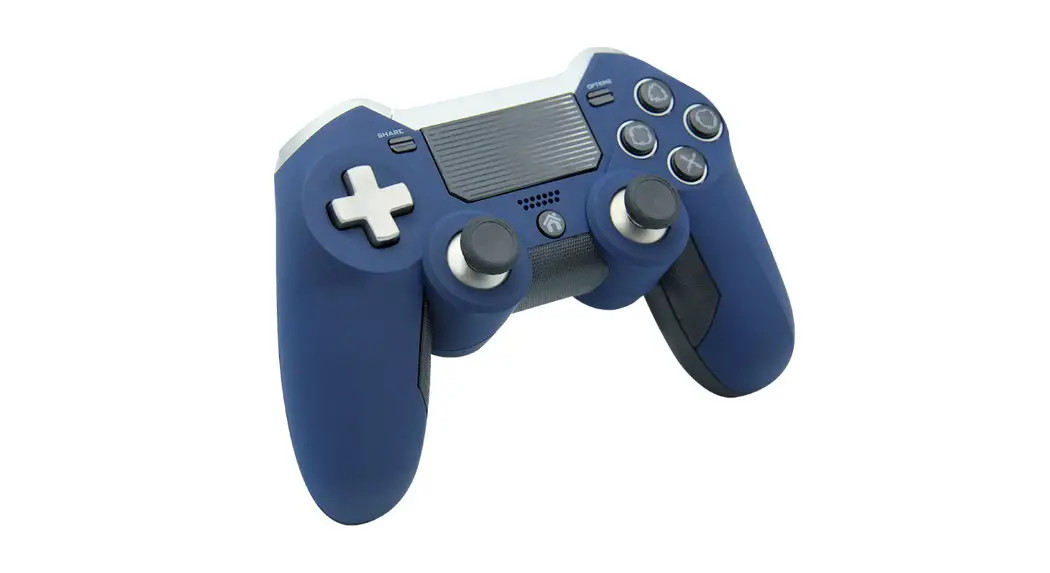
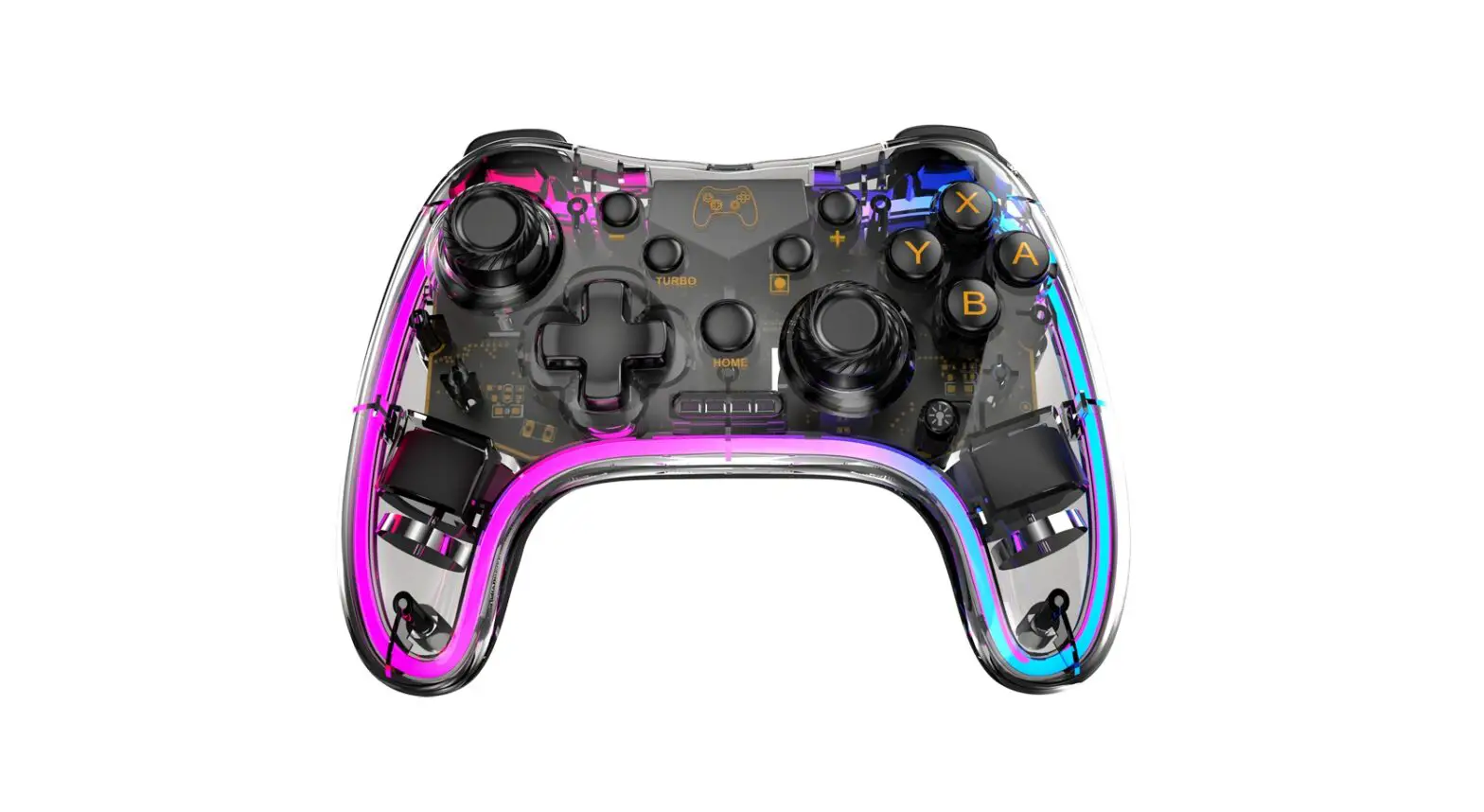
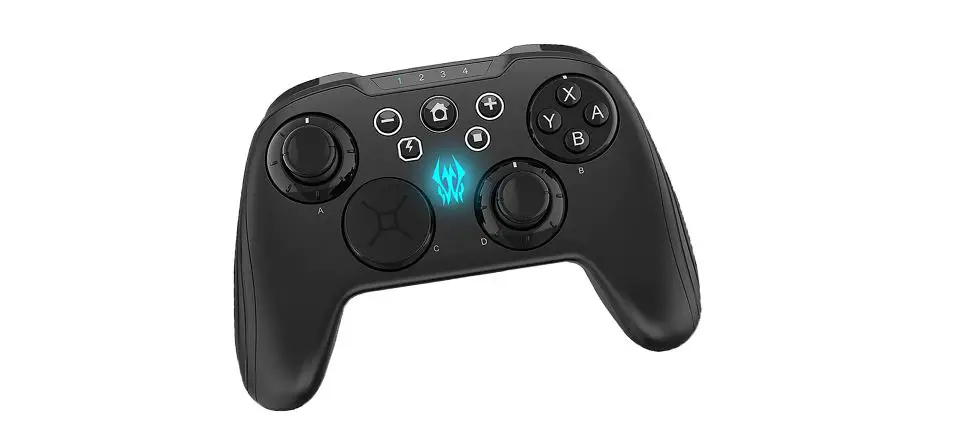
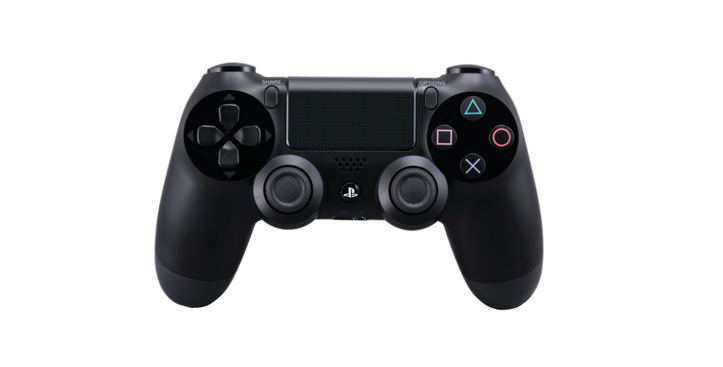
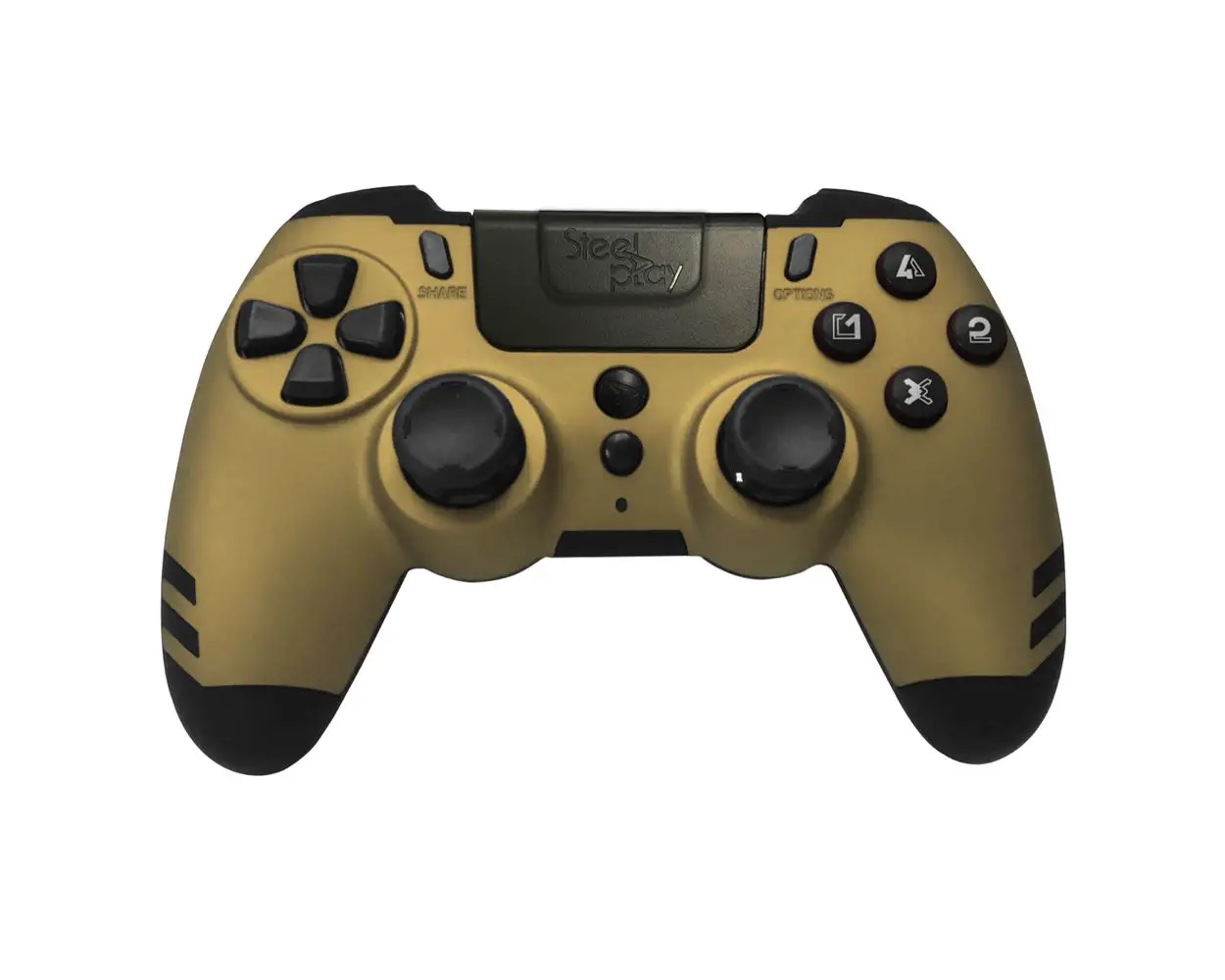
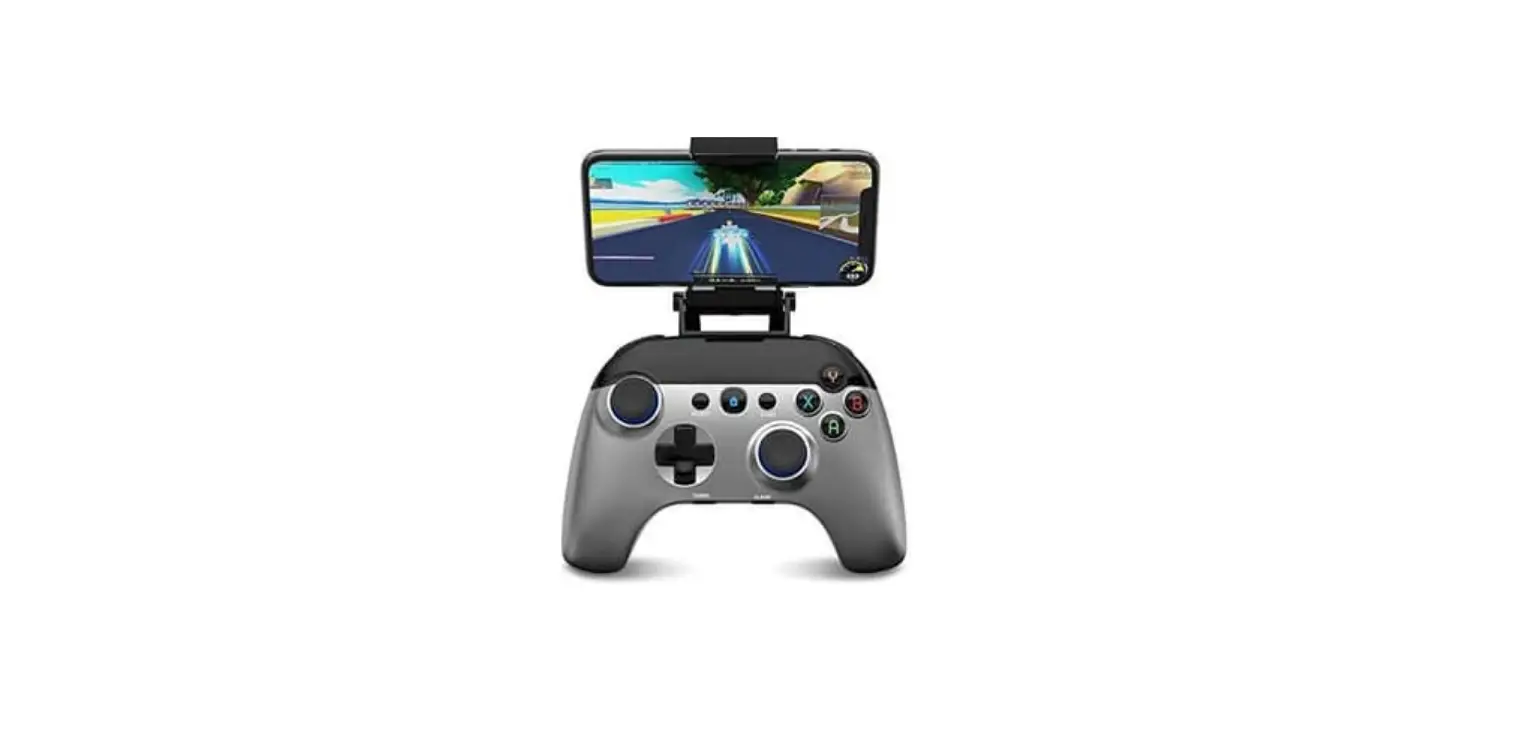
HS-SW531 Set Wireless Pro Controller
Product Information
Product Name: HS-SW531 Bluetooth Wireless
Controller
Compatibility: N-Switch, N-Switch Lite,
N-Switch OLED, PC
Component Names and Functions:
- 1 – Screenshot Button
- 2 – L Button
- 3 – TURBO Button
- 4 – L3 Button of Left Stick
- 5 – Minus Button
- 6 – Plus Control Pad
- 7 – ZR Button
- 8 – M1, M2 Button
- 9 – Mode Switch
- 10 – Indicator Light
- 11 – R Button
- 12 – Plus Button
- 13 – A, B, X, Y Button
- 14 – R3 Button of Right Stick
- 15 – RGB LED
- 16 – HOME Button
- 17 – ZL Button
- 18 – M3, M4 Button
- 19 – USB Type-C Connector
Product Usage Instructions
1. Descriptions of Modes and Connection
Nintendo Switch mode connection:
- Long press the Home button for 3 to 5 seconds.
- The LED will flash quickly to enter the Bluetooth search
mode. - After successful connection, the corresponding channel
indicators will always be on. - Note: If synchronization is not successful within 2.5 minutes,
the controller will automatically sleep.
Android Gamepad Mode connection:
- Long press HOME+X for 3 to 5 seconds.
- The LED will flash quickly to enter the Bluetooth search
mode. - After successful connection, LED1 will always be on.
iOS 13 mode connection:
- Long press HOME+A for 3 to 5 seconds.
- LED2+LED3 will flash quickly.
- After successful connection, LED2+LED3 will always be on.
- This mode can also be used to play MFI games.
PC Bluetooth Mode connection:
- Long press HOME+X for 3 to 5 seconds.
- The LED1 will flash quickly to enter the Bluetooth search
mode. - After successful connection, LED1 will always be on.
- Note: This mode is recommended only for experienced players who
can set button values.
2. Reconnect and Wake-Up
Reconnect:
- When the controller is in sleep state, short press any button
(A, B, X, Y, +, -, O) and LED1-LED4 will flash. - The controller will automatically connect back to the
console.
Wake-Up:
- When the controller is in sleep state, short press the Home
button and LED1-LED4 will flash. - The console will wake up and the controller will automatically
connect back to the console.
3. Dormant State and Disconnection
If the console screen is off, the controller will automatically
enter the dormant state. If no button is pressed within 5 minutes,
the controller will enter the dormant state automatically (the
sensor does not work). In the wireless connection state, you can
press the HOME Button for 5 seconds to disconnect it from the
console.
4. Charging Indication
Shutdown State:
- If the controller is being charged, LED1-LED4 will flash
slowly. - If it is fully charged, LED light will be off.
Connection State:
- If the controller is being charged, the current channel
indicator will flash (slow flashing). - The current channel indicator will be always on when the
controller is fully charged.
Compatible for N-Switch / N-Switch Lite / N-Switch OLED / PC
HS-SW531
Geschikt voor N-Switch / N-Switch Lite / N-Switch OLED / PC
HS-SW531
Component Names and Functions / Namen en functies van onderdelen
1
10
2
11
12
3
T
O
13
4
–
+
5
14
6
15
16
19
7
17
8
18
9
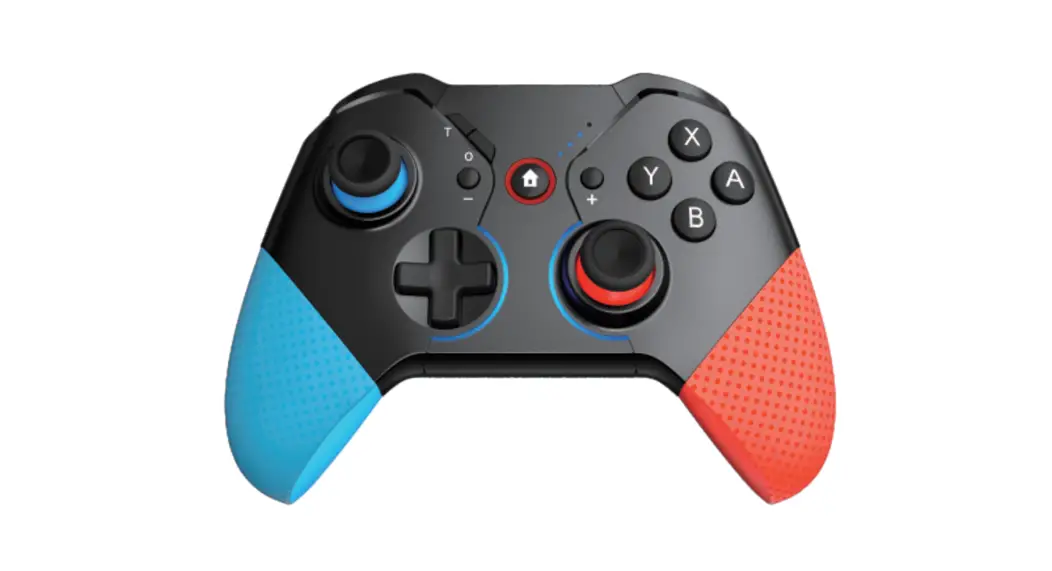
1 Screenshot Button 2 L Button 3 TURBO Button 4 L3 Button of Left Stick 5 – Button 6 + Control Pad 7 ZR Button 8 M1, M2 Button 9 Mode Switch 10 Indicator light
11 R Button 12 + Button 13 A,B,X,Y Button 14 R3 button of Right Stick 15 RGB LED 16 HOME Button 17 ZL Button 18 M3,M4 Button 19 USB Type-C connector
Product Brief
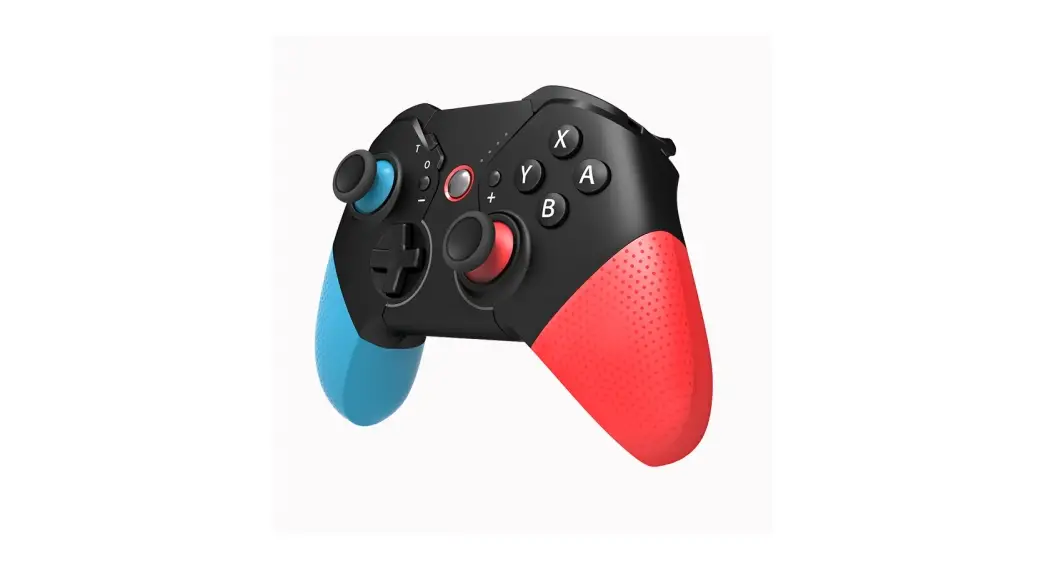
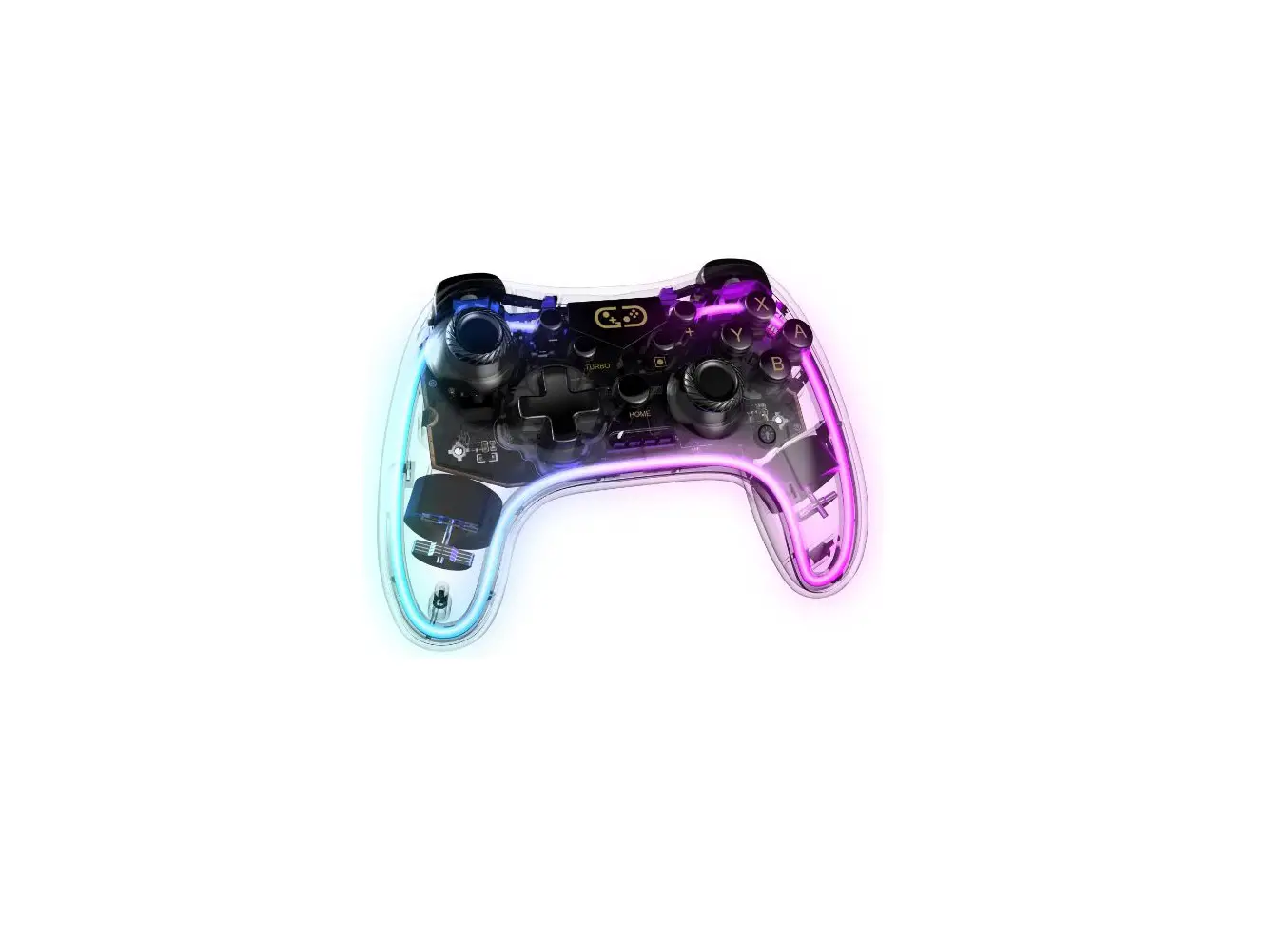
This is a Bluetooth wireless controller which is used together with Nintendo Switch console. The console can be awakened with one key. It supports motor vibration and adjustment, manual turbo, automatic turbo and turbo speed adjustment. It can also be used on PC, on Android platforms (realize Android Gamepad mode) and on iOS 13 (MFI games).
Operation Guide
1.Descriptions of Modes and Connection
Nintendo Switch mode connection: Long press Home button for 3 to 5 seconds and the LED will flash quickly to enter the Bluetooth search mode. After it is successfully connected, corresponding channel indicators will be always on. Note: After the controller enters the synchronous mode, it will sleep automatically if it is not synchronized successfully within 2.5 minutes.
1
Connection of Android Gamepad Mode: Long press HOME+X for 3 to 5 seconds and the LED will flash quickly to enter the Bluetooth search mode. After it is successfully connected, LED1 will be always on.
iOS 13 mode connection: Long press HOME+A for 3 to 5 seconds and LED2+LED3 will flash quickly; after it is successfully connected, LED2+LED3 will be always on. It can also be used to play MFI game.
Connection of PC Bluetooth Mode: PC Bluetooth mode connection: Long press HOME+X for 3 to 5 seconds and the LED1 will flash quickly to enter the Bluetooth search mode. After it is successfully connected, LED1 will be always on. (Note: Android mode is used when it is connected with the computer through Bluetooth. Only experienced players who can set values of buttons are recommended to use it.)
2. Reconnect and Wake-Up
Reconnect: When the controller is in sleep state, short press any button(A.B.X.Y.+.- .O.///) and the LED1-LED4 flash. Now the controller will automatically connect back to the console. Wake-Up: When the controller is in sleep state, short press the home button and the LED1-LED4 flash. Now you wake up the console and the controller will automatically connect back to the console
3. Dormant State and Disconnection
If the console screen is off, the controller will automatically enter the dormant state. If no button is pressed within 5 minutes, the controller will enter the dormant state automatically (the sensor does not work). In the wireless connection state, you can press HOME Button for 5 seconds to disconnect it from the console.
4. Charging Indication
During the shutdown state, if the controller is charged, LED1-LED4 will flash slowly; if it is fully charged, LED light will be off; During the connection state, if the controller is charged, the current channel indicator will flash (slow flashing). The current channel indicator will be always on when the controller is fully charged;
2
5. Low Voltage Alarm
If the battery voltage is lower than 3.55V0.1V, the current channel light will flash quickly to show the low voltage. When the battery voltage is lower than 3.45V0.1V, the controller will enter the dormant state automatically. Low voltage alarm: The current channel indicator flashes (fast flash).
6. TURBO Function
A: Manual Turbo Setting: (First Time) Press one or several buttons (A/B/X/Y/L/R/ZL/ZR) and then press TURBO button to start the manual TURBO function. B: Automatic Turbo Setting: (Second Time) Press the button with manual Turbo function again and then press “TURBO” button to start the automatic TURBO function. C: Clear TURBO Setting: (Third Time) Press the button with automatic TURBO function again and then press “TURBO” button to clear the TURBO function. D. Clear All TURBO: First press and hold the TURBO button for more than 3 seconds and then press the “-” button to clear the TURBO function of all buttons.
7. Wired Connection
PC Connection: Please use a USB cable to connect the controller and the computer. The controller LED3 will be always on after connection. (Note: The default mode of the controller on PC is X-INPUT mode)
Nintendo Switch Connection: Please use a USB cable to connect the controller and the SWITCH console. After connection, corresponding LED lights on the controller will be always on.
8. RGB Dazzling Light
When the controller is turned on, the dazzling light will be set by default and the 8 colors of blue, red, green, yellow, green, orange, purple and pink will be set circularly. Continuously press T Button for 3 times to turn off the dazzling light and then press T Button for 3 times to turn on the dazzling light.
9. Motor Vibration Speed Adjustment (for Nintendo Switch Only)
When the controller is well connected, press L, R, ZL and ZR buttons simultaneously to adjust the motor intensity (the controller will vibrate once each time you adjust it); The motor vibration can be divided into three levels of “trong” “edium”and “eak” Each time it is used, the “edium”level is the default level, followed by “trong”and “eak” The rest can be done in the same manner.
10. M Button Function Programming
M button=M1.M2.M3.M4; buttons that can be programmed include / ///A/B/X/Y/L/R/ZL/ZR/L3/R3; Close M Button Function Turn the Mode Switch to the middle to close M Button function.
3
Normal Mode Shift the Mode Switch to the right of (M2 direction), M1 for X, M2 for Y, M3 for B, M4 for A. (Note: It cannot be programmed in normal mode) Programming Mode
(1). Shift the Mode Switch to the left of (M3 direction). M1 for ZR, M2 for R, M3 for L, and M4 for ZL. (2). Setting Method: Press M Button; then, press “+” Button and the indicating light will flash. Then, release it to enter programming. Then, press any one or several buttons to be set (/ ///A/B/X/Y/L/R/ZL/ZR/L3/R3) and M button to save the setting. (3). Press M1 Button, M4 button and- button at the same time for three second and the Indicator will flash once to restore the default value.
For example, press M1 Button and press “+” Button to set the programming (the Indicator flashes once). Press A button and M1 button to save the setting. At this point, M1 Button corresponds to A button function. Note: When entering the program, if you do not press the button which can set the programming, the originally set functions will be cleared.
11. Reset Controller Hardware
In case of abnormal situations of the controller, please long press HOME button for more than 10 seconds to reset the controller hardware.
12. Controller Upgrading
(1) Double click the update software to open the interface. (2) During the shutdown state, press the left joystick (L3) and connect the controller to the computer through the USB type-C interface cable. (3) After successful connection, release the left joystick (L3) and lay the controller flat. At this time, the software window button “Update Firmware” will change from gray to an operational one. Click “Update Firmware” on the upgrade interface and the controller will be upgraded automatically. After the completion of the upgrade, LED1 and LED4 of the controller will flash and the upgrading process will be finished. 3. Open the controller according to instructions of (initial use) and enter the connection state. It will be normally operated after successful connection.
4
13 . The way to upgrade APP
( 1 ) Support Key Linker APP for air upgrade ( APP can be downloaded through the official website or QR code) (2) APP can modify buttons,adjust joystick sensitivity,Turbo speed adjustment,motor vibration adjustment , macro programming , etc ( 3 ) This QR code is available for both general Android and IOS systems
You can search for ” Keylinker ” on Appstore , Google play , 360App Store , Dandelion , Xiaomi App Store , Huawei App StoreOPPO App Store , Tencent App Store and other platforms todownload , or scan the above QR code to download
Electrical Parameters
Dormant Current: Less than 27uA Pairing Current: 30~60mA Working Voltage: 3.7V Current: 25mA-150mA
Input Voltage: DC4.5~5.5V Input Current: 1000MAH Bluetooth Version: 2.1+EDR
Notes
1. Please do not store product in humid or high temperature places. 2. Do not knock, beat, puncture, or try to disassemble. Avoid unnecessary damage to the product. 3. The product will not be covered by after-sales warranty if the product has been disassembled by non-professionals. 4. If some games cannot be played because of official game platform software upgrades or source code changes we are not responsible.
Service and Warranty:
If you need service or information regarding your product, please contact us at [email protected]
PlayCool provides a 1 year warranty on its products. The products needs to be returned with a proof of purchase and the defects need to be reported within one year from the date of purchase. This warranty does not cover: – Damages caused by misuse or incorrect repair; – Damages by wearable goods; – Defects that the customer was aware of at the time of purchase; – Damages or defects caused by costumer neglect; – Damages or defects caused by third parties.
5
Component Names and Functions / Namen en functies van onderdelen
1
10
2
11
12
3
T
O
13
4
–
+
5
14
6
15
16
19
7
17
8
18
1 Schermopname-knop 2 L-knop 3 TURBO Knop 4 L3-knop of Linkerstick 5 Minknop 6 Richtingsknop 7 ZR-knop 8 M1, M2-Knop 9 Mode Switch 10 Indicatielampje
11 R-knop 12 Plusknop 13 A,B,X,Y-knop 14 R3-knop of Rechterstick 15 RGB verlichting 16 HOME-knop 17 ZL-knop 18 M3,M4-knop 19 USB Type-C poort
Productoverzicht:
Dit is een draadloze Bluetooth-controller welke kan worden gebruikt in combinatie met de Nintendo Switch-console. De console kan met één toets worden gewekt. Het ondersteunt motortrillingen en afstelling, handmatige turbo, automatische turbo en turbo snelheidsregeling. Het kan ook worden gebruikt op pc, op Android-platforms (realiseer Android Gamepad-modus) en op iOS 13 (MFI-spellen).
Bedieningshandleiding
1. Beschrijvingen van modi en verbinding
Nintendo Switch -modus verbinding: Druk lang op de Home-knop gedurende 3 tot 5 seconden en de LED zal snel knipperen om Bluetooth te openen in zoek modus. Nadat het succesvol is aangesloten zal de indicator de gehele tijd licht geven. Het licht gaat uit wanneer het niet succesvol gesynchroniseerd is binnen 2,5 minuten.
9
1. Ga naar de controller instellingen pagina.
2. Ga naar de pagina volgende controller mode.
1
3. Start de controller en verbind deze. Na verbinding zal deze normaal werken.
Aansluiting van Android Gamepad-modus: Druk lang op HOME+X gedurende 3 tot 5 seconden en de LED zal snel knipperen om Bluetooth te openen in zoek modus. Nadat het succesvol is aangesloten, zal LED1 altijd aan zijn. iOS 13 modus verbinding: Druk lang op HOME+A gedurende 3 tot 5 seconden en LED2+LED3 zal snel knipperen; nadat het is gelukt en de controller is aangesloten, zullen LED2+LED3 altijd aan zijn. Het kan ook worden gebruikt om MFI-games te spelen. Aansluiting van pc Bluetooth-modus: PC Bluetooth-modus verbinding: Houd HOME+X 3 tot 5 seconden lang ingedrukt en de LED1 gaat k nipperen om de Bluetooth-zoekmodus te openen. Nadat het met succes is aangesloten, zal LED1 altijd aanstaan. (Opmerking: Android-modus wordt gebruikt wanneer deze is verbonden met de computer via Bluetooth. Alleen ervaren spelers die waarden van knoppen kunnen instellen, worden a anbevolen om het te gebruiken.)
2. Opnieuw verbinding en uit slaapstand halen:
wanneer de controller zich in slaapstand bevindt dan kun je deze activeren door op een willekeurige k nop te drukken. Led 1 en 4 zullen dan knipperen. De controller zal automatisch verbinden met de console.
3. Slapende staat en verbroken verbinding:
Als het consolescherm is uitgeschakeld, gaat de controller automatisch in de rusttoestand. Als er binnen 5 minuten geen knop wordt ingedrukt, gaat de controller in de rusttoestand. In de draadloze verbindingsstatus kun je de HOME-knop 5 seconden ingedrukt houden om de verbinding te verbreken.
4. Oplaadindicatie:
Als de controller is uitgeschakeld en de controller is opgeladen, zal LED1- LED4 langzaam knipperen. Als de controller volledig is opgeladen, gaat het LED-lampje is uit. Tijdens de verbindingsstatus, als de controller is opgeladen, zal de huidige kanaalindicator langzaam knipperen. De huidige kanaalindicator is altijd aan wanneer de controller volledig is opgeladen.
2
5. Laagspanningsalarm:
Als de batterijspanning lager is dan 3.55V0.1V, knippert het huidige kanaallampje snel om aan te geven dat er sprake is van laagspanning. Wanneer de batterijspanning lager is dan 3,45V ~ 0,1V, gaat de controller in de rusttoestand automatisch. Laagspanningsalarm: De huidige kanaalindicator knippert (snel knipperen).
6. TURBO-functie:
A: Handmatige turbo-instelling: (eerste keer) Druk op een of meerdere knoppen (A/B/X/Y/L/R/ZL/ZR) en druk vervolgens op de TURBO-knop om de handmatige TURBO-functie te starten. B: Automatische turbo-instelling: (tweede keer) Druk nogmaals op de knop met handmatige turbofunctie en druk vervolgens op de “TURBO”-knop om de automatische TURBO-functie te starten. C: TURBO-instelling wissen: (derde keer) Druk nogmaals op de knop met automatische TURBO-functie en druk vervolgens op de “TURBO”-knop om de TURBO-functie te wissen. D. Alles TURBO wissen: Houd eerst de TURBO-knop langer dan 3 seconden ingedrukt en dan druk op de “-“-knop om de TURBO-functie van alle knoppen te wissen.
7. Bedrade verbinding:
PC verbinding: Gebruik een USB-kabel om de controller en de computer met elkaar te verbinden. De controller LED 3 zal altijd aan zijn na verbinding. (Opmerking: de standaardmodus van de controller op pc is X-INPUT-modus) Nintendo Switch verbinding: Gebruik een USB-kabel om de controller en de SWITCH-console aan te sluiten. Na verbinding zal het led verlichting branden
8. RGB licht:
Wanneer de controller is ingeschakeld, wordt het licht standaard ingesteld en de 8 kleuren blauw, rood, groen, geel, groen, oranje, paars en roze worden circulair weergeven. Druk 3 keer continu op de T-knop om het licht uit of in te schakelen.
9. Aanpassing motortrillingssnelheid (alleen voor Nintendo Switch)
Als de controller goed is aangesloten, drukt u tegelijkertijd op de L-, R-, ZL- en ZR-knoppen om aan te passen. De motorintensiteit (de controller trilt één keer, elke keer als u deze aanpast); De motortrilling kan worden onderverdeeld in drie niveaus van “sterk” “medium” en “zwak” Elke keer dat het wordt gebruikt, is het “medium”-niveau het standaardniveau, gevolgd door “sterk” en”zwak” De rest kan op dezelfde manier worden gedaan.
10. Knop Functie Programmeren:
M-knop = M1.M2.M3.M4; knoppen kunnen worden geprogrammeerd, zijn onder meer / ///A/B/X/Y/L/R/ZL/ZR/L3/R3; Sluit de M-knopfunctie Draai de modusschakelaar naar het midden om de M-knopfunctie te sluiten.
3
Normale modus: Schuif de modusschakelaar naar rechts (richting M2), M1 voor X, M2 voor Y, M3 voor B, M4 voor A. (Opmerking: het kan niet worden geprogrammeerd in de normale modus) Programmeermodus:
(1). Schuif de modusschakelaar naar links van (M3-richting). M1 voor ZR, M2 voor R, M3 voor L en M4 voor ZL. (2). Instelmethode: Druk op de M-knop; druk vervolgens op de knop “+” en het indicatielampje gaat knipperen. Laat het vervolgens los om de programmering te openen. Druk vervolgens op een of meerdere knoppen om in te stellen (////A/B/X/Y/L/R/ZL/ZR/L3/R3) en M-knop om de instelling op te slaan. (3). Houd de M1-knop, M4-knop en -knop tegelijkertijd drie seconden ingedrukt tot de Indicator eenmaal knippert om de standaardwaarde te herstellen. Druk bijvoorbeeld op de M1-knop en druk op de “+”-knop om de programmering in te stellen (de indicator knippert één keer). Druk op de A-knop en de M1-knop om de instelling op te slaan. Op dit punt komt de M1-Knop overeen met A-knopfunctie. Opmerking: als u bij het openen van het programma niet op de knop drukt die de programmering, worden de oorspronkelijk ingestelde functies gewist.
11. Reset controller hardware:
Houd in geval van abnormale situaties van de controller de HOME-knop langer dan 10 seconden ingedrukt om de controller hardware te resetten.
12. Controller upgraden:
(1) Dubbelklik op de updatesoftware om de interface te openen. (2) Druk tijdens de uitschakelstatus op de linker joystick (L3) en sluit de controller aan op de computer via de USB type-C-interfacekabel. (3) Na succesvolle verbinding laat u de linker joystick (L3) los en legt u de controller plat. Op deze tijd verandert de softwarevensterknop “Firmware bijwerken “in een operationele knop. Klik op “Firmware bijwerken” op de upgrade-interface en de controller wordt automatisch geüpgraded. Na voltooiing van de upgrade zullen LED1 en LED4 van de controller knipperen en het upgradeproces is voltooid. Open de controller volgens de instructies van (eerste gebruik) en voer deverbinding uit. Het zal werken als gewoon na een succesvolle verbinding.
4
13. De manier om APP te upgraden
(1) Ondersteuning KeyLinker APP voor luchtupgrade (APP kan worden gedownload via de) officiële website of QR-code) (2) APP kan knoppen wijzigen, joystickgevoeligheid aanpassen, Turbo-snelheidsaanpassing, motortrillingsaanpassing, macroprogrammering, enz. (3) Deze QR-code is beschikbaar voor zowel algemene Android- als IOS-systemen
U kunt zoeken naar “KeyLinker” in AppStore, Google play, 360 App Store, Dandelion, Xiaomi App Store, Huawei App Store, OPPO App Store, Tencent App Store en andere platforms om het te downloaden, of scan de bovenstaande QR-code om het te downloaden.
Elektrische parameters:
Slapende stroom: minder dan 27uA Koppelstroom: 30 ~ 60mA Werkspanning: 3.7V Stroom: 25mA-150mA
Ingangsspanning: DC4.5 ~ 5.5V Ingangsstroom: 1000MAH Bluetooth-versie: 2.1+EDR
Waarschuwingen:
1. Bewaar het product niet bij hoge temperaturen of in vochtige omstandigheden. 2. Gooi, sla, penetreer en demonteer het product niet. Vermijd onnodige schade aan het product. 3. Het product zal niet onder garantie vallen indien dit is gedemonteerd door niet-professionals. 4. Wij zijn niet verantwoordelijk indien bepaalde spellen niet gespeeld kunnen worden door software updates of door een veranderde broncode.
Service en garantie: :
Indien je service of informatie nodig hebt met betrekking tot een product, stuur dan een mail naar [email protected]
PlayCool voorziet jou van 1 jaar garantie. Het product moet aangeleverd worden met bewijs van aankoop en de defecten moeten binnen een jaar na aankoop gemeld worden. Let op! Garantie geldt niet als: – Schades zijn veroorzaakt door verkeerd gebruik of incorrecte reparatie; – De defecten er waren ten tijde van aankoop; – Voor slijtage aan onderhevige onderdelen; – Schades en defecten door eigen toedoen; – Schades en defecten door toedoen van derden.
5
 Coolblue - alles voor een glimlach