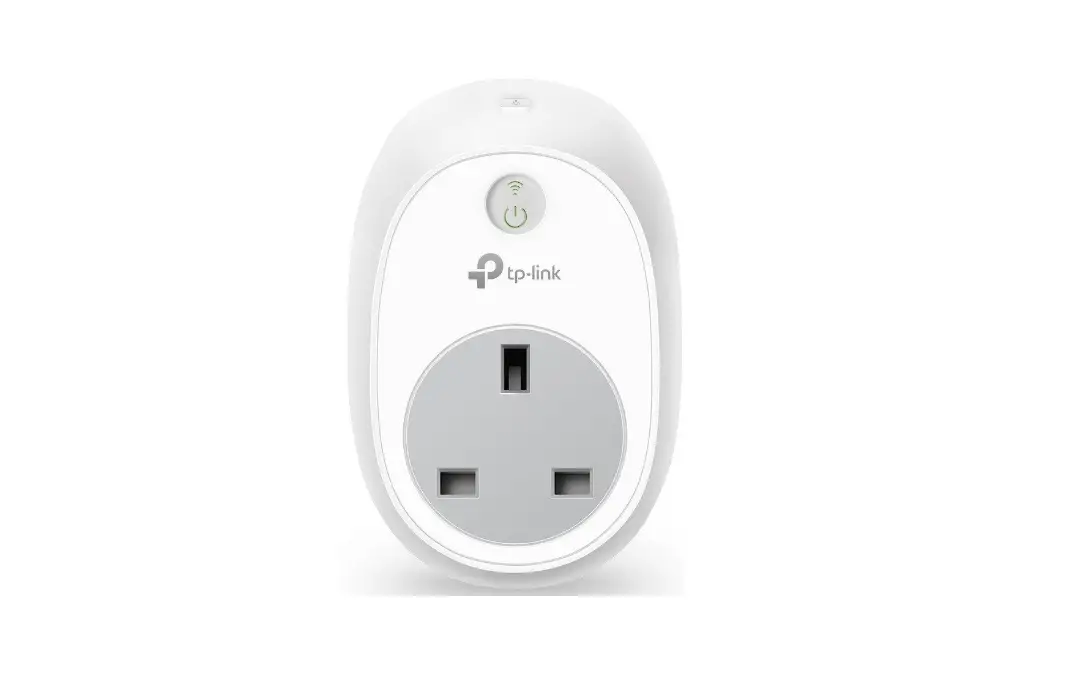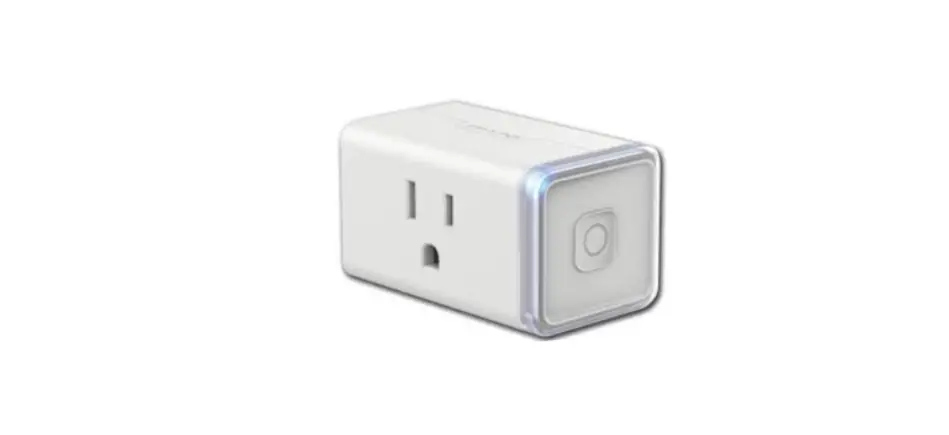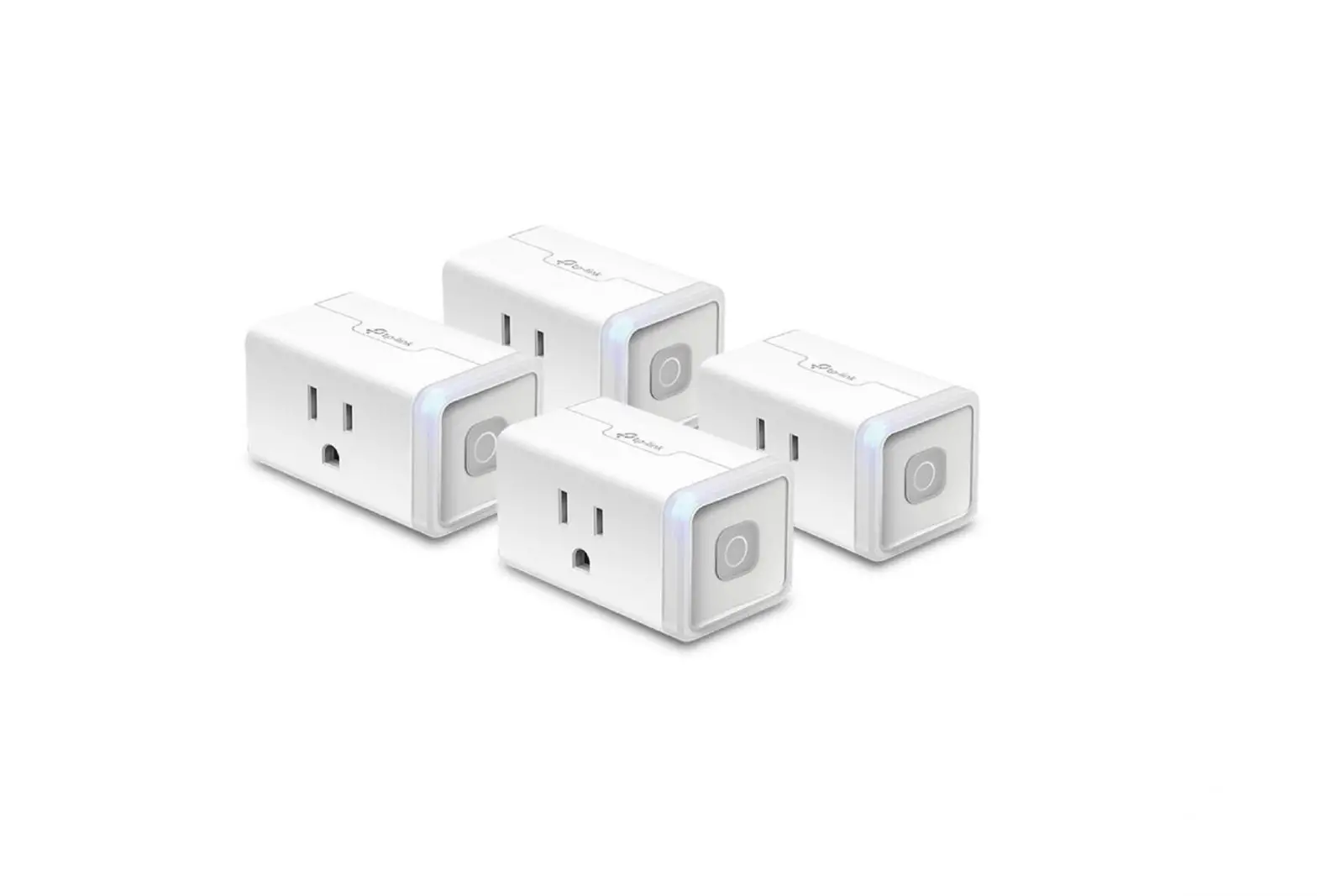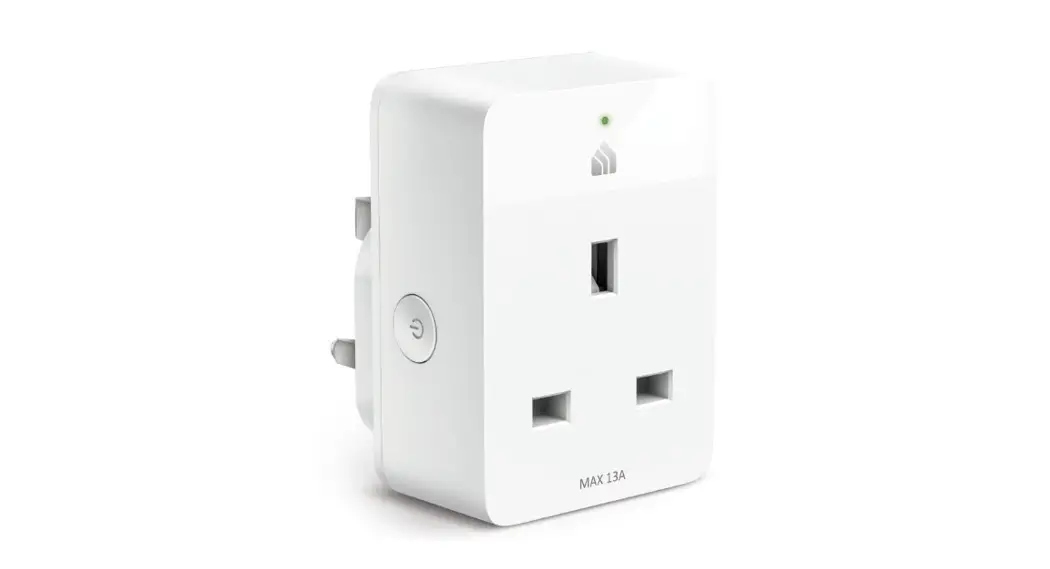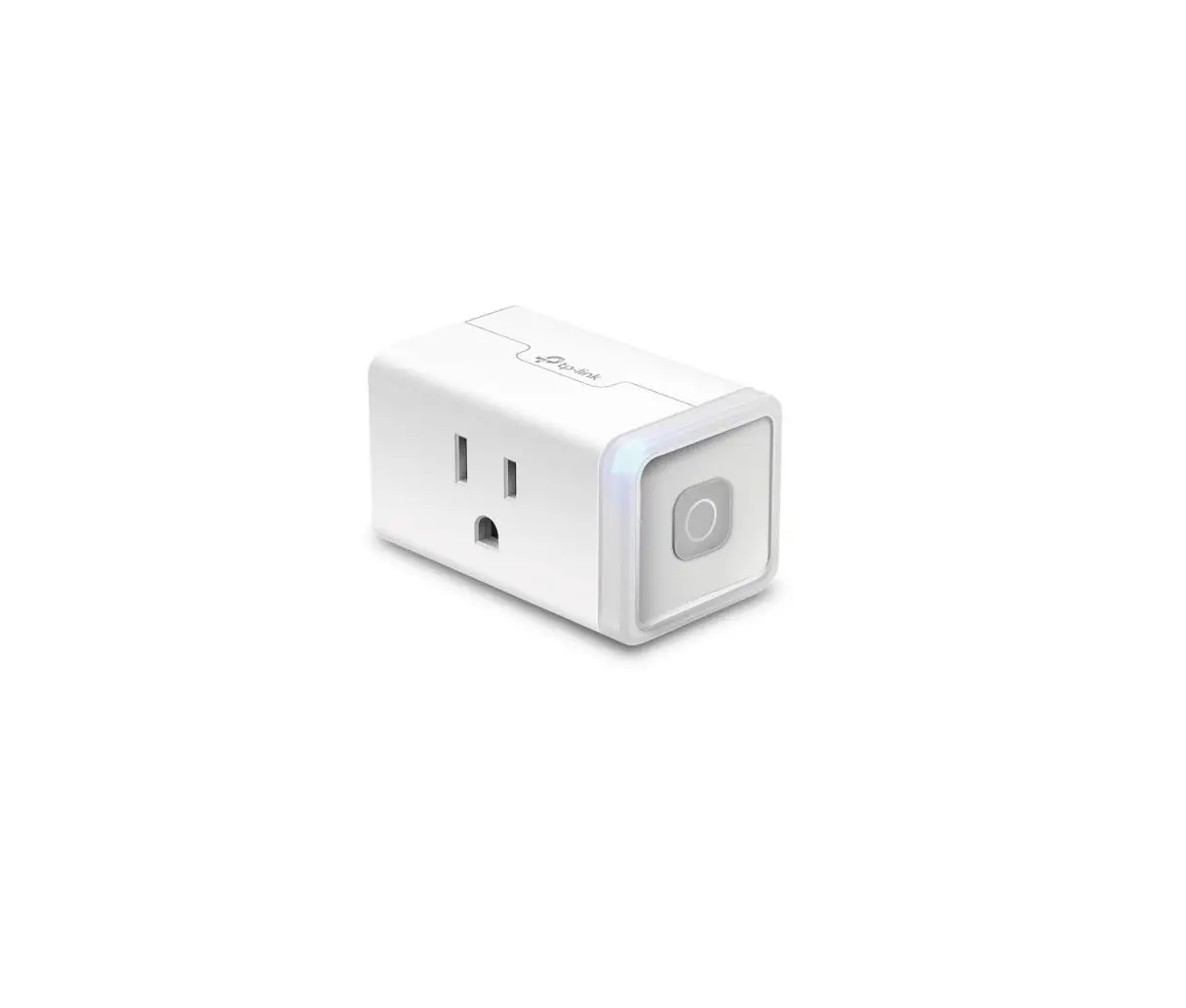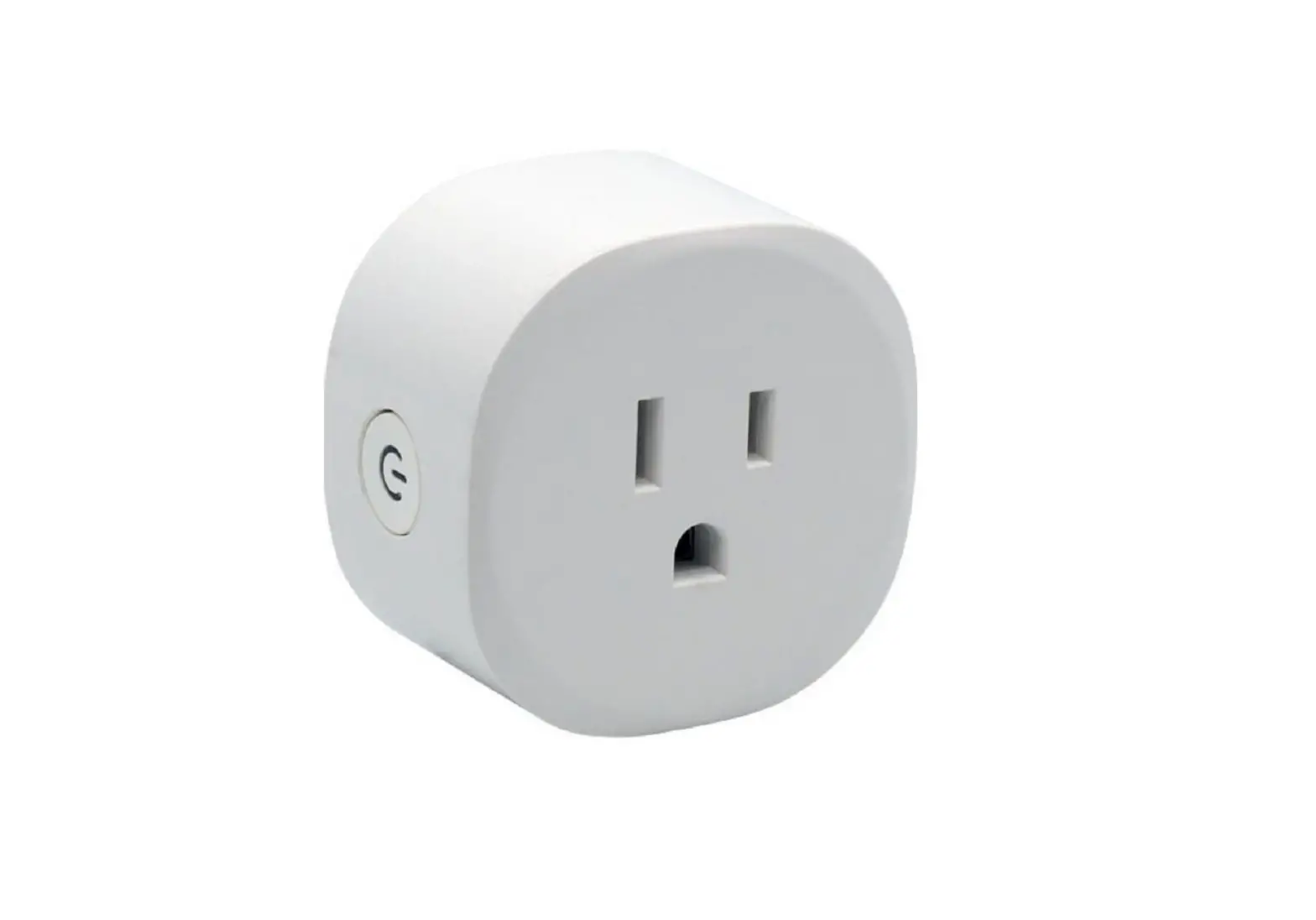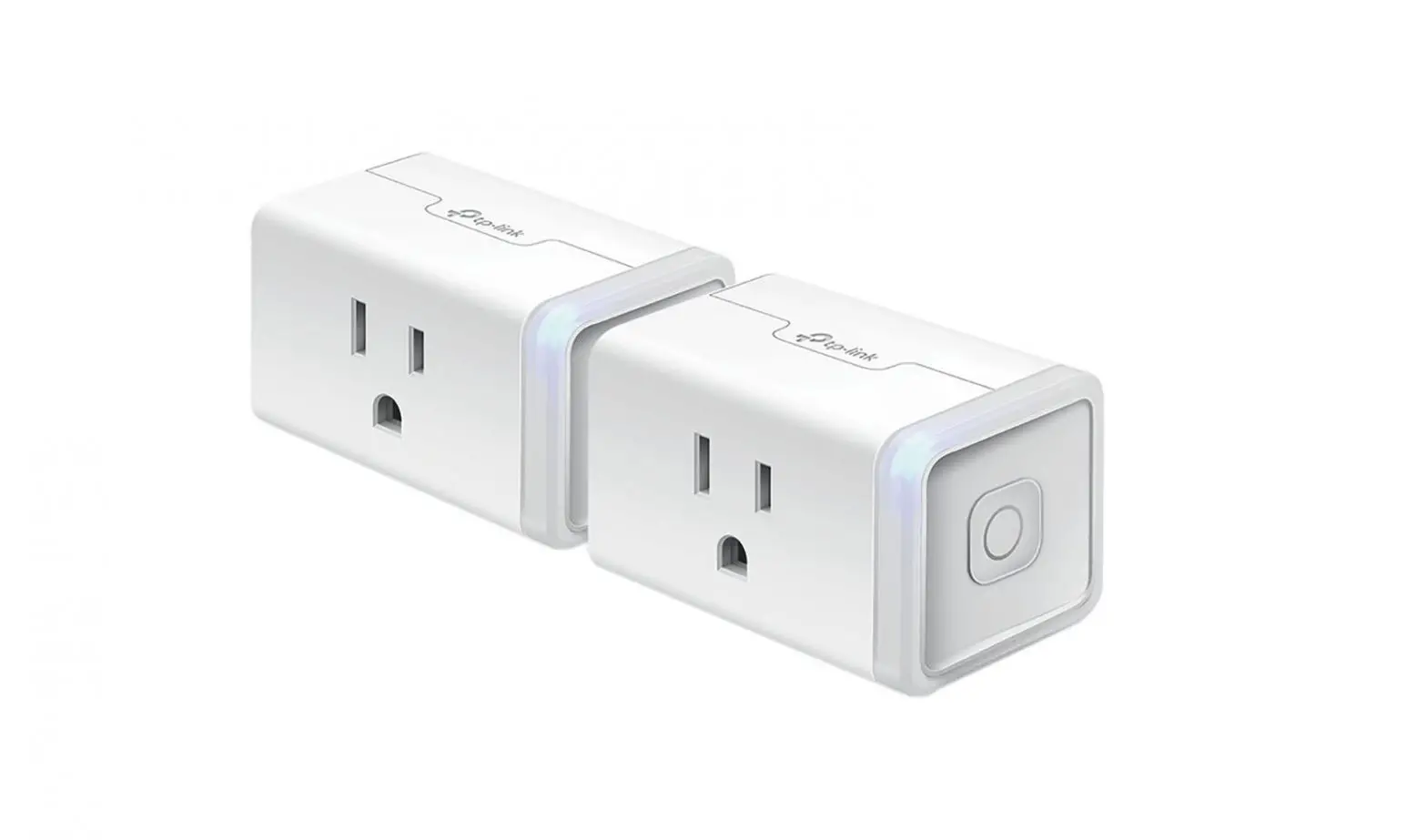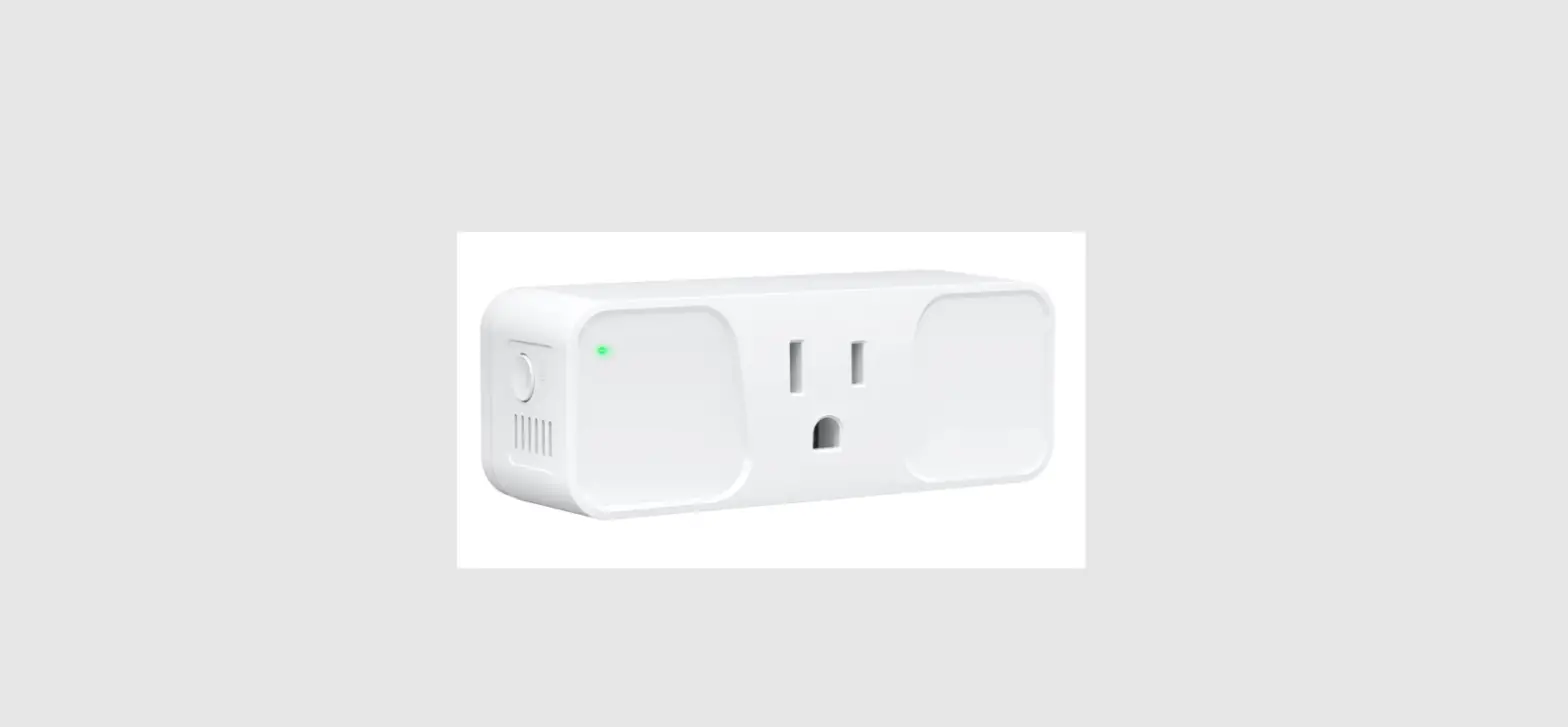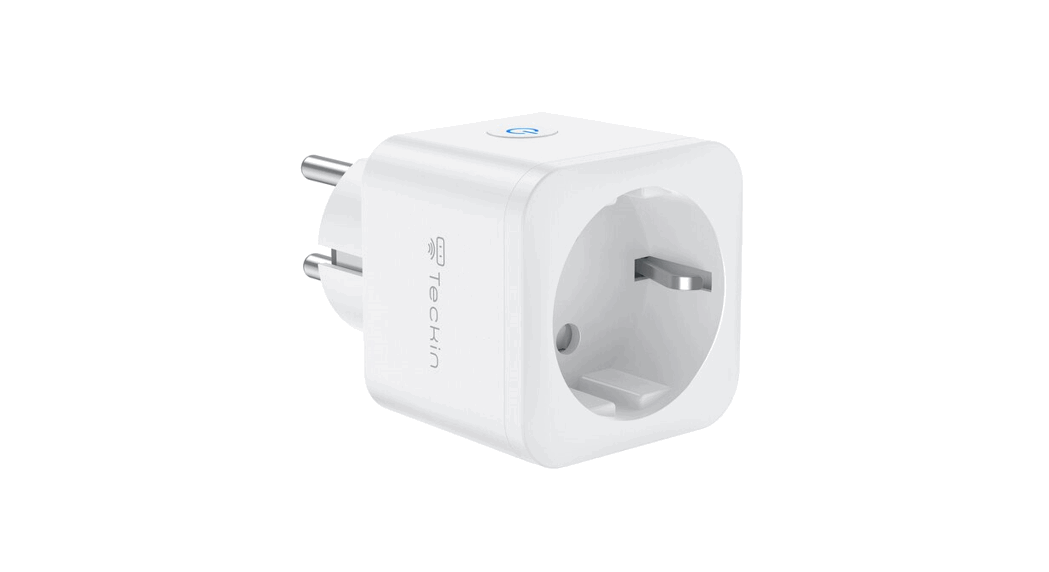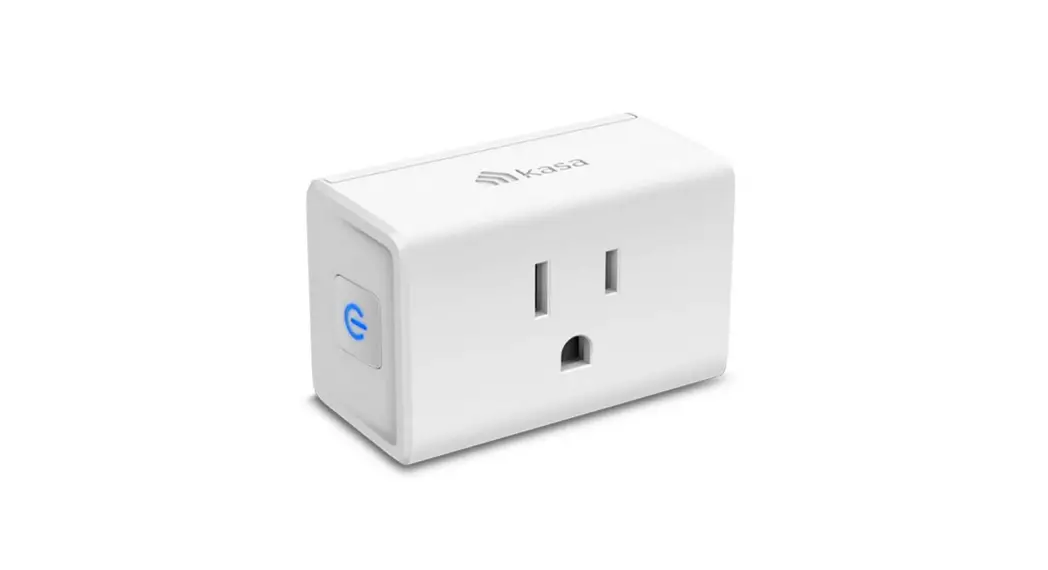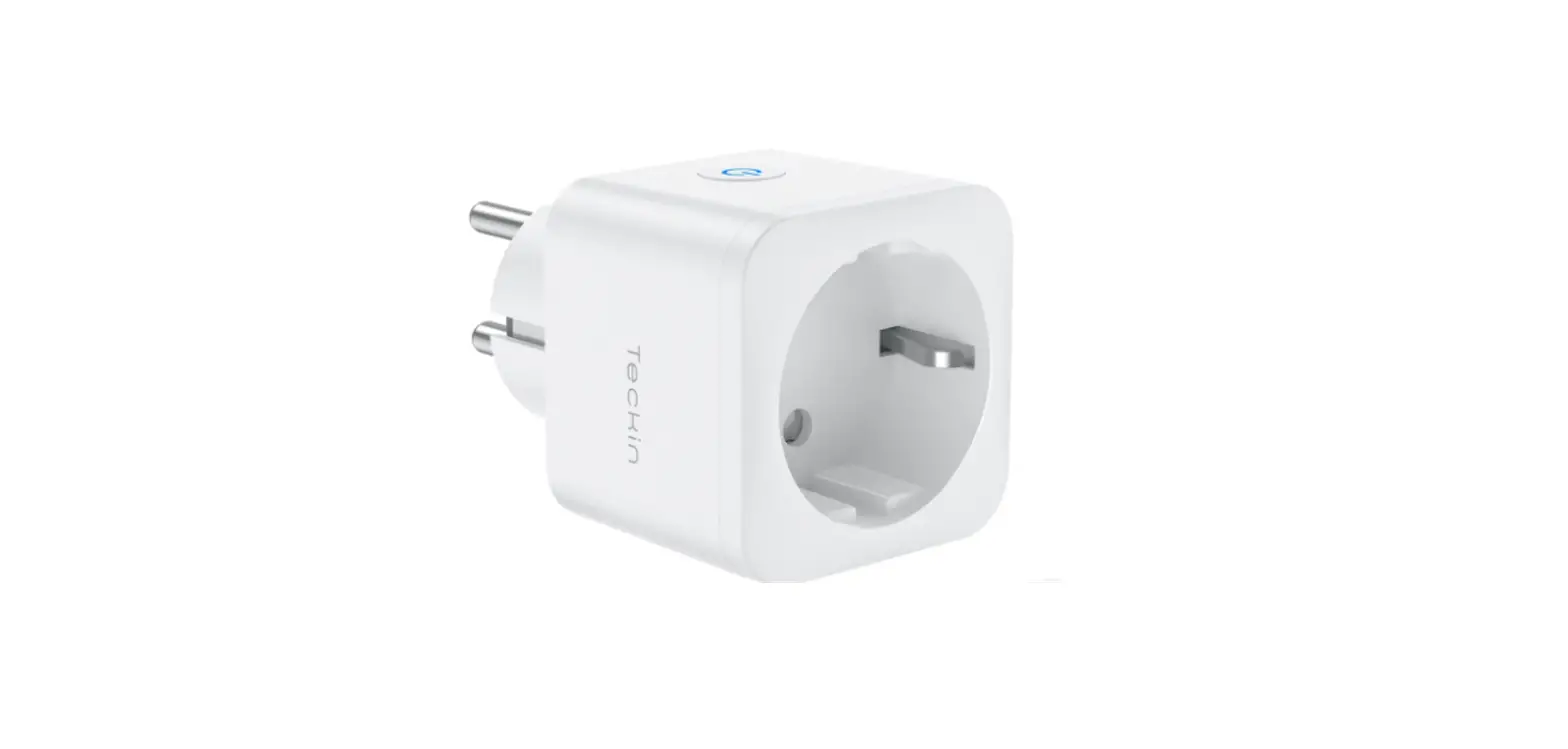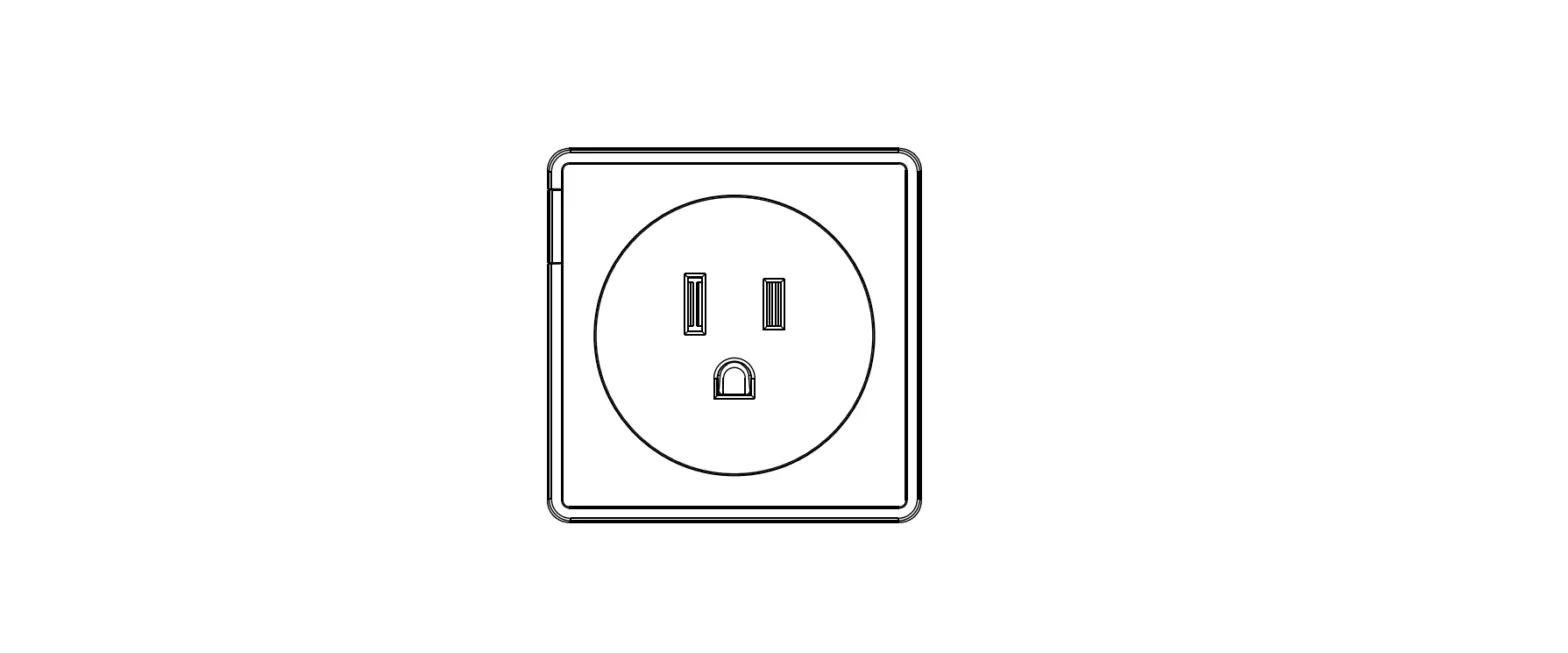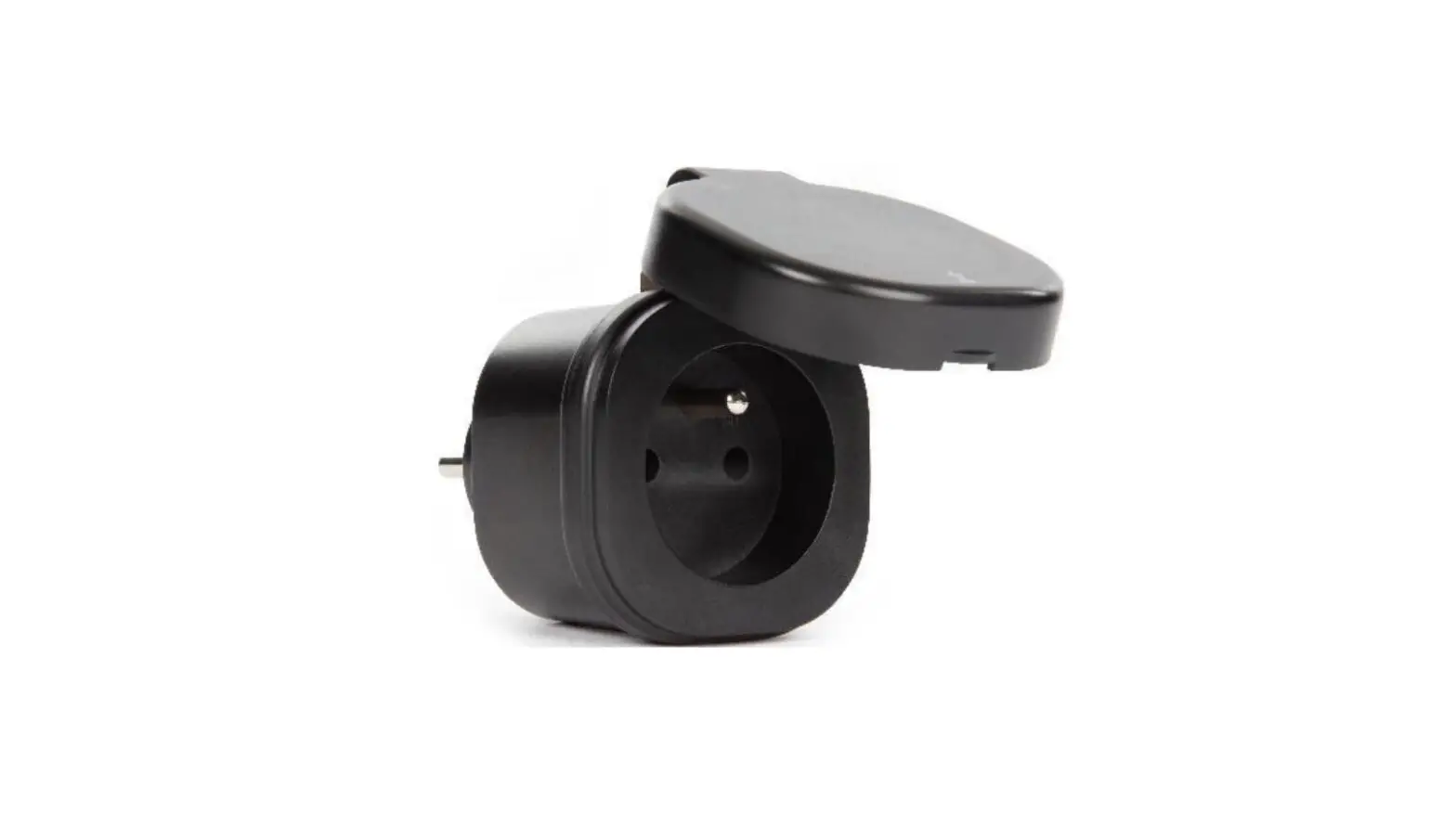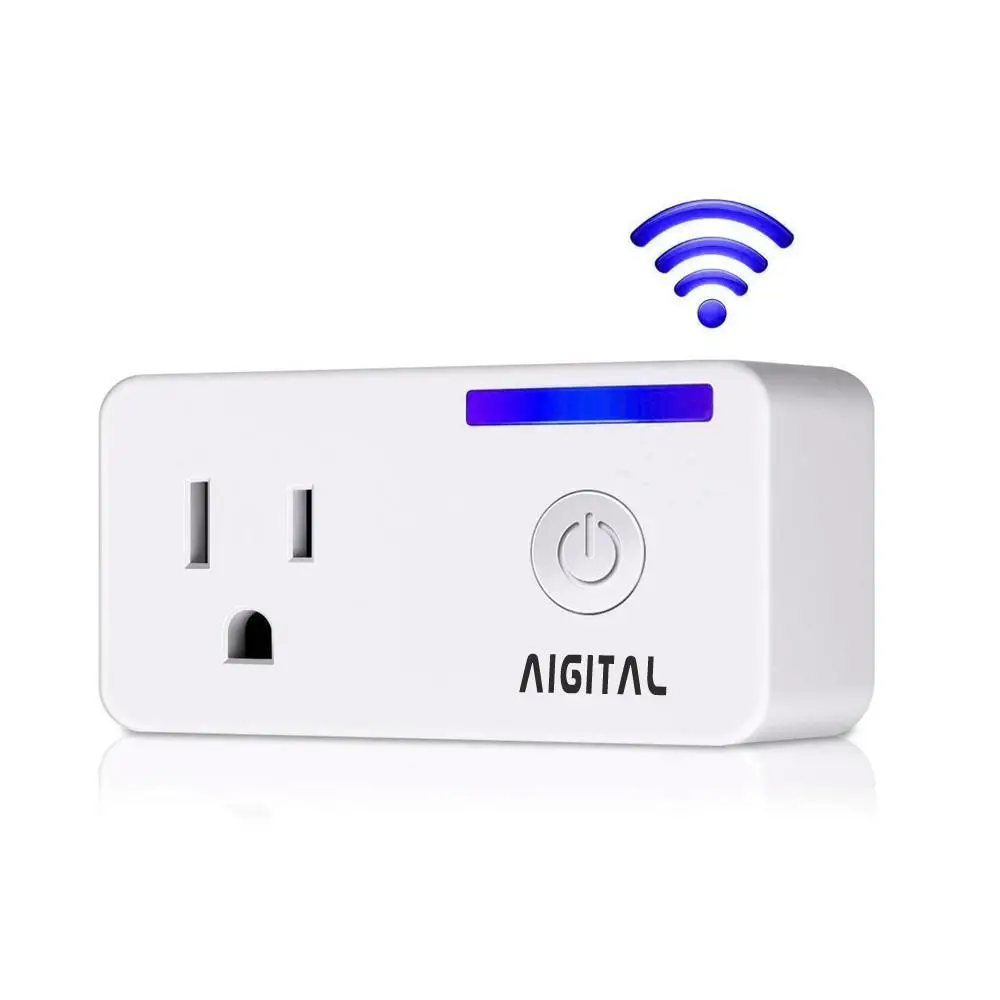
 Kasa Smart HS100 WiFi Smart Plug
Introduction
Product Overview
What This Product Does
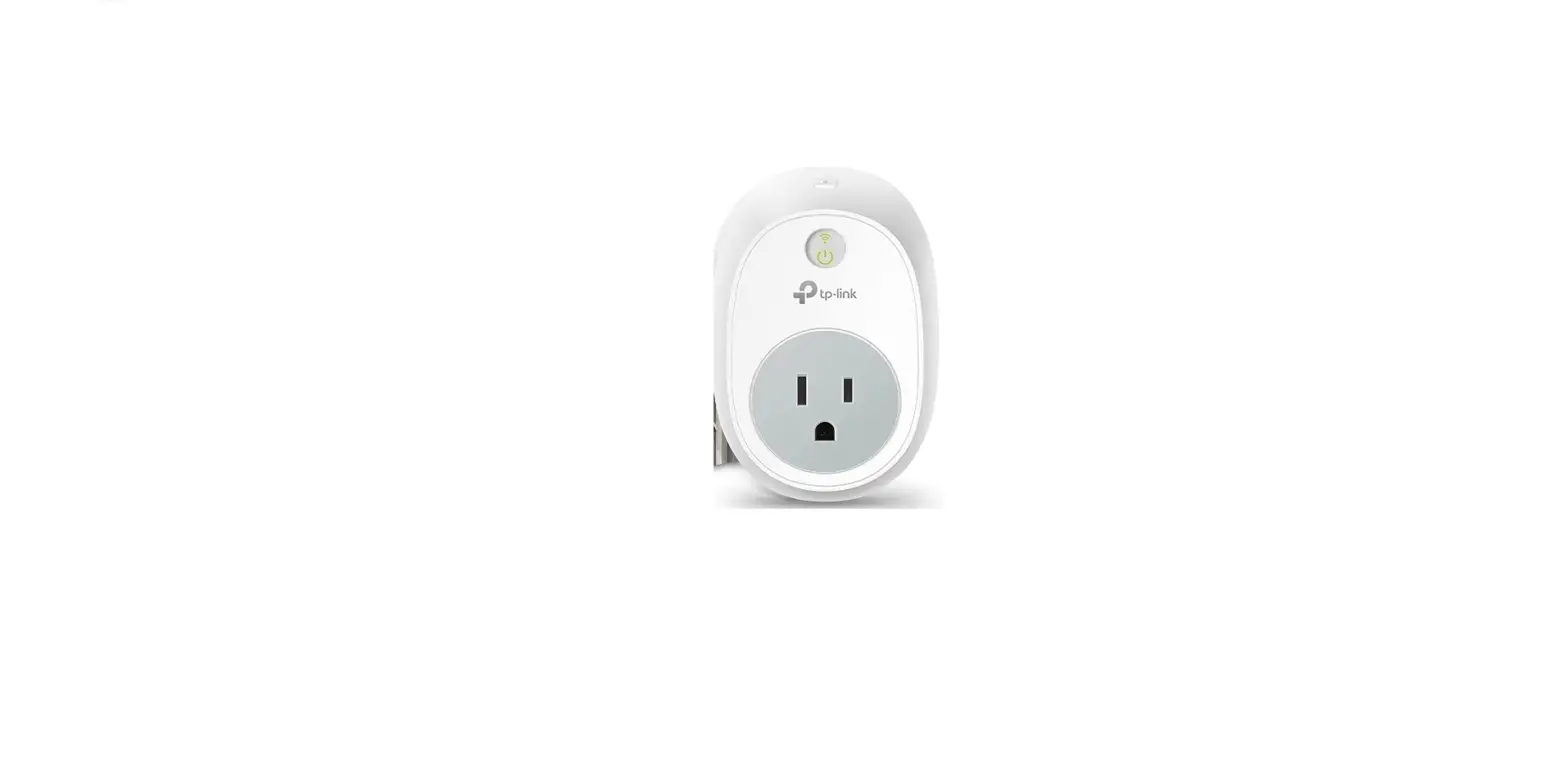
The Wi-Fi Smart Plugs make it easy to control your lights or household electronic devices anywhere in the world with the Kasa app on your smartphones or tablets.
Schedule and Away Mode
With the Kasa’s Schedule and Away Mode, you can automate your lights or plugged-in appliances to turn on and off according to specific schedules, to simulate occupancy when you’re away from home. In addition, the countdown timer enhances safety by automatically switching off the running household appliances after a preset time.
Compatible with Amazon Echo
You can pair the Smart Plugs with Amazon Echo for voice control.
Compatible with Android, iOS
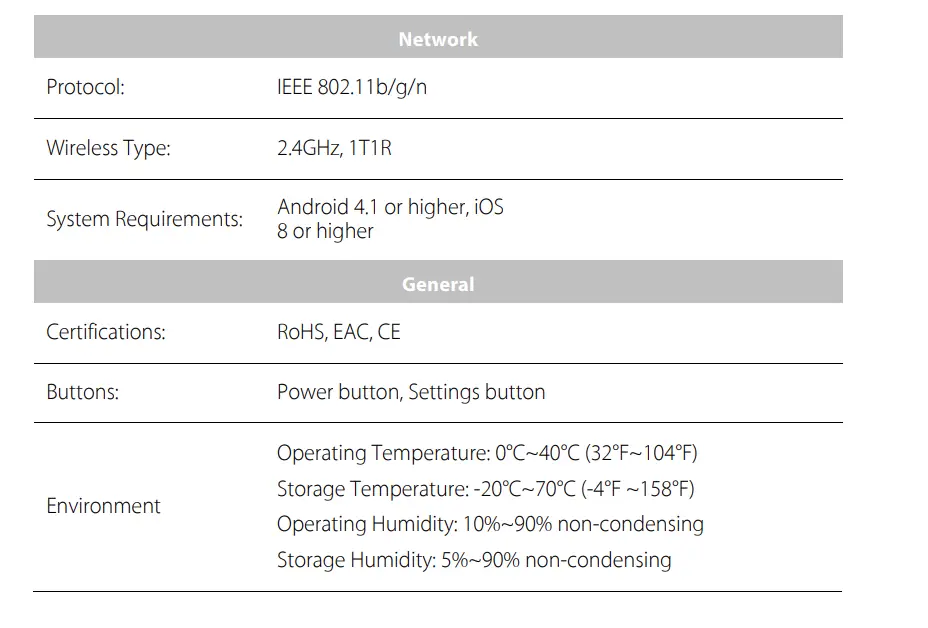
The free Kasa app lets you run them from any Android (4.1 and higher) or iOS (iOS 8 and higher) smartphone.
Energy Conservation (for HS110 only)
You can efficiently conserve energy and save money while using the Smart Plugs to control your space heaters and fans. The Smart Plug tracks your device’s power consumption in real-time, and has weekly and monthly summaries.
Main Features
- Control devices connected to the Smart Plug wherever you have Internet using the free Kasa app on your smartphone.
- Schedule the Smart Plug to automatically power electronics on and off as needed, like setting lights to come on at dusk or turn off at sunrise.
- Analyze your plugged-in device’s real-time and historical power consumption. (for HS110 only)
- Turns your devices on and off at different times to give the appearance that someone is home.
- Amazon Echo (sold separately) lets you control devices connected to the Smart Plugs just using your voice.
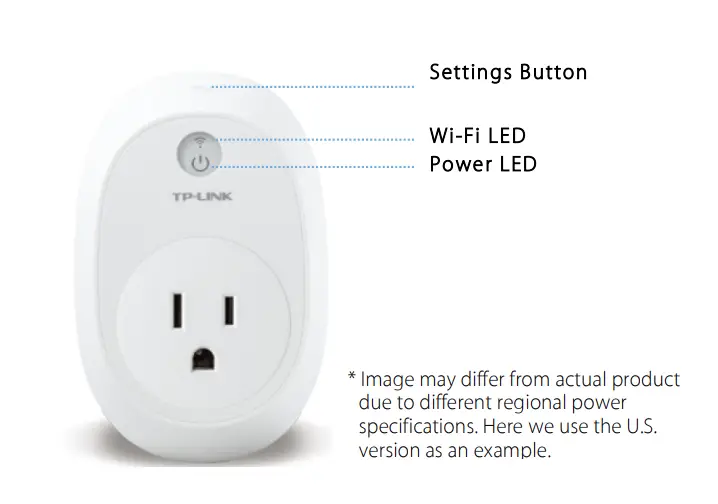
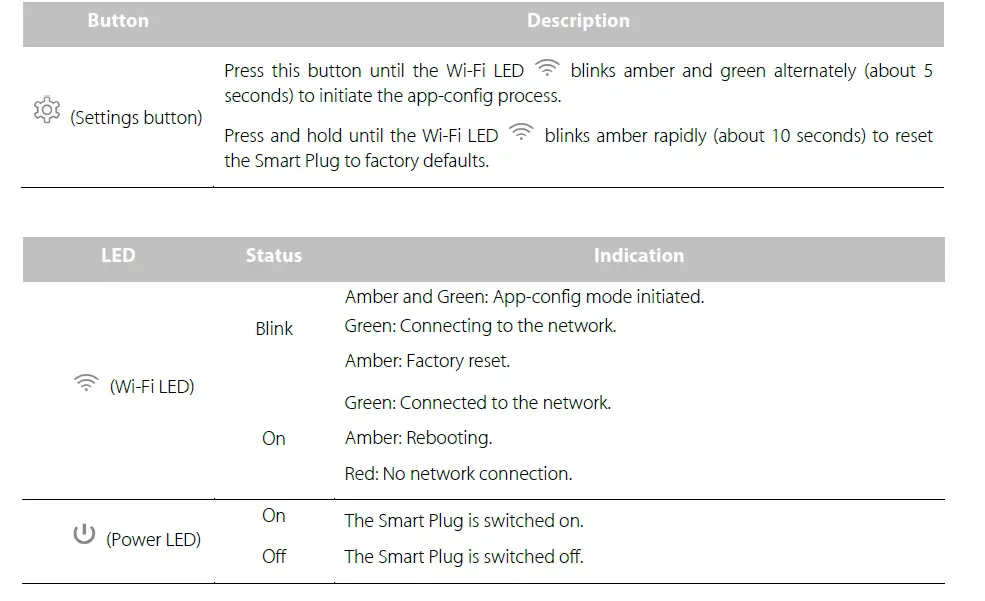
Panel Layout
Quick Start
Download TP-LINK Kasa app from the App Store or Google Play.
Connect mobile device to your 2.4GHz Wi-Fi network.
Note
The Smart Plug can only connect to 2.4GHz networks.

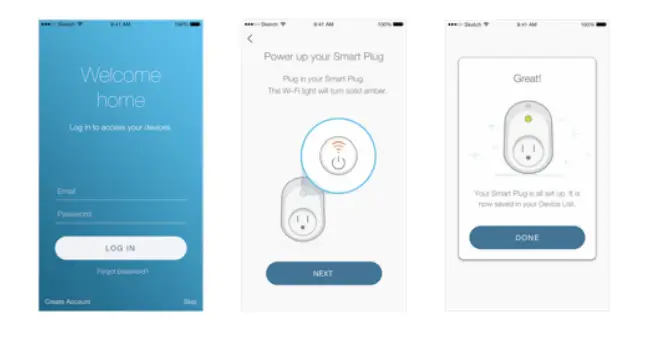
Launch Kasa and follow the in-app instructions to connect the Smart Plug to your network.
Appendix A. FAQs
What devices can I control with the Smart Plug?
You can control lights, fans, humidifiers, portable heaters, and any small appliances in accordance with the Smart Plug’s specifications.
What should I do when I can’t turn devices on or off?
- Make sure the devices connected to the Smart Plug are turned on.
Make sure your mobile device and the Smart Plug are connected to the same network.
What should I do when the Wi-Fi LED is lit solid red?
A solid red indicates no network connection, or that the app-config process has failed. You can:
- Check your network connectivity.
Check for Wi-Fi interference or relocate the Smart Plug to another location within the signal range.
Repeat the app-config process.
Factory reset the Smart Plug and try to add it again.
How do I pair the Smart Plugs with Amazon Echo?
Visit www.tp-link.com/en/faq-944.html for pairing instructions.
Support
For technical support, advanced features, and usage tips for the Smart Plug, visit the support page at www.tp-link.com/support
Appendix B. Specifications
COPYRIGHT & TRADEMARKS
Specifications are subject to change without notice. is a registered trademark of TP-LINK TECHNOLOGIES CO., LTD. Other brands and product names are trademarks or registered trademarks of their respective holders.
No part of the specifications may be reproduced in any form or by any means or used to make any derivative such as translation, transformation, or adaptation without permission from TP-LINK TECHNOLOGIES CO., LTD. Copyright © 2016 TP-LINK TECHNOLOGIES CO., LTD. All rights reserved. http://www.tp-link.com
FCC STATEMENT
This equipment has been tested and found to comply with the limits for a Class B digital device, pursuant to part 15 of the FCC Rules. These limits are designed to provide reasonable protection against harmful interference in a residential installation. This equipment generates, uses and can radiate radio frequency energy and, if not installed and used in accordance with the instructions, may cause harmful interference to radio communications. However, there is no guarantee that interference will not occur in a particular installation. If this equipment does cause harmful interference to radio or television reception, which can be determined by turning the equipment off and on, the user is encouraged to try to correct the interference by one or more of the following measures:
- Reorient or relocate the receiving antenna.
- Increase the separation between the equipment and receiver.
- Connect the equipment into an outlet on a circuit different from that to which the receiver is connected.
- Consult the dealer or an experienced radio/ TV technician for help.
This device complies with part 15 of the FCC Rules. Operation is subject to the following two conditions
- This device may not cause harmful interference.
- This device must accept any interference received, including interference that may cause undesired operation.
Any changes or modifications not expressly approved by the party responsible for compliance could void the user’s authority to operate the equipment.
Note
The manufacturer is not responsible for any radio or TV interference caused by unauthorized modifications to this equipment. Such modifications could void the user’s authority to operate the equipment.
FCC RF Radiation Exposure Statement
This equipment complies with FCC RF radiation exposure limits set forth for an uncontrolled environment. This device and its antenna must not be co-located or operating in conjunction with any other antenna or transmitter.
“To comply with FCC RF exposure compliance requirements, this grant is applicable to only Mobile Configurations. The antennas used for this transmitter must be installed to provide a separation distance of at least 20 cm from all persons and must not be co-located or operating in conjunction with any other antenna or transmitter.”
CE Mark Warning
This is a class B product. In a domestic environment, this product may cause radio interference, in which case the user may be required to take adequate measures.
RF Exposure Information
This device meets the EU requirements (1999/5/EC Article 3.1a) on the limitation of exposure of the general public to electromagnetic fields by way of health protection.
The device complies with RF specifications when the device used at 20 cm from your body.
Canadian Compliance Statement
This device complies with Industry Canada license-exempt RSSs. Operation is subject to the following two conditions:
- This device may not cause interference, and
- This device must accept any interference, including interference that may cause undesired operation of the device.
Radiation Exposure Statement
This equipment complies with IC radiation exposure limits set forth for an uncontrolled environment. This equipment should be installed and operated with minimum distance 20cm between the radiator & your body.
Safety Information
- When product has a power button, the power button is one of the options to shut off the product; when there is no power button, the only way to completely shut off power is to disconnect the product or the power adapter from the power source.
- The devices are not intended for use in locations where the temperature may be less than actual room conditions, such as unheated warehouses or garages.
- Don’t disassemble the product, or make repairs yourself. You run the risk of electric shock and voiding the limited warranty. If you need service, please contact us.
- Avoid water and wet locations.
Frequently Asked Questions
Please press the reset button on the back of the plug for 10 seconds.
Connect your smart phone to the same WIFI as your plug. Open Kasa app and tap on “Add a new device”. Select “Smart Plug” from the list of device types. Press and hold the button on your Smart Plug until it blinks, then release it. The Kasa app will automatically detect your plug and display its name in a few seconds.
Tap “Schedule” icon on the top left corner in Kasa app. Select “Smart Plug” from the list of devices. Tap “+” icon to add a new schedule, or tap an existing schedule to edit it. Tap “Save” when you’re done editing it, or tap “Delete” icon to delete it if you don’t want to use this schedule any more. Select a device that you want to control with this schedule from the list of devices displayed on the bottom of screen, then tap “Schedule” icon at top right corner in order to set up time and days for it (the device will be displayed in red color if you haven’t set up time and days yet). You can also tap “Edit” icon at top right corner if you want to change time and days for this schedule, or tap “Delete” icon at top right corner if you want to delete this schedule (the device will be displayed in grey color if you deleted this schedule). Tap “Save” when you’re done setting up time and days for this schedule or editing it, or tap “Cancel” icon if you don’t want to use this schedule any more (the device will be displayed in grey color).
You can, as long as the power strip’s devices don’t draw more current than this outlet can handle. The typical maximum for most residences is 15 Amps, which is what this device is rated at. Electric heaters are typically rated at 1500 watts, which is 125 volts multiplied by 12 Amps. This is because long-lasting electric appliances must be 20% below 15 Amps (12)
Actually, this has been covered in great length. For devices like these, the 2.4GHz frequency makes more sense because the 5GHz band has a significantly smaller usable range. Because it can transport far more data in a shorter amount of time, modern computers frequently use the 5GHz frequency, although usable range suffers as a result. The extended range 2.4GHz band will offer a better experience in most households because this device only needs to transfer incredibly small quantities of data (on off status along with energy usage, if you have that model).
You can utilise it by installing the app on your phone or tablet, which will enable you to remotely operate the switch. Yes, this works without Alexa. Alexa is necessary, though, if you want the option to control it using voice commands. (Alexa’s app is also available for download.) (And I believe Google Home devices are also compatible,)
As long as the Smart Plug is installed indoors, you must ensure that the total current taken by all of your lights is well within the Smart Plug’s rated amperage. Although you should double-check the specifications, I believe the maximum is 15 Amps.
Yes Simply arrange them in a group, and it will switch them all on or off at once.
You can, indeed. Every day of the week, we have a coffee pot scheduled to start at 4 am and end at 8 am. It’s fantastic. More of them are setting up lamps to turn on at the same time every day in the early winter. Setting it up is incredibly simple. I’m confident you’ll truly appreciate it.
Yes. You might possibly put a power strip into in and control the strip and consequently all that is plugged in it. Although I haven’t tried it, it ought to work.