tp-link Tapo T110 Smart Contact Sensor User Guide
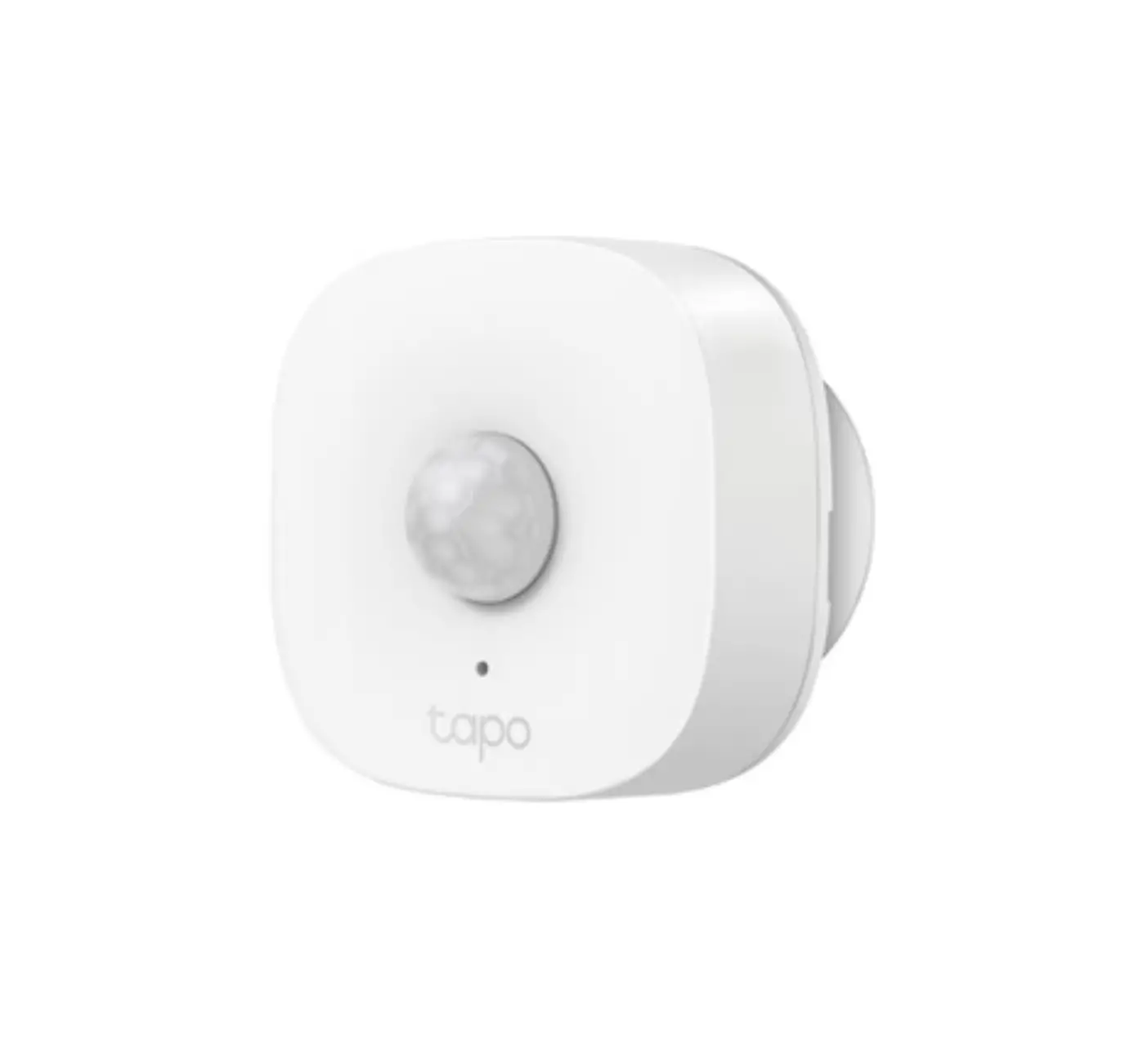
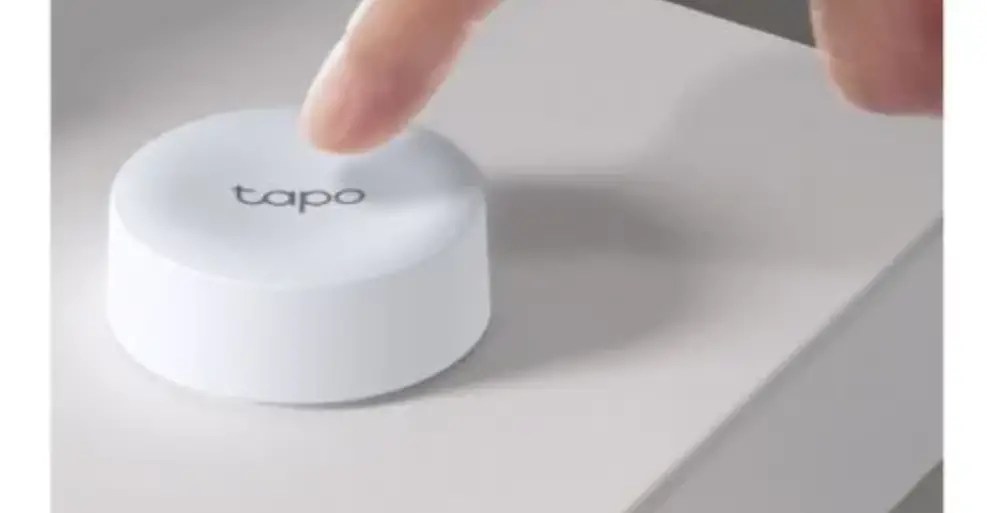
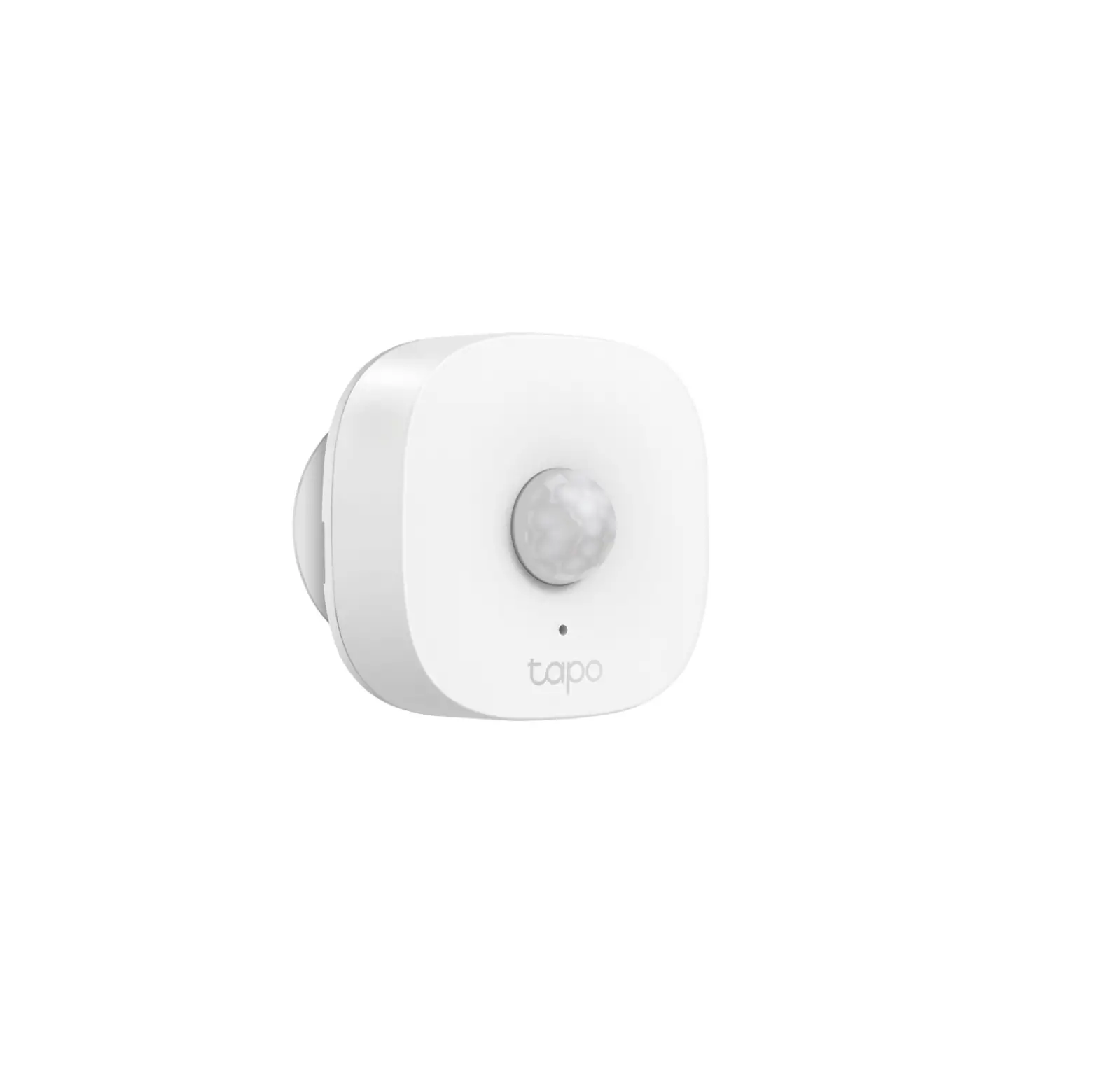
Meet Your Contact Sensor
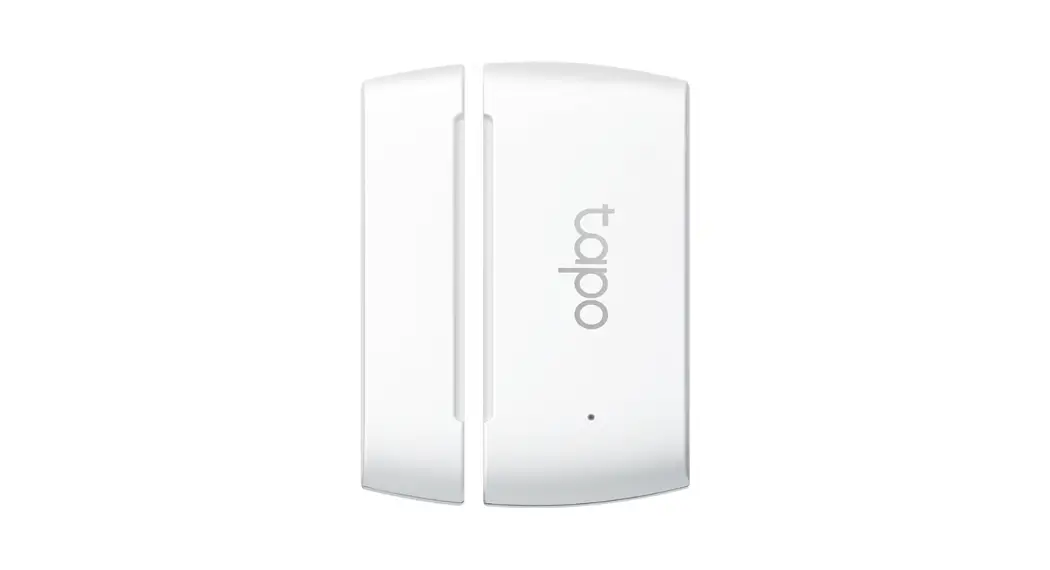
Know when doors/windows are opened or closed. Receive instant alerts via the Tapo app.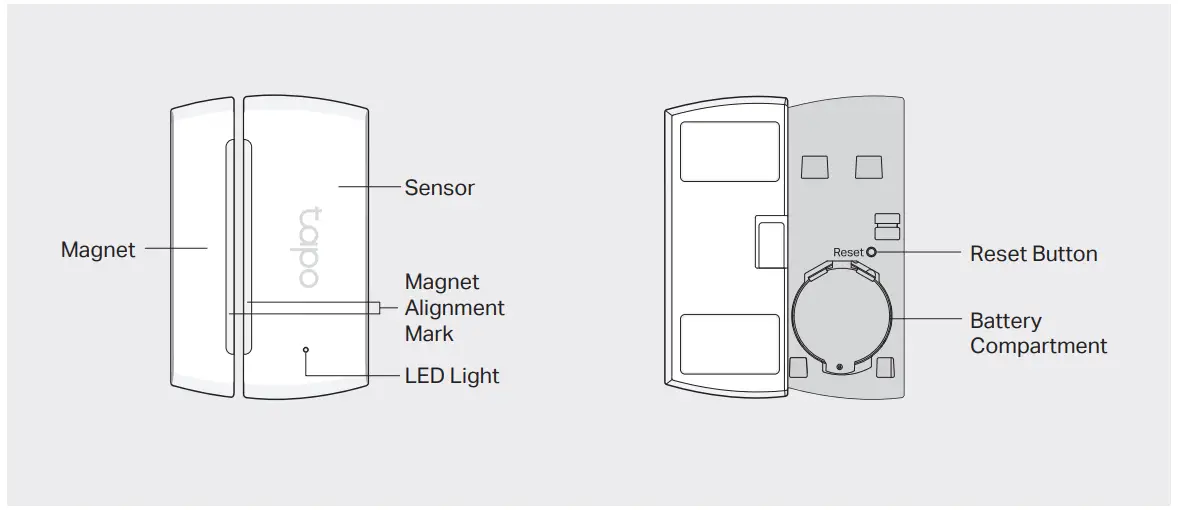
Before You Start
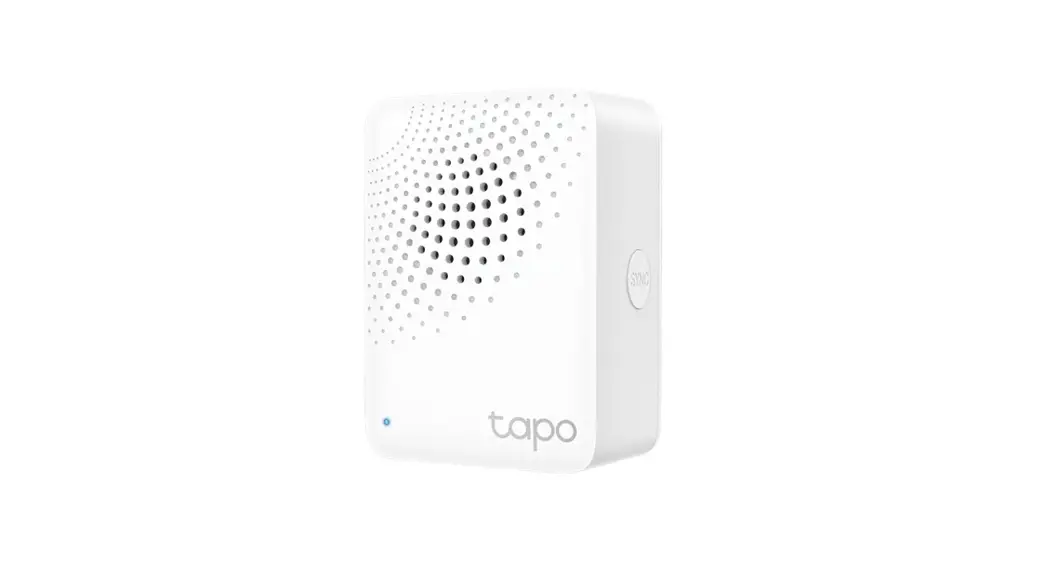
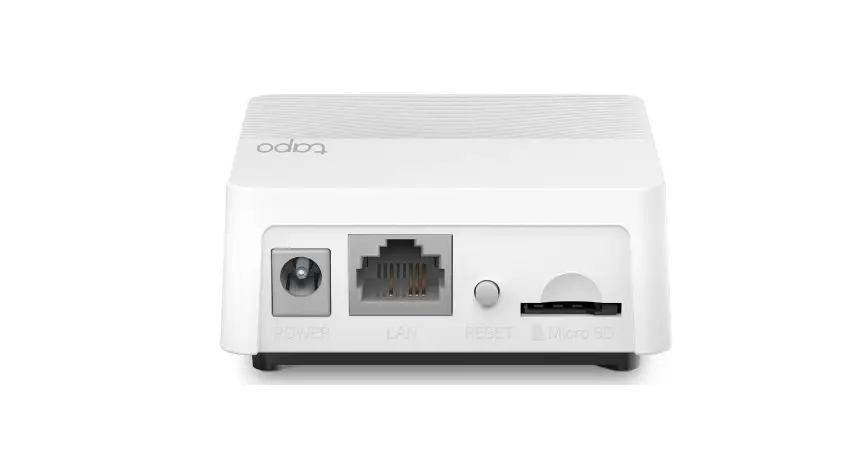
A Tapo Hub is required. Make sure your Tapo Hub is successfully added via the Tapo app.

OR

Power Up Your Sensor
Remove the battery insulation tab to power up your sensor. The LED should begin to blink.
Note: If the LED is not blinking, refer to the reverse side for reset instructions.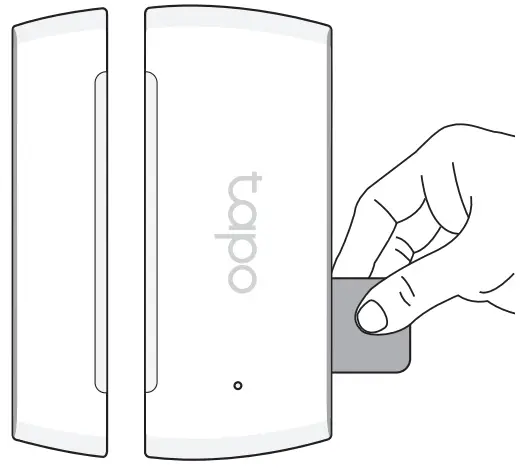
Set Up Your Sensor
Open the Tapo app, tap the  button in the app, and select your model. Follow the app instructions to complete setup.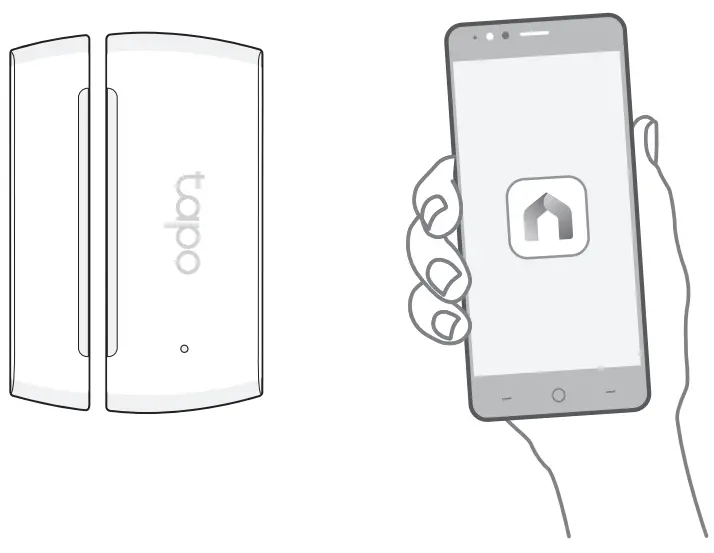
Test Your Sensor
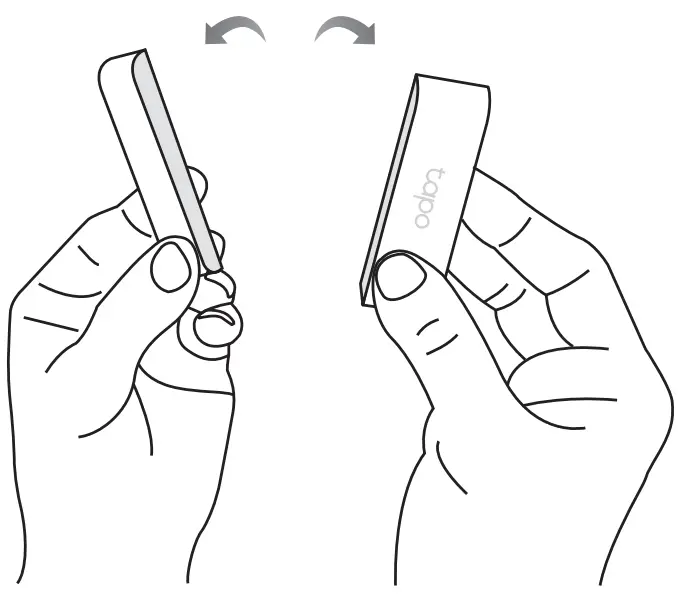
- Open and close the sensor to test it in your preferred location.
- Check the Event Log on the Tapo app to confirm the open/closed status.

Mount Your Sensor
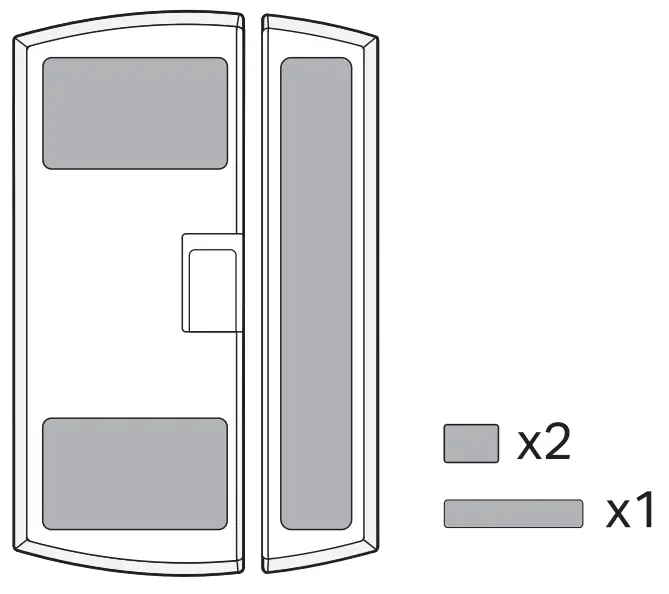
- Stick the included adhesives on the sensor and magnet.

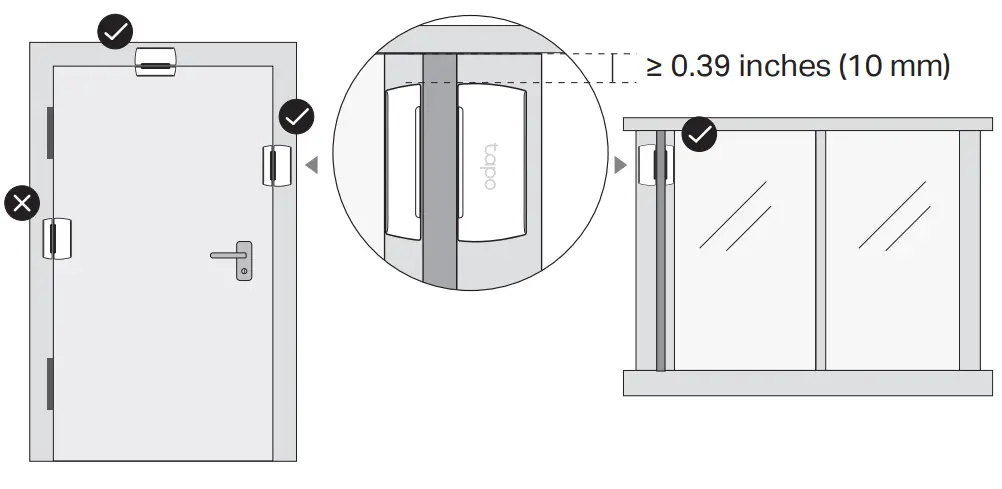
- Choose where you’d like to install the sensor (but don’t attach it yet). Place the magnet near the edge of the door or window that moves.

Notes:- Leave at least 0.39 inches (10 mm) of space so you can open the battery compartment.
- Installation height should not be higher than 6.56 ft (2 m)
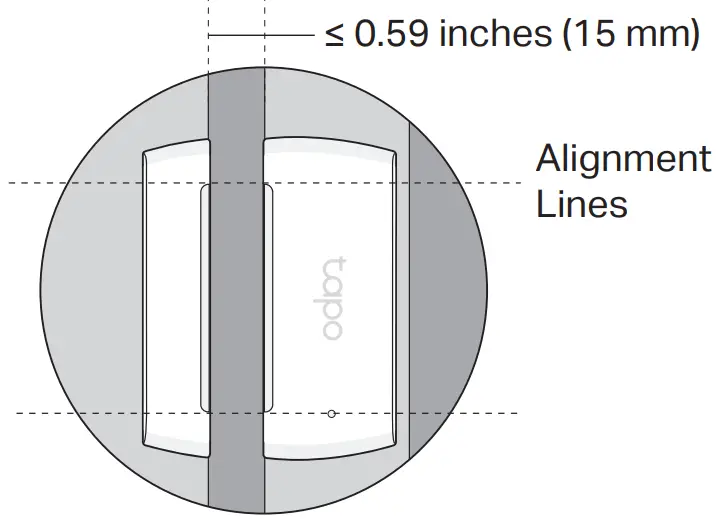
- Align the magnet and sensor with no more than 0.59 inches (15 mm) between them when the door or window is closed.
Peel the backing from the adhesive and press the sensor and magnet into place.
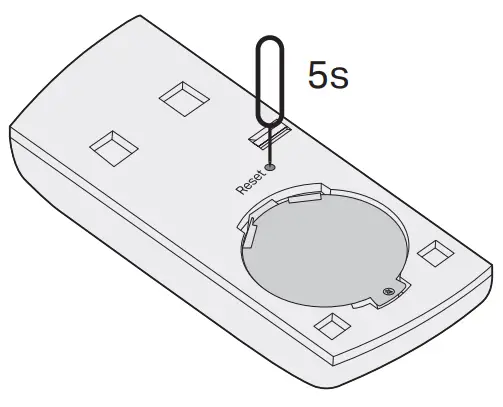
How to reset your sensor to enter pairing mode
- Slide to remove the cover of your sensor.

- Use a pin to press and hold the Reset button for 5 seconds until the front LED starts blinking.

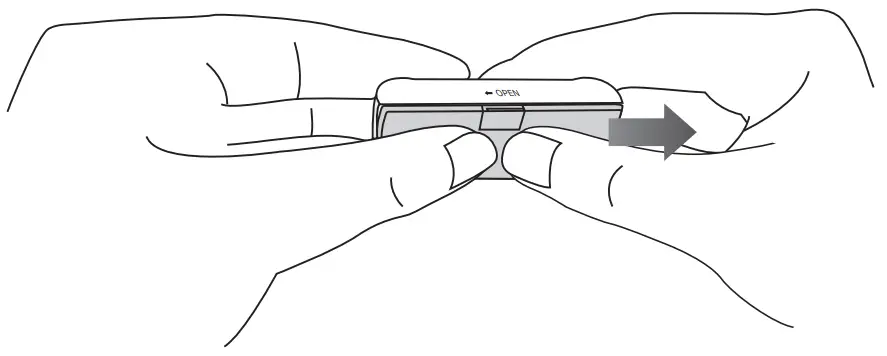
If you have mounted your sensor to a door or a window, remove the cover as shown below: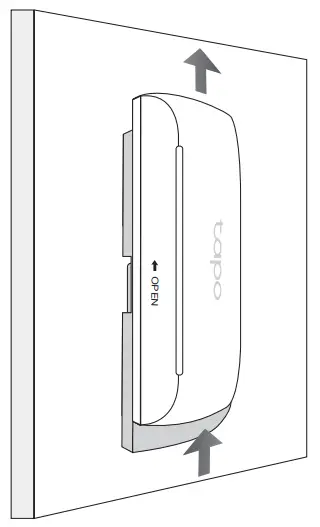
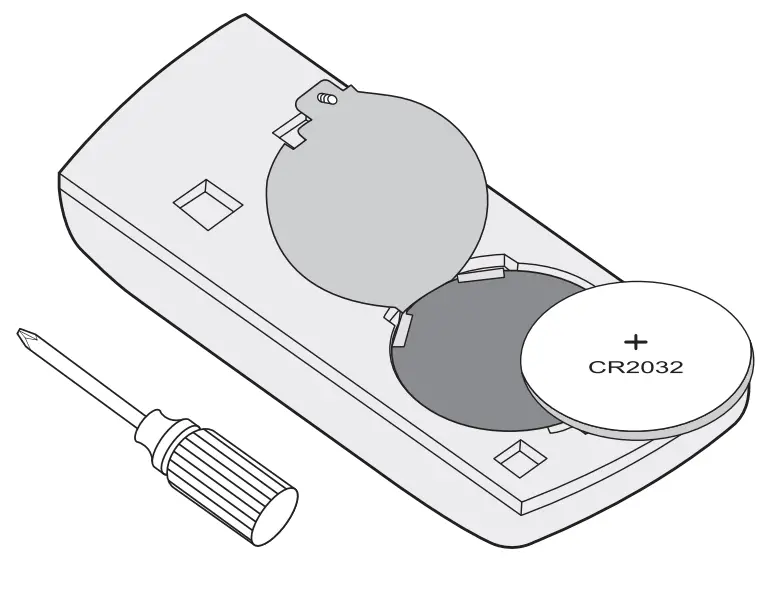
How to replace the battery
- Remove the cover of your sensor and use a screwdriver to open the battery cover.
- Replace the battery with a fresh cell.

 Support
For technical support, the user guide and more, please visit https://www.tapo.com/support/
Do not ingest battery, Chemical Burn Hazard
This product contains a coin / button cell battery. If the coin / button cell battery is swallowed, it can cause severe internal burns in just 2 hours and can lead to death.
Keep new and used batteries away from children.
If the battery compartment does not close securely, stop using the product and keep it away from children.
If you think batteries might have been swallowed or placed inside any part of the body, seek immediate medical attention.
Safety Information
Keep the device away from water, fire, humidity or hot environments.
Do not attempt to disassemble, repair, or modify the device. If you need service, please contact us.
Do not use the device where wireless devices are not allowed.
Please read and follow the above safety information when operating the device. We cannot guarantee that no accidents or damage will occur due to improper use of the device. Please use this product with care and operate at your own risk.
CAUTION!
Avoid replacement of a battery with an incorrect type that can defeat a safeguard.
Avoid disposal of a battery into fire or a hot oven, or mechanically crushing or cutting of a battery, that can result in an explosion.
Do not leave a battery in an extremely high temperature surrounding environment that can result in an explosion or the leakage of flammable liquid or gas; Do not leave a battery subjected to extremely low air pressure that may result in an explosion or the leakage of flammable liquid or gas.
TP-Link hereby declares that the device is in compliance with the essential requirements and other relevant provisions of directives 2014/53/EU,
2009/125/EC, 2011/65/EU and (EU) 2015/863.
The original EU declaration of conformity may be found at https://www.tapo.com/en/support/ce/
TP-Link hereby declares that the device is in compliance with the essential requirements and other relevant provisions of the Radio Equipment Regulations 2017.
The original UK declaration of conformity may be found at
https://www.tapo.com/support/ukca/
For EU/UK Region:
Operating Frequency / Nominal Operating Frequency / Max Output Power:
863~865MHz / 863.35MHz / 25mW (e.r.p)
863~865MHz / 864.35MHz / 25mW (e.r.p)
868~868.6MHz / 868.35MHz / 25mW (e.r.p)
 Setup Video
Scan QR code or visit
https://www.tp-link.com/support/setup-video/#smart-sensors

 Regulatory Compliance | Tapo
 TP-Link Product Support - Wireless Networking Equipment Support