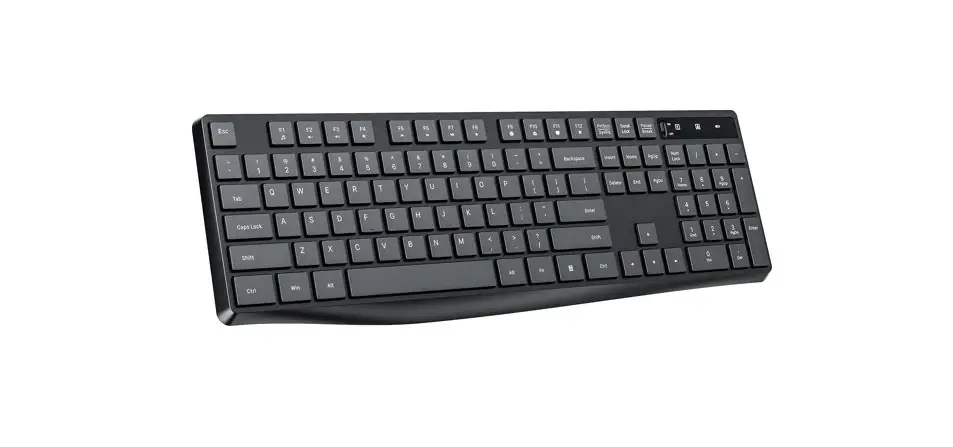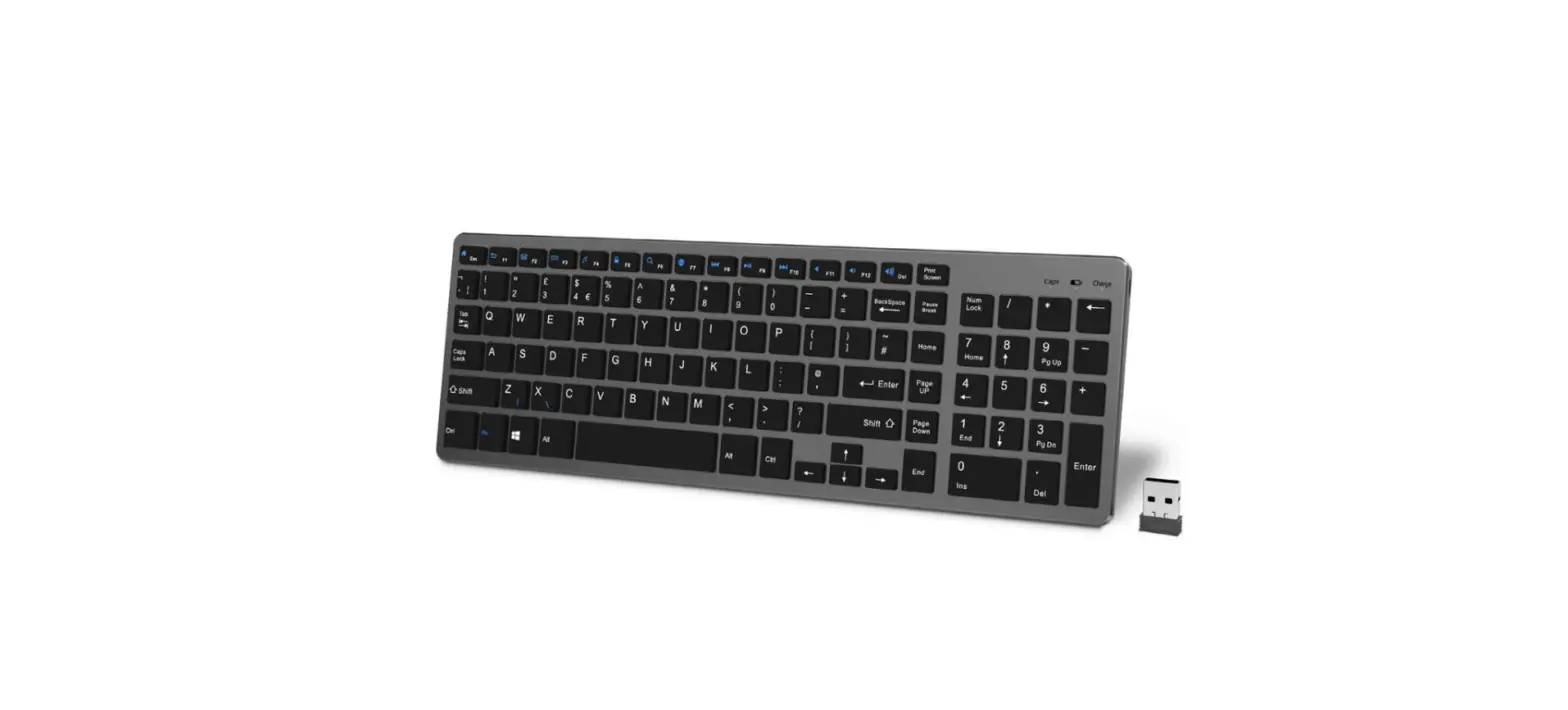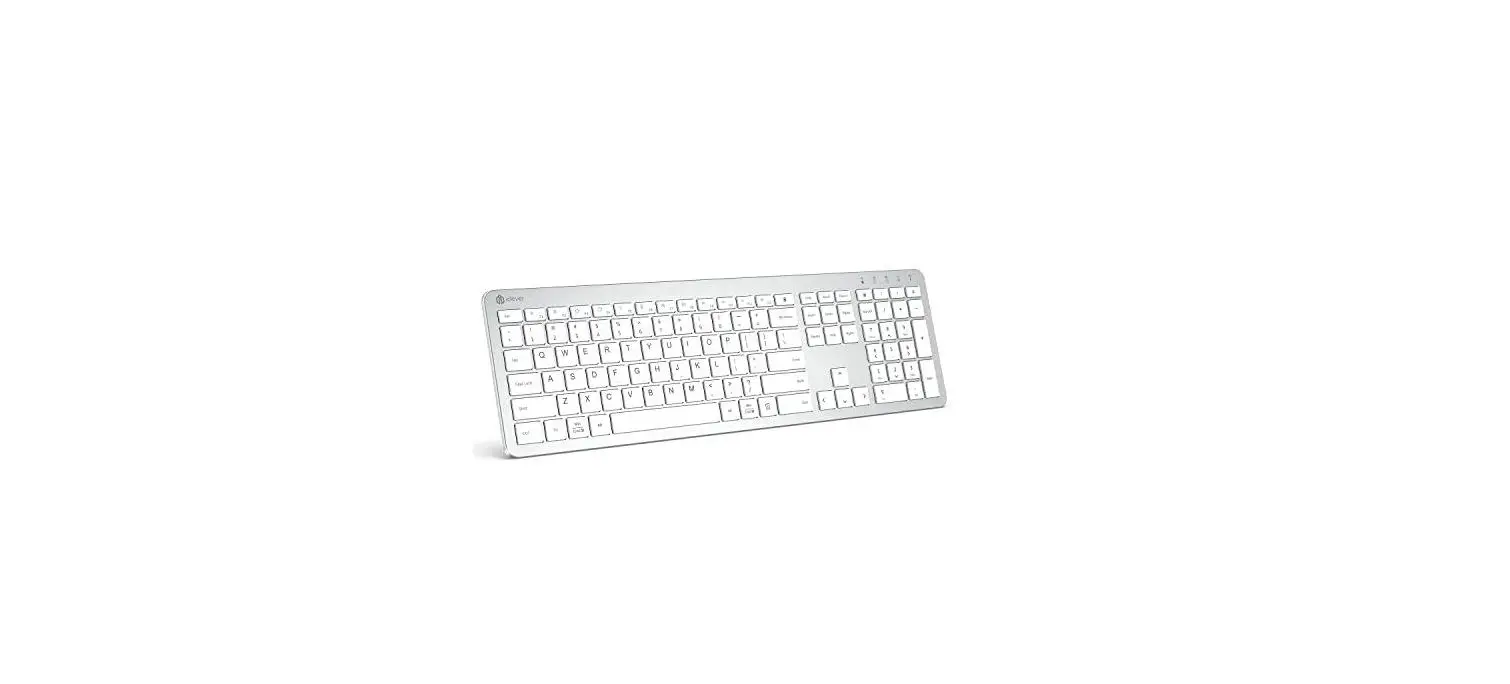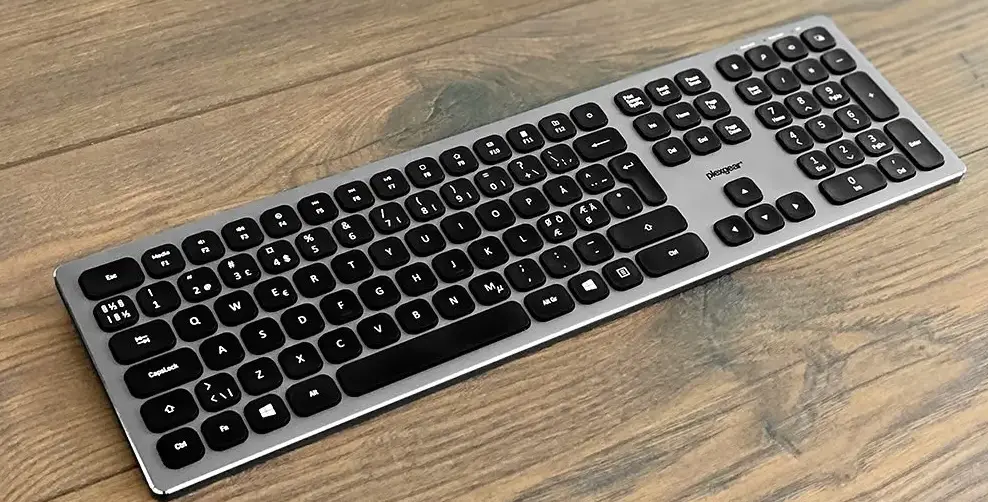
iclever IC-BK10 Wireless Keyboard
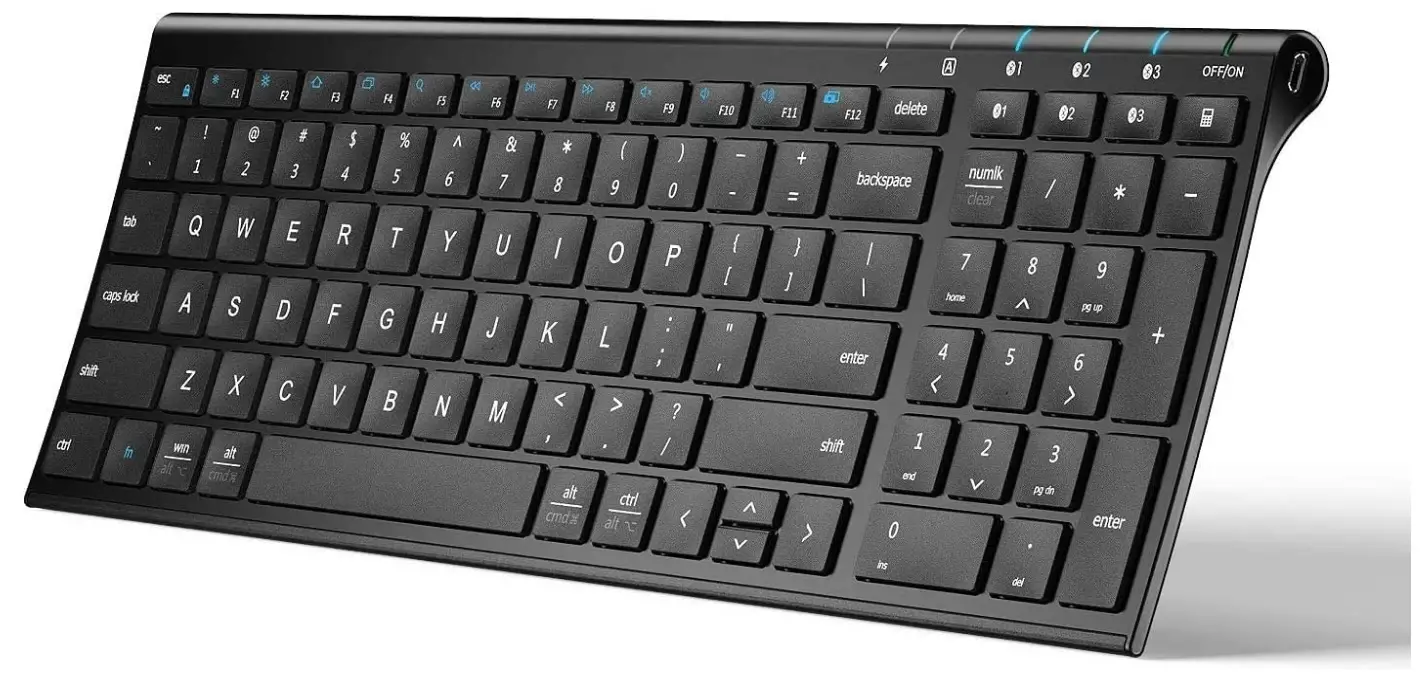
iclever IC-BK10 Wireless Keyboard
Thank you for choosing receiver! Please read this user manual carefully and save it for future reference.
Package Contents
- 1 x Wireless Keyboard
- 1 x Charging Cable
- 1 x Keyboard Cover
- 1 x User Manual
Specifications
| Bluetooth Specification | Bluetooth 5.1 |
| Dimensions | 366x125x16.2mm |
| Operating Range | < 10 meters |
| Stand-by Time | 90 days |
| Charge Time | < 2 hours |
| Uninterrupted Work Time | 90 hours |
| Lithium Battery Capacity | 280 mAh |
| Key Life | 3 million clicks |
| Front Side of Keyboard | ABS |
| Back Side of Keyboard | Stainless steel |
| Frequency Band | 2402MHz – 2480MHz |
| Maximum Transmission power | 0 dBm |
Product Overview
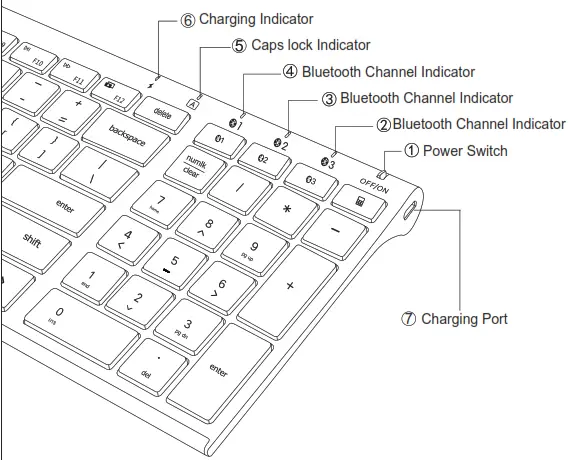
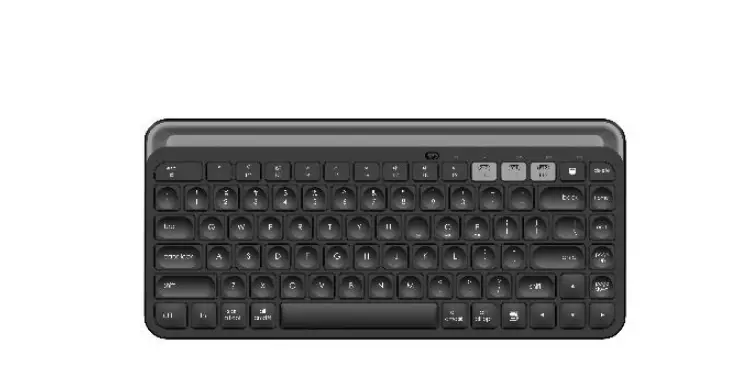
 Power Switch: slide the power switch to ON/OFF to turn on/off.
 Bluetooth Channel Indicators: when turning on the keyboard, indicators will be on for 3s.
 Caps Lock Indicator: press the “caps lock” key to switch between uppercase and lowercase and the indicator will light up when you switch to uppercase.
 Charging Indicator:
- stay in red when charging.
- turn green after fully charged (about 2 hours fully charged).
 Charging Port: for charging.
 Charging Port: for charging.
Guide to Use
A. How to pair with Bluetooth devices?
Pair with 1st device
Step 1. Charge the keyboard for 2 hours.
Step 2. Slide the power switch to “ON” to power on the keyboard.
Step 3. Hold and press the key of  for 5 seconds to pairing mode in channel 1; the Bluetooth channel indicator will flash blue and start to search for the available Bluetooth device.
Step 4. On your Bluetooth device, find the Bluetooth name “clever IC-BK10 Keyboard” and click to connect it.
Pair with 2nd device
Step 1. Hold and press the key of  for 5 seconds to pairing mode in channel 2; the Bluetooth channel indicator will flash blue and start to Search for the available Bluetooth device.
Step 2. On your Bluetooth device, find the Bluetooth name “clever IC-BK10 Keyboard” and click to connect it.
Pair with 3rd device
Step 1. Hold and press the key of  for 5 seconds to pairing mode in channel 3; the Bluetooth channel indicator will flash blue and start to search for the available Bluetooth device.
Step 2. On your Bluetooth device, find the Bluetooth name “clever IC-BK10 Keyboard” and click to connect it.
Connect with iClever Bluetooth Keyboard in the different systems:
► For Windows 10:
Click Win > Setting > Devices > Bluetooth & other devices > Add Bluetooth or other device > Bluetooth > Click “iClever IC-BK10 Keyboard” to connect.
► For MacBook/iMac:
Click System Preferences > Bluetooth > Click “iClever IC-BK10 Keyboard” to connect.
► For iPad/iPhone:
Click Setting > Bluetooth > Click “iClever IC-BK10 Keyboard” to connect.
Notes:
—Auto re-connect function: the keyboard will connect with the last-used device automatically.
—Do not connect it via a Bluetooth adapter.
—If fail to connect, please read the FAQ.
B. How to switch among the connected devices?
Press the key 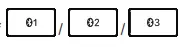 to switch among the connected devices.
C. How to repair?
Step 1. Press key  to choose the channel 1/2/3 you want to repair.
Step 2. Hold and press key of for 5 seconds to re-pair AGAIN.
Step 3. On your Bluetooth device, find the Bluetooth name “clever IC-BK10 Keyboard” and click to connect it.
Keys and Functions
The table below describes special key combinations for different operating systems.
| Function Keys | iOS | Android | Windows | Mac OS | Windows |
| Way to use | Press directly | Press fn + | Press fn + | Press directly | Press directly |
 | Brightness – | Brightness – | – (WinBrightness dows 10) | Brightness – | Fl |
| Brightness + | Brightness + | Brs (Windowsightnes + 10) | Brightness + | F2 | |
| Home | Home or N/A | Web browser | Mission control | F3 | |
| Switch apps | N/A | Switch apps | Switch apps | F4 | |
| Search | Search in browser or N/A | Search | Search | F5 | |
| Previous track | Previous track | Previous track | Previous track | F6 | |
| Play/pause | Play/pause | Play/pause | Play/pause | F7 | |
| Next track | Next track | Next track | Next track | F8 | |
| Mute | Mute | Mute | Mute | F9 | |
| Volume – | Volume – | Volume – | Volume – | F10 | |
| Volume + | Volume + | Volume + | Volume + | Fl 1 | |
| Screenshot | Screenshot | Screenshot | Screenshot | F12 |
| Special Key | Description |
 | Press In” + “esc” keys to turn on/off fn lock function. For iOS and Mac users. your keyboard has by default access to the Media and Hotkeys such as Volume Down, Volume Up, Play/Pause, and so on. If you prefer to have direct access to F-keys simply press In” + “esc” keys to swap them. |
| The “fn” key is used in combination with other keys to access special features. | |
| Switch function: press this key to Bluetooth Channel 1. Pairing function: hold and press it for 5 seconds, the Bluetooth Channel 1 indicator will flash blue to pairing mode. | |
| Switch function: press this key to Bluetooth Channel 2. Pairing function: hold and press it for 5 seconds, the Bluetooth Channel 2 indicator will flash blue to pairing mode. | |
| Switch function: press this key to Bluetooth Channel 3. Pairing function: hold and press it for 5 seconds, the Bluetooth Channel 3 indicator will flash blue to pairing mode. | |
| It works as a calculator function when your system is Windows. NOTE: works for Windows only. | |
| It works as “win” when your system is Windows or Android. It works as “option” when your system is iOS or Mac OS. | |
| It works as “alt” when your system is Windows or Android. It works as “command” when your system is iOS or Mac OS. | |
| It works as “ctrl” when your system is Windows or Android. It works as “option” when your system is iOS or Mac OS. | |
| It works as “Number lock” when your system is Windows and Android. It works as “clear” when your system is Mac OS. NOTE: not works for iOS |
System Requirements
► iOS 9.0 or late
► macOS 10.12 or later
► Windows 8 or later with Bluetooth HID Profile
► Android 6.0 or late
NOTE:
it is not fully compatible with Windows 7 PC/laptop, Bluetooth adapter, Mac mini, Samsung Smart TV, and Nokia phones.
Power Saving Mode
The keyboard will enter power saving mode after 30 minutes of inactivity.
Press any key and wait for 3 seconds to activate it.
Note: there may be a delay in typing when wake up the keyboard.
Charge the Keyboard
- Charge the device with the included USB cable.
- Output: DC 5V/200mA; USB charger is not included.
- In the charging, the indicator will stay in red and turn green after fully charged. Generally, it takes about 2 hours to get fully charged.
Tips
- Keep away from oil, chemical, liquid, and snacks.
- Keep away from sharp objects.
- Keep away from metal and other sources of the wireless signal.
Contact
- For more questions, please contact us by [email protected]
FCC Statement
Changes or modifications not expressly approved by the party responsible for compliance could void the user’s authority to operate the equipment. This equipment has been tested and found to comply with the limits for a Class B digital device, pursuant to Part 15 of the FCC Rules. These limits are designed to provide reasonable protection against harmful interference in a residential installation. This equipment generates uses and can radiate radio frequency energy and, if not installed and used in accordance with the instructions, may cause harmful interference to radio communications. However, there is no guarantee that interference will not occur in a particular installation. If this equipment does cause harmful interference to radio or television reception, which can be determined by turning the equipment off and on, the user is encouraged to try to correct the interference by one or more of the following measures:
- Reorient or relocate the receiving antenna.
- Increase the separation between the equipment and receiver.
- Connect the equipment into an outlet on a circuit different from that to which the receiver is connected.
- Consult the dealer or an experienced radio/TV technician for help.
This device complies with part 15 of the FCC rules. Operation is subject to The following two conditions (1)this device may not cause harmful interference, and (2) this device must accept any interference received, including interference that may cause undesired operation.
IC Caution
This device complies with Industry Canada licence-exempt RSS standard(s). Operation is subject to the following two conditions:
- This device may not cause interference.
- This device must accept any interference, including interference that may cause undesired operation of the device.
DOWNLOAD RESOURCES
- iclever IC-BK10 Wireless Keyboard [pdf] User Manual IC-BK10 Wireless Keyboard, IC-BK10, Wireless Keyboard
- Read more: https://#manualsee.com/iclever/ic-bk10-wireless-keyboard-manual#ixzz7db8RlnJj
FAQ’S
Press and hold the Bluetooth key for 10 seconds, then choose “iClever IC-BK10 Keyboard” on your device to connect it.
No.
Yes, it does. But you need to download a driver from the Internet.
About 90 hours.
Yes, you can. But you need to connect it with WiFi to download app firstly.
Restart your PC/laptop and iClever keyboard. Verify the product or receiver is connected directly to the computer and not to a hub, extender, switch, or something similar. Move the device closer to the USB receiver. If your receiver is in the back of your computer, it may help to relocate the receiver to a front port.
When you do need to plug the keyboard in, it takes about two hours to fully charge with the included micro-USB cable.
Replace the batteries in the keyboard and/or mouse. Reconnect the devices by pressing the reconnect button on the wireless receiver, and on the keyboard and mouse. Failing to reconnect wireless devices after changing the batteries is the most common cause of wireless keyboard and mouse failures.
You can use a cleaning wipe to get the large spaces and the underside of the keyboard. Finally, go back over the entire keyboard with a lint-free cloth to remove any remaining dust and to dry the device off. The price for a Bluetooth keyboard varies based on design and extra features.
The PrtScr function is on the F12 key. Please try to press fn+ F12 keys or F12 key to activate the print screen function.
In the search box on the taskbar, type device manager, then select Device Manager from the list of results. In the list of hardware categories, find the device that you want to update, and then double-click the device name. Click the Driver tab, click Update Driver, and then follow the instructions.
Power on: Switch the button to the “ON” direction. Then the LED indicator flashes blue for 1 second, and the colorful lights are on.
Shutdown: Switch the button to “OFF” direction, and the headphone is turned off. The LED indicator flashes blue for 1 second and then goes off.
VIDEO
www://iclever.com/