
Introduction
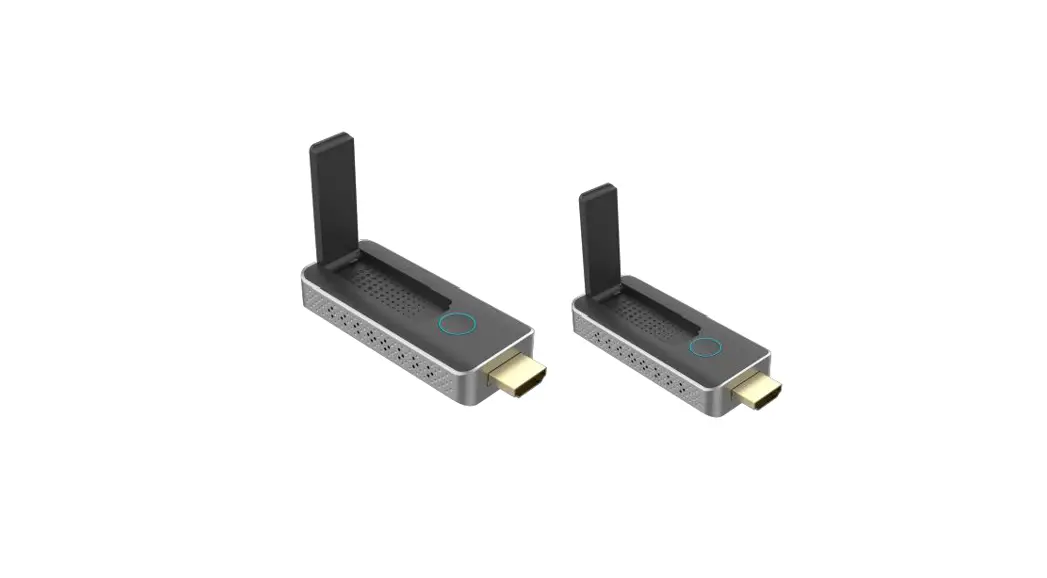
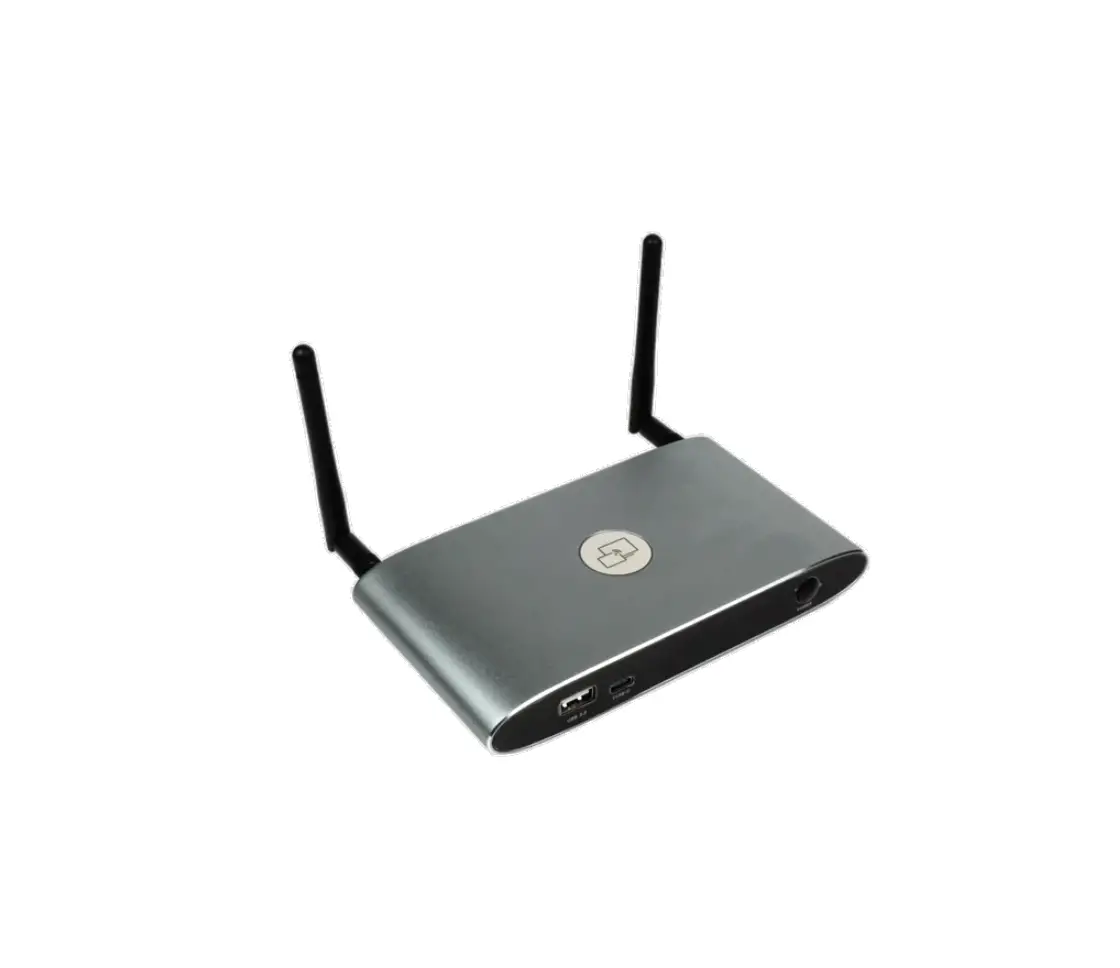
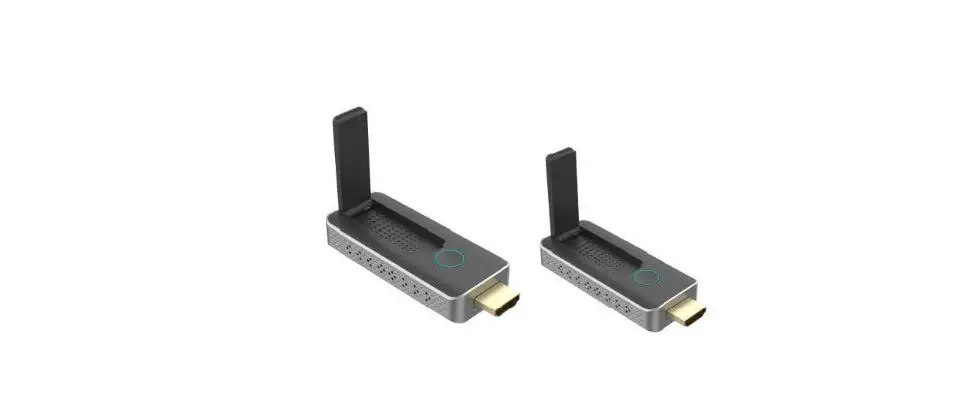
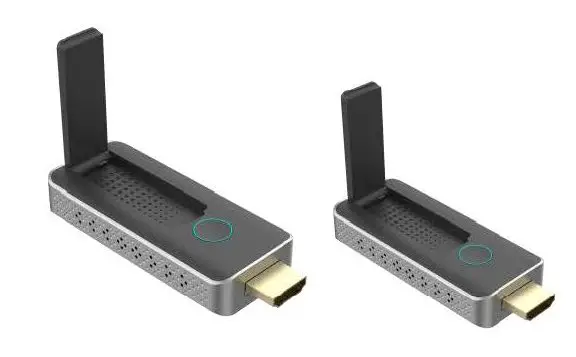
SmartShare mini is an intuitive and high efficiency 1080p wireless presentation and collaboration system that enables any meeting participant to simply share the content from their laptop, mobile phone, or tablet on the projector or large screen wirelessly, no APP required, no set up, no messy cables, just click and share. SmartShare mini support up to 30 presenters to share their contents instantly without wasting valuable meeting time.
A standard SmartShare mini is a combination of one transmitters and one receiver, the receiver is connected to a projector or display, and the transmitters are connected with PC or any device with HDMI jack, after connected, users click the button on the transmitter and the screen will be streaming to the display, it’s easy for other users to switch by click. You can buy additional transmitter or receiver if needed.
Never have to worry about the software configuration, no compatibility, WIFI and network set up, no need IT support, with our powerful and simplicity solution, everyone can immediately know how to use it for collaborative presentations, which significantly improves corporate efficiency and productivity.
Product features
| Features | Description |
| Plug and play | Simple connect the transmitter with the PC HDMI ports, then click the button to start the streaming. |
| App Free | SmartShare mini doesn’t need any software or app installation, no setup, no IT team. |
| All in one | Support iOS/Android/Windows system, support Blu-ray DVD player, media player and any devices with HDMI jack. |
| Wireless Camera | Share the images and audio from smart-phone camera or to the large display simultaneous. |
| Multi-user mode | Up to 30 user’s presentation at one time |
| Auto Channel Selection | The SmartShare mini will select the best Wi-Fi channel automatically after power on to ensure streaming smoothly. |
| Fast Speed with 5G AC MIMO Technology | The SmartShare mini comes with the fast 802.11ac MIMO technology which increase Wi-Fi speeds by allowing a pair of wireless devices to simultaneously send or receive multiple data streams. |
| 1080p60 High Video Quality | SmartShare mini support real 1080p60 decode, which means much more clear pictures, rich in details and texture compared with 720p. |
| High-Security Protection | No worries about the data security, the SmartShare mini support AES 128-bit security encryption and WPA2/WPA-PSK/WPA2-PSK authentication protocol to protect data. HDCP supported to protect the content. |
Package Included
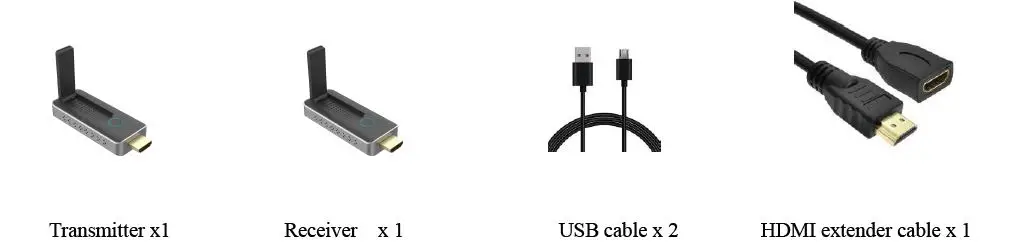
- Transmitter x1
- Receiver x 1
- USB cable x 2
- HDMI extender cable x 1
Devices Requirement
Please ensure the devices meets the following requirements:
- iOS 9.0 or above
- Android 5.0 or above
Product Specification
| Feature | |
| Video input | Up to 1080P/60 |
| Video decode and output | Up to 1080P60 |
| Audio | Stereo, quality 16bits 48KHz |
| Wireless Channel | IEEE 802.11ac, 5GHz, 2T2R |
| Latency | About 120ms latency |
| Streaming Protocol | Airplay, Miracast, DLNA |
| HDMI Version | HDMI 1.4 with HDCP1.3 |
| Authentication Protocol | WPA2 (WPAS-PSK / WPA2-Enterprise) |
| Security | AES 128 bit |
| Platform supported | Windows, iOS, Android system, Any devices with HDMI jack |
| Distance | About 50 meters in the clean line of sight |
| Transmitter | |
| interface | HDMI in jack x 1, micro USB x 1, button x 1 |
| LED | Red and blue |
| Switch button | x 1 |
| Power supply | DC5V/0.5A |
| Power Consumption | About 2.5W |
| Dimension | 83x32x13mm |
| Weight | 27.1g |
| Receiver | |
| Interface | HDMI out jack x 1, micro USB x 1, button x 1 |
| LED | Red and Blue |
| Power supply | DC5V/0.5A |
| Power Consumption | About 2.5W |
| Dimension | 83x32x13mm |
| Weight | 27.1g |
| Temperature Range | |
| Operating: | 0°C to +40°C (+32°F to +104°F) |
| Storage: | -10°C to +60°C (+14°F to +140°F) |
| Humidty | |
| Operating: | 10% to 80% relative humidity |
| Storage: | 5% to 90% relative humidity |
Overview
SmartShare Pro TX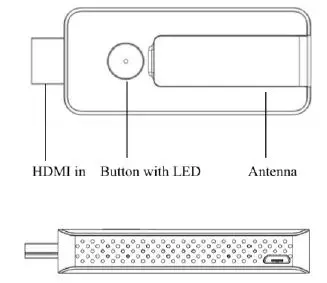
- HDMI in: connect source devices, like computer or other devices with HDMI, the HDMI in also support 5V power in if the source devices HDMI with 5V output.
- Button: click to cast or click to switch to other user
- LED: to display different statue.
- Micro USB: for power supply.
Remark: if the source devices HDMI with 5V power output, then no need connect USB cable for power.LED indicator of the SmartShare mini TX Description Static red TX system is booting on Flashing red TX is searching for RX Flashing blue Waiting for connection Static blue Connected and start to presenting Purple No HDMI in SmartShare mini RX

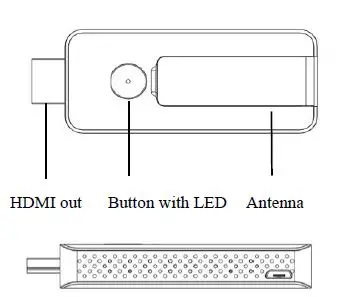
- HDMI out: connect with monitor or projector.
- Button: switch to different mode, TX/airplay/dlna mode or miracast mode.
- LED: to display different statue.
- Micro USB: for power supply.
LED indicator of the SmartShare mini RX Description Flashing blue Waiting for connection Static blue Connected and start to presenting
Receiver Installation
- Connect with TV or projector.
- Connect the RX HDMI with the big screen TV or projector’s HDMI jack.
- Connect the USB port of RX to the USB port of the TV through a USB cable for power supply.
- Mode selection:
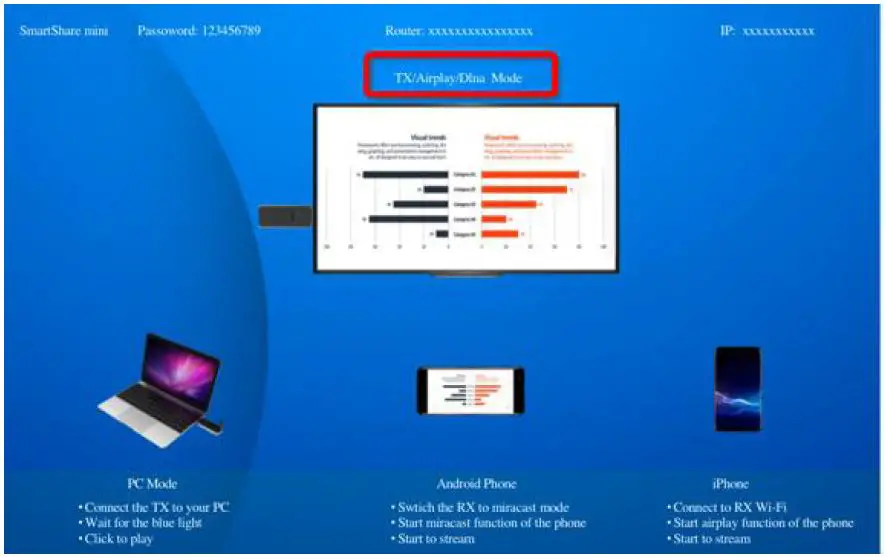
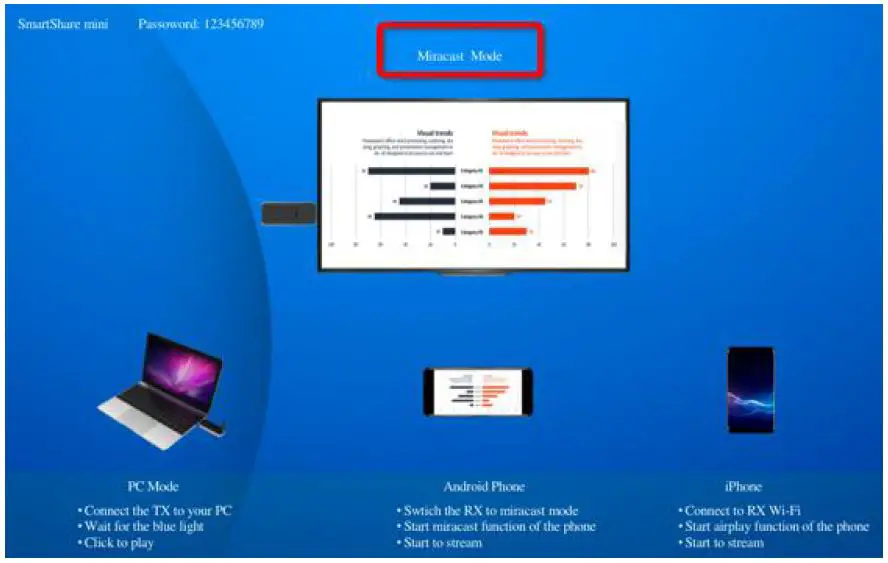
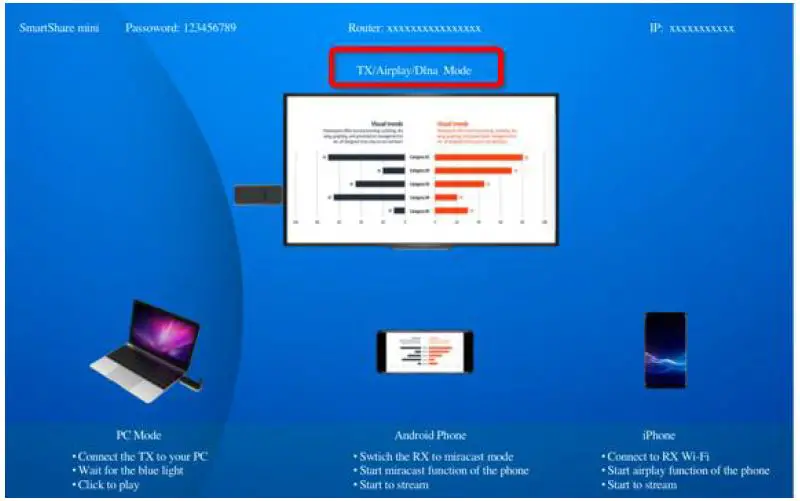
The receive support two mode as below, press the RX button to switch to different mode, the mode will show on the middle of the RX screen.- TX/Airplay/Dlna mode: for TX/iOS devices, or the devices support dlna function.

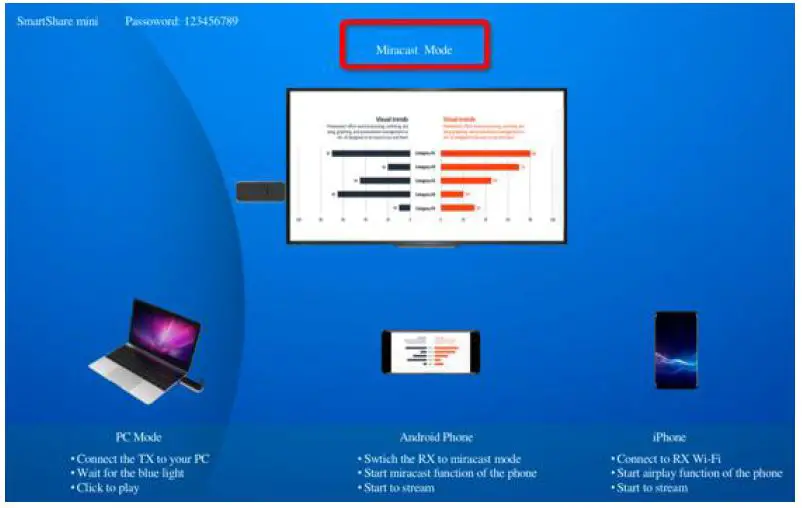
- Miracast mode: for android phone which support miracast mode.

- TX/Airplay/Dlna mode: for TX/iOS devices, or the devices support dlna function.
- Connect to internet:
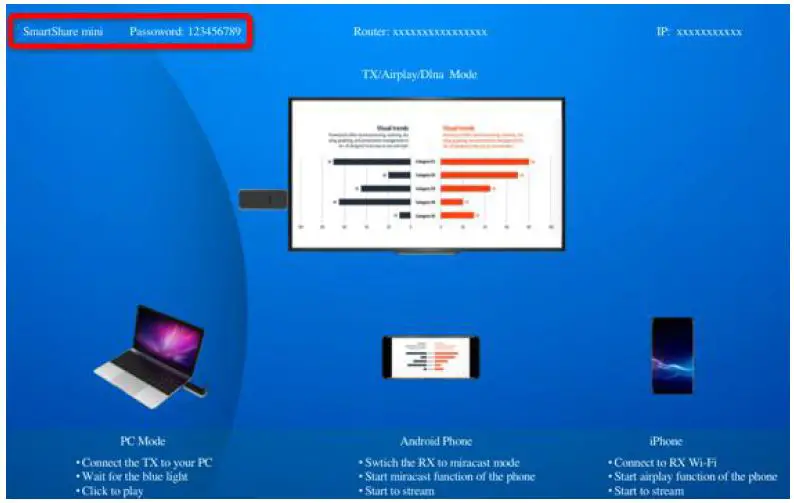
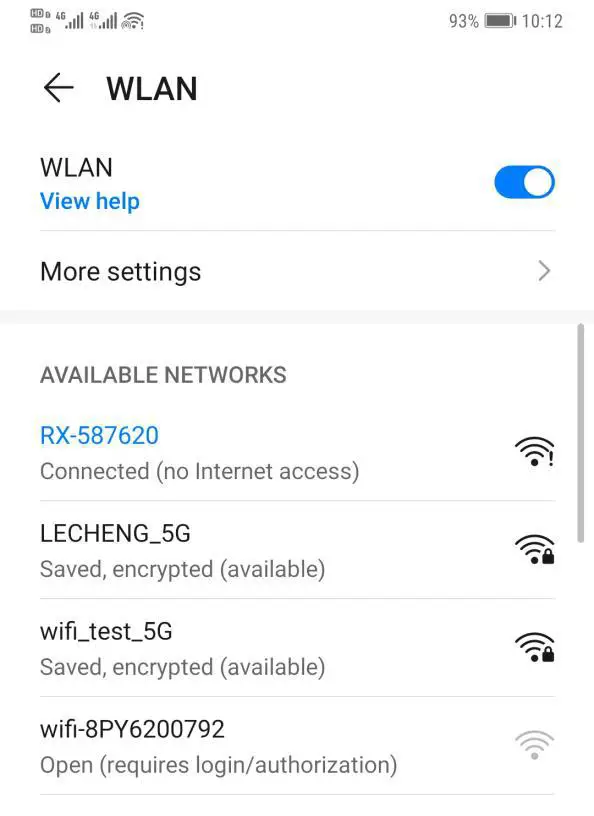
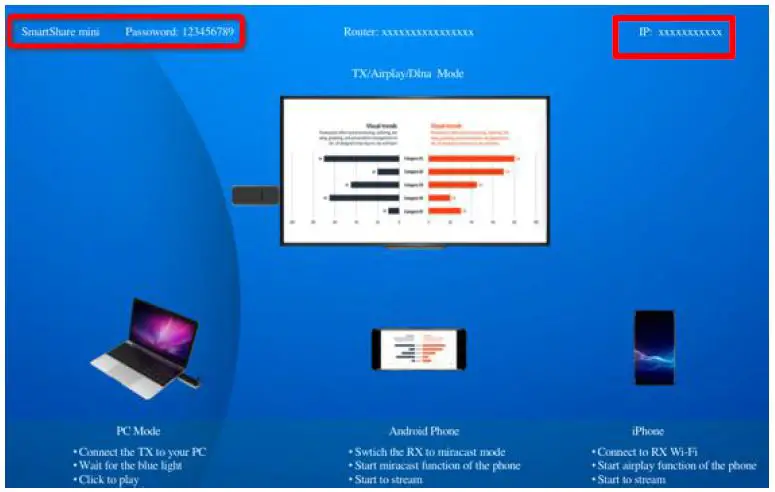
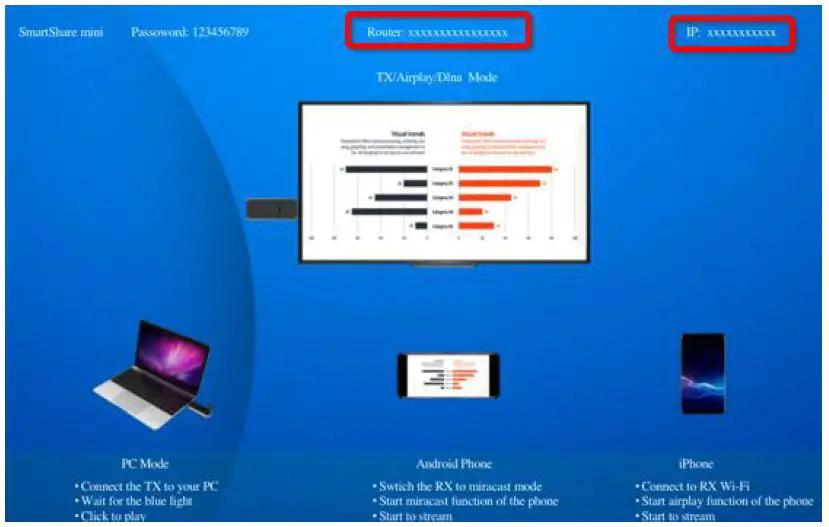
- Connect the RX SSID with your smart devices, the SSID and password are showed on the left upper corner of the screen.


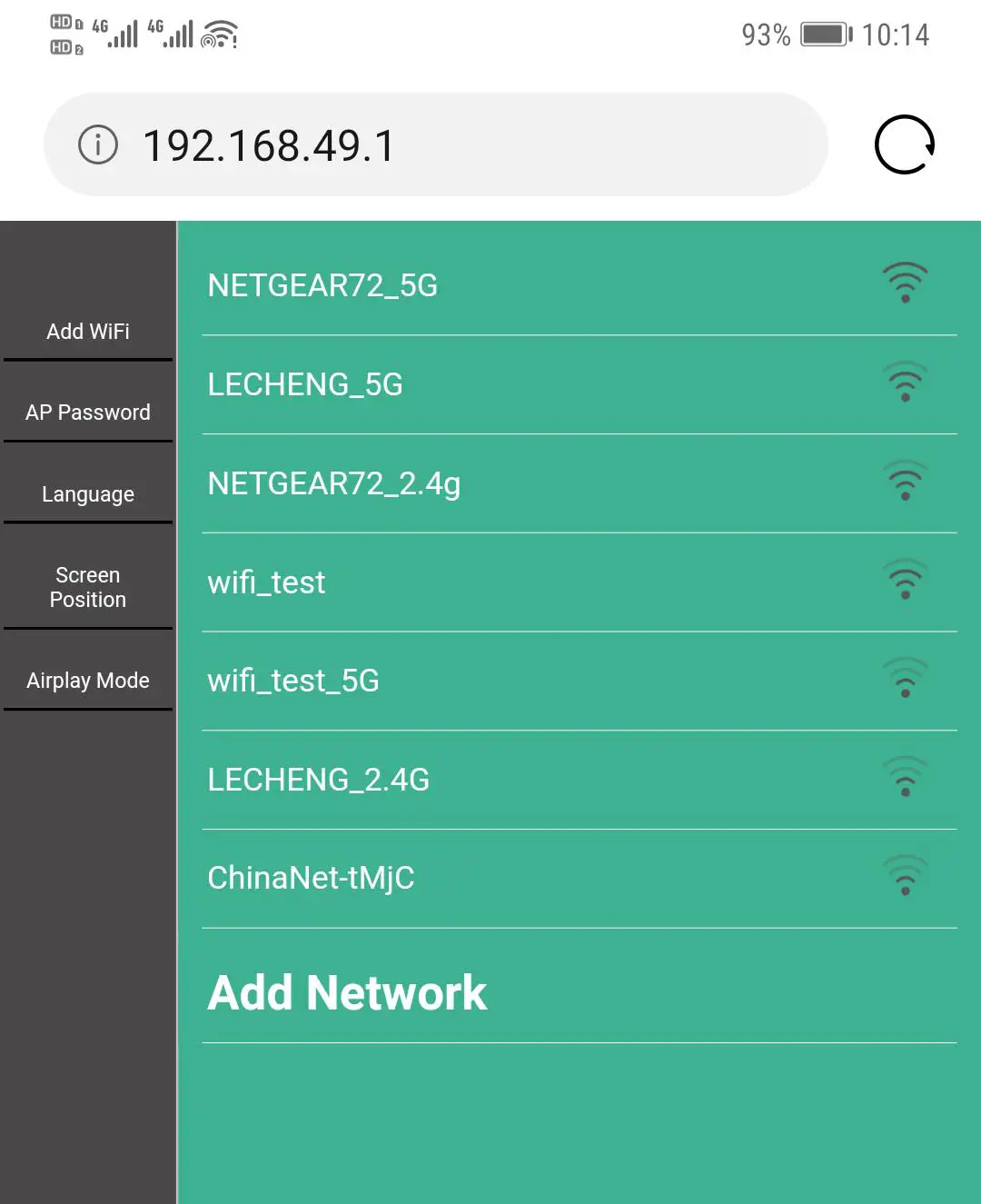
- Open the browser with your phone, and input the IP address which show on the right upper corner of the screen to enter to the RX management platform.
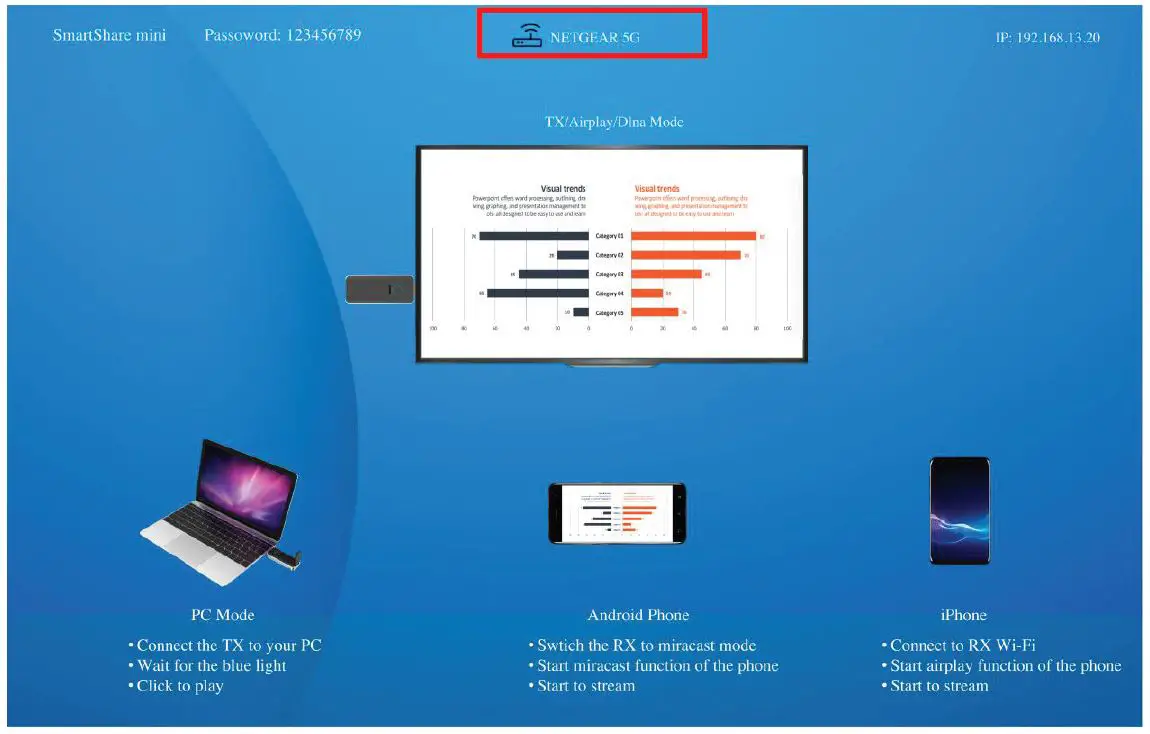
Remark: when connect to router, the IP address will be update accordingly.

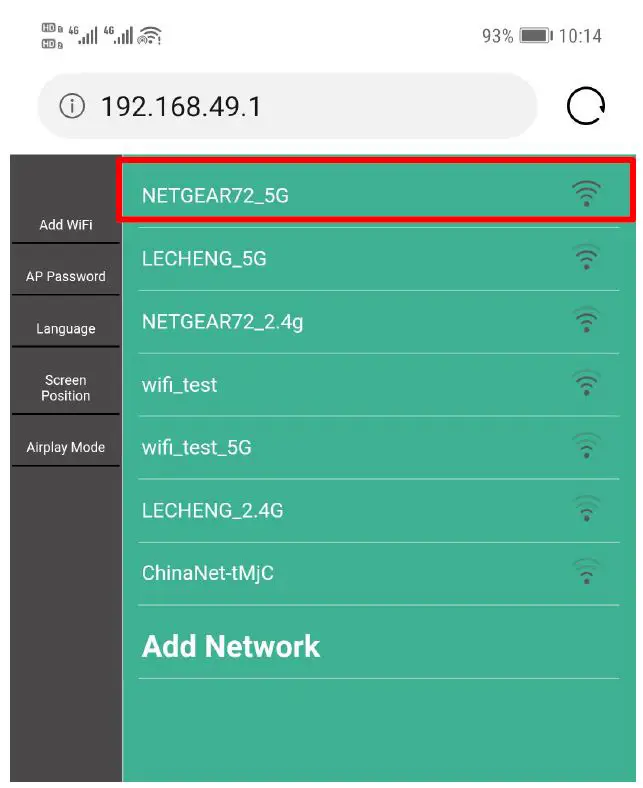
- Select the network and connect in the management platform, the RX will link to the network and show the network SSID on the middle of the screen. (to get a better performance, we recommend to connect with 5G router)


- Select the network and connect in the management platform, the RX will link to the network and show the network SSID on the middle of the screen. (to get a better performance, we recommend to connect with 5G router)

- Connect the RX SSID with your smart devices, the SSID and password are showed on the left upper corner of the screen.
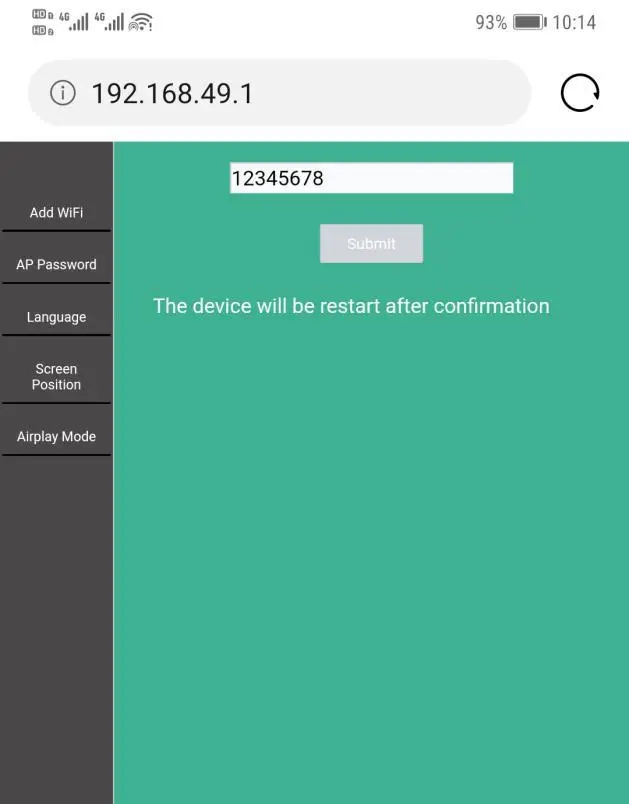
- AP password management:
user can change AP password in the management page.
Remark: if the password are changed, the TX and RX have to pair again.
- Language
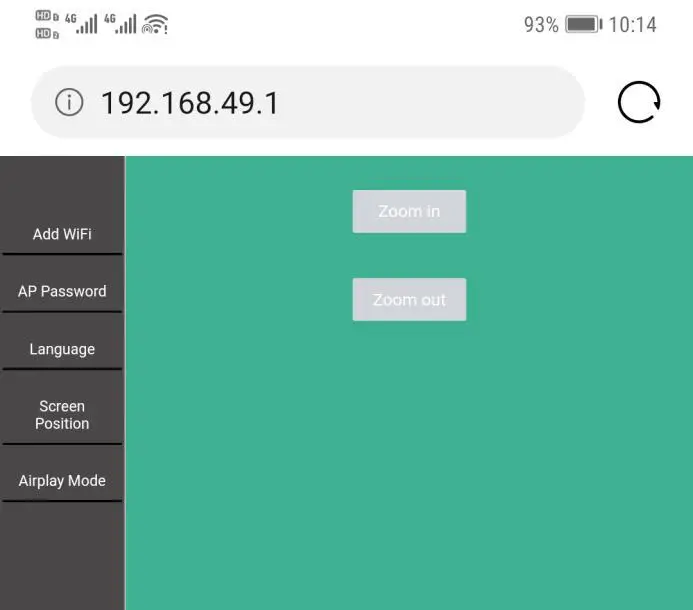
User can change language in the management page: - Screen Position
If the RX HDMI OUT size is not compatible with the display, user can use Screen Position to adjust the zoom in and zoom out the screen.
- Airplay mode: you can select to use streming mode or mira mode.
Stream from TX:
SmartShare mini TX Installation
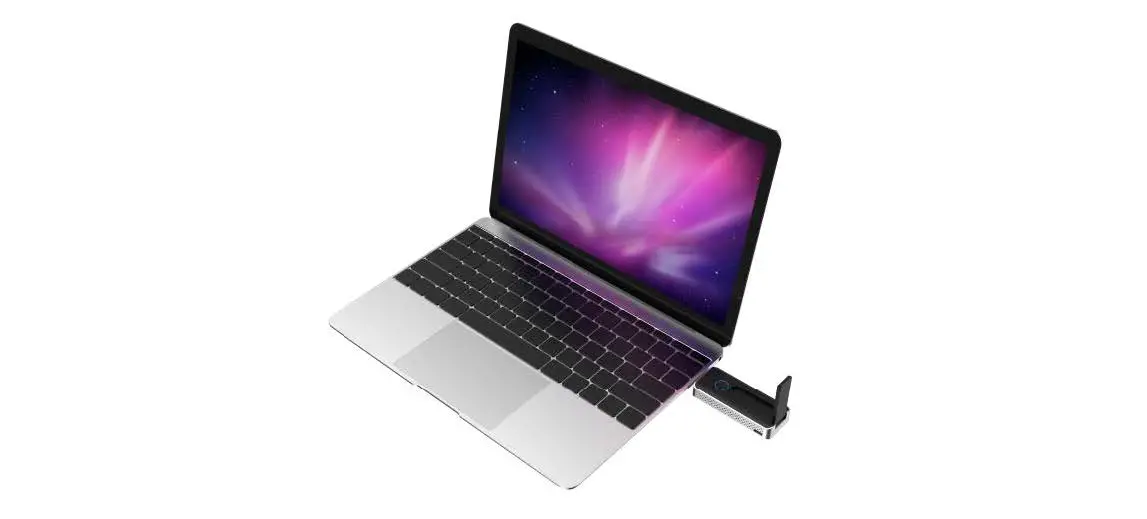
- Connect the SmartShare mini TX’s HDMI to PC HDMI port.
Remark: if the source devices HDMI with 5V power output, then no need connect USB cable for power, if not, please connect the TX with PC by USB cable for power.
- The LED indicator of the SmartShare mini TX will turn red when it’s booting up.
- The LED indicator will become blue and flashing when SmartShare mini is ready to stream.
- Click the button to start casting, the LED indicator will become constant blue.
Streaming from smart devices:
- iOS devices
Step 1: please make sure the RX is in TX/airplay/dlna mode: Stpe2:
- Search RX SSID and connect. (SSID: RXxxxxx, Password: 12345678), the SSID show on the left upper corner of the screen.
- Or if the RX already connect with your network, and make sure your devices is in the same network with RX.
Step 3: Stream the content from your iOS devices via Airplay.
- Android devices
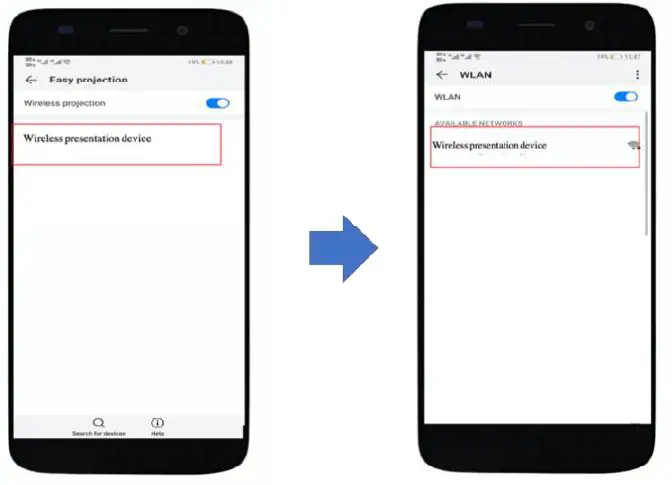
Step 1: switch the RX to miracast mode: Step 2: make sure your android device’s Wi-Fi are available, and select the miracast function of your phone and start to stream.
 Remark: there are different name on difference brand phones or tablets: WIFI Display, WLAN Display, Wireless Display, Allshare Display, Allshare Cast, Wireless Display
 Stpe2: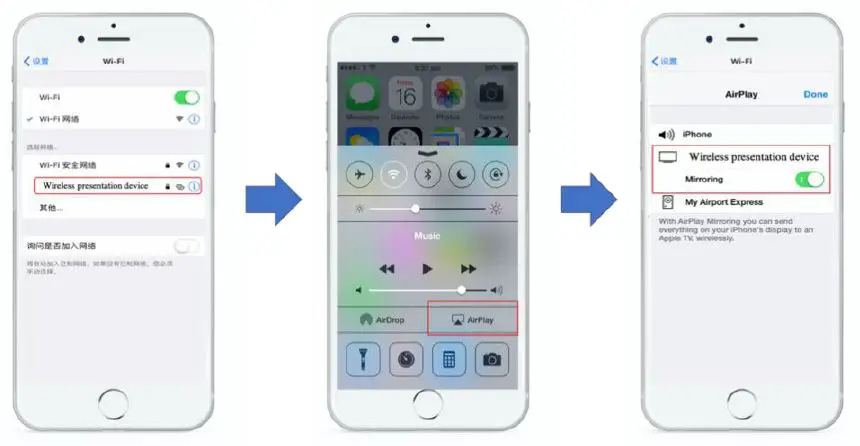
 Step 2: make sure your android device’s Wi-Fi are available, and select the miracast function of your phone and start to stream.
 Remark: there are different name on difference brand phones or tablets: WIFI Display, WLAN Display, Wireless Display, Allshare Display, Allshare Cast, Wireless Display
FCC STATEMENT :
This device complies with Part 15 of the FCC Rules. Operation is subject to the following two conditions:
- This device may not cause harmful interference,
- This device must accept any interference received, including interference that may cause undesired operation.
Warning: Changes or modifications not expressly approved by the party responsible for compliance could void the user’s authority to operate the equipment.
NOTE: This equipment has been tested and found to comply with the limits for a Class B digital device, pursuant to Part 15 of the FCC Rules. These limits are designed to provide reasonable protection against harmful interference in a residential installation.
This equipment generates uses and can radiate radio frequency energy and, if not installed and used in accordance with the instructions, may cause harmful interference to radio communications. However, there is no guarantee that interference will not occur in a particular installation. If this equipment does cause harmful interference to radio or television reception, which can be determined by turning the equipment off and on, the user is encouraged to try to correct the interference by one or more of the following measures:
- Reorient or relocate the receiving antenna.
- Increase the separation between the equipment and receiver.
- Connect the equipment into an outlet on a circuit different from that to which the receiver is connected.
- Consult the dealer or an experienced radio/TV technician for help.
FCC Radiation Exposure Statement:
This equipment complies with FCC radiation exposure limits set forth for an uncontrolled environment. This equipment should be installed and operated with minimum distance 20cm between the radiator & your body.
Body-worn Operation :
This device was tested for typical body-worn operations. To comply with RF exposure requirements, a minimum separation distance of 0mm is used between the user’s body and the handset, including the antenna. Third-party belt-clips, holsters, and similar accessories used by this device should not contain any metallic components. Body-worn accessories that do not meet these requirements may not comply with RF exposure requirements and should be avoided. Use only the supplied or an approved antenna.