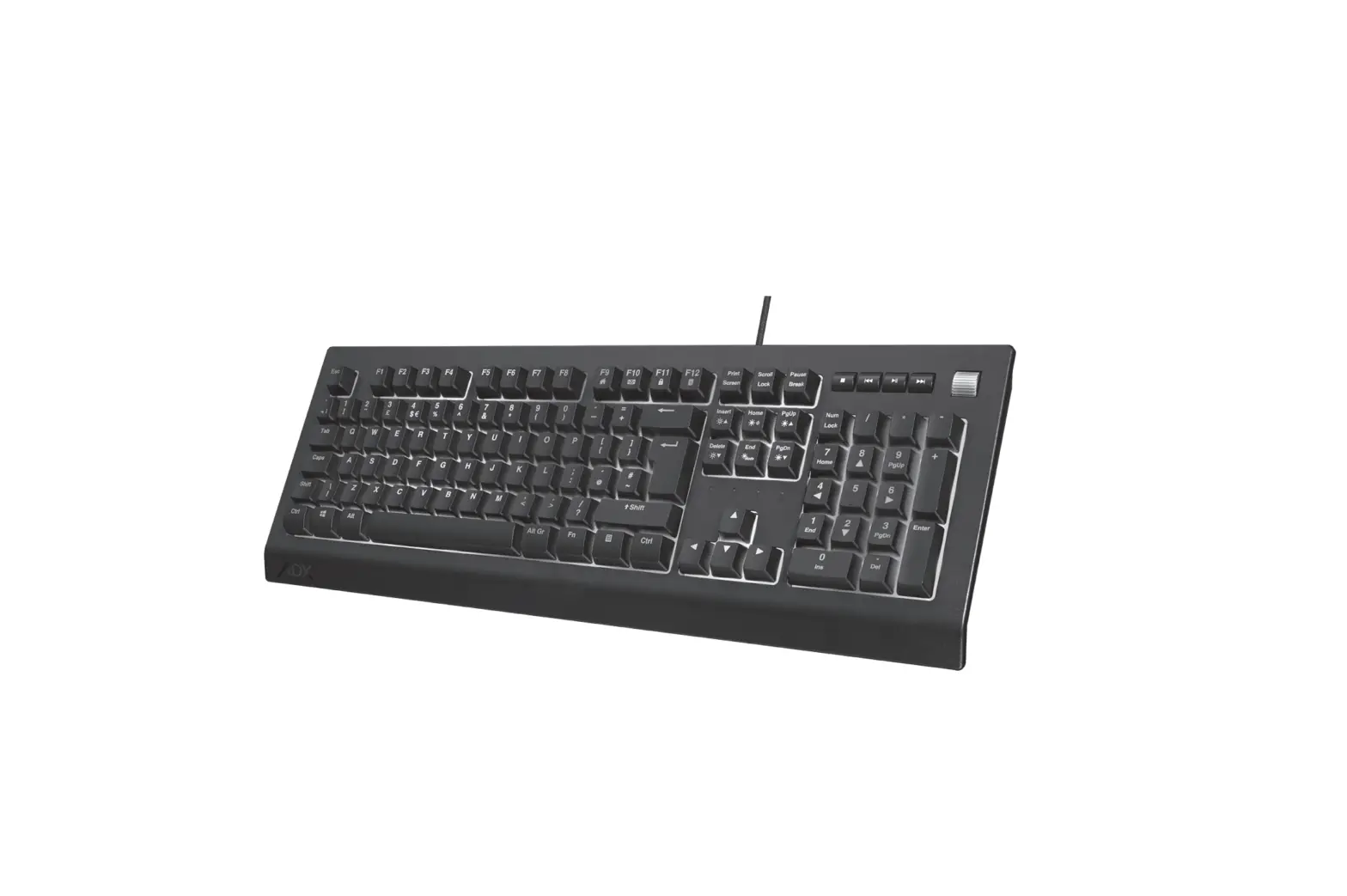
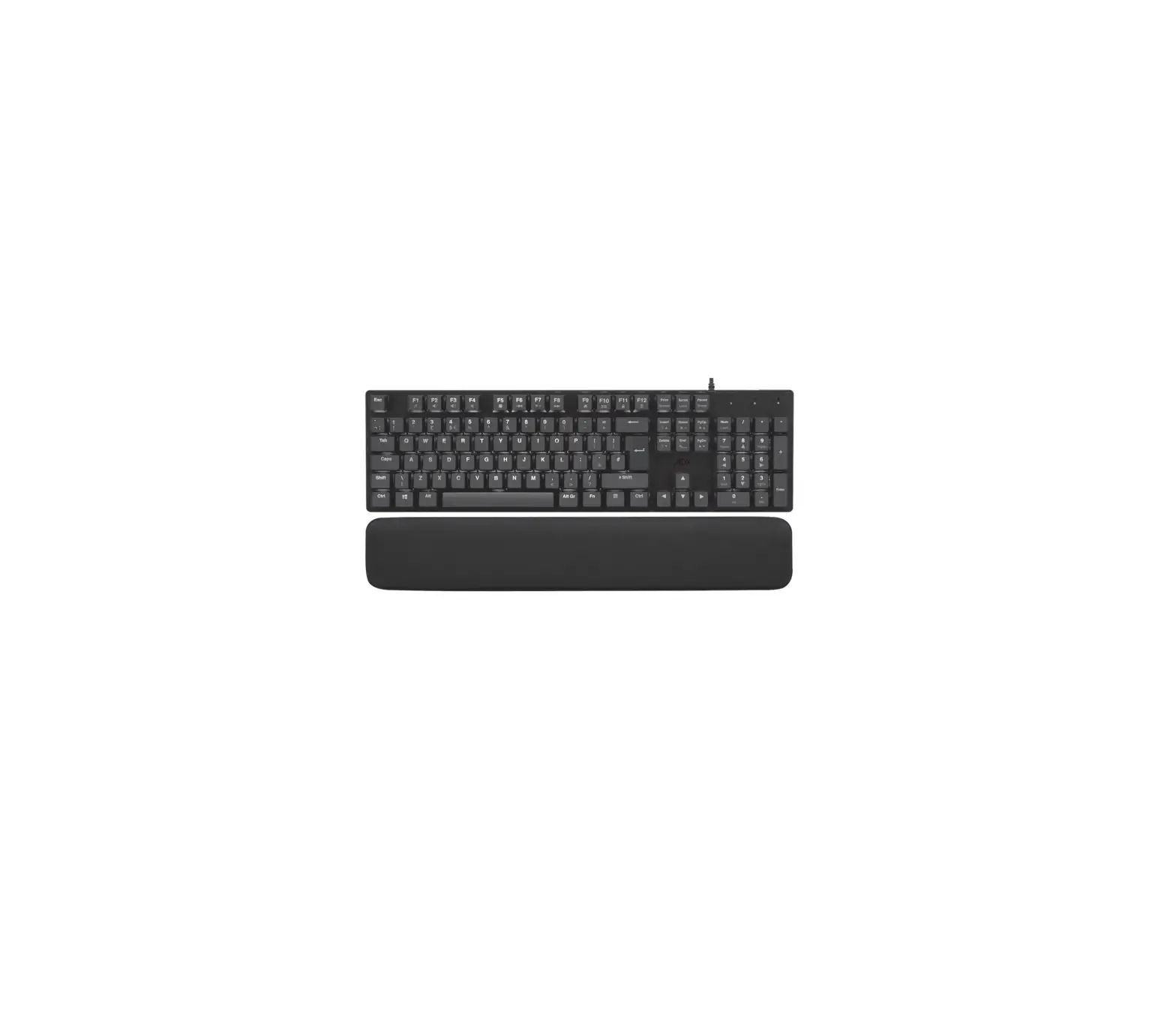
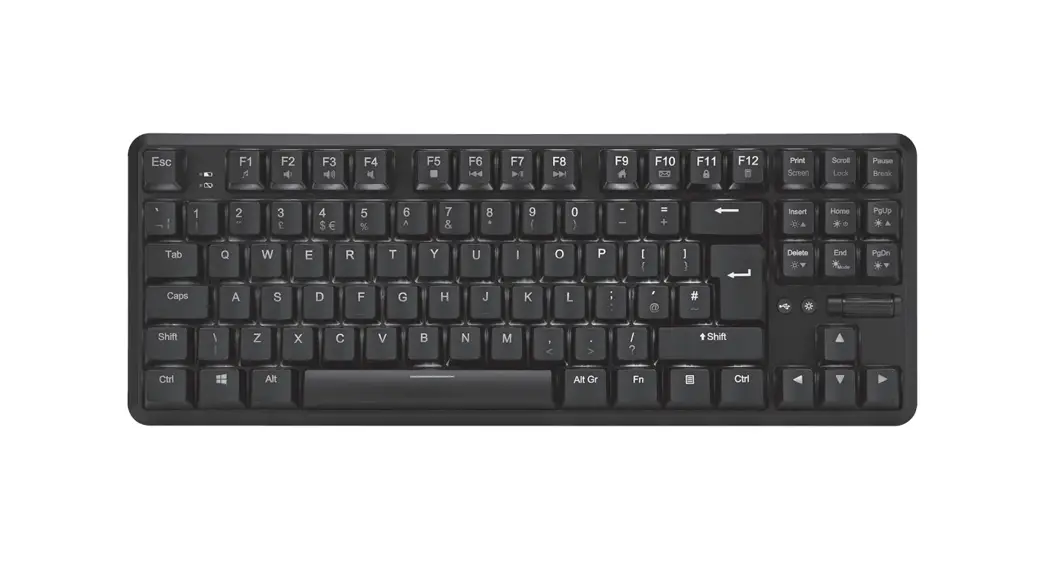
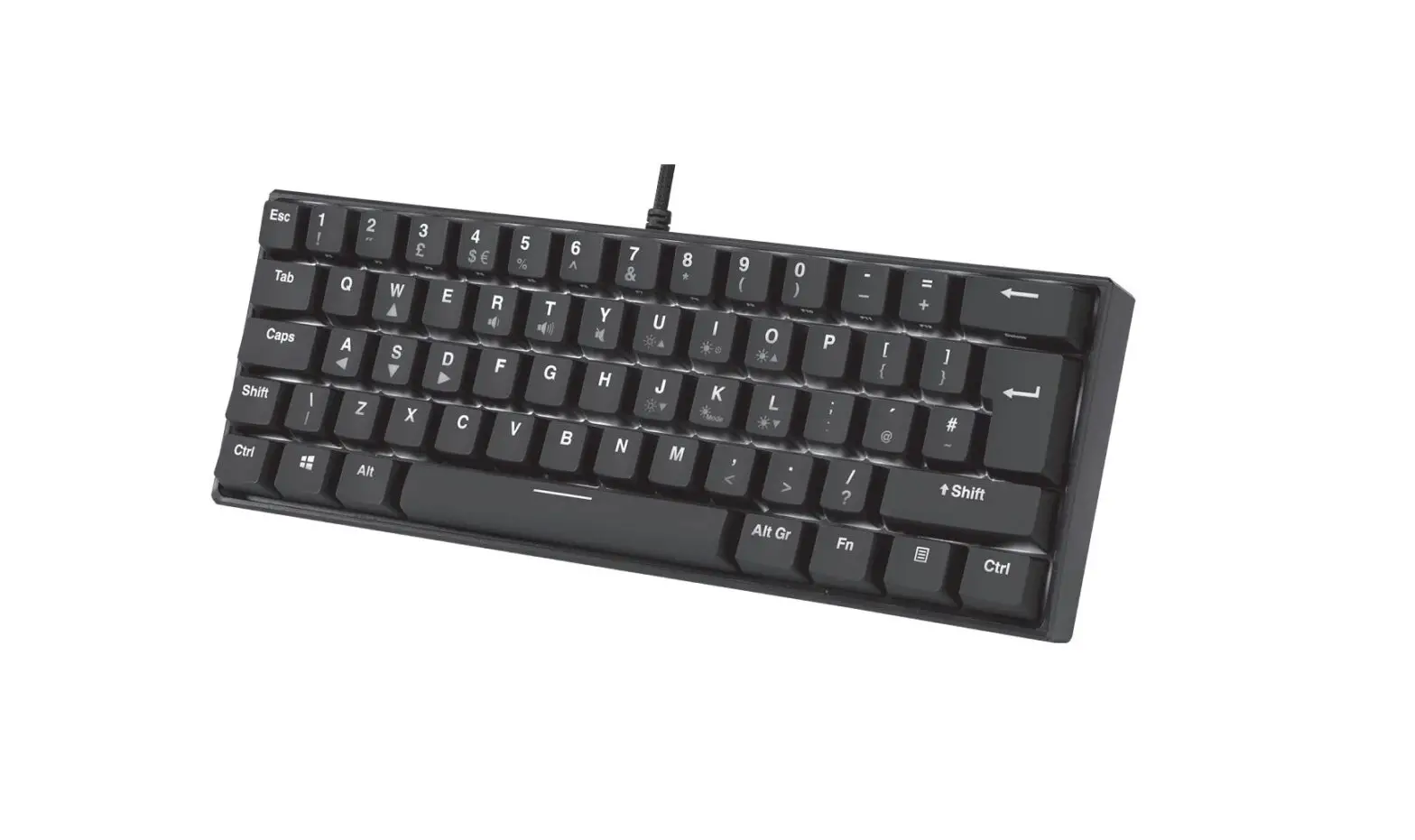
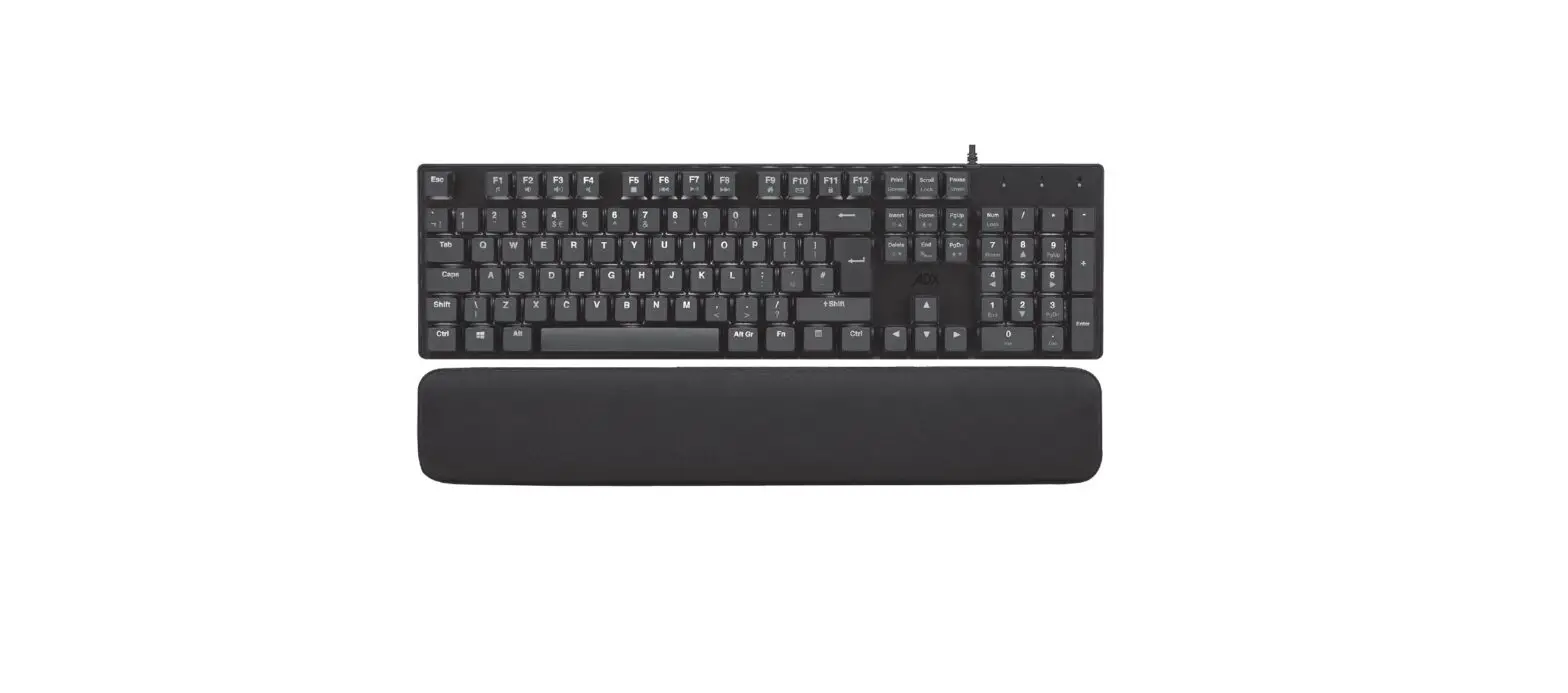
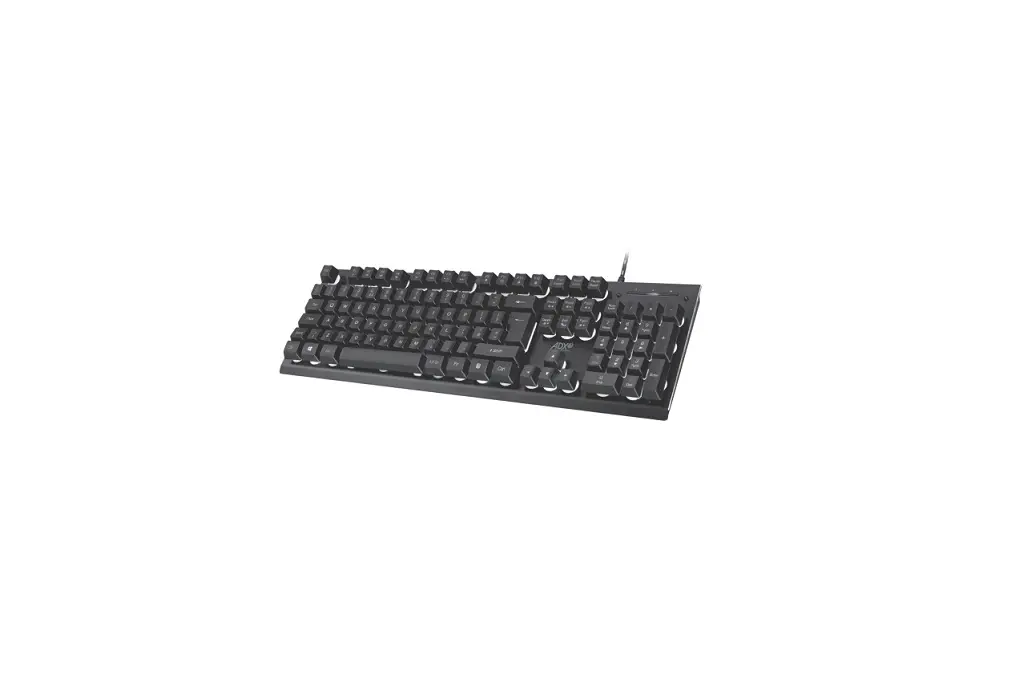
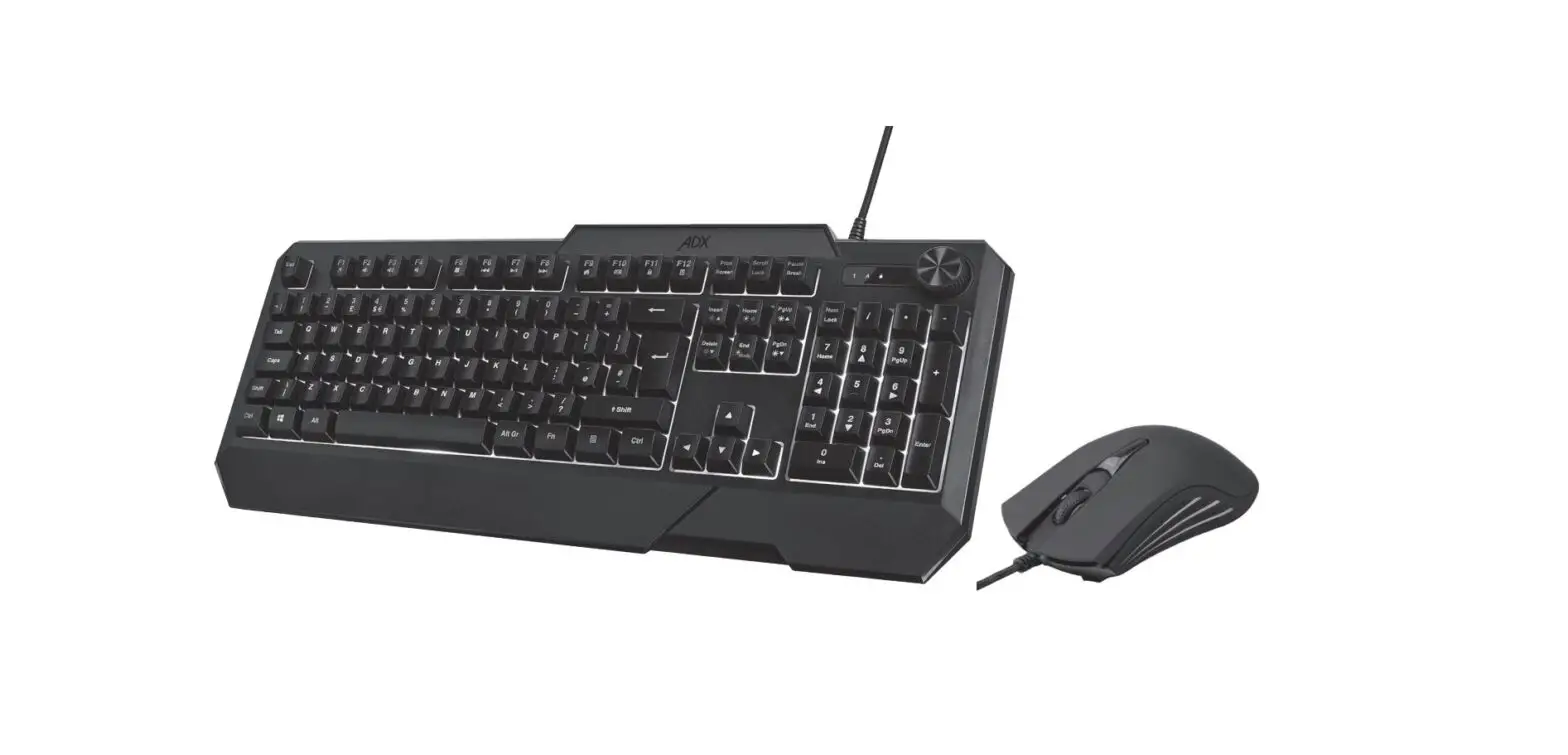
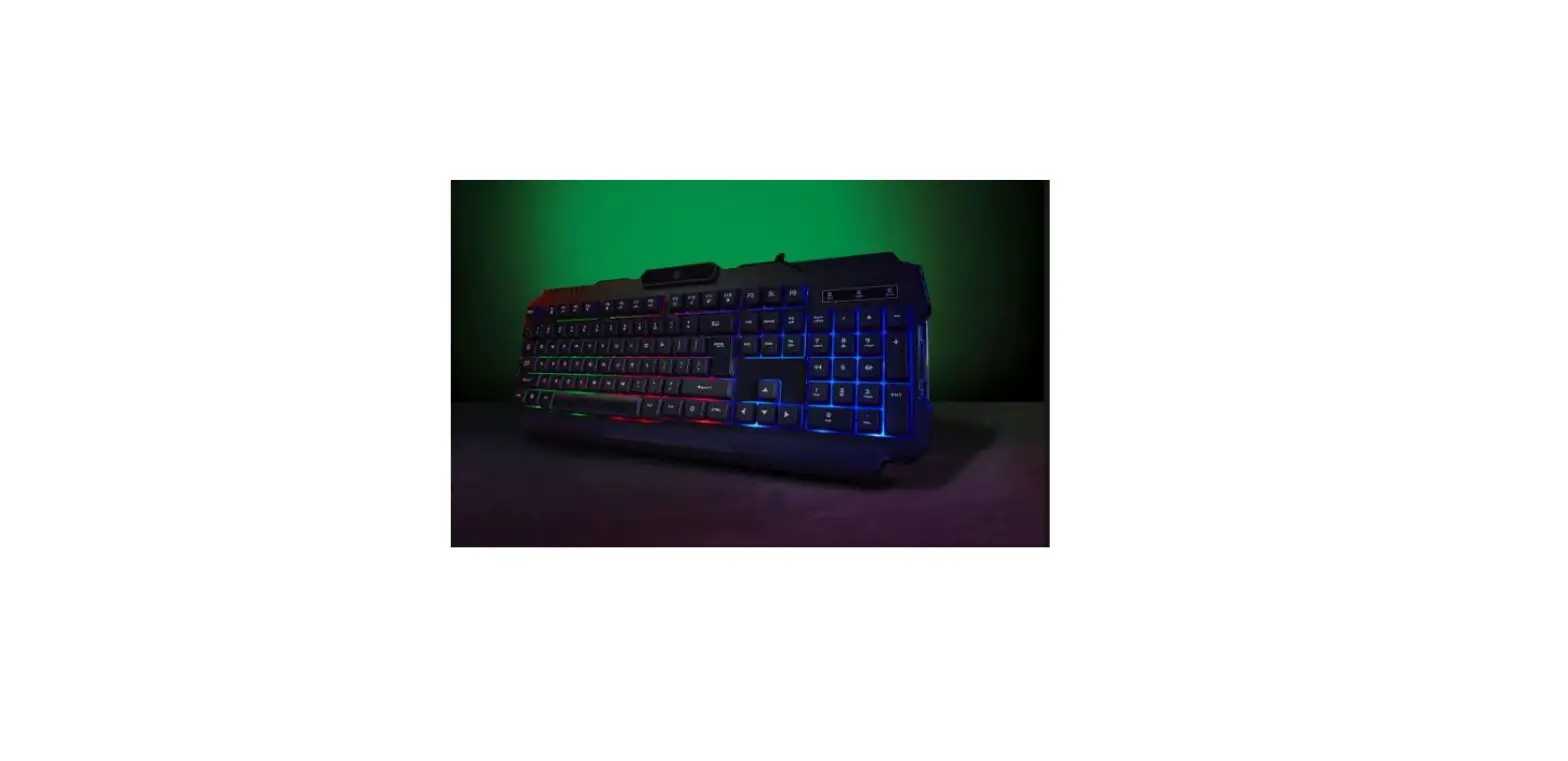
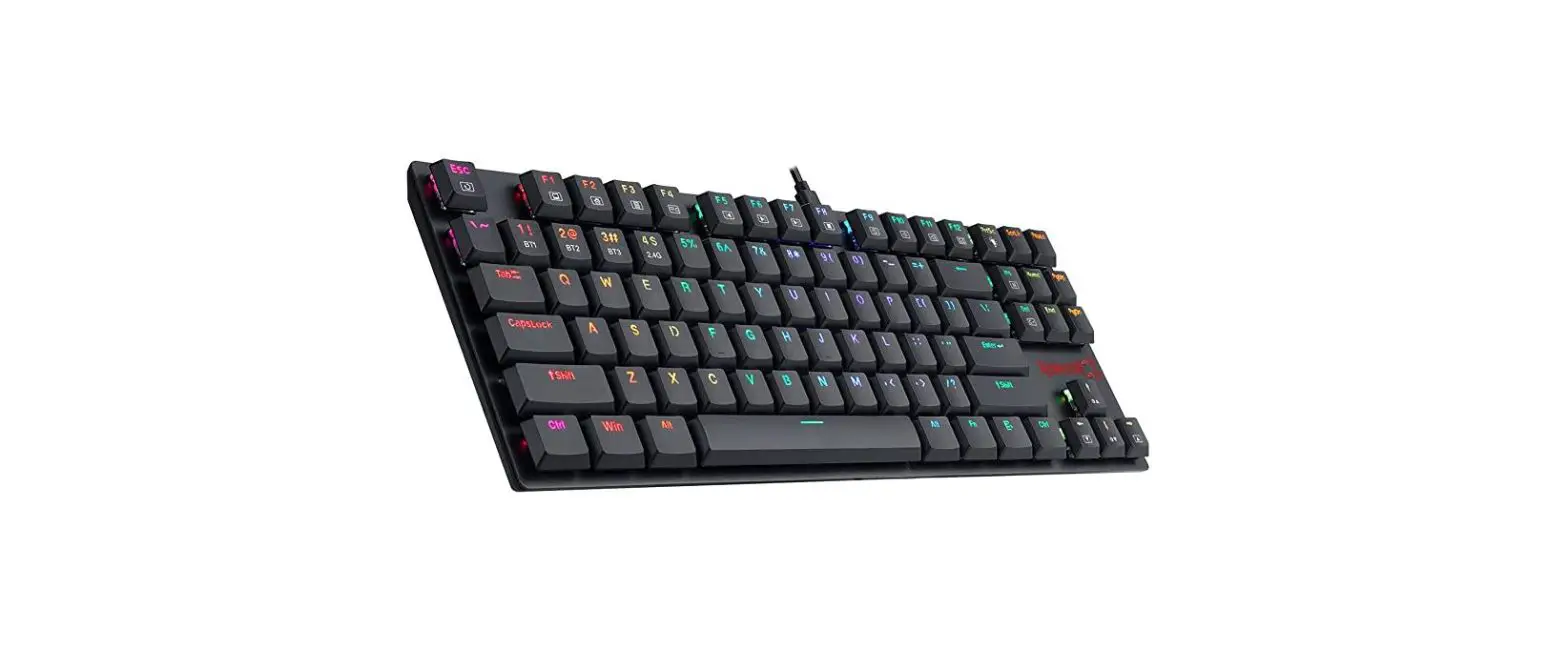
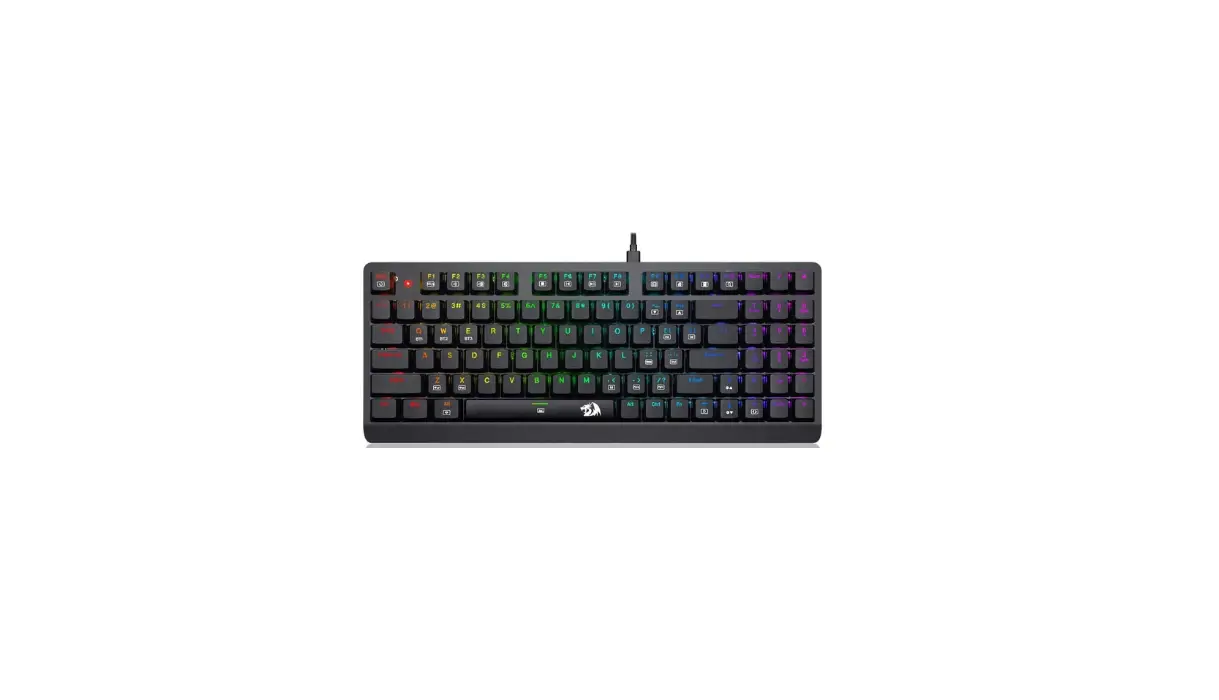
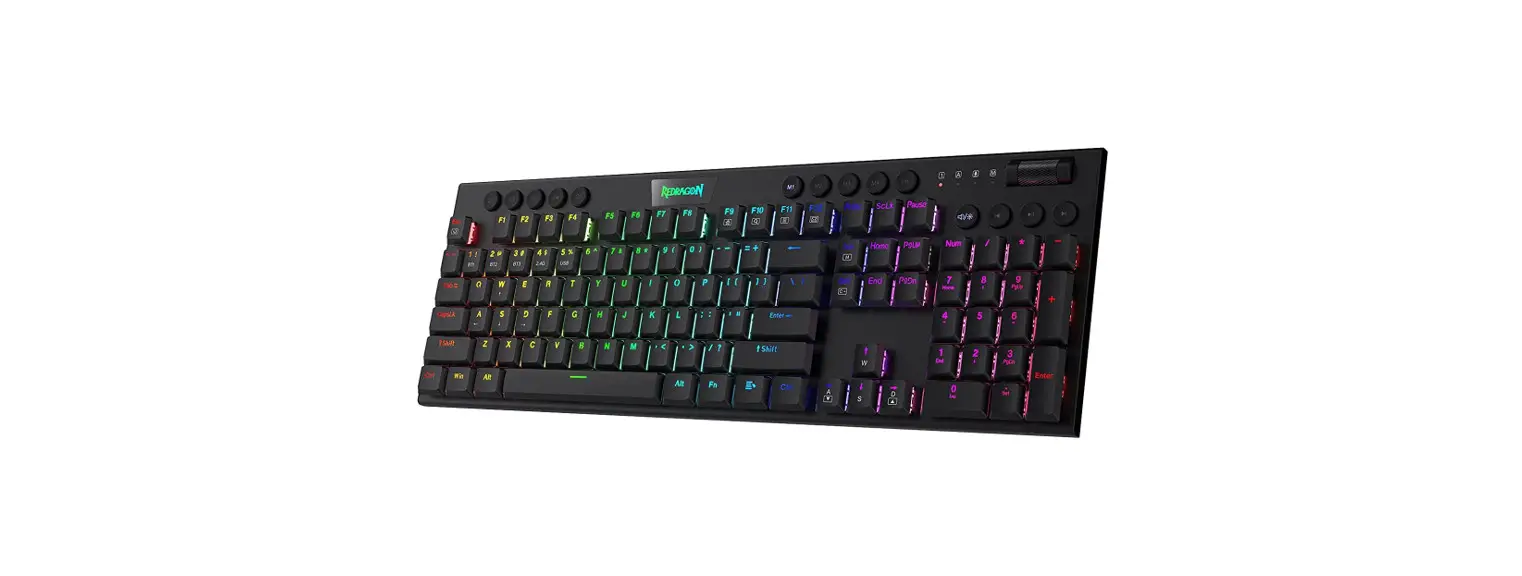
ADXK1023 FIREFIGHT K10 Gaming Keybaord
Product Information
Product Name: FIREFIGHT K10 Gaming Keyboard
Model Number: ADXK1023
Contents:
- User Interface – Macro
- User Interface – Light Effect
- Hints and Tips
- Specifications
Safety Warnings
Please read all safety instructions carefully before use and
keep this instruction manual for future reference.
Unpacking
Remove all items from the packaging. Retain the packaging. If
you dispose of it, please do so according to local regulations.
The following item is included:
– Gaming keyboard
System Requirements:
– Compatible with most operating systems
Function Keys:
To access these functions, press the FN Key and the desired key
together:
- Start the default Web browser and load the Home Web page
- Start the default e-mail program
- Lock keyboard
- Open Calculator
- Stop playback
- Back to previous track
- Play/pause track
- Go to next track
- Volume control
Backlight Effect:
To access these functions, press the FN Key and the desired key
together:
- Adjust the backlight flashing sequence level
- Switch the backlight on/off
- Select different backlight effects (18 modes / 1 customized
mode) - Adjust the backlight brightness
- Change the backlight color
Product Usage Instructions
Customizing the Backlight Effect:
- Press Fn + repeatedly to select customise backlight mode.
- Press and hold Fn + to enter backlight setting mode. LED
indicators will start flashing. - Press the keypress(s) repeatedly to choose the color you wish
(8 colors + 1 colorless). - Press and hold Fn + when done.
To reset customised backlight effect to default setting, press
and hold Fn + until all backlights start lighting in
succession.
FIREFIGHT K10
GAMING KEYBOARD
INSTRUCTION MANUAL ADXK1023
Contents
Safety Warnings………………………………………………………..3 Unpacking ………………………………………………………………..4 System Requirements ……………………………………………….4 Function Keys……………………………………………………………5 Backlight Effect…………………………………………………………6 Customising the Backlight Effect ……………………………….7 Software Installation…………………………………………………8 User Interface……………………………………………………………9 User Interface – Customise ……………………………………… 10 User Interface – Light ……………………………………………… 11
User Interface – Macro ……………………………………………. 12 User Interface – Light Effect ……………………………………. 13 Hints and Tips………………………………………………………… 14 Specifications………………………………………………………… 14
Safety Warnings
· Read all the instructions carefully before using the unit and keep them for future reference. · Retain the manual. If you pass the unit onto a third party, make sure to include this manual. · Do not disassemble the keyboard or remove any parts. · Do not immerse the keyboard in water or any liquid. · Do not use the keyboard close to heat sources or expose to high temperatures. · Do not use the keyboard where strong electromagnetic waves are present. Strong electromagnetic waves will cause
damage to the keyboard. · Keep the keyboard away from direct sunlight, moisture, dirt or abrasive chemical products (cleaning products etc).
3
Thank you for purchasing your new
product.
We recommend that you spend some time reading this instruction manual in order that you fully understand all the operational features it offers. You will also find some hints and tips to help you resolve any issues.
Read all the safety instructions carefully before use and keep this instruction manual for future reference.
Unpacking
Remove all items from the packaging. Retain the packaging. If you dispose of it please do so according to local regulations.
The following item is included:
Esc
F1 F2 F3 F4
F5 F6 F7 F8
F9 F10 F11 F12
` ¬¦
1 !
2
3 £
Tab
Q
W
4
5
6
$ %
^
E
R
T
7
8
&
*
Y
U
9
0
(
)
–
=
+
I
O
P
[]
{
}
Caps Shift
A
S
Z
|
D
F
G
H
J
K
L
X
C
V
B
N
M
, <
; :
. >
´ @
/ ?
# ~
Shift
Ctrl
Alt
Alt Gr
Fn
Ctrl
Print Screen
Scroll Lock
Pause Break
Insert
Home
PgUp
Delete
End
PgDn
Num
/
*
–
Lock
7
8
9
+
Home
PgUp
4
5
6
1
2
End
0 Ins
3 PgDn
. Del
Enter
Gaming keyboard
System Requirements
Operating Systems: Microsoft® Windows® 8 / 10 / 11 Hardware: 1 available USB port
4
Function Keys
To access these functions, press the FN Key and the desired key together.
Start the default Web browser and load the Home Web page Start the default e-mail programme. Lock keyboard Open Calculator Stop playback
Esc
F1 F2 F3 F4
F5 F6 F7 F8
F9 F10 F11 F12
`
1
2
3
4
5
6
¬¦ !
£
$ %
^
Tab
Q
W
E
R
T
7
8
&
*
Y
U
9
0
(
)
–
=
+
I
O
P
[]
{
}
Caps Shift
A
S
Z
|
D
F
X
C
G
H
J
K
V
B
N
M
L , <
; :
. >
´ @
/ ?
# ~
Shift
Ctrl
Alt
Alt Gr
Fn
Ctrl
Print Screen
Scroll Lock
Pause Break
Insert
Home
PgUp
Delete
End
PgDn
Num
/
*
–
Lock
7
8
9
+
Home
PgUp
4
5
6
1
2
End
0 Ins
3 PgDn
. Del
Enter
Back to previous track Play/pause track Go to next track Volume Control
* Not all functions are available, depending on your operating system.
5
Backlight Effect
To access these functions, press the FN Key and the desired key together.
/
/ Spacebar
Adjust the backlight flashing sequence level. Switch the backlight on/off.
Select different backlight effects. (18 modes / 1 customised mode) Adjust the backlight brightness.
Change the backlight colour.
Esc
F1 F2 F3 F4
F5 F6 F7 F8
F9 F10 F11 F12
`
1
2
3
4
5
6
¬¦ !
£
$ %
^
Tab
Q
W
E
R
T
7
8
&
*
Y
U
9
0
(
)
–
=
+
I
O
P
[]
{
}
Caps Shift
A
S
Z
|
D
F
X
C
G
H
J
K
V
B
N
M
L , <
; :
. >
´ @
/ ?
# ~
Shift
Ctrl
Alt
Alt Gr
Fn
Ctrl
Print Screen
Scroll Lock
Pause Break
Insert
Home
PgUp
Delete
End
PgDn
Num
/
*
–
Lock
7
8
9
+
Home
PgUp
4
5
6
1
2
End
0 Ins
3 PgDn
. Del
Enter
6
Customising the Backlight Effect
You may customise the backlight for each keypress. 1. Press Fn + repeatedly to select customise backlight
mode. 2. Press and hold Fn + to enter backlight setting
mode. LED indicators will start flashing. 3. Press the keypress(s) repeatedly to choose the colour
you wish (8 colours + 1 colourless). 4. Press and hold Fn + when done.
To reset customised backlight effect to default setting, press and hold Fn + until all backlights start lighting in succession.
7
Software Installation
1. Plug the unit into the USB port of your computer. 2. Download the latest gaming software from
https://downloads.adxgaming.com (under ADX HUB LIGHTING SOFTWARE DOWNLOAD) 3. Run the software (ADX HUB Setup.exe) installer. 4. Follow the installation instruction to complete the installation. 5. Choose ADX HUB.exe from the desktop to start the software.
The software is not available for MAC OS.
8
User Interface
1. Choose ADX HUB.exe from the desktop to launch the software.
2. Select “Keyboard” and then “ADXK1023” at the bottom of the connected device list to enter the interface.
9
User Interface – Customise
1. Select Customise, and then select your customised settings.
2. After settings, save your own preference in the Profile menu.
3. Select “Apply” to implement your settings, or “Reset” to reset all settings.
10
User Interface – Light
1. Select Light to enter the Lighting Settings menu. 2. Choose your preference among the below: · Mode · Brightness · Speed · Color Mode 3. Select “Apply” to implement your settings, or “Reset” to
reset all settings.
11
User Interface – Macro
1. Select Macro, and then “+” to create a New Macro Command.
2. Press Start Recording. 3. After recording your input command, press Stop
Recording. 4. You may edit your recorded commands on the right
menu. 5. Select “Apply” to implement your settings, or “Reset” to
reset all settings.
12
User Interface – Light Effect
If one more ADX gaming device is connected, you may synchronize their light effects. 1. Select Light Effect, and the devices you want to apply
the light effect. 2. Select your preferred Lighting Settings (Mode,
Brightness and Speed). 3. Select “Apply” to implement your settings.
To reset the setting of a particular device, select a connected device shown in the menu, and then select Reset.
13
Hints and Tips
Specifications
· Make sure the USB plug is fully plugged into a USB port and the computer is on or try to use a different USB port.
· If the unit is not working properly, re-insert the USB plug into the USB port.
Model
ADXK1023
Dimensions (L × W × H) 464 × 167 × 35.7 mm
Net Weight
895.7 g
Features and specifications are subject to change without prior notice.
14
The symbol on the product or its packaging indicates that this product must not be disposed of with your other household waste. Instead, it is your responsibility to dispose of your waste equipment by handing it over to a designated collection point for the recycling of waste electrical and electronic equipment. The separate collection and recycling of your waste equipment at the time of disposal will help conserve natural resources and ensure that it is recycled in a manner that protects human health and the environment. For more information about where you can drop off your waste for recycling, please contact your local authority, or where you purchased your product.
Windows is a registered trademark of Microsoft Corporation in the United States and other countries.
All trademarks are the property of their respective owners and all rights are acknowledged.
15
Currys Group Limited (co. no. 504877) 1 Portal Way, London, W3 6RS, UK
EU Representative Currys Ireland Limited (259460)
3rd Floor Office Suite Omni Park SC, Santry, Dublin 9, Republic of Ireland
IB-ADXK1023-220831V1
 Software and Documents - ADXGaming