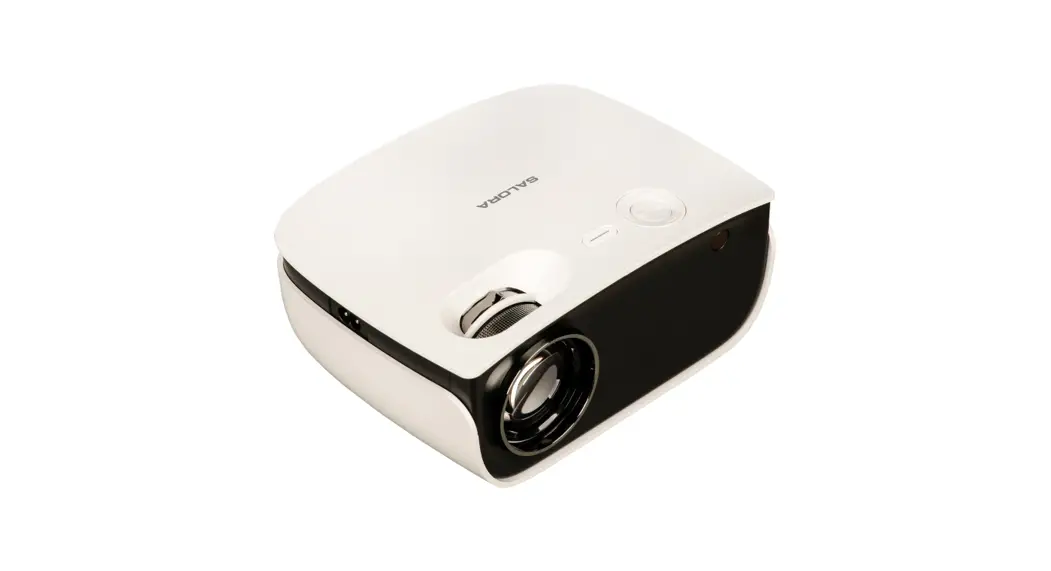
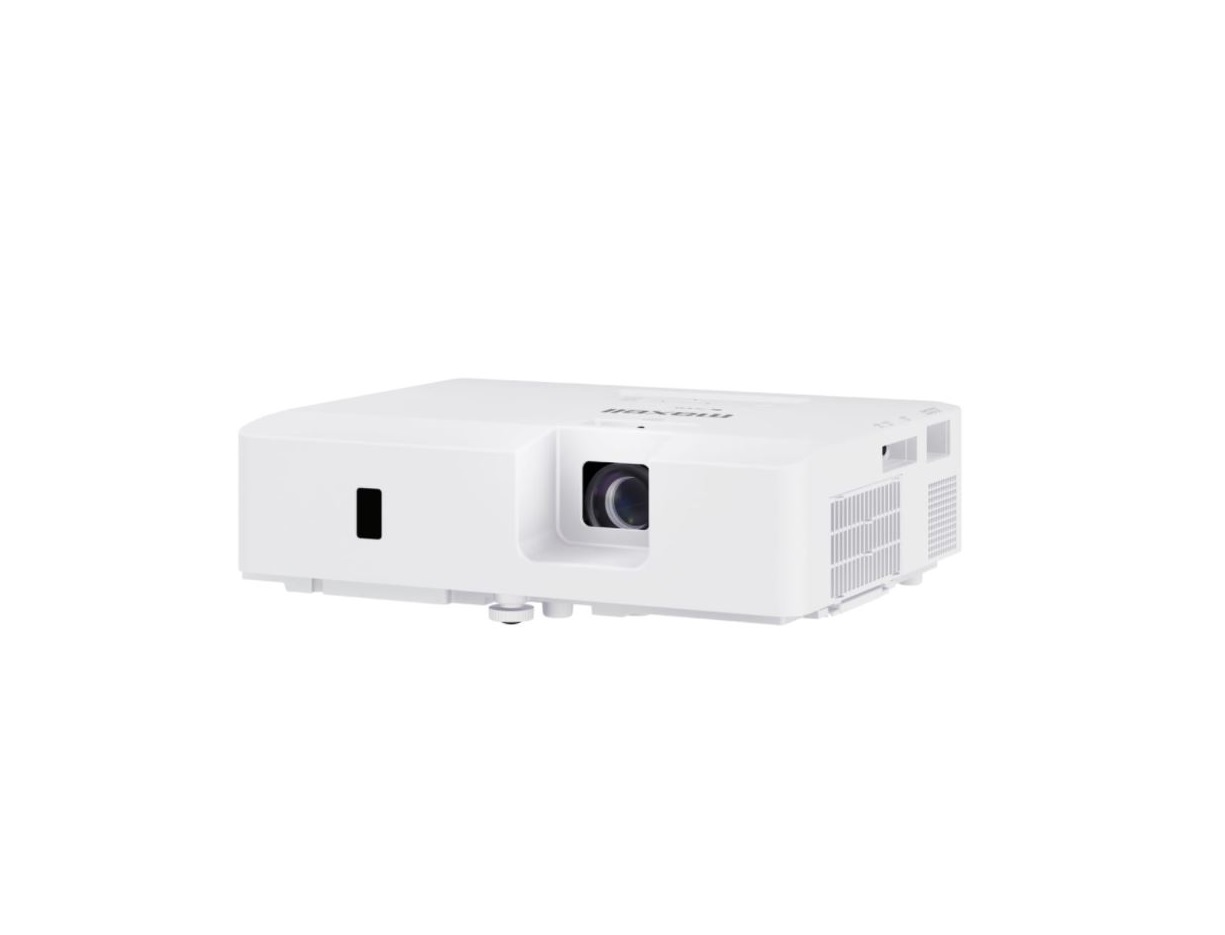
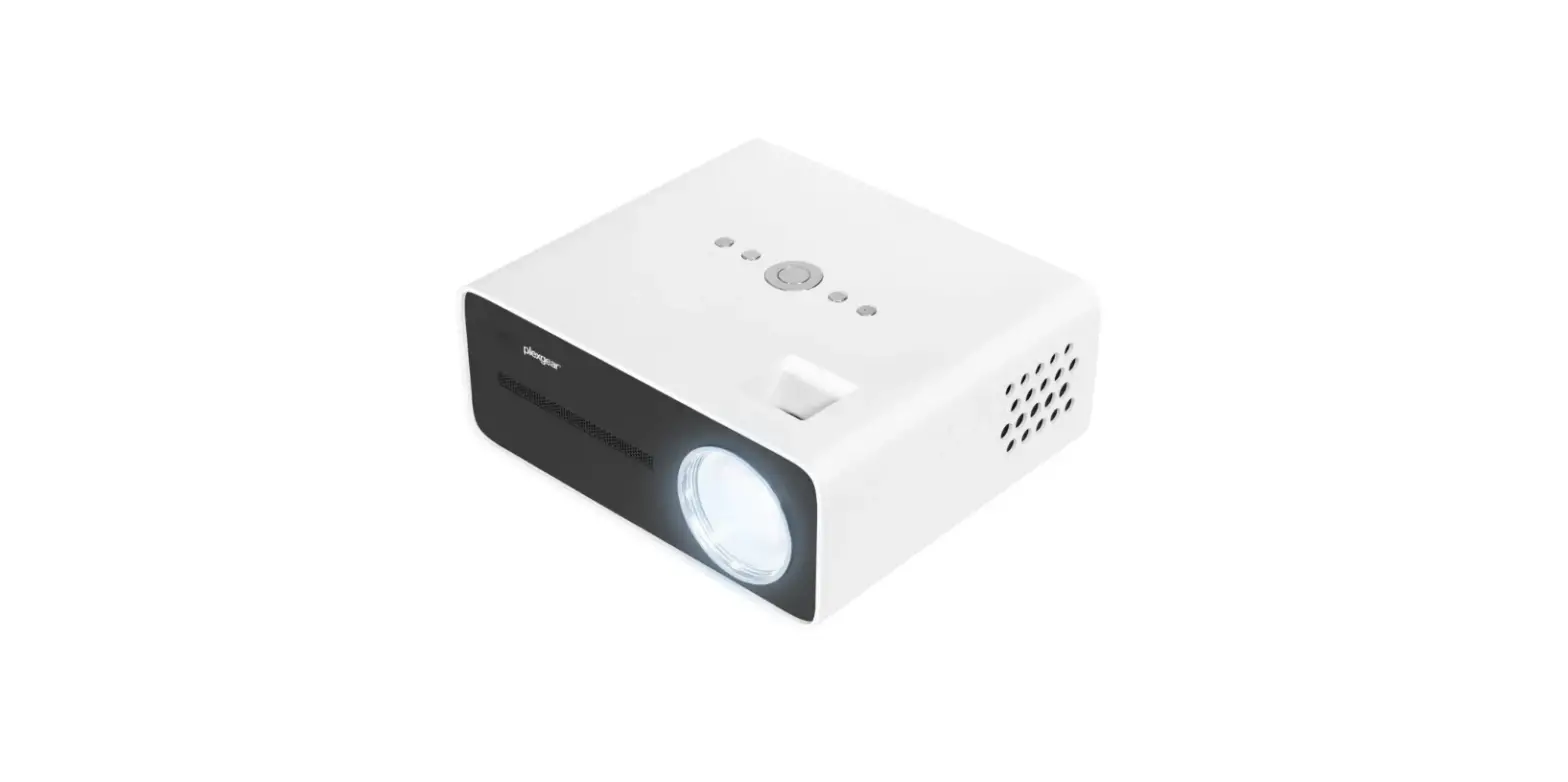
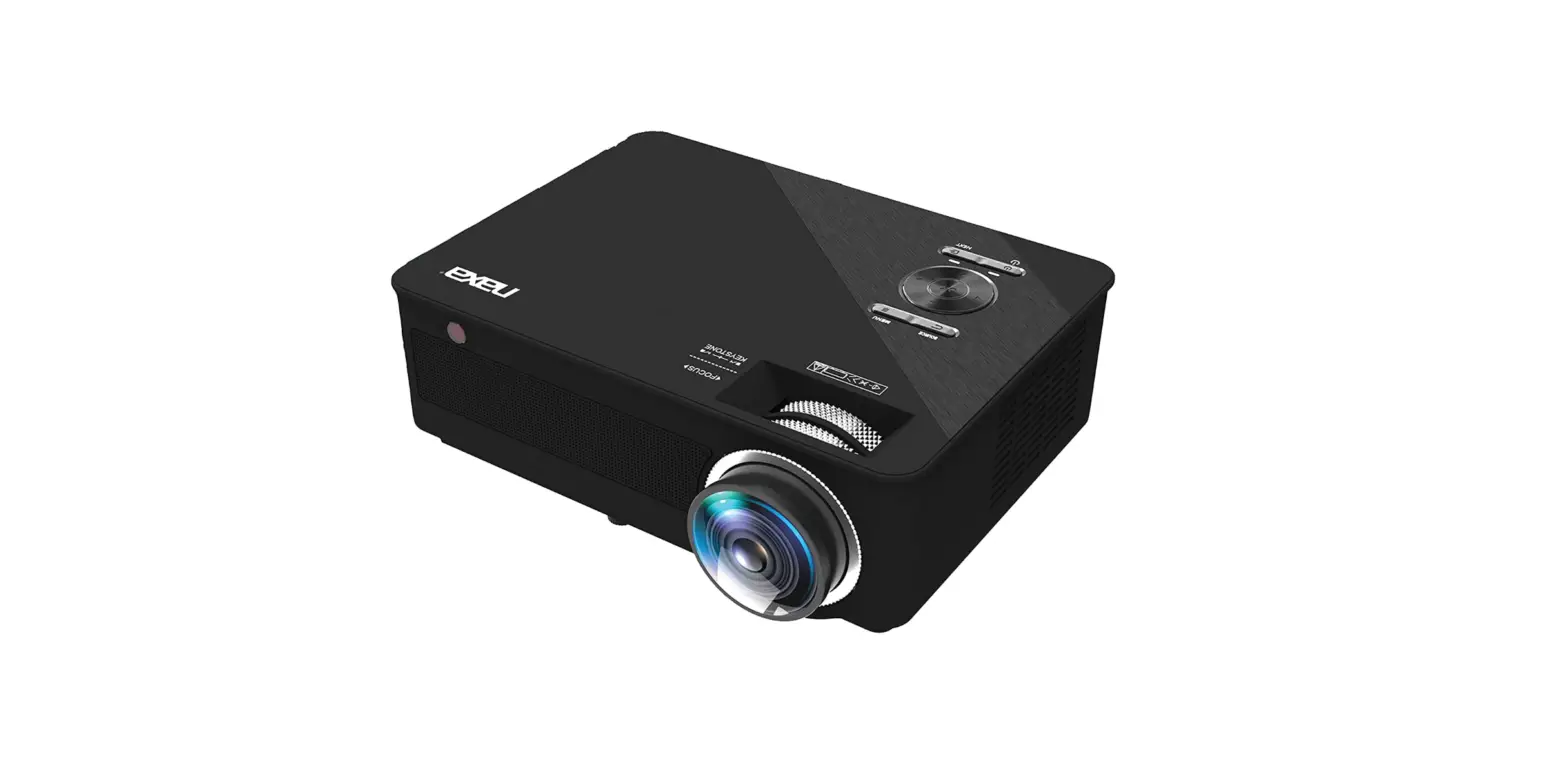
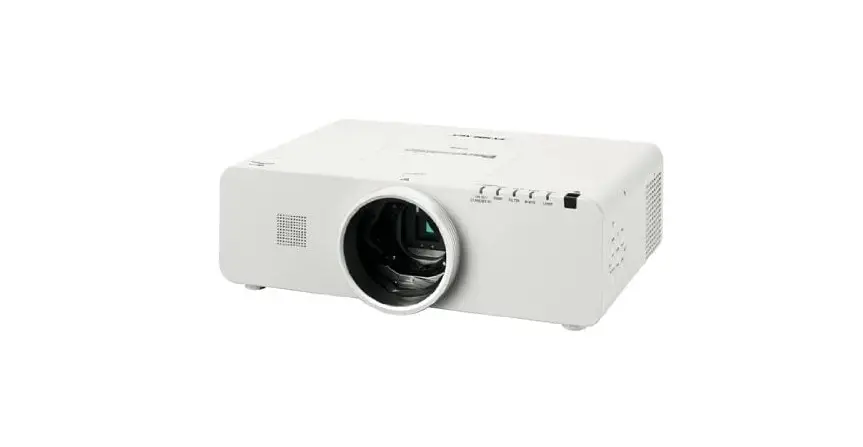
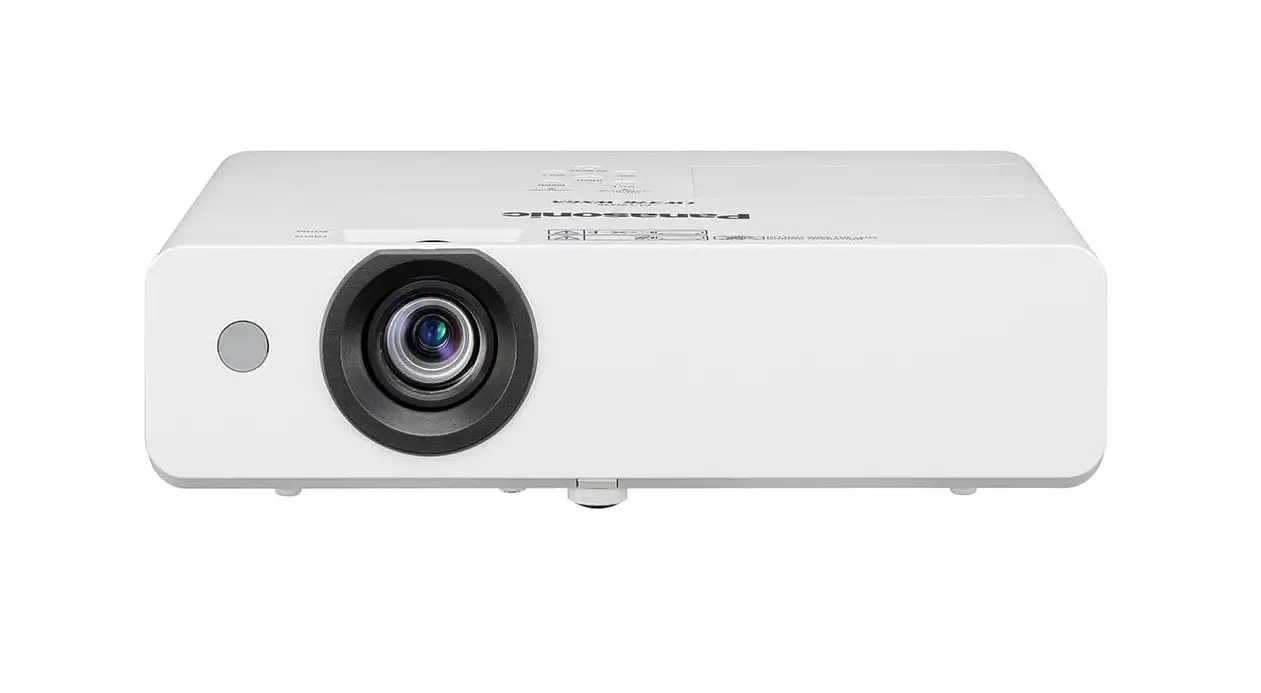
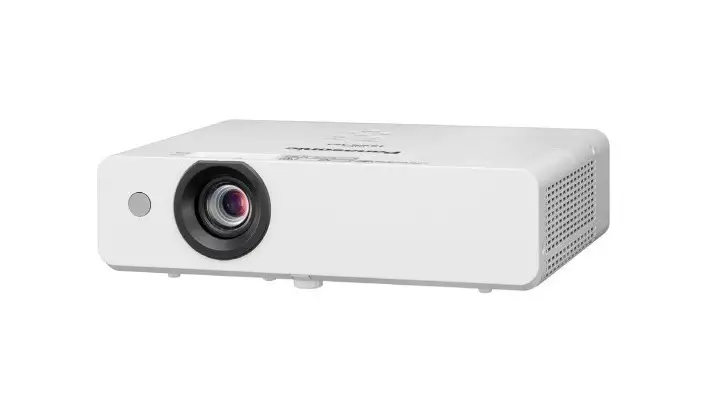
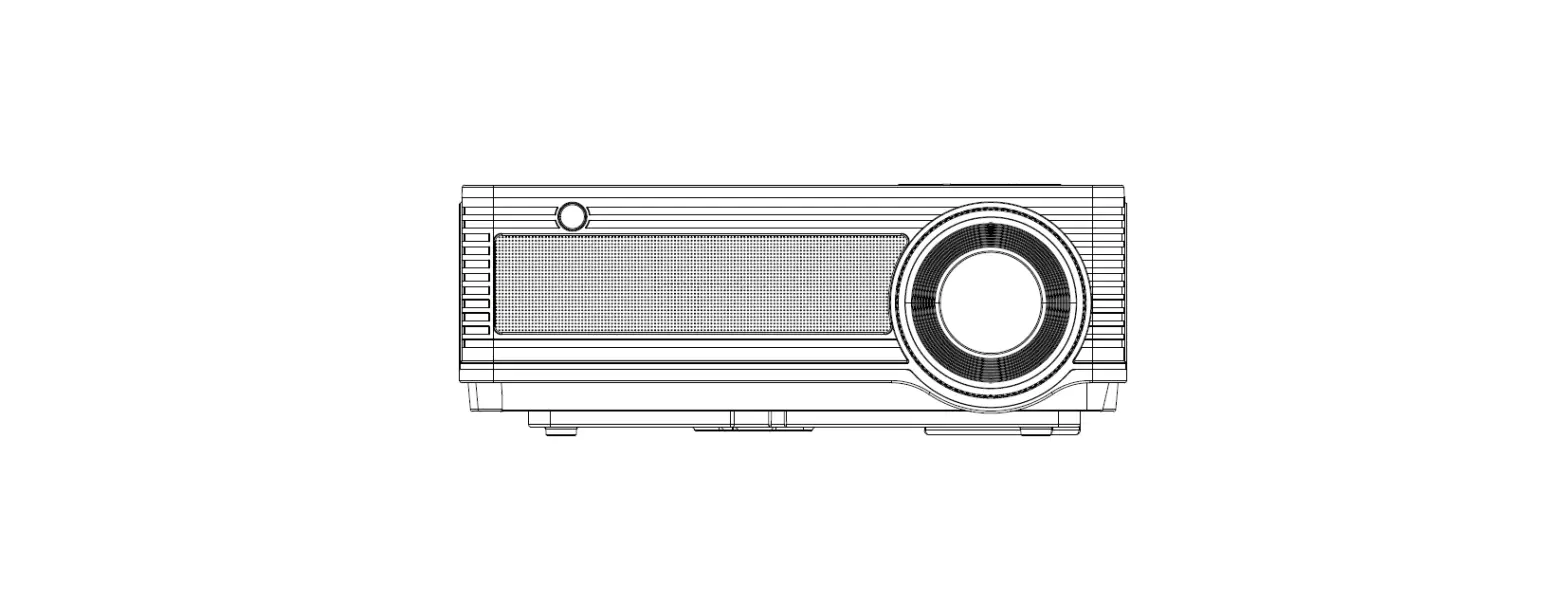
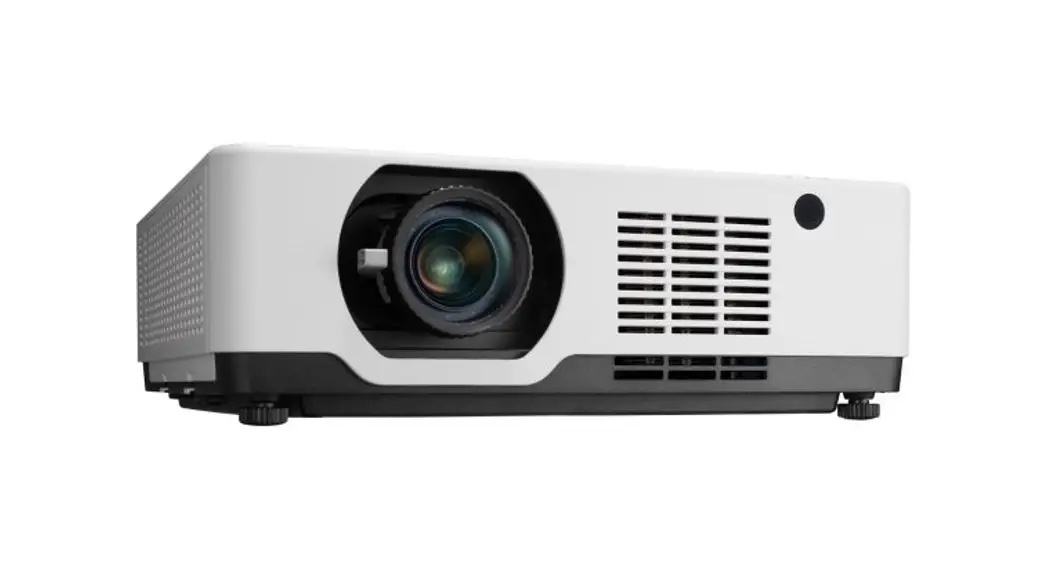
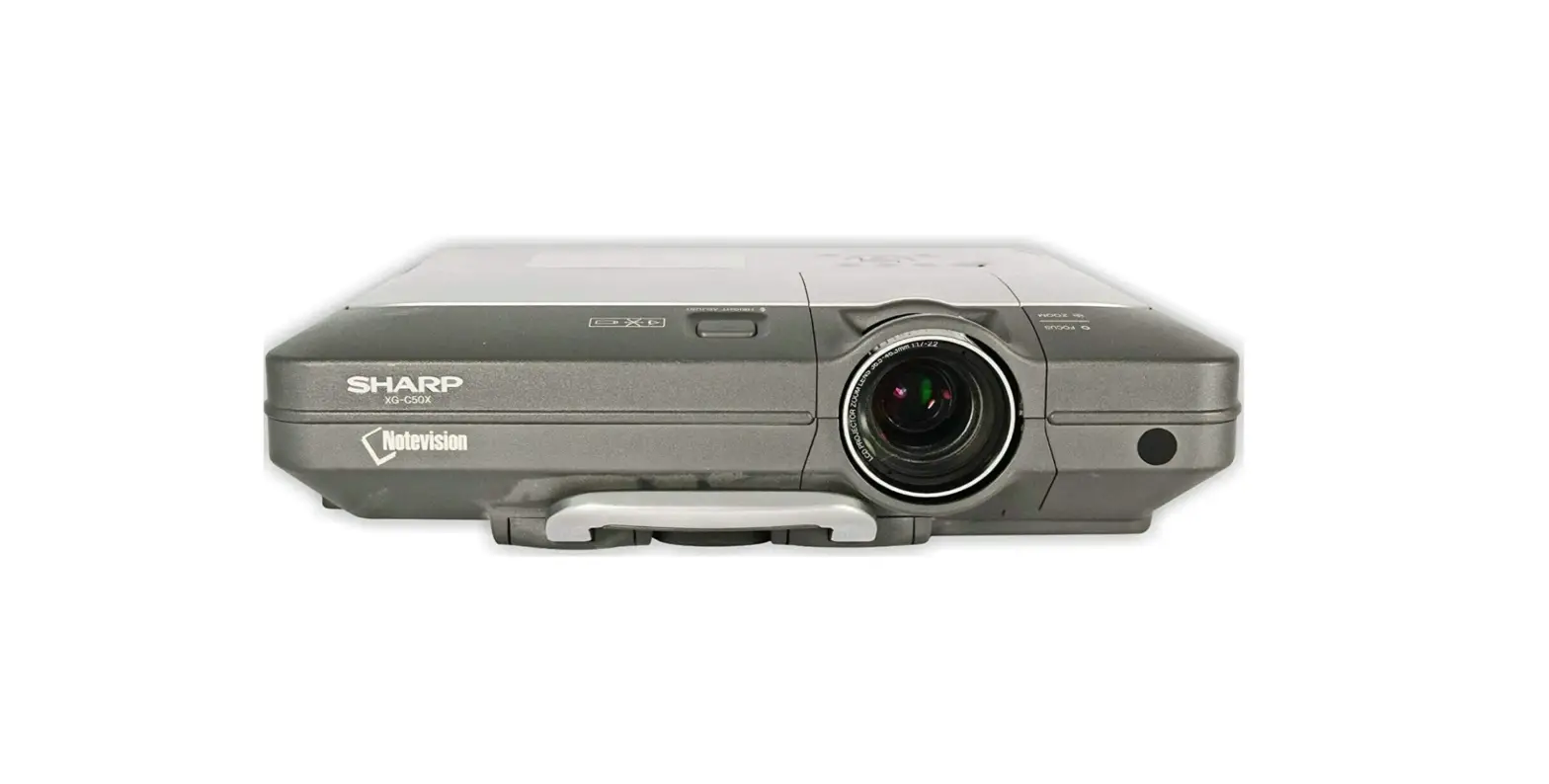
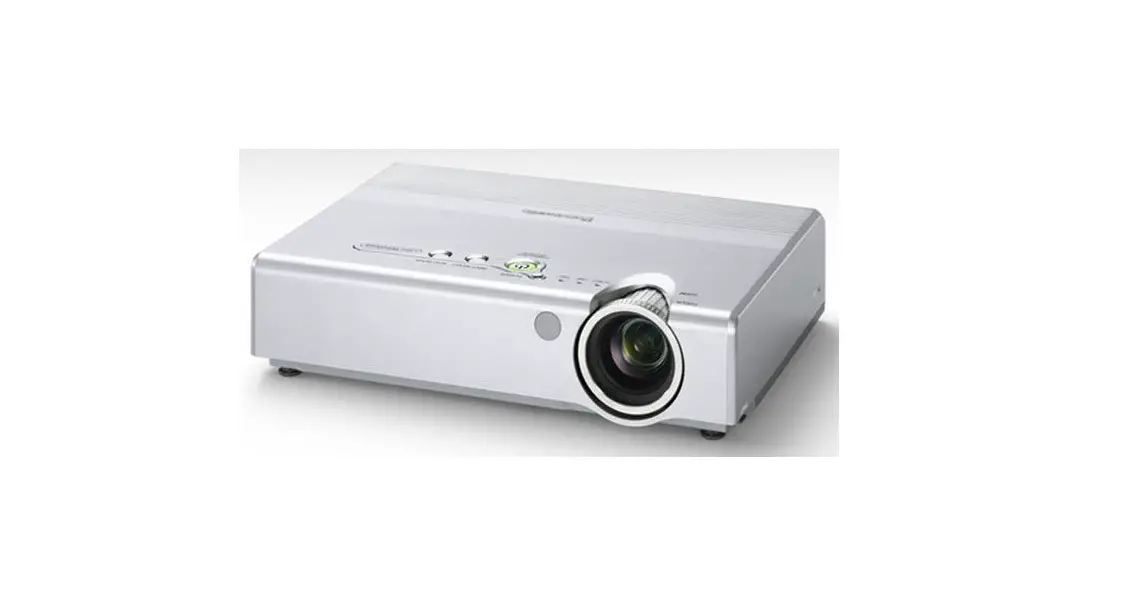
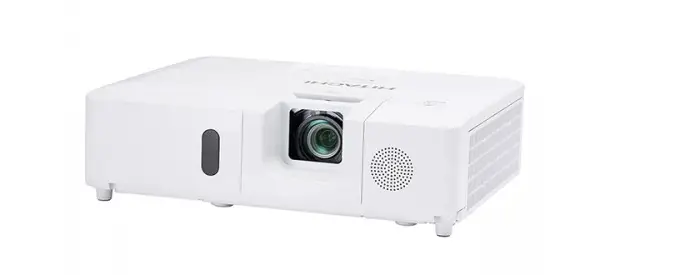
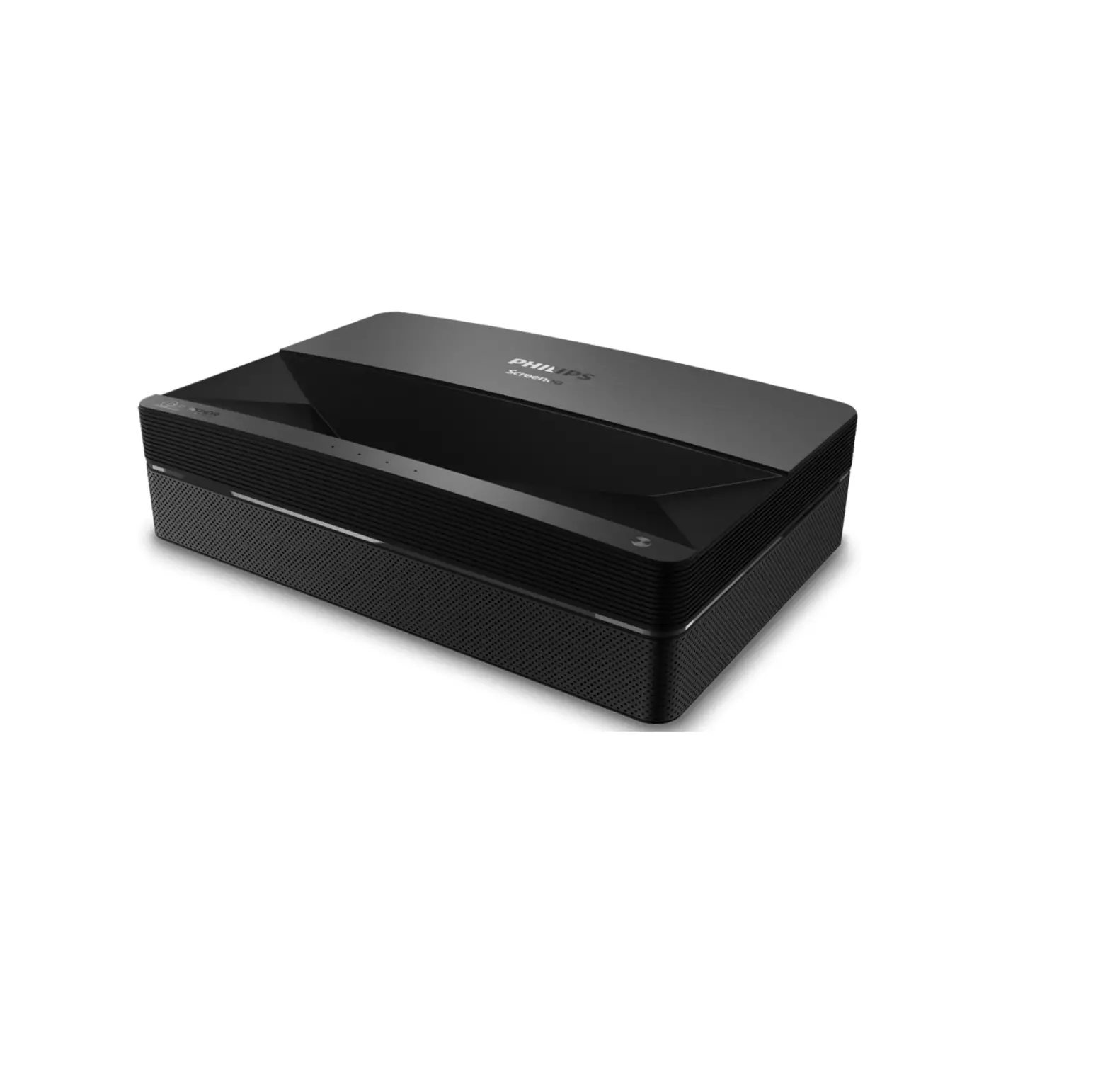
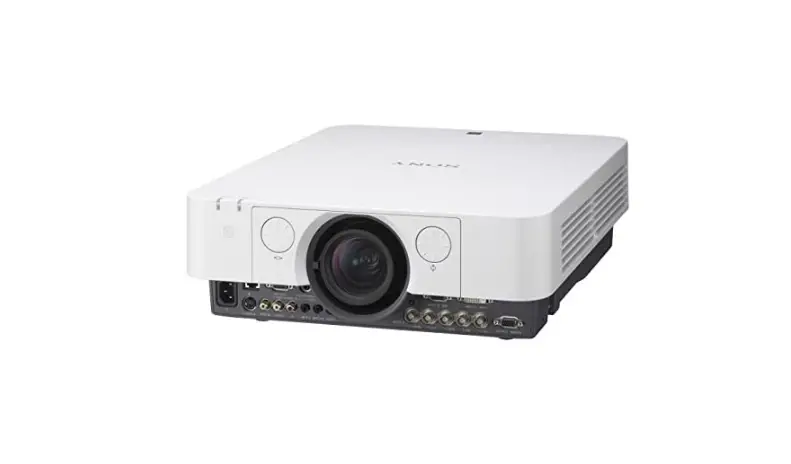
Beamer 45BHM2550 LCD Projector
Product Information
Product Name: BEAMER 45BHM2550
Model: BEAMER 45BHM2550
Accessories Included:
- AV signal cable
- Remote control
- Power Adapter
- Power cable
- User manual
Specifications:
- Lamp: Unknown
- Image system: Unknown
- Projection mode: Unknown
- Working temperature: Unknown
- Operation mode: Unknown
- Output port: Unknown
- Input port: Unknown
- N.W. (Net Weight): Unknown
- Size: Unknown
Product Usage Instructions
1. Safety Instruction
Installation: Follow the installation instructions
provided in the user manual to ensure safe and proper installation
of the projector.
2. Accessories List
The following accessories are included with the product:
- AV signal cable
- Remote control
- Power Adapter
- Power cable
- User manual
3. Specification
The specific details about the product’s model, lamp, image
system, projection mode, working temperature, operation mode,
output port, input port, net weight, and size are not provided in
the user manual.
4. Multimedia Supported Files
The projector supports the following multimedia files:
- Audio Format: MP3, AAC, WAV, FLAC, WMA, M4A, OGG
- Image Format: JPG, JPEG, BMP, PNG
- Video Format: MP4, MKV, WMV, RMVB, AVI, FLV, VOB, 3GP, MPG,
DAT
5. Structural Diagram
The projector has the following ports and interfaces:
- Adapter interface
- USB port
- Headphone port
- AV port
- Audio output port
- HDMI port
- IR port for remote control
6. Panel Functions
The projector’s panel functions include:
- Joystick Button: Used for navigation and selection
- Return Button: Returns to the previous menu or screen
- Bluetooth Speaker Mode Button: Switches the projector to
Bluetooth speaker mode - Power Button: Turns the projector on or off
7. Hoist the Machine to the Ceiling
To hoist the projector to the ceiling, remove the 4pcs cushion
to reveal the holes for ceiling mount (M5).
8. Function Operation
The projector’s function operation includes various buttons and
options for power, aspect ratio, arrow keys, home, menu, volume
control, screen flip, source selection, enter, return, and
mute.
9. Power On/Off
To turn on the projector, connect the DC terminal of the power
adapter to the DC port of the projector. When the red indicator
light is on, press the power button on the panel or the power key
on the remote control to start the machine. To turn off the
projector, press the power button while the projector is working,
and the indicator light will turn from blue to red to indicate
shutdown.
10. Focus
To focus the image, place the projector lens perpendicularly to
the projection screen or curtain wall. Adjust the focus dial until
the image is clear. During the focusing process, you can play
programs or use menu images to match the focusing adjustment.
11. Standard Setting
Refer to the provided table for the recommended projection
distances based on the preset graphic size and aspect ratio. When
installing, place the projector on a solid, stable countertop or
use a hanger to hoist it to the ceiling. Ensure proper ventilation
and avoid covering or blocking the vents. Maintain a clear space of
at least 30cm around the vents.
12. Multimedia Play
To play multimedia files, insert a U disk into the USB port of
the projector. Select “Multimedia” from the main menu and press the
OK key to enter. Choose the desired file to be played.
13. Signal Source Settings
To adjust the signal source settings, enter the main interface
and select either HDMI or AV from the options. Press the OK key to
enter further options.
82×130 54
BEAMER 45BHM2550
INSTRUCTION MANUAL
1. Safety Instruction
Installation
· To get the better watching, please use this projector while drawing the curtain or in a dark room.
· Please use this projector carefully, dropping or crashing may damage parts or result in blurred images, abnormal displaying. Power
· Please use the power adapter that comes with this product to use the projector.
· Be careful while using the power cord, avoid to excessive bending; thedamage of power cable may cause electric shock and fire. · It is better to unplug the power cord aster power off. Cleaning · Unplug the power cable first.
· Clean the shell regularly with a damp cloth, neutral detergent can be used.
· Please use a glasses cloth or lens paper, and do not scratch the lens.
· Please clean projector’s vents and speakers regularly by banister brush, or the vents will be blocked. High temperature attention · While projecting or just finishing projection, it will get hot near the air outlet. To avoid scalding, please do not touch it with your hands.
· While projecting, please do not look the lens directly, or it may hurt eyes. *Warm tips
· Do not disassemble the projector, if not,it would lead to a risk of electric shock, and also affect the normal warranty. · Please do not put any liquid or heavy stuff on the projector.
2. Accessories List
AV signal cable
×1
Remote control
×1
Power Adapter
×1
Power cable
×1
User manual
×1
3.Specification
Model Lamp Image system Projection mode Working temp Operation mode Output port Input port N.W. Size
LCD projector LED LCD Front or rear 0-35 Remote control / button Headphone HDMI / USB / AV 2kg 184×130×233mm
4. Multimedia Supported Files
Audio Format MP3 / AAC / WAV / FLAC / WMA / M4A / OGG Image Format JPG / JPEG / BMP / PNG
MP4 / MKV / WMV / RMVB / AVI / FLV / VOB / 3GP / Video Format
MPG / DAT
5. Structural Diagram
Adapter interface
USB Headphone AV
port
port port
for audio output
HDMI IR for remote port control
6. PaneI Functions
Joystick Button
Return
Bluetooth speaker mode Power button Bluetooth speaker mode Press this button to switch the projector to Bluetooth speaker mode. Indicator light: Red:standby mode, Blue: working mode Joystick Button the center is the ok key and the direction can be selected by pushing the key
7. Hoist the machine to the ceiling
Holes for ceiling mount (M5):
Remove 4pcs cushion, holes for ceiling mount will be available.
8. Function Operation
1 2
3 4 5 6
1. Power
7
8 2. Aspect ratio
9
3. Arrow keys
4. Home
10 5. Menu
6. Volume Down
11
7. Setting
12 13
8. Screen flip
9. Source
10. Enter
11. Return
12. Volume Up
13. Mute
9. Power On/Off
Turn on: Connect the DC terminal of the power adapter to the DC port of the projector. When the red indicator light is on, press the power button on the panel (or press the power key on the remote control) to start the machine.
Turn off: When the projector is working normally, press the power button, the indicator light turns from blue to red, the projector is in shut down.
10. Focus
Power button Focus
Image focusing
Place the projector lens perpendicularly to the projection screen or curtain wall, and adjust the focus dial until the image is clear, that means the image focusing is finished.
During the focusing process, you can play the programs or pick up the product menu images to match the focusing adjustment.
11. Standard Setting
Refer to the data in the table below to place the projector away from the projection screen according to the preset graphic size. When installing, place the projector on a solid, stable countertop or use a hanger to hoist it to the ceiling. The airframe should be well ventilated. Do not cover or block the vents. There should be no obstructions within 30cm of the vents.
Aspect ratio Picture size(inch)
50 70 100 120
16:9 Projection distance(m)
1.75 2.38 3.36 3.93
120 100 70 50
1.75 2.38 3.36 3.93 (m)
Note: The above data is for reference only, please refer to the physical measurement.
12. Multimedia Play
Step1: Insert the U disk into the USB port of the projector. Step2: Select Multimedia, and then press the OK key to enter. Step3: Select the file to be played.
HOME
iOS Cast
Miracast
AV
Settings
Multimedia
iOS Cable Cast
HDMI
Video
Music
Picture
13. Signal Source Settings
Step1: Enter the main interface, select HDMI or AV from the following options (or press the remote control source key, and then select the source in the pop-up box). Step2: Press the OK key to enter the options.
Main Interface
HOME
iOS Cast
Miracast
AV
Settings
Multimedia
iOS Cable Cast
HDMI
Input Source Home HDMI AV
OK Pop-up source box
14. WiFi Connection
Step1: Select Settings in the main interface and press OK key to enter setting interface. Step2: Select Network Setting. Step3: Turn on the WiFi, find the WiFi you need to connect to, enter the password through the virtual keyboard, and confirm the connection.
Netwerk Setting System Setting Projector Setting
WLAN Settings
IP
TP 00 GZRIGAL-C HUAWEI-3VUKT
15. iOS Cast
Step1: Select iOS Cast on the main interface. Step2: The iOS device and the projector must be connected to the same network, or the iOS device must be connected to the wireless access point(AP) from the projector. Step3: Select Screen Mirroring on the control center of the iOS device. Step4: Select the corresponding projector device name.
HOME
iOS Cast
Miracast
AV
Settings
Multimedia
iOS Cable Cast
HDMI
Mirror your iPhone, iPad or iPod touch
Make sure that your iOS device is connected to the same network as your projector, or connect iOS device with AP by Projector: NEWAP-DBB6
Music
Screen Mirroring Looking for Apple TV…
Screen Mirroring ZY-XXXX
Screen Mirroring
1. On your iOS device, open Control Center and tap screen
Mirroring.
2. Looking for devices that can be mirrored on.
3. Select NETLINK-DBB6-(icast) from the list.
16. Miracast
Step1: Select Miracast on the main interface. Step2: Turn on the Wireless Display function of the Android device. Note: Different Android devices have different names and opening methods for the Wireless Display function. For details, please refer to the manual of the Android device you are using. Step3: Select the corresponding projector device name. Note: The projector and the Android device cannot be connected to different WiFi, otherwise the corresponding projector device will not be searched on the Android device.
HOME
iOS Cast
Miracast
AV
Settings
Multimedia
iOS Cable Cast
HDMI
Miracast
To connect Android Mobile/Pad Device with Projetor Based on WiFi-Display Techenology
Pad
Projector
Mobile
1. On your Android Mobile/Pad, open the settings menu. 2. Access your display settings or screen-mirroring. 3. Select your Miracast receiver: NETLINK-A8FE
Waiting for connection…
17. iOS Cable Cast
Step1: Select iOS Cable Cast on the main interface. Step2: Use the data cable to connect the iOS device and the projector (through the USB port of the projector). Step3: Click Trust in the pop-up window of the iOS device. Step4: Enter the iOS device password. Note: If still cannot connect with projector aster clicking Trust, can try to use the original data cable to reconnect.
HOME
iOS Cast
Miracast
AV
Settings
Multimedia
iOS Cable Cast
HDMI
Apple cable
One more thing… iPhone X
Trust This Computer?
Your settings and data will be accessible from this computer when connected wirelessly or using a cable.
Trust
Don’t Trust
1. Connect the lightning connector to the phone. Connect the other end
to the projector
2. Click “Trust” the window that pops up
on the phone.
Enter Device Passcode to Trust This Computer
Your settings and data will be accessible from this computer when connected.
123
ABC
DEF
456
GHI
JKL
MNO
789
PQRS
TUV
WXYZ
0
Cancel
3. Enter device password.
BEAMER 45BHM2550
GEBRUIKERSHANDLEIDING
1. Veiligheidsvoorschristen
Installatie
· Voor meer kijkplezier adviseren wij u bij gebruik van de projector de gordijnen te sluiten of de kamer te verduisteren.
· Gebruik dit apparaat voorzichtig, het laten vallen of beschadigen kan leiden tot een onzuiver beeld of vervormde weergave. Aan/Uitzetten
· Gebruik uitsluitende het meegeleverde netsnoer.
· Wees voorzichtig met het gebruik van het netsnoer, let op dat u deze niet te veel verbuigt. Een beschadigd netsnoer kan leiden tot een elektrische schok of brand.
· Haal bij voorkeur, het netsnoer uit het apparaat indien u deze niet gebruikt. Reiniging
· Haal eerst de stekker uit het stopcontact.
· Reinig regelmatig de behuizing met een vochtige doek met een neutraal reinigingsmiddel.
· Gebruik een speciaal lenzendoekje zodat u de lens niet krast.
· Reinig regelmatig de ventilatieopeningen met een borstel om te voorkomen dat de openingen blokkeren. Let op met hoge temperaturen
· Tijdens en na het gebruik van de projector, zal het bij de luchtuitlaat heet worden. Om brandwonden te voorkomen, raakt u deze niet met de handen aan.
· Kijk niet rechtstreeks in de lens tijden gebruik, dit kan uw ogen beschadigen. *Aanvullende tips
· Haal de projector niet zelf uit elkaar. Dit kan leiden tot een elektrische schok, tevens vervalt hiermede de garantieservice.
· Plaats geen vloeistoffen of zware items op het apparaat.
2. Accessoire lijst
AV signaal kabel
×1
Afstandsbediening
×1
Adapter
×1
Netsnoer
×1
Gebruikershandleiding
×1
3. Specificaties
Model Lamp Beeldsysteem Projectiemodus Werking temperatuur Bedieningsmodus Output poort Input poort Netto gewicht Afmetingen
LCD projector LED LCD Voor of achter 0-35 Afstandsbediening/Knoppen Hoofdtelefoon HDMI / USB / AV 2kg 184×130×233mm
4. Ondersteunde media bestanden
Audio formaat MP3 / AAC / WAV / FLAC / WMA / M4A / OGG Beeld formaat JPG / JPEG / BMP / PNG
MP4 / MKV / WMV / RMVB / AVI / FLV / VOB / 3GP / Video formaat
MPG / DAT
5. Diagram
Adapter USB Hoofd telefoon AV aansluiting poort poort voor poort
audio output
HDMI IR voor poort afstandsbediening
6. Functies Bedieningspaneel
Joystick knop
Terug
Bluetoothspeaker modus Aan/Uit knop Bluetoothspeaker modus Druk op deze knop om de beamer in Bluetoothmodus te zetten. Indicator: Rood: Stand-by modus, Blauw: in werking modus Joystick knophet midden is OK, pijltjes zijn de richting keuze
7. Montage aan het plafond
Gaten voor plafond montage (M5):
Verwijder de opvulling uit de 4 gaten zodat u het apparaat aan het plafond kunt bevestigen
8. Afstandbediening functie knoppen
1. Power
1
7
8 2. Beeldverhouding
2
9
3. Navigatie knoppen
4. Home
3
10 5. Menu
4
6. Volume
5
11
7. Instellingen
6
12
13 8. Flip Screen
9. Bron
10. Enter
11. Terug
12. Volume +
13. Mute
9. Aan- Uitzetten
Aanzetten: Verbind de DC aansluiting van d adapter met de DC poort van de projector. Wanneer het controlelampje rood is, drukt u op de Power knop van het bedieningspaneel (of de afstandsbediening) om het apparaat aan te zetten.
Uitzetten: Als het apparaat aan staat drukt u op de Power knop , het controlelampje gaat van blauw naar rood, de projector staat nu uit.
10. Focus instellen
Power knop Focus
Focus aanpassen
Plaats de projector loodrecht op het projectiescherm of gordijn, draai net zo lang aan de focusring tot het beeld scherp is ingesteld.
Tijdens het instellen van de focus kunt u gelijktijdig het programma afspelen of afbeeldingen bekijken om het beeld te vergelijken.
11. Standaard instellingen
Raadpleeg de informatie afgebeeld in het schema hieronder om de juiste afstand te houden tussen de projector en het scherm. Wanneer u het apparaat installeert, plaats deze dan op een stevige ondergrond of maak gebruik van een hijsmechanisme om het aan het plafond te hangen. Let op dat de ventilatieopeningen niet geblokkeerd worden. Houd tenminste een afstand van 30cm ten opzichte van de ventilatieopeningen.
Beeldverhouding Afmeting beeld (inch)
16:9 Projectie afstand (m)
50
1.75
70
2.38
100
3.36
120
3.93
120 100 70 50
1.75 2.38 3.36 3.93 (m)
Opmerking: Bovenstaande gegevens dienen uitsluitend ter referentie, raadpleeg de daadwerkelijk metingen.
12. Multimedia Afspelen
Stap 1: Plaats de USB drive in de USB poort van de projector. Stap 2: Selecteer Multimedia en druk op OK om het menu te openen. Stap 3: selecteer het gewenste bestand dat u wilt afspelen.
HOME
iOS Cast
Miracast
AV
Instellingen
Multimedia
iOS Cable Cast
HDMI
Video
Muziek Afbeeldingen
13. Instellingen Ingangsbron
Stap 1: open de interface, selecteer HDMI of AV uit de twee opties of druk op de Bron knop van de afstandsbediening en selecteer in het pop-up venster. Stap 2: Druk op OK om de opties te openen.
Hoofd menu
HOME
iOS Cast
Miracast
AV
Instellingen
Multimedia
iOS Cable Cast
HDMI
Input Source Home HDMI AV
OK Pop-up venster
14. Verbinding
Stap 1: Selecteer Instellingen in het hoofdmenu en druk op OK om het menu te openen. Stap 2: Selecteer Netwerk Instellingen. Stap 3: Activeer WiFi, zoek het WiFi signaal waarmee u verbinding wilt maken, voer het wachtwoord in op het virtuele toetsenbord en bevestig de verbinding.
Netwerk Instellingen
Systeem Instellingen Projector Instellingen
WLAN Settings
IP
TP 00 GZRIGAL-C HUAWEI-3VUKT
15. iOS Cast
Stap 1: Selecteer iOS Cast in het hoofdmenu Stap 2: Het iOS apparaat en de projector moeten verbonden zijn met hetzelfde netwerk, of het iOS apparaat moet verbonden zijn met het draadloze toegangspunt (AP) van de projector Stap 3: Selecteer Screen Mirroring op het controlecentrum van het iOS apparaat. Stap 4: Selecteer de corresponderende projector naam.
HOME
iOS Cast
Miracast
AV
Instellingen
Multimedia
iOS Cable Cast
HDMI
Mirror uw iPhone, iPad of iPod touch
Zorg ervoor dat uw iOS-apparaat is verbonden met hetzelfde netwerk als uw projector, of verbind het iOS-apparaat met AP via de Projector: NEWAP-DBB6
Music
Screen Mirroring
1. Open het hoofdmenu van uw iOS apparaat en tik
op Screen Mirroring
Screen Mirroring Looking for Apple TV…
2. Zoek een apparaat
Screen Mirroring ZY-XXXX
3. Selecteer NETLINKDBB6-(icast) uit de lijst
16. Miracast
Stap 1: Selecteer Miracast in het hoofdmenu. Stap 2: Activeer de draadloze functie van het Android apparaat. Opm.: Verschillende Android apparaten hebben verschillende namen en activeringsmethodes voor de Draadloze weergave functie, Raadpleeg, voor verder informatie, de handleiding van uw Android apparaat. Stap 3: Selecteer de corresponderende naam van de projector. Opm.: de projector en het Android apparaat kunnen niet verbonden worden met verschillende WiFi’s, dan zal de naam van projector niet gevonden worden door het Android apparaat.
HOME
iOS Cast
Miracast
AV
Instellingen
Multimedia
iOS Cable Cast
HDMI
Miracast
Om Android Mobile / Pad-apparaat te verbinden met Projetor op basis van WiFi-Display-technologie
Pad
Projector
Mobile
1. Open het instellingenmenu op je Android Mobile / Pad. 2. Open uw weergave-instellingen of screen-mirroring. 3. Selecteer uw Miracast-ontvanger: NETLINK-A8FE Wachten
op verbinding…
17. iOS Cable Cast
Stap 1:Selecteer iOS Cable Cast in het hoofdmenu. Stap 2: Gebruik de data kabel om het iOS apparaat en de projector te verbinden (d.m.v. de USB poort van de projector). Stap 3: Click op Vertrouwen in het pop-up venster van het iOS apparaat. Stap 4: Voer het wachtwoord in van het iOS apparaat. Opm.: Indien er geen verbinding kan worden gemaakt nadat u op Vertrouwen heest geklikt, kunt het nogmaals proberen door de originele kabel te gebruiken.
HOME
iOS Cast
Miracast
AV
Instellingen
Multimedia
iOS Cable Cast
HDMI
Apple cable
One more thing… iPhone X
Trust This Computer?
Your settings and data will be accessible from this computer when connected wirelessly or using a cable.
Trust
Don’t Trust
1. Verbind de lightning connector met de telefoon en het andere
uiteinde met de projector
2. Click op : Vertrouwen”in de pop-up van uw telefoon.
Enter Device Passcode to Trust This Computer
Your settings and data will be accessible from this computer when connected.
123
ABC
DEF
456
GHI
JKL
MNO
789
PQRS
TUV
WXYZ
0
Cancel
3. Voer het wachtwoord in
BEAMER 45BHM2550
GUIDE D’UTILISATION
1. Consignes de sécurité
Installation
· Pour plus de plaisir visuel, nous vous conseillons de fermer les rideaux ou d’assombrir la pièce lors de l’utilisation du projecteur.
· Utiliser cet appareil avec précaution, le faire tomber ou l’endommager peut entraîner une image floue ou un affichage déformé. Marche / Arrêt
· Utilisez uniquement le cordon d’alimentation fourni.
· Soyez prudent lorsque vous utilisez le cordon d’alimentation, en veillant à ne pas le plier excessivement. Un cordon d’alimentation endommagé peut provoquer un choc électrique ou un incendie.
· De préférence, retirez le cordon d’alimentation de l’appareil lorsqu’il n’est pas utilisé. Nettoyage · En avant retirez la fiche de la prise murale. · Nettoyez régulièrement le boîtier avec un chiffon humide et un détergent neutre. · Utilisez un chiffon spécial pour objectif afin de ne pas rayer l’objectif.
· Nettoyez régulièrement les ouvertures de ventilation avec une brosse pour éviter que les ouvertures ne se bloquent. Attention aux températures élevées · Pendant et après l’utilisation du projecteur, il deviendra chaud à la sortie d’air. Pour éviter les brûlures, ne les touchez pas avec vos mains.
· Ne regardez pas directement dans l’objectif pendant la projection, car cela pourrait endommager vos yeux. * Conseils supplémentaires
· Ne démontez pas le projecteur vous-même. Cela peut entraîner un choc électrique et annulera le service de garantie.
· Ne placez pas de liquides ou d’objets lourds sur l’appareil.
2. Liste d’accessoires
Câble de signal AV
×1
Télécommande
×1
Adaptateur
×1
Cordon d’alimentation
×1
Guide de l’utilisateur
×1
3. Spécifications
Modèle Lampe Système d’image Mode de projection: Température de fonctionnement Mode de fonctionnement Port de sortie Port d’entrée Poids net Dimensions
projecteur LCD LED LCD Avant ou arrière 0-35 Télécommande / Boutons Casque HDMI / USB / AV 2kg 184×130×233mm
4. Fichiers multimédias pris en charge
Format audio MP3 / AAC / WAV / FLAC / WMA / M4A / OGG Format d’image JPG / JPEG / BMP / PNG
MP4 / MKV / WMV / RMVB / AVI / FLV / VOB / 3GP / Format vidéo
MPG / DAT
5. Schéma
Connexion port Casque pour Port d’adaptateur USB la sortie audio AV
Port IR pour HDMI télécommande
6. Fonctions Panneau de commande
Retour
Bouton du joystick
Mode haut-parleur Bluetooth Bouton Marche/Arrêt
Mode haut-parleur Bluetooth: Appuyez sur ce bouton pour mettre le projecteur en mode Bluetooth. Voyant: Rouge : Mode veille, bleu: mode de fonctionnement Bouton joystick: le milieu est OK, les flèches sont le choix de direction
7. Montage au plafond
Trous pour montage au plafond (M5):
Retirez le rembourrage des 4 trous afin de pouvoir fixer l’unité au plafond
8. Boutons de fonction de la télécommande
1. Power
1
7
8 2. Ratio d’aspect
2
9
3. Boutons de navigation
4. Accueil
3
10 5. Menu
4
6. Volume –
5
11
7. Paramètres
6
12
13 8. Pivoter écran
9. Source
10. Entrée
11. Retour
12. Volume +
13. Muet
9. Marche / Arrêt
Activer: Connectez la prise DC de l’adaptateur au port DC du projecteur. Lorsque le voyant lumineux est rouge, appuyez sur le bouton d’alimentation du panneau de commande (ou de la télécommande) pour mettre l’appareil sous tension. Éteindre: Lorsque l’appareil est allumé, appuyez sur le bouton d’alimentation, le voyant lumineux passera du bleu au rouge, le projecteur est maintenant éteint.
Bouton
10. Définir la mise au point
Mise au point
Ajuster la mise au point Placez le projecteur perpendiculairement à l’écran de projection ou au rideau, en tournant la bague de mise au point jusqu’à ce que l’image soit nette. Lors du réglage de la mise au point, vous pouvez simultanément lire le programme ou afficher des images pour comparer l’image.
11. Paramètres par défaut
Veuillez vous référer aux informations indiquées dans le tableau ci-dessous pour tenir la distance correcte entre le projecteur et l’écran. Lors de l’installation de l’appareil, placez-le sur une surface solide ou utilisez un mécanisme de levage pour le suspendre au plafond. Assurez-vous que les ouvertures de ventilation ne sont pas obstruées. Gardez une distance d’au moins 30 cm des ouvertures de ventilation.
Ratio d’aspect Taille de l’image (pouces)
50 70 100 120
16:9 Distance de projection (m)
1.75 2.38 3.36 3.93
120 100 70 50
1.75 2.38 3.36 3.93 (m)
Remarque : Les données ci-dessus sont à titre indicatif uniquement, veuillez vous référer aux mesures réelles.
12. Lecture multimédia
Étape 1: Insérez la clé USB dans le port USB du projecteur. Étape 2 : Sélectionnez Multimédia et appuyez sur OK pour ouvrir le menu. Étape 3: Sélectionnez le fichier que vous souhaitez lire.
HOME
iOS Cast
Miracast
AV
Paramètres
Multimédia
iOS Cable Cast
HDMI
Vidéo
Musique
Images
13. Paramètres Source d’entrée
Étape 1: ouvrez l’interface, sélectionnez HDMI ou AV parmi les deux options ou appuyez sur le bouton Source de la télécommande et sélectionnez dans la fenêtre contextuelle. Étape 2 : Appuyez sur OK pour accéder aux options.
Menu principal
HOME
iOS Cast
Miracast
AV
Paramètres
Multimédia
iOS Cable Cast
HDMI
Input Source Home HDMI AV
OK Fenêtre contextuelle
14. Connexion WiFi
Étape 1 : Sélectionnez Paramètres dans le menu principal et appuyez sur OK pour accéder au menu. Étape 2 : Sélectionnez Paramètres réseau. Étape 3 : Activez le WiFi, recherchez le signal WiFi auquel vous souhaitez vous connecter, saisissez le mot de passe sur le clavier virtuel et confirmez la connexion.
Paramètres Réseau
Paramètres Système Paramètres Projecteur
WLAN Settings
IP
TP 00 GZRIGAL-C HUAWEI-3VUKT
15. iOS Cast
Étape 1 : Sélectionnez iOS Cast dans le menu principal Étape 2: L’appareil iOS et le projecteur doivent être connectés au même réseau, ou l’appareil iOS doit être connecté au point d’accès sans fil (AP) du projecteur Étape 3: Sélectionnez Screen Mirroring sur le centre de contrôle de l’appareil iOS. Étape 4: Choisissez le nom correspondant du projecteur.
HOME
iOS Cast
Miracast
AV
Paramètres
Multimédia
iOS Cable Cast
HDMI
Mettez en miroir votre iPhone, iPad ou iPod touch
Assurez-vous que votre appareil iOS est connecté au même réseau que votre projecteur, ou connectez l’appareil iOS au point d’accès via le projecteur: NEWAP-DBB6
Music
Screen Mirroring
1. Ouvrez le menu principal de votre appareil iOS et appuyez sur Screen Mirroring
Screen Mirroring Looking for Apple TV…
2. Cherchez un appareil
Screen Mirroring ZY-XXXX
3. Sélectionnez NETLINKDBB6- (icast) dans la liste
16. Miracast
Étape 1: Sélectionnez Miracast dans le menu principal Étape 2: Activez la fonction sans fil de l’appareil Android. Remarque : Différents appareils Android ont des noms et des méthodes d’activation différents pour la fonction d’affichage sans fil, pour plus d’informations, veuillez vous référer au manuel de votre appareil Android. Étape 3: Choisissez le nom correspondant du projecteur. Remarque: le projecteur et l’appareil Android ne peuvent pas être connectés à un WiFi différent, le nom du projecteur ne sera pas trouvé par l’appareil Android.
HOME
iOS Cast
Miracast
AV
Paramètres
Multimédia
iOS Cable Cast
HDMI
Miracast
Pour connecter un appareil Android Mobile / Pad avec Projetor basé sur la technologie d’affichage WiFi
Pad
Projector
Mobile
1. Ouvrez le menu des paramètres sur votre mobile / tablette Android. 2. Ouvrez le menu des paramètres sur votre mobile / tablette Android. 3.Sélectionnez votre récepteur Miracast: NETLINK-A8FE
En attente de connexion …
17. iOS Cable Cast
Étape 1: Sélectionnez iOS Cable Cast dans le menu principal. Étape 2: Utilisez le câble de données pour connecter l’appareil iOS et le projecteur (via le port USB du projecteur). Étape 3: Cliquez sur Se Fier dans la fenêtre contextuelle de l’appareil iOS. Étape 4: Saisissez le mot de passe de l’appareil iOS. Remarque : Si la connexion ne peut pas être établie après avoir cliqué sur Confiance, vous pouvez réessayer en utilisant le câble d’origine.
HOME
iOS Cast
Miracast
AV
Paramètres
Multimédia
iOS Cable Cast
HDMI
Apple cable
One more thing… iPhone X
Trust This Computer?
Your settings and data will be accessible from this computer when connected wirelessly or using a cable.
Trust
Don’t Trust
1. Connectez le connecteur Lightning au téléphone et l’autre
extrémité au projecteur
2. Cliquer sur: Se Fier »
dans la fenêtre contextuelle de votre téléphone.
Enter Device Passcode to Trust This Computer
Your settings and data will be accessible from this computer when connected.
123
ABC
DEF
456
GHI
JKL
MNO
789
PQRS
TUV
WXYZ
0
Cancel
3. Saisir le mot de passe
BEAMER 45BHM2550
BENUTZERHANDBUCH
1. Sicherheitshinweise
Installation · Für mehr Sehvergnügen empfehlen wir Ihnen, die Vorhänge zu schließen oder den Raum abzudunkeln, wenn Sie den Projektor verwenden. · Gehen Sie vorsichtig mit diesem Gerät um. Wenn Sie es fallen lassen oder beschädigen, kann dies zu einem unklaren Bild oder einer verzerrten Anzeige führen. Ein / Ausschalten · Verwenden Sie nur das mitgelieferte Netzkabel. · Seien Sie vorsichtig, wenn Sie das Netzkabel verwenden, und achten Sie darauf, es nicht übermäßig zu verbiegen. Ein beschädigtes Netzkabel kann einen Stromschlag oder einen Brand verursachen. · Entfernen Sie vorzugsweise das Netzkabel vom Gerät, wenn Sie es nicht verwenden. Reinigung
· Entfernen Sie zuerst den Stecker aus der Steckdose · Reinigen Sie das Gehäuse regelmäßig mit einem feuchten Tuch und einem neutralen Reinigungsmittel. · Verwenden Sie ein spezielles Linsentuch, damit Sie das Objektiv nicht zerkratzen. · Reinigen Sie die Belüstungsöffnungen regelmäßig mit einer Bürste, um ein Blockieren der Öffnungen zu verhindern Seien Sie vorsichtig bei hohen Temperaturen · Während und nach der Verwendung des Projektors wird es am Lustauslass heiß. Berühren Sie sie nicht mit den Händen, um Verbrennungen zu vermeiden. · Schauen Sie während des Gebrauchs nicht direkt in die Linse, da dies Ihre Augen schädigen kann. * Zusätzliche Tipps · Zerlegen Sie den Projektor nicht selbst. Dies kann zu einem elektrischen Schlag führen und führt zum Erlöschen des Garantieservices. · Stellen Sie keine Flüssigkeiten oder schweren Gegenstände auf das Gerät.
2. Liste d’accessoires
AV-Signalkabel
×1
Fernbedienung
×1
Adapter
×1
Netzkabel
×1
Benutzerhandbuch
×1
3. Technische Daten
Modell Lampe Bildsystem Projektionsmodus Betriebs-Temperatur Betriebsmodus Output-Anschluss Eingangsanschluss Nettogewicht Abmessungen
LCD-Projektor LED LCD Vorne oder hinten 0-35 Fernbedienung / Tasten Kopfhörer HDMI / USB / AV 2kg 184×130×233mm
4. Unterstützte Mediendateien
Audioformat Bildformat
Videoformat
MP3 / AAC / WAV / FLAC / WMA / M4A / OGG JPG / JPEG / BMP / PNG MP4 / MKV / WMV / RMVB / AVI / FLV / VOB / 3GP / MPG / DAT
5. Diagramm
Adapteran schluss
USB-
AV-
HDMI-
Port
Kopf Anschluss Anschluss
höreranschluss
für Audioausgabe
6. Funktionen Bedienfeld
IR für Fernbedienung
Joystick-Taste
Zurück
Bluetooth-Lautsprechermodus
Ein/Ausschalter
Bluetooth-Lautsprechermodus: Drücken Sie diese Taste, um den Projektor in den Bluetooth-Modus zu versetzen Anzeige: Rot: Standby-Modus, Blau: Betriebsmodus Joystick-Taste: Die Mitte ist OK, Pfeile sind die Richtungswahl.
7. Montage an der Decke
Löcher für die Deckenmontage (M5):
Entfernen Sie die Polsterung von den 4 Löchern, damit Sie das Gerät an der Decke befestigen können
8. Fernbedienungstastene
1. Power
1
7
8 2. Seitenverhältnis
2
9
3. Navigationstasten
4. Startseite
3
10 5. Menü
4
6. Volume –
5
11
7. Einstellungen
6
12
13 8. Bild drehen
9. Quelle
10. Bestätigen
11. Zurück
12. Volume +
13. Mute
9. Ein/Ausschalten
Einschalten: Verbinden Sie die DC-Buchse des Adapters mit dem DC-Anschluss des Projektors. Wenn die Anzeigelampe rot leuchtet, drücken Sie die Ein- / Aus-Taste auf dem Bedienfeld (oder der Fernbedienung), um das Gerät einzuschalten.
Ausschalten: Wenn das Gerät eingeschaltet ist, drücken Sie die Ein- / Aus-Taste. Die Anzeigelampe wechselt von blau nach rot. Der Projektor ist jetzt ausgeschaltet.
10. Fokus einstellen
Power Taste Fokus
Fokus anpassen
Stellen Sie den Projektor senkrecht zur Projektionswand oder zum Vorhang auf und drehen Sie den Fokusring, bis das Bild scharfgestellt ist.
Während Sie den Fokus einstellen, können Sie gleichzeitig das Programm abspielen oder Bilder anzeigen, um das Bild zu vergleichen.
11. Standardeinstellungen
Beachten Sie die Informationen in der folgenden Tabelle, um den richtigen Abstand zwischen Projektor und Bildschirm einzuhalten. Stellen Sie das Gerät bei der Installation auf eine feste Oberfläche oder hängen Sie es mit einem Hebemechanismus von der Decke. Stellen Sie sicher, dass die Belüstungsöffnungen nicht blockiert sind. Halten Sie einen Abstand von mindestens 30 cm zu den Lüstungsöffnungen ein.
Seitenverhältnis Bildgröße (Zoll)
50 70 100 120
16:9 Projektionsabstand (m)
1.75 2.38 3.36 3.93
120 100 70 50
1.75 2.38 3.36 3.93 (m)
Anmerkung: Die obigen Daten dienen nur als Referenz. Bitte beziehen Sie sich auf die tatsächlichen Messungen.
12. Multimedia-Wiedergabe
Schritt 1: Stecken Sie die USB-Diskette ein den USB-Anschluss des Projektors. Schritt 2: Wählen Sie Multimedia und drücken Sie OK, um das Menü zu öffnen. Schritt 3: Wählen Sie die gewünschte Datei aus, die Sie abspielen möchten.
HOME
iOS Cast
Miracast
AV
Installieren
Multimedia
iOS Cable Cast
HDMI
Video
Musik
Abbildungen
13. Einstellungen Eingangsquelle
Schritt 1: Öffnen Sie die Schnittstelle, wählen Sie HDMI oder AV aus den beiden Optionen oder drücken Sie die Taste Source auf der -Fernbedienung und wählen Sie im Popup-Fenster. Schritt 2: Drücken Sie OK, um auf die Optionen zuzugreifen.
Hauptmenü
HOME
iOS Cast
Miracast
AV
Installieren
Multimedia
iOS Cable Cast
HDMI
Input Source Home HDMI AV
OK Popup-Fenster
14. WiFi-Verbindung
Schritt 1: Wählen Sie im Hauptmenü Einstellungen und drücken Sie OK, um das Menü aufzurufen. Schritt 2: Wählen Sie Netzwerkeinstellungen. Schritt 3: Aktivieren Sie WiFi, suchen Sie das WiFi-Signal, zu dem Sie eine Verbindung herstellen möchten, geben Sie das Kennwort auf der virtuellen Tastatur ein und bestätigen Sie die Verbindung.
Netzwerkeinstellungen Systemeinstellungen Projektoreinstellungen
WLAN Settings
IP
TP 00 GZRIGAL-C HUAWEI-3VUKT
15. iOS Cast
Schritt 1: Wählen Sie im Hauptmenü iOS Cast . Schritt 2: Das iOS-Gerät und der Projektor müssen mit demselben Netzwerk verbunden sein, oder das iOS-Gerät muss mit dem Wireless Access Point (AP) des Projektors verbunden sein Schritt 3: Wählen Sie im Kontrollzentrum des iOS-Geräts Screen Mirroring aus. Schritt 4: Wählen Sie den entsprechenden Projektornamen.
HOME
iOS Cast
Miracast
AV
Installieren
Multimedia
iOS Cable Cast
HDMI
Spiegeln Sie Ihr iPhone, iPad oder Ihren iPod touch
Stellen Sie sicher, dass Ihr iOS-Gerät mit demselben Netzwerk wie Ihr Projektor verbunden ist, oder verbinden Sie das iOS-Gerät über den Projektor mit dem AP:
NEWAP-DBB6
Music
Screen Mirroring Looking for Apple TV…
Screen Mirroring
1. Öffnen Sie das Hauptmenü Ihres iOS-Geräts und tippen Sie auf Bildschirmspiegelung
2. Suchen Sie ein Gerät
Screen Mirroring ZY-XXXX
3. Wählen Sie NETLINKDBB6- (icast) aus der Liste aus
16. Miracast
Schritt 1: Wählen Sie im Hauptmenü Miracast . Schritt 2: Aktivieren Sie die Wireless-Funktion des Android-Geräts. Anm.: Verschiedene Android-Geräte haben unterschiedliche Namen und Aktivierungsmethoden für die drahtlose Anzeigefunktion. Weitere Informationen finden Sie im Handbuch Ihres Android-Geräts. Schritt 3: Wählen Sie den entsprechenden Projektornamen. Hinweis: Der Projektor und das Android-Gerät können nicht mit verschiedenen WLANs verbunden werden. Der Name des Projektors wird dann vom Android-Gerät nicht gefunden.
HOME
iOS Cast
Miracast
AV
Installieren
Multimedia
iOS Cable Cast
HDMI
Miracast
So verbinden Sie Android Mobile / Pad-Geräte mit Projetor basierend auf der WiFi Display-Technologie
Pad
Projector
Mobile
1. Öffnen Sie das Einstellungsmenü auf Ihrem Android Mobile / Pad. 2. Öffnen Sie Ihre Anzeigeeinstellungen oder die Bildschirmspiegelung. 3. Wählen Sie Ihren Miracast-Empfänger aus: NETLINK-A8FE
Warten auf Verbindung …
17. iOS Cable Cast
Schritt 1: Wählen Sie iOS Cable Cast aus dem Hauptmenü. Schritt 2: Verwenden Sie das Datenkabel, um das iOS-Gerät und den Projektor (über den USB-Anschluss des Projektors) zu verbinden. Schritt 3: Klicken Sie im Popup-Fenster des iOS-Geräts auf Vertrauen . Schritt 4: Geben Sie das Passwort des iOS-Geräts ein. Anm.: Wenn die Verbindung nach dem Klicken auf Vertrauen nicht hergestellt werden kann, können Sie es erneut mit dem Originalkabel versuchen.
HOME
iOS Cast
Miracast
AV
Installieren
Multimedia
iOS Cable Cast
HDMI
Apple cable
One more thing… iPhone X
Trust This Computer?
Your settings and data will be accessible from this computer when connected wirelessly or using a cable.
Trust
Don’t Trust
1. Schließen Sie den Blitzstecker an das Telefon und das
andere Ende an den Projektor an
2. Klicke auf: Vertrauen “im Popup Ihres Telefons.
Enter Device Passcode to Trust This Computer
Your settings and data will be accessible from this computer when connected.
123
ABC
DEF
456
GHI
JKL
MNO
789
PQRS
TUV
WXYZ
0
Cancel
3. Passwort eingeben
The terms HDMI and HDMI High-Definition Multimedia Interface, and the HDMI Logo are trademarks or registered trademarks of HDMI Licensing Administrator,
Inc. in the United States and other countries.