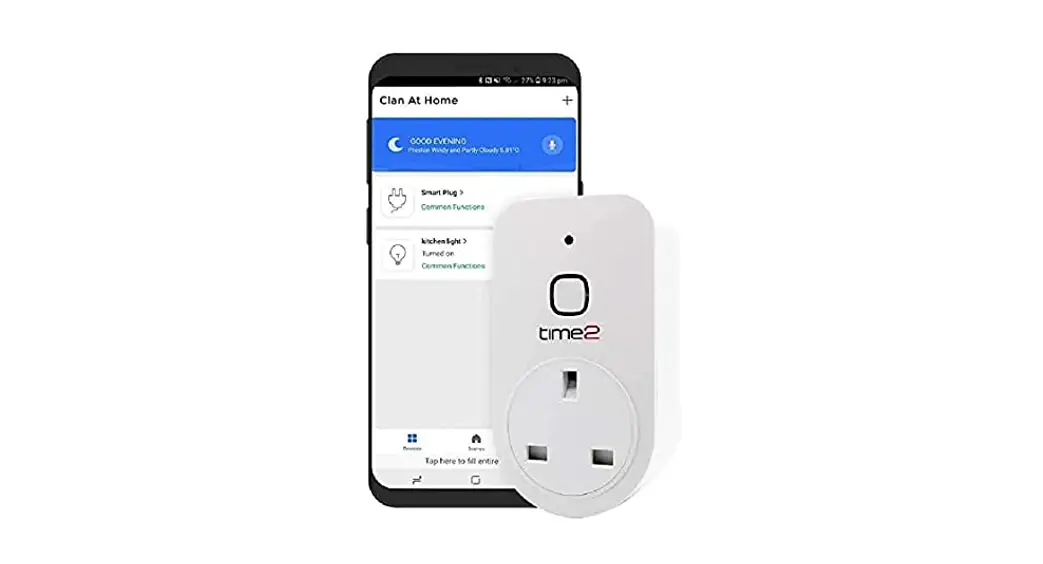

Arthur
Start-Up Guide
Protect and monitor all that you love and value 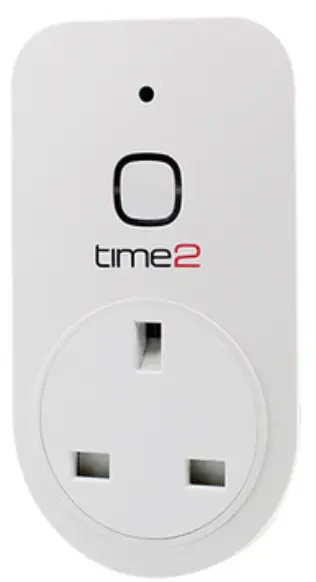
Get Started
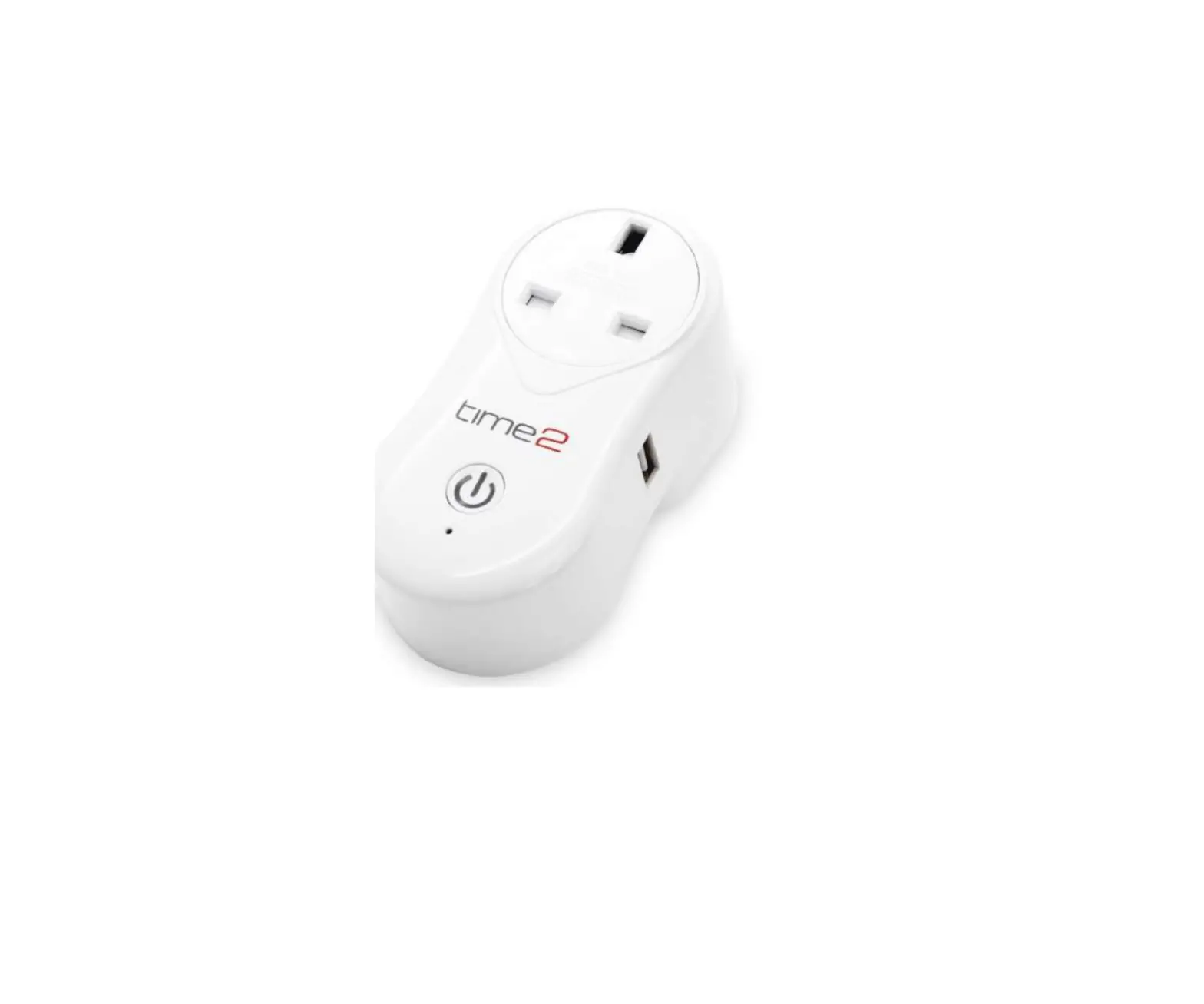
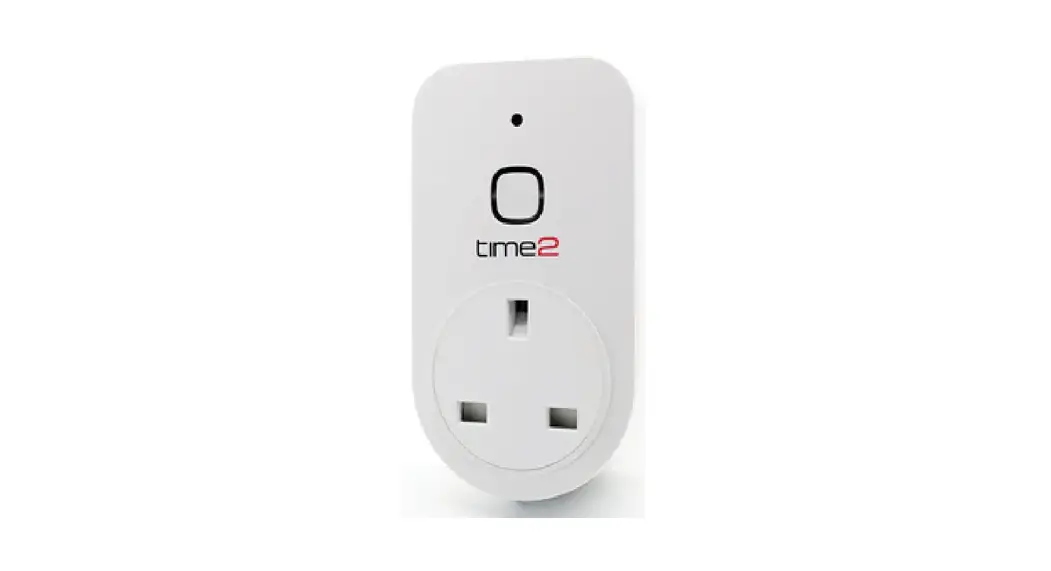
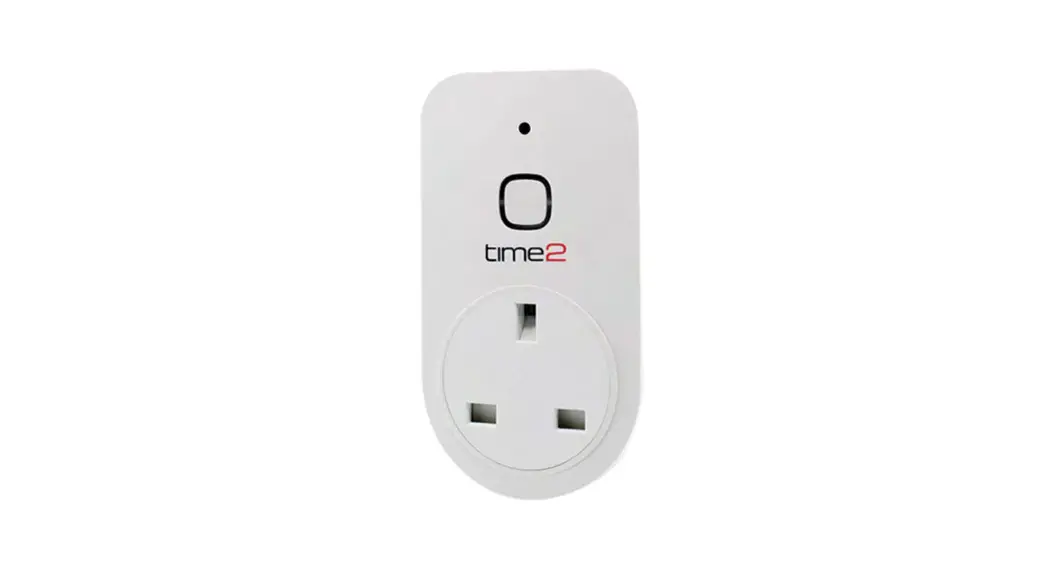
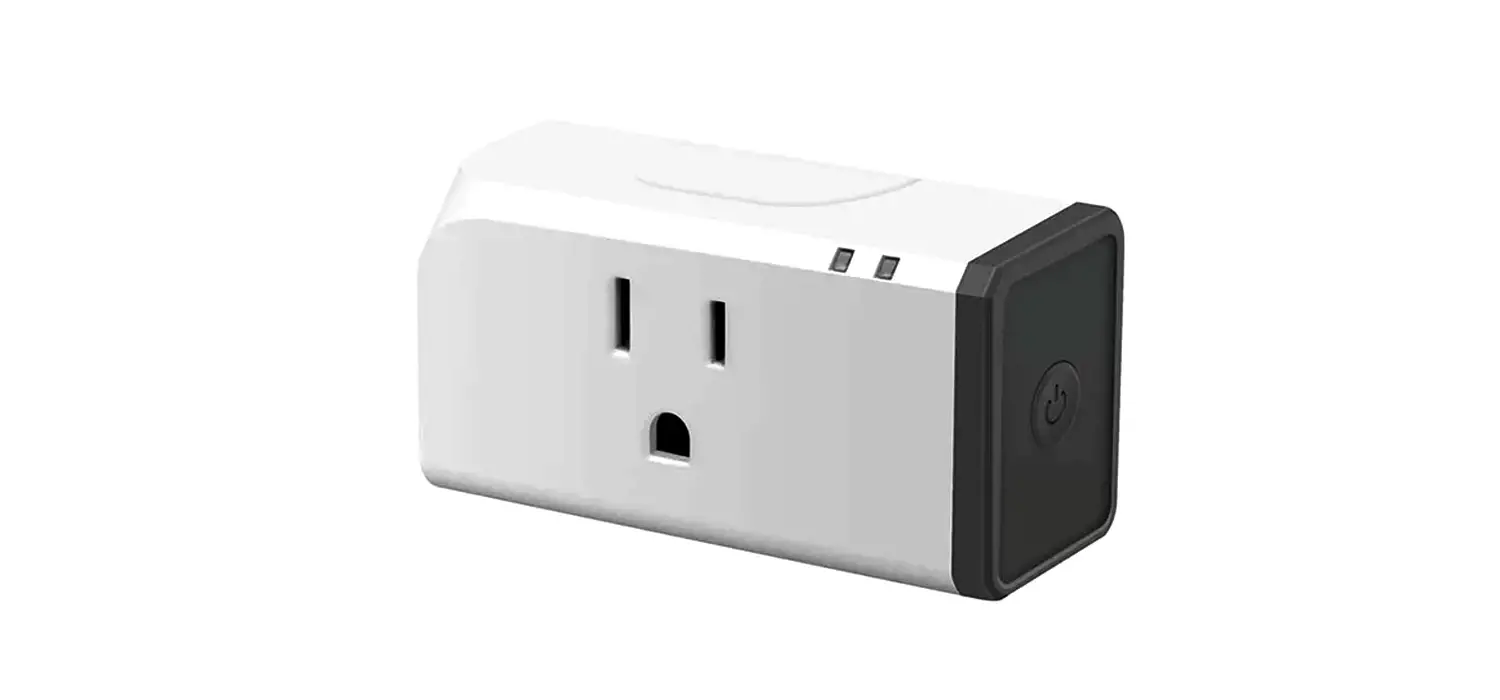
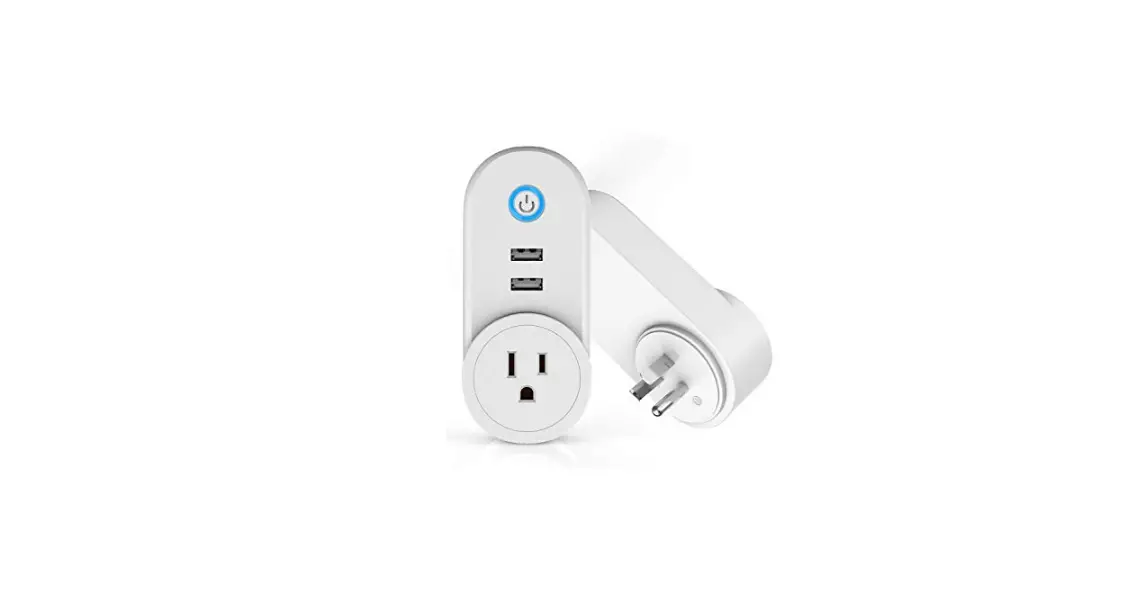
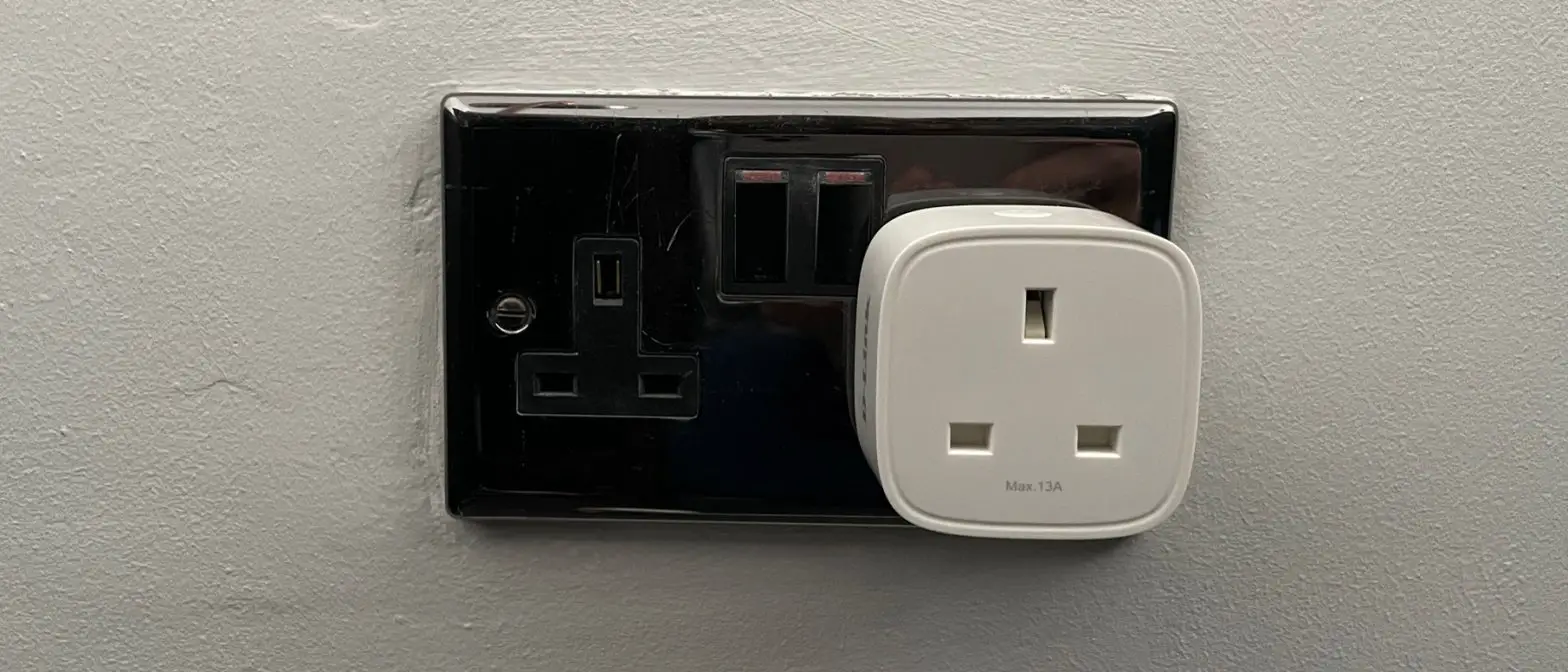
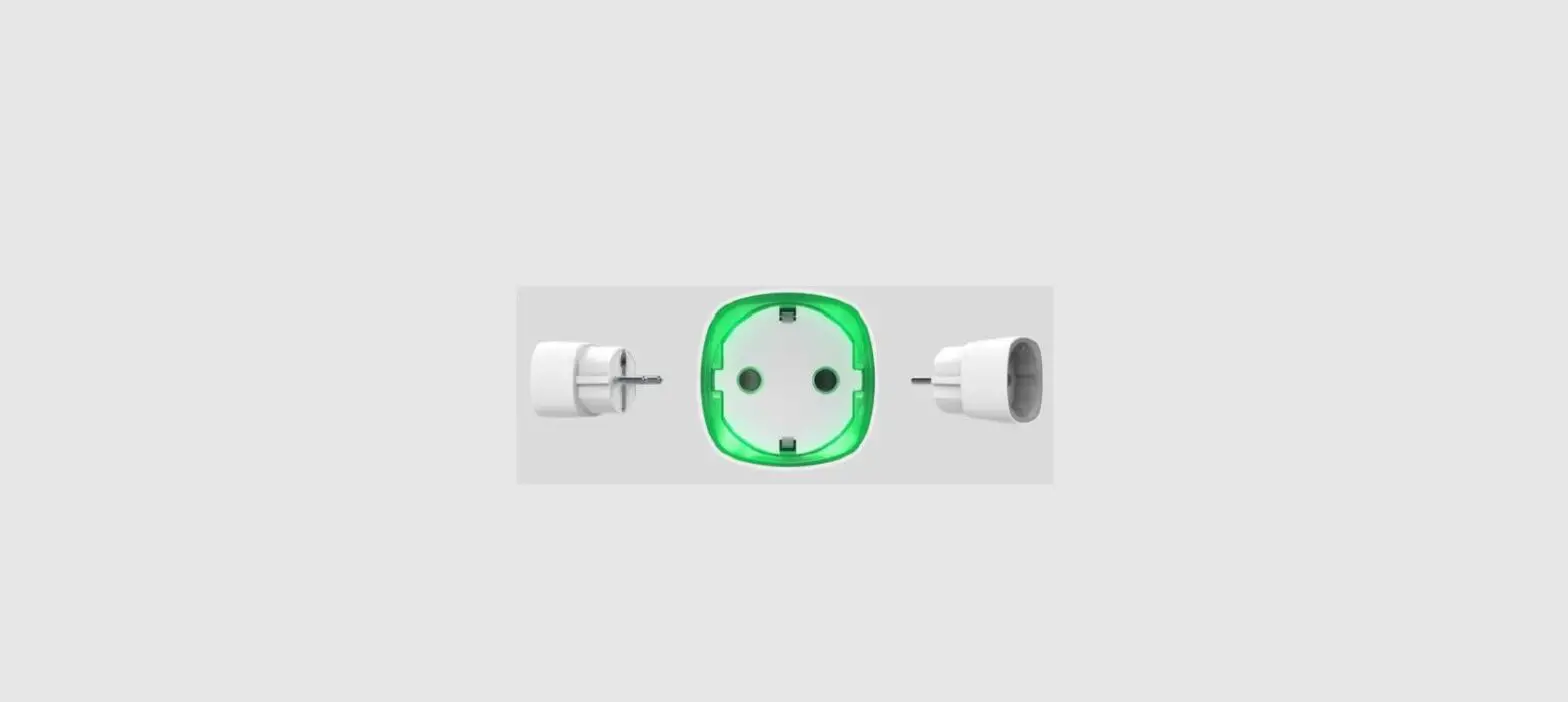
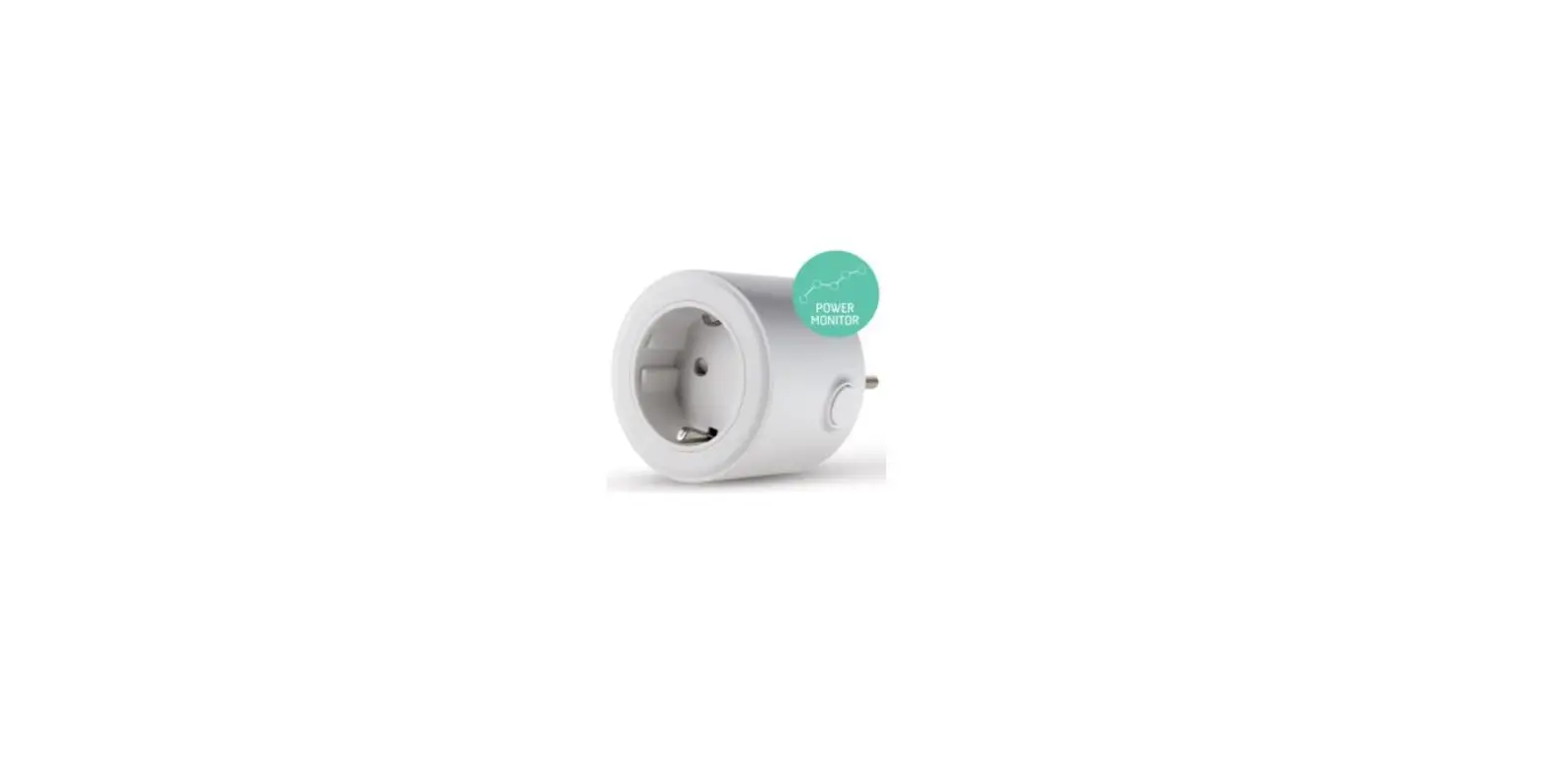
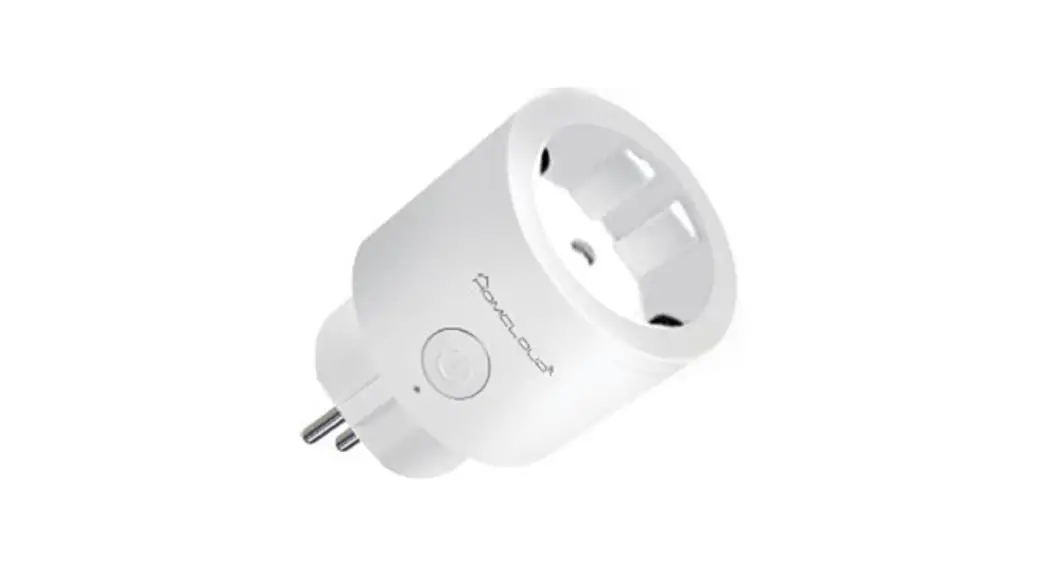
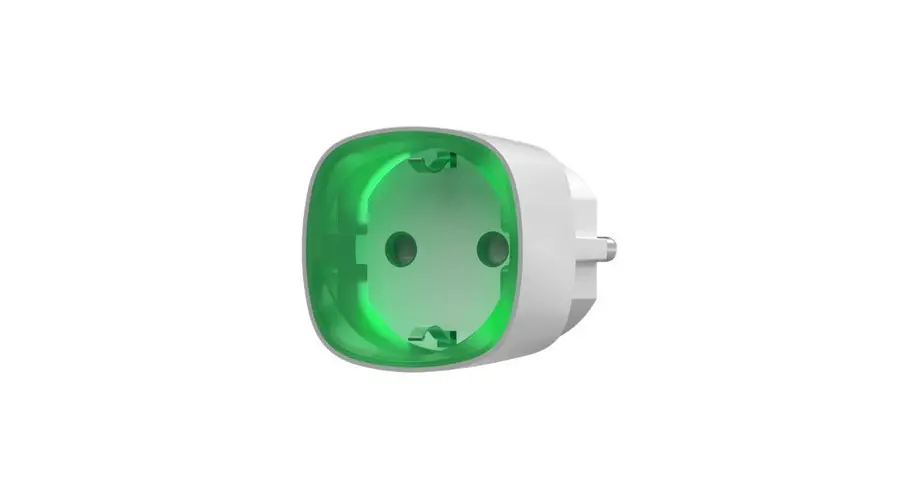
Plug Arthur into a mains socket. The green LED lights will come on and flash quickly 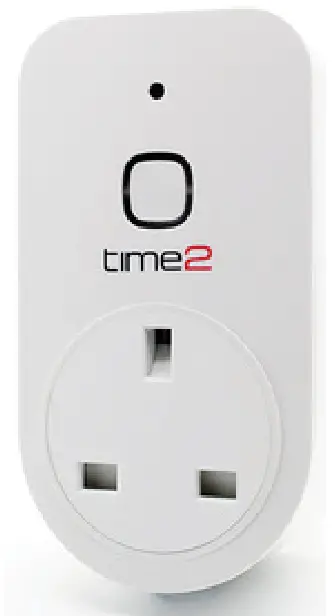
What do the flashing lights mean?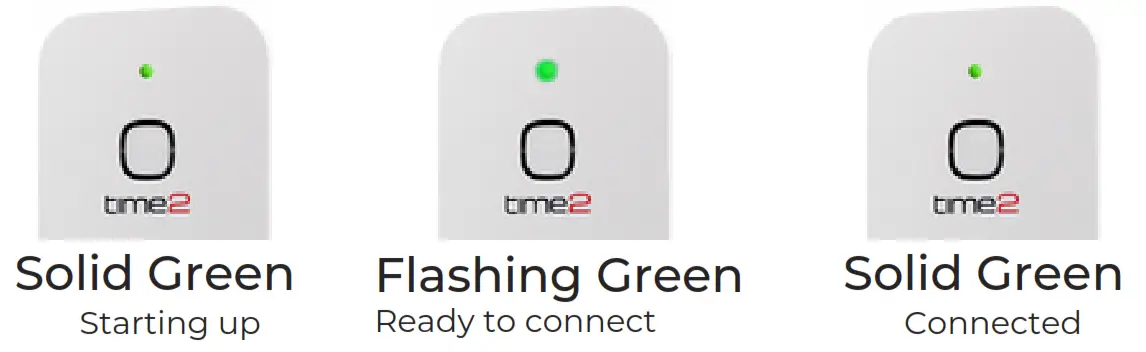
Download App
Download the “Clan at home” App on the iOS App Store or Google Play Store.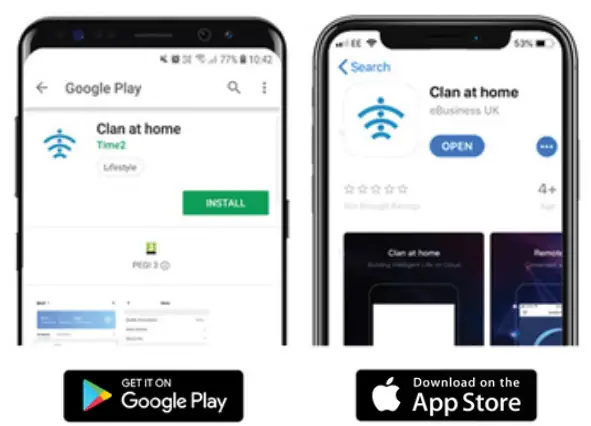
Register
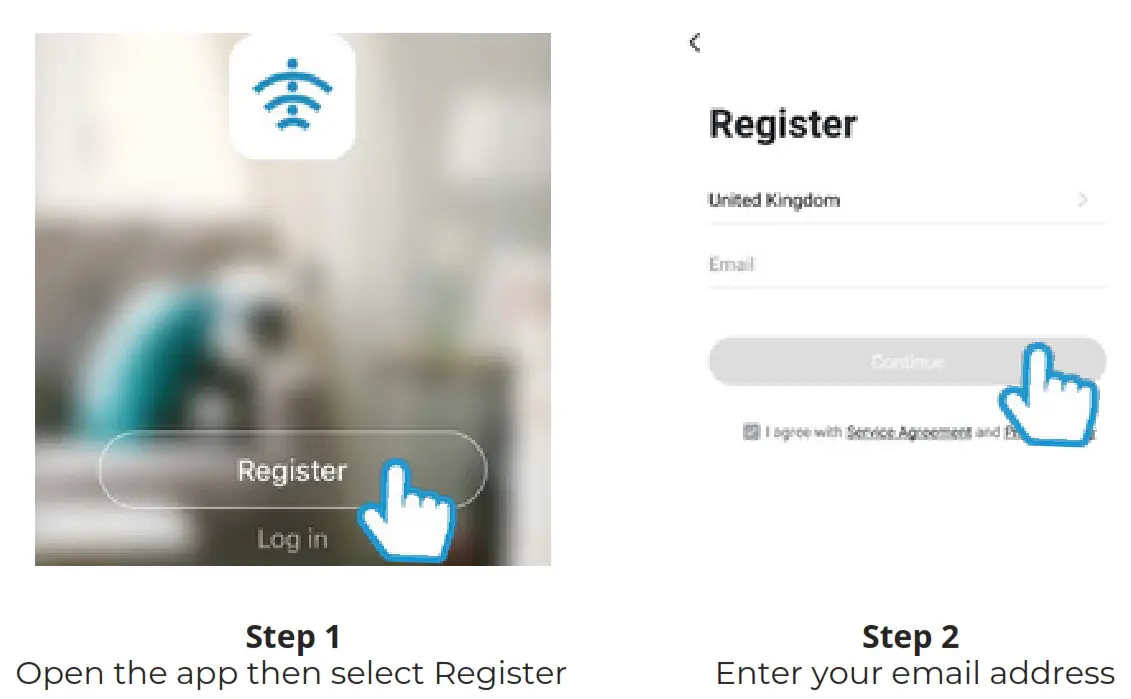
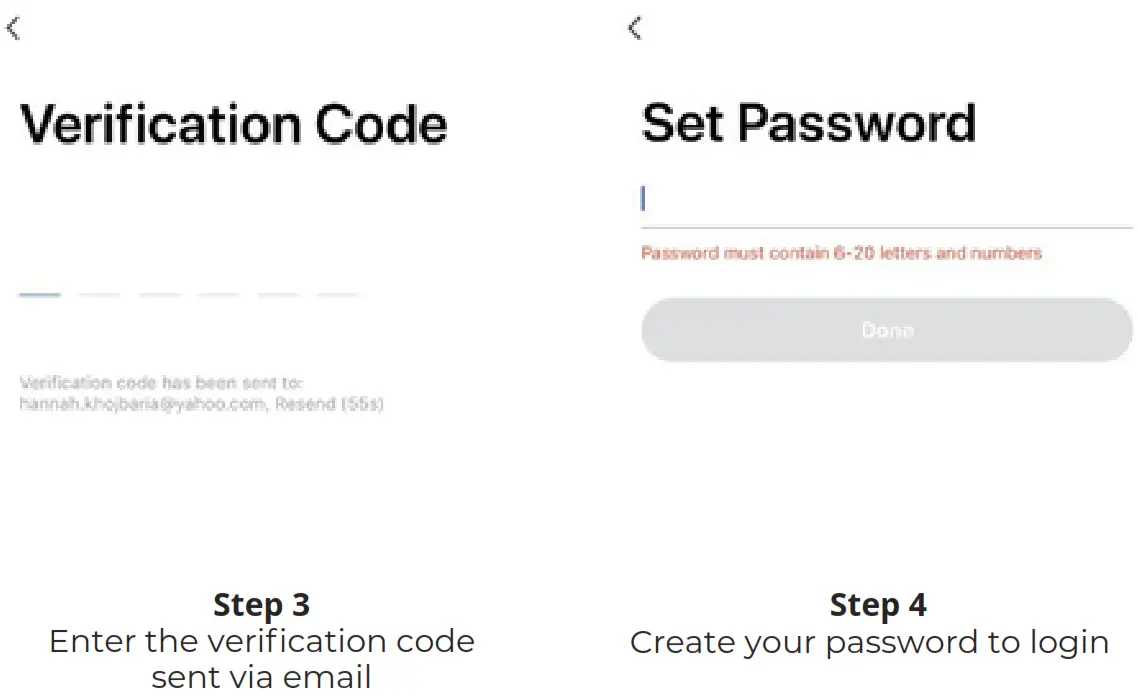
Add Arthur – Bluetooth
Adding Arthur using Bluetooth
Step 1
In My Home, click the (+) icon in the top right-hand corner of the screen 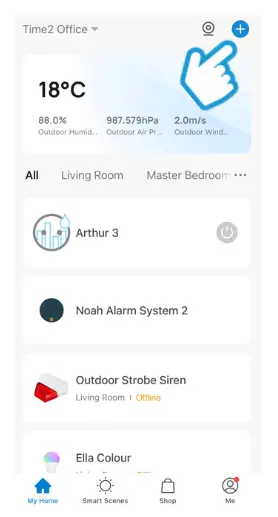
Adding Arthur using Bluetooth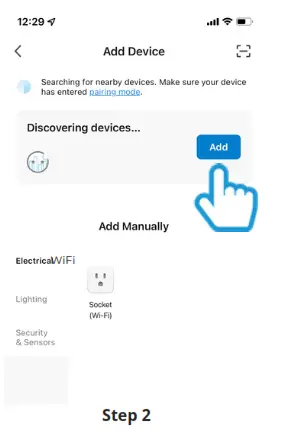
Ensure Bluetooth is enabled on your device and select “add” on the ‘discovering devices tab.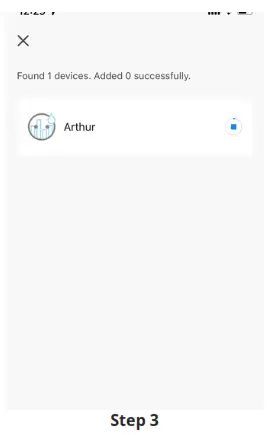
The Arthur smart plug will now begin to pair, this can take up to 2 minutes.
Adding Arthur using Bluetooth 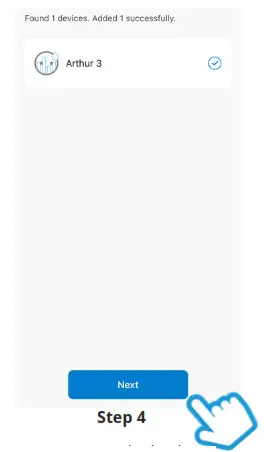
Once your device has paired successfully you’ll then see a tick appear. Click “Next” to continue.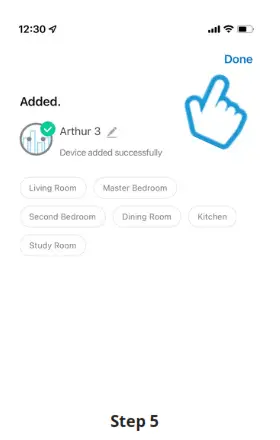 If you’ve successfully paired your Arthur smart plug, click “done” to begin using your product.
Features
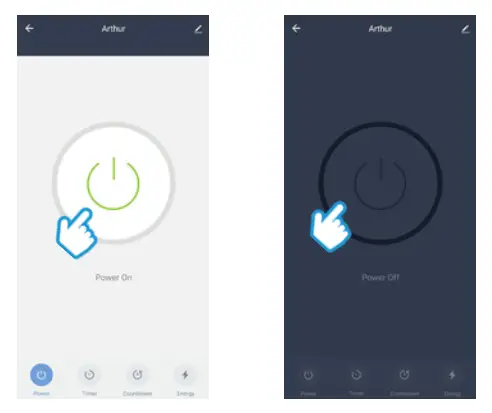
Simply tap on the on-screen button to turn the socket on and off
Timer & Schedule
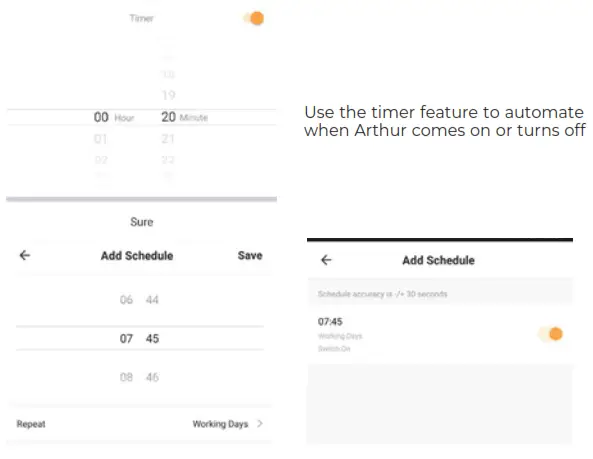
To add a schedule, simply set the time and day you would like Arthur to come on and turn off automatically
Energy Monitoring
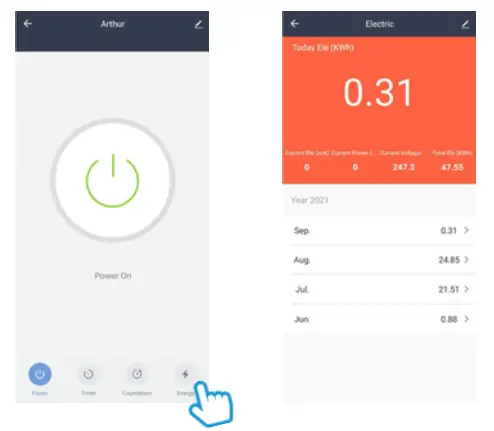
Click Energy in the bottom where you can monitor real-time right-hand corner and historical energy consumption
Reset Arthur
If you are having trouble connecting to Arthur, you may need to do a reset.
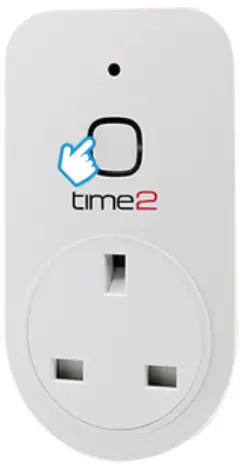
How to reset Arthur Press and hold down the power button at the front of the socket.
The LED will begin flashing green when it is ready for setup.
 Struggling to read?
View this start-up a guide online at
time2technology.com/manuals
 Product Support Archive - Time2