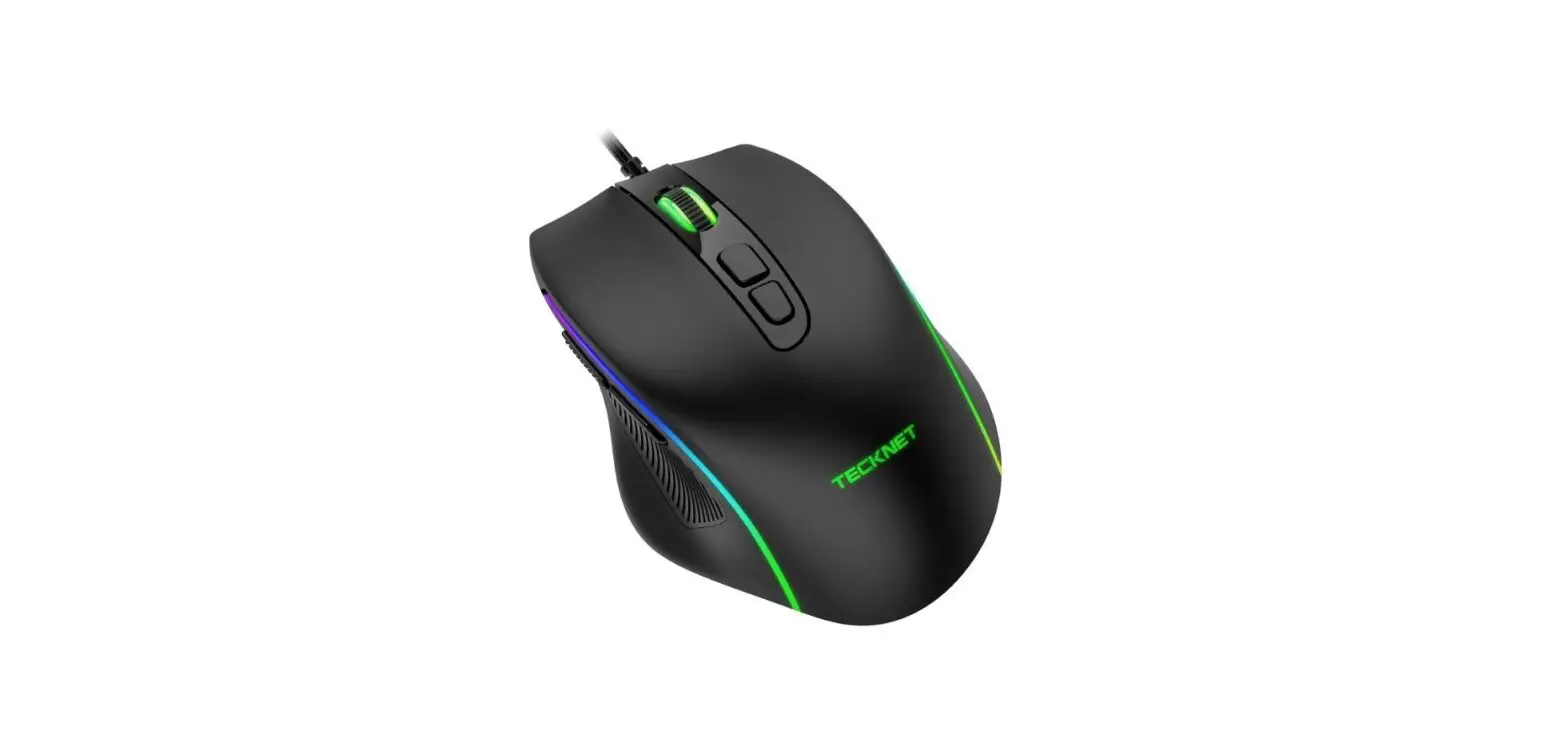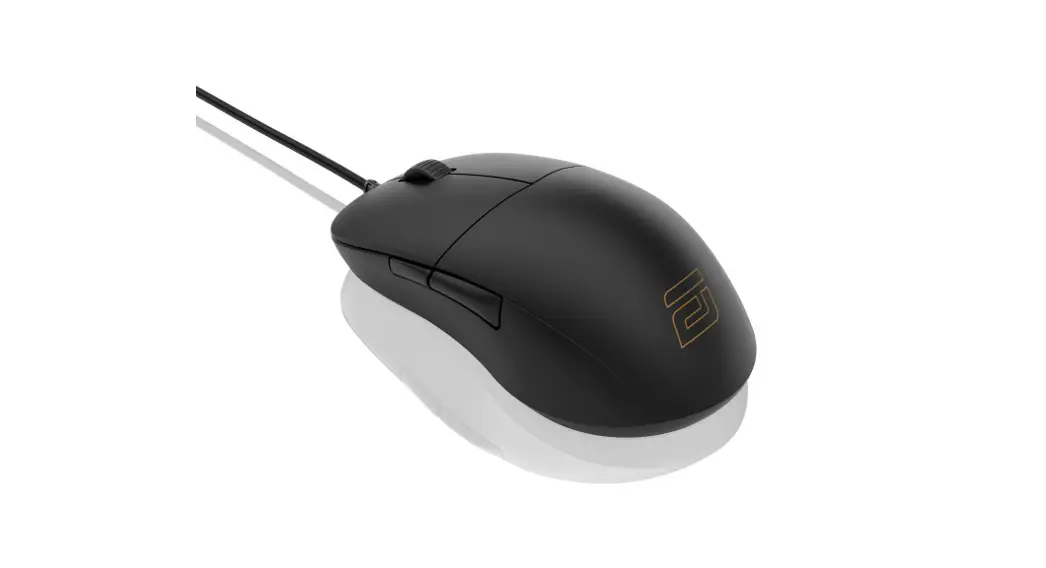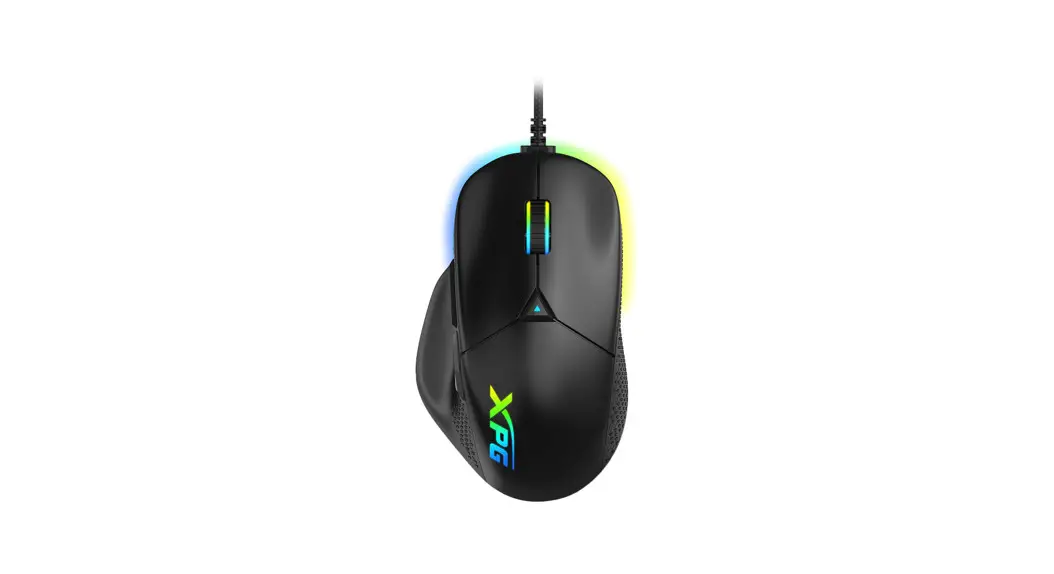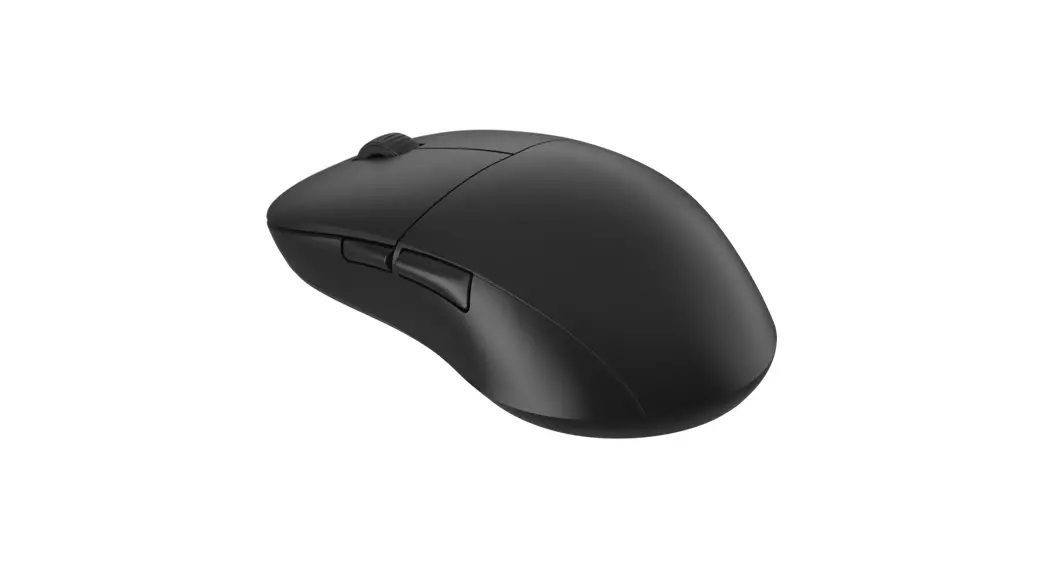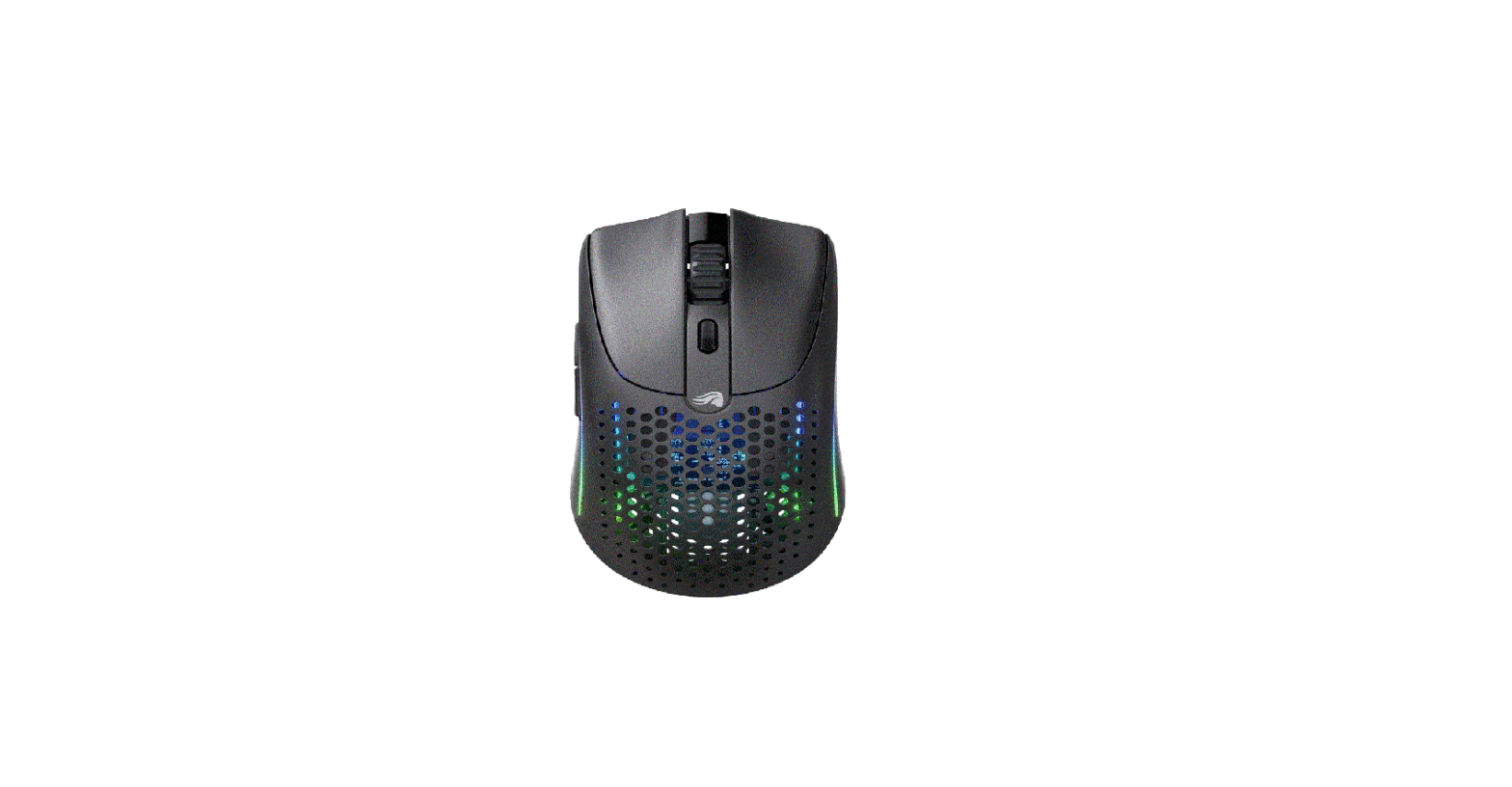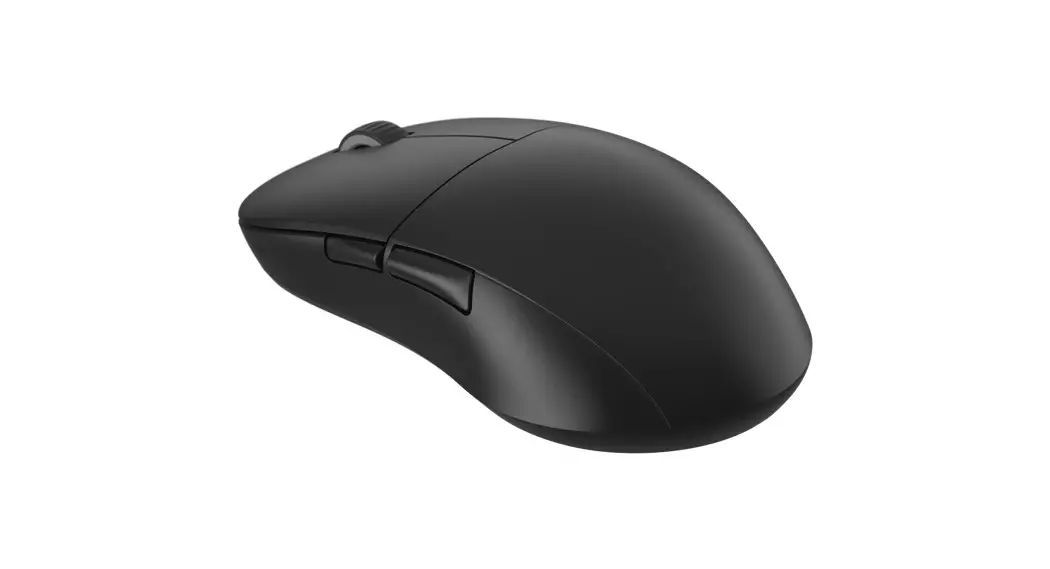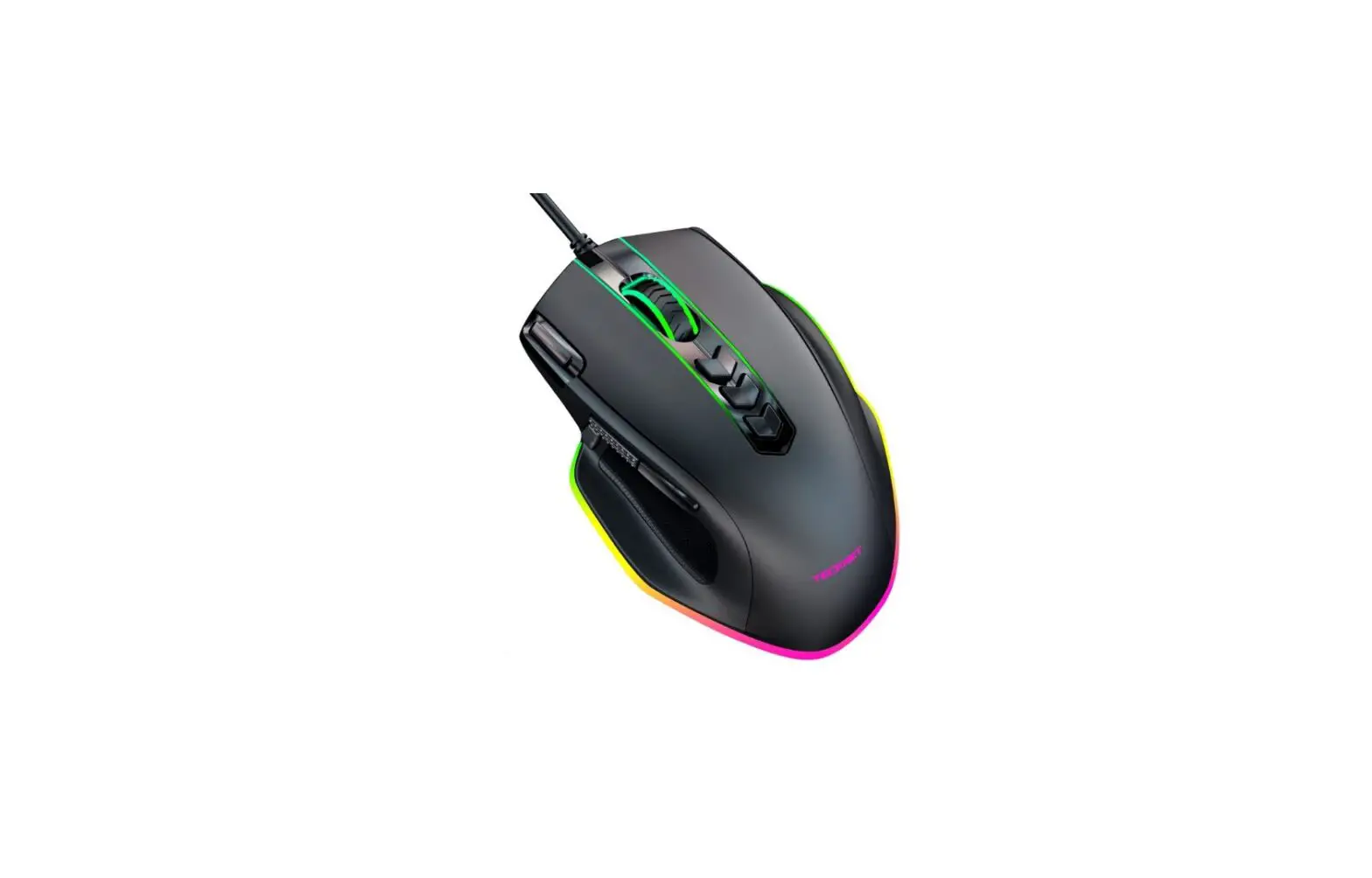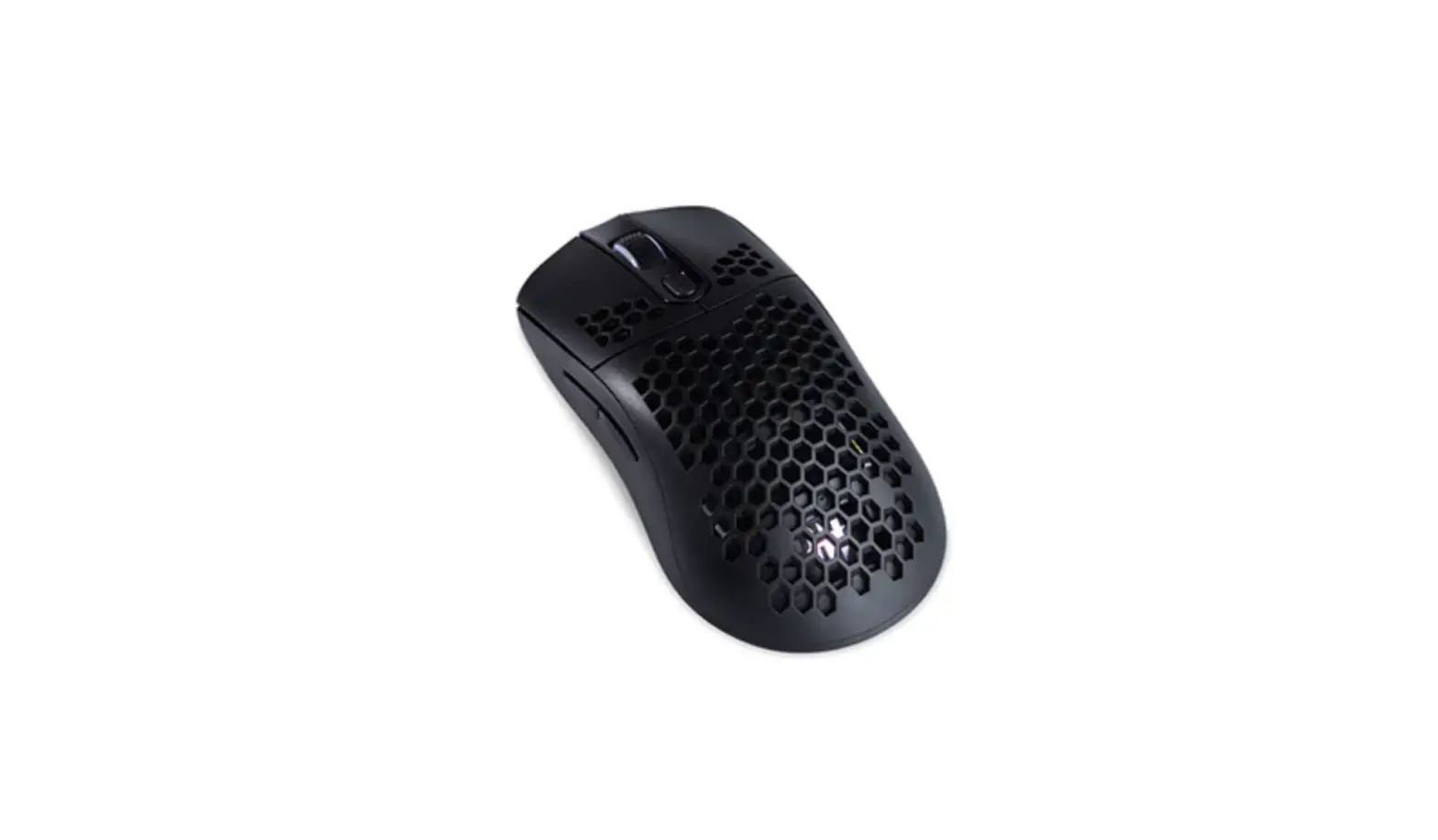
TECWARE EXO Wireless Gaming Mouse User Guide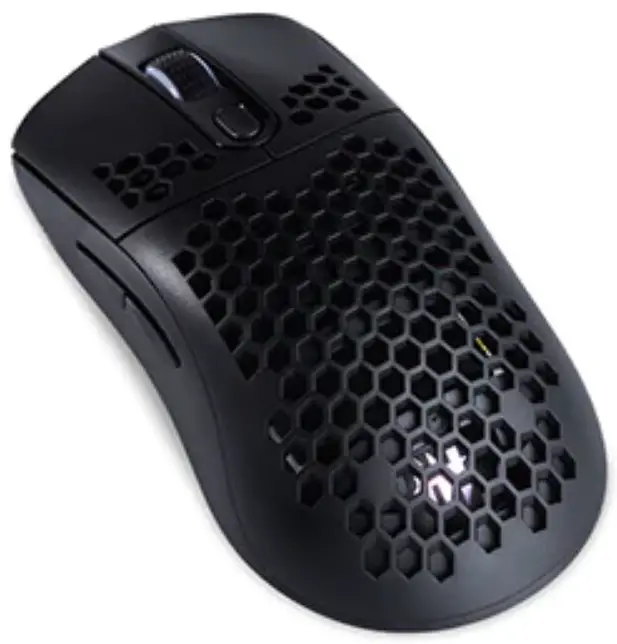
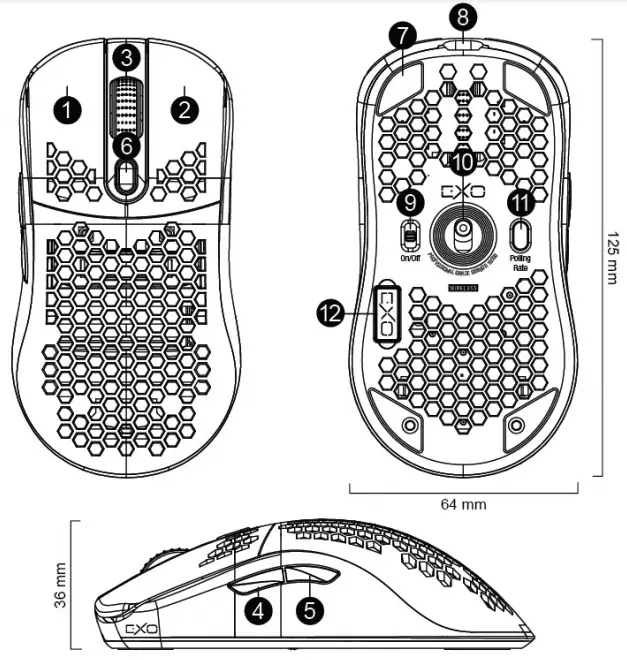
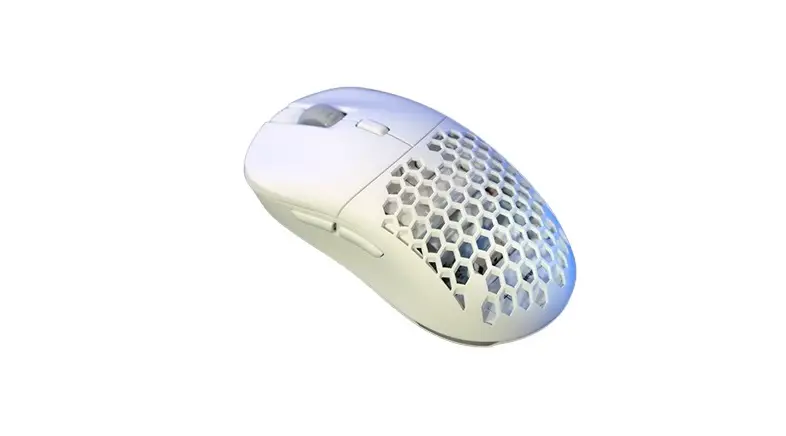
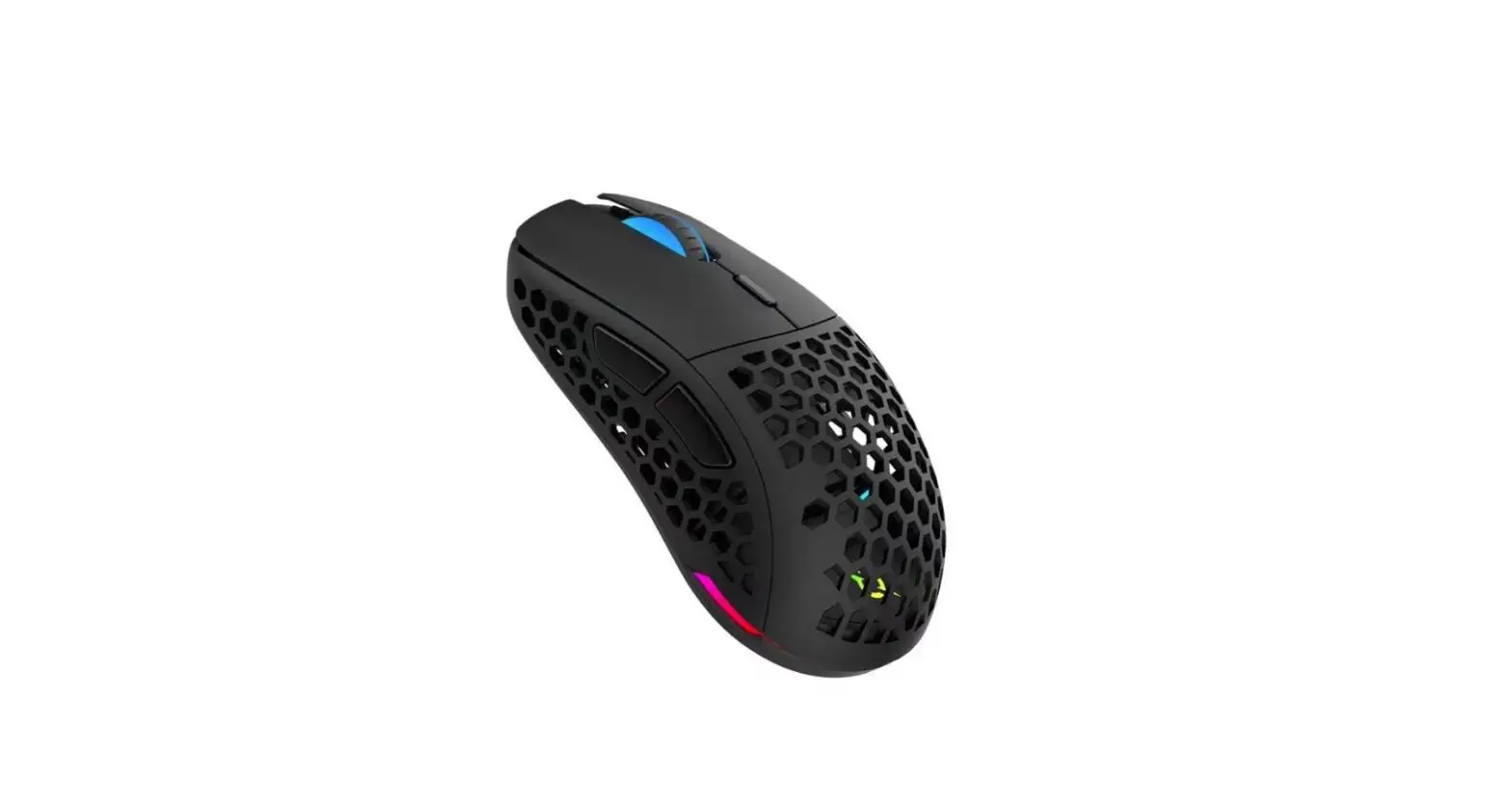
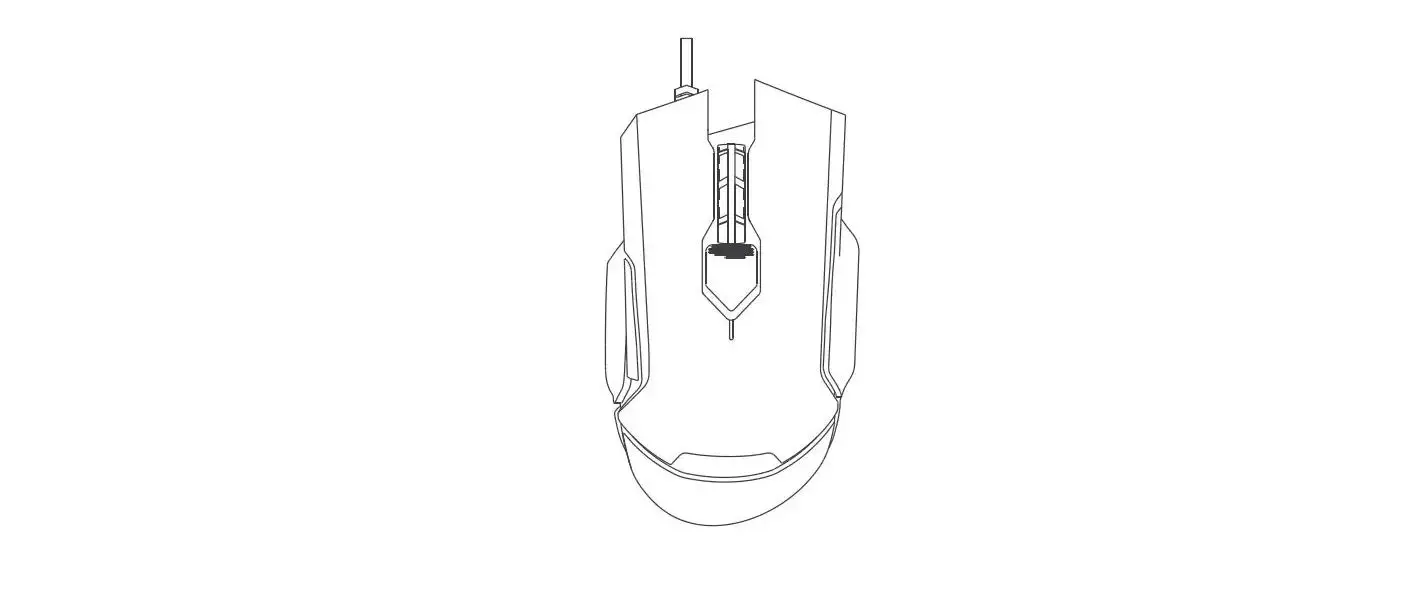
- Button (Left Click)
- Button (Right Click)
- Button (Scroll Wheel)
*Scrollwheel LED only lights up when charging - Button (Forward) 0 Button (Backward)
- Button (DPI Loop)
- PTFE Mice Feet
- USB Type C Connector
- On/Off Switch
- PixArt 3335 Optical Sensor
- Polling Rate Loop
- USB Dongle
*Functions for Buttons 1 – 6 can be changed in the software.
DPI and Polling Rate Indicators
When switching DPI / Polling rate, the LED on the tecware logo will flash twice according to the corresponding colors.
| DPI Setting | DPI | LED color |
| DPI Setting 1 | 400 | Red  |
| DPI Setting 2 | 800 | WHITE  |
| DPI Setting 3 | 1600 | BLUE  |
| DPI Setting 4 | 3200 | GREEN  |
| DPI Setting 5 | 6400 | YELLOW  |
| DPI Setting 6 | 16000 | PURPLE  |
| POLLING RATE | LED COLOR |
| 125hz | GREEN  |
| 250hz | BLUE  |
| 500hz | ORANGE  |
| 1000hz | RED |
Pairing the mouse (Wireless)
- Remove the USB dongle. (Stored in the underside of the mouse) 2. Plug the dongle into your PC/Laptop.
- Turn on the mouse. (Located at underside of the mouse)
- The mouse should automatically pair with your PC/Laptop.
*Note: If your mouse does not pair automatically, hold buttons 1,2 and 3 together for 3 seconds, then re-plug the dongle.
Charging the mouse
- When battery is low (10%), the scroll wheel green LED light will start blinking.
- Connect the mouse to your PC/Laptop using the cable provided. The mouse will charge automatically.
- When the scroll wheel LED light disappears (while plugged in), your mouse is fully charged.
*Note: Scroll wheel LED light color and function is fixed and cannot be changed.
Recording & Assigning Macros
- Click on “Macro Manager”.
- Click on the “+” to create New Macro and edit the Macro name. 3. Select the created macro from the list on the left and press “Recording” to start the macro recording.
- When done, press the “Stop ” button and press “Save” to create the macro.
- To assign a macro to a button, click on the button Settings, select “Macro” From the drop down list and select the macro you want to assign.Click ” Apply” to save settings.
Resetting to factory settings
- If you have installed the software, simply click on the reset button.
- If not, hold buttons 1, 2, 4 and 5 together for 3 seconds. The tecware logo LED light will blink once, signifying that it has been reset.
System Requirements
- PC system with USB port
- Windows XP / VISTA / 7 / 8 / 10
Software
- To access additional features, please download the EXO WIRELESS Software from www.tecware.co
Warranty
- 1 Year. Please contact your local distributor for support.