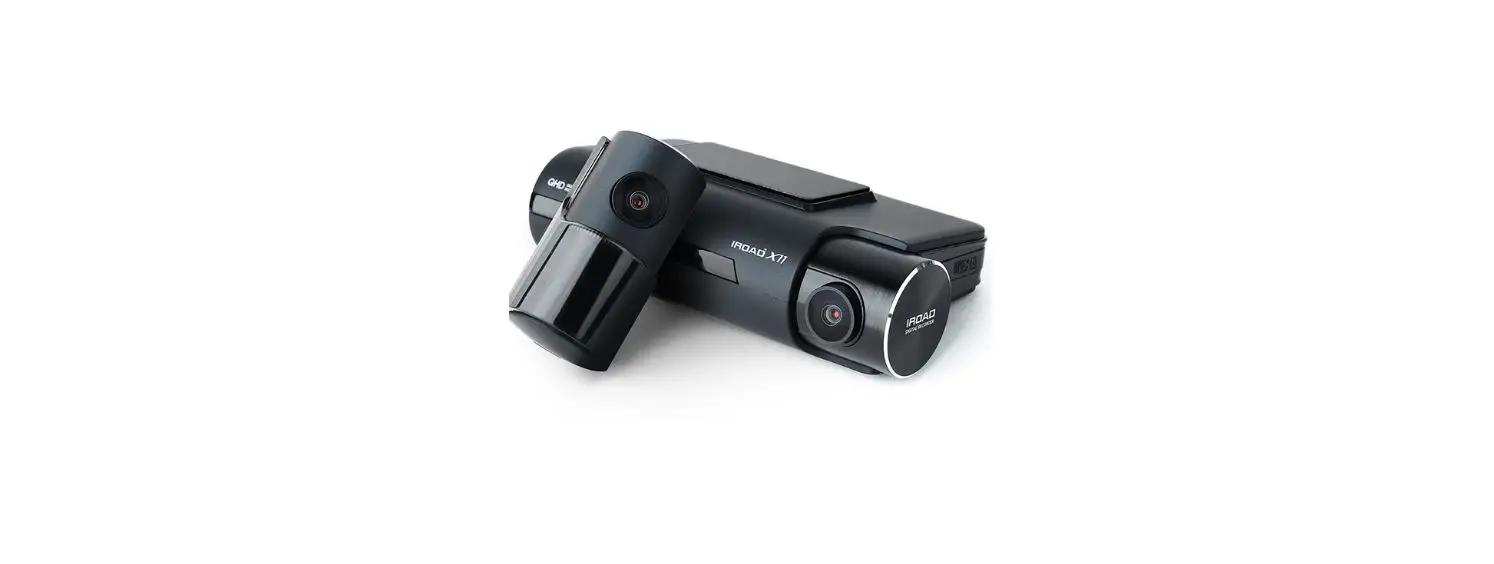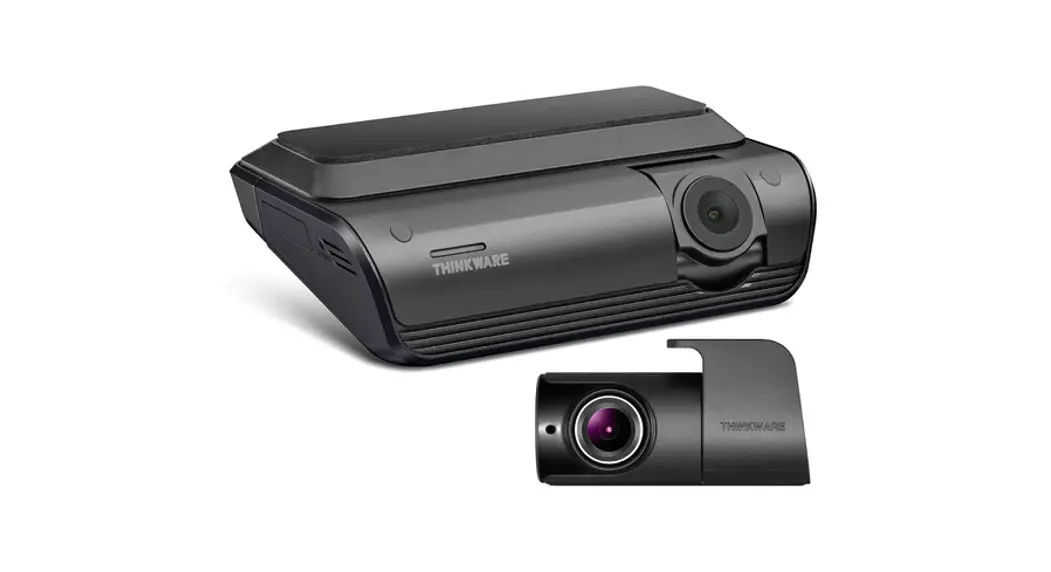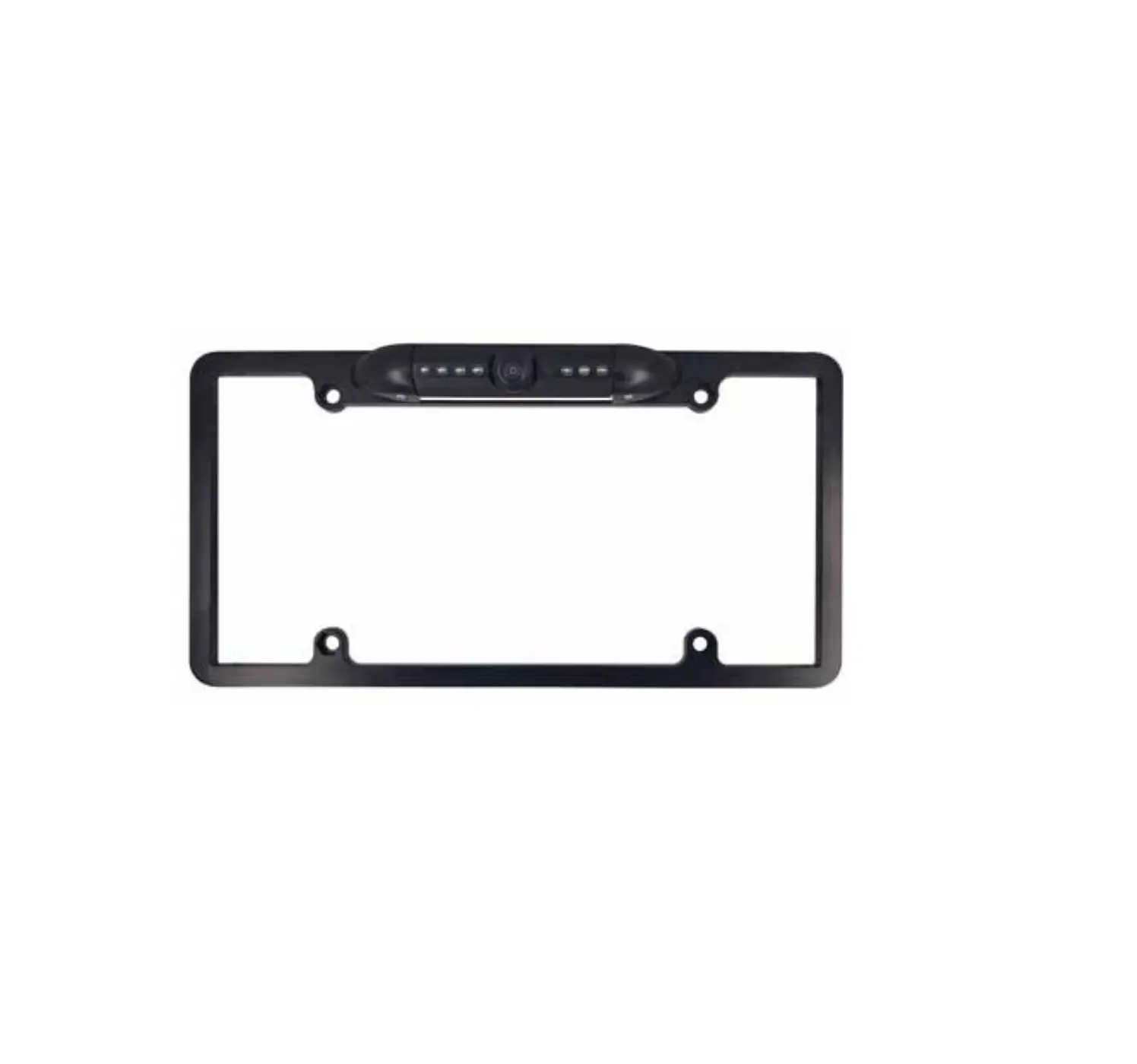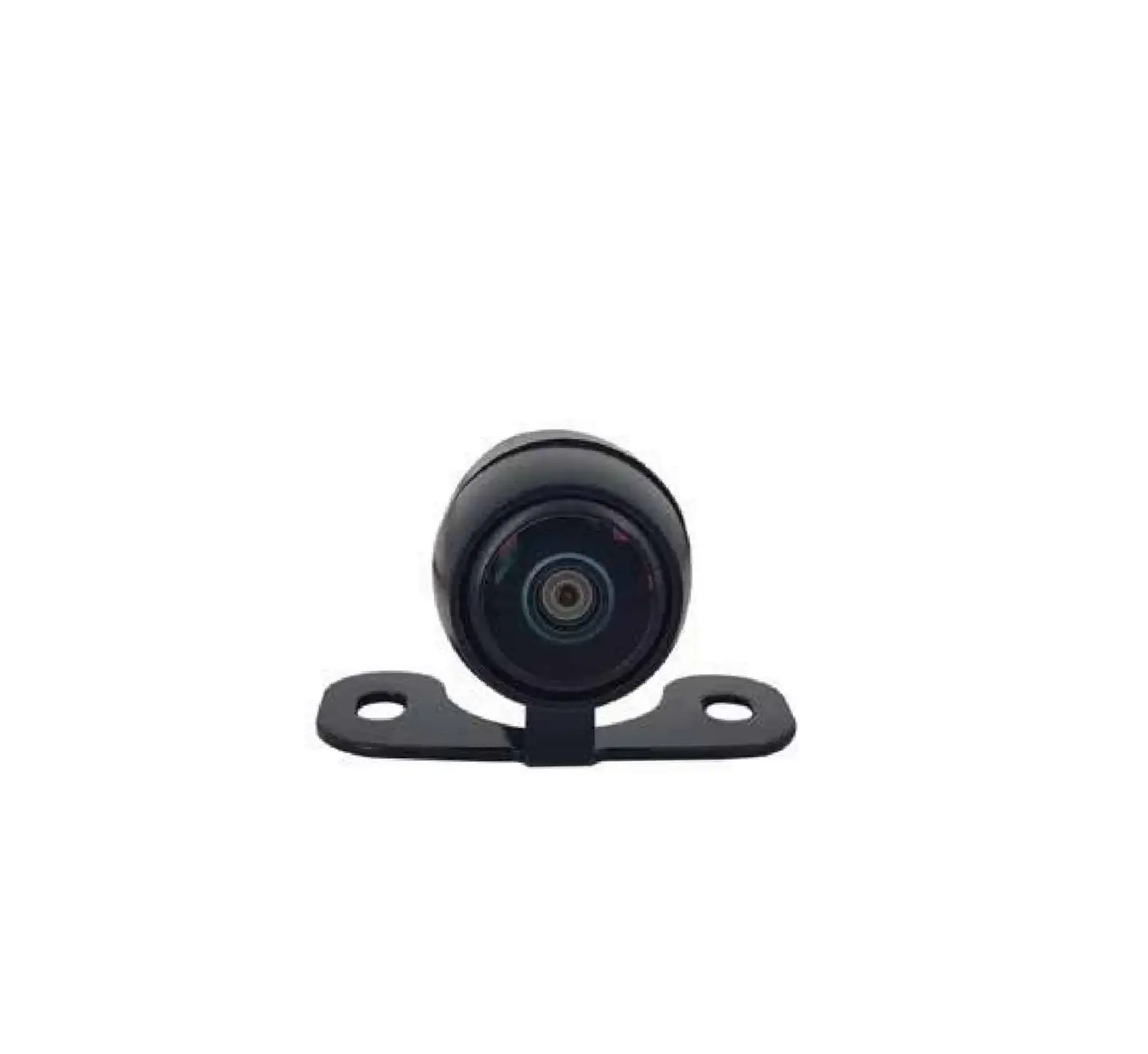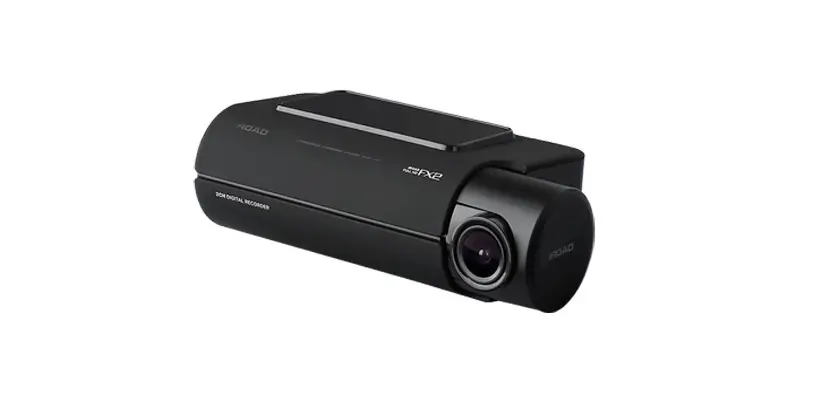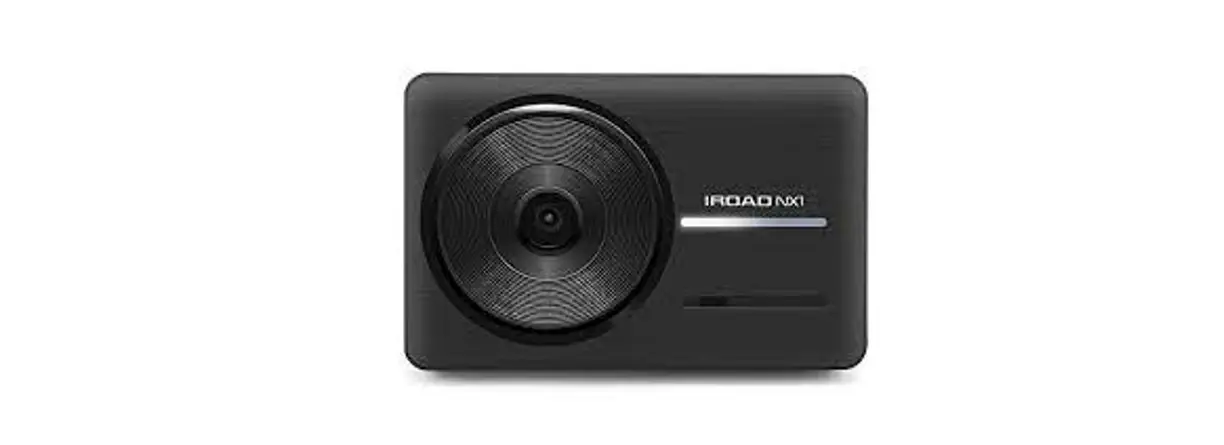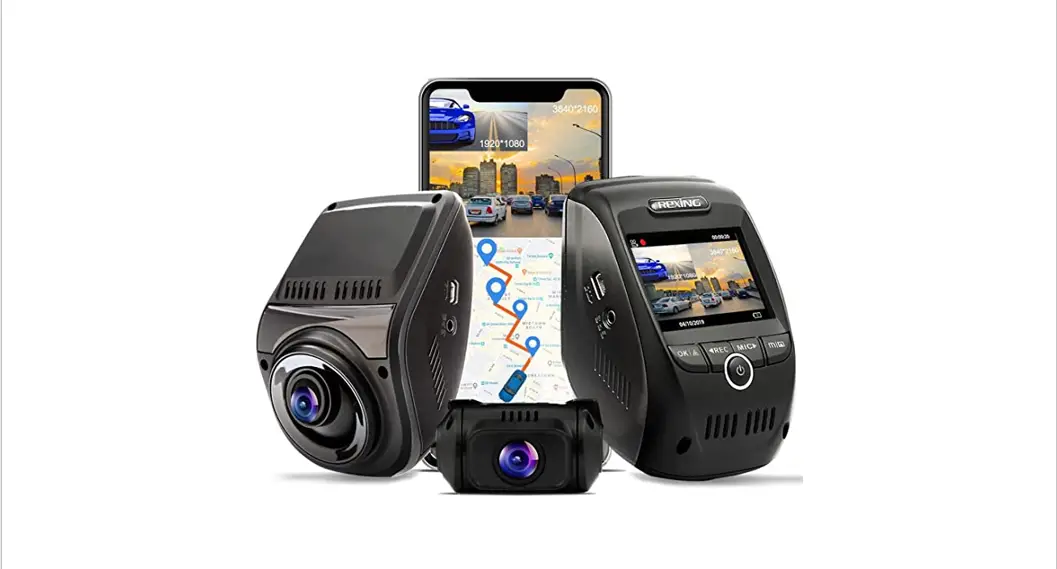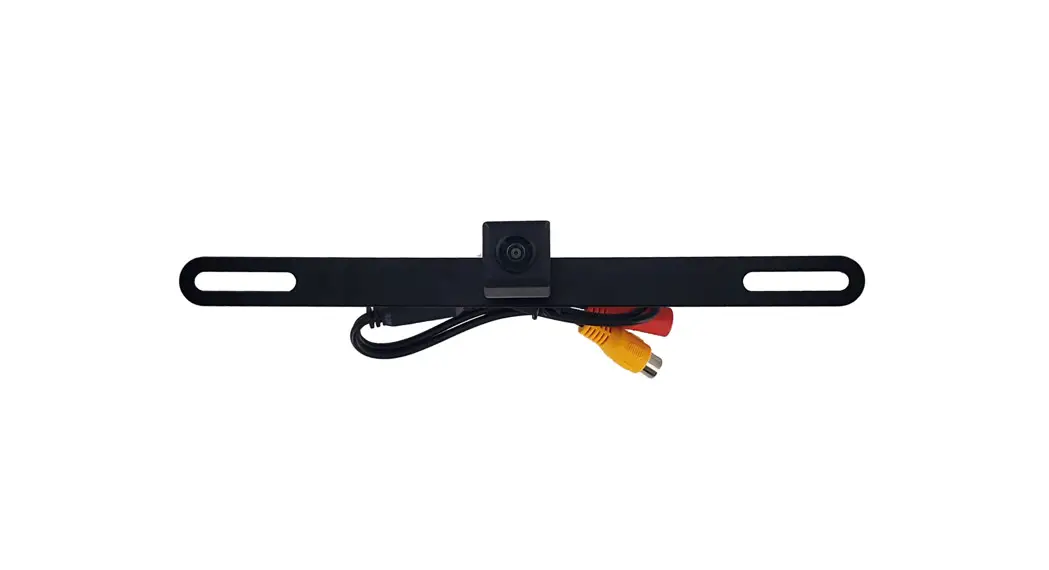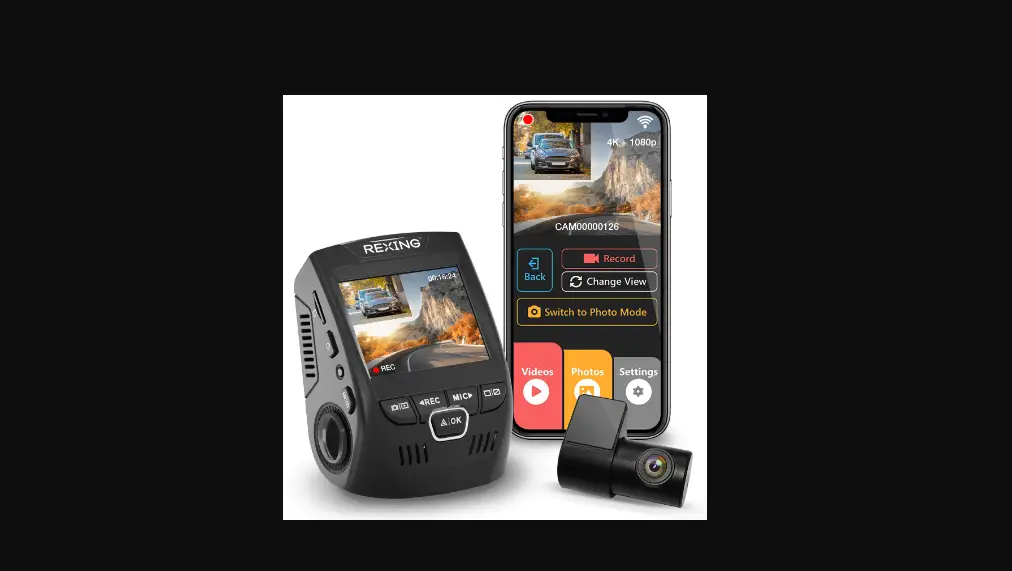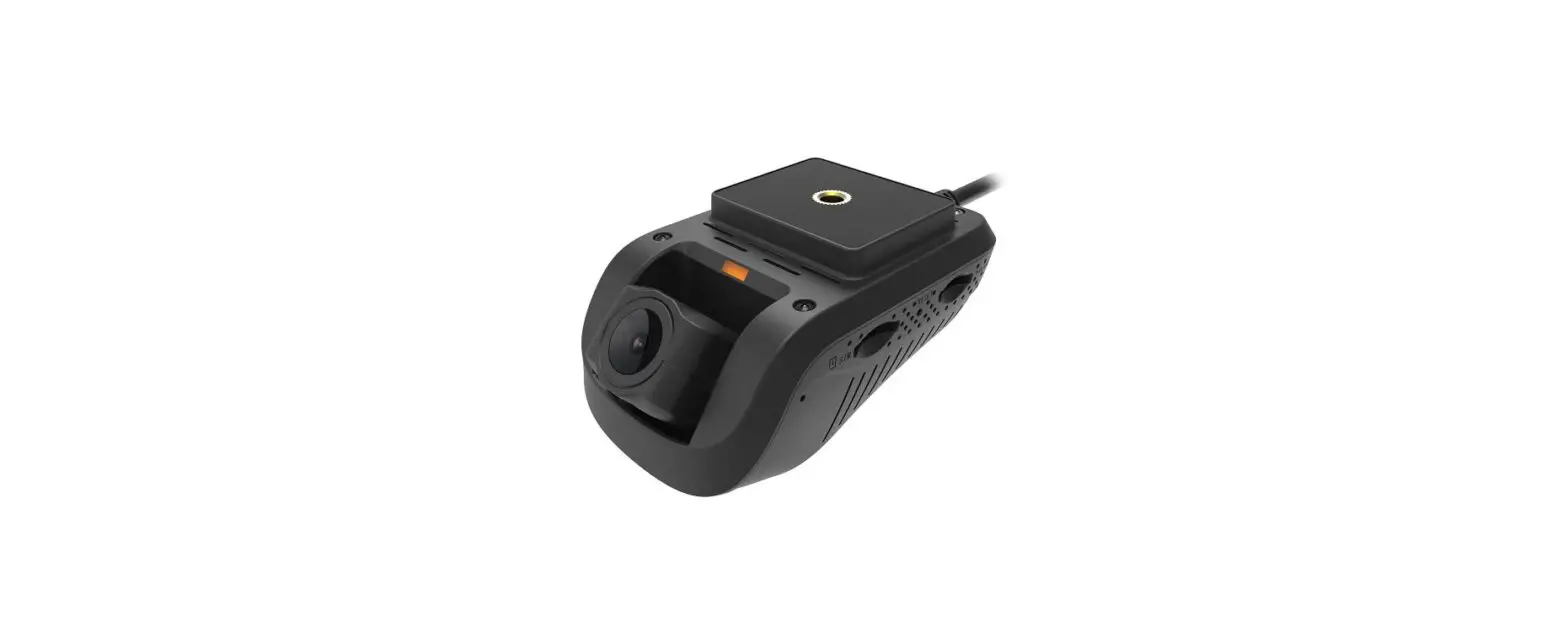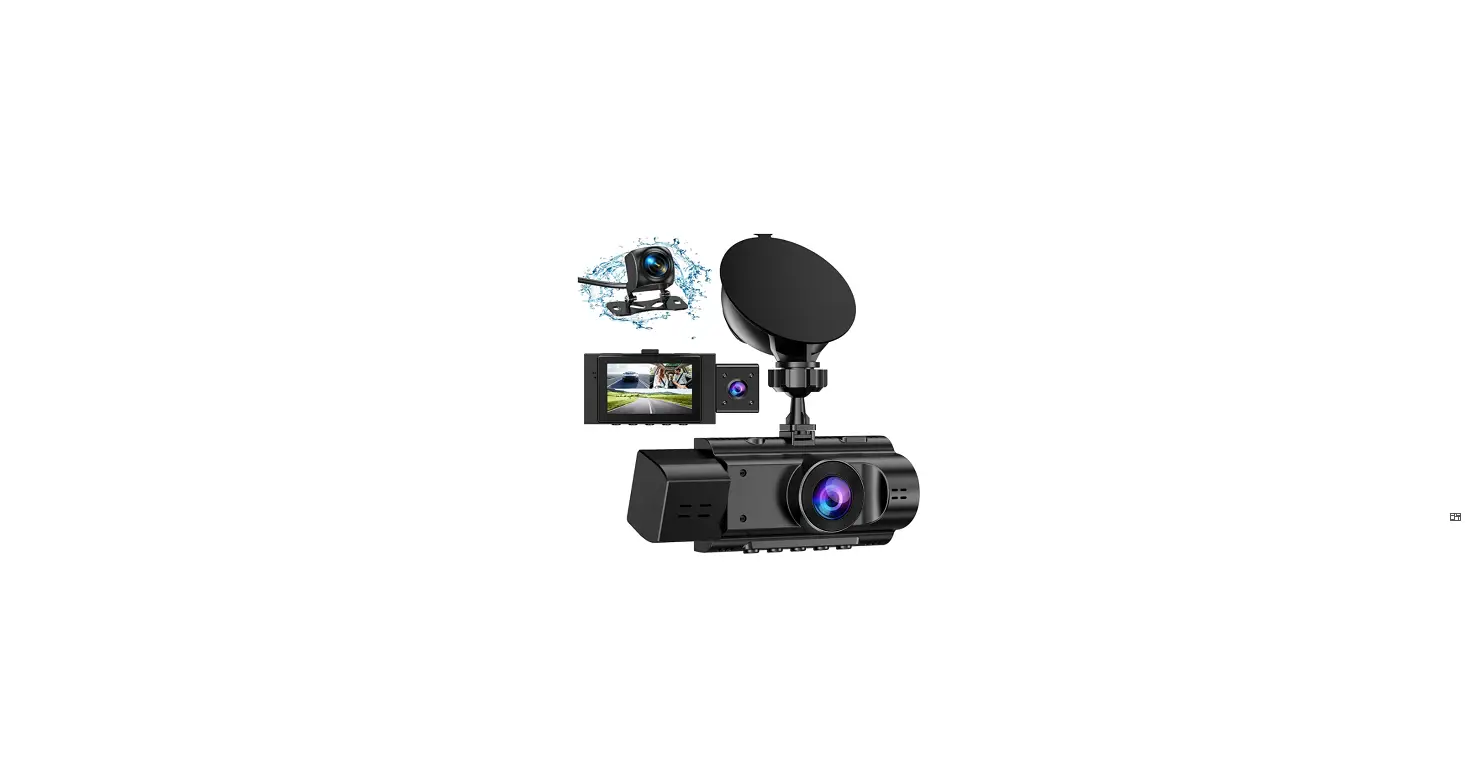
 X11 Front Rear QHD 2K Dash Camera
User Guide
SPECIFICATIONS
| Model | ROAD X11 |
| Image sensor | Front: SONYSTARVIS(IM)C335) Image Sensor Rear: SONY STARVIS(I MX335) Image Sensor |
| Resolution/Frame | Front & Rear: QHD 2560)(1440/ 30fps |
| Viewing angle | Front & Rear: 155° |
| Wi-Fi supported | Smartphone Playback/Settings, Firmware Automatic Update |
| Wi-Fi button | Activate Stand-by Mode for Registration” |
| Audio input | Embedded MIC |
| Video/Audio | MP4 /ADPCM |
| Vibration Sensor | 3-axis Acceleration Sensor |
| Voice guidance | Effect sound/buzz alerted to inform the condition of the device Voice guidance supported |
| External GPS | Synched with google map, inform the location and traveling speed of the vehicle |
| OBD Scanner | Real-time Vehicle information, Vehicle Diagnosis& Fuel Economy Statistics |
| Storage medium | Micro SD 32GB – 512GB (Class10) |
| Recording mode | Driving, Event(Impact), Paddrig(Timelapse, Motion Detection) |
| Uninterrupted power | Uninterrupted Power (Low voltage cut-off, overheating prevention is embedded) |
| Power supply | DC 12V/24V |
| Operating temperature | -20 – 70° C (Storage temperature : -30 – 90°C) |
| Humidity | 10 – 95% |
| Dedicated PC viewer | Win7, Win8, Win10 (64Bit), Mac (OS X 10.7 64Bit or higher) (Latest update,4K resolution, and HDCP 22 display support, Intel? Core Processor and above or 4K support graphic card) |
| Application | Android 6.0,10S 10.0 or higher: Firmware update supported |
PACKAGE
Basic Components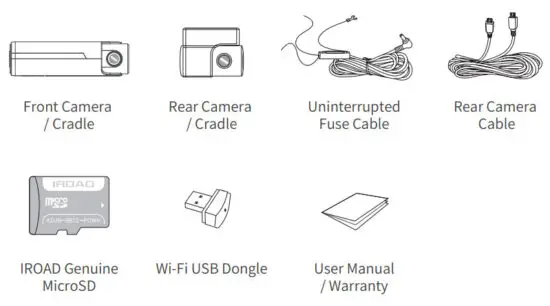
- The Basic components may change without prior notice.
Optional Items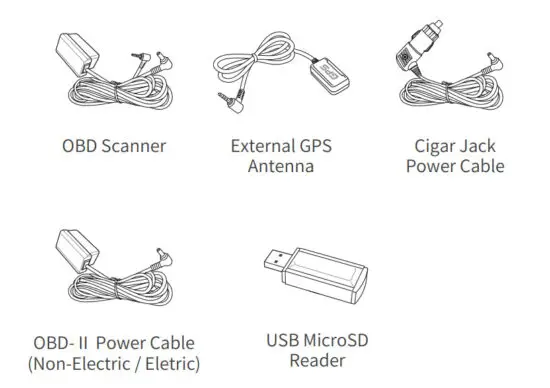
USING THE MOBILE APP
ANDROID DEVICE
- On your Android device, open the “Google Play Store” and download and install “IROAD”
- After running the application, register your device.
– Activate the registration standby mode by pressing the Wi-Fi registration button “Stand-by mode for the registration” (Voice guidance) - Tap Connect Now
– From the IROAD, select your dashcam.
– The SSID and model will be shown.
– Once the user selects the device, it will be registered & connected.
iOS DEVICE
- On your iOS device, open the “App Store” and download and install “BROAD”
- After running the application, register your device.
– Activate the registration standby mode by pressing the Wi-Fi registration button “Stand-by mode for the registration” (Voice guidance) - Tap Connect Now
– follow the on-screen instructions to connect the product to your smartphone. - Select the Wi-Fi Network
– From the Wi-Fi setting menu on your smartphone, select the Wi-Fi network starting with “IROAD” - Enter Password
– Enter “qwertyuiop” in the password field Now the product is connected to your iOS device via Wi-Fi
• The password is the first row of the alphabet on the keyboard
USING THE MOBILE APP
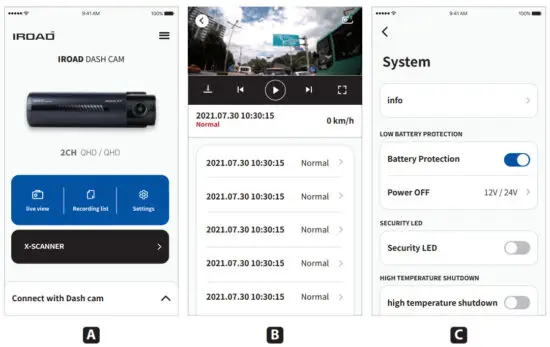
A. Main Screen
- Displays information about the connected product.
- Move to the live view screen.
- Playback the recorded videos.
- Configuration the dashcam settings.
B. Playback recording for Front / Rear Camera
- Playback the recorded videos.
- Choose a video clip from the list and save it. (Video or Image)
C. Configuration System
- Configuration the dashcam settings. (Once settings are changed, the device will be rebooted)
USING THE PC VIEWER
The following provides brief information about the PC VIEWER screen layout.
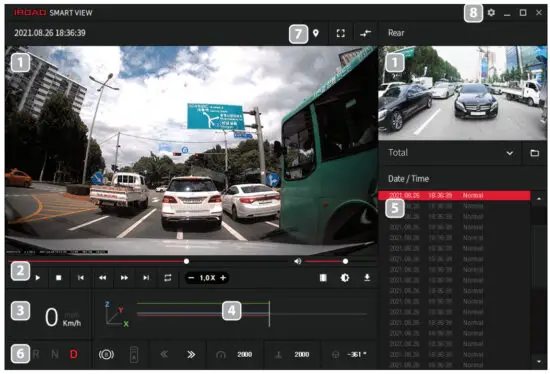
| Front/Rear video playback screen | Recording file list |
| Video Controller | Display the vehicle status Transmission / Brake, Acceleration Turn signal / RPM / Engine coolant temp Steering angle (only when OBD2 is connected) |
| Speed indicator (only when GPS/OBD2 is connected) | map / Full-screen Switch screens (Front / Rear) |
| G-sensor information | Dashcam settings Minimize / Maximize / close the PC viewer |
PRECAUTION
- Do not disassemble or modify the product.
Or else, it will be deemed as the user’s fault and the warranty will be voided. - Do not connect to the device while driving(Viewing live recording etc), as it may cause a serious accident.
- Do not remove the SD card/power cable during firmware update.
As it may cause the device to malfunction or loss data. - Using of genuine IROAD memory card on our device is recommended.
Failing to do so may cause system error or malfunction on the device. - Real-time recording and playback via Wi-Fi might be delayed depending on the specification of the user’s smart device. (Wi-Fi signal connection etc)
- Motion detection is initiated by the image sensor software.
Motion detection may or may not be activated, as it will be depending on the surrounding environment and the voltage of the car. - If the GPS signal strength is good, ADAS functions will be activated when the speed of the car is above the set speed. ADAS functions may not be fully activated due to the surrounding environment.
- Unauthorized installation of the uninterrupted fuse cable may cause malfunctioning of the device. Different types of vehicles will have different kinds of installation ways.
(Please contact a professional engineer if you require any help regarding installation.)
WARRANTY
- CORVIT assures the quality of the product purchased.
- The warranty number is registered by CORVIT, Sharing of warranty cards is strictly prohibited.
- After-sales Services will not be provided if the warranty card and proof of purchase are lost.
- Dash Camera(Front/Rear) : 1 Year
Memory Card, External GPS, Wifi Dongle: 6 Months
OBD Scanner: 1 Year
Cable(for Fuse, Rear, Cigar Power): No Warranty
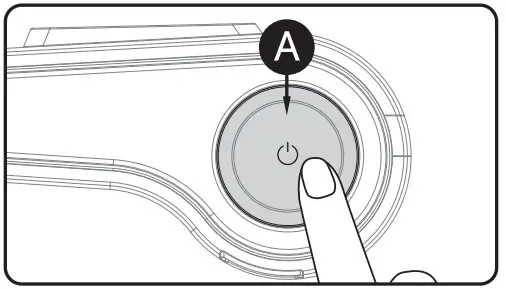
POWER OFF / ON
| MODE | OPERATION | OPERATION EXPLANATION |
| POWER OFF | Press and hold the button (A) for 3 seconds long. | “Shut down the system.” will be signaled, and the device will be powered off. |
| POWER ON | Press and hold the button (A) for 3 seconds long. | “Start recording.” will be signaled, and the device will be powered on. |
Wi-Fi OFF/ON
| MODE | OPERATION | OPERATION EXPLANATION |
| Wi-Fi OFF | Press the button (A) for 1 second long. “Ding” sound will signal. | “Wi-Fi power is off.” will be signaled, and Wi-Fi connection will be unavailable. |
| Wi-Fi ON | Press the button (A) for 1 second long. “Ding” sound will signal. | “Wi-Fi power is on.” will be signaled, and a Wi-Fi connection will be available. |
| ※ When ‘OFF’, the consumption power is reduced by 0.3w, and the device operating time is increased by 10%. ※ Wi-Fi ON/OFF function allows Users to turn Wi-Fi power on/off. Do not confuse it with the ‘Wi-Fi registration button’. When connecting to a smartphone, you must press the ‘Wi-Fi registration Button’ ※ Smartphones that have already been registered previously, Users do not have to re-registered even if the Wi-Fi on/off function is used ※ Default setting – Wi-Fi function is ON. | ||
BUTTON SCENARIO GUIDE
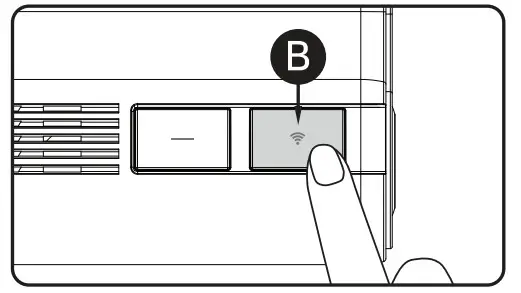
Wi-Fi STAND BY MODE OFF/ON
| MODE | OPERATION | OPERATION EXPLANATION |
| Wi-Fi STAND BY MODE OFF | Press the button (B) shortly. “Ding-Dong” sound will signal. | “Stand-by mode for the registration is released.” will be signaled, and a Wi-Fi connection cannot be initiated. |
| Wi-Fi STAND BY MODE ON | Press the button (B)shortly. “Ding-Dong” sound will signal. | “Stand-by mode for the registration.” will be signaled, and a Wi-Fi connection can be initiated. |
AUDIO RECORDING OFF / ON
| MODE | OPERATION | OPERATION EXPLANATION |
| AUDIO RECORDING OFF | Press the button (B) for 4 seconds long. “Ding-Dong” sound will signal. | “Stop recording the voice.” will be signaled, and will be recorded without audio. |
| AUDIO RECORDING ON | Press the button (B) for 4 seconds long. “Ding-Dong” sound will signal. | “Start recording the voice.” will be signaled, and will be recorded with audio. |
BUTTON SCENARIO GUIDE
MANUAL RECORDING
| MODE | OPERATION | OPERATION EXPLANATION |
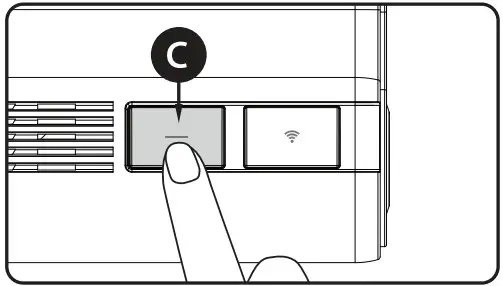
| MANUAL RECORDING | Press the button (C) shortly. | “Manual recording.” will be signaled, and start manual recording. |
FORMATTING THE MICROSD CARD
| MODE | OPERATION | OPERATION EXPLANATION |
| FORMATTING THE MICRO SD CARD | Press the button (C) for 7 seconds long. | “On formatting the memory card, Please wait start recording” will be signaled, Format the microSD card. |
CERTIFICATION
Model: IROAD X11
Product: IROAD DASHCAM
Verification Number: R-R-JWW-IROADX11
JAEWONCNC Co., Ltd
Made in Korea
CORVIT INTERNATIONAL SINGAPORE www.iroad.sg
 iroad.sg