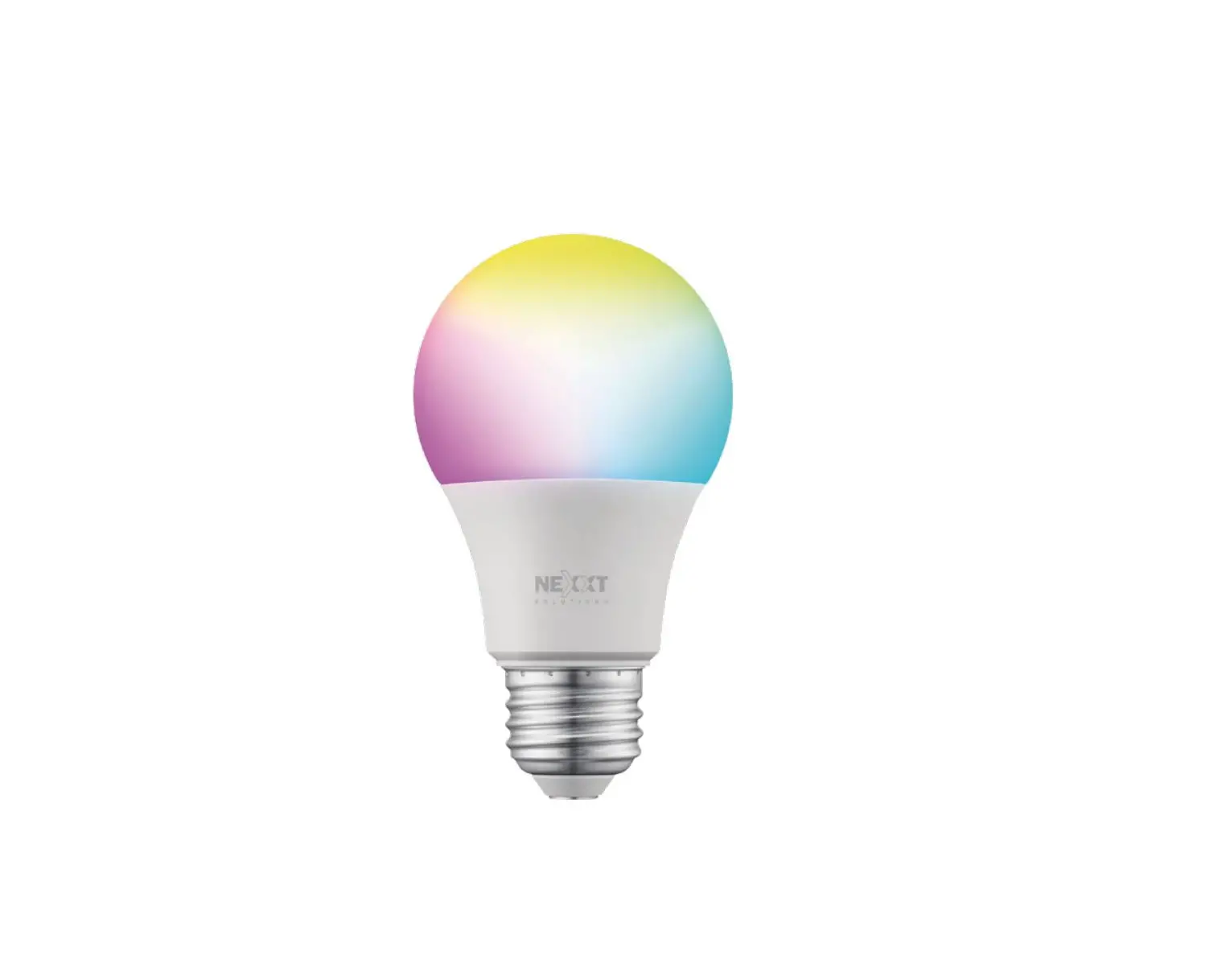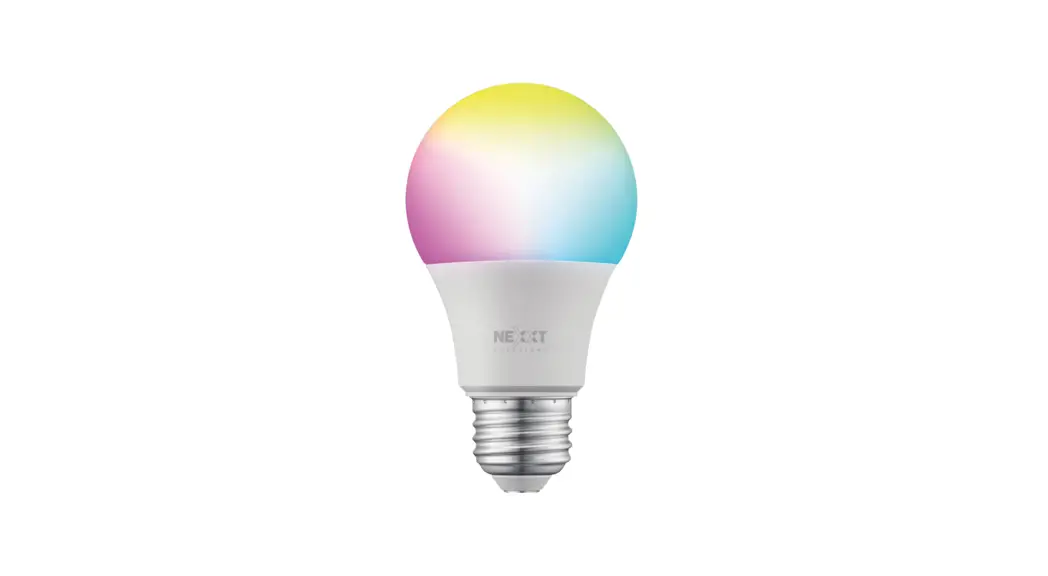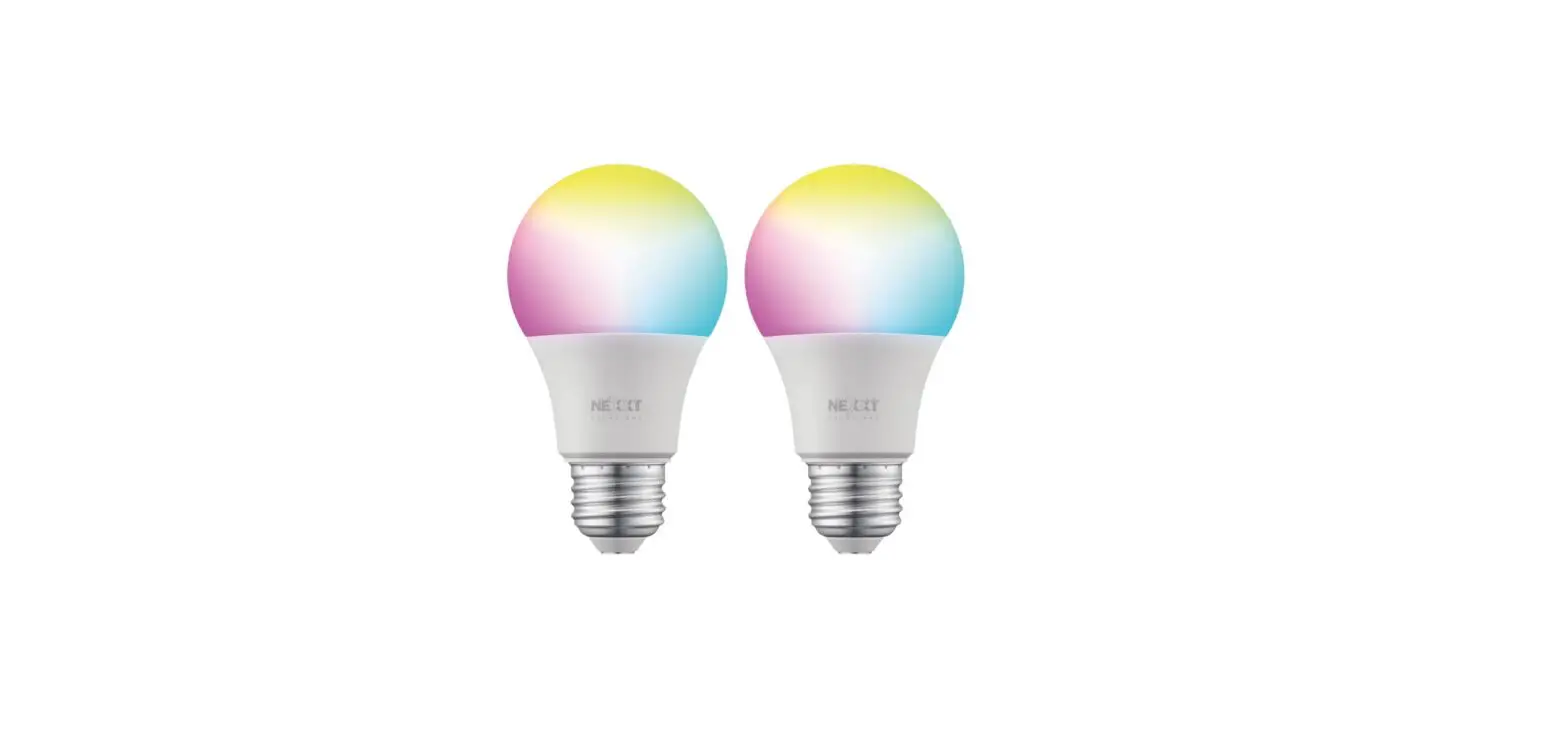
 NHB-W110 Smart Wi-Fi LED Tunable Bulb
User Guide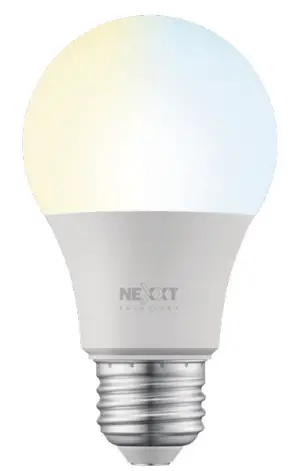
Thank you for purchasing the Smart Wi-Fi LED bulb from Nexxt Solutions. We are excited to be part of making your life easier, and safer and bringing peace of mind into your homes.
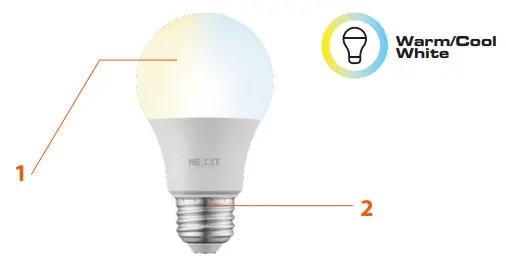
Product overview
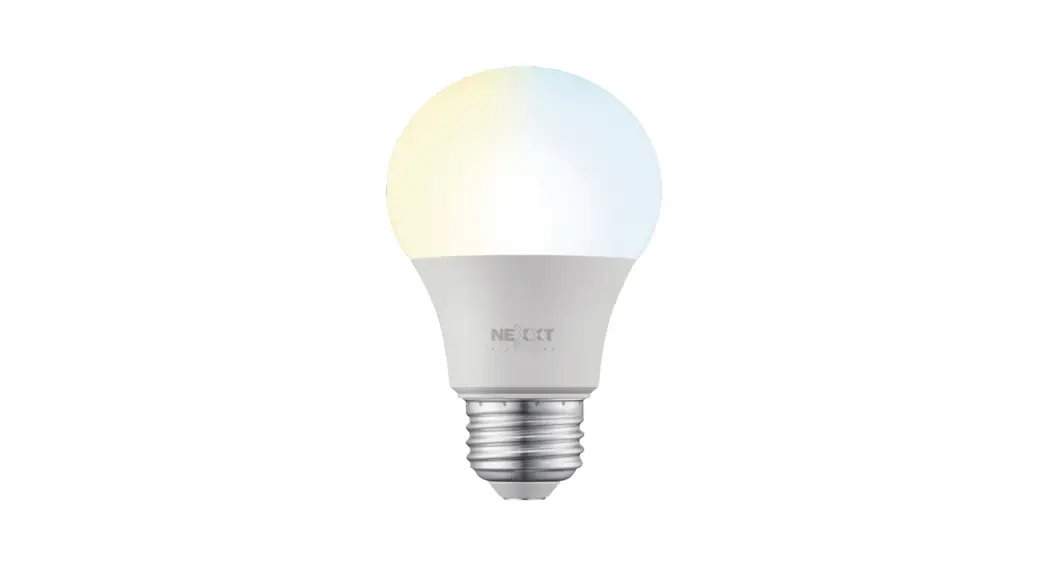
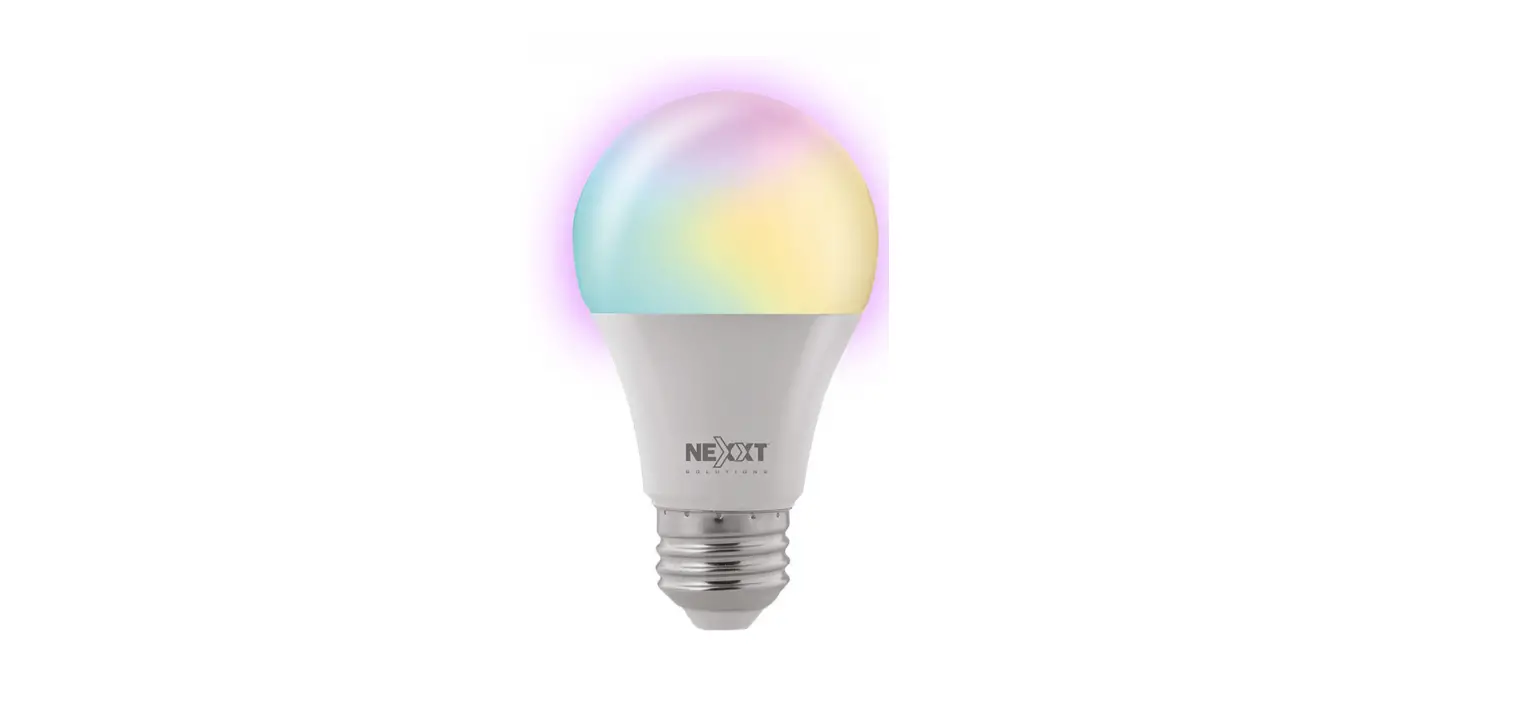
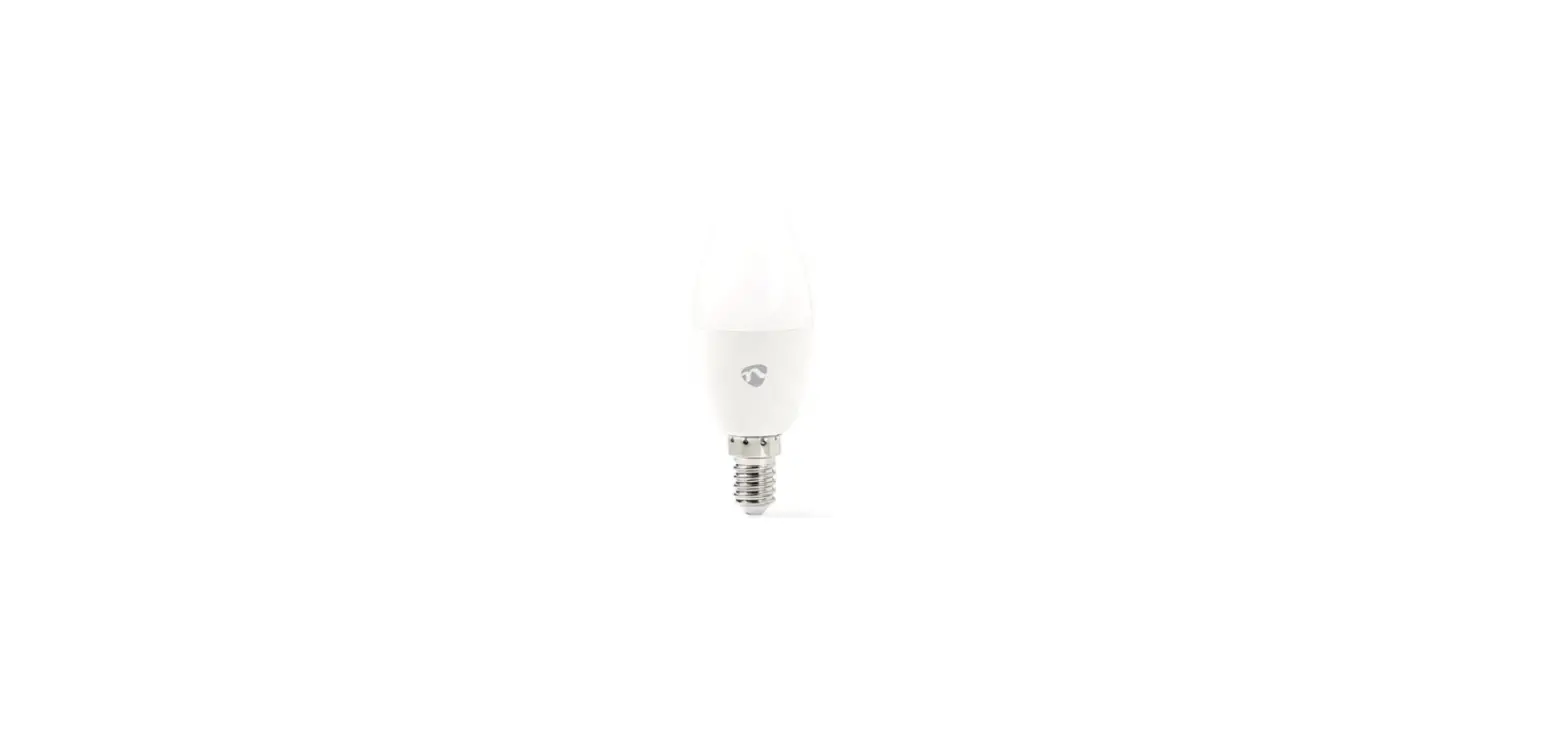
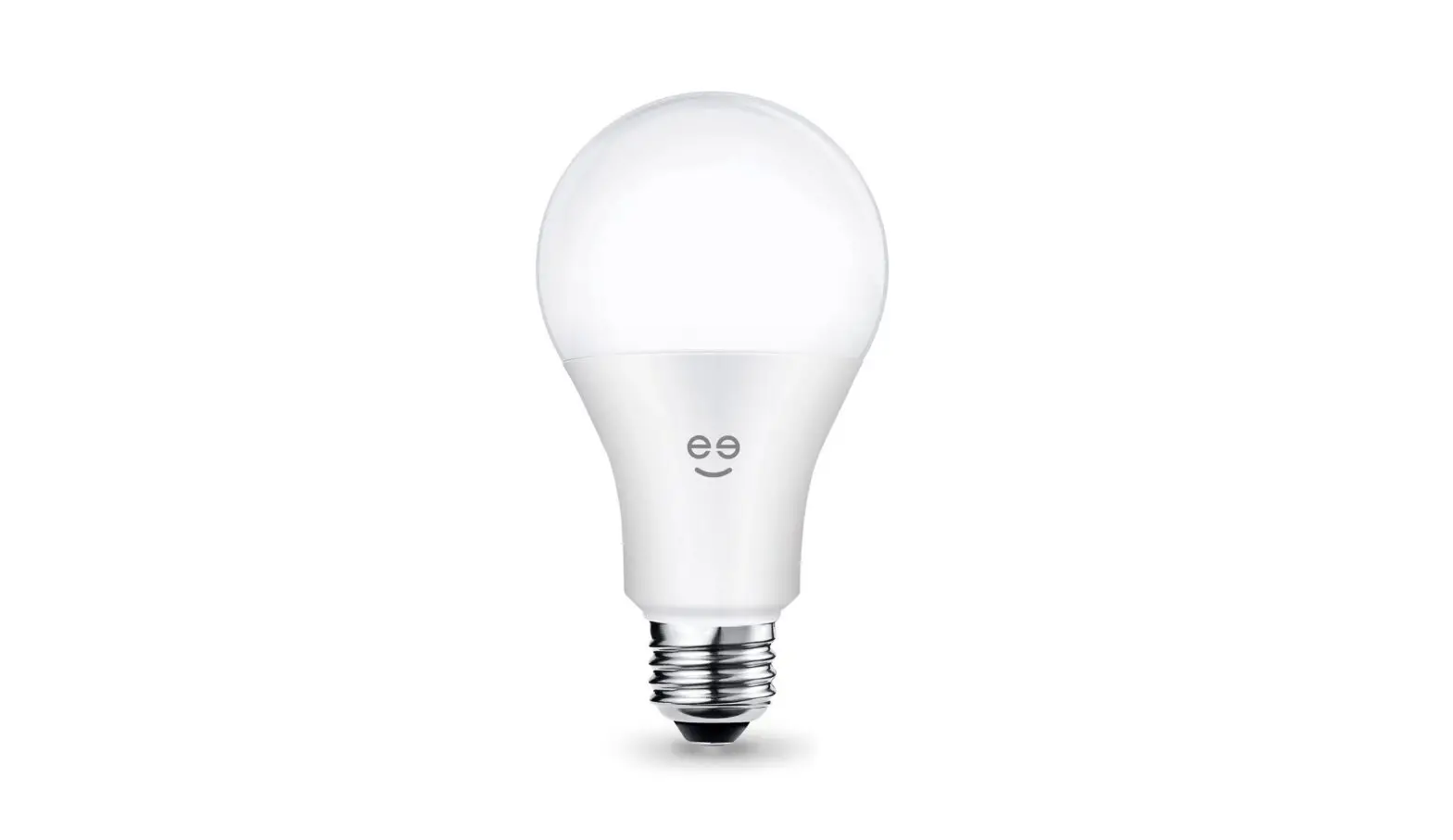
- LED: Displays the different shades of white according to your preferred settings through the application
- Screw base
Package content
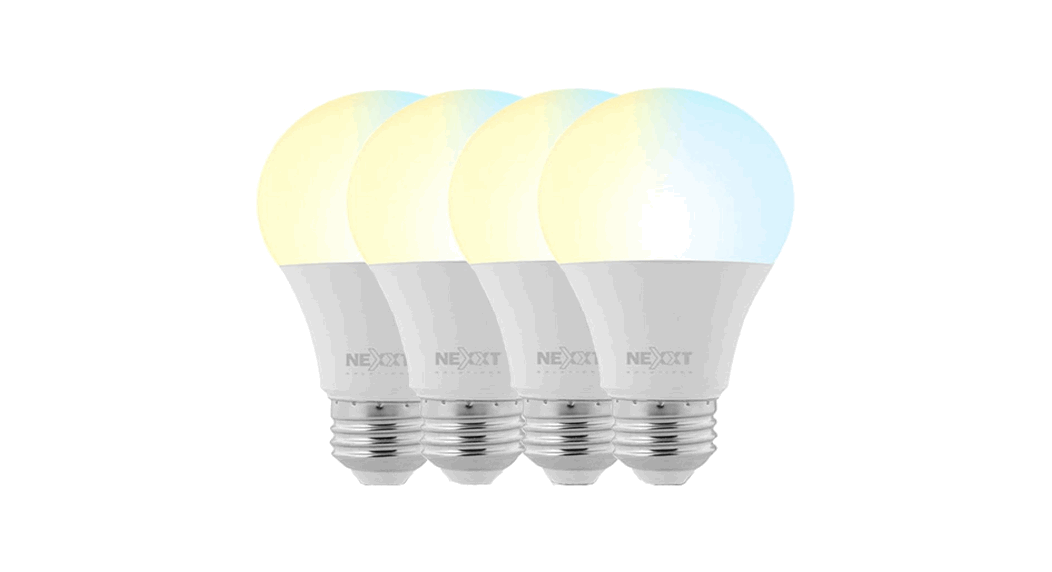
- Smart LED CCT bulb
- Quick start guide
Installing Nexxt Solutions Home App
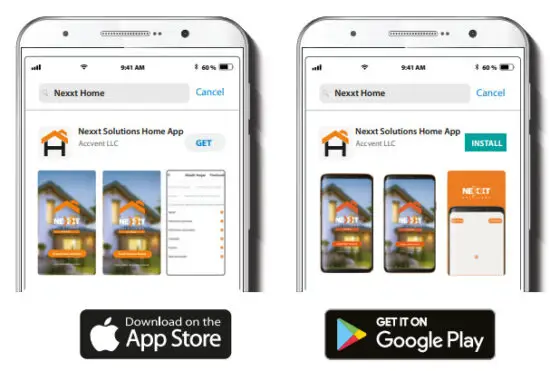
Download the Nexxt Home app from Google Play Store or Apple App Store.
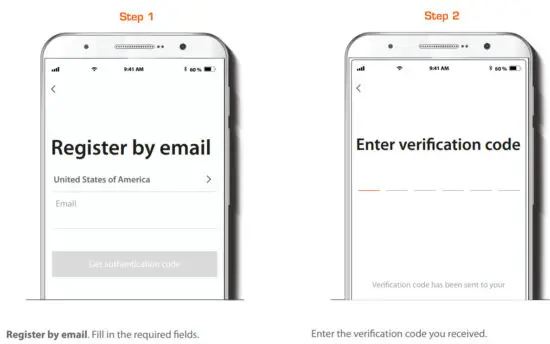
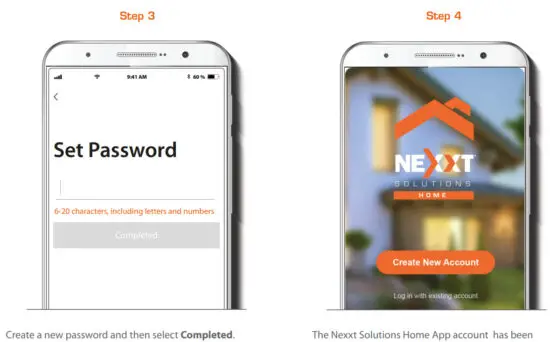
Bulb installation
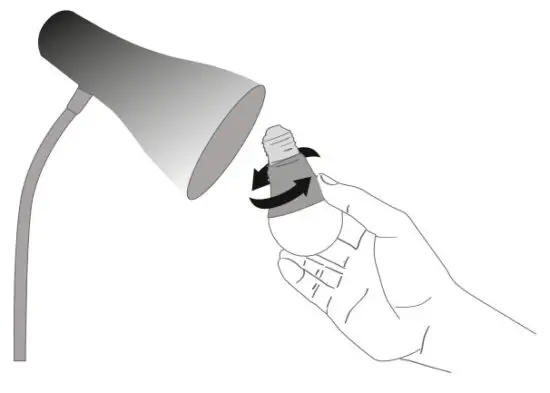
Screw in the Smart Wi-Fi LED color bulb to an E26/E27 socket.
Add device
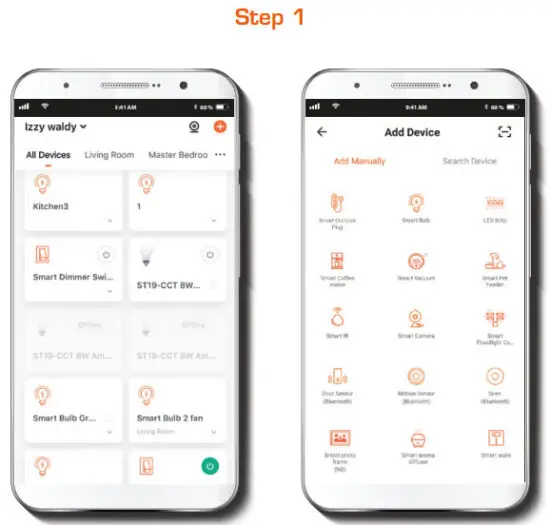 Select Add device, followed by the smart bulb.
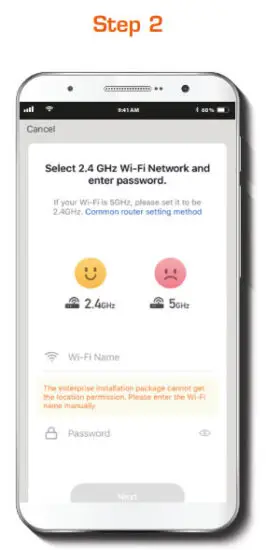
Power on the smart bulb. You must connect to a 2.4GHz Wi-Fi network. Enter your network password. Make sure you enter the correct password, otherwise the device will not connect.
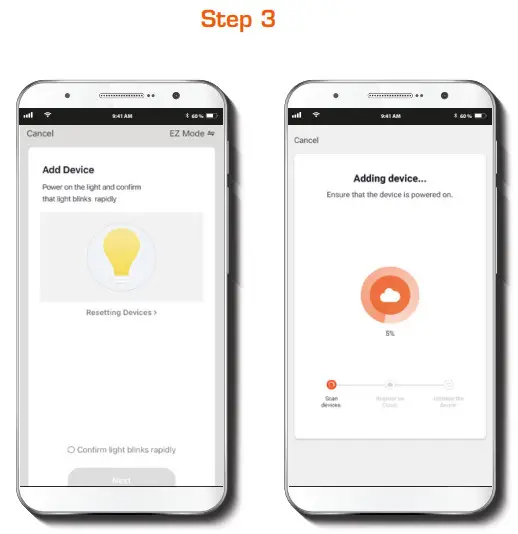
Make sure the bulb is blinking. If it fails to blink, reset the bulb. Turn it off from the switch, wait 5 seconds before turning it back on again. Tap on Confirm the light blinks rapidly.
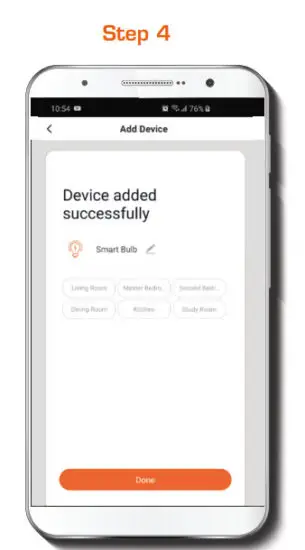
When Device added successfully is displayed, assign a location and click on Done.
Functions
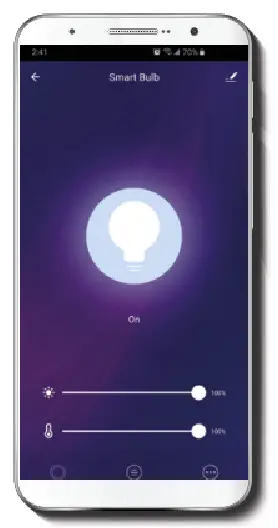
Bulb: Turns the bulb on and off.
White: Changes the brightness and white color temperature.
Scene: Gives you several preselected scenes and four scenes you can configure.
Schedule: This allows you to add a time and day schedule for the device to turn on or off.
Schedule setup
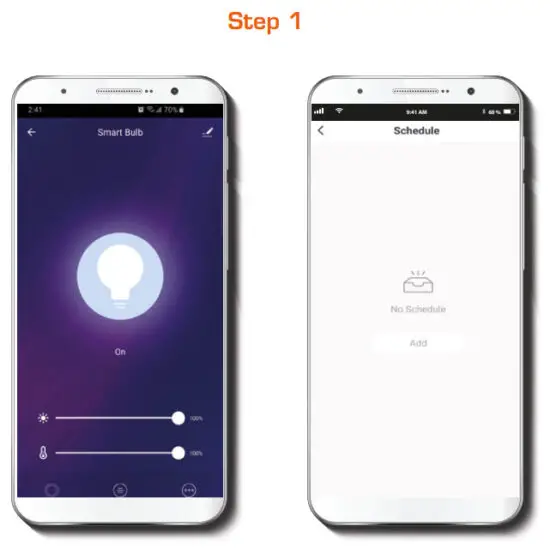
Click on the schedule icon to access the Add schedule screen.
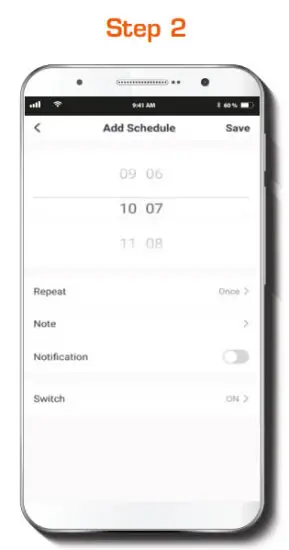
Set the time you wish to schedule. Select Repeat to set settings. Select Switch to schedule on/off status. Note and Notification-enable and disable the notification feature. Click on Save in the upper right-hand corner to save a schedule.
Delete setup
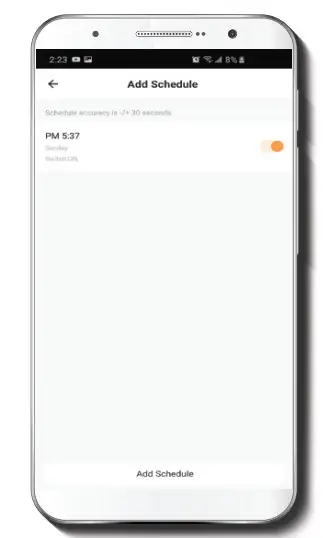
To remove a schedule on iOS, slide item to the left, and for Android, press and hold Schedule, followed by Delete.
Settings
Click on the pencil icon on the upper right-hand corner.
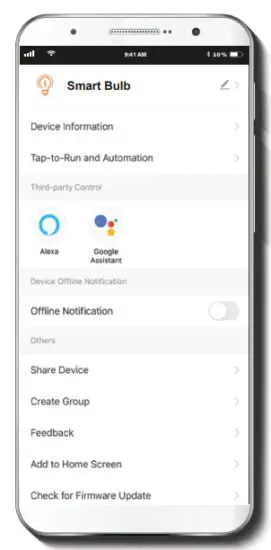
Device name: changes the icon and the name of the device, and it also allows the user to assign a difierent location.
Note: click on the pencil icon to access the device name menu.
Device information: displays detailed information related to the bulb.
Tap-To-Run and Automation: links the Wi-Fi bulb with other smart products to automatically control them through a customized command.
Third-party control: enables the voice recognition feature through Alexa and Google Assistant.
Offline notification: provides a selection button to enable/ disable this feature.
Share device: allows sharing the Wi-Fi bulb with family and friends.
Create group: makes management of devices easier by selecting and arranging multiple components under a single group.
Feedback: let us know if you have any issues setting up the product.
Add home screen: adds a shortcut of the device to the main screen on your phone.
Check for a firmware update: we will sometimes add new features or provide updates with a new firmware upgrade.
Remove device: This allows you to unbind the device from the Nexxt Home Account
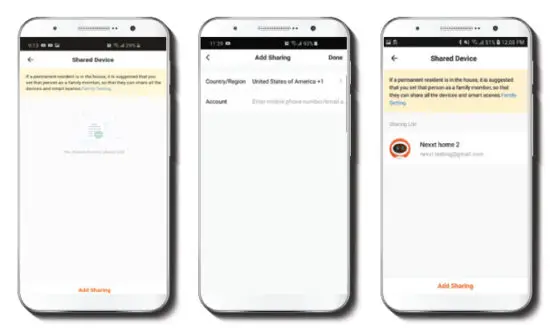
Click on Share devices then tap Add sharing. Enter the mobile number/e-mail address of family and friends (phone, US only). Tap on Done. The newly configured users will now have access to your smart bulb.
Note: family or friends will need their own Nexxt Solutions Home Account to access the device.
Delete user
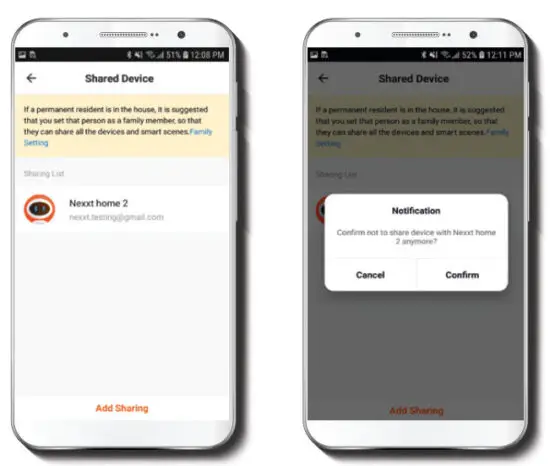
To remove a user, on Android press and hold the name you want to eliminate. On the iOs slide to the left the user, you want to remove. Click on Delete. A notification confirming you don’t want to share the device with this user will be displayed. Click on Confirm.
FCC ID: X4YHABUW110 (110V only)
Nexxt Solutions® is a registered trademark. All rights reserved.
Amazon, Alexa, and all related logos are trademarks of Amazon.com, Inc. or its affiliates. Google, Android y Google Play are trademarks of Google Inc. All other brand names and trademarks are the property of their respective owners. Made in China.
Smart Wi-Fi LED
Tunable white bulb