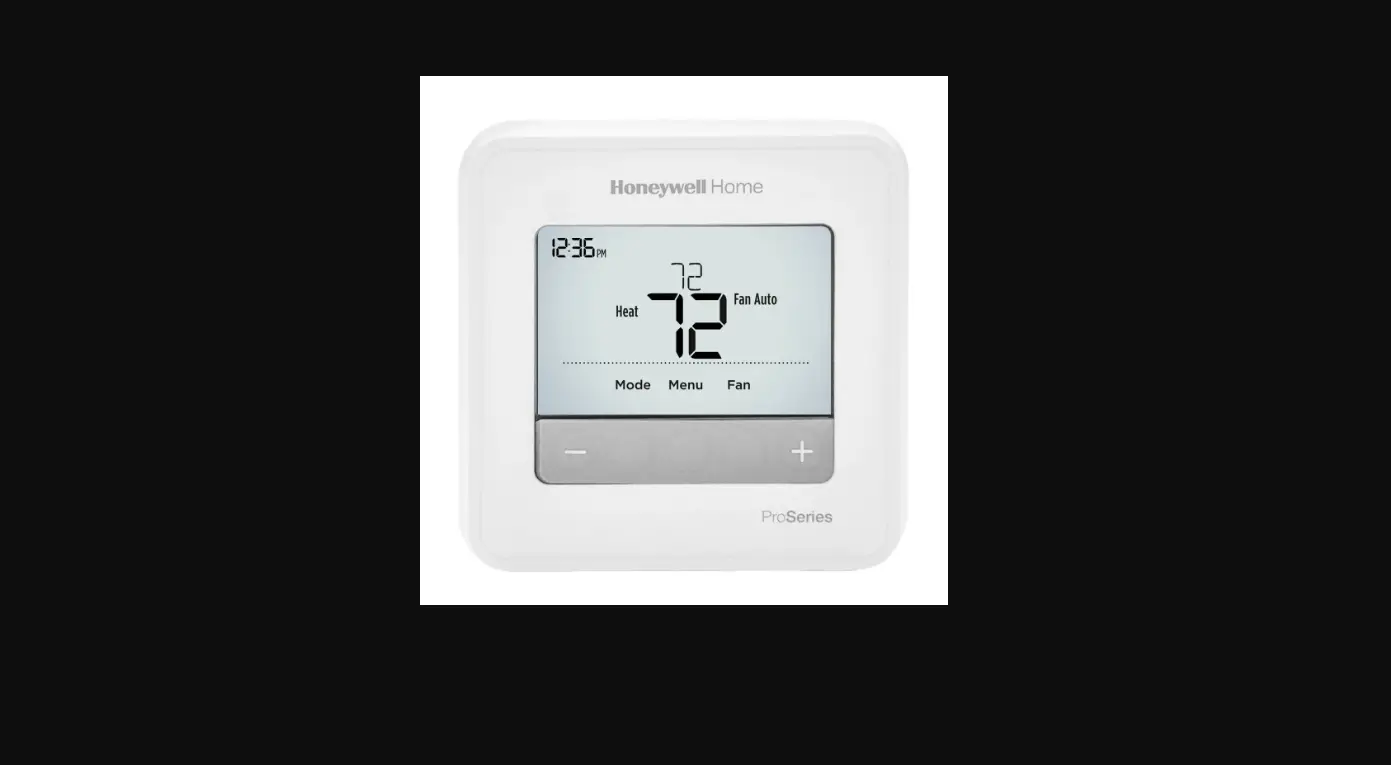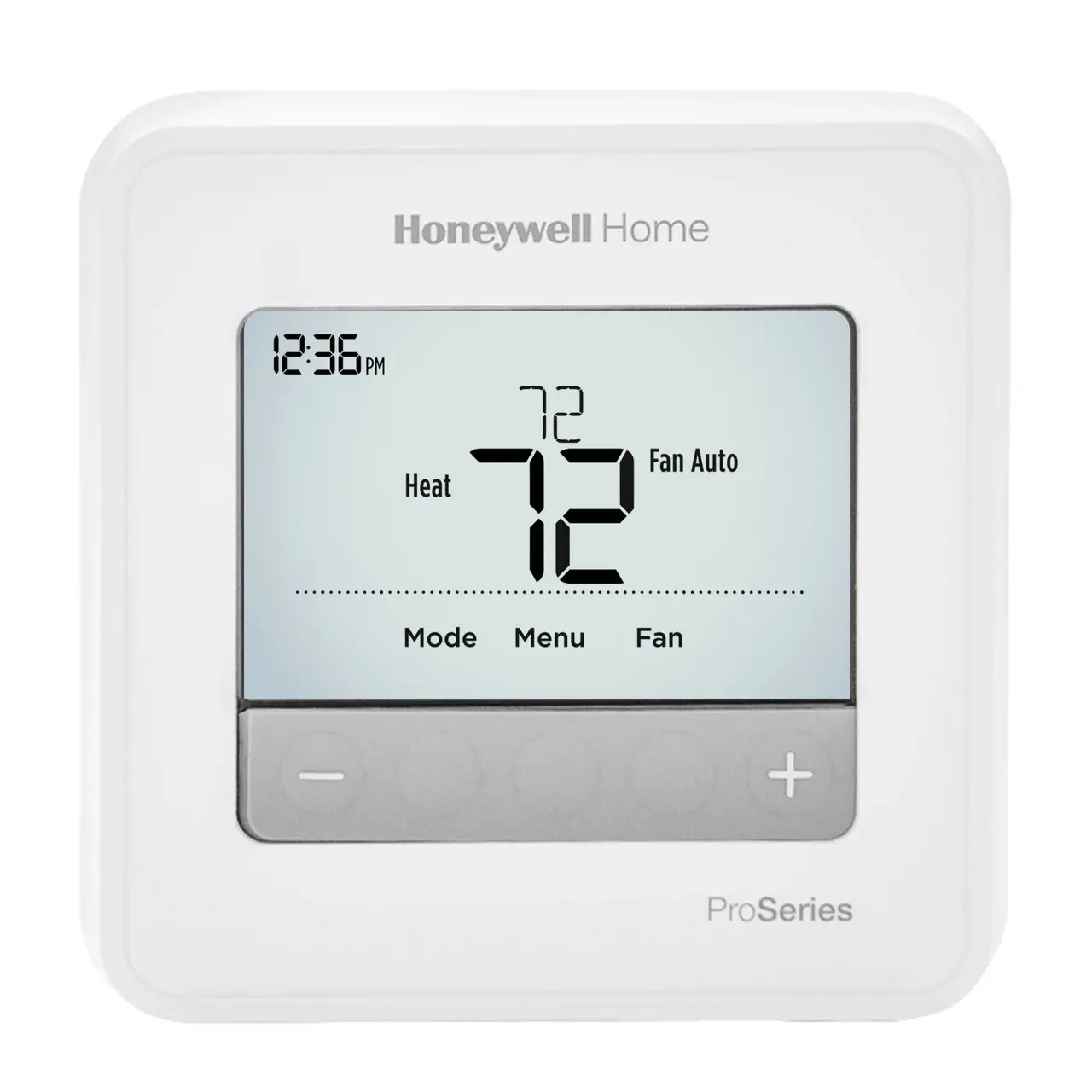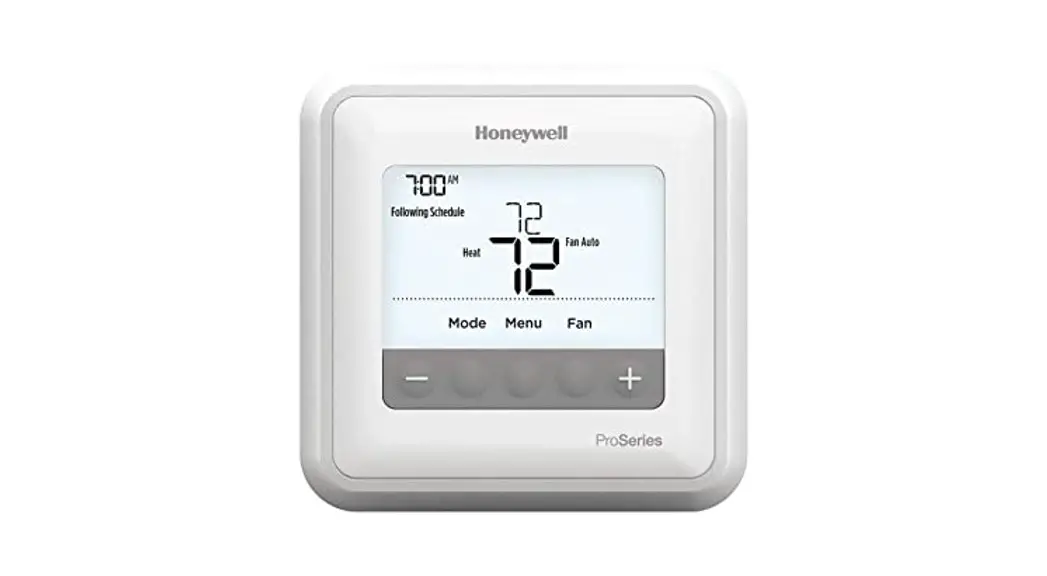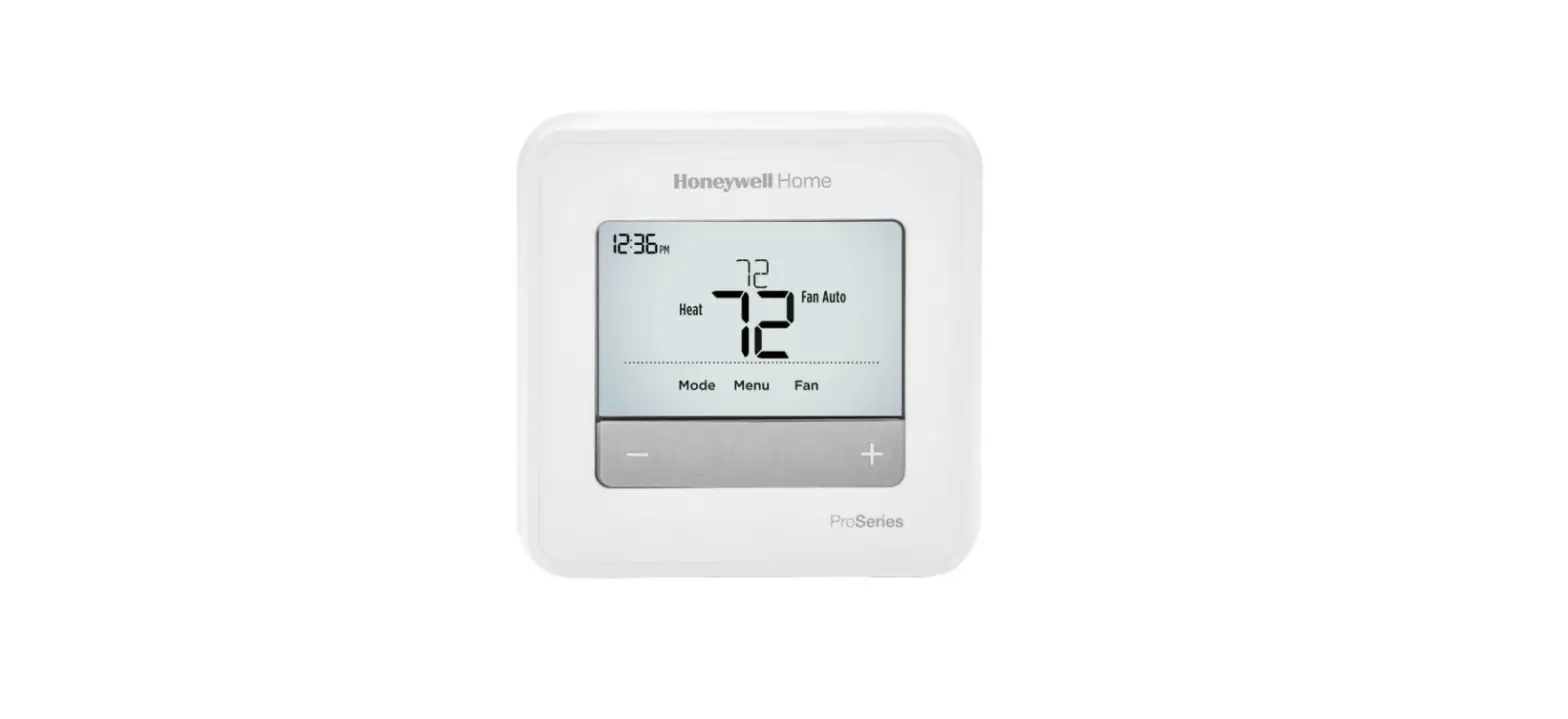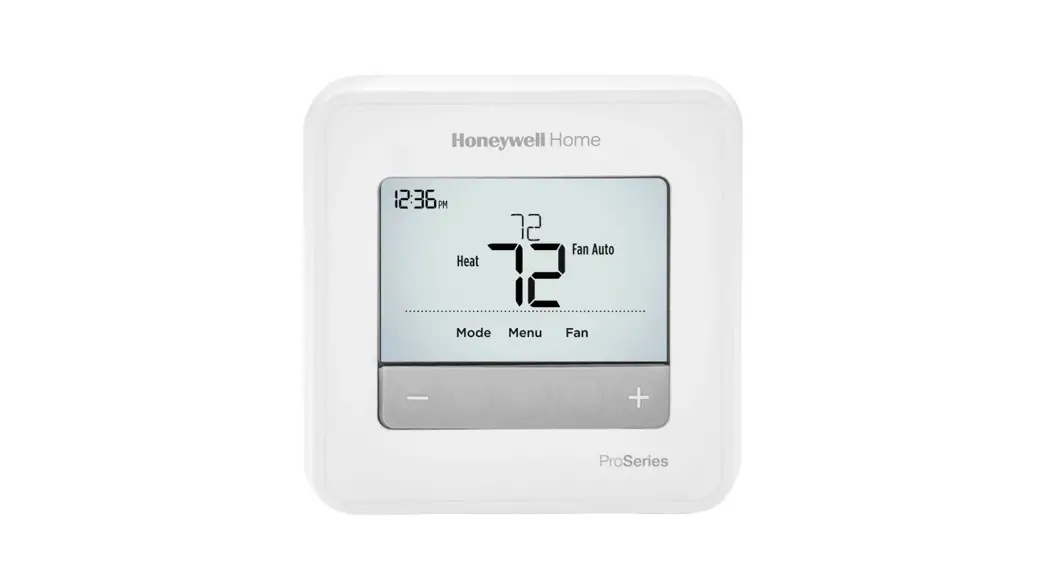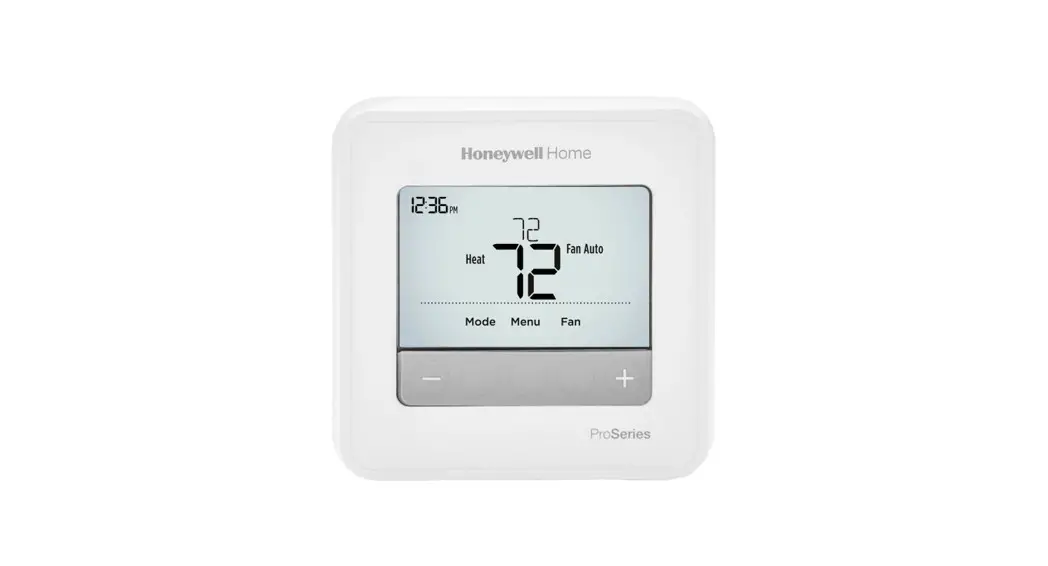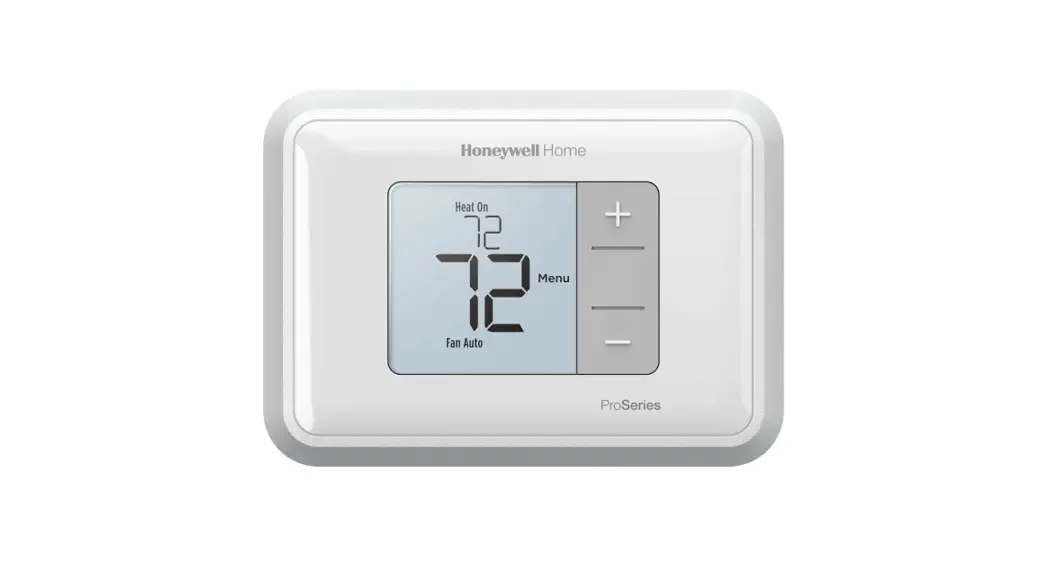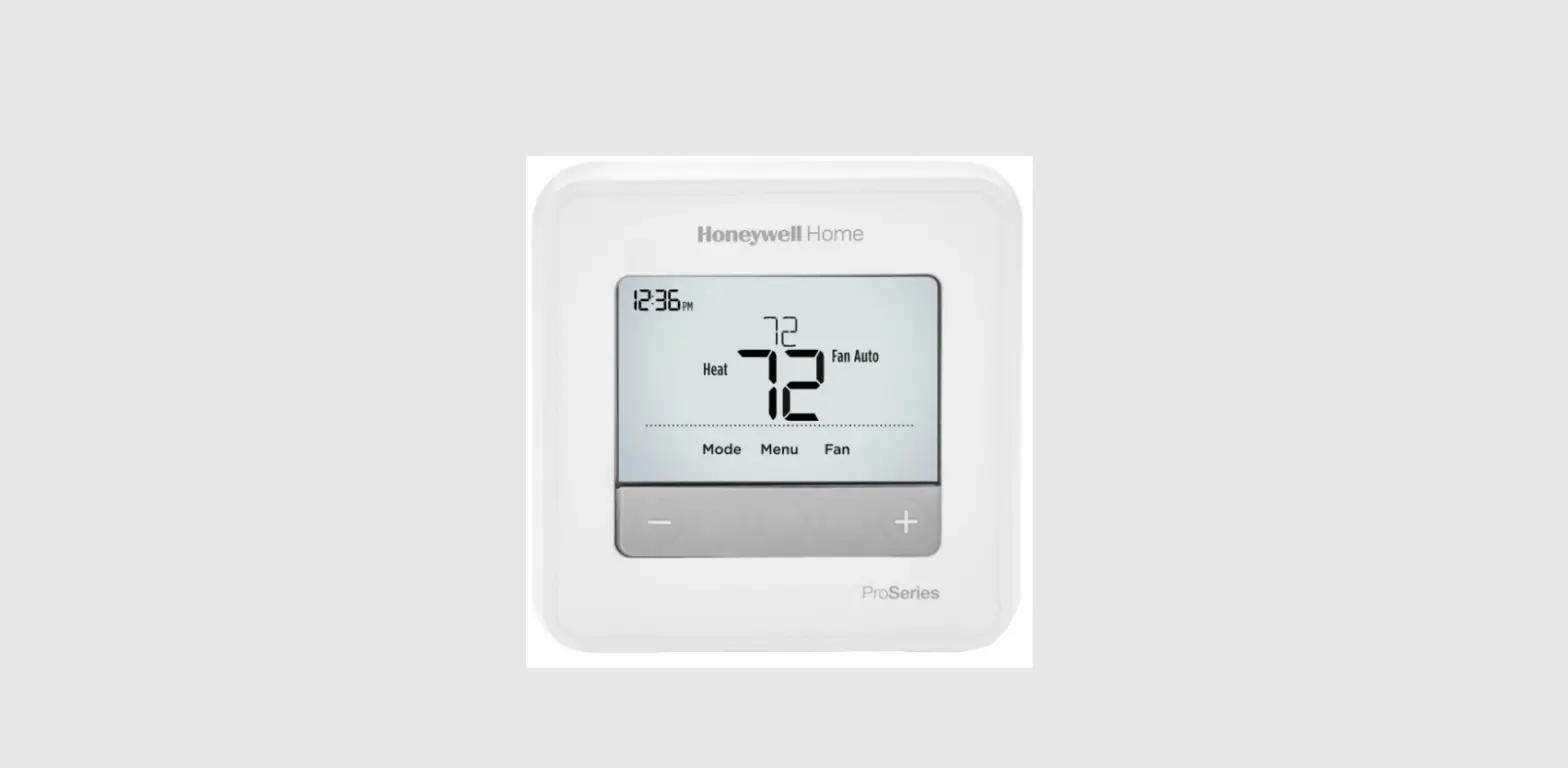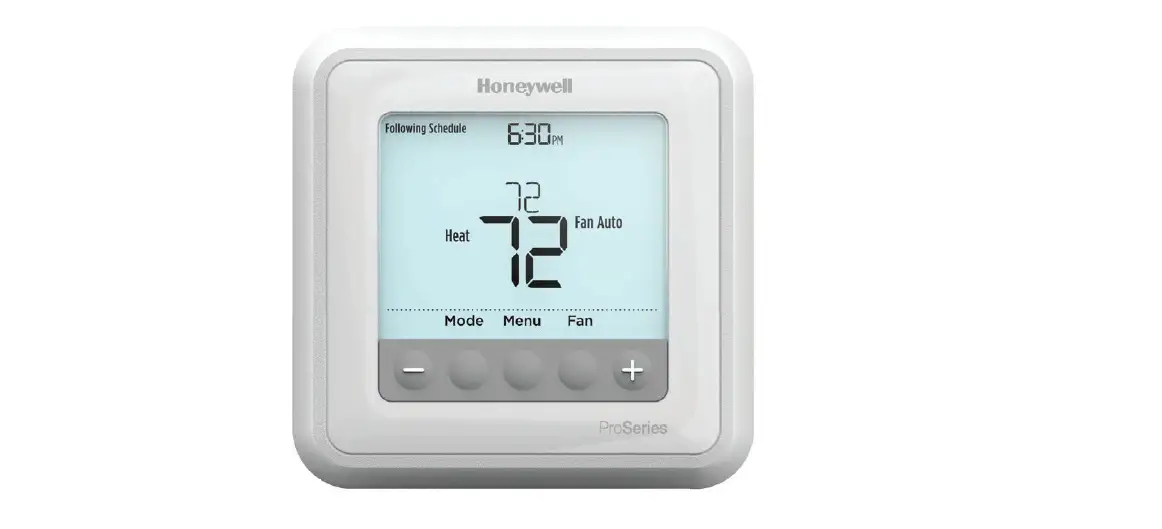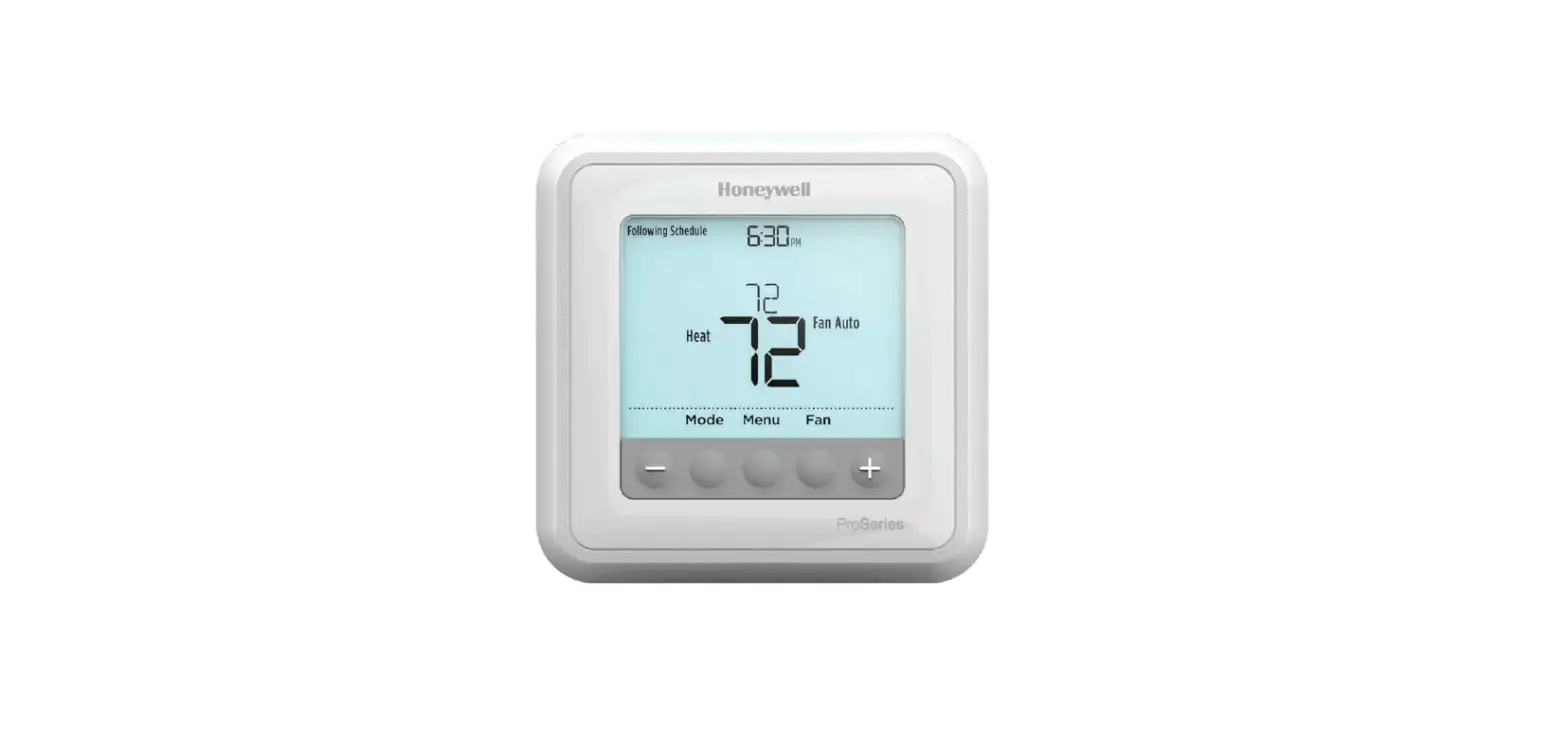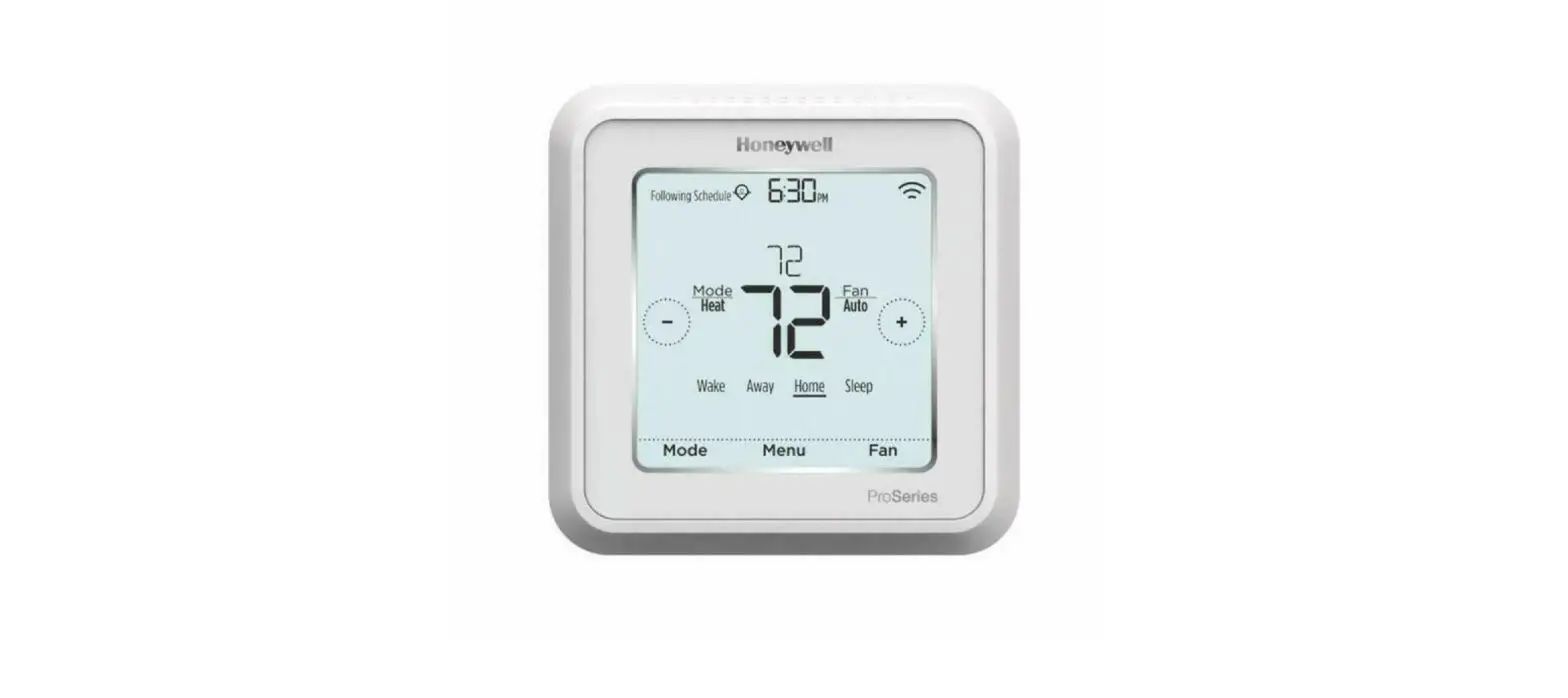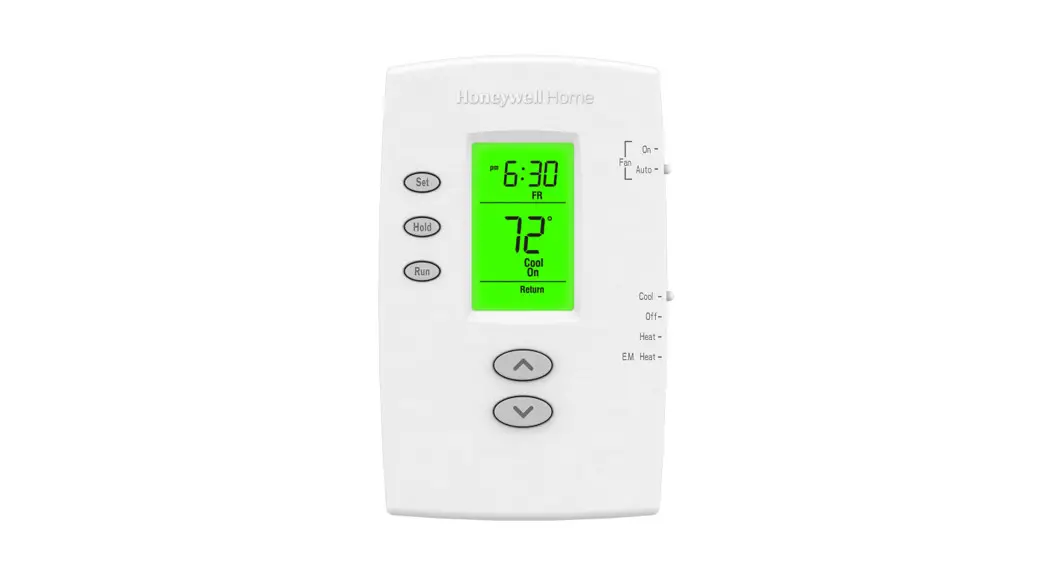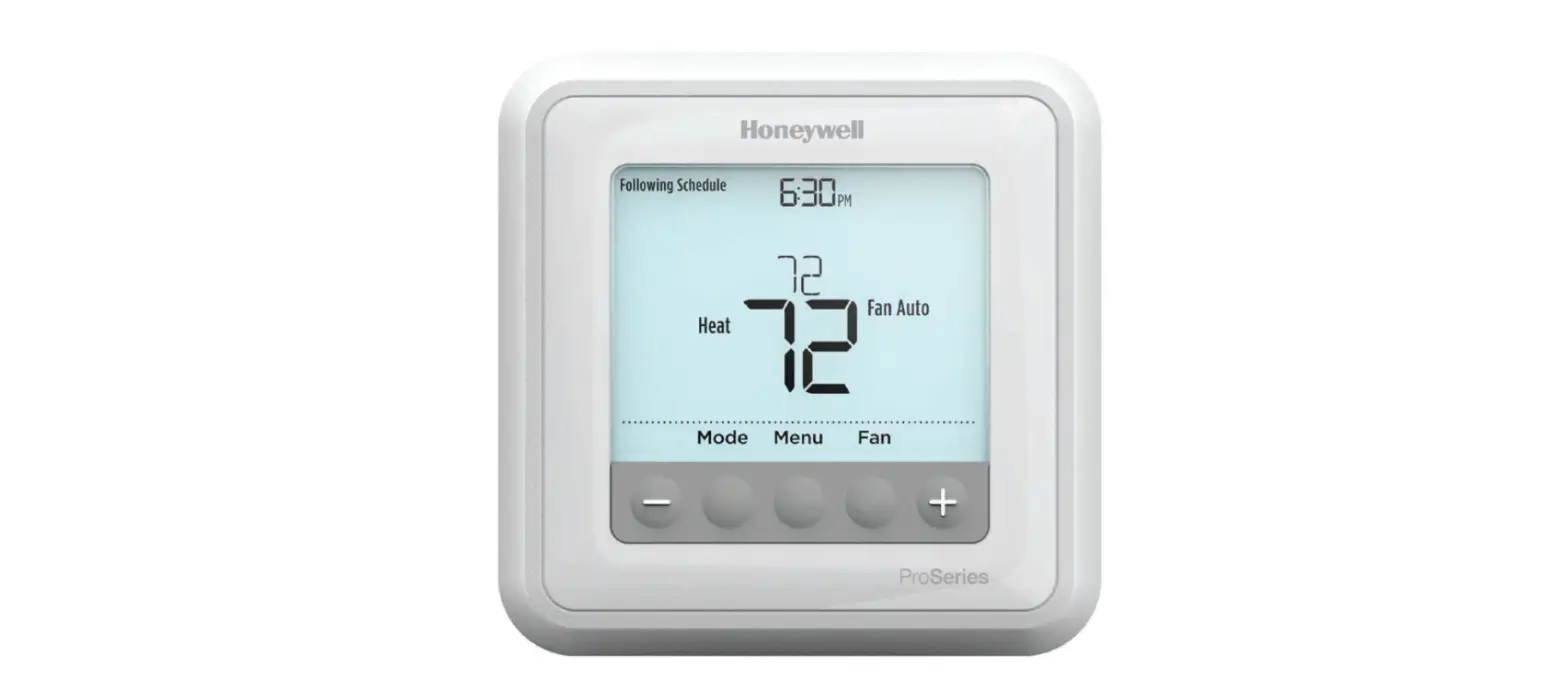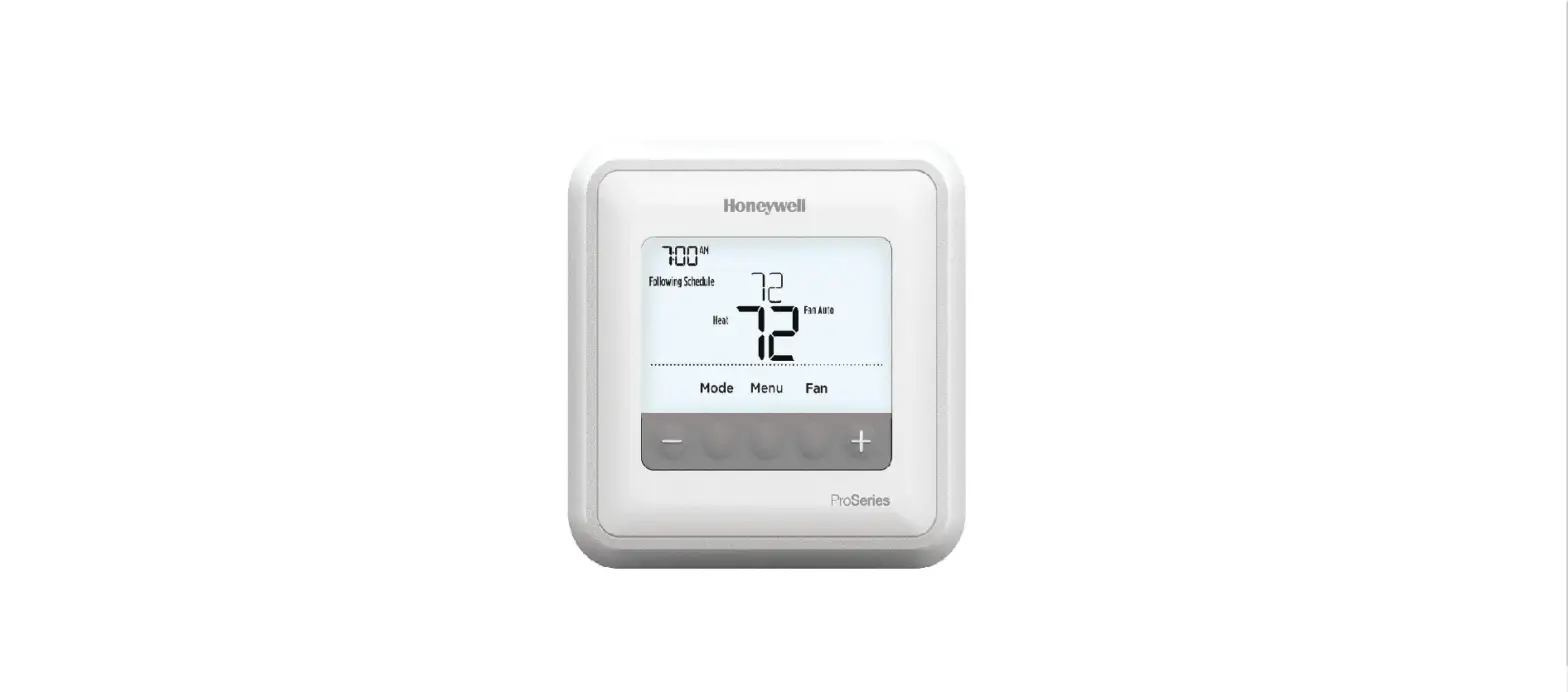

Honeywell Home T4 Pro Programmable Thermostat
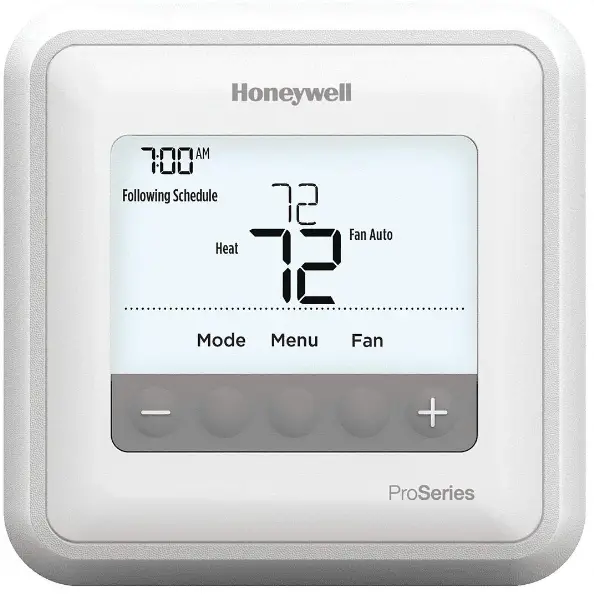
Package Includes:
- T4 Pro Thermostat
- UWP™ Mounting System
- Decorative Cover Plate
- Screws and Anchors
- 2 AA Batteries
- Thermostat Literature

Read before installing
Thermostat controls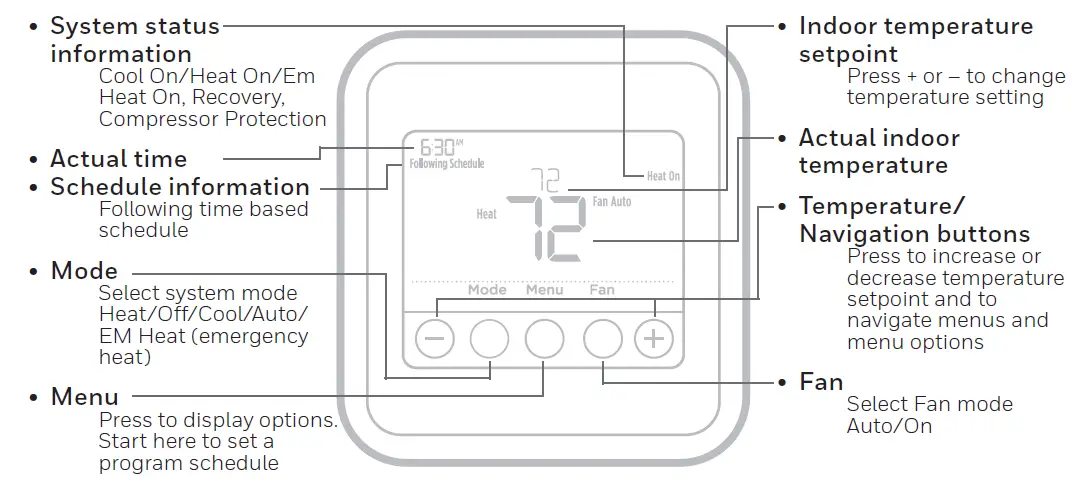
The screen will wake up by pressing any of the five buttons. If powered by the C wire, the screen stays lit for 45 seconds after you complete changes. If powered by battery only, the screen stays lit for 8 seconds. Depending on how your thermostat was installed, the screen light may always be on.
Customer Assistance
For assistance with this product, please visit Honeywellhome.com/support
System operation settings
- Press the Mode button to cycle to the next available System mode.
- Cycle through the modes until the required System mode is displayed and leave it to activate.
NOTE: Available System modes vary by model and system settings.
System modes:- Auto
- Heat
- Cool
- Off
- Em. Heat (TH4210U only)
Fan operation settings
- Press the Fan button to cycle to the next available Fan mode.
- Cycle through the modes until the required Fan mode is displayed and leave it to activate.
NOTE: Available Fan modes vary with system settings.
Fan modes:- Auto: The fan runs only when the heating or cooling system is on.
- On: Fan is always on.

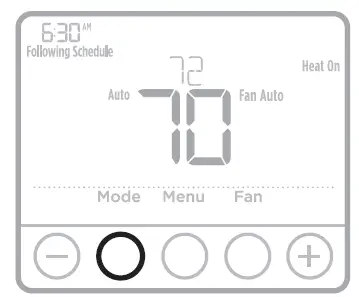
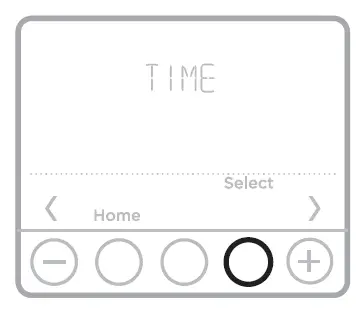
Set the time and date Time
- Press Menu, and then press
 to go to TIME.
Press Select. - Press
 or to choose between 12 or 24 hours.
 - Press Select.
- Use to adjust the hour. Press Select.
- Use to adjust the minutes. Press Select to exit the Time menu.

 to go to TIME.
 or to choose between 12 or 24 hours.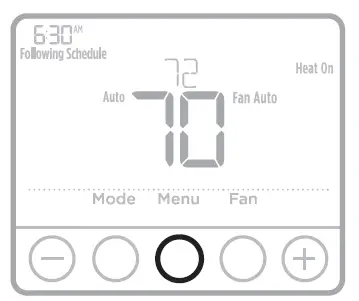
Date
- If previously set time, continue to Step
- If at the Home screen, press Menu on your thermostat.
Press to go to DATE. Press Select. - Use to adjust the year. Press Select.
- Use the to adjust month. Press Select. 5 Use the or to adjust the Date. Press Select to save and exit Date menu.

Program Schedule
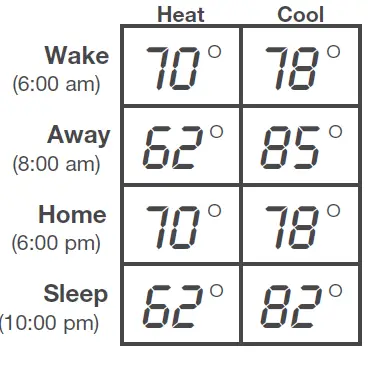
You can program four time periods each day, with different settings for weekdays and weekends. We recommend the pre-sets (shown in the table below), since they can reduce your heating/cooling expenses.
- Wake – Set to the time you wake up and the temperature you want during the morning, until you leave for the day.
- Away – Set to the time you leave home and the temperature you want while you are away (usually an energy-saving level).
- Home – Set to the time you return home and the temperature you want during the evening, until bedtime.
- Sleep – Set to the time you go to bed and the temperature you want overnight (usually an energy-saving level).
NOTE: To temporarily or permanently override any of the above program schedules, see page 4.
To adjust program schedules
- Press Menu on your thermostat.
- PROG is displayed. Press Select. Then ON is displayed. (If you do not want to use a schedule, press to display OFF. Press Select.) Press Select.
- Pressto selects a day or set of days to edit. Press Select.
- Pressto selects a scheduled period to edit (Wake, Away, Home, and Sleep). Press Select.
- ON is displayed. Press Select to keep the schedule period on. Or press and then Select to turn off the schedule period.
- Time starts blinking. Pressto adjusts the scheduled period start time. Press Select.
- The temperature starts blinking. Pressto adjusts the “Heat” setpoint temperature. Press Select. Press or to adjust the “Cool” temperature setpoint. Press Select.
- Repeat steps 4 through 7 for the remaining scheduled periods.
- Press Home when you’re finished to save and return to the home screen.
- The schedule can be adjusted and turned ON or OFF by returning to Menu and following the steps provided above.

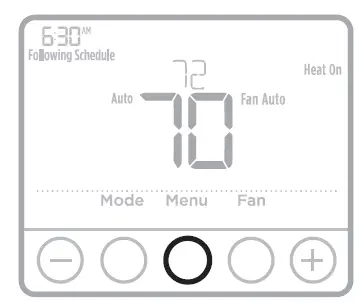
Program schedule override (temporary)
- Press to adjust the temperature.
- Once at the desired setpoint temperature, no further action is needed. The new setpoint temperature will be held until the next scheduled time period begins.
For more information on scheduled time periods, see “Program Schedule” on page 3. - To cancel the Temporary Hold, Press and then press Cancel.

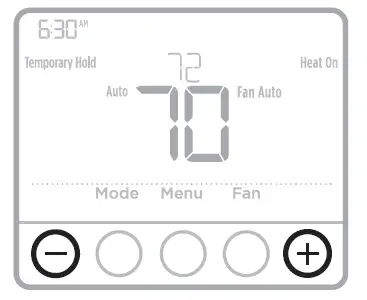
Program schedule override (permanent)
- Pressto adjusts the temperature.
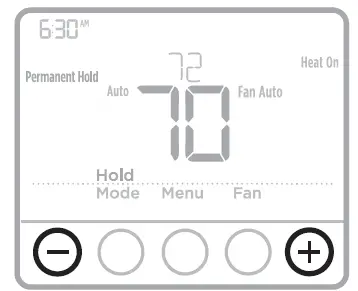
- TEMPORARY HOLD is displayed and the setpoint temperature flashes. While it’s flashing, press the Hold (Mode) button to change to Permanent Hold.
- To cancel the Permanent Hold, press or and then press Cancel.

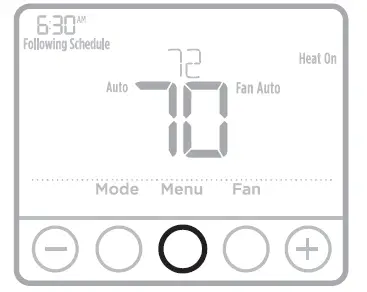
Setting degrees Fahrenheit (F) or Celcius (C)
- Press Menu.
- Press to go to F / C. Press Select.
- Press for F or C. Then press Select.
- Press Select to save and exit F / C menu.

Adjusting keypad lockout
- Press Menu on the thermostat.
- Press to go to LOCK. Press Select.
- Press to go to OFF, PART, or ON, and then press Select.
- OFF: Unlocked, and full access allowed.
- PART: Partial lockout, allowing only the temperature to be changed.
- ON: No access allowed.
- To unlock the keypad, press the CENTER button and then enter the password “1234”. To enter the password, press to change the first digit of the number. Then press Select. Repeat this process to enter the second through fourth digits of the number. Once all four numbers have been entered, press Select again.
- This will unlock the keypad.
- If the code is incorrect, the screen will flash the lines “–“.
- Press Back to go back a step to enter the correct number and press Select.
NOTE: On some models, the keypad lockout setting is only available in the installer menu and not available in the user menu.
Adjusting idle backlight display brightness
- Press Menu on the thermostat.
- Press to go to LITE. Press Select.
- The current brightness setting is displayed (1-5).
- Press to adjust the backlight brightness.
- Press Select to save and exit the LITE menu.
NOTE: The backlight is only displayed if the C (common) wire is connected.
Adaptive Intelligent Recovery
Over time, the T4 Pro Thermostat “learns” how long it takes your system to reach the temperature you want. It turns on the heating or cooling system earlier to make sure you’re comfortable at the time you expect.
Built-in compressor protection
Damage can occur if the compressor is restarted too soon after shutdown. This feature forces the compressor to wait for a few minutes before restarting.
During the wait time, the display will flash the message Cool On (or Heat On if you have a heat pump). When the safe wait time has elapsed, the message stops flashing and the compressor turns on.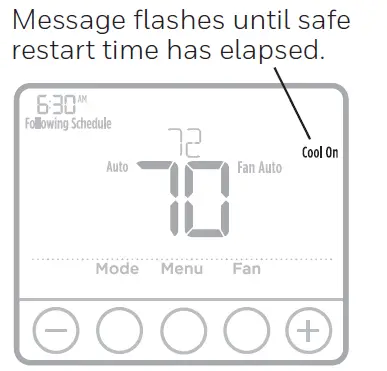
Battery replacement
Batteries are optional (to provide backup power) if your thermostat was wired to run on AC power when installed. If your thermostat was not wired to run on AC power, then batteries are required.
Install fresh batteries immediately when the low battery icon appears. The icon appears about two months before the batteries are depleted.
Even if the low battery icon does not appear, you should replace batteries once a year, or before leaving home for more than a month.
If batteries are inserted within two minutes, the time and day will not have to be reset. All other settings are permanently stored in memory and do not require battery power.
NOTE: When replacing batteries, alkaline batteries are recommended.
When the low battery warning appears, press gently to loosen the thermostat and then carefully pull it from the wall mount.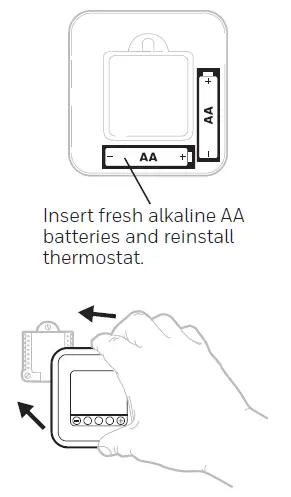
Alerts
If there is an alert or reminder, the alert icon appears on the Home screen.
Low Battery Warning
- The batteries need to be replaced when BATT, the alert icon
 , and the battery icon are displayed on the Home screen.
 - When the battery power is very low, the thermostat’s backlight is disabled to save battery power.
- When battery power is critically low, only BATT, the alert icon, and the battery icon are displayed.

 , and the battery icon are displayed on the Home screen.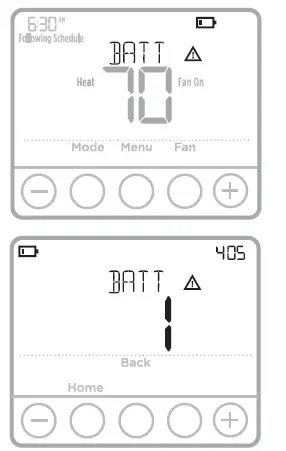
Air Filter Reminder
- The alert icon appears on the Home screen.
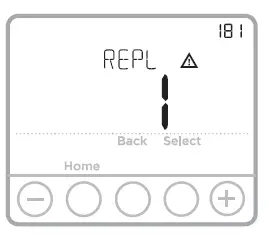
- Press Menu, and then press until display shows ALRT.
- Press Select to display which alert(s) are present.
- The message REPL (REPLACE AIR FILTER) appears.
- The remainder can be snoozed or cleared. Resideo recommends changing the air filter before clearing the reminder.
- To snooze, press Select. The word SNZE (SNOOZE) appears.
- Press Select again to snooze the reminder for 7 days.
- To clear, press Select, and then press to go to CLER (Clear).
- Press Select to clear the air filter reminder.

Snoozing and Clearing Alerts or Reminders*
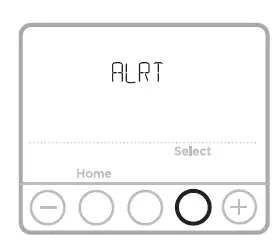
- Press Menu, and then press until the display shows ALRT.
- Press Select to display which alert(s) are present.
- The word SNZE (SNOOZE) appears.
- Press Select again to snooze the reminder for 7 days.
- To clear the alert, press Select, and then press to go to CLER (Clear).
- Press Select to clear the reminder.
* Some alerts cannot be snoozed or cleared. Please call your local heating and cooling professional if this occurs. The heating and cooling system may require service.
Troubleshooting
If you have difficulty with your thermostat, please try the following suggestions. Most problems can be corrected quickly and easily.
- Display is blank
- Check the circuit breaker and reset if necessary.
- Make sure the power switch for the heating & cooling system is on.
- Make sure the furnace door is closed securely.
- Make sure fresh AA alkaline batteries are correctly installed (see page 6).
- The heating or cooling system does not respond
- Press the Mode button to set system Heat (see page 2). Make sure the desired temperature is set higher than the inside temperature.
- Press the Mode button to set the system Cool (see page 2). Make sure the desired temperature is set lower than the inside temperature.
- Check the circuit breaker and reset if necessary.
- Make sure the power switch for the heating & cooling system is on.
- Make sure the furnace door is closed securely.
- Wait 5 minutes for the system to respond.
- Temperature settings do not change
- If the display says “unlock”; see page 5. If not, verify you are in the correct mode (heat, cool, em heat or auto); see page 2.
- If you are in the correct mode, but you cannot set the heat from 40 °F to 90 °F (4.5 °C to 32 °C), or set the cool from 50 °F to 99 °F (10 °C to 37 °C), you may have range-stops restricting your setting. Check with the installer to see if they set range stops.
- “Cool On” or “Heat On” is flashing
- The compressor protection feature is engaged. Wait 5 minutes for the system to restart safely, without damage to the compressor (see page 5).
Electrical Ratings
| Terminal | Voltage (50 Hz/60 Hz) | Running Current |
| W Heating | 20 Vac – 30 Vac | 0.02 A – 1.0 A |
| W2 (Aux) Heating (TH4210U only) | 20 Vac – 30 Vac | 0.02 A – 1.0 A |
| E Emergency Heat (TH4210U only) | 20 Vac – 30 Vac | 0.02 A – 0.5 A |
| Y Compressor Stage 1 | 20 Vac – 30 Vac | 0.02 A – 1.0 A |
| G Fan | 20 Vac – 30 Vac | 0.02 A – 0.5 A |
| O/B Changeover | 20 Vac – 30 Vac | 0.02 A – 0.5 A |
| L/A Input | 20 Vac – 30 Vac | 0.02 A – 0.5 A |
5-year limited warranty
For warranty information go to Honeywellhome.com/support
CAUTION: ELECTRICAL HAZARD
Can cause electrical shock or equipment damage. Disconnect power before beginning installation.
CAUTION: EQUIPMENT DAMAGE HAZARD
Compressor protection is bypassed during testing. To prevent equipment damage, avoid cycling the compressor quickly.
CAUTION: MERCURY NOTICE
If this product is replacing a control that contains mercury in a sealed tube, do not place the old control in the trash. Contact your local waste management authority for instructions regarding recycling and proper disposal.
CAUTION: ELECTRONIC WASTE NOTICE
The product should not be disposed of with other household waste. Check for the nearest authorized collection centers or authorized recyclers.
The correct disposal of end-of-life equipment will help prevent negative consequences for the environment and human health.
FCC statement at:
https://customer.resideo.com/en-US/support/residential/codes-and-standards/FCC15105/Pages/default.aspx
Resideo Technologies Inc.
1985 Douglas Drive North, Golden Valley, MN 55422 https://www.honeywellhome.com/support
33-00188EFS—09 M.S. Rev. 08-20 | Printed in the United States
2020 Resideo Technologies, Inc. All rights reserved. The Honeywell Home trademark is used under license from Honeywell International, Inc. This product is manufactured by Resideo Technologies, Inc. and its affiliates.