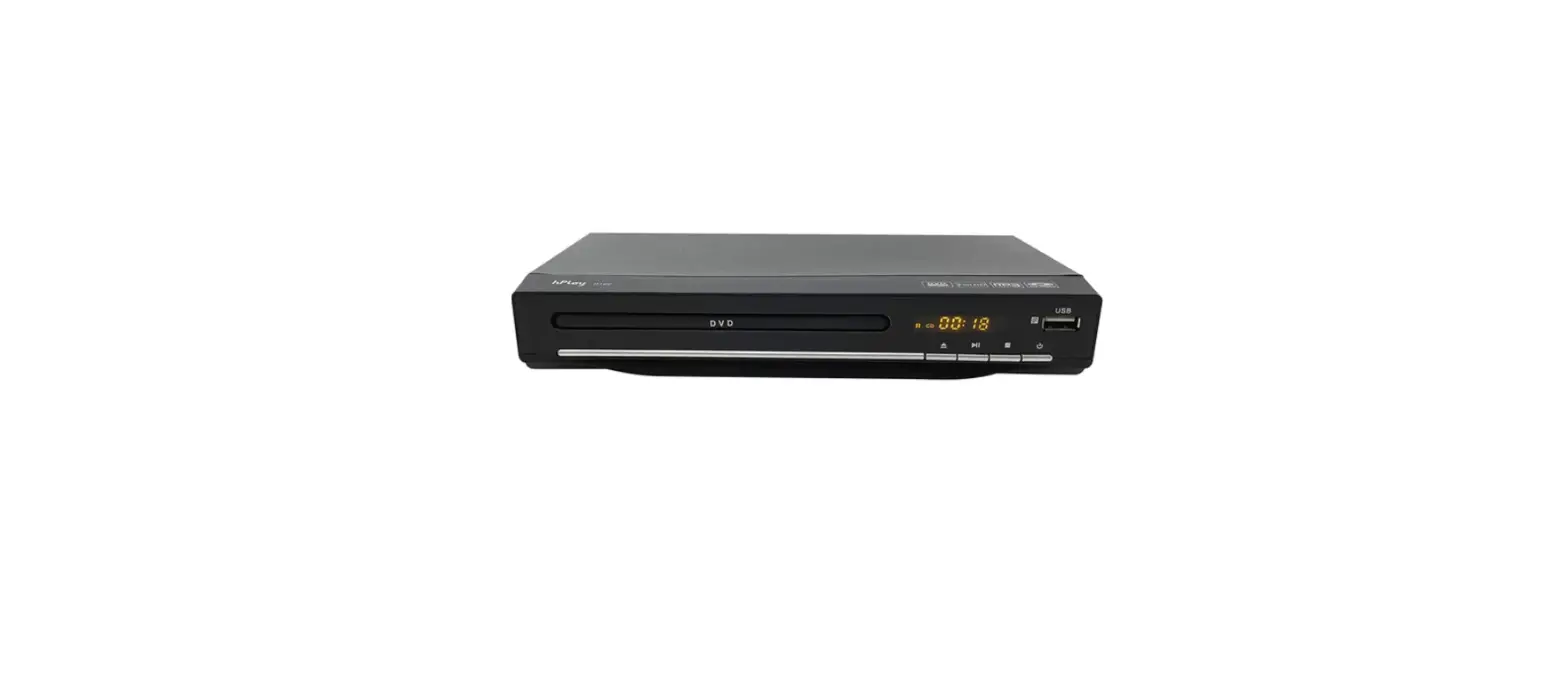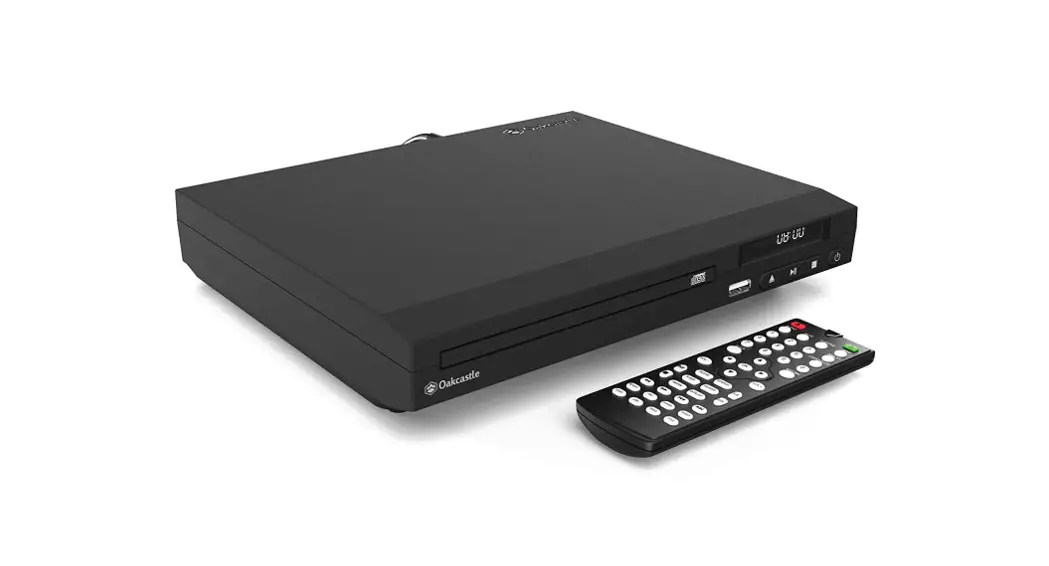
 User Manual
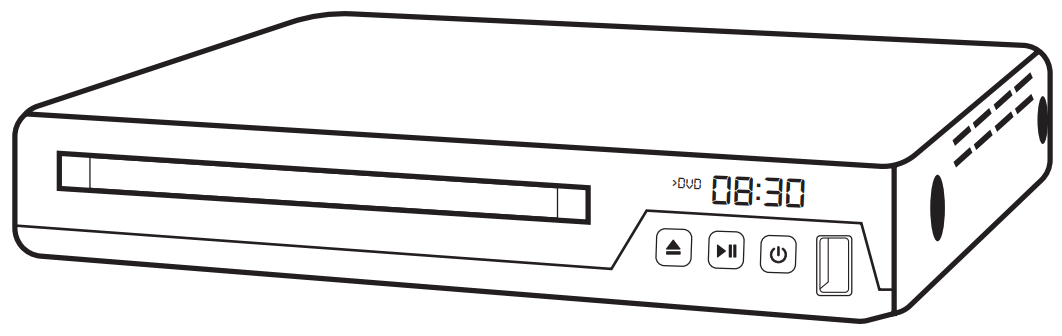
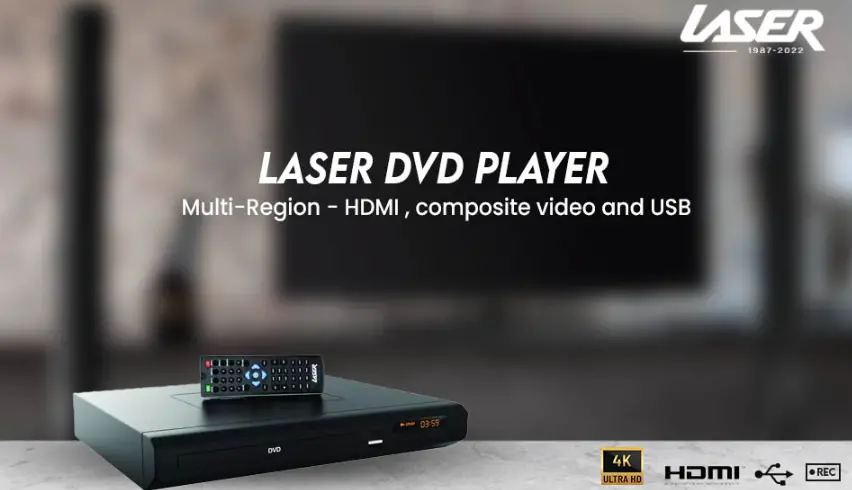
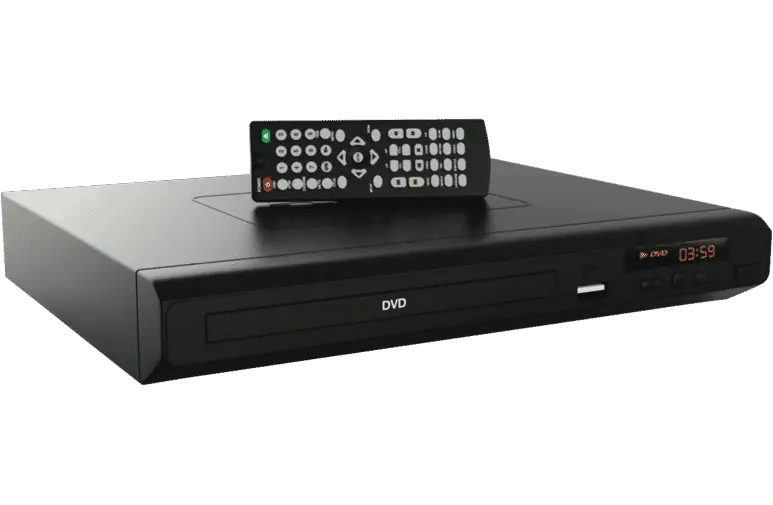
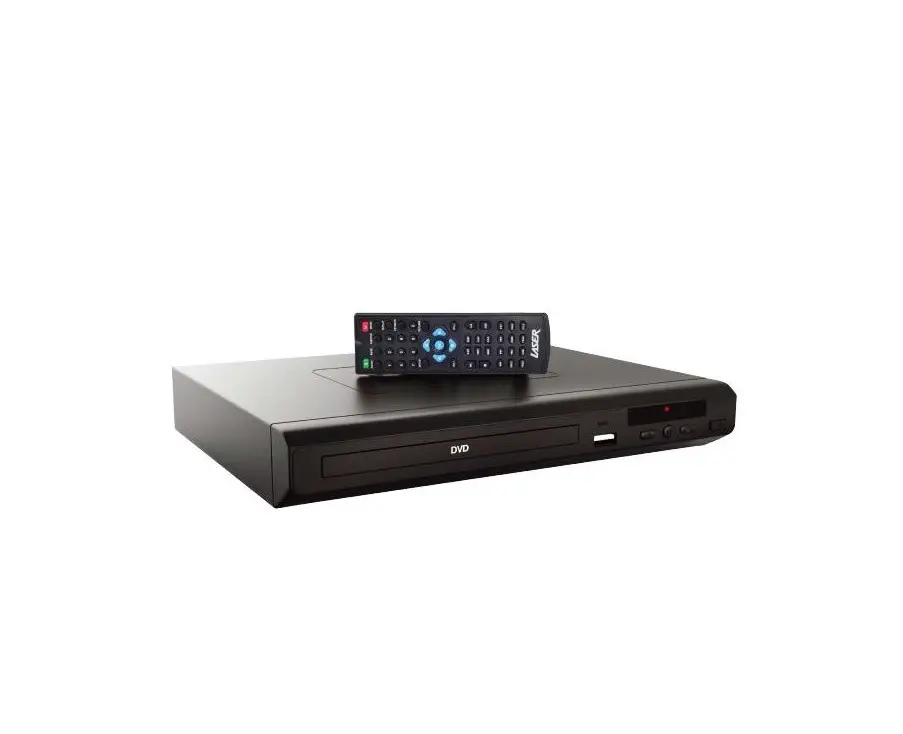
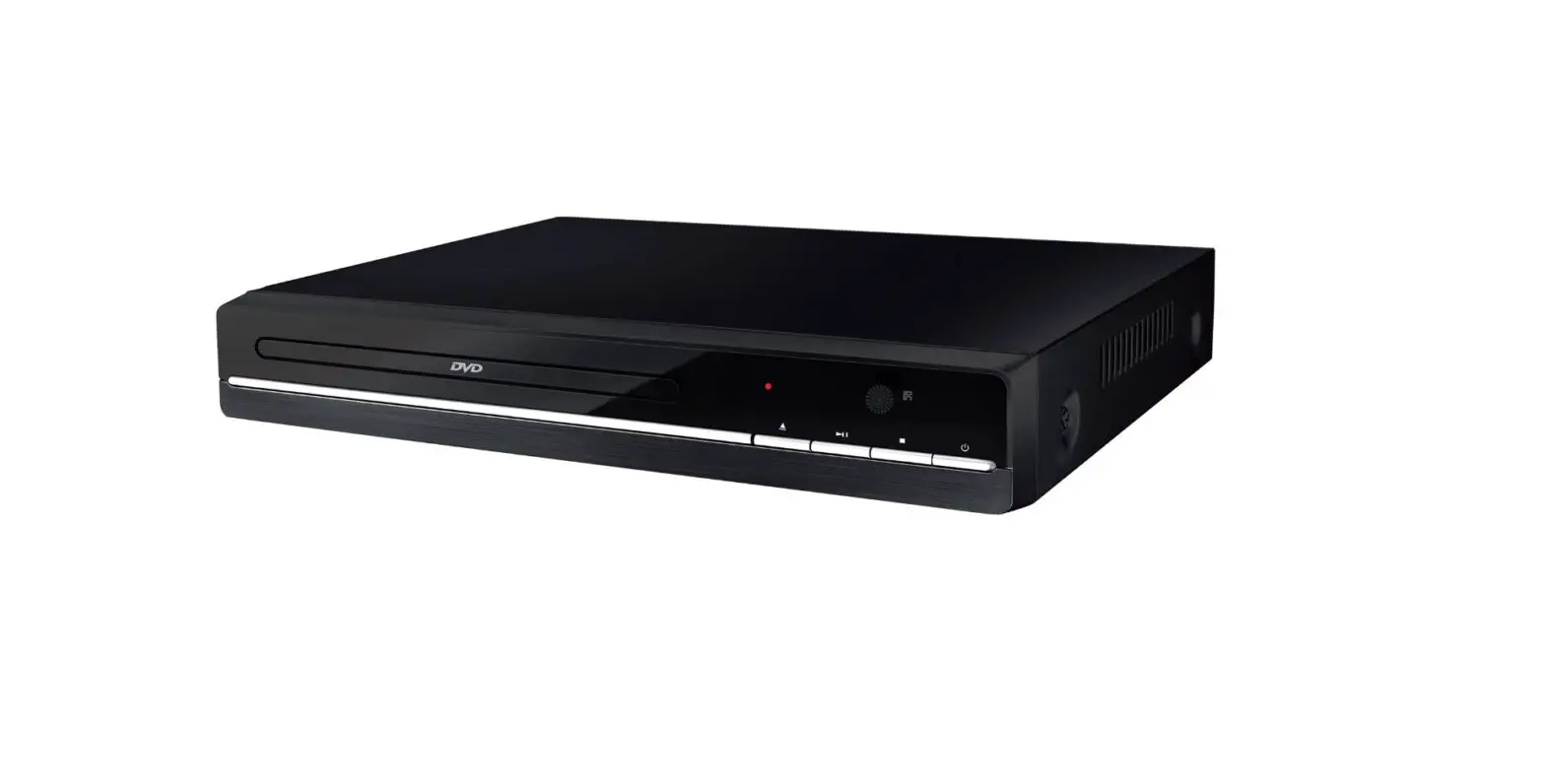
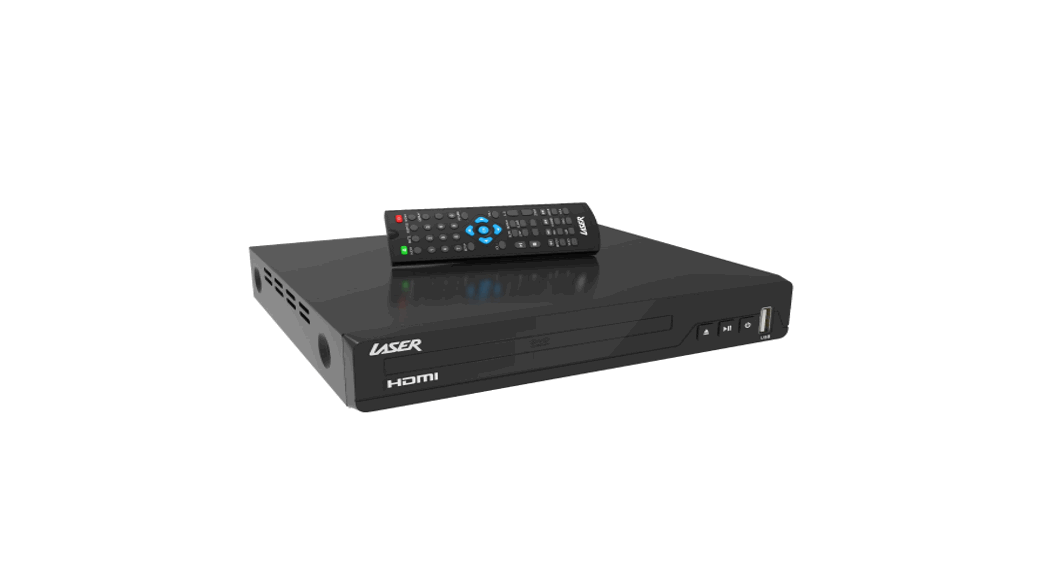
Laser DVD Player
DVD-HD018
Thank you for your purchase!
Laser Corporation is 100% Australian-owned & operated. To get the most out of your product please read the user manual carefully and keep it for future use.
For specific information relating to your product such as Spare Parts, FAQs, Warranty claims, and more, please scan the following QR code:
 https://www.laserco.com.au/support
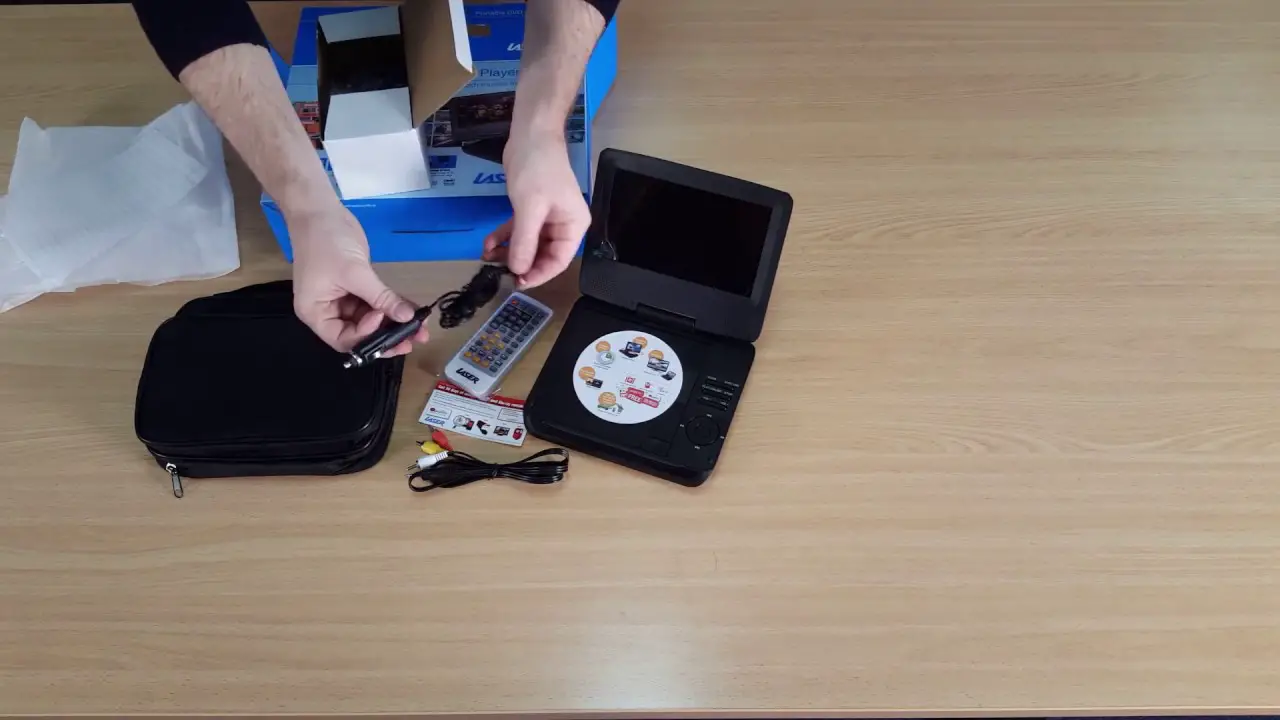
WHAT’S IN THE BOX
- DVD Player
- Remote Control
- 2 x AAA Batteries
- AV cable
- Wall adapter
- User Manual
SPECIFICATIONS
| POWER | ||
| Power Consumption | ≤ 6W | |
| Power Supply | AC lnput (V) | ~110-240V |
| Frequency (Hz) | 50Hz/60Hz | |
| AV | ||
| Video Guideline | Video Output Vp-p (V) | 1 .0 ± 0.2 (750Ω) |
| Level Definition (TV-line) | > 450 | |
| Audio Guideline | Audio Output (Vrms) | 2.0 ± 0.2 (10KΩ) |
| S/N Ratio (dB) | > 80dB | |
| Audio Dynamic Range | > 80dB | |
| MEDIA | ||
| Disc Compatibility | DVD/ DVD±R/ DVD±RW/ CD/ CD‐R/ CD‐RW/Kodak Picture
| |
| Supported Files | Video: AVI (Xvid), VOB Audio: MP3 Image: JPG
| |
| Supported Disc Formats | DVD, DVD-R, DVD-RW, DVD+R, DVD-9, DVD+RW VCD, VCD1.0, VCD2.0 CDDA, CDG CD-R, CD+RW
| |
| GENERAL | ||
| Dimensions | 200 x 181 x 42mm | |
| Weight | 580g
| |
| Operating Condition | Level surface only | |
| Region Code | Unlocked
| |
| Temperature Condition | 0℃ – 40℃ | |
FRONT & REAR PANEL
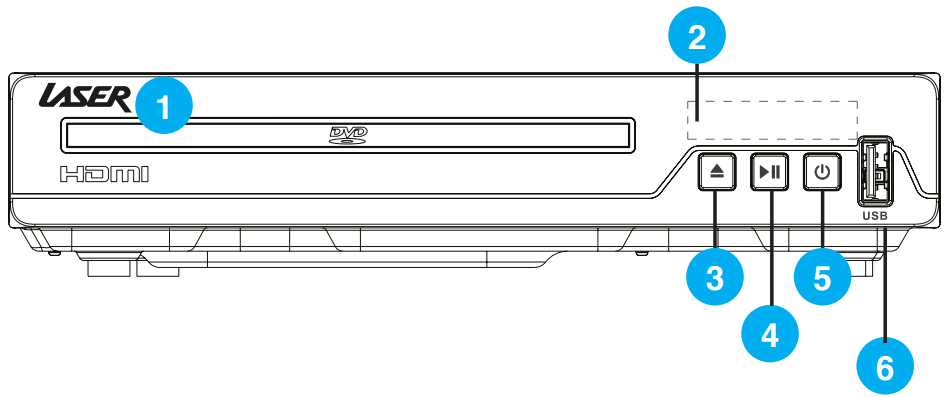
| 1 | Disc Tray | 4 | Play/Pause |
| 2 | Display | 5 | Power |
| 3 | Eject | 6 | USB In |
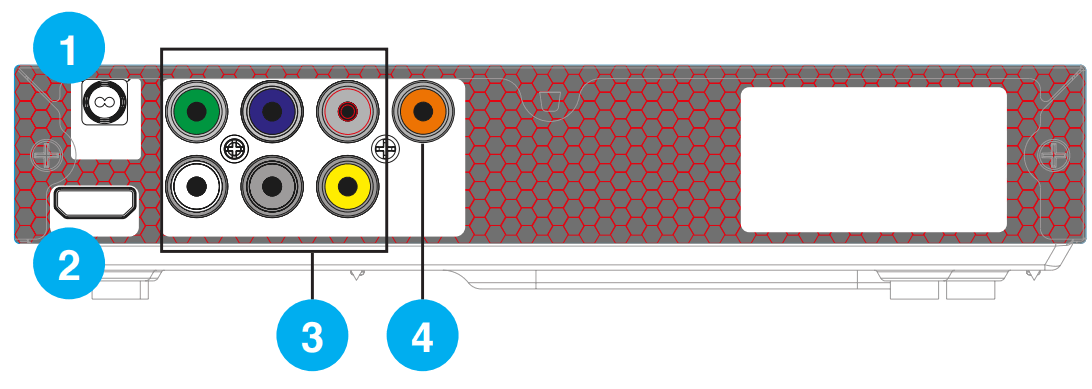
| 1 | Power Out | 3 | Component & Composite Out |
| 2 | HDMI Out | 4 | Coaxial Out |
REMOTE CONTROL
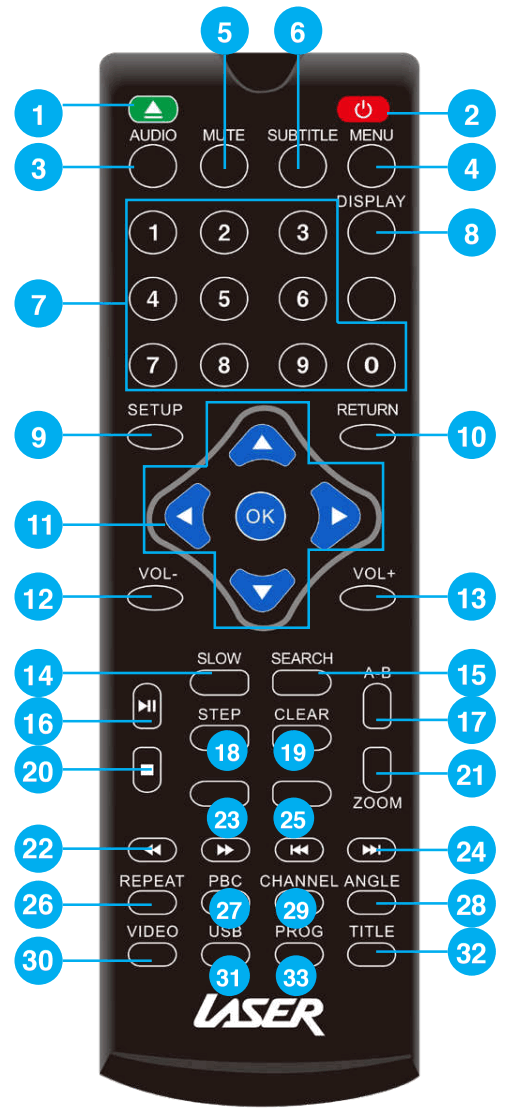
| 1 | Eject | Open and close the disc tray. |
| 2 | Power | Turn player on/off. |
| 3 | Audio | Select a different audio language. |
| 4 | Menu | Return to disc main menu. |
| 5 | Mute | Turn sound on/off. |
| 6 | Subtitle | Turn on/off subtitles (dependant on the disc). |
| 7 | Number Keys | Select files and chapters of videos. |
| 8 | Display | Turn on/off time, title, and chapter info. |
| 9 | Setup | Enter the main player menu. |
| 10 | Return | Go to the disc menu screen. |
| 11 | Navigation and OK | Move cursor during menus and select options. |
| 12 | Volume – | Reduce volume |
| 13 | Volume + | Increase volume |
| 14 | Slow | Reduce the speed of video playback |
| 15 | Search | Search by video chapter and time(dependant on disc). |
| 16 | Play/ Pause | Start or pause video playback. |
| 17 | A-B | Select segment of media for replay. |
| 18 | Step | View playback one frame at a time. |
| 19 | Clear | Clear previously selected data or search info. |
| 20 | Stop | Stop playback. |
| 21 | Zoom | Zoom in/out from image. |
| 22 | Rewind | Rewind media. |
| 23 | Fast Forward | Fast Forward media. |
| 24 | Next | Skip forward. |
| 25 | Previous | Skip back. |
| 26 | Repeat | Repeat the current track. |
| 27 | PBC | Press to return to the menu page during VCD playback. |
| 28 | Angle | Change video angle (dependant on disc). |
| 29 | Channel | Switch between 2.1, 5.1 & L/R channel sound output. |
| 30 | Video | Select video output mode. |
| 31 | USB | Switch between USB & disc playback. |
| 32 | Title | Return to title screen. |
| 33 | Prog | Program the order of playback for Titles & Chapters. |
SUGGESTED CONNECTIONS
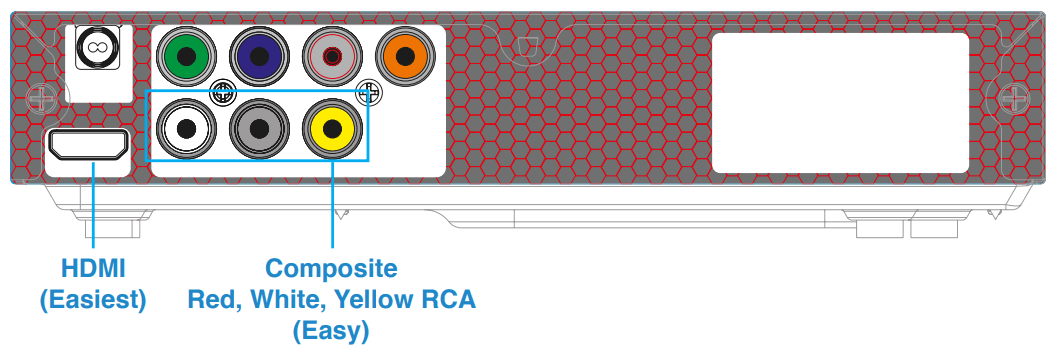
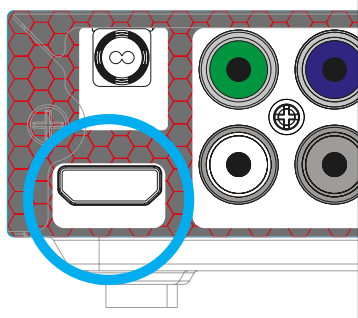
CONNECTING THE HDMI CABLE TO A HOME THEATRE SYSTEM
- Plug the first HDMI cable into the HDMI OUTPUT on the player and into the HDMI input on the AV Receiver.
- Plug a second HDMI cable into the HDMI OUTPUT on the AV Receiver and into the HDMI input on the TV.
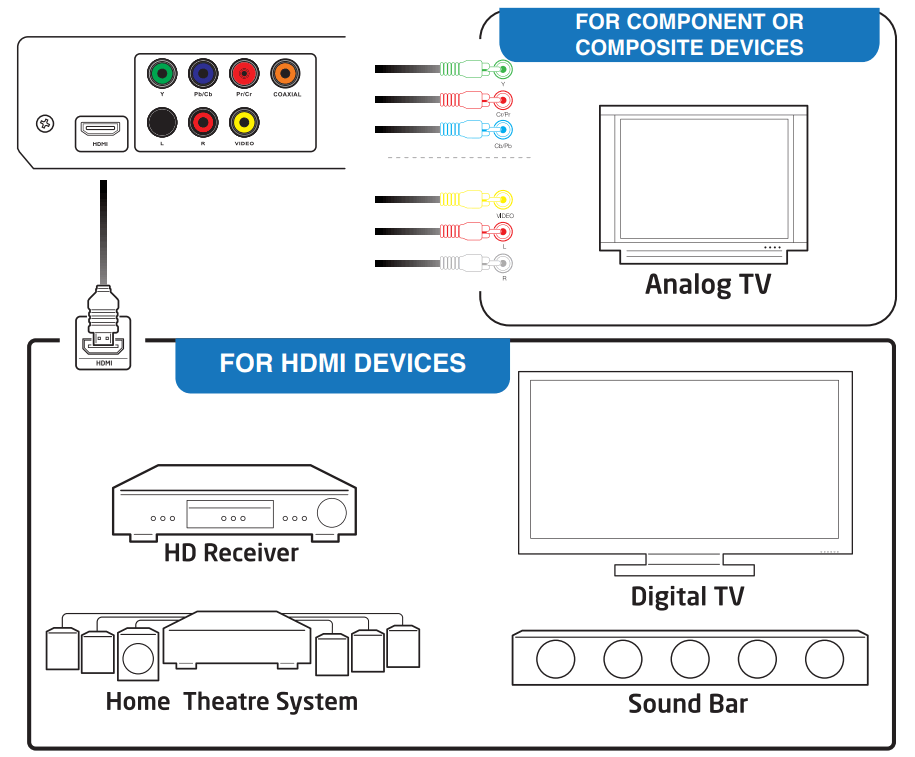
OTHER CONNECTION EXAMPLES
General Settings
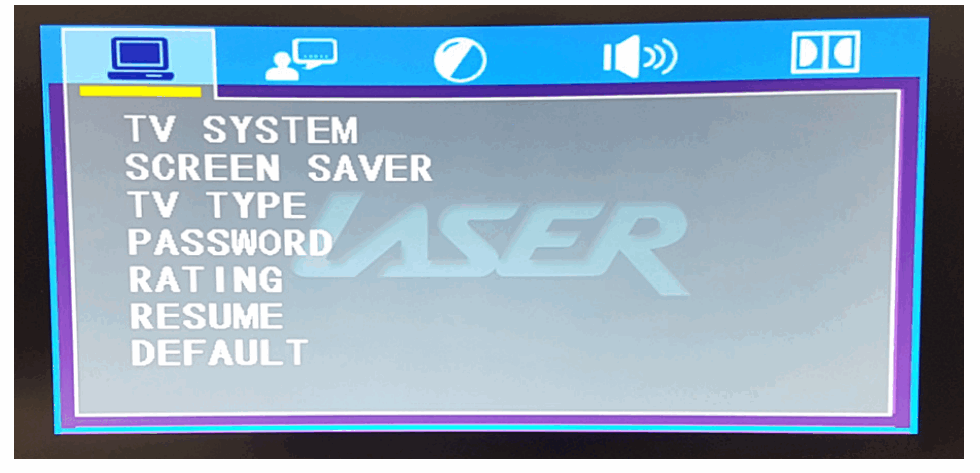
TV System
- PAL – 50Hz displays
- NTSC – 60Hz displays
- AUTO – Auto-detect display
Screen Saver
Turn screen saver on/off.
TV Type
Select aspect ratio:
- 4:3 Pan & Scan – Takes a widescreen image and displays in on a 4:3 screen.
MENU OPERATION continued…
- 4:3 Letterbox – Native 4:3 content (black bars will appear on left and right of the image if watching on widescreen TVs)
- 16:9 – For widescreen TVs. Depending on the content, there may be black bars above and below the image. Most studio films will have black bars.
Password
Setup a password. The default password is “1234”. The locked/ unlocked padlock icon indicates whether the password is active/ inactive.
Rating
Set content restrictions.
Resume
Set if disc resumes where playback was last stopped.
Default
Reset device to factory default settings
LANGUAGE SETTINGS
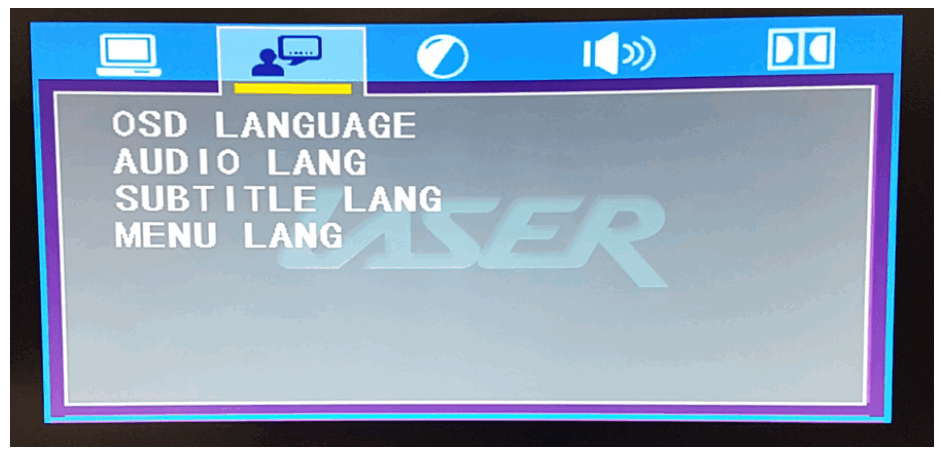
OSD Language
Set default on-screen display language.
Audio Lang
Set default audio language.
Subtitle Lang
Set default subtitle language.
Menu Lang
Set default menu language.
DISPLAY SETTINGS
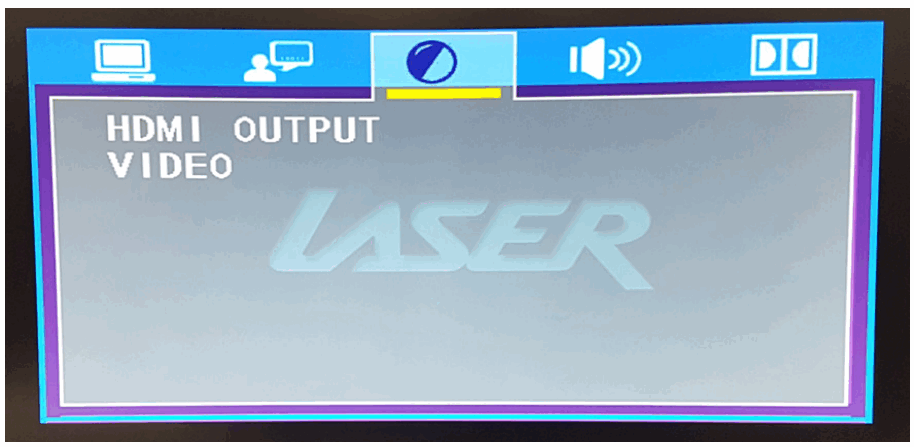
HDMI Output
Select video resolution when using a HDMI connection.
Video
- CVBS – Select for RCA/AV connections
- YUV – Select for analog Component connections
- YPbPr – Select for digital Component connections.
AUDIO SETTINGS
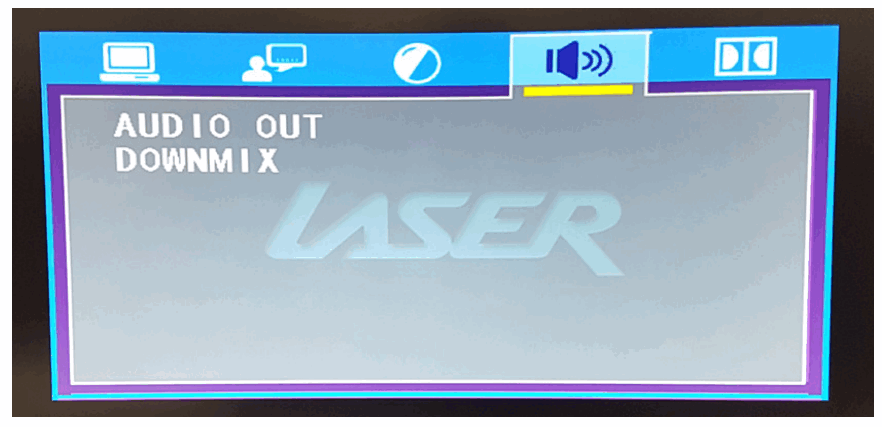 Audio Out
- SPDIF/OFF – HDMI audio off.
- SPDIF/RAW – HDMI Bitstream audio signal to an external device for decoding. Use this setting is you have an AV receiver or soundbar that can decode the signal for higher-quality audio.
- SPDIF/PCM – HDMI local decoding. Use this setting for audio to be decoded by the DVD player. Use this setting if audio is being played back via your TV speakers.
Downmix - Stereo – Audio signals are output without Dolby Surround effects.
- LT/RT – Multichannel audio is reproduced through a lesser number of speakers.
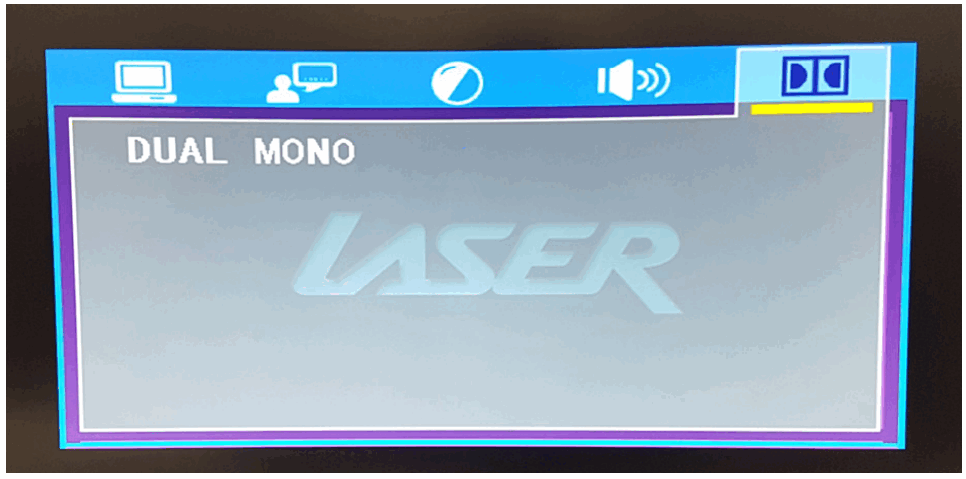
Dual Mono
- Stereo – Output single channel audio through the front left and right speakers.
- Mono L – Output single channel audio through front left speaker.
- Mono R – Output single channel audio through front right speaker.
- Mix Mono – Equal volume mixed.
TROUBLESHOOTING
No image.
- Make sure TV and DVD player are turned on and out of standby.
- Check the cable connections.
- Check the input selection on the TV is correct e.g. HDMI 1, HDMI 2, AV1, AV2 etc.
Player does not respond to remote.
- Clear any obstacles between the remote and the player.
- Try moving closer or reduce the angle pointing to the player. Max remote distance is approx. 8 meters.
- Replace the batteries.
- Clean the sensor panel on the remote and player.
TROUBLESHOOTING continued…
No audio.
- Check the audio output menu options on the player is set correctly. If using HDMI and not sure, use SPDIF/PCM.
- If using an external amplifier/ soundbar, ensure connections are correct and the external device has been switched on.
- If using component or composite, check the red and white audio cables are correctly connected to the TV.
- If playing a file from USB check that the audio file is in MP3 format. Disc playback is intermittent.
- Check the condition of the disc. If surface is damaged or scratched, then the disc may be unusable.
- The lens on the player may be dirty. Use a CD/DVD lens cleaner. Abnormal operation.
- Turn the player off at the power, wait for 10 seconds, then turn it back on.
- Use the “Default” option from the “General Settings” menu to reset the player to factory default settings. Files not playing back via USB or USB drive not detected.
- Max USB drive size is 32gb and formatted to the FAT32 file system.
- Check the file type is supported by the player. Only MP3, AVI and JPG files are supported.
- Max resolution of AVI files can be no larger than 720 x 576.
WARRANTY AGAINST DEFECTS
Laser warrants your new product to be free from defects in materials and workmanship for 36 months, from the date of purchase, provided that the product is used in accordance with accompanying recommendations or instructions where provided. The benefit of this warranty is in addition to your rights under the Australian Consumer Law and to other rights and remedies of the consumer under a law in relation to the goods or services to which the warranty relates.
Through a network of retailers and resellers, Laser will provide you with your choice of a refund, repair, or exchange (where possible) for this product if it becomes defective within the warranty period. This warranty will no longer apply where the defect is a result of alteration, accident, misuse, abuse, normal wear and tear, neglect, or improper storage. Please retain your receipt as proof of purchase
How to make a product warranty claim:
- Find your receipt with date of purchase. If this is not available, Laser will make an assessment based on the date of manufacture, condition of the product and type of defect.
- Please contact your original place of purchase. They will assess the nature of the fault and refund or replace the product as per their store refund or warranty policy.
- If your original place of purchase cannot be contacted, please contact Laser with a description of the fault. To assist our team in providing you with a quick resolution, please include any photos and/or a short video demonstrating the fault with your product.
• Phone: (02) 9870 3355
• Email: [email protected]
• Online: www.laserco.net/support/warranty and follow the website instructions
• Business Address: U1 6-8 Byfield Street, Macquarie Park, 2113, NSW, Australia - Laser will review your claim and in the first instance, attempt to troubleshoot and resolve the issue for you without the need to return the product.
- If it is determined via troubleshooting that your product may be faulty, our team will provide instructions to have the product returned for assessment. If the product does need to be returned within the warranty period, Laser will arrange return shipping at no cost to you.
- Once we receive the product, our experienced technicians will assess it and determine how best to resolve the issue.
Our goods come with guarantees that cannot be excluded under the Australian Consumer Law. You are entitled to a replacement or refund for a major failure and compensation for any other reasonably foreseeable loss or damage. You are also entitled to have the goods repaired or replaced if the goods fail to be of acceptable quality and the failure does not amount to a major failure.
 For more helpful guides visit us at
LASER
www.youtube.com/LasercoAu
www.laserco.com.au
https://www.youtube.com/channel/UCQOuBKnSya0x9zCjPfYzklg
 Laser Co | Technology for everyone
 Warranty