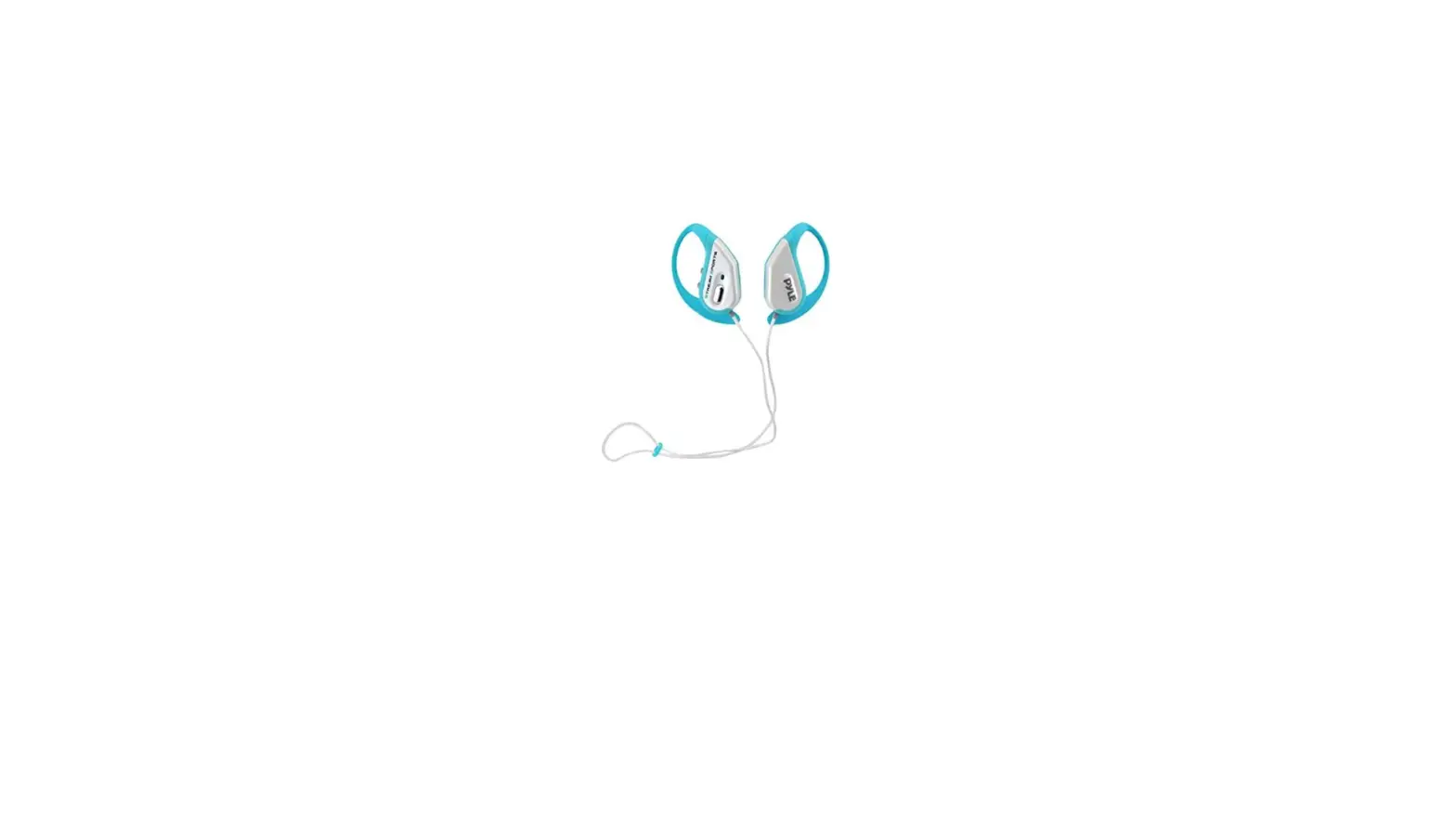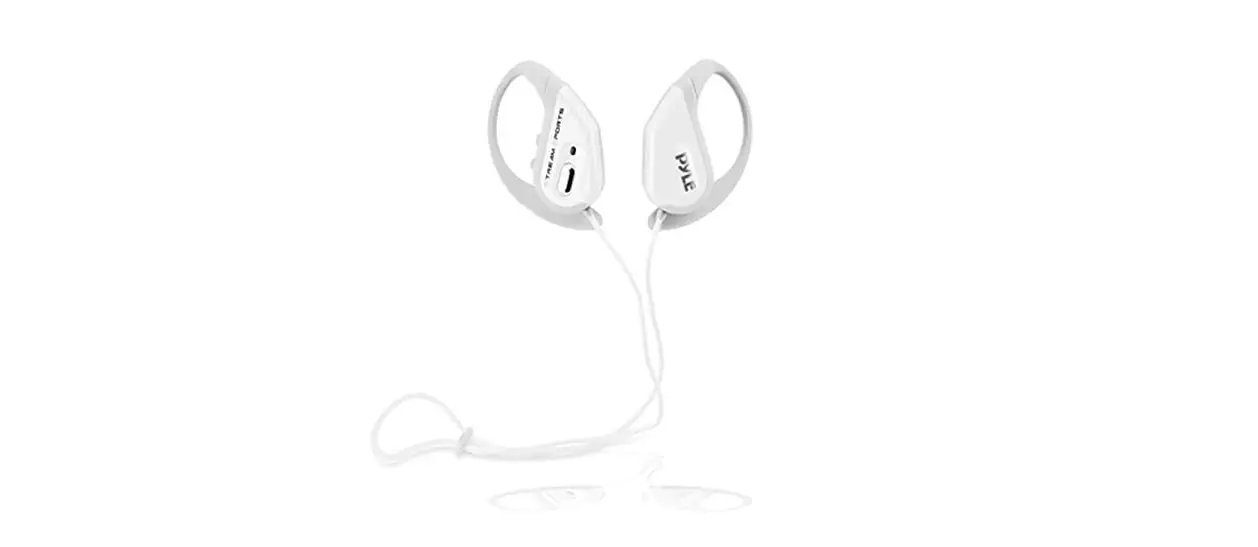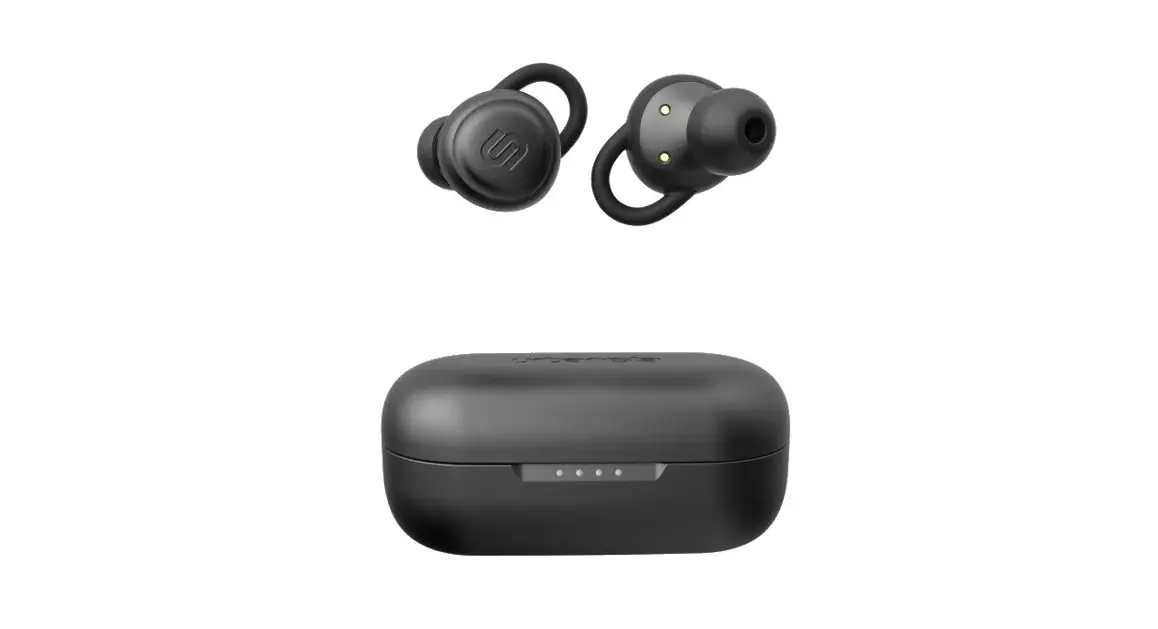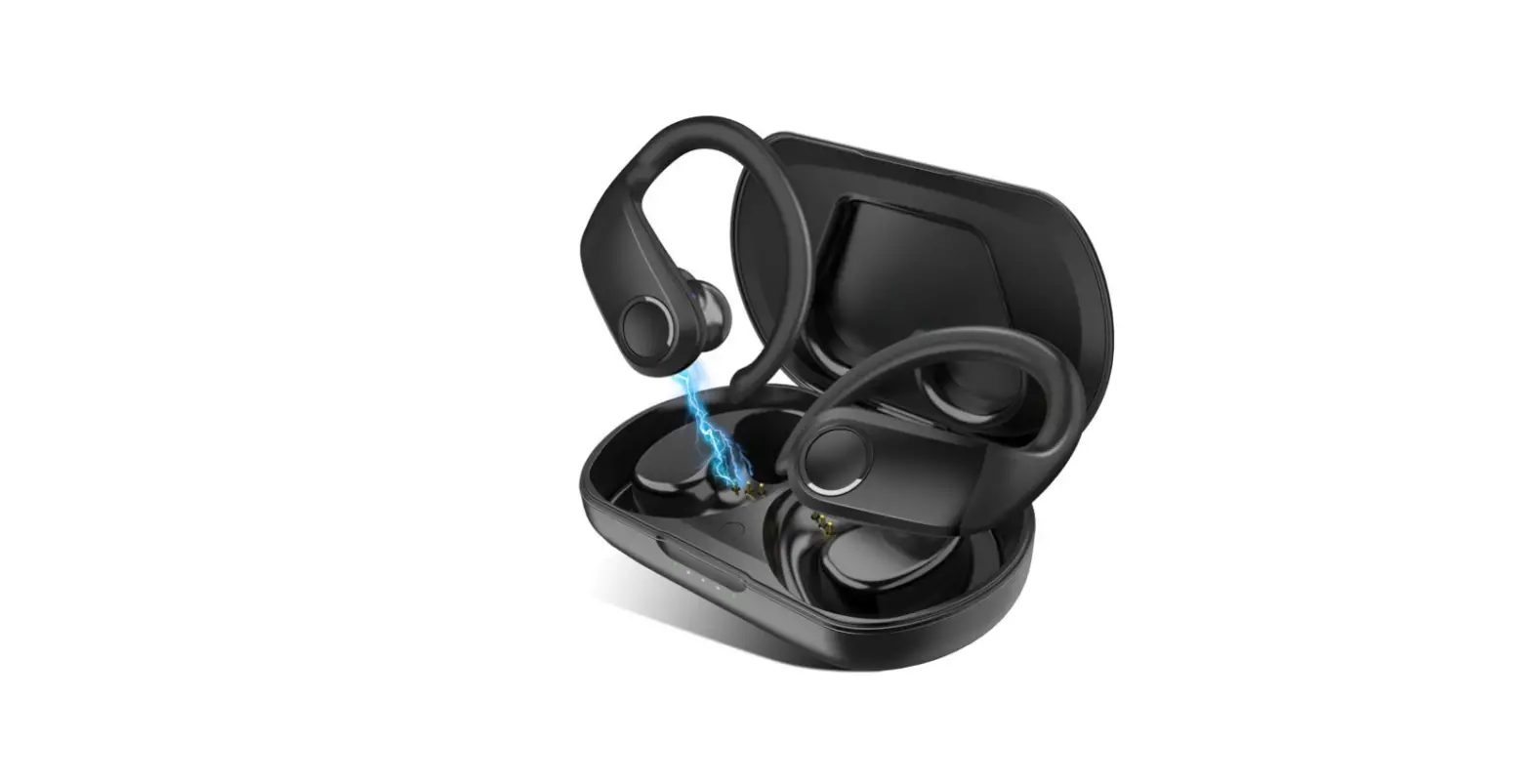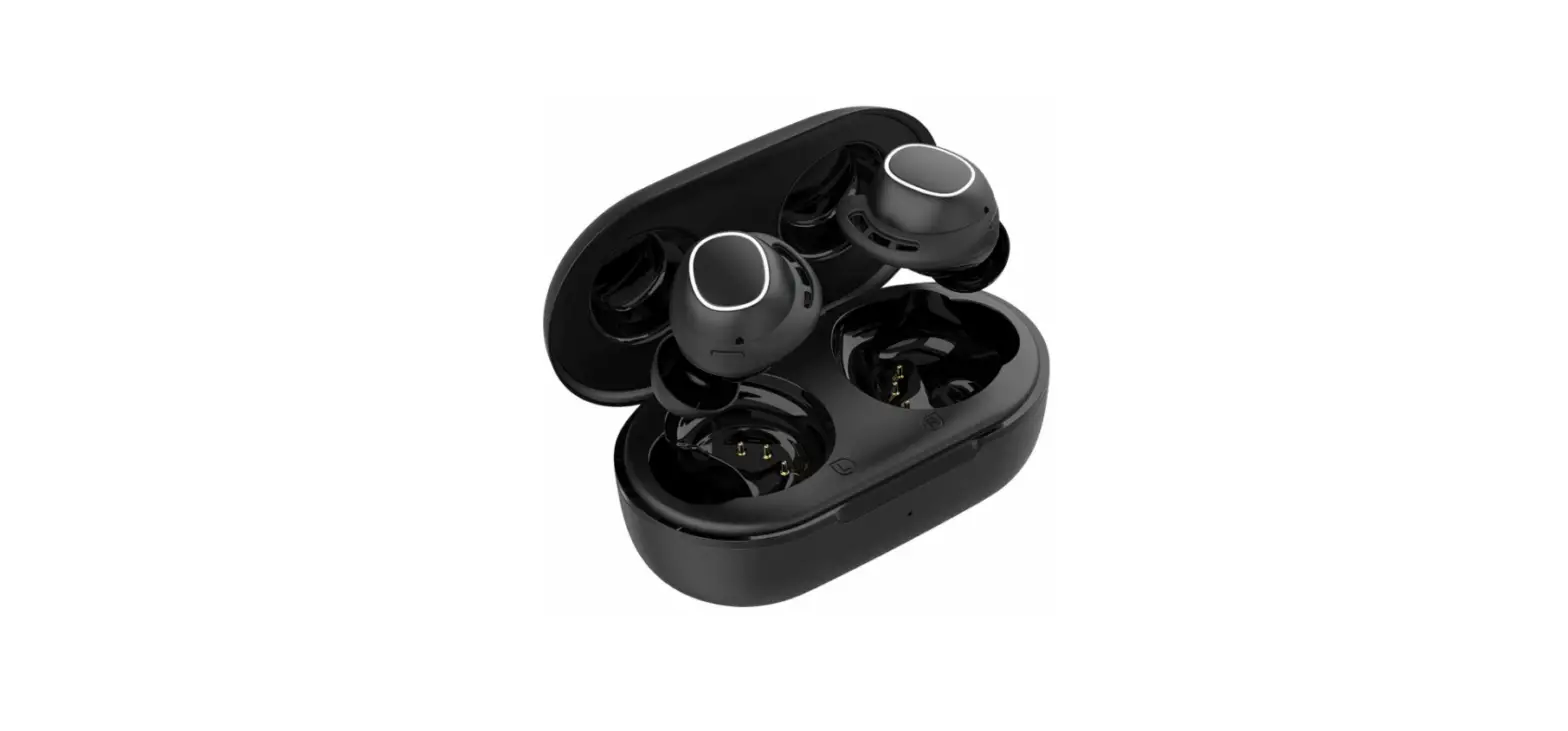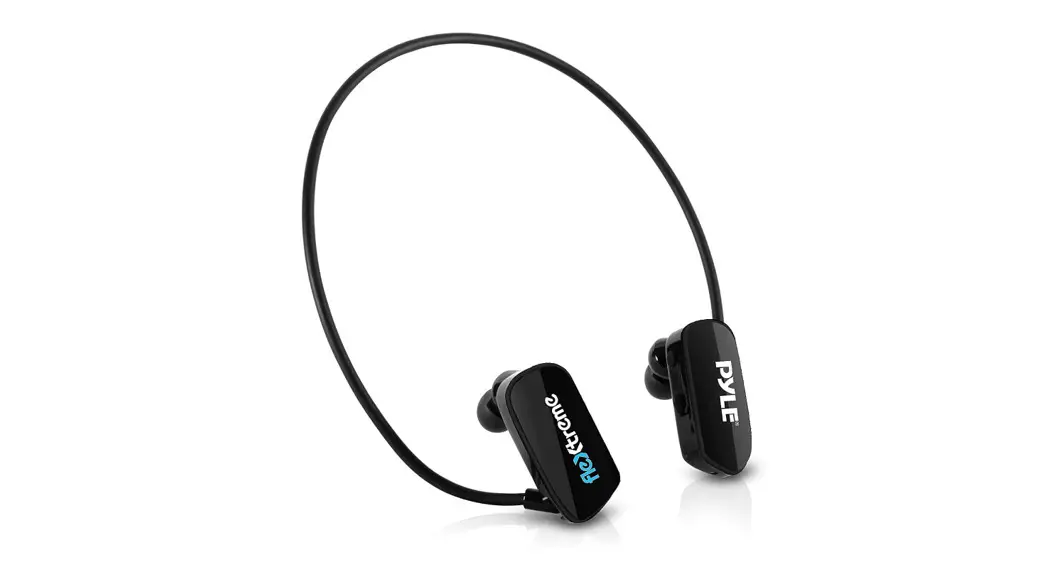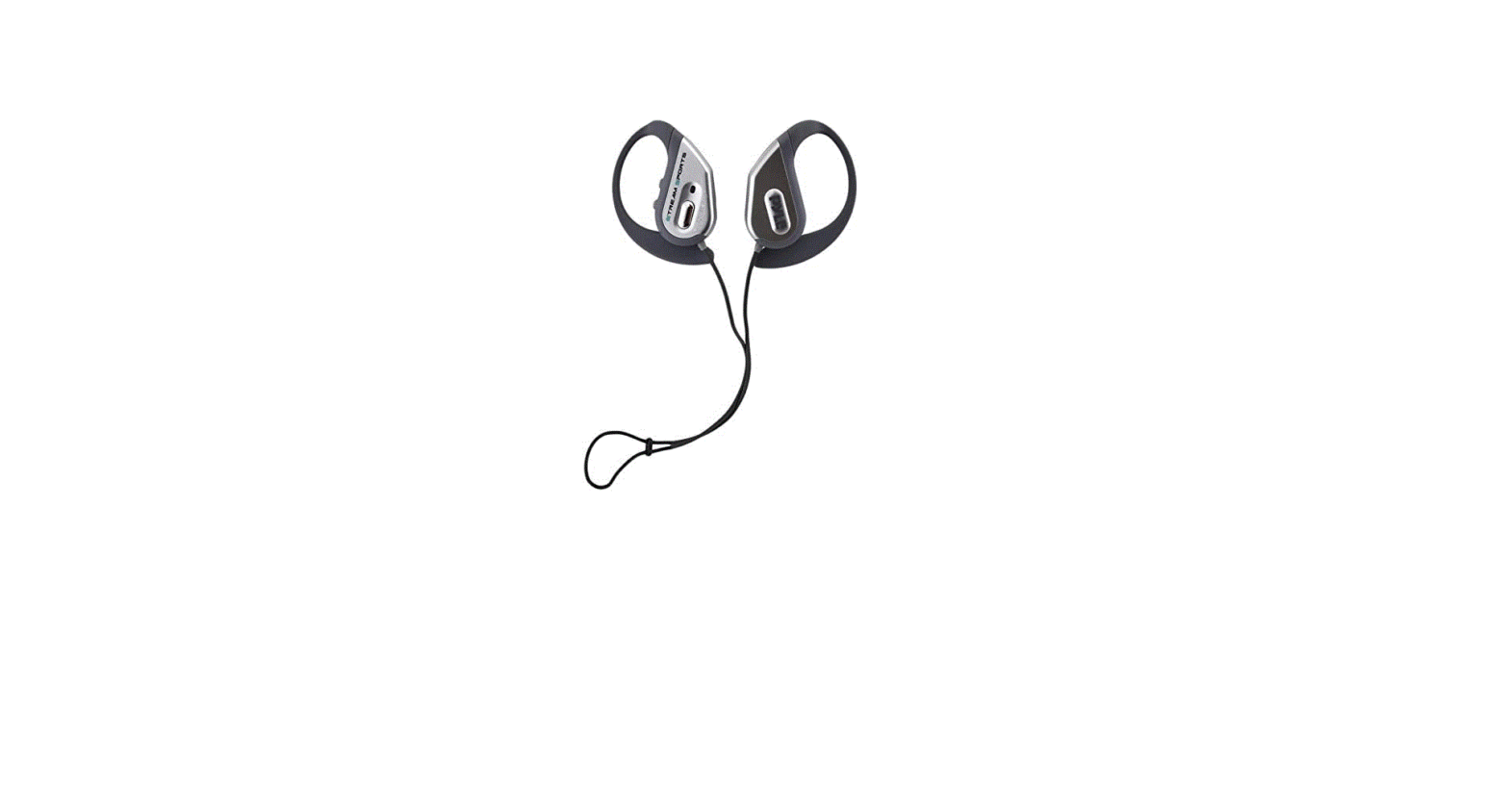

Pyle Sports AZPWBH18SL Water Resistant Bluetooth – Weatherproof Headphones
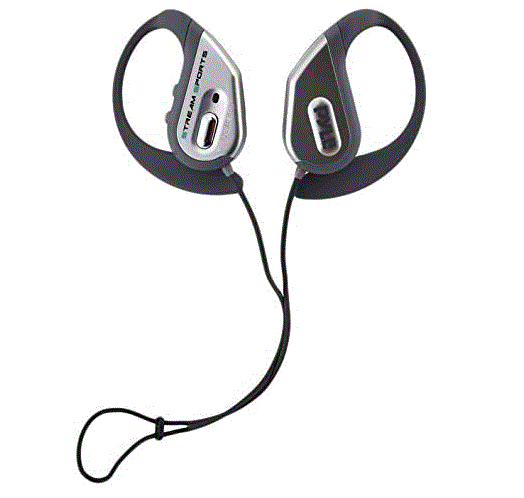
Specifications
- Product Dimensions
1 x 1 x 1 inches - Item Weight
0.811 ounces - Form Factor
In-Ear - Cable Feature
Without Cable - Bluetooth version
V4.0 +EDR A2DP and AVRCP - Headset Impedance / Output
30Ω 0.02mm, dia. 10mm x 2 - Power supply
Built-in Li-Polymer - Battery Capacity
3.7V / 80mAh - Current consumption
<10uA - Continuous standby time
# 180 Hours - Continuous transmission time
# 8 hours - Continuous talk/Listening time
# 5 hours - Operating Temperature
10 °F to 104°C - Operating humidity range
20-80% (no condensation) - Brand
Pyle
Introduction
Pyle gives you sports performance with our PWBH18 Bluetooth headphones. Completely waterproof to allow you to get as wet as your favorite water sport demands and still enjoy perfect audio. The comfortable wrap-around design stays on your head even during the most demanding exercise routine. Awesome crystal clear high-fidelity wireless music with extended bass response streaming from your iPhone, Android, Smartphone, iPad, Tablet, or PC. Take your workout to the next level and never miss an important phone call, because this unit is also a hands-free speaker phone. Pyle performance in a sporty attractive, durable design made to outwork and outplay the competition.
Waterproof performance
The waterproof level of this product complies with IP46 standards, is designed to ensure normal operation in water at specified conditions. It cannot be immersed in water. Design is for powerful water jets only.
Product Description
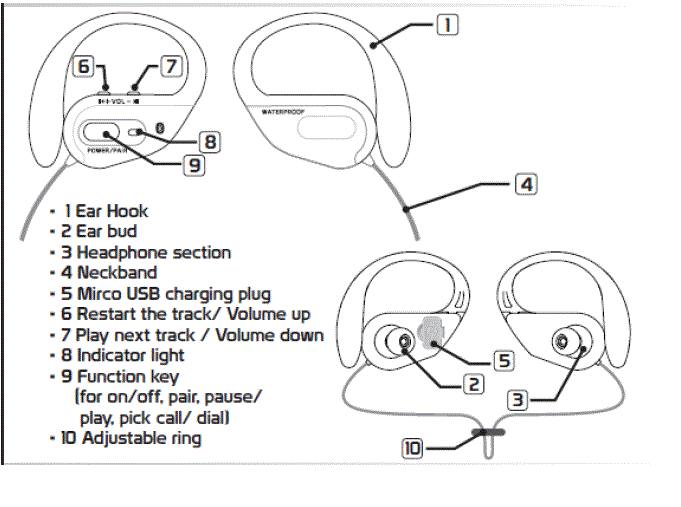
Before using this unit
Please ensure that the 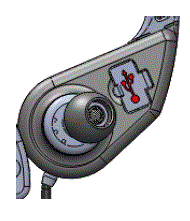 watertight cap of the micro USB plug is completed closed before using this unit. Trouble attributed to water seeping into the unit from to loosely closed watertight cap is not covered by the warranty. Water droplets that enter the headphone or microphone holes do not cause troubles. However, the product performance may temporarily decrease until the water droplets are dried. Problems may include unclear sound and difficulties in transmitting your voice clearly. If such circumstances exist, please remove water droplets and dry the product.
How to place the headset on your ears
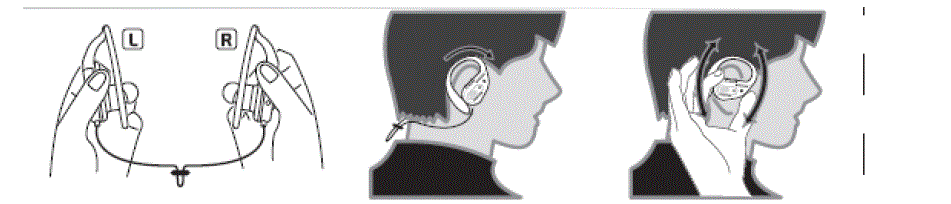
- The headset has been marked for the right and left sides. Ensure you have the correct side.
- Hang the neck band over the back of your ears.
- Place the headset section horizontally and gently twist the headset into your ear unit so you feel comfortable and snug fit into your ear.
- And then turn up and place the hook behind your ear
- Do the same step on the other ear.
- If you feel uncomfortable or it doesn’t fit snug, you might try to change another size of earbuds.
How to install the earbuds
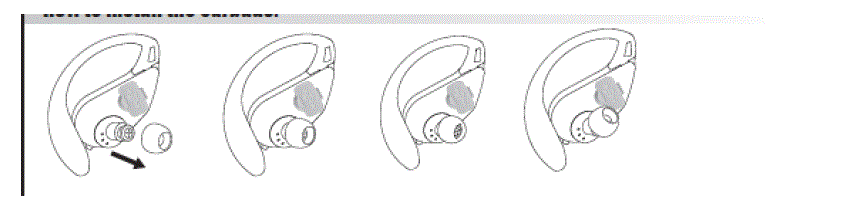
To Enjoy better sound quality, or to fit your ears, change the size of your earbuds or adjust the earbud position to fit comfortably and snugly in your left and right ears separately. When you change the earbuds, turn them to install firmly on your headphone to prevent the earbud from detaching and remaining in your ear.
To prevent the headset from falling off your ears.
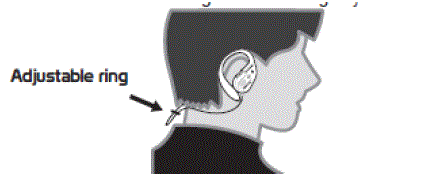
adjust the ring on the neckband before placing the headset on your ears.
Charging the battery
- Charging the headset by USB charging cable ( included in the package)
- The LED lamp is lit red while the battery is charged.
- The LED lamp is lit blue when the battery is fully charged.
- It takes around 25 minutes to fully charge the battery
- Connect the USB charging cable to the unit
- Connect the USB charging cable to your PC
- when the battery power is nearly used up, a beeping alarm will sound, with the LED lamp blinking red. After a while, the product will turn off
- It is not possible to use the product during charging.
Pairing the product with your device at first time use
- Hold “Function key” for around 7 seconds, and a signal will sound ‘Do re mi fa so” keep pressing until red & blue lights are flashing, which means it is ready to be paired.
- At this first-time to pair, use your device to search the product model “PWBH18”.
- When your device searches the product model, press to connect, and your device will show if it is successfully connected or not.
- If it is successfully connected, you can play music through the product.
Noted
Terminate any connection between the product and any device before starting the pairing procedure. The pairing procedure cannot be started while a Bluetooth connection is established between the product and a registered device. Terminate the connection and turn off the product.
Up to eight Bluetooth devices can be registered
When nine or more devices are registered, the previously registered device will be deleted starting from the oldest, to register new ones. A device that is registered twice or more is identified as one device.
Play Music
- Hold + to increase the volume. (when at maximum, it will have a ‘Beep~’ sound)
- Hold – to decrease the volume. (when at minimum, it will have a ‘Beep ~’ sound)
- Press + to restart the current track. Press twice to play the previous track.
- Press -to play the next track.
- Press the “Function key” to pause/ play the track.
Part 1: Pick-up call
- Press the “Function key” to pick up the call.
- Hold + to increase the volume. (when at maximum, it will have a ‘Beep~’ sound)
- Hold – to decrease the volume. (when at minimum, it will have a ‘Beep ~’ sound)
- Press + & -once to have mute function, press + & – once again back to normal
- Press the “Function key” to hang up.
Note
To avoid/reduce echo, please do not turn the speaker to maximum volume
Part 2: Make a call
- Press the “Function key” 2 times quickly to redial the latest call you made.
- Some smartphones have voice commands, hold the “Function key” once to enter the voice command function with your smartphone. For detail,s please refer to your smartphone instruction. This performance is different depending on your smartphone setting.
- Press the “Function key” to hang up.
Part 3 Reject incoming call
- Hold the “Function key” to reject the call.
- Press the “Function key” once again to continue playing music.
Initializing the registration history / resetting the hardware of product
When in Off mode, hold “Function key” & + together until it sounds like a signal with red light.
Caution
- Please take full precautions when setting the ringtone volume.
When this product is paired with a mobile phone, a loud ringtone may give you a shock, which in turn may result in an accident or a heart attack, gradually increase the volume from the minimum to set it appropriately. - Do not damage cables that are connected to this product.
Fire and disconnection will result. - Never leave this product in a car.
Leaving this product in a hot car cabin for many hours will result in rupture of the built-in battery, sparking, and other troubles, posing a significant danger. - Do not leave this product under high-temperature conditions.
This product is a precision electronic device. Avoid using/ keeping this product in a location that is subject to high temperature, high humidity or direct sunlight for many hours. When subject to significant temperature changes in the environment, this product may malfunction due to condensation inside the product. - Do not touch the metal parts of this product such as the power supply connectors and the charging cable’s connector terminals.
Static electricity or fouling may cause a malfunction or electric shock. - Do not disassemble this product.
Do not repair, modify or disassemble this product on your own, unless operational instructions to the contrary are given in this user’s manual, Electric shock, fire, or burns may result. - Make sure to close the watertight cap when using this product in a wet or damp environment. Make sure to remove any dust, hair, etc., that is present between the watertight cap and the main unit.
- Follow the user’s manual instructions of devices (ex. iPhones and mobile phones) to be connected to this product.
This product can be wirelessly connected to iPhones, mobile phones, etc. The setting procedures and precautions are different depending on the devices to be connected to this product. Care fully read the user’s manual for these devices and observe any precautions. - Do not use/keep this product in a wet or damp environment for a long time if you do not use it. Any liquid entering this product may result in trouble, fire, or electric shock.
- Do not keep this product within reach of small children.
Unexpected accidents (ex. accidental ingestion) may result. - This product is a precision electronic device. Avoid using/keeping this product in an environment that is subject to impact/vibration, strong magnetic forces, static electricity, etc.
- Risk of explosion if the battery is replaced by an incorrect type. Dispose of used batteries according to the instructions.
FCC Requirement
Warning
Changes or modifications to this unit not expressly approved by the party responsible for compliance could void the user’s authority to operate the equipment.
NOTE
This equipment has been tested and found to comply with the limits for a Class B digital device, pursuant to Part 15 of the FCC Rules. These limits are designed to provide reasonable protection against harmful interference in a residential installation. This equipment generates, uses, and can radiate radio frequency energy and, if not installed and used in accordance with the instructions, may cause harmful interference to radio communications.
However, there is no guarantee that interference will not occur in a particular installation. If this equipment does cause harmful interference to radio or television reception, which can be determined by turning the equipment off and on, the user is encouraged to try to correct the interference by one or more of the following measures:
- Reorient or relocate the receiving antenna.
- Increase the separation between the equipment and receiver.
- Connect the equipment into an outlet on a circuit different from that to which the receiver is connected.
- Consult the dealer or an experienced radio/TV technician for help.
Frequently Asked Questions
In general, they are secure to wear in the rain. Although Bluetooth headphones do include a tiny magnet, it is not large enough to draw a lightning strike.
If you wish to use waterproof earbuds while taking a shower, a correct fit is crucial. It implies that while taking a shower, the wireless Bluetooth earphones won’t tumble or drop. The water from the showerhead might easily remove the earbuds if they do not fit snugly in your ear canal.
Your headphones may sustain damage as a result of a short circuit if you switch them on while they are still damp. Short circuits occur as a result of the water’s impurities acting as a conductor and electrifying each and every metallic component inside the earphones. They are zapped and shocked.
Depending on the audio settings on your headset, it might only play in one ear. So make sure the mono option is off in your audio properties by checking your audio properties. Make sure the voice levels on both earbuds are balanced as well.
The first step is to select the Advanced drop-down menu under Settings -> System. Choose Reset settings and then click Reset Bluetooth, Wi-Fi, and Mobile. 3: When prompted, enter the PIN for your phone by tapping the Reset settings option below.
Your Bluetooth headphones are probably not faulty if they won’t switch on. All you have to do is reset it. In fact, a quick factory reset can fix a variety of Bluetooth headset issues, including If your Bluetooth headset won’t connect to your laptop or smartphone.
The Bluetooth® connection’s range is roughly 30 feet (10 meters). However, depending on obstructions (people, metal, walls, etc.) or the electromagnetic environment, the maximum communication range may vary.
Simply select Bluetooth from System Preferences and then click on it. All of your Bluetooth-connected devices are listed in the new window that displays. Each one can be selected individually to launch a new window with a tiny representation of the current signal strength.
As dirt might obstruct the connection between the headphones and the port, this may be the problem. When a headphone jack stops working, the first thing you should check is the jack itself to determine how dirty it is. For this, a flashlight might be useful for this.
Check your headphones’ charging port for any damage, such as bent metal or connectors. Additionally, check to see if the port feels tight when you touch it, as this can indicate that the connectors have come loose from the headset.