
QUICK START GUIDE
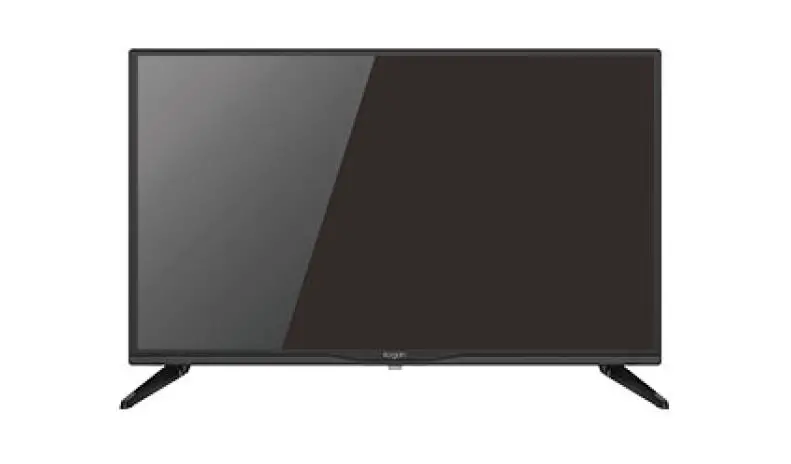
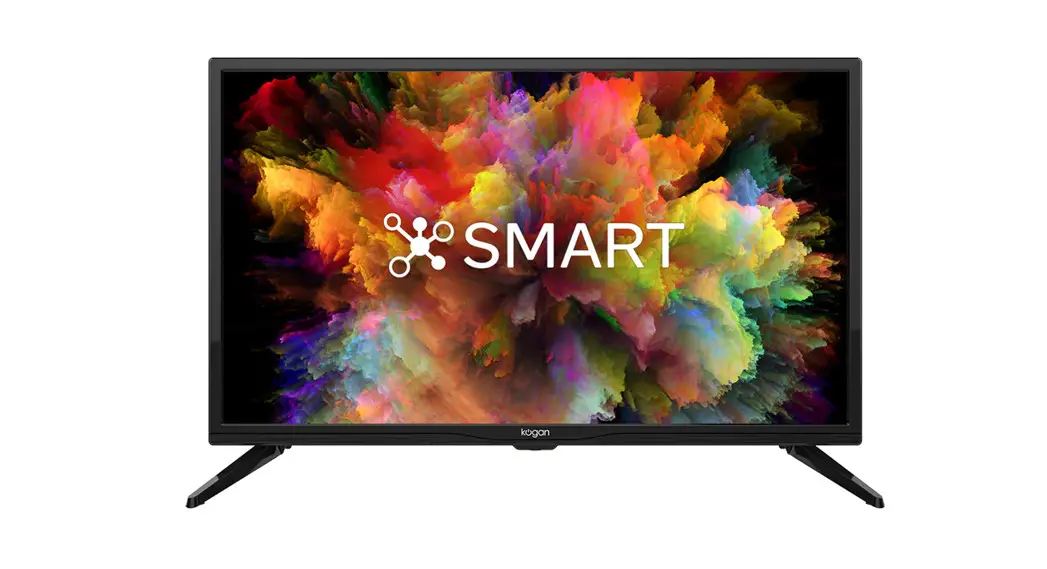
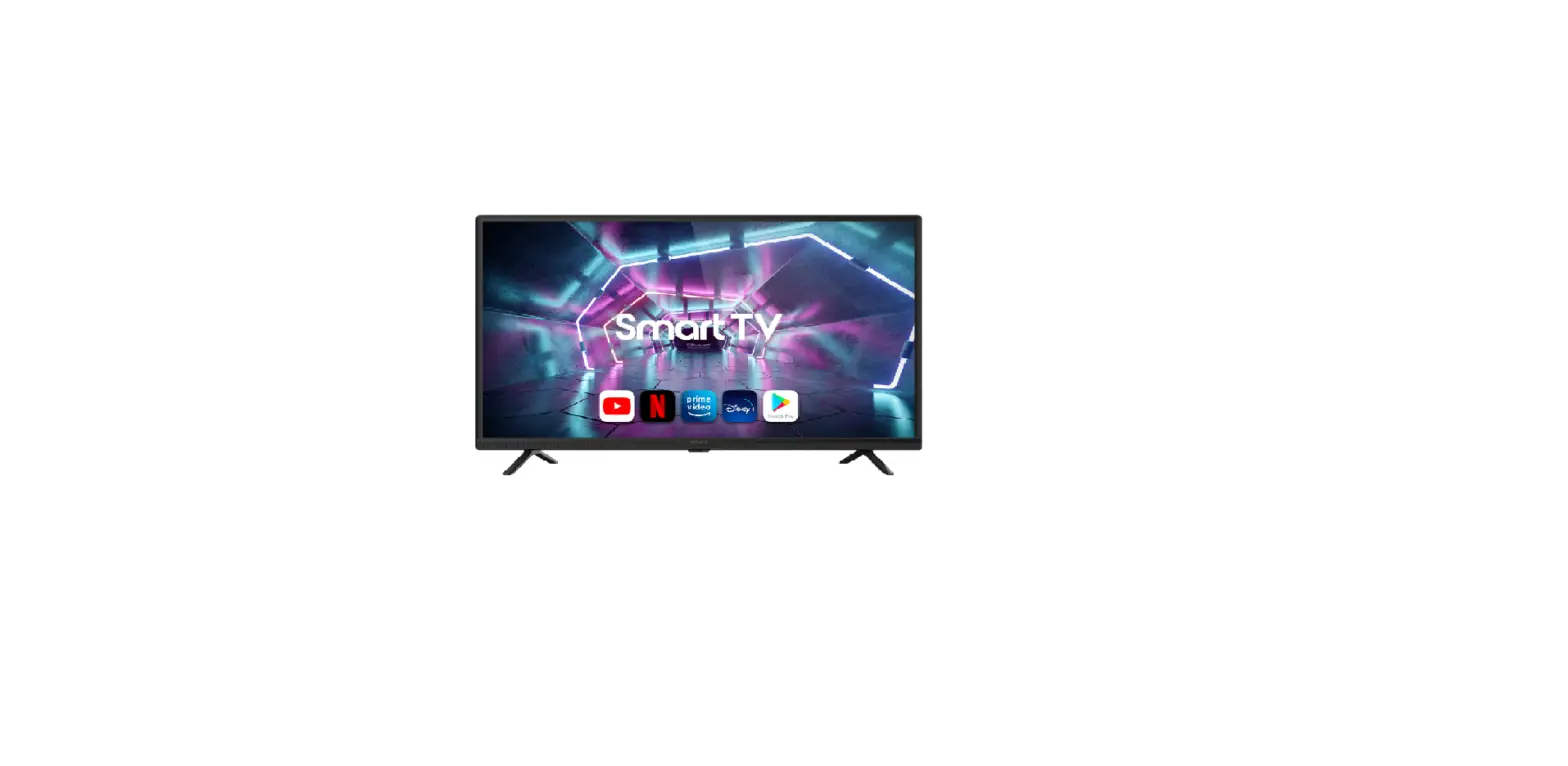
24 Inch Smart LED Tv SERIES 7 EH7520
(KALED24EH7520SVA)
COMPONENTS
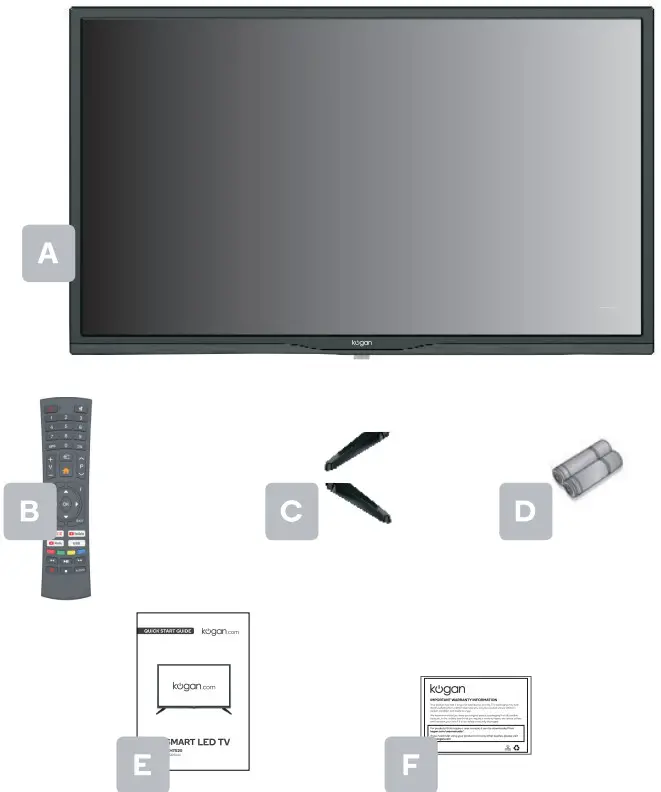
| A Kogan 24″ Smart LED TV B Remote control C Stand (x2) | D AAA battery (x2) E Quick-start guide F Warranty card |
NOT INCLUDED Phillips head screwdriver, antenna cable, broadband internet connection.
REMOTE CONTROL OVERVIEW
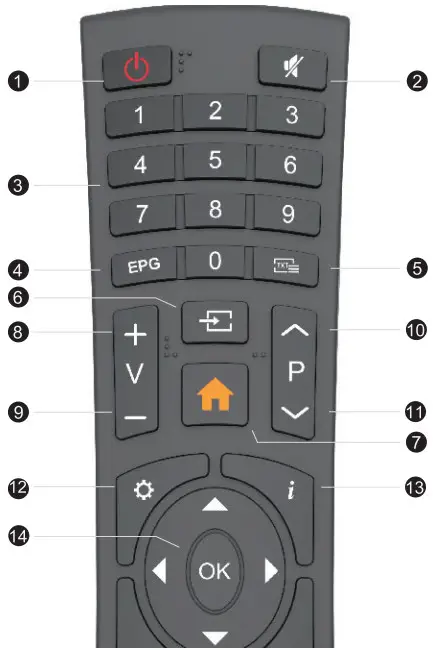
1 : Turn on the TV or enter standby mode : Turn on the TV or enter standby mode2  : Turn off the sound and turn it on when pressing again : Turn off the sound and turn it on when pressing again3 0˜9 :Figures 0-9 are used to directly input channel number4  : Press to display Electronic Program Guide and select the favorite channel : Press to display Electronic Program Guide and select the favorite channel5  : Press to enter Teletext when playing the program : Press to enter Teletext when playing the program6  :Input source selection button :Input source selection button7  : Press to enter the Home Page : Press to enter the Home Page | 8V+: Increase the volume9 V-: Decrease the volume10  : Increase the program : Increase the program11  : Decrease the program : Decrease the program12  : Start system menu : Start system menu13  : Press to display the source and channels display : Press to display the source and channels display14  : To confirm the choice with the highlighted menu item : To confirm the choice with the highlighted menu item |
REMOTE CONTROL OVERVIEW
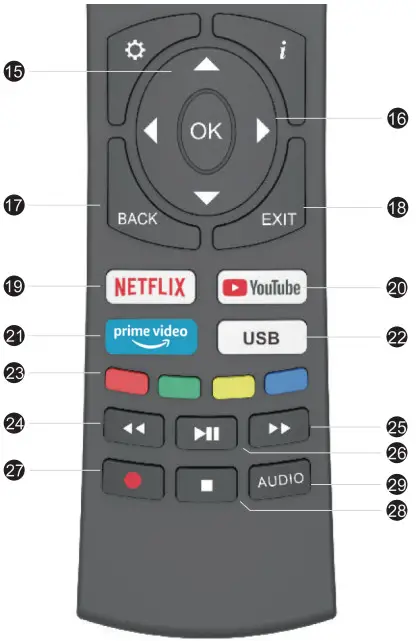
15 : Press these buttons to select items : Press these buttons to select items16  : Press these buttons to select and adjust items : Press these buttons to select and adjust items17 BACK: Go back to the previous step18 EXIT: Press to exit the OSD menu19 NETFLIX: Press to launch the Netflix20  : Press to launch the YouTube : Press to launch the YouTube21  : Press to launch prime video app : Press to launch prime video app22 USB: Press to enter USB mode | 23 Colour Buttons: Press these buttons according to different prompts 24  : Press to fast reverse in USB mode : Press to fast reverse in USB mode25  : Press to fast forward in USB mode : Press to fast forward in USB mode26  : Press to play the video and press again to pause the video : Press to play the video and press again to pause the video27  : Press to start recording the program : Press to start recording the program28  : Hold on or off for current page display : Hold on or off for current page display29  : Press to change the language when playing the stream which contains multi-language : Press to change the language when playing the stream which contains multi-language |
ASSEMBLY AND INSTALLATION
BEFORE YOU GET STARTED
Spread cushioning flat to lay the TV on. This will help to prevent damage.
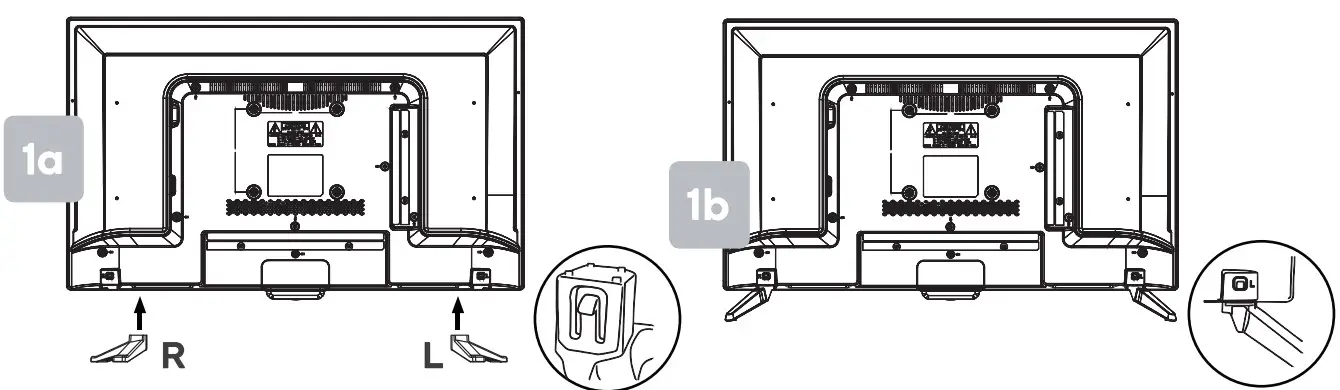
1. Stand assembly
a. Align the stand to the corresponding openings on the TV body, ensuring L and R letters match.
b. Insert each stand into the hole until the buckle locks into place. You will hear a ‘click’ to confirm it is secure.
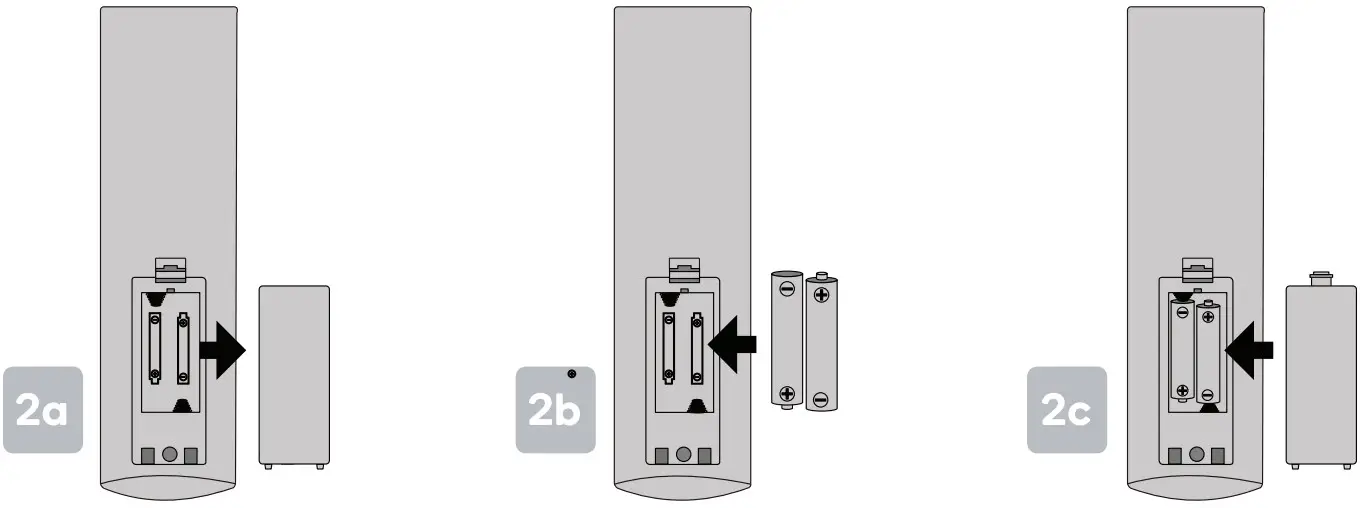
2. Remote control assembly
a. Open the battery compartment cover on the backside.
b. Insert two 1.5V AAA size batteries, making sure to match the polarity markings (+ / -) of the batteries with the diagram inside the compartment.
c. Replace battery compartment cover.
ASSEMBLY AND INSTALLATION
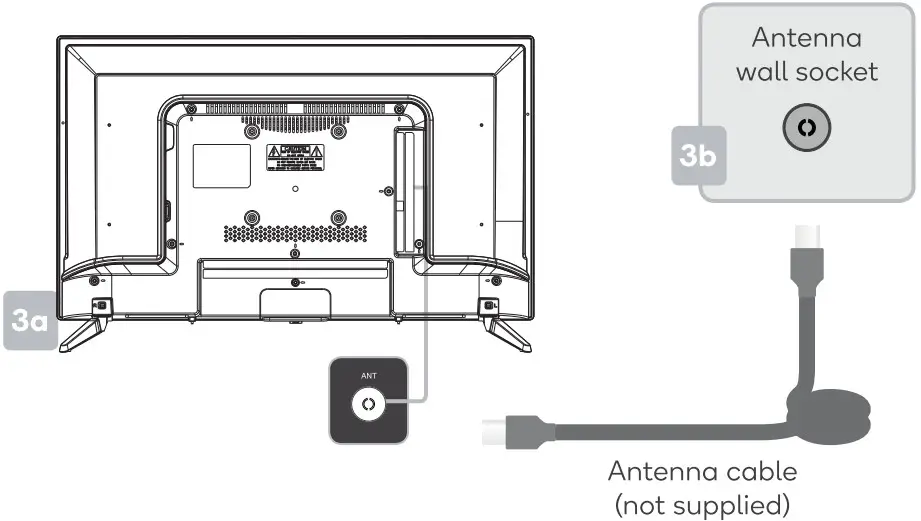
3. Connect to an antenna
a. Connect an antenna cable (not supplied) via the ‘ANT’ input port at the back of the TV.
b. Ensure the antenna cable is also connected to a working antenna, either via an antenna wall socket in your home or directly.
4. Turning the TV on
Connect the power supply, enter the standby mode (red light), press the power button of the TV or the power button on the remote control to turn on the TV.
TURNING TV OFF
Press the POWER ( ) button on the remote control to enter standby mode. To power down the TV completely, unplug the power cord from the power outlet. Do not leave your set in standby mode for long periods of time. If you will not use the TV for a long time, it is recommended to unplug the set from both the power outlet and aerial.
FIRST TIME SETUP
The first time you switch your TV on, it will automatically be in the initial setup mode. This will guide you through the whole setup process of selecting your desired language, connecting to the internet, signing in to your account and tuning in TV channels.
Choosing Your OSD Language
1). Press
 the buttons to highlight your desired OSD language then press the OK button.
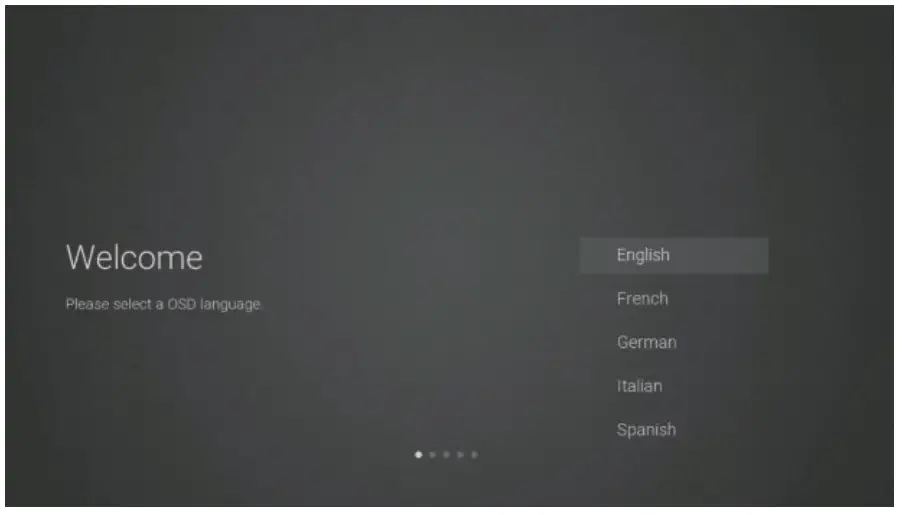
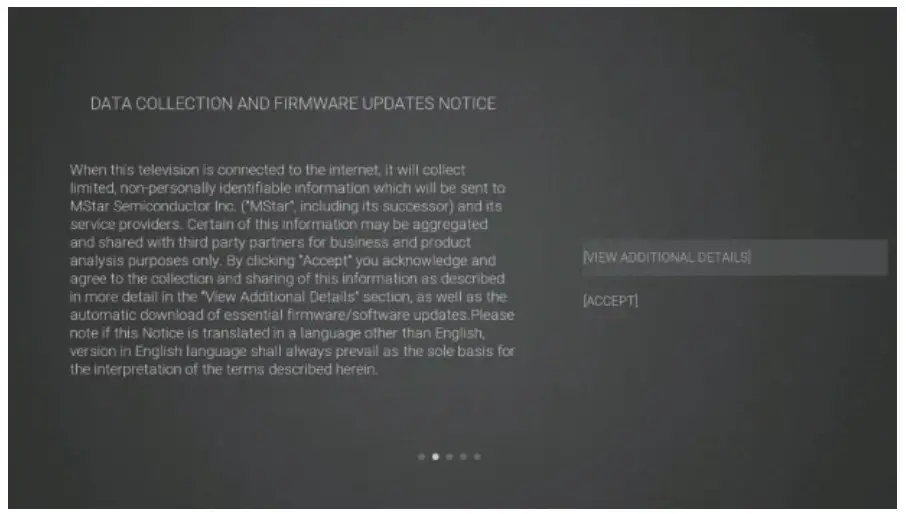
2). Data Collection and Firmware Updates Notice page will appear. Press thebuttons to select the menu option.
FIRST TIME SETUP
VIEW ADDITIONAL DETAILS
Go to view more detailed firmware/software network download update instructions.
ACCEPT
Accept all agreements and agree to the firmware/software network to automatically download updates
3). If you select VIEW ADDITIONAL DETAILS, the detailed firmware/software network download update instructions will display. Initially, the default focus will be on the text description section. Pressthe buttons will drop the text to the bottom. Press the buttons, ACCEPT ALL will highlight. Press the buttons then the OK button to confirm the selection.
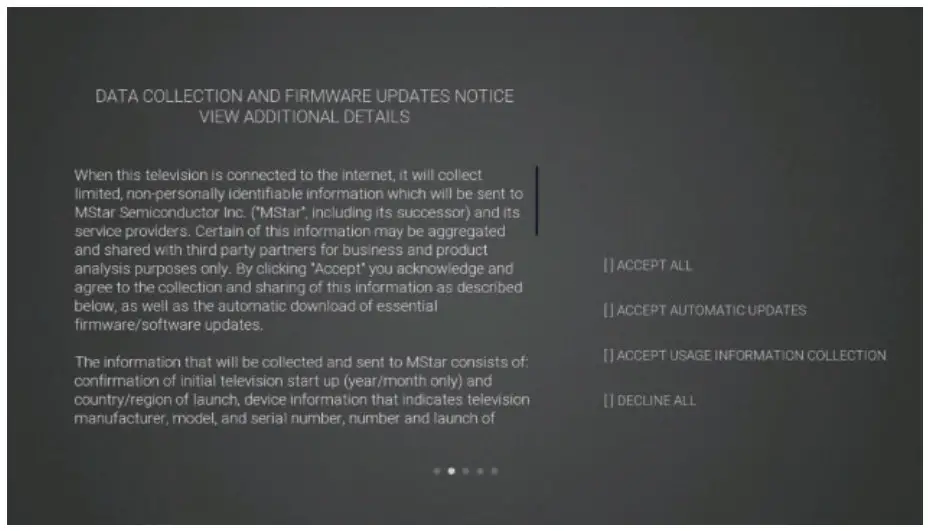
ACCEPT ALL
Accept all protocol sections and agree to the firmware/software network to automatically download updates.
ACCEPT AUTOMATIC UPDATES Accept all protocol ports and manually select whether to agree to the firmware/software network download update if there is a firmware/software update.
FIRST TIME SETUP
ACCEPT USAGE INFORMATION COLLECTION
Suppliers accepting the agreement section collect some non-personal user information.
DECLINE ALL
Reject all protocols to disable firmware/software network updates.
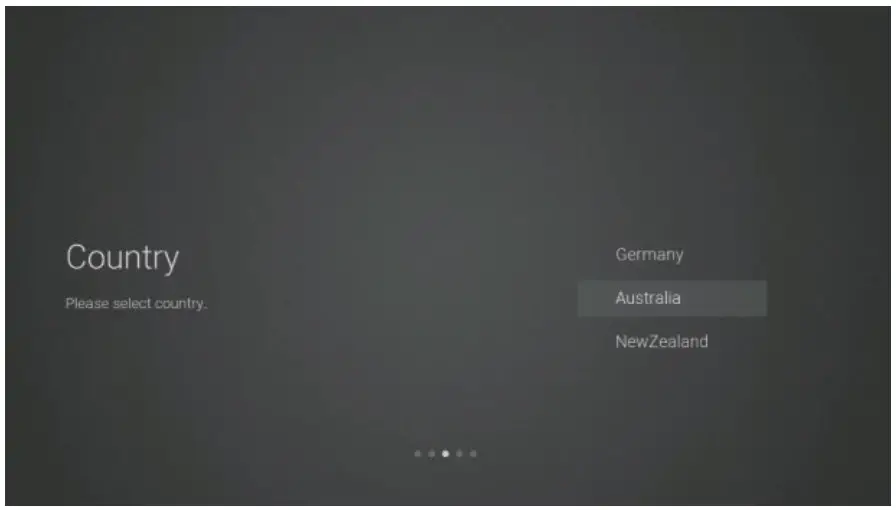
4). Press the buttons to select the country where you will operate the TV. Press the OK button to confirm.
CONNECTING TO THE INTERNET
You have 2 options when connecting your TV to the internet. You can connect wirelessly via Wi-Fi or connect your TV to your router directly by connecting a LAN cable (wired connection). Choose your connection method and follow these instructions.
Wi-A Network
- Press the buttons to highlight Wi-Fi Network then press the OK button. Your TV will automatically scan for your wireless network, then show you a list of networks that it’s found. Highlight your network and press the OK button.
- Use thelA
 ►buttons to navigate the keypad in the screen to enter your Wi-Fi password, then press the OK button to select the characters. Finally, select and press the OK button. In a second or two, your TV will show Success after connection successful.
WIRED Connection
If you have connected your ethernet cable to the LAN socket on the back of your TV, select Wired Network and press the OK button. Then select Connect to start connecting to the Internet.
SKIP Connection
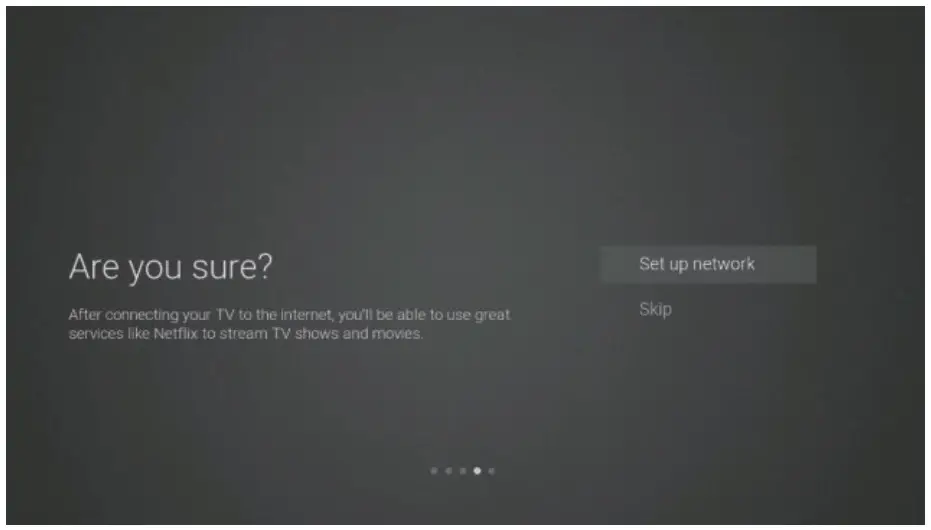
- If you do not need to connect to the network, select Skip and press the OK button to confirm.

- A pop-up menu will be displayed. If you want to go back to the network setting page, select Set up Network. If you want to confirm to skip the network setting, select Skip. Then will enter to Input Source menu and start TV Tuning.
SIGNING IN TO YOUR NETFLIX ACCOUNT
Press the buttons to select Start Netflix then press the OK button. You will now be asked to sign in to your Netflix account. If you don’t already have an account you can set one up on your TV go to the ‘Join Now section.
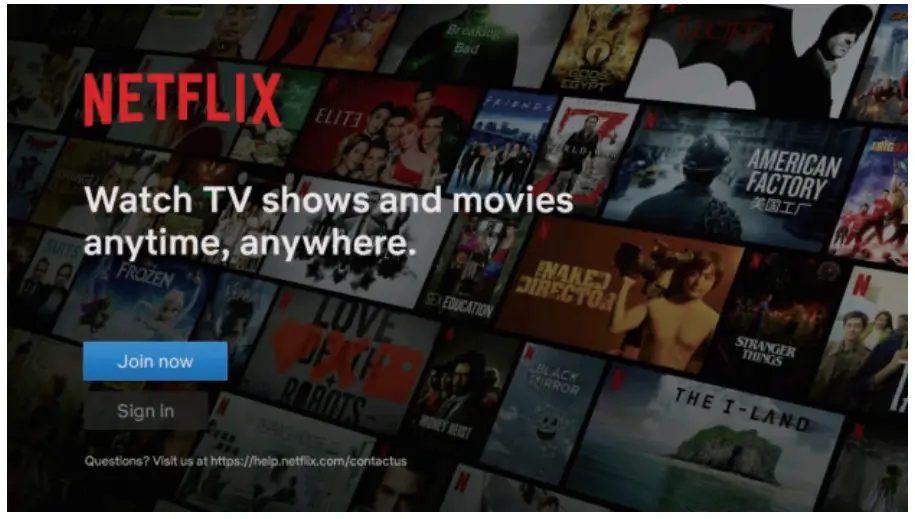
If you want to temporarily skip the Netflix setting, select Skip to enter to Input Source menu and start TV Tuning.
If you complete the Netflix setting, press the EXIT button to leave and press the button, and select Programme, then select Auto-Tuning for TV tuning.
TUNING
If you select the Skip option on Netflix setting page, then you now need to tune in to your TV so you can watch LIVE TV (broadcast TV). If you watch TV via a Set-Top Box you can skip this section by selecting the correct HDMI input source.
DVB-T
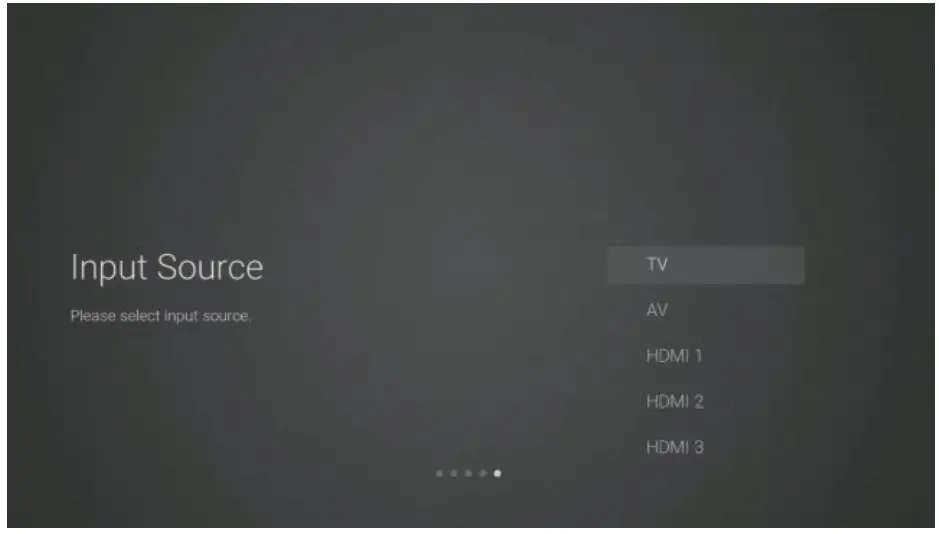
1), Input Source page shown on the TV, use the Ybuttons to select TV. then press the OK button.
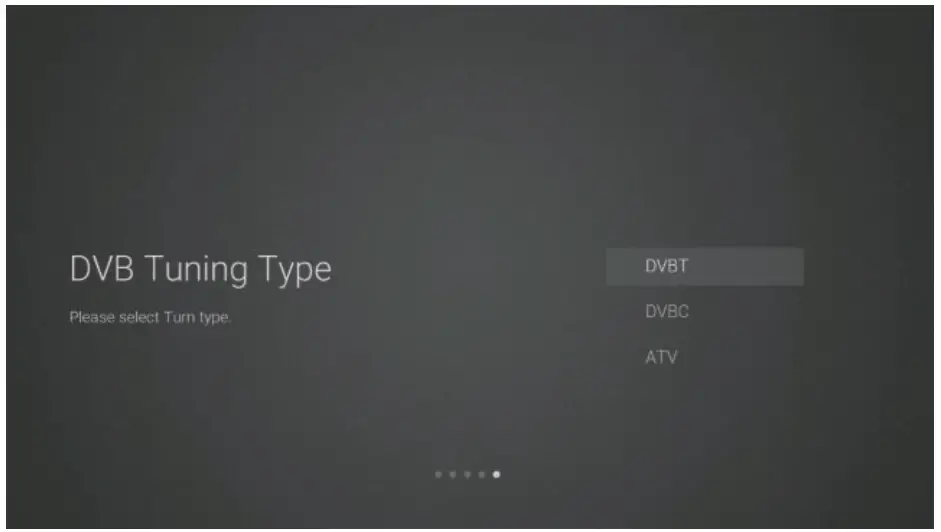
2), In the DVB Tuning Type page, use the buttons to select DVBT.
TUNING
3). Your TV will now start scanning for all the available TV channels. This operation may take a few minutes. The display will show the progress of the tuning and the number of channels found.
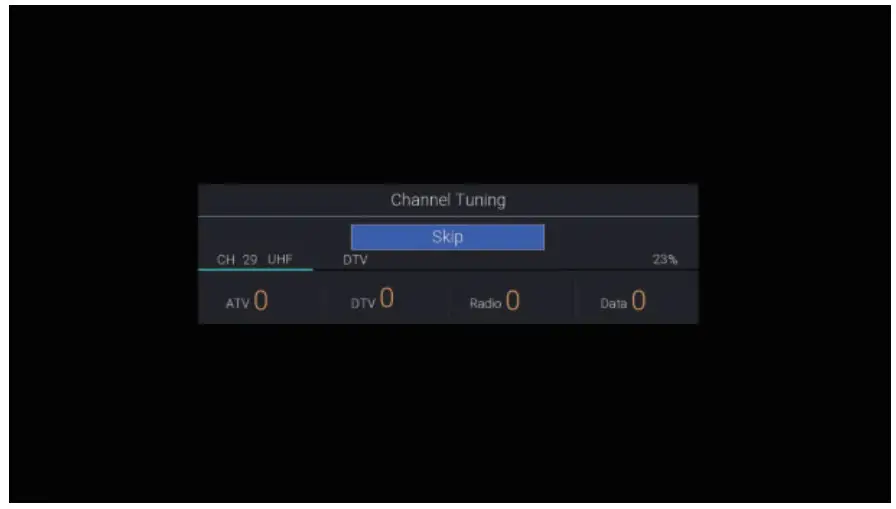
4). If you want to skip the DTV tuning, press the OK button to interrupt the tuning halfway. A pop-up screen will be displayed, press the button to select YES to confirm.
e. Your TV is now set up and ready to watch.
DVB-C 1). Input Source page shown on the TV, use the buttons to select TV. then press the OK button.
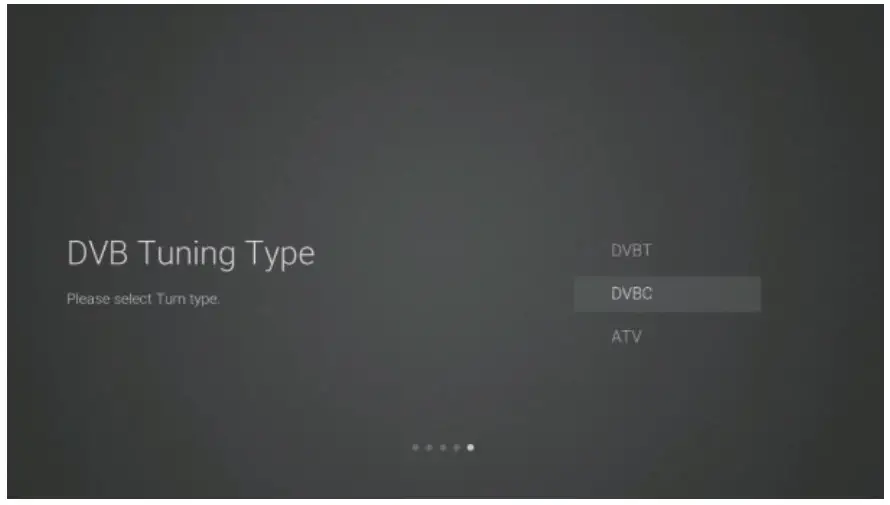
2). In the DVB Tuning Type page, use the buttons to select DVBC.
TUNING
3). Your TV will now start scanning for all the available TV channels. This operation may take a few minutes. The display will show the progress of the tuning and the number of channels found.
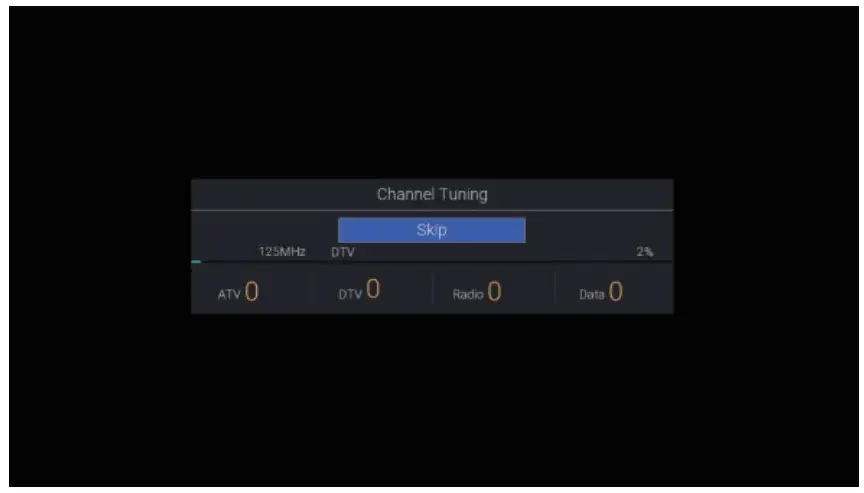
4). If you want to skip the tuning, press the OK button to interrupt the tuning halfway. A pop-up screen will be displayed, press the button to select YES to confirm.
5). Your TV is now set up and ready to watch.
HOME Menu
1). Press the button to display the home menu.
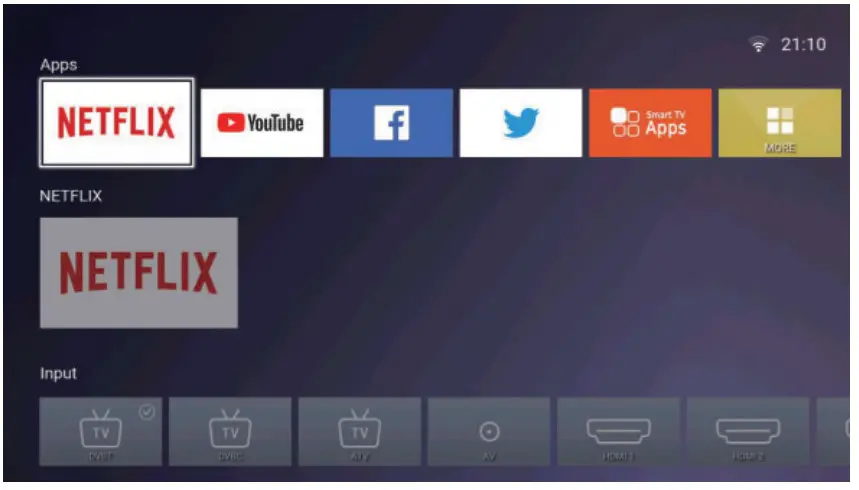
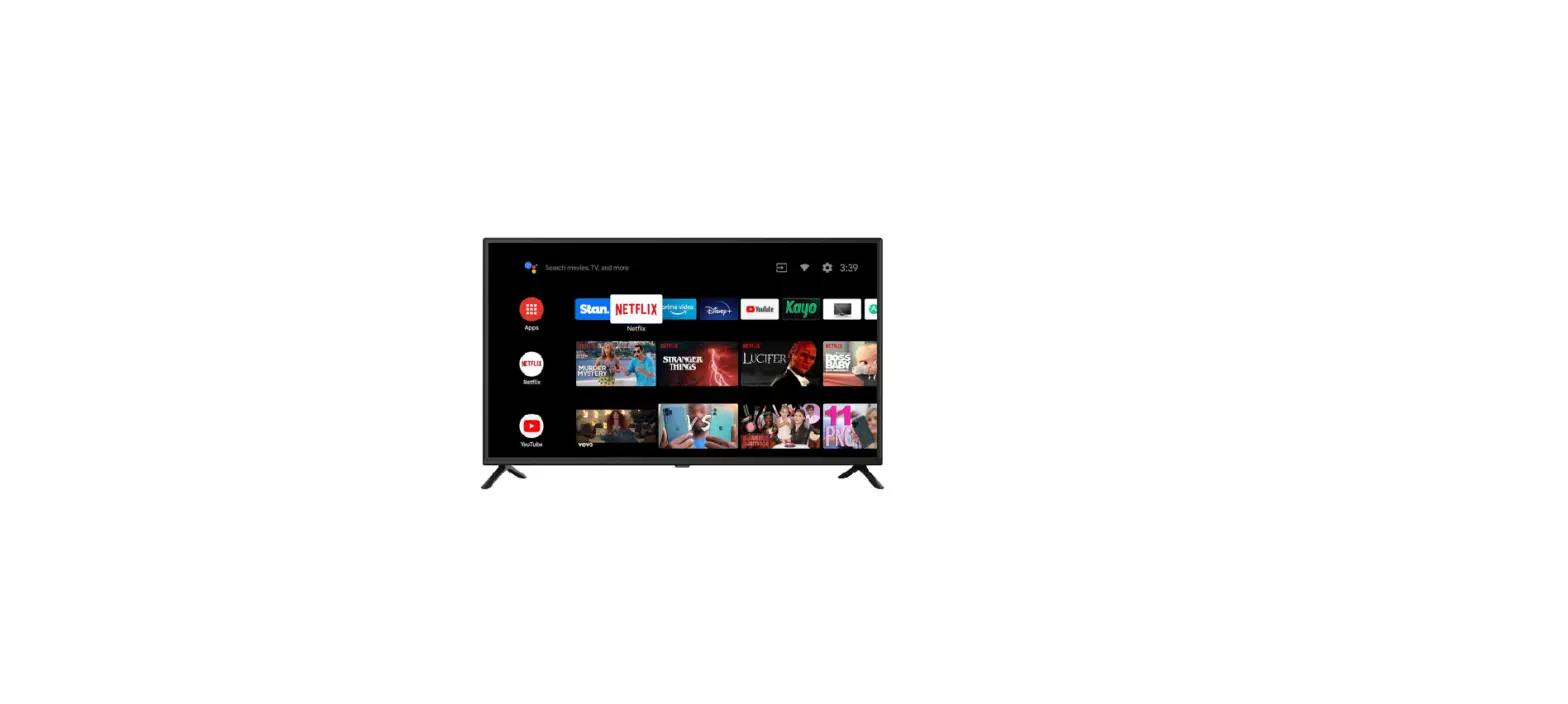
2). Use the ►buttons to switch between the Apps, NETFLIX, Input, and Settings sections of the Home page.
3). Use the►buttons to select the desired App, input source or setting, then press the OK button to confirm.
BASIC TROUBLESHOOTING
Poor picture and sound quality
- Try a different channel
- Adjust the antenna
- Check all connections
No picture or sound in TV status - Try another channel
- Press the TV/AV button
- Make sure TV is plugged in
- Check the antenna connection
No sound or sound is too low at maximum volume - Check the volume settings on any external speakers connected to your television
- Adjust the TV volume accordingly
- Check another channel or input
- Check that MUTE hasn’t been turned on
No color, wrong color, or tints - Make sure the program itself is broadcast in color
- Select the picture menu, then adjust the color and tint submenus
Picture rolls vertically - Check all connections
Blurred or snowy picture, distorted sound - Check the direction, location, and connections to your antenna
- Issues may be caused by the use of an indoor antenna (poor signal)
Remote control malfunctions - Replace remote control batteries
- Check battery terminals
- Remote is out of range, move closer to TV
- Remove any obstructions between the remote and IR sensor of the TV
- Make sure the power cord to your TV is plugged in and turned on
Image is not centered on the screen - Adjust the horizontal and vertical position
“No Signal” on HDMI source - Test the device with a different HDMI cable
- Plug the device into another HDMI port
- Try a different device connected to the same cable and port
- Perform a factory reset on your TV
For our full TV troubleshooting guide and extended User Manual for this TV, head online to help.kogan.com
Need more information?
This is a Quick Start Guide, and while we hope that this has given you the
assistance needed for a simple set-up, a full user guide outlining all
of this product’s instructions and
features can be found online at help.kogan.com