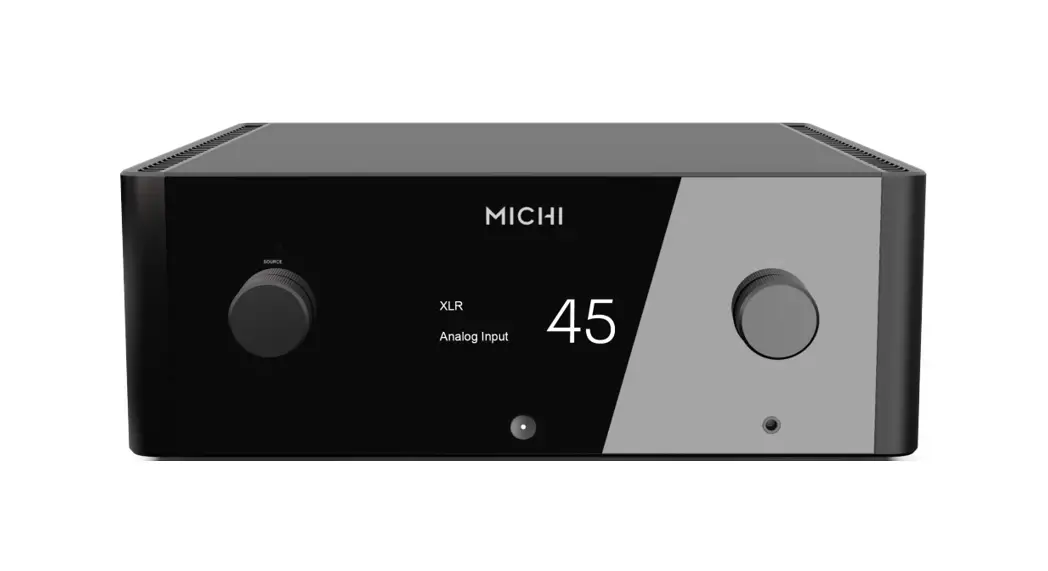
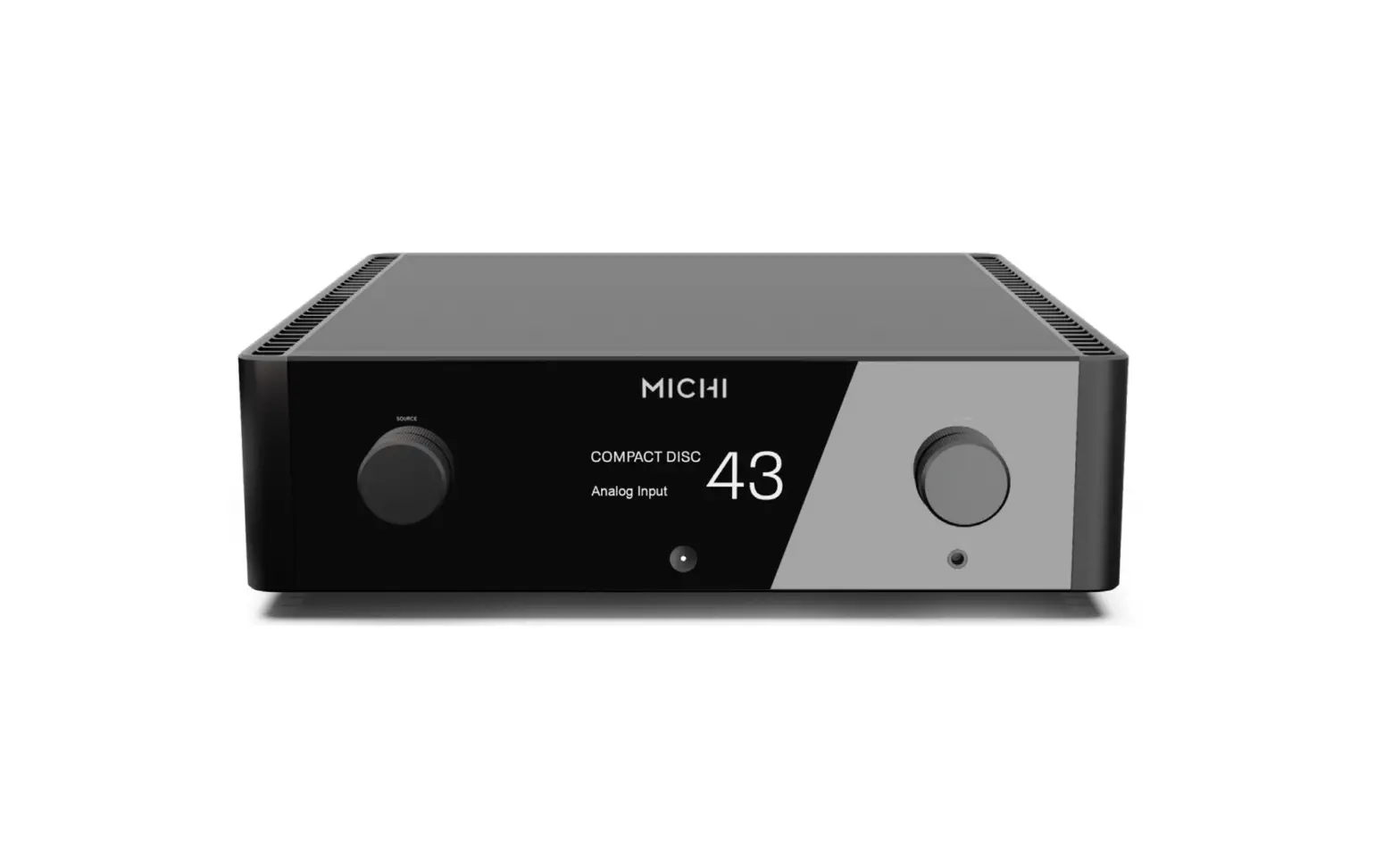
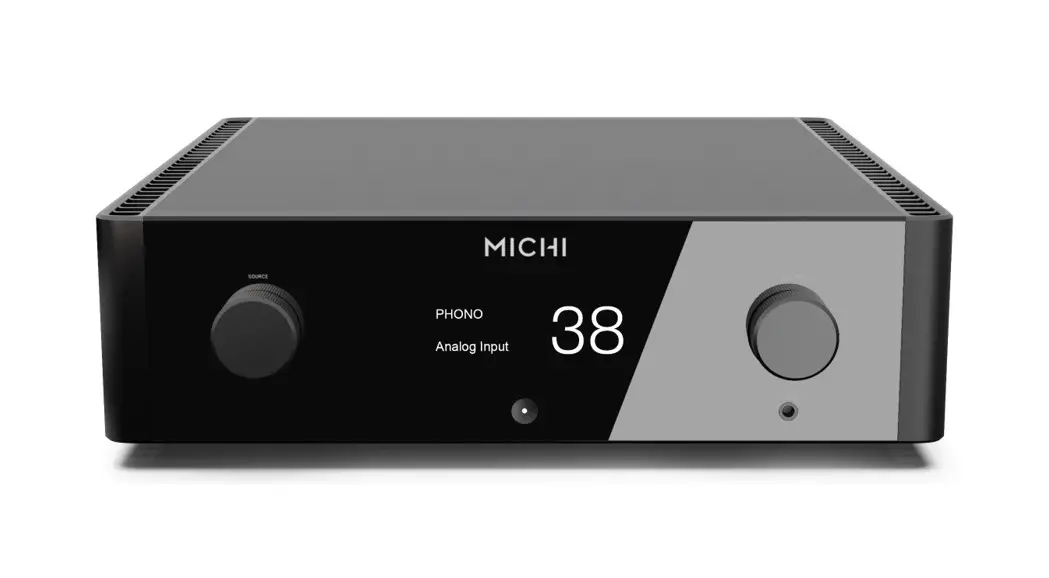
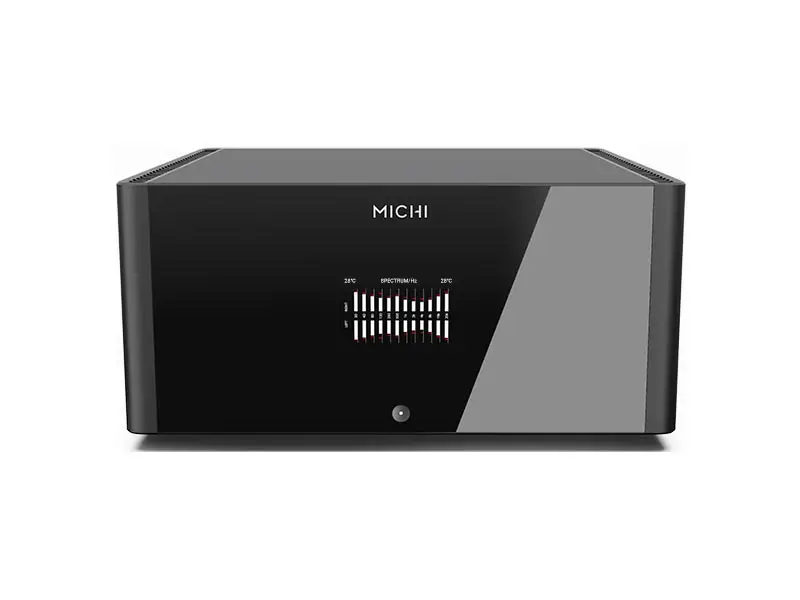
Rotel Michi P5 X3 X5
Product Information
Product: Rotel Device
Model: [Model Name]
Date: Feb 17, 2023
Main Software Upgrade Instructions
The Rotel Device’s main software can be updated using one of the
following methods:
Internet Upgrade
Items needed for upgrade:
- Ethernet cable connected between the unit and a functioning
internet connection
Upgrade Procedure:
- Ensure the unit is currently connected to an active internet
connection via the rear panel Network port. This can be verified by
navigating to SETUP -> NETWORK -> Status on the setup
menu. - Once connection has been confirmed, press the SETUP button to
bring up the main Menu, then navigate to SYSTEM -> Software
Update -> Internet. Press the ENTER button to update. - The unit will power off automatically during the download and
upgrade process.
USB Upgrade
Items needed for upgrade:
- Latest software update files from Michi
- USB flash drive
Upgrade Procedure:
- Download the latest software update files from Michi. Unzip the
download file on the computer. - Browse to the location on the computer where the USB upgrade
file was unzipped. - Copy the file named with .bin from the computer onto a USB
flash drive. The file must be copied to the main (or root) folder
of the drive, and not into a sub folder in the drive. Note – do not
rename the file. - With the unit powered on, plug the USB drive into the rear USB
input of the unit, and then navigate to SYSTEM -> Software
Update -> USB and press the ENTER button to begin the update
process. The unit will power off automatically during the download
and upgrade process once it has completed. - Remove the USB flash drive, power the unit on and return to the
SYSTEM -> Software Version menu to verify the unit has now been
updated to the current version.
Note: With either upgrade method, it is HIGHLY
recommended to perform a Factory Default via the SYSTEM menu after
upgrading.
Serial Cable Upgrade
Updating via a directly connected serial cable between a Windows
PC and the Rotel device requires the Rotel YModem Upgrade Manager
Program.
ROTEL YModem Upgrade Manager V2.0.3 Software Upgrade
Instructions
Software update for Rotel products can be completed using the
Rotel YModem software update utility via an RS232 connection. The
step-by-step instructions below provide information on setup and
configuration using a Windows PC.
Items needed for upgrade:
- Windows-compatible x86 or x64 PC with serial port connection,
or USB-to-serial adapter. - RS232 straight cable with DB-9 terminations.
- Upgrade software and YModem download program.
- Supported operating system: Windows XP, Windows Vista, Windows
7, Windows 10
Note: Windows XP requires installation of .NET
framework before installing the Rotel YModem software
application.
Upgrade Procedure:
- Download YModem Upgrade Manager V2.0.3 from ROTEL website:
http://www.rotel.com/software-downloads - Connect the RS232 cable between the unit and the computer.
- Launch the Rotel YModem Upgrade Manager computer program. It
should be located in the folder specified in the downloaded
files.
Technical Information
Feb 17, 2023
Main Software Upgrade Instructions
The procedure to update the main software can either be updated automatically via the internet if the unit is connected to a network via the Network port, or for units not connected to the internet it can be updated with Serial Cable method or using a USB flash drive connected via the rear USB input. Only one update method need be used; both contain the same software.
Internet Upgrade Items needed for upgrade Ethernet cable connected between the unit and a functioning internet connection.
Upgrade Procedure 1. Ensure the unit is currently connected to an active internet connection via the rear panel Network port.
This can be verified by navigating to SETUP -> NETWORK -> Status on the setup menu. 2. Once connection has been confirmed, press the SETUP button to bring up the main Menu, then navigate
to SYSTEM ->Software Update -> Internet. Press the ENTER button to update. 3. The unit will power off automatically during the download and upgrade process.
Rear USB Upgrade Items needed for upgrade · USB flash drive (FAT/FAT32 file system, 32GB or below ) · Upgrade software file(s) · A computer (to copy the software upgrade file onto the USB drive)
Upgrade Procedure 1. Download the latest software update files from Michi. Unzip the download file on the computer. 2. Browse to the location on the computer where the USB upgrade file was unzipped. 3. Copy the file named with “.bin” from the computer onto a USB flash drive. The file must be copied to the
main (or “root”) folder of the drive, and not into a sub folder in the drive. Note – do not rename the file. 4. With the unit powered on, plug the USB drive into the rear USB input of the unit, and then navigate to
SYSTEM ->Software Update->USB and press the ENTER button to begin the update process. The unit will power off automatically during the download and upgrade process once it has completed. 5. Remove the USB flash drive, power the unit on and return to the SYSTEM ->Software Version menu to verify the unit has now been updated to the current version.
NOTE: With either upgrade method, it is HIGHLY recommended to perform a “Factory Default” via the SYSTEM menu after upgrading.
Serial Cable Upgrade Updating via a directly connected serial cable between a Windows PC and the Rotel device requires the Rotel YModem Upgrade Manager Program. Instructions are as below.
Technical Information
Feb 17, 2023
ROTEL YModem Upgrade Manager V2.0.3 Software Upgrade Instructions
Software update for Rotel products can be completed using the Rotel YModem software update utility via an RS232 connection. The step-by-step instructions below provide information on setup and configuration using a Windows PC.
Items needed for upgrade
1. Windows-compatible x86 or x64 PC with serial port connection, or USB-to-serial adapter. 2. RS232 straight cable with DB-9 terminations. 3. Upgrade software and YModem download program. 4. Supported operating system:
Windows XP, Windows Vista, Windows 7, Windows 10
Note – Windows XP requires installation of .NET framework before installing the Rotel YModem software application.
Upgrade Procedure
1. Download YModem Upgrade Manager V2.0.3 from ROTEL website. http://www.rotel.com/software-downloads
2. Connect the RS232 cable between the unit and the computer. 3. Launch the Rotel YModem Upgrade Manager computer program. It should be located in the folder
labeled “Rotel YModem Upgrade Manager”.
4. Once the YModem program has launched, verify or adjust the settings to the following: Port: COM3 (or the appropriate COM port for your PC’s serial connection see the Troubleshooting section at the end of this document for more information on determining the correct COM port)
5. Press “Connect” on the program. The Connect button should grey out, and the Open button should become selectable.
6. Click the “Open” button. A window will open to locate the software update bin file which was included with the upgrade files. Browse to the location on the computer where this file was saved, select the file and click [Open] for next step.
7. Once the file has been selected, click the “Send Upgrade Request” button.
8. The front panel display of the unit should turn off and some text should appear in the window of the Ymodem program.
9. Click the Send Upgrade File” button to start the download. A file transfer window should appear as the file downloads to the unit.
10. Once the transfer is complete the file transfer window will disappear, and the text in the file transfer window will indicate the programming has completed and to turn power cycle the device.
11. Press “OK” to close the file transfer window, and then press “Close” to close the YModem Upgrade Manager.
12. Unplug the power cord, or push the front panel power toggle button to do a power cycle to complete the upgrade process.
13. If at any time the update is interrupted or failed, or the unit does not respond after upgrade see the Troubleshooting section at the end of this document to try the procedure again.
Troubleshooting
How to determine RS232 COM port: It is important when selecting the com port for updates and RS232 communication to be aware of what com port is being used on the PC for the upgrade, whether it be a built in serial port on the PC, or a USB to serial adapter. Selecting the incorrect com port in an update program or an RS232 terminal will result in communication errors. Common YModem error messages from incorrect com port settings are:
“Unable to connect. Please verify COM port information.”
This error appears when selecting a com port that does not exist on the PC, or when the currently selected com port is in use by another program or device.
Solution: Refer to the steps below for information on how to determine which com port the serial port is on, and how to change it if necessary. If the port is correct, close all open programs. Common programs that also use the serial port would be other terminal programs like HyperTerminal.
Use the following steps to confirm which com port the serial port or USB to Serial adapter has been installed to and if necessary, change it to a more suitable port. 1. From the desktop, right click on “My Computer”, and select Properties. 2. From the System Properties window, click on the Hardware tab, and select Device Manager. 3. From the Device Manager Window, look for the setting labeled Ports (COM & LPT), and click on the +
to open this section. The USB to Serial adapter should be listed in this area, with the COM port in use listed in parenthesis next to it.
Unable to Lunch on Windows 7/10: By default, Windows 7/10 has integrated .Net Framework 2.0/3.5 inside and user no need to manually install it, please check below configuration to make sure it is enabled in Windows 7 and 10 if unable to lunch the application 1. Press [WIN]+[R] keyboard shortcut to activate RUN dialog box, type “appwiz.cpl” to lunch “Programs and Features”.
2. Click “Turn Windows features on or off” to activate “Windows Features” dialog box.
3. Make sure below “.NET Framework 3.5” option is enabled.
Failed to Receive the File during upgrading: Generally, the upgrading requires a good RS232 communication, make sure a good enough RS232 or USB cable be used, a long external RS232 or USB cable possible led a bad electrical signal quality transferring during upgrading process. Check below options when you see below error message: 1. Check the RS232 or USB connection. 2. Check the RS232-to-USB convertor, or replace it by good one. 3. Remove the RS232 or USB external cable to shorter the distance between amplifier and main chassis of the PC computer, or replace by a good one.
Important for Windows XP: make sure you have the .NET FRAMEWORK 2.0/3.5 installed, in addition make sure you have the Windows Installer 3.1 installed before you installed the framework. 1. Access below link to download and install .Net Framework 2.0/3.5: https://www.microsoft.com/enUS/download/details.aspx?id=21 To download the full redistributable package, rather than the bootstrapper, click on the link below to start the download: .NET Framework 3.5 full package
2. Access below link to download and install Windows Installer 3.1: http://support.microsoft.com/kb/893803
Rotel Electronics Co., Ltd.
2
 Windows Installer 3.1 v2 (3.1.4000.2435) is available - Microsoft Support
 Software Downloads | Rotel
 Download Microsoft .NET Framework 3.5 from Official Microsoft Download Center