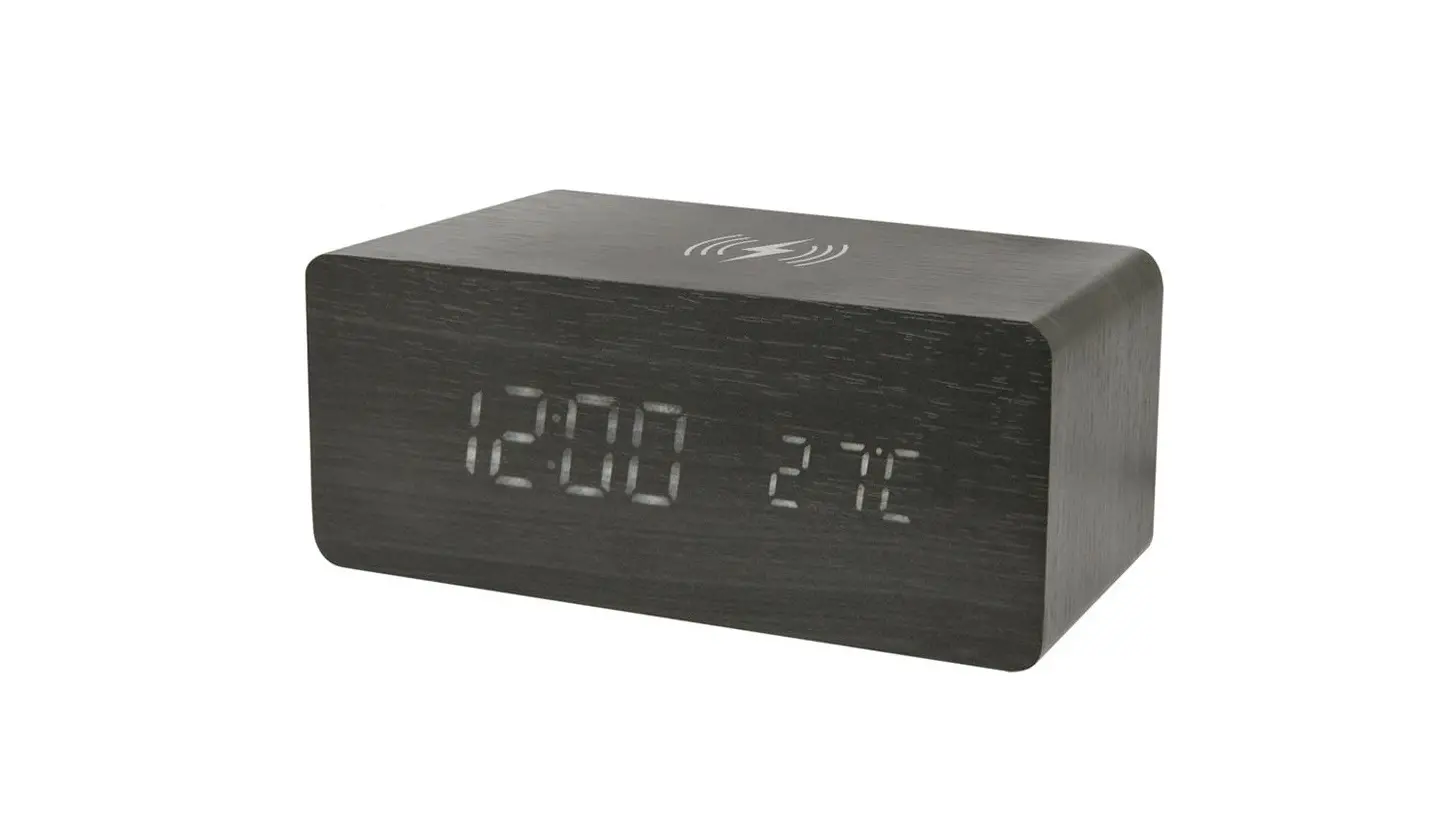
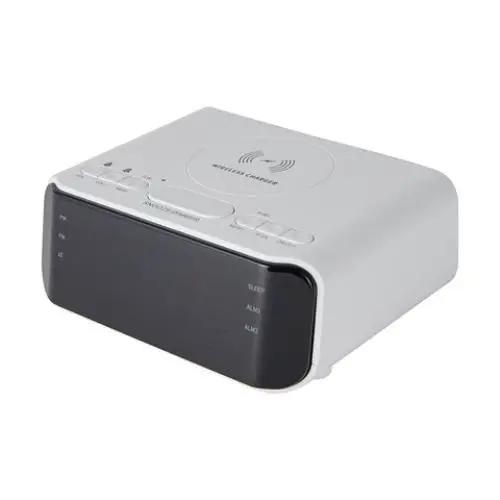
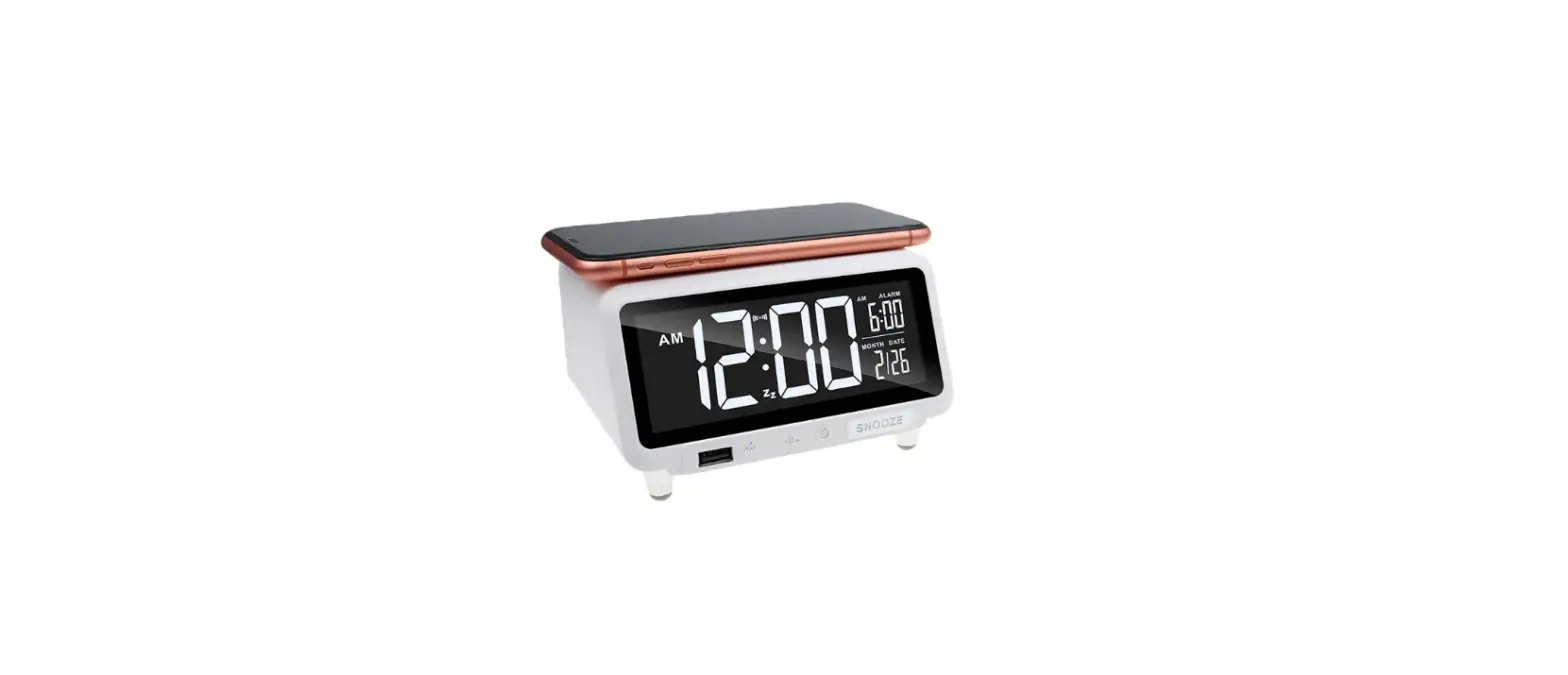
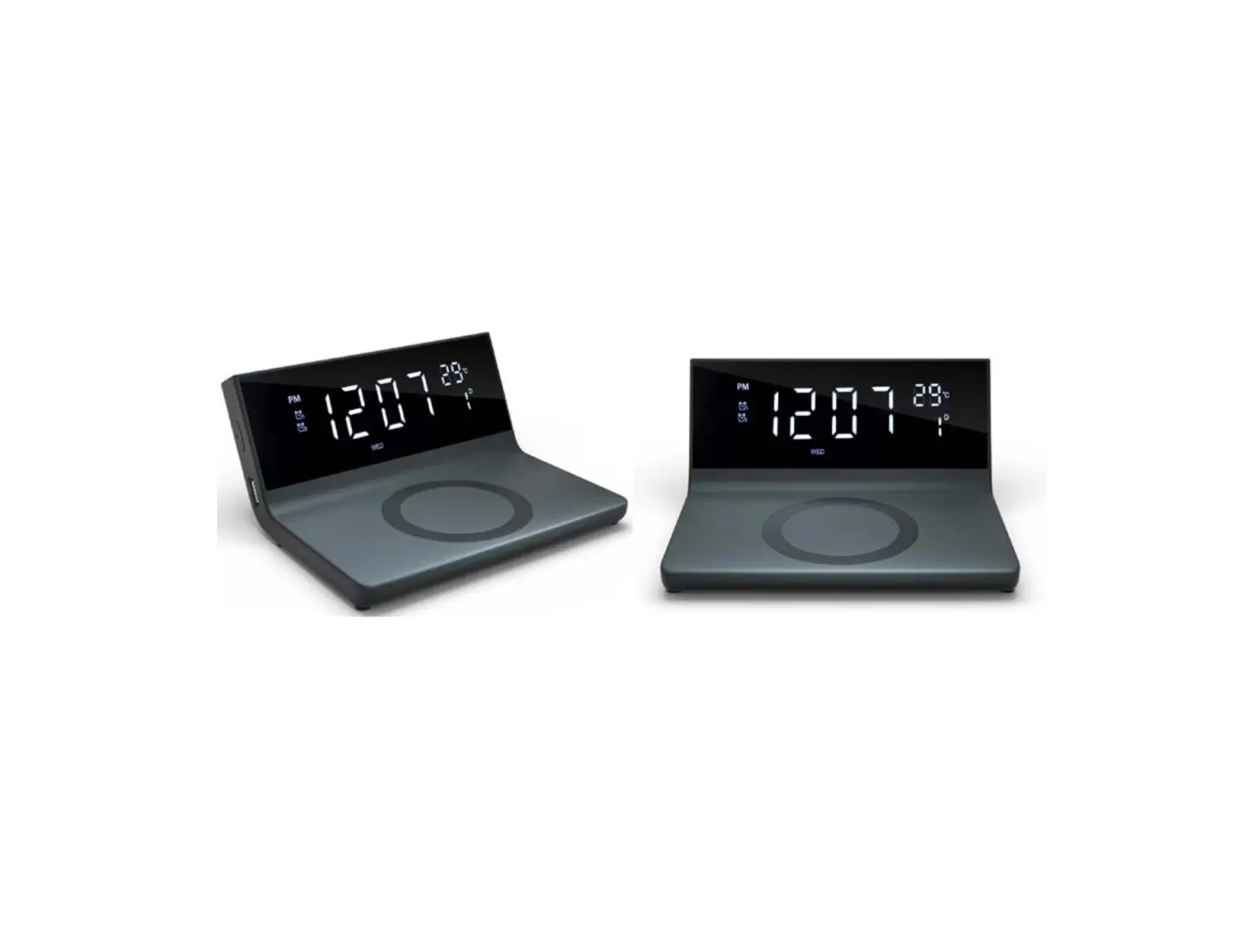
YYQ-230 Digital Wireless Charging Clock
Product Information:
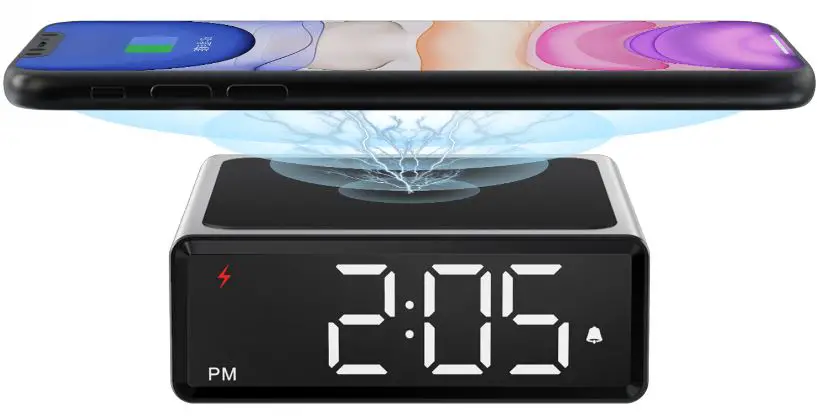
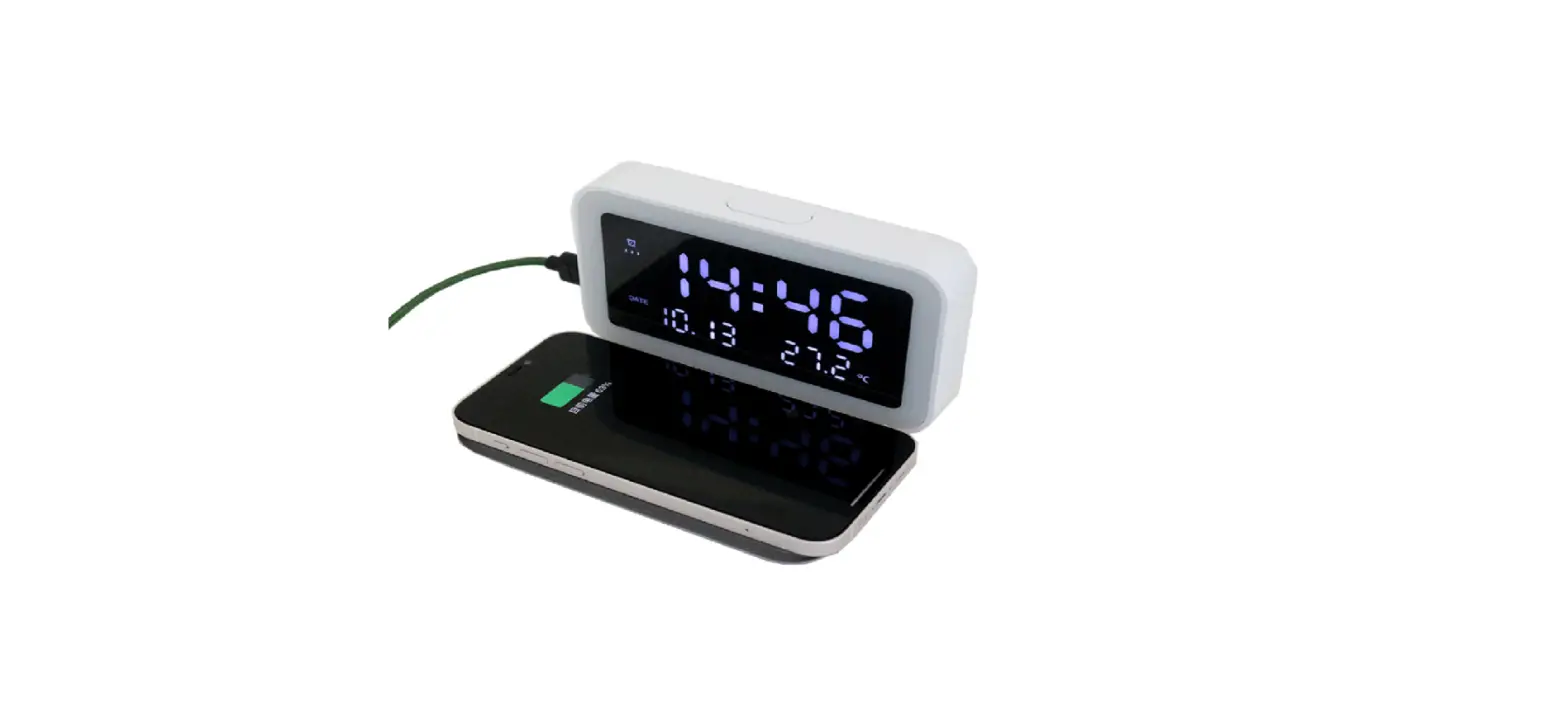
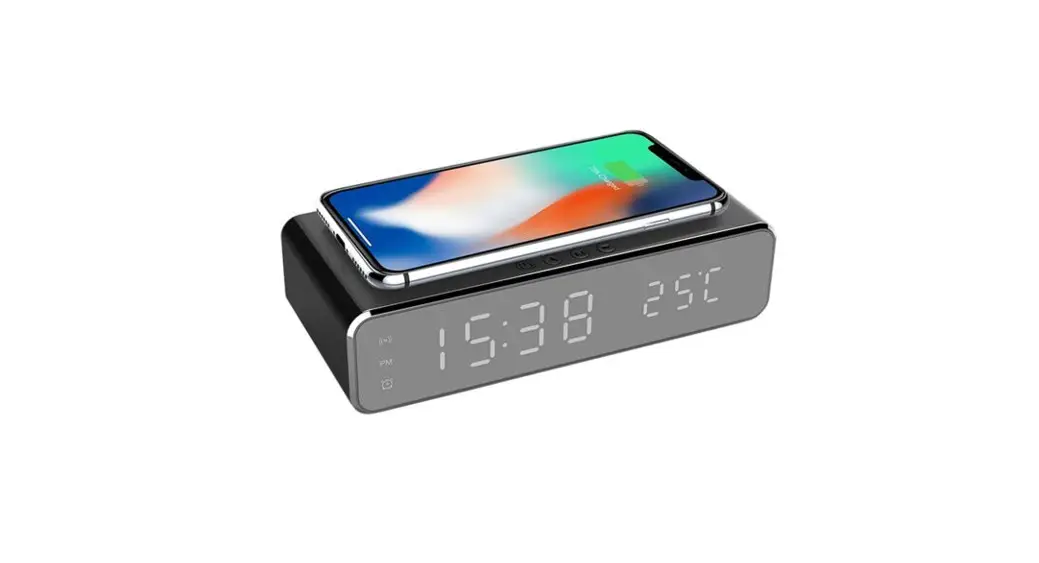
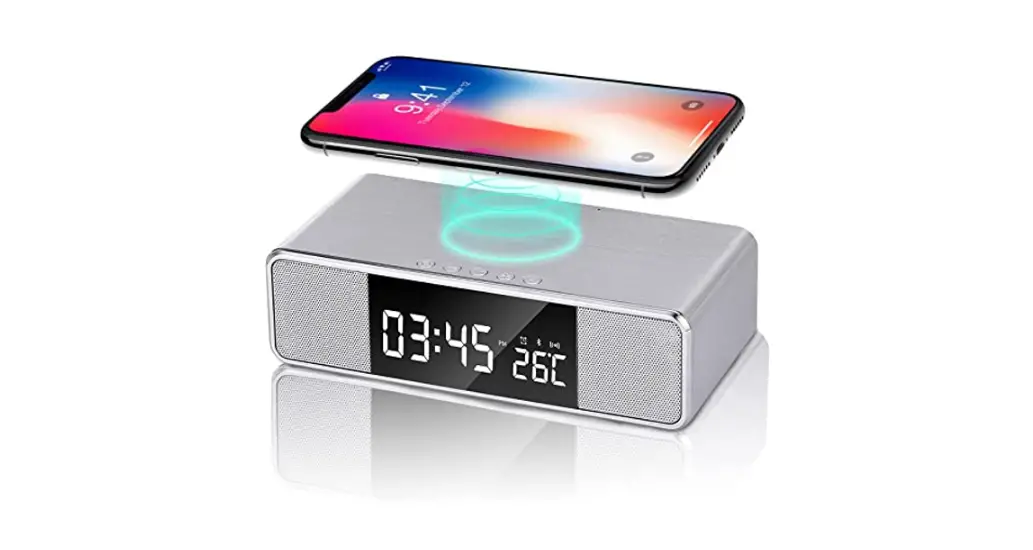
- 10W wireless charging
- No PWM output
- 5 buttons
- 1 display screen
- 1 buzzer
Product Usage Instructions:
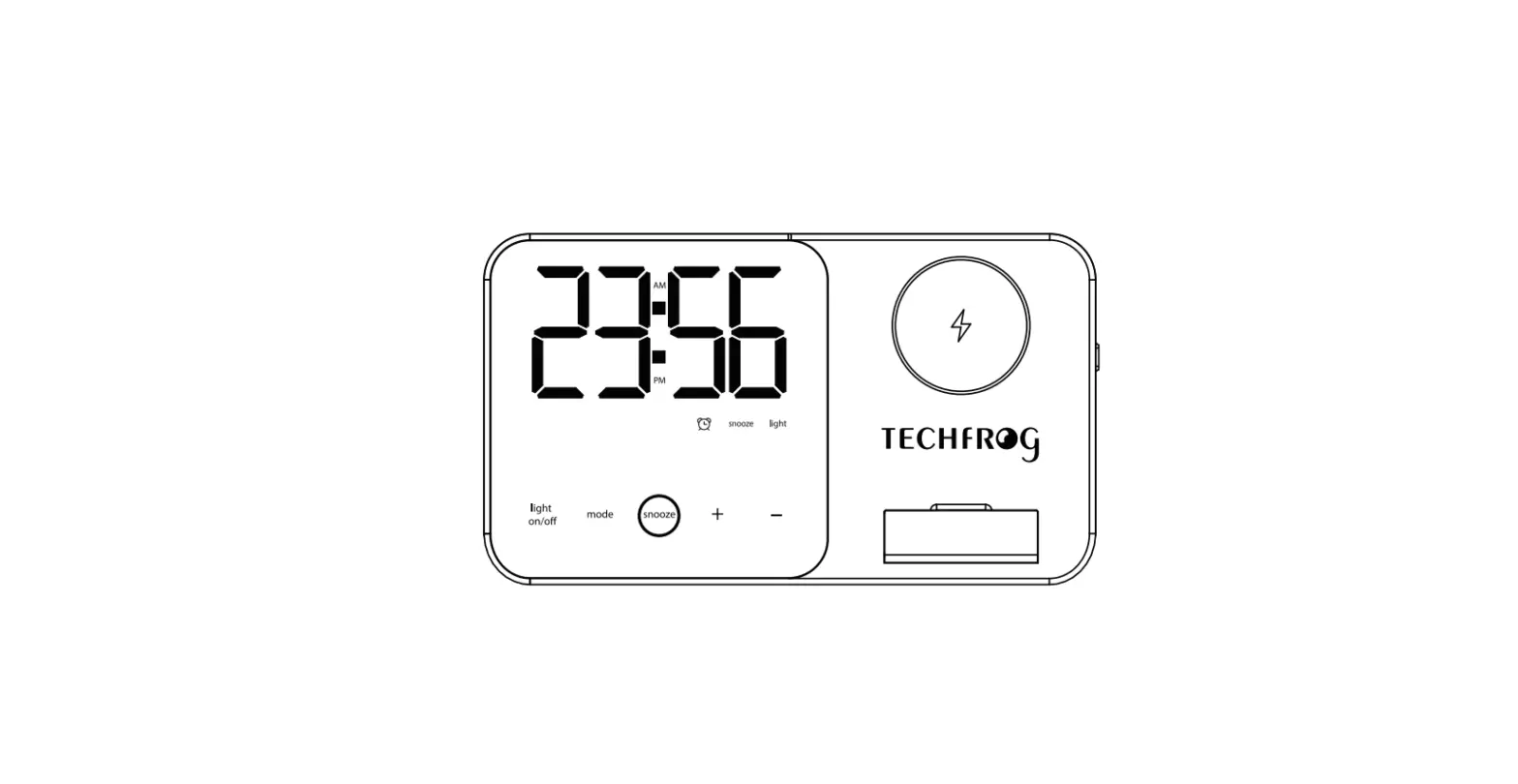
- Key arrangement and definition: The product
has a specific key arrangement. The exact functions of each key are
not mentioned in the manual extract. - Function description:
- The display screen shows one sentence per day, with a total of
365 sentences displayed in order. Days 365 and 366 display the same
sentence. - If the alarm clock is turned on, the corresponding alarm clock
pattern will be displayed. - The product uses a 24-hour system.
- The display screen shows one sentence per day, with a total of
- Brightness: The manual mentions setting the
flash to stop after 1 minute and restoring the timing function. It
does not provide detailed instructions on how to adjust the
brightness. - Clock and timer setting:
- To set the year, month, day, and hour, enter the desired values
and press the addition or subtraction key to stop the time. If the
addition or subtraction key is not pressed, the time will not stop,
and the timer will not start from 0. - The alarm key starts the timer immediately from 0 seconds.
- To set the year, month, day, and hour, enter the desired values
- + and – buttons:
- In clock state, the + button does not have any function.
- In time and alarm clock setting mode, the + button increases
the displayed number gradually. - In clock state, the – button does not have any function.
- In time and alarm clock setting mode, the – button decreases
the displayed number gradually.
- Alarm:
- In clock state, the first trigger of the alarm button displays
alarm clock 1 for 5 seconds before returning to the clock
display. - The second trigger displays alarm clock 2 for 5 seconds before
returning to the clock display. - The third trigger returns to the clock display.
- After entering alarm clock 1 or 2, the alarm clock switch
setting is entered, and the alarm clock shows ON or OFF flash. The
+ or – sign can be triggered to change the ON or OFF status. - Pressing the Settings button for the first time enters the
alarm hour setting, and the hour flashes on the alarm clock
display. The + or – sign can be triggered to change the hour. - Pressing the Settings button for the second time enters the
alarm minute setting, and the minute flashes on the alarm clock
display. The + or – sign can be triggered to change the
minute. - Pressing the Settings button for the third time enters the
alarm clock switch setting again, and the alarm clock shows ON or
OFF flash. The + or – sign can be triggered to change the ON or OFF
status. - When the alarm clock rings, triggering the alarm clock button
stops the buzzer from working without pressing it for 1
minute.
- In clock state, the first trigger of the alarm button displays
- FCC Warning: The device complies with part 15
of the FCC rules. It should not cause harmful interference and must
accept any interference received, including interference that may
cause undesired operation. Any changes or modifications not
approved by the responsible party may void the user’s authority to
operate the equipment.
User Manual
I. Overview
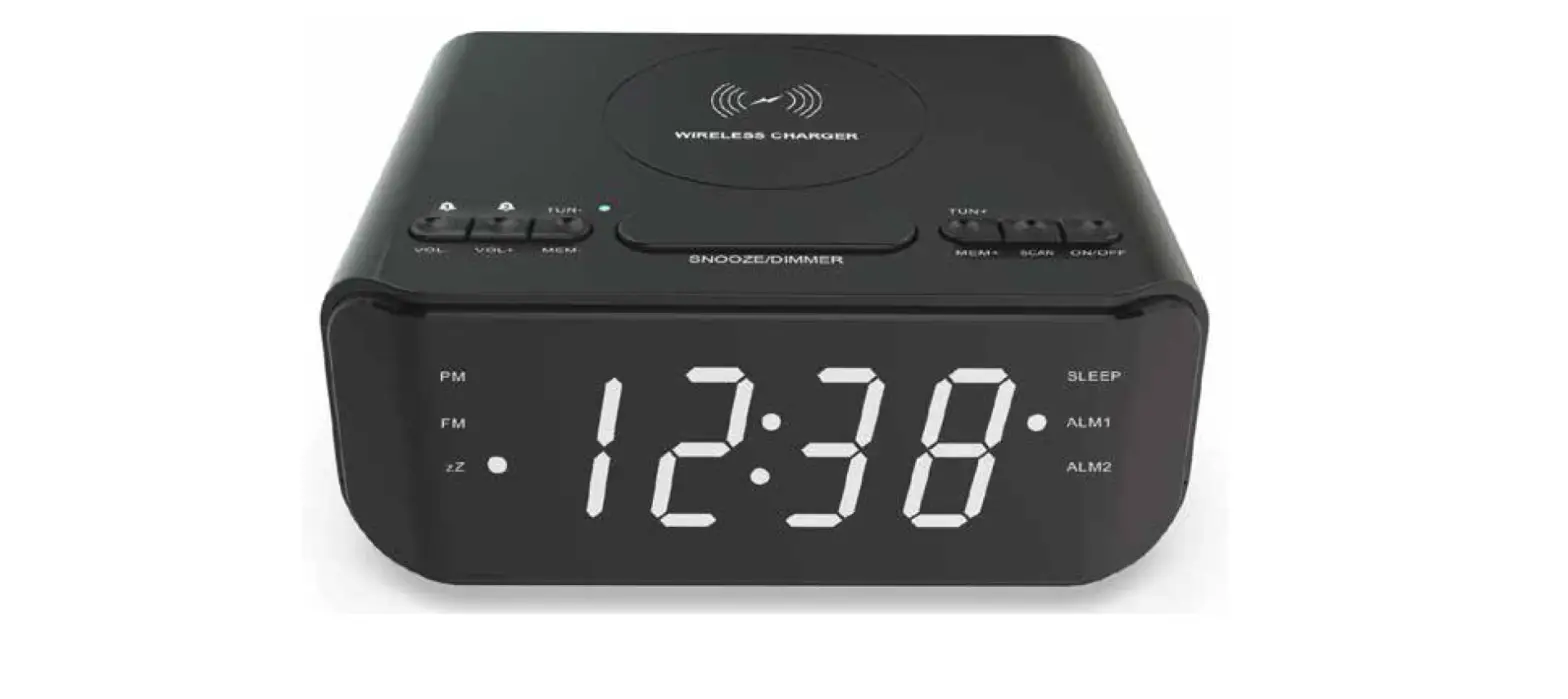
1) 10W wireless charging 2) No PWM output 3) 5 button 4) 1 display screen 5) 1 buzzer
2.Key arrangement and definition
Sitting alarm brightness
3.Function description
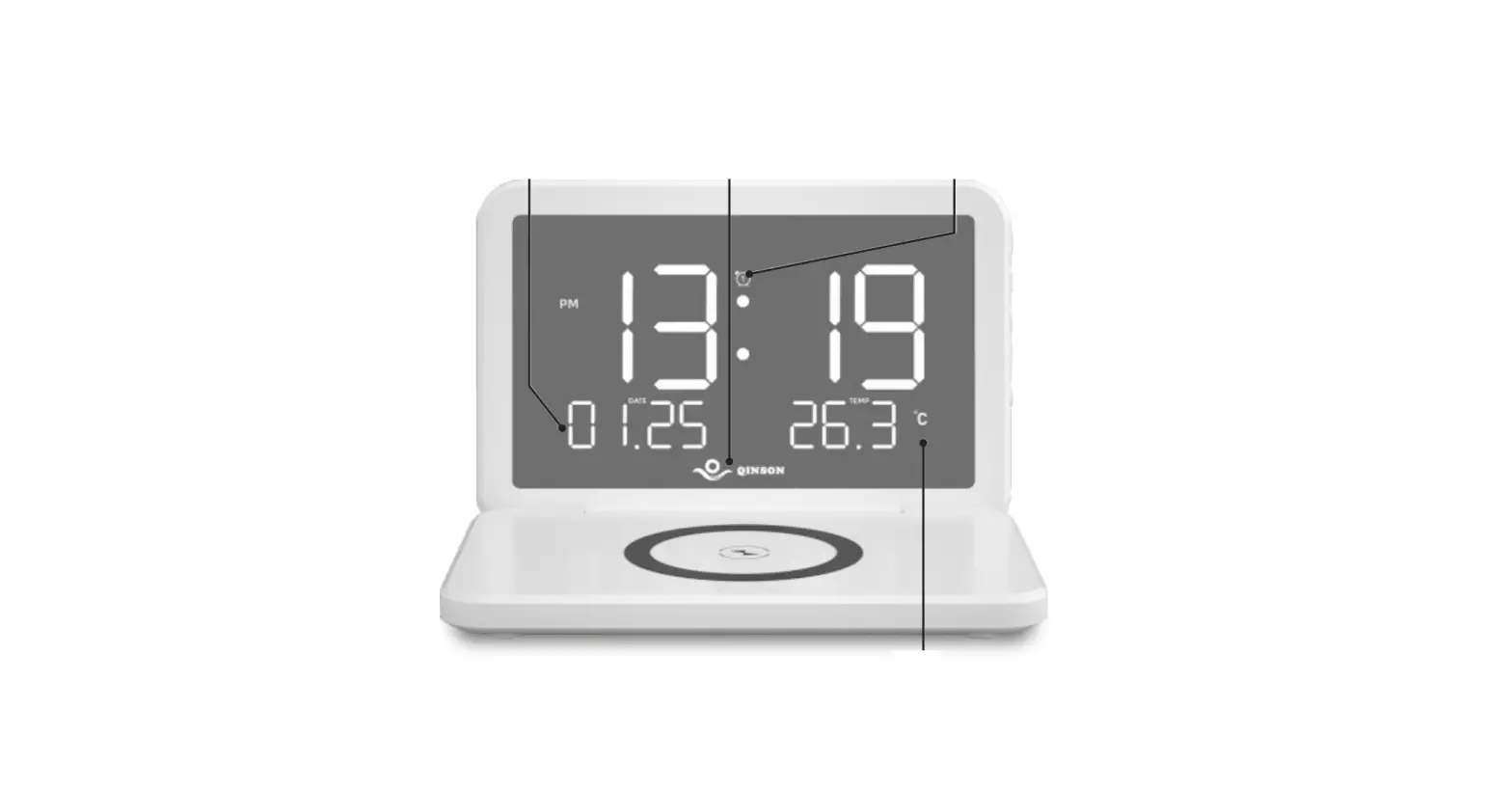
1Display screen 1The display screen displays one sentence every day, with a total of 365 sentences, which are displayed in turn in order, and 365 and 366 display the same sentence. 2If the alarm clock is turned on, the corresponding alarm clock pattern will be displayed. If the alarm clock 1 is turned on, the pattern of the alarm clock 1 will be lit. 3This product is used in a 24-hour system.
2Brightness
User Manual
1After the power is turned on, the display screen lights up. At this time, it plays a beeping sound and enters the power-on state. 2In the boot state, press the “Brightness” button to adjust the brightness of the display: The “Brightness” button is triggered for the first time, and the display brightness is adjusted to “Bright”. The “Brightness” button is triggered for the second time, and the display brightness is adjusted to “Dark”. The “Brightness” button is triggered for the third time, and the display is turned off. The “Brightness” button is triggered for the fourth time, and the brightness of the display is adjusted to “the brightest”. ( Power-on default)
3Set up In the clock state, trigger the “Setting” button, enter the time setting mode, and set the corresponding time through “+” and “-“: 1The first time to trigger the “Settings” button, enter the “time” setting, and the number corresponding to “time” flashes at this time. 2The second time to trigger the “Settings” button, enter the “Spot” setting, at which time, the number corresponding to “Spot” flashes. 3The “Settings” button is triggered for the third time and enters the “month” setting. At this time, the number corresponding to “month” flashes. 4The 4th time to trigger the “Settings” button, enter the “Day” setting, at which time, the number corresponding to “Day” flashes. 5The fifth time to trigger the “Settings” button and enter the “Year” setting. At this time, the number corresponding to “Year” flashes. 6Note: After the date of the year is set, the corresponding day of the week will also be displayed.
Set the flash to stop flash after 1 minute, and restore the timing function.
After entering the set year, month, day and hour, press the addition and subtraction key to stop the time (if you do not press the addition and subtraction, the time will not stop and the timer will not start from 0). At this time, the alarm key will immediately start from 0
User Manual
seconds, which is used for the time.
4+ 1In the clock state, the triggering “+” button is invalid. 2In the time and alarm clock setting mode, the “+” button is triggered, and the corresponding number displayed is gradually increased.
51In the clock state, the triggering “-” button is invalid. 2In the time and alarm clock setting mode, the “-” button is triggered, and the corresponding number displayed is gradually reduced.
6Alarm
1In the state of the clock,
a.
The first triggers the “alarm” button, displays the alarm clock in 1, 5
seconds to return to the display clock status,
b.
The second trigger, the alarm clock is displayed for 2, 5 seconds to return
to the display clock status,
C.
The third trigger, return to the display clock
Display the status of alarm clock 1 or alarm clock 2.
After entering the alarm clock 1 or 2, first enter the alarm clock switch setting, and the alarm clock shows “ON” or “OFF” flash.
At this time, the “+” or “-” sign is triggered to change the ON or OFF status.
The “Settings” button is triggered for the first time, entering the alarm hour setting, and the alarm clock shows “hour” flash.
At this time, the “+” or “-” sign is triggered to change the hour.
The second time to trigger the “Settings” button, enter the alarm clock minute setting, and the alarm clock shows a “minute” flash.
At this time, the “+” or “-” sign is triggered to change the minute.
User Manual
The third time to trigger the “Settings” button, enter the alarm clock switch setting again, and the alarm clock shows “ON” or “OFF” flash. At this time, the “+” or “-” sign is triggered to change the ON or OFF status.
2) When the alarm clock is up, the buzzer starts to work. At this time, the “alarm clock” button is triggered, and the buzzer stops working without pressing it for 1 minute.
FCC Warning This device complies with part 15 of the FCC rules. Operation is subject to the following two conditions: (1) this device may not cause harmful interference, and (2) this device must accept any inte rference received, including interference that may cause undesired operation.
Changes or modifications not expressly approved by the party responsible for compliance could void the user’s authority to operate the equipment.
NOTE: This equipment has been tested and found to comply with the limits for a Class B digital
device, pursuant to part 15 of the FCC Rules. These limits are designed to provide reasonable
protection against harmful interference in a residential installation. This equipment generates
uses and can radiate radio frequency energy and, if not installed and used in accordance with the
instructions, may cause harmful interference to radio communications. However, there is no
guarantee that interference will not occur in a particular installation. If this equipment does
cause harmful interferenceto radio or television reception, which can be determined by turning
the equipment off and on, the user is encouraged to try to correct the interference by one or
more of the following measures:
·
Reorient or relocate the receiving antenna.
·
Increase the separation between the equipment and receiver.
·
Connect the equipment into an outlet on a circuit different from that to which the
receiver is connected.
·
Consult the dealer or an experienced radio/TV technician for help.
The equipment complies with FCC radiation exposure limits set forth for an uncontrolled environment. During the operation of device a distance of 15 cm surrounding the device and 20 cm above the top surface of the device must be respected.