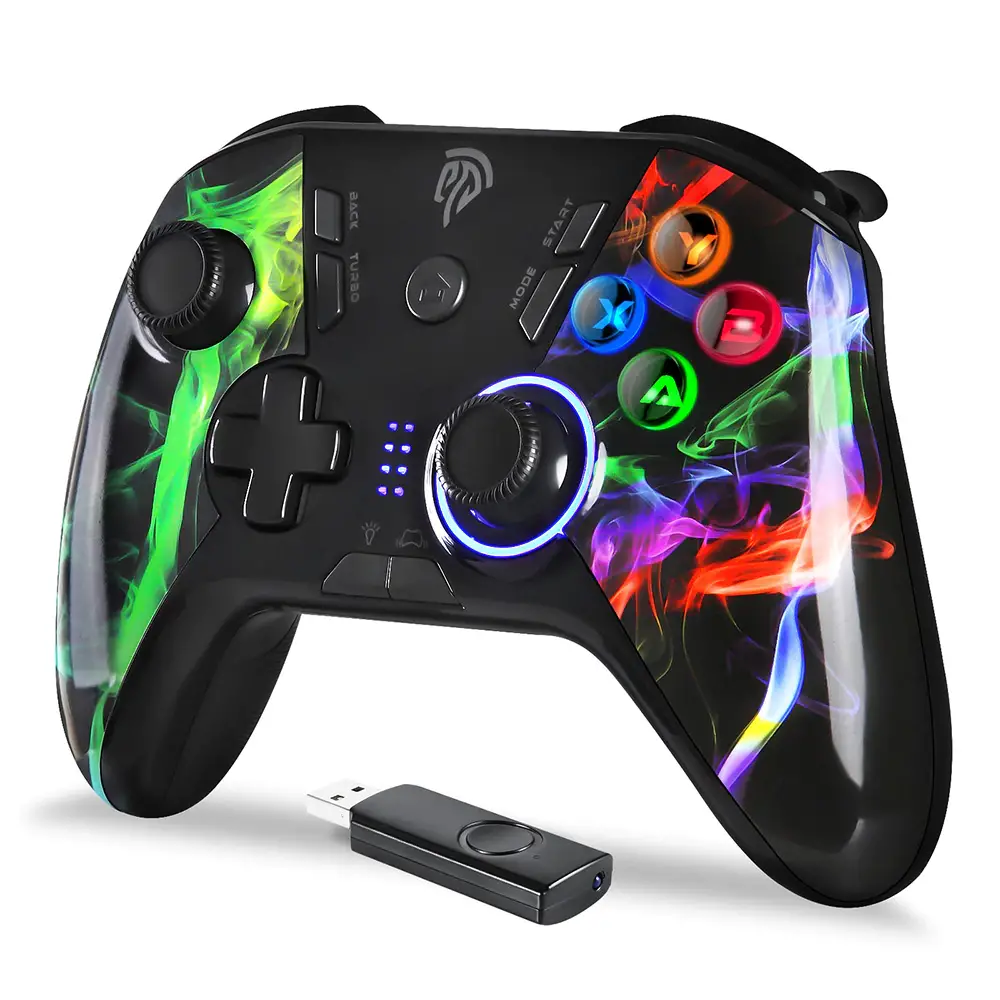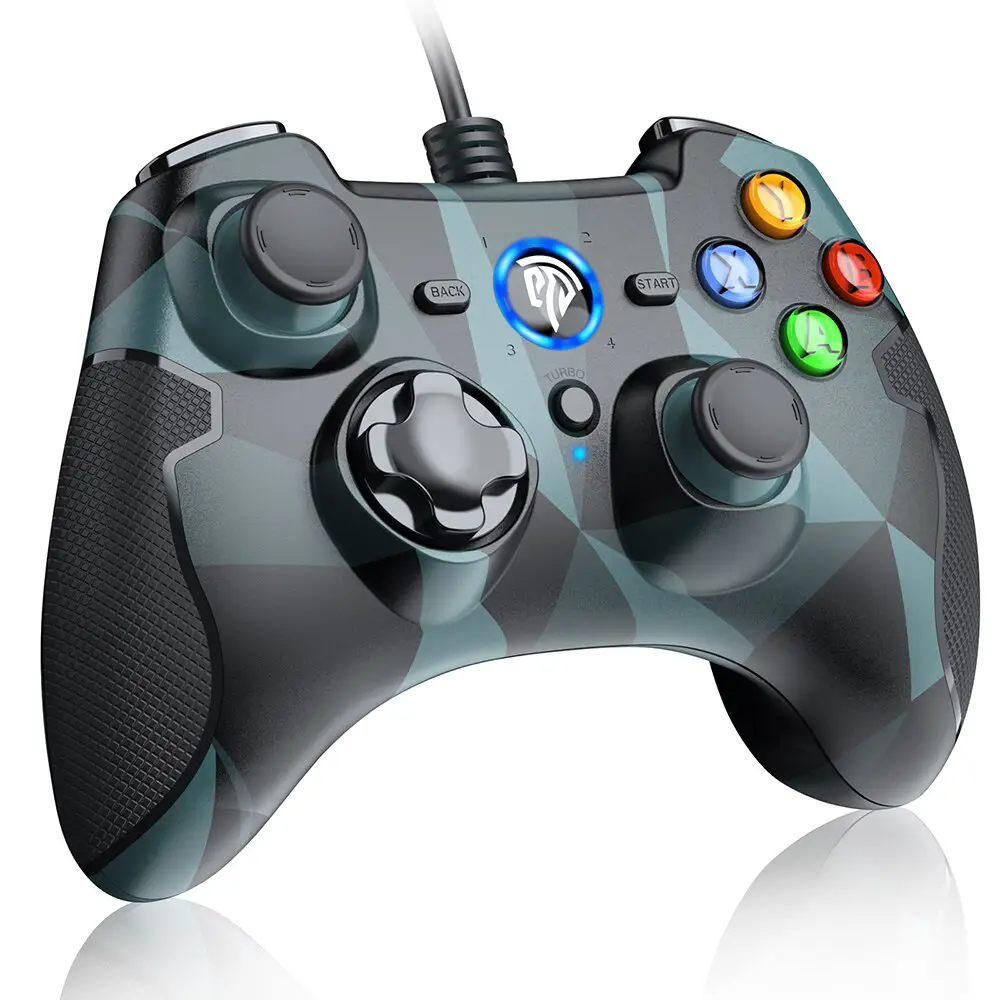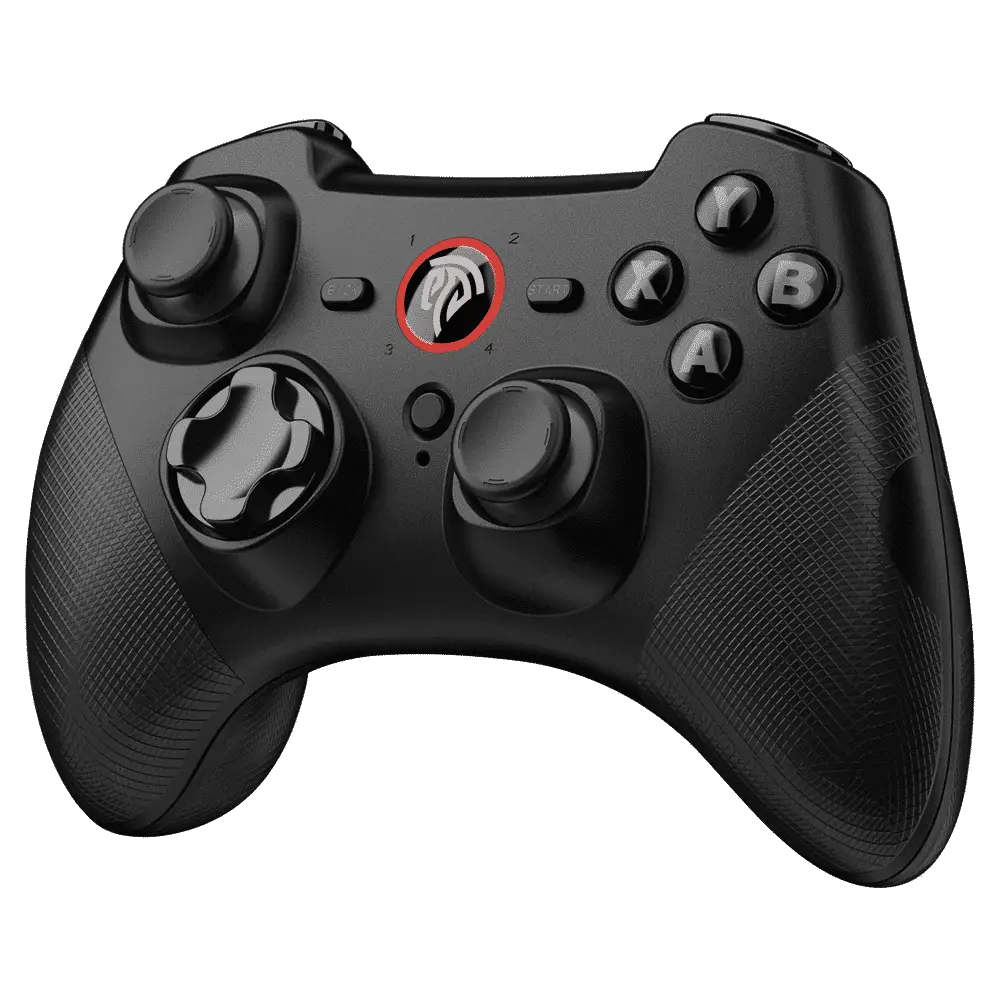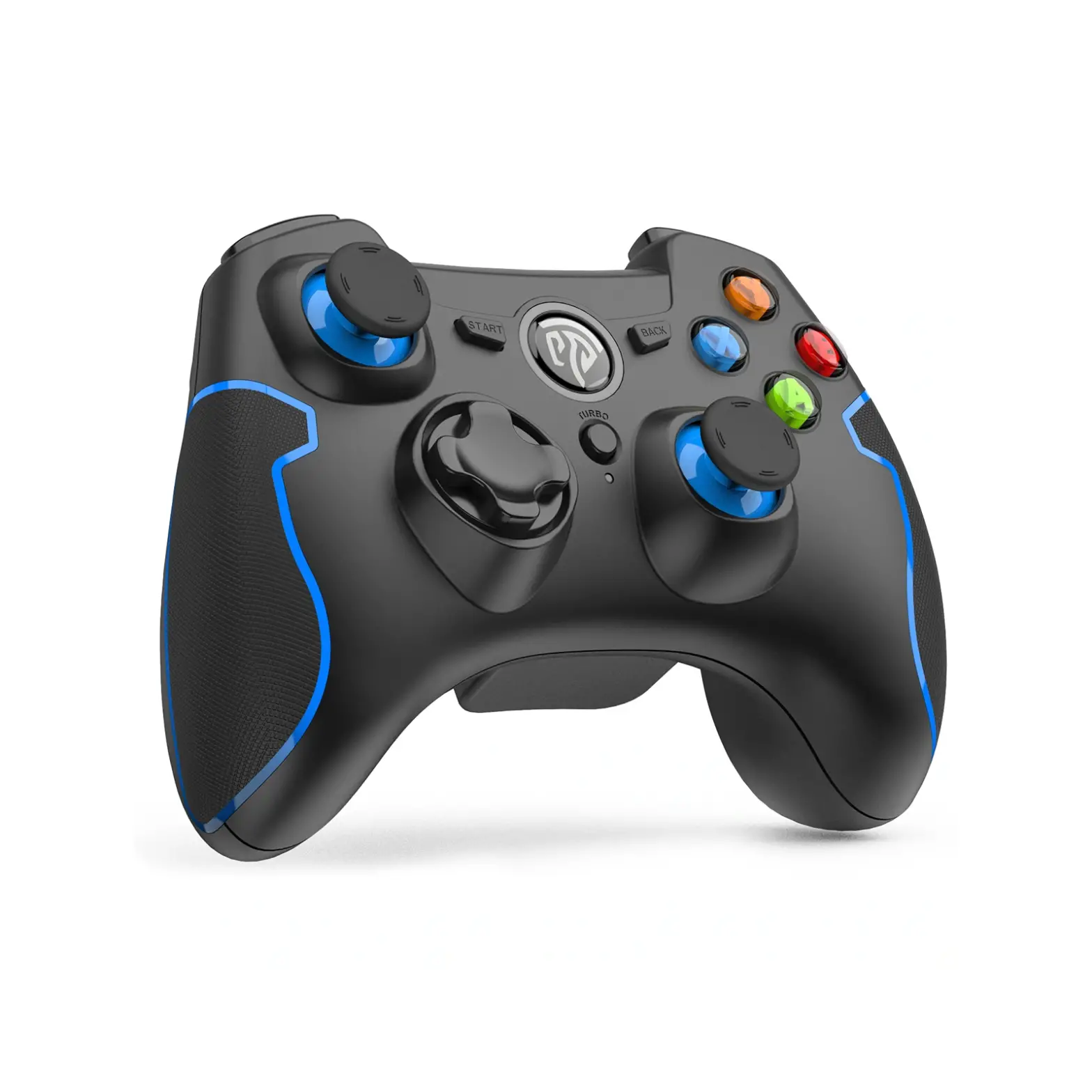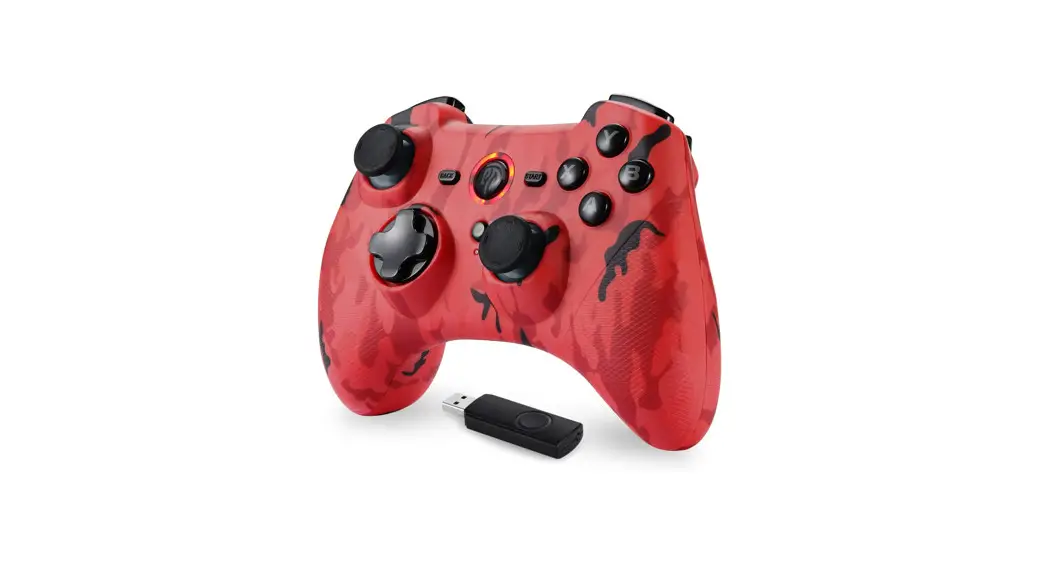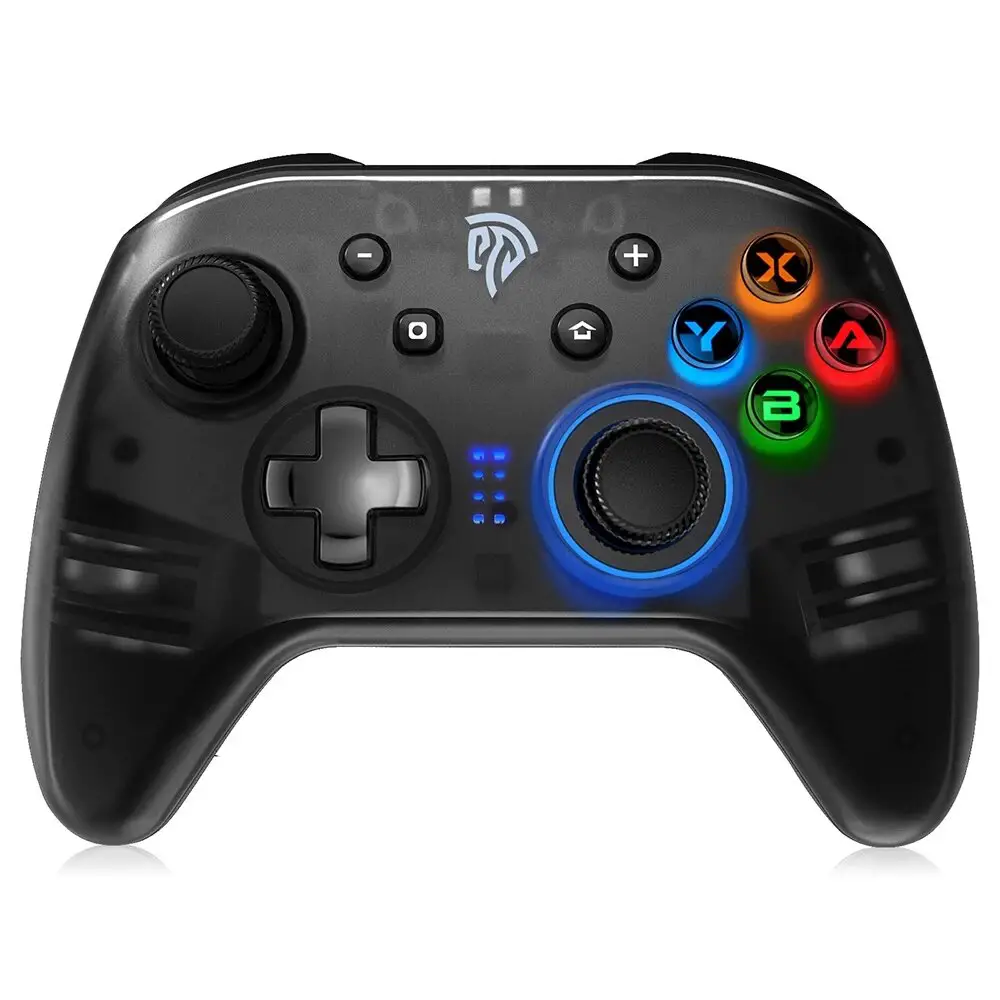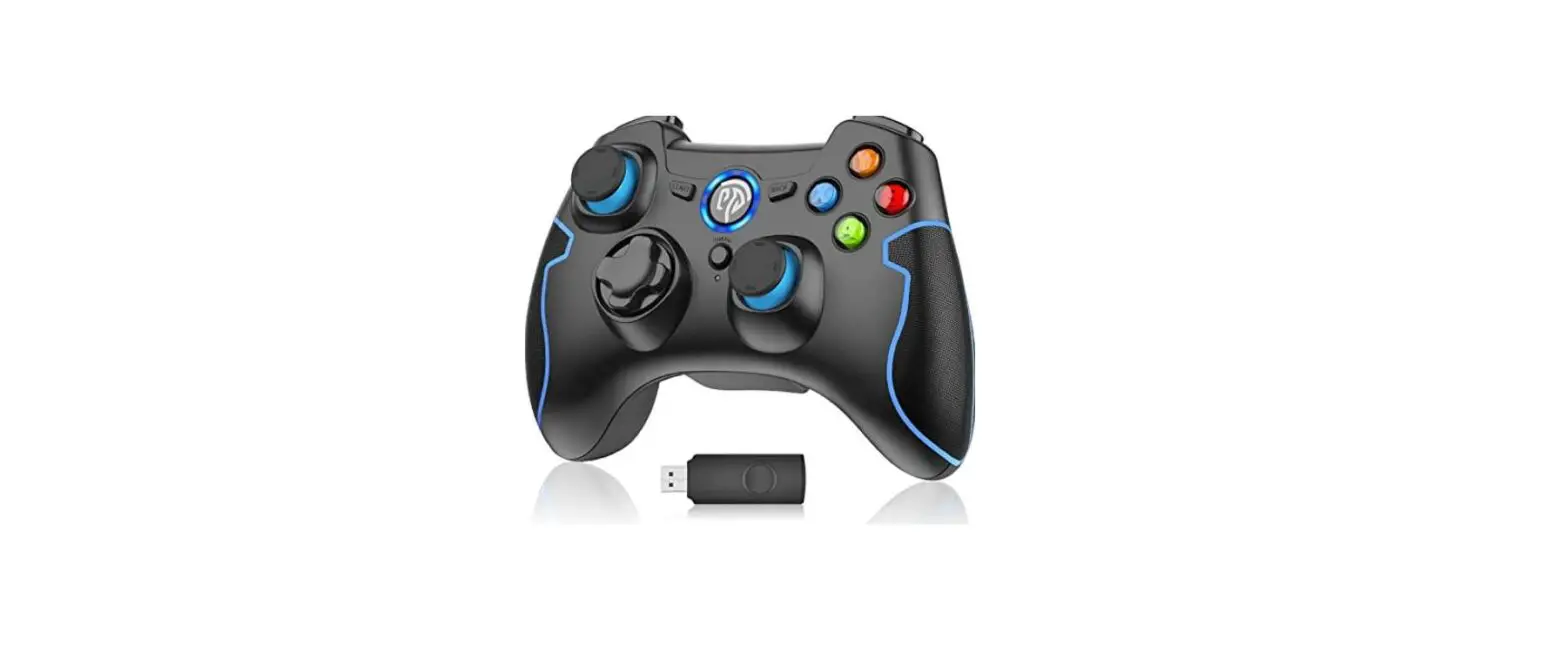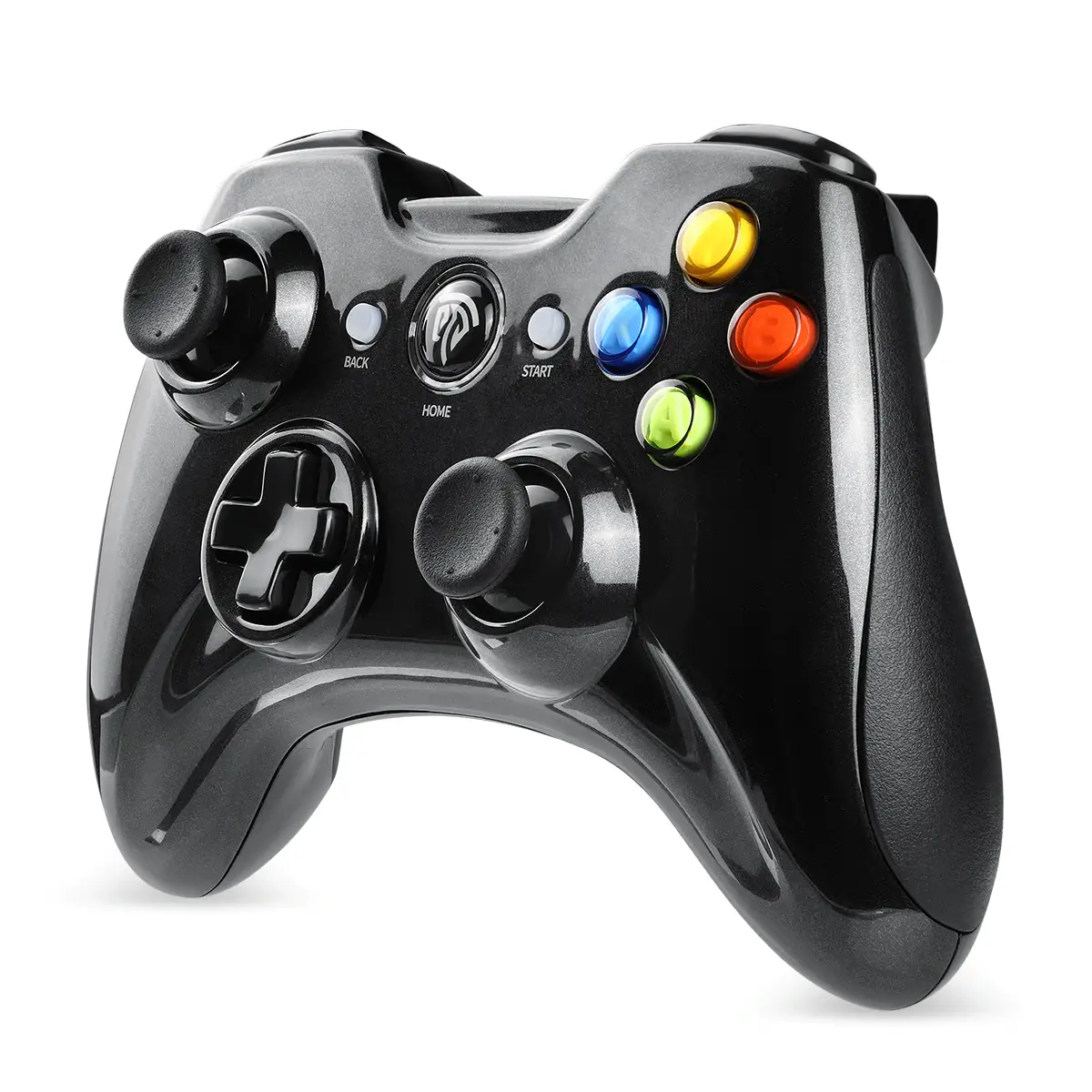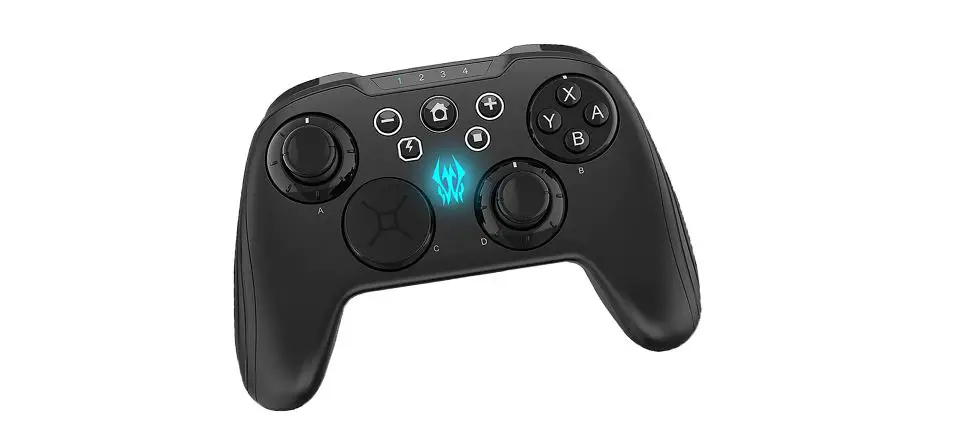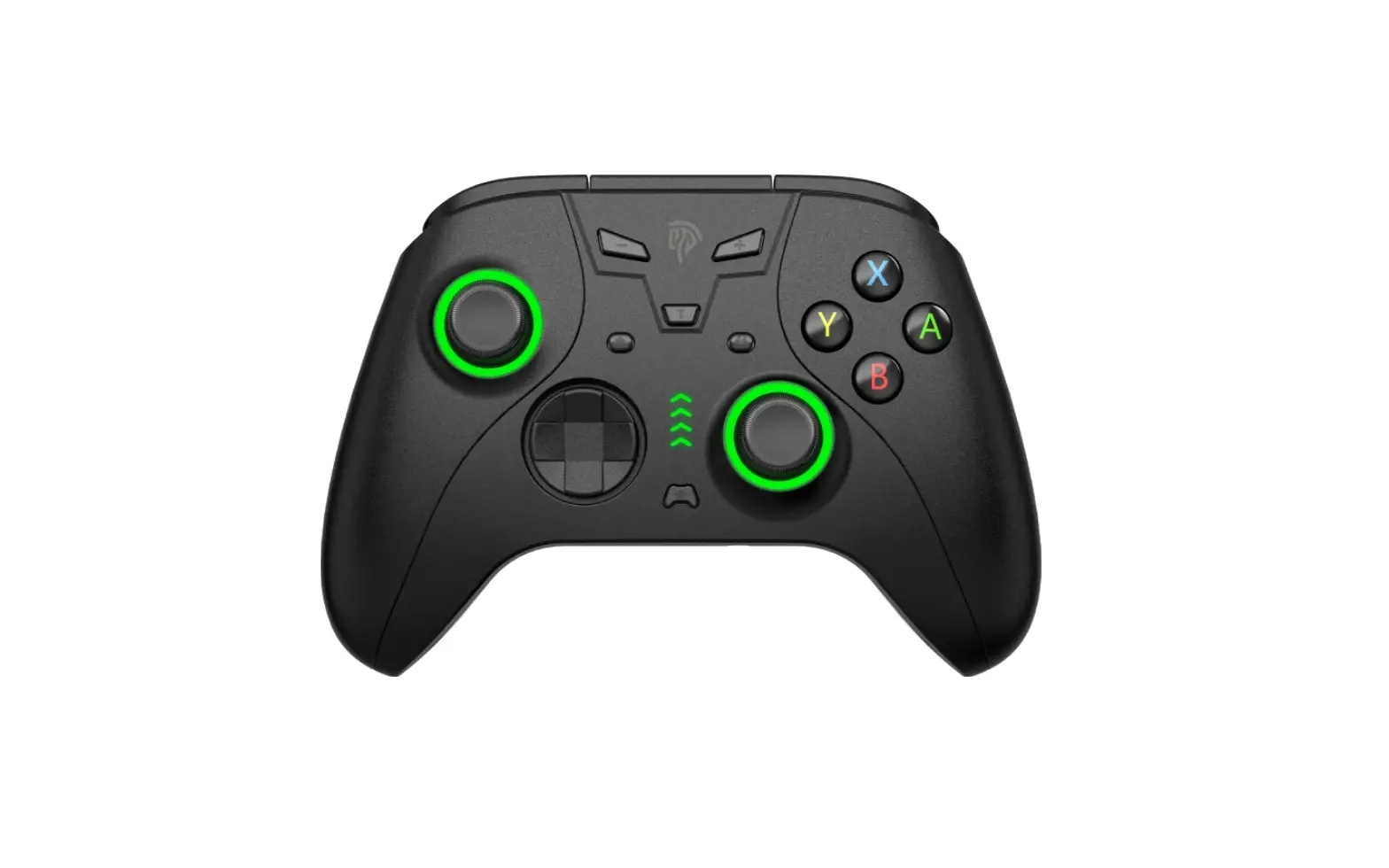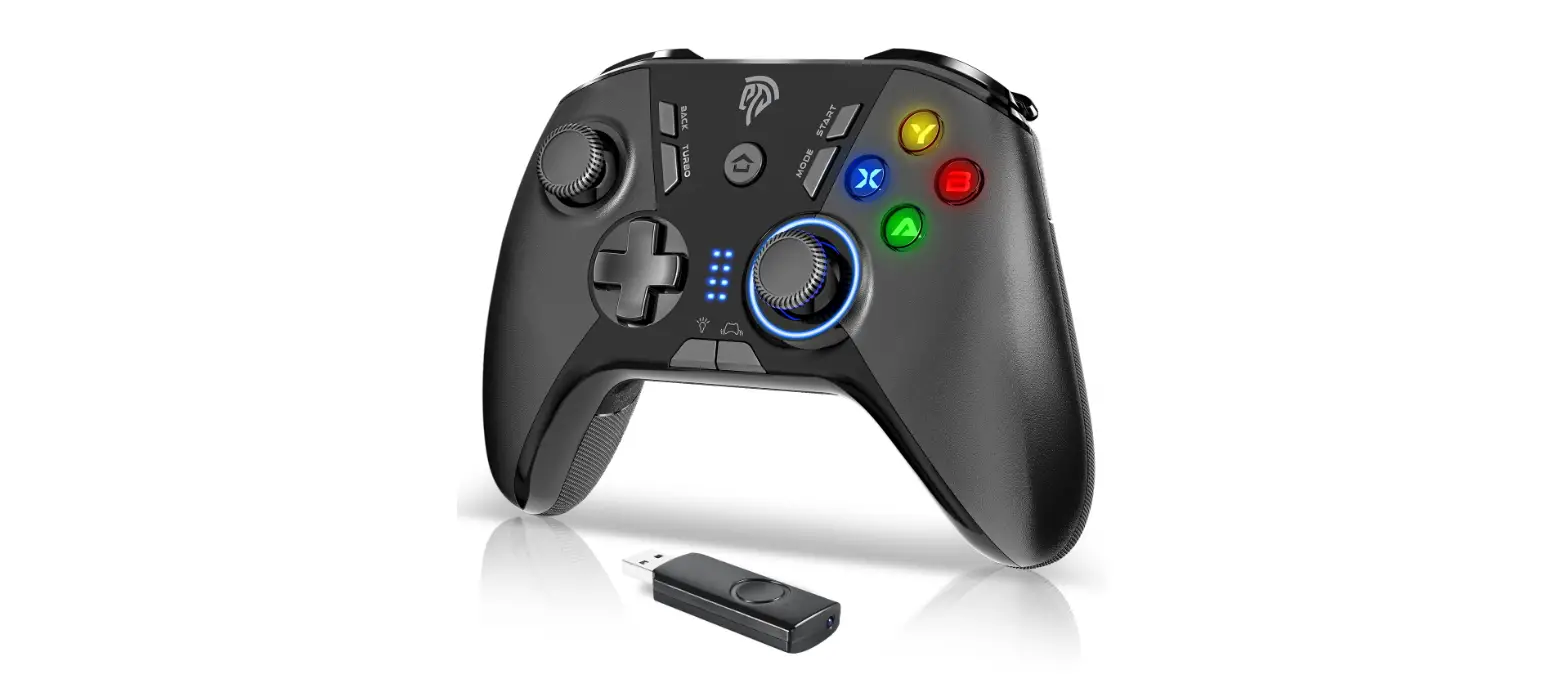

EasySMX ESM-9110 Wireless PC Controller
Introduction
Thank you for purchasing ESM-9100 Wired Game Controller. Please read this manual carefully and keep it for your reference before using it. Before its first use, please visit http://easysmx.com/downloads.asp to download and install the driver.
Content
- 1x Wired Game Controller
- 1x Manual
SPECIFICATION
| System | PS3/PC Windows 7 / Vista / 8 / 10 / Android 4.0 |
| Model | ESM-9100 |
| Product Name | Wired Game Controller |
| Package Size | 180’135’77MM |
| Product Size | 146’100’65MM |
| Weight | 275g |
| Operating Temperature | o·c-1o·c |
| Operating Voltage | 2V-3.5V |
| Power Supply | USB |
| Operating Current | 12mA |
Tips:
- To avoid electricity accidents, please keep it away from water.
- Do not dismantle.
- Please keep the game controller and the accessories away from children or pets.
- If you feel tired on your hands, please take a break.
- Take breaks regularly to enjoy games.
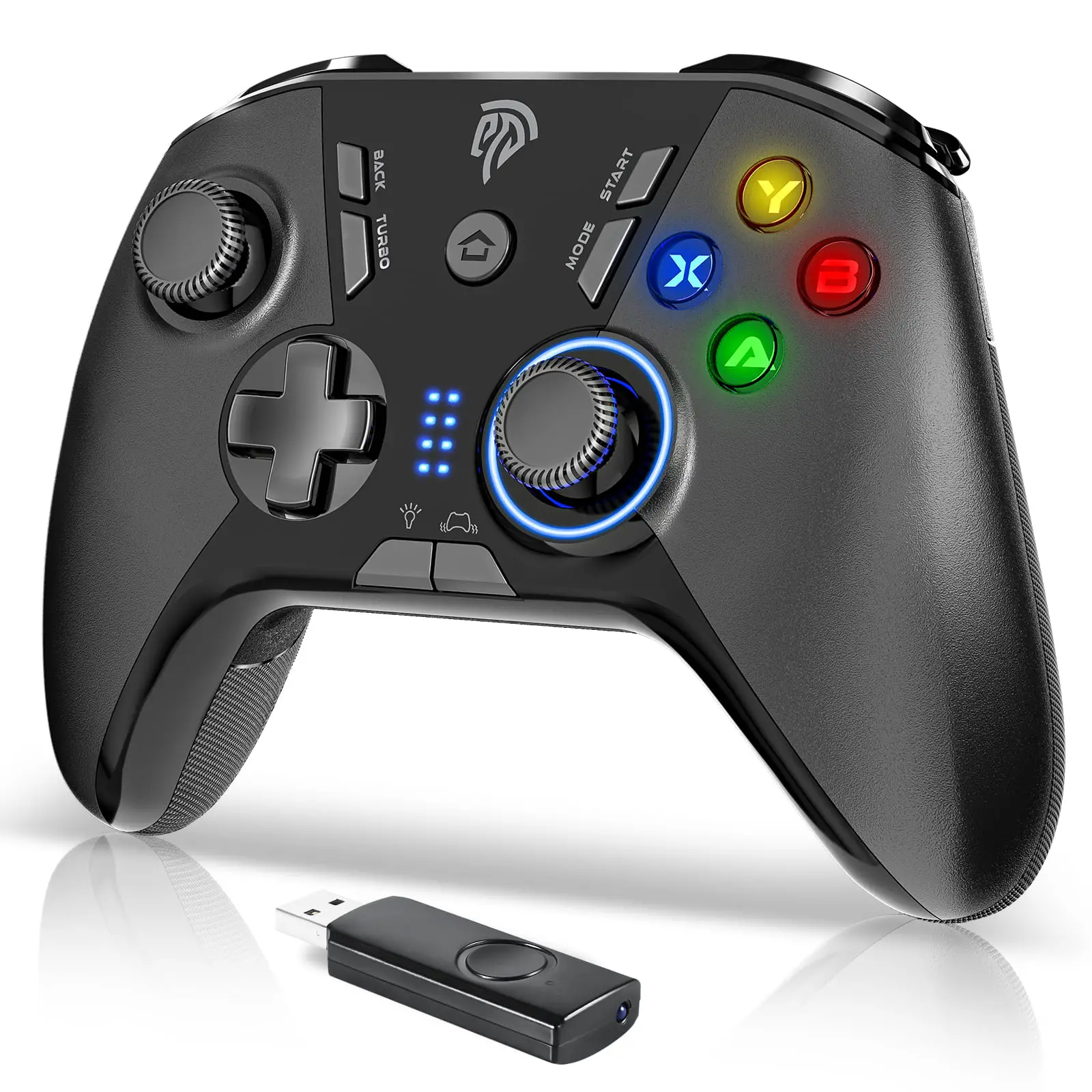
Product sketch
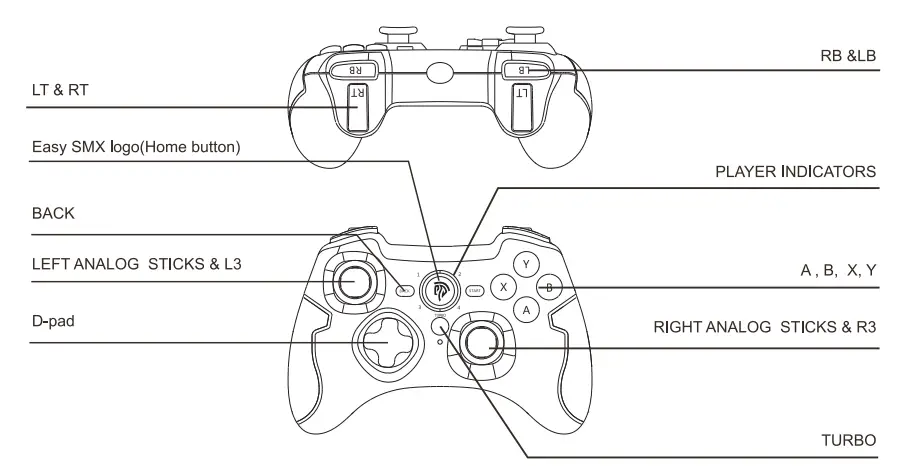
Operation
Connect to PS3
Plug the game controller into one free USB port on the P$3 console. Press HOME Button and when LED 1 stay on, it means the connection is successful.
Connect to PC
- Insert the game controller into your PC. Press HOME Button and when LED1 and LED2 stay on
 it means that the connection is successful. At this time, the gamepad is in Xinput mode by default.
 - Under Xinput mode, press and hold the HOME Button for 5 seconds to switch to Dinput emulation mode. At this time, LED1 and LED3 will glow solid
 .
. - Under Dinput emulation mode, press the HOME Button once to switch to Dinput digit mode, and LED1 and LED4 will stay on
 .
. - Under Dinput digit mode, press the HOME Button for 5 seconds to switch to Android mode, and LED3 and LED4 will stay on. Press it for 5 seconds again to return to Xinput mode, and LED1 and LED2 stay on. Note: one computer can pair with more than one game controllers.
 it means that the connection is successful. At this time, the gamepad is in Xinput mode by default.
 .
. .
.Connect to Android Smartphone/Tablet
- Plug the Micro-B/Type C OTG adapter or OTG cable (Not Included) into the USB port of the controller.
- Plug the OTG adapter or cable into your phone or tablet.
- Press HOME Button, and when LED3 and LED4 ill keep on, indicating the connection is successful
- If the game controller is not in Android mode, please refer to step2-step5 in the connect to PC” chapter and make the controller in the right mode.
Note:
- Your Android phone or tablet must fully support the OTG function that needs to be on first.
- Android games does not support vibration for now.
- Press and hold any key you want to set with TURBO function, then press TURBO Button. The TURBO LED will start flashing, indicating setting is done. After that, you are free to hold this button during gaming to achieve fast strike.
- Hold down this button again and press TURBO Button simultaneously to disable TURBO function.
After the game controller is paired with your computer, go to “Device and Printer, locate game controller. Right click to go to “Game Controller Settings, then click “Property” as shown below: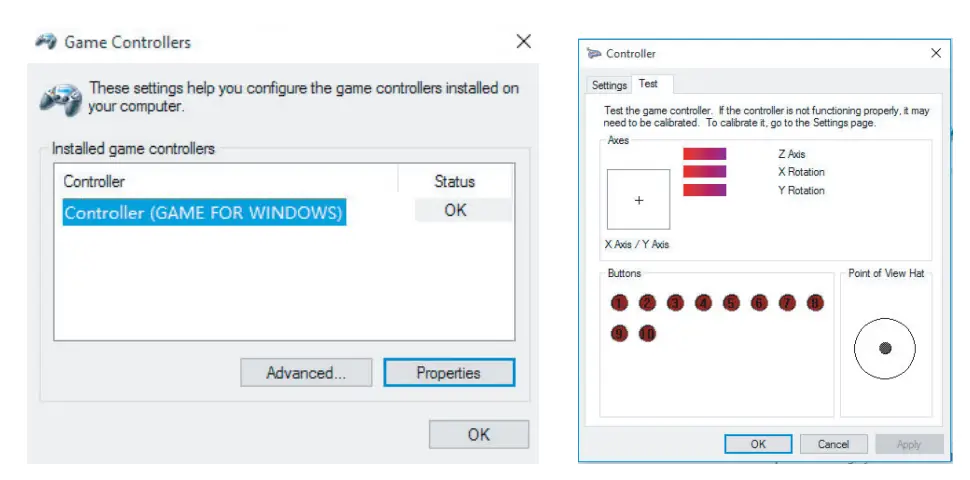
FAQ
The game controller failed to connect?
- Press HOME Button for 5 seconds to force it to connect.
- Try another free USB port on your device or restart the computer.
- Update the serial driver and try to reconnect.
The controller failed to be recognized by my computer?
- Make sure the USB port on your PC works fine.
- Insufficient power might cause unstable voltage to your PC USB port. So try another free USB port.
- A computer running Windows XP or a lower operating system needs to install X360 game controller driver first.
Why can’t I use this game controller in the game?
- The game you are playing doesn’t support game controller.
- You need to set the gamepad in the game settings first.
Why doesn’t the game controller vibrate at all?
- The game you are playing doesn’t support vibration.
- Vibration is not turned on in the game settings.