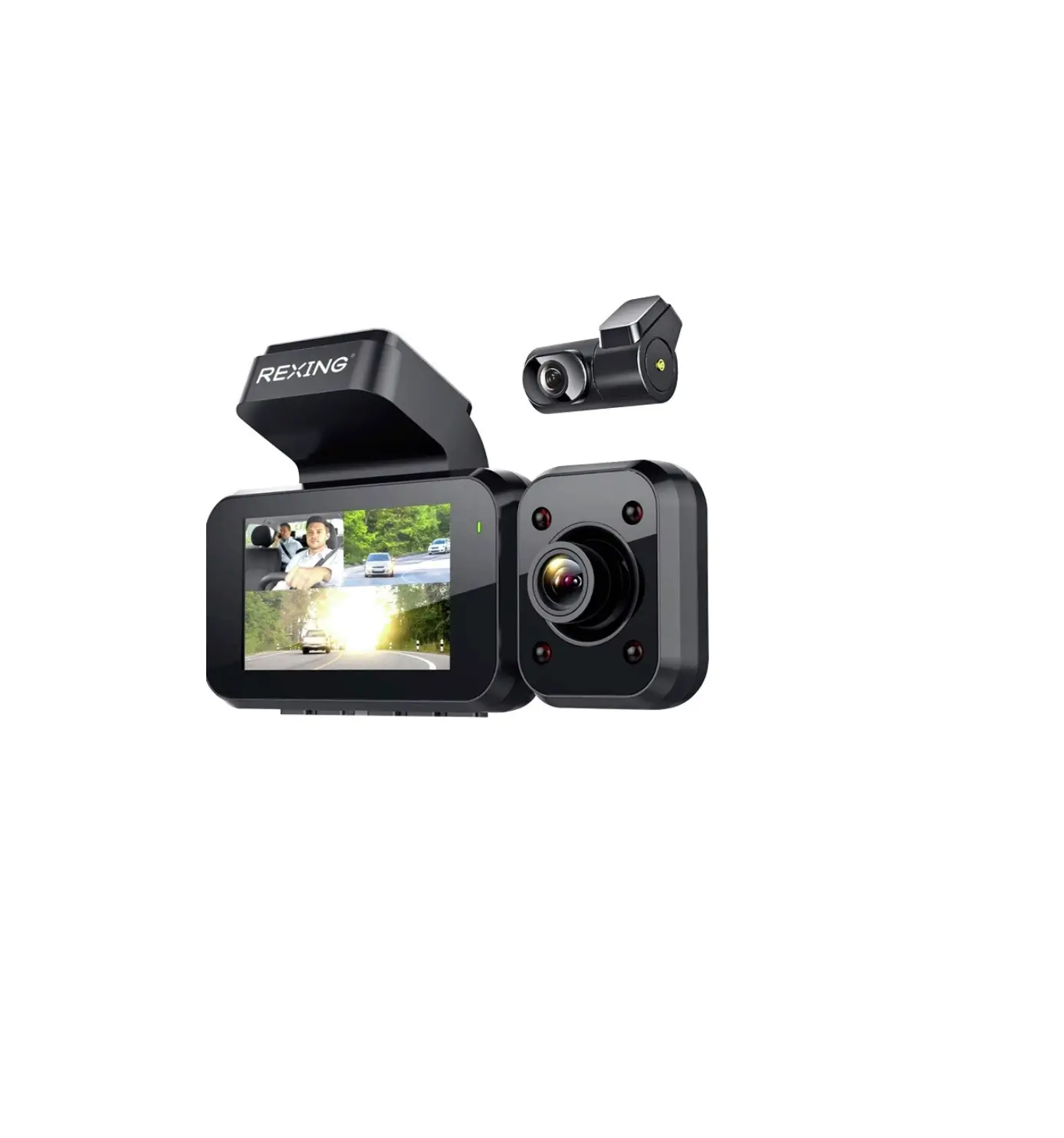
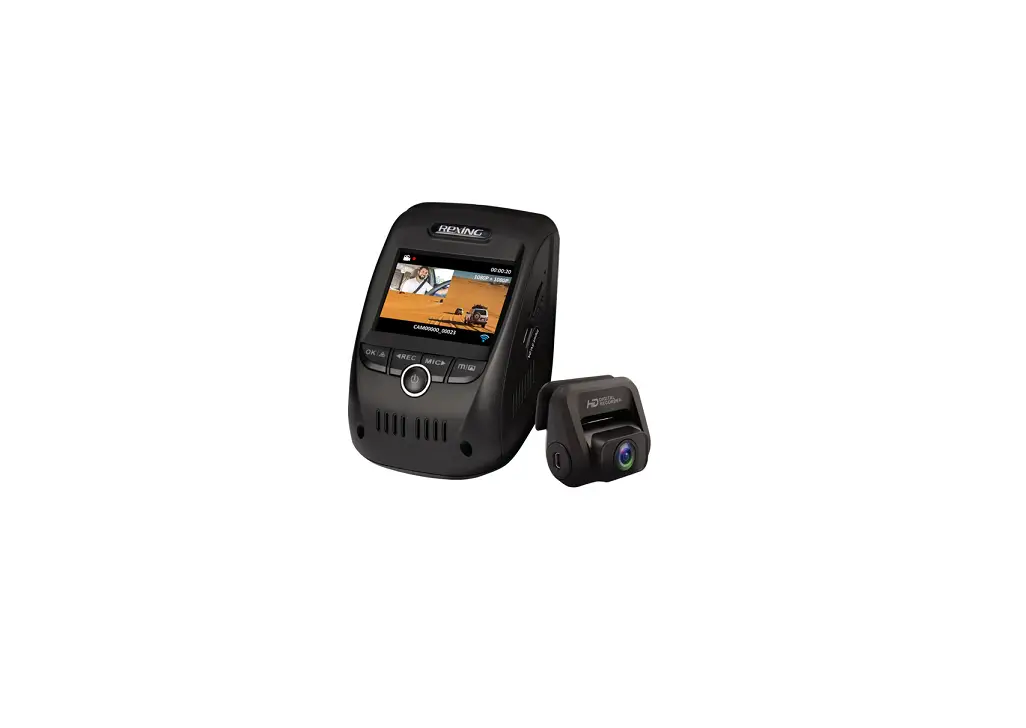
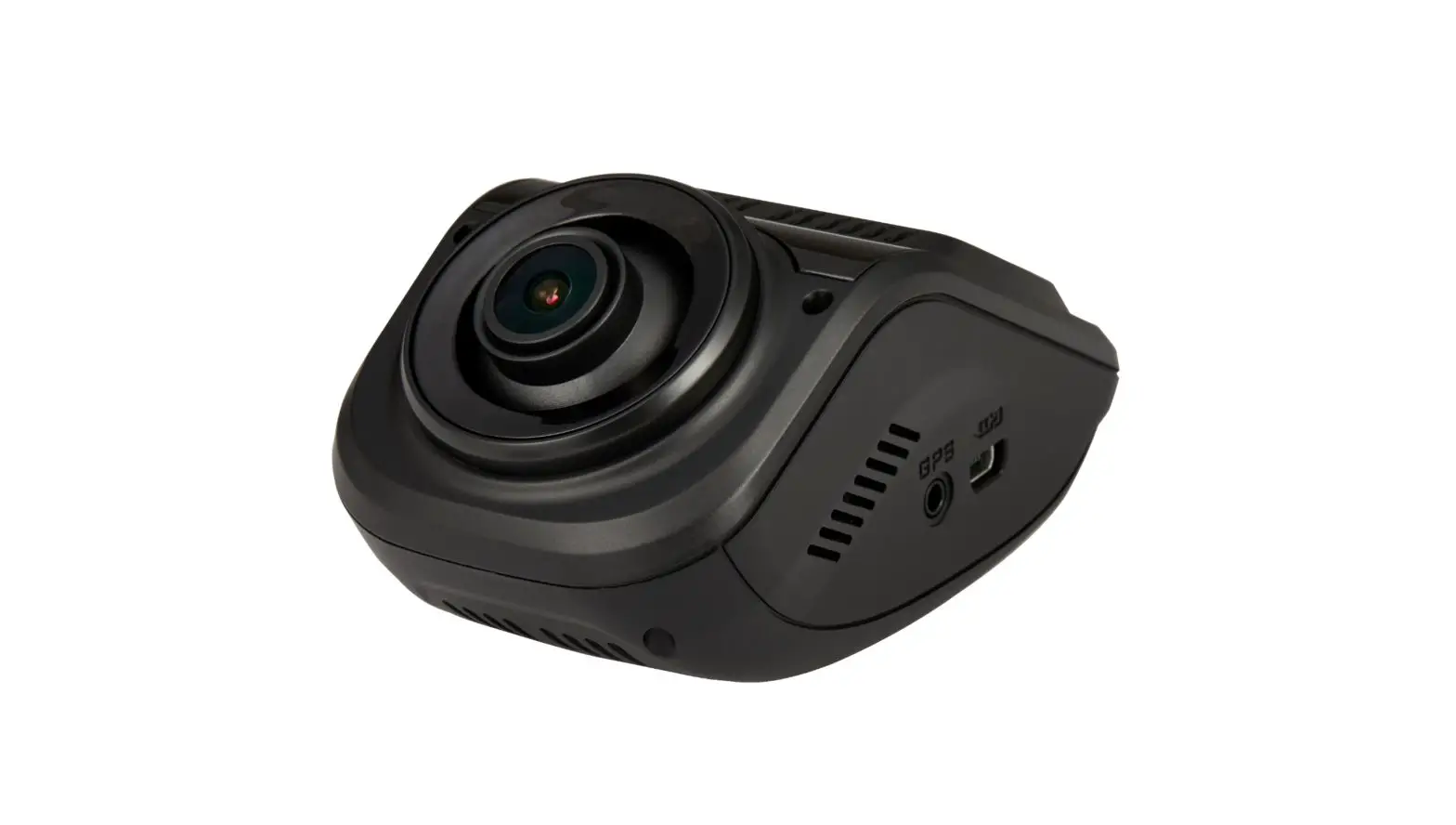
FleetFlix AI+ Dash Camera
Product Information: FleetFlix AI+ Dash Cam
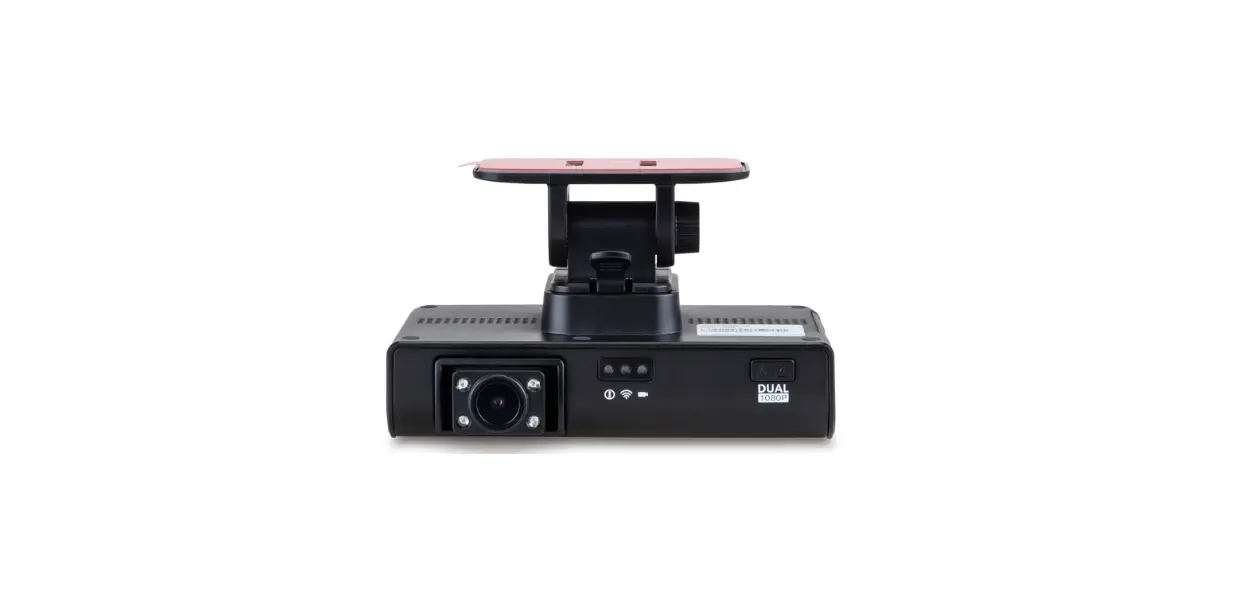
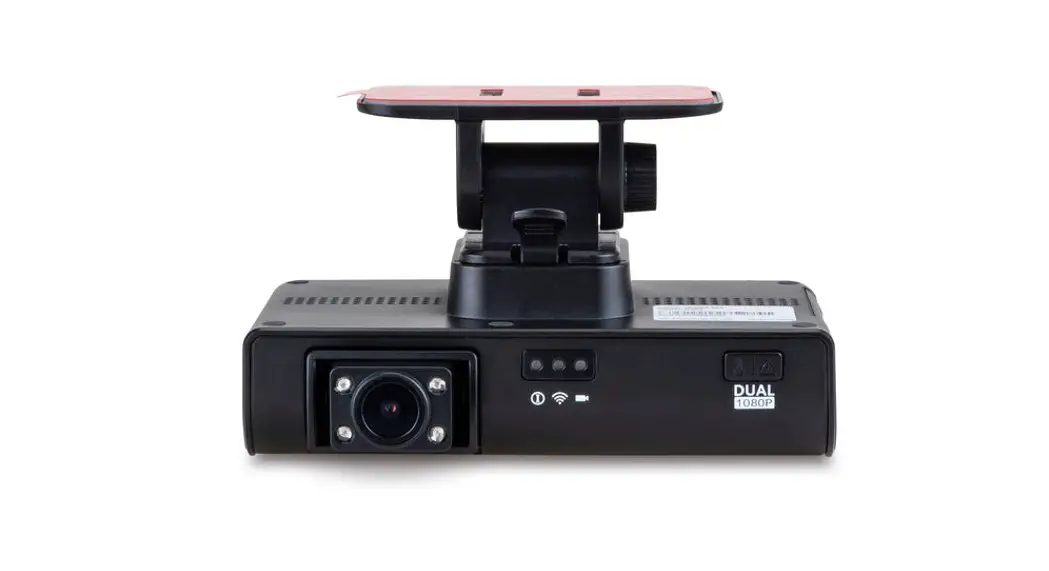
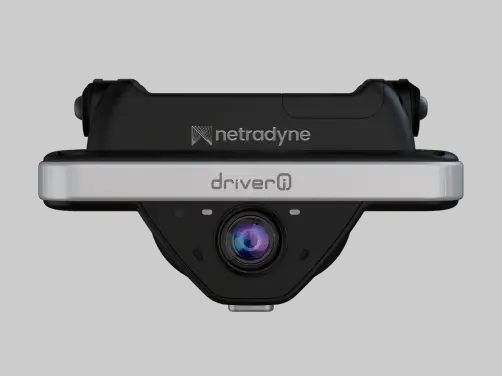
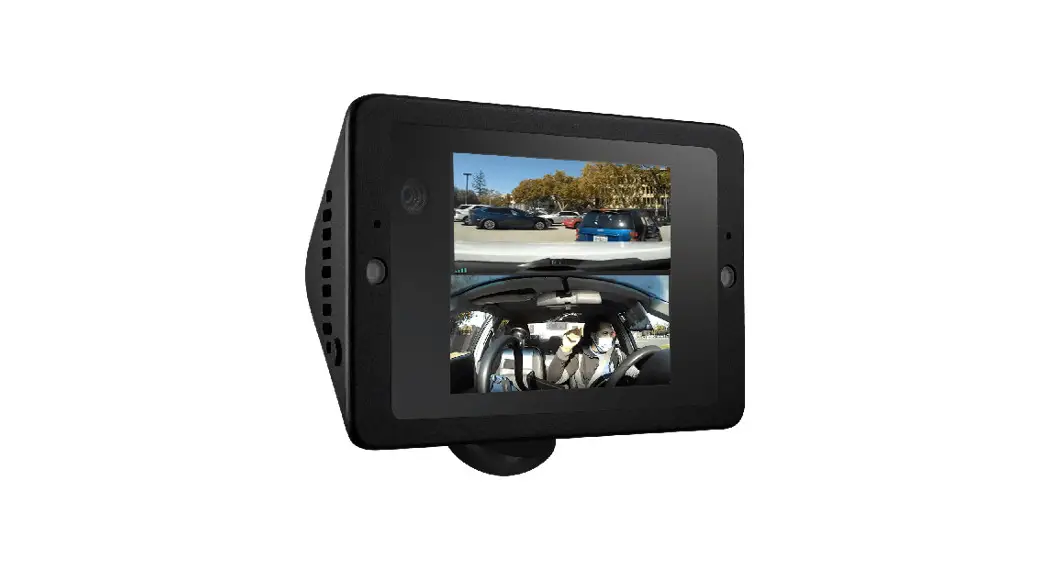
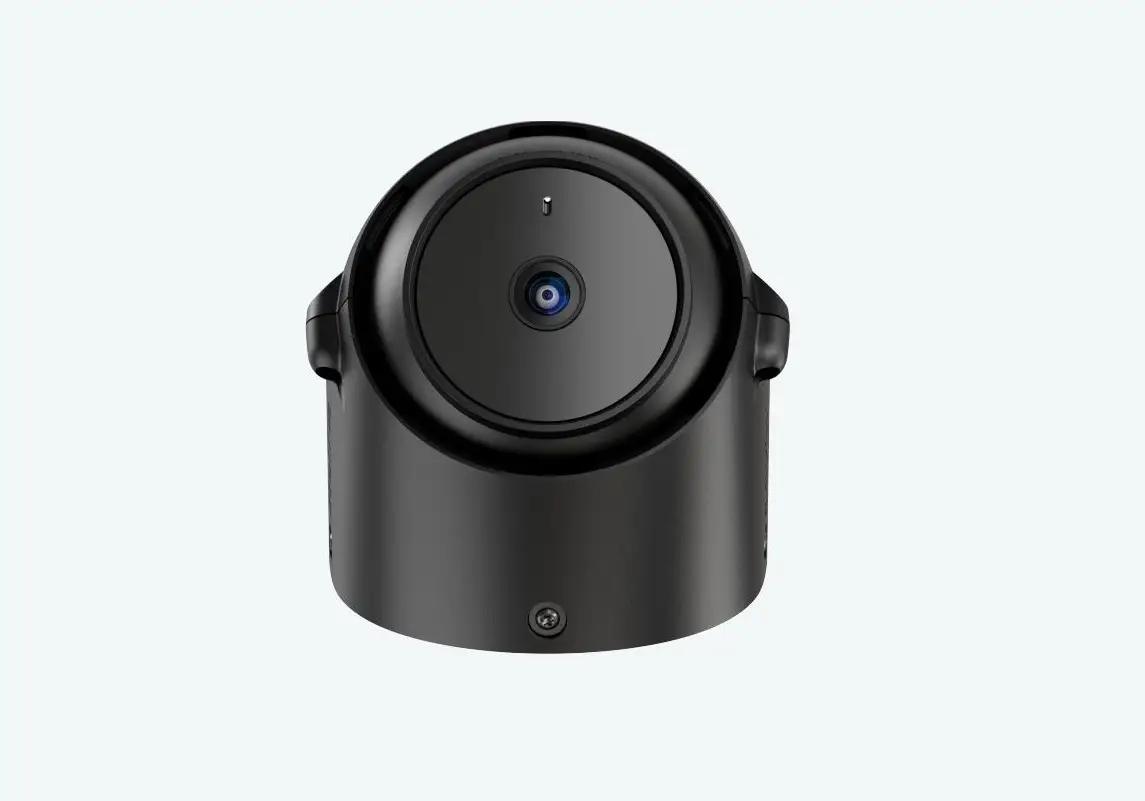
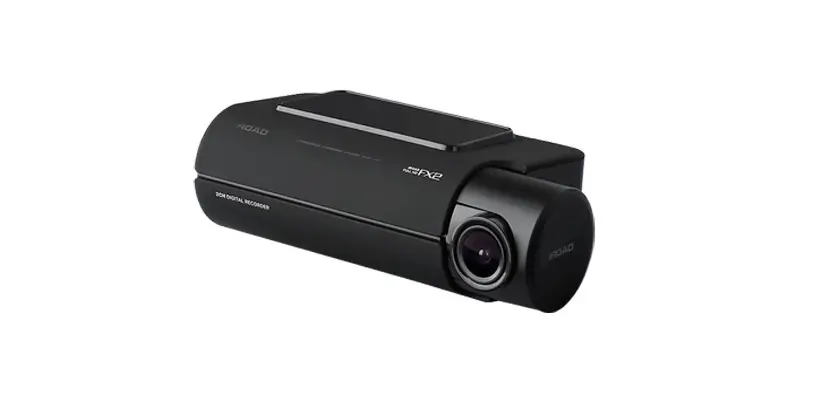
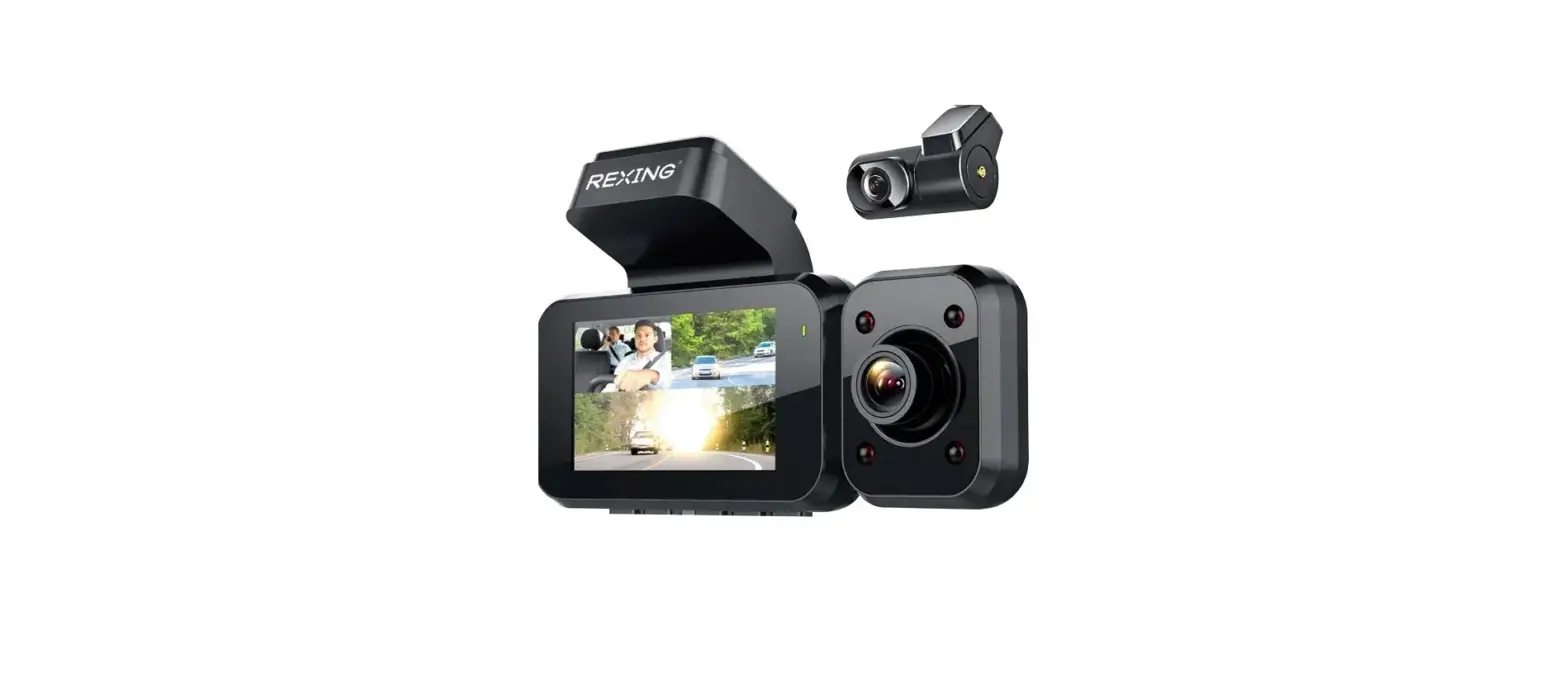
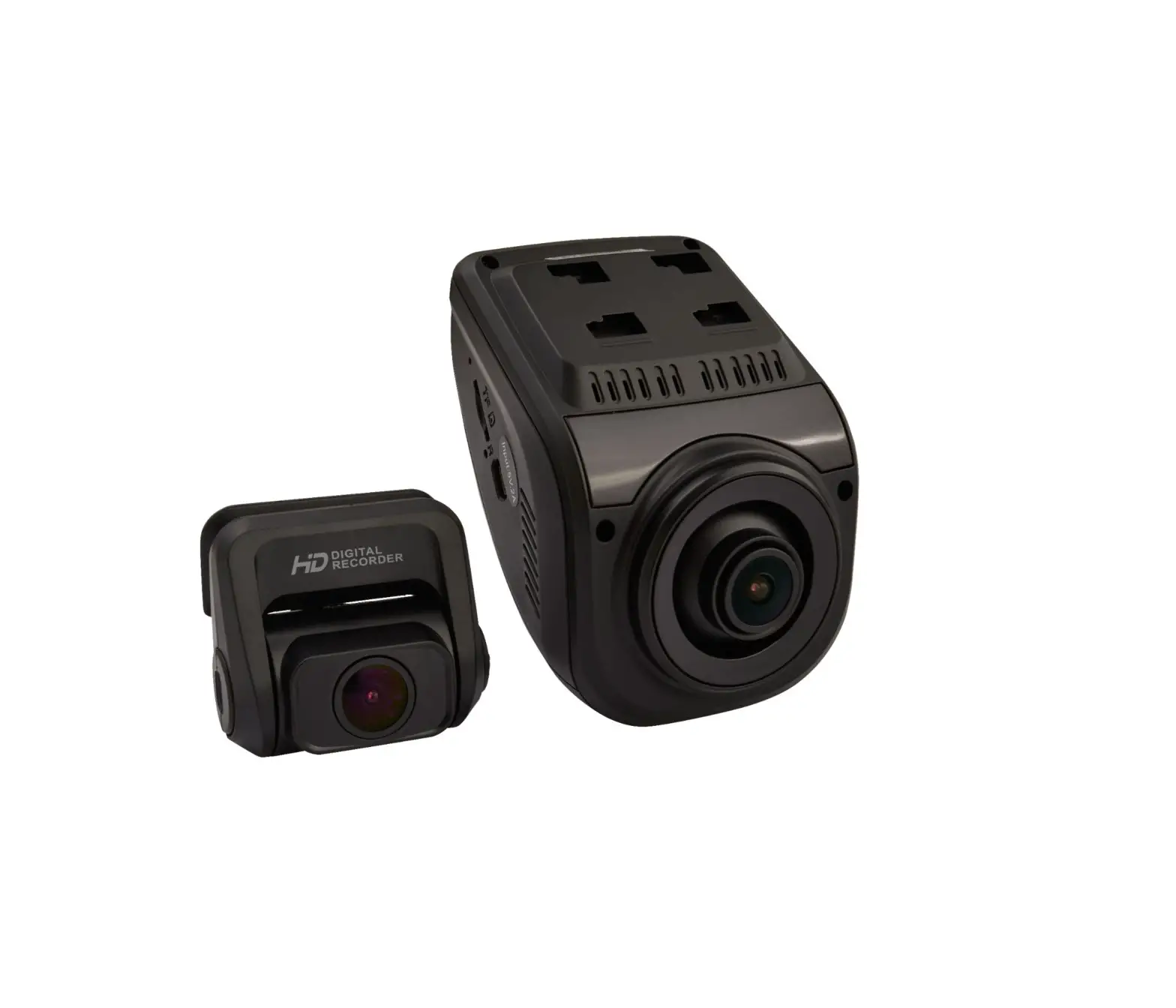
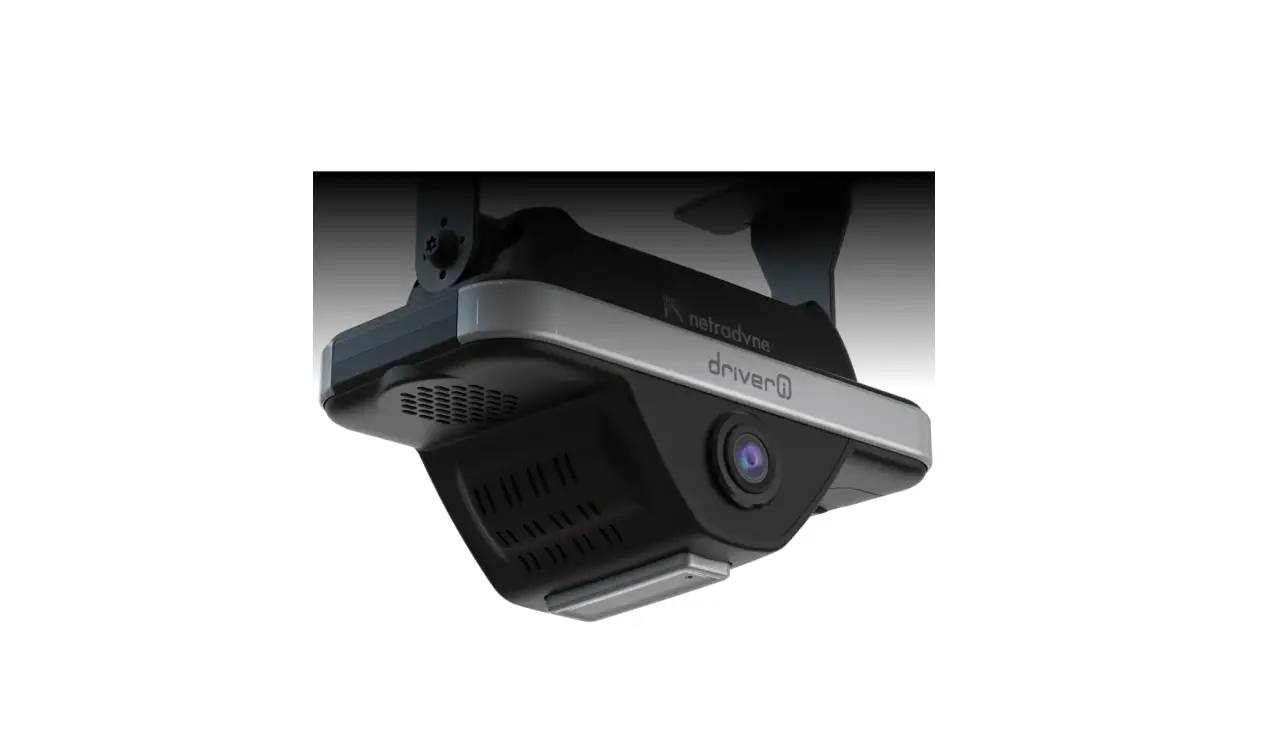
The FleetFlix AI+ Dash Cam is a device that records video and
captures media from the internal and external cameras. It comes
with LED indicator states to indicate its status. The camera
supports automatic video recording to a Micro SD card after
startup. It also has a record button on the rear panel of the
camera for capturing media. The device requires calibration during
installation and needs to be driven within certain parameters for
calibration to be successful.
LED Indicator States:
- Camera Start/Bootup: All 3 lights flashing (Red, Orange, and
Green) - Live Stream: Flashing Green
- Firmware Update/Mobile Network Startup: Red flashing and Solid
Green - Stand By: Solid Red
- Camera Online and Recording: Solid Green
- Offline: No Lights
- Camera Online and Not Recording/SD Error: Red and Orange
flashing - Sensor/GPS Error: Red and Orange flashing, Solid Green
Product Usage Instructions:
Mounting the Camera:
- Attach the adhesive tape mounting bracket onto the FleetFlix
AI+. - Install the device in the center of the windshield below the
rearview mirror. It is recommended to use Alcohol to clean the
glass before mounting the device.
Entering Measurements into FleetFlix AI+ Add-in:
- Gather proper measurements of the vehicle.
- Enter the measurements into the FleetFlix Add-in under the
Measurements tab in the Cameras settings. To get to the
Measurements tab, click Cameras under the Geotab FleetFlix
Add-in. - Select the Settings icon under the Actions column for the
specific camera measurements were taken for. - Click the Measurements tab, enter the measurements, and then
click Save.
Calibration Process:
- During installation, the record button is used for the
calibration process. A brief press will trigger it. - The vehicle will need to be driven up to a few minutes during
calibration process. - After the vehicle is driven within these parameters, the camera
will announce Calibration Successful. - After calibration is complete, the calibrate/alert button will
return to the driver alert function. - If the camera is ever removed or unmounted, calibration will
need to be completed again.
Note: If the camera comes pre-installed with SD and SIM cards,
skip to installing the cables. Also, the camera must use a Micro SD
card provided by Fleet Hoster. If another SD card is used, the
camera will not work.
FleetFlix AI+ FleetFlix AI+
FleetFlix AI+
FleetFlix AI+
FleetFlix AI+
FleetFlix AI+
FleetFlix AI+
LED Indicator States
Camera Start/Bootup All 3 lights flashing (Red, Orange, and Green)
Live Stream Flashing Green
Firmware Update/Mobile Network Startup Red flashing and Solid Green
Stand By Solid Red
Camera Online and Recording Solid Green
Offline No Lights
Camera Online and Not Recording/SD Error Red and Orange flashing
Sensor/GPS Error Red and Orange flashing, Solid Green
AClaelribt rBautett/oAnlert Button
The FlFeleeetFtlFixlixAAI+I+comes with a short record button on the rear panel of the camera. When pushed briefly, the camera will capture media from the internal and external cameras. When pushed for more than 3 seconds, an audio alert will be triggered. During install, this button is used for the calibration process, a brief press will trigger. Once the calibration is successful, the button will return to normal functionality.
FleetFlix AI+
FleetFlix AI+ Truck Mount Clip and Adhesive Tape Mounting Brackets
FleetFlix AI+ Truck Mount Clip
(If camera comes pre-installed with SD and SIM cards skip to installing the cables.)
The FleetFlix AI+ dash cam supports automatic video recording to a Micro SD card after startup. The camera must use a Micro SD card provided by Fleet Hoster. If another SD card is used, the camera will not work. The SD card typically comes pre-loaded within the FleetFlix device but can be accessed if needed via the Micro SD card slot under the right panel I/O cover.
(If camera comes pre-installed with SD and SIM cards skip to installing the cables.) FleetFlix AI+
Attach the adhesive tape mounting bracket onto the FleetFlix AI+.FleetFlix AI+
FleetFlix AI+ Truck Mount Clip
Install the device in the center oFlfetehtFeliwx AinI+dshield below the rearview mirror. (it is recommended to use Alcohol to clean the glass before mounting the device.)
After installation is complete, the following measurements are needed:
· Length from Camera Mount to Front of Vehicle (in) the distance from the front lens of the camera and the front bumper
· Width of Vehicle (in) the total width of the vehicle at its widest point in front of the camera (typically wheel arch to wheel arch
· Height from Camera Mount to Ground (in) the distance from the ground to the bottom of the camera
Entering Measurements into FleetFlix AI+ Add-in
Once the proper measurements are gathered, enter the measurements into the FleetFlix Add-in under the “Measurements” tab in the Cameras settings. To get to the “Measurements” tab, click “Cameras” under the Geotab FleetFlix Add-in.
Next, select the “Settings” icon under the “Actions” column for the specific camera measurements were taken for.
Finally, click the “Measurements” tab, enter the measurements, and then click “Save.”
CALIBRATION IS REQUIRED
To Start Calibration The vehicle should be driven on the following road parameters: · Good contrast for lane markers · Capable of supporting 30+ mph for 3-5 minutes · Avoids hills or turns · Reasonable weather · Light traffic Step 1 While driving down the road, press and hold the calibrate/alert button (pictured below) on the camera for 3 seconds. The camera will announce “Calibration Started.”
Step 2 The vehicle will need to be driven up to a few minutes during calibration process. Step 3 After the vehicle is driven within these parameters, the camera will announce “Calibration Successful”. After calibration is complete, the calibrate/alert button will return to the driver alert function. *If the camera is ever removed or unmounted, calibration will need to be completed again.