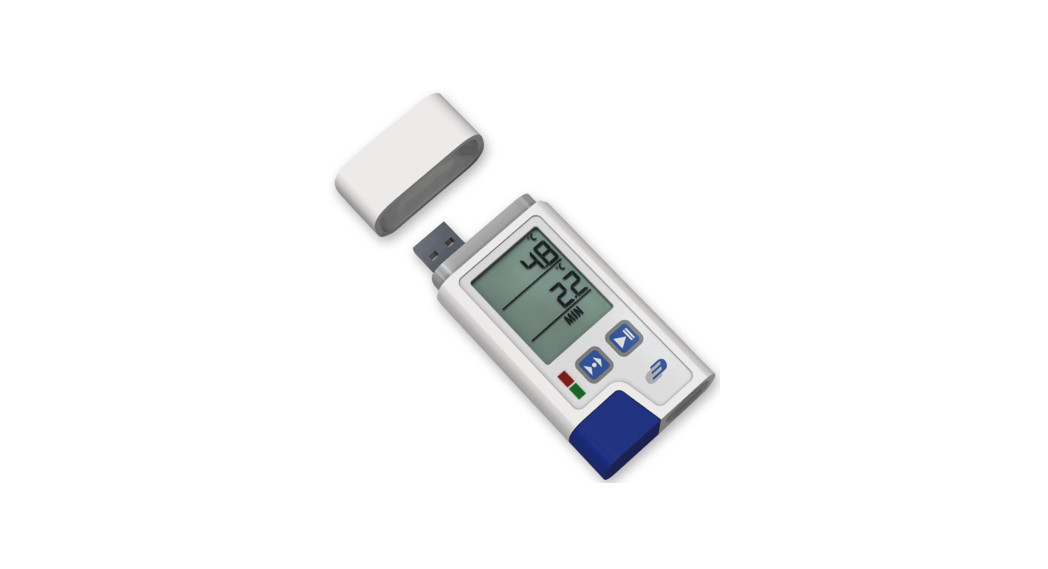
RHDL30 PDF Dataloggers
Product Information
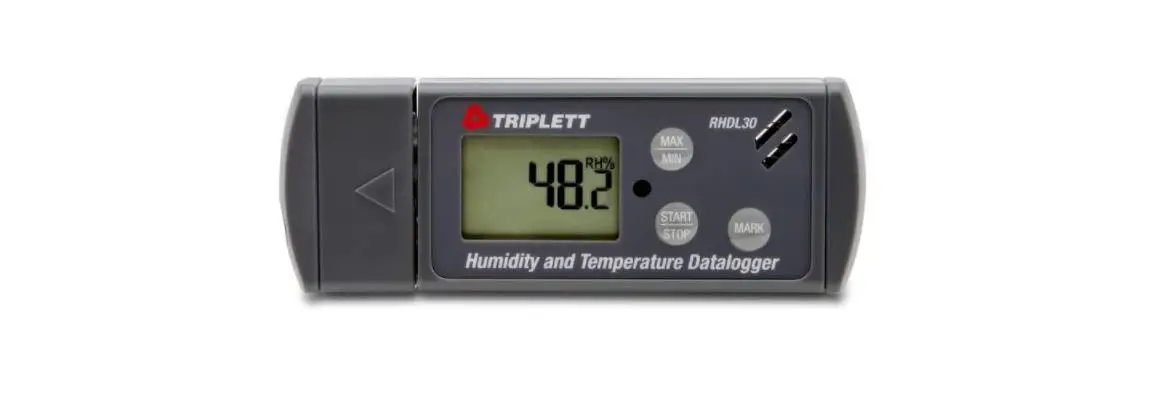
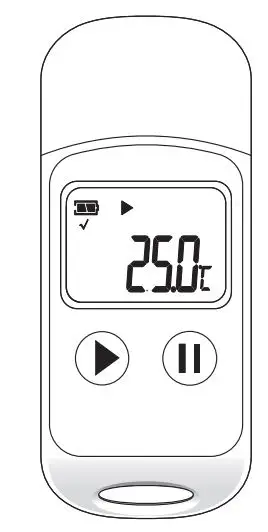
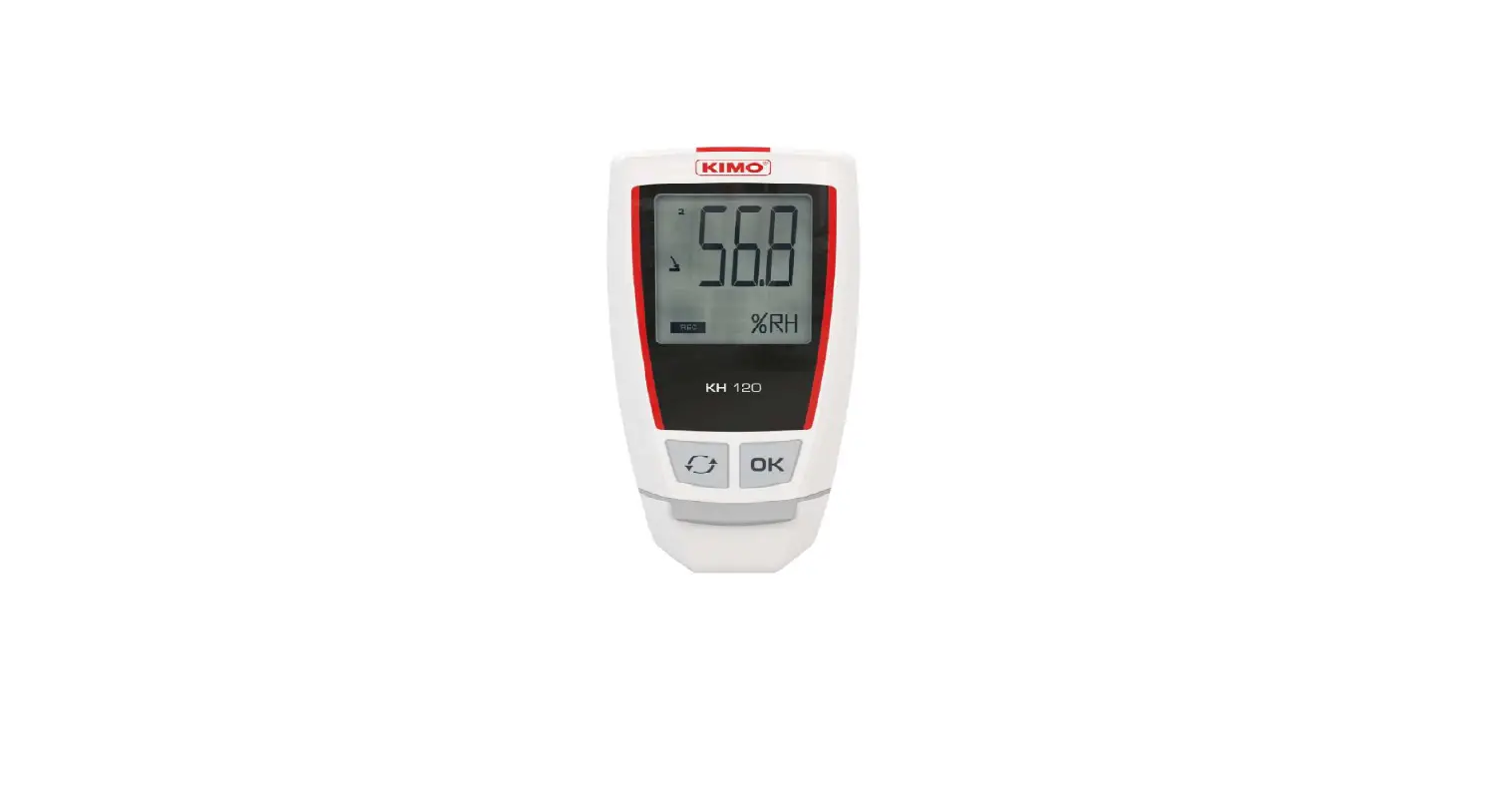
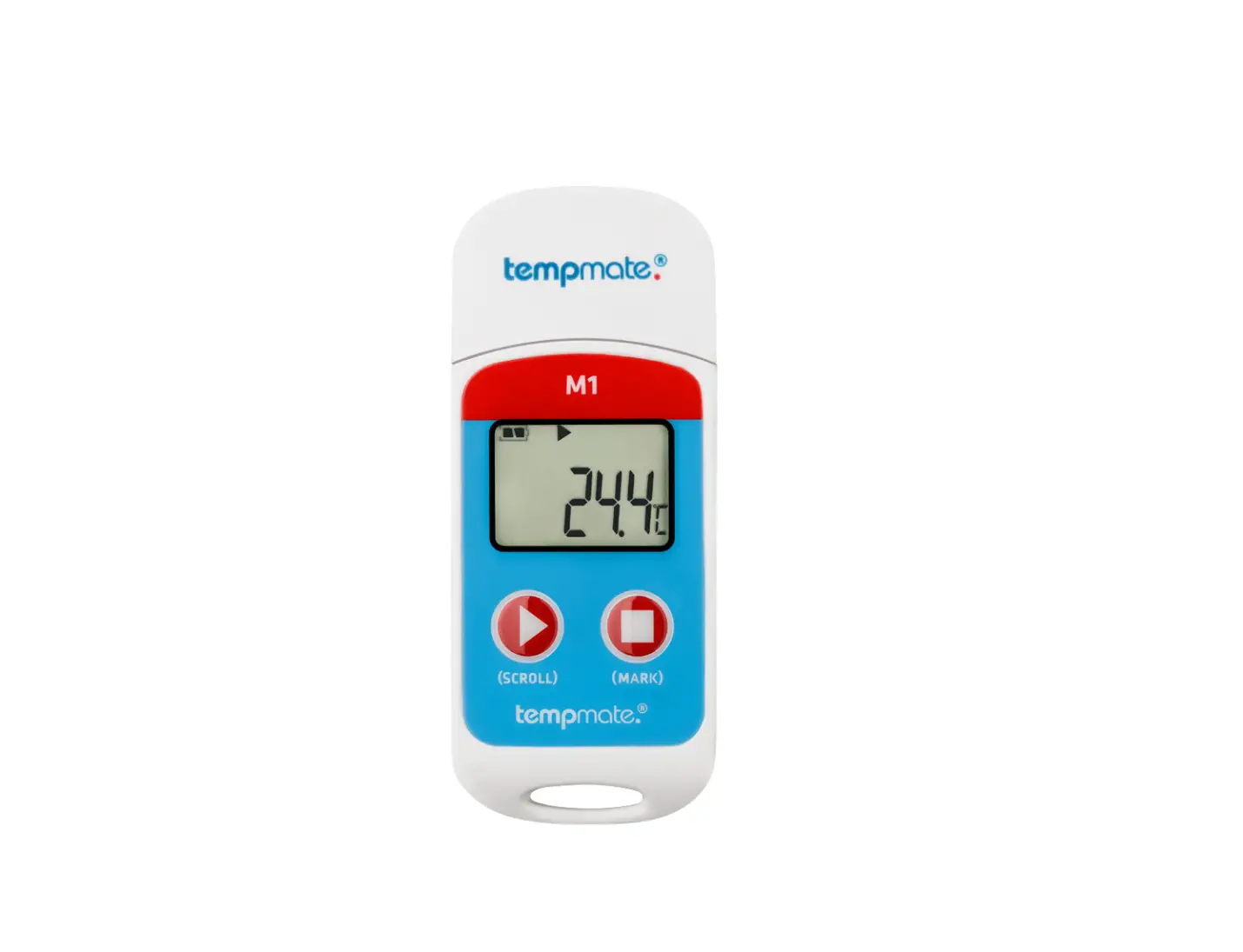
The RHDL30/RHDL40 PDF Dataloggers are devices used for measuring
temperature, humidity, or pressure. The datalogger has a display
that shows the measured values, with a toggle rate of every 5
seconds. It also has a low battery indicator. The faceplate of the
datalogger includes buttons and an LED indicator for easy
operation. The datalogger requires (2) CR2032 batteries, which can
be installed by twisting the battery compartment to the UNLOCK
position using a coin. The datalogger also requires Adobe Reader
Software for programming and generating reports. It is recommended
to program and generate reports at ambient room temperature,
allowing for stabilization time if the datalogger is removed from a
freezer.
Product Usage Instructions
- Configuring the data logger:
- Sampling rate: Select the desired sampling
interval from 30 seconds to 2 hours. - Start delay: Select the start delay from 0
minutes to 24 hours. The real time to log the first temperature
measurement will be the start delay time after pressing the START
button. Subsequent measurements will be logged at the selected
interval. - Unit of Measurement (UoM): Choose between
Metric or Imperial units for temperature and pressure
measurements. - Password: The password function is off by
default but can be enabled to prevent unauthorized reprogramming. A
password can have up to 16 alphanumeric characters. - Company Name: Input a user-defined name or
descriptor, limited to 20 characters, to be displayed as the title
on the PDF report. - Alarm types: Choose between Single,
Cumulative, or Disable for alarm functionality. The red alarm LED
can be stopped by plugging the logger into a computer to generate a
report or by powering off the logger. - Alarm delay: The preset alarm delay interval
for a single alarm type is always zero. For a cumulative alarm
type, the adjustable alarm delay interval can be set from 5 minutes
to 2 hours. - Alarm Limits: Set the alarm threshold values.
For example, if 2 – 8 degrees Celsius is selected, an alarm
condition will occur below 2 degrees Celsius or above 8 degrees
Celsius. The alarm limit can be set with one decimal place. - Time zone: Ensure that the PC is set to the
correct time zone before programming the logger. The logger will
automatically synchronize with the PC’s time zone when the Save
button is pressed. Note that time zone changes during transit
distance are not adjusted in the logged data.
- Sampling rate: Select the desired sampling
For further assistance or inquiries, please contact CalCert
at:
Phone: 1.888.610.7664
Email: [email protected]
Website: www.calcert.com
User Manual
RHDL30/RHDL40 PDF Dataloggers
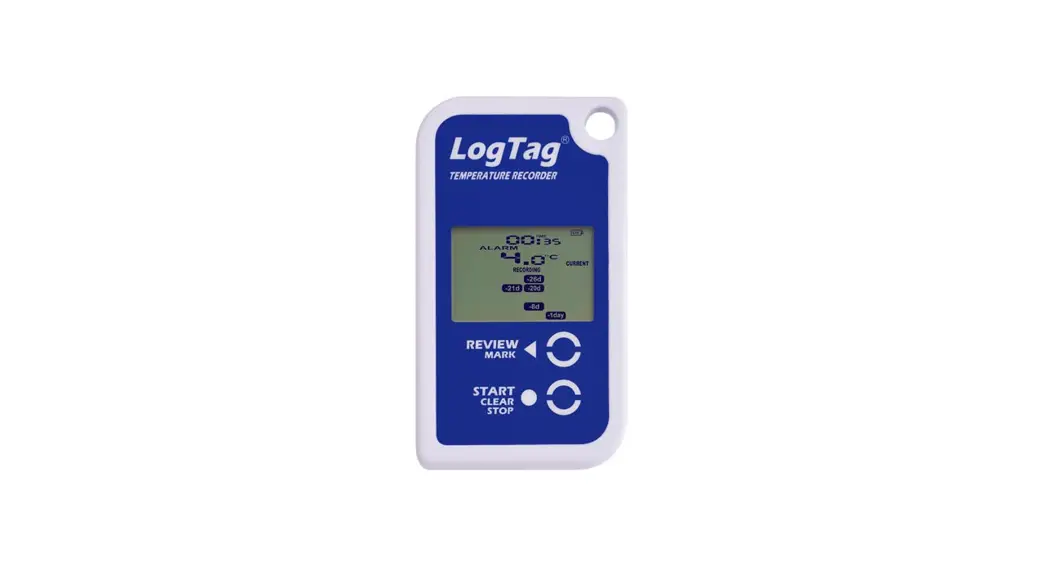
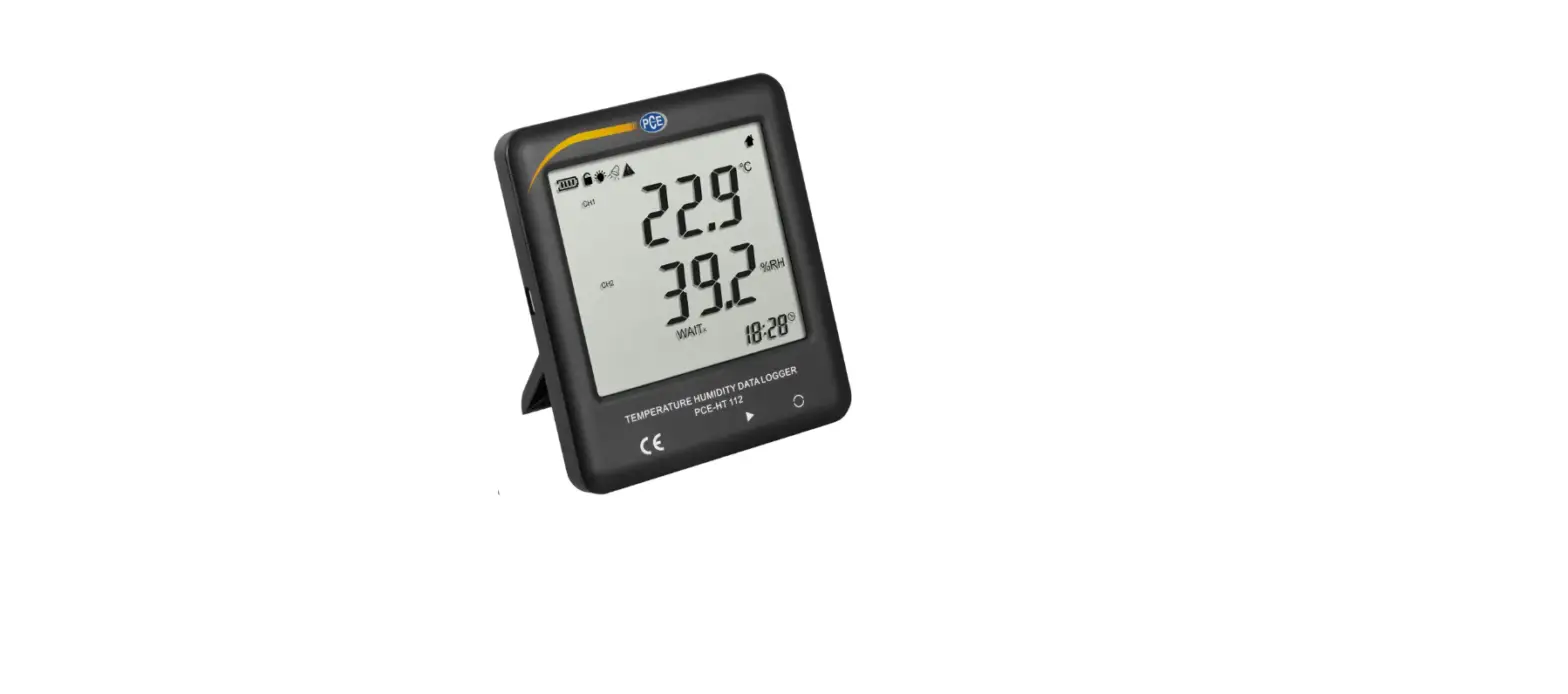
Display
REC: flashes every second when in logging mode. For Program Start Delay: REC is displayed but does not flash during standby status. T1: is Air Temperature (T2 is for Probe N/A on these models) H/L: High and Low Set Point Limit exceeded Indicator °C/°F Temperature units of measure
Measured Temperature, Humidity or Pressure. Toggle Rate is every 5 seconds. MXMN: MAX/MIN Readings
Low battery indicator
Faceplate (Buttons and LED Indicator)
MAX/MIN: Press to view MAX or MIN Values of all logged data. LED Indicator: LED will flash GREEN every 10 seconds when logging is started and RED if any Low or High alarms have been tripped during a log session START/STOP: Once batteries are installed. Pressing this button will POWER ON and OFF the logger. After Programming, Pressing and Holding for 5 seconds will Start and Stop the logging. In logging mode a short press will not turn OFF the logger. MARK: To mark an event manually during the measurement period, press the MARK button for 2 seconds until the measured data flash three times. This MARK function is usually used when there is a transition, from one location to another. At most 8 marks will be identified in the PDF report. Short press MARK button any time can also display the leftover battery life time as a quick reference. However, precise battery life time is still decided by operation condition & battery brand.
1.888.610.7664
15
10
20
5
25
0
30
www.calcert.com
Operation
NOTES: – Use a coin to twist battery compartment to the UNLOCK position and Install (2) CR2032 Batteries observing polarity. – Adobe Reader Software is required – Program and generate the reports at Ambient Room Temperature. For example, if removed from a freezer allow stabilization time to room temp before generating the reports.
Step1
–
–
–
–
–
–
Configuring the data logger
It is possible to make configuration changes at any time before the logging function is started. Once the logger is started, configuration changes cannot be made unless stopping the logging first. If the logger is locked with a Password, the Password is required to make configuration changes. – Press ON/OFF to power on the logger – Connect the data logger to a PC via the USB port. The green LED is ON while building the connection with computer. – Windows file display window will appear. – If the correct file folder is not open, click on Folder to view files. – Open the file ” PDF Logger Configuration Tool. exe”. – The default language is English. The user may change it to one of several alternate languages. There are English, German, French, Italian, Spanish and Portuguese. – To review the instruction manual, you may click “Manual” to open the manual PDF file. – The user can check the calibration report for the logger by selecting the PDF file named “Calibration Certificate”. – User programmable parameters are as follows:
Sampling rate Select the sampling interval you need from 30 seconds to 2 hours.
Start delay Select the start delay from 0 min to 24 hours. For example: If the delay is 5 minutes, and the sampling rate is 10 minutes, the real time to log the first temperature measurement is 5 minutes after the START button is pressed. All measurements after the first measurement will be at a 10 minute (or selected) interval.
1.888.610.7664
15
10
20
5
25
0
30
www.calcert.com
–
Unit of Measurement (UoM)
– Select the unit that will be displayed on the PDF report and LCD. The
selections are Metric or Imperial. In Metric, it is Celsius for temperature and
hpa for pressure. In Imperial, it is Fahrenheit for temperature and inHg for
pressure.
–
Password
– The Password function is default OFF. The user may enable it to prevent
unauthorized reprogramming prior to pressing the START button. A
Password may have up to 16 alpha or numeric characters.
–
Company Name
– A user defined name, or descriptor, can be input under Company Name. It
will be displayed on the PDF report as the Title, with a maximum of 20
characters.
–
Alarm types
– Regardless of the Alarm Type, i
the reading return to normal range or logging is stopped. The way to stop
red alarm LED is to plug logger into computer to generate report or power
off the logger.
– Single: an alarm is triggered immediately when the measured value exceeds
the alarm threshold.
– Cumulative: an alarm is not triggered when the measured value exceeds the
alarm threshold, but only once the overall average value during alarm delay
duration exceeds the alarm threshold.
– Disable: No alarm function during the logging process
–
Alarm delay
– The preset alarm delay interval for a single alarm type is always ZERO.
– The adjustable alarm delay interval for a cumulative alarm type can be 5
minutes to 2 hours.
–
Alarm Limits
– Select the alarm threshold values. For example: if 2 – 8 deg C is selected, it
means that an alarm condition will occur below 2 deg C, or above 8 deg C.
The programmable alarm limit of each parameter is limited to one decimal.
To summarize, to activate a alarm when 30 min average value of hazardous
alarm delay period is higher than 8 , please program the alarm delay as 30
mins, alarm type as cumulative and range as 2~8
–
Time zone
1.888.610.7664
15
10
20
5
25
0
30
www.calcert.com
– Before programming the logger the user must assure that the PC is set for the correct time zone. The logger will auto synchronize to the time zone of the PC, when Save is pressed. Time zone changes over the transit distance are not adjusted in the logged data.
– The default value of above parameters are: – Sampling rate: 5 min Alarm Type: Disable – Start delay: 0 min Alarm delay: 0 min – Temp. Unit: °C Alarm Limits: – Password: disable Temp. blank – Company Name: blank RH: blank – Language: English Pressure: blank – Once all the programming is done, press “Save” to confirm the setting and
then you may close the setup window and remove the logger from PC USB port.
Step2 Start logging
– – Press “START” key for 5 seconds when you want to start the logging. – – REC will appear and flash on LCD to indicate the logging is activated.
Measured parameters update and interexchange on LCD every 10 seconds. – – If Logger is programmed as Start delay, after pressing the start key, the
REC will appear (not flashing) to show the logging is started and in standby status. – -During the logging, the green LED will blink every 10 seconds if there is no alarm occurred. If any, it turns into flashing red LED. – -If the red LED is triggered, it won t stop even the reading return to normal range or logging is stopped. The way to stop red alarm LED is to plug logger into computer to generate report or power off the logger. – – To place a bookmark manually during the delivery transition, long press MARK key until measured reading flashes three times. – -Press MAX/MIN key any time to review the maximum and minimum data stored in memory. – -Press MARK key can review the approximate leftover battery life time.
Step3 Download data
– -Press “STOP” key for 5 seconds to stop the logging. – -Plug logger into PC USB port can also stop the logging. – – Open the file “PDF Logger Configuration Tool. exe
1.888.610.7664
15
10
20
5
25
0
30
www.calcert.com
– – Choose function Convert to PDF or Convert to Excel to generate the
report in preferred format. The default language is English. The user may
change it to one of several alternate languages.
– – Select the preference location to save the generated report to.
– – The created excel report contains all data shown in PDF report except the
graph.
– NOTE:
-delimited ASCII text file
which can be easily read by many programs. However, when opening the
file in Microsoft Excel, a warning message may be displayed because the file
csv
opened.
Technical data
Model RHDL30: Temperature + Humidity logger RHDL40: Temperature +Humidity +Barometric logger Temp. & Ext. By NTC thermistor, Measurement -30.0~70.0oC (-22.0~158.0oF) Temp. Resolution 0.1oC (0.1oF) Temp. Accuracy +/-0.5oC Humidity 0.1~99.9%rH Humidity res. 0.1%rH Humidity accu. +/-3% at 25 oC(10-90%rH), others +/-5% Pressure 300~1100hpa; 8.9~32.5inHg Resolution 0.1hpa;0.1inHg Accuracy +/-3(0~60 oC), +/-5 (-20~0 oC), the rest is not specified. Logging Type Multiple use Sampling points RHDL30: 24000 Temp. +24000 Humidity RHDL40: 16000 Temp.+ 16000 Humidity+ 16000 Baro. Battery Life 3 months Operating temp. -30~70oC (Logging status); room temp.(PC status) Operating RH% Humidity < 80% Storage temp. -40~85oC Storage RH% Humidity <90%
1.888.610.7664
15
10
20
5
25
0
30
www.calcert.com
Weight ~90g
Battery 2PC 3.0V CR2032
Sampling Interval 30 seconds, 5, 10, 30, 60, 90, 120 minutes
Start delay 0, 5, 30, 45, 60, 90,120 minutes, 24 hours
Alarm range Temp: -30.0~70.0oC
Humidity:1~99%rH
Baro:300~1100hpa
Alarm delay 0, 5, 30, 45, 60, 90, 120 minutes
Alarm type Single, Cumulative, Disable
Operation keys 3 Keys, Start/Stop & Mark & MX/Mn
LED indicator REC, High /Low alarm
Protection class
Model 2: IP65
Directives EN12830
Operating System Windows only
Error Codes
– – – – . Why?
Solution E02 Why? Solution E03 Why? Solution E04 Why?
Solution E11 Why?
Solution E31
In model 2 only. External probe is unplugged Check the contact between probe and logger
Measured value is below specified range Put the logger in specified range
Measured value is above specified range Put the logger in specified range
In humidity display of model 3 & 4 only, means temperature is in error mode Solve the error issue of temp. sensor
In humidity display of model 3 &4 only, means humidity calibration is fail Re-calibrate the humidity
1.888.610.7664
15
10
20
5
25
0
30
www.calcert.com
Why?
Microprocessor is fail
Solution Contact distributor for after service
E33
Why?
In humidity display of model 3&4 only,
means humidity measuring is fail
Solution Contact distributor for after service
Why red LED is flashing but recorded data is OK
Why?
Alarm detection works every 10 seconds but
data logging are possibly programmed as
every 2 hours. In this condition, if alarm
happens between two logging points, it
might lead the recorded data is OK but red
LED is flashing, especially if the alarm mode
is set as Single .
Solution To program the alarm function as
cumulative can reduce this situation
Warranty Information
Triplett / Jewell Instruments extends the following warranty to the original purchaser of these goods for use. Triplett warrants to the original purchaser for use that the products sold by it will be free from defects in workmanship and material for a period of (1) one year from the date of purchase. This warranty does not apply to any of our products which have been repaired or altered by unauthorized persons in any way or purchased from unauthorized distributors so as, in our sole judgment, to injure their stability or reliability, or which have been subject to misuse, abuse, misapplication, negligence, accident or which have had the serial numbers altered, defaced, or removed. Accessories, including batteries are not covered by this warranty
Copyright © 2020 Triplett
1.888.610.7664
15
10
20
5
25
0
30
www.calcert.com
 Calcert