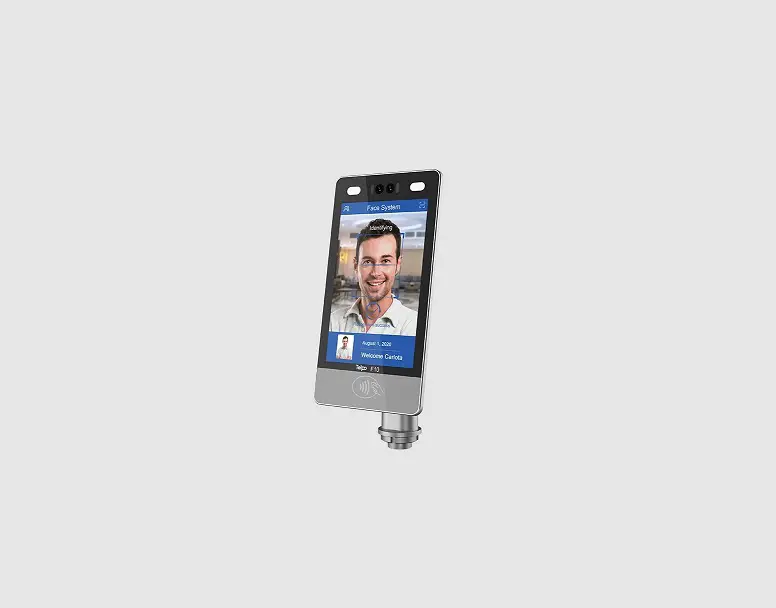
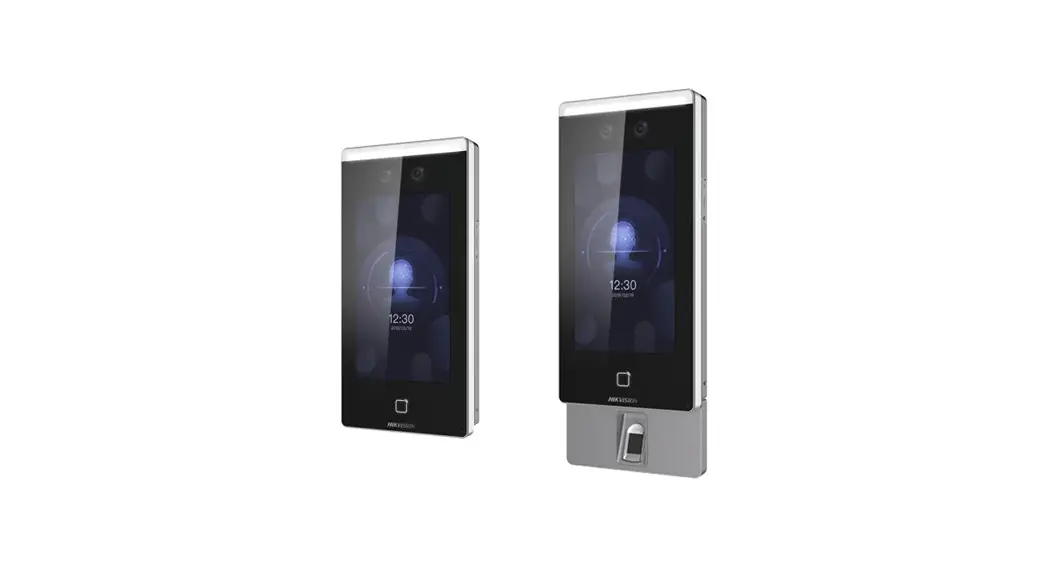
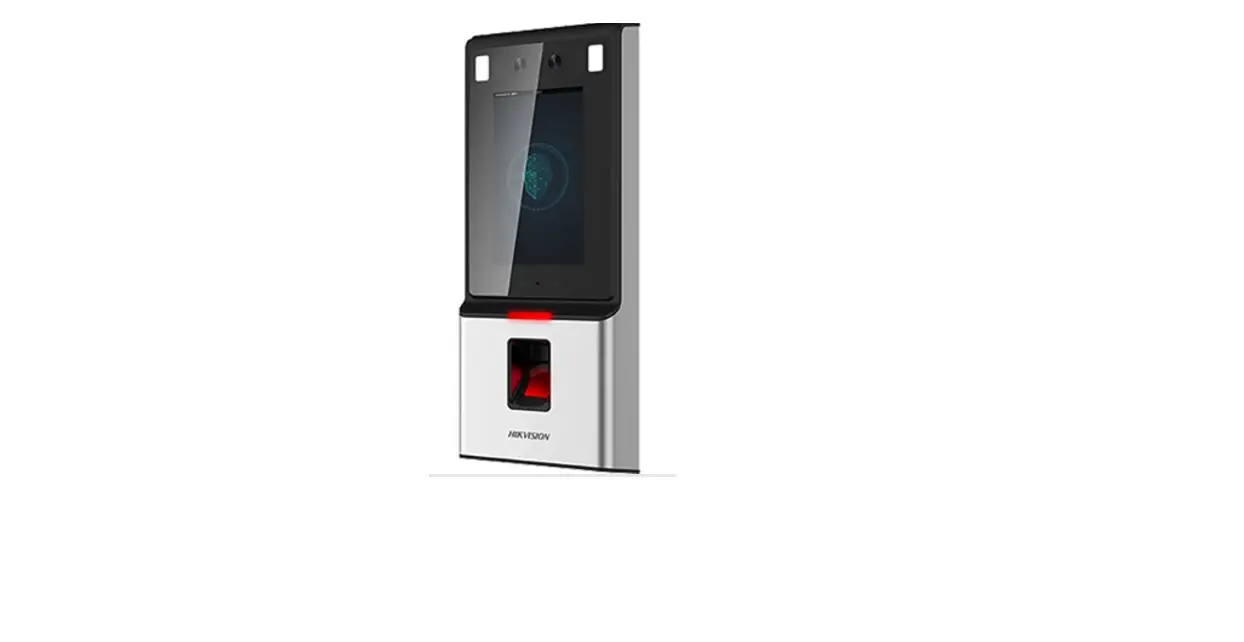
AI20 Dynamic Face Recognition Terminal
Product Information
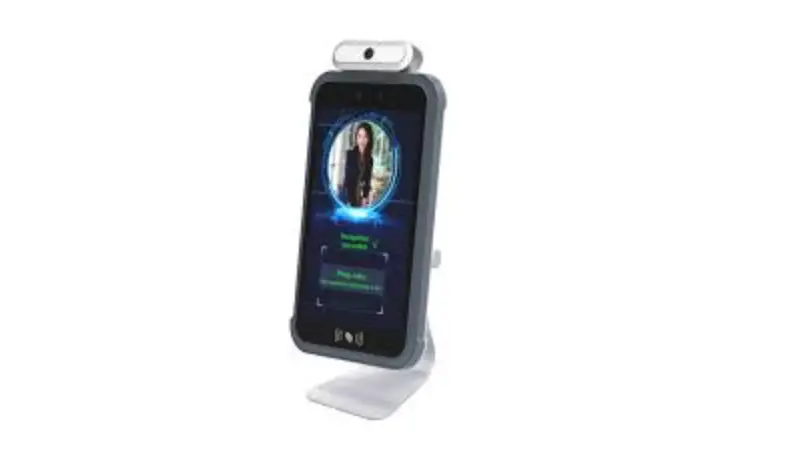
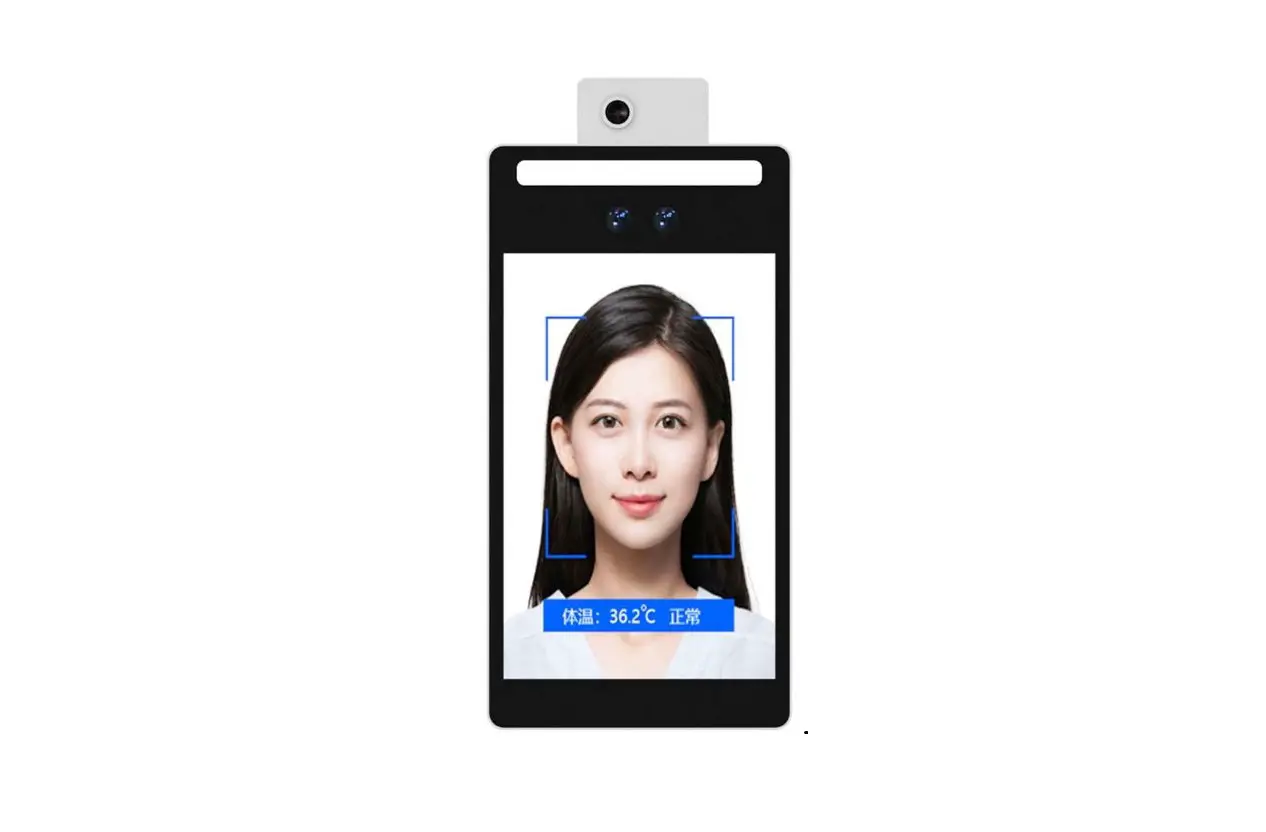
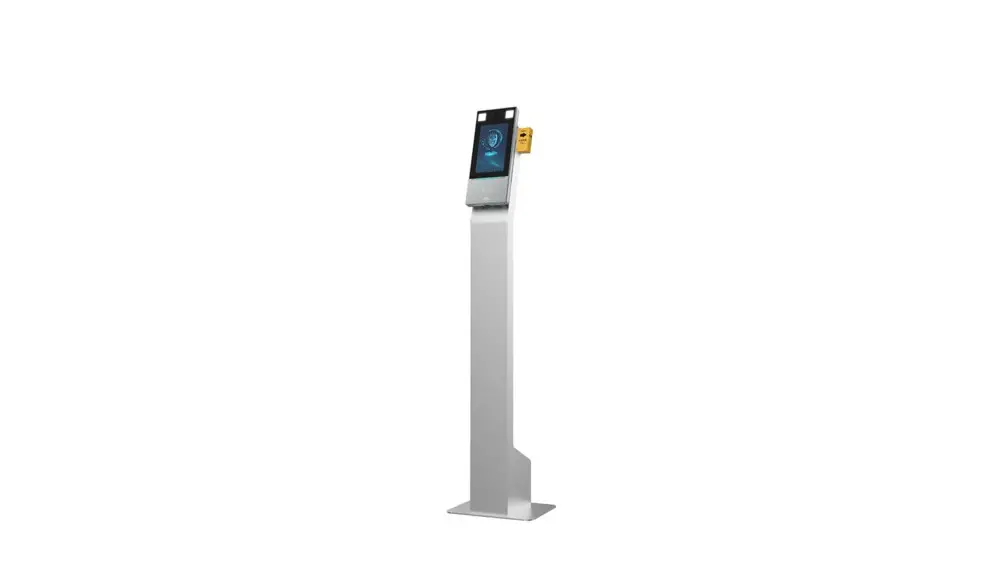
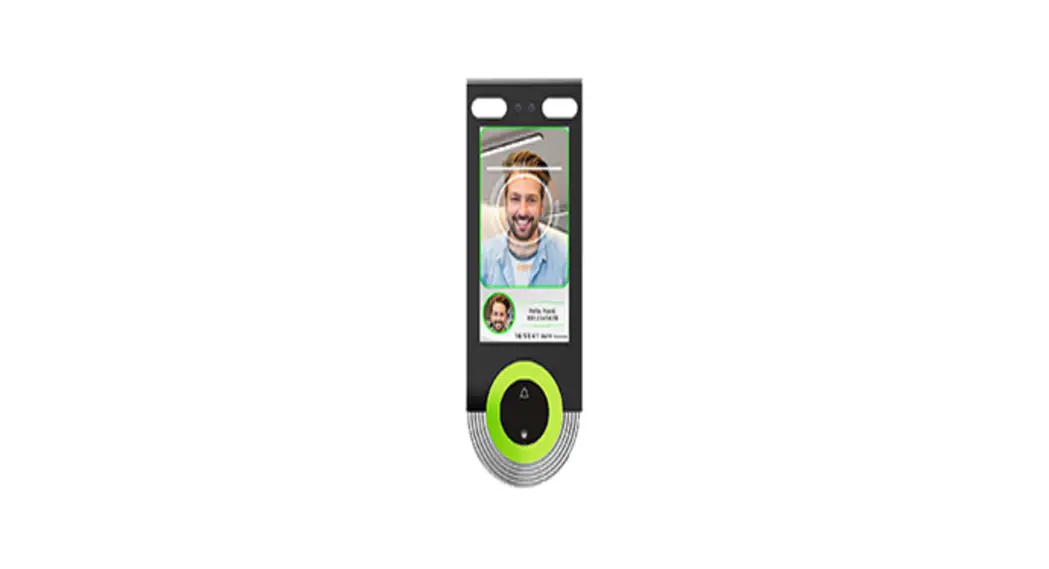
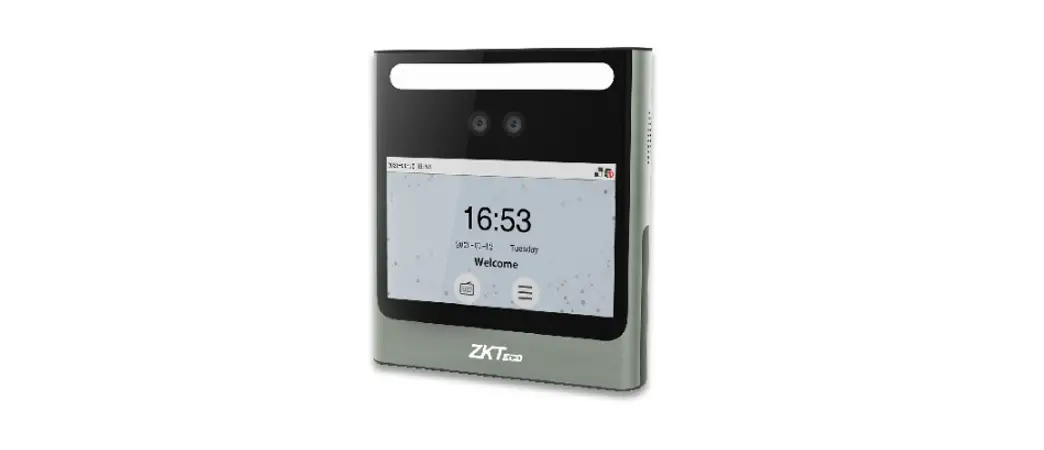
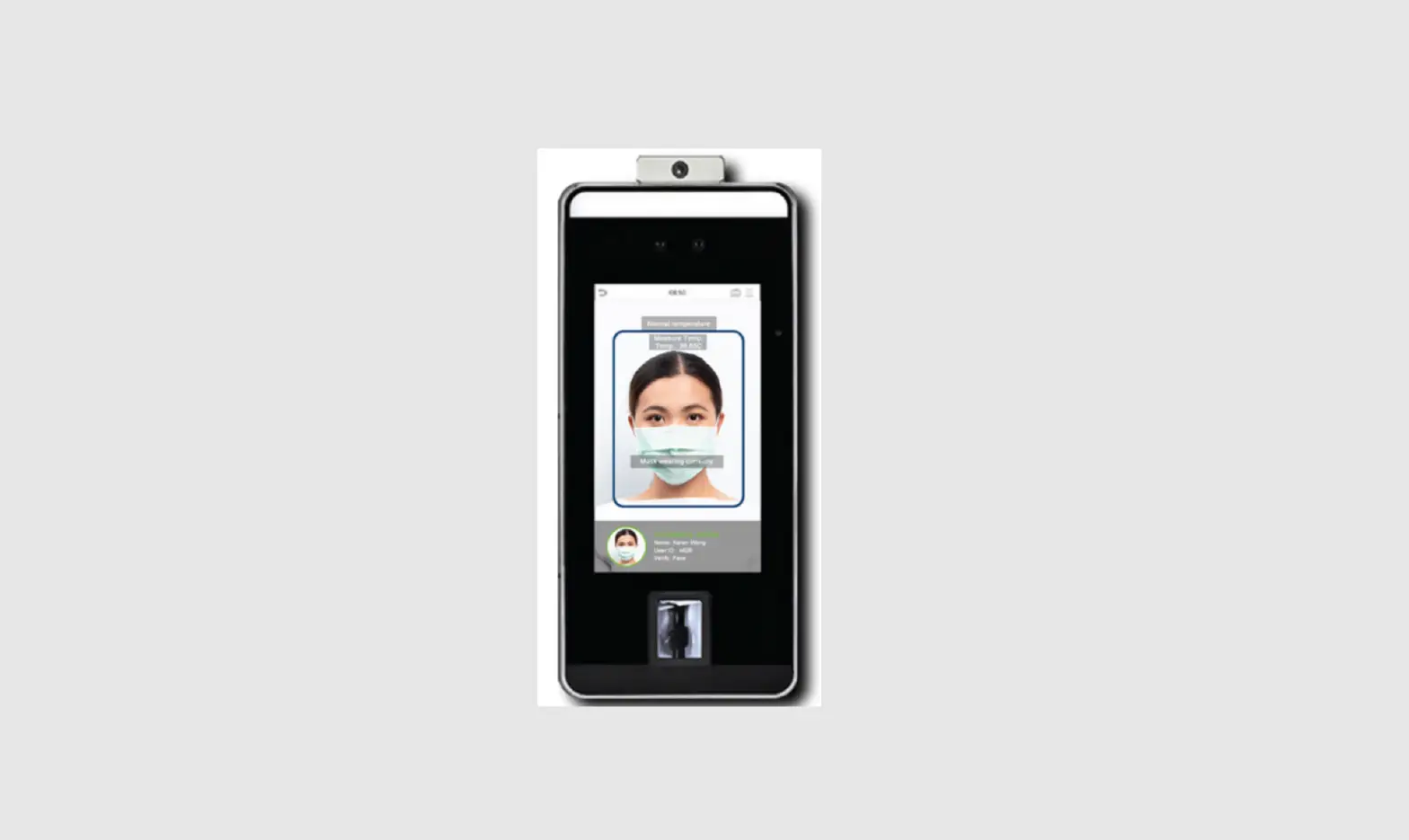
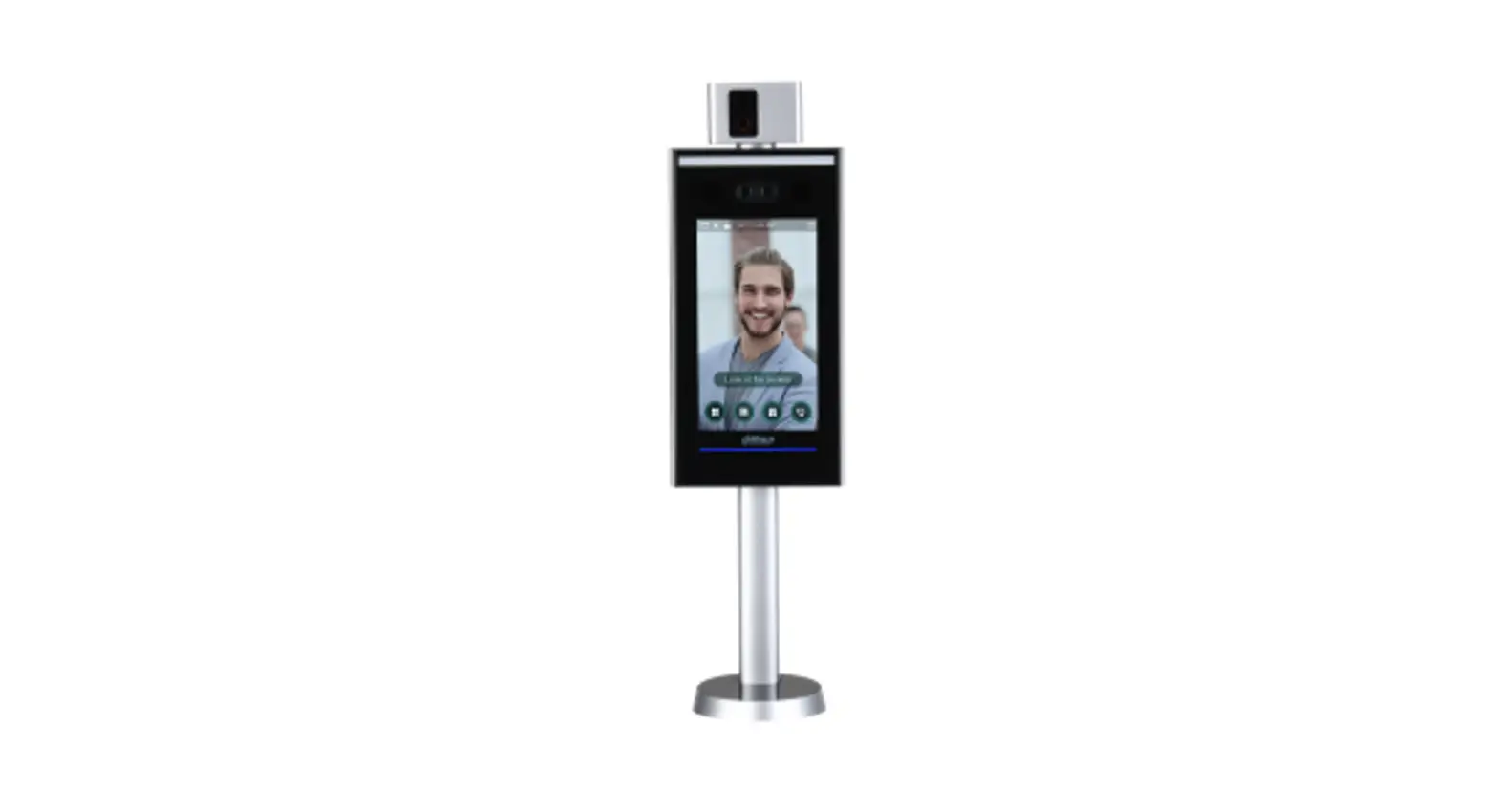
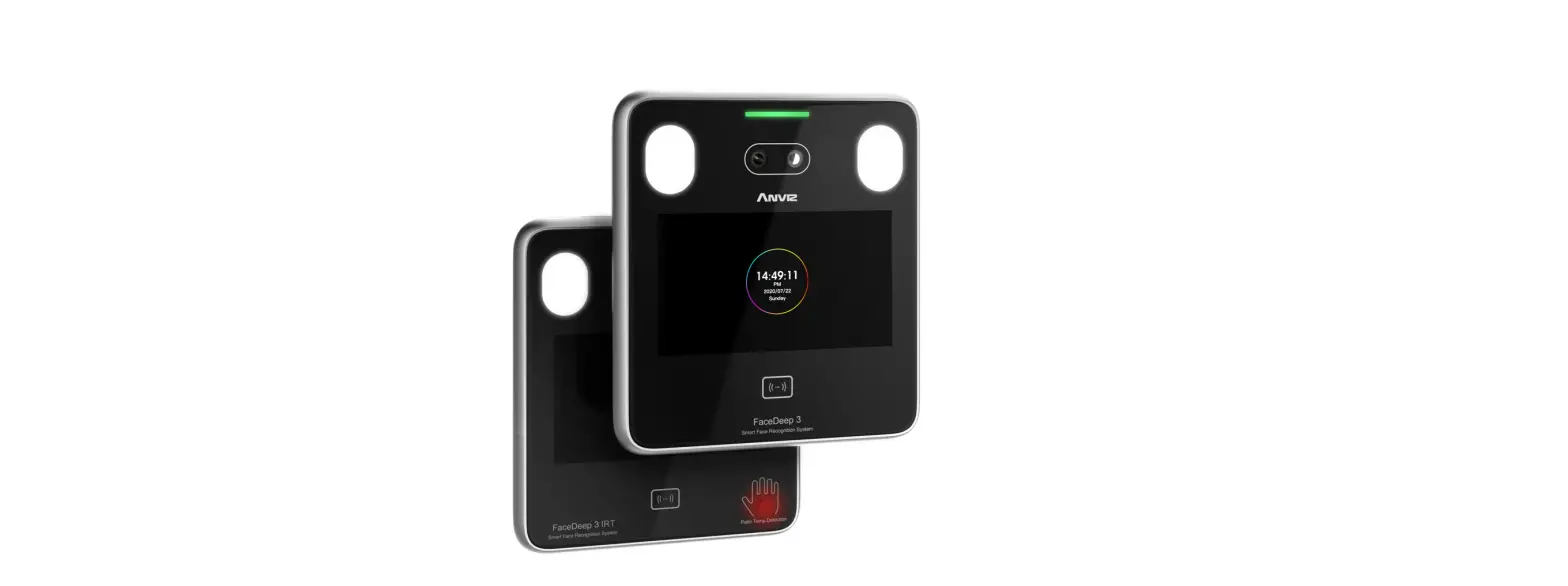
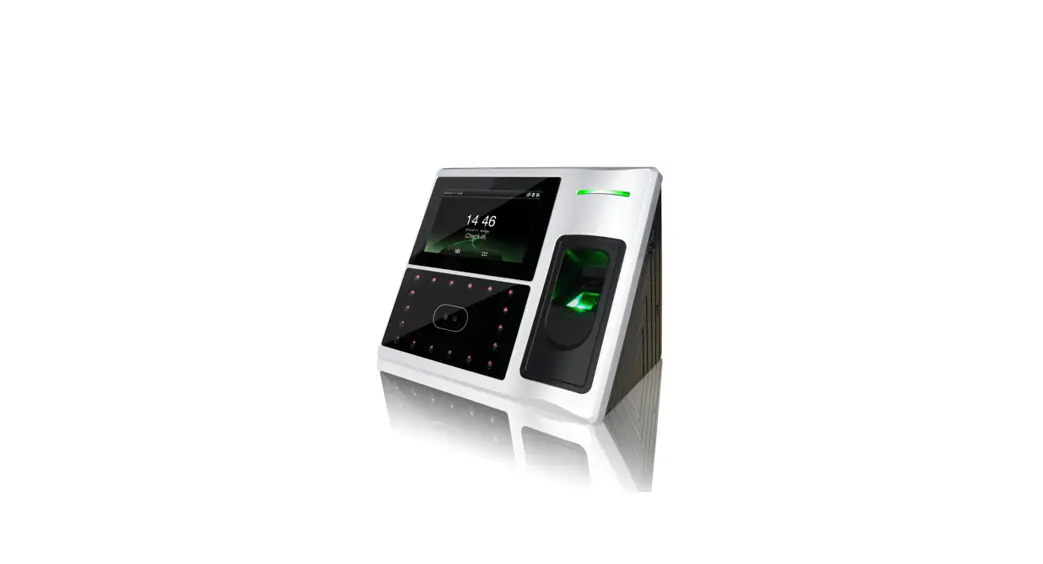
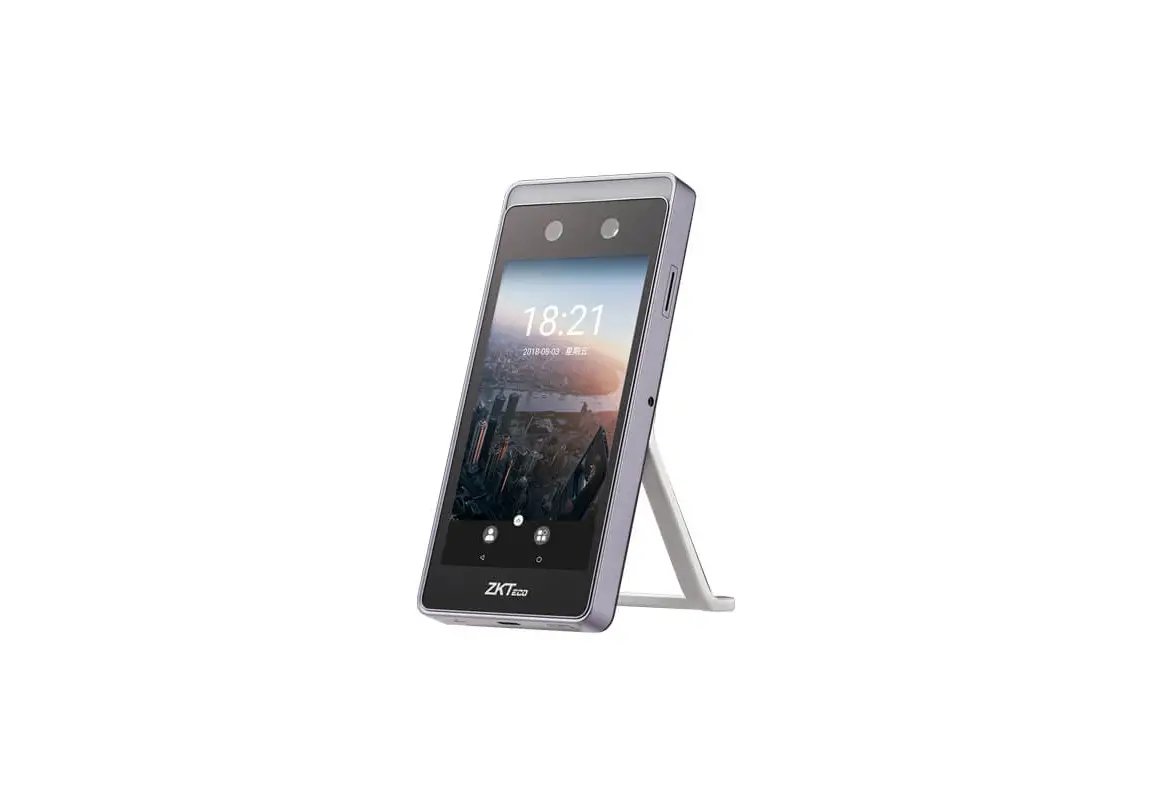
The AI Dynamic Face Recognition Terminal is a facial recognition
device with advanced features. It has a 2.8-inch color screen, LED
fill light, infrared fill light, infrared camera, color camera, key
board card, USB flash disk port, speaker, and various buttons for
power supply, lock, exit, Wiegand out, and door bell. It supports
TCP/IP connectivity.
Wall Mount Installation
- The recommended installation location is 130cm from the lowest
point of the device to the ground (adjust according to actual
situation). - Disassemble the rear hanging plate and attach it to the wall at
the desired installation position. Make a mark on the wall. - Drill holes on the wall according to the marked positions.
- Fix the rear hanging plate securely on the wall.
- Install the device onto the rear hanging plate and secure it.
Then, power it up.
Attention
- Do not operate with power during installation.
- When connecting an electric lock, it is recommended to use a
12V/2A power supply. - Do not install the device in direct sunlight or in a humid
place. - Please read the wiring diagram of the access control system and
wire it according to the rules strictly. - In situations with heavy static electricity, connect the ground
wire first and then connect other wires to protect the device from
static electricity damage.
User Management
The device has three types of users:
- User: If there is an Admin in the device,
regular users are not allowed to access the menu. - Admin: The manager of the device. Only the
admin has permission to access the menu. - Super.user: Can only be enrolled if there is
an Admin in the device. Super.users can only operate certain parts
of the menu, such as registering users.
To add a user:
- Press MENU > User Mgt > Add user.
- If there is a registered admin, pass the admin verification to
enter the menu. - Enter the unique ID for the user.
- Input the user’s name using the T9 input method.
- Gaze at the camera to complete the face registration. Stand
directly in front of the device, face the camera, and keep the
entire face displayed in the frame for a good face recognition
effect.
Download and Upload User Information
To download user information:
- Press MENU > User Mgt > Download enrollmsg.
- Insert a U-disk into the device to download.
- Three files will be exported: User data file (AFP_001.dat),
User’s enrolled photo (EnrollPhoto), and User information Excel
sheet (Staff).
To upload user information:
- Edit the User information Excel sheet on a PC.
- Upload the edited file back to the device.
User View and Management
To edit or delete user information:
- Press MENU > User Mgt > User View.
- Use the Find or Find Name option to quickly locate the user you
want to edit. - To edit user information, select the user and change any
desired information (except user ID). - To delete a user, select the user and choose the Delete
option. - For advanced settings, go to Advanced Setup to set user shift
settings and access control settings.
AI Dynamic Face Recognition Terminal quick guide
VersionV18.20
1.Appearance Display
Front
LED Fill Light Infrared Fill Light
Side
Infrared Camera
Reset button
Color Camera
2.8Inch Color Screen
Key Board Card
USB flash disk port
Speaker
Back
DC12V 10PINPower supply/Lock/Exit button /Wiegand out/Door bell TCP/IP
1
2.Wall Mount Installation
1 The recommended installation location is 130cm from the lowest point of the device to the ground (a suitable height can be identified according to the actual situation). 2 Disassemble rear hanging plate and attach it to the wall to select the suitable installation position, then make a mark. 3 Drilling on wall according to the marked position. 4 Fix the rear hanging plate on the wall. 5 Install the device on the rear hanging plate and fix it, then power it up.
Wall mounted installation
3.Attention
1Do not operate with power during installation. 2When connectting electric lock12V/2A power supply is recommended . 3Do not install the device in direct sunlight or in a humid place. 4Please read the wiring diagram of access control, and wire it according to the rules strictly. 5On the situation that static electricity is a bit heavy, please connect ground wire first and then connect other wires, which can protect the device from damaging in static electricity.
4.User Management
2
User:If there is Admin in this device, user is not allow to access into menu Admin: The manager of this device. Only admin has permission to access
into menu. Super.user: Only when there is Admin in device, then can enroll Super.user,
but Super.user can only operate part of menu, such as register users
Press MENU >User Mgt>Add user, when there is a registered admin, After passing the verification of admin then the menu can be entered
IDWhen registering, each user can only have one unique `ID’. NameInputedit name by T9 input method. FaceGaze at the camera to complete the face registration.
Note: Please stand directly in front of the device, face the camera, and keep the entire face displayed in the frame, In order to maintain a good face recognition effect.The following picture is for your reference
5.Download and upload user information
Press MENU >User Mgt>Download enrollmsg,insert U-disk in device to download, 3 files will be exported as below: 1User data file (AFP_001.dat): It can be used to synchronized users between devices, and `001′ represents device ID 2User’s enrolled photo(EnrollPhoto) 3User information Excel sheet(Staff )Users can edit it in PC then upload back to device, please refer to below picture:
PasswordAn ID can only register one password. After clicking the password icon, enter the password to be set and then press ok to confirm the password again.
Password VerificationEnter the user id, press the `OK’ , enter the password, and press the `OK’
CardEach user can only register one card. User ViewYou can quickly locate the user you want to edit by Find or Find Nameat the top of the page.
1Edit user information: Select user you want to edit, you can change any information in this page except `user ID’ 2Delete user: Select user you want to editDelete 3Advanced setupSet user shift settings and access control settings on
Advanced setupmenu DepartmentSet the department that user belongs to PrivilegeUser and Admin and Super.user can be selected
3
Fill in personnel information according to the prompt of form header. As for “Shift” item, it is the editing shift number in the time attendance setting. When complete the editing. Directly ClickSave, and save the edited file into U-disk. After editing shift form , press MENU >User Mgt,then insert U-disk, click Upload enrollmsg and transmit the edited user information to device. Remark: For Lock Time zone, start time and end time, Pls refer to Chapter 9 Access
6.Time Attendance Management
This chapter is used for setting shifts and attendance rules 1Attendence Rule Press MENU >Shift>Atten rules
4
Note: 1) Attendance time must be in the format of time, and attendance type must be in the format of digits. So when you handle the setting, pls pay attention that the input method is in English half-angle status. Checking Method: For example, when you input 10:30, double click this cell, then software will automatically turn the digits into 10:30:00. 2) If you set the shift of cross time, then the Clock-in before the cross time will be counted as the record of previous day. And shift should start after the cross time. For example:
Original RecordYou can check all users’ attendance records in the sheet. Pls refer to below picture:
ScheduleAttendance machine can automatically analysis the clock-in and clock-out data, and transmit these data in EXCEL file to the U disk. Format as below: (Remark: Red text indicates that the attendance is abnormal, such as late, early leave. Blue means overtime)
1.Device Setup
2Edit Shift Download ShiftPress MENU>Shift>Atten rules, then insert
U-disk. ClickDownload Shift, then you can download shift arrangement in excel form, Also you can edit the form on PC. Pls refer to below picture:
Cross time is set at 09:00am. Then shift should start after 09:00, and Clock-in record before 09:00am on Tuesday should be counted as the record of Monday.
3 If you don’t need to clock at noon, combine the two sections into one . For example: 0830-1200 1330-1750,it can be set to section 1: 0830-1750 4Time Skip setting is not allowed. For example, When you complete the setting of Section 1, you cannot skip Section 2 and get to set Section 3. Upload shiftAfter editing, insert U-disk and clickUpload Shift, then you can upload the edited shift arrangements into device.
Summary ReportIt is a Statistics display of employee attendance for one month
2Advanced setup
Edit shift arrangement according to the prompts of form header. Maximum 8 shifts can be set. ClickSaveafter editing and save the file into U-disk.
7.Report
Press MENU >Report, Insert U-disk, and input the start and end time that you need to check. Click “OK”to download the report. The report includes original record sheet(Original Record), attendance list(Schedule)and summary sheet (Summary Report).
8.System settings
Press MENU >System
5
6
7
8
9.Access control management
Press MENU >Access 1Access
2Timezone settings 2.1 Day timezone According to the rules and regulations of user’s entry and exit, set the daily access time to the corresponding time period. You can totally set 8 groups of day time zones, or week time zones. For example, you can set the time between 6:00am and 8:00am to open the door, and the time between 17:00pm and 19:00pm to open the door. Pls refer to below picture Day Timezone 1 setting. If you want to set the door to be open in all day, pls refer to below picture Day Timezone 2 setting.
Example:Day Timezone 1setting as below
1
06 : 00
2
17 : 00
3
00 : 00
4
00 : 00
5
00 : 00
08 : 00 19 : 00 00 : 00 00 : 00 00 : 00
Example:Day Timezone 2setting as below
1
00 : 00
2
00 : 00
3
00 : 00
4
00 : 00
5
00 : 00
23 : 59 00 : 00 00 : 00 00 : 00 00 : 00
9
2.2 Week timezone According to the rules and regulations of user’s entry and exit, Set the passage time of each week to the corresponding day time zone. For example, the above-mentioned daily time zone rule(only 6:00am to 8:00am can open the door, and only 17:00pm to 19:00pm can open the door) applies from Monday to Friday, and door can be opened all day on Saturday and Sunday. Pls refer to (Figure 1) for Week Timezone 1:
Week time zone
Normal open time zone
MON
1
MON
1
TUE
1
TUE
1
WED
1
WED
1
THU
1
THU
1
FRI
1
FRI
1
SAT
2
SAT
1
SUN
2
SUN
1
Figure 1
Figure 2
RemarkIn our device, Week Timezone 0is default to open the door all
day. All other time zones are customizable
2.3 Normal open timezone According to requirements, Set the passage time of each week to the corresponding day time zone .Example: If the setting is as (Figure 2), Day time 1 applies to every day , then it means the door is kept open between 6:00 am and 8:00 am and 17:00pm to 19:00pm everyday
3User access settings Press MENU >User Mgt>User View> select users >Advanced setup to edit T.zone
10.Data management
Press MENU >Data Mgt, Data management consists of 6 modules: Download GlogDownload All GlogClear All EnrollDelete All Glog Initialize MenuClean Manager.
Down GlogNew attendance logs saved in device can be downloaded to U-disk, and form a TXT file, eg:’GLG_001.TXT’
Down All GlogAll attendance logs saved in device can be downloaded to U-disk, and form a TXT file, eg:’AGL_001.TXT’
Clear All EnrollDelete all registration info of all users(include facecard and pwd)
Delete All GlogDelete all logs of all users Initialize MenuReset device parameter settings, it won’t affect user data
and records Clean ManagerClear all manager privileges on the device
10
11
11.Communication
Press MENU>Comm set 1Comm set
2Server
When using WAN connection, please do corresponding server settings
12
3Ethernet
Use Ethernet to connect the device to computer, An example is shown in the figure below:
IP Address192.168.1.224 Subnet Mask255.255.255.0 Gateway192.168.1.1
IP Address192.168.1.100 Subnet Mask255.255.255.0 Gateway192.168.1.1
3WIFI(Optional) ClickSearchto select corresponding wifi hotspot, then input wifi password to connect it.
12.Schematic Diagram of Access Control Wiring
1Schematic diagram of device wiring port
TCP/IP
TCP/IP interface
White Bell +
Door bell +
Gray Bell –
Door bell –
Purple WG_D1 WG 1
Brown WG_D0 WG 0
Yellow Lock_NC Normal closed end of the control lock signal
Blue Lock_COM The common end of the control lock signal
Orange Lock_NO Normal opened end of the control lock signal
Green Button
Open signal
Black GND
GND
Red +12V
+12V
2Device connection diagram
+ Unlock when power off –
Unlock when power on
NC COM
NO
PUSH
GND +12V
Lock control power supply
Door bell Exit button
Bell+ Bell-
White Gray
WG-D1 WG-D0
Purple Brown
Lock NC Yellow
Lock COM Blue
Lock NO Orange Button Green
GND Black
12V
Red
[13.T9 Input Method
Touch ‘Alt’ to switch capital/small letter or number, after finished,touch `Ok’ to save it How to input punctuation:when the input method is in capital/small letter state,continuous click ` ‘ to select what you want to input. The first one is space, the second is dot and so on .
Access Controller
WG-D1 WG-D0 GND 12V
Purple Brown Black Red
13
14
15
16