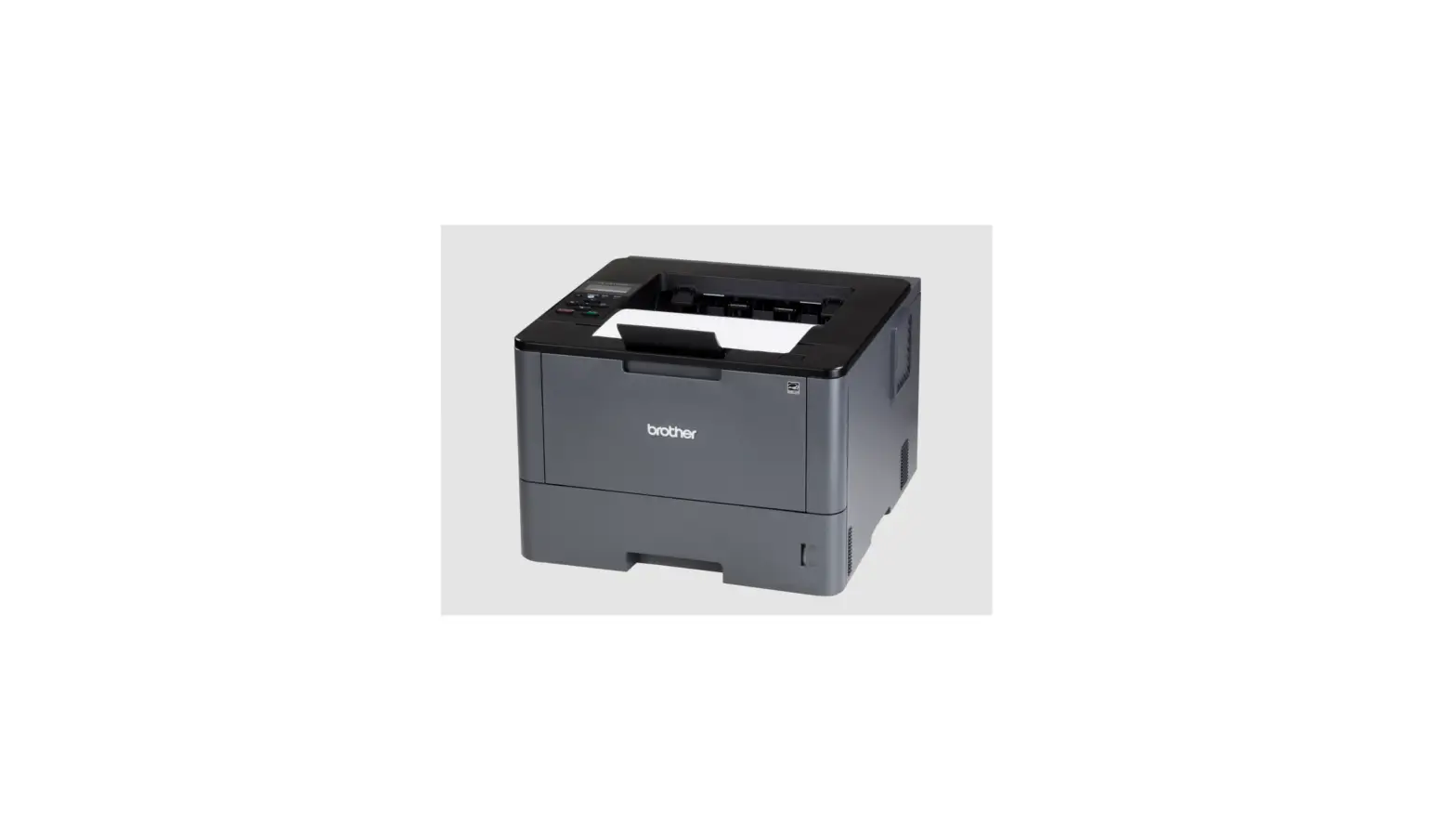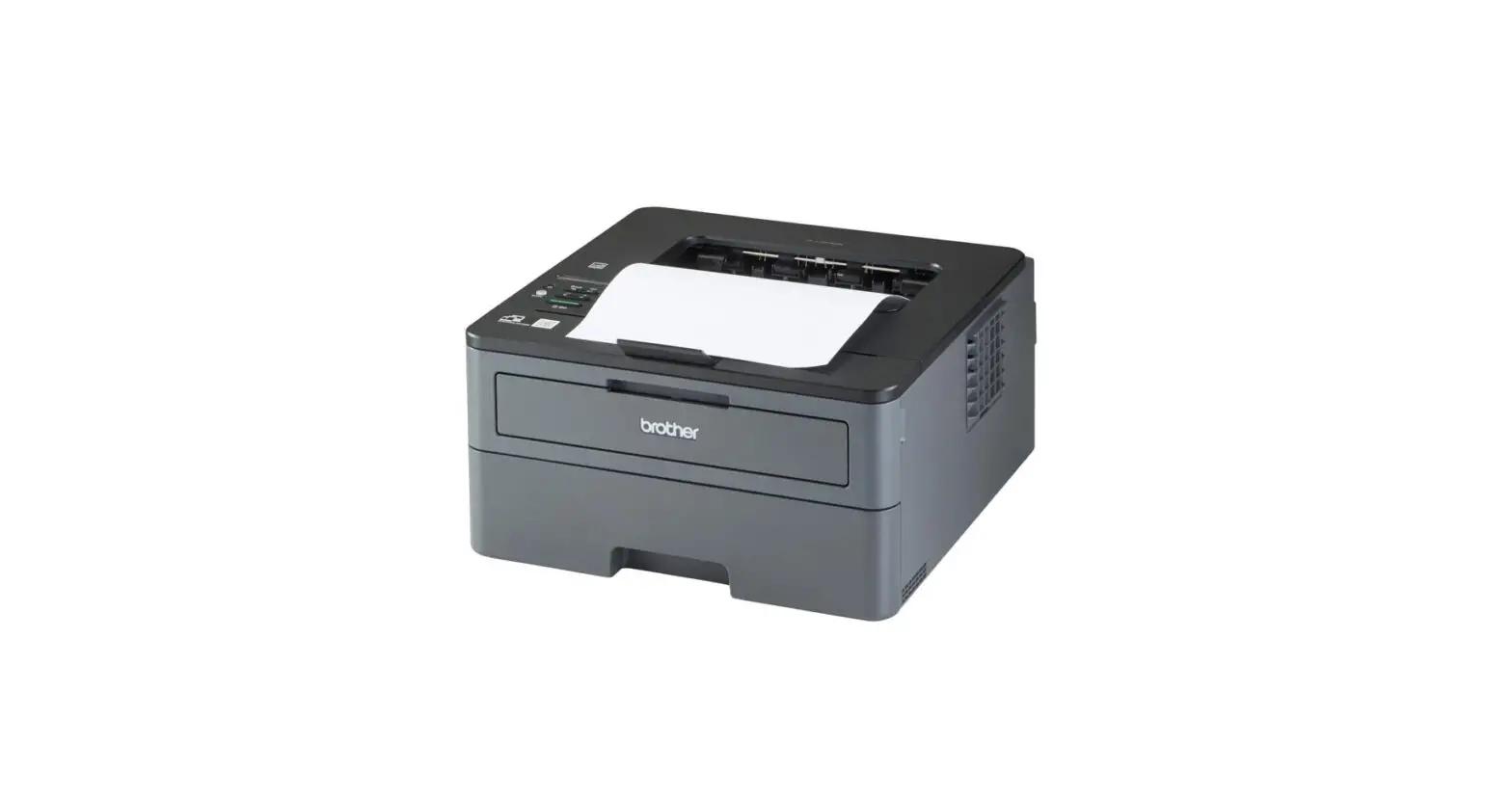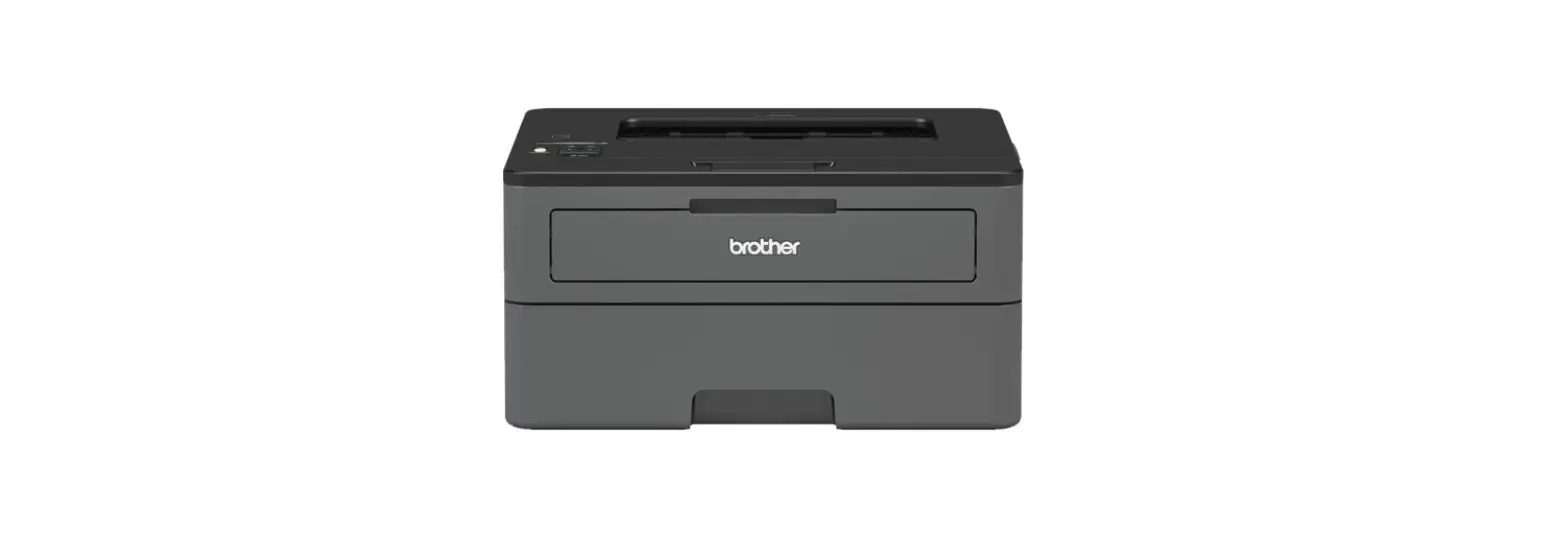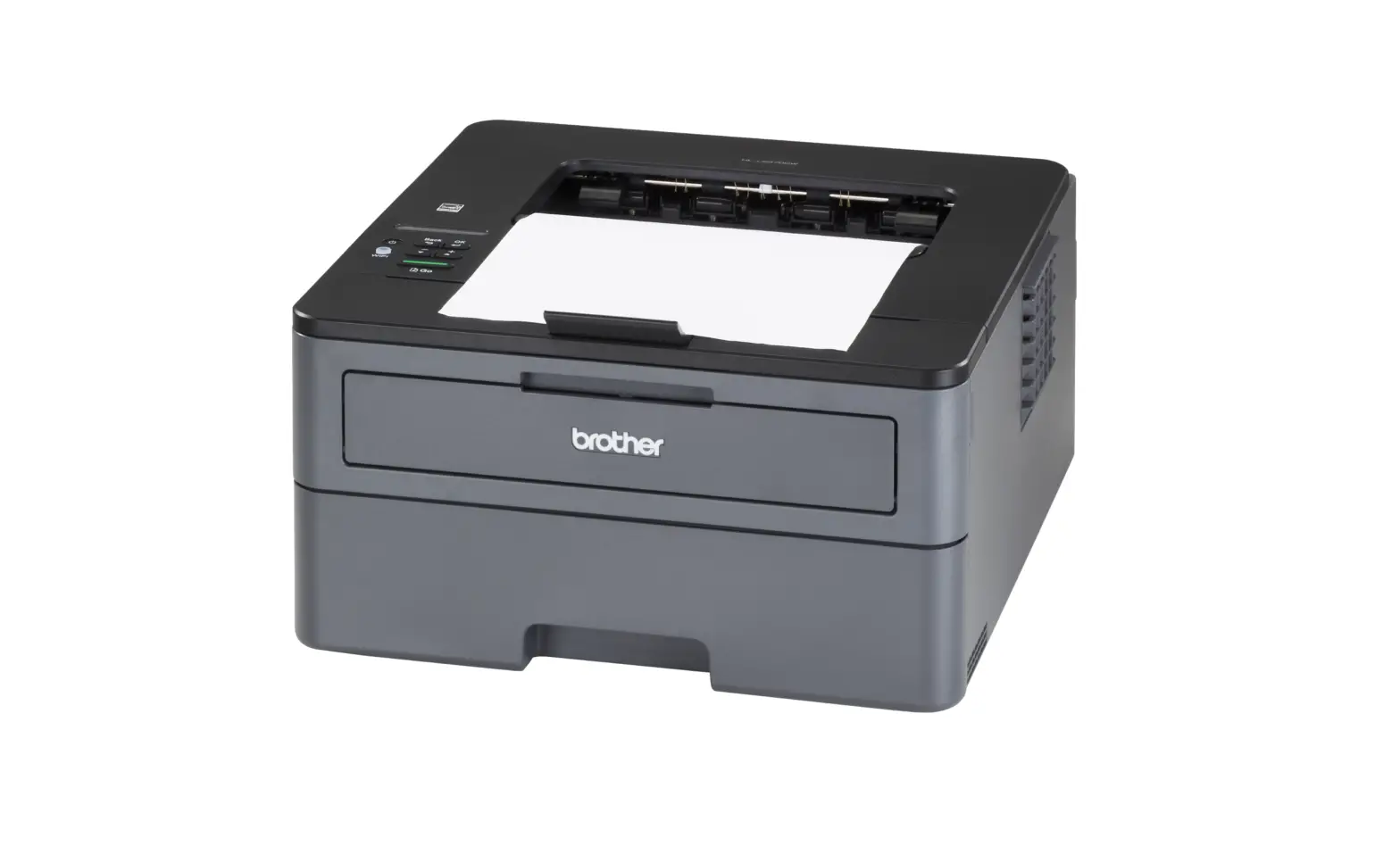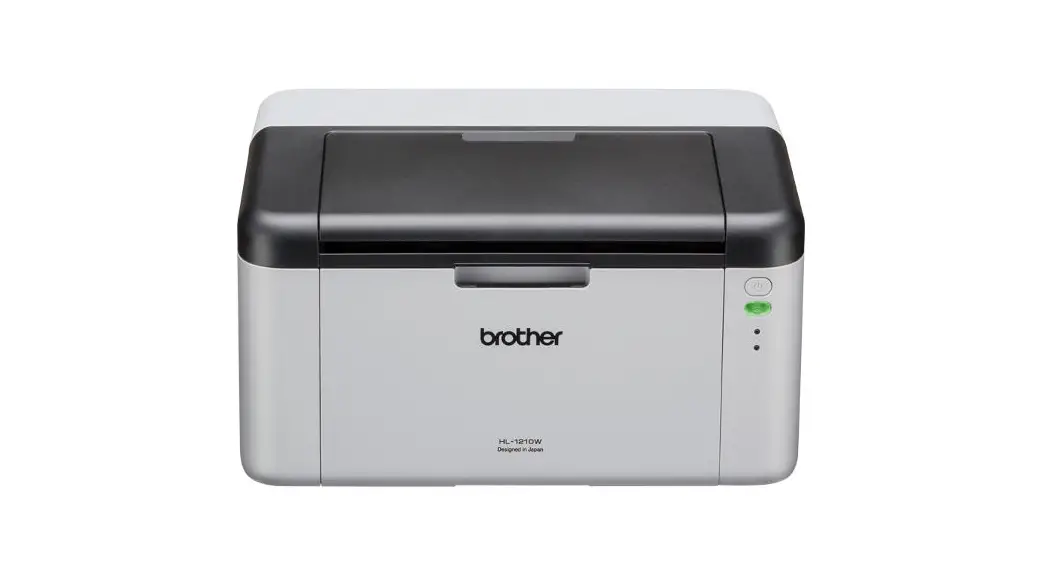

Version B
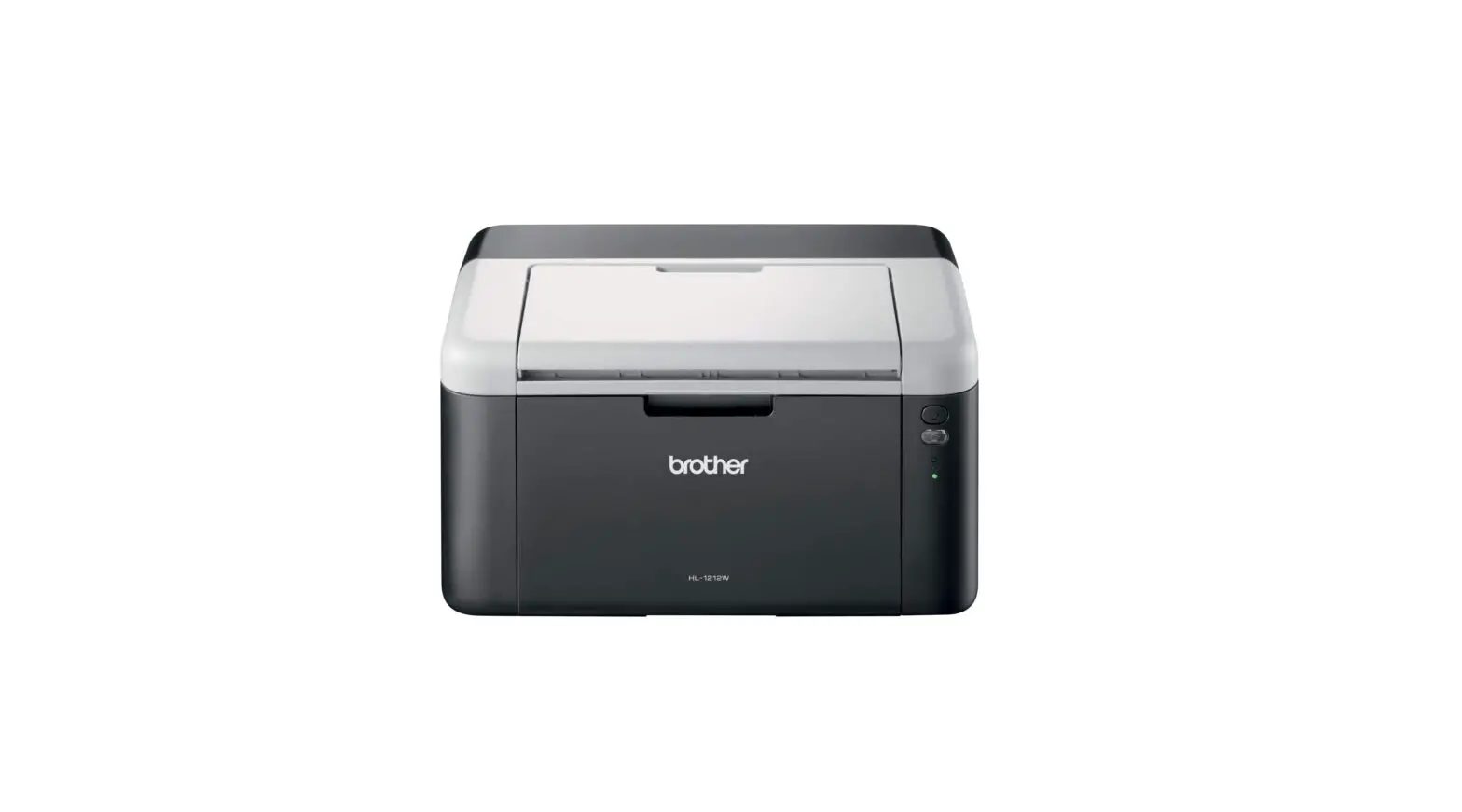
HL-1210W(E)/ HL-1211W/HL-1212W |
Quick Setup Guide

http://solutions.brother.com/videos/
Watch our FAQ Videos for help with setting up your Brother machine:
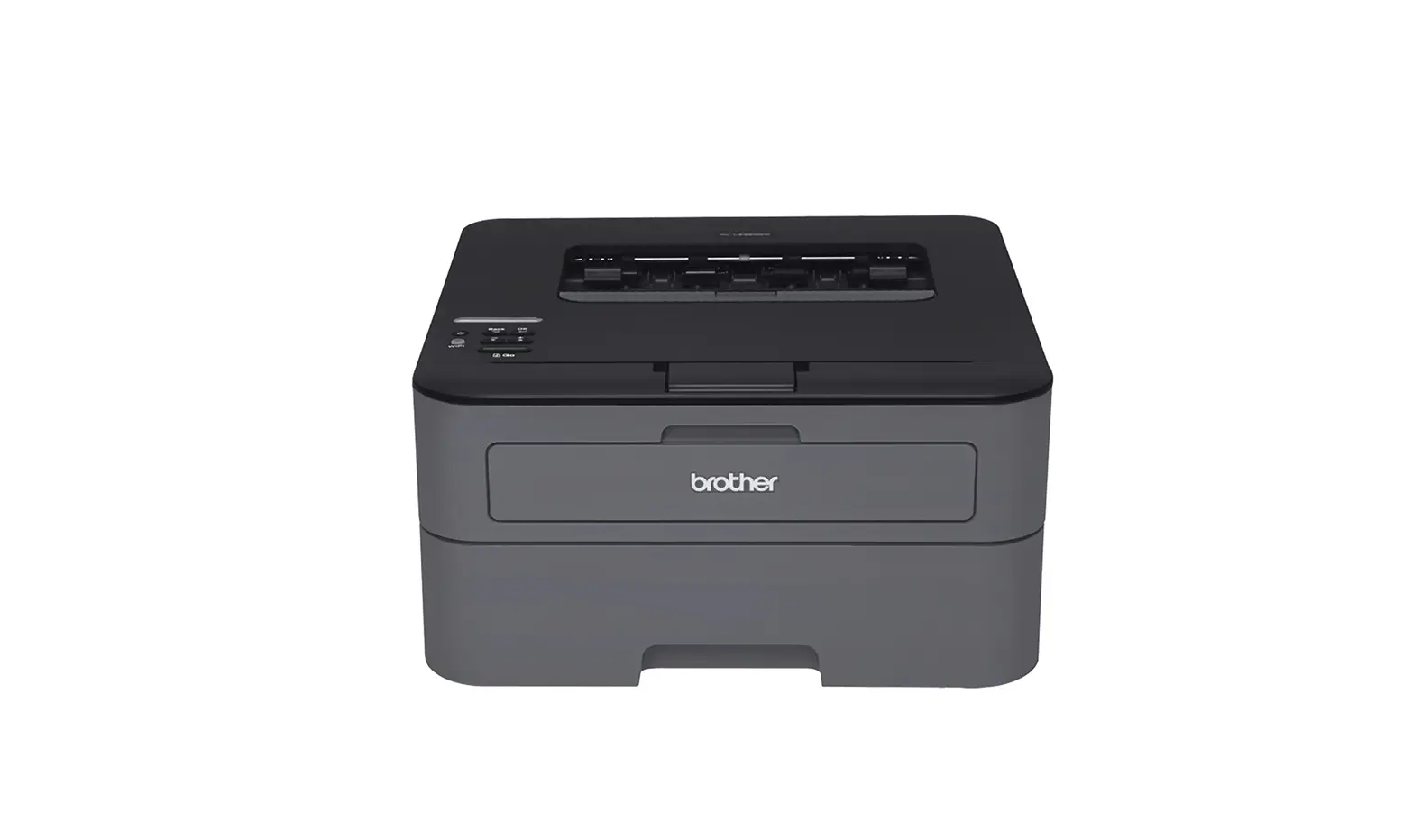
Unpack the machine and check the components
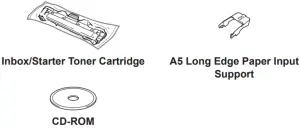
Read the Product Safety Guide first, then read this Quick Setup Guide for the correct installation procedure.
NOTE:
- The components included in the box and the AC power plug may differ depending on your country.
- The available connection interfaces vary depending on the model.
- The illustrations in this Quick Setup Guide are based on the HL-1210W or HL-1212W.
- You must purchase the correct interface cable for the interface you want to use.
USB cabl
We recommend using a USB 2.0 cable (Type NB) that is no more than 2 meters (6 feet) long.
Secure Network Access
Your machine’s default password is on the label on the back of the machine (preceded by -Pwd”).
We strongly recommend you change it to protect your machine from unauthorized access.
Remove the packing materials and install the toner cartridge

Load paper in the paper tray

Connect the power cord and turn on the machine
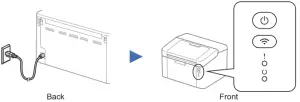
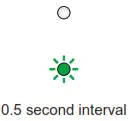
| Printer LED Indications |

| power off | ready | sleep deep sleep | warming up cooling down | receiving data remaining | toner low | replace toner | paper jam | drum end soon replace the drum | |









Connect the machine to your computer/mobile device
- Windows° PC with a CD-ROM drive, go to step 4A
- Windows° PC without a CD-ROM drive, go to step 4B
- Macintosh, go to step 4B
- Mobile device users with a WPS/AOSSTM-supported access point/router, go to step 4C
 Configuration using the CD-ROM (Windows®)
 Configuration using the CD-ROM (Windows®)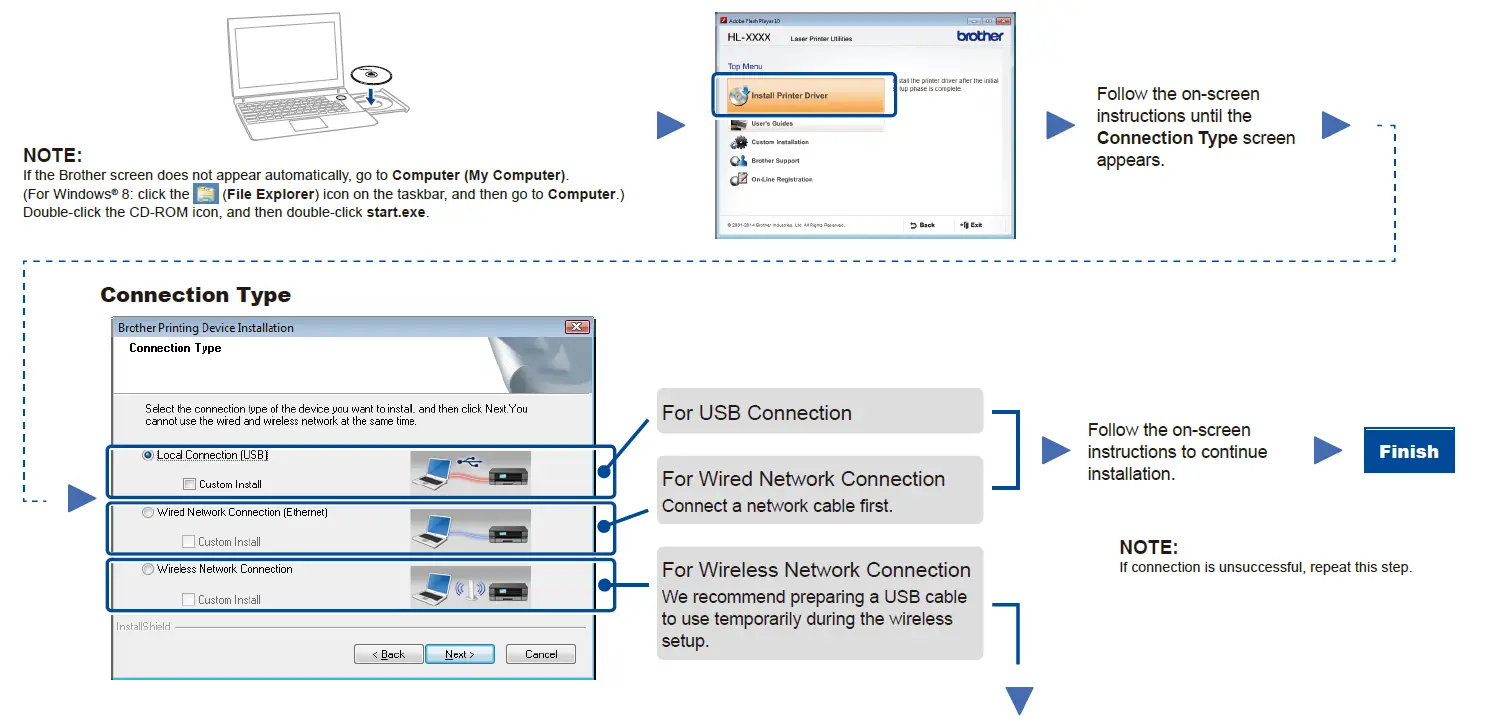
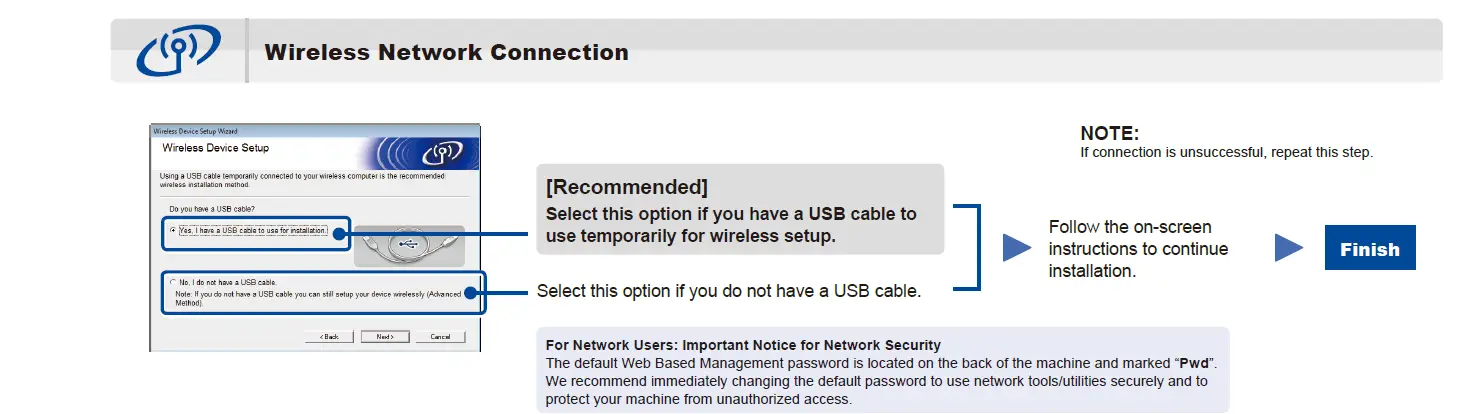
 Configuration without using the CD-ROM (Windows® without CD-ROM drive or Macintosh)
 Configuration without using the CD-ROM (Windows® without CD-ROM drive or Macintosh)
Download the full driver and software package from the Brother Solutions Center.
(For Windows®) solutions.brother.com/windows
(For Macintosh) solutions.brother.com/mac
After you download the driver and software package, follow the on-screen instructions until the Connection Type screen appears. Refer to 4A Configuration using the CD-ROM (Windows®).
 one-push wireless setup for mobile devices (Wireless models only)
 one-push wireless setup for mobile devices (Wireless models only)
If your wireless LAN access point/router supports automatic wireless (one-push) setup (WPS/AOSS™), you can set up your machine without using a computer.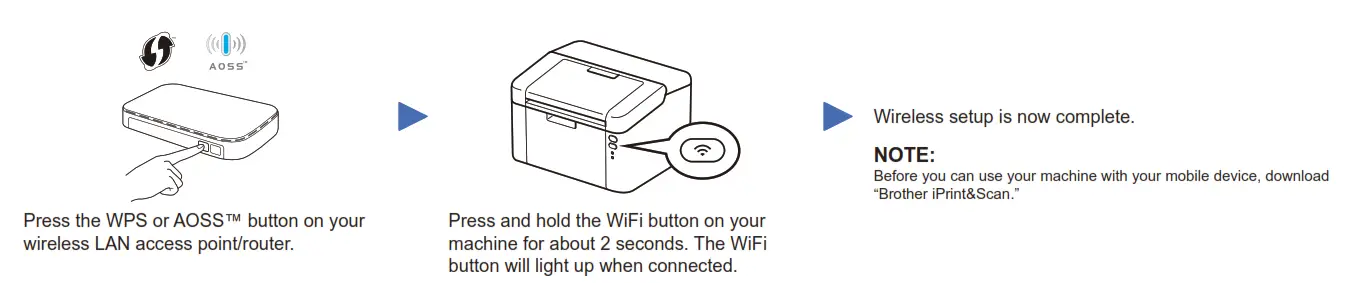
 Print using your mobile device
Download “Brother iPrint&Scan” to start using your machine with mobile devices.

Not all models are available in all countries. The latest manuals are available at the Brother Solutions Center: solutions brother com/manuals
Brother support web site http://support.brother.com