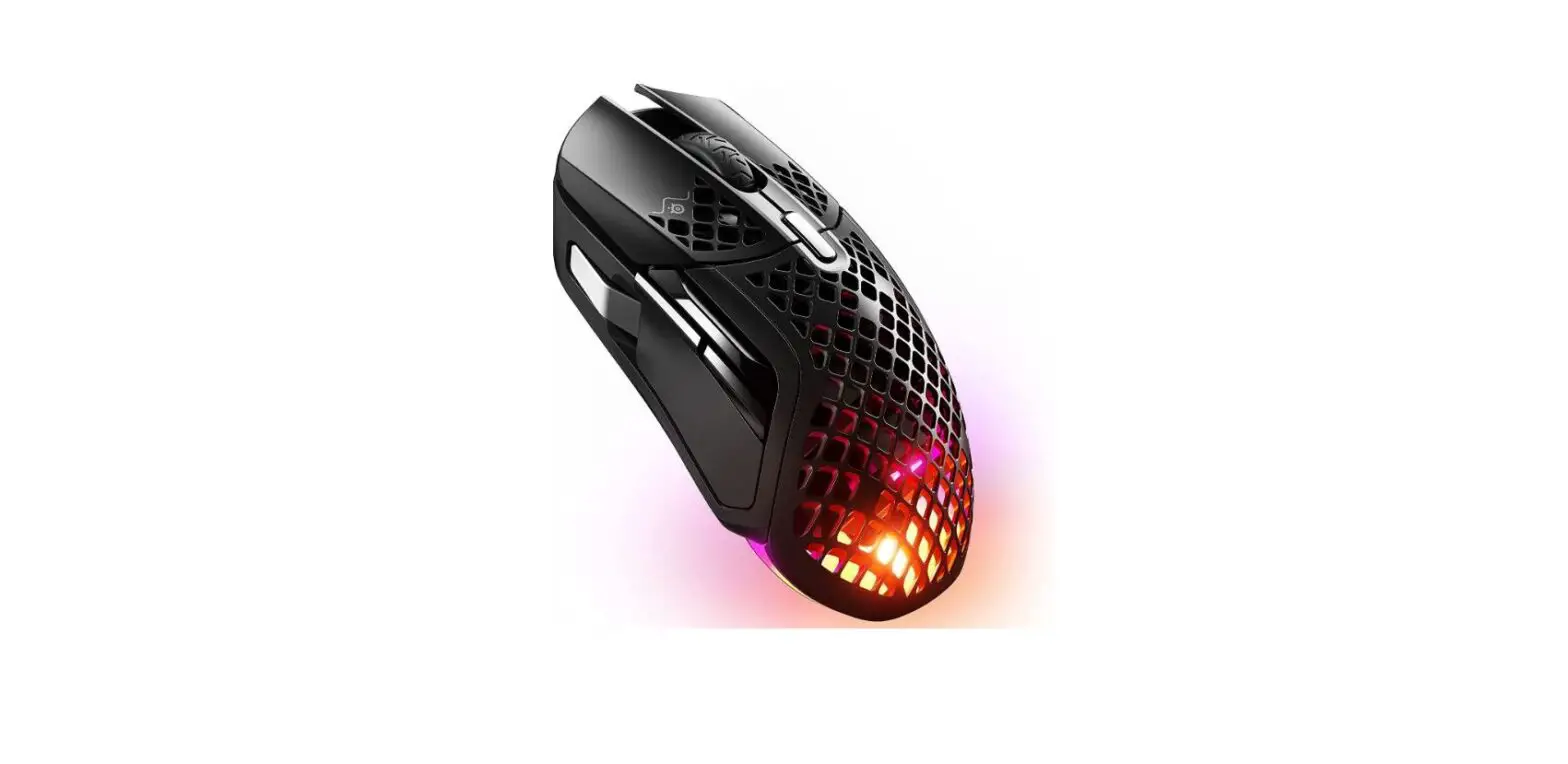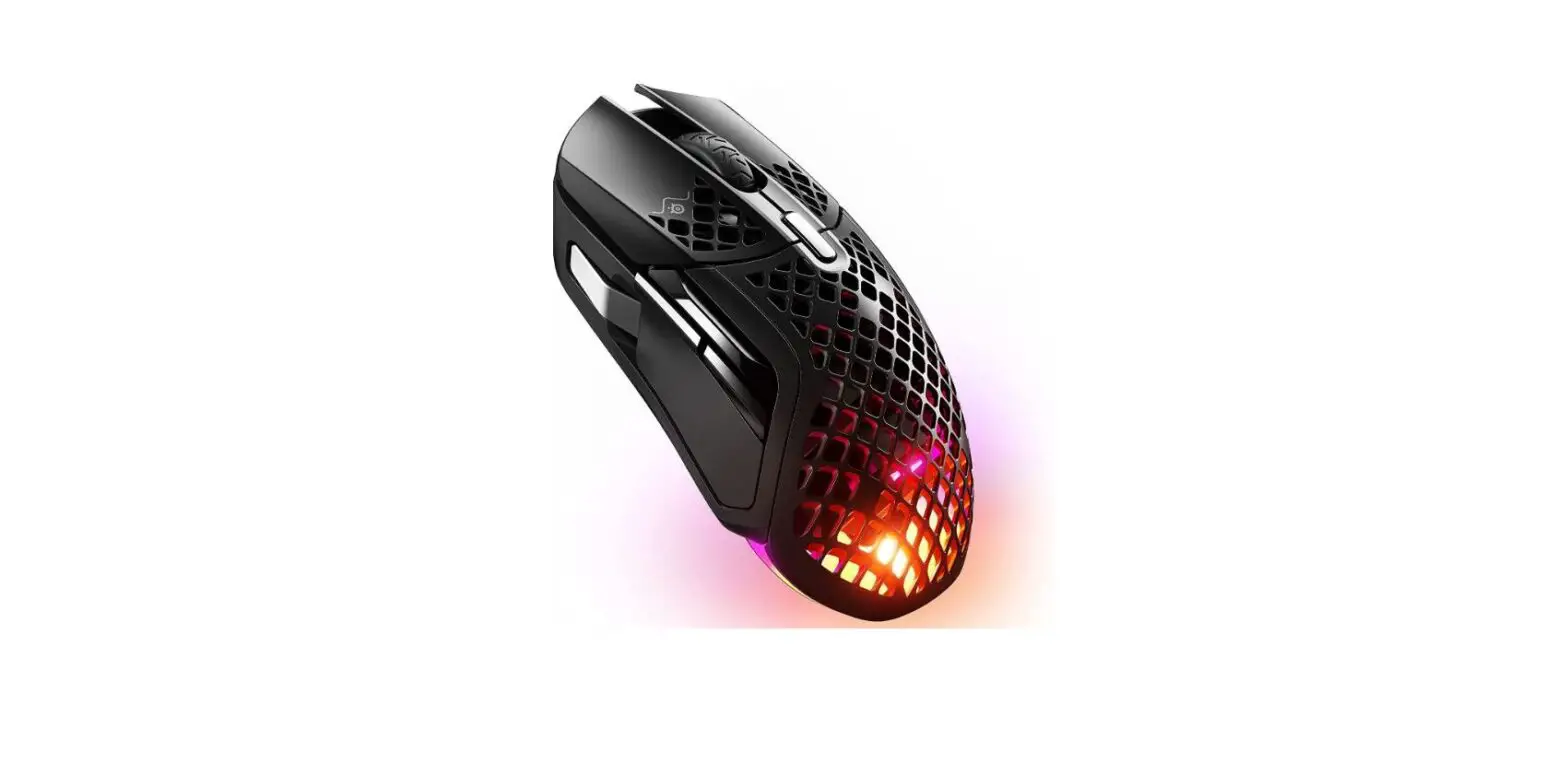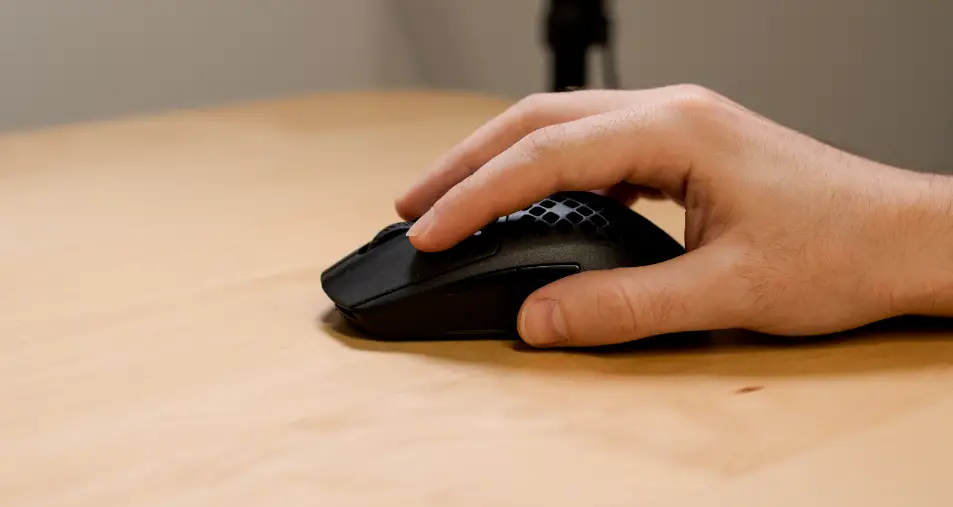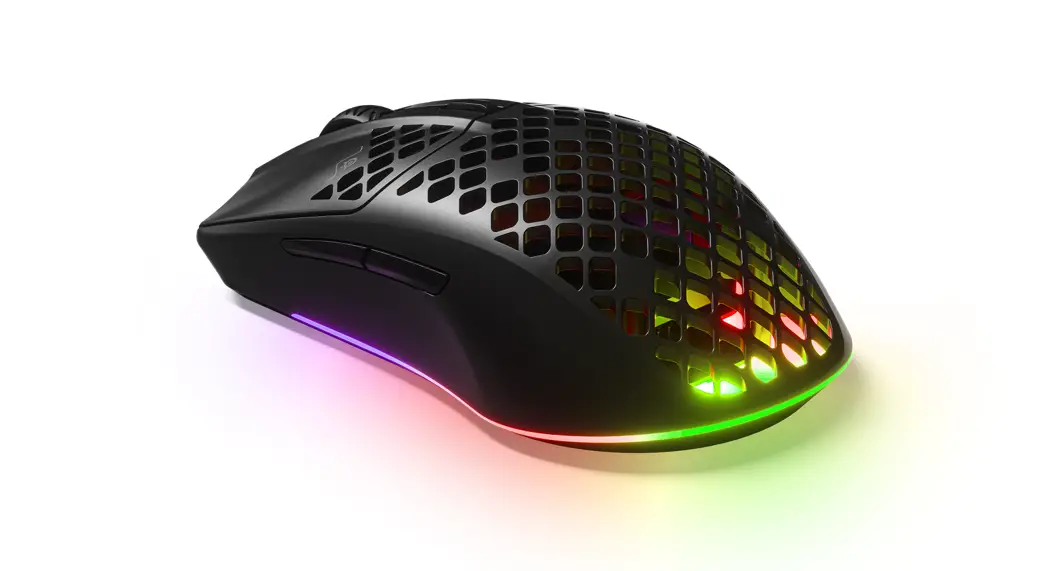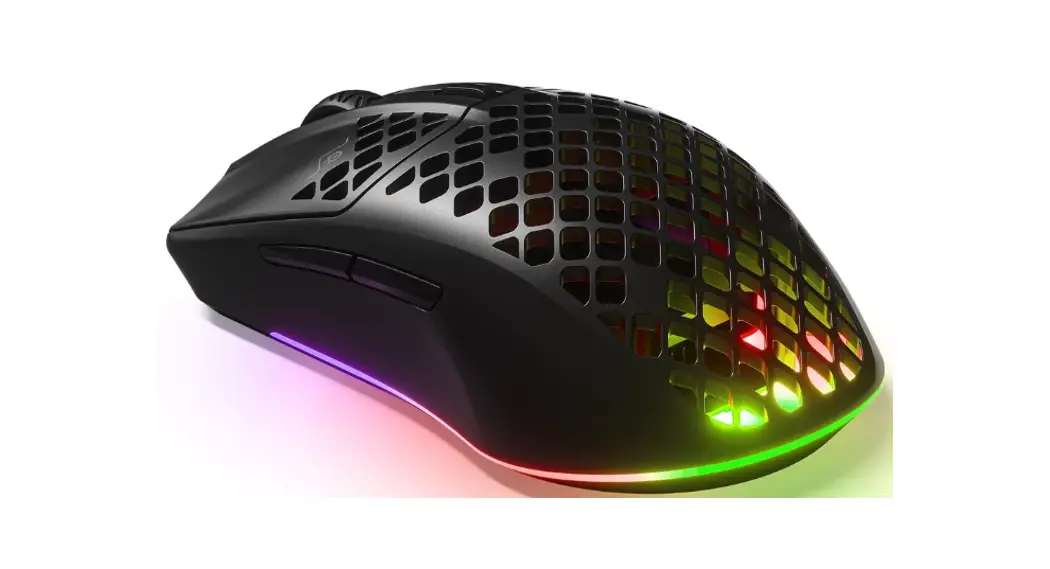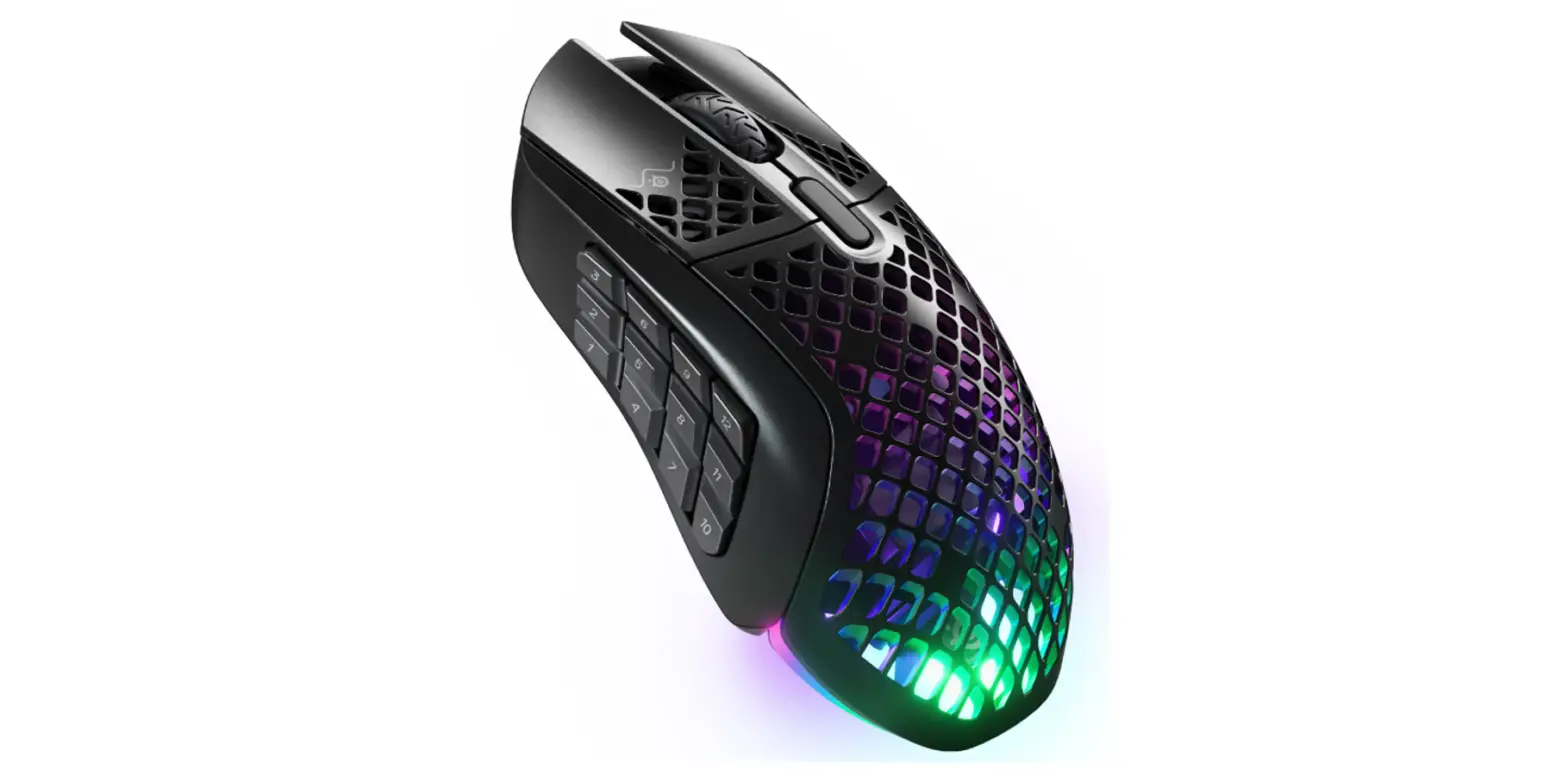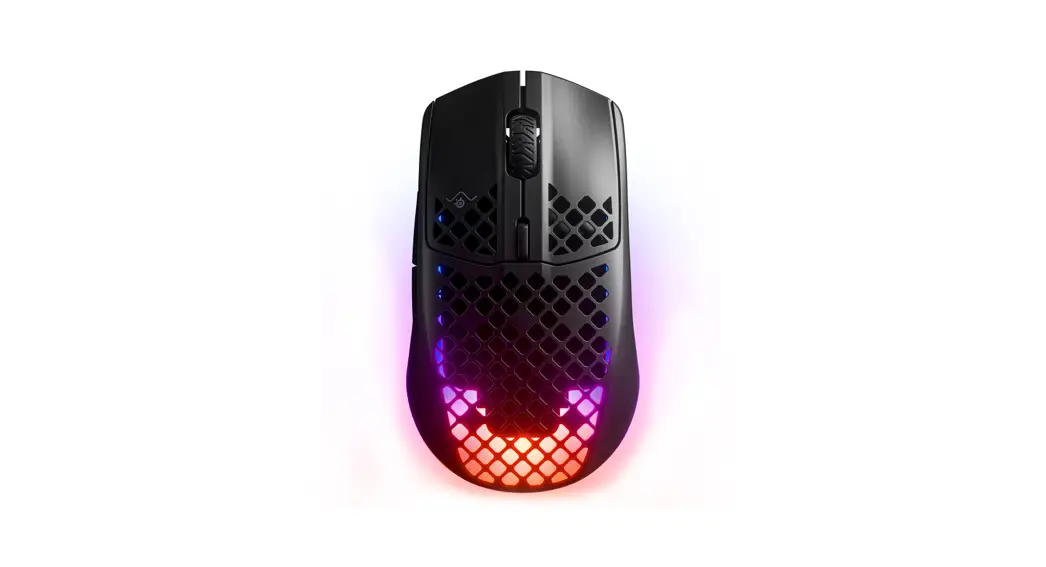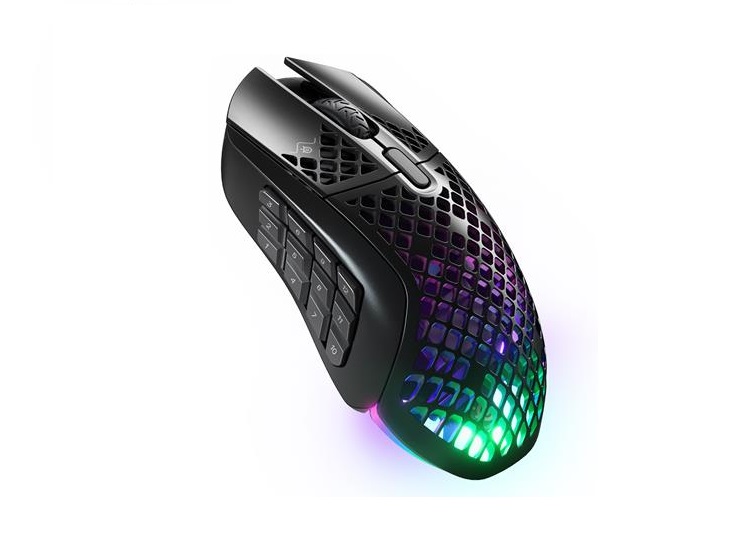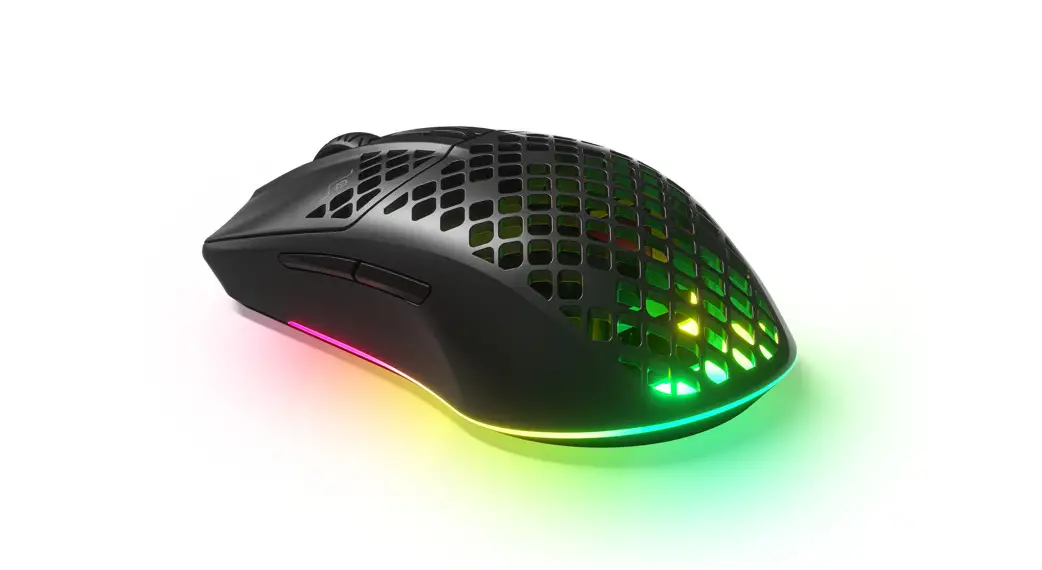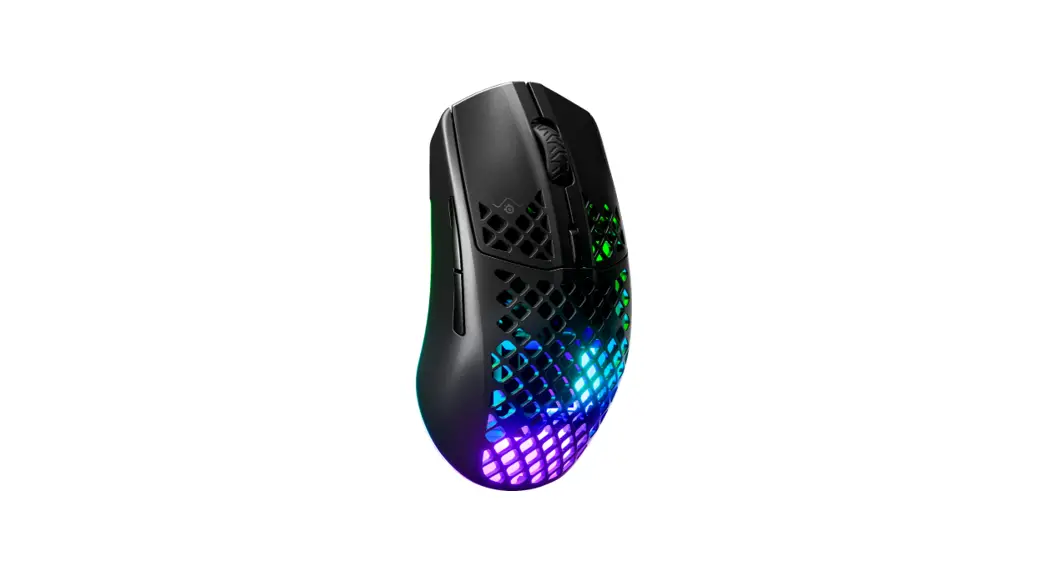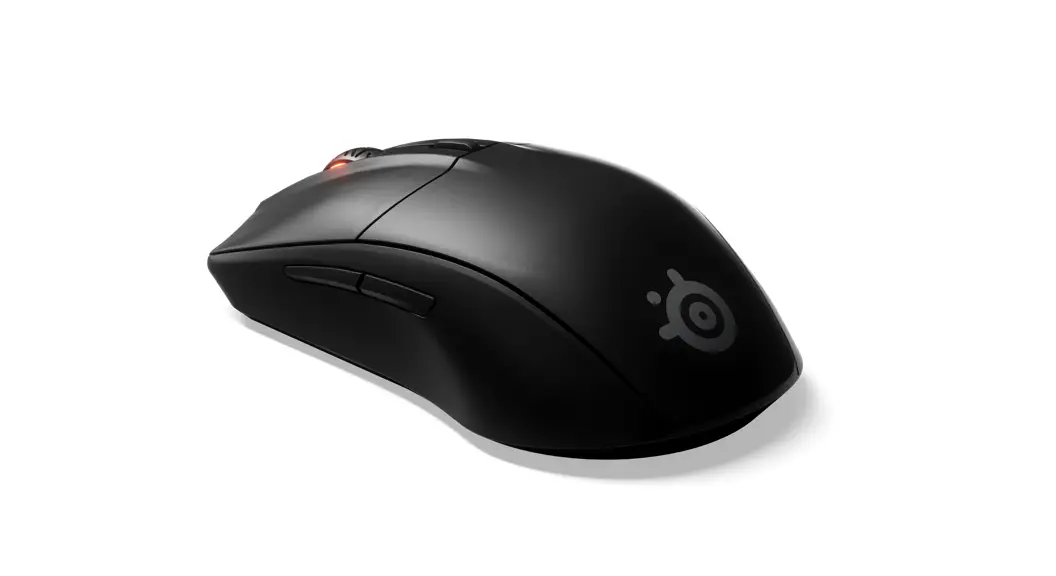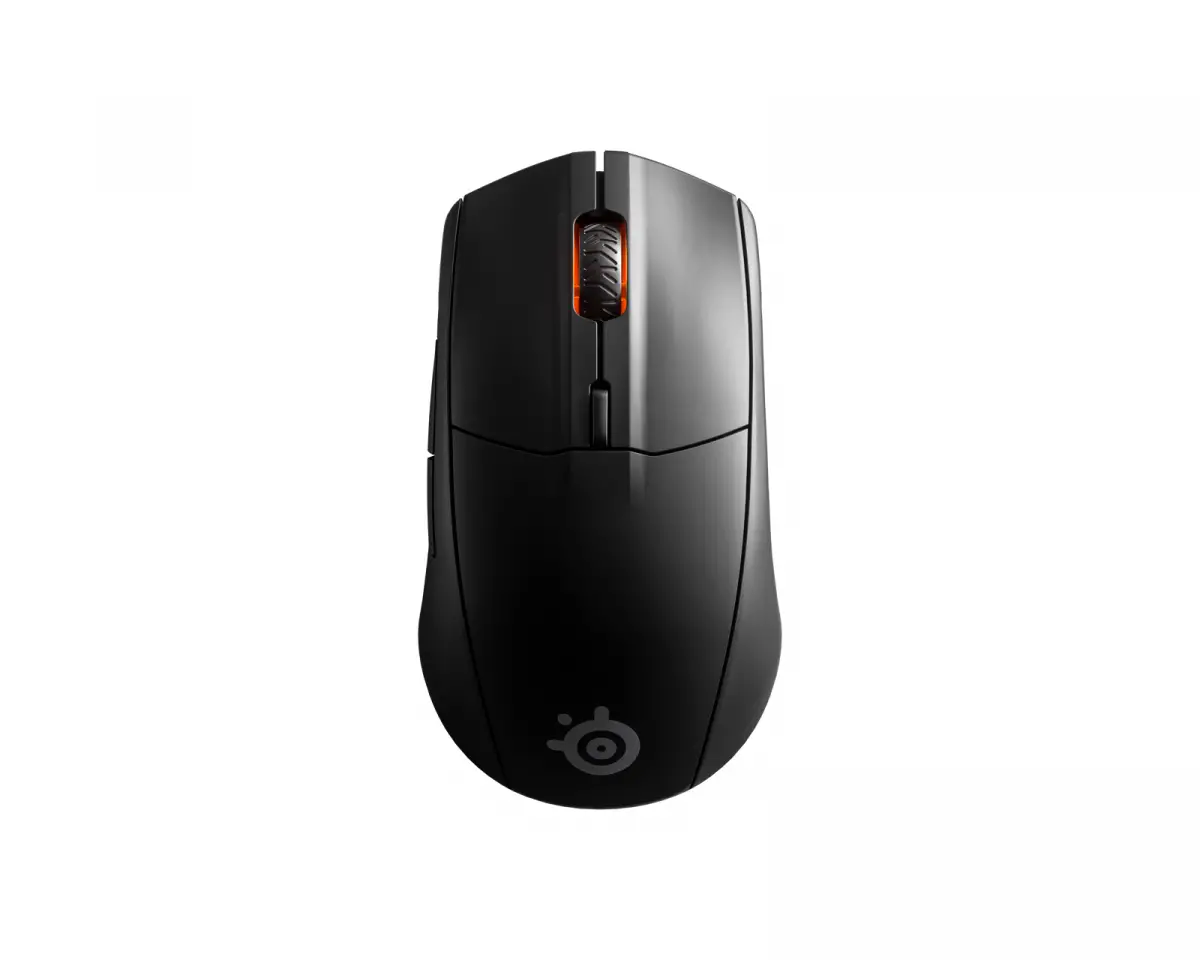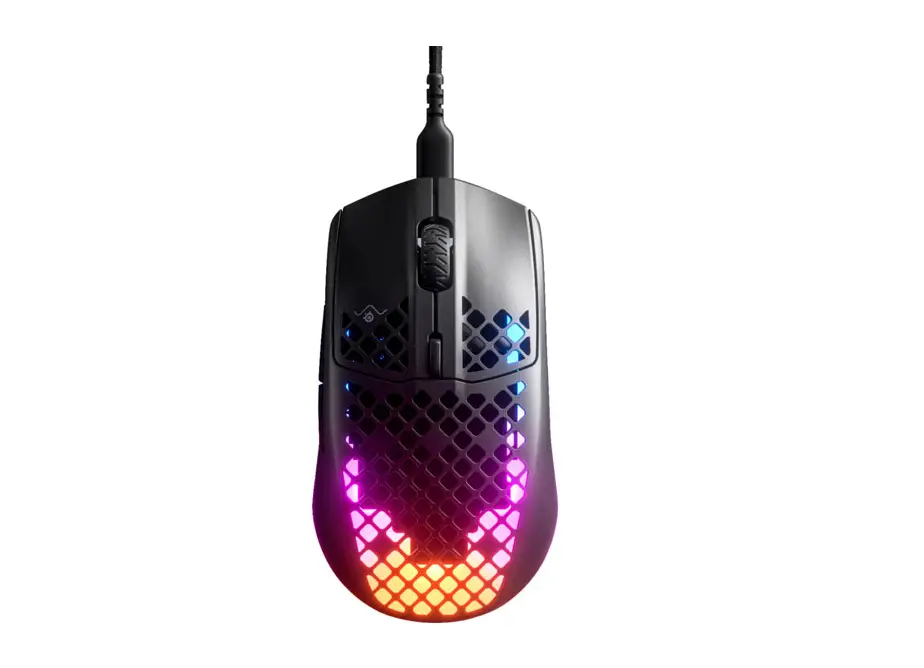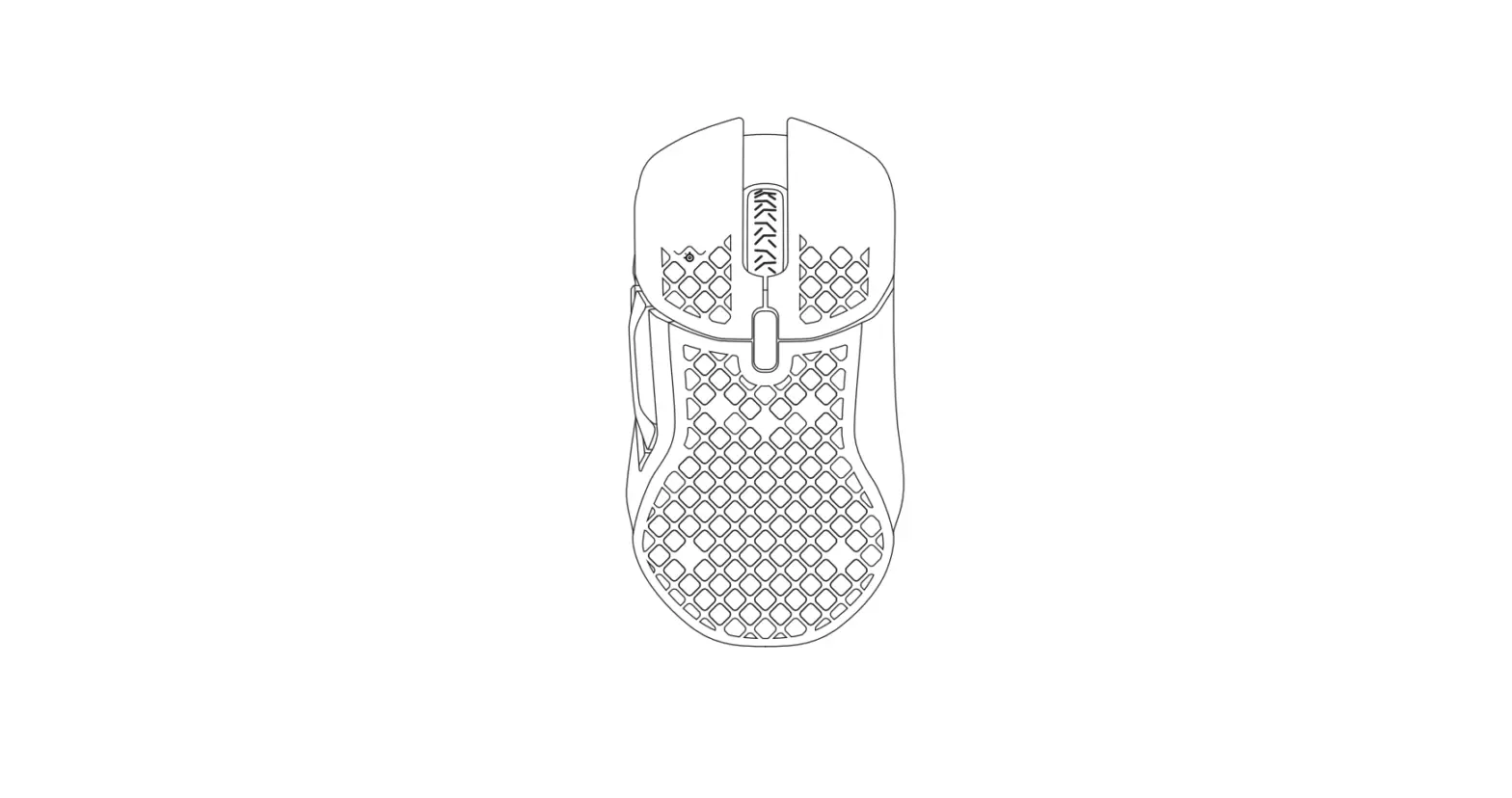

SteelSeries 62406 Aerox 5 Wireless Lightweight Wireless Gaming Mouse
GENERAL
PACKAGE CONTENTS
- Aerox 5 Wireless Mouse
- USB Type-C to USB Type-A Super Mesh Data Cable (6.56ft / 2m)
- USB Type-C Wireless Dongle
- Extension Adapter
- Product Information Guide
SYSTEM COMPATIBILITY
- PC
- Mac
- Xbox
- PlayStation
STEELSERIES ENGINE
To enjoy GameSense integration, program macros, and customize lighting effects and other mouse settings on your new Aerox 5 Wireless mouse, download SteelSeries Engine at steelseries.com/engine
PRODUCT OVERVIEW
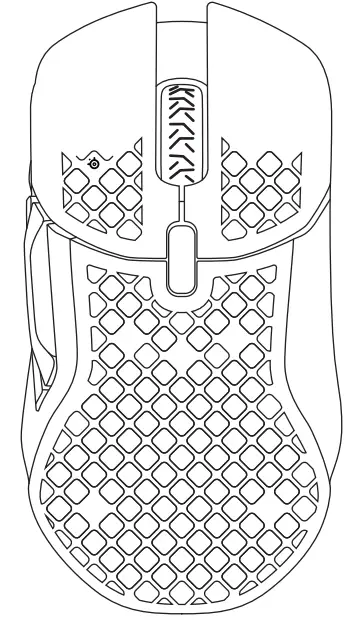
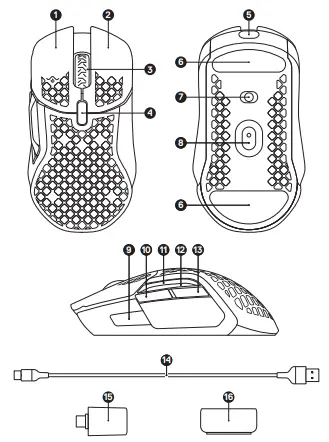
MOUSE
- Left Trigger
- Right Trigger
- Scroll Wheel
- CPI Button
- USB-C Jack
- Virgin-grade PTFE Feet
- Wireless Mode Switch
- TrueMove Air Sensor
- Side Button 1
- Side Button 2
- Side Button 3 Up
- Side Button 3 Down
- Side Button 4
ACCESSORIES - USB Type-C to USB Type-A Super Mesh Data Cable
- USB Type-C Wireless Dongle
- Extension Adapter
SETUP
CONNECTING VIA 2.4 GHZ WIRELESS
- Connect the Aerox 5 USB Type-C Wireless Dongle (15) to an available USB port on your device.
- Toggle the Wireless Mode Switch (7) to the “2.4GHz” position.
- The Mouse and USB Type-C Wireless Dongle (15) will automatically pair.
- To further customize your Mouse, or re-pair a Wireless Dongle,
download the SteelSeries Engine software from steelseries.com/ engine
PAIRING VIA BLUETOOTH
- Initiate Bluetooth pairing mode on your Bluetooth 5.0 or higher enabled device
- Hold the CPI Button (4) and toggle the Wireless Mode Switch (7) to the Bluetooth position to turn on your Mouse.
- The Mouse lighting will start blinking blue when searching for a connection.
- Select “Aerox 5 Wireless” on your Bluetooth-enabled device.
BATTERY LEVEL INDICATOR
During use, the mouse will flash red when 5% or less battery remains. When turning on or waking from sleep, the mouse will flash a color to indicate remaining battery level:
- Red 0–5% battery
- Yellow 6–10% battery
- Green 11–100% battery
when charging, the lighting will flash green for 5 seconds before resuming default lighting.
DEFAULT CPI
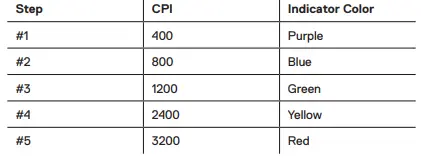
Aerox 5 Wireless comes with 5 preset CPI settings that can be selected using the CPI Button (4) on the top of the mouse. Each set has its own lighting indicator for ease of selection.
 Official Site - For Glory | SteelSeries