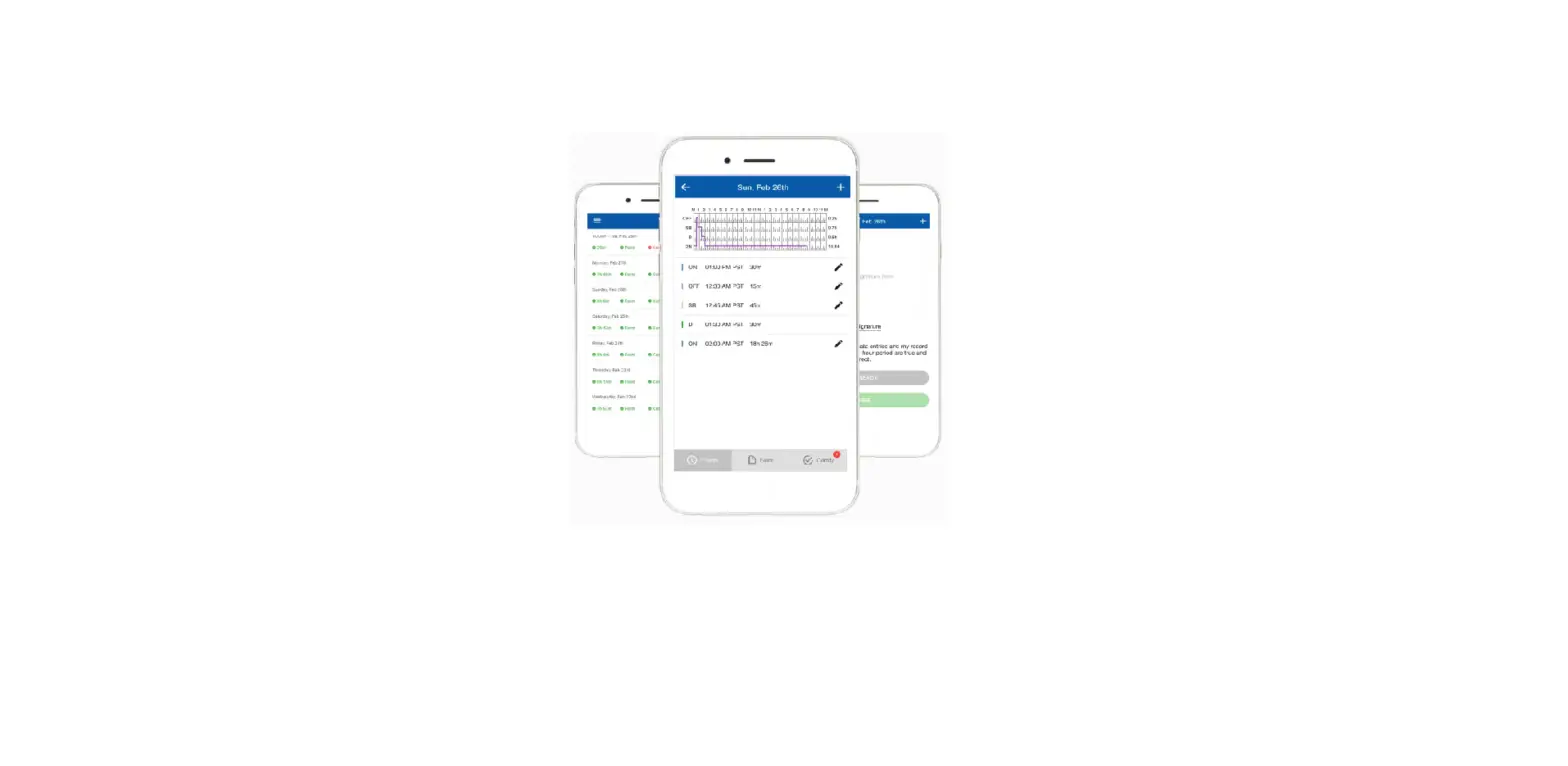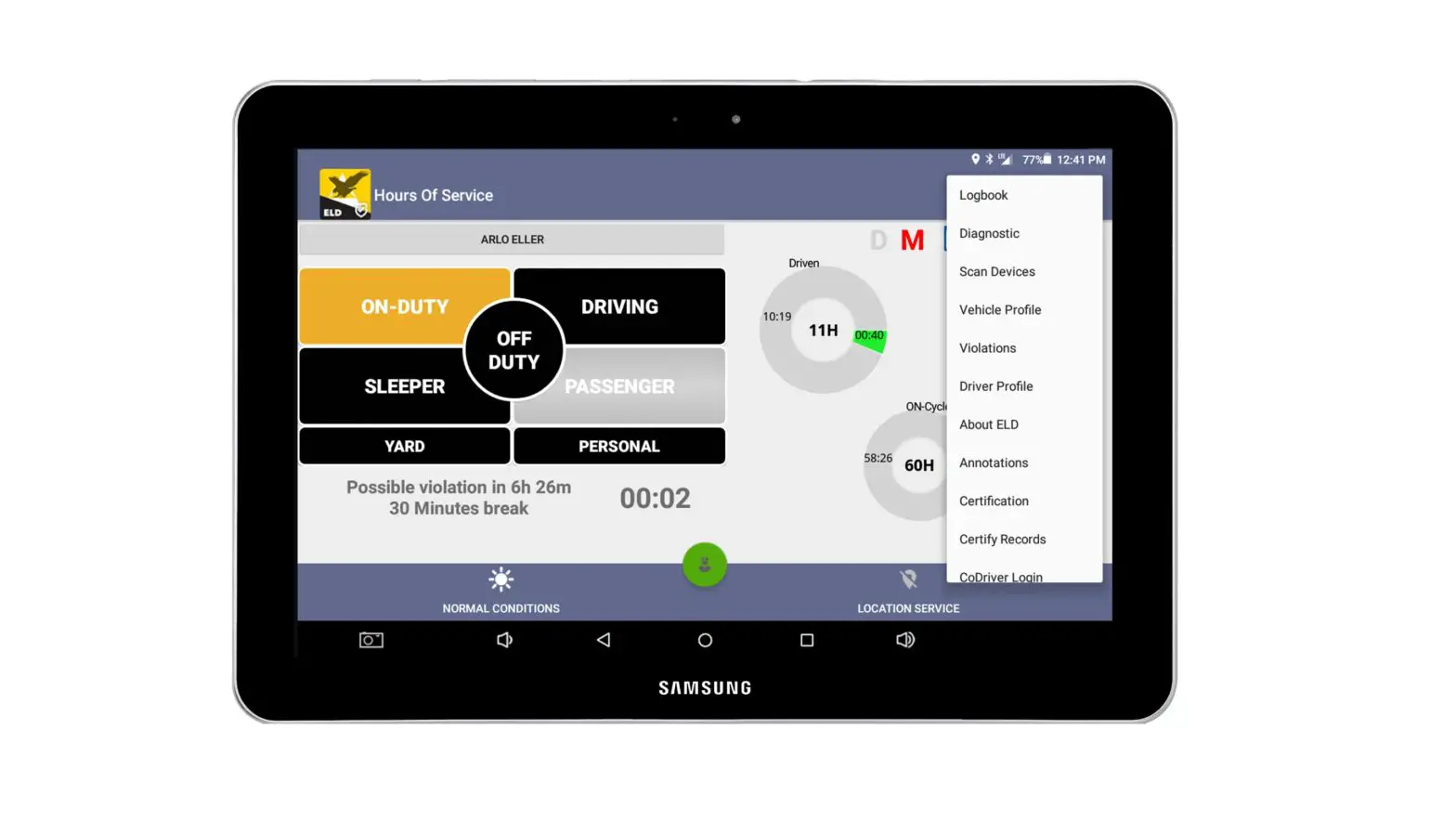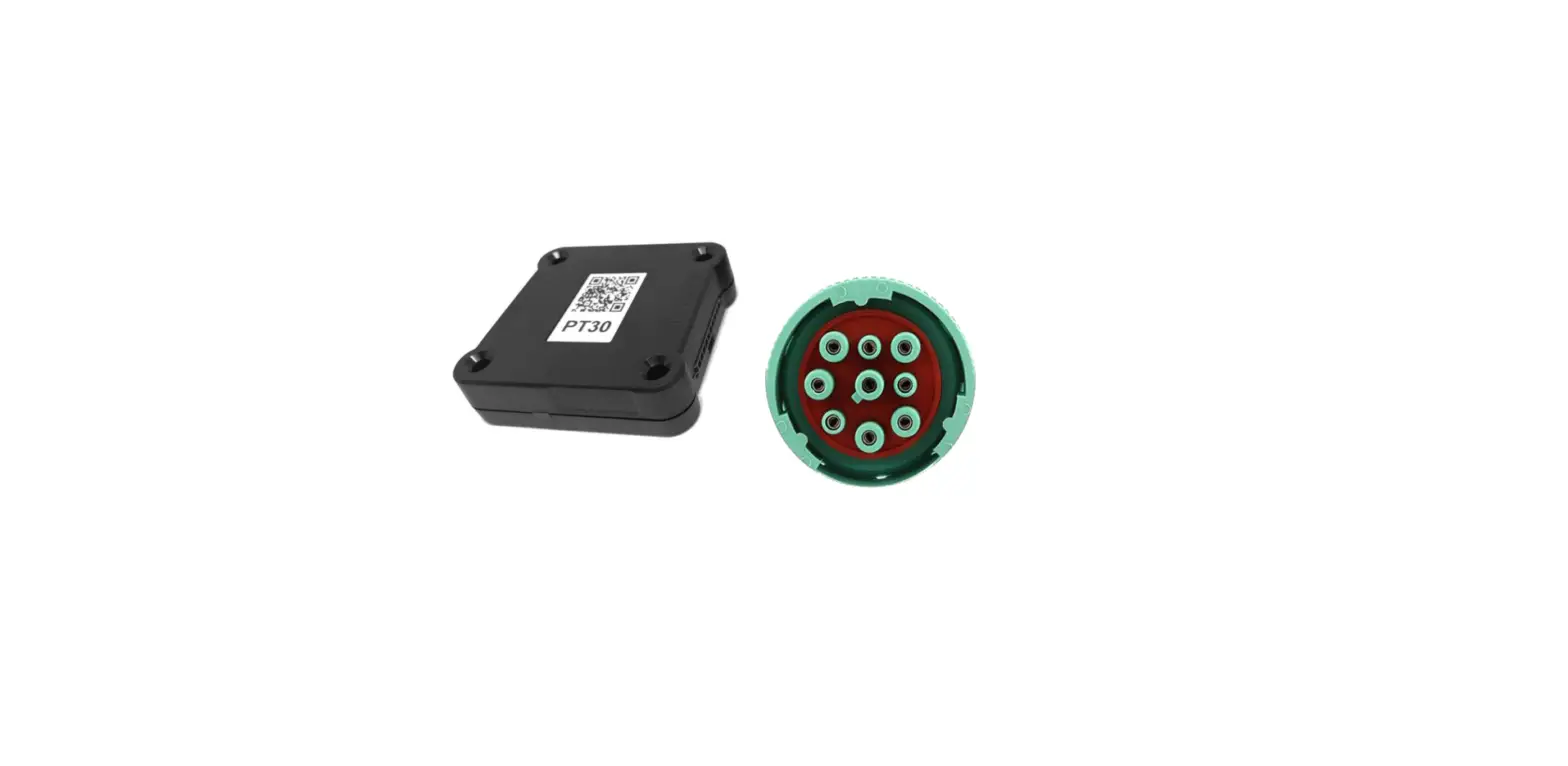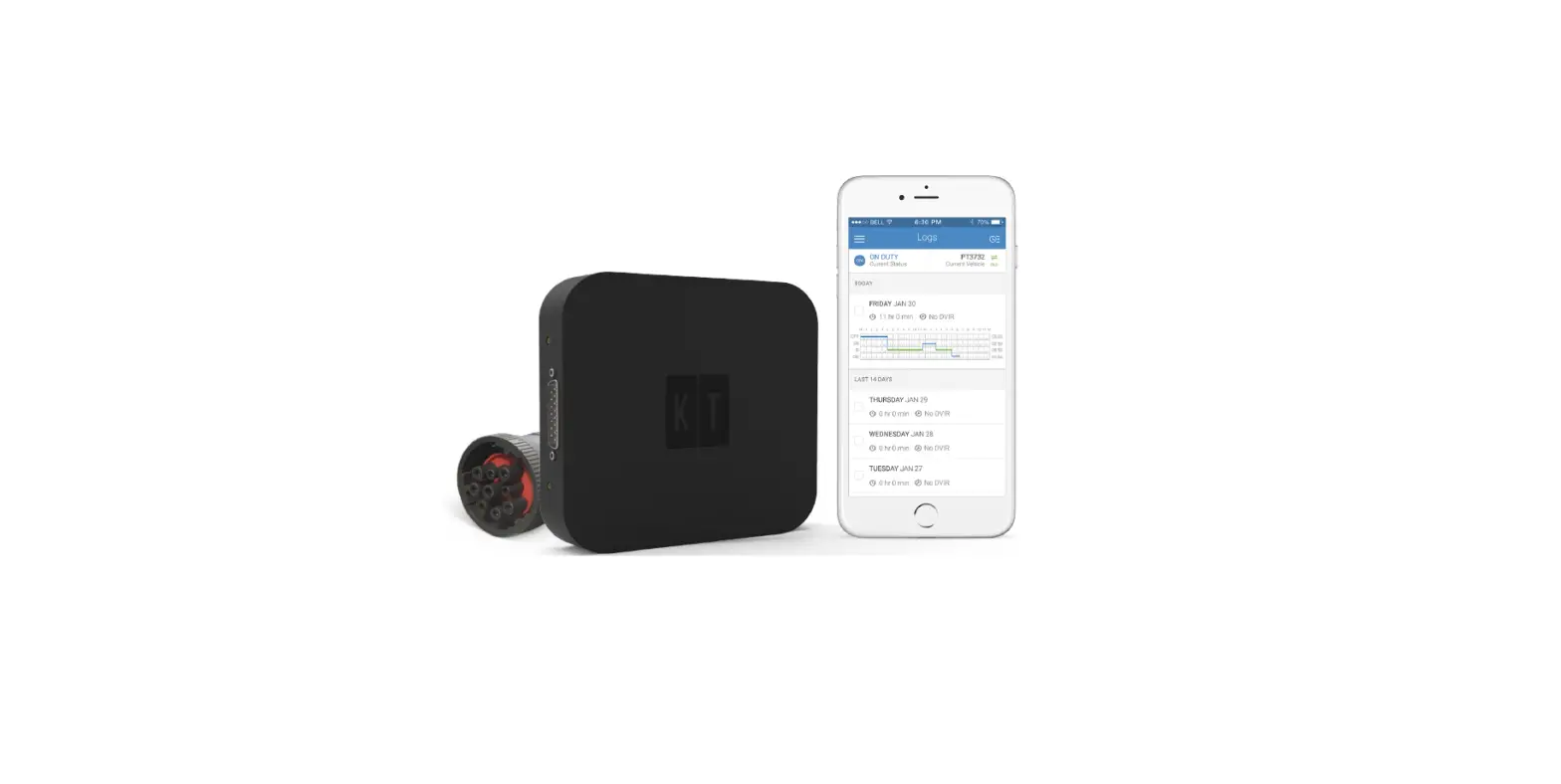

KeepTruckin ELD LBB-1 ELD In-Depth
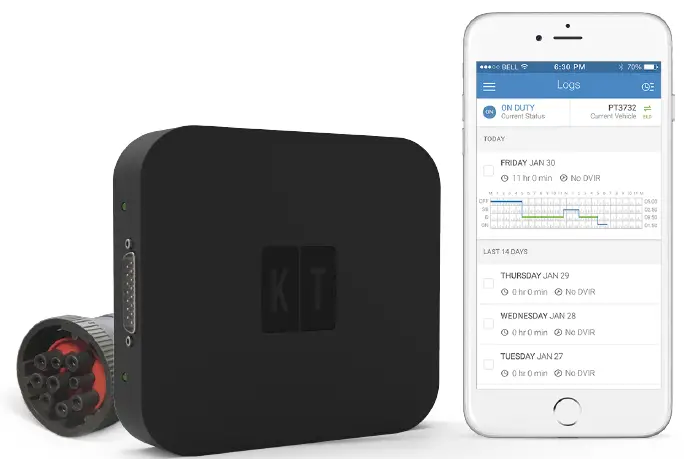
Please read this Safety Manual before installing the KeepTruckin Vehicle Gateway in your vehicle.
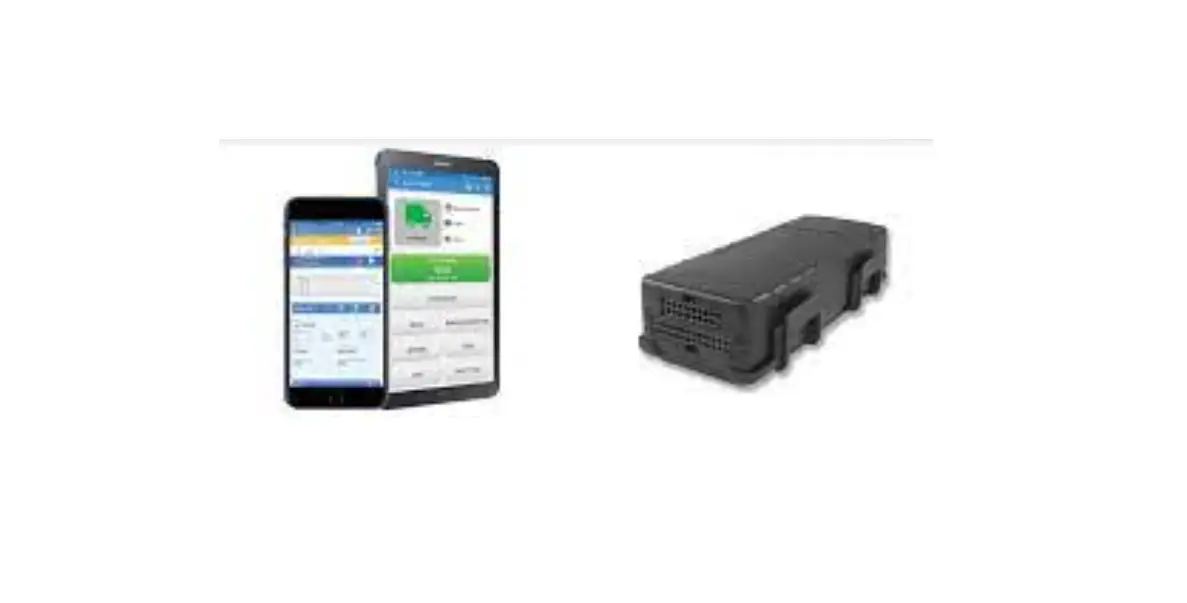
Download KeepTruckin App
STEP 1:
For Android phones and tablets, download the KeepTruckin App from the Google Play Store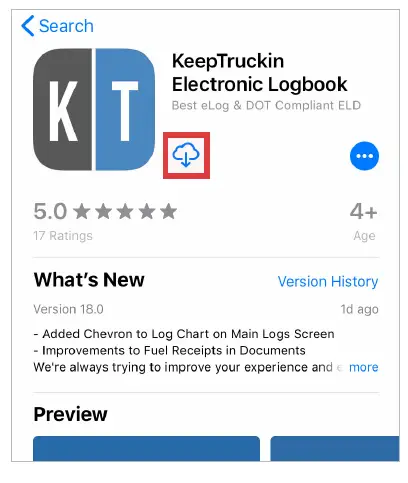
For iPhones and iPads, download the KeepTruckin App from the App Store.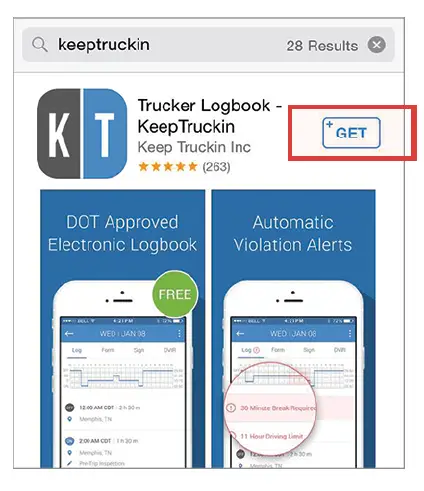
Login to the KeepTruckin App
STEP 1:
Open the KeepTruckin App and select ‘Log In.’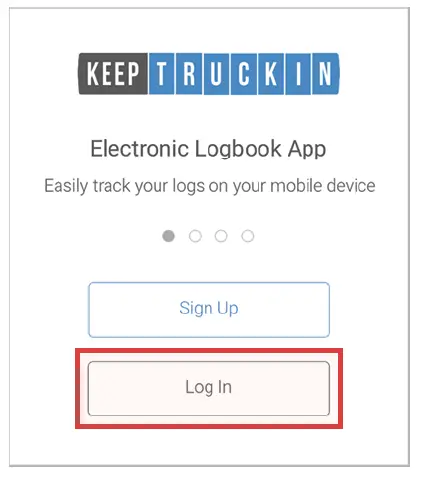
Enter your email / username and password. If you do not have a KeepTruckin account, contact your fleet manager.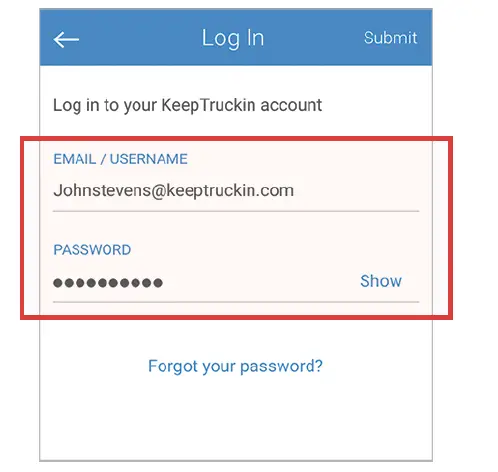
Connect your mobile device to the KeepTruckin ELD
- STEP 1:
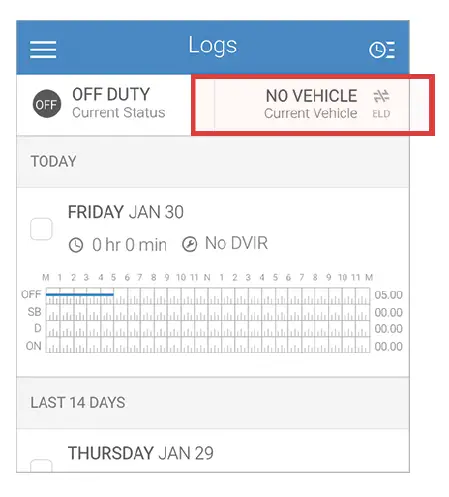
- On the main Logs screen, tap No Vehicle to connect with your vehicle’s ELD

- On the main Logs screen, tap No Vehicle to connect with your vehicle’s ELD
- STEP 2:
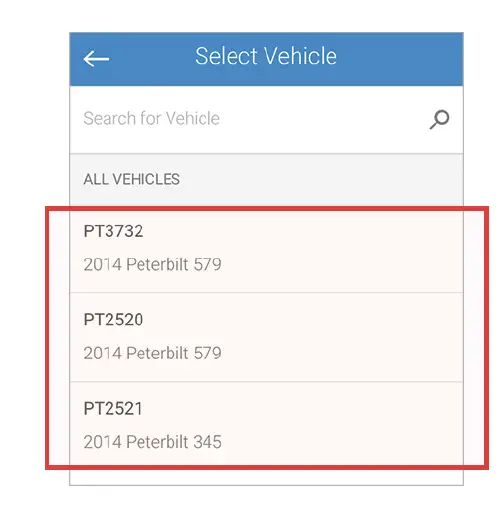
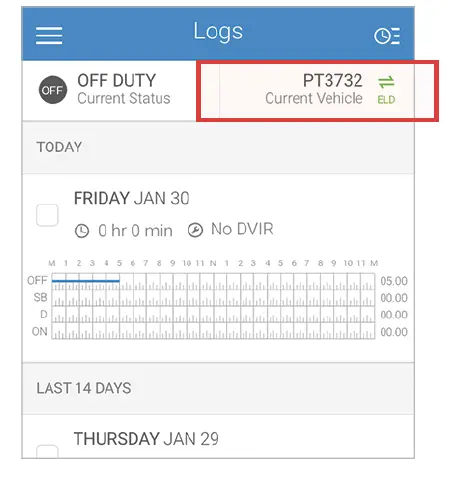
- A list of your company’s vehicles will appear. Select the vehicle that you want to connect to
Please ensure that bluetooth is enabled on your device before you connect to the KeepTruckin ELD.
- A list of your company’s vehicles will appear. Select the vehicle that you want to connect to
- STEP 3:
- Open the KeepTruckin App and select Log In.

- Open the KeepTruckin App and select Log In.
- STEP 4:
- Enter your email / username and password. If you do not have a KeepTruckin account, contact your fleet manager.

- Enter your email / username and password. If you do not have a KeepTruckin account, contact your fleet manager.
Record Hours of Service with the KeepTruckin ELD
- STEP 1:
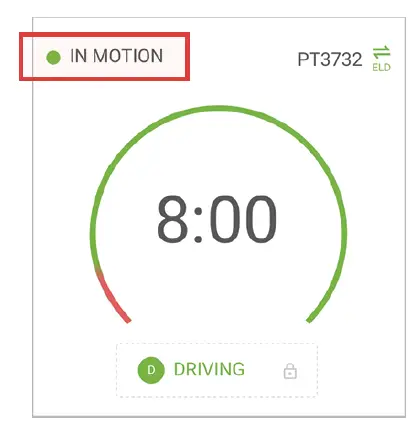
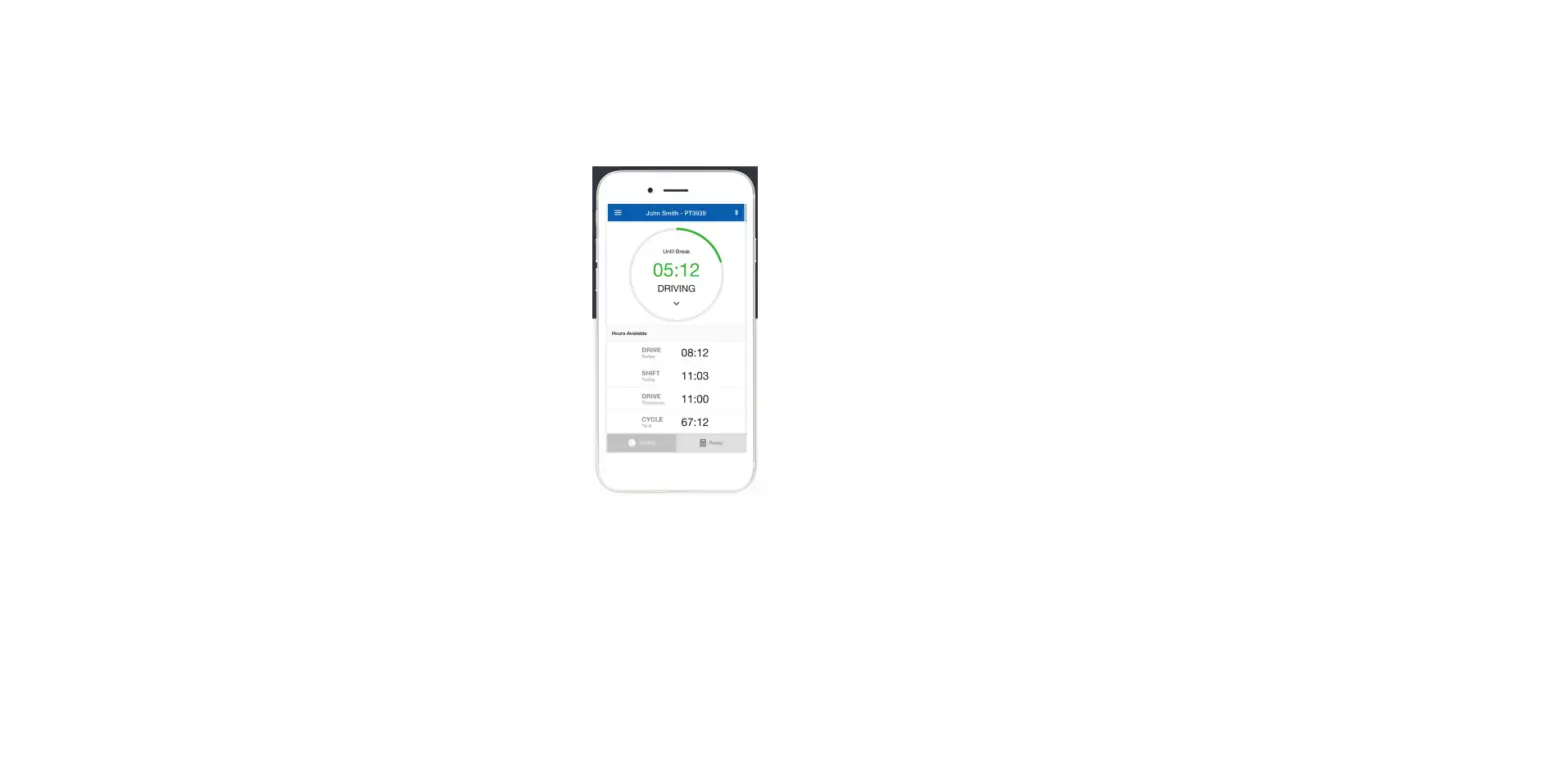
- When your vehicle is moving at 5 MPH or greater, KeepTruckin considers the vehicle to be IN MOTION and your duty status will automatically be set to Driving

- When your vehicle is moving at 5 MPH or greater, KeepTruckin considers the vehicle to be IN MOTION and your duty status will automatically be set to Driving
- STEP 2:
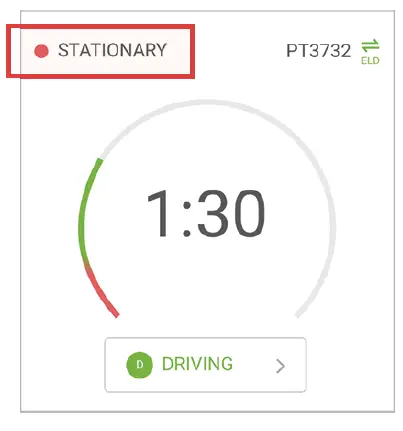
- At 0 MPH, the vehicle is considered STATIONARY.

- At 0 MPH, the vehicle is considered STATIONARY.
- STEP 3:
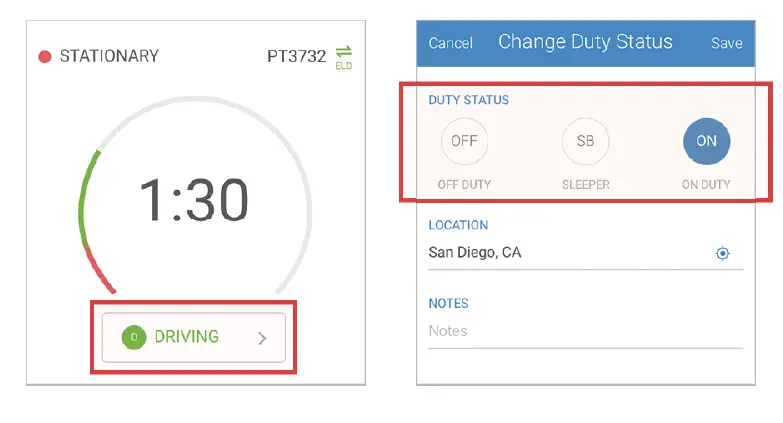
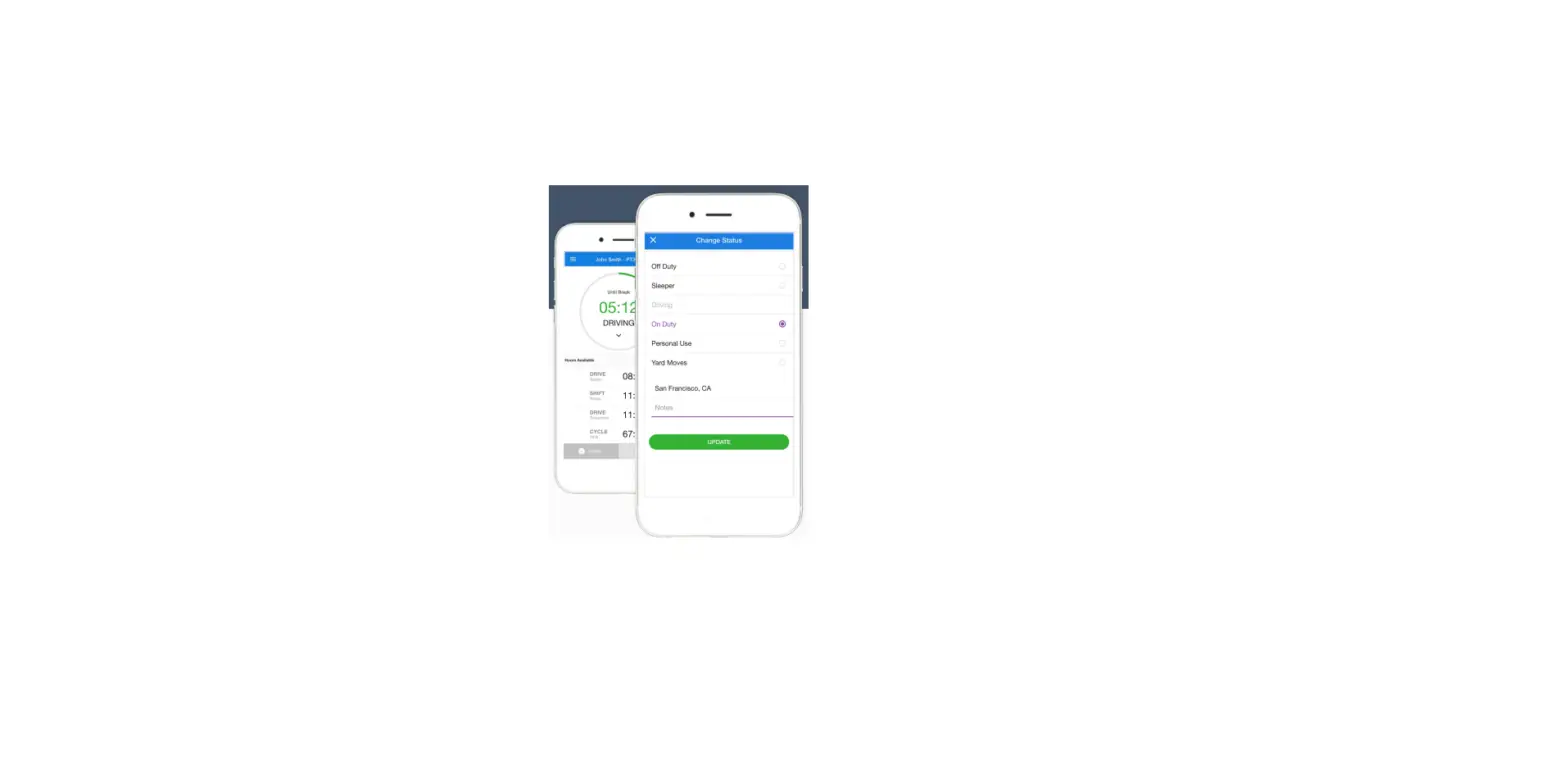
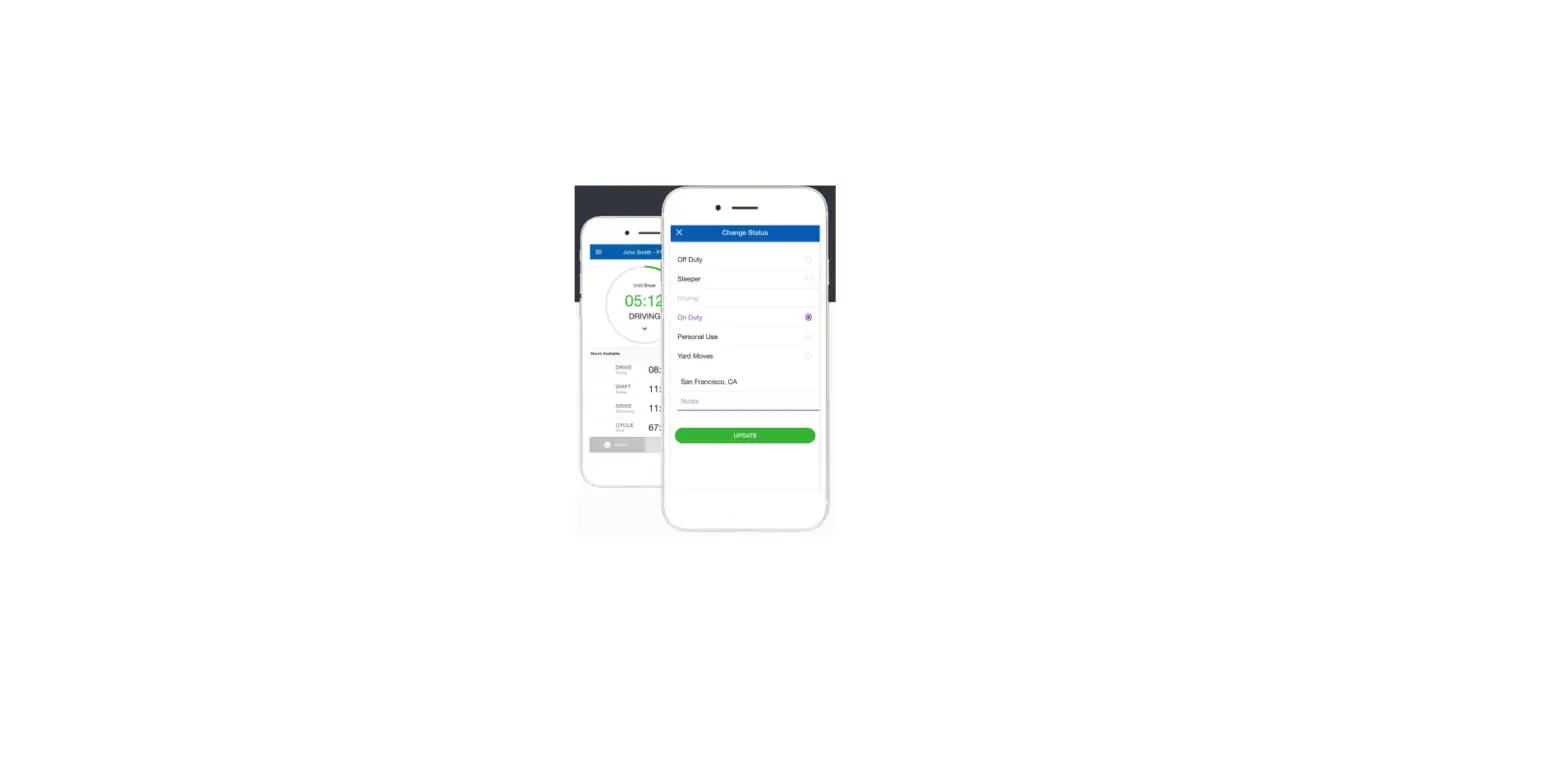
- When STATIONARY, you can change your duty status by tapping DRIVING and selecting one of the alternate duty statuses listed.

- When STATIONARY, you can change your duty status by tapping DRIVING and selecting one of the alternate duty statuses listed.
- STEP 4:
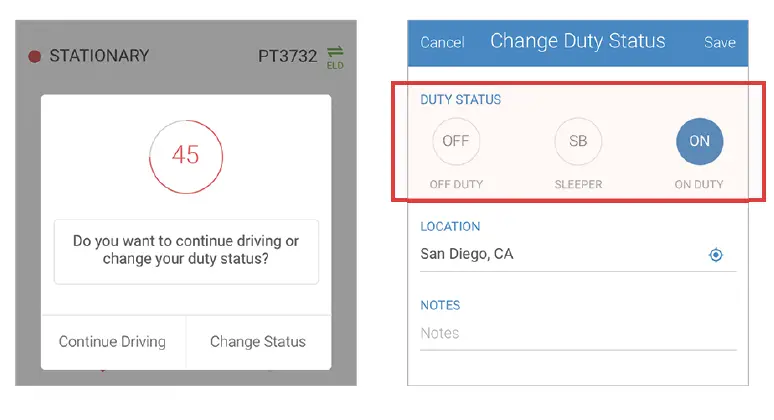
- If the vehicle remains STATIONARY for five minutes, a pop-up window will appear that asks if you would like to change your duty status. If nothingis selected, your duty status will automatically be changed to On Duty.

- If the vehicle remains STATIONARY for five minutes, a pop-up window will appear that asks if you would like to change your duty status. If nothingis selected, your duty status will automatically be changed to On Duty.
Let an officer inspect your logs
- STEP 1:
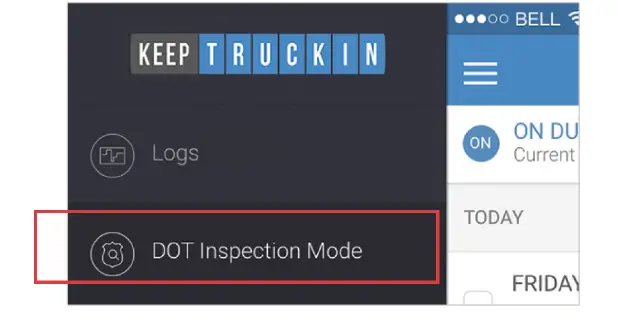
- Tap on the menu icon select the DOT Inspection Mode from the menu.

- Tap on the menu icon select the DOT Inspection Mode from the menu.
- STEP 2:
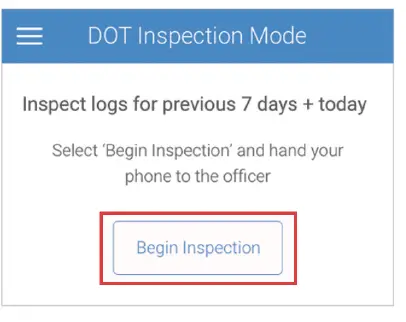
- To let an officer inspect your logs directly from your device, tap Begin Inspection

- To let an officer inspect your logs directly from your device, tap Begin Inspection
- STEP 3:
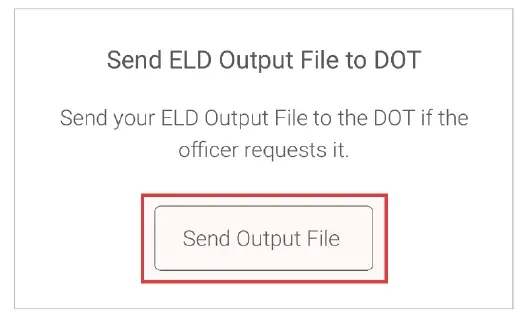
- To send your ELD output file to the DOT via email or web service, tap Send Output File

- To send your ELD output file to the DOT via email or web service, tap Send Output File
- STEP 4:
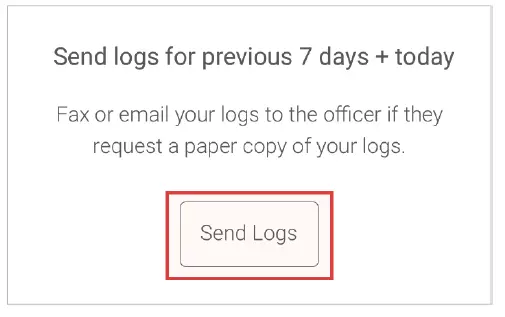
- To email or fax a copy of your logs to an officer, tap Send Logs

- To email or fax a copy of your logs to an officer, tap Send Logs
Trouble connecting with the ELD
- STEP 1:
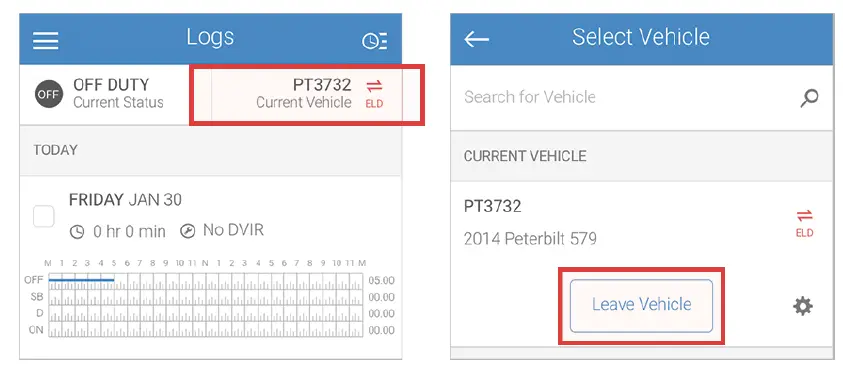
- Tap on the Current vehicle in the upper right of the KeepTruckin App. If there is a currently selected vehicle tap on Leave Vehicle.
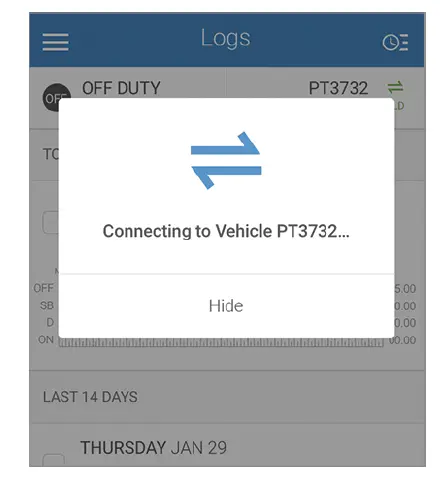
- Then reselect the vehicle you’re attempting to connect with. If a pairing request dialog appears on screen or in the system tray, select the option to pair with the ELD. Wait 30 seconds when the connecting to vehicle dialog appears on screen. If it doesn’t connect after 30 seconds, tap Hide and move on to the next step

- STEP 2:
- Tap on the Current Vehicle in the upper right of the KeepTruckin
- App. If there is a currently selected vehicle tap on Leave Vehicle.
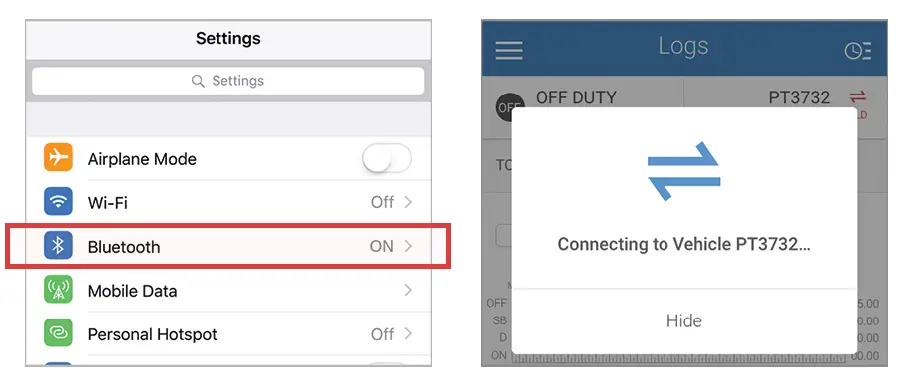
- Toggle your phone or tablet Bluetooth connection off and back on. Once Bluetooth has been turned back on go ahead and reselect the vehicle you’re attempting to connect with. Be sure to wait 30 seconds once the Connecting to Vehicle dialog appears on screen like before.
- If you are still unable to connect after 30 seconds, tap Hide and move on to the next step.

- STEP 3:
- Tap on the Current vehicle in the upper right of the KeepTruckin App. If there is a currently selected vehicle tap on
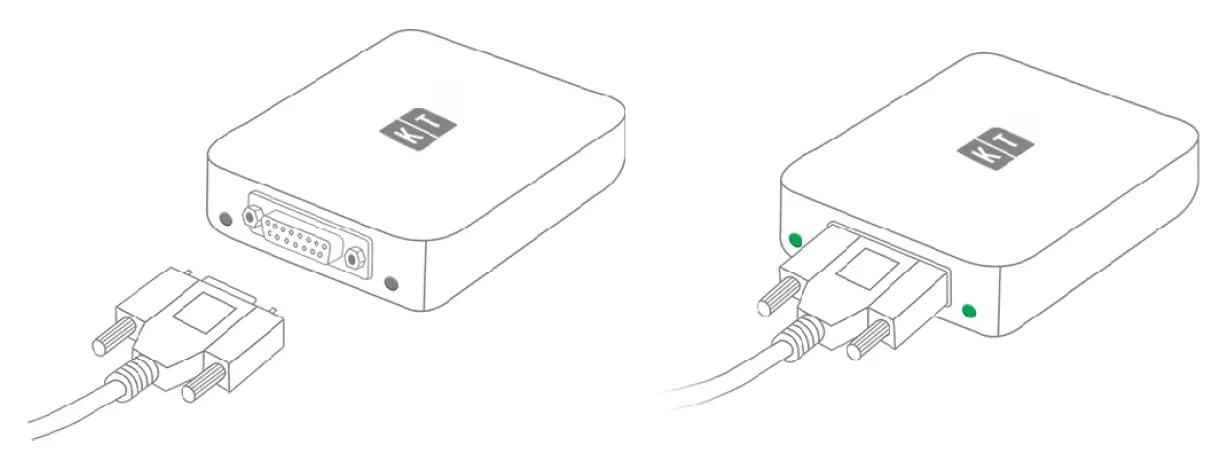
- Leave Vehicle. Unplug the ELD from your vehicle and wait for the lights to go off. Reboot your phone or tablet then plug the ELD back in. Once the ELD lights are back on, try connecting to your vehicle again like before.

ELD Malfunction
395.22 Motor carrier responsibilities—In general
- In-vehicle information. A motor carrier must ensure that its drivers possess onboard a commercial motor vehicle an ELD information packet containing the following items:
- An instruction sheet for the driver describing ELD malfunction reporting requirements and record keeping procedures during ELD malfunctions.
The following instructions are in accordance with the guidelines set forth in § 395.34:
How does the driver know if the ELD is malfunctioning?
Neither of the LED lights on the device are turned on (neither green nor red) when the device is plugged into the truck’s diagnostic port and power is flowing to it.
Functioning (Lights On)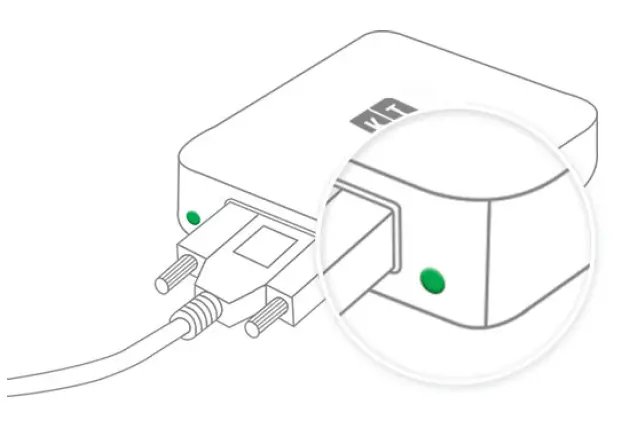
Malfunctioning (Lights Off)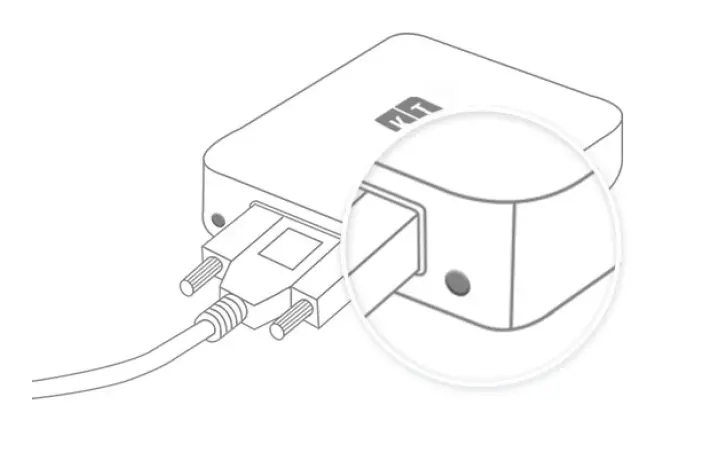
What does the driver need to do if the ELD is malfunctioning?
- Immediately contact KeepTruckin support at 855-434-3564 or [email protected] to troubleshoot the issue.
- Note the malfunction and provide written notice to your fleet within 24 hours.
- Keep a paper log for that day and until ELD is repaired orreplaced. In the event of an inspection, display the previous 7 days logs from the KeepTruckin App.
What does the fleet need to do if the ELD is malfunctioning?
- If a motor carrier receives or discovers information concerning the malfunction of an ELD, the motor carrier must take actions to correct the malfunction of the ELD within 8 days of discovery of the condition or a driver’s notification to the motor carrier, whichever occurs first
- In the event of an ELD malfunction, KeepTruckin will send a new device upon notification from a Fleet Administrator.
- If a motor carrier needs a time extension, they must notify the FMCSA Division Administrator for the State of the motor carrier’s principal place of business within 5 days after a driver notifies the motor carrier according to the guidelines set forth in § 395.34
 Visit our Support Center
support.keeptruckin.com Call KeepTruckin Support
(855) 434-3564 Email KeepTruckin Support
[email protected]
Designed in California, Assembled in China
This device contains licence-exempt transmitters / receivers that comply with Part 15 of the FCC Rules and with Innovation, Science and Economic Development Canada’s license-exempt RSS(s).
Operation is subject to the following two conditions:
- this device may not cause harmful interference
- this device must accept any interference received, including interference that may cause undesired operation
This equipment complies with FCC RF radiation exposure limits set forth for an uncontrolled environment. This equipment should be installed and operated with a minimum distance of 20 centimeters between the radiator and your body.
Changes or modifications not expressly approved by Keep Truckin could void the user’s authority to operate this equipment.
![Bst Brs Eld User Manual [lhb Trucking]](https://static-data1.manualsee.com/1/img/459/123406/2021/04/BST-BRS-ELD-User-Manual-LHB-Trucking-FEATURED-1568x766.png "Bst Brs Eld User Manual [lhb Trucking]")