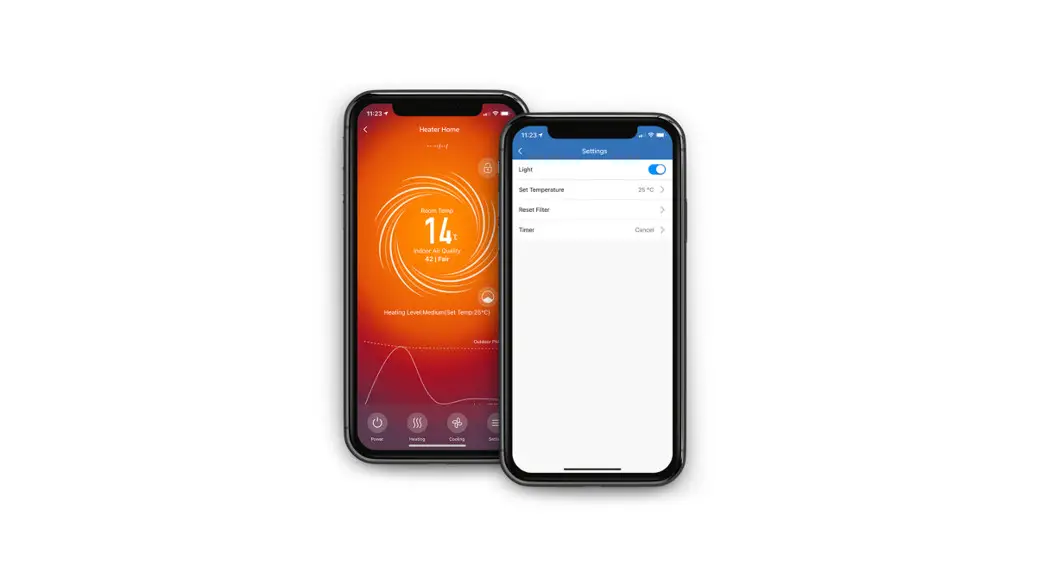

The Breville Home Connect app
Start Guide
How to register your account.
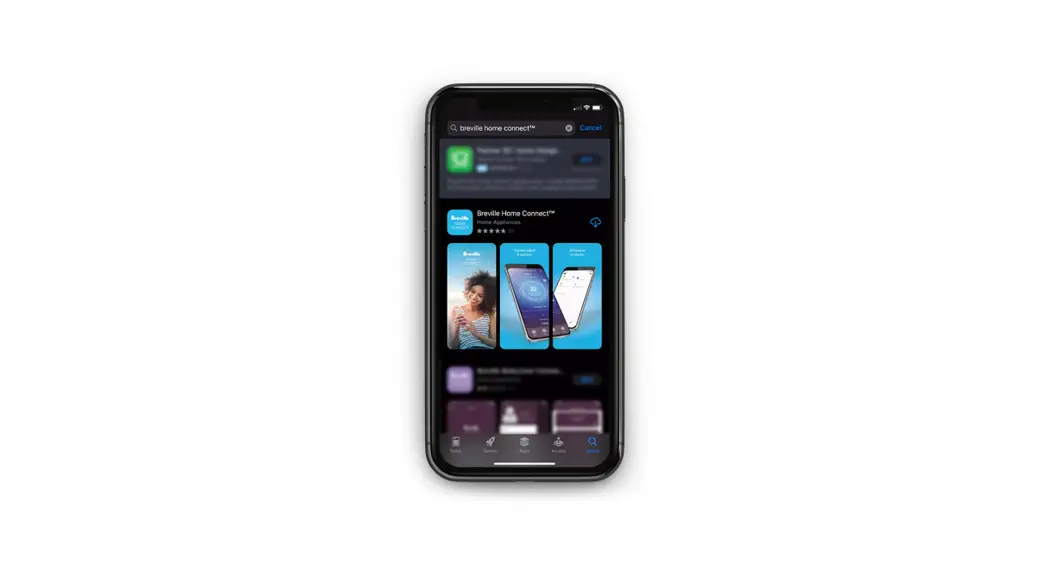
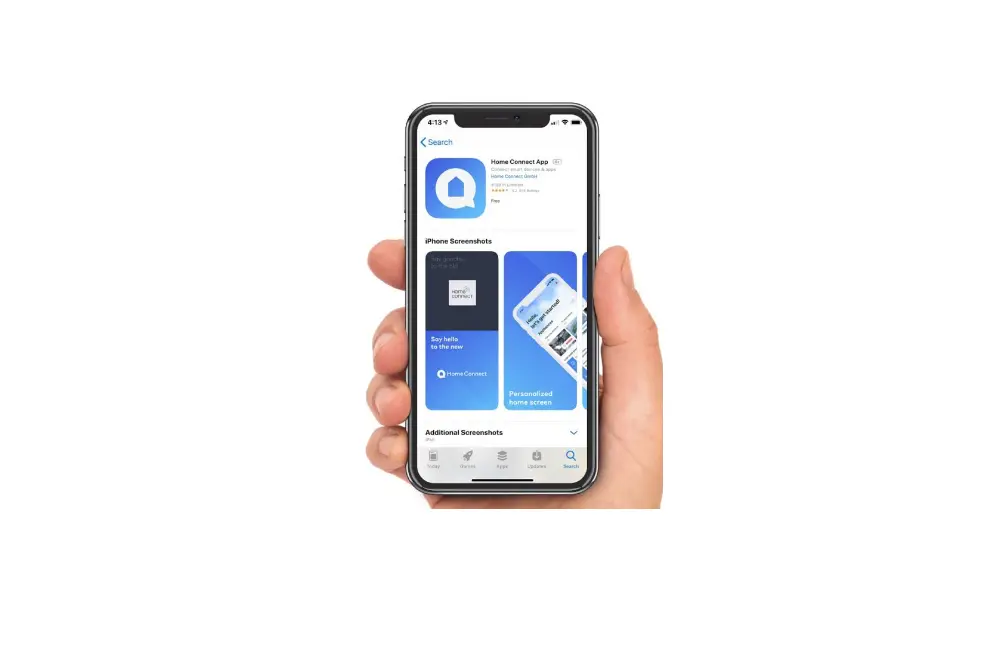
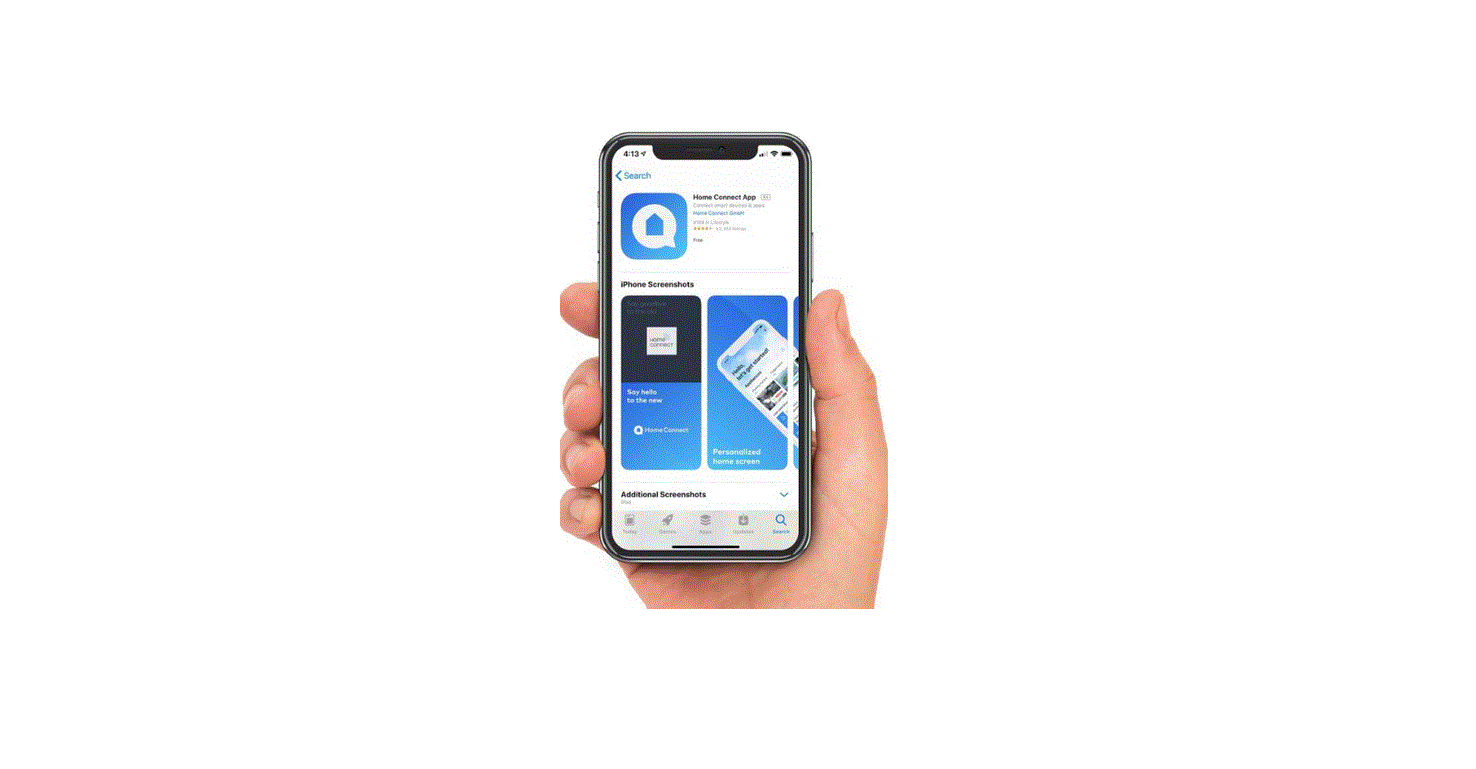
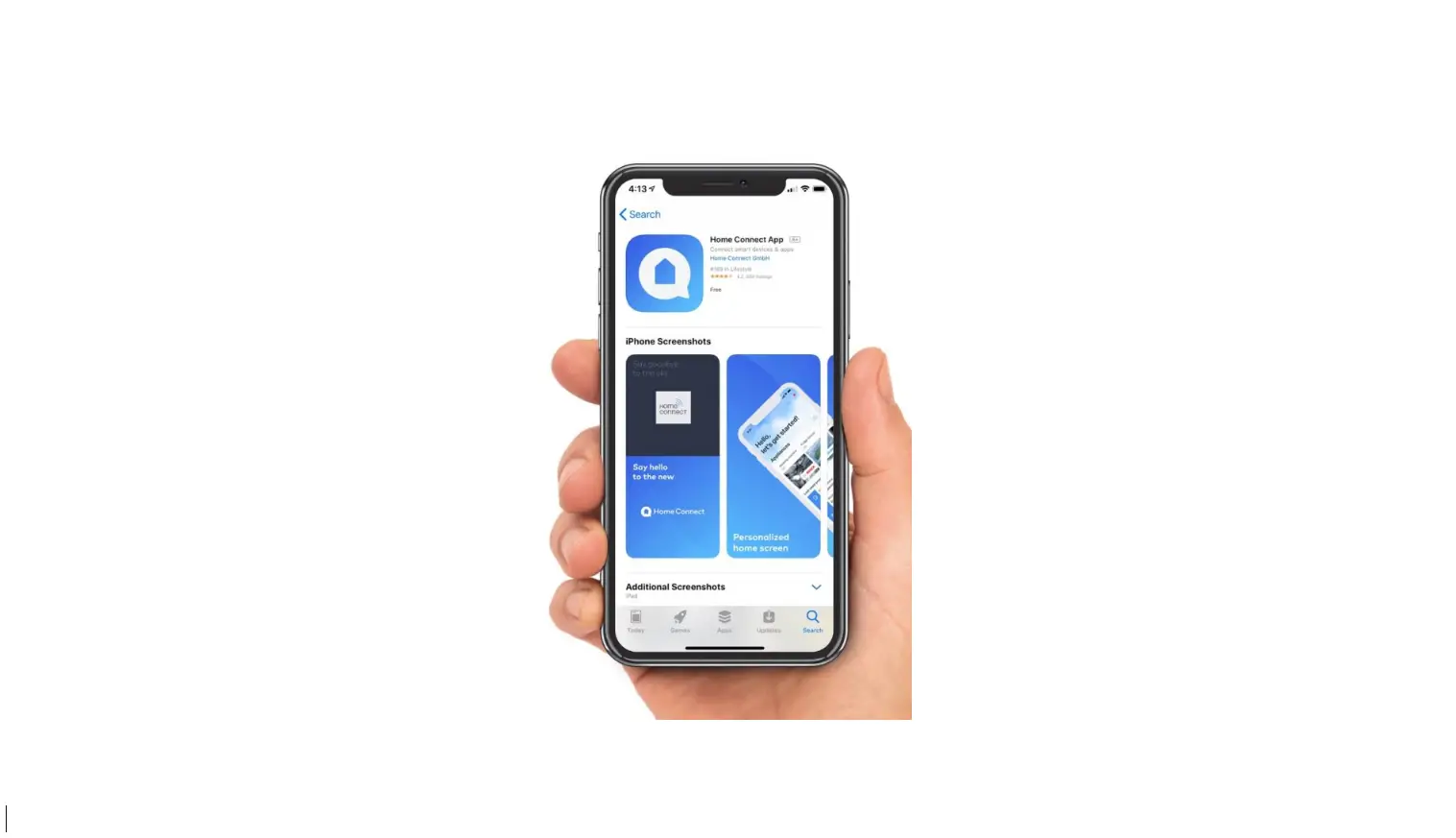
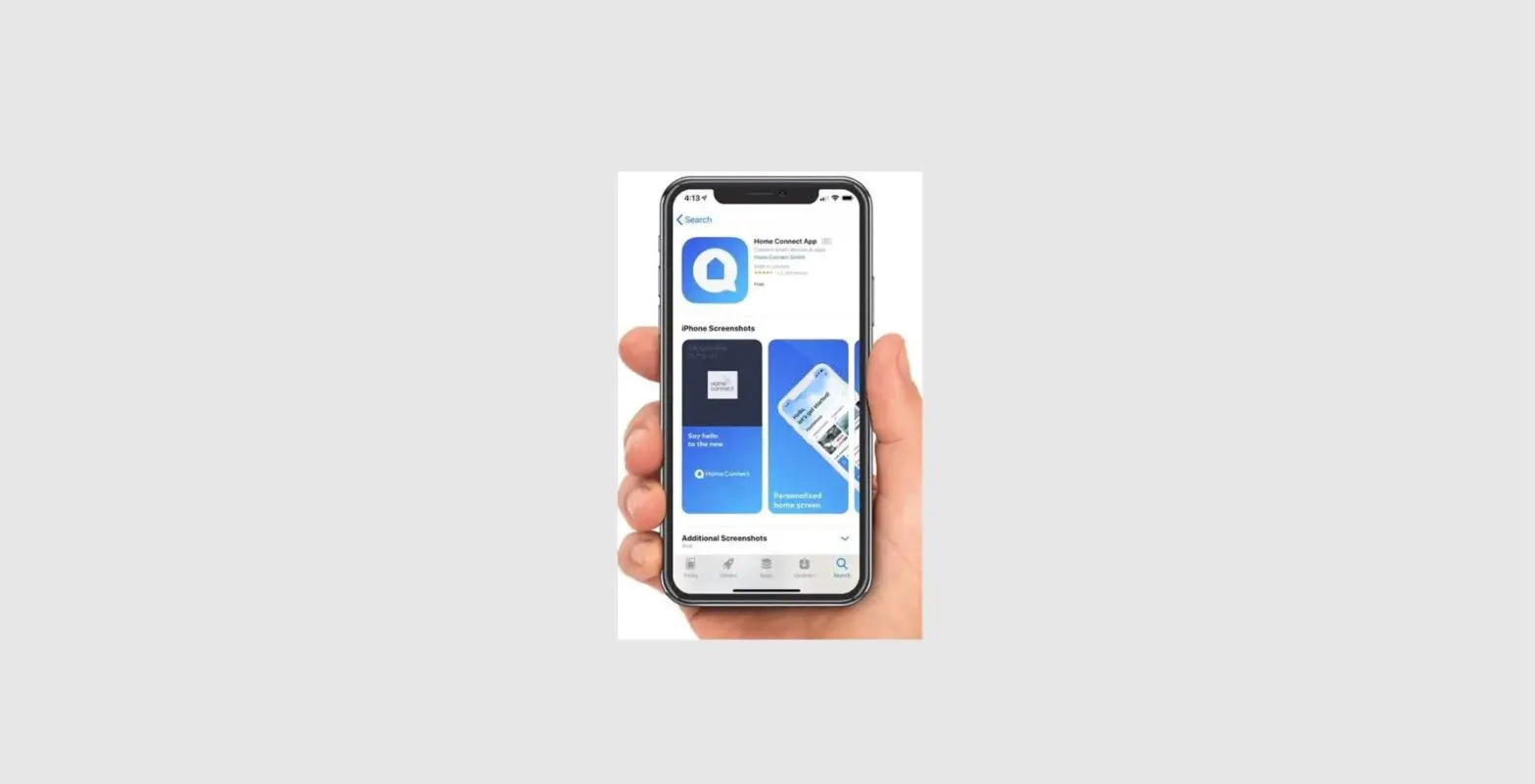
- Download the Breville Home ConnectTM app*.
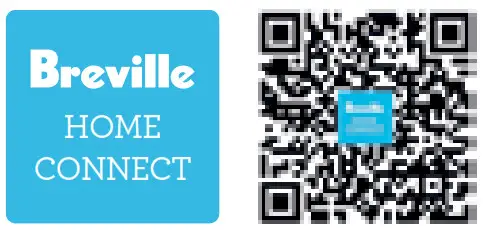
https://smartapp.tuya.com/brevilleconnect - Open the app and select `Register’. Carefully read the user agreement and privacy policy, then select `Agree’ when ready to proceed.

- Fill in your details on the sign-up page. Select `Get Verification Code.
- A verification code will be sent to the registered email. Type the code into the app.
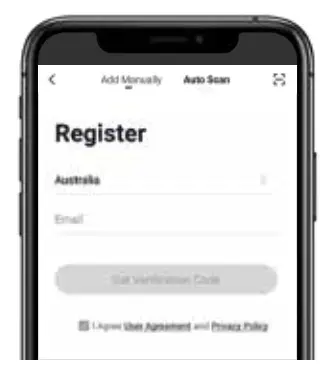
- Enter a unique password and select `Done’. You are now logged in.

*The Breville Home ConnectTM app is compatible with mobile phones running Android® 5.0 or later and iOS devices 9.0 or later.
How to set up your device.
Note: The device does not support 5GHz Wi-Fi. Please ensure to connect to a 2.4GHz Wi-Fi connection.
- Connect your mobile phone to the home Wi-Fi network.
- Refer to the information booklet for instructions on how to enable Wi-Fi on your device.

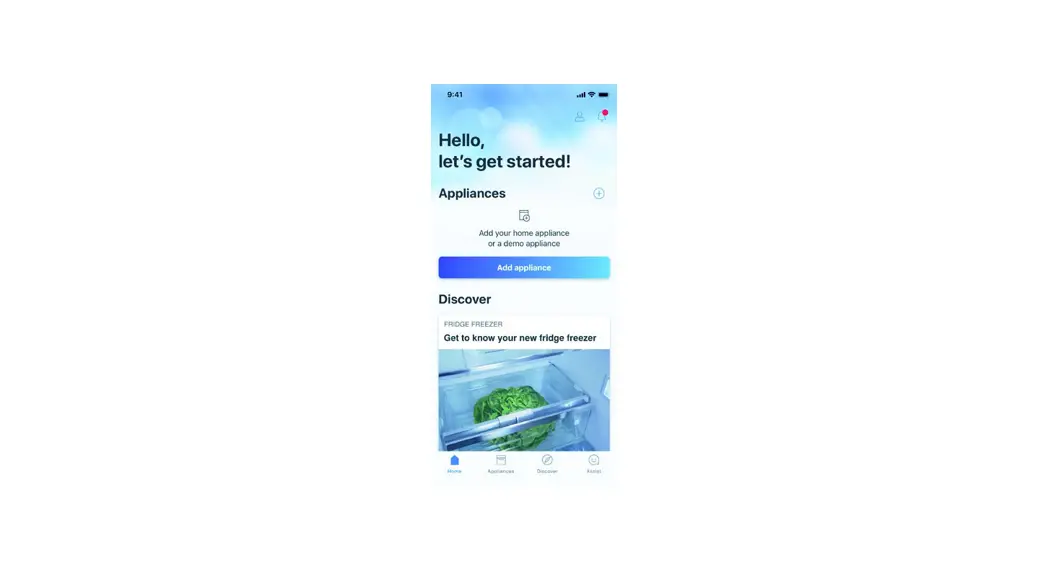
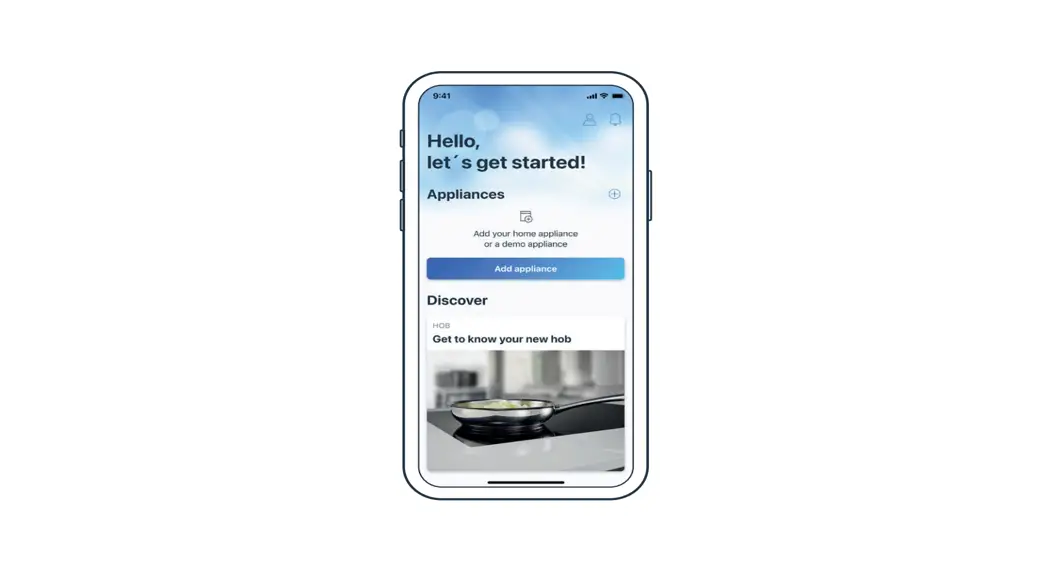
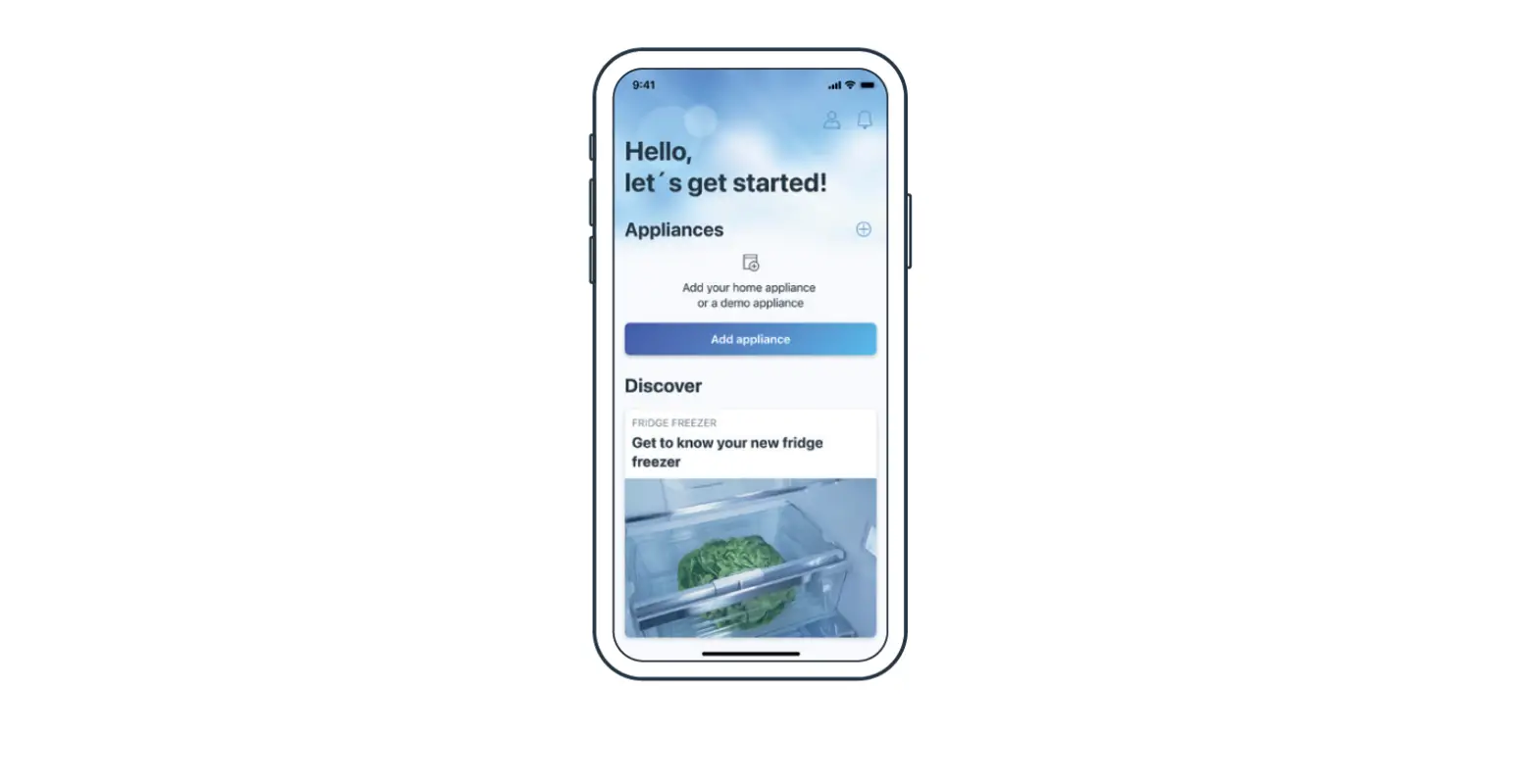
- Log into the Breville Home ConnectTM3 app to take you to the ‘Home’ page.
Touch ‘Add Device’ or+.

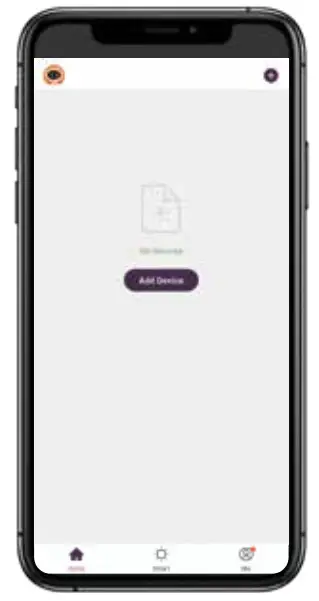
Auto Scan
Note: Refer to the information booklet for instructions on how to enable Wi-Fi on your device.
- Select ‘Auto Scan’, then touch ‘Start Scanning’*.
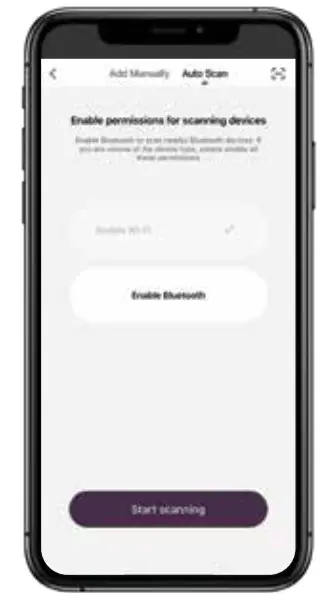
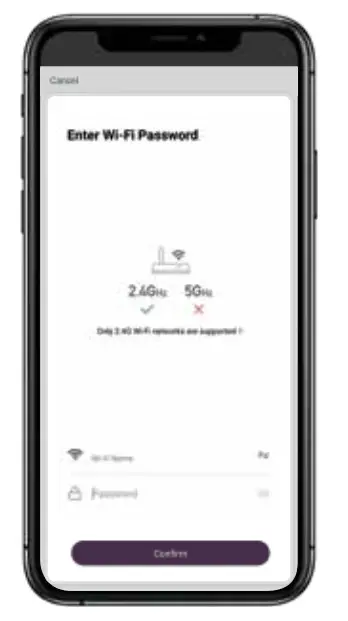
*The mobile device must have Wi-Fi and Bluetooth enabled. - Enter the password^, then select ‘Confirm’.
^You will be asked to enter the password only if it is the first connection of the app to Wi-Fi.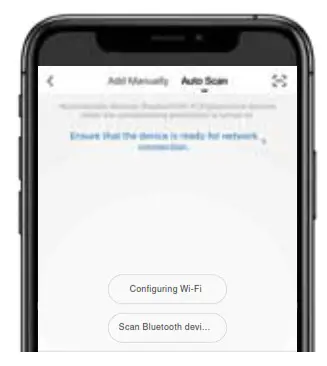
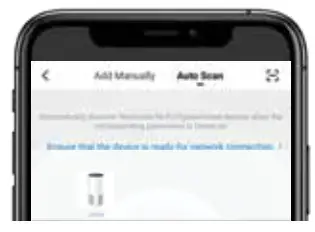
- An icon for the device will display. Select ‘Next’ to finalize.
- Change the name by selecting
 . Select ‘Done’.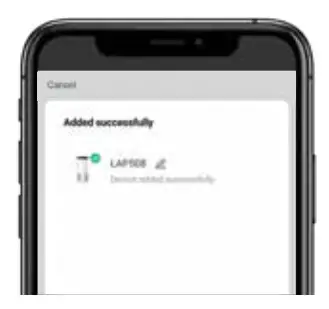
 . Select ‘Done’.
Add Manually – First Attempt (EZ mode)
Note: The app will start in EZ mode by default. If this mode fails, follow the ‘AP mode’ described on the next page.
- Select ‘Add Manually’ and choose the specific product.
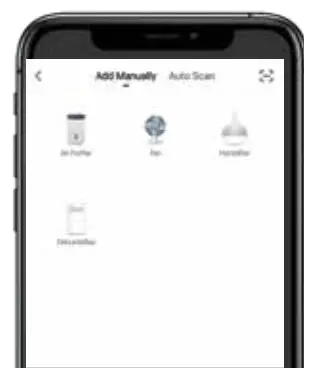
- Press and hold the button with the
 symbol on the control panel for three seconds until 1 beep sounds and
  flashes rapidly.
 - Choose a Wi-Fi network. Enter the password of the home Wi-Fi network, then select ‘Confirm’.
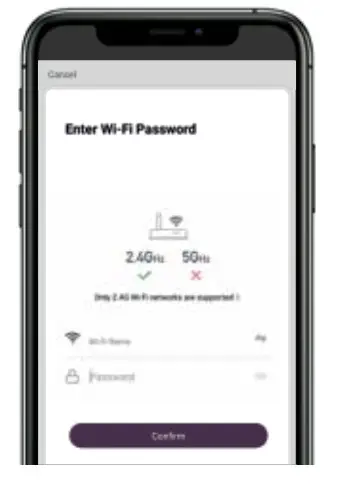
- Once the device is detected, it will start to connect to the app.
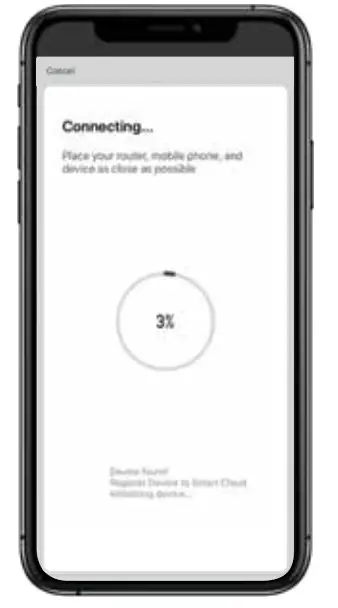
- Change the name by selecting. Select ‘Done’.
- If the connection was successful, you can now start using the app to control your device. Otherwise, follow AP mode set up next.
 symbol on the control panel for three seconds until 1 beep sounds and
  . Select ‘Done’.
Note: If the connection is not successful, try EZ Mode again.
Press and hold  for 3 seconds. 1 beep will
  sound and will flash rapidly. The unit is ready to connect through EZ Mode again.
Note: If the connection is not successful in EZ Mode, try AP Mode. Press and hold for 5 seconds. 2 beeps will sound, and will flash slowly. The unit is ready to connect through AP Mode.
Add Manually – Second Attempt (AP mode)
Note: If EZ mode fails and the device could not be added, the device can be added by creating an access point (AP mode).
- If EZ mode failed to connect, follow the prompts in the app to automatically begin AP mode. To manually access AP mode, press ‘Net Pairing Mode’ in the top right corner, then select ‘AP mode’.
- Press and hold the button with the
 symbol on the control panel for five seconds until 2 beeps sound and flashes slowly.
 - Connect the mobile device to your home Wi-Fi network.
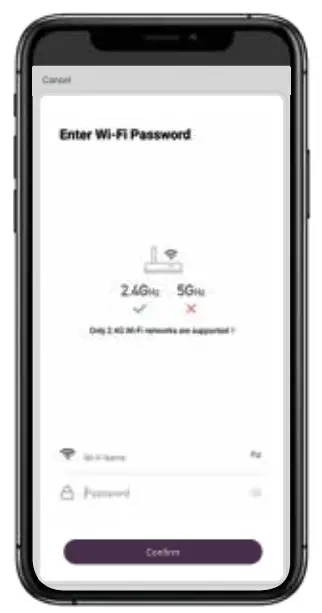
Note: A 2.4GHz Wi-Fi connection is required. - Select the hotspot beginning with ‘SL-Breville’.
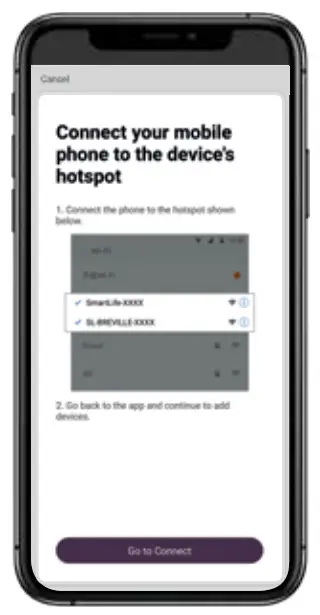
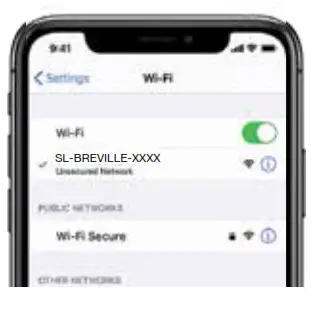
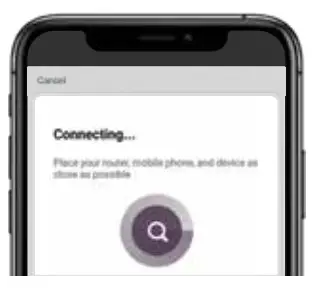
- Return to the ‘Network Configuration’ page and it will begin to add the device.
- Change the name by selecting. Select ‘Done’.
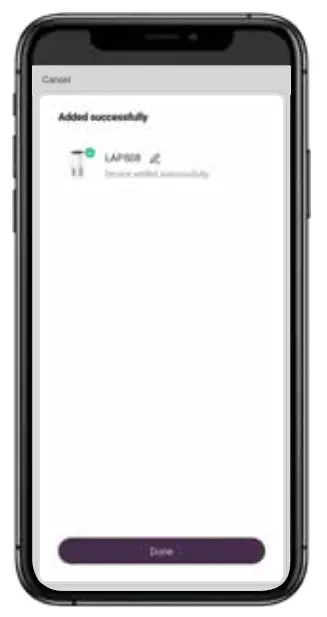
- You can now start using the app to control your device.
Breville Customer Service Centre
| Australian Customers Phone: 1300 139 798 Web: www.breville.com | New Zealand Customers Phone: 0800 273 845 Web: www.breville.com |
Breville, the Breville logo, Master Every Moment, and Breville Home Connect are trademarks of Breville Pty. Ltd. Android is a trademark of Google LLC. All other brands may be trademarks of their respective owners. Breville’s products are distributed in New Zealand under license. A.B.N. 98 000 092 928.
Due to continued product improvement, the products illustrated/photographed in this guide may vary slightly from the actual product.
QuickStart ANZ – A21
 Breville | High End Kitchen & Cooking Appliances